
Star G540 Pro - Grafiktablett XP-Pen - Kostenlose Bedienungsanleitung
Finden Sie kostenlos die Bedienungsanleitung des Geräts Star G540 Pro XP-Pen als PDF.


| Produkttyp | Grafiktablett |
| Marke | XP-Pen |
| Modell | Star G540 Pro |
| Aktive Fläche | 10 x 6,25 Zoll (ca. 254 x 159 mm) |
| Druckstufen | 8192 |
| Stift | Batterieloser, druckempfindlicher Stift mit 2 programmierbaren Seitentasten |
| Kompatible Betriebssysteme | Windows 10, 8, 7, Vista; Mac OS X 10.8 oder höher |
| Anschluss | USB (Typ A) |
| Stromversorgung | Über USB (kein externes Netzteil erforderlich) |
| Abmessungen (ca.) | 330 x 215 x 8 mm |
| Gewicht (ca.) | 500 g |
| Reinigung | Mit weichem, trockenem Tuch; keine Reinigungsmittel wie Alkohol oder Verdünner verwenden |
| Sicherheitshinweise | Nicht Wasser aussetzen, nicht zerlegen, vor extremen Temperaturen schützen |
| Reparatur | Stiftspitzen austauschbar; Treiber auf www.xp-pen.com verfügbar |
| Besonderheiten | Links- und rechtshändig nutzbar (Tablet um 180° drehen); Windows Ink-Unterstützung |
Häufig gestellte Fragen - Star G540 Pro XP-Pen
Benutzerfragen zu Star G540 Pro XP-Pen
0 Frage zu diesem Gerät. Beantworten Sie die, die Sie kennen, oder stellen Sie Ihre eigene.
Eine neue Frage zu diesem Gerät stellen
Laden Sie die Anleitung für Ihr Grafiktablett kostenlos im PDF-Format! Finden Sie Ihr Handbuch Star G540 Pro - XP-Pen und nehmen Sie Ihr elektronisches Gerät wieder in die Hand. Auf dieser Seite sind alle Dokumente veröffentlicht, die für die Verwendung Ihres Geräts notwendig sind. Star G540 Pro von der Marke XP-Pen.
BEDIENUNGSANLEITUNG Star G540 Pro XP-Pen

XP-PEN
Graphic Pen Tablet
Star G540 Pro Manual
Windows 10,8,7 and Vista Mac 10.8 or above

XP-PEN
Web site: www.xp-pen.com Mail: service@xp-pen.com
Please contact us with any questions


Designed by XPPEN Technology CO. in California, Assembled in China
natural_image
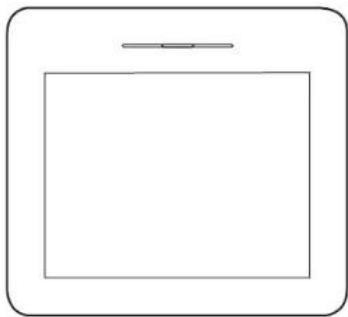
Simple line drawing of a tablet device with a blank screen and top handle (no text or symbols)www.xp-pen.com
Star G540 Pro User Manual
Safety Precautions
This manual uses the following symbols to ensure that the XP-PEN Tablet is used correctly and safely. Be sure to read and observe the Safety Precautions.

Do not use this product in a control system area that requires a high degree of safety and reliability.
In such a system, this product could negatively affect other electronic devices and could malfunction due to the effect of those devices.

Turn the power off in areas where use of electronic devices is prohibited.
Turn the power off your tablet when onboard an aircraft or in any other location where use of electronic devices is prohibited, otherwise it may negatively affect other electronic devices in the area.
Unplug the USB connector from this product and turn the power off.

Keep the product away from infants and young children.
Accessories to this gadget may present a choking hazard to small children. Keep all accessories away from infants and young children.

CAUTION
Do not place this product on unstable surfaces.
Avoid placing this product on unstable, tilted surfaces or any locations exposed to excessive vibrations. This may cause the tablet to fall or impact surfaces which can result in damage and/or malfunction to the tablet.
Do not place heavy objects on top of this product.
Do not place heavy objects on the product. Do not step on, or place your body weight on this product as this may cause damage.

Avoid extreme high or low-temperature exposure to the XP-Pen tablet.
Do not store this product in areas that drop below 5°C or above 40°C. Avoid locations with excessive temperature fluctuations. This may result in damage to the product and its components.

Do not disassemble
Do not disassemble or modify this product. Doing so may expose you to heat, fire, electric shock and injury. Disassembling the product will void your warranty.

Do not use alcohol for cleaning
Never use alcohol, thinner, benzene or other mineral solvents that may discolor and cause deterioration to the product.

Do not expose to water
Be cautious of water and all liquids that may be near the tablet. Exposure to water or liquid could damage the product.

CAUTION

Avoid placing metallic objects and especially magnetic objects on the tablet.
Placing metallic and/or magnetic objects on this product during operation may cause malfunction or permanent damage.

Do not strike the pen against hard objects.
Striking the pen against hard objects can cause damage to the pen.

Avoid gripping the pen too tightly, and DO NOT use excessive weight/pressure on the Express Key button and pen.
The stylus pen is a high-precision instrument. Avoid pressing too tightly on the
Express Key button, and keep any objects from covering the pen to avoid potential damage. Keep the pen away from areas of high dust, contaminants, or any particulate matter that can effect or damage the pen.
Limitation of Liability
■ XP-Pen shall in no event be liable for damages resulting from fires or earthquakes, including those caused by third parties and those arising from user misuse, abuse or neglect.
- XP- Pen shall in no event be liable for incidental damages- including but not limited to loss of business income, interruption of business activities, corruption or loss of data – that arise from use or failure to use this product correctly.
■ XP- Pen shall in no event be liable for damage resulting from uses not documented in this manual.
■ XP- Pen shall in no event be liable for damages or malfunction arising from the connection to other devices or use of third party software.
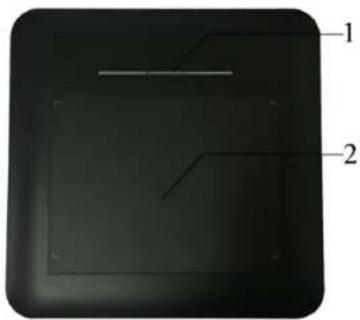
{I. Product Overview}
natural_image
Close-up of a dark rectangular electronic component with labeled parts (1 and 2), no visible text or symbols beyond labels.(1). Status indicator light
a. White, blinking: Stylus is in range of, but not touching, the working area.
b. White, solid: Stylus is touching the working area.
c. No light: Stylus is out of detection range.
(2). Active area
{II. Stylus}
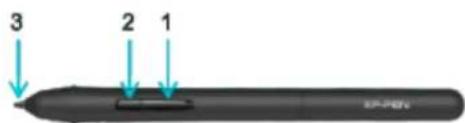
(1) Barrel button 2
(2) Barrel button 1
(3) Pen tip
NOTES:
a. Barrel button functions can be customized in the tablet's driver settings.
b. Stylus does not use a battery or require charging.
{III. Driver installation}
Supported operating systems:
Windows 10, 8 or 7
Mac OS X 10.8 or above
NOTES :
(1). Disable any antivirus or firewall software and close any non-essential background software before beginning the installation. Some software, such as OneDrive and Dropbox, may monopolize important files and prevent a successful installation. On Windows computers, check the system tray on the bottom-right of the screen and close any software unrelated to your computer hardware.
(2). Uninstall any existing tablet software before attempting to install the G540 Pro driver. Other tablet drivers will conflict with the Star G540 Pro driver or prevent installation entirely.
(3). Please download the latest driver version from the XP-Pen website (www.xp-pen.com) then be sure to extract the .zip file contents before running ".exe" or ".pkg".
Windows
(1). Connect the Star G540 Pro to your computer.
(2). Download the latest driver and unzipthen open it and run its.exe file.
(3). After a successful installation, the driver's icon (U) will appear in your system tray and on your desktop. If the icon is not present, uninstall the driver, reboot, and repeat step 2.
Mac
(1). Connect the Star G540 Pro to your computer.
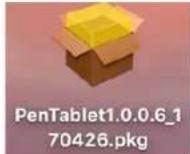
(2). Download the latest driver and unzip then open the "Mac Driver" folder, then run its .pkg file.
{IV. Driver installation}
Windows UI
- Barrel Button Settings
You may customize the functions of your tablet pen's barrel buttons here. Use the "Function Key" option to program custom keystrokes.
- Click Sensitivity & Current Pen Pressure
Lighter sensitivity means that digital pressure level will rise with less applied physical pressure. Current Pen Pressure shows the current pressure level being exerted on your tablet and can be used to test pen pressure.
XP-PEN
3. Mouse Mode
Absolute (Pen) Mode: Standard tablet mode; Each point of the tablet's work area corresponds to an absolute point on your computer display.
Relative (Mouse) Mode: Mouse mode; The tablet's work area does not correspond to absolute points on your computer display and your pen works as a standard mouse.
4. Current Screen
The Star G540 Pro may be configured for use with single, dual or more monitors. And the dimensions of your tablet's on-screen work area can be changed here.
5. Right & Left Hand Mode
The Star G540 Pro is set up for right-handed use by default. When switching to left-handed mode, be sure to rotate the actual physical tablet 180 degrees to place its shortcut keys on its opposite side.
6. Windows Ink
Windows Ink capability can be toggled on and off here. Enabling this will allow support for Windows Ink and applications that run using Windows Ink.
![Pentablet XP-Pen Star 6540 Pro Barrel Button Settings Pen[B]/Eraser[E] Right Click Click Sensitivity Light Heavy Current Pen Pressure 0 Mouse Mode Absolute Mode Relative Mode Current Screen Monitor1 Custom Display Happen X: 0 Y: 0 W: 1542 H: 927 X: 0 Y: 0 W: 12.7 H: 10.14 [cm] Left Hand Mode Right Hand Mode Max Active Area Display Rats XP-PEN Click to visit our website Windows ink Default OK Cancel Apply Copyright©2017 XPEN Technology CO.All Rights Reserved. Ver:1.3.6(Build.179905)](/content/2026/05/909100/images/ee58eb96c37295018b372afe41c9d024f0ee957ace0d4bd5701380d751d6254f.jpg)
Mac UI
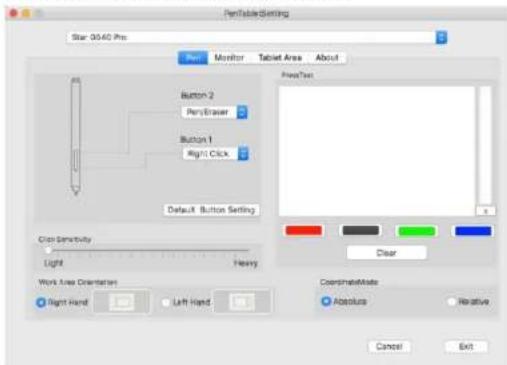
1. Pen
In this tab, you may customize the functions of your stylus's barrel buttons, adjust pressure sensitivity and test your pen pressure.
Click "Default Button Setting" to revert to manufacturer settings.
2. Monitor
The "Monitor" tab allows you to configure your tablet for use with single, dual or more monitors. The tablet can also be configured to use only a portion of your display.
XP-PEN
3. Tablet Area
You may adjust your tablet's on-screen working area in this tab.
"Full Monitor" automatically selects the largest possible working area.
"Screen Ratio" adjusts the tablet's on-screen working area to match your monitor's resolution.
The Star G540 Pro can also be configured for right or left-handed use in this tab. When switching to left-handed mode, be sure to rotate the actual physical tablet 180 degrees to place its shortcut keys on its opposite side.
Absolute and Relative Modes
Absolute (Pen) Mode: Standard tablet mode; Each point of the tablet's work area corresponds to an absolute point on your computer display.
Relative (Mouse) Mode: Mouse mode; The tablet's work area does not correspond to absolute points on your computer display and works as a standard mouse.
4. About
This tab displays the current version of your driver software.
{V. Driver Uninstallation}
Windows
The are 3 ways to uninstall your Star G540 Pro driver.
a. In the Start menu, open [Settings] → [Apps & features]. Find "Pentablet" and click "Uninstall." Follow the on-screen instructions.
b. Click "Start," then scroll down to the "XPPEN Technology" folder. Click "Uninstall." c. Run the driver's installer again, then select "Remove" when prompted.
Mac
Open [Finder]→[Application]→[Pen Tablet], then click "Uninstall Pen Tablet" and follow the on-screen instructions.


- Graphic Pen Tablet
- Star G540 Pro Manual
- XP-PEN
- Star G540 Pro User Manual
- Safety Precautions
- CAUTION
- Limitation of Liability
- {III. Driver installation}
- NOTES :
- Windows
- Mac
- {IV. Driver installation}
- Windows UI
- Mouse Mode
- Current Screen
- Right & Left Hand Mode
- Windows Ink
- Mac UI
- Pen
- Monitor
- Tablet Area
- About
- {V. Driver Uninstallation}
Marke : XP-Pen
Modell : Star G540 Pro
Kategorie : Grafiktablett