
X1 - Regler Gamesir - Kostenlose Bedienungsanleitung
Finden Sie kostenlos die Bedienungsanleitung des Geräts X1 Gamesir als PDF.


| Produkttyp | FPS-Dockingstation für Smartphones |
| Marke | Gamesir |
| Modell | X1 |
| Kompatible Plattformen | Android 4.0 oder höher / iOS 7.0 oder höher |
| Verbindung | Bluetooth |
| Arbeitsabstand | Ca. 7 m (23 Fuß) |
| Akku-Kapazität | 3000 mAh |
| Ladespannung | 5 V |
| Ladestrom | 1 A - 1,5 A |
| Ladezeit | 2-3 Stunden |
| Betriebstemperatur | 5 °C bis 65 °C |
| Luftfeuchtigkeit | 20 % - 80 % |
| Produktmaße | 13,5 x 10,2 x 3,1 cm (5,31 x 4,02 x 1,22 Zoll) |
| Verpackungsmaße | 17,5 x 13,0 x 4,0 cm (6,88 x 5,12 x 1,57 Zoll) |
| Nettogewicht | 277 g (0,61 lb) |
| Hauptfunktionen | Ermöglicht Maus- und Tastatursteuerung auf Smartphones für FPS-Spiele; Bluetooth-Verbindung; anpassbare Tastenbelegung |
| Reinigung und Pflege | Mit einem weichen, trockenen Tuch reinigen. Keine Flüssigkeiten oder Scheuermittel verwenden. |
| Sicherheitshinweise | Nicht in der Nähe von Wasser oder Wärmequellen verwenden. Vor Feuchtigkeit schützen. |
| Ersatzteile | Nicht separat erhältlich. Bei Defekt wenden Sie sich an den Kundendienst. |
| Reparatur | Reparaturen nur durch autorisiertes Fachpersonal. |
Häufig gestellte Fragen - X1 Gamesir
Benutzerfragen zu X1 Gamesir
0 Frage zu diesem Gerät. Beantworten Sie die, die Sie kennen, oder stellen Sie Ihre eigene.
Eine neue Frage zu diesem Gerät stellen
Laden Sie die Anleitung für Ihr Regler kostenlos im PDF-Format! Finden Sie Ihr Handbuch X1 - Gamesir und nehmen Sie Ihr elektronisches Gerät wieder in die Hand. Auf dieser Seite sind alle Dokumente veröffentlicht, die für die Verwendung Ihres Geräts notwendig sind. X1 von der Marke Gamesir.
BEDIENUNGSANLEITUNG X1 Gamesir
GameSir X1 FPS DOCK
User Manual

natural_image
Technical line drawing of a mechanical device with no visible text or symbolsWE HOPE THIS MANUAL ANSWERED ANY QUESTIONS
YOU MAY HAVE HAD, IF YOU HAVE ANY FURTHER QUESTIONS,
PLEASE CONTACT US.
f GameSir Facebook: https://www.facebook.com/myGamesir
Customer Service: cs@gamesr.hk
Support: https://gamesir.his/pages/gamesir-s1-z1-z2-jps-dock-firmware-tutorial
1. PRODUCT DESCRIPTION
GameSir X1 FPS DOCK is the innovative docking station to bring you the unprecedented PC gaming experience of the mice and keyboard control on the smartphones via Bluetooth connection! It is exclusively designed for FPS games and compatible with Android smartphones. Connect GameSir X1 to your Android devices and it will automatically identify input devices without ROOT. With FPS DOCK app for both iOS and Android, you can now enjoy the hot FPS games with your keyboard and mouse with a next level of control experience!
- DETAILED SPECIFICS
| PRODUCT NAME | GameSr X1 FPS DOCK | PRODUCT MODEL | Gamesir-X1 |
| WORKING PLATFORM | Android 4.0 or above / iOS 7.0 or above | WORKING TEMPERATURE | 5°C-65°C |
| WORKING HUMIDITY | 20 - 80% | ||
| WORKING MODE | Android Primary Protocol | CONNECTION | Bluetooth |
| CHARGING VOLTAGE | 5V | CHARGING TIME | 2-3 hrs |
| CHARGING CURRENT | 1A - 1.5A | WORKING DISTANCE | Approx. 23.0 ft |
| PACKAGE SIZE | 6.88 x 5.12 x 1.57in. | BATTERY CAPACITY | 3000mAh |
| PRODUCT SIZE | 5.31 x 4.02 x 1.22in. | NET WEIGHT | 0.61lb |
- PRODUCT OVERVIEW
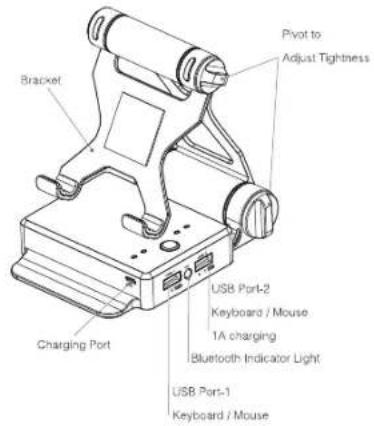

4. HOW TO USE
For Android users

Step 1
Please scan the QR code above to download and install FPS DOCK.
Step 2
Connect X1 to Android device via Bluetooth, then launch FPS DOCK
APP and click "Keep running in background".
Step 3
Enter a game, click "FPS DOCK" icon in the upper left corner, then click
"Setting" icon. If it is the first time to run FPS DOCK APP in this game,
click "Write config", then select the official config. At last, click "Close"
icon to save the configuration and quit the setting.
Step 4
If you want to show or hide the key mappings, please click "Show / Hide"
icon, then click "Close" icon to save and quit.
Step 5
You can customize any keys by dragging them to wherever you like, then
click "Close" icon to save the configuration and quit the setting.
Step 6
You can add key mappings by pressing the phone screen for 2 seconds.
The red question icon will appear, and tap the key you want to add on
keyboard, then the red question icon will change to the key you tapped.
A: last, click "Close" icon to save the configuration and quit the setting.
Step 7
You can delete key mappings by dragging the key to "Trash" icon. Then
click "Close" icon to save the configuration and quit the setting.
Note:
a. You can customize key mappings in training map before playing.
b. If all the keys have been configured, there is no need to launch the
FPS DOCK APP the next time.
c. If key mapping does not work after flipping the phone, please press
Ctrl + X buttons simultaneously.
d. The FPS DOCK firmware does not apply to Android phones / tablets
with MTK chips.
For iOS users:

Step 1
Please scan the QR code above to download and install FPS DOCK.
Step 2
Turn on Bluetooth on iOS device and power on X1, then connect
keyboard to X1. Press Ctrl + F2 buttons on the keyboard simultaneously,
you will find X1 named "FPS-DOCK_I"**** on the list of Bluetooth
devices. Click it to pair.
Step 3
Take a screenshot of the control panel of the game you want to play.
Step 4
Launch FPS DOCK APP and click "Game mapping config", then click
"Screenshot" icon to add the screenshot of a game control panel.
Step 5
You can add key mappings by pressing the phone screen for 2
seconds. The red question icon will appear, and tap the key you want
to add on keyboard, then the red question icon will change to the key
you tapped. In addition, you can customize any keys by dragging them
to wherever you like. You can also delete key mappings by dragging
the key to "Trash" icon.
Step 6
You can add D-pad and visual angle function by clicking "Direction"
and "Mouse" icons after clicking "Key" icon. Meanwhile, you can click
"Direction" icon to adjust the radius of D-pad.
Step 7
Once the custom configuration is complete, click "Save" icon and input
a custom name,
Step8
Click "Config" icon to choose the official configuration or custom
configuration.
Step 9
You need to click "Save" and "Download" icons to write the configuration
to your phone and you can start to play.
Note:
a. You can customize key mappings in training map before playing.
b. You can customize key mappings with FPS DOCK APP while playing
c. The default mode is Android mode and X1 is named "FPS-DOCK
**** on the list of Bluetooth devices, you need to press Ctrl + F2
buttons simultaneously to switch to iOS mode and the name of X1 will
change to "FPS-DOCK_I_****". If you want to switch from iOS mode to
Android mode, press Ctrl + F1 buttons simultaneously.
5. BATTERY SAVE MODE
The GameSir X1 will automatically turn off when there is no operation for 30 seconds.
6. HOW TO CHARGE GAMESIR X1 FPS DOCK?
Please plug an USB cable into the charging port to charge the X1.
Remind that some keyboard and mouse have high-power consumption.
please make sure your X1 has enough power when you playing.
Marke : Gamesir
Modell : X1
Kategorie : Regler