HS7T - Monitor Portkeys - Kostenlose Bedienungsanleitung
Finden Sie kostenlos die Bedienungsanleitung des Geräts HS7T Portkeys als PDF.


Benutzerfragen zu HS7T Portkeys
0 Frage zu diesem Gerät. Beantworten Sie die, die Sie kennen, oder stellen Sie Ihre eigene.
Eine neue Frage zu diesem Gerät stellen
Laden Sie die Anleitung für Ihr Monitor kostenlos im PDF-Format! Finden Sie Ihr Handbuch HS7T - Portkeys und nehmen Sie Ihr elektronisches Gerät wieder in die Hand. Auf dieser Seite sind alle Dokumente veröffentlicht, die für die Verwendung Ihres Geräts notwendig sind. HS7T von der Marke Portkeys.
BEDIENUNGSANLEITUNG HS7T Portkeys
HS7T
PortKeys
User manual
Address : No:1406 Cloud Park 3D Longgang District Shenzhen China
Address : No:1502 Asia [Industry Park Banli Blvd Shenzhen China
Service Hotline : 4008090896
Email:sales@pkscorp.com Website:www.pkscorp.com
SHENZHEN PORTKEYS ELECTRONIC TECHNOLOGY CO.,LTD
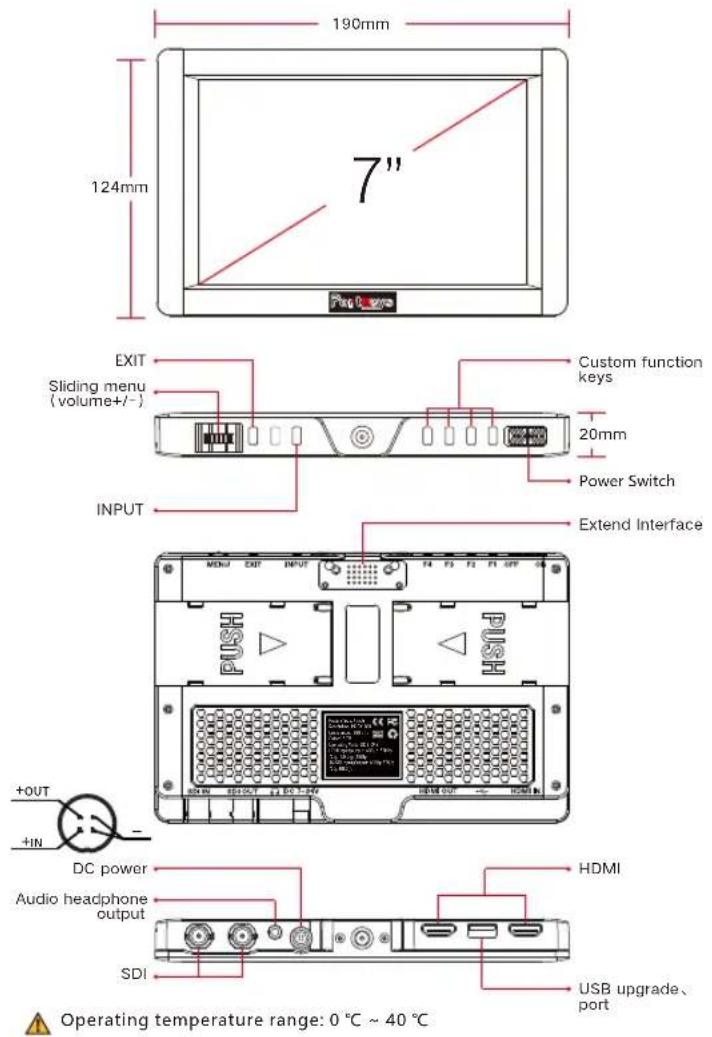
Product appearance size Standard accessories
text_image
190mm 124mm 7" EXIT Sliding menu (volume+/-) Custom function keys 20mm Power Switch INPUT Extend Interface HDMI PUSH DC power Audio headphone output HDMI SDI USB upgrade、 port +OUT +IN Operating temperature range: 0 °C ~ 40 °C| HS7T Monitor X1 | Screen Cleaning Wipe X1 |
| Pocket X1 | 7" Matte Glass Screen Protector X2 |
| U Disk X1 | D-Tap cable to 4-Pin Female Headphone Cable x1 |
Parameter
| Size | 7* |
| Dimension | 190x124x20mm |
| Viewing Angle | 178°H/178°V |
| Brightness(nit) | 1200 |
| Resolution | 1920X1200 |
| Contrast Ratio | 1200:1 |
| Weight | 300g |
| Color | 8bit (16.7M Color) |
| Backlight | LED |
| Material | ABS Engineering Plastics |
| Input Voltage | DC 7 ~24V |
| Power Consumption | 11W |
| Signal input | 3G/HD/SD-SDI、4K HDMI、HDMI、USB |
| Signal output | 3G/HD/SD-SDI、4K HDMI、HDMI |
| Headphone | Output |
| Menu Language | 简体中文/English |
Supported input resolution and frame rate
SDI Signal
1920×1080p@50fps,59.94fps,60fps
1920×1080p@50Hz,59.94Hz,60Hz YUV422
1920×1080p@23.97Hz,24Hz,25Hz,29.94Hz,30Hz YUV444/YUV422/RGB444
1920×1080psf@23.97Hz,24Hz,25Hz,29.97Hz,30Hz YUV444/YUV422/RGB444
1920×1080i@50Hz,59.94Hz,60Hz YUV444/YUV422/RGB444
1280×720p @50Hz,59.94Hz,60Hz YUV444/YUV422/RGB444
720×480i @59.94Hz YUV422
720×576i @50Hz YUV422
HDMI Signal
4096×2160p@24Hz
3840×2160p@23.97Hz,24Hz,25Hz,29.97Hz,30Hz
1920×1080p@23.97Hz,24Hz,25Hz,29.97Hz,30Hz,50Hz
1920×1080psf@23.97Hz,24Hz,25Hz,29.97Hz,30Hz
1920×1080i@,50Hz,59.94Hz,60Hz
1280×720p@50Hz,59.94Hz,60Hz
720×576p&720×576i@50Hz
720×480p&720×480i@50Hz,59.94Hz,60Hz
Supported output resolution and frame rate SDI Signal
1920×1080p@50fps,59.94fps,60fps
1920×1080p@50Hz,59.94Hz,60Hz YUV422
1920×1080p@23.97Hz,24Hz,25Hz,29.94Hz,30Hz YUV444/YUV422/RGB444
1920×1080psf@23.97Hz,24Hz,25Hz,29.97Hz,30Hz YUV444/YUV422/RGB444
1920×1080i@50Hz,59.94Hz,60Hz YUV444/YUV422/RGB444
1280×720p @50Hz,59.94Hz,60Hz YUV444/YUV422/RGB444
720×480i @59.94Hz YUV422
720×576i @50Hz YUV422
HDMI Signal
4096×2160p@24Hz
3840×2160p@23.97Hz,24Hz,25Hz,29.97Hz,30Hz
1920×1080p@23.97Hz,24Hz,25Hz,29.97Hz,30Hz,50Hz
1920×1080psf@23.97Hz,24Hz,25Hz,29.97Hz,30Hz
1920×1080i@,50Hz,59.94Hz,60Hz
1280×720p@50Hz,59.94Hz,60Hz
720×576p&720×576i@50Hz
720×480p&720×480i@50Hz,59.94Hz,60Hz
【MAIN】
[Guides]
| Guides | Press MENU, Then → | Off/80%/90%/15:9/1.33:1/1.5:1/1.85:1/2:1/2.35:1/Custom ▶ |
| H (Custom) | Press MENU, Then → | 1% ~ 100% ▶ |
| V (Custom) | Press MENU, Then → | 1% ~ 100% ▶ |
| Guide Masks | Press MENU, Then → | Off/On ▶ |
| Crosshair | Press MENU, Then → | Off/On ▶ |
| Grids | Press MENU, Then → | 1/2/3/4/5/6/7/8/9/10/Off ▶ |
| Back |
[Video Config]
| Brightness | Press MENU, Then←→ | 0~100 |
| Contrast | Press MENU, Then←→ | 0~100 |
| Chroma | Press MENU, Then←→ | 0~100 |
| Sharpness | Press MENU, Then←→ | 0/10/20/30/40/50/60/70/80/90/100 |
| Tint | Press MENU, Then←→ | 0~100 |
| Color Temperature | Press MENU, Then←→ | 5600K/6500K/7500K/9300K/Manual |
| ManualPress MENU | RedPress MENU, Then←→ | 0-255 |
| GreenPress MENU, Then←→ | 0-255 | |
| BluePress MENU, Then←→ | 0-255 | |
| Back | ||
| Backlight | Press MENU, Then←→ | Low/Middle/High |
| Aspect | Press MENU, Then←→ | User/Full/16:9/15:9/1.33:1/1.5:1/1.85:1/2:1/2.35:1 |
| UserPress MENU | AspectPress MENU, Then←→ | User/Full/16:9/15:9/1.33:1/1.5:1/1.85:1/2:1/2.35:1 |
| WidePress MENU, Then←→ | 50~100 | |
| HeightPress MENU, Then←→ | 50~100 | |
| Back | ||
| Back |
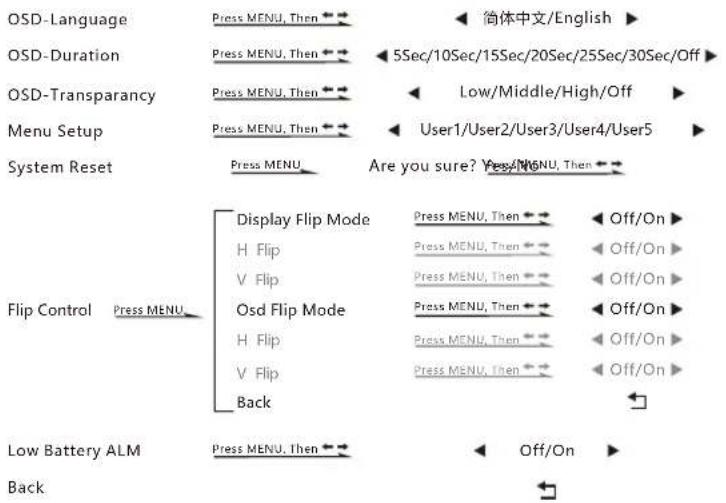
[System Config]
text_image
OSD-Language Press MENU, Then ←→ 5Sec/10Sec/15Sec/20Sec/25Sec/30Sec/Off OSD-Duration Press MENU, Then ←→ Low/Middle/High/Off OSD-Transparency Press MENU, Then ←→ User1/User2/User3/User4/User5 Menu Setup Press MENU Are you sure? Yes/MENU, Then ←→ System Reset Flip Control Press MENU Display Flip Mode Press MENU, Then ←→ Off/On H Flip Press MENU, Then ←→ Off/On V Flip Press MENU, Then ←→ Off/On Osd Flip Mode Press MENU, Then ←→ Off/On H Flip Press MENU, Then ←→ Off/On V Flip Press MENU, Then ←→ Off/On Back Low Battery ALM Press MENU, Then ←→ Off/On Back[Function Setup]
text_image
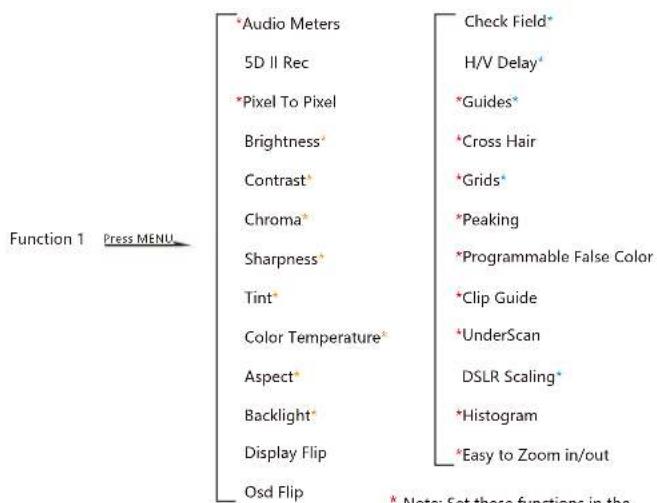
Function 1 Press MENU *Audio Meters 5D II Rec *Pixel To Pixel Brightness* Contrast* Chroma* Sharpness* Tint* Color Temperature* Aspect* Backlight* Display Flip Osd Flip Check Field* H/V Delay* *Guides* *Cross Hair *Grids* *Peaking *Programmable False Color *Clip Guide *UnderScan DSLR Scaling* *Histogram *Easy to Zoom in/out * Note: Set these functions in the[LUT Config]
Copied the cube format LUT file to the U disk, then insert it to HS7T USB interface.
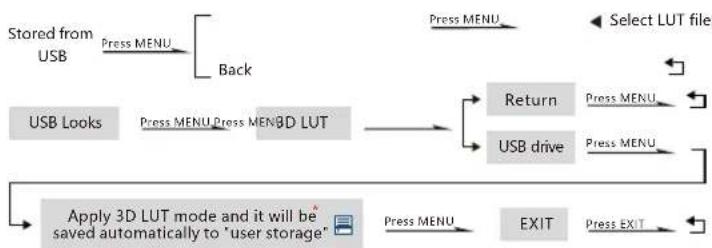
flowchart
graph TD
    A["Stored from USB"] --> B["Press MENU"]
    B --> C["Back"]
    C --> D["USB Looks"]
    D --> E["Press MENU"]
    E --> F["Press MENBD LUT"]
    F --> G["Return"]
    F --> H["USB drive"]
    G --> I["Select LUT file"]
    H --> J["Press MENU"]
    J --> K["Press MEN"]
    K --> L["Apply 3D LUT mode and it will be saved automatically to 'user storage'"]
    L --> M["Press MENU"]
    M --> N["EXIT"]
    N --> O["Press EXIT"]
*LUT file could be stored repeatedly, to delete, please enter the user storage interface and delete it by the above steps. LUT file format Cube, support16/17/32/33/64/65 precision (LUT_3D_SIZE).
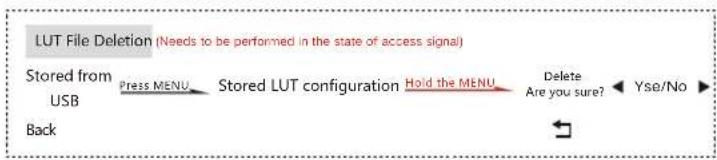
flowchart
graph LR
    A["Stored from USB"] --> B["Press MENU"]
    B --> C["Stored LUT configuration"]
    C --> D["Hold the MENU"]
    D --> E["Delete Are you sure?"]
    E --> F["Yse/No"]
    G["Back"] --> H["Arrow"]
* Note: Set these functions in the custom shortcut function key, long press in 3 seconds to display the menu of this function.
* Note: Continuous click on the button, you can cycle switch.
* Note: Click on the button and toggle the wheel to adjust parameters.

[Firmware]

text_image
Version Information Press MENU Firmware Ver HS7T-V1.01.18 Update (USB) Press MENU Are you sure? Yes/No MENU, Then BackPlease pay attention to the official website (www.pkscorp.com) update the latest firmware!
[Exit]
\*Shortcut keys (hidden menu operation) Operation:
Long press in 3 sec set "Audio Meters" onto one custom function key
[Audio Meters]
| Audio Meters | Press MENU, Then | On/Off |
| Position | Press MENU, Then | Top/Left/Division/Right/Bottom |
| Blending | Press MENU, Then | 0~100 |
| Exit |
Long press in 3 sec set "Pixel To Pixel" onto one custom function key
[Pixel To Pixel Setting]
| Position | Press MENU, Then ←→ | Middle/L+T/R+T/R+B/L+B/User |
| X Offset | Press MENU, Then ←→ | -240~+240 |
| Y Offset | Press MENU, Then ←→ | -240~+240 |
| Exit |
The resolution of the input signal is different and the offset value changes.
Long press in 3 sec set "Guides" onto one custom function key
[Guides Setting]
| Guides | Press MENU, Then → | Off/80%/90%/15:9/1.33:1/1.5:1/1.85:1/2:1/2.35:1/Custom ▶ |
| H (Custom) | Press MENU, Then → | 1%-100% ▶ |
| V (Custom) | Press MENU, Then → | 1%-100% ▶ |
| Color | Press MENU, Then → | White/Red/Green/Blue/Black ▶ |
| Thickness | Press MENU, Then → | 0~50 ▶ |
| Guide Masks | Press MENU, Then → | Off/On ▶ |
| Exit |
Long press in 3 sec set "Cross Hair" onto one custom function key
[CrossHair Setting]
| Crosshair | Press MENU, Then → | On/Off | ▶ |
| Color | Press MENU, Then → | White/Red/Green/Blue/Black | ▶ |
| X Offset | Press MENU, Then → | 0%~100% | ▶ |
| Y Offset | Press MENU, Then → | 0%~100% | ▶ |
| Exit | ← | ||
Long press in 3 sec set "Grids" onto one custom function key
[Grids Setting]
| Grids | Press MENU, Then | Off/1/2/3/4/5/6/7/8/9/10 |
| Color | Press MENU, Then | White/Red/Green/Blue/Black |
| Exit |
Long press in 3 sec set "Peaking" onto one custom function key
[Peaking Setting]
| Factor | Press MENU, Then←→ | 1/2/3/4/5/6/7/8/9/10 |
| Color | Press MENU, Then←→ | Red/Green/Blue/Black/White |
| Exit |
Long press in 3 sec set "False Color" onto one custom function key
[False Color Setting]
| Under Warn | Press MENU, Then ←→ | ← | -10~15 | ▶ |
| Over Warn | Press MENU, Then ←→ | ← | 85~110 | ▶ |
| Tooltip | Press MENU, Then ←→ | ← | Off/On | ▶ |
| Exit | ← |
Long press in 3 sec set "Clip Guide" onto one custom function key
[Clip Guide Setting]
| Under Warn | Press MENU, Then ←→ | ← -10 ~ 15 ▶ |
| Over Warn | Press MENU, Then ←→ | ← 85 ~ 110 ▶ |
| Tooltip | Press MENU, Then ←→ | ← On/Off ▶ |
| Exit | ← |
Long press in 3 sec set "UnderScan" onto one custom function key
[UnderScan Setting]
| Fator | Press MENU, Then ←→ | 50~100 |
| Exit |
Long press in 3 sec set "Histogram" onto one custom function key
[Histogram Setting]
| Position | Press MENU, Then ←→ | R+B/L+B/L+T/R+T |
| Size | Press MENU, Then ←→ | Small/Large |
| Transparent | Press MENU, Then ←→ | On/Off |
| Exit |
Long press in 3 sec set "Zooming" onto one custom function key
[Zooming Setting]
| Position | Press MENU, Then← | Middle/L+T/R+T/R+B/L+B/User |
| X Offset | Press MENU, Then← | -480~+480 |
| Y Offset | Press MENU, Then← | -270~+270 |
| Ratio | Press MENU, Then | User/X1.5/X2/2.5/X3 |
| H: | Press MENU, Then | X1.01~x3.00 |
| V: | Press MENU, Then | X1.01~x3.00 |
| Exit |
The resolution of the input signal is different and the offset value changes.
Long press in 3 seconds "MENU" button to display the custom function key and image configuration information
This manual is prepared based on the software version installed at the factory. With the continuous upgrade of the software, the software operation after the upgrade may be different from the book, and it will be changed without further notice, please have your understanding.


TEL: 4008090896ww