SR314 - Mikrofon Earthworks - Kostenlose Bedienungsanleitung
Finden Sie kostenlos die Bedienungsanleitung des Geräts SR314 Earthworks als PDF.


Benutzerfragen zu SR314 Earthworks
0 Frage zu diesem Gerät. Beantworten Sie die, die Sie kennen, oder stellen Sie Ihre eigene.
Eine neue Frage zu diesem Gerät stellen
Laden Sie die Anleitung für Ihr Mikrofon kostenlos im PDF-Format! Finden Sie Ihr Handbuch SR314 - Earthworks und nehmen Sie Ihr elektronisches Gerät wieder in die Hand. Auf dieser Seite sind alle Dokumente veröffentlicht, die für die Verwendung Ihres Geräts notwendig sind. SR314 von der Marke Earthworks.
BEDIENUNGSANLEITUNG SR314 Earthworks

natural_image
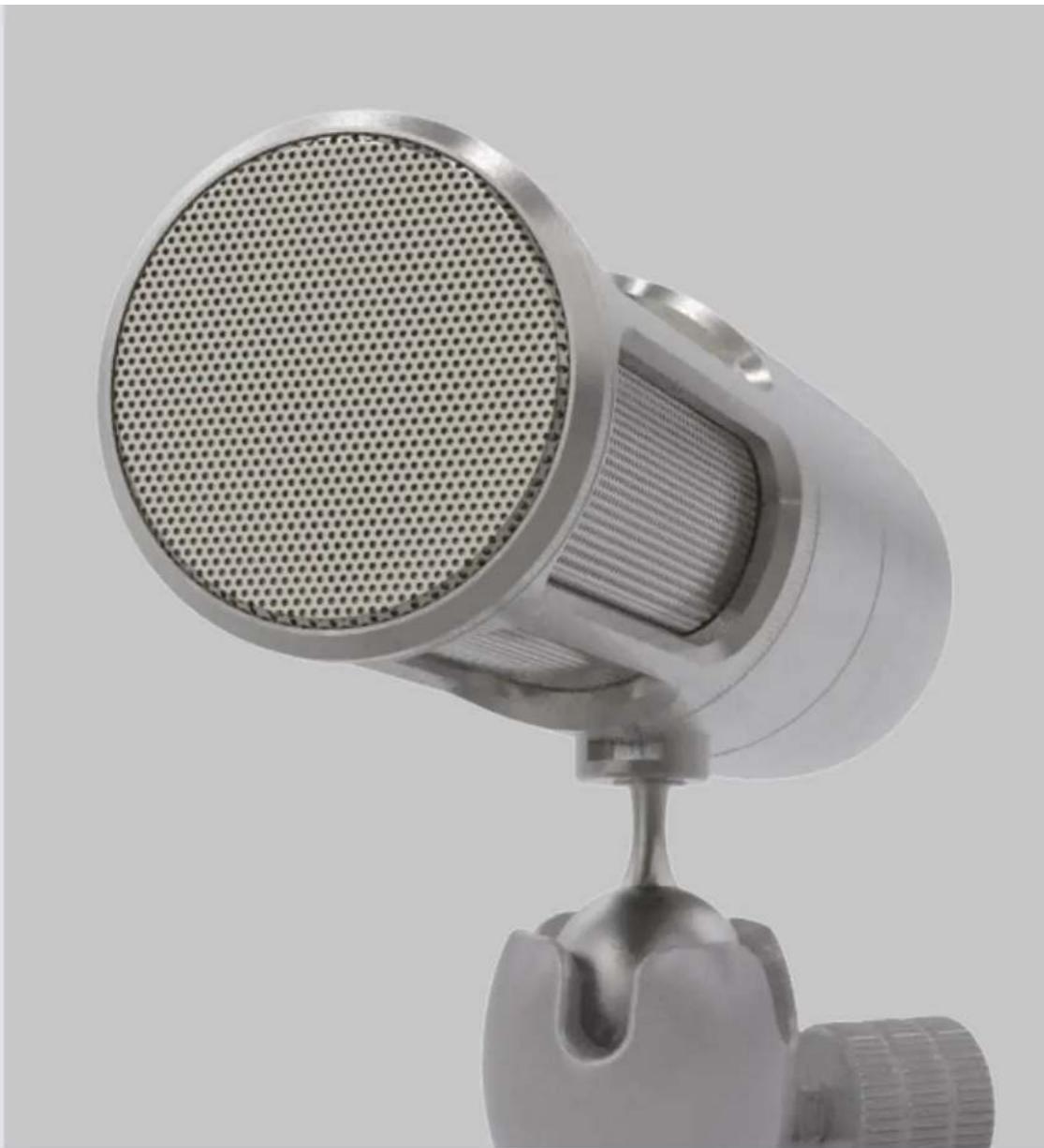
Close-up of a metallic analog microphone with mesh grille and stand (no visible text or symbols)ICON
STUDIO-QUALITY
USB STREAMING MICROPHONE
Thank you for purchasing the Earthworks ICON USB Streaming Microphone!
YOUR PURCHASE INCLUDES
1 ICON USB Microphone with Custom Triad-Orbit Stand
1 USB Cable
GETTING STARTED
Before setting up the microphone, pull back all existing settings and EQ. By doing this, you will have a baseline understanding of how our microphones sound, and will then be able to adjust accordingly.
Begin by removing all included components from the packaging. Make sure to mute any incoming signal to speakers or headphones to avoid any loud "pops" when connecting.
Connect the microphone to a desktop or laptop computer with a USB port. Confirm in your computer's settings that the ICON is recognized as an input device. For Mac users, this should happen automatically. For Windows users, you will need a driver specifically for audio before your computer can recognize the ICON. We recommend the ASIO4All driver, which is available for free online.
natural_image
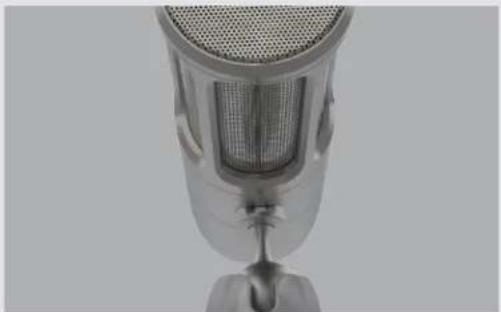
Close-up of a metallic microphone with mesh grille and stand (no visible text or symbols)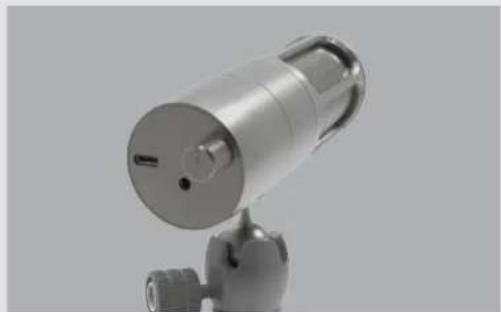
natural_image
3D rendered image of a metallic cylindrical device mounted on a stand (no visible text or symbols)USING YOUR ICON
When using your ICON, be sure to take advantage of its features, such as:
- Gain Knob: This can be found on the back of the microphone, as shown above. The center position is the default setting, and is best for speech at a medium-loud volume from 3 inches away. The knob can be adjusted depending on your distance from the microphone. Turn it farther right or left to adjust your gain level accordingly. (When turning, you will also feel a click when the knob is at the center position. Use this as an indicator of its position when you're not looking at the back.)
- Haptic Analog Mute Switch: This can be activated by pushing in on the gain knob on the back of the microphone. Think of this as the microphone's E-Brake; when engaged, no sound will pass through. We've included it as an additional safety level beyond the digital mute on your computer. When pressing the knob, you will also hear an audible click sound to indicate you've been muted. (The click sound will not occur when unmuting the microphone.)
-
LED Indicators: Found under the microphone, where the body meets the ball joint, the LED indicator will light up depending on these criteria:
-
Blue: the microphone is plugged in and powered on.
- Green: the computer is actively streaming audio from the microphone.
• Red: the analog circuitry in the microphone is clipping.
- Low Handling Noise: We've paid special attention to making sure the ICON does not make noise when you move it. As such, feel free to touch/move/adjust the microphone while it is powered on - and know that you will experience very little noise while doing so.
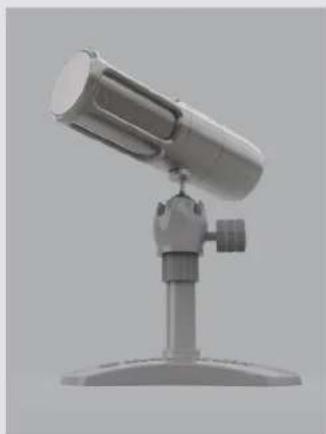
- Integrated M2-R Ball Adapter: The ICON can be unscrewed from its included Triad-Orbit stand and mounted on any microphone stand or boom mount.
PROPER MAINTENANCE
To guarantee your microphone provides years of performance, follow these guidelines:
- Avoid extreme heat and condensing humidity. Allow the microphone to warm up when bringing it in from the cold.
- Rough handling may damage the microphone even if no markings are visible.
- When not in use, keep the microphone in its box.
TROUBLESHOOTING
If you encounter issues while using your Earthworks Audio microphone, please make sure that:
- Your USB cable is well connected on both ends.
- Your microphone is confirmed as an input device on your computer.
- The microphone is positioned at an appropriate distance from the sound source.
- External noise in your recording environment is kept to a minimum.
- Your recording space is at room temperature and free of dust.
If your issue persists after checking, please contact us via our website.
SPECIFICATIONS
natural_image
3D rendered image of a desktop microphone on a stand (no text or symbols visible)ICON
| Frequency Response 20Hz-20kHz | |
| Polar Pattern Cardioid | |
| Peak Acoustic input 132dB SPL | |
| Power Source USB Bus Power | |
| Power Consumption 70 mA at 5V (Bus Power) | |
| Signal-to-Noise Ratio 70dB (A weighted) | |
| Typical Headphone impedance | 16 Ohms |
| Headphone Output Power 50 mW (at 16 Ohms) | |
| Color Stainless Steel | |
| Dimensions 5.53" x 1.6" | |
| Weight 1.5lb | |
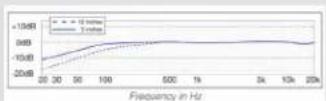
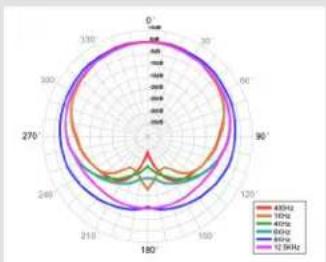
radar
| Angle | 450Hz | 100Hz | 400Hz | 600Hz | 800Hz | 1200Hz | |---|---|---|---|---|---|---| | 0°-360° | 95 | 95 | 95 | 95 | 95 | 95 | | 360°-780° | 95 | 95 | 95 | 95 | 95 | 95 | | 780°-1190° | 95 | 95 | 95 | 95 | 95 | 95 | | 1190°-1580° | 95 | 95 | 95 | 95 | 95 | 95 | | 1580°-1970° | 95 | 95 | 95 | 95 | 95 | 95 | | 1970°-2360° | 95 | 95 | 95 | 95 | 95 | 95 | | 2360°-2740° | 95 | 95 | 95 | 95 | 95 | 95 | | 2740°-3120° | 95 | 95 | 95 | 95 | 95 | 95 | | 3120°-3500° | 95 | 95 | 95 | 95 | 95 | 95 | | 3500°-3880° | 95 | 95 | 95 | 95 | 95 | 95 | | 3880°-4260° | 95 | 95 | 95 | 95 | 95 | 95 | | 4260°-4640° | 95 | 95 | 95 | 95 | 95 | 95 | | 4640°-5020° | 95 | 95 | 95 | 95 | 95 | 95 | | 5020°-5400° | 95 | 95 | 95 | 95 | 95 | 95 | | 5400°-5780° | 95 | 95 | 95 | 95 | 95 | 95 | | 5780°-6160° | 95 | 95 | 95 | 95 | 95 | 95 | | Note: The data is presented in a single column format with no additional categories or trends. The values for each angle are estimated based on the provided code.WARRANTY
The ICON and ICON Pro carry a two-year limited warranty (parts and labor). Please register your warranty at earthworksaudio.com/register. If you have any problems with your Earthworks products, please contact our warranty/repair department by email at: returns@earthworksaudio.com. NOTE: This warranty only applies to Earthworks microphones purchased brand now. For microphones purchased/received second-hand, please contact us via our website.
WE'RE HERE
For anything else, we're a phone call or email away. Please feel free to contact us by email at sales@earthworksaudio.com, or by phone at (603)-654-2433.