
NV-FV1B - Videorekorder PANASONIC - Kostenlose Bedienungsanleitung
Finden Sie kostenlos die Bedienungsanleitung des Geräts NV-FV1B PANASONIC als PDF.


| Produkttyp | Videorekorder |
| Marke | Panasonic |
| Modell | NV-FV1B |
| Abmessungen (B x H x T) | ca. 430 x 85 x 280 mm |
| Gewicht | ca. 4,5 kg |
| Stromversorgung | 220-240 V AC, 50 Hz |
| Leistungsaufnahme | ca. 20 W |
| Aufnahmeformat | VHS |
| Wiedergabeformat | VHS (PAL) |
| Anschlüsse | SCART (Euro-AV), HF-Antenneneingang, HF-Ausgang, Cinch (Audio/Video) |
| Timer-Aufnahme | Ja, mit Programmierung |
| Fernbedienung | Infrarot-Fernbedienung enthalten |
| Besondere Funktionen | Automatische Kopfsynchronisation, Suchlauf, Standbild, Zeitlupe |
| Reinigung | Reinigungskassette für Videoköpfe empfohlen |
| Sicherheitshinweise | Gerät vor Feuchtigkeit schützen; keine Gegenstände in Schlitze stecken |
| Ersatzteile und Reparatur | Reparatur durch Fachpersonal; Ersatzteile über Panasonic-Service |
| Allgemeine Informationen | Umlaufbandgeschwindigkeit: 23,39 mm/s; Video-Frequenzbereich: 3 MHz |
Häufig gestellte Fragen - NV-FV1B PANASONIC
Benutzerfragen zu NV-FV1B PANASONIC
0 Frage zu diesem Gerät. Beantworten Sie die, die Sie kennen, oder stellen Sie Ihre eigene.
Eine neue Frage zu diesem Gerät stellen
Laden Sie die Anleitung für Ihr Videorekorder kostenlos im PDF-Format! Finden Sie Ihr Handbuch NV-FV1B - PANASONIC und nehmen Sie Ihr elektronisches Gerät wieder in die Hand. Auf dieser Seite sind alle Dokumente veröffentlicht, die für die Verwendung Ihres Geräts notwendig sind. NV-FV1B von der Marke PANASONIC.
BEDIENUNGSANLEITUNG NV-FV1B PANASONIC
Panasonic
Tragbarer Fernseher mit Videorecorder
NV-FV1B
Bedienungsanleitung
Seite
| 3 | CAUTIONS |
| 4 | CONTROLS AND COMPONENTS |
| 8 | ACCESSORIES FOR THE PORTABLE TV WITH VTR SYSTEM |
| 9 | THE POWER SUPPLY UNITS |
| 11 | THE VIDEO CASSETTE |
| 11 | AUTO OPERATION |
| 12 | ON-SCREEN DISPLAY (OSD) |
| 14 | TV ANTENNAS |
| 15 | WATCHING TV PROGRAMMES |
| 16 | PLAYBACK |
| 18 | RECORDING FROM A TV BROADCAST SIGNAL |
| 19 | CAMERA RECORDING |
| 20 | DUBBING (COPYING) |
| 21 | ACCESSORY CONNECTIONS |
| 23 | BEFORE REQUESTING SERVICE |
| 25 | SPECIFICATIONS |
WICHTIG
Wir weisen darauf hin, dass die Aufnahme von vorbespielten Bändern oder Discs oder anderen veröffentlichten oder ausgestrahlten Materialien möglicherweise Urheberrechte verletzt.
WARNUNG
UM DIE GEFAHR VON BRAND ODER STROMSCHLAG ZU VERRINGERN, DIESES GERÄT NICHT REGEN ODER FEUCHTIGKEIT AUSSETZEN.
Netzteil VW-AM10
- Das Typenschild befindet sich auf der Unterseite des Geräts.
Dieses Gerät wurde nach BS 800 hergestellt.
FÜR IHRE SICHERHEIT
■ ÄUSSERE ABDECKUNG NICHT ENTFERNEN.
Um einen elektrischen Schlag zu vermeiden, entfernen Sie die Abdeckung nicht. Im Inneren befinden sich keine vom Benutzer zu wartenden Teile. Überlassen Sie die Wartung qualifiziertem Fachpersonal.
■ ANSCHLUSS DES NETZKABELS
Die Adern im Netzkabel dieses Geräts sind gemäß dem folgenden Code farblich gekennzeichnet.
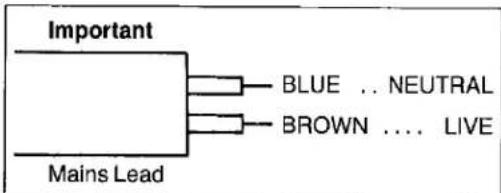
Da die Farben der Adern im Netzkabel möglicherweise nicht mit den farbigen Markierungen der Klemmen in Ihrem Stecker übereinstimmen, gehen Sie wie folgt vor: Die blaue Ader muss an die Klemme angeschlossen werden, die mit dem Buchstaben N oder der Farbe SCHWARZ gekennzeichnet ist. Die braune Ader muss an die Klemme angeschlossen werden, die mit dem Buchstaben L oder der Farbe ROT gekennzeichnet ist.
Unter keinen Umständen darf eine der oben genannten Adern an die Erdungsklemme eines dreipoligen Steckers angeschlossen werden.
HQ (High Quality) Bildsystem
Videorecorder mit dem HQ-Symbol verfügen über das neue VHS-High-Quality-Bildsystem. Dieses System gewährleistet vollständige Kompatibilität mit Videorecordern, die das herkömmliche VHS-System verwenden.
HQ
Bitte lesen Sie diese Hinweise, bevor Sie dieses tragbare TV-Gerät mit Videorecorder in Betrieb nehmen.
Vermeiden Sie plötzliche Temperaturwechsel
Wenn das tragbare TV-Gerät mit Videorecorder plötzlich von einem kalten an einen warmen Ort gebracht wird, kann sich Feuchtigkeit auf dem Band und im Inneren des Geräts bilden. In diesem Fall blinkt die Taupunktanzeige "DEW" und das Gerät funktioniert nicht.
Feuchtigkeit und Staub
Vermeiden Sie Orte mit hoher Luftfeuchtigkeit oder viel Staub, da dies zu Schäden an internen Teilen führen kann.
Lüftungsschlitze nicht blockieren
Die Lüftungsschlitze verhindern einen abnormalen Temperaturanstieg. Blockieren oder bedecken Sie diese Schlitze nicht. Vermeiden Sie insbesondere das Abdecken mit weichen Materialien wie Stoff oder Papier.
Halten Sie den tragbaren Fernseher mit Videorecorder von hohen Temperaturen fern.
Halten Sie den tragbaren Fernseher mit Videorecorder von extremer direkter Hitze fern, wie direkter Sonneneinstrahlung, Heizkörpern oder geschlossenen Autos.
Magnete fernhalten
Bringen Sie niemals einen Magneten oder magnetisierten Gegenstand in die Nähe des tragbaren Fernsehers mit Videorecorder, da dies die Leistung des tragbaren Fernsehers mit Videorecorder beeinträchtigen kann.
Keine Finger oder andere Gegenstände hineinstecken
Das Berühren interner Teile des Geräts ist gefährlich und kann zu schweren Schäden am tragbaren Fernseher mit Videorecorder führen. Versuchen Sie nicht, das Gerät zu zerlegen. Es befinden sich keine vom Benutzer wartbaren Teile im Inneren.
Vor Wasser schützen
Halten Sie den tragbaren Fernseher mit Videorecorder von Blumenvasen, Wannen, Waschbecken usw. fern.
VORSICHT: Wenn Flüssigkeiten in den tragbaren Fernseher mit Videorecorder gelangen, kann dies zu schweren Schäden führen. Wenn Sie Flüssigkeit in das Gerät verschütten, wenden Sie sich an qualifiziertes Servicepersonal.
Reinigung
Wischen Sie den tragbaren Fernseher mit Videorecorder mit einem sauberen, trockenen Tuch ab. Verwenden Sie niemals Reinigungsflüssigkeit oder andere Chemikalien. Verwenden Sie auch keine Druckluft zum Entfernen von Staub.
Positionierung
Stellen Sie den tragbaren Fernseher mit Videorecorder in horizontaler Position auf und legen Sie keine schweren Gegenstände darauf.
Verstopfung der Videoköpfe
Die Videoköpfe sind das Mittel, mit dem der tragbare Fernseher mit Videorecorder während der Aufnahme Bildsignale auf das Band aufzeichnet und während der Wiedergabe Bildsignale vom Band liest. Wenn diese Köpfe durch lange Nutzung verschmutzen und verstopfen, können die Signale nicht mehr korrekt aufgezeichnet werden, und das Wiedergabebild wird entsprechend verzerrt. Dies ist zum Beispiel der Fall, wenn während der Wiedergabe eines Bandes der Ton normal wiedergegeben wird, aber kein Bild zu sehen ist oder das Bild stark verzerrt ist. Wenn ein solches Symptom auftritt, lassen Sie den tragbaren Fernseher mit Videorecorder von qualifiziertem Servicepersonal überprüfen.
Der tragbare Fernseher mit Videorecorder ist mit einer Funktion zur Erkennung verstopfter Videoköpfe ausgestattet. Wenn die Köpfe verstopft sind, erscheint die Anzeige „ד auf dem LCD-Monitor. Da sich angesammelter Schmutz auf den Köpfen durch die Bewegung des Bandes lösen kann, kann diese Anzeige manchmal erscheinen, aber beim nächsten Aufnahmestart möglicherweise nicht wieder erscheinen.
Wenn sich Kondenswasser im tragbaren Fernseher mit Videorecorder bildet
Im tragbaren Fernseher mit Videorecorder kann sich Kondenswasser bilden, wenn:
● Der tragbare Fernseher mit Videorecorder befindet sich in einem Raum, in dem die Heizung gerade eingeschaltet wurde. - Der tragbare Fernseher mit Videorecorder befindet sich in einem Raum mit Dampf oder hoher Luftfeuchtigkeit. - Der tragbare Fernseher mit Videorecorder wird aus kalter Umgebung in einen gut beheizten Raum gebracht. - Der tragbare Fernseher mit Videorecorder wird plötzlich aus kühler Umgebung, wie einem klimatisierten Raum oder Auto, an einen heißen und feuchten Ort gebracht.
Wenn sich Kondenswasser im tragbaren Fernseher mit Videorecorder bildet: (Siehe Seite 13.)
Die Kondensationsanzeige „DEW“ auf dem LCD-Monitor blinkt und alle Funktionstasten werden deaktiviert, um das Band und die Videoköpfe zu schützen.
Wenn die Kondensationsanzeige blinkt, warten Sie, bis diese Anzeige erlischt.
- Wenn sich Kondenswasser im tragbaren Fernseher mit Videorecorder bildet, während der Betriebsschalter auf „OFF“ steht, schaltet sich das Gerät automatisch ein und die Kondensationsanzeige blinkt. Sobald das Kondenswasser aufgelöst ist, schaltet sich der tragbare Fernseher mit Videorecorder wieder aus.
Draufsicht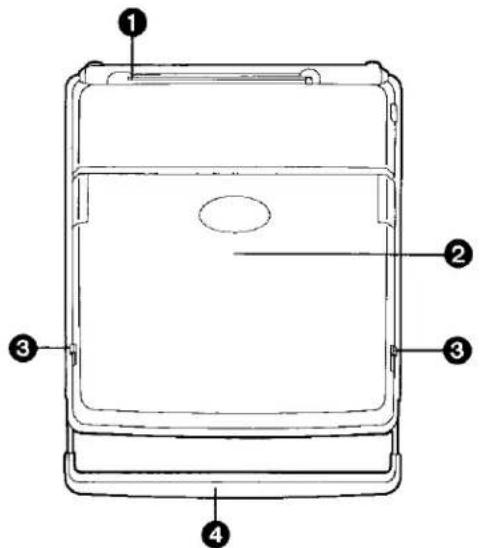
| No. | Description | Page |
| 1 | VHF/UHF Rod Antenna | 14 |
| 2 | Cover with Integrated LCD Monitor Screen | — |
| 3 | Hook Levers | — |
| 4 | Carrying Handle | — |
Hinweis:
Um den tragbaren Fernseher mit Videorecorder zu tragen, ziehen Sie den Tragegriff zu sich heran.
② So öffnen Sie die Abdeckung
Drücken Sie beide Verriegelungshebel ③ in Pfeilrichtung und öffnen Sie die Abdeckung nach oben.
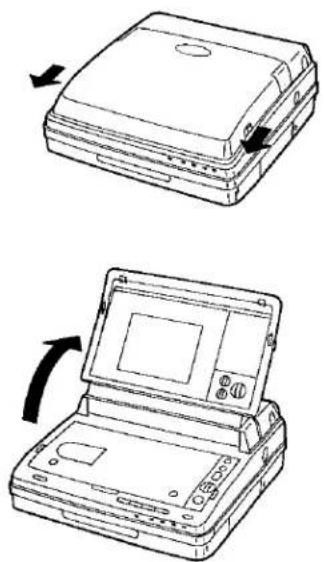
② So schließen Sie die Abdeckung
Achten Sie darauf, die Abdeckung langsam zu schließen.
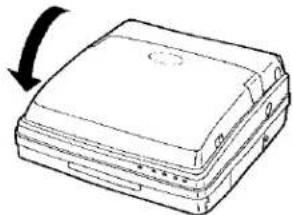
Hinweise:
- Um Schäden und Verletzungen zu vermeiden, bewegen Sie das Gerät nicht, während der Deckel geöffnet ist.
- Um Fehlfunktionen und Bildstörungen zu vermeiden, öffnen oder schließen Sie den Deckel nicht während der Aufnahme.
- Öffnen Sie den Deckel um mehr als 70°, da sonst der LCD-Monitor und der Lautsprecher nicht funktionieren und die Kassette nicht entfernt werden kann.
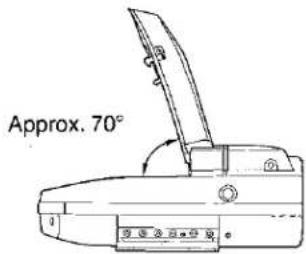
Ansicht von oben
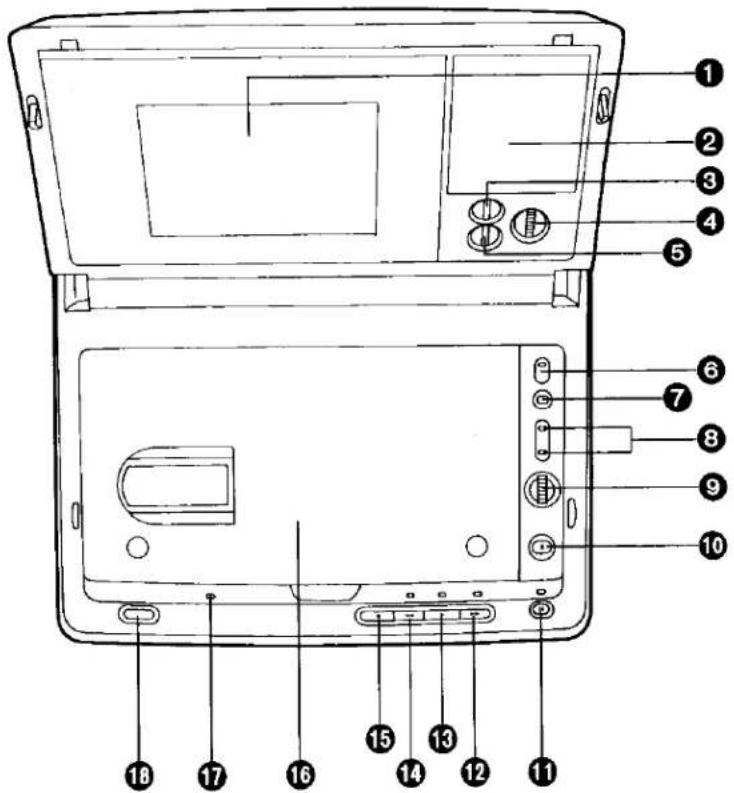
| No. | Description | Page |
| 1 | LCD Monitor Screen | 12 |
| 2 | Speaker | 16 |
| 3 | Colour Control | 15 |
| 4 | Brightness Control | 15 |
| 5 | Sharpness Control | 15 |
| 6 | Band Selector Switch (VHF/UHF) | 15 |
| 7 | Channel Display Button | 15 |
| 8 | Channel Buttons | 15 |
| 9 | Volume Control | 15 |
| No. | Description | Page |
| 10 | Eject Button | 11 |
| 11 | Still Button | 16 |
| 12 | Fast Forward ▶▶/Cue ▶▶Button | 16 |
| 13 | Play Button (▶) | 16 |
| 14 | Rewind ◀◀/Review ▶◀Button | 16 |
| 15 | Stop Button (■) | 16 |
| 16 | Cassette Compartment | 11 |
| 17 | Hi-Fi Indicator | 16 |
| 18 | Operation On/Off Button | 15 |
Vorderseite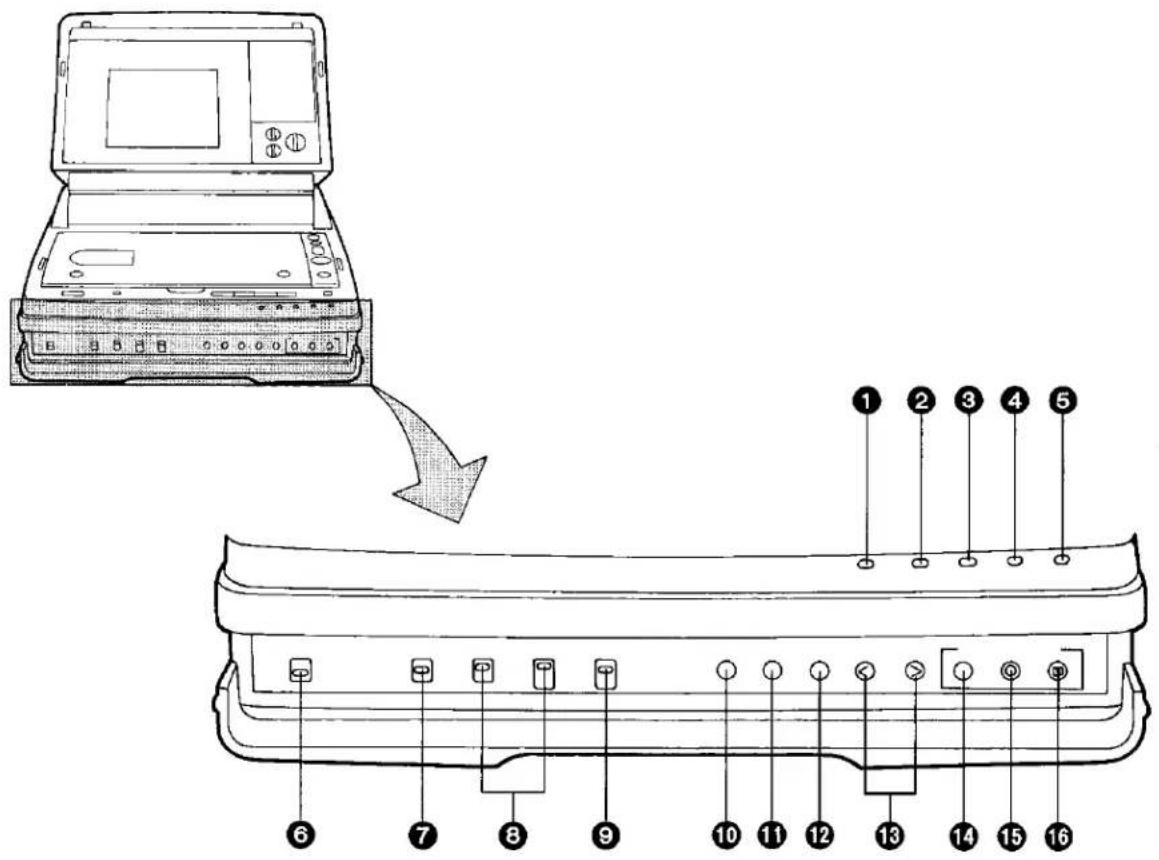
| No. | Description | Page |
| 1 | Operation Indicator | 15 |
| 2 | Dew Indicator | 3 |
| 3 | Stand-by Indicator | 19 |
| 4 | Recording Indicator | 18 |
| 5 | Pause Indicator | 18 |
| 6 | Playback System Selector Switch | 17 |
| 7 | Edit On/Off Switch | 20 |
| 8 | Audio Selector Switches | 16 |
| No. | Description | Page |
| 9 | Input Signal Selector Switch | 15 |
| 10 | OSD (On-Screen Display) Button | 12 |
| 11 | Memory/Display Selector Button | 12 |
| 12 | Reset Button | 12 |
| 13 | Tracking Control Buttons | 17 |
| 14 | Stand-by Button | 19 |
| 15 | Recording Button | 18 |
| 16 | Pause Button | 18 |
Rechte Seite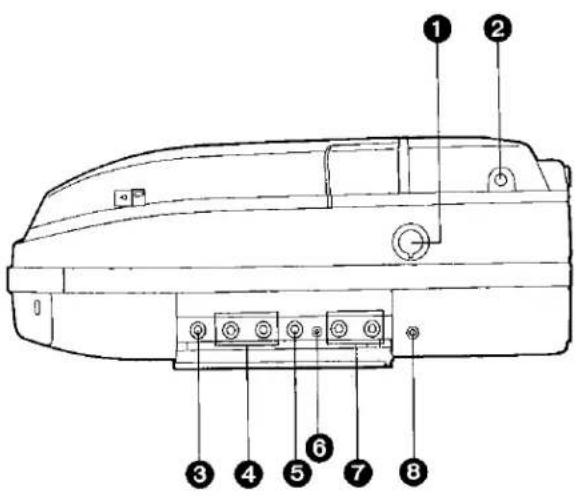
| No. | Description | Page |
| 1 | Camera Socket | 19 |
| 2 | Antenna Input Socket | 14 |
| 3 | Video Input Socket | 20 |
| 4 | Audio Input Sockets | 20 |
| 5 | Video Output Socket | 20 |
| 6 | RF DC Output Socket | 21 |
| 7 | Audio Output Sockets | 20 |
| 8 | Phones Socket | 16 |
Linke Seite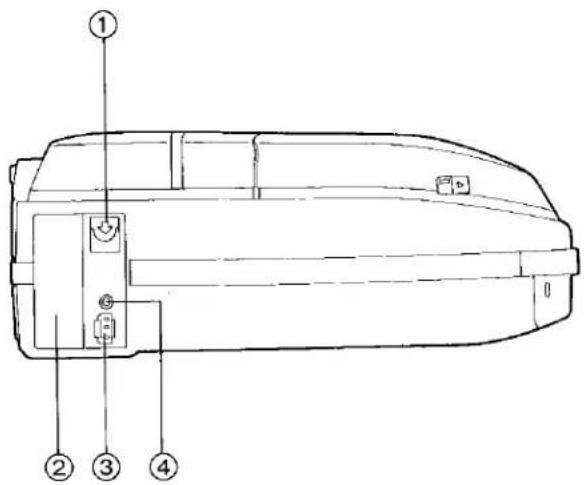
| No. | Description | Page |
| 1 | Battery Eject Button | 9 |
| 2 | Battery Compartment | 9 |
| 3 | DC Input Socket | 9 |
| 4 | Remote Socket | 22 |
Unterseite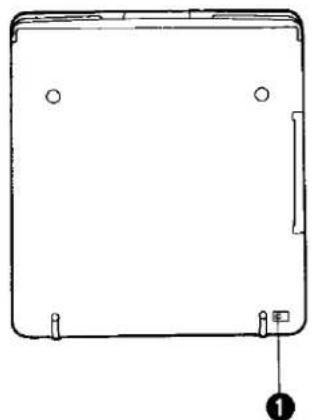
| No. | Description | Page |
| 1 | TV System Selector Switch | 15 |
BEDIENELEMENTE UND KOMPONENTEN (FORTSETZUNG)
Netzteil (VW-AM10)
Vorsichtsmaßnahmen
- Vermeiden Sie heftige Stöße und grobe Handhabung des Geräts.
- Lassen Sie keine Flüssigkeiten in das Gerät gelangen.
- Legen Sie keine schweren Gegenstände auf das Gerät.
- Beim Abziehen des Netzsteckers oder anderer Verbindungskabel unbedingt den Stecker selbst und nicht das Kabel festhalten.
- Die Lüftungsschlitze an der Seite des Geräts nicht blockieren oder abdecken, insbesondere nicht mit weichem Material wie Stoff oder Papier.
- Beim Hören von Radio bei angeschlossenem Netzteil kann der Radioempfang gestört sein. In diesem Fall das Radio vom Netzteil entfernen.
Bedienelemente und Komponenten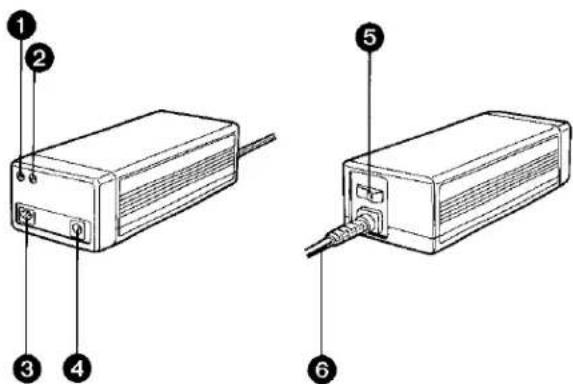
| No. | Description | Page |
| 1 | Power Indicator | 9 |
| 2 | Charging Indicator | 10 |
| 3 | DC Output Socket | 9 |
| 4 | Battery Pack Charging Socket | 10 |
| 5 | Power On/Off Switch | 9 |
| 6 | Mains Lead | 9 |
ZUBEHÖR FÜR DEN TRAGBAREN FERNSEHER MIT VTR-SYSTEM
Standardzubehör
Netzteil
Akku
Ladeanschluss für den Akku
Audio-/Videokabel
Antennenkabel
Stereo-Kopfhörer
Gleichstrom-Eingangskabel
BNC-/Phono-Adapterstecker
Sonderzubehör
Pause-Fernbedienung (VW-RM1)
Autobatteriekabel (VW-ACM10E)
HF-Adapter (VW-RF7E)
Tragetasche (VW-SHFV1)
VORSICHT: UM DIE GEFAHR VON BRAND ODER STROMSCHLAG SOWIE STÖRENDEN INTERFERENZEN ZU VERRINGERN, NUR DIE EMPFOHLENEN ZUBEHÖRTEILE VERWENDEN.
ist die Sicherheitsinformation.
Einsetzen des Akkus (mitgeliefert)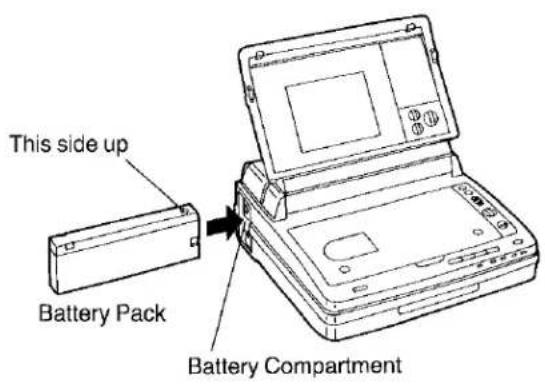
Setzen Sie den Akku in das Batteriefach des tragbaren Fernsehers mit Videorekorder ein.
Drücken Sie ihn hinein, bis er einrastet.
●Verwenden Sie immer einen voll aufgeladenen Akku.
Entfernen des Akkus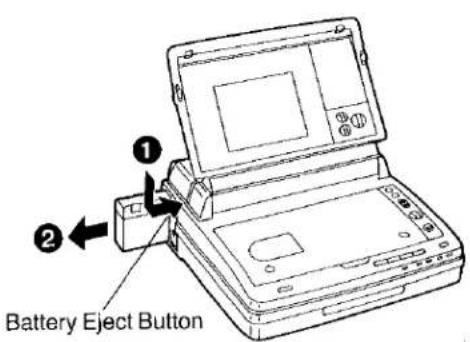
Zum Entfernen des Akkus drücken Sie die Akku-Auswurftaste nach unten und innen und schieben Sie dann den Akku heraus.
Netzteil (mitgeliefert)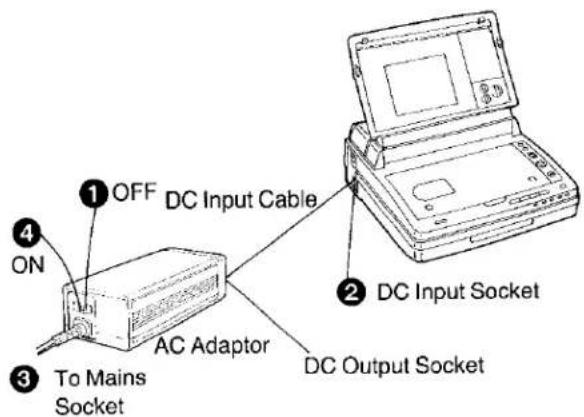
- Es ist möglich, einen oder sogar zwei Akkus gleichzeitig mit dem Netzteil (mitgeliefert) aufzuladen. Weitere Einzelheiten zum Laden finden Sie auf Seite 10.
- Verwenden Sie niemals ein anderes als das angegebene Netzteil.
Autobatterie-Kabel (optional)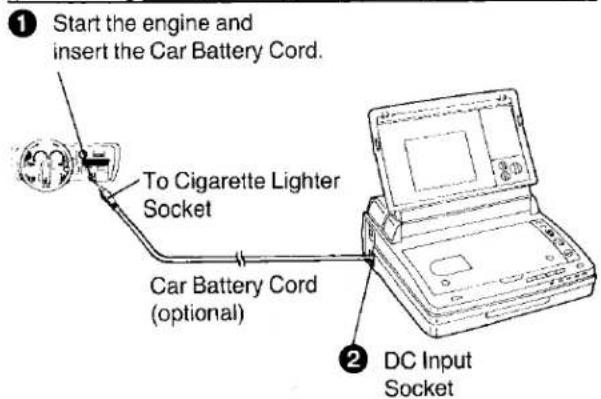
- Das Autobatterie-Kabel kann nur mit Fahrzeugen mit 12-V-Gleichstrom und negativer Masse verwendet werden.
- Wenn die vom Fahrzeug gelieferte Spannung zu niedrig wird, schaltet sich der tragbare Fernseher mit Videorecorder automatisch ab, um Fehlfunktionen zu vermeiden. Wenn dies geschieht, warten Sie etwa 10 Sekunden, bevor Sie den tragbaren Fernseher mit Videorecorder wieder einschalten.
- Es ist nicht möglich, den Akku über die Fahrzeugbatterie und/oder das Autobatterie-Kabel aufzuladen.
- Starten Sie den Automotor nicht, während der tragbare Fernseher mit Videorecorder über die Autobatterie mit Strom versorgt wird.
- Schalten Sie den tragbaren Fernseher mit Videorecorder aus, bevor Sie das Netzteil oder das Autobatterie-Kabel abziehen.
Wenn sie während der Aufnahme oder Wiedergabe abgezogen werden, bleibt das Band um den Kopfzylinder gewickelt und kann beschädigt werden.
Laden des Akkus
So laden Sie einen eingelegten Akku im tragbaren Fernseher mit Videorecorder
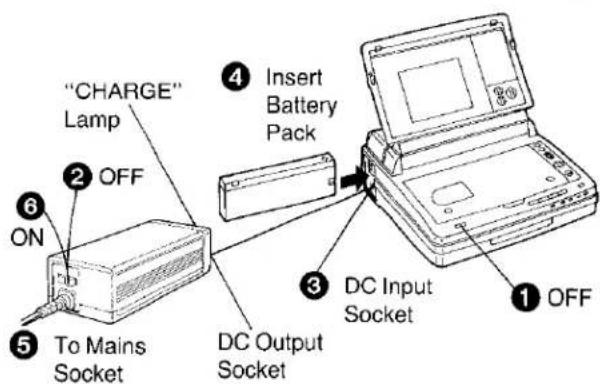
●Die Ladeanzeigelampe erlischt etwa 100 Minuten nach Beginn des Ladevorgangs. •Ladeanzeigelampe
Rot ..... Wenn der Ladevorgang beginnt.
Grün ..... Wenn der Akku zu ca. 70 % geladen ist.
Aus .... Wenn der Ladevorgang abgeschlossen ist.
So laden Sie den Akku, der mit dem Netzteil verbunden ist
Verwenden Sie den Akku-Ladeanschluss, der mit dem Netzteil geliefert wird.
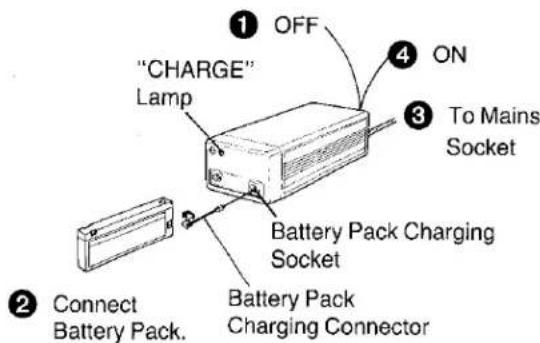
- Es ist möglich, zwei Akkus gleichzeitig zu laden – einen am Netzteil und einen im tragbaren TV mit Videorecorder. Das gleichzeitige Laden dauert jedoch doppelt so lange wie das separate Laden.
Vorsichtsmaßnahmen bei der Verwendung von Akkus
Betriebsdauer mit dem Akku
- Mit einem vollständig geladenen Akku (im Lieferumfang enthalten) kann der tragbare TV mit Videorecorder bei normaler Temperatur (25 °C) ca. 80 Minuten ununterbrochen wiedergeben oder ca. 70 Minuten ununterbrochen TV-Programme aufzeichnen.
Bei intermittierender Aufnahme oder bei niedrigen Temperaturen verkürzt sich die mögliche Gesamtaufnahmezeit. Es wird empfohlen, den tragbaren TV mit Videorecorder auszuschalten oder in den Bereitschaftsmodus zu schalten, wenn nicht tatsächlich aufgenommen wird.
- Verwenden Sie niemals einen unzureichend geladenen oder entladenen Akku, da ein Spannungsabfall während der Aufnahme oder Wiedergabe dazu führt, dass der tragbare TV mit Videorecorder zum Schutz des Akkus und des Geräts selbst ausgeschaltet wird.
- Der Akku kann nicht nur während der Aufnahme und Wiedergabe entladen werden, sondern auch, wenn er längere Zeit im Bereitschaftsmodus ist. Es wird empfohlen, Akkus mitzuführen, die für die zwei- bis dreifache Dauer der geplanten Aufnahmezeit ausreichen.
So verlängern Sie die Lebensdauer des Akkus
- Laden Sie den Akku unbedingt bald nach dem Gebrauch wieder auf. Wenn der Akku längere Zeit im entladenen Zustand bleibt, kann er möglicherweise nicht mehr aufgeladen werden.
- Laden Sie den Akku vor dem Gebrauch unbedingt auf. Wenn er nach dem Aufladen längere Zeit gelagert wurde, kann die Spannung abfallen und die Betriebsdauer verkürzt werden.
- Laden Sie den Akku mindestens einmal alle sechs Monate auf, auch wenn er nicht verwendet wird.
- Laden Sie den Akku nicht länger als 24 Stunden, um ihn zu schützen.
- Akkus weder überladen noch vollständig entladen.
- Lagern Sie ihn an einem trockenen und kühlen Ort.
Einlegen einer Videokassette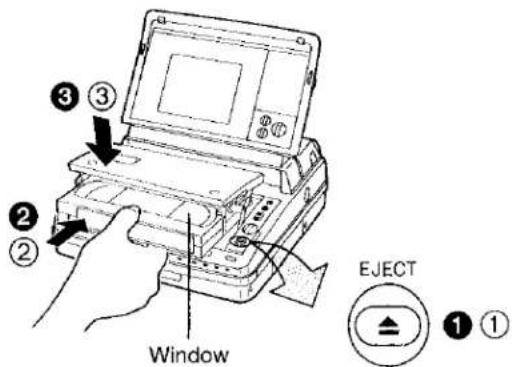
① Drücken Sie die Auswurftaste. ② Legen Sie die Videokassette in Pfeilrichtung in das Kassettenfach ein, wobei das Fenster nach oben zeigt. ③ Drücken Sie das Kassettenfach nach unten, bis es hörbar einrastet.
- Verwenden Sie nur VHS-Videokassetten.
Entfernen einer Videokassette
① Drücken Sie die Auswurftaste. ② Ziehen Sie die Videokassette aus dem Kassettenfach. ③ Drücken Sie das Kassettenfach nach unten, bis es hörbar einrastet.
- Schließen Sie die Abdeckung nicht, während das Kassettenfach geöffnet ist. Dies könnte zu Fehlfunktionen führen.
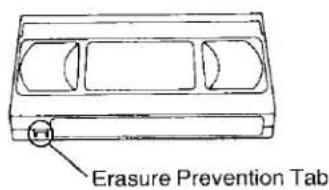
Schutz vor versehentlichem Löschen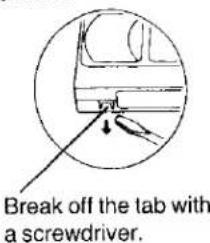
Erneutes Aufnehmen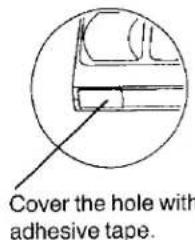
AUTOMATISCHER BETRIEB
Automatische Wiedergabe
Wenn die Lasche der eingelegten Kassette herausgebrochen ist, startet die Wiedergabe automatisch, ohne dass eine Taste gedrückt werden muss.
Automatischer Rücklauf
Wenn das Band während der Aufnahme, Wiedergabe oder des schnellen Vorlaufs sein Ende erreicht, wird es automatisch zum Anfang zurückgespult.
Tragbarer Fernseher mit VTR-Auswurf bei ausgeschaltetem Gerät
Wenn ein Netzteil (Akku, Netzadapter oder Autobatterie) an den tragbaren Fernseher mit VTR angeschlossen ist, bleibt die Auswurftaste auch dann funktionsfähig, wenn der tragbare Fernseher mit VTR über den Ein-/Aus-Schalter ausgeschaltet wurde.
Anzeigen auf dem LCD-Monitor
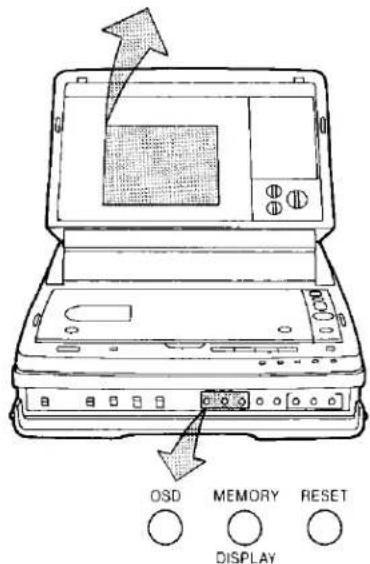
Wenn die OSD-Taste gedrückt wird, erscheinen die folgenden Anzeigen auf dem LCD-Monitorbildschirm. Drücken Sie die OSD-Taste erneut, um sie zu löschen.
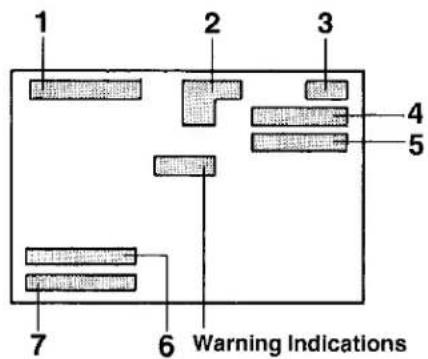
1 Zähleranzeigen
Wenn Sie die Speicher-/Anzeigeauswahltaste drücken, wird die Zähleranzeige auch dann angezeigt, wenn Sie die Bildschirmtaste nicht drücken.
M0000: Bandzähler
Die Zahlen in der Anzeige ändern sich entsprechend der Bandbewegung.
(Der Zähler funktioniert auch, wenn er nicht auf dem Bildschirm angezeigt wird.)
- Wenn die Rücksetztaste gedrückt wird, wird die Anzeige auf "0000" zurückgesetzt.
- Wenn die Speicher-/Anzeigeauswahltaste gedrückt wird, wird die Speicheranzeige "M" angezeigt.
0:00.00: Rundenzeitzähler
Wenn die Speicher-/Anzeigeauswahltaste zweimal gedrückt wird, wird die verstrichene Aufnahmezeit angezeigt. Diese Funktion funktioniert während der Wiedergabe nicht.
- Wenn die Kassette ausgeworfen oder die Rücksetztaste gedrückt wird, wird sie auf "0:00.00" zurückgesetzt.
2 Bandlaufanzeigen
PLAY Ein Band wird wiedergegeben. ▶ Je nach Betrieb werden die folgenden Anzeigen angezeigt:
STOP Stoppmodus
Rückspulmodus
PLAY Wiedergabemodus
◀◀
▶▶ Schnellvorlaufmodus
PLAY Cue-Wiedergabemodus
▶▶
PLAY Standbild-Wiedergabemodus
11
REC Aufnahmemodus
▶
REC Aufnahmepausemodus
11
3 Kassette-eingelegt-Anzeige
Die Anzeige "oo" zeigt an, dass eine Kassette in den tragbaren Fernseher mit VTR eingelegt ist. Wenn die Kassette ausgeworfen wird, verschwindet diese Anzeige.
4 Anzeige der verbleibenden Akkuleistung
E----F Die "—"-Anzeigen beginnen von rechts nach links zu verschwinden, wenn die Leistung des Akkus nachlässt.
5 Anzeige der verbleibenden Aufnahmepausenzeit
0.5 Wenn eine Aufnahme durch Drücken der Pausetaste vorübergehend unterbrochen wird, wird eine maximale Pausenzeit von 5 Minuten durch 5 ausgefüllte weiße Quadrate angezeigt. Wenn eine Minute vergangen ist, wird eines dieser Quadrate zu einem leeren Rahmen, beginnend von rechts. 5 Sekunden nachdem alle fünf Quadrate zu leeren Rahmen geworden sind, verschwindet die Anzeige der verbleibenden Aufnahmepausenzeit, und der tragbare Fernseher mit Videorecorder wechselt in den Stoppmodus.
6 Eingangsanzeigen
TUNER: Die Einstellung des Eingangssignal-Wahlschalters wird angezeigt.
CAMERA
LINE: Wenn der Schalter auf "CAMERA" oder "LINE" steht, aber keine Signalquelle an dieses Gerät angeschlossen ist, wird die entsprechende Anzeige nicht angezeigt.
●Die Anzeige verschwindet nach 5 Sekunden.
7 Wiedergabe-Tonanzeigen
HiFi L-R Die Einstellung der Audio-Wahlschalter wird angezeigt.
HiFi L-R: Stereoton von den Hi-Fi-Tonspuren
HiFi L: Ton des linken Kanals von den Hi-Fi-Tonspuren
HiFi R: Ton des rechten Kanals von den Hi-Fi-Tonspuren
NORMAL: Ton von der normalen Tonspur
●Die Wiedergabe-Tonanzeige verschwindet nach 5 Sekunden.
Warnanzeigen
Diese Warnhinweise werden auch dann angezeigt, wenn die OSD-Taste nicht gedrückt wird.
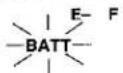
Wenn die Anzeige für die verbleibende Akkuleistung „E-F“ erreicht, blinkt die Alarmanzeige „BATT“.
Wenn die Anzeige für die verbleibende Akkuleistung „E-F“ erreicht, blinkt die Betriebsanzeige und der tragbare Video-Fernseher schaltet sich etwa 15 Sekunden später aus.

Im Gerät hat sich Kondenswasser gebildet. Wenn Sie versuchen, auf eine Kassette mit herausgebrochener Aufnahmesperre aufzunehmen, blinkt die Anzeige „TAPE“.
- Sie erlischt nach 5 Sekunden.

Wenn das Band während der Aufnahme fast sein Ende erreicht hat, blinkt die Anzeige „END“.
- Sie erlischt nach 5 Sekunden.

Videokopf verschmutzt (siehe Seite 3).
Hinweis:
●Diese Anzeigen können nicht aufgezeichnet werden.
- Drücken Sie vor dem Ansehen eines Fernsehprogramms die On-Screen-Taste, um sie zu löschen.
- Wenn diese Anzeigen längere Zeit eingeblendet bleiben, bleibt ein Nachbild auf dem LCD-Monitor zurück. Dies ist jedoch keine Fehlfunktion und verschwindet nach einiger Zeit.
- Bei schwachem Fernsehempfang können die On-Screen-Anzeigen verzerrt sein. Drücken Sie in diesem Fall die On-Screen-Taste, um sie zu löschen.
- Wenn die Buchstaben der On-Screen-Anzeigen schwer zu lesen sind, versuchen Sie, sie mit dem Helligkeitsregler anzupassen. Möglicherweise lassen sie sich so etwas deutlicher darstellen.
VHF/UHF-Stabantenne
① Drehen Sie die Stabantenne nach oben und ziehen Sie sie aus.
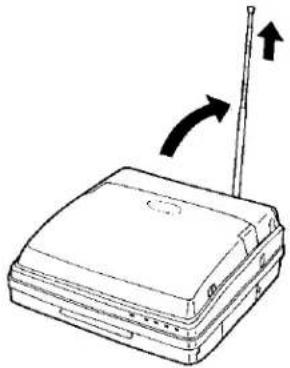
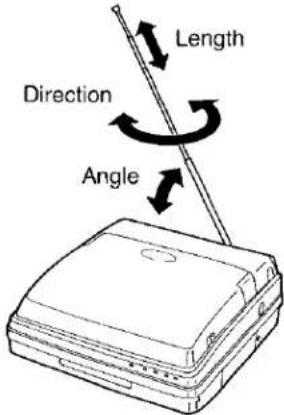
② Stellen Sie die Stabantenne für den bestmöglichen Empfang ein.
③ Ziehen Sie die Stabantenne nach dem Fernsehen vorsichtig wieder ein, ohne sie zu biegen.
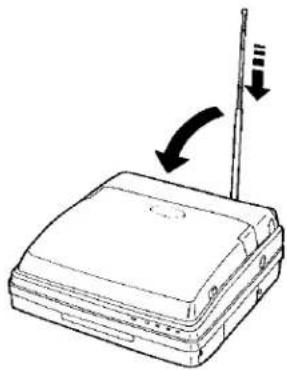
- Bei Verwendung der Stabantenne in Innenräumen in Gebieten mit extrem schwachem Empfang können das Netzteil oder andere elektrische Systeme Bildstörungen verursachen. In diesem Fall stellen Sie dieses Gerät weiter von diesen Systemen entfernt auf oder verwenden Sie eine Außenantenne.
- Wenn eine Außenantenne an dieses Gerät angeschlossen ist, wird die Stabantenne automatisch getrennt.
Außenantenne
In Gebieten, in denen mit der Stabantenne kein klarer Fernsehempfang möglich ist, schließen Sie eine Außenantenne an.
![graph TD A["UHF Aerial"] --> B["Mixer"] C["VHF Aerial"] --> B B --> D["Splitter"] D --> E["Antenna Cable (supplied)"] D --> F["Antenna Input Socket"]](/content/2026/05/796396/images/a9e9310257d32e0b13437085e299b576d2f3b1eeffcb5962e36f866f8ee15a86.jpg)
- Halten Sie das Antennenkabel (das an die Antenneneingangsbuchse angeschlossen ist) sowie das Netzkabel und das Gleichstromkabel vom Netzteil (das an dieses Gerät angeschlossen ist) voneinander getrennt. Wenn diese Kabel sich verheddern, können die Bilder verzerrt werden.
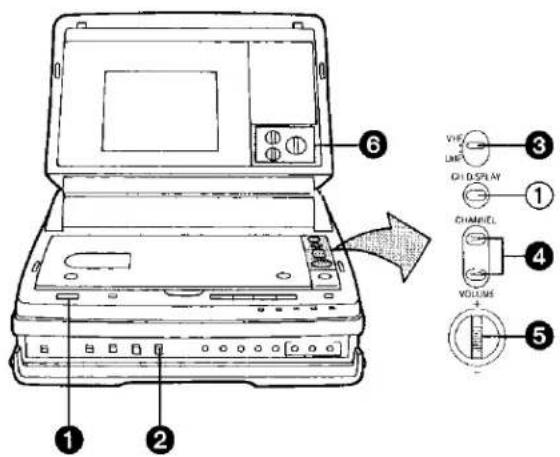
① Drücken Sie die Betriebs-Ein/Aus-Taste.
●Die Betriebsanzeige leuchtet auf.
② Stellen Sie den Eingangssignal-Wahlschalter auf "TUNER".
Kanalanzeigelinie
- Die Kanalanzeigelinie erscheint auf dem Bildschirm. Sie bewegt sich von links nach rechts und stoppt bei dem ersten empfangenen Kanal.
③ Wählen Sie mit dem Bandwahlschalter das VHF- oder UHF-Empfangsband.
Kanal VHF, rote Linie
UHF-Kanal, grüne Linie
Die Kanalanzeigelinie erscheint je nach gewähltem Empfangsband (VHF oder UHF) in Rot oder Grün und bewegt sich von links nach rechts. Wenn der nächste Fernsehsender empfangen wird, stoppt die Linie und verschwindet automatisch.
4 Wählen Sie die gewünschte TV-Programmposition (Kanal).
| VHF | UHF |
| 2-12 | 21-69 |
Wenn dieses Gerät im Vereinigten Königreich verwendet wird, ist der empfangbare Frequenzbereich UHF-Kanal 21 bis 69.
: Jeder Druck dieser Taste wechselt zum nächsthöheren Kanal.
<: Jeder Druck dieser Taste wechselt zum nächstniedrigeren Kanal.
- Wenn eine der beiden Kanaltasten gedrückt wird, erscheint die Kanalanzeigelinie auf dem Bildschirm, und wenn der nächste Kanal gewählt wird, verschwindet die Linie automatisch.
- Wenn eine der Kanaltasten gedrückt gehalten wird, wechselt der Kanal kontinuierlich.
⑤ Stellen Sie die Lautstärke mit dem Lautstärkeregler ein.
+: Die Lautstärke erhöht sich.
-: Die Lautstärke verringert sich.
6 Stellen Sie Farbe, Schärfe und Helligkeit des Bildes nach Ihren Wünschen ein.
Bestätigen der eingestellten Empfangskanäle
① Drücken Sie die Kanalanzeigetaste.
- Die Kanalanzeigelinie erscheint und zeigt die Position des empfangenen Fernsehsenders im gewählten Frequenzband an. Die Linie verschwindet automatisch, sobald die Kanalanzeigetaste losgelassen wird.
Hinweis:
- In Gebieten mit schwachem Signalempfang kann die Senderanzeigezeile nicht an der Abstimmposition eines schwachen Fernsehsenders stehen bleiben. Wenn die Stabantenne verwendet wird, kann es möglich sein, einen solchen Fernsehsender abzustimmen, indem man eine der Kanaltasten drückt, während man die Richtung, den Winkel und die Länge der Stabantenne einstellt.
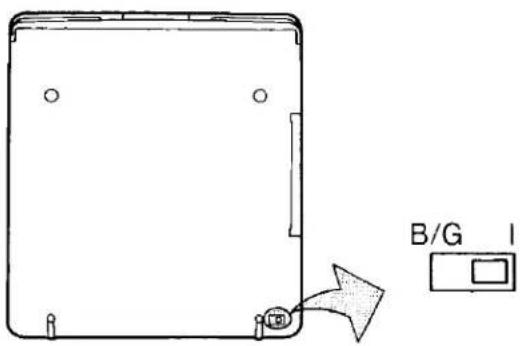
B/G-I-TV-System-Wahlschalter (Unterseite)
Stellen Sie den TV-System-Wahlschalter auf der Unterseite des Geräts entsprechend der Region ein, in der der tragbare Fernseher mit Videorecorder verwendet werden soll.
I: nur für Großbritannien
B/G: für Kontinentaleuropa
Vorbereitung
- Legen Sie eine bespielte Videokassette ein.
Wenn sich bereits eine Videokassette im tragbaren Fernseher mit Videorecorder befindet, drücken Sie die Betriebs-Ein/Aus-Taste, um das Gerät einzuschalten.
- Stellen Sie den Bearbeitungs-Ein/Aus-Schalter auf "OFF".
- Für den normalen Gebrauch stellen Sie den Wiedergabesystem-Wahlschalter auf "PAL".
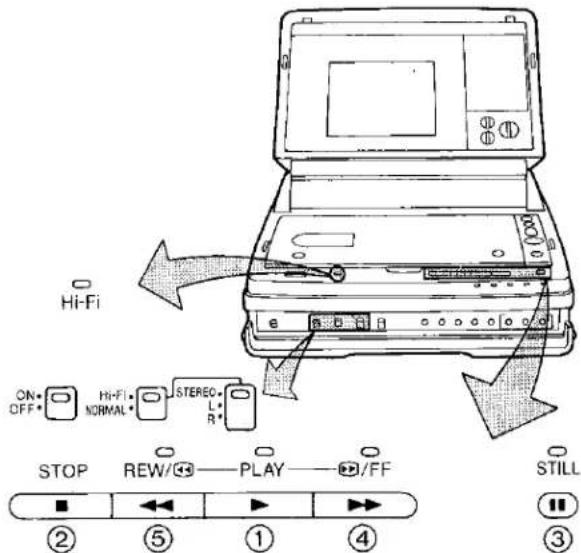
① Normale Wiedergabe
Drücken Sie die Wiedergabetaste (▶).
●Die Wiedergabeanzeige leuchtet auf.
Verwenden Sie den Audio-Wahlschalter, um den Tonkanal auszuwählen, den Sie hören möchten.
Wenn der Audio-Wahlschalter auf "Hi-Fi" gestellt ist, wird der Ton von den Hi-Fi-Spuren wiedergegeben.
Für den normalen Gebrauch sollte diese Position gewählt werden. (Die Hi-Fi-Anzeige leuchtet auf.)
- Die Wiedergabe der Hi-Fi-Audiospuren ist auf folgende 3 Arten möglich:
| Selector Position | Tape with Bilingual Recording | Tape with Stereo Recording |
| Stereo | Main language from left speaker. Sub-language from right speaker. | Stereo |
| Left | Main language | Sound of left Stereo channel |
| Right | Sub-language | Sound of right Stereo channel |
- Da der tragbare Fernseher mit Videorecorder mit einem Mono-Lautsprechersystem ausgestattet ist, wird der Ton der Hi-Fi-Audiospuren in Mono wiedergegeben. Bei Bändern mit zweisprachigen Aufnahmen werden beide Sprachen gemischt, wenn der Tonwahlschalter während der Wiedergabe auf "STEREO" steht. Um entweder die Haupt- oder die Untertitelsprache zu hören, stellen Sie den Schalter auf "LEFT" oder "RIGHT".
- Der Ton über die Kopfhörerbuchse entspricht ebenfalls der obigen Tabelle.
Wenn der Schalter auf "NORMAL" steht, wird die Hauptsprache einer zweisprachigen Aufnahme wiedergegeben, und Stereoaufnahmen werden in Mono wiedergegeben. Wenn Sie ein Band abspielen, auf dem auf einem anderen Videorecorder eine Tonnachbearbeitung durchgeführt wurde, stellen Sie den Schalter auf "NORMAL".
(Die Hi-Fi-Anzeige erlischt.)
Hinweis:
- Wenn die OSD-Taste gedrückt wird, werden die Bandlaufanzeigen auf dem Bildschirm angezeigt.
- Wenn Sie ein Band, das mit diesem Gerät aufgenommen wurde, auf einem anderen Videorecorder ohne Hi-Fi-Audiosystem abspielen, wird der Ton der normalen Tonspur wiedergegeben.
- Halten Sie keine Uhr oder Magnetkarte in die Nähe des Lautsprechers, da dies zu Fehlfunktionen der Uhr und zur Unbrauchbarkeit der Karte führen kann.
② Zum Beenden der Wiedergabe
Drücken Sie die Stopp-Taste (■).
③ Standbildwiedergabe
Wenn sich der tragbare Fernseher mit Videorecorder im Wiedergabemodus befindet, drücken Sie die Standbild-Taste (Ⅱ), um ein Standbild anzusehen. Um die normale Wiedergabe fortzusetzen, drücken Sie diese Taste erneut.
● Die Anzeige Still leuchtet auf.
④ Cue-Wiedergabe
Wenn die Taste Fast Forward ▶▶/Cue ▶▶ gedrückt gehalten wird, während sich der tragbare Fernseher mit Videorecorder im Wiedergabemodus befindet, wird das Band mit hoher Geschwindigkeit in Vorwärtsrichtung abgespielt.
⑤ Review-Wiedergabe
Wenn die Taste Rewind ◀◀/Review ⏻ gedrückt gehalten wird, während sich der tragbare Fernseher mit Videorecorder im Wiedergabemodus befindet, wird das Band mit hoher Geschwindigkeit in Rückwärtsrichtung abgespielt.
Rücklauf und schneller Vorlauf
Drücken Sie die Taste Fast Forward ▶▶/Cue 📋, um das Band schnell vorzuspulen.
Drücken Sie die Taste Rewind ◀◀/Review □, um das Band schnell zurückzuspulen.
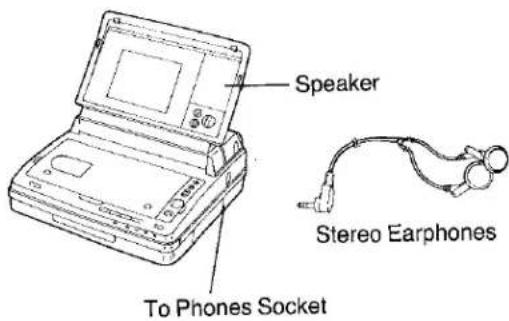
Wiedergabe mit Tonwiedergabe über Stereo-Kopfhörer
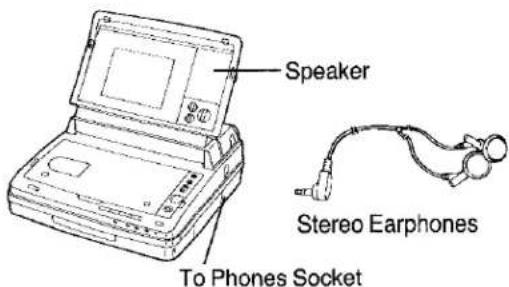
- Wenn Sie die mitgelieferten Stereo-Kopfhörer an die Buchse Phones anschließen, wird kein Ton über den Lautsprecher wiedergegeben.
- Wenn Sie nur den Ton über die Stereo-Kopfhörer hören und das Bild nicht ansehen, schließen Sie den Deckel, um den LCD-Monitor auszuschalten und Strom zu sparen.
Speicherfunktion
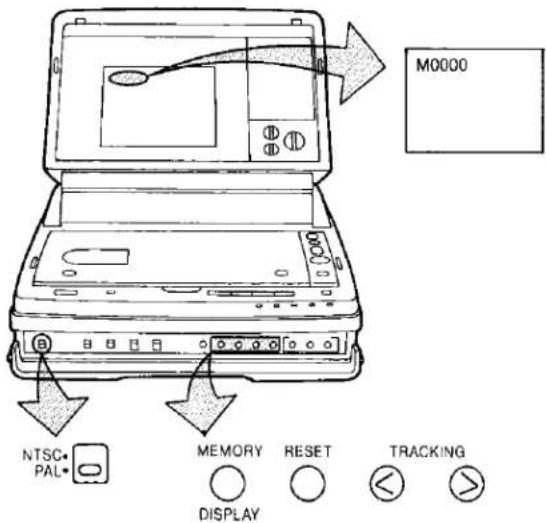
Die Speicherfunktion erleichtert das spätere Wiederfinden einer bestimmten Stelle auf dem Band. Um sie zu aktivieren, drücken Sie die Reset-Taste an der gewünschten Stelle während der Aufnahme oder Wiedergabe und dann die Taste Memory/Display Selector.
- Der Bandzähler wird auf "0000" zurückgesetzt und die Speicheranzeige "M" erscheint auf dem Bildschirm.
Nachdem Sie die Stop-Taste gedrückt haben, um die Aufnahme oder Wiedergabe zu beenden, drücken Sie die Taste Rewind/Review.
- Das Band stoppt automatisch ungefähr an der Stelle, an der der Bandzähler "0000" anzeigt.
Speicher-/Anzeigeauswahltaste
Durch wiederholtes Drücken der Speicher-/Anzeigeauswahltaste kann die Zähleranzeige in der folgenden Reihenfolge geändert werden.
![graph LR A["0000 Tape Counter Indication"] --> B["M0000 Memory Indication with Tape Counter Indication."] B --> C["Lap Time Counter Indication (Real Time) Minute 0:00.00 Hour/Second"] C --> D["No indication"]](/content/2026/05/796396/images/daa484d3fc8e4bc6fff7e4887194b6dad3f12d157caada40b5016c14a87f3318.jpg)
●Die Rundenzeitzähleranzeige zählt nur während der Aufnahme hoch.
Tracking-Kontrolltasten
- Wenn das Wiedergabebild durch Rauschbalken gestört ist, drücken Sie beide Tracking-Kontrolltasten gleichzeitig und stellen Sie dann mit der (<)- oder (>)-Taste ein, bis die Rauschbalken beseitigt sind.
- Bei der Wiedergabe eines Bandes, das auf einem anderen Videorecorder aufgenommen wurde, kann es sein, dass diese Störung nicht vollständig beseitigt werden kann.
- Der Ton wird nur bei normaler Wiedergabe abgespielt.
- Wenn der tragbare Fernseher mit Videorecorder länger als 5 Minuten im Standbildmodus bleibt, schaltet er automatisch in den Stoppmodus, um das Band und die Videoköpfe zu schützen.
- Im Suchlauf- oder Rücklaufmodus erscheinen Rauschbalken im oberen und unteren Teil des Bildes, und das Bild kann schwarz-weiß werden. Dies ist jedoch kein Zeichen einer Fehlfunktion. Im Suchlaufmodus befinden sich die Rauschbalken nicht an denselben Positionen wie im Rücklaufmodus.
- Im Standbildmodus erscheinen Rauschbalken im oberen und unteren Teil des Bildes, und das Bild kann schwarz-weiß werden. Dies ist jedoch kein Zeichen einer Fehlfunktion.
NTSC-Wiedergabe
Mit dem tragbaren Fernseher mit Videorecorder können Bänder, die im NTSC-System aufgenommen wurden, abgespielt werden.
- Stellen Sie den Wiedergabeauswahlschalter auf "NTSC". Wenn Sie kein im NTSC-Format aufgenommenes Band verwenden, sollte der Wiedergabeauswahlschalter immer auf "PAL" stehen.
Ansehen der NTSC-Wiedergabe auf dem tragbaren Fernseher mit Videorecorder
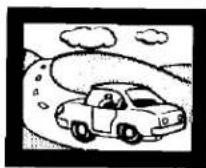
- Um das Bild auf dem LCD-Monitorbildschirm kann ein schwarzer Bereich erscheinen. Dies ist jedoch keine Fehlfunktion.
- Die Aufnahme im NTSC-System ist mit dem tragbaren Fernseher mit Videorecorder nicht möglich.
Ansehen der NTSC-Wiedergabe auf einem PAL-Fernsehgerät
- Je nach verwendetem Fernsehgerät kann das Bild vertikal schrumpfen und schwarze Balken können sowohl oben als auch unten auf dem Bildschirm erscheinen.
Dies ist kein Hinweis auf eine Fehlfunktion.
- Das Wiedergabebild kann nach oben oder unten rollen. Wenn das Fernsehgerät mit einem V-HOLD-Regler ausgestattet ist, kann es möglich sein, die Bildbewegung durch Einstellen dieses Reglers zu stoppen.
- Je nach verwendetem Fernsehgerät kann das Bild schwarz-weiß sein. Dies ist jedoch kein Hinweis auf eine Fehlfunktion.
- Wenn der Wiedergabe-Wahlschalter nicht richtig eingestellt ist, ist es nicht möglich, ein normales Bild zu empfangen.
Bei Verwendung der Stabantenne während der Aufnahme von Fernsehprogrammen kann die Bildqualität unbefriedigend sein. Daher wird empfohlen, wann immer möglich eine externe Antenne zu verwenden.
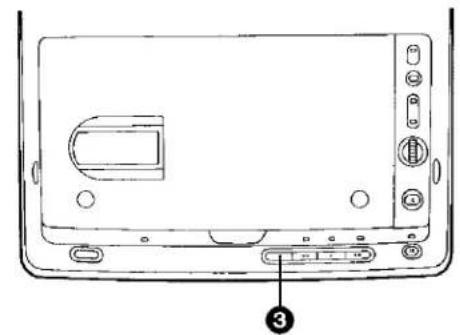
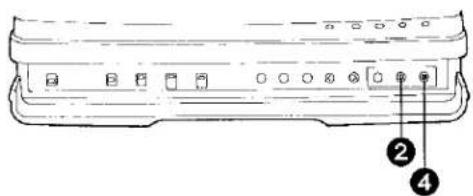
Vorbereitung
- Legen Sie eine Videokassette mit intakter Löschschutzlasche ein. Wenn sich bereits eine Videokassette im tragbaren Fernseher mit Videorecorder befindet, drücken Sie den Betriebs-Ein/Aus-Schalter, um ihn einzuschalten. 1 Drücken Sie wiederholt die Kanaltaste (>) oder (<), um die Programmposition (den Kanal) zu wählen, auf der das aufzunehmende Fernsehprogramm ausgestrahlt wird. (Siehe Seiten 14 und 15.) ② Drücken Sie die Aufnahmetaste (●). •Die Aufnahmeanzeige leuchtet auf.
Zum Beenden der Aufnahme
③ Drücken Sie die Stopptaste (■).
Wenn Sie vermeiden möchten, unerwünschtes Material aufzunehmen
4 Drücken Sie die Pausetaste (11), um das Band vorübergehend anzuhalten.
● Die Pause-Anzeige leuchtet auf. - Drücken Sie die Pause-Taste (11) erneut, um die Aufnahme fortzusetzen. - Wenn der Portable TV mit VTR länger als 5 Minuten im Pause-Modus bleibt, schaltet er automatisch in den Stopp-Modus um, um das Band und die Videoköpfe zu schützen.
Hinweis:
- Ändern Sie während der Aufnahme nicht die Position des Bandwahlschalters.
- Bei der Aufnahme von TV-Sendungen über den eingebauten Tuner wird der Ton auf den Hi-Fi-Audiospuren aufgezeichnet. Der Ton einer Stereosendung wird jedoch nur in Mono aufgezeichnet, und bei einer zweisprachigen Sendung wird nur die Hauptsprache aufgezeichnet.
Schnittaufnahme (Assemble Editing)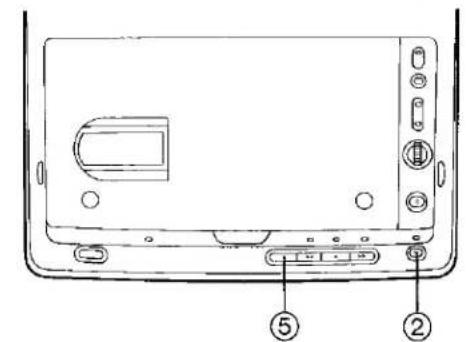
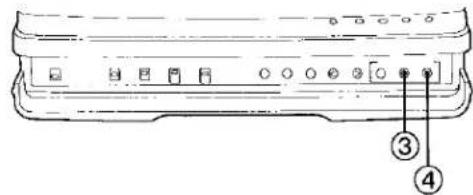
Vorbereitung
- Legen Sie die Kassette ein, auf der Sie eine neue Aufnahme hinzufügen möchten, und versetzen Sie den Portable TV mit VTR in den Wiedergabemodus.
① Verwenden Sie eine der Kanaltasten, um die Programmposition auszuwählen, auf der das aufzunehmende TV-Programm ausgestrahlt wird. (Siehe Seiten 14 und 15.)
② Suchen Sie das Ende der vorherigen Aufnahme und drücken Sie die Standbild-Taste, wenn es erreicht ist.
● Die Standbild-Anzeige leuchtet auf.
③ Drücken Sie die Aufnahme-Taste, um den Portable TV mit VTR in den Aufnahme-Pause-Modus zu versetzen.
● Die Standbild-Anzeige erlischt und die Aufnahme-Anzeige und die Pause-Anzeige leuchten auf.
④ Drücken Sie die Pause-Taste, um die Aufnahme zu starten.
Lesen Sie unbedingt die Bedienungsanleitung der Mikrokamera (optional).
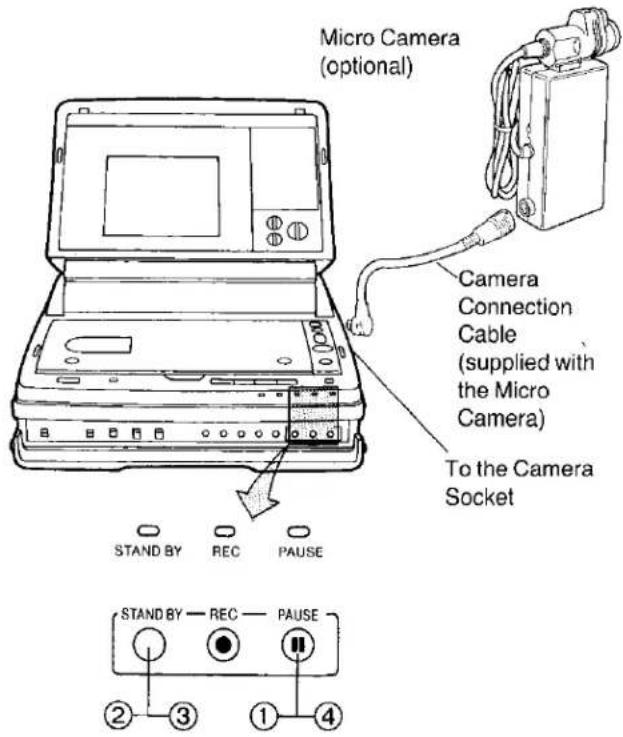
Vorbereitung
- Schließen Sie die optionale Mikrokamera an den tragbaren Fernseher mit Videorecorder an, wie oben gezeigt.
- Stellen Sie den Eingangssignal-Wahlschalter auf "KAMERA".
- Legen Sie eine Videokassette mit intakter Löschschutzlasche ein. Wenn sich bereits eine Videokassette im tragbaren Fernseher mit Videorecorder befindet, drücken Sie die Betriebstaste, um das Gerät einzuschalten. Wenn die Aufnahmetaste (●) gedrückt wird, wechselt der tragbare Fernseher mit Videorecorder automatisch in den Aufnahme-Pausemodus. 2 Die Kameraaufnahme kann durch Drücken der Pausetaste (II) am tragbaren Fernseher mit Videorecorder oder der Taste an der Pause-Fernbedienung (optional) gestartet werden. ● Das Pausieren und Fortsetzen der Aufnahme kann durch erneutes Drücken derselben Taste erfolgen. 3 Drücken Sie die Stopptaste (■) am tragbaren Fernseher mit Videorecorder, um die Aufnahme zu beenden.
Hinweis:
- Die Aufnahme kann auch mit der Start/Stopp-Taste an der Kamera gestartet und pausiert werden. Einzelheiten finden Sie in der Bedienungsanleitung der Kamera.
- Wenn der tragbare Fernseher mit Videorecorder länger als 5 Minuten im Pausemodus bleibt, wechselt er automatisch in den Stoppmodus, um das Band und die Videoköpfe zu schützen.
- Längeres Anzeigen eines Standbildes kann ein Nachbild auf dem LCD-Monitor verursachen. Dies ist jedoch keine Fehlfunktion und verschwindet nach einer Weile.
- Wenn Sie den Ton über den Lautsprecher des tragbaren Fernsehers mit Videorecorder während der Kameraaufnahme oder bei Verwendung eines externen Mikrofons überwachen, reduzieren Sie die Lautstärke oder stellen Sie den tragbaren Fernseher mit Videorecorder so weit wie möglich von der Kamera oder dem externen Mikrofon entfernt auf, um Rückkopplungen zu vermeiden.
STANDBY-FUNKTION
Die Standby-Funktion ist praktisch, um Strom zu sparen und die Lebensdauer des Akkus zu verlängern, wenn Sie während der Aufnahme länger als ein paar Minuten pausieren.
- Führen Sie die folgenden Vorgänge während der Aufnahme aus.
Während der Aufnahme
① Drücken Sie die Pausetaste, um die Aufnahme vorübergehend zu stoppen. ● Die Pause-Anzeige leuchtet auf.
Aufnahmepause
② Drücken Sie die Standby-Taste.
- Das Bild verschwindet und der Portable TV mit VTR schaltet in den Stand-by-Modus um (Stand-by-Zustand für das Schnitt-Assembling und den Stromsparzustand). ●Die Stand-by-Anzeige leuchtet auf.
Aufnahme stoppen
③ Drücken Sie erneut die Stand-by-Taste, um den Portable TV mit VTR für die Aufnahme der nächsten Szene bereit zu machen.
- Warten Sie ca. 5 Sekunden, bis das Bild stabil wird. ●Die Aufnahmeanzeige und die Pausenanzeige leuchten auf.
Aufnahmepause
④ Drücken Sie die Pausetaste, um die Aufnahme erneut zu starten.
Hinweis:
- Es ist nicht möglich, den Portable TV mit VTR im Stand-by-Modus auszuschalten. Drücken Sie zuerst die Stand-by-Taste, um den Stand-by-Modus zu beenden, und schalten Sie dann das Gerät mit der Betriebs-Ein/Aus-Taste aus.
- Auch wenn die Abdeckung geschlossen ist, schaltet der Portable TV mit VTR automatisch in den Stand-by-Modus um, wenn er länger als 5 Minuten im Pausenmodus bleibt.
- Wenn die Stand-by-Funktion während der Aufnahme eines TV-Programms aktiviert wird, wird die ausgewählte Programmposition (Kanal) nicht beibehalten.
Wenn der Portable TV mit VTR als Aufnahme-VTR verwendet wird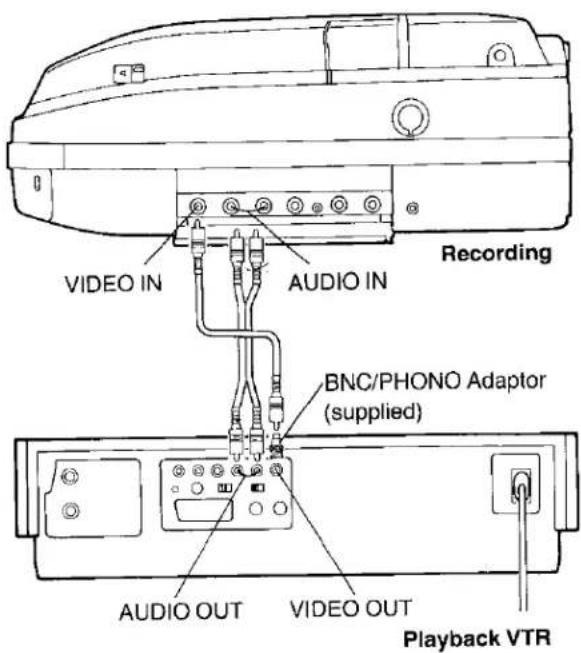
Vorbereitung
●Nehmen Sie die erforderlichen Verbindungen wie oben gezeigt vor. - Stellen Sie den Eingangssignal-Wahlschalter auf "LINE". - Stellen Sie den Schnitt-Ein/Aus-Schalter auf "ON".
① Legen Sie das bespielte Kassettenband in den Wiedergabe-VTR und ein leeres Kassettenband mit intakter Löschschutzlasche in den Portable TV mit VTR ein. 2 Drücken Sie die Aufnahmetaste und dann die Pausetaste am Portable TV mit VTR, um ihn in den Aufnahmepausenmodus zu versetzen. ③ Drücken Sie die Wiedergabetaste (▶) am Wiedergabe-VTR. 4 Drücken Sie die Pausetaste am Portable TV mit VTR an der Stelle, an der Sie mit der Kopie beginnen möchten. 5 Um die Kopie zu stoppen, drücken Sie die Stopptaste (■) sowohl am Portable TV mit VTR als auch am Wiedergabe-VTR.
Synchron-Schnitt
- Einzelheiten entnehmen Sie bitte der Bedienungsanleitung des aufzeichnenden Videorecorders.
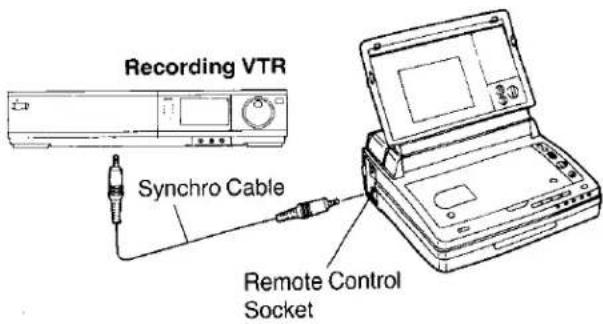
Wenn der aufzeichnende Videorecorder über eine Synchronbuchse verfügt, verbinden Sie die Synchronbuchse des aufzeichnenden Videorecorders mit der Fernbedienungsbuchse des tragbaren Fernsehers mit Videorecorder über das optionale Synchronkabel.
- Diese Verbindung ermöglicht es, den tragbaren Fernseher mit Videorecorder vom aufzeichnenden Videorecorder aus zu bedienen, d.h. Start und Stopp der Wiedergabe des tragbaren Fernsehers mit Videorecorder werden mit Start und Stopp der Aufnahme auf dem Videorecorder synchronisiert.
Anschluss an ein Fernsehgerät ohne Video- und Audioeingangsbuchsen
Der Netzadapter und der HF-Adapter sind erforderlich:
Schalten Sie den tragbaren Fernseher mit Videorecorder vor dem Anschluss des HF-Adapters mit dem Betriebsschalter aus.
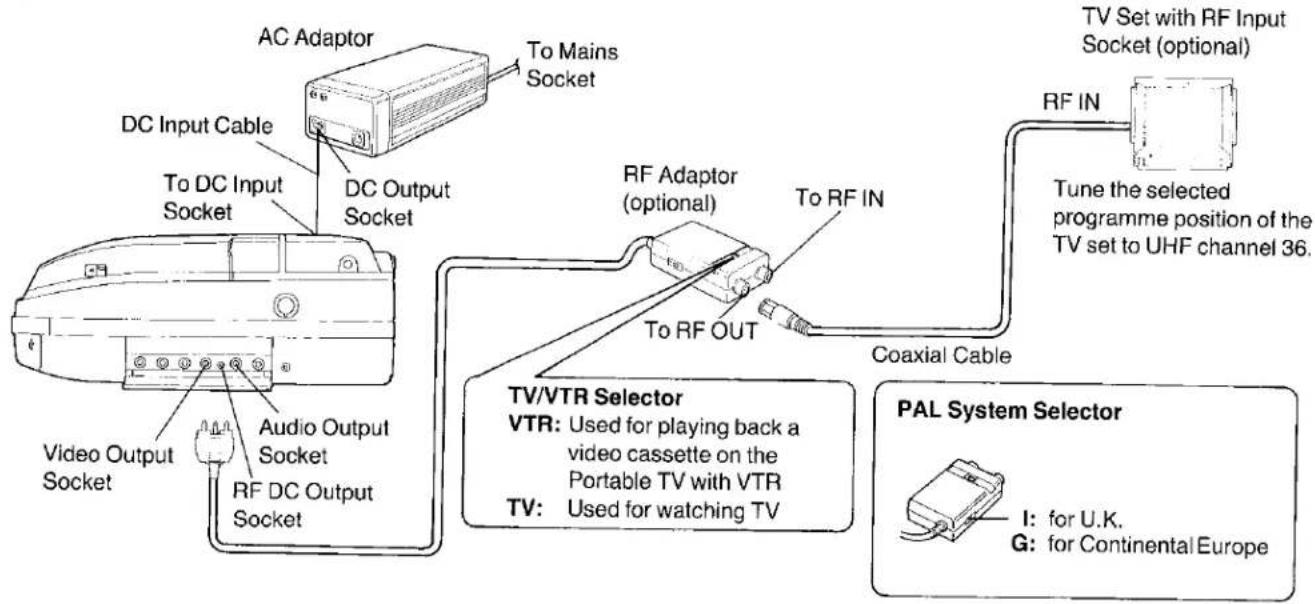
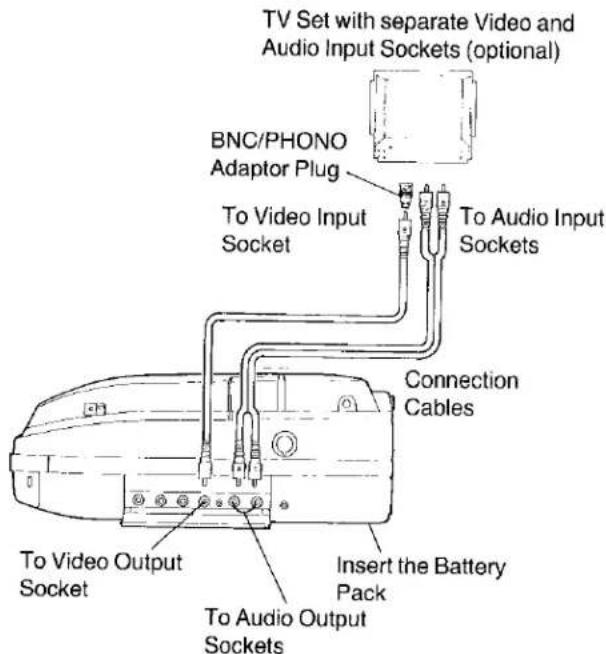
Anschluss an ein Fernsehgerät mit Video- und Audioeingangsbuchsen
Bei Verwendung des Akkus als Stromquelle:
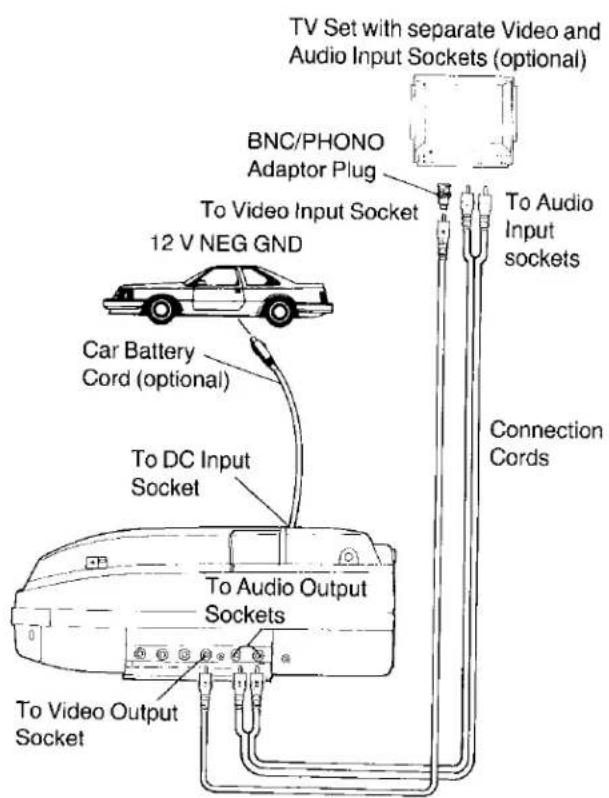
Bei Verwendung des Autobatteriekabels als Stromquelle:
Anschluss an eine Stereoanlage
Lesen Sie die Bedienungsanleitung der Stereoanlage sorgfältig durch.
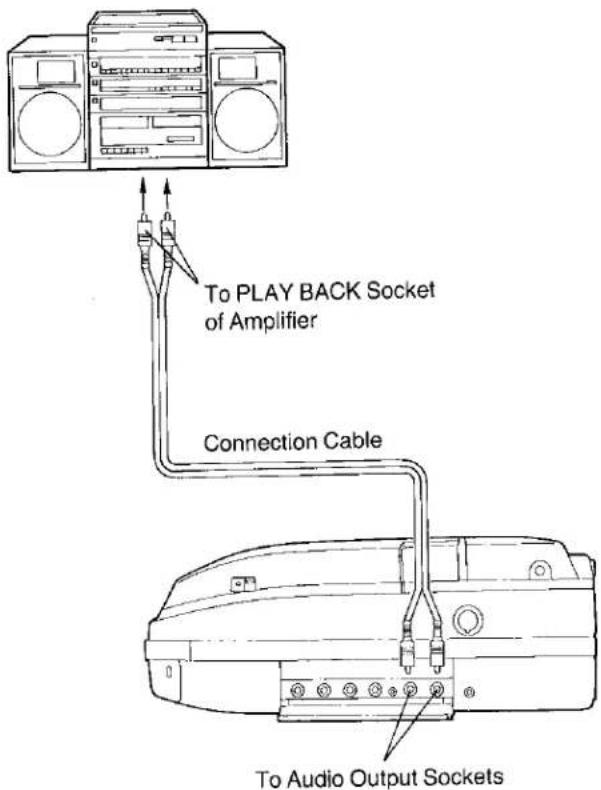
Hinweis:
Die Aufnahme nur des Tons ohne Bild ist mit dem tragbaren Fernseher mit Videorecorder nicht möglich.
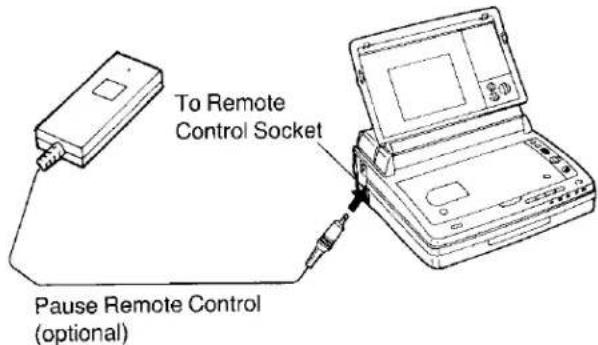
Pausenfernbedienung (optional)
Die Pausenfernbedienung (VW-RM1; optional) ermöglicht die Bedienung der Aufnahmestart/-stopp-Funktionen aus einer Entfernung von bis zu ca. 5 Metern.
Stereo-Kopfhörer
Bevor Sie einen Kundendienst anfordern, überprüfen Sie bitte die folgenden Punkte.
| SYMPTOM | CAUSE | REMEDY |
| Power doesn't turn on. | Mains Lead is not connected correctly. | Connect mains lead to mains outlet. |
| Power turns off immediately after the power is turned on. | The Battery Pack is not charged. | Use after recharging the Battery Pack. |
| The Battery Pack is exhausted. | Use fully-charged Battery Pack. | |
| Dew has formed inside the unit. | Wait until the dew condensation is dissolved. | |
| TV programmes cannot be received. | The Input Signal Selector Switch is not set to "TUNER". | Set the Input Signal Selector Switch to "TUNER". |
| The selected TV station cannot be received with clear picture. | The TV signal is too weak. | Use an external aerial. |
| The TV signal is inferior due to reflection from mountains and/or buildings. | ||
| The Rod Antenna is not pointing in the right direction. | Adjust the direction of the Rod Antenna. | |
| Picture is dark.Picture is whitish. | The Brightness Control is not adjusted correctly. | Adjust the Brightness Control correctly. |
| Tint of colours is bad. | The Colour Control is not adjusted correctly. | Adjust the Colour Control correctly. |
| No sound is reproduced from the speaker. | The Volume Control is not adjusted correctly. | Adjust the Volume Level Control correctly. |
| Stereo Earphones are connected. | Disconnect the Stereo Earphones. | |
| Recording cannot be performed. | The erasure prevention tab of the cassette is broken out. | Cover the hole with adhesive tape. |
| TV programmes cannot be recorded. | The Input Signal Selector Switch is not set to "TUNER". | Set the Input Signal Selector Switch to "TUNER". |
| Camera recording cannot be performed. | The Input Signal Selector is not set to "CAMERA". | Set the Input Signal Selector to "CAMERA". |
| Connection is not correct. | Make the connections again according to the diagrams. | |
| Playback picture is not in colour.Playback picture has large amounts of "snow". | The tracking is not properly adjusted. | Adjust the tracking. |
| The video heads are dirty. | Clean the video heads with a video head cleaning cassette. | |
| The video heads are damaged. | The video heads need to be replaced. | |
| The tape is old. | Use a new tape. | |
| The Playback System Selector Switch is not set correctly. | Set the Playback System Selector Switch to the proper position. |
VOR DER ANFORDERUNG DES KUNDENDIENSTES (FORTSETZUNG)
| SYMPTOM | CAUSE | REMEDY |
| The sound of the TV programme is distorted. | The TV System Selector Switch is not set correctly. | Set the TV System Selector Switch to the correct position. |
| Hi-Fi sound is not correctly reproduced. | The Audio Selector Switch is not set correctly. | Select the desired audio playback mode with the Audio Selector Switch. |
| The tracking is not properly adjusted. | Adjust the tracking. | |
| Battery Pack is exhausted in a very short time. | The Battery Pack was not fully charged. | Fully recharge the Battery Pack. |
| The unit is used in a place with extremely low temperature. | ____ | |
| The unit switches over to the stop mode during fast-forwarding or rewinding of the tape. | The Memory Indication “M” is indicated together with the Tape Counter Indication. | Press the Memory/Display Selector Button to clear the “M” Indication. |
| Picture and sound cannot be played back even if the power is turned on. | The Cover of the Portable TV with VTR is not opened far enough. | Open the Cover more than 70°. |
| The cassette tape cannot be removed. | The Cover of the Portable TV with VTR is not opened far enough. | Open the Cover more than 70°. |
NV-FV1B
| Power Source: | DC 12 V | |
| Power Consumption: | Recording mode; 14 W (without camera) | |
| is the safety information. | ||
| Video Recording System: | Rotary four heads, helical scanning system | |
| Tape Speed: | 23.39 mm/sec. | |
| Tape Format: | VHS tape | |
| Record/Playback Time: | 240 min. with NV-E240 VIS | |
| FF/REW Time: | Approx. 12 min. with NV-E180 | |
| VIDEO | ||
| Television System: | CCIR; 625 lines, 50 fields, PAL colour signal | |
| Modulation System: | Luminance; FM azimuth recordingColour signal; converted subcarrier phase shift recording | |
| Input Level: | VIDEO IN(PHONO); 1.0 Vp-p, | 75 ohm, unbalanced |
| Output Level: | VIDEO OUT (PHONO); 1.0 Vp-p, | 75 ohm, unbalanced |
| AUDIO | ||
| Input Level: | AUDIO IN (PHONO); -10 dB, | more than 47 kohm, unbalanced |
| Output Level: | AUDIO OUT (PHONO); -8 dB, | less than 600 ohm, unbalanced |
| Head Phones: | M3 Stereo; -29 dB, | 8 ohm, unbalanced |
| Audio Track: | 1 track (Normal-mono), 2 channels (Hi-Fi sound-stereo) | |
| External Antenna Input: | M3 | |
| TV Channel: | VHF; 2-12chUHF; 21-69ch | |
| TV Screen Device: | 5" colour LCD | |
| Tuning Method: | auto tuning | |
| Antenna: | built-in rod antenna | |
| Display Counter: | 4 digit/lap time | |
| Speaker: | 45 mm dynamic speaker | |
| Video Horizontal | ||
| Resolution Colour: | VHS; More than 220 lines | |
| Audio Frequency Response: | HiFi; 50-20,000 HzLinear; 120-8,000 Hz | |
| Signal-to-Noise Ratio: | Video; More than 41 dBAudio (HiFi); More than 45 dB(Normal); More than 40 dB | |
| Operating Temperature: | 5°C-40°C | |
| Operating Humidity: | 35%-80% | |
| Weight: | 3 kg | |
| Dimensions: | 259 (W)×106 (H)×277 (D) mm | |
| VW-AM10B | ||
| Power Source: | AC 100-240 V, 50-60 Hz (Automatic voltage adjustment) | |
| Power Consumption: | 44 W | |
| DC Output: | DC 12 V 1.8 A (Portable TV with VTR)DC 12 V 1.5 A (Battery pack charging) | |
| is the safety information. | ||
| Weight: | Approx. 0.62 kg | |
| Dimensions: | 80 (W)×54 (H)×196 (D) mm |
Gewicht und Abmessungen sind ungefähre Angaben. Änderungen der technischen Daten ohne vorherige Ankündigung vorbehalten.
| .100 | ||
| .200 | .200 | .200 |
| .300 | .300 | .300 |
| .400 | .400 | .400 |
| .500 | .500 | .500 |
| .600 | .600 | .600 |
| .700 | .700 | .700 |
| .800 | .800 | .800 |
| .900 | .900 | .900 |
| .1000 | .1000 | .1000 |
| .1100 | .1100 | .1100 |
| .1200 | .1200 | .1200 |
| .1300 | .1300 | .1300 |
| .1400 | .1400 | .1400 |
| .1500 | .1500 | .1500 |
| .1600 | .1600 | .1600 |
| .1700 | .1700 | .1700 |
| .1800 | .1800 | .1800 |
| .1900 | .1900 | .1900 |
| .2000 | .2000 | .2000 |
| .2100 | .2100 | .2100 |
| .2200 | .2200 | .2200 |
| .2300 | .2300 | .2300 |
| .2400 | .2400 | .2400 |
| .2500 | .2500 | .2500 |
| .2600 | .2600 | .2600 |
| .2700 | .2700 | .2700 |
| .2800 | .2800 | .2800 |
| .2900 | .2900 | .2900 |
| .3000 | .3000 | .3000 |
| .3100 | .3100 | .3100 |
| .3200 | .3200 | .3200 |
| .3300 | .3300 | .3300 |
| .3400 | .3400 | .34, 35, 36, 37, 38, 39, 4, 4, 4, 4, 4, 4, 4, 4, 4, 4, 4, 4, 4, 4, 4, 4, 4, 4, 4, 4, 4, 4, 4, 4, 4, 4, 4, 4, 4, 4, 4, 4, 4, 4 , 4, 4, 4, 4, 4, 4, 4, 4, 4, 4, 4, 4, 4, 4, 4, 4, 4, 4, 4, 4, 4, 4, 4, 4, 4, 4, 4, 4, 4, 4, 4 , |


Gedruckt in Japan
VQT3907
F0790M1070-2000⑧
Matsushita Electric Industrial Co., Ltd.
Central P.O. Box 288, Osaka 530-91, Japan

- PANASONIC
- WICHTIG
- WARNUNG
- NETZTEIL VW-AM
- FÜR IHRE SICHERHEIT
- HQ (HIGH QUALITY) BILDSYSTEM
- HQ
- VERMEIDEN SIE PLÖTZLICHE TEMPERATURWECHSEL
- FEUCHTIGKEIT UND STAUB
- LÜFTUNGSSCHLITZE NICHT BLOCKIEREN
- HALTEN SIE DEN TRAGBAREN FERNSEHER MIT VIDEORECORDER VON HOHEN TEMPERATUREN FERN
- MAGNETE FERNHALTEN
- KEINE FINGER ODER ANDERE GEGENSTÄNDE HINEINSTECKEN
- VOR WASSER SCHÜTZEN
- REINIGUNG
- POSITIONIERUNG
- VERSTOPFUNG DER VIDEOKÖPFE
- WENN SICH KONDENSWASSER IM TRAGBAREN FERNSEHER MIT VIDEORECORDER BILDET
- IM TRAGBAREN FERNSEHER MIT VIDEORECORDER KANN SICH KONDENSWASSER BILDEN, WENN
- WENN SICH KONDENSWASSER IM TRAGBAREN FERNSEHER MIT VIDEORECORDER BILDET: (SIEHE SEITE 13.)
- HINWEIS
- ② SO ÖFFNEN SIE DIE ABDECKUNG
- ② SO SCHLIESSEN SIE DIE ABDECKUNG
- HINWEISE
- ANSICHT VON OBEN
- BEDIENELEMENTE UND KOMPONENTEN (FORTSETZUNG)
- NETZTEIL (VW-AM10)
- VORSICHTSMASSNAHMEN
- ZUBEHÖR FÜR DEN TRAGBAREN FERNSEHER MIT VTR-SYSTEM
- STANDARDZUBEHÖR
- SONDERZUBEHÖR
- LADEN DES AKKUS
- SO LADEN SIE DEN AKKU, DER MIT DEM NETZTEIL VERBUNDEN IST
- VORSICHTSMASSNAHMEN BEI DER VERWENDUNG VON AKKUS
- BETRIEBSDAUER MIT DEM AKKU
- SO VERLÄNGERN SIE DIE LEBENSDAUER DES AKKUS
- ENTFERNEN EINER VIDEOKASSETTE
- AUTOMATISCHER BETRIEB
- AUTOMATISCHE WIEDERGABE
- AUTOMATISCHER RÜCKLAUF
- TRAGBARER FERNSEHER MIT VTR-AUSWURF BEI AUSGESCHALTETEM GERÄT
- ANZEIGEN AUF DEM LCD-MONITOR
- ZÄHLERANZEIGEN
- M0000: BANDZÄHLER
- RUNDENZEITZÄHLER
- BANDLAUFANZEIGEN
- KASSETTE-EINGELEGT-ANZEIGE
- ANZEIGE DER VERBLEIBENDEN AKKULEISTUNG
- ANZEIGE DER VERBLEIBENDEN AUFNAHMEPAUSENZEIT
- EINGANGSANZEIGEN
- CAMERA
- WIEDERGABE-TONANZEIGEN
- WARNANZEIGEN
- VHF/UHF-STABANTENNE
- AUSSENANTENNE
- BESTÄTIGEN DER EINGESTELLTEN EMPFANGSKANÄLE
- B/G-I-TV-SYSTEM-WAHLSCHALTER (UNTERSEITE)
- VORBEREITUNG
- ① NORMALE WIEDERGABE
- ② ZUM BEENDEN DER WIEDERGABE
- ③ STANDBILDWIEDERGABE
- ④ CUE-WIEDERGABE
- ⑤ REVIEW-WIEDERGABE
- RÜCKLAUF UND SCHNELLER VORLAUF
- WIEDERGABE MIT TONWIEDERGABE ÜBER STEREO-KOPFHÖRER
- SPEICHERFUNKTION
- SPEICHER-/ANZEIGEAUSWAHLTASTE
- TRACKING-KONTROLLTASTEN
- NTSC-WIEDERGABE
- ANSEHEN DER NTSC-WIEDERGABE AUF DEM TRAGBAREN FERNSEHER MIT VIDEORECORDER
- ANSEHEN DER NTSC-WIEDERGABE AUF EINEM PAL-FERNSEHGERÄT
- ZUM BEENDEN DER AUFNAHME
- WENN SIE VERMEIDEN MÖCHTEN, UNERWÜNSCHTES MATERIAL AUFZUNEHMEN
- STANDBY-FUNKTION
- WÄHREND DER AUFNAHME
- AUFNAHMEPAUSE
- AUFNAHME STOPPEN
- SYNCHRON-SCHNITT
- ANSCHLUSS AN EIN FERNSEHGERÄT OHNE VIDEO- UND AUDIOEINGANGSBUCHSEN
- ANSCHLUSS AN EIN FERNSEHGERÄT MIT VIDEO- UND AUDIOEINGANGSBUCHSEN
- ANSCHLUSS AN EINE STEREOANLAGE
- PAUSENFERNBEDIENUNG (OPTIONAL)
- STEREO-KOPFHÖRER
Marke : PANASONIC
Modell : NV-FV1B
Kategorie : Videorekorder