
NV-SD230B - Videorekorder PANASONIC - Kostenlose Bedienungsanleitung
Finden Sie kostenlos die Bedienungsanleitung des Geräts NV-SD230B PANASONIC als PDF.



| Produkttyp | Videorekorder |
| Marke | Panasonic |
| Modell | NV-SD230B / NV-SD230BL |
| Abmessungen (B x H x T) | 430 mm x 87 mm x 297 mm |
| Gewicht | ca. 4 kg |
| Stromversorgung | 220–240 V AC, 50/60 Hz |
| Leistungsaufnahme | 19 W |
| Bandformat | VHS |
| Bandgeschwindigkeit | SP: 23,39 mm/s, LP: 11,7 mm/s |
| Videoaufzeichnungssystem | 2 Rotationsköpfe, Schrägspurabtastung |
| Fernbedienung | Infrarot-Fernbedienung mit Batterien (2x AA/R6) |
| Timeraufnahme | Bis zu 8 Programme, bis zu 1 Monat im Voraus, mit Video Plus+ und On-Screen-Display |
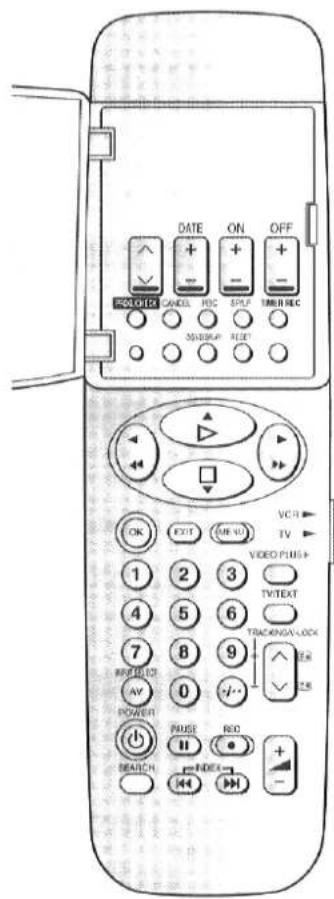
| PDC | Programmgesteuerte Aufnahme (PDC) für automatische Start-/Stoppsteuerung |
| Suchfunktionen | Intro-Jet Scan, VHS-Index-Suchsystem, Timer-Aufnahmebestätigung |
| Anschlüsse | Scart (AV1, AV2), HF-Ein-/Ausgang, Antenneneingang |
| Kopfreinigung | Bei Verschmutzung der Videoköpfe Fachwerkstatt aufsuchen; nicht selbst reinigen |
| Sicherheitshinweise | Nicht Regen oder Feuchtigkeit aussetzen; Gehäuse nicht öffnen; Netzstecker ziehen bei Störungen |
| Betriebstemperatur | 5 °C bis 40 °C |
| Luftfeuchtigkeit | 35 %–80 % |
| Lieferumfang | Netzkabel, HF-Koaxialkabel, Fernbedienung, 2 Batterien |
Häufig gestellte Fragen - NV-SD230B PANASONIC
Benutzerfragen zu NV-SD230B PANASONIC
0 Frage zu diesem Gerät. Beantworten Sie die, die Sie kennen, oder stellen Sie Ihre eigene.
Eine neue Frage zu diesem Gerät stellen
Laden Sie die Anleitung für Ihr Videorekorder kostenlos im PDF-Format! Finden Sie Ihr Handbuch NV-SD230B - PANASONIC und nehmen Sie Ihr elektronisches Gerät wieder in die Hand. Auf dieser Seite sind alle Dokumente veröffentlicht, die für die Verwendung Ihres Geräts notwendig sind. NV-SD230B von der Marke PANASONIC.
BEDIENUNGSANLEITUNG NV-SD230B PANASONIC
Panasonic
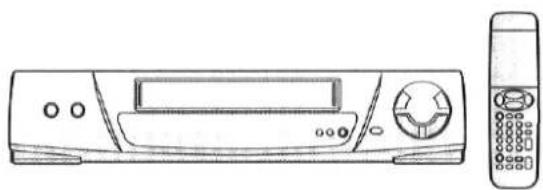
Videorecorder
NV-SD230B
NV-SD230BL
Bedienungsanleitung
VIDEOPlus
VHS
PAL
SUPER DRIVE
MULTI-INTELLIGENT CONTROL II
WICHTIG
Wir weisen darauf hin, dass die Aufnahme von bereits bespielten Kassetten oder Discs oder anderem veröffentlichten oder gesendeten Material Urheberrechte verletzen kann.
WARNUNG
UM DIE GEFAHR VON BRAND ODER STROMSCHLAG ZU VERRINGERN, DIESES GERÄT NICHT REGEN ODER FEUCHTIGKEIT AUSSETZEN.
Da dieses Gerät während des Betriebs heiß wird, betreiben Sie es an einem gut belüfteten Ort; installieren Sie dieses Gerät nicht in einem beengten Raum wie einem Bücherregal oder ähnlichen Einheiten.
FÜR IHRE SICHERHEIT
ENTFERNEN SIE NICHT DIE ÄUSSERE ABDECKUNG.
Um einen elektrischen Schlag zu vermeiden, entfernen Sie nicht die Abdeckung.
Im Inneren befinden sich keine vom Benutzer zu wartenden Teile. Überlassen Sie alle Wartungsarbeiten qualifiziertem Fachpersonal.
Vorsicht bei der Netzkabel
Für Ihre Sicherheit lesen Sie bitte den folgenden Text sorgfältig durch.
Dieses Gerät wird aus Sicherheits- und Bequemlichkeitsgründen mit einem formgepressten dreipoligen Netzstecker geliefert.
In diesem Stecker ist eine 5-Ampere-Sicherung eingebaut.
Sollte die Sicherung ersetzt werden müssen, stellen Sie bitte sicher, dass die Ersatzsicherung eine Nennleistung von 5 Ampere hat und von ASTA oder BSI gemäß BS 1362 zugelassen ist.
Prüfen Sie auf dem Sicherungskörper das ASTA-Zeichen 📂 oder das BSI-Zeichen 🌐.
Wenn der Stecker eine abnehmbare Sicherungsabdeckung enthält, müssen Sie sicherstellen, dass diese beim Austausch der Sicherung wieder angebracht wird. Wenn Sie die Sicherungsabdeckung verlieren, darf der Stecker nicht verwendet werden, bis eine Ersatz-Sicherungsabdeckung beschafft wurde.
Eine Ersatz-Sicherungsabdeckung können Sie bei Ihrem örtlichen Panasonic-Händler kaufen.
WENN DER ANGEFORMTE STECKER NICHT ZUR STECKDOSE IN IHREM HAUS PASST, SOLLTEN SIE DIE SICHERUNG ENTFERNEN UND DEN STECKER ABSCHNEIDEN UND SICHER ENTSORGEN. ES BESTEHT GEFAHR EINES SCHWEREN ELEKTRISCHEN SCHLAGS, WENN DER ABGESCHNITTENE STECKER IN EINE 13-AMPERE-STECKDOSE GESTECKT WIRD.
Wenn ein neuer Stecker angebracht werden soll, beachten Sie bitte den unten gezeigten Verdrahtungscode.
Wenn Sie Zweifel haben, wenden Sie sich bitte an einen qualifizierten Elektriker.
WICHTIG
Die Adern in dieser Netzzuleitung sind gemäß dem folgenden Code gefärbt:
Blau: Nullleiter
Braun: Außenleiter
Da die Farben der Adern in der Netzzuleitung dieses Geräts möglicherweise nicht mit den farbigen Markierungen übereinstimmen, die die Klemmen in Ihrem Stecker kennzeichnen, gehen Sie wie folgt vor:
Die BLUE gefärbte Ader muss an die Klemme im Stecker angeschlossen werden, die mit dem Buchstaben N oder der Farbe SCHWARZ markiert ist.
Die BRAUN gefärbte Ader muss an die Klemme im Stecker angeschlossen werden, die mit dem Buchstaben L oder der Farbe ROT markiert ist.
Unter keinen Umständen darf eine dieser Adern an die Klemme des dreipoligen Steckers angeschlossen werden, die mit dem Buchstaben E oder dem Erdungssymbol markiert ist.
So tauschen Sie die Sicherung aus
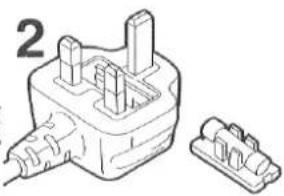
- Es gibt zwei Arten der Netzkabel-Baugruppe: ① und ②, wie unten gezeigt.
1 Öffnen Sie das Sicherungsfach mit einem Schraubendreher. 2 Ersetzen Sie die Sicherung und die Sicherungsabdeckung.
TYP Ⓐ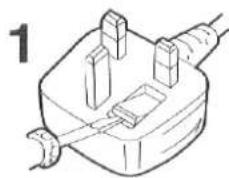
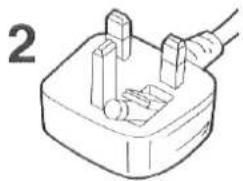
TYP ®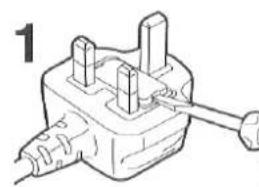
Inhalt
Vorsicht bei Netzkabel 2
Auspacken 4
- So installieren Sie die Batterien 4
Vor der Verwendung
Bedienelemente und ihre Funktionen 5
- Infrarot-Fernbedienung 5
- Hauptgerät 8
Anschlüsse
Liste der Anschluss- und Einrichtungsmethoden 9
Anschluss an einen Fernseher ohne 21-poligen Scart-Kabelanschluss (HF-Anschluss) -- 10
Anschluss an einen Fernseher mit 21-poligem Scart-Kabelanschluss (AV-Anschluss) ---- 11
Anschluss an einen Satellitenempfänger oder einen Decoder 12
Automatische Einrichtung
Einrichtung nach dem Anschluss an einen Fernseher ohne 21-poligen Scart-Kabelanschluss ---- 13
Einrichtung nach dem Anschluss an einen Fernseher mit 21-poligem Scart-Kabelanschluss ---- 15
Menüfunktionen
Menüübersicht Diagramm 16
Einstellungen der Anzeige (Display) 17
Speichern von TV-Sendungen in Ihrem Videorecorder (Abstimmung) 19
Einstellen der Uhr Ihres Videorecorders (Uhr) 22
Einstellungen der Funktionen (Funktionen) 23
Grundlegende Bedienung
Wiedergabe 24
- Weitere Wiedergabefunktionen 25
Manuelle Aufnahme 26
●Weitere Aufnahmefunktionen 26
●So stoppen Sie die Aufnahme automatisch (Aufnahme mit einem Tastendruck = OTR) ---- 27
Timer-Aufnahme 28
●So programmieren Sie mit dem Bildschirmmenü 28
●So programmieren Sie mit Video Plus+ PlusCode 32
Erweiterte Bedienung
Bearbeiten (Schnitt) 34
Suchfunktionen 35
●So suchen Sie, während Sie den Inhalt der Videokassette überprüfen (Intro-Jet-Scan) ---- 35
- So finden Sie den Anfang jeder Aufnahme (VHS-Index-Suchsystem = VISS) -- 36
Informationen
Fachbegriffe 37
Vor der Anforderung von Kundendienst 38
Vorsichtsmaßnahmen 40
Technische Daten 41
Dieser Videorecorder verfügt über eine Bildschirmanzeige (OSD)-Funktion, die Timeraufnahmen und verschiedene andere Einstellungen ermöglicht.
Die wichtigsten Bedientasten für diese Funktionen sind unten aufgeführt. Diese Tasten befinden sich auf der Fernbedienung.
MENÜ: Um das Hauptmenü der Bildschirmanzeige auf dem Fernsehbildschirm erscheinen zu lassen.
Um zum vorherigen Bildschirm zurückzukehren.
EXIT: Um das Menü vollständig zu verlassen.
OK: Um die Auswahl zu bestätigen oder zu speichern.
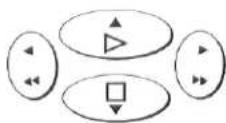
▲▼◀▶: Zur Auswahl von Optionen im Bildschirmmenü.
Diese Tasten können auch für die Wiedergabe, den Stopp, den Rücklauf und den Schnellvorlauf verwendet werden.

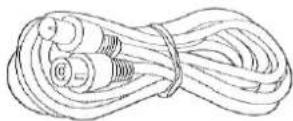
Koaxialkabel für den Anschluss zwischen diesem Videorecorder und einem Fernseher (1 Stk.)
VJA0728-A oder VJA0963-A

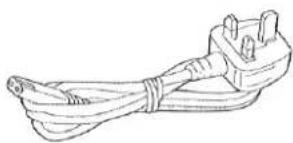
Netzkabel (1 Stk.)
VJA0733 oder VJA0940

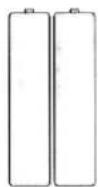
Batterien für die Fernbedienung
(2 Stk.)
UM3 oder R6 Typ
*Die Fernbedienung wird mit 2 Batterien der Größe "AA", "UM3" oder "R6" betrieben. Die Lebensdauer der Batterien beträgt etwa ein Jahr, abhängig von der Häufigkeit der Nutzung.

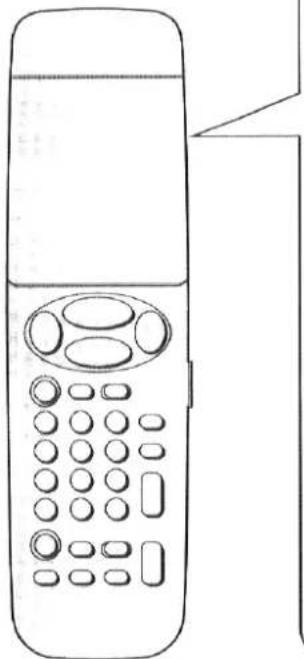
Fernbedienung (1 Stk.)
VEQ2042
So installieren Sie die Batterien
- Legen Sie die neuen Batterien mit korrekt ausgerichteter Polarität (⊕ und ⊖) ein.
- Erhitzen Sie die Batterien nicht, da ein interner Kurzschluss auftreten kann.
- Wenn Sie die Fernbedienung längere Zeit nicht verwenden möchten, entfernen Sie die Batterien und lagern Sie sie an einem kühlen und trockenen Ort.
- Entfernen Sie verbrauchte Batterien sofort und entsorgen Sie sie.
- Verwenden Sie nicht eine alte und eine neue Batterie zusammen, und verwenden Sie niemals eine Alkaline-Batterie mit einer Mangan-Batterie.
Bedienelemente und ihre Funktionen
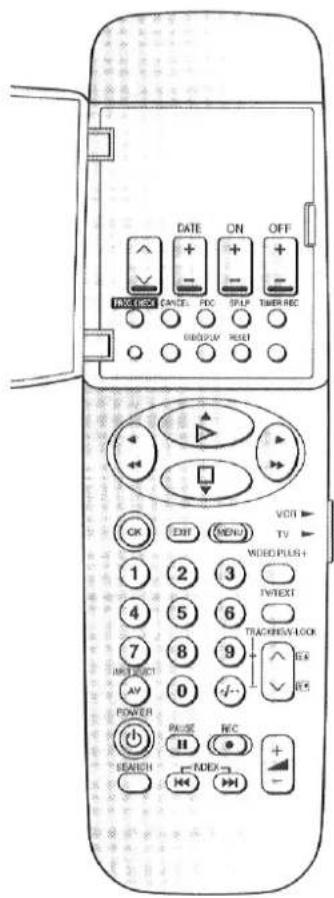
Infrarot-Fernbedienung
BETRIEB DES VIDEOREKORDERS
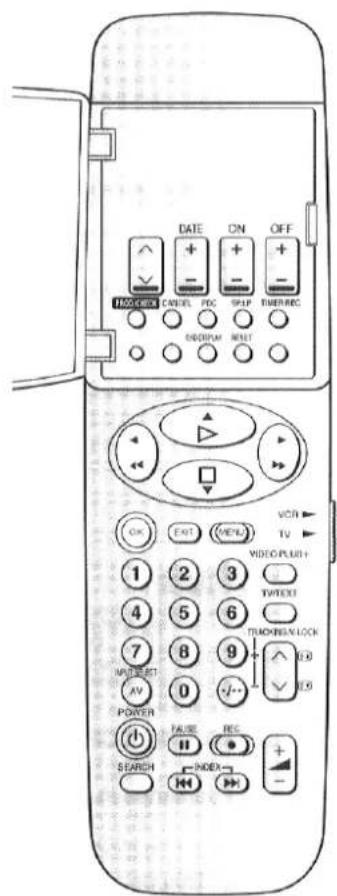
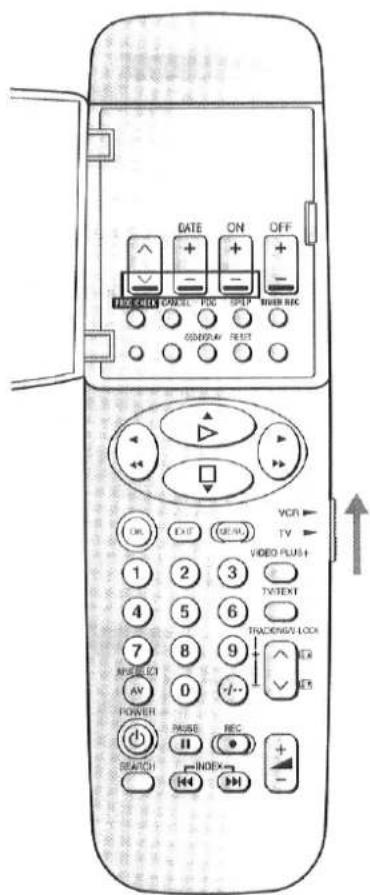
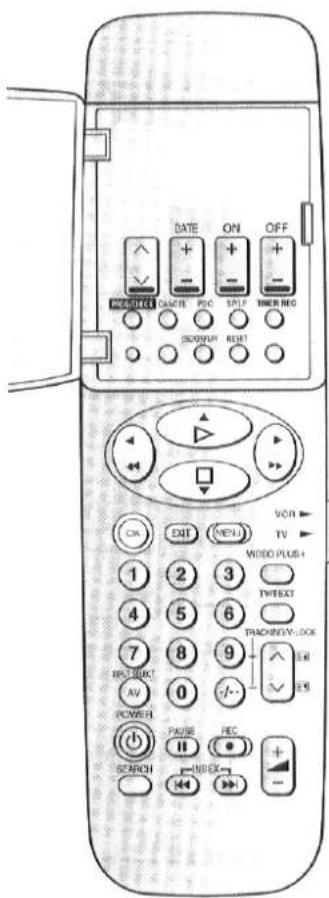
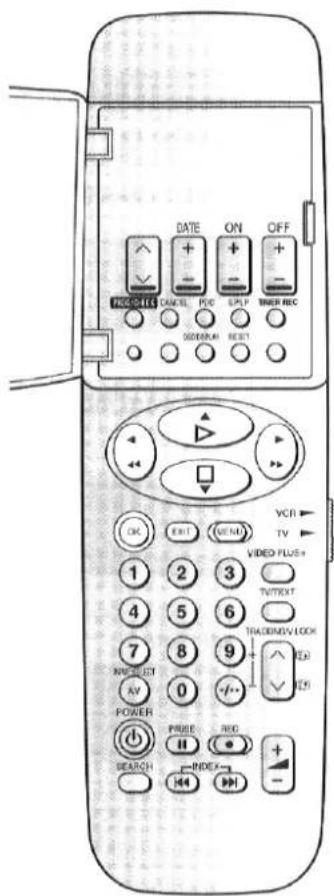
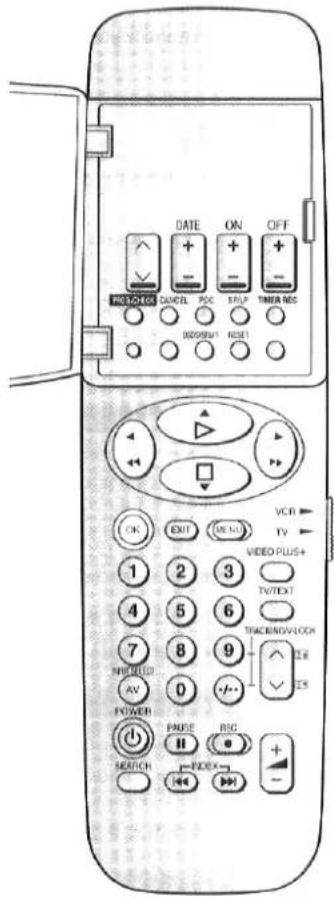
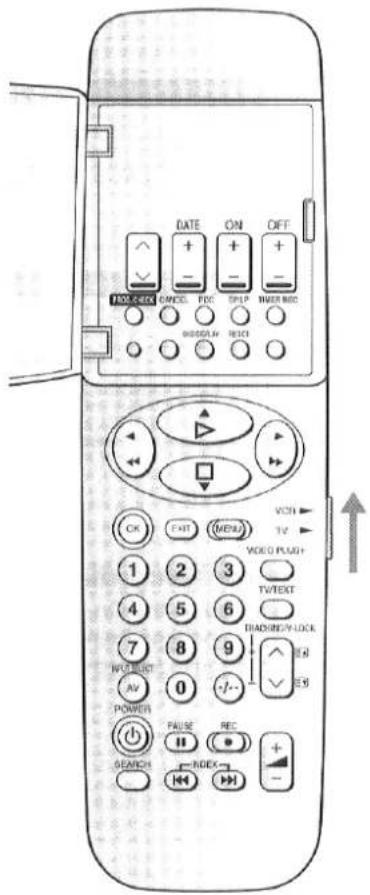
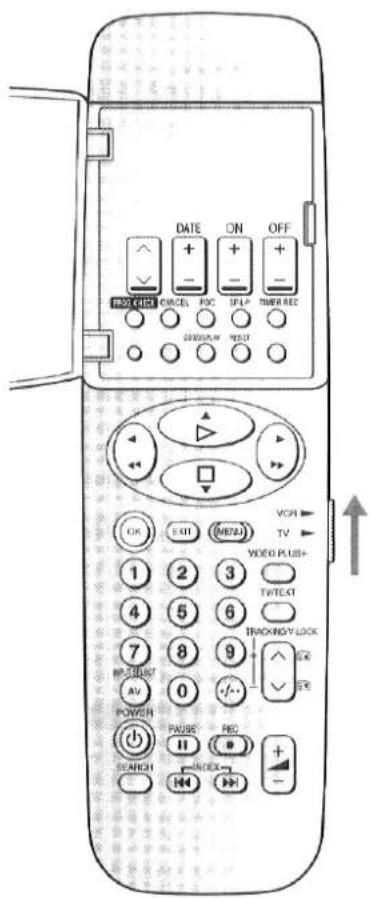
1 Tasten für die Timer-Aufnahme
∨ ∧, DATUM, EIN, AUS:
Zum Programmieren einer Timer-Aufnahme.
PROG./PRÜFEN:
Zum Programmieren einer Timer-Aufnahme.
Zum Prüfen und Ändern von Timer-Programmen.
ABBRECHEN:
Zum Abbrechen von Timer-Programmen.
PDC:
Zum Einstellen der PDC-Aufnahmeoption oder zum Abbrechen der Option.
SP/LP:
Zur Auswahl der gewünschten Bandgeschwindigkeit für die Aufnahme.
SP bietet die beste Bildqualität.
LP bietet die längste Aufnahmezeit.
TIMER REC:
Zum Ein- und Ausschalten der Timeraufnahmefunktion. □ leuchtet oder leuchtet nicht.
Wenn die Timeraufnahmefunktion aktiviert ist, ist der normale Videorecorderbetrieb nicht möglich, es sei denn, diese Taste wird auf Aus gestellt.
2 Diese Tasten werden nicht zur Bedienung dieses Videorecorders verwendet.
3 OSD/DISPLAY
Wenn diese Taste zum ersten Mal gedrückt wird, erscheint das On-Screen-Display auf dem Fernsehbildschirm. Ab dem zweiten Mal ändert sich die Anzeige des Videorecorders wie folgt:
Uhr → Zähler → Restliche Bandzeit
4 Bedientasten für das On-Screen-Display-Menü
Die Tasten mit den grünen Zeichen werden für die Bedienung des On-Screen-Display-Menüs verwendet.
MENU: Zum Anzeigen des Hauptmenüs des On-Screen-Displays auf dem Fernsehbildschirm.
Um zum vorherigen Bildschirm zurückzukehren.
EXIT: Um das Menü vollständig zu verlassen.
OK: Um die Auswahl zu bestätigen oder zu speichern.
▲▼◀▶: Um Auswahlen im Bildschirmmenü zu treffen. (Wenn das Bildschirmmenü angezeigt wird.) Diese Tasten können auch für Wiedergabe, Stopp, Rücklauf und Schnellvorlauf verwendet werden. (Wenn das Bildschirmmenü nicht angezeigt wird.)
5 Zifferntasten
• Zur Auswahl der Programmpositionen (1-99) des Videorecorders.
9: ⑨
19: ⋮ → 1 → 9
- Zur Eingabe eines PlusCode.
6 INPUT SELECT
Zur Auswahl der externen Aufnahmequelle A1 oder A2.
7 POWER ⏻
Drücken Sie, um den Videorecorder vom Ein- in den Bereitschaftsmodus oder umgekehrt zu schalten. Im Bereitschaftsmodus ist das Gerät weiterhin an das Stromnetz angeschlossen.

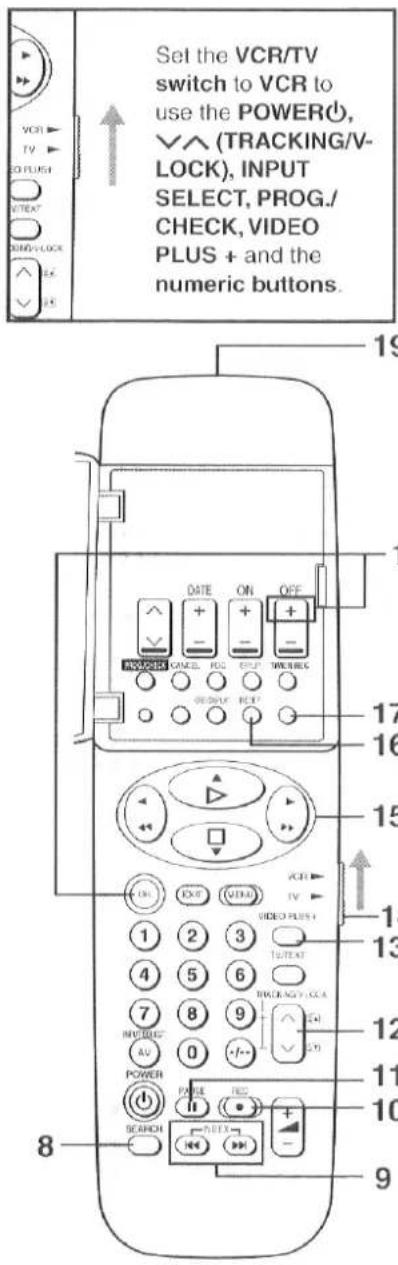
8 SEARCH
Zum Suchen eines aufgenommenen Programms mit den Intro-jet-Scan-Funktionen und zur Bestätigung der Timer-Aufnahme nach der Timer-Aufnahme.
9 INDEX
Für die Indexsuchfunktion.
10 REC
Zum Starten einer Aufnahme.
11 PAUSE
Bei Wiedergabe: Standbild. "[]" leuchtet. Bei Aufnahme: Zum Unterbrechen der Aufnahme.
12 ∨ ∧ (TRACKING/V-LOCK)
Zur Auswahl der gewünschten Programmposition (TV-Sender) des Videorecorders. Für die Spur- und Vertikalsperreinstellung.
13 VIDEO PLUS +
Für die Video-Plus+-Programmierung.
14 VCR/TV-Umschalter
VCR: Zur Auswahl des Videorecorder-Betriebsmodus. TV: Zur Auswahl des TV-Betriebsmodus.
15 ▷ (PLAY)
Zum Starten der Wiedergabe. "I>" leuchtet.
(REWIND)
Im Stopp-Modus: Zum Zurückspulen des Bandes. Im Wiedergabemodus: Zum Rückwärtssuchen. Im Rückspulmodus: Für Zeitraffer-Wiedergabe. „◀◀“ leuchtet.
▶▶ (SCHNELLVORLAUF)
Im Stopp-Modus: Zum schnellen Vorspulen des Bandes. Im Wiedergabemodus: Zum Vorwärtssuchen. Im Schnellvorlaufmodus: Für Zeitraffer-Wiedergabe. „▷▷“ leuchtet.
□ (STOPP)
Zum Stoppen jeder Wiedergabe oder Aufnahme. Zum Auswerfen der Videokassette.
16 RESET
Zum Zurücksetzen des Bandzählers (verstrichene Zeit) auf „0:00.00“. ●Der Bandzähler wird automatisch auf „0:00.00“ zurückgesetzt, wenn eine Videokassette eingelegt wird.
17 Diese Taste wird nicht zur Bedienung dieses Videorecorders verwendet.
18 OK, OFF(+)
Für die Kindersicherungsfunktion. Siehe Beschreibung unten.
19 Infrarot-Sender
Kindersicherungsfunktion
Halten Sie OK und OFF(+) gleichzeitig gedrückt, bis „hold“ im Display des Videorecorders erscheint. Dadurch werden alle Tasten deaktiviert. Externe Befehle werden vom Videorecorder nicht verarbeitet. Zum Aufheben dieser Funktion wiederholen Sie denselben Vorgang, bis „hold“ verschwindet.
- Stellen Sie sicher, dass der Schalter VCR/TV auf VCR steht.
- Wenn eine Taste gedrückt wird, während die Kindersicherungsfunktion aktiv ist, erscheint „hold“ im Display des Videorecorders.
- Wenn die Stromversorgung unterbrochen wird, wird die Kindersicherung nach etwa 60 Minuten Backup-Zeit automatisch aufgehoben.
TV-BETRIEB
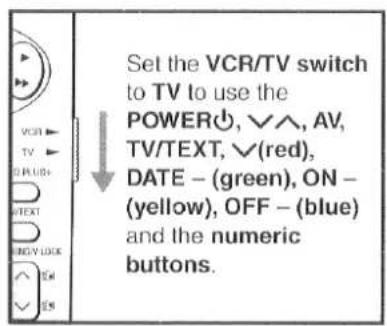
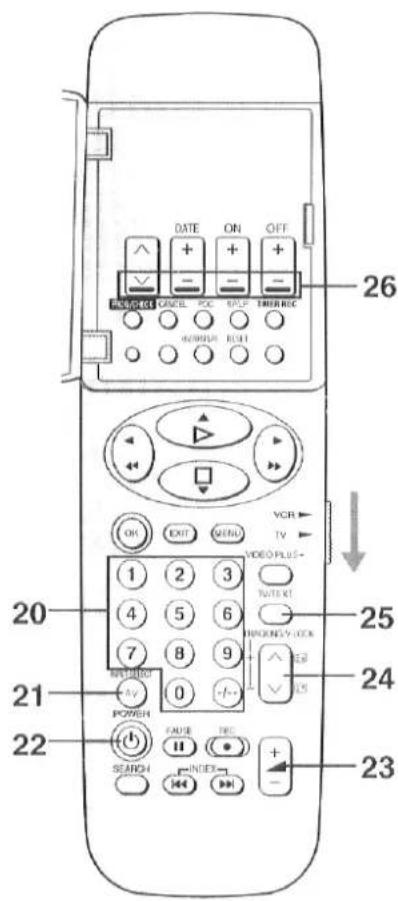
20 Zifferntasten
Zur Auswahl der Programmplätze (1-99) des Fernsehers.
Diese Tasten werden auch zur Auswahl des Videotext-Bildschirms verwendet.
21 AV
Zum Umschalten zwischen TV-Kanälen und externen Eingangskanälen. Siehe Beschreibung unten.
22 POWER
Drücken Sie diese Taste, um den Fernseher vom Ein- in den Bereitschaftsmodus zu schalten oder umgekehrt. Im Bereitschaftsmodus bleibt der Fernseher mit dem Stromnetz verbunden.
- Bei einigen TV-Modellen kann es sein, dass der Fernseher nur mit dieser Taste in den Bereitschaftsmodus geschaltet werden kann. In diesem Fall verwenden Sie die Zifferntasten, AV oder , um den Fernseher einzuschalten.
23
Zum Einstellen der Lautstärke des Fernsehers.
24 ∨ ∧, ≡▽ ≡▲
Zur Auswahl der gewünschten Programmposition (TV-Sender) des Fernsehers.
Diese Tasten werden auch zur Auswahl des Videotext-Bildschirms verwendet.
25 TV/TEXT
Zum Umschalten zwischen normalem TV-Modus und Videotext-Modus.
26 ∨(rot), DATUM - (grün), EIN - (gelb), AUS - (blau)
Diese Tasten werden im Videotext-Modus verwendet. Ändern Sie den Bildschirm entsprechend der jeweiligen Farbanzeige (rot, grün, gelb, blau).
Verwendung für den Betrieb Ihres Panasonic-Fernsehers
Mit der mitgelieferten Fernbedienung können nur Panasonic-Fernseher bedient werden.
Die Einstellungen für die Bedienung des Fernsehers mit der Fernbedienung wurden bereits vorgenommen.
Es müssen keine zusätzlichen Einstellungen vorgenommen werden.
Hinweis:
Einige Panasonic-Fernseher können mit dieser Fernbedienung nicht bedient werden.
So schalten Sie zwischen den externen Eingangskanälen Ihres Fernsehers um
Panasonic-Fernseher haben drei verschiedene Methoden zum Umschalten zwischen den externen Eingangskanälen.
- Stellen Sie sicher, dass der VCR/TV-Schalter auf TV steht.
A Drücken Sie AV, um zu den externen Eingangskanälen zu wechseln. AV-Kanäle TV-Kanäle
B 1 Drücken Sie AV
- Farbbalken zur Auswahl des externen Eingangskanals erscheinen in einer Ecke des TV-Bildschirms.
2 Wählen Sie den gewünschten externen Eingangskanal, indem Sie die entsprechende Farbtaste ∨(rot), DATE – (grün), ON – (gelb), OFF – (blau) auf der Fernbedienung drücken, und folgen Sie den Anweisungen auf dem TV-Bildschirm.
C 1 Drücken Sie AV.
- Der zuvor ausgewählte externe Eingangskanal erscheint auf dem TV, und ein Bildschirm zur Auswahl eines anderen VCR-Eingangskanals wird ebenfalls angezeigt.
2 Drücken Sie gleichzeitig, um den gewünschten Kanal auszuwählen.
- Jedes Mal, wenn gleichzeitig gedrückt wird, scrollt die Kanalauswahl nach oben.
- Der Bildschirm zur Kanalauswahl schaltet sich nach einigen Sekunden aus.

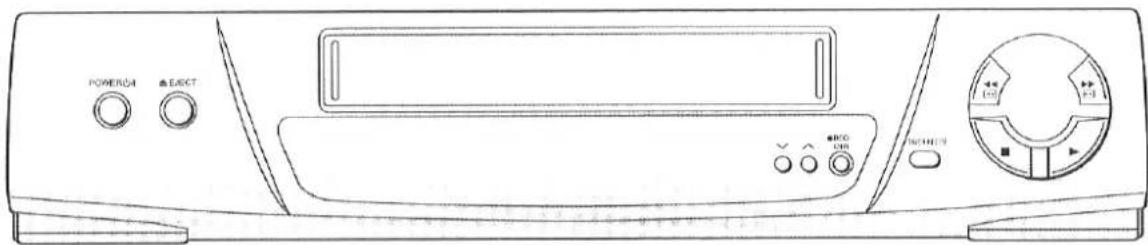
Hauptgerät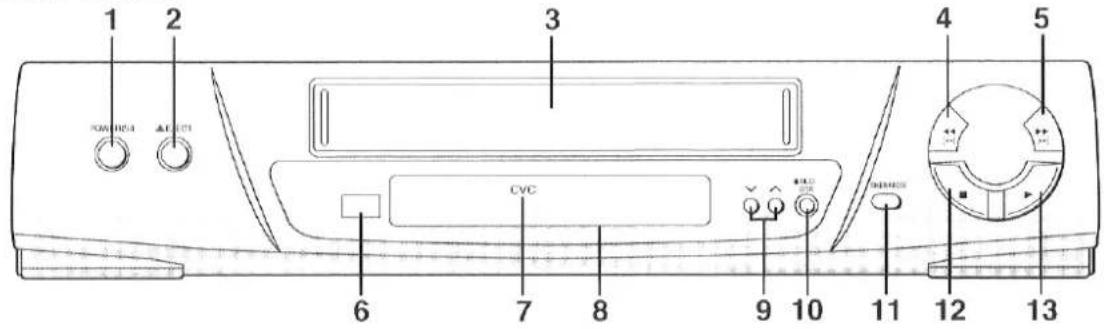
FRONT
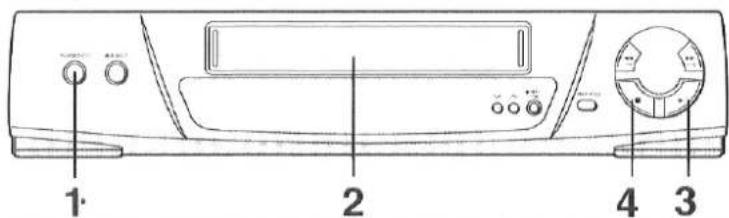
1 POWER ⏻/I
Drücken Sie, um den VCR vom Ein- in den Bereitschaftsmodus oder umgekehrt zu schalten. Im Bereitschaftsmodus ist das Gerät weiterhin an das Stromnetz angeschlossen.
2 EJECT
Zum Auswerfen einer Videokassette.
3 Kassettenfach
Legen Sie hier eine Videokassette ein.
4 (REWIND)
Im Stopp-Modus: Zum Zurückspulen des Bandes. Im Wiedergabemodus: Zum Rückwärtssuchen. Im Rückspulmodus: Für ein Bild mit hoher Geschwindigkeit.
„◀◀“ leuchtet.
5 ▶▶ (SCHNELLVORLAUF)
Im Stopp-Modus: Zum schnellen Vorspulen des Bandes. Im Wiedergabemodus: Zum Vorwärtssuchen. Im Schnellvorlaufmodus: Für ein Bild mit hoher Geschwindigkeit.
„▷▷“ leuchtet.
6 Fenster des Infrarot-Fernbedienungsempfängers
7 CVC-Anzeige (Crystal View Control)
Zeigt an, dass die CVC-Funktion aktiv ist. Diese Anzeige leuchtet normalerweise, wenn das Gerät eingeschaltet ist.
8 Anzeige
9 ∨ ∧
Zum Auswählen der gewünschten Programmposition (TV-Sender) des Videorecorders.
10 REC/OTR
Zum Starten einer Aufnahme.
Für die Aufnahme mit einem Tastendruck (OTR).
11 TIMER REC
Zum Ein- und Ausschalten der Timeraufnahmefunktion. ☐ leuchtet oder leuchtet nicht. Wenn die Timeraufnahmefunktion aktiviert ist, ist der normale VCR-Betrieb nicht möglich, es sei denn, diese Taste wird auf Aus gestellt.
12 ■ (STOP)
Zum Stoppen jeder Wiedergabe oder Aufnahme.
13 ▶(PLAY)
Zum Starten der Wiedergabe. "I>" leuchtet.
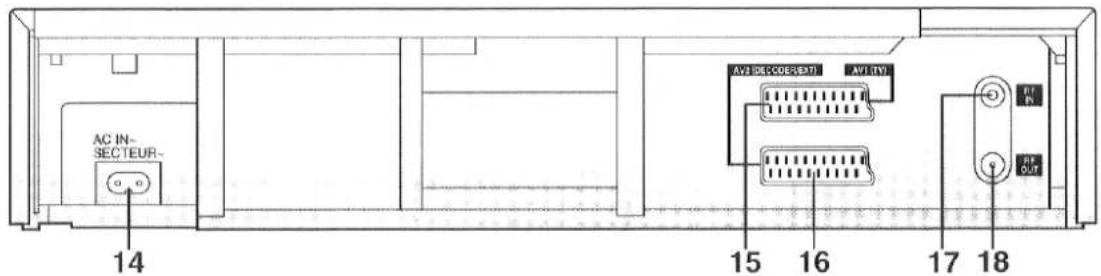
REAR
14 AC IN \~
Zum Anschluss an die Hauptstromversorgung.
15 AV1 (TV)
Diese 21-polige Scart-Buchse überträgt Eingangs- und Ausgangssignale für Bild und Ton. Fernsehgeräte mit einer ähnlichen Buchse können hier angeschlossen werden.
16 AV2 (DECODER/EXT)
Zum Anschluss an einen Decoder, einen weiteren VCR oder einen Satellitenempfänger.
17 RF IN
Zum Anschluss an die externe Antenne.
18 RF OUT
Zum Anschluss an die Antennenbuchse eines Fernsehgeräts.
Liste der Anschluss- und Einstellmethoden
1 So schließen Sie an einen Fernseher an
A So schließen Sie an einen Fernseher ohne 21-polige Scart-Buchse an (HF-Anschluss)
1 Anschluss ---- Siehe Seite 10 2 Einstellung ---- Siehe Seite 13
□So ändern Sie den HF-Ausgangskanal (mit der Fernbedienung) ---- Siehe Seite 14
□So überprüfen Sie die Einstellungen für die automatische Einrichtung ---- Siehe Seite 14
B So schließen Sie an einen Fernseher mit 21-poliger Scart-Buchse an (AV-Anschluss)
1 Anschluss ---- Siehe Seite 11 2 Einstellung ---- Siehe Seite 15 □So überprüfen Sie die Einstellungen für die automatische Einrichtung ---- Siehe Seite 14
2 So schließen Sie an einen Satellitenreceiver oder Decoder an ---- Siehe Seite 12
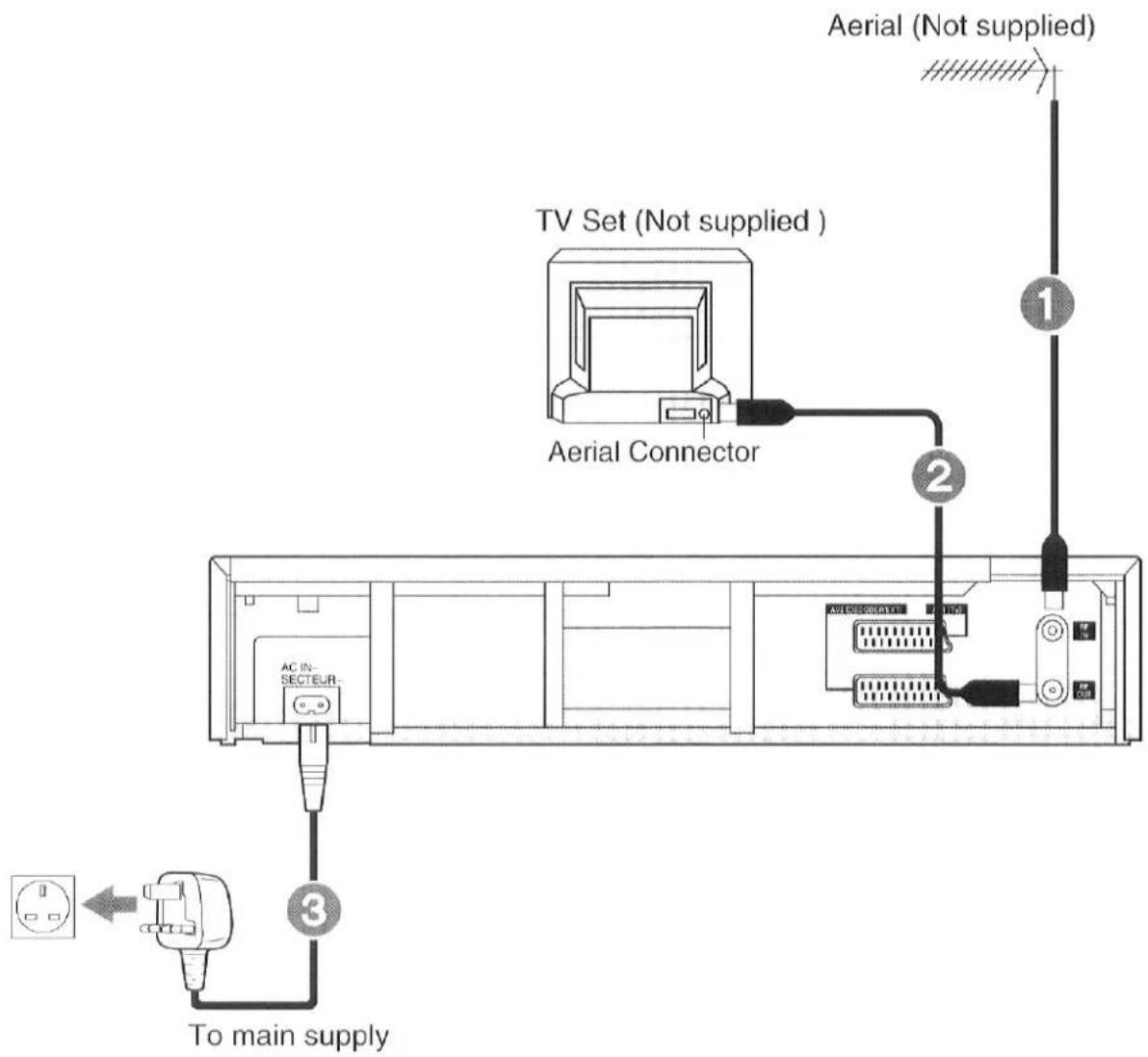
Anschluss an einen Fernseher ohne 21-polige Scart-Buchse (HF-Anschluss)
Der Videorekorder sollte an ein Fernsehgerät und eine Antenne angeschlossen werden, um Aufnahmen und Wiedergaben über das Fernsehgerät zu ermöglichen. Der Videorekorder kann je nach Art des Fernsehgeräts auf zwei Arten angeschlossen werden.
Der Videorekorder liefert Signale über ein HF-Koaxialkabel (im Lieferumfang enthalten) an das Fernsehgerät.
Nehmen Sie die in der folgenden Abbildung gezeigten Verbindungen vor.
Nachdem Sie diese Verbindung hergestellt haben, lesen Sie bitte Seite 13.
Wenn Sie einen Satellitenempfänger oder einen Decoder anschließen, verbinden Sie den Satellitenempfänger oder den Decoder wie in der Abbildung auf Seite 12 gezeigt.
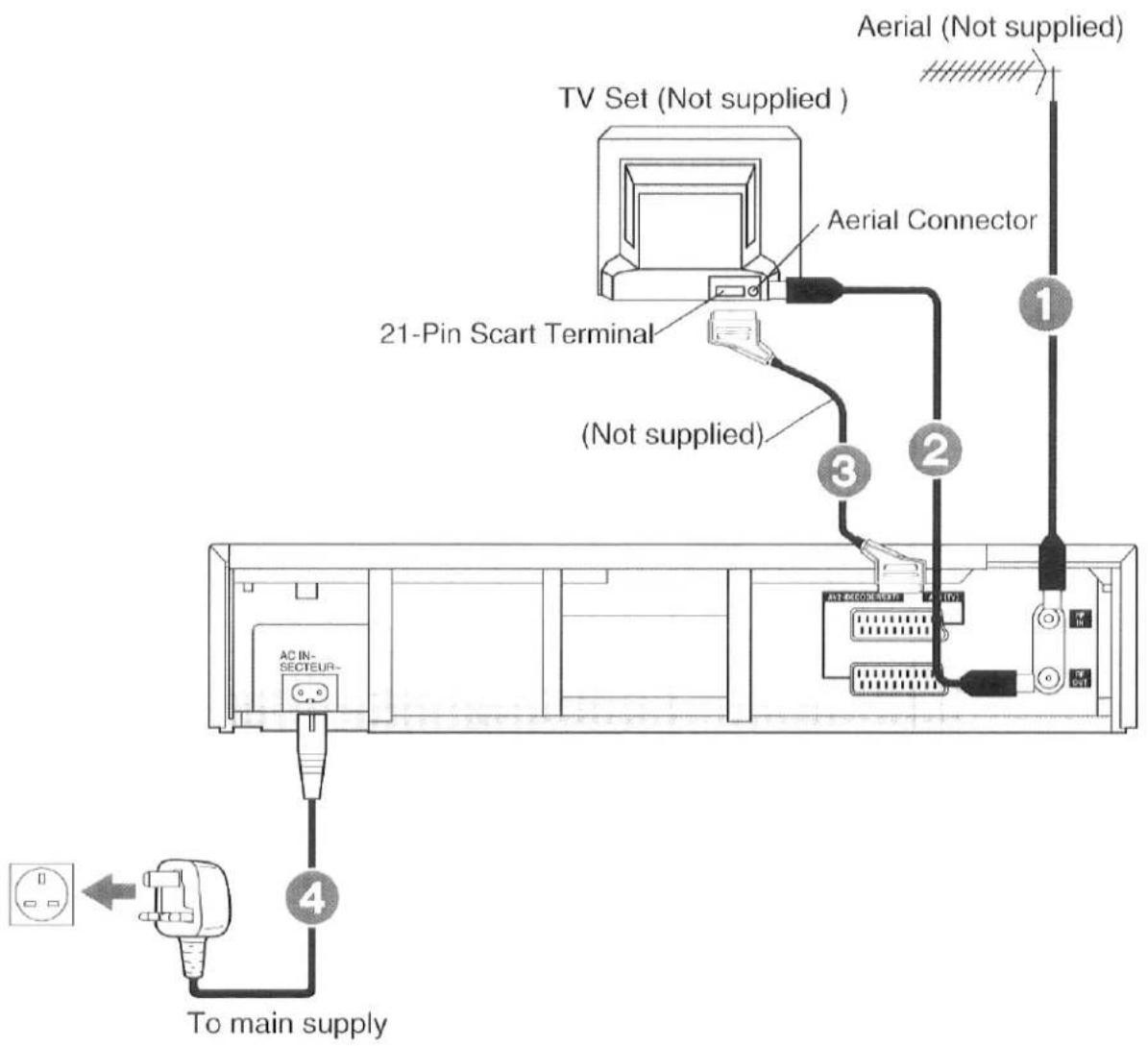
Anschluss an einen Fernseher mit 21-poligem Scart-Kabel (AV-Anschluss)
Der Videorecorder überträgt Signale über das 21-polige Scart-Kabel an den Fernseher.
Nehmen Sie die in der folgenden Abbildung gezeigten Verbindungen vor.
Nachdem Sie diese Verbindung hergestellt haben, lesen Sie bitte Seite 15.
Wenn Sie einen Satellitenempfänger oder einen Decoder anschließen, verbinden Sie den Satellitenempfänger oder den Decoder wie in der Abbildung auf Seite 12 gezeigt.
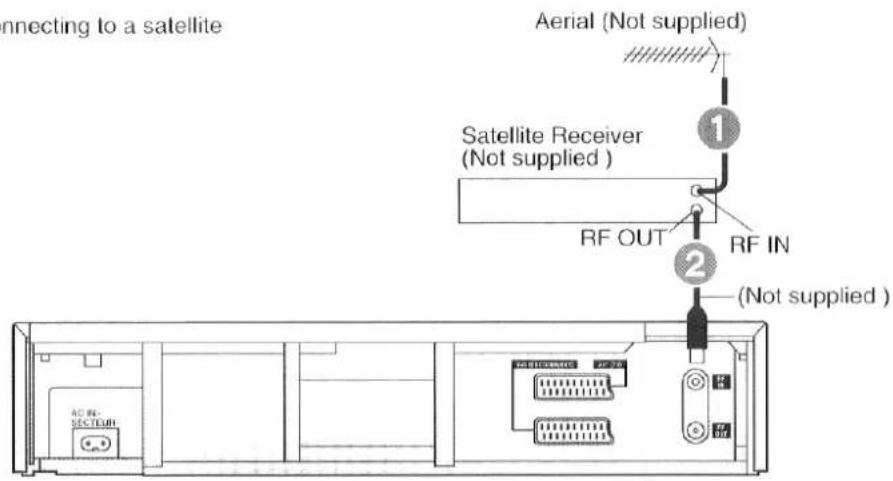
Anschluss an einen Satellitenempfänger oder einen Decoder
Um den Videorecorder an einen Satellitenempfänger oder einen Decoder anzuschließen, nehmen Sie die in der folgenden Abbildung gezeigten Verbindungen vor. Wenn Sie zusätzlich zu einem Satellitenempfänger einen Decoder anschließen, lesen Sie vor dem Anschließen die Bedienungsanleitung des Decoders. Siehe Seite 10 oder 11 für den Anschluss an einen Fernseher.
■ Verwendung eines RF-Koaxialkabels (RF-Anschluss)
- Nur für den Anschluss an einen Satellitenempfänger.
■ Verwendung eines 21-poligen Scart-Kabels (AV-Anschluss)
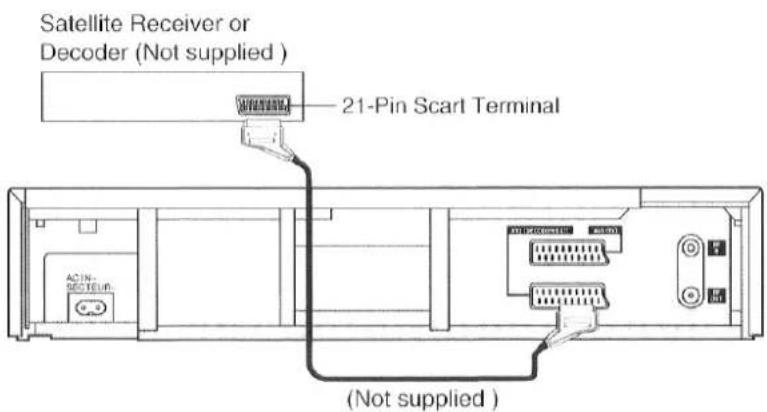
Hinweise usw.
- Wenn der Satellitenempfänger an die AV2-Buchse angeschlossen ist, muss AV2 zuerst auf VCR/SAT eingestellt werden. (Siehe Seite 23.) Wenn der Decoder an die AV2-Buchse angeschlossen ist, muss AV2 zuerst auf DECODER eingestellt werden. (Siehe Seite 23.)
- Wenn Sie wie oben einen RF-Koaxialkabelanschluss (RF-Anschluss) verwenden, sollte der RF-Ausgangskanal des Satellitenempfängers vom RF-Ausgangskanal des Videorecorders entfernt eingestellt werden, der vom Videorecorder während der automatischen Einrichtung verwendet werden kann, um Störungen im Videorecorderbild zu vermeiden. (Lesen Sie die Bedienungsanleitung Ihres Satellitenempfängers.) Wählen Sie außerdem "SKY ONE" oder "SKY NEWS" am Satellitenempfänger, um eine zuverlässige Abstimmung sicherzustellen, bevor Sie die automatische Einrichtung starten.
Einrichtung nach dem Anschluss an einen Fernseher ohne 21-poligen Scart-Kabelanschluss
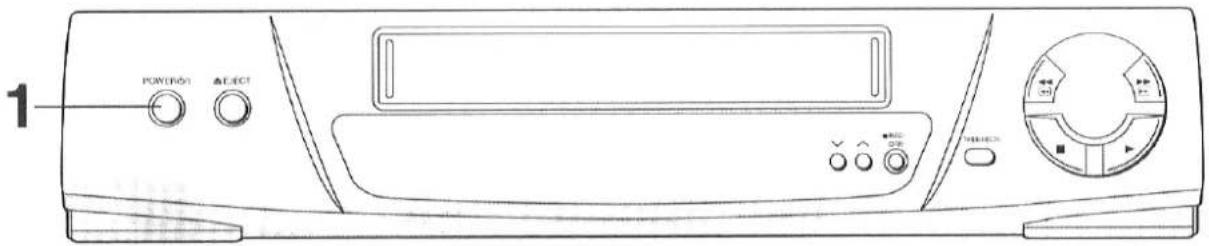
Durch die Einstellung eines Videorecorder-Senderplatzes auf Ihrem Fernseher können Sie das Videobild auf Ihrem Fernseher auf die gleiche Weise betrachten wie Fernsehsendungen. Wenn der Videorecorder nach dem Anschluss der Antenne und des Netzkabels eingeschaltet wird, beginnt er automatisch mit der Suche nach Fernsehsendern und stellt die Uhr ein.
Was zuerst zu tun ist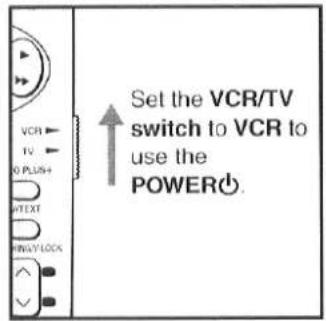
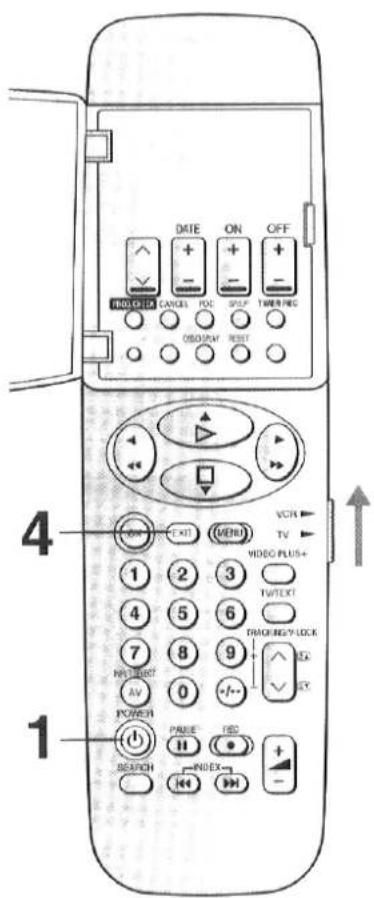
1 Schalten Sie den Videorecorder und den Fernseher ein.
- Der Videorecorder sucht nach einem unbelegten Kanal für die Wiedergabe von Bändern oder zum Ansehen von Fernsehprogrammen.
- Der Videorecorder sucht automatisch nach Fernsehsendern und stellt die Uhr ein. (Automatische Einrichtung)
POWER

2 Überprüfen Sie, ob die Nummer des HF-Ausgangskanals auf dem Display des Videorecorders erscheint.
![[ch:--] → [ch:28]](/content/2026/05/796378/images/d572c37c79e3a6b06c468d204ee526eb615f52ac44823ff9a1796a8efa2f619d.jpg)
3 Stellen Sie den Fernseher auf eine unbenutzte Programmposition, z. B. "0", und stimmen Sie den Fernseher auf die auf dem Videorecorder angezeigte Kanalnummer ab. (Einstellung des AV-Eingangskanals)
- Bei Panasonic-Fernsehern sollte für beste Leistung die Kanalnummer 0 gewählt werden.
- Zum Einstellen Ihres Fernsehers lesen Sie die Bedienungsanleitung Ihres Fernsehers.
Die automatische Einrichtung startet automatisch.
- Der rechts gezeigte Bildschirm erscheint während der automatischen Einrichtung.
- Die automatische Einrichtung sucht Fernsehsender von der niedrigsten zur höchsten Frequenz und speichert die Daten für jede Programmposition.
- Die automatische Einrichtung benötigt zwei oder mehr Minuten, um die Suche nach Fernsehsendern und die Uhrzeiteinstellung abzuschließen.
- Wenn der Bildschirm zur Uhreinstellung nach Abschluss der automatischen Einrichtung erscheint, stellen Sie die Uhr manuell ein, indem Sie der Bedienungsanleitung auf dem Bildschirm folgen.
Automatische Einrichtung
Automatische Einrichtung
läuft.
bitte warten.
(Während der automatischen Einrichtung)
Automatische Einrichtung
Die automatische Einrichtung ist jetzt abgeschlossen
(Ihr VCR-Ausgangskanal ist 28)
EXIT: zum Anzeigen des TV-Bildes
EXIT-Taste drücken
(Nach der automatischen Einrichtung)
4 Nachdem die automatische Einrichtung abgeschlossen ist, drücken Sie EXIT, um das Bild der ersten Position anzusehen.

☐So ändern Sie den HF-Ausgangskanal (mit der Fernbedienung)
In einigen seltenen Fällen können nach der automatischen Einrichtung Störungen im Bild sichtbar sein. Um diese Störungen zu beseitigen, können Sie den HF-Ausgangskanal manuell um einige Kanäle nach oben oder unten vom aktuellen Wert verstellen. Das Verfahren wird unten beschrieben.
Betrieb
1 Halten Sie MENU 5 Sekunden oder länger gedrückt.
- Die Anzeige des Videorecorders ändert sich wie rechts gezeigt und das Videorecorder-Bild auf dem Fernseher zeigt dieses Muster.

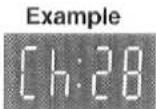

2 Geben Sie die gewünschte Kanalnummer (21-68) mit den Zifferntasten oder den Tasten ∨ ∧ ein.


3 Drücken Sie OK, um den Einstellmodus zu beenden.

4 Stimmen Sie Ihren Fernseher auf den neuen HF-Kanal des Videorecorders ab.
Hinweise usw.
- Auch wenn der HF-Ausgangskanal geändert wurde, ist es nicht erforderlich, die Sendersuche oder die Uhrzeiteinstellung erneut durchzuführen.
□So überprüfen Sie die Einstellungen für die automatische Einrichtung
Führen Sie die folgenden Schritte aus, um zu bestätigen, dass die automatische Einrichtung korrekt eingestellt ist.
Betrieb
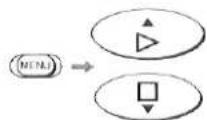
1 Drücken Sie MENU und wählen Sie Sender.
![graph TD A["(MENU)"] --> B["△"] A --> C["□"]](/content/2026/05/796378/images/4ea192d2f4f98b9f0ce9d78a532cef1702e2b0833af15963774e74980de4360b.jpg)
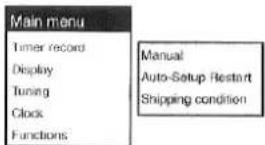
2 Wählen Sie Manuell und drücken Sie OK.
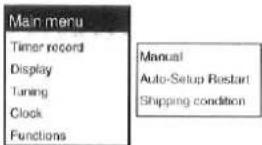
- Überprüfen Sie anhand der Bildschirmanzeige, ob die Einstellungen für die automatische Einrichtung korrekt eingestellt sind.
- Wenn die Sendernamen korrekt eingegeben und eingestellt wurden, ist die automatische Einrichtung abgeschlossen.
- Wenn die Stationsnamen nicht korrekt eingegeben und eingestellt wurden, führen Sie die Einstellungen auf den Seiten 19-20 durch.
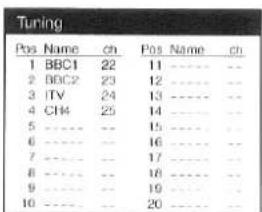
3 Drücken Sie EXIT, um das Bildschirmmenü auszublenden.

Einrichtung nach dem Anschluss an einen Fernseher mit 21-poligem Scart-Kabelanschluss

Wenn der Videorecorder nach dem Anschluss der Antenne und des Netzkabels eingeschaltet wird, beginnt der Videorecorder automatisch mit der Suche nach TV-Sendern und stellt die Uhr ein.
Was zuerst zu tun ist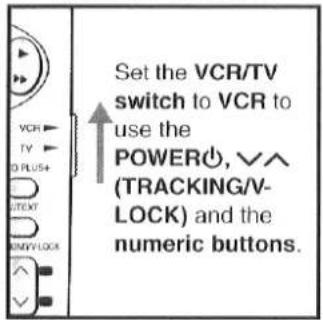
1 Schalten Sie den Fernseher ein und wählen Sie die AV-Position, an die der Videorecorder angeschlossen ist.
2 Schalten Sie den Videorecorder ein.

Auto-Setup
Auto-Setup
läuft.
bitte warten.

(Während des Auto-Setups)
Der Videorecorder sucht automatisch nach TV-Sendern und stellt die Uhr ein. (Auto-Setup)
- Der Bildschirm rechts erscheint während des Auto-Setups.
- Das Auto-Setup sucht TV-Sender von Minimum bis Maximum und speichert die Daten für jede Programmposition.
- Die automatische Einrichtung benötigt zwei oder mehr Minuten, um die Suche nach TV-Sendern und die Uhrzeiteinstellung abzuschließen.
- Wenn nach Abschluss der automatischen Einrichtung der Bildschirm für die Uhrzeiteinstellung erscheint, stellen Sie die Uhr manuell ein, indem Sie der Anleitung auf dem Bildschirm folgen.
Automatische Einrichtung
Die automatische Einrichtung ist jetzt abgeschlossen
(Ihr VCR-Ausgangskanal ist 28)
EXIT, um das TV-Bild anzusehen
Drücken Sie die Taste EXIT
(Nach der automatischen Einrichtung)
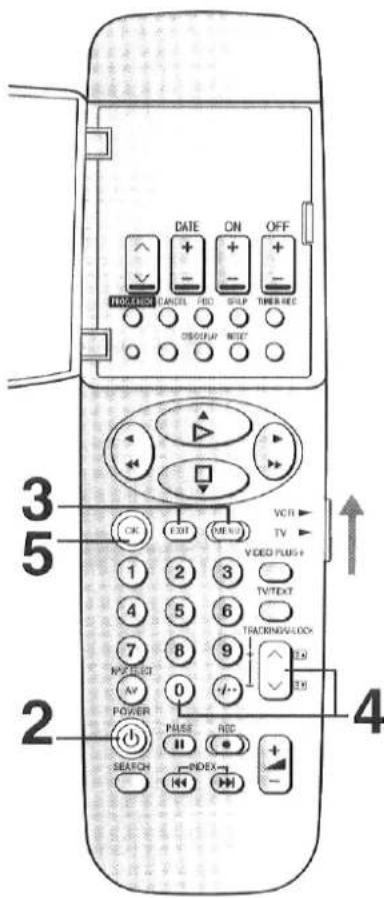
3 Drücken Sie nach Abschluss der automatischen Einrichtung EXIT und halten Sie dann MENU 5 Sekunden oder länger gedrückt.
- Die VCR-Anzeige ändert sich wie rechts gezeigt und das VCR-Bild auf dem Fernseher zeigt dieses Muster.


Beispiel
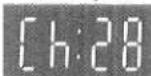
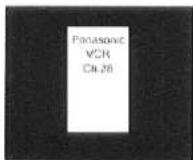
4 Drücken Sie die Zifferntaste "0" oder die Tasten √ ∧, um "- -" (RF AUS) anzuzeigen.
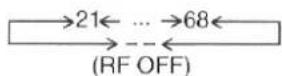


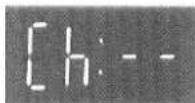
5 Drücken Sie OK, um den Einstellmodus zu beenden.

□So überprüfen Sie die Einstellungen der automatischen Einrichtung
Bestätigen Sie, dass die automatische Einrichtung korrekt eingestellt ist.
Das Prüfverfahren ist dasselbe wie auf Seite 14.
Drücken Sie MENU, um das Hauptmenü anzuzeigen, und wählen Sie dann den gewünschten Punkt.
![graph TD A["Main menu"] --> B["Timer recording"] A --> C["Channel Guide\nOSD\nVCR display"] A --> D["Tuning menu"] D --> E["Manual\nAuto-Setup Restart\nShipping condition"] A --> F["Automatic ON/OFF"] A --> G["Tape length AV2"] B --> H["(See page 28.)"] C --> I["(See page 17.)"] D --> J["(See page 1…](/content/2026/05/796378/images/a3db093ab0ddcb4cc24e05fb081ad7e0dd769074d855929e21eb66644147f299.jpg)
Vorbereitungen
- Stellen Sie sicher, dass der Fernseher eingeschaltet ist und der Videorecorder-Kanal ausgewählt ist.
- Schalten Sie den Videorecorder und den Fernseher ein.
☐So blenden Sie den Senderführer auf dem Fernsehbildschirm ein
1 Drücken Sie MENU und wählen Sie dann Anzeige.
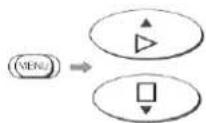
2 Wählen Sie Senderführer.
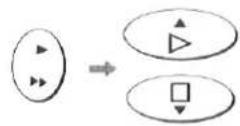
3 Wählen Sie EIN oder AUS.
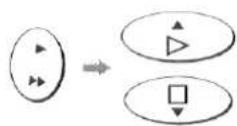
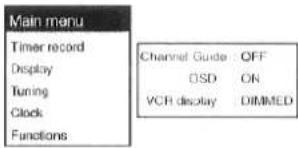
EIN: Der Senderführer erscheint einige Sekunden lang, jedes Mal wenn der Kanal mit ∨∧(TRACKING/V-LOCK) gewechselt wird.
- Stellen Sie den Schalter VCR/TV auf VCR, um die Tasten ∨ ∧ (TRACKING/V-LOCK) zu verwenden.
AUS: Der Senderführer wird nicht angezeigt.
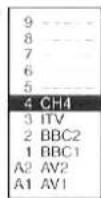
4 Drücken Sie OK und dann EXIT, um die Bildschirmanzeige auszublenden.
☐So blenden Sie die Bildschirmanzeige (OSD) auf dem Fernsehbildschirm ein
1 Drücken Sie MENU und wählen Sie dann Anzeige.
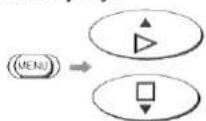
2 Wählen Sie OSD.
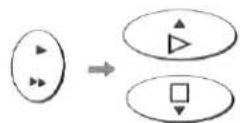
3 Wählen Sie EIN oder AUS.
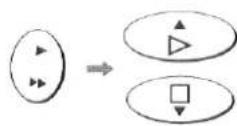
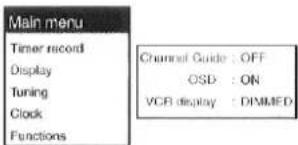
EIN: Das Bildschirmmenü (On Screen Display) erscheint auf dem Fernsehbildschirm.
AUS: Das Bildschirmmenü (On Screen Display) erscheint nicht.
4 Drücken Sie OK und dann EXIT, um das Bildschirmmenü auszublenden.
Auf der nächsten Seite finden Sie das Bildschirmmenü.
Bildschirmmenü:
Wenn Sie OSD/DISPLAY drücken, erscheint das Bildschirmmenü (On Screen Display) auf dem Fernsehbildschirm.
① TV-Sender
② Anzeige für Aufnahme mit einem Tastendruck (OTR)
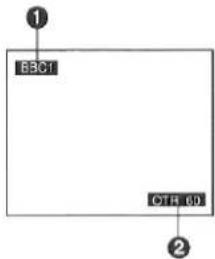
- Wenn die Option "OSD" auf AUS gesetzt ist, erscheint das Bildschirmmenü nicht.
- Wenn die Programmposition AV gewählt ist, erscheint das Bildschirmmenü (1) nicht. Während der Wiedergabe erscheint das Bildschirmmenü (1, 2) nicht.
- Das Bildschirmmenü erscheint nicht während der Spezialwiedergabe.
☐ Zum Abdunkeln der Zeichen auf dem VCR-Display, wenn der VCR ausgeschaltet ist
1 Drücken Sie MENU und wählen Sie dann Display.
2 Wählen Sie VCR-Anzeige.
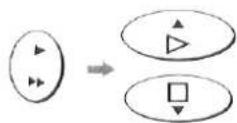
3 Wählen Sie EIN oder DIMMED.
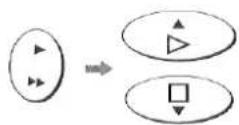
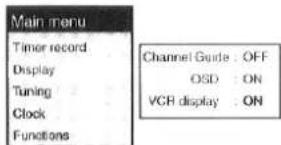
EIN: Wenn der Videorecorder ausgeschaltet ist, sind die Zeichen in der VCR-Anzeige beleuchtet.
DIMMED: Wenn der Videorecorder ausgeschaltet ist, sind die Zeichen in der VCR-Anzeige abgedunkelt.
4 Drücken Sie OK und dann EXIT, um die Bildschirmanzeige auszublenden.
Speichern von TV-Sendern in Ihrem Videorecorder (Abstimmung)
Manuelle Abstimmung
Der Videorecorder ist mit einem eigenen Tuner ausgestattet (wie ein normaler Fernseher) und kann auf bis zu 99 TV-Sender voreingestellt werden.
Wenn der Videorecorder zum ersten Mal nach dem Anschließen der Antenne und des Netzkabels eingeschaltet wird, stimmt die Auto-Setup-Funktion Ihre Kanäle automatisch ab. Unter bestimmten Umständen in einigen Empfangsgebieten können jedoch bestimmte Kanäle keinen Kanalnamen oder ihre normale Kanalposition erhalten. Wenn Auto-Setup nicht erfolgreich ist, befolgen Sie bitte die folgenden Schritte.
Was zuerst zu tun ist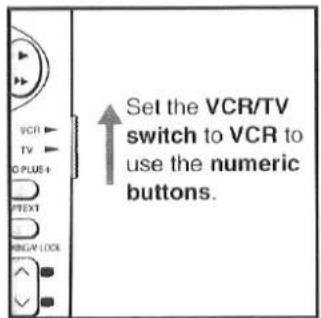
Vorbereitungen
- Bestätigen Sie, dass der Fernseher eingeschaltet ist und der VCR-Anzeigekanal ausgewählt ist.
- Schalten Sie den Videorecorder ein.
☐So löschen Sie Sender, fügen "Leer"-Positionen hinzu und ändern (verschieben) die Programmposition
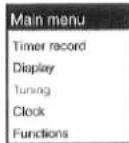
1 Drücken Sie MENU und wählen Sie Tuning.
2 Wählen Sie Manuell.
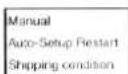
3 Wählen Sie die gewünschte Programmposition.
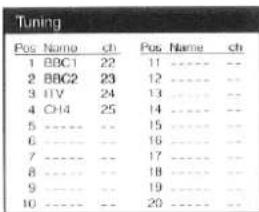
4 Führen Sie die unten angegebenen Schritte aus.
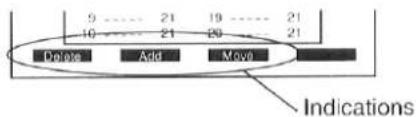
Löschen: Drücken Sie ∨ (Rot), um die Sender zu löschen.
Hinzufügen: Drücken Sie - (Grün), um eine "Leer"-Position hinzuzufügen.
Verschieben: Drücken Sie — (Gelb) und dann ▲▼, um die Programmposition zu ändern (zu verschieben).
- Die blaue Anzeige bedeutet keine Funktion.
5 Drücken Sie OK und dann EXIT.
□So wählen Sie die Programmposition aus (ändern sie)
Führen Sie die Schritte 1 bis 3 auf Seite 19 aus.
4 Drücken Sie OK und wählen Sie dann Pos und die gewünschte Programmposition.
![graph LR A["OK"] --> B["△"] A --> C["□"] B --> D["△"] C --> E["□"] D --> F["△"] E --> G["□"]](/content/2026/05/796378/images/5a3cf61ca53210a62ed9e65679406c10f05c771b1cac0fcdd1343616136d6d81.jpg)
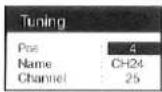
5 Drücken Sie OK zur Bestätigung.
6 Drücken Sie MENU und dann EXIT.
□So geben Sie den Sendernamen ein (ändern ihn)
Führen Sie die Schritte 1 bis 2 auf Seite 19 aus.
3 Wählen Sie den/die Sender mit Namen ××+×× aus, für den/die Sie den Namen einrichten (oder den Sendernamen ändern) möchten. Stellen Sie fest, welchen Kanal Sie gerade ansehen, indem Sie Ihre TV-Zeitschrift/Zeitung prüfen.
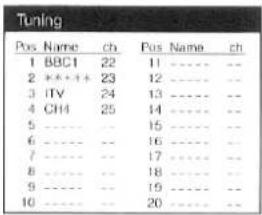
4 Geben Sie Zeichen in alle fünf + + + + + Positionen ein, aus der Tabelle mit den Pfeiltasten und drücken Sie nach jedem Zeichen OK. Verwenden Sie bei Bedarf ein Leerzeichen; um ein Leerzeichen einzugeben, wählen Sie den Bereich zwischen Z und ×.
![graph TD A["←"] --> B["△"] C["←"] --> D["□"] E["→"] --> F["↓"] G["→"] --> H["↓"]](/content/2026/05/796378/images/5f5f8ce53416eba49c2bbe7b50147bd698a3427578426a444d35642b30cd6a36.jpg)
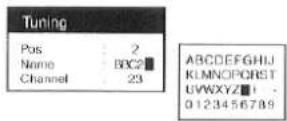
- Zum Abbrechen während der Eingabe drücken Sie EXIT. Die eingegebenen Zeichen bleiben als Sendername erhalten.
5 Drücken Sie einmal MENU. Wenn Sie andere TV-Sendernamen ändern oder einrichten möchten, wiederholen Sie die Schritte 3-4.
6 Drücken Sie EXIT.
□So wählen Sie den Kanal aus (ändern)
Führen Sie die Schritte 1 bis 3 auf Seite 19 aus.
4 Drücken Sie OK und wählen Sie dann Kanal und den gewünschten Kanal.
![graph LR A["OK"] --> B["Triangle"] A --> C["Square"] B --> D["Directional Arrow"] C --> D D --> E["0"] E --> F["9"]](/content/2026/05/796378/images/ccf70ab33a70d3f5b180ec92d9c3f9ed7c5bd890c40d657e811c3e04f36da270.jpg)
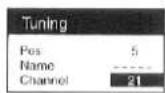
5 Drücken Sie OK zur Bestätigung.
6 Drücken Sie MENU und dann EXIT.
Bemerkungen usw.
Wenn Sender mit manuellem Abstimmen eingestellt wurden, muss die Kanalposition möglicherweise beim ersten Verwenden von Video Plus+ eingegeben werden.
So starten Sie die automatische Einrichtung neu
Wenn sich Ihre Adresse ändert, gehen Sie wie folgt vor.
1 Drücken Sie MENU und wählen Sie Abstimmen.
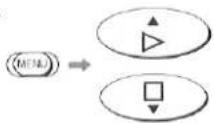
2 Wählen Sie Auto-Setup Neustart und drücken Sie OK.
![graph LR A["Circle Node"] --> B["Triangle"] A --> C["Square"] B --> D["OK"]](/content/2026/05/796378/images/8dea866a0f13c9c05275274fc9a8197ac4a7fec916cf41a72aec7cea101482e6.jpg)
3 Drücken Sie erneut OK.

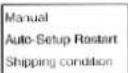
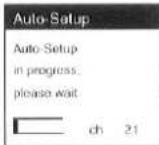
- Der Auto-Setup-Bildschirm erscheint möglicherweise vorübergehend nicht.
So stellen Sie den Werkszustand wieder her
Wenn Sie den Videorecorder auf den Werkszustand zurücksetzen möchten, gehen Sie wie folgt vor.
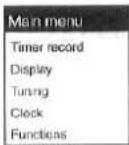
1 Drücken Sie MENU und wählen Sie Tuning.
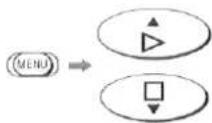
2 Wählen Sie Werkszustand und drücken Sie OK.
![graph LR A["Circle Input"] --> B["Triangle Symbol"] A --> C["Square Symbol"] B --> D["OK"]](/content/2026/05/796378/images/3ef3269876fcd51c1d66f85bc8864b3377e2b511c113e886e48a292c6d5c7110.jpg)
3 Drücken Sie zweimal OK.
- Da der HF-Ausgangskanal bei Ausführung des Werkszustands auf 21 initialisiert wird, erscheint das Fernsehbild möglicherweise nicht.
Bemerkungen usw.
Um den Videorecorder neu abzustimmen, trennen Sie das Netzkabel und schließen Sie es wieder an. Der HF-Ausgangskanal wird nun automatisch gesucht. Wenn der Videorecorder ausgeschaltet ist, schalten Sie ihn ein und wiederholen Sie dann das Verfahren auf Seite 13 oder 15.
Einstellen der Uhr Ihres Videorecorders (Uhr)
Die eingebaute Uhr wird verwendet, um den Timer für die automatische Aufnahme zu aktivieren, und muss auf die richtige Zeit eingestellt sein.
Die eingebaute Digitaluhr verwendet das 24-Stunden-System.
So stellen Sie die Uhr manuell ein
Falls der Videorecorder durch die automatische Einrichtung nicht korrekt eingestellt wird, gehen Sie wie folgt vor.
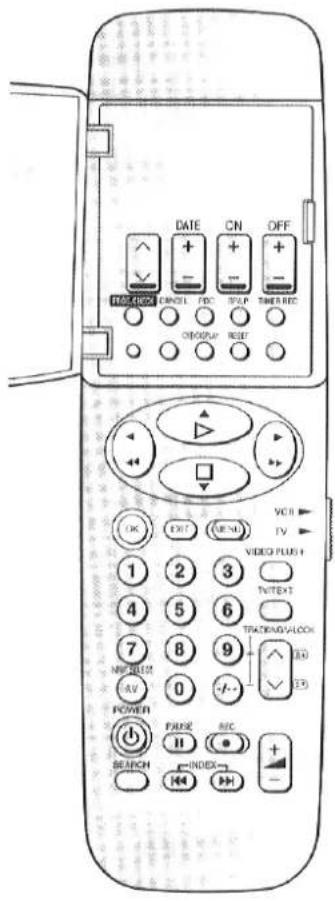
Vorbereitungen
- Stellen Sie sicher, dass der Fernseher eingeschaltet ist und der Videorecorder-Kanal gewählt ist.
- Schalten Sie den Videorecorder ein.
1 Drücken Sie MENU und wählen Sie dann Uhr.
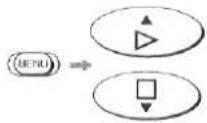
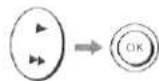
2 Überprüfen Sie, dass Automatisch auf AUS steht, und drücken Sie dann OK.
- Wenn Automatisch beim Öffnen des Bildschirmmenüs auf EIN steht, schalten Sie es nicht aus, da Sie sonst die Zeit nicht automatisch einstellen können.
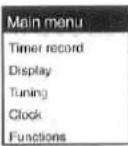
| Main menu |
| Timer record |
| Display |
| Tuning |
| Clock |
| Functions |
| Automatic | OFF |
| Time | 20:30.24 |
| Date | 16:10.99 |
3 Stellen Sie Zeit und Datum ein.
- Drücken Sie ◀, um zum vorherigen Punkt zurückzukehren.
| Main menu |
| Timer record |
| Display |
| Tuning |
| Clock |
| Functions |
| Automatic: | OFF |
| Time : | 20 15 00 |
| Date : | 16 10 99 |
4 Drücken Sie OK zur Bestätigung. 5 Drücken Sie EXIT.
□So stellen Sie die Uhr automatisch ein
Normalerweise müssen Sie das folgende Verfahren nicht durchführen.
Führen Sie Schritt 1 des obigen Verfahrens aus.
2 Wählen Sie Automatisch EIN.
| Main menu |
| Timer record |
| Display |
| Tuning |
| Clock |
| Functions |
| Automatic | ON |
| Time | 20.30:24 |
| Date | 16.10:99 |
3 Drücken Sie OK
Die Uhr wird automatisch eingestellt.
Bemerkungen usw.:
- Die Uhr arbeitet bei Stromausfall mindestens 60 Minuten lang mit ihrem Notstromsystem.
- Wenn der Punkt "Automatisch" auf dem Bildschirm auf EIN steht, wird die automatische Zeiteinstellungsfunktion täglich aktiviert.
Die automatische Zeiteinstellungsfunktion funktioniert nur, wenn das Gerät ausgeschaltet ist.
Diese Funktion funktioniert nicht im Bereitschaftsmodus für Timeraufnahmen.
Einstellungen der Funktionen (Funktion)
Vorbereitungen
- Stellen Sie sicher, dass der Fernseher eingeschaltet und der Videorecorder-Kanal ausgewählt ist. ●Schalten Sie den Videorecorder und den Fernseher ein.
☐Zur Auswahl der entsprechenden Kassettenlänge für die Anzeige der ungefähren Restspielzeit
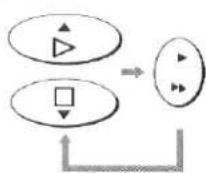
1 Drücken Sie MENÜ, und wählen Sie dann Funktionen.
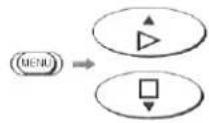
2 Wählen Sie Bandlänge.
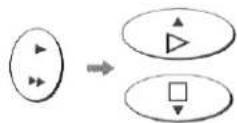
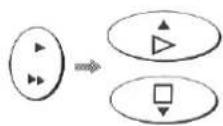
3 Wählen Sie die entsprechende Kassettenlänge für die Anzeige der ungefähren Restspielzeit.
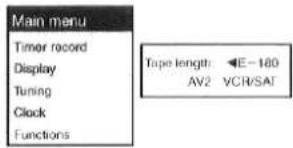
◀E-180: Für E30, -60, -90, -120 und -180 Bänder. E-195: Für E195 Band. E-240: Für E240 Band. E-260▶: Für E260 und -300 Bänder. ●Die angezeigten Zeiten können je nach verwendetem Band abweichen.
4 Drücken Sie OK, und drücken Sie dann EXIT, um die Bildschirmanzeige auszublenden.
□So wählen Sie den AV2-Anschluss
Führen Sie Schritt 1 der Bandlänge aus.
2 Wählen Sie AV2.
3 Wählen Sie VCR/SAT oder DECODER.
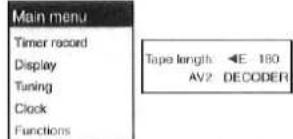
VCR/SAT: Wenn ein anderes Videogerät oder der Satellitenempfänger an die AV2-Buchse (DECODER/EXT) angeschlossen ist.
DECODER: Wenn der Decoder an die AV2-Buchse (DECODER/EXT) angeschlossen ist.
4 Drücken Sie OK und dann EXIT, um die Bildschirmanzeige auszublenden.
Wiedergabe
Was zuerst zu tun ist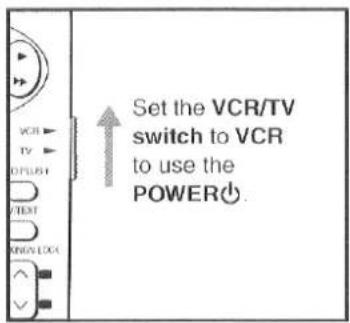
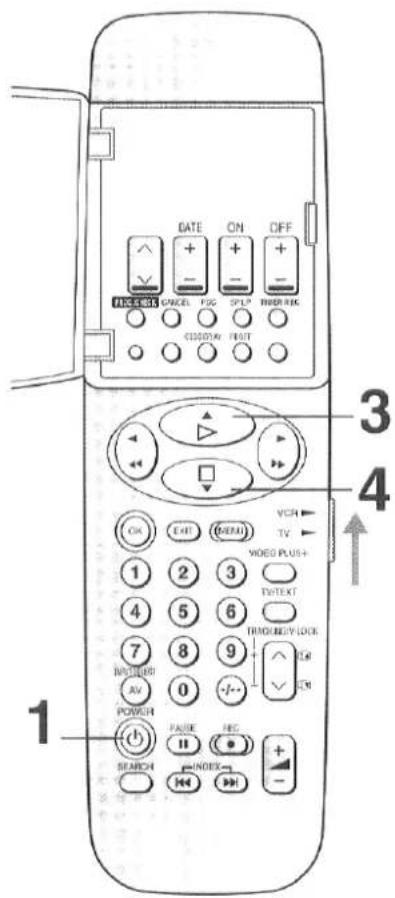
STROM
1 Schalten Sie den Videorecorder und den Fernseher ein. • Auch wenn der Videorecorder ausgeschaltet ist, schaltet er sich ein
- Auch wenn der Videorecorder ausgeschaltet ist, schaltet er sich automatisch ein, wenn eine Kassette eingelegt wird.
2 Legen Sie die Videokassette ein, die Sie ansehen möchten.
- Wenn eine Kassette ohne Löschschutzlasche eingelegt wird, startet der Videorecorder automatisch die Wiedergabe.

3 Drücken Sie ▷ (PLAY).
-Die Wiedergabe startet
-Wenn bereits eine Kassette in den Videorecorder eingelegt ist, startet das Drücken von ▷ (PLAY) die Wiedergabe, auch wenn der Videorecorder ausgeschaltet war.

□Nach Schritt 3...
| Operations | Functions and Display Symbols |
| Press ▶▶ (FAST FORWARD) briefly. (The VCR searches forward while the button is held down.) | Search forward mode(Cue) |
| Press ◀◀ (REWIND) briefly. (The VCR searches backward while the button is held down.) | Search backward mode (Review) |
| Press PAUSE. | Still picture |
- Um die normale Wiedergabe fortzusetzen, drücken Sie (PLAY).
4 Drücken Sie □ (STOP). •Die Wiedergabe stoppt.

□So werfen Sie die Videokassette aus
Drücken Sie EJECT am Videorecorder.
- Um die Videokassette mit der Fernbedienung auszuwerfen, halten Sie □ (STOP) 3 Sekunden oder länger gedrückt.
- Wenn der Videorecorder ausgeschaltet ist, kann eine eingelegte Kassette einfach durch Drücken von EJECT ausgeworfen werden. Der Videorecorder wirft die Kassette aus und schaltet sich automatisch wieder aus.


Was zuerst zu tun ist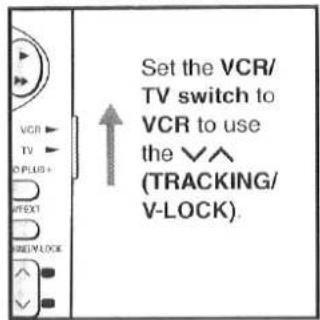
Weitere Wiedergabefunktionen
□So zeigen Sie das Bild im Schnellvorlauf oder Rücklauf an
Halten Sie ▶▶ (SCHNELLVORLAUF) während des Schnellvorlaufs gedrückt.
Halten Sie ◀◀ (RÜCKLAUF) während des Rücklaufs gedrückt.
□So spielen Sie NTSC-Videokassetten auf einem PAL-Fernseher ab
Mit diesem Videorecorder können Bänder, die im NTSC-System aufgenommen wurden, über einen Fernseher mit PAL-System wiedergegeben werden.
- Das Wiedergabebild kann nach oben oder unten rollen. Wenn der Fernseher mit einem V-HOLD-Regler ausgestattet ist, kann es möglich sein, die Bildbewegung durch Einstellen dieses Reglers zu stoppen.
- Je nach verwendetem Fernseher kann das Bild schwarz-weiß sein. Dies ist jedoch kein Hinweis auf eine Fehlfunktion.
☐So minimieren Sie Störbalken (Einstellen der Spurführung)
So minimieren Sie Störbalken während der Wiedergabe
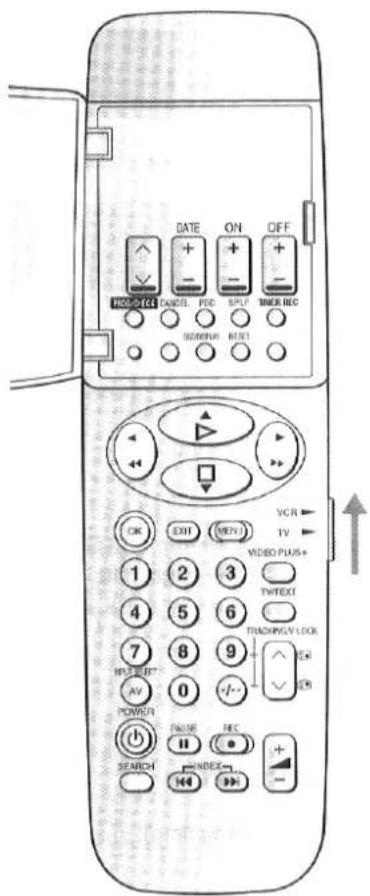
Die Tasten ∨ (−) und ∧ (+) werden verwendet, um die Spurführung einzustellen, wenn beispielsweise Störbalken im Bild während der normalen Wiedergabe besser manuell als durch die automatische digitale Spurführungskontrolle entfernt werden. Drücken Sie beide Tasten gleichzeitig, um zur automatischen digitalen Spurführungskontrolle zurückzukehren.
□So minimieren Sie vertikales Zittern während der Standbildwiedergabe (Einstellung der vertikalen Verriegelung)
Verwenden Sie die Tasten ∨ (−) und ∧ (+), um vertikales Zittern während der Standbildwiedergabe zu minimieren.
Bemerkungen usw.
- Der Suchlauf (Cue oder Review) wird nach 10 Minuten automatisch beendet, die Standbildwiedergabe nach 5 Minuten.
- Wenn das Band während der Wiedergabe oder des schnellen Vorlaufs sein Ende erreicht, wird es automatisch zum Anfang zurückgespult. •Nur im LP-Modus:
- Während jeder anderen Wiedergabeart als der normalen Wiedergabe kann das Bild Störbalken aufweisen, die Farbe kann instabil sein oder ein schwarz-weißes Bild erscheinen.
- Beim Abspielen eines Bandes, das auf einem anderen Videorecorder aufgenommen wurde, kann es erforderlich sein, die Spurführungskontrolle einzustellen. In einigen Fällen kann die Bildqualität immer noch schlechter sein. Dies ist auf die Begrenzung des Formats zurückzuführen.
- Je nach verwendetem Fernsehgerät kann das Wiedergabebild bei Sonderwiedergabe (Suchlauf, Zeitlupe oder Standbild) nach oben oder unten rollen. Dies ist jedoch kein Zeichen für eine Fehlfunktion.
Manuelle Aufnahme
Was zuerst zu tun ist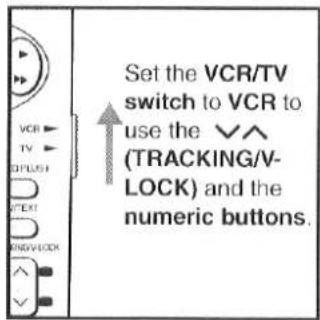
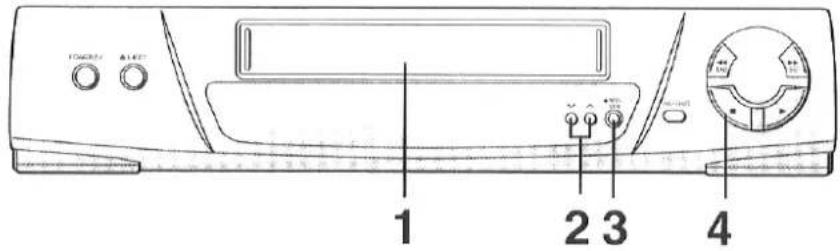
1 Legen Sie eine Videokassette mit intakter Löschschutzlasche ein.
- Auch wenn der Videorecorder ausgeschaltet ist, schaltet er sich beim Einlegen einer Kassette automatisch ein.
- Falls bereits eine Kassette eingelegt ist, drücken Sie die Taste POWER ⏻, um den Videorecorder einzuschalten.
2 Wählen Sie den Fernsehsender.
- Die Auswahl kann auch über die Zifferntasten erfolgen.

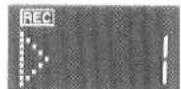
Drücken Sie REC oder REC/OTR.
- Die Aufnahme beginnt.
- Wenn beim Drücken von REC eine Kassette mit abgebrochener Lasche eingelegt ist, blinkt die Anzeige "○○", um anzuzeigen, dass eine Aufnahme nicht möglich ist.

4 Drücken Sie □ (STOP), um die Aufnahme zu beenden.

- Wenn das Band während der Aufnahme sein Ende erreicht (außer bei OTR- und Timeraufnahme), wird es automatisch zum Anfang zurückgespult.
Weitere Aufnahmefunktionen
□So wählen Sie die Aufnahmezeit
Drücken Sie SP/LP, um die gewünschte Aufnahmezeit vor der Aufnahme auszuwählen.
- SP bietet die beste Bildqualität.
- LP bietet die längste Aufnahmezeit (doppelt so lang wie die SP-Aufnahmezeit).
SP/LP

□So pausieren Sie während der Aufnahme
Drücken Sie während der Aufnahme PAUSE.
Drücken Sie erneut, um die Aufnahme fortzusetzen.
PAUSE

- Der Aufnahme-Pausemodus wird nach 5 Minuten automatisch beendet und kehrt in den Stopp-Modus zurück.
□So nehmen Sie ein TV-Programm auf, während Sie ein anderes Programm ansehen
Wählen Sie nach Schritt 3 das TV-Programm auf Ihrem Fernsehgerät aus, das Sie gerade ansehen möchten.
□So zeigen Sie die ungefähre verbleibende Bandzeit an
Wenn die Einstellungen für Ihr Band ausgewählt sind, wird die verbleibende Bandzeit im Display angezeigt.
Betrieb
1 Wählen Sie im Bildschirmmenü die Bandlänge aus und wählen Sie die entsprechende Kassette.
Siehe Seite 23.
![graph TD A["MENU"] --> B["•"] B --> C["•"] C --> D["•"] D --> E["OK"] F["•"] --> G["•"] G --> H["•"] H --> I["OK"]](/content/2026/05/796378/images/c2298c9f30c06cdb56329a6d4c4e5c23026844818708f6cc8eab0a1c6b98e73b.jpg)
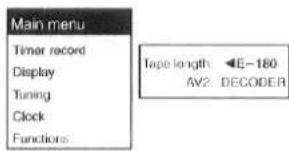
◀E-180: Für E30, -60, -90, -120 und -180 Bänder.
E-195: Für E195 Band.
E-240: Für E240 Band.
E-260 ▶: Für E260 und -300 Bänder.
2 Drücken Sie OSD/DISPLAY, um die verbleibende Bandzeit auf dem VCR-Display anzuzeigen.

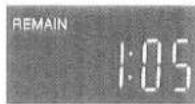

- Die verbleibende Bandzeit wird bei einigen Bändern möglicherweise nicht korrekt angezeigt.
So stoppen Sie die Aufnahme automatisch (One-Touch-Recording = OTR)
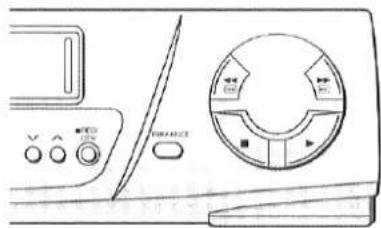
Diese Funktion funktioniert nur mit der REC/OTR-Taste am VCR-Hauptgerät.
Nachdem Sie die Aufnahme gestartet haben, können Sie mit dieser Funktion die Aufnahme automatisch stoppen, wenn das Programm beendet ist (nützlich für Aufnahmen, wenn Sie unterwegs sind). Stellen Sie einfach die Aufnahmedauer ein, indem Sie REC/OTR wiederholt drücken. Die auf dem VCR-Display angezeigte Dauer ändert sich durch Drücken von REC/OTR wie folgt:

Vorbereitung
Legen Sie eine Videokassette mit intakter Löschschutzlasche ein.
Betrieb
1 Bereiten Sie die Videoquelle vor, die aufgenommen werden soll, und starten Sie die Aufnahme.
2 Drücken Sie wiederholt REC/OTR, um die gewünschte Aufnahmedauer auszuwählen.

- Der Videorecorder schaltet sich automatisch aus, wenn die OTR abgeschlossen ist.
- Wenn das Band während der OTR sein Ende erreicht, schaltet sich der Videorecorder selbst aus.
- Um die OTR jederzeit zu stoppen, drücken Sie □ (STOP) oder POWER ⏻ (○/I).
Timeraufnahme
Die Timeraufnahme umfasst die Aufnahme mit Bildschirmanzeige, bei der Sie die Aufnahmeinformationen selbst über die Bildschirmanzeige eingeben, sowie die Video Plus+ PlusCode-Aufnahme.
So programmieren Sie mit der Bildschirmanzeige
Bis zu 8 Timerprogramme können bis zu einem Monat im Voraus durch Einstellen des Timers aufgezeichnet werden, einschließlich wöchentlicher und täglicher Programme.
Zum Beispiel:
Programmposition (Kanal); 2
Datum: 27. Oktober
Startzeit; 20:00
Endzeit; 21:30
(Aktuelles Datum; 16. Oktober)
Was zuerst zu tun ist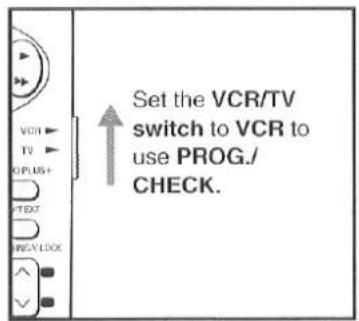
Vorbereitungen
- Legen Sie eine Videokassette mit intakter Aufnahmesperre ein.
- Stellen Sie sicher, dass der Fernseher eingeschaltet und der VCR-Betrachtungskanal ausgewählt ist.
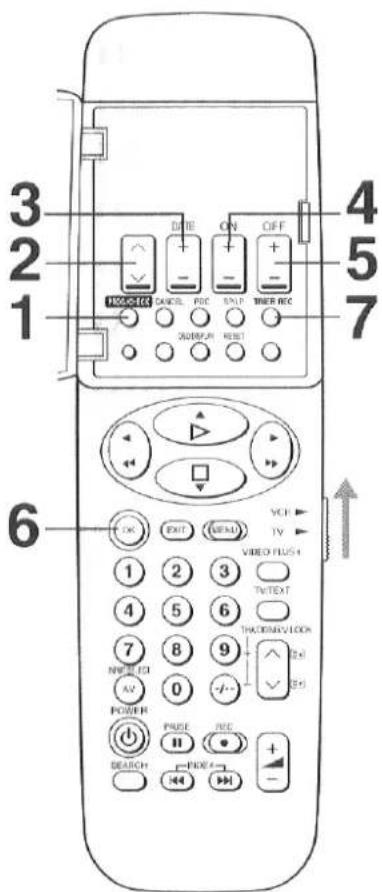
1 Drücken Sie PROG./CHECK. • Alternativ können Sie
- Alternativ können Sie MENU drücken und dann Timer-Aufnahme auswählen.
PROG/CHECK
| Pos Name | DATE | Start ON | Stop OFF | SP LP | PDC Min |
| 6.07.25 16.10.99 Ramam[SP] 39 | |||||
2 Drücken Sie ∨ ∧, um die Programmposition (Kanal) "2" einzustellen. Alternativ können Sie nach dem Drücken von ∨ ∧, DATE, ON oder OFF die Tasten ▲ ▼ ◀ ▶ verwenden.
3 Drücken Sie DATE, um das Datum "27/10" einzustellen.

| Timer recording | |||||
| Pos Name | DATE | Start ON | Stop OFF | SP LP | PDC Min |
| 2 | BBC2 | SP | OFF | ||
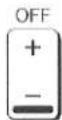
4 Drücken Sie ON, um die Startzeit "20:00" einzustellen.

| Timer recording | ||||||
| Pos Name | DATE | Start ON | Stop OFF | SP LP | PDC | Min |
| RADC | 27/18 W# | ---- | ---- | SP | OFF | ---- |
- Wenn die Taste gedrückt gehalten wird, ändert sich die Anzeige in 30-Minuten-Schritten.
5 Drücken Sie OFF, um die Endzeit "21:30" einzustellen.
| Timer recording | ||||||
| Pos Name | DATE | Start ON | Stop OFF | SP LP | PDC | Min |
| RBC2 | 27/10 We 20:00 | --- | --- | SP | OFF | --- |
| ---- | ---- | ---- | ---- | ---- | ---- | ---- |
| ---- | ---- | ---- | ---- | ---- | ---- | ---- |
| ---- | ---- | ---- | ---- | ---- | ---- | ---- |
6 Drücken Sie OK zur Bestätigung.
| Timer recording | ||||||
| Pos Name | DATE | Start ON | Stop OFF | SP LP | PDC | Min |
| DBC7 | 27:16 | We 20:00 | 21:30 | SP | OFF | 90 |
7 Drücken Sie TIMER REC, um die Timer-Aufnahme zu aktivieren. - Wenn die Bildschirmanzeige für die Programmierung

| Timer recording | ||||||
| Pos. Name | DATE | Start ON | Stop OFF | SP LP | PDC | Min |
| PBG2 | 27/1/08 | 2000 | 21:30 | 5P | OFF | 90 |
7 Drücken Sie TIMER REC, um die Timer-Aufnahme zu aktivieren. - Wenn die Bildschirmanzeige für die Programmierung
- Wenn das Bildschirmmenü für die programmierte Timer-Aufnahme ausgeblendet wird, werden die Aufnahmeinformationen automatisch in der Reihenfolge der Aufnahmestartzeiten sortiert.
TIMER REC
- Der Videorecorder befindet sich im Bereitschaftsmodus für die Timer-Aufnahme.
- Überprüfen Sie, ob 回 auf dem Display des Videorecorders leuchtet. Wenn es blinkt, überprüfen Sie die Timer-Programmdaten erneut. (Siehe Seite 29.)
Weitere Timer-Aufnahmefunktionen
□So stellen Sie weitere Programme nacheinander ein
Wiederholen Sie die Schritte 2-6 und drücken Sie dann TIMER REC.
Was zuerst zu tun ist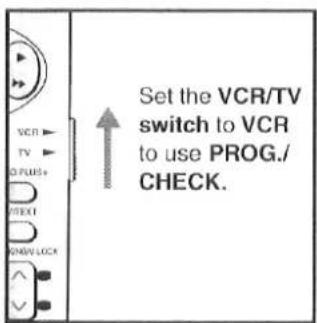
☐Für wöchentliche Timer-Aufnahme
Wählen Sie in Schritt 3 den gewünschten Tag, indem Sie DATE— drücken.
(So=Sonntag, Mo=Montag, Di=Dienstag, Mi=Mittwoch, Do=Donnerstag,
Fr=Freitag, Sa=Samstag)
□Für tägliche Timer-Aufnahme
Für diese Timer-Funktion können mehrere Tagesgruppen ausgewählt werden.
Ⓐ Tägliche Aufnahme von Montag bis Freitag (Mo-Fr).
⑧ Tägliche Aufnahme von Montag bis Samstag (Mo-Sa).
© Tägliche Aufnahme von Sonntag bis Samstag (So-Sa).
Wählen Sie in Schritt 3 die gewünschten Tage durch Drücken von DATE—
□So nehmen Sie von einer externen Signalquelle auf
Wenn die Timer-Aufnahme von einem Gerät durchgeführt wird, das an die AV1 (TV)- oder AV2 (DECODER/EXT)-Buchse angeschlossen ist, wählen Sie A1 oder A2 für die Programmposition.
A1: Über die AV1 (TV)-Buchse.
A2: Über die AV2 (DECODER/EXT)-Buchse.
□So wählen Sie die Aufnahmezeit
Drücken Sie in einem der Schritte 2-5 SP/LP.
□So wählen Sie PDC EIN
Drücken Sie in einem der Schritte 2-5 PDC, um EIN zu wählen.
- Wenn PDC auf EIN gesetzt ist, stellen Sie sicher, dass die Startzeit mit der veröffentlichten Zeit übereinstimmt.
- Wenn Sie eine PDC-Aufnahme wünschen, lesen Sie bitte sorgfältig „(4). Wie verwendet man PDC?“ auf Seite 37.
□So überprüfen Sie ein Timer-Programm
Stellen Sie sicher, dass der Fernseher eingeschaltet und der VCR-Wiedergabekanal ausgewählt ist.
1 Drücken Sie PROG./CHECK
- Die Bildschirmanzeige kann im PDC-Aufnahmebereitschaftsmodus verzerrt sein.

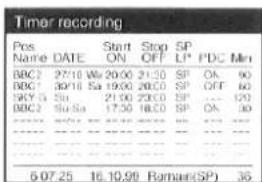
- Hier wird entweder die Programmnummer oder der Sendername angezeigt.
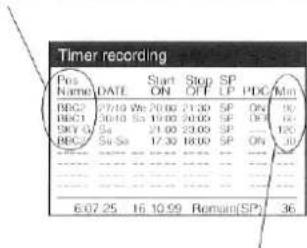
- Bei täglicher und wöchentlicher Timer-Aufnahme wird nur die Aufnahmezeit für eine Aufnahmesitzung angezeigt.
2 Drücken Sie PROG./CHECK oder EXIT, um die Bildschirmanzeige zu verlassen.
Was zuerst zu tun ist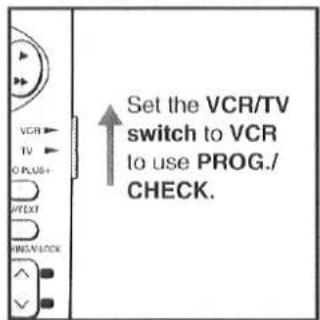
□So ändern Sie ein Timer-Programm
- Während der Timer-Aufnahme funktioniert dieser Vorgang nicht.
- Stellen Sie sicher, dass der Fernseher eingeschaltet und der VCR-Viewing-Kanal ausgewählt ist.
1 Drücken Sie PROG./CHECK.
PROG/CHECK

2 Wählen Sie das gewünschte Timer-Programm.

3 Ändern Sie das Programm gemäß der in Schritten 2-6 auf Seite 28 beschriebenen Methode.
![Timeraufnahme Pos Name Datum Start Stop SP LP PDC Min BBC2 27/18 Mi 20:00 21:30 SP AN 90 BBC1 30/18 Sa 19:00 20:00 SP AUS 65 SKY G So 21:00 22:30 SP ... 90 BBC2 Sa Sa 17:30 18:00 SP AN 90 8:07.25 16.10.99 Rest[SP] 36](/content/2026/05/796378/images/81fe627e2b9c81c272233e05cb4a316a1e4cdcdd8584aa284693c9ba6047162b.jpg)
4 Drücken Sie PROG./CHECK oder EXIT, um die Bildschirmanzeige zu verlassen.
□So löschen Sie ein Timer-Programm
- Während der Timeraufnahme funktioniert dieser Vorgang nicht.
- Bestätigen Sie, dass der Fernseher eingeschaltet und der VCR-Wiedergabekanal ausgewählt ist.
1 Drücken Sie PROG./CHECK.
PROG/CHECK

2 Wählen Sie das gewünschte Timerprogramm.

3 Drücken Sie CANCEL.

![Timeraufnahme Pos Name Datum Start Stop SP LP PDC Min BBC2 27/18 Mi 20:00 21:30 SP AN 90 BBC1 30/18 So 19:00 20:00 SP AUS 60 SKY G Bu 21:00 23:00 SP .... 120 BBC3 So Sa 17:30 18:00 SP AN 50 --------. --------. --------. --------. --------. --------. --------. --------. 6.07.25 16.10.99 Rest[SP] 36](/content/2026/05/796378/images/7183274155ab5736df7d7155ea35bb71c37798aa0eff368aacb2246c7e87c73b.jpg)
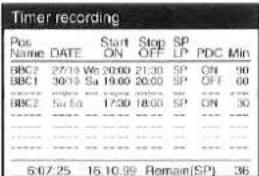
4 Drücken Sie PROG./CHECK oder EXIT, um das Bildschirmmenü zu verlassen.
□So überprüfen Sie die verbleibende Bandzeit für die Aufnahme
Die verbleibende Aufnahmezeit auf der eingelegten Kassette wird im Bildschirmmenü angezeigt. Diese Anzeige erscheint nur, wenn die Einstellungen für die verwendete Kassette vorgenommen wurden und die verbleibende Bandzeit bereits auf dem VCR-Display angezeigt wurde.
Siehe Seite 27 für das Einstellverfahren.
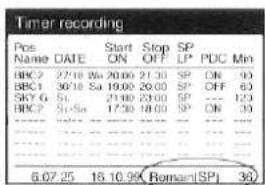
Anzeige der verbleibenden Bandzeit
Bemerkungen usw.
Wenn die Timeraufnahme nicht bis zum Ende durchgeführt wird (aufgrund unzureichenden Bandes oder Abbruch durch den Benutzer), werden die programmierten Timeraufnahmedaten bis 4 Uhr morgens am nächsten Tag aus dem Speicher gelöscht.
□So bestätigen Sie die aufgenommenen Timerprogramme (Timeraufnahmebestätigung)
Wenn Timerprogramme von diesem VCR aufgenommen werden, speichert der VCR die Programmierdetails, und die Programme werden über die Timeraufnahmebestätigungsfunktion ausgewählt und durchsucht.
Diese Funktion kann nicht für Aufnahmen verwendet werden, die mit normaler Aufnahme und One-Touch-Aufnahme (OTR) erstellt wurden.
Da diese Funktion nur für die aktuell eingelegte Videokassette funktioniert, werden alle Programmlisten-Details gelöscht, wenn die Kassette ausgeworfen oder durch eine andere ersetzt wird. Verwenden Sie in solchen Fällen die Intro-Jet-Scan-Funktion oder das VHS-Index-Suchsystem. (Siehe Seite 35 oder 36.)
Vorbereitungen
- Stellen Sie sicher, dass der Fernseher eingeschaltet und der Videorecorder-Kanal ausgewählt ist.
- Beenden Sie den Bereitschaftsmodus für die Timer-Programmaufnahme.
So zeigen Sie den Bestätigungsbildschirm für Timer-Aufnahmen an
1 Drücken Sie SEARCH.
SEARCH

- Die Details der auf dieser Videokassette aufgenommenen Timer-Programme werden auf dem Bestätigungsbildschirm für Timer-Aufnahmen in der Reihenfolge angezeigt, in der die Programme aufgenommen wurden.
| Timer record confirmation | |||
| Pos | Name | Date | Start |
| 2 | BBC2 | 27'10 To | 20:00 |
| 1 | BBC1 | 30'10 Fr | 19:00 |
2 Wählen Sie das gewünschte Programm aus.
• Um den Bestätigungsbildschirm für Timer-Aufnahmen zu schließen, drücken Sie EXIT.


3 Drücken Sie SEARCH erneut, um die Suche nach dem ausgewählten Programm zu starten.
- Nach Abschluss der Suche beginnt die Wiedergabe ab dem gesuchten Punkt auf dem Band.
- Um die Suche jederzeit zu stoppen, drücken Sie EXIT.
Bemerkungen usw.
- Wenn SEARCH einmal gedrückt wird, wird das zuletzt aufgenommene Timer-Programm ausgewählt.
- Diese Funktion funktioniert nicht im Bereitschaftsmodus für Timer-Aufnahmen.
- Diese Funktion funktioniert nur mit Videokassetten, die Timer-Aufnahmen enthalten.
- Die Programmlisten-Suchfunktion funktioniert möglicherweise nicht ordnungsgemäß, wenn aufgenommene Programme 15 Minuten oder kürzer dauern.
- Stellen Sie sicher, dass die BANDLÄNGE für Funktionen im Hauptmenü korrekt eingestellt ist, da diese Funktion sonst nicht ordnungsgemäß funktioniert.
- Wenn SEARCH während der Wiedergabe gedrückt wird, wird die Wiedergabe sofort gestoppt und der Bestätigungsbildschirm für Timer-Aufnahmen erscheint.
- Auf dem Bestätigungsbildschirm für Timer-Aufnahmen können bis zu 8 Programme angezeigt werden. Wenn der Timer für mehr als 9 Programme verwendet wird, wird das älteste Programm auf dem Bestätigungsbildschirm für Timer-Aufnahmen gelöscht und ein neues Timer-aufgenommenes Programm wird eingegeben und angezeigt.
- Diese Funktion funktioniert möglicherweise nicht ordnungsgemäß, je nach Bandposition, wenn Sie SEARCH drücken.
- Diese Funktion funktioniert möglicherweise nicht ordnungsgemäß, wenn Sie beispielsweise versuchen, ein Programm mit einem anderen Programm zu überspielen, das per Timer auf demselben Bandabschnitt aufgenommen wurde.
Timer-Aufnahme (Fortsetzung)
Die Timer-Aufnahme umfasst die Aufnahme mit Bildschirmanzeige, bei der Sie die Aufnahmeinformationen selbst eingeben, während Sie die Bildschirmanzeige betrachten, sowie die Video Plus+ PlusCode-Aufnahme.
So programmieren Sie mit Video Plus+ PlusCode
Das Programmieren ist jetzt einfacher denn je: Geben Sie einfach den PlusCode ein, der in der Programmvorschau-Spalte von Zeitungen und Zeitschriften angegeben ist.
PlusCodes sind Nummern, die jedem Programm zugeordnet sind, das in der TV-Programmvorschau in Zeitungen und TV-Zeitschriften aufgeführt ist. Wenn diese Codes eingegeben und OK gedrückt wird, werden die Zahlen in die tatsächliche Programmierung umgewandelt.
VIDEO Plus+ und PlusCode sind Warenzeichen der Gemstar Development Corporation. Das VIDEO Plus+ System wird unter Lizenz von Gemstar Development Corporation hergestellt.
Was zuerst zu tun ist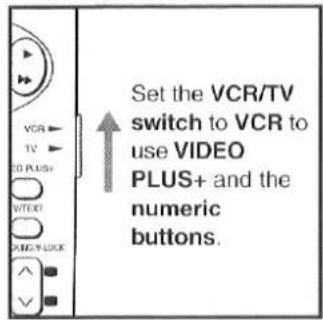
Vorbereitungen
- Legen Sie eine Videokassette mit intakter Aufnahmesperrlasche ein.
- Stellen Sie sicher, dass der Fernseher eingeschaltet und der Videorecorder-Kanal ausgewählt ist.
1 Drücken Sie VIDEO PLUS+.
VIDEO PLUS+

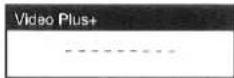
2 Geben Sie den Video PlusCode für die aufzunehmende Fernsehsendung ein.
Beispiel: 920216
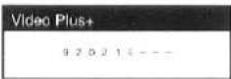
- Wenn Sie einen falschen PlusCode eingegeben haben, drücken Sie ◀ und geben Sie dann den richtigen PlusCode ein. ●Der eingegebene Video PlusCode erscheint auch auf der Anzeige des Videorecorders.
Drücken Sie OK.
- Um die Endzeit zu verlängern oder Korrekturen vorzunehmen, verwenden Sie die Tasten ▲ ▼ ◀ ▶, unter der Klappe ∨ ∧ DATUM, EIN, AUS, PDC oder SP/LP.

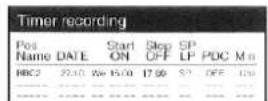
- Die eingegebenen Programmierdaten erscheinen auch auf der Anzeige des Videorecorders. Wenn die Einstellung fehlschlägt, erscheinen die Programmierdaten nicht.
- PDC wird automatisch auf AUS (---) gesetzt. PDC kann manuell auf EIN gesetzt werden, falls gewünscht, durch Drücken der PDC-Taste. Wenn PDC auf EIN gesetzt ist, stellen Sie sicher, dass die Startzeit mit der veröffentlichten Zeit übereinstimmt. Wenn Sie eine PDC-Aufnahme wünschen, lesen Sie bitte sorgfältig „(4). Wie benutzt man PDC?“ auf Seite 37.
Bei der ersten Programmierung mit einem Video Plus+ Code kann „—“ für die Programmposition erscheinen.
In diesem Fall wählen Sie die gewünschte Programmposition mit der Taste ▲▼oder ∨.
- Auf dem Bildschirm erscheint einige Sekunden lang eine Meldung.
- [1] blinkt als Warnung auf dem Display des Videorecorders.
- Nachdem die Programmierung nach Auswahl der Programmposition in Schritt 3 durchgeführt wurde, wird der Führungskanal automatisch gespeichert, sodass beim nächsten Eingeben des PlusCodes für diesen Sender die korrekte Position erscheint.
Timeraufnahme
| Pos Name | DATE | Start ON | Stop OFF | SP LP | PDC | Min |
| — | — | 15.00 | 17.30 | 52* | — | 120 |
| — | — | — | — | — | — | — |
4 Drücken Sie erneut OK zur Bestätigung.

5 Drücken Sie TIMER REC, um die Timeraufnahme zu aktivieren.
TIMER REC
- Der Videorecorder befindet sich im Bereitschaftsmodus für die Timeraufnahme.
- Überprüfen Sie, ob ☐ auf dem Display des Videorecorders leuchtet. Wenn es blinkt, überprüfen Sie die Timer-Programmdaten erneut. (Siehe Seiten 29.)
6 Wenn Sie zwei oder mehr Programme programmieren möchten, wiederholen Sie die Schritte 1-4.
Hinweise usw.
● Zum Verlassen des Bereitschaftsmodus drücken Sie TIMER REC. - Wenn der PlusCode für die Programmierung verwendet wird, kann die Aufnahmezeit geringfügig länger sein als die tatsächliche Programmdauer. - Die Vorgehensweise zum Überprüfen, Ändern und Abbrechen eines Timerprogramms ist dieselbe wie auf den Seiten 29-30.
Schnitt (Assemble-Schnitt)
Mit dieser Funktion können Sie aus anderen Aufnahmen oder Videoquellen ein bearbeitetes Band erstellen.
Eine neue Szene kann am Ende einer vorherigen hinzugefügt werden.
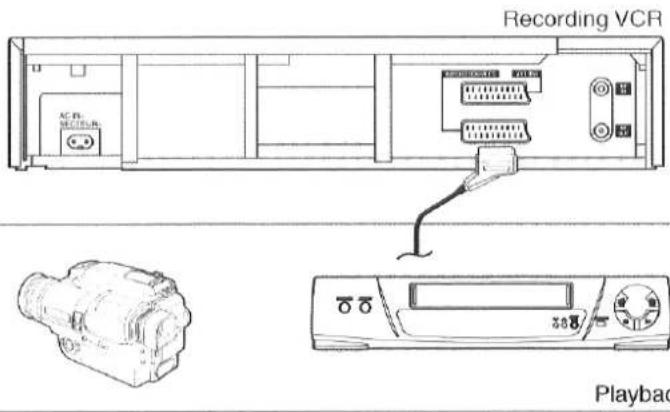
Vorbereitungen
- Schließen Sie eine Filmkamera oder einen anderen Videorecorder wie abgebildet an diesen Videorecorder an.
- Legen Sie eine bespielte Kassette mit intakter Löschschutzlasche ein.
- Wählen Sie die erforderliche Videoquelle, indem Sie INPUT SELECT drücken, um A1 oder A2 einzustellen.
A1: Über die AV1 (TV)-Buchse. A2: Über die AV2 (DECODER/EXT)-Buchse.

1 Suchen Sie das Ende der vorherigen Aufnahme.

2 Drücken Sie PAUSE.

3 Drücken Sie REC oder REC/OTR. • Der Videorecorder wechselt vom Pausenmodus in den Aufnahmebereitschaftsmodus.

4 Starten Sie die Wiedergabe am Wiedergabegerät.
5 Starten Sie die neue Aufnahme, indem Sie erneut PAUSE drücken.

6 Drücken Sie □(STOP). • Die Aufnahme wird gestoppt.

□So suchen Sie, während Sie den Inhalt der Videokassette prüfen (Intro-Jet-Scan)
Die ungefähren Anfänge jedes aufgezeichneten Programms werden nacheinander mit hoher Geschwindigkeit abgespielt, sodass das gewünschte Programm leicht gefunden werden kann.
Vorbereitungen
- Stellen Sie sicher, dass der Fernseher eingeschaltet und der Videorecorder-Kanal ausgewählt ist.
- Legen Sie die vorab aufgenommene Videokassette ein.
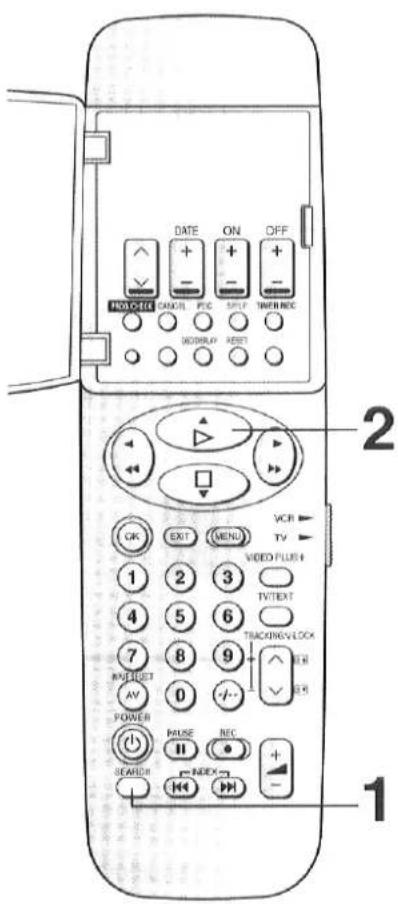
1 Drücken Sie SEARCH.
(Dieser Vorgang wird bei ausgeschaltetem Videorecorder oder im Stoppmodus oder normalen Wiedergabemodus durchgeführt.)
Intro-Jet-Scan

- Das Band wird zum Anfang zurückgespult und etwa 10 Sekunden lang mit hoher Geschwindigkeit abgespielt. Danach wird es vorgespult, die VISS-Signale (VHS Index Search System) werden nacheinander gesucht, und jedes Mal, wenn die Signale gefunden werden, wird das Band etwa 10 Sekunden lang mit hoher Geschwindigkeit abgespielt und dann zum nächsten Indexsignal vorgespult.
![graph LR A["Beginning of Tape"] --> B["Present Tape Position"] B --> C["Index Signal"] C --> D["Programme 1"] C --> E["Programme 2"] C --> F["Programme 3"] C --> G["Programme 4"] D --> H["Rewind"] E --> H F --> H G --> H H --> I["Fast Playback"] H --> J["Fast Foward"]](/content/2026/05/796378/images/7e2acdbfd2459a62f78bbd66f85b2084d9068d8c3a6a337cfa0256b4113ddb9b.jpg)
2 Wenn das gewünschte Programm erreicht ist, drücken Sie PLAY.

●Die normale Wiedergabe beginnt jetzt.
So stoppen Sie den Vorgang jederzeit
Drücken Sie STOP.

Hinweise usw.
- Diese Funktion funktioniert möglicherweise nicht richtig, wenn aufgenommene Programme 15 Minuten oder kürzer sind.
- Wenn die Timer-Aufnahme abgeschlossen ist und die Videokassette weder ausgeworfen noch durch eine andere ersetzt wurde und dann SEARCH gedrückt wird, funktioniert die Intro-Jet-Scan-Funktion nicht, sondern die Timer-Aufnahmebestätigungsfunktion. (Siehe Seite 31.)
□So finden Sie den Anfang jeder Aufnahme (VHS Index Search System = VISS)
Es ist sehr einfach, den Anfang jeder Aufnahme zu finden, da am Anfang jedes aufgenommenen Abschnitts auf dem Band ein spezielles Indexsignal aufgezeichnet wird.
So zeichnen Sie Indexsignale auf
Indexsignale werden in folgenden Fällen aufgezeichnet.
- Wenn eine Aufnahme durch Drücken von REC oder REC/OTR gestartet wird.
- Wenn die Timer-Aufnahme aktiviert ist.
- Wenn während der Aufnahme REC auf der Fernbedienung gedrückt wird.
Bedienung
Zum Beispiel:
Suchen des 2. aufgenommenen Abschnitts in Vorwärtsrichtung.
INDEX ▶▶I zweimal drücken.
(Dieser Vorgang wird bei gestopptem oder normalem Wiedergabemodus des Videorecorders durchgeführt.)
Hinweise usw.
- Nach dem Auffinden des gewünschten aufgenommenen Abschnitts startet die Wiedergabe automatisch.
- Für die Rückwärtsrichtung INDEX drücken
- Bis zu 20 Indexsignale können in beiden Richtungen gesucht werden.
- Wenn die entgegengesetzte INDEX-Taste gedrückt wird, wird die Zahl bis auf 1 verringert.
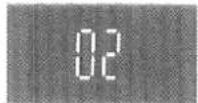
- Die Anzeige auf dem Display wird bei jedem gefundenen Indexsignal um 1 verringert.
- Die INDEX-Suchfunktion kann nur dann korrekt arbeiten, wenn die Indexsignale mindestens 5 Minuten voneinander entfernt sind.
■Crystal View Control
Vorstellung von Crystal View Control, einer innovativen neuen Technologie für hohe Bildqualität. Diese Technologie verwendet einen Mikroprozessor, um die Beziehung zwischen den Videoköpfen und der Schaltung intelligent zu steuern und so die maximale Leistung aus jedem herauszuholen. Das Ergebnis ist eine konstant optimale Bildqualität.
■PDC (Programme Delivery Control)
Was ist PDC?
PDC ist ein Signalsystem, das von Fernsehsendern übertragen wird, um die Start- und Stoppzeit jedes Programms zu steuern. Dieses Signal wird vom Videorekorder verwendet, um die Start- und Stoppzeit programmierter Timer-Aufnahmen zu steuern.
PDC ist besonders nützlich, wenn der Sender die Zeit für ein Programm gegenüber der veröffentlichten Zeit ändert. Die Start- und Stoppzeit der Timer-Aufnahme des Videorekorders wird dann vom Sender gesteuert, z. B. wenn das Programm verschoben oder verlängert wird. Die Aufnahme kann auch vom Sender unterbrochen werden, z. B. bei einer Nachrichtensendung, und wird fortgesetzt, wenn das Programm neu startet.
Derzeit deckt die PDC-Übertragung nicht alle Gebiete und Sender im Vereinigten Königreich ab. Bitte erkundigen Sie sich bei den Sendern in Ihrer Region nach Einzelheiten.
So verwenden Sie PDC:
(1) Der Videorekorder erkennt nur zum Zeitpunkt der "Auto-Setup"-Funktion, ob Rundfunksender PDC-Signale übertragen, und speichert diese Informationen im Speicher. Wenn Sender später PDC-Übertragungen einführen oder einstellen, muss "Auto-Setup" erneut durchgeführt werden, um den Speicher des Videorekorders zu aktualisieren. (2) Der PDC-Modus wird automatisch auf "OFF" gesetzt, wenn "Video Plus+"-Codes für die Timer-Programmierung verwendet werden, selbst wenn die Sender vom Videorekorder als PDC-übertragend gespeichert wurden. (3) Der PDC-Modus wird automatisch auf "---" (kein PDC) gesetzt, wenn "Video Plus+"-Codes für die Timer-Programmierung verwendet werden, wenn die Sender nicht als PDC-übertragend gespeichert wurden. (4) Der PDC-Modus wird automatisch auf "OFF" gesetzt, wenn die Timer-Programmierung für einen beliebigen Sender mit der "On-Screen"-Timer-Aufnahmemethode durchgeführt wird, da die Startzeit vom Benutzer frei eingegeben werden kann. Um in diesem Fall die PDC-Aufnahme zu verwenden, setzen Sie den PDC-Modus auf "ON" und stellen Sie sicher, dass die Startzeit genau der veröffentlichten Zeit entspricht, z. B. in Zeitungen, Zeitschriften usw. Wenn dies nicht korrekt erfolgt, startet die Aufnahme nicht.
Hinweise zur PDC-Aufnahme:
(1) Die PDC-Aufnahme beginnt einige Sekunden vor Beginn des ausgestrahlten Programms und kann einige Sekunden vor oder nach dem Ende des Programms enden, abhängig von der Steuerung durch den Sender. (2) Normalerweise werden programmierte Timer-Aufnahmedaten nach Abschluss der Aufnahme automatisch gelöscht. Unter den folgenden Bedingungen werden die programmierten Timer-Aufnahmedaten automatisch um 4 Uhr morgens des nächsten Tages gelöscht. (a) Wenn während der PDC-Timer-Aufnahme kein PDC-Signal erkannt werden kann, führt der Videorekorder eine normale Timer-Aufnahme (ohne PDC) durch.
(b) Wenn eine Timeraufnahme aufgrund unzureichenden Bandes oder durch Abbruch durch den Benutzer unvollständig ist. (c) Wenn eine Timeraufnahme um 4 Uhr morgens noch läuft. (d) Wenn der Sender ein PDC-Signal sendet, um die Aufnahme zu unterbrechen oder zu stoppen. In diesen Fällen bleibt der Videorecorder nach Abschluss der Timeraufnahmen im Timer-Bereitschaftszustand.
(3) Wenn PDC manuell für einen Sender auf "EIN" gestellt wird, der keine PDC-Übertragung hat, führt der Videorecorder eine normale Timeraufnahme (ohne PDC) durch. (4) Bei mehreren Timerprogrammierungen überprüft der Videorecorder im Timer-Bereitschaftsmodus regelmäßig den PDC-Status der programmierten Sender mit PDC, um Änderungen der Startzeit jedes Programms zu erkennen. Während der Videorecorder jedoch eine Aufnahme durchführt, kann er nur den PDC-Status des gerade aufgenommenen Programms überprüfen. (5) Wenn sich die tatsächlichen Sendezeiten von Timeraufnahmen überschneiden (unabhängig davon, ob sie PDC-gesteuert sind), hat die zuerst startende Aufnahme immer Vorrang, und die Aufnahme des späteren Programms beginnt erst, nachdem die erste Timeraufnahme beendet ist. (6) Einige Rundfunksender senden Signale, die die Programminformationen (Kanal, Tag, an dem das Programm ausgestrahlt werden soll, sowie Start- und Endzeit) ändern. In einem solchen Fall ändert sich die Anzeige des PDC-Elements auf dem Bildschirmprogrammierbildschirm zu "ON*". Wenn auf diese Weise eine Änderung vorgenommen wurde, kann das Programmierte gelöscht, aber nicht geändert werden. (7) Wenn der Name eines Rundfunksenders durch manuelle Abstimmung geändert wurde, kann die programmierte Aufnahme möglicherweise nicht korrekt durchgeführt werden, selbst wenn PDC eingeschaltet ist.
■21-polige Scart-Buchse
Diese 21-polige Scart-Buchse führt Ein- und Ausgangssignale für Bild und Ton. Fernsehgeräte mit einer ähnlichen Buchse können hier angeschlossen werden.
Dies wird auch Scart genannt
Peritel Euro-Steckverbinder Euro-AV
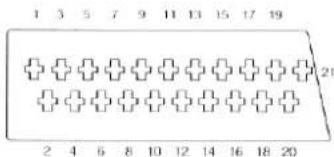
1 AUDIO-AUSGANG 12 Keine Verbindung 2 AUDIO-EINGANG 13 ROT-MASSE 3 AUDIO-AUSGANG 14 BLANKING-MASSE 4 AUDIO-MASSE 15 ROT 5 BLAU-MASSE 16 BLANKING 6 AUDIO-EINGANG 17 VIDEO-AUSGANG 7 BLAU-MASSE 8 SCHALTSPANNUNG 18 VIDEO-EINGANG 9 GRÜN-MASSE MASSE 10 Keine Verbindung 19 VIDEO-AUSGANG 11 GRÜN 20 VIDEO-EINGANG 21 MASSE
ROT, GRÜN und BLAU (RGB)-Signale sind nur durchgeschleift, nicht von der Bandwiedergabe, z.B. beim Anschluss eines Pay-TV-Decoders.
Bevor Sie den Kundendienst rufen, überprüfen Sie bitte die folgenden Punkte noch einmal.
Meldung auf dem Bildschirm
Die Fehlermeldung wird in Anführungszeichen [ ] angezeigt.
[Diese Aktion ist nicht möglich, bevor Datum und Uhrzeit eingestellt sind]
VIDEO PLUS+ oder PROG./CHECK wird gedrückt, wenn Datum und Uhrzeit nicht eingestellt sind. Stellen Sie Datum und Uhrzeit ein.
[Bitte Videokassette einlegen!]
REC (REC/OTR), ▷ (PLAY), ▶▶ (SCHNELLVORLAUF) oder ◀◀ (RÜCKSPULEN) wird gedrückt, wenn sich keine Kassette im Videorecorder befindet. Legen Sie eine Videokassette ein.
[Bitte Kassette mit unversehrter Aufnahmesperre verwenden!]
REC (REC/OTR) wird gedrückt, ohne dass die Aufnahmesperre der Kassette entfernt ist. Verwenden Sie eine Kassette mit entfernter Aufnahmesperre.
[Keine Timer-Programmierung möglich!]
12 TIMER REC wurde gedrückt, obwohl nichts programmiert wurde. Programmieren Sie die Timer-Aufnahme.
[Bitte zuerst den Videorecorder in den Stopp-Modus versetzen]
Es wurde versucht, Programmierdetails während einer Timer-Aufnahme zu ändern. Stellen Sie den Videorecorder in den Stopp-Modus.
Andere Meldungen außer diesen können erscheinen. Befolgen Sie die Anweisungen in der Meldung.
Selbsttest-Anzeige
Dieser Videorecorder verfügt über eine Selbstdiagnose- und Anzeigefunktion. Wenn der Videorecorder während der Installation oder des Betriebs eine Störung erkennt, erscheinen automatisch die folgenden Anzeigen im Display des Videorecorders. Die Anzeigen erscheinen in Form eines einzelnen englischen Buchstabens plus zwei Zahlen, z. B. [H01].
ANZEIGE
H□□
F□□

URSACHE
Es ist eine Störung aufgetreten.
(Die Zahlen nach H und F unterscheiden sich je nach Zustand des Videorecorders.)

REMEDY
Wenden Sie sich für weitere Beratung an Ihren Händler.
Der Videorecorder funktioniert nicht richtig
Die Symptombeschreibung ist in Anführungszeichen " " angegeben.
"Die Anzeige des Videorecorders leuchtet nicht."
- Das Netzkabel ist nicht angeschlossen. Schließen Sie das Netzkabel wieder am Videorecorder an.
"Die Anzeige des Videorecorders leuchtet, aber der Videorecorder funktioniert nicht."
Der Videorecorder befindet sich im Timer-Modus. Drücken Sie TIMER REC, um den Videorecorder manuell zu bedienen.
Sicherheitsvorrichtungen sind aktiv. Trennen Sie das Netzkabel und warten Sie 1 Minute. Schließen Sie das Netzkabel wieder an und überprüfen Sie die Funktionen.
"Das Bild des Videorecorders erscheint nicht auf dem Fernsehbildschirm."
Der HF-Ausgangskanal ist auf "—" (HF AUS) eingestellt. Stellen Sie den HF-Kanal auf eine andere Einstellung als "—" (HF AUS) ein. Siehe Seite 14.
"Die automatische Uhrzeiteinstellung funktioniert nicht richtig."
Teletext-Informationen sind nicht verfügbar. Fahren Sie mit der manuellen Uhrzeiteinstellung fort. Siehe Seite 22.
Die Wiedergabe funktioniert nicht richtig
Die Symptombeschreibung ist in Anführungszeichen " " angegeben.
"Bild ist verrauscht oder nicht in Farbe. Horizontale Balken oder Linien verlaufen über den Bildschirm."
Die Spurführung ist nicht korrekt. Stellen Sie die Spurführung ein. Siehe Seite 25. Der Fernseher ist nicht auf den Videorecorder abgestimmt. Stimmen Sie den Fernseher auf Ihren Videorecorder ab. Siehe Seite 13. Die Videoköpfe sind verschmutzt oder abgenutzt. Wenden Sie sich für weitere Beratung an Ihren Händler.
Die Aufnahme funktioniert nicht korrekt
Die Symptombeschreibung ist in Anführungszeichen " " angegeben
"Die Anzeige blinkt bei jedem Aufnahmeversuch."
- Die Aufnahmesperrlasche an der Kassette ist abgebrochen. Verwenden Sie eine Videokassette mit intakter Aufnahmesperrlasche oder kleben Sie das Loch der Lasche mit Klebeband ab, wenn die ursprüngliche Aufnahme nicht mehr benötigt wird.
"Das Bild wird mit Rauschen oder einem leeren Bildschirm aufgenommen."
Antenne oder Antennenkabel ist defekt. Überprüfen Sie den Antennenanschluss am Videorecorder. Siehe Seite 10 oder 11. Überprüfen Sie Ihr normales Fernsehbild. Wenn kein Bild vorhanden ist, überprüfen Sie Ihre Antenne. Der Videorecorder ist nicht richtig abgestimmt. Stimmen Sie den Videorecorder neu ab. A1 oder A2 ist ausgewählt. Wählen Sie das gewünschte TV-Programm.
Die Aufnahme funktioniert nicht korrekt
Die Symptombeschreibung ist in Anführungszeichen " " angegeben
"Eine Timeraufnahme kann nicht durchgeführt werden."
Uhr oder Kalender ist falsch eingestellt. Überprüfen Sie Uhr und Kalender. Stellen Sie die aktuelle Zeit ein. (Beachten Sie, dass dies eine 24-Stunden-Uhr ist.) Siehe Seite 22. Die Einstellung für Aufnahmestart oder -ende ist falsch. Stellen Sie Aufnahmestart und -ende korrekt ein. Der Videorecorder ist nicht für die Timeraufnahme eingestellt. Drücken Sie nach der Programmierung für die Timeraufnahme TIMER REC.
"Externe AV-Aufnahmen können nicht gemacht werden."
A1 oder A2 ist nicht ausgewählt. Wählen Sie A1 oder A2 durch Drücken von INPUT SELECT. Die externen AV-Verbindungen sind falsch. Überprüfen Sie, ob die Verbindungen für die externe Video- und Audioquelle korrekt sind. Siehe Seite 34.
Die Fernbedienung funktioniert nicht korrekt
Die Symptombeschreibung ist in Anführungszeichen " angegeben.
"Die Fernbedienung funktioniert nicht richtig."
Der Senderstrahl der Fernbedienung erreicht den Videorecorder nicht. Stellen Sie sicher, dass die Fernbedienung auf den Videorecorder gerichtet ist und der Senderstrahl nicht blockiert wird. Die Entfernung ist zu groß. Verwenden Sie die Fernbedienung innerhalb von 7 m vom Videorecorder. Wenn diese Reichweite nicht möglich ist, ersetzen Sie die Batterien. Die Batterien sind erschöpft. Ersetzen Sie die Batterien. Beachten Sie den Hinweis zum Austausch auf Seite 4. Die Batterien sind falsch eingelegt (+/-) verpolt. Legen Sie die Batterien richtig ein, wie auf Seite 4 gezeigt.
Bitte lesen Sie diese Warnhinweise, bevor Sie diesen Videorecorder bedienen.
Vermeiden Sie plötzliche Temperaturwechsel
Wenn der Videorecorder plötzlich von einem kalten an einen warmen Ort gebracht wird, kann sich Kondenswasser auf dem Band und im Inneren des Videorecorders bilden.
Feuchtigkeit und Staub
Vermeiden Sie Orte mit hoher Luftfeuchtigkeit oder viel Staub, da dies zu Schäden an internen Teilen führen kann.
Lüftungsschlitze nicht blockieren
Die Lüftungsschlitze verhindern einen ungewöhnlichen Temperaturanstieg. Blockieren oder bedecken Sie diese Schlitze nicht. Vermeiden Sie insbesondere, die Schlitze mit weichen Materialien wie Stoff oder Papier zu bedecken.
Von hohen Temperaturen fernhalten
Halten Sie den Videorecorder von extremer direkter Hitze wie direkter Sonneneinstrahlung, Heizkörpern oder geschlossenen Autos fern.
Magnete fernhalten
Bringen Sie niemals einen Magneten oder magnetisierten Gegenstand in die Nähe des Videorecorders, da dies die Leistung des Videorecorders beeinträchtigt. Halten Sie den Videorecorder bei der Verwendung so weit wie möglich von anderen Geräten fern, um nachteilige Auswirkungen auf die Leistung sowohl des Videorecorders als auch des Geräts zu vermeiden.
Keine Finger oder andere Gegenstände hineinstecken
Das Berühren interner Teile dieses Videorecorders ist gefährlich und kann zu schweren Schäden am Gerät führen. Versuchen Sie nicht, den Videorecorder zu zerlegen. Im Inneren befinden sich keine vom Benutzer zu wartenden Teile.
Vor Wasser schützen
Halten Sie den Videorecorder von Blumenvasen, Wannen, Waschbecken usw. fern. ACHTUNG: Wenn Flüssigkeiten in den Videorecorder gelangen, kann dies zu schweren Schäden führen. Wenn Sie Flüssigkeit in den Videorecorder verschütten, wenden Sie sich an qualifiziertes Servicepersonal.
Reinigung des Videorecorders
Wischen Sie den Videorecorder mit einem sauberen, trockenen Tuch ab. Verwenden Sie niemals Reinigungsflüssigkeit oder andere Chemikalien. Verwenden Sie auch keine Druckluft zum Entfernen von Staub.
Stapeln
Stellen Sie den Videorecorder in horizontaler Position auf und legen Sie keine schweren Gegenstände darauf.
Verstopfung der Videoköpfe
Die Videoköpfe zeichnen während der Aufnahme Bildsignale auf das Band auf und lesen sie während der Wiedergabe vom Band ab. Sie sind daher von entscheidender Bedeutung für die Bildqualität. Wenn der Videorecorder über einen sehr langen Zeitraum verwendet wird, können diese Köpfe verschmutzen und verstopfen. In einem solchen Fall können die Signale nicht mehr korrekt aufgezeichnet werden, und das Wiedergabebild wird entsprechend verzerrt. Dies ist zum Beispiel der Fall, wenn bei der Wiedergabe eines Bandes der Ton normal wiedergegeben wird, aber kein Bild zu sehen ist oder das Bild stark verzerrt ist. Wenn ein solches Symptom auftritt, lassen Sie den Rekorder von qualifiziertem Servicepersonal überprüfen.
Die Reinigung der Köpfe durch den Kundendienst ist nicht durch die Garantie abgedeckt.
Im Videorecorder kann sich Kondenswasser bilden, wenn:
- Der Videorecorder befindet sich in einem Raum, in dem die Heizung gerade eingeschaltet wurde.
- Der Videorecorder befindet sich in einem Raum mit Dampf oder hoher Luftfeuchtigkeit.
- Der Videorecorder wird aus kalter Umgebung in einen gut beheizten Raum gebracht.
- Der Videorecorder wird plötzlich aus kühler Umgebung, wie einem klimatisierten Raum oder Auto, an einen heißen und feuchten Ort gebracht.
Hinweis:
Betreiben Sie den Videorecorder mindestens 1 Stunde lang nicht, wenn einer der oben genannten Zustände auftritt.
Dieser Videorecorder verfügt über keinen Taupunkt-Sensor.
Pflege der Kassetten
Einige Hinweise zur Pflege der Kassetten.
Tun Sie Folgendes:
1) Verwenden Sie eine gute Markenkassette, z. B. Panasonic. 2) Bewahren Sie die Kassette bei Nichtgebrauch in der mitgelieferten Box oder einer Videohülle auf. 3) Versuchen Sie, das gesamte Band einer Kassette zu nutzen, indem Sie auch mittlere und spätere Abschnitte bespielen. Dies vermeidet viele Wiederholungsaufnahmen am Bandanfang, die zu vorzeitigem Verschleiß führen. 4) Achten Sie darauf, eine Kassette korrekt in den Videorecorder einzulegen, um Schäden zu vermeiden.
Vermeiden Sie Folgendes:
1) Setzen Sie das Band keiner hohen Luftfeuchtigkeit oder Temperatur aus. 2) Setzen Sie es keiner Flüssigkeit aus. 3) Setzen Sie es keiner Staubpartikel aus, z. B. durch direkte Lagerung auf einem Teppich. 4) Verwenden Sie kein beschädigtes Band und versuchen Sie nicht, es zu reparieren. 5) Zerlegen Sie nicht das Kassettengehäuse. 6) Versuchen Sie nicht, die vordere Kassettenklappe anzuheben oder die Bandoberfläche zu berühren.
NV-SD230B...(Modell für Großbritannien)
NV-SD230BL...(Modell für Irland)
Stromversorgung: 220-240 V Wechselstrom, 50/60 Hz
Leistungsaufnahme: 19 Watt
Videoaufzeichnungssystem: 2 rotierende Köpfe, Schrägspurverfahren
Videoköpfe: 2 Köpfe
Bandgeschwindigkeit: SP; 23,39 mm/s.
LP; 11,7 mm/s.
Bandformat: VHS-Band
Aufnahme-/Wiedergabezeit: SP; 240 Min. mit NV-E240
LP: 480 Min. mit NV-E240
Vor-/Rücklaufzeit: ca. 90 Sek. mit NV-E180
VIDEO
Fernsehsystem: CCIR; 625 Zeilen, 50 Halbbilder, PAL-Farbsignal
Modulationssystem: Luminanz; FM-Azimutaufzeichnung
Farbsignal; umgesetztes Subträger-Phasensprung-Aufzeichnungsverfahren
Eingangspegel: AV1/AV2; 1,0 Vss, 75 Ohm, abgeschlossen
Ausgangspegel: AV1/AV2; 1,0 Vss, 75 Ohm, abgeschlossen
HF-moduliert; (Modell UK) UHF-Kanal (21-68), 75 Ohm
(Modell EIRE) UHF-Kanal (21-68), 75 Ohm
AUDIO
Eingangspegel: AV1/AV2; -6 dBV, mehr als 10 kOhm
Ausgangspegel: AV1/AV2; -6 dBV, weniger als 1 kOhm
Audiospur: 1 Spur (nur Normal-Mono)
Video-Horizontalauflösung: mehr als 230 Zeilen (SP)
Signal-Rausch-Verhältnis: Video; mehr als 40 dB (SP)
Audio; mehr als 43 dB
Audio-Frequenzgang: 80 Hz–8 kHz
Betriebstemperatur: 5°C-40°C
Betriebsluftfeuchtigkeit: 35%–80%
Gewicht: 4 kg
Abmessungen: 430 (B)×87 (H)×297 (T) mm
1 Stk. HF-Koaxialkabel
1 Stk. Fernbedienung
2 Stk. Batterien der Größe "R6"
1 Stk. Netzkabel
Gewicht und Abmessungen sind ungefähre Angaben.
Technische Daten können ohne Vorankündigung geändert werden.

- PANASONIC
- WICHTIG
- WARNUNG
- FÜR IHRE SICHERHEIT
- ENTFERNEN SIE NICHT DIE ÄUSSERE ABDECKUNG
- VORSICHT BEI DER NETZKABEL
- FÜR IHRE SICHERHEIT LESEN SIE BITTE DEN FOLGENDEN TEXT SORGFÄLTIG DURCH
- SO TAUSCHEN SIE DIE SICHERUNG AUS
- INHALT
- VOR DER VERWENDUNG
- ANSCHLÜSSE
- AUTOMATISCHE EINRICHTUNG
- MENÜFUNKTIONEN
- GRUNDLEGENDE BEDIENUNG
- ERWEITERTE BEDIENUNG
- INFORMATIONEN
- BEDIENELEMENTE UND IHRE FUNKTIONEN
- INFRAROT-FERNBEDIENUNG
- BETRIEB DES VIDEOREKORDERS
- TASTEN FÜR DIE TIMER-AUFNAHME
- ∨ ∧, DATUM, EIN, AUS
- PROG./PRÜFEN
- ABBRECHEN
- PDC
- SP/LP
- TIMER REC
- OSD/DISPLAY
- BEDIENTASTEN FÜR DAS ON-SCREEN-DISPLAY-MENÜ
- ZIFFERNTASTEN
- INPUT SELECT
- POWER ⏻
- SEARCH
- INDEX
- REC
- PAUSE
- ∨ ∧ (TRACKING/V-LOCK)
- VIDEO PLUS
- VCR/TV-UMSCHALTER
- ▷ (PLAY)
- (REWIND)
- (SCHNELLVORLAUF)
- (STOPP)
- RESET
- OK, OFF(+)
- KINDERSICHERUNGSFUNKTION
- TV-BETRIEB
- AV
- POWER
- ∨ ∧, ≡▽ ≡▲
- TV/TEXT
- ∨(ROT), DATUM - (GRÜN), EIN - (GELB), AUS - (BLAU)
- VERWENDUNG FÜR DEN BETRIEB IHRES PANASONIC-FERNSEHERS
- HINWEIS
- SO SCHALTEN SIE ZWISCHEN DEN EXTERNEN EINGANGSKANÄLEN IHRES FERNSEHERS UM
- B 1 DRÜCKEN SIE AV
- C 1 DRÜCKEN SIE AV
- FRONT
- POWER ⏻/I
- EJECT
- KASSETTENFACH
- FENSTER DES INFRAROT-FERNBEDIENUNGSEMPFÄNGERS
- CVC-ANZEIGE (CRYSTAL VIEW CONTROL)
- ANZEIGE
- ∨ ∧
- REC/OTR
- (STOP)
- (PLAY)
- REAR
- AC IN
- AV1 (TV)
- AV2 (DECODER/EXT)
- RF IN
- RF OUT
- LISTE DER ANSCHLUSS- UND EINSTELLMETHODEN
- SO SCHLIESSEN SIE AN EINEN FERNSEHER AN
- A SO SCHLIESSEN SIE AN EINEN FERNSEHER OHNE 21-POLIGE SCART-BUCHSE AN (HF-ANSCHLUSS)
- B SO SCHLIESSEN SIE AN EINEN FERNSEHER MIT 21-POLIGER SCART-BUCHSE AN (AV-ANSCHLUSS)
- SO SCHLIESSEN SIE AN EINEN SATELLITENRECEIVER ODER DECODER AN ---- SIEHE SEITE
- ANSCHLUSS AN EINEN FERNSEHER OHNE 21-POLIGE SCART-BUCHSE (HF-ANSCHLUSS)
- ANSCHLUSS AN EINEN FERNSEHER MIT 21-POLIGEM SCART-KABEL (AV-ANSCHLUSS)
- ANSCHLUSS AN EINEN SATELLITENEMPFÄNGER ODER EINEN DECODER
- VERWENDUNG EINES RF-KOAXIALKABELS (RF-ANSCHLUSS)
- VERWENDUNG EINES 21-POLIGEN SCART-KABELS (AV-ANSCHLUSS)
- HINWEISE USW
- EINRICHTUNG NACH DEM ANSCHLUSS AN EINEN FERNSEHER OHNE 21-POLIGEN SCART-KABELANSCHLUSS
- SCHALTEN SIE DEN VIDEORECORDER UND DEN FERNSEHER EIN
- ÜBERPRÜFEN SIE, OB DIE NUMMER DES HF-AUSGANGSKANALS AUF DEM DISPLAY DES VIDEORECORDERS ERSCHEINT
- STELLEN SIE DEN FERNSEHER AUF EINE UNBENUTZTE PROGRAMMPOSITION, Z. B. "0", UND STIMMEN SIE DEN FERNSEHER AUF DIE AUF DEM VIDEORECORDER ANGEZEIGTE KANALNUMMER AB. (EINSTELLUNG DES AV-EINGANGSKANALS)
- DIE AUTOMATISCHE EINRICHTUNG STARTET AUTOMATISCH
- NACHDEM DIE AUTOMATISCHE EINRICHTUNG ABGESCHLOSSEN IST, DRÜCKEN SIE EXIT, UM DAS BILD DER ERSTEN POSITION ANZUSEHEN
- ☐SO ÄNDERN SIE DEN HF-AUSGANGSKANAL (MIT DER FERNBEDIENUNG)
- BETRIEB
- SO ÜBERPRÜFEN SIE DIE EINSTELLUNGEN FÜR DIE AUTOMATISCHE EINRICHTUNG
- EINRICHTUNG NACH DEM ANSCHLUSS AN EINEN FERNSEHER MIT 21-POLIGEM SCART-KABELANSCHLUSS
- AUTO-SETUP
- BEISPIEL
- VORBEREITUNGEN
- ☐SO BLENDEN SIE DEN SENDERFÜHRER AUF DEM FERNSEHBILDSCHIRM EIN
- ☐SO BLENDEN SIE DIE BILDSCHIRMANZEIGE (OSD) AUF DEM FERNSEHBILDSCHIRM EIN
- BILDSCHIRMMENÜ
- ☐ ZUM ABDUNKELN DER ZEICHEN AUF DEM VCR-DISPLAY, WENN DER VCR AUSGESCHALTET IST
- SPEICHERN VON TV-SENDERN IN IHREM VIDEORECORDER (ABSTIMMUNG)
- MANUELLE ABSTIMMUNG
- ☐SO LÖSCHEN SIE SENDER, FÜGEN "LEER"-POSITIONEN HINZU UND ÄNDERN (VERSCHIEBEN) DIE PROGRAMMPOSITION
- SO WÄHLEN SIE DIE PROGRAMMPOSITION AUS (ÄNDERN SIE)
- SO GEBEN SIE DEN SENDERNAMEN EIN (ÄNDERN IHN)
- SO WÄHLEN SIE DEN KANAL AUS (ÄNDERN)
- BEMERKUNGEN USW
- SO STARTEN SIE DIE AUTOMATISCHE EINRICHTUNG NEU
- SO STELLEN SIE DEN WERKSZUSTAND WIEDER HER
- EINSTELLEN DER UHR IHRES VIDEORECORDERS (UHR)
- SO STELLEN SIE DIE UHR MANUELL EIN
- SO STELLEN SIE DIE UHR AUTOMATISCH EIN
- EINSTELLUNGEN DER FUNKTIONEN (FUNKTION)
- ☐ZUR AUSWAHL DER ENTSPRECHENDEN KASSETTENLÄNGE FÜR DIE ANZEIGE DER UNGEFÄHREN RESTSPIELZEIT
- SO WÄHLEN SIE DEN AV2-ANSCHLUSS
- WIEDERGABE
- SCHALTEN SIE DEN VIDEORECORDER UND DEN FERNSEHER EIN. • AUCH WENN DER VIDEORECORDER AUSGESCHALTET IST, SCHALTET ER SICH EIN
- LEGEN SIE DIE VIDEOKASSETTE EIN, DIE SIE ANSEHEN MÖCHTEN
- DRÜCKEN SIE ▷ (PLAY)
- DRÜCKEN SIE □ (STOP). •DIE WIEDERGABE STOPPT
- SO WERFEN SIE DIE VIDEOKASSETTE AUS
- WEITERE WIEDERGABEFUNKTIONEN
- SO ZEIGEN SIE DAS BILD IM SCHNELLVORLAUF ODER RÜCKLAUF AN
- SO SPIELEN SIE NTSC-VIDEOKASSETTEN AUF EINEM PAL-FERNSEHER AB
- ☐SO MINIMIEREN SIE STÖRBALKEN (EINSTELLEN DER SPURFÜHRUNG)
- SO MINIMIEREN SIE VERTIKALES ZITTERN WÄHREND DER STANDBILDWIEDERGABE (EINSTELLUNG DER VERTIKALEN VERRIEGELUNG)
- MANUELLE AUFNAHME
- LEGEN SIE EINE VIDEOKASSETTE MIT INTAKTER LÖSCHSCHUTZLASCHE EIN
- WÄHLEN SIE DEN FERNSEHSENDER
- DRÜCKEN SIE REC ODER REC/OTR
- DRÜCKEN SIE □ (STOP), UM DIE AUFNAHME ZU BEENDEN
- WEITERE AUFNAHMEFUNKTIONEN
- SO WÄHLEN SIE DIE AUFNAHMEZEIT
- SO PAUSIEREN SIE WÄHREND DER AUFNAHME
- SO NEHMEN SIE EIN TV-PROGRAMM AUF, WÄHREND SIE EIN ANDERES PROGRAMM ANSEHEN
- SO ZEIGEN SIE DIE UNGEFÄHRE VERBLEIBENDE BANDZEIT AN
- SO STOPPEN SIE DIE AUFNAHME AUTOMATISCH (ONE-TOUCH-RECORDING = OTR)
- VORBEREITUNG
- TIMERAUFNAHME
- SO PROGRAMMIEREN SIE MIT DER BILDSCHIRMANZEIGE
- ZUM BEISPIEL
- DRÜCKEN SIE PROG./CHECK. • ALTERNATIV KÖNNEN SIE
- DRÜCKEN SIE ∨ ∧, UM DIE PROGRAMMPOSITION (KANAL) "2" EINZUSTELLEN. ALTERNATIV KÖNNEN SIE NACH DEM DRÜCKEN VON ∨ ∧, DATE, ON ODER OFF DIE TASTEN ▲ ▼ ◀ ▶ VERWENDEN
- DRÜCKEN SIE ON, UM DIE STARTZEIT "20:00" EINZUSTELLEN
- WENN DIE TASTE GEDRÜCKT GEHALTEN WIRD, ÄNDERT SICH DIE ANZEIGE IN 30-MINUTEN-SCHRITTEN
- DRÜCKEN SIE OK ZUR BESTÄTIGUNG
- DRÜCKEN SIE TIMER REC, UM DIE TIMER-AUFNAHME ZU AKTIVIEREN. - WENN DIE BILDSCHIRMANZEIGE FÜR DIE PROGRAMMIERUNG
- WEITERE TIMER-AUFNAHMEFUNKTIONEN
- SO STELLEN SIE WEITERE PROGRAMME NACHEINANDER EIN
- ☐FÜR WÖCHENTLICHE TIMER-AUFNAHME
- FÜR TÄGLICHE TIMER-AUFNAHME
- SO NEHMEN SIE VON EINER EXTERNEN SIGNALQUELLE AUF
- SO WÄHLEN SIE PDC EIN
- SO ÜBERPRÜFEN SIE EIN TIMER-PROGRAMM
- DRÜCKEN SIE PROG./CHECK
- SO ÄNDERN SIE EIN TIMER-PROGRAMM
- SO LÖSCHEN SIE EIN TIMER-PROGRAMM
- SO ÜBERPRÜFEN SIE DIE VERBLEIBENDE BANDZEIT FÜR DIE AUFNAHME
- SO BESTÄTIGEN SIE DIE AUFGENOMMENEN TIMERPROGRAMME (TIMERAUFNAHMEBESTÄTIGUNG)
- SO ZEIGEN SIE DEN BESTÄTIGUNGSBILDSCHIRM FÜR TIMER-AUFNAHMEN AN
- DRÜCKEN SIE SEARCH
- TIMER-AUFNAHME (FORTSETZUNG)
- SO PROGRAMMIEREN SIE MIT VIDEO PLUS+ PLUSCODE
- DRÜCKEN SIE VIDEO PLUS
- GEBEN SIE DEN VIDEO PLUSCODE FÜR DIE AUFZUNEHMENDE FERNSEHSENDUNG EIN
- DRÜCKEN SIE OK
- DRÜCKEN SIE ERNEUT OK ZUR BESTÄTIGUNG
- DRÜCKEN SIE TIMER REC, UM DIE TIMERAUFNAHME ZU AKTIVIEREN
- WENN SIE ZWEI ODER MEHR PROGRAMME PROGRAMMIEREN MÖCHTEN, WIEDERHOLEN SIE DIE SCHRITTE
- SCHNITT (ASSEMBLE-SCHNITT)
- SO SUCHEN SIE, WÄHREND SIE DEN INHALT DER VIDEOKASSETTE PRÜFEN (INTRO-JET-SCAN)
- WENN DAS GEWÜNSCHTE PROGRAMM ERREICHT IST, DRÜCKEN SIE PLAY
- SO STOPPEN SIE DEN VORGANG JEDERZEIT
- SO FINDEN SIE DEN ANFANG JEDER AUFNAHME (VHS INDEX SEARCH SYSTEM = VISS)
- SO ZEICHNEN SIE INDEXSIGNALE AUF
- BEDIENUNG
- INDEX ▶▶I ZWEIMAL DRÜCKEN
- CRYSTAL VIEW CONTROL
- PDC (PROGRAMME DELIVERY CONTROL)
- WAS IST PDC
- SO VERWENDEN SIE PDC
- HINWEISE ZUR PDC-AUFNAHME
- POLIGE SCART-BUCHSE
- MELDUNG AUF DEM BILDSCHIRM
- SELBSTTEST-ANZEIGE
- URSACHE
- REMEDY
- DER VIDEORECORDER FUNKTIONIERT NICHT RICHTIG
- DIE WIEDERGABE FUNKTIONIERT NICHT RICHTIG
- DIE AUFNAHME FUNKTIONIERT NICHT KORREKT
- DIE FERNBEDIENUNG FUNKTIONIERT NICHT KORREKT
- VERMEIDEN SIE PLÖTZLICHE TEMPERATURWECHSEL
- FEUCHTIGKEIT UND STAUB
- LÜFTUNGSSCHLITZE NICHT BLOCKIEREN
- VON HOHEN TEMPERATUREN FERNHALTEN
- MAGNETE FERNHALTEN
- KEINE FINGER ODER ANDERE GEGENSTÄNDE HINEINSTECKEN
- VOR WASSER SCHÜTZEN
- REINIGUNG DES VIDEORECORDERS
- STAPELN
- VERSTOPFUNG DER VIDEOKÖPFE
- IM VIDEORECORDER KANN SICH KONDENSWASSER BILDEN, WENN
- PFLEGE DER KASSETTEN
- TUN SIE FOLGENDES
- VERMEIDEN SIE FOLGENDES
Marke : PANASONIC
Modell : NV-SD230B
Kategorie : Videorekorder