GA2162 - Nicht kategorisiert Eonon - Kostenlose Bedienungsanleitung
Finden Sie kostenlos die Bedienungsanleitung des Geräts GA2162 Eonon als PDF.


Benutzerfragen zu GA2162 Eonon
0 Frage zu diesem Gerät. Beantworten Sie die, die Sie kennen, oder stellen Sie Ihre eigene.
Eine neue Frage zu diesem Gerät stellen
Laden Sie die Anleitung für Ihr Nicht kategorisiert kostenlos im PDF-Format! Finden Sie Ihr Handbuch GA2162 - Eonon und nehmen Sie Ihr elektronisches Gerät wieder in die Hand. Auf dieser Seite sind alle Dokumente veröffentlicht, die für die Verwendung Ihres Geräts notwendig sind. GA2162 von der Marke Eonon.
BEDIENUNGSANLEITUNG GA2162 Eonon

eonon
Change.WhyWait.
text_image
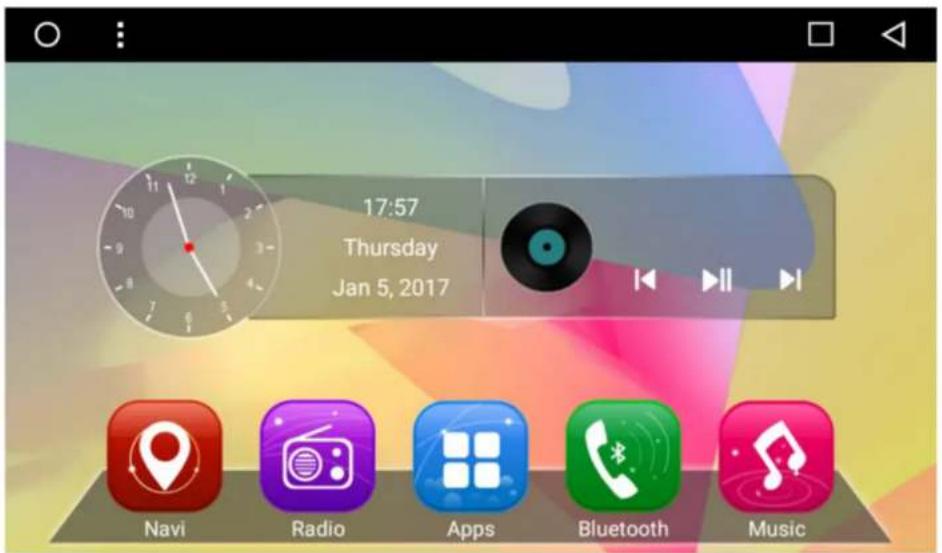
17:57 Thursday Jan 5, 2017 Navi Radio Apps Bluetooth MusicUser Manual
Android 6.0 Marshmallow
econon
Installation Notes
For your safety, please pay attention to the following points:
- Please read carefully all the terms of this manual before using the head unit. The warranty policy is invalid if you don't comply with the manual and cause product failure.
•2. To ensure safety and obey the traffic rules, please do not watch video and operate the head unit while driving. -
- Please do not place the head unit too close to the cooling air outlet for avoiding product failure.
◆4. Please insulate the power output wire for avoiding boot failure caused by short circuit.
- Please do not place the head unit too close to the cooling air outlet for avoiding product failure.
-
- Please consult with local professional car audio store first and do not self-repair it.
-
- Please do not use the car audio for long time after turning off the engine, or it will exhaust the battery power.
◆7. Please do not insert other objects into the vents or other openings of the head unit.
- Please do not use the car audio for long time after turning off the engine, or it will exhaust the battery power.
-
- Please do not use sharp objects to touch, rub or tap the screen.
- The head unit is applicable to vehicles with 12V Power system (negative grounded). Please do not install it directly on the vehicles with 24V for avoiding product failure.
-
- Please turn off the car and disconnect ACC from B + before installation for avoiding short circuit.
eonon
Contents
Main menu....3
APPS....4
Radio....5
Bluetooth....6
Video player....11
Music player....12
Gallery....13
AV IN 14
File management....15
Navigation....16
Internet....17
EasyConnection....18
DVR....19
APK installer....20
Steering wheel controls....21
Settings 22
Parameter 24
FAQ 25
Wiring diagram....26
eonon
Main menu
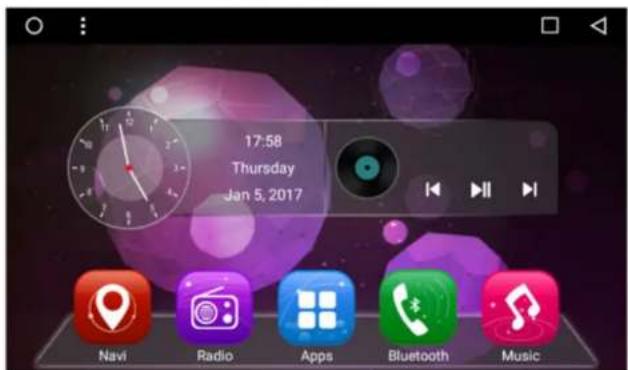
The main menu interface has Navigation, Radio, APPS, Bluetooth, Music icons. Click these icons to enter the corresponding interface.
Main menu interface
text_image
17:58 Thursday Jan 5, 2017 Navi Radio Apps Bluetooth MusicAPPS
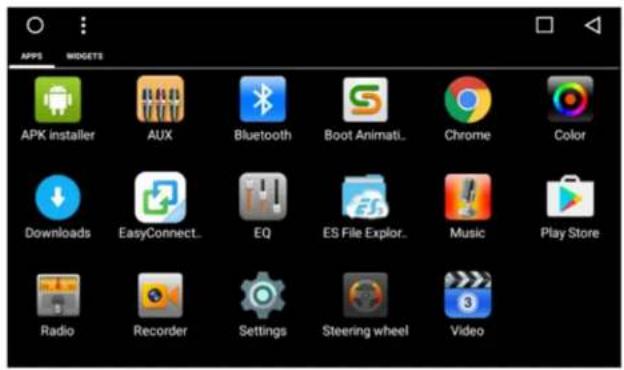
The APPS interface has Radio, Settings, Bluetooth, Video, Music, Recorder, AVIN and other functions icon. Click these icons to enter the corresponding interface.
APPS interface
text_image
APPS MIDGETS APK installer AUX Bluetooth Boot Animati.. Chrome Color Downloads EasyConnect.. EQ ES File Explor.. Music Play Store Radio Recorder Settings Steering wheel Videoeponon
Radio
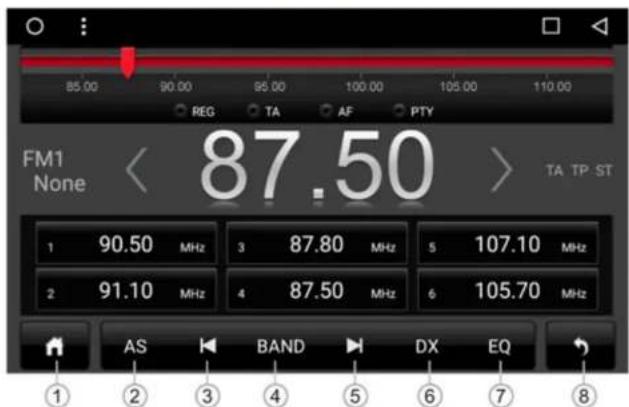
Support search FM / AM channel automatically, save radio channels, display frequency, frequency fine-tuning and etc. as shown below:
Radio interface
text_image
85.00 90.00 95.00 100.00 105.00 110.00 REG TA AF PTY FM1 None 87.50 TA TP ST 1 90.50 MHz 3 87.80 MHz 5 107.10 MHz 2 91.10 MHz 4 87.50 MHz 6 105.70 MHz AS BAND DX EQ ① ② ③ ④ ⑤ ⑥ ⑦ ⑧- Home page 2. Search: Press once to enter auto search mode; press again to stop search
- Forward search 4. FM/AM mode switch 5. Backward search 6. LOC/DX switch 7. EQ settings 8. Back
Bluetooth
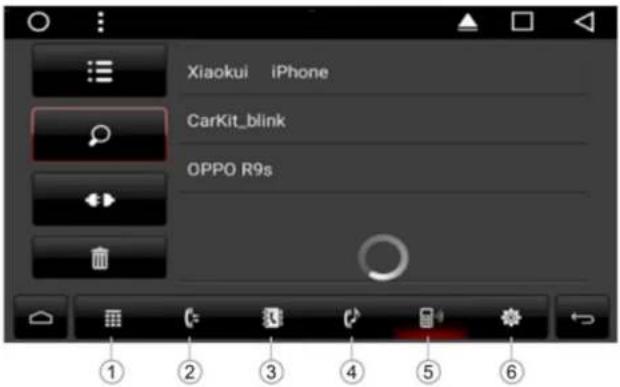
Connection Steps:
- Open the mobile Bluetooth to search the head unit Bluetooth name.
- Enter the corresponding password.
- After completing the connection, the icon on the interface will be light up and the Bluetooth icon will be shown on the top of home page.
Bluetooth search interface
text_image
Xiaokui iPhone CarKit_blink OPPO R9s-
Dial-up
-
Call logs
3.Phone book
-
Bluetooth music
-
Pairing searching
-
Settings
econon
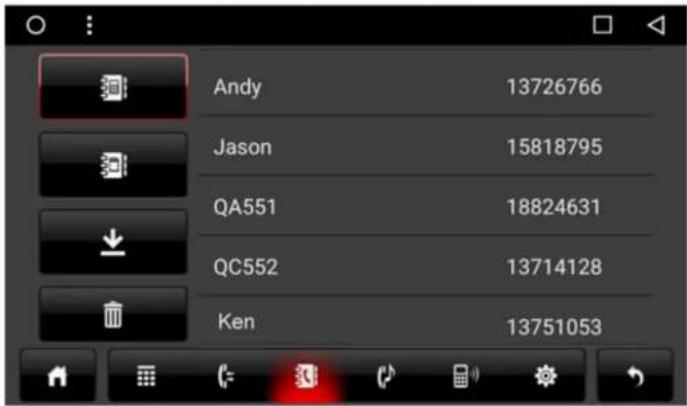
Bluetooth phone book
text_image
Andy 13726766 Jason 15818795 QA551 18824631 QC552 13714128 Ken 13751053
Download phone contacts
Download all contacts
Download SIM card contacts

Delete contacts
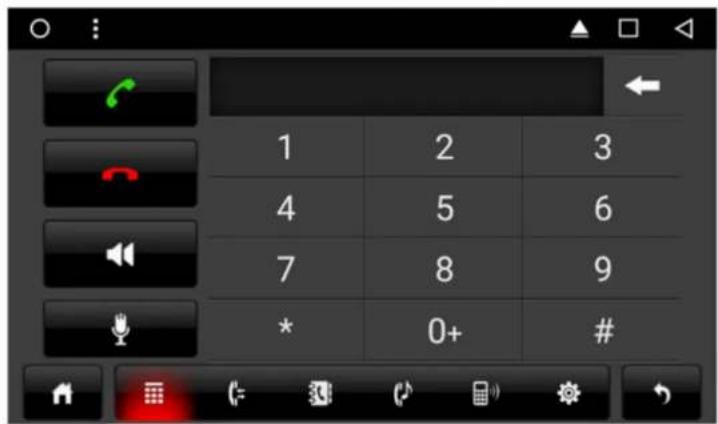
Bluetooth dial-up interface
text_image
1 2 3 4 5 6 7 8 9 * 0+ #
Answer/Dial-up
Switch the sound between the mobile and the head unit
Mute

End call
econon
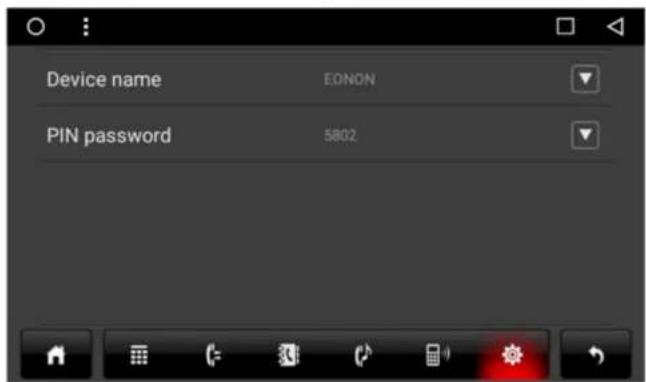
Bluetooth settings interface
The Bluetooth name and connection password of the head unit can be set.
text_image
Device name EONON PIN password 5802eonon
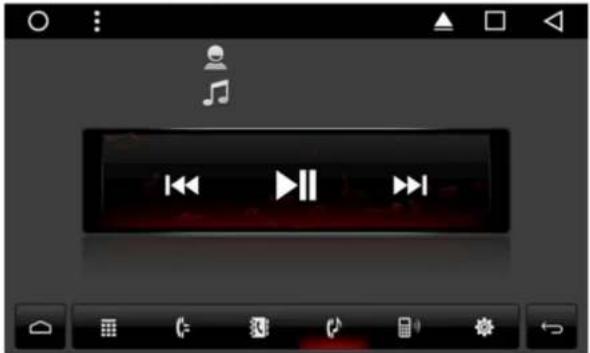
Bluetooth music interface
The head unit can play songs from mobile in the state of Bluetooth connection.
text_image
Screenshot of a mobile media player interface with playback controls and playback buttons
Previous

Play/Pause

Next
econon
Video player
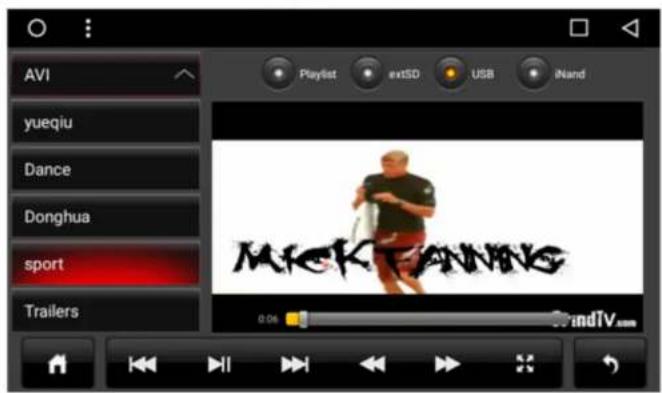
- Support play the video files in head unit memory or SD/USB.
- Compatible formats: AVI, MKV, MP4, WMV, RMVB, MPG.
Video player interface
text_image
AVI yueqiu Dance Donghua sport Trailers Playlist extSD USB iNand MICKAWNS 0.06 BrandTV.com
Previous
Rewind

Play/Pause
Fast forward

Next
Full screen
Music player
- Support play the audio files in head unit memory or SD/USB
- Compatible formats: WMA, MP3, WAV, AC3
Music player interface

text_image
Built to last-melee everybody I'm not a girl,not yet a... My prerogative never had a dream co... never say goodbay Playlist extSDG USB iNand Unknown Unknown never had a drea... 2.32 4.02 EQ

econon
Gallery
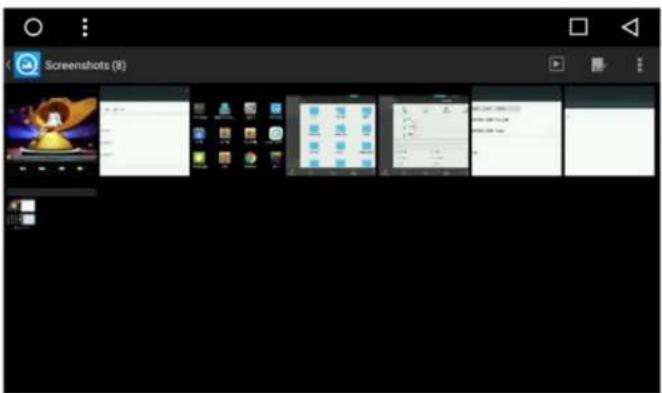
- Picture interface can browse pictures from head unit memory or SD card/USB.
- Gallery interface can browse pictures and play video.
text_image
Screenshots (8)AVIN
Click "AVIN" icon on the home page to enter AVIN interface, the audio and video from external device can be displayed on head unit.

natural_image
Coastal landscape with turquoise sea, rocky cliffs, and a small island under a partly cloudy sky (no text or symbols visible)
natural_image
Coastal landscape with turquoise ocean and rocky cliffs under a partly cloudy sky (no text or symbols visible)eonon
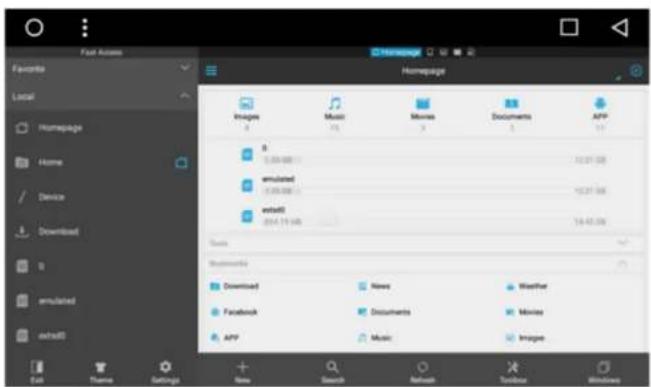
File management
- File management function can be used to manage files in head unit memory, GPS or SD/USB.
- Copy, cut, paste, and delete the file.
File management interface
text_image
Favorite Local Homepage Home Device Download amulated e-mail Exit Theme Settings Images Music Movies Documents APP 0 0.00-000 12:37:08 amulated 0.00-000 12:37:08 email 264.19.98 14:45:08 Documents Download Facebook News Documents Music Weather Movies APP Music ImageNavigation
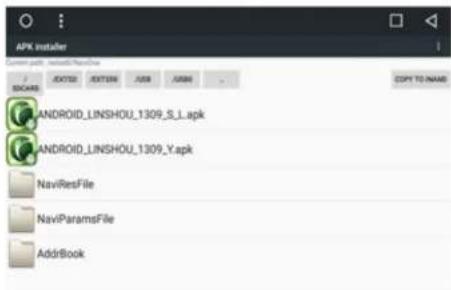
- After inserting map card, select GPS Card in the APK installer
- When the installation is complete, click the "Navigation" icon to enter navigation interface.
Installation interface
text_image
APK Installer Current page: installed version1 / BOOKS JDOT00 JDOT04 JUSB ARMS COPY TO NAME ANDROID_LINSHOU_1309_S.L.apk ANDROID_LINSHOU_1309_Y.apk NaviResFile NaviParamsFile AddBookNavigation interface
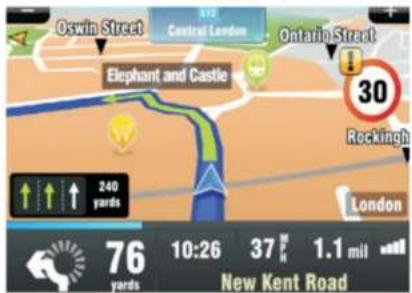
text_image
Oswin Street Central London Ontario Street Elephant and Castle 30 Rockingh 240 yards London 76 yards 10:26 37 M 1.1 mil New Kent Roadeconon
Internet
Support internet access via WiFi or 3G.
- WiFi connection : Turn on WiFi in the settings interface, search the name of mobile hotspot and click connect.
- 3G connection : Insert the USB 3G device, and achieve internet access after displaying the 3G icon at the top of the home page.
WiFi Connection

text_image
Select Wi-Fi OnEDONAP
Connected, no internet
M0V
Easyconnection
Support interconnection for iOS and Android devices.
iOS interconnection:
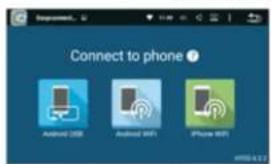
- Turn on mobile hotspot and head unit WiFi and connect it.
- Click the EasyConnection icon on the home page of head unit to enter EasyConnection interface.
- Turn on iPhone AirPlay, and follow the prompts to complete the connection.
iOS interconnection interface
text_image
Connect to phone Android USB Android WiFi iPhone WiFi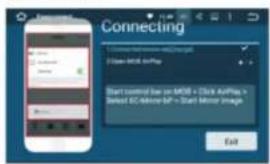
text_image
Connecting Start control based on MSB + Click AirPass > Select EC-Admiral BF - Start Mirror Image ExitAndroid interconnection:
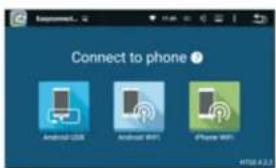
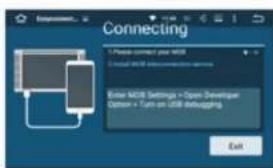
- Turn on the USB debug mode of mobile.
- Connect the mobile to head unit via USB cable.
- Click the EasyConnection icon on the home page of head unit to enter EasyConnection interface, and follow the prompts to complete the connection.
text_image
Connect to phone Android iOS Android WiFi iPhone WiFiAndroid interconnection interface
text_image
Connecting 1) Please connect your USB 2) Install USB in connection service Enter USB Settings = Open Developer Option = Turn on USB debugging Exit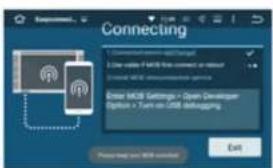
text_image
Connecting 1. Connection settings: Open Windows 2. Use Valor i3MB file connect or debug 3. Connect i3MB virtualization services Enter i3MB Settings > Open Developer Option > Turn on i3MB debugging Exiteonon
DVR
Dashcam installation steps:
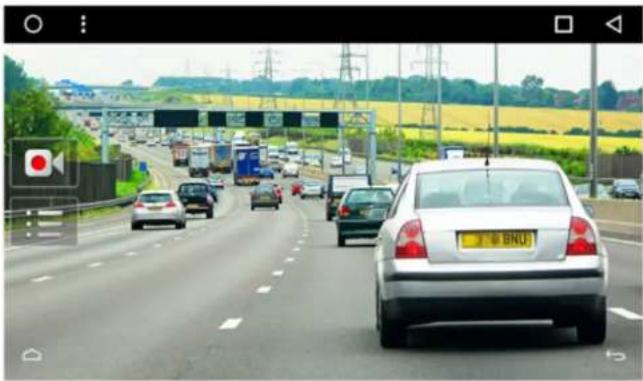
- Connect the USB connector of dashcam to the USB connector of head unit, then the head unit will automatically identify.
- Click the DVR icon on the home page of head unit to enter DVR interface.
DVR interface
natural_image
Highway scene with multiple cars, trucks, and road markings under an overpass (no visible text or symbols)
Video/Stop: Click it to start recording video, click again to stop it, and the video files will be saved automatically.

Click it to view the video files.
APK installer
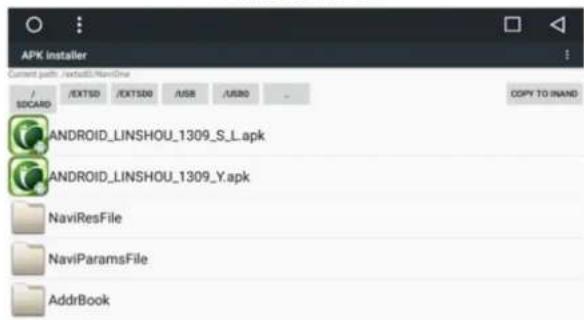
- APK installer: Used for the installation and management of application, and support import installation files from SD/USB.
- Installation method: Click install after entering APK installer, and find the corresponding installation path.
APK installer interface
text_image
APK installer Current paths: /extSD/NaviOne / EXTSD /EXTSD /USB /USBO SDCARD COPY TO INAND ANDROID_LINSHOU_1309_S_L.apk ANDROID_LINSHOU_1309_Y.apk NaviResFile NaviParamsFile AddrBookeonon
Steering wheel controls
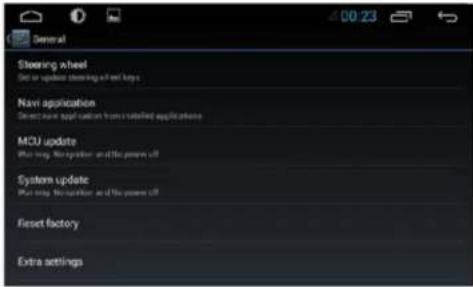
Settings steps :
- Select "start"
- Click the button you want to set.
- Press and hold the corresponding button on the steering wheel, the setting is completed when the button color changed.
- Repeat the step 2 and step 3 until all of the button are set up.
- Click end and save the settings.
text_image
General Steering wheel Set or update steering wheel keys Navi application Select menu application from installed applications MCU update Put long. No operation and the power off System update Put long. No operation and the power off Reset factory Extra settings| VOL* | VOL- | MUTE | MODE |
| HOME | MENU | BACK | NEXT |
| PREV | ANSWER | POWER | NAVI |
| RADIO | EJECT | BUTTON | DISC |
| RESERVE | RESERVE | RESERVE | RESERVE |
| START | RESERVE | RESERVE | CLEAR |
Settings
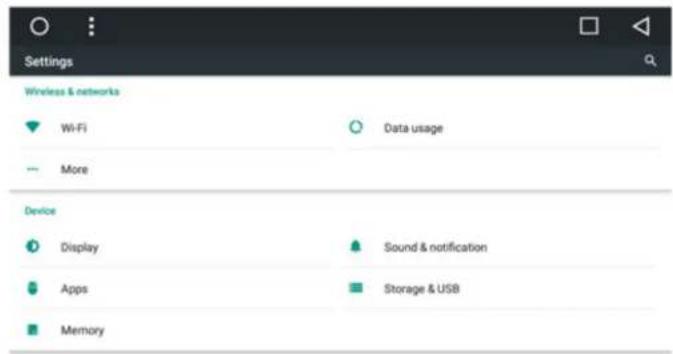
The head unit settings has WiFi, Sound, GPS, Driving settings, Factory settings, Language, Time & Date and etc.
•1.Sound
Turn on/off button tone and adjust the head unit volume.
•2.Display
Adjust brightness and set wallpaper.
•3. Element
Slect button lamp color.
- Language
The head unit provides a variety of menu languages for customer choice from different countries.
•5. Time & Date
Select the time zone and time format
•6. GPS
GPS APP:Supports multiple navigation applications GPS mode:Supports mixing mode (the background sound and the navigation sound are simultaneously present), switching mode (the background sound stops while navigating).
•7. Driving settings
Video settings: To ensure safety, video can only be watched in parked state. And check this function on if you need to watch video in the driving state.
econon
Settings interface
text_image
Settings Wireless & networks Wi-Fi Data usage More Device Display Sound & notification Apps Storage & USB MemoryPersonal
econon
Parameter
Specification:
Operating Voltage:Dc 12V
Range of Operating:9V—16V
Maximum Power Current: 10A
FM transmitter:
Frequency Range:87.5MHz—108.0MHz
SNR (-50db) :≥55DB
Sensitivity (-50db) :≥24±4DB sensitivity
Frequency Response:30KHz 15KHz (3db)
Video:
System:NTSC, PAL (Auto-ID)
Output:1VP-P (75Ω)
Input:1VP-P (75Ω)
environmental Temp:
Operating Temp:-20 ℃+60 ℃
Storage Temp:-30 ℃+70 ℃
Operating humidity:45% - 80% (Relative humidity)
Storage humidity:39% - 80% (Relative humidity)
eonon
Settings interface
| Question | Reason | Solution |
| Cannot turn on head unit | The power fuse is burned. | Replace the same fuse as before. |
| The power cord is not connected properly. | Connect the positive and negative power cables according to the instructions. | |
| Poor radio signal | The antenna is not connected properly. | Check if the radio antenna and ground are properly connected. |
| Cannot locate the position | Poor GPS signal or the GPS antenna is not connected properly. | Move the position, replace the GPS antenna, or re-wiring. |
| No sound | The audio is not set correctly. | Reset the audio. |
| Cannot insert disc | The screw on the top of head unit is not removed. | Removed the screw. |
| Cannot play disc | The disc is scratched. | Replace the disc. |
| The disc is reversed. | Place the disc with the logo side up. | |
| Functional confusion | Other reasons or improper operation. | Press the reset button on the front panel to restart. |
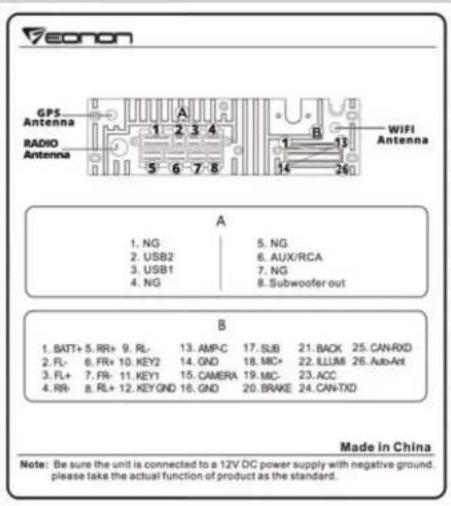
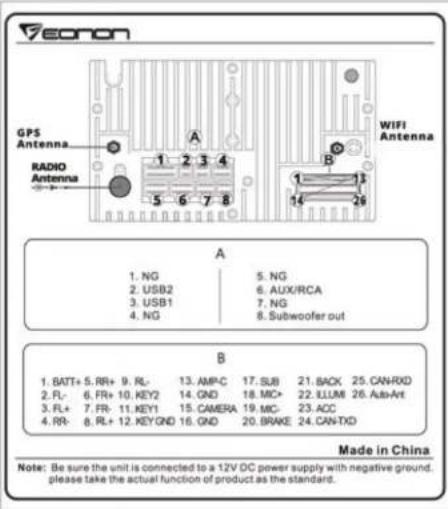
Wiring diagram
Please refer to the wiring diagram sticker on the head unit.
2DIN
text_image
GPS Antenna RADIO Antenna A 1 2 3 4 5 6 7 8 B 1 2 3 4 WIFI Antenna 1 2 3 4 14 26 A 1. NG 2. USB2 3. USB1 4. NG 5. NG 6. AUX/RCA 7. NG 8. Subwoofer out B 1. BATT+ 5. RR+ 9. RL- 13. AMP-C 17. SUB 21. BACK 25. CAN-RXD 2. RL- 6. FR+ 10. KEY2 14. GND 18. MIC+ 22. XLLMI 26. Asb-Art 3. RL+ 7. FR- 11. KEY1 15. CAMERA 19. MIC- 23. ACC 4. RR- 8. RL+ 12. KEY GND 16. GND 20. BRAKE 24. CAN-TXD Made in China Note: Be sure the unit is connected to a 12V DC power supply with negative ground. please take the actual function of product as the standard.1DIN