GT - Dashcam iRoad - Kostenlose Bedienungsanleitung
Finden Sie kostenlos die Bedienungsanleitung des Geräts GT iRoad als PDF.


Benutzerfragen zu GT iRoad
0 Frage zu diesem Gerät. Beantworten Sie die, die Sie kennen, oder stellen Sie Ihre eigene.
Eine neue Frage zu diesem Gerät stellen
Laden Sie die Anleitung für Ihr Dashcam kostenlos im PDF-Format! Finden Sie Ihr Handbuch GT - iRoad und nehmen Sie Ihr elektronisches Gerät wieder in die Hand. Auf dieser Seite sind alle Dokumente veröffentlicht, die für die Verwendung Ihres Geräts notwendig sind. GT von der Marke iRoad.
BEDIENUNGSANLEITUNG GT iRoad
IROAD SECURITY SYSTEM
JAEWONCNC
QUALIFIED VIDEO RECORDER OF VEHICLES
HD2CH DIGITAL RECORDER
IROAD
GT
natural_image
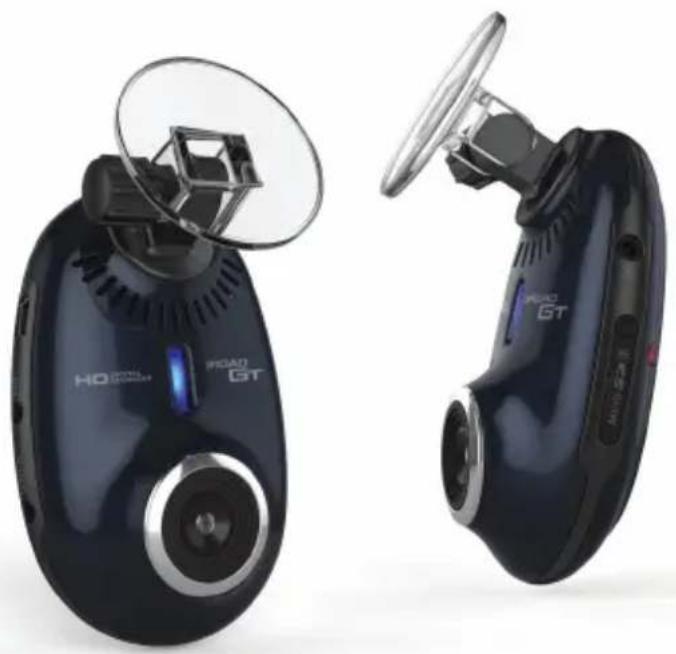
Two black road-mounted smart lockers with visible brand logos and camera modules (no text or symbols on the device body)Read user manual carefully in order to protect the user's safety and ensure the accurate use of the product
Please visit the website(www.navinc.co.kr) to get information of latest firmware and dedicated viewer
Product specification and function can be changed in order to improve performance of the product without proper notice
IROAD SECURITY SYSTEM
GT
INDEX
IROAD INFORMATION 01
PRECAUTION 02\~03
MEMORY CARD / GPS 04
PRODUT OVERVIEW 05
PRODUCT PACKAGE 06
NAME OF EACH PART & FUNCTION 07
INSTALLATION 08\~09
UNINTERRUPTED POWER FUSE CABLE 10
RECORDING MODE 11\~12
BOTTOM FUNCTION 13
GPS & AV OUT 14
FIRMWARE UPGRADE 15
OPERATION 16\~18
SAVING DATA 19
SPECIFICATION 20
DEDICATED PC VIEWER 21\~28
EASY PLAYBACK 29
TROUBLESHOOTING 30
1. IROAD INFORMATION
THANKS FOR CHOOSING JWONCNC IROAD VEHICLE RECORDER
THANKS FOR CHOOSING JWONCNC IROAD VEHICLE RECORDER.
This manual contains how to operate product and guide you to use correctly. Please read carefully before using product.
This manual is based on IROAD GT model, might be able to have errors caused by user's editing or disassembling.
This manual might be modified for product's upgrading.
GUARANTEE and SUPPORTING
A. Please visit our website http://www.jaewoncnc.co.kr
B. Dedicated viewer, latest firmware and other product informations are available from the website.
C. JAWON is not responsible for any problem while using violations listed in the instruction manual.
D. This product can be recording accidents and available to use the recorded data but JAEWONCNC is not responsible for product failure and loss of data. Even it might not be able to record by just minor impact.
E. This product might support accident proof but JAEWONCNC is not responsible for the situation.
COPYRIGHTS and TRADEMARK
A. This manual is legally protected by copyrights, all copyrights reserved to JWONCNC.
B. This manual is property of JAEWONCNC, no one is allowed to attempt to make a copy, editing and translations.
C. JWONCNC has rights to IROAD (Name, Deigns, Brand image), any unauthorized use of IROAD will be treated as serious legal punishment.
2. PRECAUTION
VOLTAGE POWER
A. Please make sure to use recommended stable voltage only. This may cause product failure and fire accidents, explosion or damage to the vehicle.
B. Do not arbitrarily disassemble and modify the product otherwise it might cause damage of the product and electric shock. It should be considered user's fault and void the warranty.
C. Make sure that the power cable is not cut or damaged when attaching other electronic gadgets on the vehicle, otherwise it can cause product failure or danger of electric shock. Please use qualified power cable which is produced by JAEWON.
D. It is highly recommended not to connect the uninterrupted power cable to vehicle because it can cause malfunction of the product by different conditions of vehicle and surrounding environments.(Please contact professional engineer if needs to install it)
INSTALLATION
A. Do not install Vehicle Recorder on interruption position of driving. It may cause an accident.
B. Do not install Vehicle Recorder to where humidity is high and near explosive stuffs. Otherwise it may cause explosions or fire.
C. Make sure all cables are completely connected to Vehicle Recorder.
THE RIGHT USE
A. Do not operate Vehicle Recorder while driving. Park vehicle in safety place and operate the product.
B. Do not too much press product or lens, otherwise it may cause product malfunction.
C. Please avoid flammable or explosive stuffs around product.
Do not insert any other objects into the SD Card slot. Electric shock or fire may cause.
D. Do not operate the product with wet hands. This may cause an electric shock.
3. PRECAUTION
THE RIGHT USE
E. Do not cover the product with cloths or something other materials. Highly heated or malfunction may cause.
F. Do not touch the product when you use the product for a long time, it might be risk of burns due to the temperature generated inside.
G. When you changed product location, please recheck the angle of the product lens.
H. The image quality might be able to get lower when you enter the tunnel because of backlight.
1. Recording quality might be reduced by excessive tint.
J. Image quality might be able to get poor if there is not moderate temperature.
MANAGEMENT
A. Turn Vehicle Recorder off where is direct sunlight or high temperature. It may occur device malfunction or fault.
B. Memory card is a consumable item which should be replaced when use it for a long period.(6 months)
C. If it used long period time, it would be shorten the lifetime of memory card.
You may not be able to save video data normally in this cases. Periodic SD card format and recording check are required.
D. Do not use water or volatile chemicals when you clean the product, Please use the soft and dry cloth.
E. Please confirm that the product works normally before driving.
F. Do not remove SD card or turn off the power cable during the firmware updating. It may cause malfunction or loss of data.
4. MEMORY CARD / GPS
CHECK MEMORY CARD and CHECK
In order to reliable use of memory card, follow guideline as follow
A. Format once of a week is recommended.
B. Press and hold EVENT button for 5 seconds to format memory card (Please copy important file to other data storage).
C. Product must be off when ejecting memory card. It may cause to erasing data or malfunction of memory card.
D. keep memory card in card case all the time when keeping or moving. Please avoid the place where humidity and high temperature,
E. Genuine JAEWONCNC memory card is recommended. To use other brand may cause error or malfunction of product.
F. Memory card is expendable. Memory card's warranty is 6 months after purchasing.
It may cause to reduce the life time of memory card if using uninterrupted power cable.
CONFIRMATION TIPS of USING EXTERNAL GPS
A. It will take some time to adjust current location of GPS when GPS is just installed.
B. When installing GPS antenna, keep distance between Recorder and GPS. Recommended position is top side of front window.
C. Avoid any other device which will interrupt GPS antenna.
D. In case of using other GPS device, it may cause difficulty of receiving signal.
E. GPS signal may depend on weather conditions.
5. PRODUCT OVERVIEW

High Quality Front/Rear 2 Channel HD
• Front(HD) & Rear(HD) HD Image quality
· 2CH HD : 1280x720p 60 frames

Built-in SAFEGUARD
• Battery Protector from discharge
• Temp Protector from High Temperature

Voice Recording & Voice Guidance
• High quality Sound Recording
• Clearer Voice Guidance by speaker

MicroSD / Self Format Function
• Scalable external SD(Micro SDHC)
• Easy Format by one touch

Best Performance
. Cortex A8 Core CPU provide stable, excellent HD image quality
• CMOS image sensor to provide better quality at day/night

Variable Recording Mode
• Auto Parking and Motion Detect
- Impact, Normal, Manual Recording Mode

Front Security LED & External GPS
• Front High Intensity Security LED
• Speed & location available with GPS(Optional)

Dedicated PC Viewer & Smartphone Playback
. Playback recorded data, Set various functions on dedicated PC viewer
. Smartphone playback Available
6. Product Package
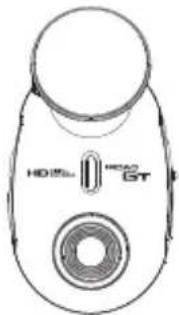
- IROAD GT Basic Components
• The picture of this package may differ from the real
• This package may change to improve products quality without proper notification
text_image
HD25 HEAD GTFront Camera / Cradle

Rear Camera / Cradle
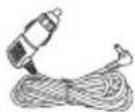
Cigar Jack Power Cable
Instruction
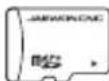
JAEWONCNC
Genuine MicroSD
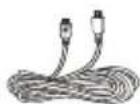
Rear Camera Data Cable
- IROAD GT Optional Product
• The picture of this package may differ from the real
• This package may change to improve products quality without proper notification
- Optional product is available to separate purchase, contact your sales representatives

External GPS Antenna
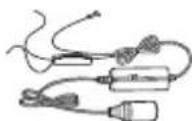
Uninterrupted Power Cable
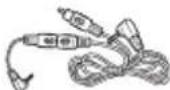
Video Out Cable
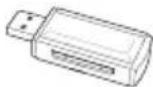
SD Card Reader
7. NAME OF EACH PART & FUNCTION
text_image
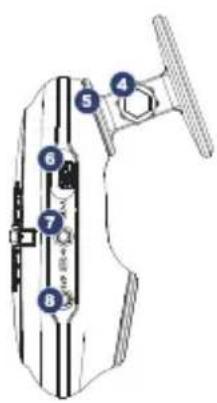
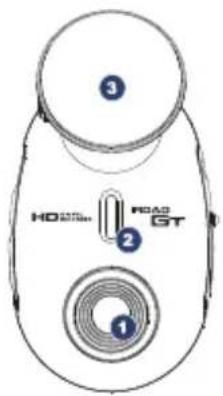
Technical diagram of a mechanical device with numbered components for identification1 Front Camera
2 Front Security LED
3 Front Cradle/Adhesive Tape
4 Front Cradle Adjustment
5 Front Cradle Connector
6 Rear Camera Cable Slot (V-IN)
text_image
HD Road GT ① ② ③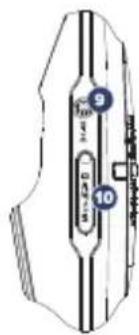
text_image
9 107 Video Out Slot (V-OUT)
External GPS Connector
9 Power Connector
10 Memory Card Slot
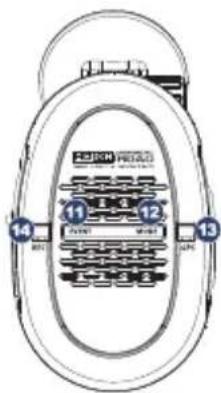
11 EVENT Button
12 MODE Button
text_image
14 11 12 13 12 13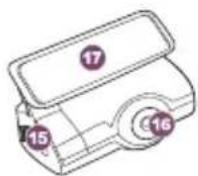
13 GPS LED
14 REC LED
15 Rear Camera Connector Slot
16 Rear Camera
17 Rear Camera Cradle / Adhesive Tape
8. INSTALLATION
Recommend Installation
- Use soft cloth to wipe out the spot where the product will be attached on the windscreen
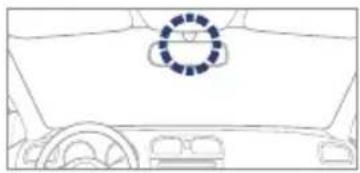
• Make sure to install the product on where doesn't interrupt the driver's view
natural_image
Line drawing of a car interior with steering wheel and dashboard (no text or symbols)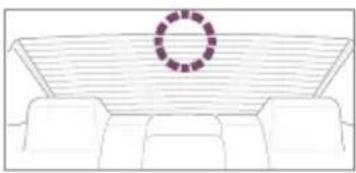
natural_image
Line drawing of a sofa with a circular window on the roof (no text or symbols)Front Camera should be installed behind of room mirror, Rear Camera should be installed at the top center of rear window
If there are no space at the center of rear window, Install at the right or left top side instead. Installing on the right or left side of product, the recording will not be from center view
Insert & Remove Memory Card
natural_image
Simple icon of a printer inside a rounded square frame (no text or symbols)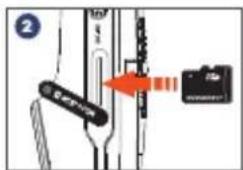
text_image
Diagram showing a device with labeled components and an arrow indicating direction, possibly illustrating a process or assembly.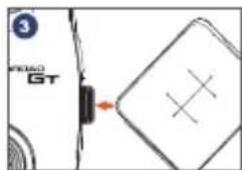
text_image
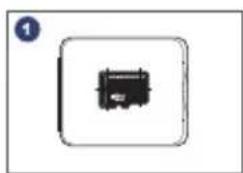
PGD GT- Use the case instead of using fingers to insert or remove SD card from product
1 Take memory card out from case
2 Open product memory slot cover on the right side Insert MicroSD card as shown as left picture
3 To insert/remove memory card, use case's corner to push it to insert or remove. To remove, push memory card's center with case corner
9. INSTALLATION
INSTALLATION
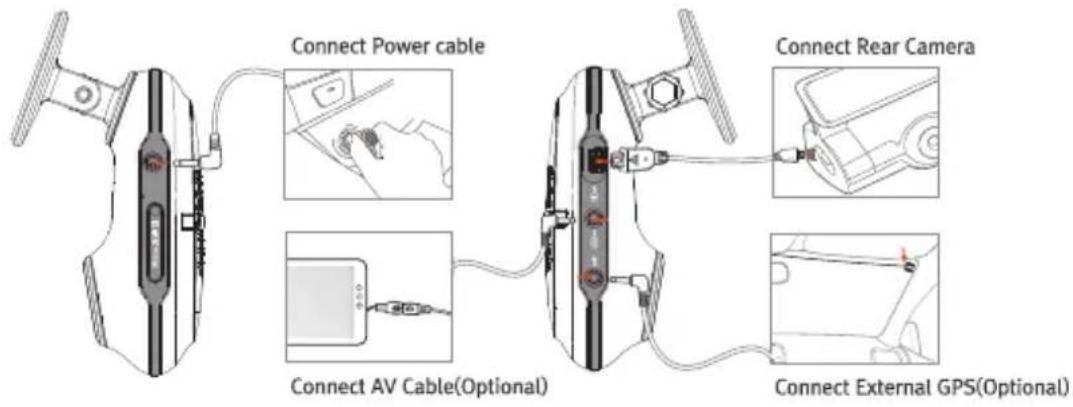
- Turn off ignition in bright and safe place, then key's out
- Install product with adhesive tape at the center of front windscreen of vehicle
- Check all cable slot and make sure to connect it tightly
text_image
Connect Power cable Connect Rear Camera Connect AV Cable(Optional) Connect External GPS(Optional)- Clean up the wiring with cable holder or using inside edge part of vehicle
- In order to use parking mode, need uninterrupted power cable(visit website www.jaewoncnc.co.kr) Support tap)
10. UNINTERRUPTED POWER FUSE CABLE
- Uninterrupted Power Function?
It prevents battery discharge beforehand while vehicle is in parking mode. The uninterrupted power function ensures your battery is protected. The discharge of battery voltage will be prevented in advance for 24 hours recording if the battery level goes down the preset level. (There might be able to occur natural battery discharge caused by the long term parking hours or each vehicle status.)
- How to install uninterrupted power fuse cable
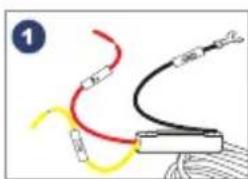
natural_image
Diagram showing two curved wires with red and yellow bands, connected to a black cable (no text or symbols)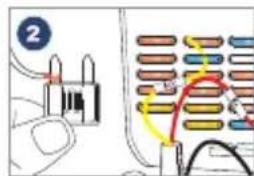
text_image
2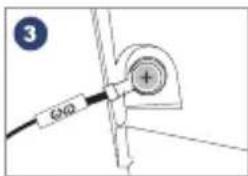
text_image
3 G40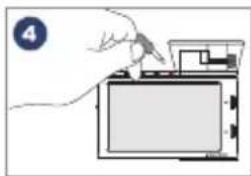
natural_image
Hand inserting a component into a device (no text or symbols visible)Find right fuse using electric tester from fuse box of the vehicle [B+]Line : Make sure ignition's off and connect to fuse where should be electric current [ACC]Line : Connect to fuse where should be not electric current
2 [B+],[ACC] connect to identified vehicle fuse, then insert fuse box again
3 Connect GND line to vehicle itself which has to connect iron part of vehicle itself. Do not connect bolt of dash board which is not flowing electricity
4 Connect power cable to confirm the operation of product, then neatly organise cables to finish installation work Please refer to website www.jaewoncnc.co.kr for the details of uninterrupted power installation, contact to technician in order to accurate installation
11. RECORDING MODE
- This function scenario can be changed without prior notice in order to improve performance of the product
Normal Mode Recording
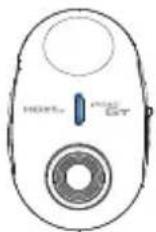
Front Security LED
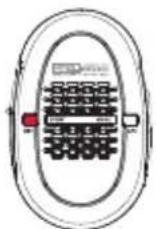
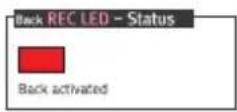
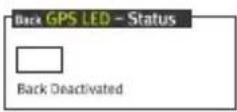
Back REC, GPS LED
- Product Automatically starts Normal Recording if vehicle's ignition starts
- Recording will be saved on normal recording folder by certain time frame
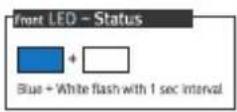
Event(Impact) Mode Recording
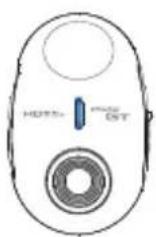
Front Security LED
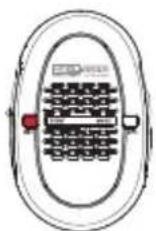
Back REC, GPS LED
• In event of detect damage or Impact to vehicle, Event recording will be started automatically
- That's user's option to change sensitivity of sensor, that will be able to have different stored time consequently
- Beep sound will happen when device detects impact
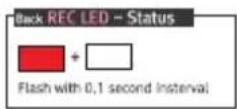
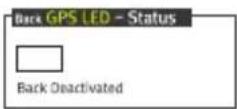
12. RECORDING MODE
- This function scenario can be changed without prior notice in order to improve performance of the product
Automatic Parking Mode
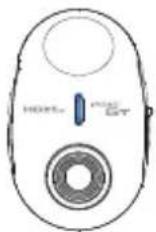
Front Security LED
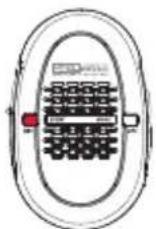
Back REC, GPS LED
- When vehicle's ignition off, it will automatically switch to Parking Mode after certain time
- Certain time to turn to parking mode is adjustable from viewer. (5min\~20min)
- in order to use parking mode when vehicle's ignition off, dashcam has to be connected with constant power cable
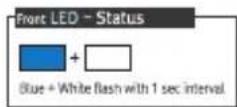
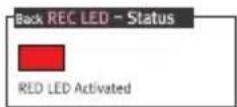
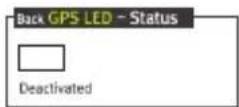
Motion Detect Mode (Automatically start in Parking Mode)
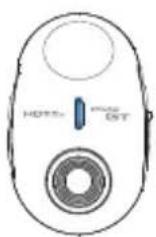
Front Security LED
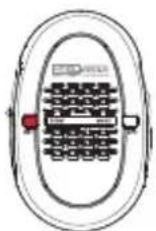
Back REC, GPS LED
- If any Motion or Impack to the vehicle is detected during parking mode, recording will be activated
• In case of motion is detected, front and back recorded files are stored separately - Front and Rear camera both have motion detect function (Sensitivity adjustable)

13. BUTTON FUNCTION
- This function scenario can be changed without prior notice in order to improve performance of the product
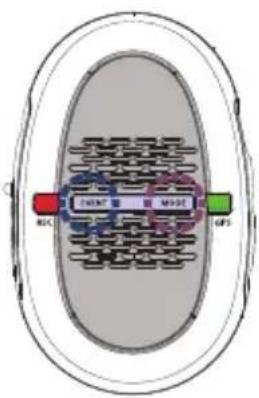
Buttons
text_image
REC CAN M100 GPS• EVENT and MODE button for simple use
Memory Card Format
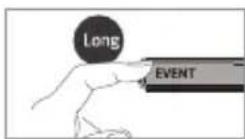
Press EVENT button 5 seconds long to simple memory card format
- Manual Recording
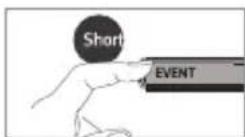
Press EVENT button for a short to enter manual recording
- Manual Parking Mode
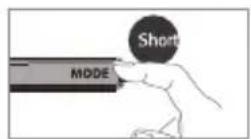
Press MODE button 2 seconds long to enter parking mode manually (Backward for deactivate)
○ Voice Recording
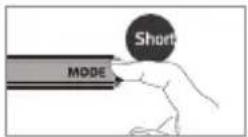
Press MODE button for a short to stop voice recording (Backward for deactivate)
14. GPS & AV OUT
• This function scenario can be changed without prior notice in order to improve performance of the product
External GPS Antenna, LED Display
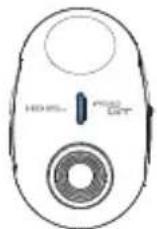
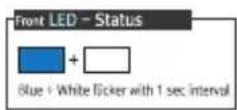
Front Security LED
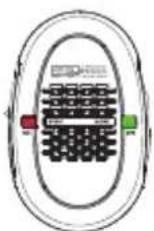
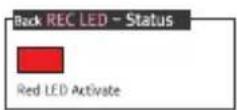
Back REC, GPS LED
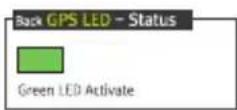
• GPS green LED will flash and activate when external GPS has connected
- Please install external GPS on right or left top edge of front windscreen
• External GPS will provide vehicle speed and location on the viewer
V-OUT(Video Out Cable)

text_image
Rear View Front View-
It shows front and rear recording views on PIP screen
-
connecting AV cable, to check real-time front and rear view screen
- It only shows real-time video, couldn't support recorded video
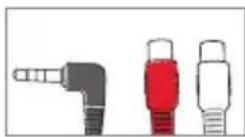
- Connecting Cables
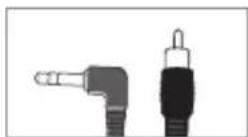
• Navigation System Cable
15. FIRMWARE UPGRADE
• This function scenario can be changed without prior notice in order to improve performance of the product
How to Upgrade Firmware
- Download firmware - visit www.jaewoncnc.co.kr to download firmware
- Unzip downloaded firmware file and copy/paste to memory card(Format memory card before paste firmware file)
- Insert memory card to the product and power on, upgrade process will be automatically proceed (There will be voice guidance)
- Please visit website (www.jaewoncnc.co.kr) in order to check in detail of firmware upgrade
- Firmware Upgrade, LED Display
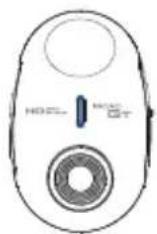
Front Security LED
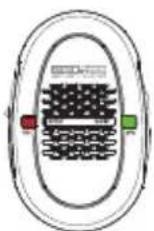
Back REC, GPS LED
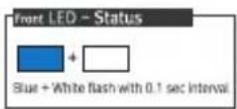
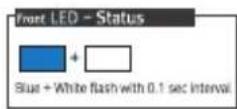
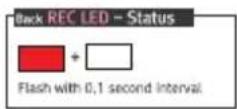
• While upgrade firmware, Front security LED + Back REC LED + GPS LED will flicker

flowchart
graph LR
    A["Front LED - Status\nFlickering"] --> B["Black REC LED - Status\nFlickering"]
    B --> C["Black GPS LED - Status\nFlickering"]
16. OPERATION
Operating Scenario 1
| FUNCTION | SPEAKER | FRONT(LED) | BACK(REC LED) | BACK(GPS LED) | NOTE | |
| POWER ON | Power Supplied | - | +□Activate | Activate | Activate | 1 Sec Flickering |
| BOOTING | Power Supplied | "Voice Guidance" After Boot | +□Activate | Activate | Activate | Deactivate after Blue + White flickering |
| POWER OFF | Power Disconnect | Alerting | +□Cross Flickering(1Sec) | Deactivate | Deactivate | While Blue+White Cross flickering, Deactivate after 1 Sec Blue+White flickering |
| RECORD | Recording | - | +□Cross Flickering(1Sec) | Deactivate | - | |
| EVENT | Event Recording | Alerting (DING DONG-) | +□Cross Flickering(0.5Sec) | Flickering(0.1Sec) | - |
- This function scenario can be changed without prior notice in order to improve performance of the product
17. OPERATION
Operating Scenario 2
| FUNCTION | SPEAKER | FRONT(LED) | BACK(REC LED) | BACK(GPS LED) | NOTE | |
| PARKING | Parking ModeActivate Automatically | - | 1 Sec Flickering | Activate | 1 Sec Flickering | |
| Motion DetectActivate Automatically | Alerting | 0.1 Sec Flickering | 0.1 Sec Flickering | Activate after 1 Sec Blue + White flickering | ||
| EVENT MODEActivate Automatically | Alerting | 0.5 Sec Flickering | 0.1 Sec Flickering | While Blue+White cross flickering,Off after 1 time Blue+White flickering | ||
| Memory Faultor Remove | WARNNING | "Voice Guidance" | Activate | Activate | Deactivate | - |
| GPS | - | 0.1 Sec Flickering | Activate | Stand by: Green deactivateStand by(Jack connected): Green flickeringGPS Connected: Green Active |
- This function scenario can be changed without prior notice in order to improve performance of the product
18. OPERATION
Operating Scenario 3
| FUNCTION | SPEAKER | FRONT(LED) | BACK(REC LED) | BACK(GPS LED) | NOTE | |
| MENU | EVENT EVENT Key | Alerting (DING DONG-) | +0.1 Sec Flickering | 0.1 Sec Flickering | Forcible Setting | |
| SD Format EVENT Key for 5 Sec | "Voice Guidance" | Activate | 1 Sec Flickering | 1 Sec Flickering | Forcible Setting: Cross Flickering Automatic Reboot after format | |
| MUTE MODE Key | Alerting(BBIP) | 1 Sec Flickering | 1 Sec Flickering | 1 Sec Flickering | Forcible Setting | |
| PARKING MODE Key for 2 sec | Alerting(BI BBIP) | +1 Sec Cross Flickering | Activate | 1 Time Flickering | Forcible Setting | |
| Firmware Upgrade | Upgrade | "Voice Guidance" | Gradually Flickering | Gradually Flickering | Gradually Flickering | (1)Blue - (2)White - (3)Green - (4)Red Orderly Flickering |
- This function scenario can be changed without prior notice in order to improve performance of the product
19. SAVING DATA
Saving Directory
• There are 3 different type of directories as follow,

NORMAL
It occupies 60% of memory space. It will automatically overwrite from older recordings when memory capacity is full

EVENT(Impact)
It occupies 20% of memory space. It will automatically overwire from older recordings when memory capacity is full

PARK(Parking)
It occupies 20% of memory space. It will automatically overwire from older recordings when memory capacity is full
SD Card Capacity
| CAPACITY | NORMAL | EVENT | PARKING | |
| 16GBApprox 4H 30M | TOTAL | Approx. 9.6GB | Approx. 3.2GB | Approx. 3.2GB |
| T. TIME | Approx. 3H 30M | Approx. 30M | Approx. 30M | |
| R. TIME | 1 Min | 30 Sec | 30 Sec |
| CAPACITY | NORMAL | EVENT | PARKING | |
| 32GBApprox. 9H | TOTAL | Approx. 19.2GB | Approx. 6,4GB | Approx. 6.4GB |
| T. TIME | Approx. 7H | Approx. 1H | Approx. 1H | |
| R. TIME | 1 Min | 30 Sec | 30 Sec |
- The maximum capacity might be different by the difference of the user's environment
- Above 8G \~32G class 10 SD card is recommended. Please use a genuine memory of Jaewon CNC
- Please periodically change SD Card every 3 months
20. SPECIFICATION
| CPU | Cortex A8 Core CPU |
| CAMERA | 2M 1/2.9 CMOS |
| VIEW ANGLE | [FRONT] 132 / [REAR] 127 |
| ILLUMINATION | Above 0.5 LUX |
| FRAME | 60 Frames, [Front] 30 / [Rear] 30 |
| RESOLUTION | [Front]1280x720 HD / [Rear]1280x720 HD |
| VIDEO FORMAT | H.264 |
| G-SENSOR | 3 Axis Acceleration (3D, x y z) |
| MEMORY | Micro SD/SDHC 2GB ~ 32GB |
| SAVING | Over Writing |
| VIDEO IN/OUT | Rear Camera(HD) IN / TV OUT (2.5pie) |
| LED | High Intensity Front/Rear LED |
| VOLTAGE | 12~24V |
| CONSUMPTION | [Front]160mAh / [Rear]60mAh |
| TEMP(Operating) | -20 ~ 80 |
| TEMP(Storage) | -25 ~ 85 |
| R. MODE | Normal/Event,Manual/Parking/Motion Detect |
| NORMAL R | Normal, 1 minute incremental recording |
| IMPACT R | Impact Before 10 Sec ~ After 20 Sec |
| MOTION R | Detect before 10 Sec ~ After 20 Sec |
| VOICE R | High quality MIC, (ON/OFF/MUTE) |
| AUDIO | High quality Built-in Speaker |
| SYSTEM TIME | Built-in RTC/Automatically Sync by GPS |
| GPS | External GPS Type |
| BATTERY | Li-polimer (120mAh / 3.7V) |
| PIP | Support front/rear PIP (AV OUT) |
| FORMAT | Support one-touch format function on product itself |
| PLAYBACK | Dedicated Viewer/Freeware/Smartphone |
| F/W Update | Support firmware update |
| SAFE GUARD | Prevent battery discharge/high temp on device itself |
| FUNCTION | Quick button (Event, Mute, Memory format) |
- Specifications above can be changed without prior notice in order to improve performance of the product
21. DEDICATED PC VIEWER
Program Installation
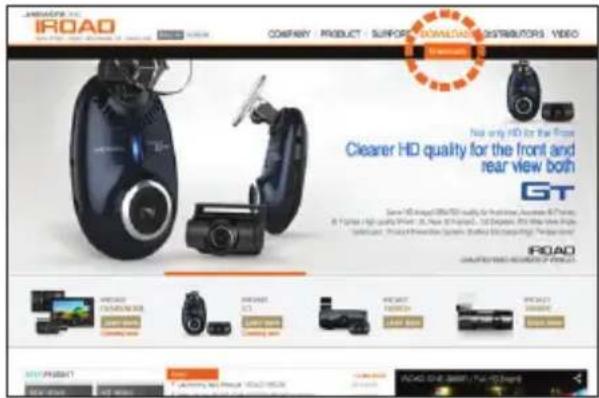
The viewer is available to download dedicated PC viewer from website, in order to confirm recordings and configure product options. Please visit IROAD website www.jaewoncnc.co.kr
text_image
iROAD COMPANY | PRODUCT | SURFORD | DOWNLOAD | DISTRIBUTORS | VIDEO Not only HD for the Road Clearer HD quality for the front and rear view both GT Smart HD designed to use HD quality for better, automatic, and efficient. 8 Figures are high quality. On 12 March 2015, 13 December 2014. The next view is Schematic, the following system: Siding & Damping. Please offer iROAD SMART HD standards for you. iROAD MAXIMUM MAXIMUM MAXIMUM MAXIMUM MAXIMUM MAXIMUM MAXIMUM MAXIMUM MAXIMUM MAXIMUM MAXIMUM MAXIMUM MAXIMUM MAXIMUM MAXIMUM MAXIMUM MAXIMUM MAXIMUM MAXIMUM MAXIMUM MAXIMUM MAXIMUM MAXIMUM MAXIMUM MAXIMUM MAXIMUM MAXIMUM MAXIMUM MAXIMUM MAXIMUM MAXIMUM MAXIMUM MAXIMUM MAXIMUM- Visit IROAD website (www.jaewoncnc.co.kr)
- Click ENGLISH to change language
- Click download tab on the top, and click "IROAD Viewer" tab on the left
- Download latest PC Viewer, and install
- More information of installing PC viewer is available from website
22. DEDICATED PC VIEWER
• The function of PC viewer can be changed without prior notice, please visit website regularly
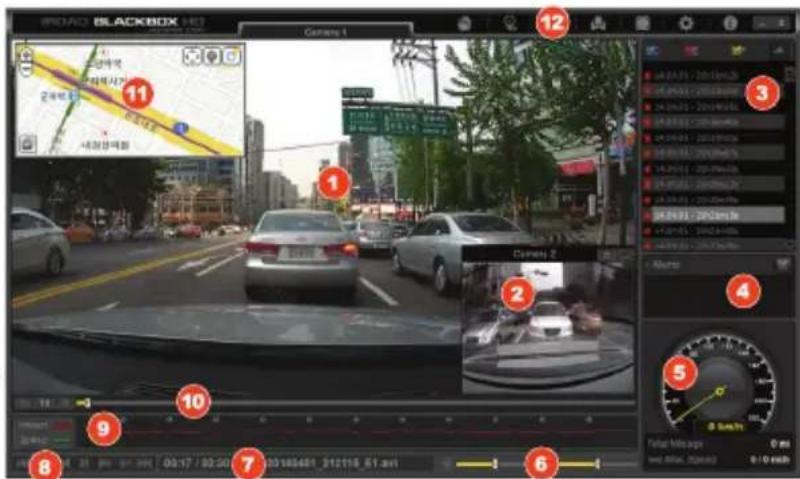
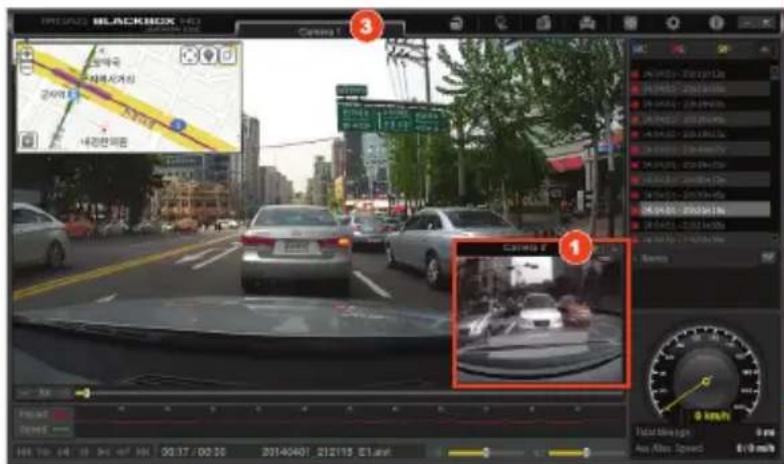
Viewer 1
1 Front camera playback screen
2 Rear camera playback screen
3 List of recorded video
: Normal, Event, Parking modes are displaying by different color
4 MEMO
: Click on right top side button for new memo and edit. Memo function is only activated when video playback
5 Speed & Driving Distance
: Only available with external GPS, shows average distance & Highest speed while driving
6 Brightness & Speaker Volume: Adjust brightness of playing recordings, Recorded voice volume
7 Play Time & Recording Name
8 Playback Control Panel (refer 23p)
9 Impact Graph by G Sensor
10 Playback Bar/Bookmark
text_image
ROAD: BLACKBOX 1403 2016 11 2016 12 3 4 5 6 7 8 9 10 11 12 13 14 15 16 17 18 19 20 21 22 23 24 25 26 27 28 29 30 31 32 33 34 35 36 37 38 39 40 41 42 43 44 45 46 47 48 49 50 51 52 53 54 55 56 57 58 59 60 61 62 63 64 65 66 67 68 69 70 71 72 73 74 75 76 77 78 79 80 81 82 83 84 85 86 87 88 89 90 91 92 93 94 95 96 97 98 99 10011 Location Map (refer 26p)
12 Main Menu Button (refer 23p)
23. DEDICATED PC VIEWER
- The function of PC viewer can be changed without prior notice, please visit website regularly
Viewer 2

text_image
① ② ③ ④ ⑤ ⑥ ⑦ -⑧×
text_image
MIDUAO BLACKBOX HD Correct 1 2000 2000 2000 2000 2000 2000 2000 2000 2000 2000 2000 2000 2000 2000 2000 2000 2000 2000 2000 2000 2001 2013-19-23 2013-19-24 2013-19-25 2013-19-26 2013-19-27 2013-19-28 2013-19-29 2013-19-30 2013-19-31 2013-19-32 2013-19-33 2013-19-34 2013-19-35 2013-19-36 2013-19-37 2013-19-38 2013-19-39 2013-19-40 2013-19-41 2013-19-42 2013-19-43 2013-19-44 2013-19-45 2013-19-46 2013-19-47 2013-19-48 2013-19-49 2013-19-50 2013-19-51 2013-19-52 2013-19-53 2013-19-54 2013-19-55 2013-19-56 2013-19-57 2013-19-58 2013-19-59 2013-19-60 2013-19-61 2013-19-62 2013-19-63 2013-19-64 2013-19-65 2013-19-66 2013-19-67 2013-19-68 2013-19-69 2013-19-70 2013-19-71 2013-19-72 2013-19-73 2013-19-74 2013-19-75 2013-19-76 2013-19-77 2013-19-78 2013-19-79 2013-19-80 Total Mileage: 8 mm
Previous/Previous bookmark/5 Sec back/Play or Pause/5 Sec forward/Next bookmark/Next
1 Open (refer 24p)
: Select USB or Data saved path
2 Map On/Off
: Available turn on or off map function
3 Screen Capture
capture playback scene
4 Print
: preview screen will show before printing
5 Expand Screen
: expandable to full monitor size, press ESC for returning
6 Setting (refer 27p, 28p)
: setting product options
7 Program Information
8 Minimize & Exit
24. DEDICATED PC VIEWER
• The function of PC viewer can be changed without prior notice, please visit website regularly
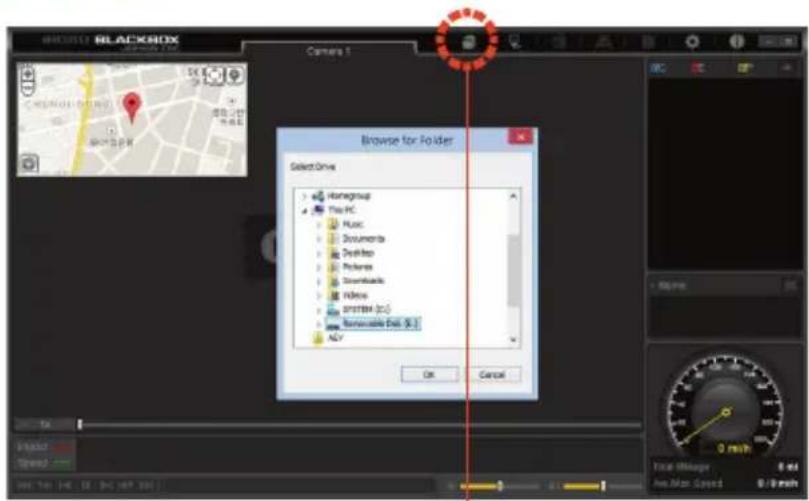
Start Playback
text_image
Blackfox Camera 1 Browse for Folder Select Drive Homegroup This PC Music Documents Desktops Preferences Downloads Video SYSTEM (2.5) Renewable Data (8.1) ACY OK Cancel 0 min Auto Manager Auto Max Speed 0 min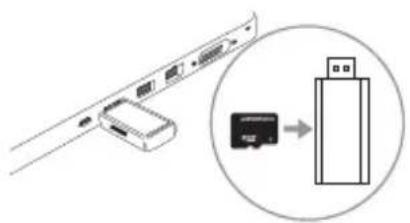
text_image
Diagram showing a device with ports and a close-up of a USB flash drive, likely illustrating network or data transfer.- Eject memory card from product and insert into card reader like above picture
-
Plug into computer
-
Click on folder icon, then click on portable USB disk or other recorded path
- Recording files are listing up on the right side of viewer
25. DEDICATED PC VIEWER
• The function of PC viewer can be changed without prior notice, please visit website regularly
Expand Rear Camera & Reverse Screen
text_image
FRESEARCH BLACKBOX Camera 1 3 1 1 1 0 km/h Auto Miles Max Altion Speed 0.0000 0.0000 0.0000 0.0000 0.0000 0.0000 0.0000 0.0000 0.0000 0.0000 0.0000 0.0000 0.0000 0.0000 0.0000 29745467 212115 81.mn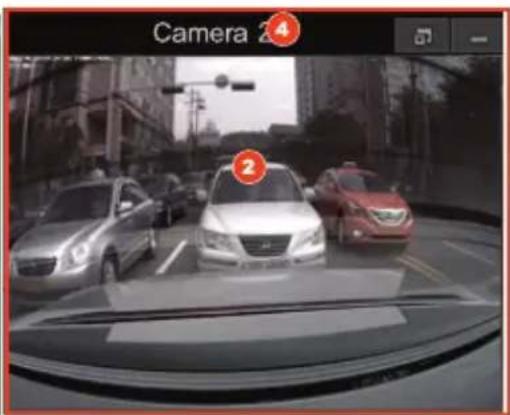
text_image
Camera 2 21 Click on [CAMERA2] on the right bottom side of viewer
2 Rear camera screen will be expanded on the right side of viewer
3 Click [CAMERA1] on front camera screen for reversing right or left view
4 Click [CAMERA2] on front camera screen for reversing right or left view
26. DEDICATED PC VIEWER
Map Function
text_image
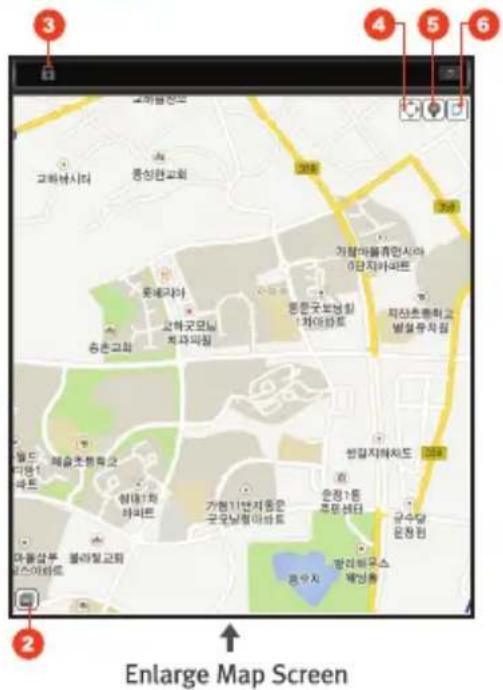
Enlarge Map Screen- The function of PC viewer can be changed without prior notice, please visit website regularly
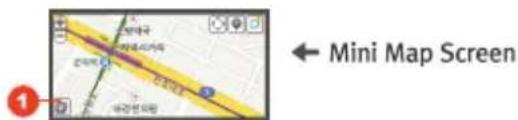
text_image
Mini Map Screen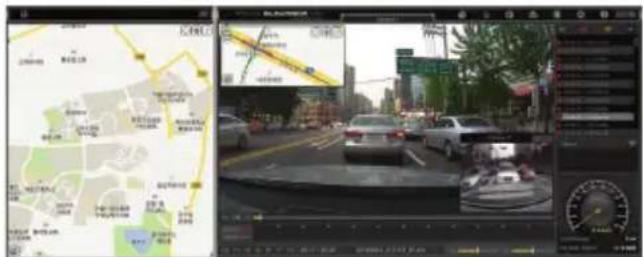
text_image
Screenshot of a traffic monitoring system interface showing a map with location markers and a multi-panel dashboard displaying road traffic data.1 Turn to large map
2 Turn to small map
3 LOCK large map (to lock large map)
4 Map scroll On/Off
5 Turn Map or satellite
6 Not Support
27. DEDICATED PC VIEWER
Setting
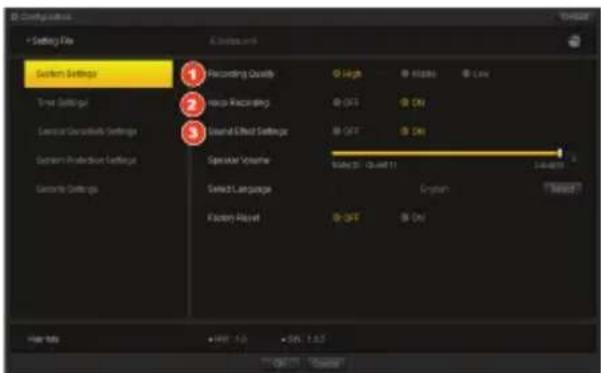
text_image
Settings + Setting File Settings System Settings Time Settings System Detection Settings System Protection Settings Camera Settings Recording Quality Record Recording General Effect Settings Operator Version Select Language Factory Maplet High Middle Low OFF OFF Scale 30 - Quart 11 Gray Gray OK OKSystem Setting
Recording quality : [High] , [Medium] , [Low]
2 Voive recording: On/Off
3 Speaker volume : Voice guidance volume
• The function of PC viewer can be changed without prior notice, please visit website regularly.
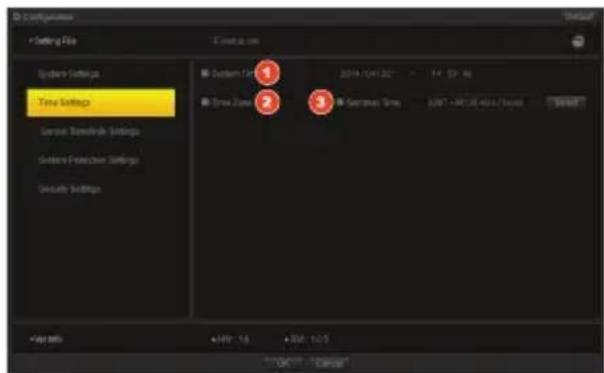
text_image
Settings File System Settings Time Settings Service Standards Settings Service Protection Settings Security Settings System Settings 2014-04132 - 14.59.46 Time Zone Secretion Time - 0007 - 0012.00 (Max / Peak) Setpoint +497 - 1.6 + 5V - 1.0.5 OK - CancelTime Setting
system time : Set time according to PC time (☑ tick on box)
2 Standard time zone : Refer to PC location/nation ( ☑ tick on boo)
3 Summer time: Summer time set up ( tick on box)
28. DEDICATED PC VIEWER
• The function of PC viewer can be changed without prior notice, please visit website regularly
Setting
text_image
System Settings System Preferences Time Settings Consumer Security Settings System Protection Settings Security Settings System Protection Metrics (Rings) OFF ON System Protection Temperature Low/High High/low System Accessing Temperature Low/High High/low Battery Voltage 10V 24V Battery Protection Noise (Rings) @ OFF ON Battery Protection Voltage Low/High High/low Battery Drain Voltage Low/High High/low Power Supply +10V 1.0 +5V 3.0 OK Cancel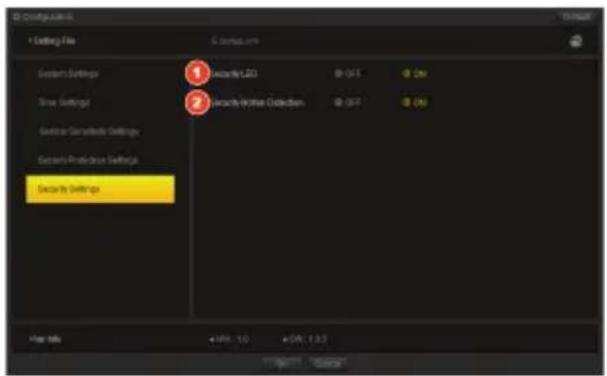
text_image
Settings + Setting File S System ums System Settings 1 Security LED 2 Security Window Collection 3 Security Settings 4 Security Settings File info + 100, 1.0 + 50, 1.0- Safe Guard Setting
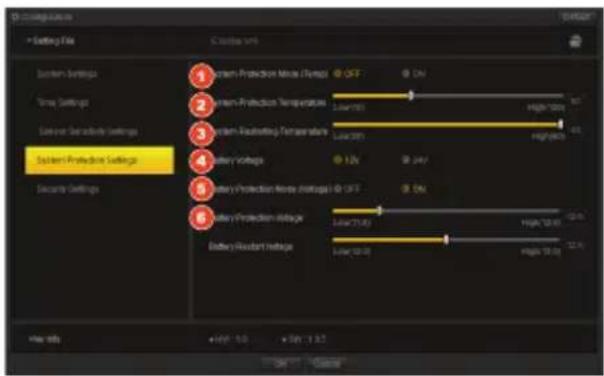
1 Protecting Mode(Temperature) : [Off], [On]
2 Protecting Temperature : 70 \~ 100 degrees
3 System Restart Temperature : 20 \~ 60 degrees
4 Battery Voltage : [OH], [ON]
Protecting Voltage: 11.8V-12.8V (Disconnect if voltage drops to set voltage)
System Restart Voltage : 11.8V\~12.8V (Reconnect if voltage supplied to set voltage)
Safe Guard Setting
1 Security LED : Front Security LED On/OFF
2 LED Adjustment : WHITE+BLUE, BLUE, WHITE
29. EASY PLAYBACK
- Playback on Smartphone
All electronic devices which supports micro SD card are available to view on recorded video
- Turn off product's power, eject Micro SD card
- Insert Micro SD card into Smart device
- Click recordings to playback
• Smart devices view only support front recordings
It may differ to playback video recordings on devices. Refer to smart phone manual. Recommended play application is MX player
- Playback from third-party player
- Playback recorded video is available from all player
• Some of player may support front camera video only
30. TROUBLESHOOTING
Product is not working
- Recheck power cable is connected
- Check power cable which have to be used genuine
- Make sure uninterrupted power cable is connected to correct fuse (professional installation is recommended)
Unable to playback recordings
- Dedicated viewer from www.navinc.co.kr is recommended
- Some player does not support
- If error occurs, contact to A/S for checking product
Unable to playback rear recordings
- Dedicated viewer from www.navinc.co.kr is recommended
- If error occurs, reconnect and try again (turn off power, disconnect rear camera cable)
The quality of recorded video is not normal
- Check if any foreign is on front and rear camera lens
- If windscreen is tinted, it may reduce video quality
- Tinted windscreen, backlight may make reduced the quality of video
When connected constant power cable
- Recorder is off when engine is started after parking
- Power will disconnected by safety guard temperature if it goes over 1 min
- Power will disconnected by safety guard voltage if it goes down below set up voltage
No power when ignition is off
- Recorder is unable to use when ignition is off if connected to cigar power
- Connect to uninterrupted power cable is recommended in order to use parking mode (ignition is off)
Video is not recorded at all
- Make sure recorder is powered on
- Make sure SD card is inserted correctly
- Format memory card and try again
Can not insert memory card into product
- Make sure memory card is forwarding correct way
- Use small, sharp stuff to insert & eject memory card
PC can not find memory card
- Check if card reader is fault
- Use other USB ports of PC
- Using USB multiport or assembled computer might have problem with reading USB
PRODUCT WARRANTY CARD
Thank you for using IROAD vehicle recorder
JAEWONCNC Co.,Ltd Consumer compensation in a accordance with the provisions of the following quality assurance
This product is manufactured through a process of strict quality control and inspection. In normal use, Product will be repaired for free of charge if there isn't consumer's fault. The service fee might be charged if warranty repair instructions applicable.
- Warranty period of each product is as follow
• Product(Front/Rear Camera): 1 Year • Memory Card, External GPS: 6 Months • Power Cable, Uninterrupted Cable, AV Cable: 2 Months
• Adhesive Tape, SD Reader: Warranty does not cover
The warranty period starts since the date you purchase product (Check the receipt, if date not confirmed manufactured date + 2 months)
- warranty period passed or even if valid, might need to pay as follow cases
Natural Disasters(Fire, Thunderstroke, storm and flood damage) / Careless use(Fall, Inundation of water, Impact, Damaged, Immoderate use) / Inaccurate voltage use and other equipment connecting error, unauthorized disassemble or repaired in unauthorized repair center / Caused by using parts, supplies, optional products from other manufacturer
- If you would like to return
Return and exchange is possible within 14 days after purchase
Please return to the place you purchase with original unopened container, after opening product packing can not be returned
Consumer Service : The place where you purchase, www.jaewoncnc.co.kr
132-24 Wontac Bldg 3F, Chunggok-dong, Gwangjin-gu, Seoul 143-891, KOREA
| PRODUCT | IROAD Vehicle Recorder | MODEL | IROAD GT |
| Purchasing Date | Purchasing Place | ||
| Serial No. | Consumer | ||
| Contact |
JAEWONCNC
IROAD
QUICIPED VIZED RICKER/DEK OF VEHICLES
Memo
PRODUCT CERTIFICATION
| MODEL | VEHICLE RECORDER (IROAD GT) |
| CERTIFICATION NO. | KCC-REM-S1R-IROAD-GT |
| CERTIFIED DATE | AUGUST 2013 |
| MANUFACTURER / NATION | JAEWONCNC Co.Inc / KOREA |

A CLASS DEVICE (Official telecommunication Device)
Seller or user need to be noted that this is device has been officially registered as passed the suitability test for the requirement of electromagnetic wave and should be used at the area other than home
JAEWONCNC
IROAD
QUALIFIED VIDEO RECORDER OF VEHICLES
www.jaewoncnc.co.kr