
CDC-MP32 - Autoradio AIWA - Kostenlose Bedienungsanleitung
Finden Sie kostenlos die Bedienungsanleitung des Geräts CDC-MP32 AIWA als PDF.


| Produkttyp | Autoradio mit CD-Player |
| Marke | AIWA |
| Modell | CDC-MP32 |
| Abmessungen (B x H x T) | ca. 178 x 50 x 160 mm (1 DIN) |
| Gewicht | ca. 1,2 kg |
| Betriebsspannung | 12 V DC (Fahrzeugbordnetz) |
| Maximale Ausgangsleistung | 4 x 50 W (Peak) |
| CD-Format | CD / CD-R / CD-RW, MP3-Wiedergabe |
| Radiofunktionen | UKW/MW/LW mit RDS |
| Anschlüsse | ISO-Stecker, Aux-Eingang (3,5 mm Klinke) |
| Display | LCD mit Hintergrundbeleuchtung |
| Bedienelemente | Drehregler, Tasten, abnehmbare Frontplatte |
| Entsorgungshinweis | Elektroaltgeräte nicht im Hausmüll entsorgen |
| Reinigung | Außengehäuse mit weichem, trockenem Tuch reinigen |
| Sicherheitshinweise | Nur durch Fachpersonal installieren lassen; Sicherung beachten |
| Ersatzteile | Fernbedienung, Frontplatte, Montagezubehör erhältlich |
| Reparatur | Reparatur nur durch autorisierten Service |
Häufig gestellte Fragen - CDC-MP32 AIWA
Benutzerfragen zu CDC-MP32 AIWA
0 Frage zu diesem Gerät. Beantworten Sie die, die Sie kennen, oder stellen Sie Ihre eigene.
Eine neue Frage zu diesem Gerät stellen
Laden Sie die Anleitung für Ihr Autoradio kostenlos im PDF-Format! Finden Sie Ihr Handbuch CDC-MP32 - AIWA und nehmen Sie Ihr elektronisches Gerät wieder in die Hand. Auf dieser Seite sind alle Dokumente veröffentlicht, die für die Verwendung Ihres Geräts notwendig sind. CDC-MP32 von der Marke AIWA.
BEDIENUNGSANLEITUNG CDC-MP32 AIWA
aiwa
OPERATING INSTRUCTIONS MANUAL DE INSTRUCCIONES MODE D'EMPLOI
CDC-MP32 YU
STEREO CAR CD RECEIVER RADIO-TOCADISCOS DE CD ESTEREOFONICO PARA AUTOMOVIL
ENGLISH
ESPAÑOL
FRANÇAIS
OWNER'S RECORD
For your convenience, record the model number and serial number (you will find them on the bottom side of your set) in the space provided below. Please refer to them when you contact your AlWA dealer in case of difficulty.
Model No.
CDC-MP32
Serial No.
PRECAUTIONS
- Use only in a 12-volt DC negative-ground electrical system.
- Disconnect the vehicle's negative battery terminal while mounting and connecting the unit.
- When replacing the fuse, be sure to use one with an identical amperage rating. Using a fuse with a higher amperage rating may cause serious damage to the unit.
- Do NOT attempt to disassemble the unit. Laser beams from the optical pickup are dangerous to the eyes.
- Make sure that pins or other foreign objects do not get inside the unit; they may cause malfunctions, or create safety hazards such as electrical shock or laser beam exposure.
- When your vehicle has been parked in direct sunlight resulting in a considerable rise in the temperature inside, allow the unit to cool off before operating it.
- Keep the volume at a level at which you can hear outside warning sounds (horns, sirens, etc.).
NOTE
This equipment has been tested and found to comply with the limits for a Class B digital device, pursuant to Part 15 of the FCC Rules. These limits are designed to provide reasonable protection against harmful interference in a residential installation.
This equipment generates, uses, and can radiate radio frequency energy and, if not installed and used in accordance with the instructions, may cause harmful interference to radio communications. However, there is no guarantee that interference will not occur in a particular installation. If this equipment does cause harmful interference to radio or television reception, which can be determined by turning the equipment off and on, the user is encouraged to try to correct the interference by one or more of the following measures:
— Reorient or relocate the receiving antenna.
— Increase the separation between the equipment and receiver.
— Connect the equipment into an outlet on circuit different from that to which the receiver is connected.
— Consult the dealer or an experienced radio/TV technician for help.
CAUTION
Modifications or adjustments to this product, which are not expressly approved by the manufacturer, may void the user's right or authority to operate this product.
TABLE OF CONTENTS
THEFT PROTECTION 2
BASIC OPERATION, AUDIO AND CLOCK ADJUSTMENT .... 2
RADIO OPERATION 3
CD PLAYER OPERATION 4
AUXILIARY EQUIPMENT 7
OTHER FUNCTIONS 7
STEERING WHEEL REMOTE CONTROL 8
CD CHANGER OPERATION 8
TROUBLESHOOTING 9
MAINTENANCE 9
SPECIFICATIONS 9
CD Notes
- Playing a defective or dusty CD can cause dropouts in sound.
- Hold CDs as illustrated.
- Do NOT touch the unlabeled side.
- Do NOT attach any seal, label or data protection sheet to either side of a disc.
- Do NOT expose a CD to direct sunlight or excessive heat.
- Wipe a dirty CD from the center outward with a cleaning cloth.
Never use solvents such as benzine or alcohol.
• This unit cannot play 3-inch (8 cm) CDs.
- NEVER insert a 3-inch CD contained in the adapter or any irregularly shaped CD.
The unit may not be able to eject it, resulting in a malfunction.

DEMO (Demonstration) mode
The unit has an extra display mode, which demonstrates the display of the operation modes of the unit. The unit switches to DEMO mode automatically if you turn the unit on and leave it as it is for 5 seconds after all the connections have been completed.
To cancel DEMO mode
During DEMO mode, press and hold DISP for more than 2 seconds.
To resume DEMO mode, press and hold DISP again for more than 2 seconds.
Before operation
In addition to ordinary CDs, this unit can played back a CD-R or CD-RW that contains audio titles or MP3 files.
Notes
- NEVER use a CD-R or CD-RW that contains no data or data in the wrong format.
- The unit can not play back CD-R/RW discs that contains no data or different kind on formatted data other than MP3. For more information about MP3, see page 5.
THEFT PROTECTION
(Retractable Front Panel)
When your car's ignition switch is turned off, the front panel will be retracted automatically as if there were no car audio in the console.
When the ignition switch is set to ACC or ON position, the front panel will appear automatically.
BASIC OPERATION, AUDIO AND CLOCK ADJUSTMENT

Turning the unit on/off
- You can turn the unit on by pressing any button on the front panel except ▲. The unit also turns on when you press ▲ and insert a CD.
- Press and hold PWR/MUTE until the unit turns off.
Note
Most operations described in this manual require the unit to be turned on before starting the operation, unless explicitly stated otherwise.
Changing the source mode
1 Press FUNCTIONO.
Pressing FUNCTIONO cycles through source modes in the following order:

chemical
Chemical reaction pathway diagram showing F1 to A2 conversion with intermediate steps and products AUX, IN, CD-CH, CD** "CD" does not appear in the display when there is no CD in the unit.
** CD Changer Play mode (available when an optional CD Changer is connected)
Adjusting the volume
1 Press + or -.
VOL (volume) indication appears.
Muting the sound
1 Press PWR/MUTE briefly. MUTE indicator flashes.
To restore volume, briefly press PWR/MUTE again.
Adjusting sound
You can select the following modes for adjusting sound depending on the music you listen to: BASS (low frequencies), TRE (high frequencies), BAL (left/right), FAD (front/rear), H-BASS (high bass)*, and DSSA (Drivers Sound Stage Adjustment)**
* You can reinforce the bass sound.
** You can adjust sound stage and tone balance to best serve a particular seat in the car.
1 Press SEL repeatedly to select the mode to be adjusted.
Pressing SEL cycles through the modes. The selected mode's indicator appears.
2 Press + or - to increase or decrease the level for the selected mode (except for H-BASS and DSSA).
In H-BASS mode, press + or - to select 1 (low), 2 (medium), 3 (high), or OFF.
In DSSA mode, press + or - to select L (for the front left seat), R (for the front right seat), or OFF.
Note
- Adjust the level or select an item within 5 seconds, or the selected mode will return to previous state.
- When DSSA is activated, you cannot adjust BAL, FAD, BASS, and TRE.
Aligning the source levels
(Source Level Adjuster)
Volume may vary each time you change the source mode. In this case, you can align each source mode's volume to almost the same level.
1 Press FUNCTIONO repeatedly to select the desired mode.
2 Press DISP while pressing SEL.
"LEVEL 0" appears in the display.
3 Press + or - to adjust the level.
Note
Adjust the level within 5 seconds, or this function will be canceled.
Restoring the factory settings
1 Turn off the unit.
2 Press and hold DISP until "LEVEL --" appears in the display.
Note
You can restore the factory settings only for VOL, BASS, TRE, BAL, FAD, H-BASS, and DSSA as well as aligned source volume levels.
Muting button beep sounds
1 Turn off the unit.
2 Press and hold SEL until "BEEP" appears in the display.
3 Press + or - to select "ON" or "OFF".
4 Press SEL.
The unit turns off.
Setting the clock
1 Press and hold SEL until the clock indicator flashes in the display.
2 Press TUNE▼ (to set hour) or TUNE▲ (to set minute) and press + or -.
3 Press SEL.
Displaying the clock
1 Press DISP.
To return to the former display, press DISP again.
RADIO OPERATION
Tuning in to a station
(Seek/Manual Tuning)
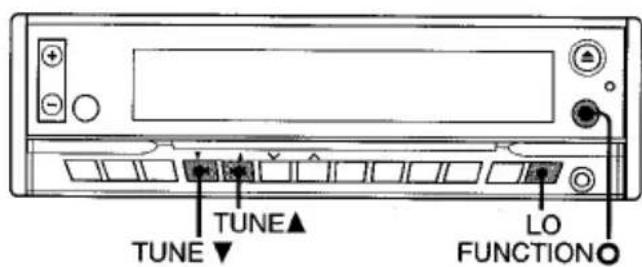
Band indicator* Frequency indication

“F” means FM, and “A” means AM.
1 Press FUNCTIONO repeatedly to select the desired band (F1, F2, F3, A1 or A2).
2 Press TUNE▲ (to move to higher frequencies) or TUNE▼ (to move to lower frequencies) to tune in to a station.
"ST" appears in the display when an FM station is broadcasting in stereo, and receiving conditions are good.
Seek Tuning and Manual Tuning
- Press and hold TUNE▲ or TUNE▼ until Seek Tuning starts.
The unit locates a station automatically (Seek Tuning).
- Press TUNE▲ or TUNE▼ repeatedly to search for a desired station while increasing or decreasing the frequency step by step (Manual Tuning).
To stop Seek Tuning, press TUNE▲ or TUNE▼ again.
Monaural mode
When FM signals become weak, or FM reception becomes poor, the unit automatically switches to Monaural mode to reduce noise.
Local mode
Local mode allows you to tune in only to strong stations during Seek Tuning.
1 Press LO before you start seek tuning. "LO" appears in the display.
To return to Distant mode, press LO again.
"LO" disappears and the unit tunes in to all receivable stations.
Using preset stations
You must preset stations before you can tune in a station using preset station number buttons.
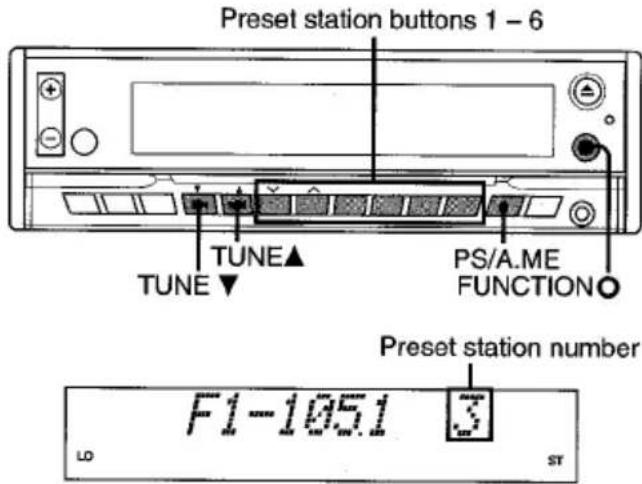
Presetting stations automatically
(Auto Memory)
1 Press FUNCTION O repeatedly to select the desired band (F1, F2, F3, A1 or A2).
2 Press and hold PS/A.ME until automatic presetting starts.
The unit automatically stores up to 6 stations for each band.
After completion of automatic presetting, the unit tunes in to all the stations stored on the preset station buttons in order (Preset Scan).
To cancel automatic presetting, press PS/A.ME again.
Checking the preset stations (Preset Scan)
1 Press PS/A.ME briefly.
Each preset station will be tuned in for 5 seconds in order.
To cancel Preset Scan, press PS/A.ME again or any preset station button.
Presetting stations manually
(Manual Memory)
1 Press FUNCTIONO repeatedly to select the desired band (F1, F2, F3, A1 or A2).
2 Press TUNE▲ or TUNEV to tune in to a desired station (see "Tuning in to a station," page 3).
3 Press and hold the desired preset station button until the unit beeps.
Note
A newly preset station replaces the station on the same band that was previously stored on that preset station button.
Tuning in to a preset station
1 Press FUNCTIONO repeatedly to select the desired band (F1, F2, F3, A1 or A2).
2 Press the preset station button on which the desired station is stored.
Active tuning reception control (ATRC)
The unit automatically suppresses FM noise caused by vehicle movement, and maintains sound quality.
Using the timer
(My Information)
You can schedule the radio to activate for daily radio programs. The unit automatically turns on and off in Radio mode at the scheduled times.

1 Turn off the unit.
2 Press and hold INFO until "PROGRAM" flashes in the display.
3 Press the preset station button 1 (for PROGRAM 1) or 2 (for PROGRAM 2) to select the desired timer.
4 Press SEL twice.
5 Set the time you wish the unit to turn on.
- Press TUNE▼ and press + or - to set the hour.
- Press TUNE▲ and press + or - to set the minute.
6 Press SEL twice.
7 Press FUNCTIONO to select the band.
8 Press TUNE▲, TUNE▼ or the desired preset station button to select the station.
9 Press SEL twice.
10 Set the time you wish the unit to turn off following the same procedure used in step 5.
11 Press SEL.
12 Press INFO.
The unit turns off, and setting is completed.
- If you preset another program, preset all the steps from step 1.
- To cancel a timer setting in progress, press and hold PWR/MUTE to turn off the unit.
When the unit is on, "MY INFO" appears in the display indicating that the unit is standby for a timer. During the timer-activated tuning, "MY INFO", continues to flash.
To cancel the timer standby
1 Press INFO repeatedly to select the desired timer (PRG 1 or PRG 2).
2 Press TUNE▲ or TUNE▼ to select "OFF".
3 Press INFO again.
Note
- When you preset two programs, be sure that they do not overlap.
- The unit automatically starts tuning at the scheduled time regardless of the current source mode. When the scheduled program is over, the unit automatically returns to the former source mode.
- When this function is activated, TUNE▲/▼, A.ME/PS, LO, INFO, and the preset number buttons do not work for tuning in stations.
• However, if you press FUNCTIONO to change the source mode during timer-activated tuning, the scheduled program is canceled.
CD PLAYER OPERATION
Playing a CD
You can play CDs, CD-Rs and CD-RWs using the procedure described below.

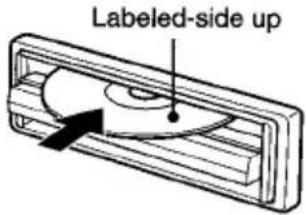
1 Press ▲ to open the front panel.
2 Insert a CD.
The front panel will be closed automatically and "CD" appears in the display.
CD play starts.
If a CD is already inserted, press FUNCTIONO repeatedly to select CD play mode.
In normal play, when the last track finishes, the unit returns to the first track and continues to play.

| To | Press |
| Eject a CD | ^* |
| Skip to the next track | ▶▶▶ |
| Go back to the beginning of the current trackEach extra press skips backward one extra track | ▶◀◀ |
| Locate a specific point in a track | Press and hold ▶◀◀ or ▶▶▶▶ until you find the point. |
* When you remove the CD, the front panel will close automatically after a while.
To close the front panel manually, press ▲ while the front panel is open.
Note
- When you play a CD that is already inserted, CD play starts at the point where it stopped the previous time. A newly inserted CD starts from the first track.
- A CD-R or CD-RW may take some time to start playing back, but this is not a malfunction.
- If a CD-R or CD-RW with no data or incompatible data is inserted, "ERROR03" will appear in the display. The unit cannot play such discs.
Intro Play
You can locate a desired track by monitoring the first 10 seconds of all the tracks on a CD.
1 Press INT during CD play.
"SCAN" appears in the display.
2 Press INT again when the desired track is played.
The unit returns to normal CD play.
One track Repeat Play
You can play a track repeatedly.
1 Press REP1 during CD play.
"REPEAT1" appears in the display.
To cancel One track Repeat Play, press REP1 again.
Random Play
You can play all the tracks in random order.
1 Press RNDM during CD play.
"RANDOM" appears in the display.
To cancel Random Play, press RNDM again.
Note
During Random Play, pressing ◀◀◀ allows you to skip only to the beginning of the current track, not to the previous track.
Playing an MP3
You can play MP3 files* written on CD-ROMs, CD-Rs, or CD-RWs by following the procedure below.
* An MP3 file (that has the ".mp3" extension) stores audio data compressed using MPEG1, the audio layer-3 file-coding scheme. Within this section, we call the file as "Track" and the folder that contains the files as "Album."

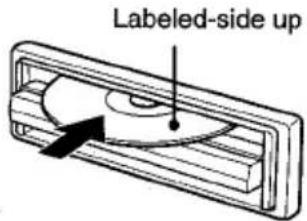
1 Press ▲ to open the front panel.
2 Insert a CD-ROM, CD-R, or CD-RW.
The front panel will be closed automatically and the unit starts scanning the disc. "CD-ROM" indicator appears in the display.
During scanning of the disc, "NOW READING" scrolls across the display.
CD-ROM indicator The total number of Tracks

The total number of Albums
Note
- It may take for 2 minutes or more to scan a disc, depending on the complexity of the folder tree. If scanning does not finish within 2 minutes, "CANCEL TO EJECT KEY" appears in the display. If you leave the unit as it is, it will start scanning again.
- If there are no Tracks on the disc, "NO MP3" appears.
After scanning, the total number of Albums and Tracks appear in the display, then the unit automatically starts playing the disc from the first Track of the first Album.

Each time the Tracks is changed, this display appears and remains for 5 seconds.

After playing the Track, the unit plays the next Track of the same Album.
After playing all the Tracks of the Album, the unit plays the first Track of the next Album.
Note
If a disc is already inserted, press FUNCTIONO repeatedly to select CD Play mode to start MP3 play.
To skip Tracks and Albums
| To | Press |
| Eject a disc. | ▲ |
| Skip to the next Track. | ▶▶ |
| Go back to the beginning of the current Track.Each extra press skips backward one extra Track. | ◀◀ |
| Locate a specific point in a Track. (During rapid search, no sound is heard.) | Press and hold ▶▶▶ or ◀◀◀ until you find the point. |
| Skip to the next Album. | ALBUM/DISC^ |
| Skip to the previous Album. | ALBUM/DISC√ |
To change the display mode
Press DISP.
Pressing DISP cycles through the displays in the following order:
Elapsed playing time→Track number and file name→Track name*→Artist's name*→Album name
* If there is no name on the Track, "NONE" appears.
Intro Play
You can locate a desired Track by monitoring the first 10 seconds of all the Tracks on the disc.
1 Press INT during MP3 play.
2 Press INT again when the desired Track is played.
The unit returns to the normal MP3 play.
Note
The unit scans all the Tracks on the disc in order without sorting by Album.
Album Repeat Play
You can play an Album repeatedly.
1 Press REP during MP3 play.
"REPEAT" appears in the display.
To cancel Album Repeat Play, press REP again.
One Track Repeat Play
You can play a Track repeatedly.
1 Press REP1 during MP3 play.
"REPEAT 1" appears in the display.
To cancel One Track Repeat Play, press REP1 again.
Random Play
You can play all the Tracks in random order.
1 Press RNDM during MP3 play.
"RANDOM" appears in the display.
To cancel Random Play, press RNDM again.
Note
If you select one of the play modes mentioned above (Intro Play, Album Repeat Play, One Repeat Play, or Random Play mode) while the elapsed playing time is displayed, the mode indication corresponding to the selected play mode (SCN, REP, REP1, or RANDOM) flashes or is displayed solid. While in a display mode other than Elapsed Playing Time mode, the mode indication is displayed for approximately 5 seconds, then the previously display mode is resumed.
Note on MP3
- The unit can read MP3 files written in the format compliant with ISO 9660. However it does not support the MP3 data written by the method of Packet Write.
- The unit cannot read an MP3 file that has a file extension other than ".mp3."
- If you play a non-MP3 file that has the ".mp3" extension, you may hear some noise.
- In this manual, we refer to what are called "MP3 file" and "folder" in PC terminology as "Track" and "Album," respectively.
• The unit can play up to 512 Tracks per disc.
- The unit may not play Tracks in the order of Track numbers.
- The unit plays only the audio Tracks if a disc contains both audio tracks and MP3 files.
- When playing a disc of 8k bps or VBR*, the elapsed playing time in the display window will not be correct and also the intro play may not function properly.
* VBR: Variable Bit Rate
Note on indications in the display
- Up to 32 characters are displayed for the name of an Album or a Track. Characters other than uppercase letters ("A" to "Z"), lowercase letters ("a" to "z"), numerals ("0" to "9"), and underscore ("_") may not be displayed.
- When playing MP3 files, the elapsed playing time displayed may not be correct.
- To display up to 30 characters for a Track name or an artist's name, ID3TAG version 1.x is required. Characters other than uppercase letters ("A" to "Z"), lowercase letters("a" to "z"), numerals ("0" to "9"), and underscore ("_") may not be displayed.
Note on creating your own CD-Rs or
CD-RWs containing MP3 files
• To enjoy high quality sound, we recommend converting to MP3 files with a sampling frequency of 44.1 kHz and a fixed bit rate of 128 kbps.
- Do NOT store more than 512 MP3 files per disc.
- Note that the unit may not play Tracks in the order that you wrote them to the disc.
- The unit can read up to 5 sessions with a multi session disc.
- For ISO 9660-compliant format, the maximum allowable depth of nested folders is 8, including the root directory (folder).
Tip on identifying the order of the
Tracks
- Include a two- or three-digit number at the beginning of each Album or Track name. (e.g. "01," "02," ... or "001," "002," ...)
If you use the numbers such as "1," "2," "3," ... "9," "10," "11," ..., the unit unexpectedly plays in the order of "1," "10," "11," ... "2," "20," "21," ... "3," "30," "31," and so on. - It is recommended that you use only the parent folders (do not create child folders under a folder).
- Writing software capable of writing MP3 files in numerical and alphabetical order is required if you want them in order. For details on using the software, refer to the operating instructions supplied with your software.
AUXILIARY EQUIPMENT
Listening to a cassette/MD/MP3 portable
player or other equipment
You can listen to equipment connected to the unit. Refer to the operating instructions for the corresponding equipment for more detailed information.
Be sure to remove inserted CDs to prevent possible damage to the unit before connecting the equipment.
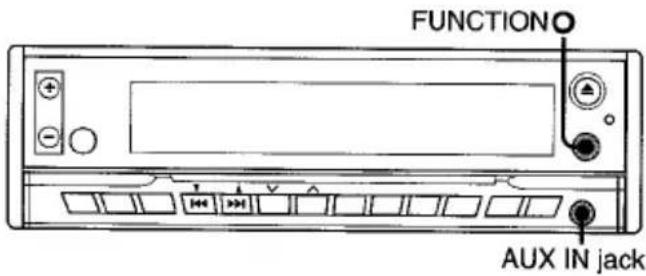
1 Connect a cassette/MD/MP3 portable player or other equipment via the unit's AUX IN jack (3.5 mm dia.).
2 Press FUNCTIONO repeatedly until "AUX IN" appears in the display.
Note
When a connecting cord is plugged into the AUX IN jack, you cannot insert or eject a CD even if you press ▲. Be sure to disconnect the cord before inserting or ejecting the CD. Likewise, be sure to disconnect it before you turn off the ignition switch, otherwise the front panel won't be retracted.
OTHER FUNCTIONS

Changing the display contrast
1 Press and hold FUNCTION O until "CONT.", appears in the display.
2 Press + or - to adjust the contrast.
Changing the key illumination color
You can choose blue or red as the key illumination color.
1 Press and hold FUNCTIONO until "CONT." appears in the display.
2 Press TUNE▲ or TUNE▼ until "ILL" appears in the display.
3 Press + or - to select 1 (for blue) or 2 (for red).
STEERING WHEEL REMOTE CONTROL
Remote control button
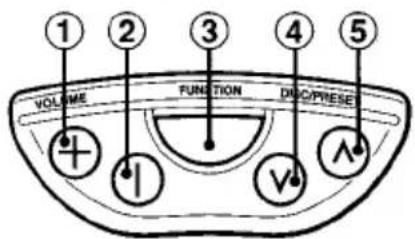
① VOLUME + button: To increase the volume.
② VOLUME — button: To decrease the volume.
③ FUNCTION button : To select Radio, CD Play, CD Changer Play or AUX IN mode.
④ DISC/PRESET ∨ button:
(CD) To skip back to the beginning of the current track. Each extra press skips backward one extra track.
(Radio) To tune in to the next preset station, in descending order.
(CD Changer)
Press and release to skip back to the beginning of the current track or the previous track.
Press and hold to switch to the previous CD.
⑤ DISC/PRESET ∧ button:
(CD) To skip to the next track.
(Radio) To tune in to the next preset station, in ascending order.
(CD Changer)
Press and release to skip to the next track.
Press and hold to switch to the next CD.
CD CHANGER OPERATION
Playing a CD
You can play CDs from a connected AIWA CD Changer. For detailed information on installing a CD Changer, refer to the Installation and Connection manual supplied with the CD Changer.


1 Press FUNCTIONO repeatedly to display "CD-CH." The CD Changer play starts.
| To | Press |
| Skip to the next track | ▶▶ |
| Skip back to the beginning of the current track or to the previous track | ◀◀ |
| Advance rapidly to locate a desired point | and hold ▶▶, then release it at the desired point |
| Reverse rapidly to locate a desired point | and hold ◀◀, then release it at the desired point |
| Start CD Changer play from the first track on the next disc | DISC^ |
| Start CD Changer play from the first track on the previous disc | DISC √ |
Intro Play
You can locate a desired track by monitoring the first 10 seconds of all the tracks on the CDs in the disc magazine.
1 Press INT during CD Changer play. "SCAN" appears in the display.
2 Press INT again when the desired track is played. The unit returns to normal CD play.
One track Repeat Play
You can play a track repeatedly.
1 Press REP1 during CD Changer play. "REPEAT1" appears in the display.
To cancel Repeat Play, press REP1 again.
One disc Repeat Play
You can play all tracks on a disc repeatedly.
1 Press REP during CD Changer play. "REPEAT" appears in the display.
To cancel Repeat Play, press REP again.
Random Play
You can play all the tracks on a CD in the disc magazine in random order.
1 Press RNDM during CD Changer play. "RANDOM" appears in the display.
To cancel Random Play, press RNDM again.
Note
Pressing I◄ during Random Play locates the beginning of the current track. The unit does not retrieve previous tracks during Random Play.

TROUBLESHOOTING
Error code
In the following cases the corresponding error code indication appears. Follow the suggestions below to solve such problems. If the error code indication does not disappear, consult an AIWA service center.
ERROR01 The disc magazine is not properly inserted in the CD Changer. Reinsert the magazine. Refer to the instruction manual for the CD Changer.
ERROR02 No CDs are loaded in the disc magazine. Insert CDs properly. Refer to the instruction manual for the CD Changer.
ERROR03 Focus error. Check that the CD is loaded properly (right side up, etc.), and the CD contains valid data.
ERROR04 Problem with the CD Changer. Reset the unit by pressing the reset button. If this does not solve the problem, consult an AIWA service center.
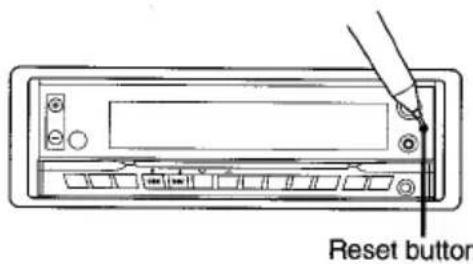
Reset button
If a CD does not operate properly, press the reset button with a pointed object such as a pencil, etc. Note that all your settings will be erased if this button is pressed.
MAINTENANCE
Cleaning the front panel
Wipe the surface with a soft, dry cloth.
SPECIFICATIONS
RADIO SECTION
(FM)
Frequency Range: 87.5 MHz – 108 MHz (100-kHz steps)* or 87.5 MHz – 108 MHz (50-kHz steps)*
Usable Sensitivity: 12.7 dBf
50 dB Quieting Sensitivity: 17.2 dBf
IF Rejection: 80 dB
Frequency Response: 30 Hz – 15,000 Hz
S/N Ratio: 63 dB
Stereo Separation: 35 dB at 1 kHz
Alternate Channel Selectivity: 70 dB
Capture Ratio: 3 dB
(AM)
Frequency Range: 530 kHz – 1,710 kHz (10-kHz steps)* or 531 kHz – 1,602 kHz (9-kHz steps)*
Usable Sensitivity: 30 μV (30 dB)
9k□10k
* Set the frequency increment for your area using the switch on the bottom of the unit. (The switch is factory-set to the 10k position [for the U.S.A.])
CD SECTION
Frequency Response: 17 Hz - 20 kHz +0/-3 dB
Dynamic Range: More than 80 dB
Channel Separation: More than 65 dB
S/N Ratio: More than 85 dB
Wow/Flutter: Not applicable
AUDIO SECTION
Max. Power Output: 50 W × 4 channels
AUX IN input
Input sensitivity (load impedance) AUX IN: 300 mV (10 kΩ)
GENERAL
Power-Supply Voltage: 14.4 V (11 to 16 V allowable), DC, negative ground
Load Impedance: 4 Ω
Tone Control:
Bass ± 10 dB at 100 Hz, Treble ± 10 dB at 10 kHz
Preamp Output Voltage (load impedance): 2.2 V (10 kΩ)
Installed size: 182 (W) × 53 (H) × 155 (D) mm
(7 1/4 (W) × 2 1/8 (H) × 6 1/8 (D) inches)
STEERING WHEEL REMOTE CONTROL
Dimensions: approx. 67 (W) × 26 (H) × 27 (D) mm (2 ^3/4 (W) × 1 ^1/16 (H) × 1 ^1/8 (D) inches) (excluding holder)
Weight: approx. 38 g (1.33 oz.) (including holder, battery)
Supplied Accessories: Mounting kit (1 set), Lithium battery (1)
- Specifications and external appearance are subject to change without notice due to product improvement.
REAR PANEL
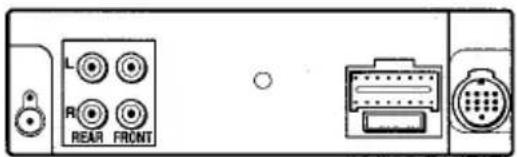
natural_image
Front view of a computer interface panel showing ports L, R, REAR, FRONT and a connector (no text or symbols beyond labels)


- aiwa
- CDC-MP32 YU
- OWNER'S RECORD
- PRECAUTIONS
- NOTE
- CAUTION
- TABLE OF CONTENTS
- CD Notes
- DEMO (Demonstration) mode
- To cancel DEMO mode
- Before operation
- Notes
- THEFT PROTECTION
- (Retractable Front Panel)
- BASIC OPERATION, AUDIO AND CLOCK ADJUSTMENT
- Turning the unit on/off
- Changing the source mode
- Press FUNCTIONO.
- Adjusting the volume
- Press + or -.
- Muting the sound
- Adjusting sound
- Aligning the source levels
- (Source Level Adjuster)
- Restoring the factory settings
- Muting button beep sounds
- Setting the clock
- Displaying the clock
- RADIO OPERATION
- Tuning in to a station
- (Seek/Manual Tuning)
- Seek Tuning and Manual Tuning
- Monaural mode
- Local mode
- Using preset stations
- Presetting stations automatically
- (Auto Memory)
- Checking the preset stations (Preset Scan)
- Presetting stations manually
- (Manual Memory)
- Tuning in to a preset station
- Active tuning reception control (ATRC)
- Using the timer
- (My Information)
- Press INFO.
- To cancel the timer standby
- CD PLAYER OPERATION
- Playing a CD
- Intro Play
- One track Repeat Play
- Random Play
- Playing an MP3
- To change the display mode
- Press DISP.
- Album Repeat Play
- Note on MP3
- Note on indications in the display
- Note on creating your own CD-Rs or
- CD-RWs containing MP3 files
- Tip on identifying the order of the
- Tracks
- AUXILIARY EQUIPMENT
- Listening to a cassette/MD/MP3 portable
- player or other equipment
- OTHER FUNCTIONS
- Changing the display contrast
- Changing the key illumination color
- STEERING WHEEL REMOTE CONTROL
- Remote control button
- CD CHANGER OPERATION
- One disc Repeat Play
- TROUBLESHOOTING
- Error code
- Reset button
- MAINTENANCE
- Cleaning the front panel
- SPECIFICATIONS
- RADIO SECTION
- CD SECTION
- AUDIO SECTION
- AUX IN input
- GENERAL
- REAR PANEL
Marke : AIWA
Modell : CDC-MP32
Kategorie : Autoradio