USB-120 - Taschenrechner CITIZEN - Kostenlose Bedienungsanleitung
Finden Sie kostenlos die Bedienungsanleitung des Geräts USB-120 CITIZEN als PDF.


| Produkttyp | Taschenrechner |
| Marke | Citizen |
| Modell | USB-120 |
| Abmessungen (ca.) | 150 x 120 x 30 mm |
| Gewicht (ca.) | 150 g |
| Stromversorgung | Solarzelle und Knopfzelle (LR54) |
| Display | LCD, 12-stellig |
| Grundrechenarten | Addition, Subtraktion, Multiplikation, Division |
| Spezialfunktionen | Prozentrechnung, Speicher (M+, M-, MR, MC), Quadratwurzel |
| Gehäusematerial | Kunststoff |
| Reinigung | Mit einem weichen, trockenen Tuch abwischen |
| Sicherheitshinweis | Vor Feuchtigkeit und direkter Sonneneinstrahlung schützen |
| Ersatzteile / Reparierbarkeit | Keine vom Hersteller vorgesehenen Ersatzteile; Gerät nicht öffnen |
| Anwendungsbereich | Büro, Schule, Haushalt |
Häufig gestellte Fragen - USB-120 CITIZEN
Benutzerfragen zu USB-120 CITIZEN
0 Frage zu diesem Gerät. Beantworten Sie die, die Sie kennen, oder stellen Sie Ihre eigene.
Eine neue Frage zu diesem Gerät stellen
Laden Sie die Anleitung für Ihr Taschenrechner kostenlos im PDF-Format! Finden Sie Ihr Handbuch USB-120 - CITIZEN und nehmen Sie Ihr elektronisches Gerät wieder in die Hand. Auf dieser Seite sind alle Dokumente veröffentlicht, die für die Verwendung Ihres Geräts notwendig sind. USB-120 von der Marke CITIZEN.
BEDIENUNGSANLEITUNG USB-120 CITIZEN
SUMMARY
Page
Introduction 3
How to connect to PC 3
How to use the calculator 6
How to use ten-key 8
Important notes 10
Specifications 11
Introduction
This unit is a new type of USB calculator. As well as classic functions, this pocket calculator has innovative and useful features:
- USB 1.1 version / free driver.
- IBM® PC compatible with built-in USB port / Windows® 98/98SE/ME/2000/XP.
- No external power supply needed.
- 600mm USB cable included.
- 12-digit dual power calculator 1.5V / auto power off.
- TAB key.
- TAX/000 key.
- Speedy key function.
To use the USB-120 to its full potential, read this manual carefully and keep in a safe place for future reference.
How to connect to PC
Step 1: Plug the USB cable in to the USB port on your PC and in to the back of the calculator.
Step 2: Once connected, the wizard will search for the USB Human Interface Device.

text_image
A&T New Wireless VR headset This installed software is now installed USB https://www.ireflex.com/ It is not to drive a software project that allows it. Newless VR headset will Next > CancelClick "Next" and go to next step.
text_image
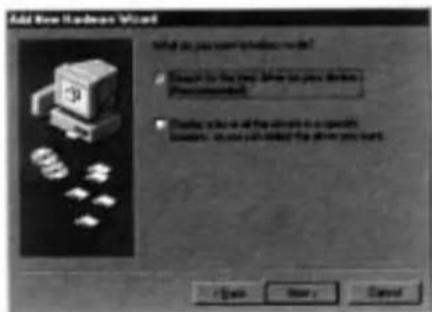
Add New Hardware Wizard What do you want to choose next to it? • Touch for the next before the next device (ProRecommended) • Touch is all the next options in a specific location. We can add the next when you want. OK Apply Save CancelEnglish
Choose the first option and click "Next".
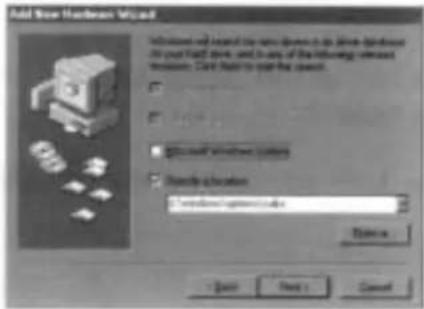
text_image
Add New Hardcover Wizard Instructions will be saved to any other items in the new hardcover the your hard cover, used in any of the following relevant methods. Can help to press your hardcover. ✓ ✓ ✓ ✓ ✓ ✓ ✓ ✓ ✓ ✓ ✓ ✓ ✓ ✓ ✓ ✓ ✓ ✓ ✓ ✓ ✓ ✓ ✓ ✓ ✓ ✓ ✓ ✓ ✓ ✓ ✓ ✓ ✓ ✓ ✓ ✓ ✓ ✓ ✓ ✓ ✓ ✓ ✓ ✓ ✓ ✓ ✓ ✓ ✓ ✓ ✓Specify the location to "C:\WINDOWS\SYSTEM" and Windows will find the USB1.1 driver automatically.
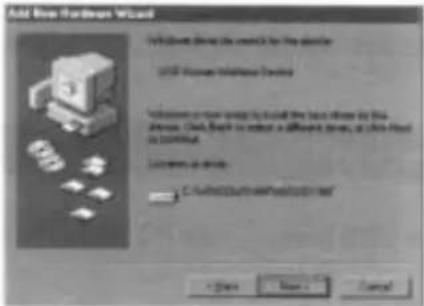
text_image
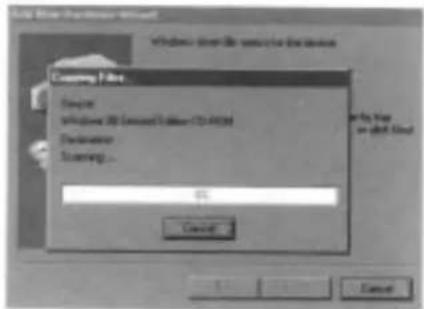
Add New Hardtop Wizard New Hardtop Wizard is created by the version 2008. Newham Wireless Windows Instructions to install new hardtop from the next file by the system. Check, Help to install an additional spring, or check fixed to be installed. Options for this tool: C:\Users\Hardware\Software\Add +/- < < < CancelClick "Next" and Windows installs the USB driver.
text_image
Windows 80 (C:\Users\Software\Microsoft\) Windows 80 (C:\Users\Software\Microsoft\) Windows 80 (C:\Users\Software\Microsoft\) Windows 80 (C:\Users\Software\Microsoft\) Windows 80 (C:\Users\Software\Microsoft\) Windows 80 (C:\Users\Software\Microsoft\) Windows 80 (C:\Users\Software\Microsoft\) Windows 80 (C:\Users\Software\Microsoft\) Windows C:\ Windows C:\ Windows C:\ Windows C:\ Windows C:\ Windows C:\ Windows C:\ Windows C:\ Windows C:\ Windows C:\ Windows C:\ Windows C:\ Windows C:\ Windows C:\ Windows C:\ Windows C:\ Windows C:\ Windows C:\ Windows C:\ Windows C:\ Windows C:\ Windows C:\ Windows C:\ Windows C:\ Windows C:\ Windows C:\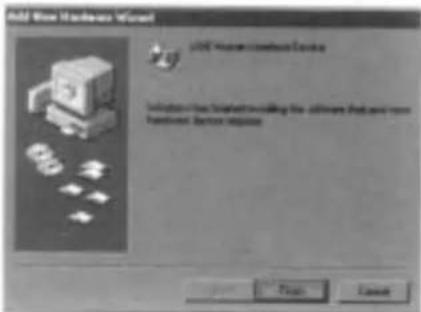
text_image
Add New Hardware Wizard LIFE Hardware Wizard Tools Instructions for Software to setting the software and new Functional Device Options Help CancelStep 3 How to check the installation status and confirm download.
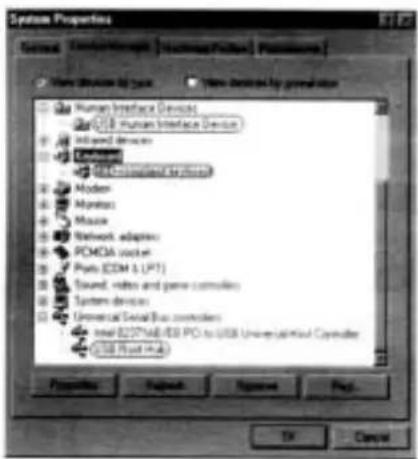
Move mouse and point at My computer → left click Properties → Device manager → right click
The following drivers exist in system properties:
Human interface Device --USB Human interface Device
Keyboard --HID-compliant keyboard
Universal Serial Bus controller --USB Root Hub
text_image
System Properties Sense Dimensional Scope Summary/Finalset Palestine Main Division by System Human Interface Devices USB Human Interface Devices Infrared devices Unidnet USB Connected to the network Modem Myristor Music Network adapters PCMDA socket Ports (CDM & LPT) Sound, video and pane consoles System devices Universal Social Bus controllers Intel E237*MB/USB PCI to USB Universal Mail Control USB Road MIA Properties Helpback Review Print CancelIf the unit does not work properly, remove the USB device and USB root hub and HID-compliant keyboard from the system properties. Then refresh or reboot the computer again. The system will re-install from step 2.
You might need to use your original Windows® CD to install the USB driver if you never used it before.
How to use the calculator
- CALCULATION EXAMPLES
| Example | Operation | Display | |
| 1 | (2+5-3) x 8÷4-7=1 | CNVAC 2 + 5 - 3 X 8 ÷ 4 - 7 = | 1 |
| 2 | a. 12 x 10 = 120b. 16 ÷ 8 = 2 | CNVAC 12 X 1C =CNVAC 16 ÷ 8 = | 1202 |
| 3 | (23x7) +12÷4)-(13x2)-(9÷2)=133.5 | CNVAC 23 X 7 M+ 12 ÷ 4 M+ 13 X 2 M- 9÷ 2 M- MRC MRC | 133.5 |
| 4 | 3"x2÷5"=0.432 | CNVAC 3 X = = X 2 ÷ 5 = = = | 0.432 |
| 5 | a. 85% OF 360b. Add 2% on 360c. Minus 15% on 360 | CNVAC 360 X 85 %CNVAC 360 X 2 % + =CNVAC 360 X 15 % - = | 306367.2306 |
| 6 | 123456+789012=912468 | CNVAC 1234567 + 789012 = | 912468 |
| 7 | 456+376=832 | CNVAC 456 + 377 CICE 376 = | 832 |
| 8 | How to set the tax rate: tax 5% | CNVAC 5 RATE TAX+ | RATE 5 |
| 9 | How to recall the tax rate: tax 5% | CNVAC RATE TAX- | RATE 5 |
| 10 | Price 100 tax: 5% | CNVAC 100 TAX+ | TAX+105 (including tax) |
| 11 | Price 150 including: 5% tax | CNVAC 150 TAX- | TAX-142.857142857 |
2. HOW TO USE TAB FUNCTION
To select the decimal point position:
PRESS repeatedly
TAB
F ADD2 024
English
If you choose F: Full display of decimal digits.
If you choose ADD2: Automatically set to 2 decimal digits.
If you choose 0-2-4: Indicated 0-2-4 decimal digits.
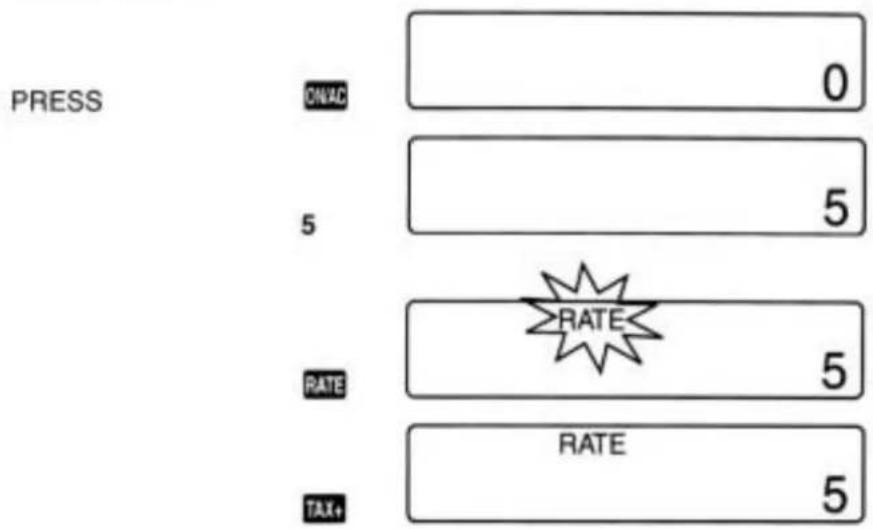
3. HOW TO SET THE TAX RATE
TAX RATE: 5%
text_image
PRESS ONVAC 0 5 5 RATE RATE 5 TAX+ RATE 54. HOW TO RECALL THE TAX RATE

text_image
PRESS ONVAC 0 RATE 0 RATE 5 TAX-5. HOW TO USE THE TAX
TAB: 2
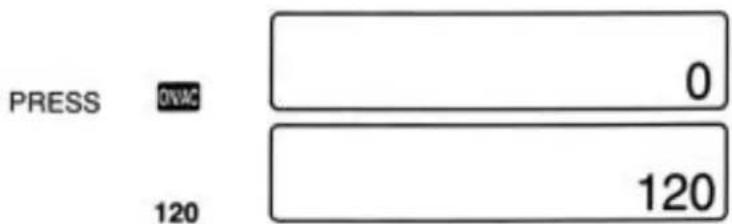
eg: TAX RATE: 5% BUY 120
text_image
PRESS DVAC 0 120 120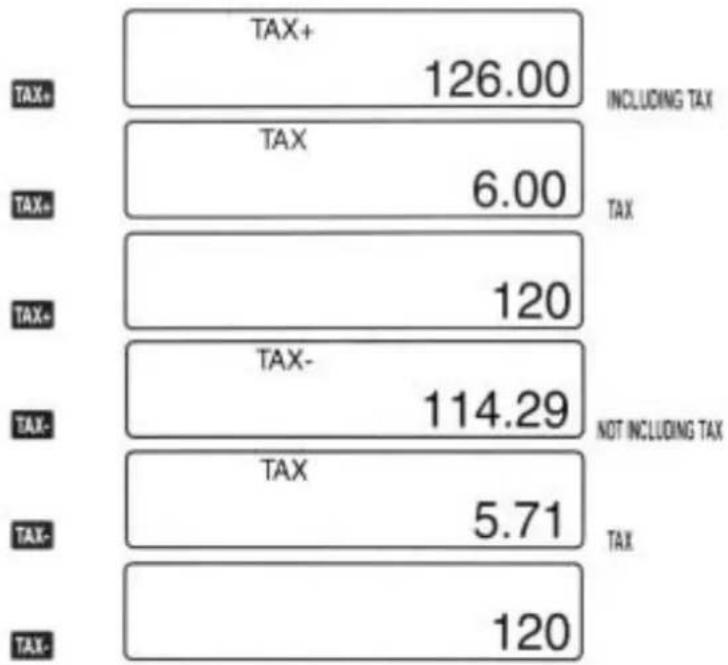
other
| Category | Value | |---|---| | TAX+ | 126.00 | | TAX | 6.00 | | TAX- | 120 | | TAX- | 114.29 | | TAX- | 5.71 | | TAX- | 120 | INCLUDING TAX NOT INCLUDING TAXHow to use ten-key
- How to direct link to Word, Excel, Word Pad.

text_image
PRESS PISCAL USB - P CThe following keys operate like a PC keyboard:

text_image
PC/ICAL ↑ BS ÷ ← ↓ → × 7 8 9 - 4 5 6 + 1 2 3 ENTER 0PRESS

USB -PC
To fix each entry.
- How to send the calculating result to Word, Excel, Word Pad.

text_image
PRESS ONAC 0 7+8 8 = 15 SEND 15The result "15" is sent to assigned position in Word, Excel, Word Pad.
OR send each step as follows:

other
| Category | Value | |---|---| | TAX+ | 15.75 | | TAX+ | 15.75 | | TAX | 0.75 | | TAX | 0.75 | | M | 0.75 | | M | 9 | | M | 9 |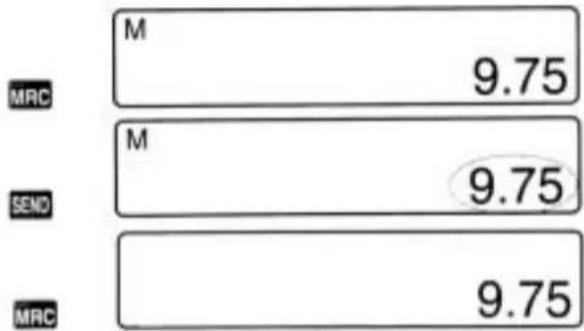
other
| Category | Value | |---|---| | M | 9.75 | | M | 9.75 | | MRC | 9.75 |After plugged into USB port, Under the PC mode The key function are available The symbols of +-++ can be sent to PC screen Under Calculator mode The result of calculation can be sent to PC after pressed SEND key.
Important notes
Battery replacement:
- Ensure that the power is off when replacing battery.
- When LCD becomes faint, unscrew the four screws from the rear cover and change the battery.
- Make sure the positive (+) and the negative (-) poles of the battery are correctly aligned.
Reset operation:
WARNING: The following procedure clears all data from the memory of the calculator and cannot be undone! To avoid the loss of important data, be sure to always keep written backup copies.
During operating, if the PC screen occurs to any warning message, click the cancel button, remove the USB plug and insert the socket to let system reboot again.
Strong external electrostatic charges can cause this calculator to malfunction. Should this happen, perform the following procedure to reset the calculator:
- Switch the power on.
- Press the RESET button on the back of the calculator with a thin, pointed object to reset the calculator and clear memory contents. Never press the RESET button while internal operations are being performed. Doing so can cause irreparable damage to the memory of your calculator.
Minimum system requirements:
Computer: IBM® PC compatible with built-in USB port.
Operating system: Windows® 98/98SE/ME/2000/XP.
The calculator works with 97 and 2000 versions of Word ^® , Excel ^® and WordPad ^® .
Specifications
Power supply:
Calculator: 1.5V dual power.
Battery: L1131/AG10 x 1 or equivalent.
USB link: 5V Using the power from PC after connection.