
NV-D80EV - Videorekorder PANASONIC - Kostenlose Bedienungsanleitung
Finden Sie kostenlos die Bedienungsanleitung des Geräts NV-D80EV PANASONIC als PDF.


| Produkttyp | VHS-Videorekorder |
| Modell | NV-D80EV |
| Marke | Panasonic |
| Abmessungen (B x H x T) | ca. 430 x 88 x 350 mm |
| Gewicht | ca. 4,5 kg |
| Stromversorgung | 220–240 V, 50 Hz |
| Leistungsaufnahme | ca. 20 W |
| Bandsystem | VHS |
| Wiedergabesystem | PAL |
| Längste Aufnahmezeit | 240 Min. (LP) / 480 Min. (EP) |
| Timeraufnahme | Ja (bis zu 8 Programme) |
| Anschlüsse | HF-Eingang (Antenne), HF-Ausgang, SCART, Cinch (Audio/Video) |
| Funktionen | Wiedergabe, Aufnahme, Timeraufnahme, Bildsuchlauf, Standbild |
| Kopfreinigung | Automatische Reinigungsfunktion |
| Reinigung | Gehäuse mit trockenem Tuch reinigen; keine Flüssigkeiten verwenden |
| Wartung | Regelmäßige Reinigung der Videoköpfe mit spezieller Reinigungskassette |
| Sicherheitshinweis | Netzstecker ziehen vor Reinigung; nicht öffnen |
| Ersatzteile | Fernbedienung, Netzteil, Videoköpfe (beim Fachhändler erhältlich) |
| Reparierbarkeit | Durch qualifiziertes Fachpersonal; Ersatzteile verfügbar |
| Lieferumfang | Videorekorder, Fernbedienung, Netzleitung, Bedienungsanleitung |
Häufig gestellte Fragen - NV-D80EV PANASONIC
Benutzerfragen zu NV-D80EV PANASONIC
0 Frage zu diesem Gerät. Beantworten Sie die, die Sie kennen, oder stellen Sie Ihre eigene.
Eine neue Frage zu diesem Gerät stellen
Laden Sie die Anleitung für Ihr Videorekorder kostenlos im PDF-Format! Finden Sie Ihr Handbuch NV-D80EV - PANASONIC und nehmen Sie Ihr elektronisches Gerät wieder in die Hand. Auf dieser Seite sind alle Dokumente veröffentlicht, die für die Verwendung Ihres Geräts notwendig sind. NV-D80EV von der Marke PANASONIC.
BEDIENUNGSANLEITUNG NV-D80EV PANASONIC
Betriebsanleitung
VHS Hi-Fi HQ DIGITAL
Videorecorder
NV-D80B
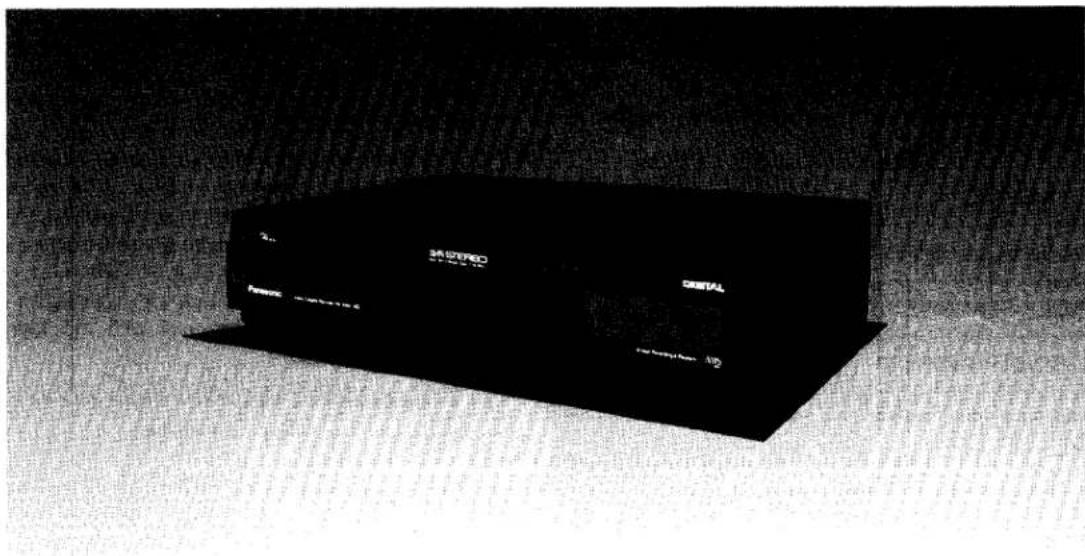
Panasonic
Bevor Sie dieses Produkt anschließen, bedienen oder einstellen, lesen Sie bitte diese Anleitung vollständig.
INHALT
Seite
| 3 | FEATURES |
| 4 | CONTROLS AND COMPONENTS |
| 7 | PROGRAMMABLE REMOTE CONTROLLER |
| 8 | INSTALLATION |
| 9 | TUNING THE TV SET TO THE VIDEO PLAYBACK CHANNEL |
| 10 | SETTING THE TUNER IN THE VTR |
| 11 | SETTING THE CLOCK TO THE PRESENT TIME |
| 12 | THE VIDEO CASSETTE |
| 13 | PLAYBACK |
| 16 | RECORDING FROM A TV BROADCAST SIGNAL |
| 18 | HI-FI AUDIO SYSTEM |
| 19 | USING THE VTR AS A HI-FI AUDIO RECORDER |
| 20 | SUPER OTR FUNCTION (ONE-TOUCH TIMER RECORDING) |
| 21 | TIMER RECORDING |
| 24 | CAMERA RECORDING |
| 25 | DUBBING (COPYING) |
| 26 | AUDIO DUBBING |
| 27 | DIGITAL SPECIAL EFFECTS |
| 28 | VHS INDEX SEARCH SYSTEM |
| 29 | INTRO SCAN FUNCTION |
| 30 | BEFORE REQUESTING SERVICE |
| 32 | CAUTIONS |
| 33 | SPECIFICATIONS |
WICHTIG
Wir weisen darauf hin, dass die Aufnahme von vorbespielten Bändern oder Discs oder anderem veröffentlichten oder gesendeten Material Urheberrechte verletzen kann.
WARNUNG
UM BRAND- ODER STROMSCHLAGGEFAHR ZU VERMEIDEN, SETZEN SIE DIESES GERÄT NICHT REGEN ODER FEUCHTIGKEIT AUS.
Dieses Gerät wurde nach BS 800:1983 hergestellt.
FÜR IHRE SICHERHEIT
■ ÄUSSERE ABDECKUNG NICHT ENTFERNEN.
Um einen elektrischen Schlag zu vermeiden, entfernen Sie nicht die Abdeckung. Es befinden sich keine vom Benutzer zu wartenden Teile im Inneren. Überlassen Sie die Wartung qualifiziertem Servicepersonal.
■ ANSCHLUSS DES NETZKABELS
Die Adern im Netzkabel dieses Geräts sind gemäß dem folgenden Code farbcodiert.
Wichtig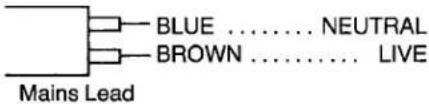
Da die Farben der Adern im Netzkabel möglicherweise nicht mit den farbigen Markierungen der Anschlüsse Ihres Steckers übereinstimmen, gehen Sie wie folgt vor: Die blaue Ader muss an den mit N gekennzeichneten oder schwarz gefärbten Anschluss angeschlossen werden. Die braune Ader muss an den mit L gekennzeichneten oder rot gefärbten Anschluss angeschlossen werden.
ist die Sicherheitsinformation.
EIGENSCHAFTEN
Digitaler NR-Schalter
Mit diesem Schalter können Sie das Rauschen bei allen über den VTR wiedergegebenen oder empfangenen Bildern minimieren.
Digitaler Spezialeffekt
Die speziellen digitalen Bildeffekte können mit der Fernbedienung genutzt werden.
1-Monats-Kalender-Timer
Die Uhr/der Timer des VTR ist mit dem Kalender bis Ende 2001 programmiert, sodass er genau weiß, welcher Wochentag an einem bestimmten Datum ist. Es können bis zu 8 Timeraufnahmen bis zu einem Monat im Voraus programmiert werden.
Automatikbetrieb
Die äußerst praktischen Automatikfunktionen dieses VTR umfassen Auto-Start und Auto-Wiedergabe beim Einlegen einer bespielten Kassette, Auto-Auswurf, der anzeigt, dass eine eingelegte Kassette nicht zum Aufnehmen geeignet ist, Power-Off-Auswurf zum Auswerfen einer Kassette auch bei ausgeschaltetem VTR, und Auto-Rücklauf am Ende eines Bandes. Wenn der VTR-Ein/Aus-Schalter während des Rücklaufmodus einschließlich Auto-Rücklauf gedrückt wird, wirft der VTR die Kassette aus und schaltet sich nach Abschluss des Rücklaufs aus.
Super OTR-Funktion (One-Touch-Timer-Aufnahme)
Diese praktische Funktion ermöglicht es, den Videorecorder einfach für die Aufnahme von Fernsehsendungen zu programmieren, entweder mit sofortigem Start oder mit Start innerhalb von 24 Stunden, indem Sie die Startzeit und Endzeit minutengenau einstellen. Wenn die Aufnahme endet, schaltet sich der Videorecorder automatisch aus.
HQ-Bildsystem (High Quality)
Videorecorder mit dem HQ-Symbol verfügen über das neue VHS-High-Quality-Bildsystem. Dieses System gewährleistet vollständige Kompatibilität mit Videorecordern, die das herkömmliche VHS-System verwenden.
Rundenzeitzähler
Der neue Rundenzeitzähler ist eine große Verbesserung gegenüber den ungefähren Zählsystemen herkömmlicher Videorecorder. Er zeigt Ihnen die verstrichene Bandzeit in Stunden, Minuten und Sekunden genau an und erleichtert die Berechnung der verbleibenden Bandzeit auf einer Kassette.
Digital-Scanner
Mit diesem Digital-Scanner können Sie Timer-Aufnahmen programmieren, indem Sie die entsprechenden Barcodes auf dem mitgelieferten Programmierblatt nachzeichnen und die Daten dann an den Videorecorder übertragen.
VHS-Index-Suchsystem
Mit der Index-Suchfunktion können bis zu 20 Adressen (Stellen, an denen ein Indexsignal aufgezeichnet ist) übersprungen werden, um direkt den Anfang des gewünschten Programms in Vorwärts- oder Rückwärtsrichtung im Schnellvorlauf- oder Rücklaufmodus zu finden.
Intro-Scan-Funktion
Die Intro-Scan-Funktion spielt die ersten 10 Sekunden jedes Programms (mit Indexsignal aufgezeichnet) auf einem Band nacheinander ab.
Hi-Fi-Stereosystem
Aufnahme und Wiedergabe von "Simulcast"-Ton
Dieser Videorecorder ermöglicht die Aufnahme und Wiedergabe des Stereotons von Fernsehsendungen, die über "Simulcast" ausgestrahlt werden, indem ein FM-Tuner an die Audioeingangsbuchsen angeschlossen wird.
Digital Still, Digital Still Advance und Digital Double Fine Slow Playback
Programmierbare Fernbedienung
8 Stunden Aufnahme und Wiedergabe
BEDIENELEMENTE UND KOMPONENTEN
VORDERSEITE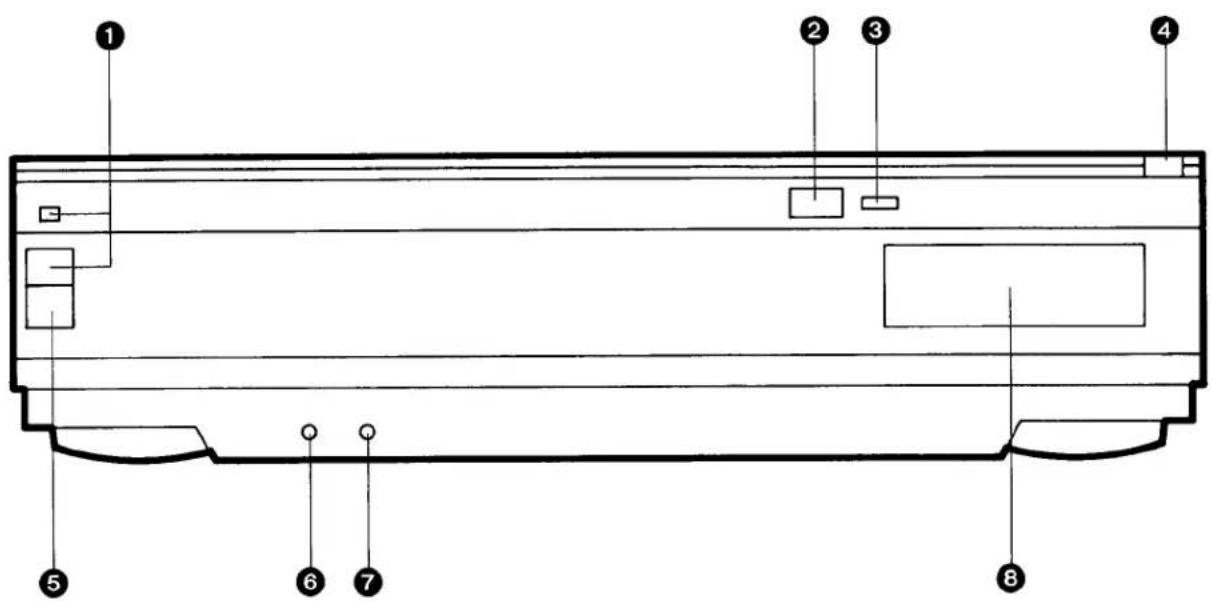
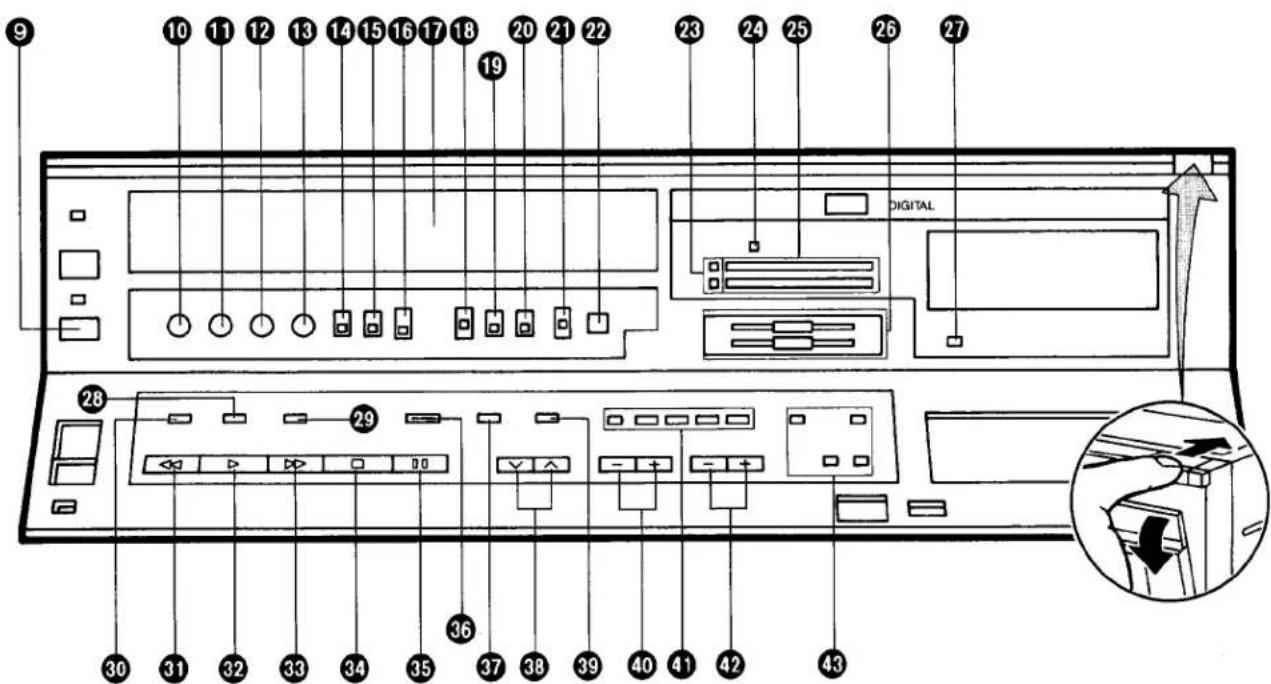
| No. | Description | Page |
| 1 | VTR On/Off Switch with Indicator | 9 |
| 2 | Infra-red Remote Control Receiver | 7 |
| 3 | Digital Indicator | - |
| 4 | Control Panel Open Button | 4 |
| 5 | Cassette-in Indicator | 12 |
| 6 | Headphones Socket | 19 |
| 7 | Microphone Input Socket | 26 |
| 8 | Multi-Function Display | 6 |
| 9 | Eject Button (▲) | 12 |
| 10 | Headphones Output Level Control | 19 |
| 11 | Tracking Control | 14 |
| 12 | Slow Tracking Control | 15 |
| 13 | Picture Sharpness Control | 14 |
| 14 | Edit Switch | 25 |
| 15 | Tape Speed Selector | 17 |
| 16 | Digital NR Switch | 13 |
| 17 | Cassette Compartment | 12 |
| 18 | Audio Level Meter Selector | 14 |
| 19 | Audio Rec Level Control Selector | 17 |
| 20 | MPX Filter Switch | 19 |
| 21 | Input Signal Selector | 19 |
| 22 | Timer Record Button | 21 |
| 23 | Audio Playback Mode Indicators | 18 |
| 24 | Simulcast Indicator | 18 |
| 25 | Audio Level Meter | 17 |
| No. | Description | Page |
| 26 | Audio Rec Level Controls | 17 |
| 27 | Audio Dubbing Indicator | 26 |
| 28 | Audio Playback Mode Selector | 18 |
| 29 | Audio Dubbing Button | 26 |
| 30 | AV Button | 9 |
| 31 | Rewind ◀◀/Review ➕Button | 13 |
| 32 | Play Button (▶) | 14 |
| 33 | Fast Forward ▶▶/Cue ➕Button | 13 |
| 34 | Stop Button (■) | 14 |
| 35 | Pause/Still Button (■) | 14 |
| 36 | Record Button (●) | 16 |
| 37 | Memory/Search Button | 13 |
| 38 | Channel Selection Up and Down Buttons | 10 |
| 39 | Reset/Index Button | 28 |
| 40 | OTR On Buttons | 20 |
| 41 | Timer Controls | 11 |
| 42 | OTR Off Buttons | 20 |
| 43 | Tuner Set-up Controls | 10 |
Multifunktionsanzeige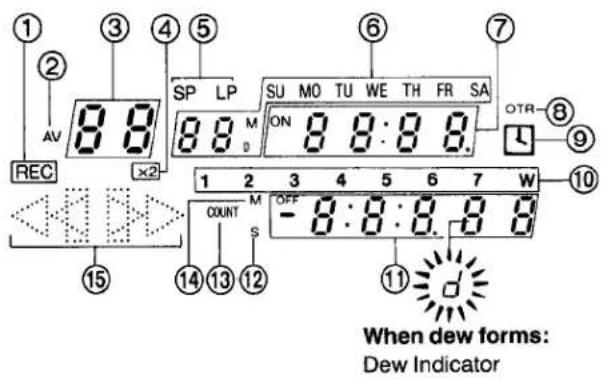
| No. | Description | Page |
| 1 | Recording Indicator | 16 |
| 2 | AV Indicator | 25 |
| 3 | Channel Display | 10 |
| 4 | Double Speed Indicator | 15 |
| 5 | Tape Speed Indicator | 17 |
| 6 | Date Display | 11 |
| 7 | Clock Display | 11 |
| 8 | OTR Indicator | 20 |
| 9 | Timer Recording Display | 22 |
| 10 | Timer Programme Number | 21 |
| 11 | Tape Counter Display | 13 |
| 12 | Search Indicator | 13 |
| 13 | Tape Counter | 13 |
| 14 | Memory Indicator | 13 |
| 15 | Tape Running Display | 13 |
RÜCKSEITE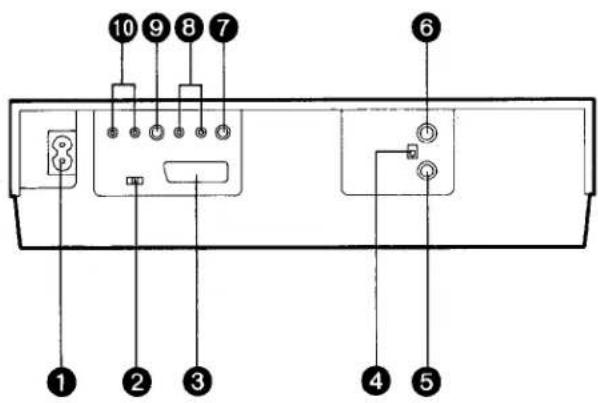
| No. | Description | Page |
| 1 | AC Mains Lead Socket | 8 |
| 2 | Colour Mode/Test Signal Switch | 9 |
| 3 | AV Socket | 8 |
| 4 | RF Signal Level Switch | 9 |
| 5 | RF Input Socket | 8 |
| 6 | RF Output Socket | 8 |
| 7 | Video Output Socket | 25 |
| 8 | Audio Output Sockets | 8 |
| 9 | Video Input Socket | 24 |
| 10 | Audio Input Sockets | 8 |
PROGRAMMIERBARE FERNBEDIENUNG
Teilenummer: VEQ0574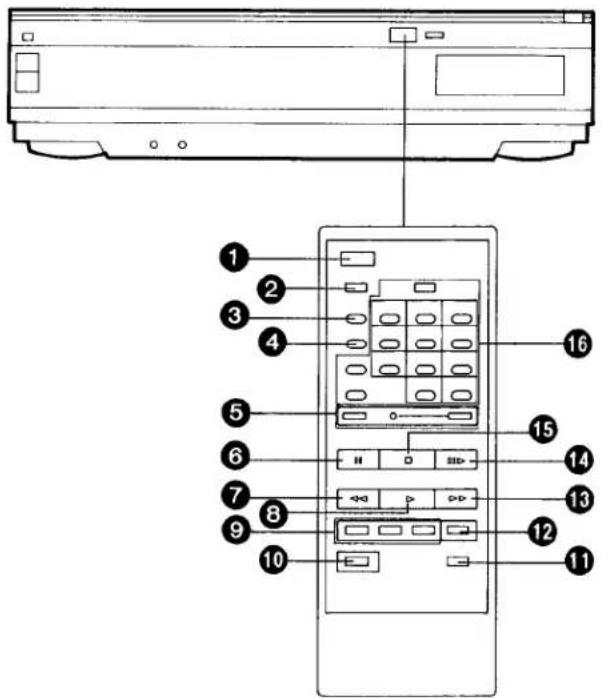
① VTR Ein/Aus-Taste ② Audio-Auswahltaste ③ Memory/Search-Taste ④ Reset/Index-Taste ⑤ Aufnahmetasten (●) ⑥ Pause/Standbild-Taste (II) ⑦ Rücklauf ◀◀/Review □◀ Taste ⑧ Wiedergabetaste (▶) ⑨ Zeitlupentasten ⑩ Digitalfunktionstaste ⑪ Intro-Scan-Taste ⑫ Doppelte Wiedergabegeschwindigkeit (×2) ⑬ Schnellvorlauf ▶▶/Cue ➕ Taste ⑭ Standbild-Weiterschaltung (III) ⑮ Stopp-Taste (■) ⑯ Timer-Aufnahme und Programmpositions-Wahltasten
Stromversorgung für die Fernbedienung
Die Fernbedienung wird mit zwei Batterien der Größe IEC "R6" betrieben. Die Lebensdauer der Batterien beträgt etwa ein Jahr, hängt jedoch von der Häufigkeit der Nutzung ab. Überprüfen Sie die Batterien einmal im Jahr und ersetzen Sie sie bei Bedarf.
VORSICHT BEIM BATTERIEWECHSEL
- Legen Sie die neuen Batterien mit korrekt ausgerichteten Polen (⊕ und ⊖) ein.
- Setzen Sie Batterien keiner Hitze aus, da sonst ein interner Kurzschluss auftreten kann.
- Wenn Sie die Fernbedienung längere Zeit nicht verwenden möchten, entfernen Sie die Batterien und lagern Sie sie an einem kühlen, trockenen Ort.
- Entfernen Sie verbrauchte Batterien sofort und entsorgen Sie sie ordnungsgemäß.
- Verwenden Sie nicht gleichzeitig alte und neue Batterien. (Verwenden Sie auch niemals eine Alkalibatterie zusammen mit einer Zink-Kohle-Batterie.)
Legen Sie die Batterien wie folgt ein:
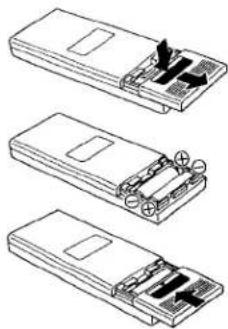
① Entfernen Sie den Deckel des Batteriefachs. ② Legen Sie zwei Batterien gemäß der Markierung im Batteriefach ein. ③ Setzen Sie den Deckel wieder auf.
Hinweis:
● Der Infrarotstrahl sollte direkt auf den Infrarot-Empfänger an der Vorderseite des Videorecorders gerichtet werden. - Direktes Sonnenlicht kann den Strahl beeinträchtigen. - Der Erfassungswinkel des Infrarot-Empfängers am Videorecorder beträgt etwa 60°. - Das Gerät sollte innerhalb einer Reichweite von etwa 7 Metern von der Vorderseite des Videorecorders verwendet werden.
INSTALLATION
Wenden Sie sich an Ihren Panasonic-Händler, um einen geeigneten Anschluss für die Verbindung mit der AV-Buchse zu erhalten. Der Anschluss des Videorecorders an den Fernseher über die AV-Buchse beider Geräte gewährleistet eine optimale Bildqualität.
Anschluss an einen Fernseher ohne AV-Buchse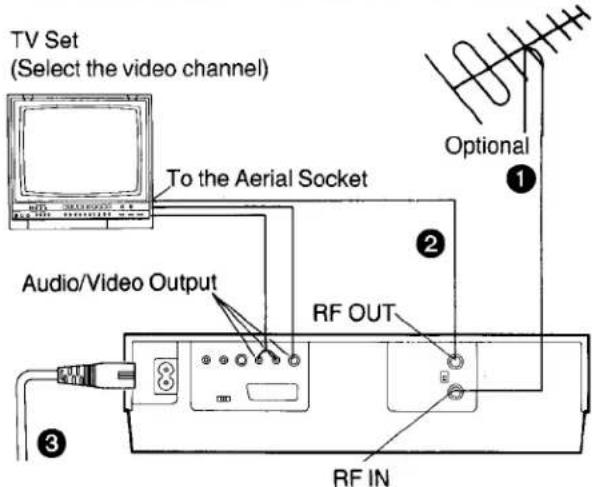
1 Schließen Sie die Außenantenne an die HF-Eingangsbuchse des Videorecorders an. ② Verbinden Sie die Antennenbuchse Ihres Fernsehers mit der HF-Ausgangsbuchse des Videorecorders über das mitgelieferte DIN-DIN-Koaxialkabel. 3 Schließen Sie das Netzkabel an die Netzanschlussbuchse des Videorecorders und an eine Steckdose an.
Hinweis:
Verbinden Sie die Audio-/Video-Ausgangsbuchsen mit den Eingangsbuchsen des Fernsehers (falls dieser über solche Buchsen verfügt), um den Fernseher im AV-Modus zu nutzen.
Anschluss an einen Fernseher mit AV-Buchse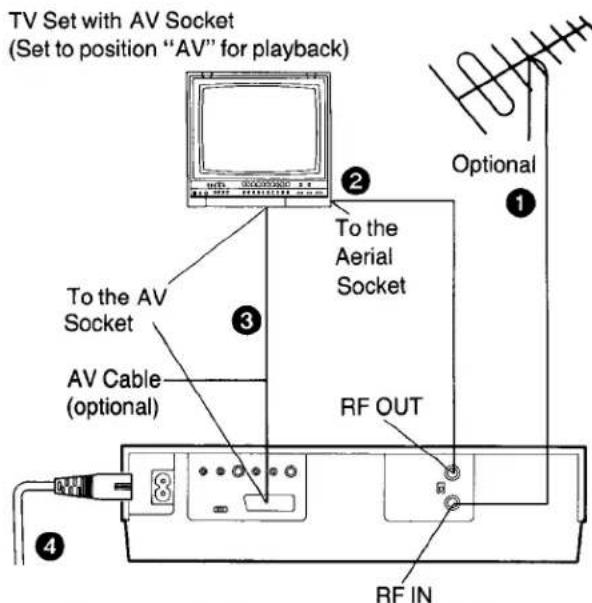
- Für ein geeignetes AV-Kabel wenden Sie sich an einen autorisierten Händler.
1 Schließen Sie die Außenantenne an die HF-Eingangsbuchse des Videorecorders an. 2 Verbinden Sie die Antennenbuchse Ihres Fernsehgeräts mit der HF-Ausgangsbuchse des Videorecorders über das mitgelieferte DIN-DIN-Koaxialkabel. 3 Verbinden Sie die AV-Buchse des Videorecorders mit der AV-Buchse des Fernsehgeräts. - Die AV-Buchse ermöglicht die Aufnahme und Wiedergabe von Bild und Ton. Diese Verbindung kann mit Fernsehgeräten verwendet werden, die ebenfalls über eine AV-Buchse verfügen. 4 Schließen Sie das Netzkabel an die Netzsteckdose des Videorecorders und an eine Steckdose an.
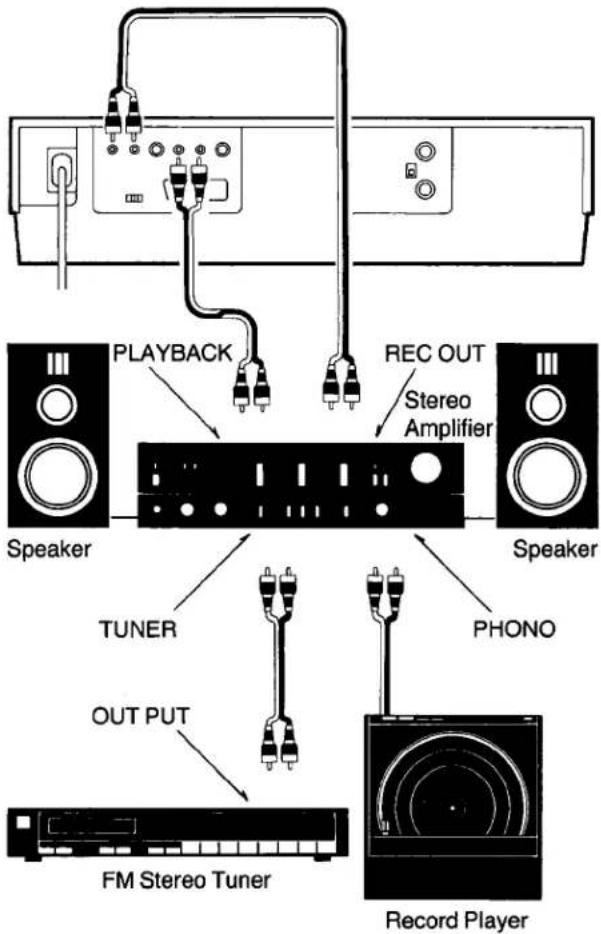
Anschluss an einen Stereo-Verstärker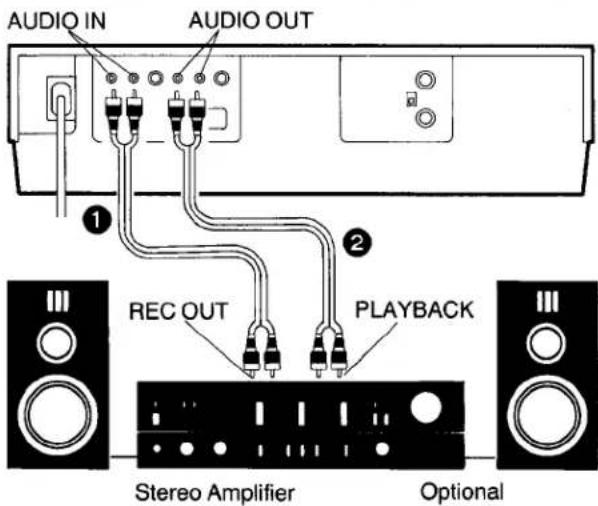
1 Verbinden Sie die Audio-Eingangsbuchsen des Videorecorders mit den REC-OUT-Buchsen des Stereo-Verstärkers.
2 Verbinden Sie die Audio-Ausgangsbuchsen des Videorecorders mit den PLAYBACK-Buchsen des Stereo-Verstärkers.
- Wenn für die Verbindung zwischen Videorecorder und Fernsehgerät ein AV-Kabel verwendet wird und sowohl der Videorecorder als auch das Fernsehgerät über eine "AV"-Position verfügen, stellen Sie nur eines davon auf "AV". Wenn beide auf "AV" eingestellt sind, können bei einigen Fernsehgerätetypen Bild- und Tonstörungen auftreten.
- Einige Fernsehgeräte können beim Start der Wiedergabe über das AV-Kabel automatisch in den "AV"-Eingangsmodus wechseln. Bei einigen Fernsehgeräten muss der "AV"-Modus jedoch manuell eingestellt werden.
- Für Aufnahmen vom Tuner des Fernsehgeräts über das AV-Kabel stellen Sie den Videorecorder auf den "AV"-Modus.
ABSTIMMUNG DES FERNSEHGERÄTS AUF DEN VIDEO-WIEDERGABEKANAL
Die auf dieser Seite beschriebenen Einstellungen sind nicht erforderlich, wenn der Videorecorder über die AV-Buchsen oder Video-/Audio-Ausgangsbuchsen mit dem Fernsehgerät verbunden ist.
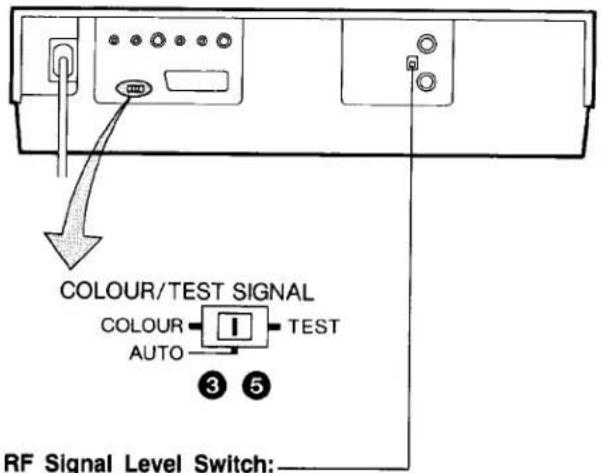
Wird verwendet, um den Empfang der VHF- und/oder UHF-Antennensignale abzuschwächen.
Wenn der Empfang normal ist, stellen Sie auf "HIGH". Wenn das Signal stark ist (Streifen erscheinen im oberen Teil des Bildes), stellen Sie auf "LOW".
1 Schalten Sie das Fernsehgerät ein und wählen Sie die AV-Programmposition oder eine andere Programmposition, die von keinem Fernsehsender belegt ist. ② Drücken Sie den Ein-/Ausschalter des Videorecorders, um den Videorecorder einzuschalten. (VORDERSEITE)
●Die entsprechende Anzeige leuchtet auf.
③ Stellen Sie den Farbmodus-/Testsignalschalter auf "TEST". 4 Stimmen Sie die ausgewählte Programmposition des Fernsehgeräts auf UHF-Kanal ca. 36 ab. Vergewissern Sie sich auf Ihrem Fernsehgerät, dass das empfangene Testbild wie gezeigt aussieht.

5 Stellen Sie den Farbmodus-/Testsignalschalter auf "AUTO". Ihr Fernsehgerät ist nun bereit, das HF-Ausgangssignal des Videorecorders zu empfangen.
Wenn die Farbe während der Aufnahme oder Wiedergabe nicht zufriedenstellend ist, kann sie stabilisiert werden, indem der Farbmodus-/Testbildschalter auf "FARBE" gestellt wird.
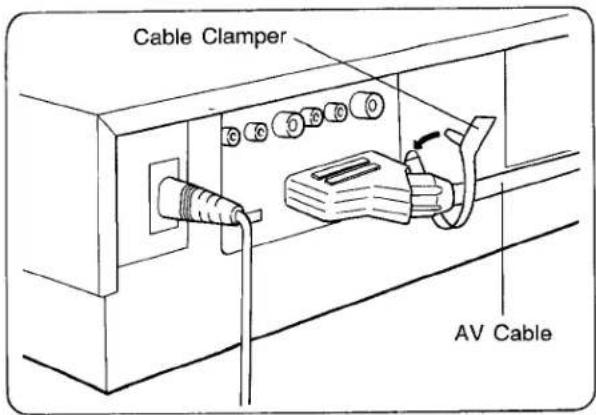
Anschließen des AV-Kabels an den Videorecorder
Befestigen Sie das AV-Kabel mit der mitgelieferten Kabelklemme wie unten gezeigt.
EINSTELLEN DES TUNERS IM VIDEORECORDER
Der Tuner im Videorecorder ermöglicht es, Fernsehsendungen zu empfangen und diese Programme aufzuzeichnen, ohne den Fernseher einschalten zu müssen. Der Frequenzbereich dieses Modells erstreckt sich von UHF-Kanal 21 bis 69.
Vorbereitung
- Schalten Sie den Fernseher ein und wählen Sie die Programmposition (Kanal), die Sie auf den Videowiedergabekanal abgestimmt haben.
- Drücken Sie den Ein-/Ausschalter des Videorecorders, um den Videorecorder einzuschalten.
- Stellen Sie den Eingangssignalwähler auf "Tuner".
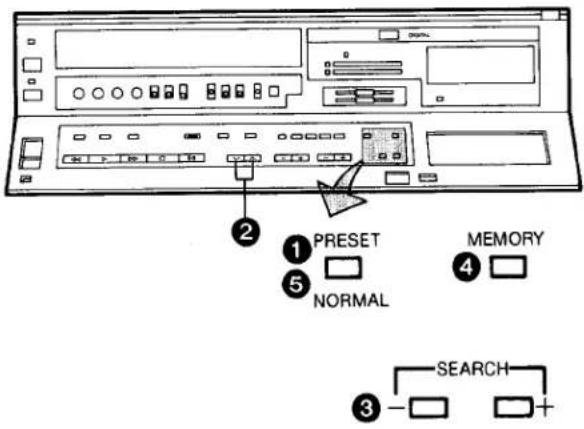
① Drücken Sie die Taste Preset/Normal.
Die Anzeige auf dem Multifunktionsdisplay wechselt von der Uhrzeitanzeige zur Positionsanzeige.
2 Drücken Sie die Kanal-Auf- oder -Ab-Taste, um eine Programmposition (Kanal) auszuwählen, die Sie auf einen Fernsehsender abstimmen möchten.
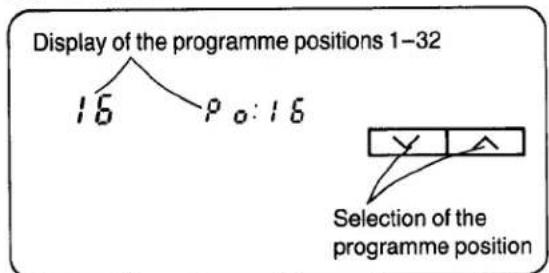
Der Tuner im Videorecorder kann mit bis zu 32 Sendern voreingestellt werden.
③ Drücken Sie die Suchtaste (+) oder (−).
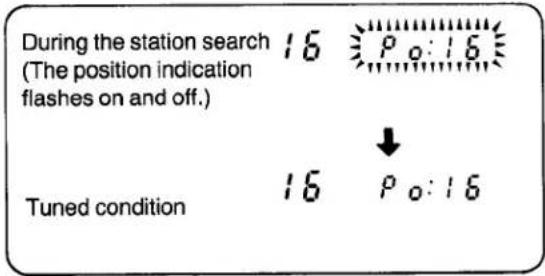
- Wenn die Abstimmung des Senders abgeschlossen ist, hört die Anzeige auf zu blinken.
- Bei jedem Drücken der Suchtaste (+) oder (−) wird der Sender automatisch abgestimmt.
4 Drücken Sie die Speichertaste.
(Die Programmpositionsanzeige blinkt einmal auf.)
Wiederholen Sie die Schritte ②–④ für jeden Kanal, den Sie auf einen Sender abstimmen möchten.
5 Drücken Sie erneut die Taste Preset/Normal.
Die Anzeige im Multifunktionsdisplay wechselt zur Uhrzeitanzeige.
EINSTELLEN DER UHR AUF DIE AKTUELLE ZEIT
Die eingebaute Digitaluhr verwendet das 24-Stunden-System.
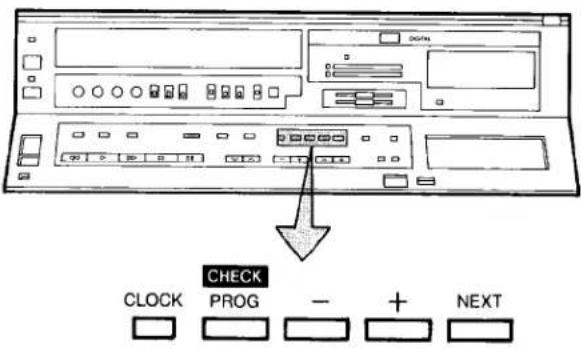
Beispiel: Stellen Sie die Uhr auf Samstag, den 10. September 1988, 12:35 Uhr.
- Schließen Sie den Videorecorder an die Netzsteckdose an.
- Drücken Sie den Ein/Aus-Schalter des Videorecorders, um ihn einzuschalten.
Beim Anschließen des Videorecorders an das Stromnetz oder nach einem längeren Stromausfall blinken sowohl die Datums- als auch die Zeitanzeige.
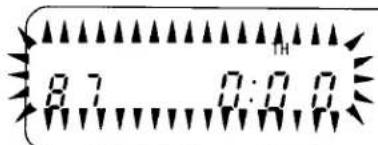
② Drücken Sie die Uhrtaste, um die Datums- und Zeiteinstellung zu starten.
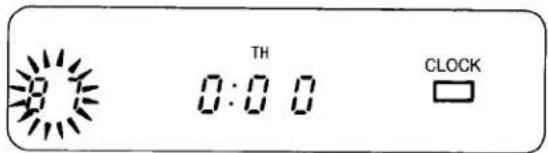
③ Drücken Sie die Taste (+) oder (−), um das Jahr einzustellen.
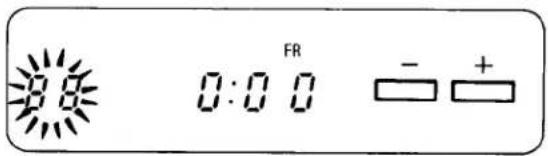
4 Drücken Sie die Taste Next.
⑤ Drücken Sie die Taste (+) oder (−), um den Monat einzustellen.
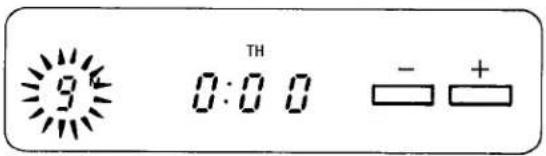
6 Drücken Sie die Next-Taste.
7 Drücken Sie die Taste (+) oder (−), um das Datum einzustellen.
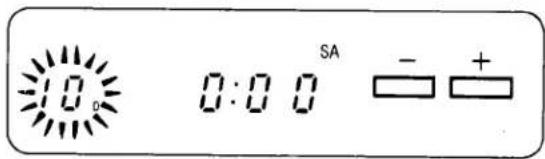
8 Drücken Sie die Next-Taste.
9 Drücken Sie die Taste (+) oder (−), um die Stunde einzustellen.
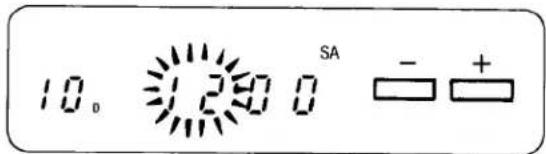
10 Drücken Sie die Next-Taste.
11 Drücken Sie die Taste (+) oder (−), um die Minute einzustellen.
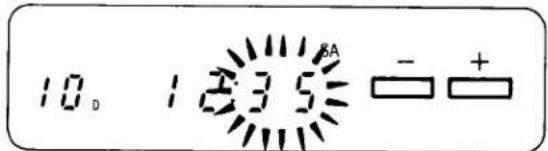
12 Drücken Sie die Clock-Taste, wenn die aktuelle Zeit genau 12:35'00" ist.
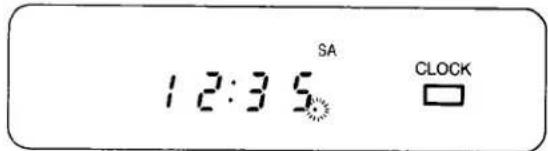
Bei jedem Drücken der Next-Taste wechselt die blinkende Anzeige in der folgenden Reihenfolge.
JAHR→MONAT→DATUM→STUNDE→MINUTE
- Das Timer-Backup-System hält den Uhrbetrieb bei einem Stromausfall etwa 30 Sekunden lang aufrecht. Es dauert jedoch mehr als 60 Minuten, bis die Backup-Schaltung nach dem Anschluss des VTR an das Stromnetz betriebsbereit ist.
- Die Timer-Aufnahmefunktion sollte auf "Aus" gestellt sein, da sonst der VTR nicht normal betrieben werden kann. In diesem Fall blinkt die Timer-Aufnahme-Anzeige "☐", um Sie zu warnen.
- Während der Datumseinstellung wird der entsprechende Wochentag gleichzeitig eingestellt.
DIE VIDEOCASSETTE
Einlegen einer Videocassette (Automatischer Betrieb)
1 Legen Sie die Videokassette wie abgebildet ein. Der Videorecorder schaltet sich automatisch ein und die Kassette wird automatisch in den Videorecorder eingezogen.
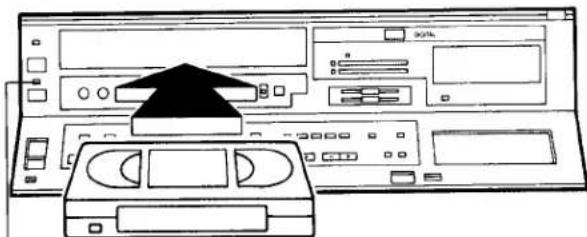
2
② Wenn eine Videokassette eingelegt wird, erscheint die Markierung „○○“.
Hinweise:
- Wenn eine Videokassette mit herausgebrochener Aufnahmesperrlasche (z. B. eine bespielte Kassette) eingelegt wird, startet die Wiedergabe sofort.
- Verwenden Sie nur VHS-Videokassetten.
- Wir empfehlen die „Panasonic Hi-Fi“-High-Grade-Videokassetten für verbesserte Bild- und Tonqualität.
Entfernen einer Videokassette
③ Drücken Sie die Auswurftaste (▲).
Drücken Sie einfach die Auswurftaste; der Videorecorder schaltet sich ein, wirft die Kassette aus und schaltet sich wieder aus.
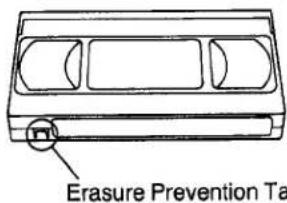
Um versehentliches Löschen zu verhindern, brechen Sie die Lasche mit einem Schraubendreher ab.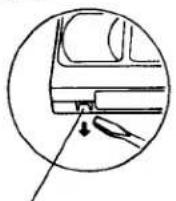
Zum erneuten Aufnehmen kleben Sie das Loch mit Klebeband ab.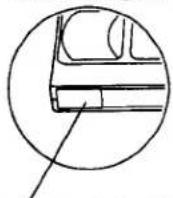
WIEDERGABE
Vorbereitung
- Drücken Sie den Ein-/Ausschalter des Videorecorders, um ihn einzuschalten.
- Stellen Sie sicher, dass die Timer-Aufnahmefunktion auf "Aus" eingestellt ist.
- Legen Sie eine bespielte Videokassette ein.
- Schalten Sie den Fernseher ein und wählen Sie den Videowiedergabekanal.
Rücklauf und Schnellvorlauf
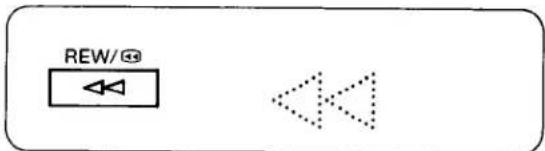
Drücken Sie die Taste Rücklauf ◀◀/Review ◀◀, um das Band zurückzuspulen.
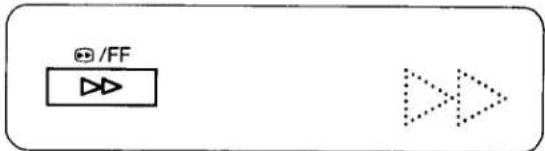
Drücken Sie die Taste Schnellvorlauf ▶▶/Cue ▶▶, um das Band schnell vorzuspulen.
Zeitzähler
Er zeigt die verstrichene Aufnahme- oder Wiedergabezeit an.
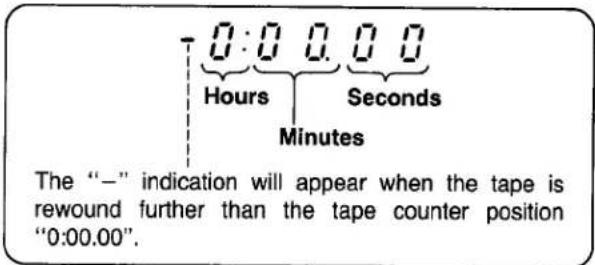
- Wenn sich die Zahlen auf dem Bandzähler während Schnellvorlauf, Rücklauf oder einer der Wiedergabefunktionen nicht ändern, bedeutet dies, dass auf diesem Bandabschnitt nichts aufgenommen wurde.
- Der Bandzähler wird beim Auswerfen der Videokassette automatisch auf "0:00.00" zurückgesetzt.
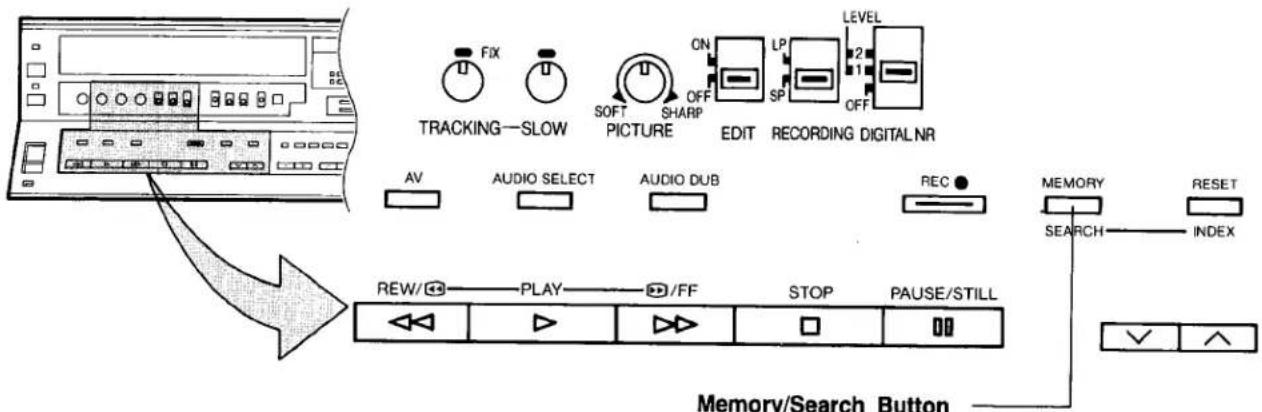
Durch wiederholtes Drücken dieser Taste ändert sich die Anzeige in der folgenden Reihenfolge: "M" (Speicher) → "S" (Suche) → beide Anzeigen aus → "M"...
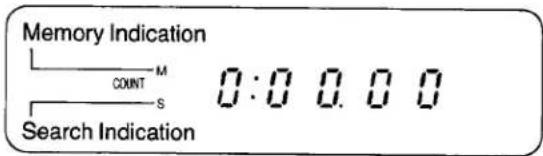
Speicherfunktion
Die Speicherfunktion macht es einfach und schnell, eine bestimmte Stelle auf dem Band später wiederzufinden, indem Sie einfach die Taste Reset/Index an dieser Stelle drücken, um den Bandzähler auf "0:00.00" zu setzen, und die Taste Memory/Search drücken. Beim Rücklauf oder Schnellvorlauf stoppt das Band dann ungefähr an der gewünschten Position.
Digitaler NR-Schalter
Dieser Schalter kann verwendet werden, um Rauschen in allen Bildern zu minimieren, die über den Videorecorder wiedergegeben oder empfangen werden. Normalerweise ist dieser Schalter auf Position "1" eingestellt.
Wenn das Bild aufgrund übermäßigen Bildrauschens schwer zu erkennen ist, stellen Sie den Schalter auf Position "2".
- Wenn der Schalter auf Position "2" oder "1" steht, kann ein Nachbild auftreten.
Automatischer Betrieb
Wenn Sie eine Videokassette einlegen, bei der die Löschschutzlasche entfernt wurde, startet die Wiedergabe automatisch.

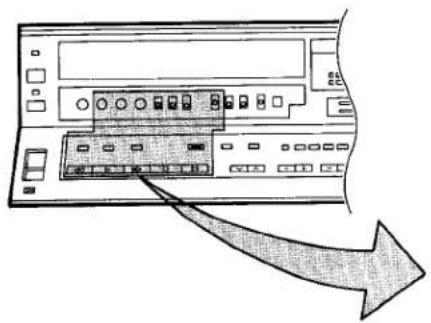
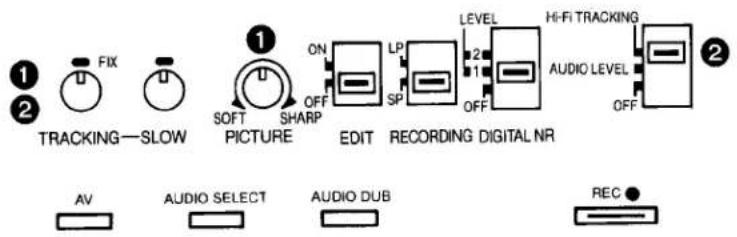

① Normale Wiedergabe
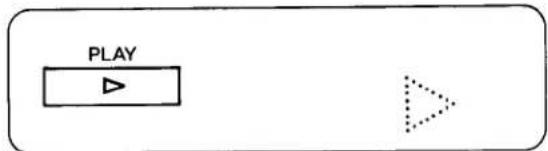
Drücken Sie die Wiedergabetaste (▶).
- Stellen Sie den Tracking-Regler am VTR ein, wenn das Bild teilweise durch Rauschbänder verdeckt ist. ●Regeln Sie das Bild nach Wunsch mit dem Bildschärferegler (scharfe oder weiche Konturen).
② Einstellung des HI-FI-Audio-Trackings
Diese Einstellung kann erforderlich sein, wenn Sie ein Band abspielen, das auf einem anderen Hi-Fi-VTR aufgenommen wurde. Stellen Sie den Audio-Pegel-Meter-Wahlschalter auf "Hi-Fi-Tracking" und drehen Sie langsam am Tracking-Regler, während Sie das Audio-Pegelmeter beobachten, um die höchstmögliche Meteranzeige zu erreichen.
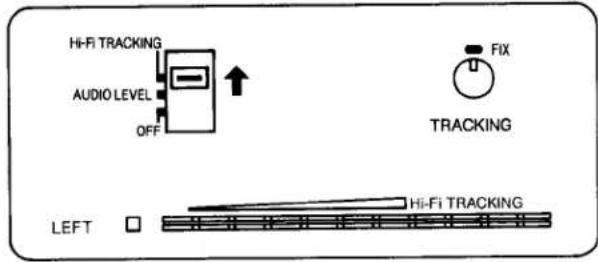
③ Wiedergabe beenden
Drücken Sie die Stopp-Taste (■), um die Wiedergabe zu stoppen.
④ Digitale Standbildwiedergabe
Wenn sich der VTR im Wiedergabemodus befindet, drücken Sie die Pause/Standbild-Taste (III), um ein Standbild anzusehen. Um die normale Wiedergabe fortzusetzen, drücken Sie diese Taste erneut.
⑤ Suchlauf-Wiedergabe
Wenn die Schnellvorlauf ▶▶/Cue ▶▶-Taste gedrückt gehalten wird, während sich der VTR im Wiedergabemodus befindet, wird das Band mit hoher Geschwindigkeit in Vorwärtsrichtung abgespielt.
6 Wiedergabe-Überprüfung
Wenn die Taste Rücklauf ◀◀/Überprüfung ⏻ während der Wiedergabe gedrückt gehalten wird, wird das Band mit hoher Geschwindigkeit in umgekehrter Richtung abgespielt.
Um die Such- oder Überprüfungswiedergabe zu ermöglichen, ohne die jeweilige Taste gedrückt halten zu müssen, drücken Sie zuerst die Speicher-/Such-Taste, sodass die Suchanzeige "S" im Multifunktionsdisplay erscheint, und drücken Sie dann die Taste Schnellvorlauf ▶▶/Suchlauf ➕ oder die Taste Rücklauf ◀◀/Überprüfung ➔◀.
Um den Videorecorder wieder auf normale Wiedergabe umzuschalten, drücken Sie die Wiedergabetaste (▶).
- Wenn die Such- oder Überprüfungswiedergabe länger als 10 Minuten dauert, schaltet der Videorecorder automatisch zurück in den normalen Wiedergabemodus.
WIEDERGABE MIT DER FERNBEDIENUNG
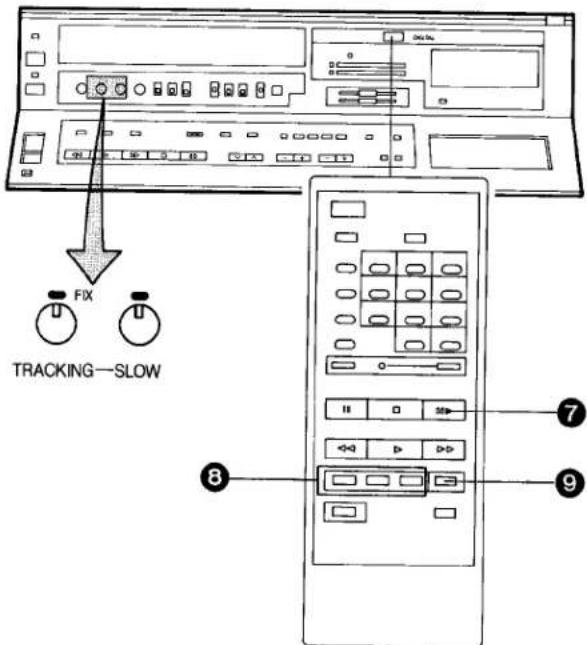
7 Digitale Standbild-Schrittweiten-Wiedergabe
Drücken Sie die Taste Standbild-Schrittweite (III), während sich der Videorecorder im Standbild-Wiedergabemodus befindet. Jedes Mal, wenn Sie diese Taste drücken, wird das Standbild um ein einzelnes Feld weitergeschaltet.

8 Digitale Doppel-Feinslow-Wiedergabe
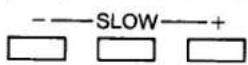
Während der normalen Wiedergabe kann die Zeitlupen-Wiedergabe durch Drücken der Taste Zeitlupe aktiviert werden. Die Geschwindigkeit der Zeitlupen-Wiedergabe kann dann mit der Taste Zeitlupe (+) oder (−) variiert werden.
Wenn Sie die Geschwindigkeit der Zeitlupen-Wiedergabe ändern, blinkt die Anzeige.

- Drücken Sie die Wiedergabetaste (▶), um die normale Wiedergabe fortzusetzen.
- Wenn die Zeitlupen-Wiedergabe länger als 5 Minuten dauert, schaltet der Videorecorder automatisch in den Stoppmodus.
- Wenn Sie ein Band im Standbild- oder Feinslow-Wiedergabemodus auf einem Fernsehgerät mit automatischer Vertikal-Halte-Regelung abspielen, kann das Bild vertikal wackeln. Stellen Sie in diesem Fall den Vertikal-Halte-Wahlschalter (AUTO/MANUAL) des Fernsehgeräts auf "MANUAL" und justieren Sie die Vertikal-Halte-Regelung, falls sie zugänglich ist; andernfalls wenden Sie sich an qualifiziertes Servicepersonal.
Zeitlupen-Spurregelung
- Wenn während der Standbild-Wiedergabe oder der Fein-Slow-Wiedergabe Rauschbalken erscheinen, wechseln Sie zur Slow-Wiedergabe und stellen Sie den Slow-Tracking-Regler ein, um die Rauschbalken zu reduzieren.
- Es ist möglicherweise nicht möglich, die Rauschbalken vollständig zu beseitigen.
9 Doppelte Wiedergabegeschwindigkeit
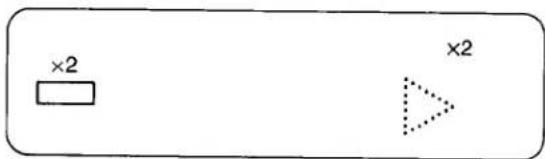
Wenn sich der Videorecorder im Wiedergabemodus befindet, drücken Sie die Taste für doppelte Wiedergabegeschwindigkeit, um die Aktion mit doppelter normaler Wiedergabegeschwindigkeit anzusehen. Um zur normalen Wiedergabe zurückzukehren, drücken Sie die Wiedergabetaste.
- Der Ton wird nur bei normaler Wiedergabe wiedergegeben.
- Wenn Sie den Videorecorder länger als 5 Minuten im Standbild-Wiedergabemodus lassen, wechselt der Videorecorder automatisch in den Stopp-Modus, um das Band und die Videoköpfe zu schützen.
- Rauschen in Form von horizontalen Balken erscheint im Cue- und Review-Wiedergabemodus auf dem Fernseher. Dies ist keine Fehlfunktion.
- Die obere Bildkante kann im Cue-, Review- oder Standbild-Modus (LP) verzerrt sein. Dies ist keine Fehlfunktion.
- Wenn das Bild im Cue- oder Review-Modus vertikal rollt, stellen Sie den Vertikal-Hold-Regler am Fernsehgerät ein.
- Unmittelbar nach dem Start der Cue- oder Review-Wiedergabe kann das Bild verzerrt sein. Auch beim Beenden dieser Modi kann eine kurzzeitige Bildverzerrung auftreten. Dies ist jedoch keine Fehlfunktion. •Nur im "LP"-Modus:
- Während jeder anderen Wiedergabeart als der normalen Wiedergabe kann das Bild Rauschbalken aufweisen, die Farbe kann instabil sein oder ein Schwarzweißbild erscheinen.
- Beim Abspielen eines Bandes, das auf einem anderen Videorecorder aufgenommen wurde, kann es erforderlich sein, den Tracking-Regler einzustellen. In einigen Fällen kann die Bildqualität dennoch schlechter sein. Dies ist auf Formatbeschränkungen zurückzuführen.
- Derzeit werden UK-Fernsehsendungen nicht in "STEREO" ausgestrahlt: Wenn Aufnahmen von Mono-Fernsehprogrammen von Off-Air-Bändern abgespielt werden, leuchten die Anzeigen "Left" und "Right" der Audio-Wiedergabemodus-Anzeigen auf. Dies dient nur zur Bestätigung, dass der Ton von den Hi-Fi-Audiospuren wiedergegeben wird, und bedeutet nicht, dass die Aufnahme unbedingt in Stereo ist.
AUFNAHME VON EINEM FERNSEHSIGNAL
Vorbereitung
- Drücken Sie den VTR Ein/Aus-Schalter, um den VTR einzuschalten.
●Stellen Sie sicher, dass die Timer-Aufnahmefunktion auf "Aus" eingestellt ist.
- Setzen Sie den Bandzähler auf "0:00.00" zurück.
- Stellen Sie den Eingangssignal-Wahlschalter auf "Tuner".
- Legen Sie eine Videokassette ein, deren Löschschutzlasche intakt ist.
- Stellen Sie den Audio-Aufnahmepegel-Wahlschalter auf "AGC".
- Stellen Sie den Bandgeschwindigkeits-Wahlschalter auf "SP" oder "LP".
1 Wählen Sie am VTR die Programmposition (Kanal) aus, die aufgenommen werden soll. Um den ordnungsgemäßen Empfang zu bestätigen, schalten Sie den Fernseher ein und wählen Sie den Videowiedergabekanal.
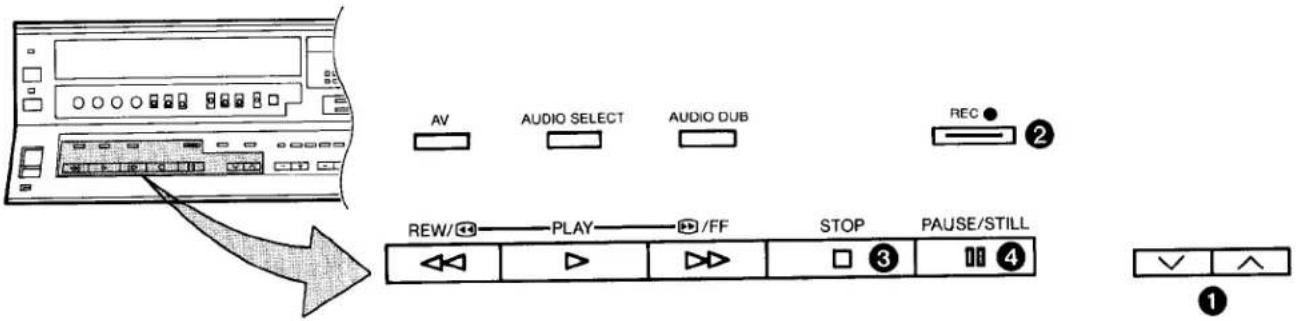
② Drücken Sie die Aufnahmetaste (●).
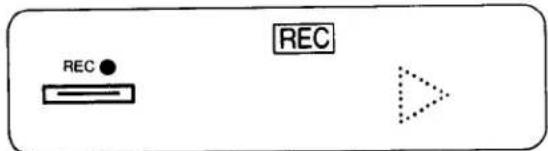
Wenn eine Videokassette mit herausgebrochener Lasche eingelegt wird, wird sie automatisch ausgeworfen.
- Während der Aufnahme kann die Programmposition (Kanal) am VTR nicht geändert werden.
- Um eine Aufnahme mit der Fernbedienung zu starten, drücken Sie gleichzeitig die beiden Aufnahmetasten auf der Fernbedienung.
So beenden Sie die Aufnahme
③ Drücken Sie die Stopp-Taste (■).
Wenn Sie unerwünschtes Material vermeiden möchten
4 Drücken Sie die Pause/Standbild-Taste (Ⅲ), um das Band vorübergehend anzuhalten.
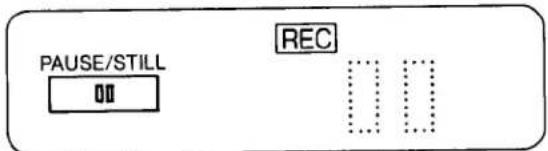
- Drücken Sie die Pause/Standbild-Taste (II) erneut, um die Aufnahme fortzusetzen.
- Wenn Sie den VTR länger als 5 Minuten im Pausemodus lassen, schaltet der VTR automatisch in den Stoppmodus, um das Band und die Videoköpfe zu schützen.
Aufnehmen eines TV-Programms, während Sie ein anderes ansehen
- Aufnehmen (folgen Sie den Schritten ① und ②).
- Wählen Sie die gewünschte Programmposition (Kanal) an Ihrem Fernsehgerät.
- Bei Aufnahmen im LP-Modus empfehlen wir die Verwendung von "Panasonic Hi-Fi"-Videokassetten in hoher Qualität für verbesserte Bild- und Tonqualität.
- Der Digital-NR-Schalter kann auch für Aufnahmen verwendet werden, um Bildrauschen zu reduzieren.
![graph TD A["Audio Level"] --> B["Tape Speed Indicator"] B --> C["Hi-Fi TRACKING"] B --> D["MANUAL"] B --> E["AGC"] B --> F["AUDIO RECORDING"] G["LP"] --> H["RECORDING"]](/content/2026/05/1036619/images/4a60a883281c4ca93ec25137c2594d22232a3c7503bf1f3e2ceef1222f2bc73a.jpg)
Bandgeschwindigkeits-Wahlschalter
Bandgeschwindigkeits-Wahlschalter
Für die Aufnahme können zwei Bandgeschwindigkeiten gewählt werden. Bei der Wiedergabe wählt der Recorder automatisch die richtige Geschwindigkeit.
Wählen Sie die gewünschte Bandgeschwindigkeit mit dem Bandgeschwindigkeits-Wahlschalter vor der Aufnahme.
- Set to the "SP" position for normal speed.
- Set to the "LP" position for slow speed.
The corresponding indicator (SP or LP) lights up during recording and playback in the Multi-Function Display.
It is not recommended to change from the SP to the LP mode or vice versa in the middle of recording. Even if the switching is done while the VTR is in the pause mode, picture distortion will occur at the switching point during playback.
Manual Adjustment of the Audio Recording Level
Manual adjustment of the Audio recording level may be desirable when using the VTR as a hi-fi audio recorder or when producing your own video tapes.
- Set the Audio Level Meter Selector to "Audio Level" and Audio Rec Level Control Selector to "Manual" and adjust the recording volume with the Audio Rec Level Controls, while observing the Audio Level Meters. The recording level for the right and left channel can be adjusted individually.
(It is recommended to adjust so that peaks in the audio level reach about +4 dB.)
SIMUL □
AUDIO
REC LEVEL MIN 011121314151617181910 MAX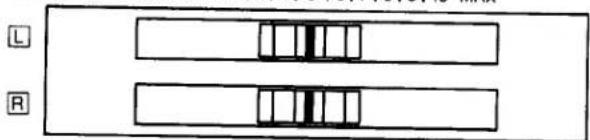
- For all Timer Recordings and also for normal recordings of TV programmes, the Audio Rec Level Control Selector is usually set to "AGC" for automatic adjustment of the audio recording level.
- When the Input Signal Selector is set to "Line/Audio", the level of the sound to be recorded on the hi-fi audio tracks and the "normal" audio track can be manually adjusted together.
When this selector is set to "Tuner" or "Simul", manual adjustment of the audio recording level is only possible for the sound which is to be recorded on the hi-fi audio tracks. The sound to be recorded on the "normal" audio track will be adjusted automatically.
HI-FI AUDIO SYSTEM
Aufnahme von Simulcast-Ton
Vorbereitung
- Schließen Sie Ihren Videorecorder an den Stereo-Verstärker und den FM-Stereo-Tuner an, wie auf Seite 19 beschrieben.
● Stimmen Sie den FM-Stereo-Tuner auf den gewünschten Sender ab.
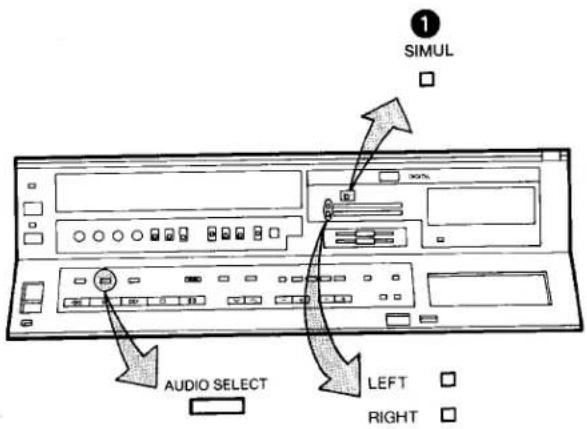
① Stellen Sie den Eingangssignal-Wahlschalter auf "Simul". Die Anzeige "Simul" leuchtet auf.
- Die Bedienung erfolgt wie bei der normalen Aufnahme; siehe "Aufnahme von TV-Sendesignalen" auf Seite 16.
Während sich dieser Schalter in der Position "Simul" befindet, wird der Tonanteil des TV-Sendesignals nur auf der "normalen" Tonspur aufgezeichnet. Und das über den FM-Tuner empfangene Stereosignal wird auf den Hi-Fi-Tonspuren aufgezeichnet.
Wiedergabe (oder Überwachung während der Aufnahme)
Drücken Sie den Wahlschalter für den Audio-Wiedergabemodus, um den gewünschten Tonmodus auszuwählen.
Bei jedem Drücken dieser Taste ändert sich der Audio-Wiedergabemodus wie folgt:

und die Anzeigen für links und rechts zeigen den gewählten Tonmodus auf folgende Weise an.
Stereo: Sowohl die linke als auch die rechte Anzeige leuchten.
Links: Die linke Anzeige leuchtet.
Rechts: Die rechte Anzeige leuchtet.
Normal: Weder die linke noch die rechte Anzeige leuchtet.
- Der Audio-Aufnahmepegel-Wahlschalter muss auf "AGC" gestellt werden, wenn keine manuelle Einstellung vorgenommen werden soll.
- Wenn eine auf diesem Videorecorder mit Stereoton aufgenommene Videokassette auf einem herkömmlichen VHS-Videorecorder abgespielt wird, wird der Ton über die "normale" Tonspur (mono) wiedergegeben.
- Wenn eine auf einem herkömmlichen VHS-Stereo-Videorecorder aufgenommene Videokassette auf diesem Videorecorder abgespielt wird, erfolgt die Tonwiedergabe eines Stereoprogramms in Mono. Bei einem aufgenommenen zweisprachigen Programm werden beide Sprachversionen gemischt wiedergegeben (und sind daher nicht verständlich).
| Playback of Programmes Recorded on this VTR (or another VHS Hi-Fi Video Recorder) | Playback of Programmes Recorded on a Conventional VHS Stereo Video Recorder | ||
| Stereo Programmes | Mono Programmes | Stereo Programmes | |
| STEREO | Left+Right Channels (Stereo) | Mono | —— |
| LEFT | Left Channel | Mono | —— |
| RIGHT | Right Channel | Mono | —— |
| NORMAL | Mono | Mono | Left+Right Mixed |
VERWENDUNG DES VIDEORECORDERS ALS HI-FI-AUDIORECORDER
![graph TD A["MIN PHONES LEVEL"] --> B["Headphones (Optional)"] B --> C["HO-FT TRACKING"] C --> D["AUDIO LEVEL OFF"] D --> E["MANUAL AUDIO RECORDING ON MPX FILTER"] E --> F["LINE/AUDIO TUNER SIMUL INPUT SELECT"] style A fill:#f9f,stroke:#333 style B fill:#ccf,stroke:#333 style C fill:#cfc,stroke:#333…](/content/2026/05/1036619/images/82794961b8ce4195042f7ca0063280bc3469e86ec4dacb91c19edf37371f29a0.jpg)
Kopfhörer-Ausgangspegelregler
Hi-Fi-Audioaufnahme
Hinweis: Für die Aufnahme ist keine Auswahl einer Tonspur erforderlich.
1 Stellen Sie den Eingangssignal-Wahlschalter auf "Line/Audio". ② Für die automatische Einstellung des Audioaufnahmepegels stellen Sie den Audio-Aufnahmepegel-Wahlschalter auf "AGC". Stellen Sie den Audio-Pegelmesser-Wahlschalter auf "Audio Level". - Um die Aufnahme zu starten, drücken Sie die Aufnahmetaste (●). ③ Für sanfte Übergänge zwischen aneinandergrenzenden Aufnahmen beachten Sie die Hinweise auf Seite 25.
HI-FI-Audiowiedergabe
- Drücken Sie (für die Wiedergabe von Mono- und Stereoaufnahmen) wiederholt die "Audio-Wiedergabemodus-Wahltaste", bis die Anzeigen "Links" und "Rechts" für den Audio-Wiedergabemodus aufleuchten.
- Um die Wiedergabe zu starten, drücken Sie die Wiedergabetaste (▶).
Einstellung der Hi-Fi-Audio-Spur
Diese Einstellung kann erforderlich sein, wenn Sie ein Band abspielen, das auf einem anderen Hi-Fi-Videorecorder aufgenommen wurde.
Stellen Sie den Audio-Pegelmesser-Wahlschalter auf "Hi-Fi Tracking" und drehen Sie langsam am Tracking-Regler, während Sie den Audio-Pegelmesser beobachten, um den höchstmöglichen Ausschlag zu erzielen.
- Wenn der Ton bei der Aufnahme von einem FM-Tuner durch Hochfrequenzverzerrungen beeinträchtigt wird, stellen Sie den MPX-Filter-Schalter auf "On". Wenn bei der Aufnahme von einem FM-Tuner keine Verzerrungen auftreten, und für alle anderen Aufnahmen, stellen Sie diesen Schalter auf "Off".
Vorbereitung
- Schließen Sie den Videorecorder an die Hi-Fi-Anlage an. (Ein Beispiel für einen Anschlussplan ist abgebildet).
- Schalten Sie den Videorecorder ein und legen Sie eine Videokassette mit intakter Aufnahmesperre ein.
- Schalten Sie die Hi-Fi-Anlage ein und wählen Sie eine Audioquelle.
- Für "Manuelle Einstellung des Audioaufnahmepegels" siehe Seite 17.
SUPER-OTR-FUNKTION (AUFNAHME MIT EINEM TASTENDRUCK)
Diese praktische Funktion ermöglicht es, den Videorecorder einfach für die Aufnahme von Fernsehsendungen zu programmieren, die sofort oder innerhalb von 24 Stunden beginnen, indem Sie die Start- und Endzeit minutengenau einstellen. Der Videorecorder schaltet sich nach Ende der Aufnahme automatisch aus.
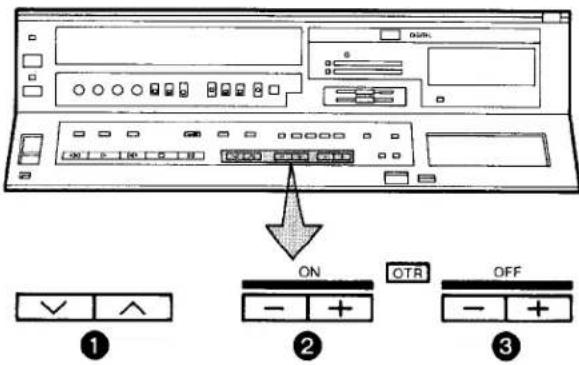
Vorbereitung
●Stellen Sie sicher, dass die Uhr die aktuelle Zeit korrekt anzeigt. - Drücken Sie den Ein/Aus-Schalter des Videorecorders, um ihn einzuschalten. - Legen Sie eine Videokassette mit intakter Aufnahmesperre ein. - Stellen Sie den Eingangssignalwähler auf "Tuner". - Stellen Sie den Audioaufnahmepegel-Wahlschalter auf "AGC". - Stellen Sie den Bandgeschwindigkeitswähler auf "SP" oder "LP".
Es ist möglich, eine OTR-Aufnahme für eine Fernsehsendung zu programmieren, die sofort oder innerhalb der nächsten 24 Stunden beginnt.
(Zum Beispiel OTR-Aufnahme einer Fernsehsendung, die von 10:30 bis 11:00 Uhr ausgestrahlt wird.)
1 Wählen Sie die Programmposition (Kanal), die aufgenommen werden soll. 2 Drücken Sie die OTR-Ein-Taste (+) oder (−), um die OTR-Startzeit auf 10:30 einzustellen.
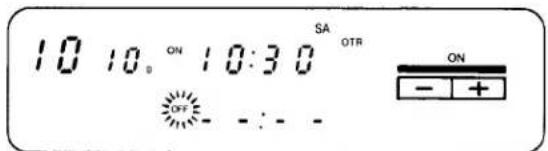
●Die Anzeige "OTR" wird angezeigt.
③ Drücken Sie die OTR-Aus-Taste (+) oder (−), um die OTR-Endzeit auf 11:00 einzustellen.
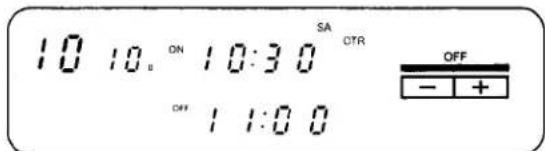
Wenn die Nase der eingelegten Videokassette herausgebrochen ist, wird sie automatisch ausgeworfen.
- Bei schnellem und wiederholtem Drücken der OTR-Ein-Taste (+) oder (−) bzw. der OTR-Aus-Taste (+) oder (−) ändert sich die entsprechende Zeitanzeige in 1-Minuten-Schritten. Bei gedrückt gehaltener Taste ändert sich die Anzeige in 10-Minuten-Schritten.
- Nach der Auswahl der Verzögerungszeit für den OTR-Start in Schritt ② muss die OTR-Aus-Taste innerhalb von 8 Sekunden gedrückt werden, um die OTR-Dauer zu wählen, andernfalls wird die gewählte Verzögerungszeit abgebrochen.
- Der Videorecorder schaltet sich automatisch aus, wenn die OTR abgeschlossen ist. Um den Videorecorder wieder einzuschalten, drücken Sie den Netzschalter.
OTR-Funktion mit sofortigem Start
Führen Sie die Bedienschritte ① und ③ aus.
- Wenn das Band während einer OTR sein Ende erreicht, schaltet sich der Videorecorder selbst aus.
- Stellen Sie sicher, dass die OTR-Funktion (Timeraufnahme mit einem Tastendruck) nicht mit einer programmierten Timeraufnahme überlappt. Eine OTR hat immer Vorrang vor einer Timeraufnahme.
- Wenn Sie vor der programmierten OTR die aktuelle Uhrzeit oder die Bandzählerposition bestätigen möchten oder während der OTR die Bandzählerposition überprüfen möchten, drücken Sie die Prüf-/Programmtaste. Um die Anzeige wieder auf die vorherige Anzeige zurückzusetzen, drücken Sie diese Taste erneut.
- Es ist möglich, die OTR-Startzeit oder die Endzeit vor Beginn der Aufnahme zu ändern.
- Es ist möglich, bis zum Beginn der Aufnahme jede Videorecorder-Funktion (außer Timeraufnahme) auszuführen.
- Es ist möglich, die OTR-Endzeit auch während der Aufnahme zu ändern.
- Um eine OTR zu unterbrechen, drücken Sie den Netzschalter, um den Videorecorder auszuschalten.
TIMERAUFNAHME
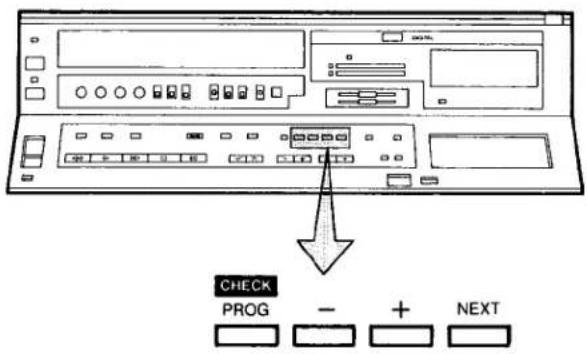
Die Programmierung von Timeraufnahmen ist sowohl am Videorecorder selbst als auch über die Fernbedienung möglich.
Programmierung von Timeraufnahmen mit der Fernbedienung
Die Tasten für die Timer-Aufnahme (Check/Programme, Next, Timer Record) der Fernbedienung haben dieselben Funktionen wie die Tasten Check/Programme, Next und Timer Record am Videorecorder. Daher können anstelle der Tasten (+) und (−) am Videorecorder die Tasten zur Auswahl der Timer-Aufnahme und Programmposition der Fernbedienung verwendet werden, um Timer-Aufnahmen zu programmieren.
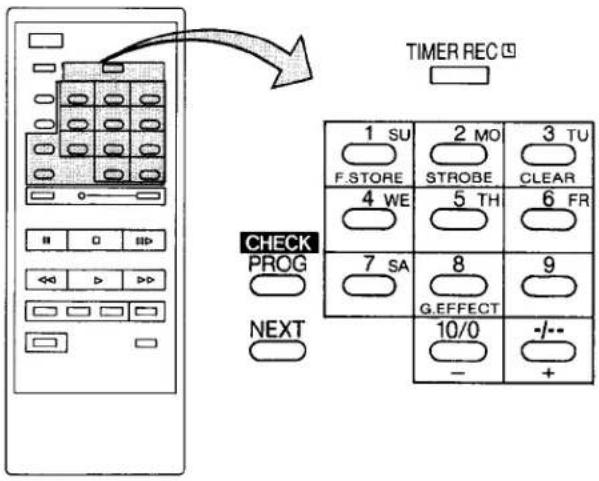
So wählen Sie die Programmposition (Kanal)
| select channel | press button | |
| 1-9 | respective channel | |
| 10 | ||
| 20 | ||
| 11-32for example 32 | ||
Wenn zwischen dem ersten, zweiten und dritten Drücken mehr als 5 Sekunden vergehen, wird der Kanal nicht normal gewechselt.
So stellen Sie Datum sowie Start- und Endzeit für Timer-Aufnahmen ein
Datum und Uhrzeit können durch direktes Drücken der Zifferntasten (1 bis 9) eingestellt werden. Wenn zwei Tasten gedrückt werden müssen (z. B. bei der Einstellung des Datums auf einen Tag zwischen 10 und 31, der Stunde zwischen 10 und 23 oder der Minute zwischen 10 und 59), muss die zweite Taste innerhalb von 2 Sekunden nach dem Drücken der ersten Taste gedrückt werden.
Vorbereitung
●Stellen Sie sicher, dass die Uhr die aktuelle Uhrzeit korrekt anzeigt. ●Stellen Sie sicher, dass der Videorecorder eingeschaltet ist. ●Stellen Sie sicher, dass die Timer-Aufnahmefunktion auf "Aus" gesetzt ist. - Stellen Sie den Eingangssignalwähler auf "Tuner". - Legen Sie eine Videokassette ein, deren Löschschutzlasche intakt ist. - Stellen Sie den Audioaufnahmepegelregler auf "AGC". - Stellen Sie den Bandgeschwindigkeitswähler auf "SP" oder "LP".
Zum Beispiel:
Programmieren Sie eine Timer-Aufnahme für eine Fernsehsendung, die am Mittwoch, den 28. September, von 20:00 bis 22:45 Uhr auf Programmposition (Kanal) 32 ausgestrahlt wird, auf Timer-Programmnummer 2. (Aktuelles Datum = 10. September 1988)
1 Drücken Sie die Taste Check/Programme, um die nächste freie Timer-Programmnummer auszuwählen.
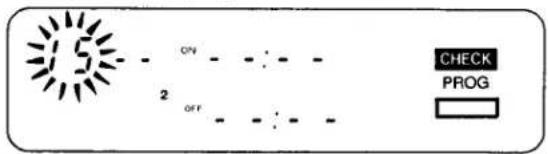
2 Drücken Sie die Taste (+) oder (−), um die Programmposition (Kanal) auszuwählen, auf der die Fernsehsendung ausgestrahlt wird.
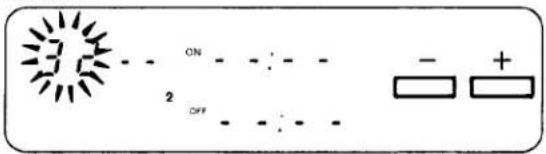
3 Drücken Sie die Taste Next.
4 Drücken Sie die Taste (+) oder (−), um das Datum einzustellen.
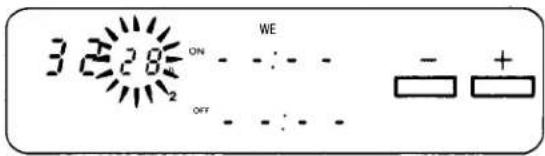
5 Drücken Sie die Taste Next.
6 Drücken Sie die Taste (+) oder (−), um die Stunde der Startzeit der Fernsehsendung auszuwählen.
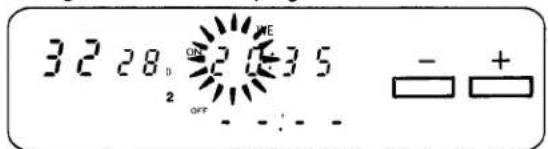
7 Drücken Sie die Taste Weiter.
8 Drücken Sie die Taste (+) oder (−), um die Minute der Startzeit des TV-Programms auszuwählen.
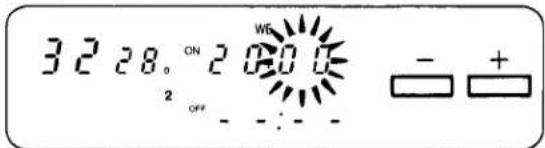
9 Drücken Sie die Taste Weiter.
10 Drücken Sie die Taste (+) oder (−), um die Stunde der Endzeit des TV-Programms auszuwählen.
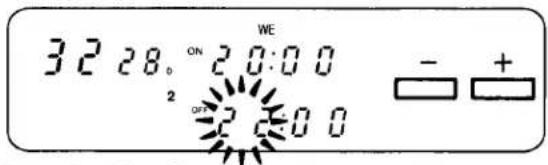
11 Drücken Sie die Taste Weiter.
12 Drücken Sie die Taste (+) oder (−), um die Minute der Endzeit des TV-Programms auszuwählen.
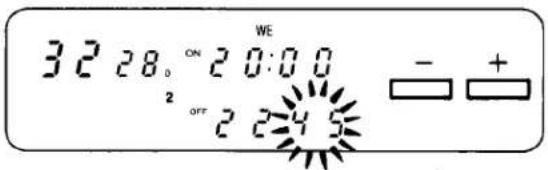
13 Drücken Sie die Taste Timer-Aufnahme.
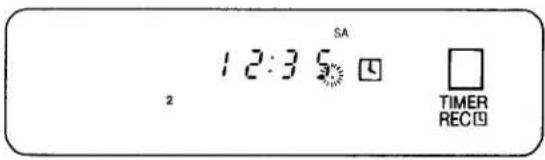
Für tägliche Aufnahme
Zum Beispiel:
Programmzeit für die Timer-Aufnahme täglich von 20:00–22:45 auf Timer-Programmnummer 7.
Die Programmierung für die tägliche Aufnahme kann auf jeder der Timer-Programmnummern 1–7 erfolgen.
Führen Sie die Bedienschritte ① bis ③ aus.
4 Drücken Sie einmal die Taste (−), sodass alle Tagesanzeigen zusammen erscheinen.
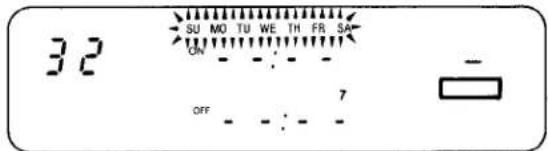
Wenn Sie eine tägliche Aufnahme mit der Fernbedienung programmieren, drücken Sie die Taste 10/0 zweimal, um alle Tagesanzeigen zusammen erscheinen zu lassen.
Führen Sie die Bedienschritte ⑤ bis ⑬ aus.
Für jede Woche Aufnahme
Zum Beispiel:
Programmieren Sie eine Timer-Aufnahme für eine Fernsehsendung, die jeden Sonntag von 20:00 bis 22:45 Uhr ausgestrahlt wird.
① Drücken Sie die Check/Programme-Taste 8 Mal, bis die Anzeige "W" erscheint.
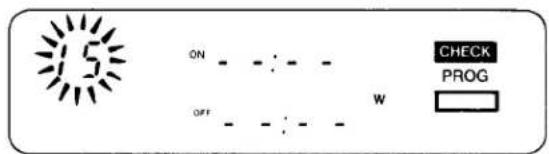
② Drücken Sie die Taste (+) oder (−), um die Programmposition (Kanal) auszuwählen, auf der die Fernsehsendung ausgestrahlt wird. ③ Drücken Sie die Next-Taste. ④ Drücken Sie die Taste (+) oder (−), um den Wochentag auszuwählen, an dem die Sendung ausgestrahlt wird.
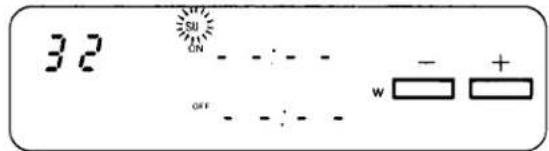
Wenn Sie eine wöchentliche Aufnahme mit der Fernbedienung programmieren, drücken Sie eine der 7 Tasten (1 su \~ 7 sa), um den Wochentag auszuwählen.
Führen Sie die Schritte ⑤ bis ⑬ auf Seite 22 aus.
Zum Bestätigen des Programms einer Timer-Aufnahme
Stellen Sie sicher, dass der Videorecorder eingeschaltet ist.
Wählen Sie die zu überprüfende Programmnummer, indem Sie die Check/Programme-Taste wiederholt drücken.
Der voreingestellte Kanal sowie Start- und Endzeit der Timer-Aufnahme werden etwa 25 Sekunden lang angezeigt.
Wenn die Timer-Aufnahmefunktion auf "Ein" gestellt ist, werden sie etwa 8 Sekunden lang angezeigt.
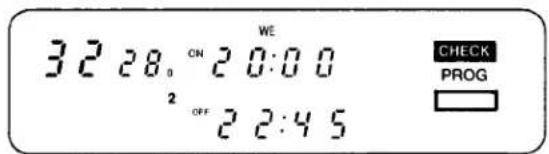
Zum Abbrechen einer Timer-Aufnahme
Stellen Sie sicher, dass:
der Videorecorder eingeschaltet ist,
Die Timer-Aufnahmefunktion ist auf "Aus" gestellt.
1 Drücken Sie die Taste Check/Programm wiederholt, bis die Nummer des Timer-Programms, das Sie löschen möchten, angezeigt wird. 2 Drücken Sie gleichzeitig die Tasten (+) und (−) für mehr als 3 Sekunden. - Es ist nicht möglich, eine programmierte Timer-Aufnahme mit der Fernbedienung zu löschen.
- Es ist nicht möglich, Programme von Timer-Aufnahmen zu bestätigen, während eine OTR durchgeführt wird.
- Um den Videorecorder einzuschalten und für Wiedergabe oder Aufnahme zu verwenden, bevor die Timer-Aufnahme durchgeführt wird, stellen Sie die Timer-Aufnahmefunktion auf "Aus".
- Wenn die Timer-Aufnahmefunktion auf "Ein" gestellt ist, aber keine Videokassette eingelegt oder keine Timer-Aufnahme programmiert wurde, blinkt die Timer-Aufnahmeanzeige, um darauf hinzuweisen, dass die Timer-Aufnahme nicht durchgeführt werden kann.
- Nachdem die programmierte Timer-Aufnahme durchgeführt wurde, stellen Sie die Timer-Aufnahmefunktion auf "Aus", da der Videorecorder sonst nicht normal bedient werden kann.
- Während der Aufnahme kann die Programmposition (Kanal) am Videorecorder nicht geändert werden.
- Wenn Sie nach dem Einstellen einer Timer-Aufnahme fernsehen möchten, wählen Sie den gewünschten Kanal am Fernsehgerät.
- Um eine Timer-Aufnahme während der Aufnahme abzubrechen, stellen Sie die Timer-Aufnahmefunktion auf "Aus".
AUDIO-NACHSYNCHRONISATION
Beachten Sie, dass der Originalton auf der "normalen" (Mono-)Tonspur während der Audio-Nachsynchronisation vollständig gelöscht wird.
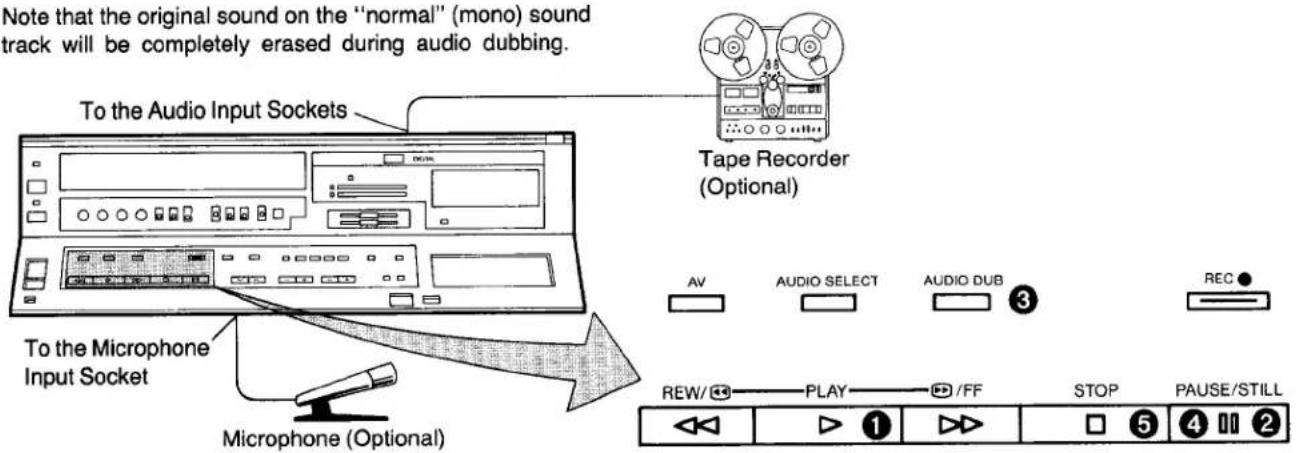
Vorbereitung
- Drücken Sie den VTR-Ein/Aus-Schalter, um den Videorecorder einzuschalten.
- Stellen Sie den Eingangssignal-Wahlschalter auf "Line/Audio".
- Legen Sie eine Videokassette mit der Löschschutzlasche ein.
- Setzen Sie den Bandzähler auf "0:00.00" zurück. ●Schalten Sie den Fernseher ein und wählen Sie den Videowiedergabekanal.
- Stellen Sie den Audio-Aufnahmepegel-Wahlschalter auf "AGC".
- Wählen Sie die Tonspur "Normal" (Mono), indem Sie den Audio-Wiedergabemodus-Wahlschalter wiederholt drücken, bis die Anzeigen für den Audio-Wiedergabemodus "Links" und "Rechts" nicht leuchten.
1 Drücken Sie die Wiedergabetaste (▶), um die Stelle zu suchen, an der Sie mit der Audio-Nachvertonung beginnen möchten. 2 Drücken Sie die Pause/Standbild-Taste (■) an der genauen Stelle, an der Sie mit der Audio-Nachvertonung beginnen möchten. ③ Drücken Sie die Audio-Nachvertonungstaste (die Anzeige leuchtet auf).
AUDIO-NACHVERTONUNG

AUDIO-NACHVERTONUNG
4 Drücken Sie die Pause/Standbild-Taste (11) erneut, um das Band aus der Pause zu lösen, und starten Sie gleichzeitig die Audioquelle. Die Audio-Nachvertonung beginnt. 5 Drücken Sie die Stopptaste (■), um die Audio-Nachvertonung zu stoppen.
- Mit der Audio-Nachvertonungsfunktion aufgenommener Ton wird auf der Tonspur "Normal" (immer in Mono) aufgezeichnet.
- Wählen Sie für die Wiedergabe die Tonspur "Normal" (Mono), indem Sie den Audio-Wiedergabemodus-Wahlschalter wiederholt drücken, bis die Anzeigen für den Audio-Wiedergabemodus "Links" und "Rechts" nicht leuchten.
- Wenn Sie ein Mikrofon für die Nachvertonung verwenden, platzieren Sie es nicht in der Nähe des Lautsprechers Ihres Fernsehers, um Heulgeräusche (akustische Rückkopplung) zu vermeiden.
- Wenn die Aufnahmesperrlasche der Kassette fehlt, ist keine Audio-Nachvertonung möglich.
- Eine Audio-Nachvertonung ist auf dem Bandabschnitt nicht möglich, auf dem kein Bild aufgezeichnet ist.
- Es ist normal, dass an der Stelle, an der die Audio-Nachvertonung endet und der Originalton beginnt, eine leichte Tonunterbrechung auftritt.
DIGITALE SPEZIALEFFEKTE
Die speziellen digitalen Bildeffekte können mit der Fernbedienung genutzt werden.
Um diese digitalen Funktionen zu bedienen, drücken Sie die Digitalfunktionstaste zusammen mit der gewünschten Funktionstaste auf der Fernbedienung.
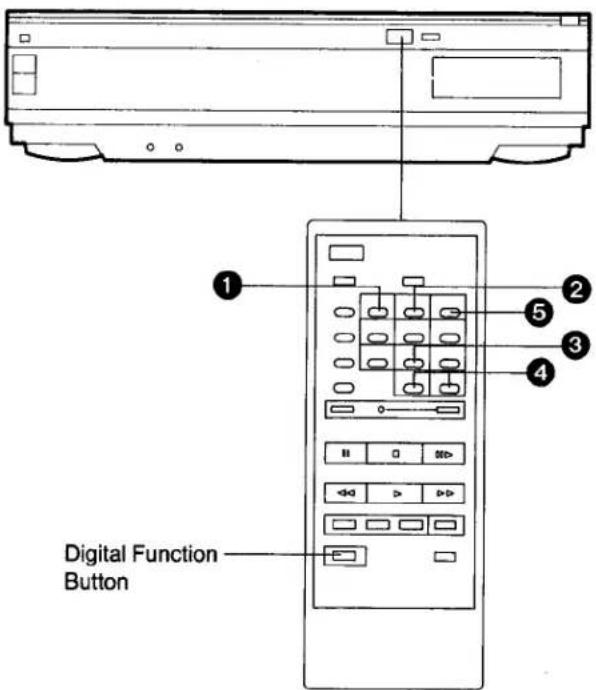
Digitaler Einzelbildspeicher
Diese Funktion friert das Wiedergabebild nicht nur von Videobändern ein, sondern auch von Fernsehsendungen (die mit dem TV-Tuner im Videorecorder empfangen werden) und von Bildern, die von externen Quellen eingegeben werden, und erzeugt ein Standbild. Die Tonwiedergabe läuft normal weiter.
1. Drücken Sie die F. Store-Taste, während Sie die Digitalfunktionstaste gedrückt halten, um das Bild einzufrieren. 5. Um zum normalen Bewegtbild zurückzukehren, drücken Sie die Clear-Taste oder die F. Store-Taste, während Sie die Digitalfunktionstaste gedrückt halten.
Digitaler Stroboskopeffekt
Diese Funktion ermöglicht eine Wiedergabe mit einem stroboskopartigen Effekt.
2. Drücken Sie die Strobe-Taste, während Sie die Digitalfunktionstaste gedrückt halten, um den Stroboskopeffekt zu starten.
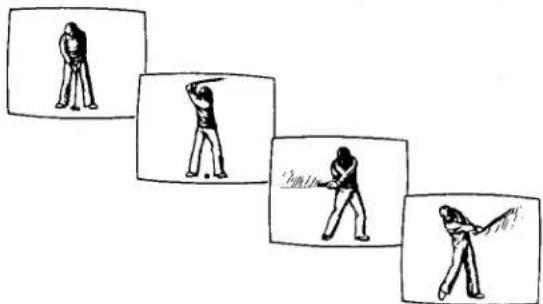
4. Die Intervalle des Stroboskops können zwischen 1 und 1/6 Sekunde variiert werden, indem Sie die (+)- oder (−)-Taste drücken, während Sie die Digitalfunktionstaste gedrückt halten. 5. Um zum normalen Bewegtbild zurückzukehren, drücken Sie die Clear-Taste oder die F. Store-Taste, während Sie die Digitalfunktionstaste gedrückt halten.
Digitaler Grafikeffekt
3. Drücken Sie die G. Effect-Taste, während Sie die Digitalfunktionstaste gedrückt halten.
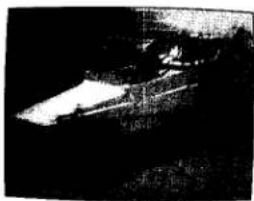
5. Um zum normalen Bewegtbild zurückzukehren, drücken Sie die Clear-Taste oder die G. Effect-Taste, während Sie die Digitalfunktionstaste gedrückt halten.
- Von diesen digitalen Bildeffekten kann nur der Grafikeffektmodus auf diesem Videorecorder aufgezeichnet werden.
- Im Digitalmodus kann das Bild vertikal vibrieren, verzerrt sein und die Farbe kann instabil sein. Dies ist jedoch keine Fehlfunktion.
- Wenn ein Band von minderer Qualität, das auf einem anderen Videorecorder aufgenommen wurde, auf diesem Videorecorder abgespielt wird und die Funktion Digitaler Einzelbildspeicher oder Digitaler Stroboskopeffekt verwendet wird, kann der obere Teil des Bildes verzerrt sein. In diesem Fall stellen Sie die Tracking-Regelung ein. Es ist jedoch möglicherweise nicht möglich, die Verzerrung vollständig zu beseitigen.
![graph LR A["20"] --> B["19"] B --> C["2"] C --> D["1"] D --> E["1"] E --> F["2"] F --> G["3"] G --> H["20"] I["Next Programme"] --> J["Second Programme Ahead"] J --> K["Twentieth Programme Ahead"] L["Programme Now Being Played Back"] --> M["Previous Programme"] N["Backward Direction"] --> O["Forward…](/content/2026/05/1036619/images/466c5340bfbaa82a762c1e340d64754635835e9939bb6f8622c88840b8909302.jpg)
Mit der Indexsuchfunktion können bis zu 20 Adressen (Stellen, an denen ein Indexsignal aufgezeichnet ist) übersprungen werden, um den Anfang des gewünschten Programms in Vorwärts- oder Rückwärtsrichtung im Schnellvorlauf- oder Rücklaufmodus direkt zu finden.
Ein spezielles Indexsignal (für die Nutzung der VHS-Indexsuchfunktion) wird automatisch jedes Mal aufgezeichnet, wenn die Aufnahmetaste gedrückt wird. Wenn Sie während der Aufnahme eines Programms ein zusätzliches Indexsignal aufzeichnen möchten, drücken Sie die Aufnahmetaste an der gewünschten Stelle erneut.
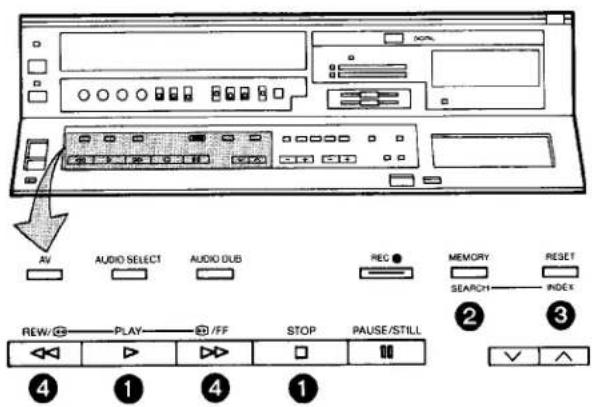
① Drücken Sie die Wiedergabetaste (▶) oder die Stopptaste (■). ② Drücken Sie die Memory/Search-Taste zweimal.
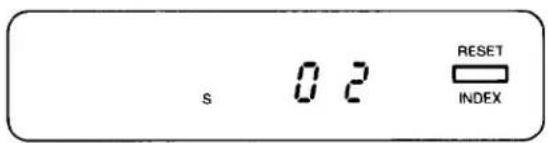
- Die Anzeige "S" erscheint im Multifunktionsdisplay.
③ Drücken Sie wiederholt die Reset/Index-Taste, um die gewünschte Adresse auszuwählen.
Die Nummer der ausgewählten Adresse wird im Multifunktionsdisplay angezeigt.
④ Drücken Sie die Rücklauf ◀◀/Review ▶ oder Schnellvorlauf ▶▶/Cue ▶ Taste, um die VHS-Indexsuchfunktion zu starten (der Videorecorder wechselt in den Rücklauf- oder Schnellvorlaufmodus).
- Jedes Mal, wenn ein Indexsignal (Adresse) übersprungen wird, verringert sich die Zahl in der Adressanzeige um eins.
- Wenn die voreingestellte Adresse erreicht ist, erscheint die Bandzähleranzeige anstelle der Adressanzeige, und die normale Wiedergabe beginnt bei anderen Videorecordern, die diese Funktion nicht haben.
- Um die Indexsuchfunktion vorzeitig abzubrechen, drücken Sie die Wiedergabe- oder die Stopptaste.
- Wenn die Aufnahme vorübergehend durch Drücken der Pausetaste gestoppt und später fortgesetzt wird, wird an dieser Stelle kein Indexsignal aufgezeichnet.
- Es ist unmöglich, nur Indexsignale auf ein bereits bespieltes Band aufzuzeichnen.
- Wenn während der Indexsuchfunktion eine Bandposition ohne Aufzeichnung passiert wird, kann diese Position als Adresse gezählt werden.
- Die Indexsuchfunktion kann die Adressen nur korrekt zählen, wenn die Indexsignale im SP-Modus mindestens 2 Minuten und im LP-Modus mindestens 5 Minuten voneinander entfernt sind.
- Wenn die Index-Suchfunktion sehr nahe am Anfang des nächsten Programms (Adresse) oder am Anfang des Bandes gestartet wird, wird die erste Adresse möglicherweise nicht gezählt.
INTRO-SCAN-FUNKTION
So funktioniert die Intro-Scan-Funktion...![graph LR A["Tape is fast-forwarded"] --> B["Playback for about 10 seconds"] B --> C["Programme"] D["Index Signal"] --> E["Programme"] E --> F["Programme"] F --> G["Programme"] style A fill:#f9f,stroke:#333 style B fill:#ccf,stroke:#333 style C fill:#cfc,stroke:#333 style D fill:#fcc,stroke:#333 styl…](/content/2026/05/1036619/images/ea648d36ec0755f564b44a70eb64ff2f6dd4cd51f222da83c3b14f0bf8ace3e3.jpg)
Die Intro-Scan-Funktion spielt die ersten 10 Sekunden jedes Programms (mit Indexsignal aufgezeichnet) auf einem Band nacheinander ab. Dies ist praktisch, um schnell zu überprüfen, welche Programme auf einem Band sind, oder um die gewünschte Folge einer aufgenommenen TV-Serie zu finden.
Bequeme Intro-Scan-Bedienung mit der Fernbedienung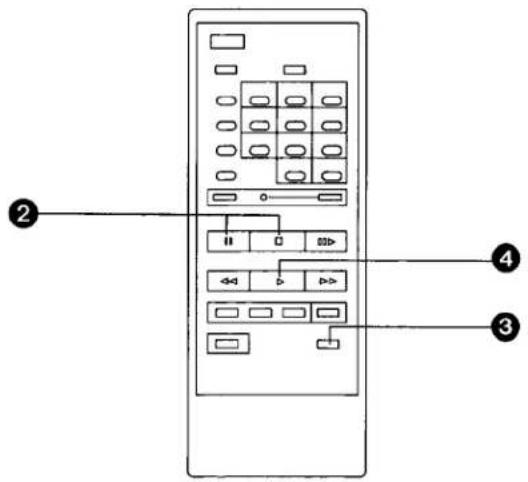
① Legen Sie eine Videokassette ein, auf der Indexsignale aufgezeichnet sind. ② Versetzen Sie den Videorecorder in den Stopp-Modus oder in den Standbild-Wiedergabemodus. ③ Drücken Sie die Intro-Scan-Taste. (Das "S"-Symbol leuchtet im Multifunktionsdisplay auf und der Intro-Scan startet.) ④ Wenn die gewünschte Szene erreicht ist, drücken Sie die Wiedergabe-Taste.
Intro-Scan-Bedienung am Videorecorder
① Legen Sie eine Videokassette ein. (Versetzen Sie den Videorecorder in den Stopp-Modus.) ② Drücken Sie die Memory/Search-Taste zweimal. (Das "S"-Symbol erscheint.) ③ Drücken Sie die Schnellvorlauf ▶▶/Cue ▶▶-Taste. (Der Intro-Scan startet.) ④ Wenn die gewünschte Szene erreicht ist, drücken Sie die Wiedergabe-Taste.
- Die Intro-Scan-Funktion wird möglicherweise nicht für das erste Programm aktiviert, das nahe am Anfang des Bandes aufgezeichnet wurde.
- Während des Intro-Scans wird, wenn es einen Abschnitt ohne Aufzeichnung auf dem Band gibt, die Intro-Scan-Funktion an dieser Position aktiviert, um das Band etwa 10 Sekunden lang abzuspielen, und der Intro-Scan wird dann fortgesetzt.
- Die Intro-Scan-Funktion wird möglicherweise nicht aktiviert, wenn der Abstand zwischen Programmstartpunkten im LP-Modus weniger als 5 Minuten oder im SP-Modus weniger als 2 Minuten beträgt.
- Wenn ein Abschnitt ohne Aufzeichnung auf dem Band im SP-Modus länger als etwa 50 Minuten oder im LP-Modus länger als etwa 90 Minuten dauert, wird die Intro-Scan-Funktion abgebrochen und die Wiedergabe startet.
VOR DER ANFORDERUNG VON KUNDENDIENST
VORSICHTSMASSNAHMEN
Bitte lesen Sie diese Vorsichtsmaßnahmen, bevor Sie diesen Videorecorder bedienen.
Vermeiden Sie plötzliche Temperaturwechsel
Wenn der VTR plötzlich von einem kalten an einen warmen Ort gebracht wird, kann sich Feuchtigkeit auf dem Band und im Inneren des VTR bilden. In diesem Fall blinkt die Feuchtigkeitsanzeige "d" und der VTR funktioniert nicht.
Feuchtigkeit und Staub
Vermeiden Sie Orte mit hoher Luftfeuchtigkeit oder viel Staub, da dies zu Schäden an internen Teilen führen kann.
Lüftungsschlitze nicht blockieren
Die Lüftungsschlitze verhindern einen abnormalen Temperaturanstieg. Blockieren oder bedecken Sie diese Schlitze nicht. Vermeiden Sie insbesondere, die Schlitze mit weichen Materialien wie Stoff oder Papier abzudecken.
Von hohen Temperaturen fernhalten
Halten Sie den VTR von extremer direkter Hitze wie direkter Sonneneinstrahlung, Heizkörpern oder geschlossenen Autos fern.
Magnete fernhalten
Bringen Sie niemals einen Magneten oder magnetisierte Gegenstände in die Nähe des VTR, da dies die Leistung des VTR beeinträchtigt.
Keine Finger oder andere Gegenstände hineinstecken
Das Berühren interner Teile dieses VTR ist gefährlich und kann zu schweren Schäden am VTR führen. Versuchen Sie nicht, den VTR zu zerlegen. Es befinden sich keine vom Benutzer wartbaren Teile im Inneren.
Von Wasser fernhalten
Halten Sie den VTR von Blumenvasen, Wannen, Waschbecken usw. fern. ACHTUNG: Wenn Flüssigkeiten in den VTR verschüttet werden, können schwere Schäden auftreten. Wenn Sie Flüssigkeit in den VTR verschütten, wenden Sie sich an qualifiziertes Servicepersonal.
Reinigung des VTR
Wischen Sie den VTR mit einem sauberen, trockenen Tuch ab. Verwenden Sie niemals Reinigungsflüssigkeit oder andere Chemikalien. Verwenden Sie auch keine Druckluft, um Staub zu entfernen.
Stapeln
Platzieren Sie den VTR in horizontaler Position und legen Sie keine schweren Gegenstände darauf.
Verstopfung der Videoköpfe
Die Videoköpfe sind das Mittel, mit dem der Rekorder während der Aufnahme Bildsignale auf das Band aufzeichnet und während der Wiedergabe Bildsignale vom Band liest. Wenn diese Köpfe durch lange Nutzung verschmutzen und verstopfen, können die Signale nicht mehr korrekt aufgezeichnet werden, und das Wiedergabebild wird entsprechend verzerrt. Dies ist zum Beispiel der Fall, wenn bei der Wiedergabe eines Bandes der Ton normal wiedergegeben wird, aber kein Bild zu sehen ist oder das Bild stark verzerrt ist. Wenn ein solches Symptom auftritt, lassen Sie den Rekorder von qualifiziertem Servicepersonal überprüfen.
Wenn sich im VTR Kondenswasser bildet
Im VTR kann sich Kondenswasser bilden, wenn:
●Der VTR befindet sich in einem Raum, in dem gerade die Heizung eingeschaltet wurde. ●Der VTR befindet sich in einem Raum mit Dampf oder hoher Luftfeuchtigkeit. ●Der VTR wird aus kalter Umgebung in einen gut beheizten Raum gebracht. ●Der VTR wird plötzlich aus kühler Umgebung, wie einem klimatisierten Raum oder Auto, an einen heißen und feuchten Ort gebracht.
Wenn sich im VTR Tau bildet: (Siehe Seite 6.)
Die Tau-Anzeige "d" auf dem Multifunktionsdisplay blinkt auf und ab, und alle Funktionstasten werden deaktiviert, um das Band und die Videoköpfe zu schützen.
Wenn die Tau-Anzeige blinkt, warten Sie, bis diese Anzeige verschwindet.
- Wenn sich im VTR Kondenswasser bildet, während der VTR-Netzschalter ausgeschaltet ist, schaltet er sich automatisch ein und die Tau-Anzeige blinkt auf und ab. Sobald das Kondenswasser aufgelöst ist, schaltet sich der VTR wieder aus.
NV-D80B
| Power Source: | 240 V AC 50–60 Hz | ||
| Power Consumption: | Approx. 32 watts | ||
| Video Recording System: | 2 rotary heads, helical scanning system | ||
| Tape Speed: | SP; 23.39 mm/sec.LP; 11.7 mm/sec. | ||
| Tape Format: | VHS tape | ||
| Record/Playback Time: | SP; 240 min. with NV-E240LP; 480 min. with NV-E240 | ||
| FF/REW Time: | Less than 5.5 min. with NV-E180 | ||
| VIDEO | |||
| Television System: | CCIR; 625 lines, 50 fields, PAL colour signal | ||
| Modulation System: | Luminance; FM azimuth recordingColour signal; converted subcarrier phase shift recording | ||
| Input Level: | VIDEO IN (BNC); AV; | 1.0 Vp-p,1.0 Vp-p, | 75 ohm, unbalanced75 ohm, unbalanced |
| Output Level: | VIDEO OUT (BNC);AV;RF Modulated; | 1.0 Vp-p,1.0 Vp-p,UHF channel 36 (±4), | 75 ohm, unbalanced75 ohm, unbalanced75 ohm, unbalanced |
| AUDIO | |||
| Input Level: | AUDIO IN (PHONO);AV;MICROPHONE; | -10 dB,-10 dB,-70 dB | more than 50 kohm, unbalancedmore than 10 kohm, unbalanced |
| Output Level: | AUDIO OUT (PHONO);AV;HEADPHONES; | -8 dB,-6 dB,-30 dB, | less than 1 kohm, unbalancedless than 1 kohm, unbalanced8 ohm |
| Audio Track: | 1 track (Normal-mono only), 2 channels (Hi-Fi sound-stereo) | ||
| Video Horizontal Resolution: | Colour; more than 240 lines (SP) | ||
| Signal-to-Noise Ratio: | Video; more than 43 dB (SP) | ||
| Dynamic Range: | Audio; more than 90 dB (Hi-Fi audio track) | ||
| Audio Frequency Response: | 20 Hz–20 kHz (Hi-Fi audio track) | ||
| Wow and flutter: | 0.005% Wrms/Hi-Fi | ||
| Operating Temperature: | 5°C–40°C | ||
| Operating Humidity: | 35%–80% | ||
| Weight: | 7.0 kg | ||
| Dimensions: | 430 (W)×109.5 (H)×357 (D) mm | ||
| Standard Accessories: | 1 pc. DIN-DIN Coaxial Cable1 pc. Programmable Remote Controller2 pcs. “R6” size batteries2 pcs. Stereo type Phono Cable1 pc. AC Mains Lead1 pc. Digital Scanner (with Programming Sheet)4 pcs. “R03” size batteries (for Digital Scanner)1 pc. Cable Clamper | ||
Gewicht und Abmessungen sind ungefähre Angaben. Technische Änderungen vorbehalten.
Matsushita Electric Trading Co., Ltd.
P.O. Box 288, Central Osaka, Japan

- BETRIEBSANLEITUNG
- PANASONIC
- INHALT
- WICHTIG
- WARNUNG
- FÜR IHRE SICHERHEIT
- ÄUSSERE ABDECKUNG NICHT ENTFERNEN
- ANSCHLUSS DES NETZKABELS
- EIGENSCHAFTEN
- DIGITALER NR-SCHALTER
- DIGITALER SPEZIALEFFEKT
- MONATS-KALENDER-TIMER
- AUTOMATIKBETRIEB
- SUPER OTR-FUNKTION (ONE-TOUCH-TIMER-AUFNAHME)
- HQ-BILDSYSTEM (HIGH QUALITY)
- RUNDENZEITZÄHLER
- DIGITAL-SCANNER
- VHS-INDEX-SUCHSYSTEM
- INTRO-SCAN-FUNKTION
- HI-FI-STEREOSYSTEM
- AUFNAHME UND WIEDERGABE VON "SIMULCAST"-TON
- DIGITAL STILL, DIGITAL STILL ADVANCE UND DIGITAL DOUBLE FINE SLOW PLAYBACK
- PROGRAMMIERBARE FERNBEDIENUNG
- STUNDEN AUFNAHME UND WIEDERGABE
- BEDIENELEMENTE UND KOMPONENTEN
- STROMVERSORGUNG FÜR DIE FERNBEDIENUNG
- VORSICHT BEIM BATTERIEWECHSEL
- LEGEN SIE DIE BATTERIEN WIE FOLGT EIN
- HINWEIS
- INSTALLATION
- ABSTIMMUNG DES FERNSEHGERÄTS AUF DEN VIDEO-WIEDERGABEKANAL
- ANSCHLIESSEN DES AV-KABELS AN DEN VIDEORECORDER
- EINSTELLEN DES TUNERS IM VIDEORECORDER
- VORBEREITUNG
- EINSTELLEN DER UHR AUF DIE AKTUELLE ZEIT
- BEISPIEL: STELLEN SIE DIE UHR AUF SAMSTAG, DEN 10. SEPTEMBER 1988, 12:35 UHR
- DIE VIDEOCASSETTE
- EINLEGEN EINER VIDEOCASSETTE (AUTOMATISCHER BETRIEB)
- HINWEISE
- ENTFERNEN EINER VIDEOKASSETTE
- WIEDERGABE
- RÜCKLAUF UND SCHNELLVORLAUF
- ZEITZÄHLER
- SPEICHERFUNKTION
- AUTOMATISCHER BETRIEB
- ① NORMALE WIEDERGABE
- ② EINSTELLUNG DES HI-FI-AUDIO-TRACKINGS
- ③ WIEDERGABE BEENDEN
- ④ DIGITALE STANDBILDWIEDERGABE
- ⑤ SUCHLAUF-WIEDERGABE
- WIEDERGABE-ÜBERPRÜFUNG
- WIEDERGABE MIT DER FERNBEDIENUNG
- DIGITALE STANDBILD-SCHRITTWEITEN-WIEDERGABE
- DIGITALE DOPPEL-FEINSLOW-WIEDERGABE
- ZEITLUPEN-SPURREGELUNG
- DOPPELTE WIEDERGABEGESCHWINDIGKEIT
- AUFNAHME VON EINEM FERNSEHSIGNAL
- SO BEENDEN SIE DIE AUFNAHME
- WENN SIE UNERWÜNSCHTES MATERIAL VERMEIDEN MÖCHTEN
- AUFNEHMEN EINES TV-PROGRAMMS, WÄHREND SIE EIN ANDERES ANSEHEN
- BANDGESCHWINDIGKEITS-WAHLSCHALTER
- MANUAL ADJUSTMENT OF THE AUDIO RECORDING LEVEL
- HI-FI AUDIO SYSTEM
- AUFNAHME VON SIMULCAST-TON
- WIEDERGABE (ODER ÜBERWACHUNG WÄHREND DER AUFNAHME)
- VERWENDUNG DES VIDEORECORDERS ALS HI-FI-AUDIORECORDER
- HI-FI-AUDIOAUFNAHME
- HI-FI-AUDIOWIEDERGABE
- EINSTELLUNG DER HI-FI-AUDIO-SPUR
- SUPER-OTR-FUNKTION (AUFNAHME MIT EINEM TASTENDRUCK)
- OTR-FUNKTION MIT SOFORTIGEM START
- TIMERAUFNAHME
- PROGRAMMIERUNG VON TIMERAUFNAHMEN MIT DER FERNBEDIENUNG
- SO STELLEN SIE DATUM SOWIE START- UND ENDZEIT FÜR TIMER-AUFNAHMEN EIN
- ZUM BEISPIEL
- FÜR TÄGLICHE AUFNAHME
- FÜR JEDE WOCHE AUFNAHME
- ZUM BESTÄTIGEN DES PROGRAMMS EINER TIMER-AUFNAHME
- ZUM ABBRECHEN EINER TIMER-AUFNAHME
- AUDIO-NACHSYNCHRONISATION
- DIGITALE SPEZIALEFFEKTE
- DIGITALER EINZELBILDSPEICHER
- DIGITALER STROBOSKOPEFFEKT
- DIGITALER GRAFIKEFFEKT
- INTRO-SCAN-BEDIENUNG AM VIDEORECORDER
- VOR DER ANFORDERUNG VON KUNDENDIENST
- VORSICHTSMASSNAHMEN
- VERMEIDEN SIE PLÖTZLICHE TEMPERATURWECHSEL
- FEUCHTIGKEIT UND STAUB
- LÜFTUNGSSCHLITZE NICHT BLOCKIEREN
- VON HOHEN TEMPERATUREN FERNHALTEN
- MAGNETE FERNHALTEN
- KEINE FINGER ODER ANDERE GEGENSTÄNDE HINEINSTECKEN
- VON WASSER FERNHALTEN
- REINIGUNG DES VTR
- STAPELN
- VERSTOPFUNG DER VIDEOKÖPFE
- WENN SICH IM VTR KONDENSWASSER BILDET
- IM VTR KANN SICH KONDENSWASSER BILDEN, WENN
- WENN SICH IM VTR TAU BILDET: (SIEHE SEITE 6.)
Marke : PANASONIC
Modell : NV-D80EV
Kategorie : Videorekorder