
VC-M20 - Videorekorder SHARP - Kostenlose Bedienungsanleitung
Finden Sie kostenlos die Bedienungsanleitung des Geräts VC-M20 SHARP als PDF.
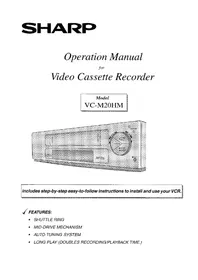


| Produkttyp | Videorekorder |
| Marke | Sharp |
| Modell | VC-M20 |
| Farbe | Schwarz/Silber |
| Abmessungen (B x H x T) | 430 mm x 95 mm x 330 mm |
| Gewicht | ca. 4,5 kg |
| Stromversorgung | 220-240 V, 50 Hz |
| Leistungsaufnahme | ca. 20 W (Betrieb), 5 W (Standby) |
| Bandformat | VHS |
| Videokopf | 2-Kopf |
| Geschwindigkeit | SP, LP, EP |
| Timer | 8-Tage / 1-Programm |
| Fernbedienung | Infrarot-Fernbedienung enthalten |
| Anschlüsse | HF-Ausgang, SCART, Cinch (Audio/Video) |
| Bildstabilisierung | JA (automatisch) |
| Kopierschutz | Macrovision |
| Reinigung | Videoköpfe mit Reinigungskassette säubern |
| Sicherheit | Kindersicherung, Netzstecker ziehen bei Gewitter |
| Zubehör | Fernbedienung, SCART-Kabel, Bedienungsanleitung |
Häufig gestellte Fragen - VC-M20 SHARP
Benutzerfragen zu VC-M20 SHARP
0 Frage zu diesem Gerät. Beantworten Sie die, die Sie kennen, oder stellen Sie Ihre eigene.
Eine neue Frage zu diesem Gerät stellen
Laden Sie die Anleitung für Ihr Videorekorder kostenlos im PDF-Format! Finden Sie Ihr Handbuch VC-M20 - SHARP und nehmen Sie Ihr elektronisches Gerät wieder in die Hand. Auf dieser Seite sind alle Dokumente veröffentlicht, die für die Verwendung Ihres Geräts notwendig sind. VC-M20 von der Marke SHARP.
BEDIENUNGSANLEITUNG VC-M20 SHARP
SHARP
Bedienungsanleitung
für
Videorecorder
Modell
VC-M20HM
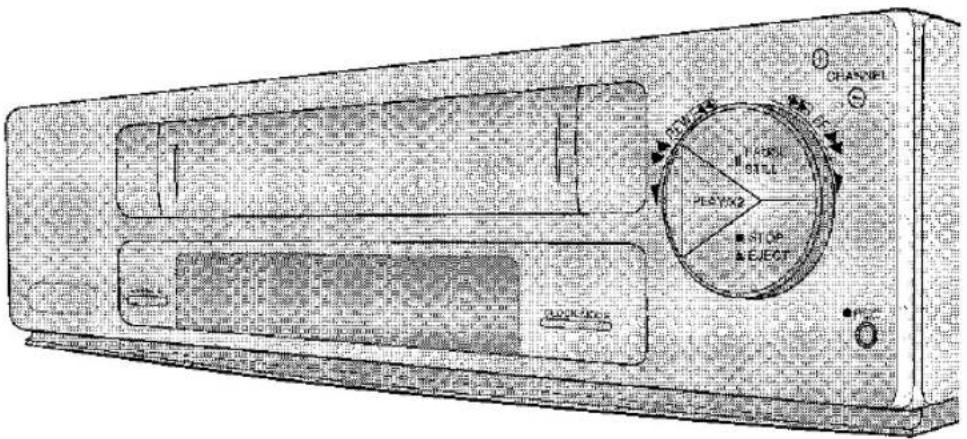
Enthält Schritt-für-Schritt-Anleitungen, die leicht zu befolgen sind, um Ihren Videorecorder zu installieren und zu verwenden.
√ FUNKTIONEN:
- SHUTTLE-RING • MID-DRIVE-MECHANISMUS • AUTO-TUNING-SYSTEM
- LANGZEITWIEDERGABE (VERDOPPELT AUFNAHME-/WIEDERGABEZEIT.)

SICHERHEITSWARNHINWEISE
Zu Ihrer Sicherheit und zur Gewährleistung der Produktqualität beachten Sie alle Warnhinweise.

INFORMATIONEN
Diese Hinweise geben zusätzliche Informationen, die die Anweisungen ergänzen.
INHALT
INSTALLATION
Auspacken des Zubehörs....2
Idealer Standort für den Videorecorder....3
Anschluss des Videorecorders an Fernseher und Antenne 4
Abstimmen des Videokanals 5
Abstimmen des Videorecorders auf die Fernsehkanäle 7
Kanalüberspringen/-suche 9
Einstellen der Uhr 10

GRUNDLEGENDE BEDIENUNG
Einführung einschließlich Wiedergabe einer Videokassette 11
AUFNAHME
Für eine sofortige Aufnahme 15
Einfacher Timer....16
Zeitgesteuerte Timer-Aufnahmen (Serie von 8) 18

ERWEITERTE BEDIENUNG
Restzeitanzeige 20
Bandzähler und Null-Rückstellfunktion 20
Modussperre 21
Überspringen 21
Digitales Programmsuchsystem (DPSS) 21
Automatische Wiederholung 22
OPTIONALE ANSCHLÜSSE
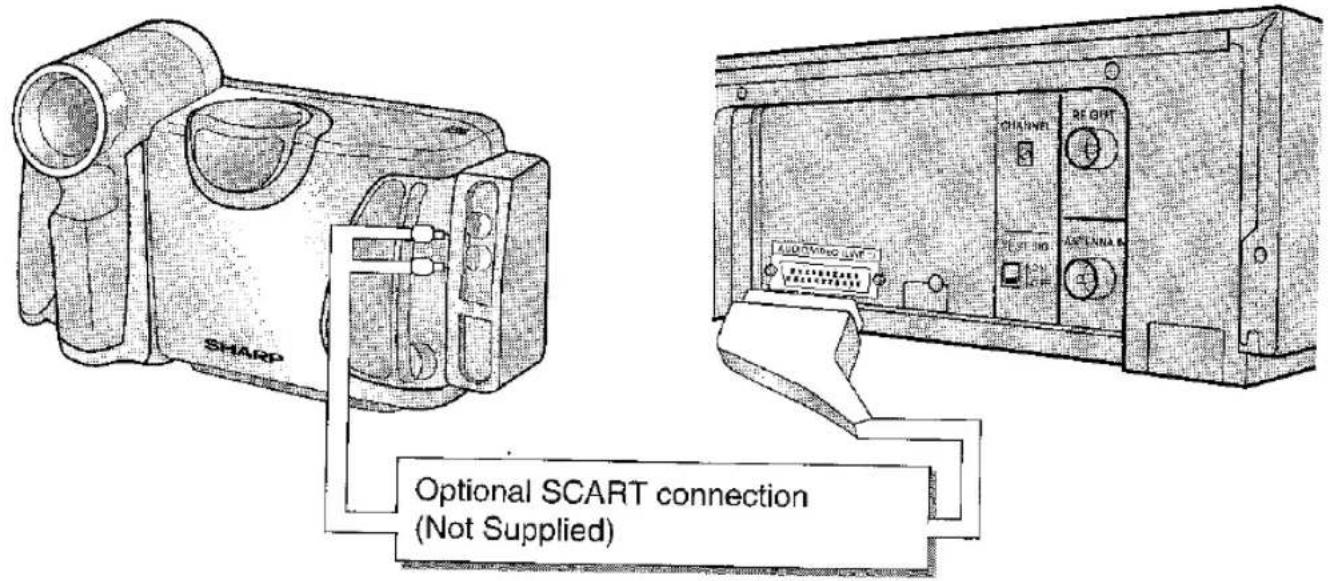
Anschluss einer Camcorder 23

HILFREICHE HINWEISE
Anschluss an das Stromnetz 24
Fehlerbehebung 25
Kundendienst und Garantie 26
Das SHARP-Produktsortiment 27
Technische Daten hintere Umschlagseite
AUSPACKEN DES ZUBEHÖRS
Prüfen Sie, ob das Zubehör mit Ihrem Videorecorder geliefert wurde.
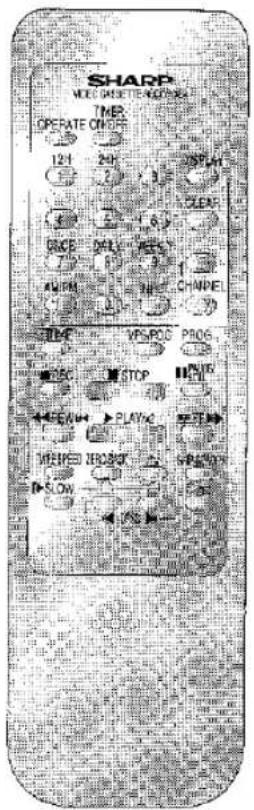
FERNBEDIENUNG bedient den Videorecorder.
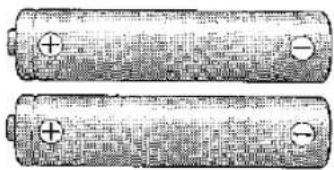
BATTERIEN (TYP AA)
Für die Fernbedienung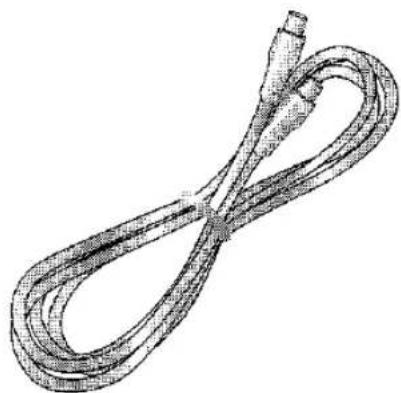
KOAXIALKABEL verbindet den Videorecorder mit dem Fernseher. WENN ZUBEHÖR FEHLT, WENDEN SIE SICH AN IHREN HÄNDLER.
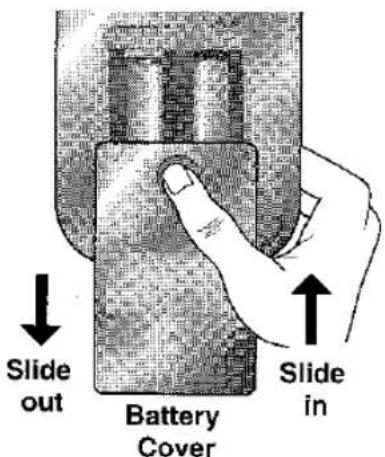
So legen Sie die Batterien in die Fernbedienung ein:
Drücken Sie 🙏 und schieben Sie die Batteriefachabdeckung auf der Rückseite der Fernbedienung nach unten.
Legen Sie die Batterien ein: ⊕ an ⊕ und ⊖ an ⊖.
Schieben Sie die Batteriefachabdeckung wieder zurück.

Fernbedienung:
• Nicht Flüssigkeit oder Stößen aussetzen. - Funktioniert möglicherweise nicht, wenn der Videorecorder direktem Sonnenlicht oder anderem starkem Licht ausgesetzt ist. - Ersetzen Sie beide Alkaline-Batterien (Typ AA), wenn die Fernbedienung nicht funktioniert. - Entfernen Sie die Batterien und bewahren Sie sie an einem sicheren Ort auf, wenn Sie den Videorecorder mehrere Monate nicht verwenden möchten. - Entfernen und entsorgen Sie leere Batterien umgehend. • Unsachgemäße Verwendung der Batterien kann zu Auslaufen oder Platzen führen.
IDEALER AUFSTELLUNGSORT FÜR DEN VIDEOREcORDER
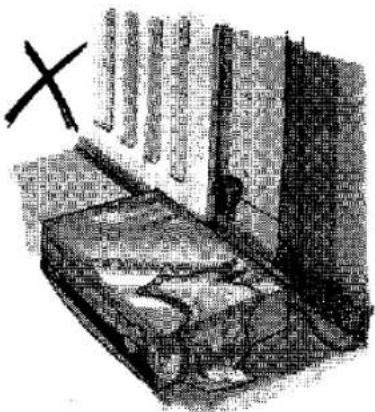
- Stellen Sie den Videorecorder auf eine ebene, waagerechte Fläche, entfernt von Heizkörpern oder anderen Wärmequellen und vor direkter Sonneneinstrahlung geschützt.
- Lassen Sie Belüftungsraum um den Videorecorder und halten Sie ihn von Vorhängen, Teppichen oder anderen Materialien fern.
- Blockieren Sie nicht die Lüftungsöffnungen.
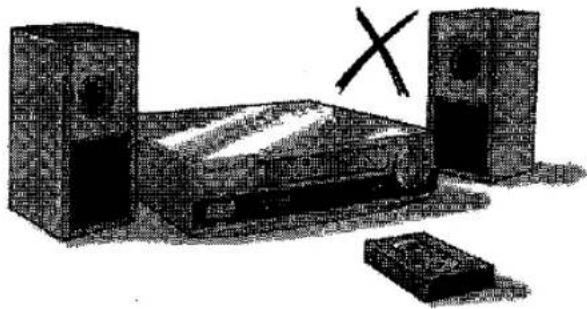
- Halten Sie den Videorecorder und Videokassetten von Magnetquellen wie Lautsprechern oder Mikrowellenherden fern.
- Stellen Sie den Videorecorder mindestens 20 cm vom Fernseher entfernt auf.
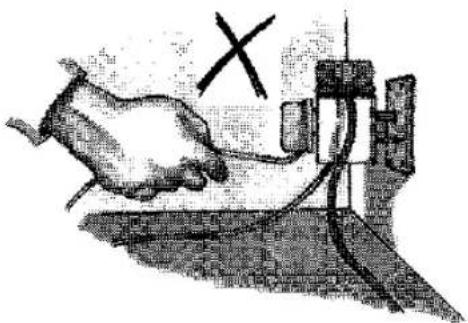
- Überlasten Sie keine Steckdosen, dies kann Brand oder elektrischen Schlag verursachen.
- Ziehen Sie niemals am Netzkabel, um den Stecker aus der Steckdose zu ziehen.
- Stecken Sie den Stecker richtig in die Steckdose, um Überhitzung und sogar Brand zu vermeiden.
- Vermeiden Sie, den Videorecorder übermäßigem Staub, mechanischen Vibrationen oder Stößen auszusetzen.
- Legen Sie keine schweren Gegenstände auf den Videorecorder.
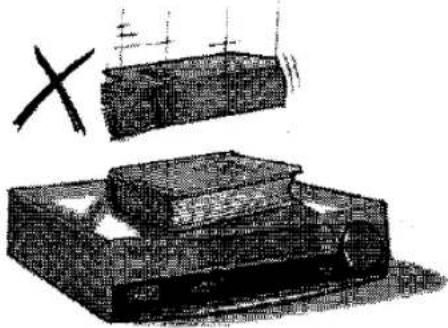
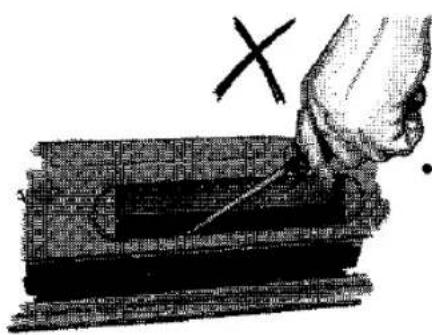
- Führen Sie keine Gegenstände in das Kassettenfach oder durch die Lüftungsöffnungen ein und lassen Sie nichts hineinfallen, da dies zu ernsthaften Schäden, Brand oder sogar elektrischem Schlag führen kann.
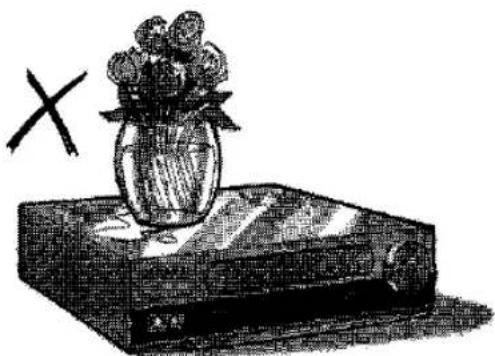
- Stellen Sie keine schweren Gegenstände oder Flüssigkeiten auf den Videorecorder. Wenn Flüssigkeit in den Videorecorder gelangt, ziehen Sie sofort den Netzstecker und wenden Sie sich an Ihren SHARP-Händler oder eine von SHARP zugelassene Serviceeinrichtung (siehe Seite 26).
ANSCHLUSS DES VIDEORECORDERS AN FERNSEHER UND ANTENNE
![graph TD A["1 Connect your existing aerial cable to the VCR using the ANTENNA IN socket."] --> B["2 Connect the VCR to the TV with the coaxial cable supplied using the RF OUT (VCR) and Aerial IN (TV) sockets."] B --> C["3 Connect the VCR plug to the mains socket. The VCR is now in STANDBY mode. The…](/content/2026/05/1036609/images/352a80faaa6cdfb483c1b780edd80737541aa52fe72e62d963a07c721cc301f1.jpg)

• Zum Austausch von Netzsteckern und Sicherungen siehe ANSCHLUSS AN DAS STROMNETZ, Seite 24.
EINSTELLEN DES VIDEOKANALS
![graph LR A["Device 1"] -->|Press OPERATE to turn the VCR on. The display will appear:| B["Display"] B --> C["SHARP OUTPUT"] C --> D["Timer ON/OFF"] D --> E["Display"]](/content/2026/05/1036609/images/51c0d72ea73cef7eb2349805f7031949bf0e3b2c795cb110eb2876c0928ac477.jpg)
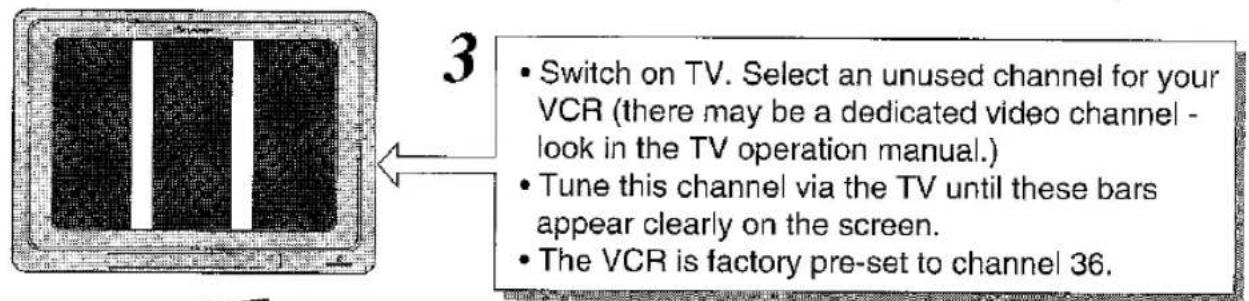
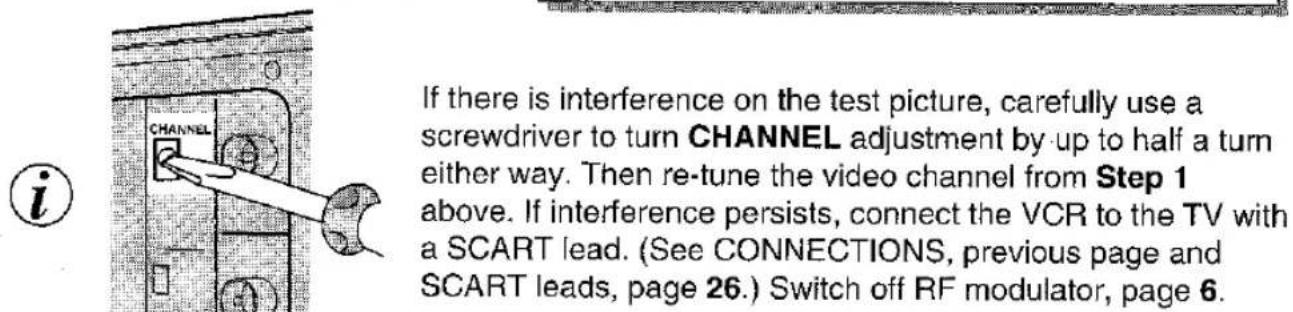
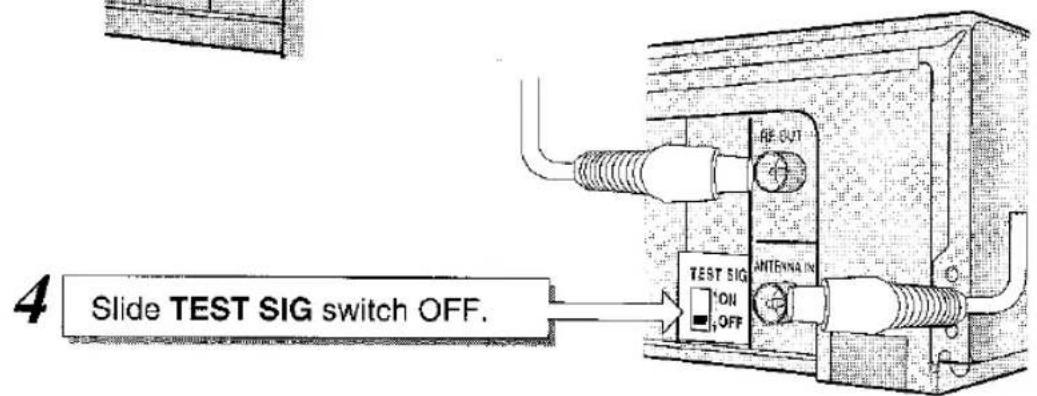
√ Der Fernseher ist auf den Videorecorder abgestimmt. Stimmen Sie nun den Videorecorder auf die Fernsehkanäle ab (siehe Seite 7).
Falls Störungen im Fernsehbild nicht beseitigt werden können, verbinden Sie den Videorecorder über ein SCART-Kabel mit dem Fernseher (siehe Seite 4) und schalten Sie den HF-Modulator aus.
1
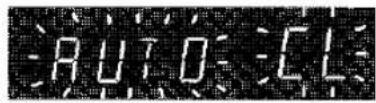
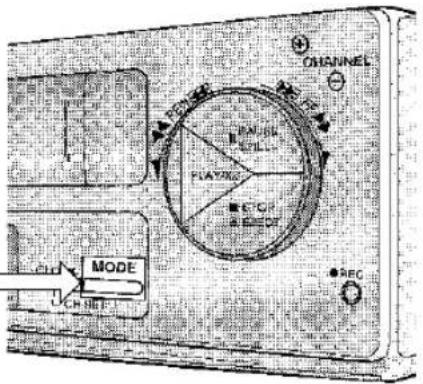
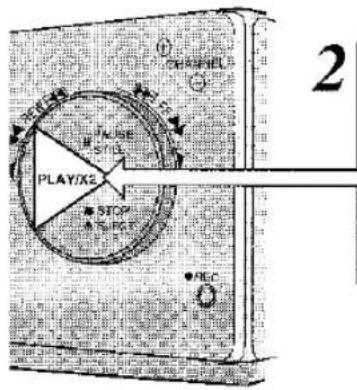
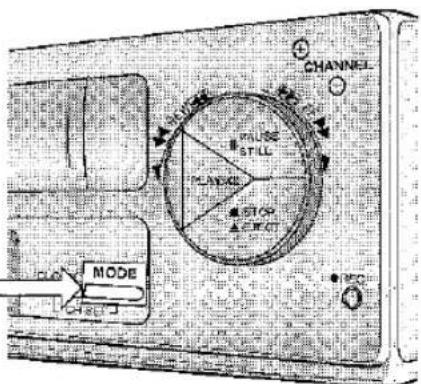
Drücken Sie MODE etwa 2 Sekunden lang, dann drücken Sie PLAY/X2. Die Anzeige zeigt:
2
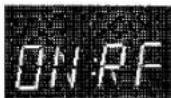
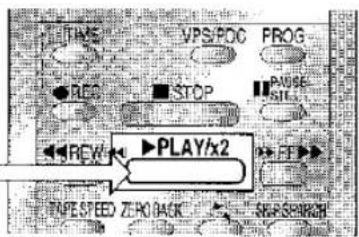
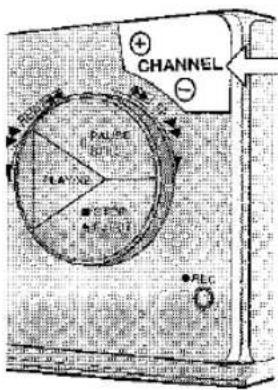
Drücken Sie PLAY/X2 einmal, um in den HF-MODULATOR-Schaltmodus zu gelangen. Die Anzeige zeigt:
3
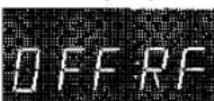
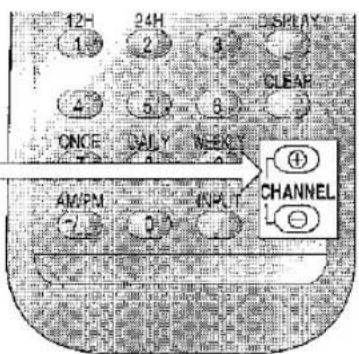
Zum Ausschalten (oder Einschalten) des HF-Modulators drücken Sie CHANNEL⊕ (oder ⊖). Die Anzeige zeigt:
4
Drücken Sie MODE, um den HF-Einstellmodus zurückzusetzen.
ABSTIMMUNG DES VIDEORECORDERS AUF DIE FERNSEHKANÄLE - AUTOMATISCHE ABSTIMMUNG
1
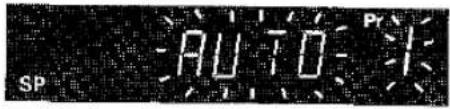
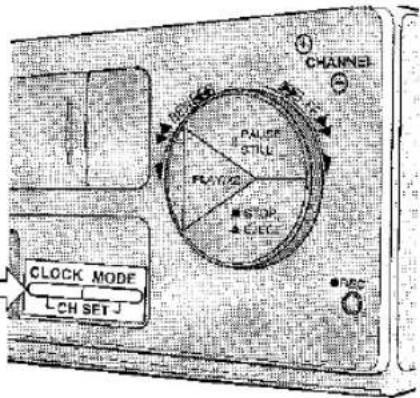
Halten Sie CLOCK und MODE gleichzeitig gedrückt, bis die Anzeige blinkt:
2
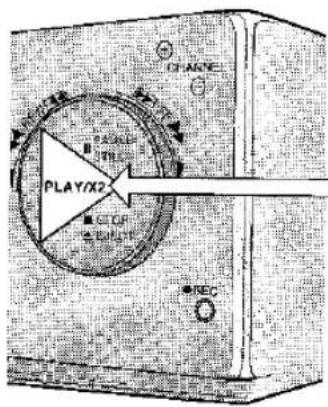
Drücken Sie einmal PLAY/X2. Der automatische Sendersuchlauf startet und weist guten Kanälen eine Programmrnummer zu. Die Anzeige zeigt den Kanal und das Programm, das gerade gesucht wird, z. B.
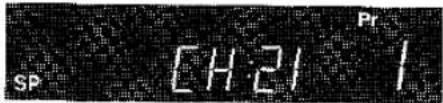
Wenn der automatische Sendersuchlauf beendet ist, kehrt die Anzeige zurück zu:
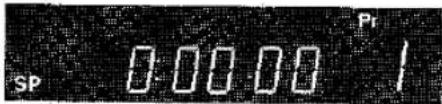
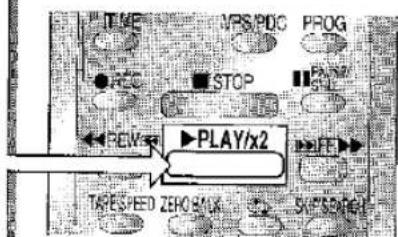

3
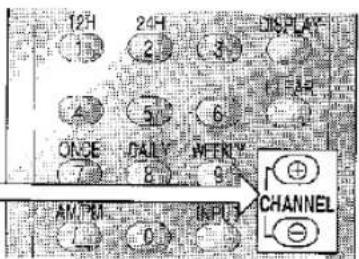
Überprüfen Sie, ob die Kanäle in Ihrer bevorzugten Reihenfolge abgestimmt sind. Drücken Sie CHANNEL ⊕ (oder ⊖), um zur nächsten (oder vorherigen) Programmrnummer und zum nächsten (oder vorherigen) Kanal zu gelangen.
Zum Beispiel, aktuelle Programmrnummer
ist

Drücken Sie CHANNEL⊕
einmal; der Kanal wechselt und
die Anzeige wechselt zu:


- Wenn Sie nicht sicher sind, welcher Kanal über den Videorecorder angezeigt wird, prüfen Sie am Fernseher.
- In manchen Gebieten kann der automatische Sendersuchlauf nicht alle Programme erfolgreich oder in Ihrer bevorzugten Reihenfolge einstellen. In diesem Fall verwenden Sie den manuellen Sendersuchlauf (siehe nächste Seite).
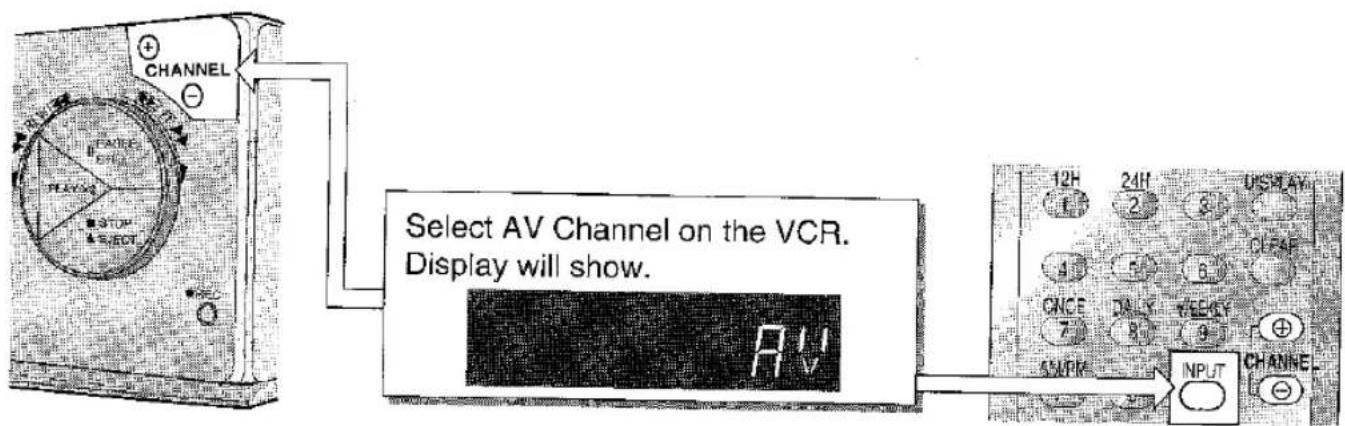
- Wenn die Anzeige sp 00000 RV zeigt, handelt es sich um den AV-Kanal, der für Aufnahmen von einer externen Quelle, z. B. einem Camcorder, verwendet wird (siehe Seite 23).
ABSTIMMUNG DES VIDEORECORDERS AUF DIE TV-KANÄLE – MANUELLE ABSTIMMUNG
Versuchen Sie zuerst die automatische Abstimmung (vorherige Seite). Wenn die Kanäle nicht erfolgreich oder nicht in der gewünschten Reihenfolge abgestimmt werden, verwenden Sie die manuelle Abstimmung, um einzelne Kanäle neu abzustimmen:
1
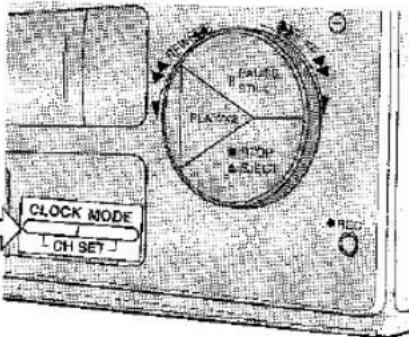
Halten Sie CLOCK und MODE gleichzeitig gedrückt, bis die Anzeige blinkt:
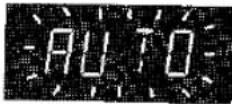
2
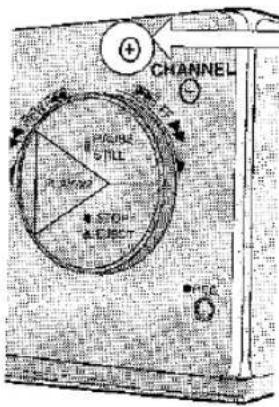
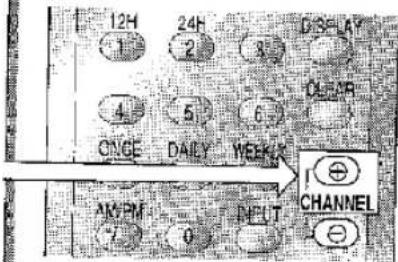
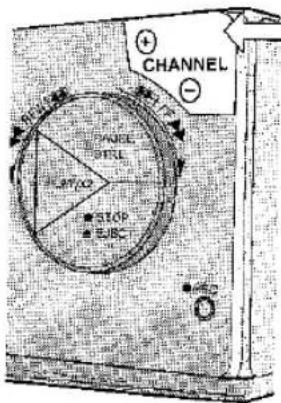
Drücken Sie einmal CHANNEL⊕ für die manuelle Abstimmung. Die Anzeige variiert je nach Programmnummer. Zum Beispiel blinkt die Anzeige für Programm 1 wie folgt:
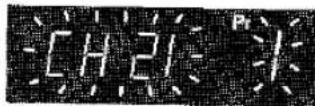
Drücken Sie einmal PLAY/X2, um die manuelle Abstimmung zu bestätigen.
3
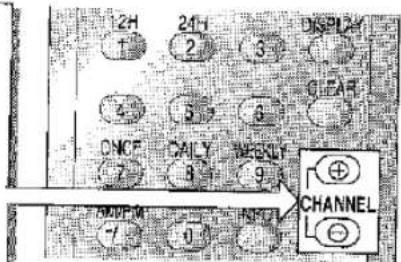
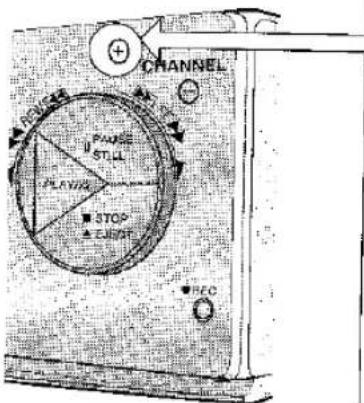
Um die Programmnummer auszuwählen, die Sie neu abstimmen möchten, drücken Sie CHANNEL ⊕ (oder ⊖), um das nächste (oder vorherige) Programm auszuwählen. Die Anzeige blinkt mit der Programmnummer, zum Beispiel:

Drücken Sie einmal PLAY/X2, um die Programmnummer zu bestätigen.
4
Drücken Sie CHANNEL ⊕, um die Kanalsuche zu starten. Wenn ein starkes Signal gefunden wird, stoppt die Suche und die Anzeige blinkt mit der Kanalnummer, z. B.
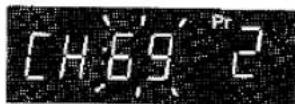
Drücken Sie CHANNEL ⊕, um die Suche fortzusetzen, oder drücken Sie PLAY/X2, um den Kanal und das Programm zu speichern.
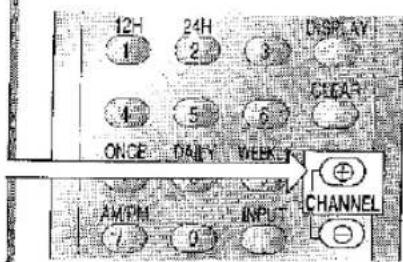
ABSTIMMUNG DES VIDEORECORDERS AUF DIE TV-KANÄLE – MANUELLE ABSTIMMUNG

Überprüfen Sie Ihren Fernseher, um sicherzustellen, dass Sie den richtigen Kanal in den Videorecorder eingestellt haben. Kehren Sie dann zum Videokanal zurück. Wenn die Kanäle nicht übereinstimmen, wiederholen Sie Schritt 4.
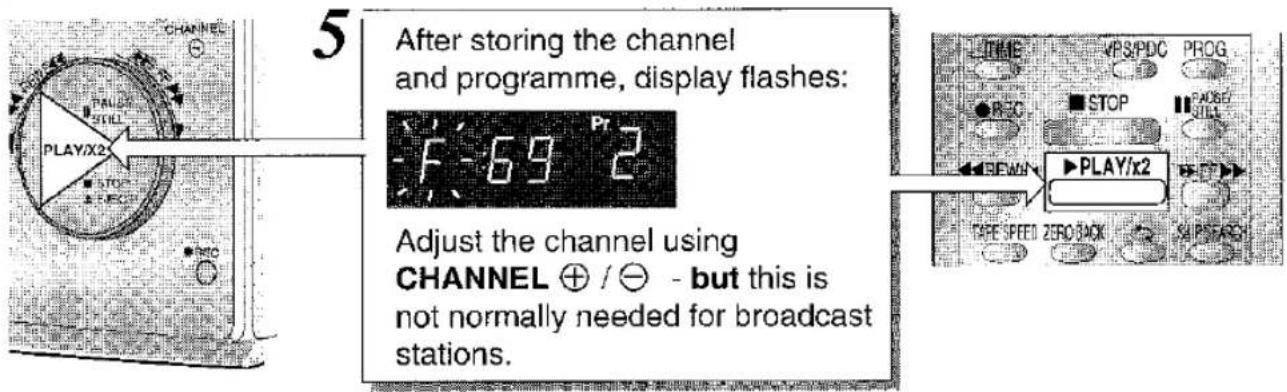
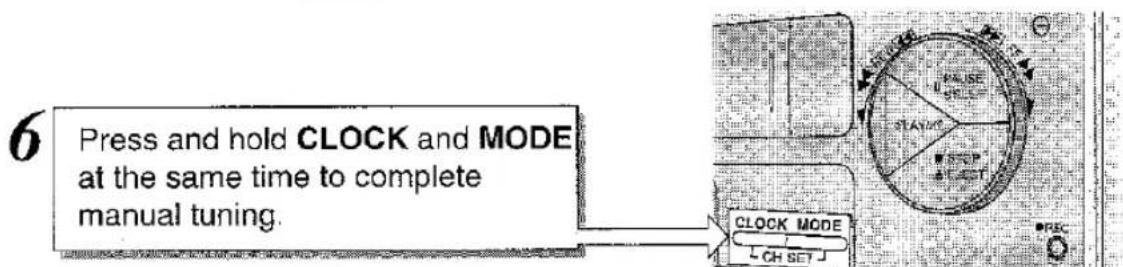

Um andere Kanäle neu abzustimmen, wiederholen Sie die Schritte ab Schritt 1.

INSTALLATION
KANAL ÜBERSPRINGEN/SUCHEN
1 Wählen Sie die Programmnummer, die Sie überspringen möchten, mit den Tasten KANAL +/- aus.
![graph TD A["2 Press and hold CLOCK and MODE at the same time until the display appears: AUTO"] --> B["3 Press CHANNEL ⊕ to select manual mode. Typical display: CH28 12"] B --> C["4 Press PLAY/X2 once and the programme number starts to flash. Typical display: CH28 12"] C --> D["5 To skip the programm…](/content/2026/05/1036609/images/68712a4136092561d1df3699ea077f98ec2c95a109d0d561b9d410c8692dee24.jpg)

• Um zum normalen Modus zurückzukehren, halten Sie CLOCK und MODE etwa 2 Sekunden lang gedrückt. - Wiederholen Sie die Schritte 1 bis 5, um andere Programmnummern zu überspringen.
EINSTELLEN DER UHR
Zum Beispiel, um die 12-Stunden-Uhr auf 21:03 Uhr am 11. Dezember 1996 einzustellen.
1
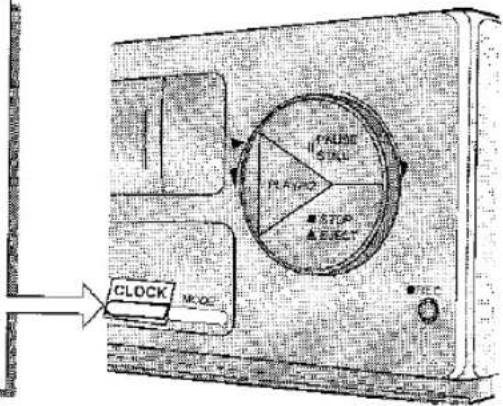
Halten Sie CLOCK gedrückt, bis die Anzeige blinkt:
oder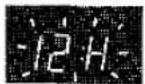
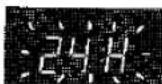
(Um die alternative Uhr auszuwählen, drücken Sie KANAL +.) Drücken Sie CLOCK und die Anzeige blinkt die Uhrzeit:
(12H)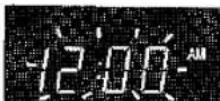
oder (24H)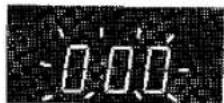
2
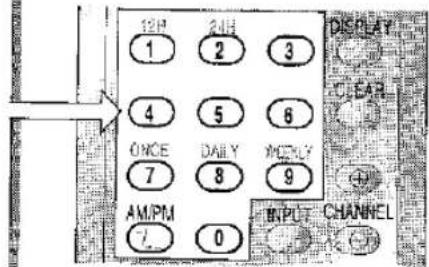
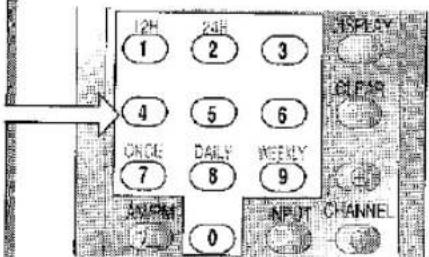
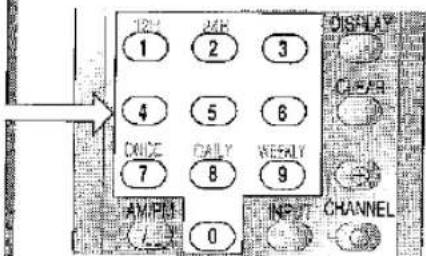
Um die aktuelle Uhrzeit einzustellen, verwenden Sie die Zifferntasten auf der Fernbedienung. Um 21:03 Uhr einzustellen, drücken Sie 9 - 0 - 3 und die AM/PM-Taste ⏻, bis PM erscheint:
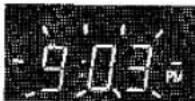
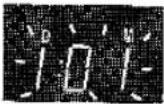
Prüfen Sie, ob die Anzeige die aktuelle Uhrzeit zeigt, und drücken Sie dann CLOCK zur Bestätigung. Das Display blinkt Datum und Monat:
3
Zum Einstellen des aktuellen Datums und Monats verwenden Sie die Zifferntasten auf der Fernbedienung. Um den 11. Dezember einzustellen, geben Sie zuerst das Datum ein: 1 - 1, dann den Monat: 1 - 2.
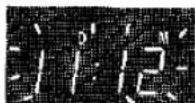
Prüfen Sie, ob die Anzeige das aktuelle Datum und den Monat zeigt, und drücken Sie dann CLOCK zur Bestätigung. Das Display blinkt das Jahr:
4
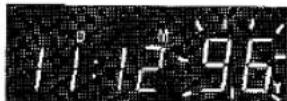
Zum Einstellen des Jahres verwenden Sie die Zifferntasten auf der Fernbedienung. Um 1996 einzustellen, geben Sie die letzten beiden Ziffern ein - drücken Sie 9 - 6.
Prüfen Sie die Anzeige und drücken Sie dann
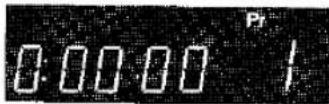
CLOCK, um die Uhr zu starten. Die Anzeige kehrt zurück zu:
i
Wenn Sie einen Fehler machen, drücken Sie CLOCK, um zu beenden, und beginnen Sie dann erneut.
√ Jetzt ist die Uhr eingestellt, Sie können zeitgesteuerte Aufnahmen machen (Seite 16).
Verwendung von Fernbedienung und Videorecorder:
- Wenn in dieser Bedienungsanleitung Fernbedienung und Videorecorder nebeneinander gezeigt werden, verwenden Sie entweder das eine oder das andere, um eine Funktion zu bedienen.
- Bitte beachten Sie, dass die VPS/PDC-Taste auf der Fernbedienung bei diesem Modell nicht funktioniert.
Kurze Erklärung der Digitalanzeige:
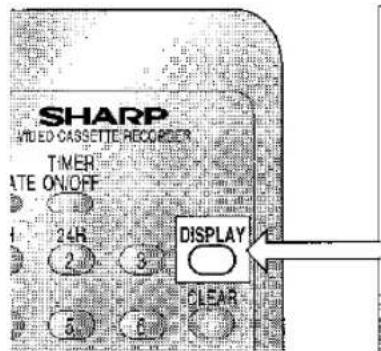
Wenn Sie DISPLAY drücken, ändert sich die Anzeige am Videorecorder.
- Bandzähler: Zählt das Videoband in Echtzeit und zeigt die aktuelle Position an. Wenn kein Videoband eingelegt ist, erscheint die Anzeige:

- Restband: Der Videorecorder berechnet die verbleibende Menge des Videobands. Wenn zum Beispiel 1 Stunde und 23 Minuten Videoband übrig sind, erscheint die Anzeige:

(Ein Videoband muss eingelegt sein - 📄 erscheint auf der Anzeige.)
- Uhrzeit: Zeigt die aktuelle Uhrzeit an, sofern eingestellt. Zum Beispiel erscheint 13:20 Uhr als:

Auswahl der Programmnummer - Es gibt zwei Methoden:
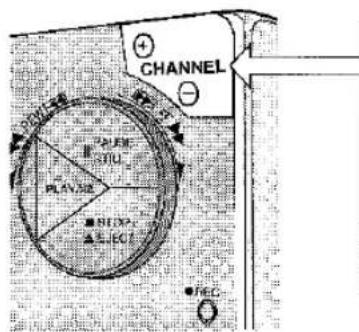
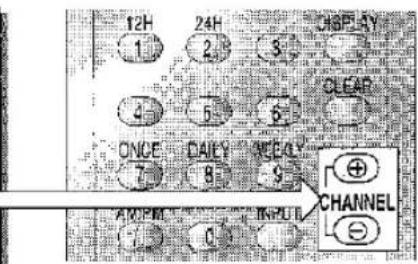
Wählen Sie die nächste/vorherige Programmnummer durch Drücken von CHANNEL ⊕/⊖. Die Anzeige zeigt die Programmnummer, zum Beispiel:
ODER
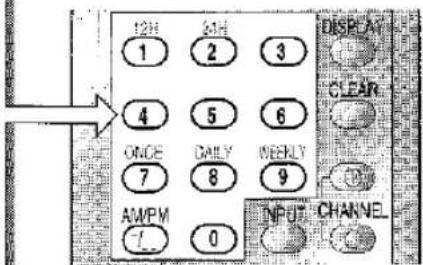
Wählen Sie die Programmnummer mit den Zifferntasten auf der Fernbedienung. Zum Beispiel für Programm 2 drücken Sie
- Die Anzeige zeigt:

Um zwischen ein- und zweistelligen Programmnummern zu wechseln, drücken Sie Ⓥ. Zum Beispiel, um von einstelliger auf zweistellige Eingabe zu wechseln, drücken Sie Ⓥ und dann für Programm 24 die Tasten 2 · 4.
Die Anzeige zeigt:


ACHTUNG! VOR DEM EINLEGEN EINES VIDEOBANDS IN DEN VIDEORECORDER.
Im Videorecorder bildet sich Kondenswasser, wenn er von einem warmen an einen kalten Ort oder umgekehrt bewegt wird. Wenn Sie versuchen, wiederzugeben oder aufzunehmen, können das Videoband und der Videorecorder beschädigt werden. Schalten Sie den Videorecorder ein und warten Sie einige Stunden, bis er sich erwärmt hat, bevor Sie ihn benutzen.
VIDEOBÄNDER:
• Verwenden Sie nur Videokassetten, die das

Zeichen tragen.
PAL
- Die Aufnahme ist nur möglich, wenn die Löschschutzlasche der Kassette vorhanden ist.
- Wenn die Lasche entfernt wurde und Sie auf das Band aufnehmen möchten, kleben Sie die Öffnung mit Klebeband ab.
KOPFREINIGUNG
- Wenn Sie nur hochwertige Videokassetten verwenden, ist eine Reinigung der Videoköpfe nicht erforderlich. Tatsächlich führt die häufige Verwendung bestimmter Reinigungskassetten zu einem vorzeitigen Ausfall der Videoköpfe.
- Wenn minderwertige Bänder verwendet werden oder ein Band nach einem Standortwechsel des Videorecorders eingelegt wird, kann Oxid vom Band die Videoköpfe "verstopfen". Dies führt zu einem "schneereichen" oder sogar verschwindenden Wiedergabebild.
- Spielen Sie ein Videoband im Suchlauf (siehe Seite 14) ab, um leichte Verschmutzungen zu entfernen. Wenn dies nicht gelingt, müssen die Köpfe von einer SHARP-Serviceeinrichtung gereinigt werden.
- Bitte beachten Sie: Wenn eine Reinigung erforderlich ist, ist diese nicht durch die Garantie abgedeckt.
WIEDERGABE EINES VIDEOBANDES:
- Schalten Sie den Fernseher ein. Wählen Sie den Videokanal.
- Schieben Sie vorsichtig ein bespieltes Videoband in das Kassettenfach, wie in der Abbildung gezeigt. [oo] erscheint in der Anzeige. Dadurch wird der Videorecorder eingeschaltet.
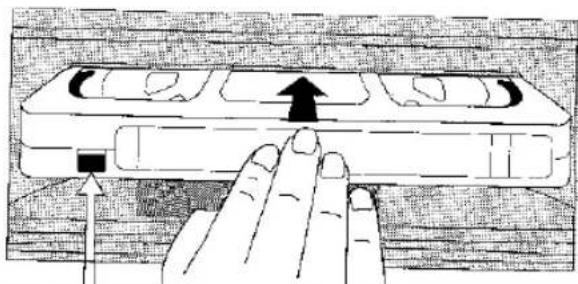
Löschschutzlasche der Kassette

Wenn die Löschschutzlasche der Kassette entfernt wurde, startet der Videorecorder die Wiedergabe, sobald das Videoband eingelegt ist. Der Videorecorder befindet sich nun im Auto-Rental-Modus (siehe Seite 13).
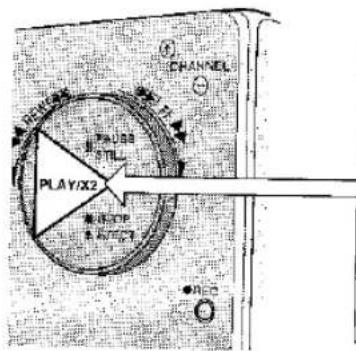
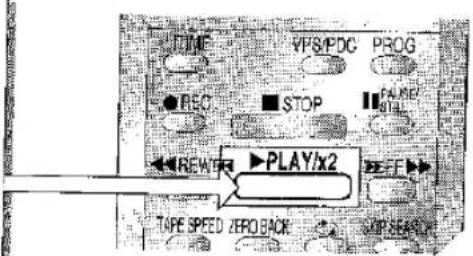
Drücken Sie zum Starten der Wiedergabe einmal PLAY/X2.
Für die doppelte Wiedergabegeschwindigkeit ohne Ton drücken Sie PLAY/X2 erneut.
Um zur normalen Wiedergabe zurückzukehren, drücken Sie PLAY/X2 erneut.
BILDSTÖRUNGEN
- Das automatische Nachfühlsystem reduziert Bildstörungen und aktiviert sich automatisch zu Beginn der Wiedergabe oder wenn der Videorecorder einen aufgenommenen Abschnitt auf einem zuvor leeren Band erreicht. - Blinken in der Anzeige zeigt an, dass die automatische Nachführung aktiviert wird.
- Um die automatische Nachführung manuell zu aktivieren, halten Sie die Tasten CHANNEL ⊕ und ⊖ gleichzeitig gedrückt, bis die Anzeige blinkt.
- Um Störlinien zu justieren, drücken Sie CHANNEL ⊕/⊖, um die Bildstörung vom Bildschirm zu positionieren.
AUTOMATISCHER MIETMODUS
Wenn der Videorecorder ausgeschaltet ist und eine Kassette mit entferntem Aufnahmeschutz eingelegt wird, schaltet sich der Videorecorder automatisch ein, sucht den Anfang der Aufnahme auf dem Band und spielt ihn ab. Am Ende der Aufnahme spult der Videorecorder zurück, wirft die Kassette aus und schaltet sich aus.
GRUNDLEGENDE BEDIENUNG
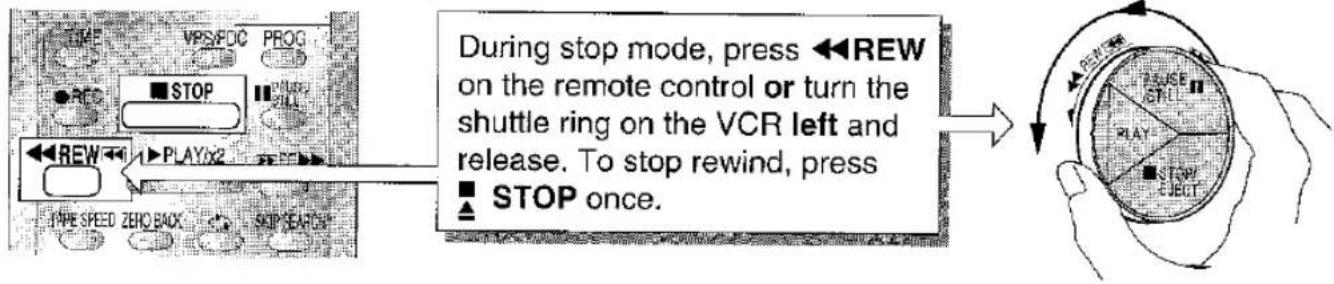
RÜCKSPULEN UND SCHNELLVORLAUF RÜCKSPULEN
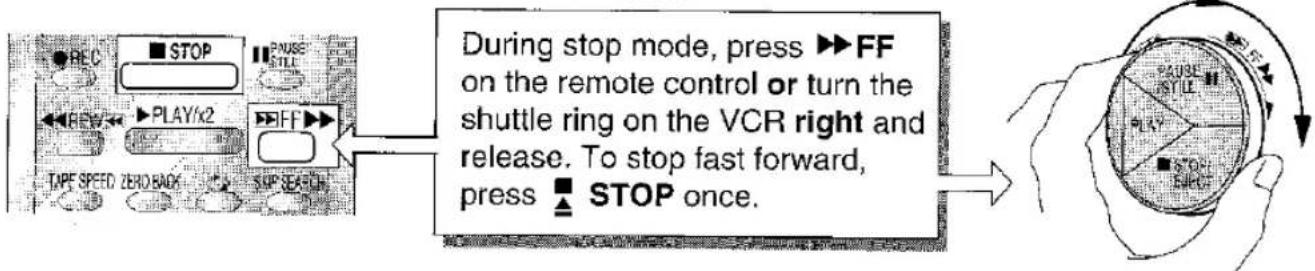
SCHNELLVORLAUF
VISUELLE SUCHE (RÜCKWÄRTS & VORWÄRTS)
VERWENDUNG DER FERNBEDIENUNG:
VERWENDUNG DES SHUTTLE-RINGS
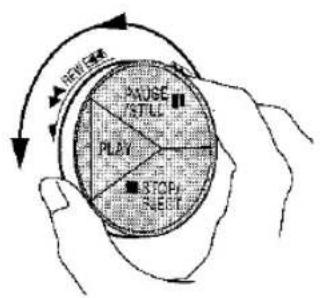
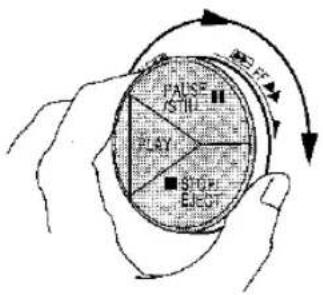
Während der Wiedergabe den Shuttle-Ring nach links drehen für Rückwärts ◀ und nach rechts für Vorwärts ▶ bei der Videosuche.
Sie schalten zwischen zwei Suchgeschwindigkeiten um, wenn Sie den Shuttle über die Hälfte drehen. Ring loslassen, um die Wiedergabe fortzusetzen. Shuttle weit nach links/rechts drehen, um den Suchmodus zu sperren, dann einmal PLAY/X2 drücken, um die Wiedergabe fortzusetzen.

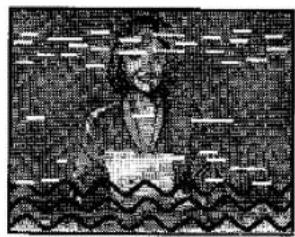
- Während der Suche erscheinen Rauschbalken auf dem Fernseher.
- Der obere Teil des Bildes kann bei Long-Play (LP)-Bändern seitlich versetzt sein.
GRUNDLEGENDE BEDIENUNG
STANDBILD UND ZEITLUPEN-WIEDERGABE
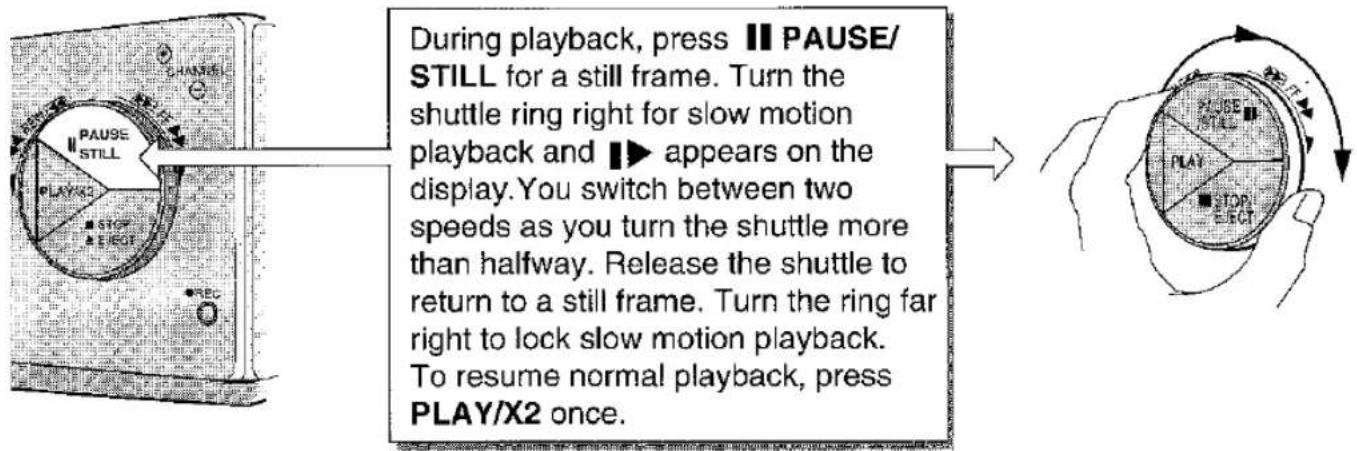

- Während des Standbilds den Shuttle-Ring nach links drehen, und der Videorecorder wechselt in die Rückwärts-Videosuche. Shuttle weit nach links drehen, und die Bildsuche wird gesperrt.
- Der PAUSE-Modus wird nach etwa 5 Minuten aufgehoben.
- Bei Verwendung dieser Funktionen kann es zu Bildstörungen kommen.
FÜR EINE SOFORTIGE AUFNAHME
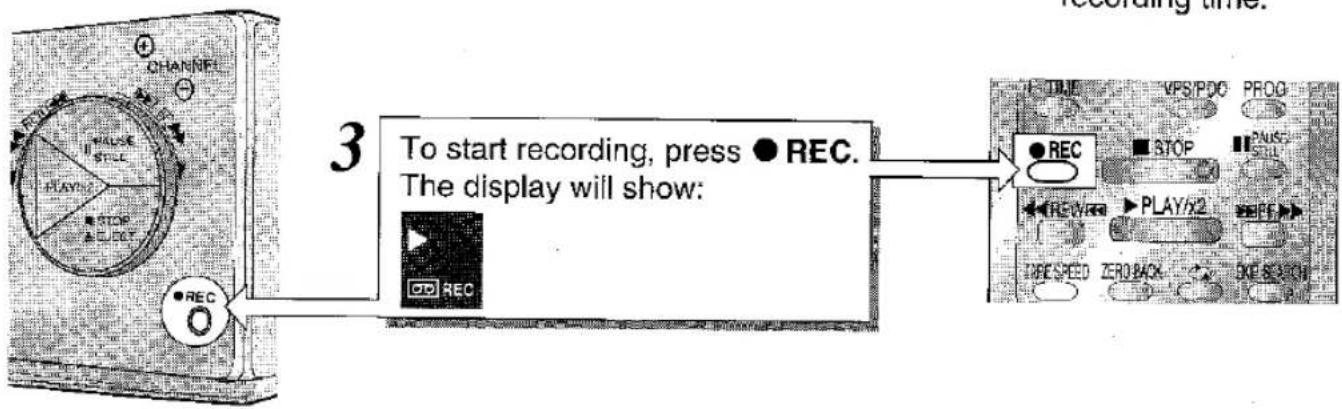
Sie können das Programm aufnehmen, das Sie gerade sehen, oder einen anderen Kanal. Die Aufnahme wird fortgesetzt, bis Sie STOP drücken oder das Bandende erreicht ist.
2
Um die Aufnahmegeschwindigkeit zwischen Standard-Play (SP) und Long-Play (LP) zu ändern, TAPE SPEED drücken. SP oder LP erscheint auf der Anzeige.
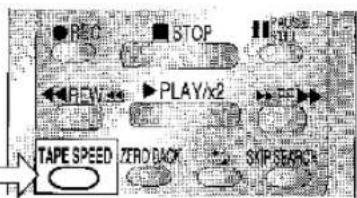

Standard-Play bietet die beste Bildqualität; Long-Play bietet die längste Aufnahmezeit.
![graph LR A["Start"] --> B{To pause during recording, press} B --> C["Pause/Still"] B --> D["Play/2"] B --> E["Select"] B --> F["STOP"] B --> G["RECY"] B --> H["RECY/STILL"] B --> I["Display will appear"]](/content/2026/05/1036609/images/2b91d48b4b82017b2febe2aa5de3d48450cd2ae6471239fc1e628799e4ff8b6a.jpg)
![graph LR A["STOP ▲EJECT"] --> B["To continue recording, press"] B --> C["REC. To stop recording, press"] C --> D["STOP once only."] D --> E["■ STOP"] E --> F["■ PLAY/2"] F --> G["TYPESPEED ZEROBACK"] G --> H["SAT/SEACH"]](/content/2026/05/1036609/images/b1e8c035df852667868cd61d6d21f3dc74806719cbbd8b478d8bbf6b59e8f245.jpg)

- Es ist nicht notwendig, die Uhr für eine sofortige Aufnahme einzustellen.
- Wenn das TV-Signal schwach ist, kann die Wiedergabe von Aufnahmen schwarz-weiß statt in Farbe sein.

AUFNAHME
EINFACHER TIMER - ZEITGESTEUERTE ABSCHALTUNG
Sie können sofort mit der Aufnahme beginnen und eine Stoppzeit für Aufnahmen festlegen - nützlich zum Beispiel bei unerwartetem Besuch oder einem Telefonanruf.
- Die Uhr des Videorecorders muss zuerst eingestellt werden (siehe Seite 10).
- Stellen Sie sicher, dass die eingelegte Videokassette eine Kassettenschutzlasche hat (siehe Seite 12).
- Wenn TIMER auf dem Display erscheint, drücken Sie zweimal OPERATE, bevor Sie beginnen.
1
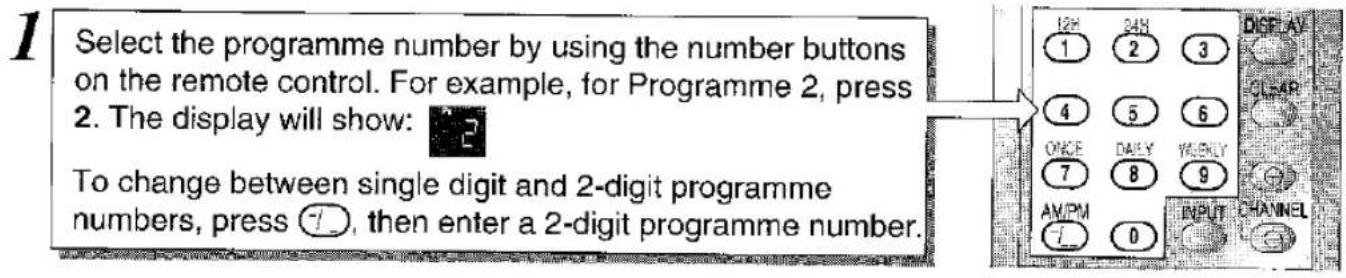
Wählen Sie die Programmnummer mit den Zifferntasten der Fernbedienung. Zum Beispiel für Programm 2 drücken Sie
- Das Display zeigt:

Um zwischen einstelligen und zweistelligen Programmnummern zu wechseln, drücken Sie ⏻ und geben Sie dann eine zweistellige Programmnummer ein.
2
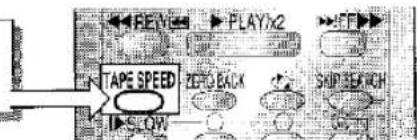
Um zwischen Aufnahme im Standardmodus (SP) und Langzeitmodus (LP) zu wechseln, drücken Sie TAPE SPEED.
i
Standard-Play bietet die beste Bildqualität; Long-Play bietet die längste Aufnahmezeit.
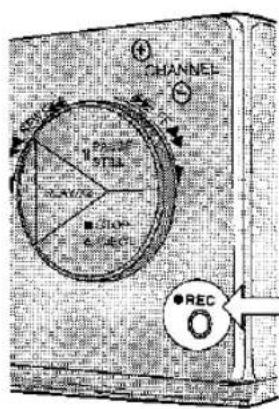
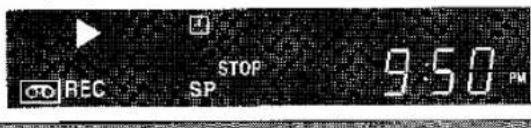
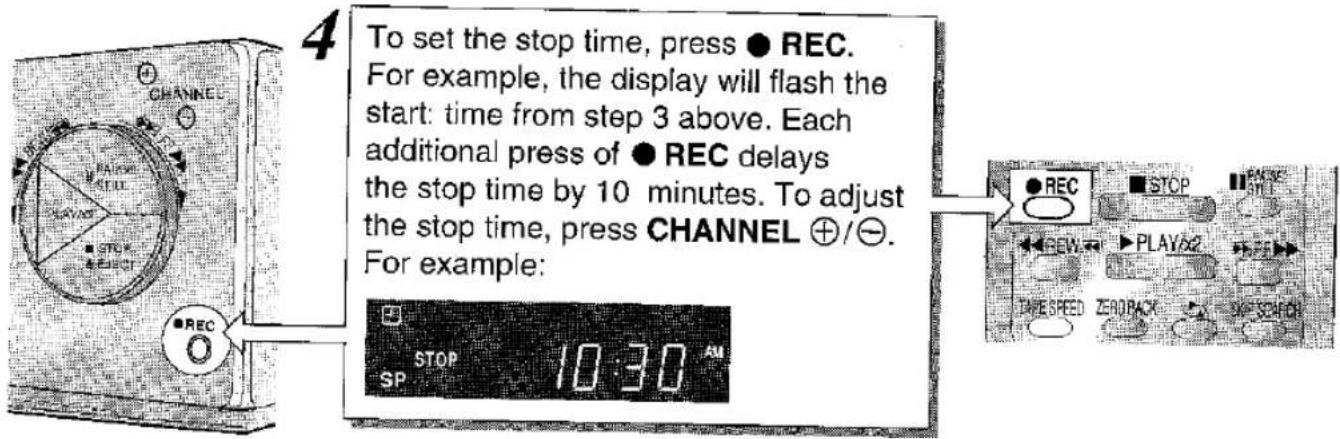
Drücken Sie ● REC einmal, um die Aufnahme zu starten. Um die Stoppzeit festzulegen, drücken Sie ● REC erneut. Jeder weitere Druck auf ● REC verzögert die Stoppzeit um 10 Minuten. Passen Sie die Anzahl der Minuten mit CHANNEL ⊕/⊖ an. Typische Anzeige:
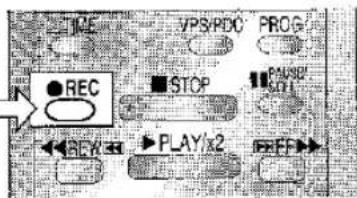
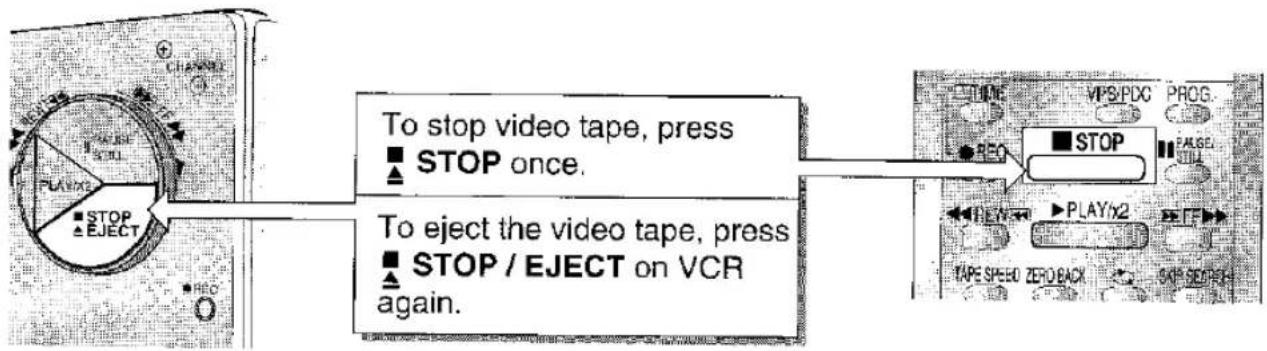
Zum Abbrechen der Aufnahme und der Zeitschaltung drücken Sie einmal ■ STOP.
AUFNAHME
EINFACHER TIMER - VERZÖGERTER START
Stellen Sie eine spätere Start- und Stoppzeit für eine Aufnahme innerhalb der nächsten 24 Stunden ein - nützlich, wenn Sie das Haus verlassen oder schlafen gehen.
- Die Uhr am Videorecorder muss zuerst eingestellt sein (siehe Seite 10).
- Stellen Sie sicher, dass die eingelegte Videokassette eine Kassettenschutzlasche hat (siehe Seite 12).
- Wenn TIMER auf der Anzeige erscheint, drücken Sie zweimal OPERATE, bevor Sie beginnen.
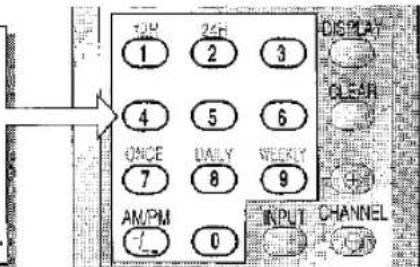
Wählen Sie die Programmnummer mit den Zahlentasten auf der Fernbedienung. Zum Beispiel für Programm 2 drücken Sie
- Die Anzeige zeigt:

Um zwischen einstelligen und zweistelligen Programmnummern zu wechseln, drücken Sie Ⓥ und geben Sie dann eine zweistellige Programmnummer ein.
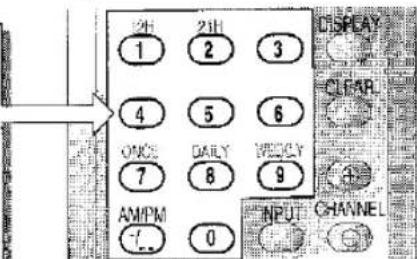
EINFACHER TIMER - VERZÖGERTER START
Um die Aufnahmegeschwindigkeit zwischen Standard-Play (SP) und Long-Play (LP) zu ändern, drücken Sie TAPE SPEED. SP oder LP erscheint auf dem Display.
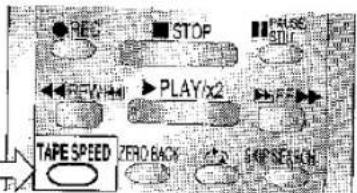
Standard-Play bietet die beste Bildqualität; Long-Play bietet die längste Aufnahmezeit.
Um die Startzeit einzustellen, drücken Sie TIME. Jedes weitere Drücken verzögert die Startzeit um 10 Minuten. Zur Feinabstimmung der Startzeit drücken Sie CHANNEL + (oder -). Das Display blinkt die Stoppzeit:
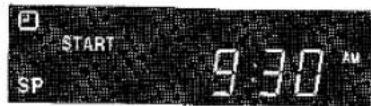
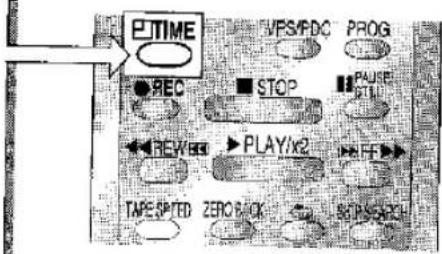
Wenn innerhalb von 8 Sekunden keine weitere Taste gedrückt wird, kehrt der Videorecorder in den vorherigen Modus zurück.
![graph LR A["Device"] -->|5 Press OPERATE to turn the VCR into stand-by mode.| B["Sharp Video Cassette Recorder"] B --> C["OPERATE ON/OFF"] C --> D["24s"] C --> E["2"] C --> F["3"] C --> G["ASP BY"]](/content/2026/05/1036609/images/8045d3b5a3b4192ede413093eb1b8495b9bea18d725da1cce7a7e2e26933dd45.jpg)
- Um die Startzeit der Aufnahme zu bestätigen, drücken Sie OPERATE, um den Stand-by-Modus zu verlassen, dann TIME; zur Überprüfung der Stoppzeit drücken Sie ●REC. Dann drücken Sie OPERATE.
- Um Sofort-Zeitaufnahmen zu löschen, drücken Sie OPERATE, um den Stand-by-Modus zu verlassen. Drücken Sie TIME, dann CLEAR auf der Fernbedienung.
- Die Aufnahme beginnt zur eingestellten Zeit. Nach der Aufnahme geht der Videorecorder in den Stand-by-Modus.
ZEITGESTEUERTE AUFNAHMEN (SEQUENZ VON 8)
Mit dieser Funktion können Sie bis zu 8 zeitgesteuerte Aufnahmen bis zu einem Jahr im Voraus programmieren.
- Die Uhr des Videorecorders muss zuerst eingestellt werden (siehe Seite 10).
- Diese Funktion funktioniert nicht, wenn eine sofortige Timer-Aufnahme eingestellt ist (Seite 16-17) - 📄 erscheint auf dem Display.
- Stellen Sie sicher, dass eine Videokassette mit eingelegter Kassettenschutzlasche eingelegt ist (siehe Seite 12).
(Am Ende der Programmierung, wenn keine Videokassette eingelegt ist, blinkt TIMER auf dem Display, um anzuzeigen, dass eine Aufnahme nicht möglich ist. Wenn die Kassettenschutzlasche vom Band entfernt wurde, wird es ausgeworfen.)
Zum Beispiel:
Aufnahme von Programm 3 im Standard-Play (SP) von 21:05 bis 22:30 Uhr am 6. Dezember.
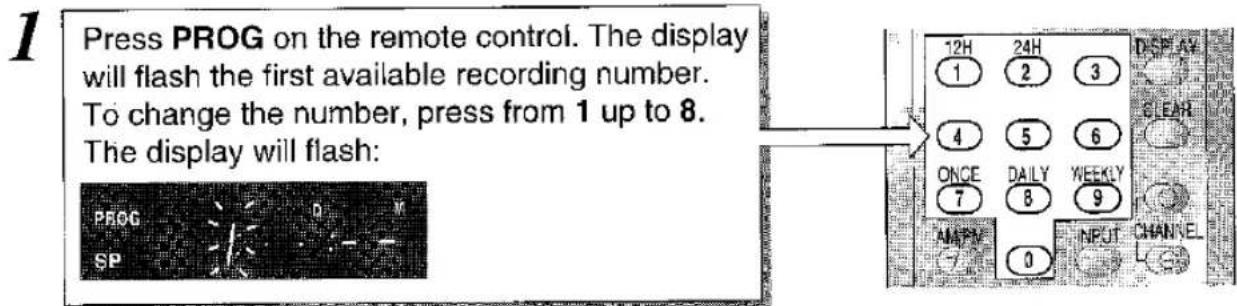
Wenn innerhalb von 1 Minute keine weitere Taste gedrückt wird, kehrt der Videorecorder in den vorherigen Modus zurück.
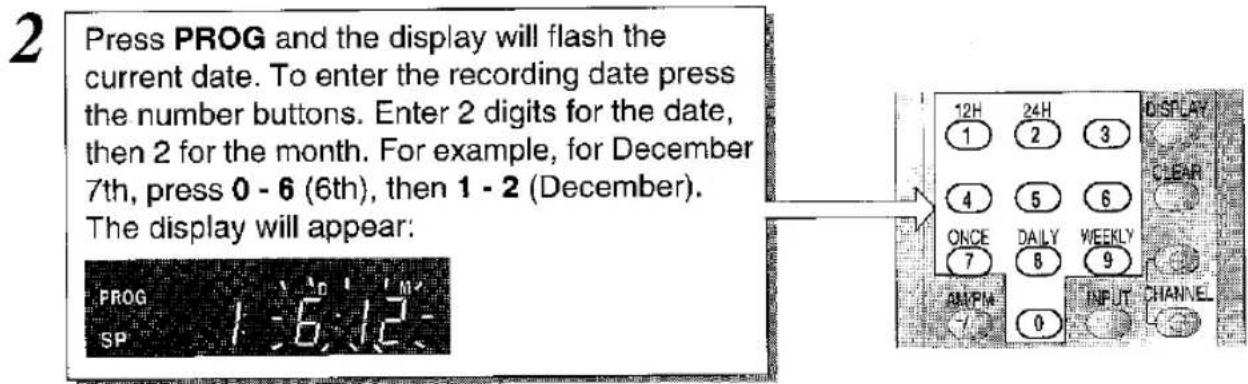
ZEITGESTEUERTE AUFNAHMEN (SEQUENZ VON 8)
4
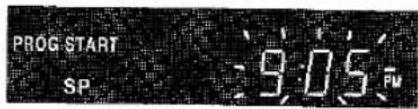
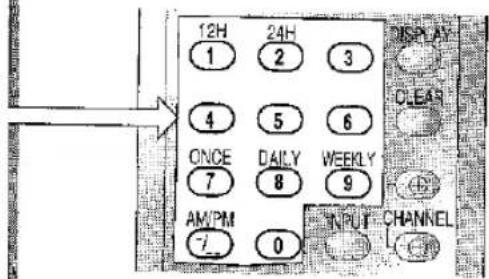
Das Display blinkt die aktuelle Zeit. Geben Sie die Startzeit für die Aufnahme mit den Zifferntasten ein - zuerst Stunden, dann Minuten. (Bei weniger als 10 Minuten fügen Sie eine Null vor der Zahl ein.) Zum Beispiel für den Start um 21:05 Uhr drücken Sie 9 - 0 - 5, dann bis pm erscheint:
5
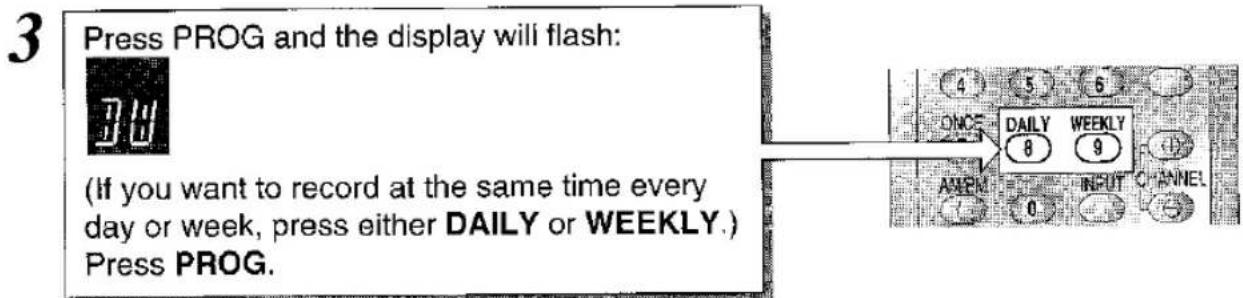
Drücken Sie PROG und geben Sie dann die Stoppzeit für die Aufnahme mit den Zifferntasten ein - zuerst Stunden, dann Minuten.
(Bei weniger als 10 Minuten fügen Sie eine Null vor der Zahl ein.)
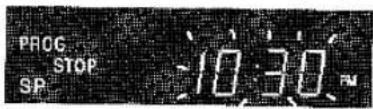
Für den Stopp um 22:30 Uhr drücken Sie 1 - 0 - 3 - 0, dann bis pm erscheint. Das Display zeigt:

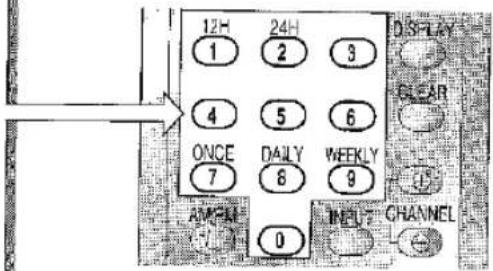
6
Drücken Sie PROG und die Programmnummer blinkt. Mit den Zifferntasten drücken Sie 0 - 3, um Programm 3 auszuwählen. Um zwischen ein- und zweistelligen Programmnummern zu wechseln, drücken Sie Ⓛ.
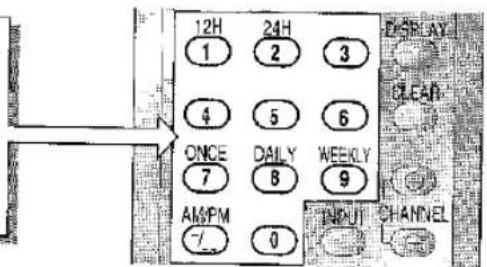
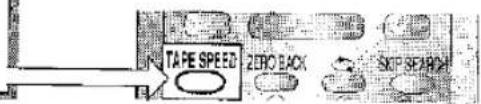
Um zwischen Aufnahme im Standardmodus (SP) und Langzeitmodus (LP) umzuschalten, drücken Sie TAPE SPEED. Drücken Sie PROG.
Drücken Sie einmal TIMER ON/OFF. TIMER erscheint im Display.
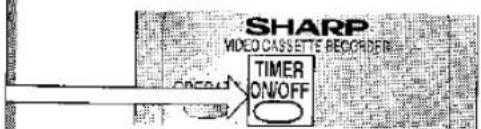
- Wenn TIMER im Display erscheint, müssen Sie TIMER ON/OFF drücken, um den Videorecorder normal zu benutzen. Denken Sie jedoch daran, es danach wieder zu drücken, da sonst Ihre Aufnahmen nicht gemacht werden.
- Zum Überprüfen: Stellen Sie sicher, dass TIMER nicht im Display erscheint (falls doch, drücken Sie TIMER ON/OFF). Drücken Sie PROG, wählen Sie die zu überprüfende Aufnahmenummer mit CHANNEL⊕/⊖. Drücken Sie PROG, bis Datum, Start- und Stoppzeit angezeigt werden, drücken Sie erneut und das Display kehrt zur aktuellen Zeit zurück. • Zum Abbrechen des Timers: Stellen Sie sicher, dass TIMER nicht im Display erscheint. Drücken Sie PROG; wählen Sie die Aufnahmenummer, die Sie abbrechen möchten; drücken Sie dann CLEAR. Drücken Sie CLOCK am Videorecorder, um zur aktuellen Zeit zurückzukehren.
- Während der Aufnahme: Drücken Sie ▲ STOP, um die Aufnahme abzubrechen.
ANZEIGE DER RESTLICHEN BANDLÄNGE
Wenn eine Videokassette in den Videorecorder eingelegt ist, wird die verbleibende Bandlänge in Stunden und Minuten berechnet - dies kann nützlich sein, um festzustellen, ob genügend Band für eine Aufnahme vorhanden ist. Wenn eine Videokassette eingelegt ist und die Bewegung beginnt, wird die verbleibende Bandlänge automatisch für Sie berechnet.
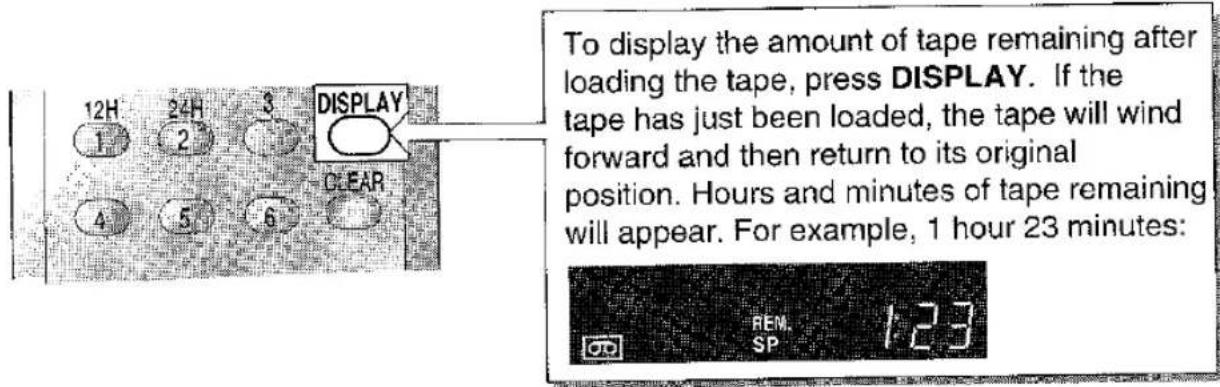

- Unterbrechen Sie nicht die Berechnung der verbleibenden Bandlänge.
- Wenn weniger als 5 Minuten Band übrig sind, blinkt die Anzeige. (Dies funktioniert nicht bei zeitgesteuerten Sofortaufnahmen.) • Die Anzeige der verbleibenden Bandlänge ist nur ein ungefährer Richtwert.

ERWEITERTE BEDIENUNG
BANDZÄHLER UND NULL-RÜCKSPULUNG
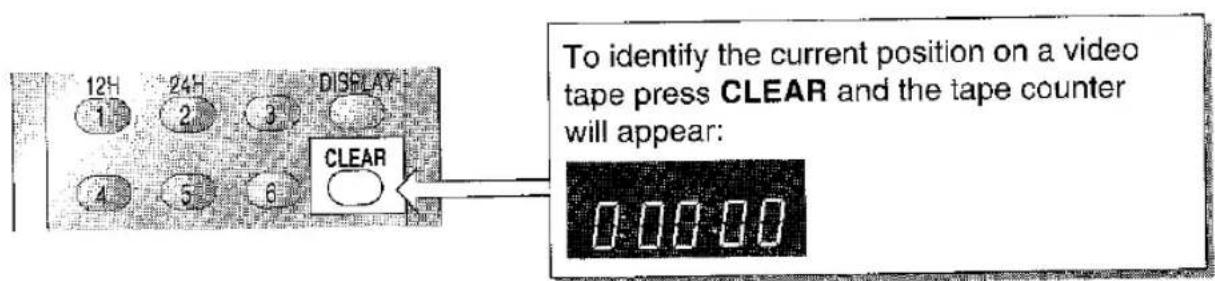
Der Bandzähler misst die aktuelle Position des Videobandes in Echtzeit. NULL-RÜCKSPULUNG verwendet den Bandzähler, um einen bestimmten Punkt auf einem Band zu bestimmen, zu dem Sie möglicherweise zurückkehren möchten.

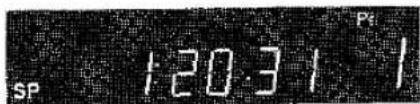
Drücken Sie DISPLAY, bis der Bandzähler erscheint, zum Beispiel:

Diese Funktion sperrt jeden Modus im Betrieb (einschließlich Ausschalten), bis die MODE-LOCK-Taste erneut gedrückt wird, um sie zu lösen.
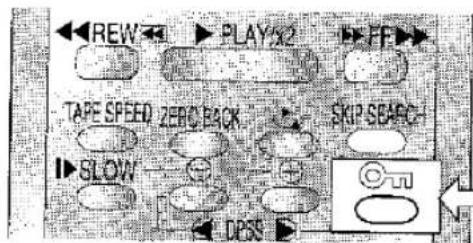
Halten Sie Ⓞ etwa 2 Sekunden lang gedrückt, um die MODE-SPERRE zu aktivieren.
Die Anzeige am Videorecorder blinkt - 📄 und leuchtet dann dauerhaft.

Wenn die Stromversorgung länger als 1 Minute unterbrochen wird, kann sich die MODE-SPERRE lösen.
ZUM LÖSEN DER MODE-SPERRE:
Halten Sie Ⓞ auf der Fernbedienung etwa 2 Sekunden lang gedrückt. Die Anzeige am Videorecorder blinkt - Ⓞ. Das Symbol Ⓞ verschwindet von der Anzeige.

ERWEITERTE BEDIENUNG
SKIP-SUCHE
Während der Wiedergabe können Sie mit dieser Taste einen Abschnitt des Bandes überspringen.
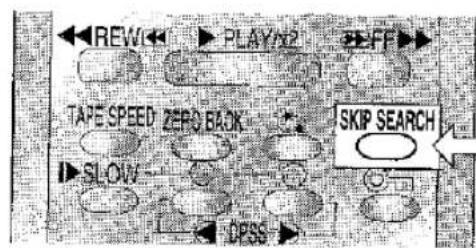
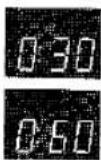
Drücken Sie SKIP SEARCH für die Vorwärts-Videosuche. Die Anzahl der Tastendrücke bestimmt die Vorwärts-Suchzeit:
1 Druck = 30 Sekunden:
2 Drücke = 60 Sekunden:
3 Drücke = 90 Sekunden.
4 Drücke = 120 Sekunden. Nach der Suche wird die normale Wiedergabe automatisch fortgesetzt.

ERWEITERTE BEDIENUNG
DIGITALES PROGRAMMSUCHSYSTEM (DPSS)
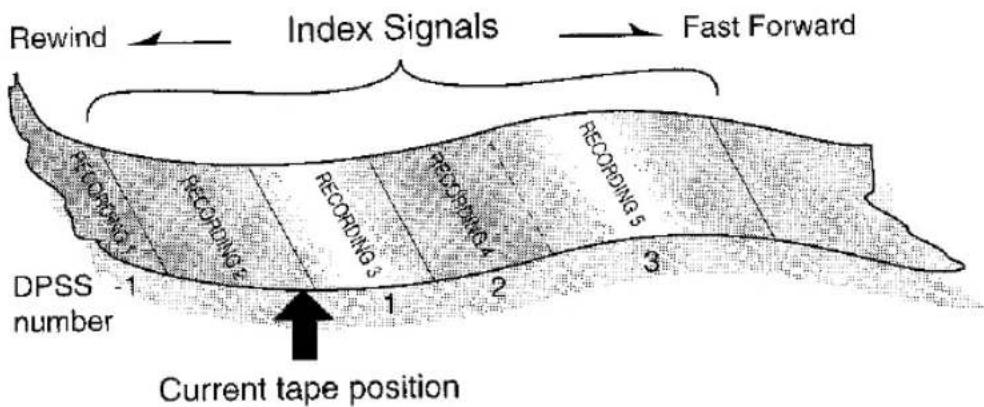
DPSS findet den Anfang einer Aufnahme in einer Reihe von Programmen.
![graph TD A["ADC"] --> B["PI"] B --> C["PLL2"] C --> D["BIFF"] D --> E["TAF-STD DAC"] E --> F["SNP SEARCH"] F --> G["DC"] G --> H["+"] H --> I["JPSS"] I --> J["Ground"]](/content/2026/05/1036609/images/3ac21ee050192af0c7c21f88e2cdda24819a0b30ce97d7007d3dbb2e28f831a9.jpg)
Halten Sie DPSS + / - gedrückt, um ein vorheriges/folgendes Programm zu finden, zu dem Sie wechseln möchten.
Die DPSS-Nummer auf dem Display bezieht sich auf die aktuelle Videobandposition. Wenn Sie beispielsweise DPSS + drücken, bis 3 auf dem Display erscheint, findet DPSS die dritte Aufnahme nach der aktuellen.
DPSS indiziert Programme auf einem Videoband.

DPSS:
• Zum Abbrechen drücken Sie STOP oder PLAY/X2. - Funktioniert nicht im Zeitlupen-, Standbild-, Aufnahme-/Aufnahmebereitschaftsmodus. - Der Startpunkt der Aufnahmen kann variieren. - Wenn Aufnahmen zu dicht beieinander liegen (innerhalb von 3 Minuten) - funktioniert DPSS möglicherweise nicht. - Wenn das Band bis zum Ende oder Anfang spult, wird DPSS abgebrochen. - Zur Verwendung mit Videobändern, die auf einem VCR mit DPSS-Funktion aufgenommen wurden.

ERWEITERTE BEDIENUNG
AUTO-WIEDERHOLUNG
Diese Funktion spielt das gesamte Videoband wiederholt ab.

Zum Abbrechen oder Stoppen der AUTO-WIEDERHOLUNG drücken Sie 📋 auf der Fernbedienung. Das Symbol 📋 verschwindet vom Display des VCR.
ANSCHLUSS AN DAS STROMNETZ
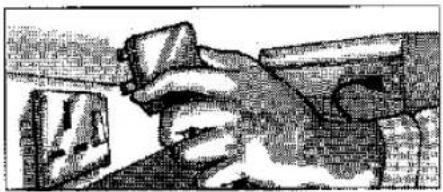
Dieser VCR ist nur für den Anschluss an das britische Stromnetz geeignet. Das Gerät ist mit einem formgepressten 3-poligen Netzstecker mit einer 3-Ampere-Sicherung ausgestattet. Der VCR hat keinen Netzschalter. Wenn das Gerät an das Stromnetz angeschlossen ist, zieht es ständig Strom, um die Uhr zu betreiben. Ziehen Sie den Netzstecker, wenn das Gerät mehrere Monate lang nicht verwendet wird.
ZUM AUSTAUSCH DER SICHERUNG:
Sie müssen eine 3-Ampere-Sicherung mit der Kennzeichnung ASTA oder BS-1362 verwenden. Entfernen Sie die Sicherungsabdeckung (wie gezeigt). Ersetzen Sie die Sicherung und setzen Sie die Sicherungsabdeckung wieder fest in den Stecker ein.


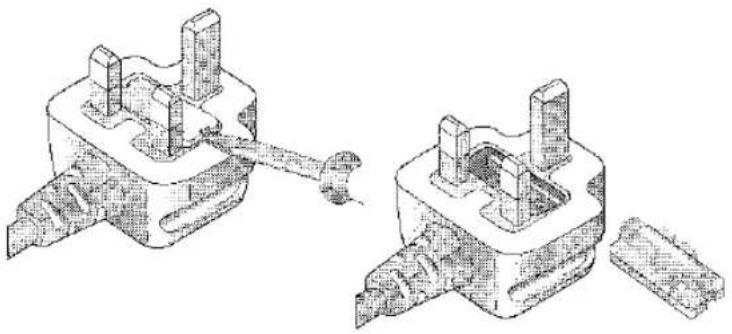

Schließen Sie den Stecker niemals ohne angebrachte Sicherungsabdeckung an das Stromnetz an.
ZUM AUSTAUSCHEN DES NETZSTECKERS:
Wenn der mitgelieferte Stecker nicht zur Steckdose in Ihrem Zuhause passt, schneiden Sie den Stecker ab, entfernen Sie die Sicherung und entsorgen Sie den abgeschnittenen Stecker sicher.

Es kann zu einem schweren elektrischen Schlag kommen, wenn Sie den abgeschnittenen Stecker an eine Steckdose anschließen. Wenn Sie einen neuen Stecker anbringen, beachten Sie den vom Steckerhersteller mitgelieferten Verdrahtungscode (und unten angegeben). Wenn Sie Zweifel haben, wenden Sie sich an einen qualifizierten Elektriker.
Die Adern im Netzkabel sind wie folgt farbcodiert:
blau = neutral braun = Phase.
Da die Farben der Adern möglicherweise nicht mit den Anschlüssen in Ihrem Stecker übereinstimmen, verbinden Sie die Adern gemäß der Anleitung des Steckerherstellers:
- Blaue Ader mit dem Anschluss N oder schwarz oder blau gekennzeichnet.
- Braune Ader mit dem Anschluss L oder rot oder braun gekennzeichnet.

- Stellen Sie sicher, dass weder die braune noch die blaue Ader mit dem Erdungsanschluss in Ihrem Stecker verbunden ist.
- Lassen Sie kein Wasser mit dem Netzkabel oder Stecker in Kontakt kommen.
- Ein beschädigtes Netzkabel oder ein lockerer Stecker kann einen elektrischen Schlag verursachen. Wenden Sie sich an Ihren SHARP-Händler oder einen qualifizierten Elektriker. Verwenden Sie den Videorecorder nicht.
| PROBLEM | ANSWER | PAGE |
| VCR will not respond to any commands | Check MODE LOCK is not engaged.Safety device is operating: unplug VCR for 2 minutes, then reset clock. | 21 |
| Display is not working, and operate button will not function | Make sure the power cord is plugged in.Check the fuse in the plug.Make sure the wall socket has power (plug another appliance in). | 24 |
| Operate button will not function - TIMER appears in display | Press the TIMER ON/OFF button to disengage timer. | 19 |
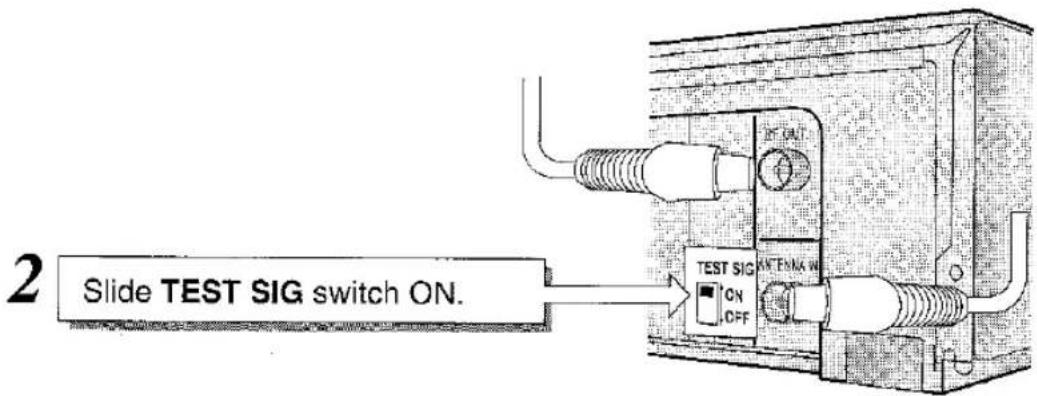
| Test signal cannot be received on TV when setting-up | Make sure VCR is switched on, and TEST SIG switch is set to ON.Make sure RF MODULATOR is switched on. | 5-6 |
| Cassette cannot be loaded | Make sure there is no other tape in the VCR.Make sure the tape is loaded properly. | 12 |
| VCR cannot be operated by remote control | Remote control is too far away from the main unit.Point the remote control at the VCR.Batteries are flat - replace both.Batteries have not been inserted correctly.VCR is positioned in strong light. | 2-3 |
| No picture appears or colour is not correct during playback. | Make sure TV is set to the video channel.RF converter output channel adjuster.Check all connecting cables. | 5-6 |
| Rewind is not possible. | Make sure tape is not at the start. | 13 |
| Picture does not change even though CHANNEL +/- buttons are pressed. | Make sure VCR is not in timer or clock setting mode.Make sure VCR is not in the channel setting mode. | 10/19 |
| Desired programme position cannot be selected. | The programme position has been set to be skipped.Cancel the skip mode for that channel. | 9 |
| No colour or poor TV picture on normal viewing. | Make sure all the cables are connected properly.Make sure VCR power cord is properly plugged in. | 24 |
| Play back picture is snowy. | Adjust the tracking using CHANNEL +/- buttons.Try another tape.The video heads may have been contaminated refer to a SHARP Service Facility (see page xx) | 12/13/26 |
| Cassette is automatically ejected when pressing REC or TIMER ON/OFF buttons. | The cassette erase-protection tab has been removed. | 12 |
- Wenn Sie ein Problem mit den obigen Überprüfungen nicht lösen können, entfernen Sie nicht das Gehäuse und versuchen Sie nicht, den Videorecorder selbst zu reparieren.
- Für den Service wenden Sie sich bitte an Ihren Händler. Wenn dies nicht möglich ist, rufen Sie bitte unser Kundeninformationszentrum an, um Einzelheiten zu Ihrem nächsten Sharp-Servicezentrum zu erhalten.
Sharp Kundeninformationszentrum: Tel. 0345 125387
- Bitte beachten Sie, dass Sie für Reparaturen während der Garantiezeit einen Kaufbeleg vorlegen müssen. • SCART-Kabel erhalten Sie beim SHARP-Ersatzteilzentrum: Tel. 0161 205 7531. Die meisten Kredit-/Debitkarten werden akzeptiert.

HILFREICHE HINWEISE
GARANTIE
Sharp Electronics (UK) Ltd (im Folgenden Sharp genannt) garantiert die Reparatur oder nach eigener Wahl den Austausch dieses Produkts unter den folgenden Bedingungen:
1 Diese Garantie gilt nur für Fehler, die auf minderwertige Verarbeitung oder Materialien zurückzuführen sind. Sie deckt keine Fehler oder Schäden ab, die durch Unfall, unsachgemäßen Gebrauch, normale Abnutzung, Vernachlässigung, Manipulation am Produkt oder Reparaturen durch andere als von Sharp beauftragte Serviceeinrichtungen verursacht werden. 2 Da dieses Produkt nur für den privaten Hausgebrauch bestimmt ist, gilt die Garantie nicht, wenn das Produkt im Rahmen einer geschäftlichen, gewerblichen oder beruflichen Tätigkeit verwendet wird. 3 Um diese Garantie in Anspruch zu nehmen, muss jeder auftretende Fehler innerhalb eines Jahres ab Kaufdatum Sharp oder der beauftragten Serviceeinrichtung gemeldet werden. Ein Kaufbeleg ist vorzulegen. 4 Die Garantie deckt keine Transportkosten, Batterien oder Videokassetten ab. 5 Falls dieses Produkt wider Erwarten repariert werden muss, wenden Sie sich bitte an den Händler, bei dem Sie es gekauft haben. Falls dies nicht möglich ist, wenden Sie sich bitte an das Sharp-Kundeninformationszentrum unter der unten angegebenen Telefonnummer. 6 Diese Garantie ist ein zusätzlicher Vorteil zu Ihren gesetzlichen Rechten und beeinträchtigt diese in keiner Weise. 7 Niemand ist befugt, die Bedingungen dieser Garantie zu ändern.
Wenn Sie Schwierigkeiten bei der Bedienung dieses Produkts haben oder Informationen zu anderen Sharp-Produkten wünschen, rufen Sie bitte das Sharp-Kundenzentrum unter der unten angegebenen Nummer an.
Sharp Kundeninformationszentrum - Telefon Lo-Call - 0345 125387
Bitte beachten Sie, dass alle Anrufe zum Ortstarif abgerechnet werden.

DAS SHARP PRODUKTSORTIMENT
SHARP wurde 1915 von Tokuji Hayakawa gegründet, der den weltweit ersten Druckbleistift erfand, und von diesem Tag an ist SHARP für seine technologischen Innovationen bekannt. SHARP war der erste Hersteller von Mikrowellenherden mit Drehteller – eine Methode, die heute allgemein als die beste anerkannt ist. Als das Fernsehen noch in den Kinderschuhen steckte, produzierte SHARP bereits Fernsehgeräte in Massen. SHARP war der erste Hersteller eines elektronischen Taschenrechners mit LCD-Anzeige, und heute ist es für seine LCDs bekannt, die weltweit in zahlreichen Anwendungen eingesetzt werden.
SHARP stellt eine breite Palette von Konsumgütern her, darunter Faxgeräte, Fotokopierer, Telefone, Drucker, Computer und LCD-Projektoren. Unser aktuelles Produktsortiment umfasst:
- Farbfernseher mit NICAM-Digitalton für hervorragende Bild- und Tonqualität. Funktionen wie Auto-Sort-Tuning, AI Optical Picture Control und Double Page Viewing Fasttext-Systeme.
- Televideos – kombinieren Fernseher und Videorecorder in einem kompakten, stilvollen Gerät für mehr Komfort.
• Viewcam - Der weltweit erste Camcorder mit einem 4-Zoll-Farb-LCD-Bildschirm, der eine einfache Aufnahme und Wiedergabe einschließlich Ton ermöglicht. Sie können aus hohen oder niedrigen Winkeln filmen und sogar sich selbst filmen!
- LCD-Videoprojektoren, die helle, klare Bilder erzeugen und mit Lautsprechern und Verstärkern ausgestattet sind. Einige Modelle können an der Decke montiert und per Fernbedienung bedient werden.
- Audioprodukte - Es mag scheinen, als wäre die CD erst gestern geboren worden, doch SHARP hat bereits die Kunst des kristallklaren CD-Digitalklangs perfektioniert - vom atemberaubend brillanten Minidisc bis zum ebenso einzigartigen durchsichtigen 5-CD-Zug. Das SHARP-Audiosortiment umfasst Personal-, Portable-, Micro-, Mini- oder Midi-Systeme; Sie können sicher sein, dass es Ihr Stil, Ihre Musik und Ihr Preis ist.
- Mikrowellenherde - Das SHARP-Sortiment reicht von kompakten bis zu familienfreundlichen Mikrowellen, Grill-/Mikrowellen- und Kombinationsherden. SHARP hat kürzlich LogiCook eingeführt, den weltweit ersten denkenden Mikrowellenherd. Das LogiCook-Programm ist darauf ausgelegt, mikrowellengeeignete Fertiggerichte zuzubereiten und Getränke aufzuwärmen. Seine revolutionäre Kombination aus neuronalem Netzwerk und Feuchtigkeitssensor bedeutet, dass Sie nur Ihr Essen in den Ofen legen, die LogiCook-Taste drücken müssen und der Ofen erledigt den Rest für Sie!
Für eine SHARP-Broschüre oder einen Händler rufen Sie bitte gebührenfrei an: 0800 262958.
TECHNISCHE DATEN
| Format: | VHS PAL standard |
| Video recording system: | Two rotary heads, helical scan |
| Video signal system: | PAL colour or monochrome signals: 625 lines |
| Maximum playing time: | 480 min. with E-240 video cassette in (Long Play) LP mode |
| Tape width: | 12.7 mm |
| Tape speed: | 23.39mm/sec. Standard Play (SP): 11.70 mm/sec. Long Play (LP) |
| Antenna: | 75Ω unbalanced |
| Reception channels: | UHF channel 21-69 |
| RF output signal: | UHF channel 30-39 (preset to 36 (591.25Mhz)) |
| Power requirement: | AC 230-240V, 50Hz. |
| Power consumption: | 15W (approx.) |
| Operating temperature: | 5°C to 40°C |
| Storage temperature: | -20°C to 55°C |
| Video input: | 1.0 Vp-p, 75Ω |
| Video output: | 1.0 VP-p, 75Ω |
| Audio input: | Line: -3.8 dBs, 47kΩ |
| Audio output: | Line: -3.8dBs, 1kΩ |
| Dimensions: | 380 (W) x 290.3 (D) x 91.8 (H) mm |
| Weight: | 3.5kg (approx.) |
| Supplied accessories: | 75Ω coaxial cable, operation manual, remote control, AA battery (x2) |
- Technische Daten können ohne Vorankündigung geändert werden, da wir uns ständig verbessern.
- Dieses Gerät erfüllt die Anforderungen der Richtlinien 89/336/EWG und 72/23/EWG in der Fassung von 93/68/EWG.
- Ohne vorherige Genehmigung von SHARP Electronics (U.K.) Ltd. darf kein Teil dieser Veröffentlichung in irgendeiner Form reproduziert, gespeichert oder übertragen werden.
- Für etwaige Ungenauigkeiten oder Auslassungen in dieser Veröffentlichung wird keine Haftung übernommen, obwohl alle mögliche Sorgfalt darauf verwendet wurde, sie vollständig und genau zu machen.
SHARP ELECTRONICS (U.K.) Ltd.
Manchester, U.K.
Kundeninformation .... LoCall 0345 1253
Ersatzteilzentrum 0161 205 7531

- SHARP
- BEDIENUNGSANLEITUNG
- VIDEORECORDER
- √ FUNKTIONEN
- SICHERHEITSWARNHINWEISE
- INFORMATIONEN
- INHALT
- INSTALLATION
- GRUNDLEGENDE BEDIENUNG
- AUFNAHME
- ERWEITERTE BEDIENUNG
- OPTIONALE ANSCHLÜSSE
- HILFREICHE HINWEISE
- AUSPACKEN DES ZUBEHÖRS
- SO LEGEN SIE DIE BATTERIEN IN DIE FERNBEDIENUNG EIN
- FERNBEDIENUNG
- IDEALER AUFSTELLUNGSORT FÜR DEN VIDEORECORDER
- ANSCHLUSS DES VIDEORECORDERS AN FERNSEHER UND ANTENNE
- EINSTELLEN DES VIDEOKANALS
- ABSTIMMUNG DES VIDEORECORDERS AUF DIE FERNSEHKANÄLE - AUTOMATISCHE ABSTIMMUNG
- ABSTIMMUNG DES VIDEORECORDERS AUF DIE TV-KANÄLE – MANUELLE ABSTIMMUNG
- KANAL ÜBERSPRINGEN/SUCHEN
- EINSTELLEN DER UHR
- I
- VERWENDUNG VON FERNBEDIENUNG UND VIDEORECORDER
- KURZE ERKLÄRUNG DER DIGITALANZEIGE
- AUSWAHL DER PROGRAMMNUMMER - ES GIBT ZWEI METHODEN
- ACHTUNG! VOR DEM EINLEGEN EINES VIDEOBANDS IN DEN VIDEORECORDER
- VIDEOBÄNDER
- KOPFREINIGUNG
- WIEDERGABE EINES VIDEOBANDES
- BILDSTÖRUNGEN
- AUTOMATISCHER MIETMODUS
- RÜCKSPULEN UND SCHNELLVORLAUF RÜCKSPULEN
- SCHNELLVORLAUF
- VISUELLE SUCHE (RÜCKWÄRTS & VORWÄRTS)
- STANDBILD UND ZEITLUPEN-WIEDERGABE
- FÜR EINE SOFORTIGE AUFNAHME
- EINFACHER TIMER - ZEITGESTEUERTE ABSCHALTUNG
- EINFACHER TIMER - VERZÖGERTER START
- ZEITGESTEUERTE AUFNAHMEN (SEQUENZ VON 8)
- MIT DIESER FUNKTION KÖNNEN SIE BIS ZU 8 ZEITGESTEUERTE AUFNAHMEN BIS ZU EINEM JAHR IM VORAUS PROGRAMMIEREN
- ZUM BEISPIEL
- ANZEIGE DER RESTLICHEN BANDLÄNGE
- BANDZÄHLER UND NULL-RÜCKSPULUNG
- ZUM LÖSEN DER MODE-SPERRE
- SKIP-SUCHE
- DIGITALES PROGRAMMSUCHSYSTEM (DPSS)
- DPSS
- AUTO-WIEDERHOLUNG
- ANSCHLUSS AN DAS STROMNETZ
- ZUM AUSTAUSCH DER SICHERUNG
- ZUM AUSTAUSCHEN DES NETZSTECKERS
- SHARP KUNDENINFORMATIONSZENTRUM: TEL
- GARANTIE
- DAS SHARP PRODUKTSORTIMENT
- TECHNISCHE DATEN
- SHARP ELECTRONICS (U.K.) LTD
Marke : SHARP
Modell : VC-M20
Kategorie : Videorekorder