
VC-M27 - Videorekorder SHARP - Kostenlose Bedienungsanleitung
Finden Sie kostenlos die Bedienungsanleitung des Geräts VC-M27 SHARP als PDF.


| Produkttyp | Videorekorder |
| Marke | Sharp |
| Modell | VC-M27 |
| Abmessungen (B × H × T) | 430 mm × 95 mm × 360 mm |
| Gewicht | ca. 4,5 kg |
| Stromversorgung | 220–240 V, 50 Hz |
| Leistungsaufnahme | 20 W (Betrieb), 3 W (Standby) |
| Anzahl der Videoköpfe | 2 |
| Bandgeschwindigkeit | SP, LP, EP (NTSC) bzw. SP, LP (PAL) |
| Timer-Aufnahme | Ja, bis zu 8 Programme |
| Anschlüsse | HF-Eingang, HF-Ausgang, SCART (RGB), Cinch (Audio/Video) |
| Wiedergabeformate | VHS, VHS-C (mit Adapter) |
| Fernbedienung | Infrarot-Fernbedienung enthalten |
| Besondere Funktionen | Suchlauf, Bildsuchlauf (Jog/Shuttle), Standbild, Zeitlupe |
| Reinigung | Kopf- und Bandpflege mit handelsüblichen Reinigungskassetten |
| Sicherheit | Kindersicherung, automatische Abschaltung |
| Zubehör | Netzkabel, Fernbedienung, Bedienungsanleitung |
| Reparaturhinweis | Reparaturen nur durch qualifiziertes Fachpersonal |
Häufig gestellte Fragen - VC-M27 SHARP
Benutzerfragen zu VC-M27 SHARP
0 Frage zu diesem Gerät. Beantworten Sie die, die Sie kennen, oder stellen Sie Ihre eigene.
Eine neue Frage zu diesem Gerät stellen
Laden Sie die Anleitung für Ihr Videorekorder kostenlos im PDF-Format! Finden Sie Ihr Handbuch VC-M27 - SHARP und nehmen Sie Ihr elektronisches Gerät wieder in die Hand. Auf dieser Seite sind alle Dokumente veröffentlicht, die für die Verwendung Ihres Geräts notwendig sind. VC-M27 von der Marke SHARP.
BEDIENUNGSANLEITUNG VC-M27 SHARP
SHARP
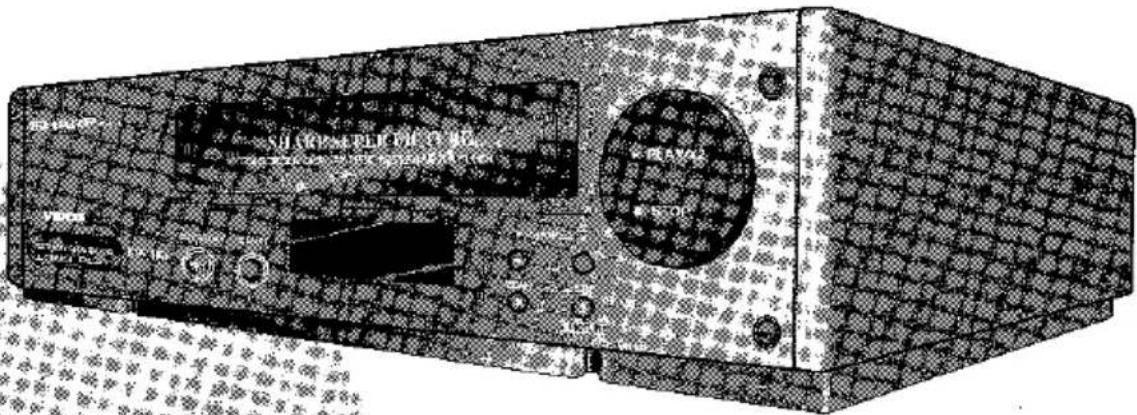
VC-M27HM
VC-M27LM
BEDIENUNGSANLEITUNG FÜR DEN VIDEOREKORDER
FERNBEDIENUNG DES VIDEOREKORDERS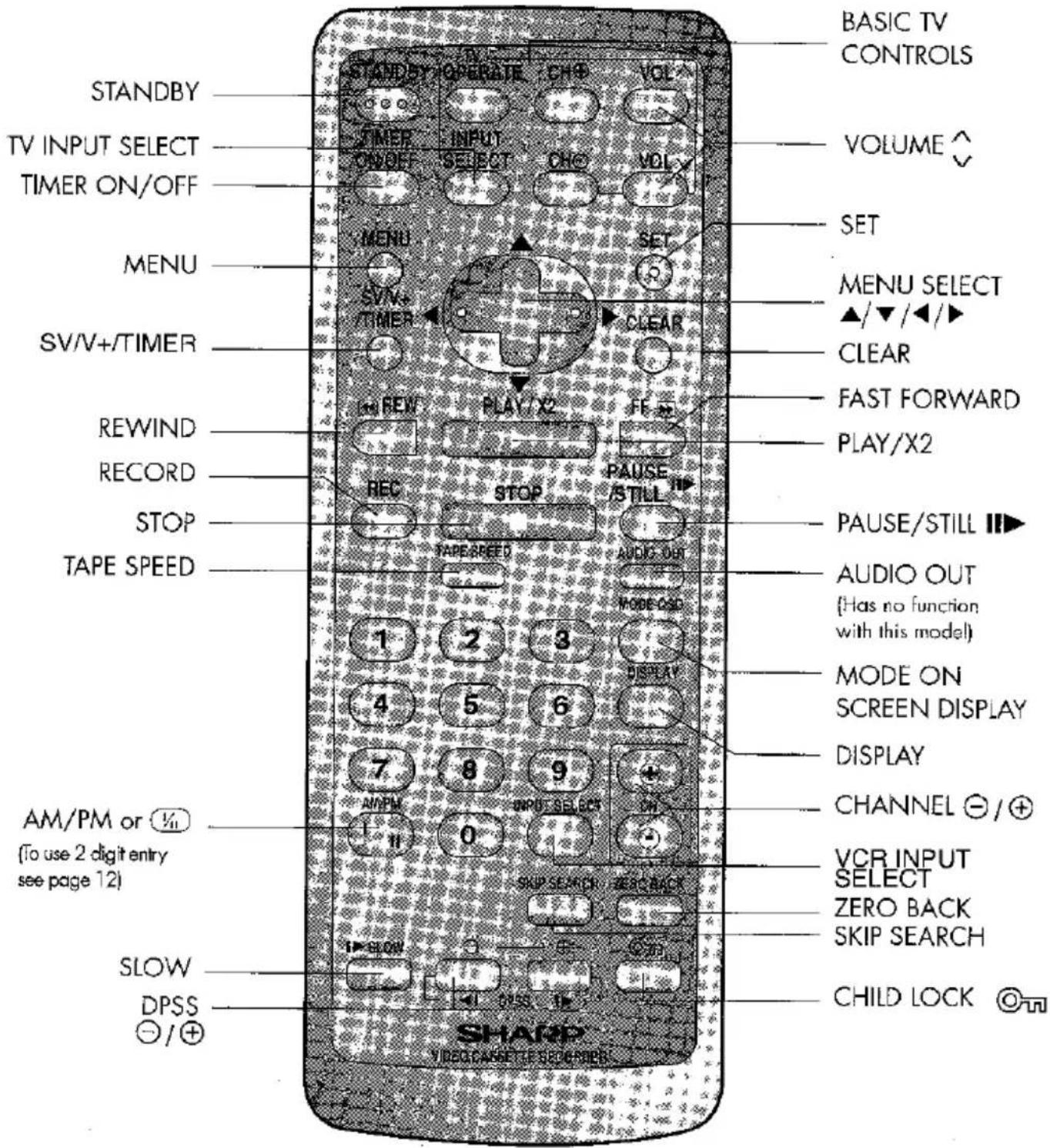
Vorderseite des Videorekorders / entsprechende Funktionen der Fernbedienung.
Wenn Sie es vorziehen oder wenn die Batterien der Fernbedienung leer sind, müssen Sie die Bedienelemente an der Vorderseite des Videorekorders verwenden. Die einzigen Funktionsunterschiede sind unten aufgeführt:
| FUNCTIONOSD | OPERATION WITH REMOTECONTROL | OPERATION WITH VCRFRONT PANEL |
| Moving DOWN/UP menuMoving LEFT/RIGHT menu | [▼/▲] buttons[◄/►] buttons | CHANNEL ⊙/⊕ buttons.Turn shuttle ring LEFT/RIGHT |
Sehr geehrter SHARP-Kunde
Vielen Dank, dass Sie sich für diesen SHARP-Videorekorder entschieden haben.
SHARP hat sich seit seiner Gründung im Jahr 1915 einen weltweiten Ruf für unübertroffene Qualität und Präzisionsfertigungstechniken erworben. Ihre Wahl eines Videorekorders nutzt die neueste elektronische Schaltungstechnik und technische Fortschritte, um die bestmögliche Leistung zu erzielen. Bei richtiger Pflege wird er Ihrer ganzen Familie jahrelange Unterhaltung bieten. Bitte lesen Sie diese Bedienungsanleitung sorgfältig durch, bevor Sie den Videorekorder in Betrieb nehmen.
Urheberrecht
● Audiovisuelles Material kann urheberrechtlich geschützte Werke enthalten, die ohne die Genehmigung des Urheberrechtsinhabers nicht aufgezeichnet werden dürfen. Bitte beachten Sie die einschlägigen Gesetze. - Kein Teil dieser Veröffentlichung darf ohne vorherige Genehmigung von SHARP Electronics (U.K.) Ltd. reproduziert, gespeichert oder in irgendeiner Form übertragen werden. - VIDEO und PlusCode sind Warenzeichen der Gemstar Development Corporation. - Das VIDEO®-System wird unter Lizenz der Gemstar Development Corporation hergestellt.

SICHERHEITSWARNHINWEISE
Beachten Sie alle Warnhinweise zu Ihrer Sicherheit und um einen störungsfreien Betrieb Ihres Videorekorders zu gewährleisten.
INFORMATION Zusätzliche Informationen ergänzen die Anweisungen.
INHALT
GRUNDINSTALLATION
Bildschirmmenü (On-Screen-Display)
Videorecorder-Anzeige
Auspacken des Zubehörs
Idealer Aufstellungsort für den Videorecorder
Anschluss des Videorecorders an Fernseher und Antenne
Wichtiger Hinweis zu CH5-Ausstrahlung 7
Abstimmen des Fernsehers auf den RF-Videokanal
Automatische Installation
Postleitzahl-Sicherheit 10
SCHNELLSTART
Einführung 11
Suchen auf dem Band 13
Standbild und Zeitlupenwiedergabe 13
Bildschirmanzeige 14
Modusauswahl 15
AUFNAHME
Sofortaufnahme 16
Einfache Timeraufnahme 16
Programmsteuerung (PDC) 17
Verzögerte Aufnahmen mit VIDEO 17
Verzögerte Timeraufnahmen 19
Bestätigen/Abbrechen verzögerter Aufnahmen 22

ERWEITERTE BEDIENUNG
Aufnahme von einer externen Quelle 23
Fernbedienung des Fernsehers 23
Digitale Anzeige 24
Digitales Programmsuchsystem (DPSS) 25
Sprungsuche 25
Wiederholen 25
Kindersicherung und Erweiterte Kindersicherung 26
KUNDENSPEZIFISCHE INSTALLATION
Manuelle Sortierung 27
Manuelle Abstimmung 30
Manuelle Uhrzeiteinstellung 31
Neueinstellung Ihres Fernsehers auf den RF-Videokanal 31
OPTIONALE ANSCHLÜSSE
Anschluss einer Camcorder....32

HILFREICHE HINWEISE
Anschluss an das Stromnetz 33
Fehlerbehebung 34
Anruf beim Kundendienst 35
Garantie 36
Technische Daten Rückseite
HAUPTMENÜ BILDSCHIRMANZEIGE
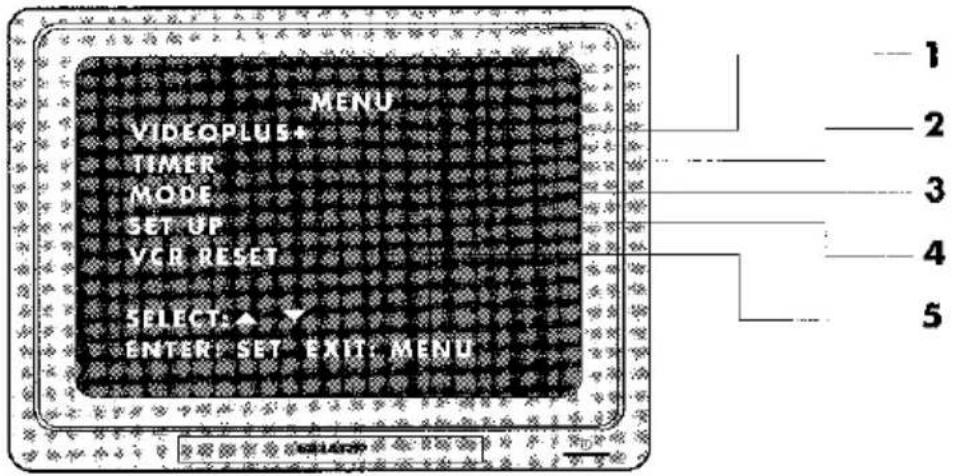
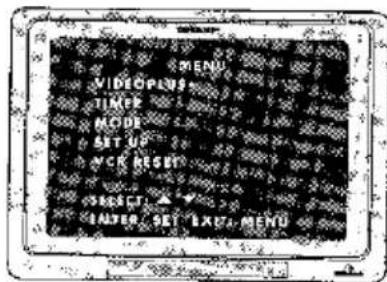
Mit diesem Videorecorder können Sie Funktionen einstellen, indem sie auf dem Fernsehbildschirm angezeigt werden. Das hier gezeigte Hauptmenü enthält fünf Untermenüs, die die Funktionen des Videorecorders und die möglichen Einstellungen für jede Funktion (normalerweise EIN, AUS oder AUTO) auflisten.
● Um das Hauptmenü aufzurufen, drücken Sie MENÜ auf der Fernbedienung. - Um ein Untermenü auszuwählen, verwenden Sie die Tasten [▲/▼] auf der Fernbedienung. Drücken Sie dann EINSTELLEN. ● Um das Hauptmenü zu verlassen, drücken Sie erneut MENÜ. - Wenn Sie in einem Menü länger als 2 Minuten keine Taste drücken, verlässt der Videorecorder die MENÜ-Funktion.
- VIDEOPLUS+ Enthält die Einstellungen, die zum Aufnehmen mit der in TV-Programmen veröffentlichten Plus-Code-Nummer erforderlich sind. Sie können diese Funktion auch durch Drücken von [SV/V+/TIMER] auf der Fernbedienung auswählen.
- TIMER Enthält die Einstellungen zum Erstellen, Überprüfen und Abbrechen von zeitversetzten Aufnahmen.
- MODUS Enthält die Einstellungen, die die Wiedergabequalität eines Videobands verbessern (in einigen Fällen), die Hintergrundfarbe der Bildschirmanzeige ändern, Auto-Geschwindigkeit und Wiederholungsfunktionen aktivieren.
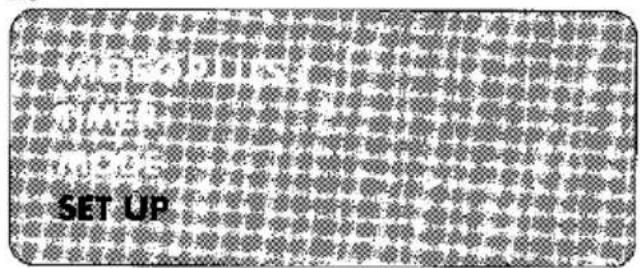
- EINRICHTUNG Enthält Einstellungen, mit denen Sie den Videorecorder manuell abstimmen, die Kanäle in Ihrer bevorzugten Reihenfolge sortieren, die Uhr einstellen und Ihre Sicherheits-/Postleitzahlen eingeben können. Die meisten dieser Funktionen werden jedoch bei der ersten Installation des Videorecorders automatisch eingestellt.
- VIDEORECORDER-RESET Setzt den Speicher des Videorecorders zurück und führt ihn zum automatischen Installationsvorgang zurück.
VIDEORECORDER-ANZEIGE
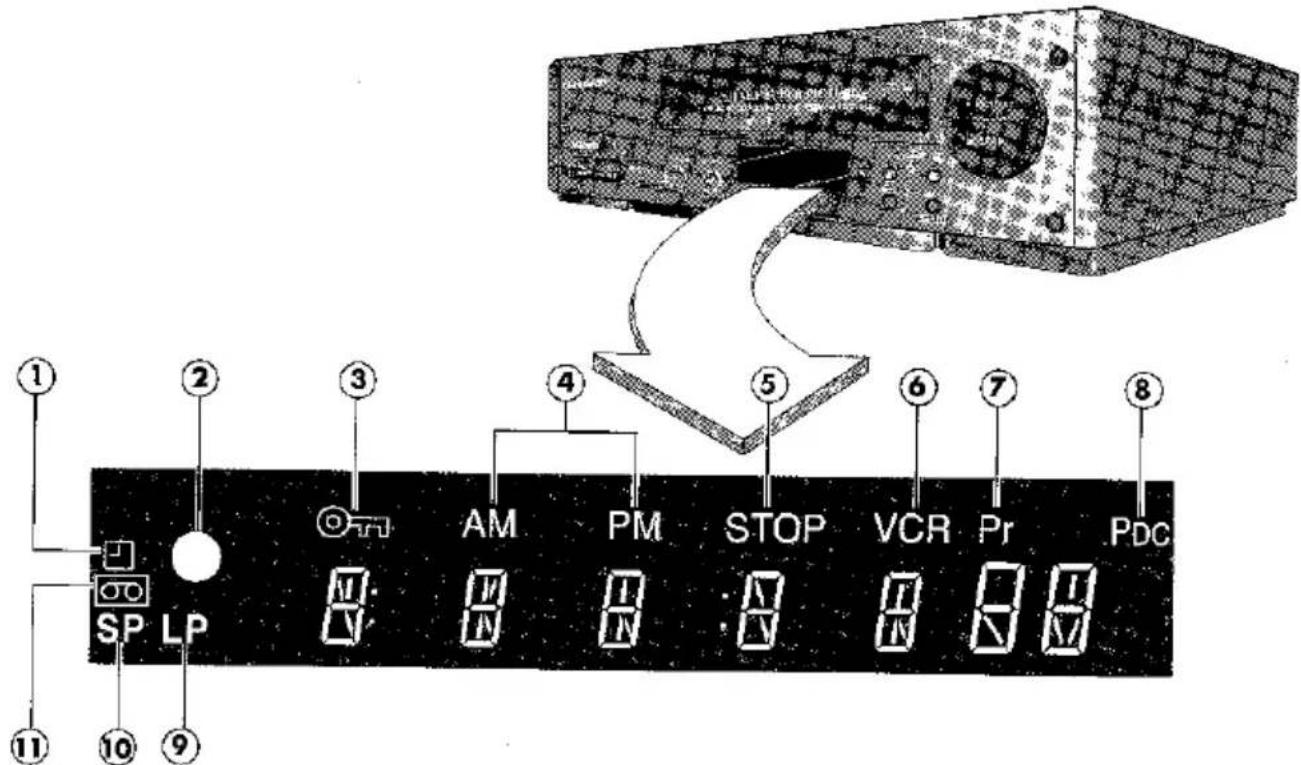
① TIMER-Anzeige. Diese zeigt an, dass sich der Videorecorder im STANDBY-Modus befindet und bereit ist, die im Speicher eingestellte zeitversetzte Aufnahme aufzuzeichnen.
② AUFNAHME-Anzeige. Diese erscheint, wenn eine Aufnahme gemacht wird.
③ KINDERSICHERUNG/ERWEITERTE KINDERSICHERUNG-Anzeige. Diese zeigt an, dass die KINDERSICHERUNG/ERWEITERTE KINDERSICHERUNG eingestellt ist. Wenn diese Anzeige leuchtet, funktionieren keine Tasten am Videorecorder oder an der Fernbedienung, bis die KINDERSICHERUNG/ERWEITERTE KINDERSICHERUNG aufgehoben ist.
④ AM/PM-Anzeigen. Diese erscheinen nur, wenn die 12-Stunden-Uhr angezeigt wird.
⑤ STOP-Anzeige. Diese erscheint, um die Stoppzeit einer einfachen Timer-Aufnahme anzuzeigen. Weitere Informationen zu einfachen Timer-Aufnahmen finden Sie auf Seite 16.
⑥ VCR-Modus-Anzeige. Sie zeigt an, dass sich der Videorecorder im VCR-Modus befindet, d.h. der VCR-Kanal und nicht das Fernsehsignal wird auf dem Fernseher angezeigt, wenn der Videorecorder mit einem SCART-Kabel an den Fernseher angeschlossen ist.
⑦ VOREINGESTELLTER KANAL-Anzeige. Diese zeigt an, welche Kanalnummer der Videorecorder derzeit anzeigt.
⑧ PROGRAMMÜBERTRAGUNGSKONTROLLE-Anzeige. Diese zeigt an, wenn der aktuelle Videokanal ein PDC-Signal hat. Weitere Informationen zu PDC finden Sie auf Seite 17.
⑨ LANGSPIEL-Anzeige. Diese zeigt an, wenn eine Aufnahme im Langspielmodus gemacht wird und wenn ein Band eine Langspielaufnahme wiedergibt.
⑩ STANDARDSPIEL-Anzeige. Diese zeigt an, wenn eine Aufnahme mit Standardgeschwindigkeit gemacht wird und wenn ein Band eine Standardspielaufnahme wiedergibt.
⑪ VIDEOCASSETTEN-Anzeige. Diese erscheint, wenn eine Videocassette in den Videorecorder eingelegt wurde.
AUSPACKEN DES ZUBEHÖRS
PRÜFEN SIE, OB ALLE DIESE ZUBEHÖRTEILE MIT IHREM VIDEORECORDER GELIEFERT WURDEN. WENDEN SIE SICH AN IHREN HÄNDLER, WENN EINES FEHLT;
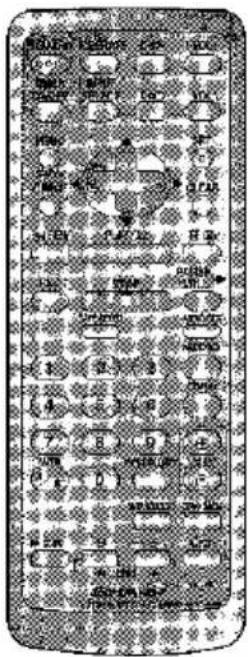
FERNBEDIENUNG
bedient den Videorecorder.
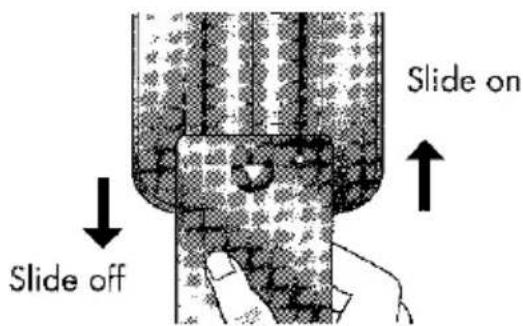
Batteriefachabdeckung
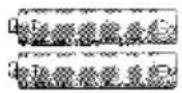
(Typ AA)
BATTERIEN (X2)
für die Fernbedienung.
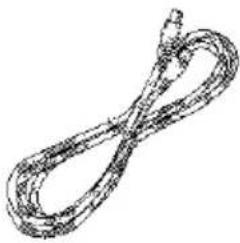
KOAXIALKABEL
verbindet den Videorecorder mit dem Fernseher.
So legen Sie die Batterien in die Fernbedienung ein
Drücken Sie 📍 und schieben Sie die Batteriefachabdeckung auf der Rückseite der Fernbedienung nach unten.
Legen Sie die Batterien ein: ⊖ auf ⊖ und ⊕ auf ⊕. Schieben Sie die Abdeckung wieder zurück.

Fernbedienung
● Die Fernbedienung muss auf den Videorecorder gerichtet sein, um zu funktionieren. - Nicht Flüssigkeiten oder Stößen aussetzen. ● Funktioniert möglicherweise nicht, wenn der Videorecorder direktem Sonnenlicht oder anderem starkem Licht ausgesetzt ist. - Ersetzen Sie beide Alkaline-Batterien (Typ AA), wenn die Fernbedienung nicht mehr funktioniert. - Entfernen Sie die Batterien und bewahren Sie sie an einem sicheren Ort auf, wenn Sie den Videorecorder mehrere Monate lang nicht verwenden möchten. - Entfernen und entsorgen Sie leere Batterien umgehend. - Unsachgemäße Verwendung der Batterien kann zu Auslaufen oder Platzen führen.
IDEALER AUFSTELLUNGSORT FÜR DEN VIDEORECORDER
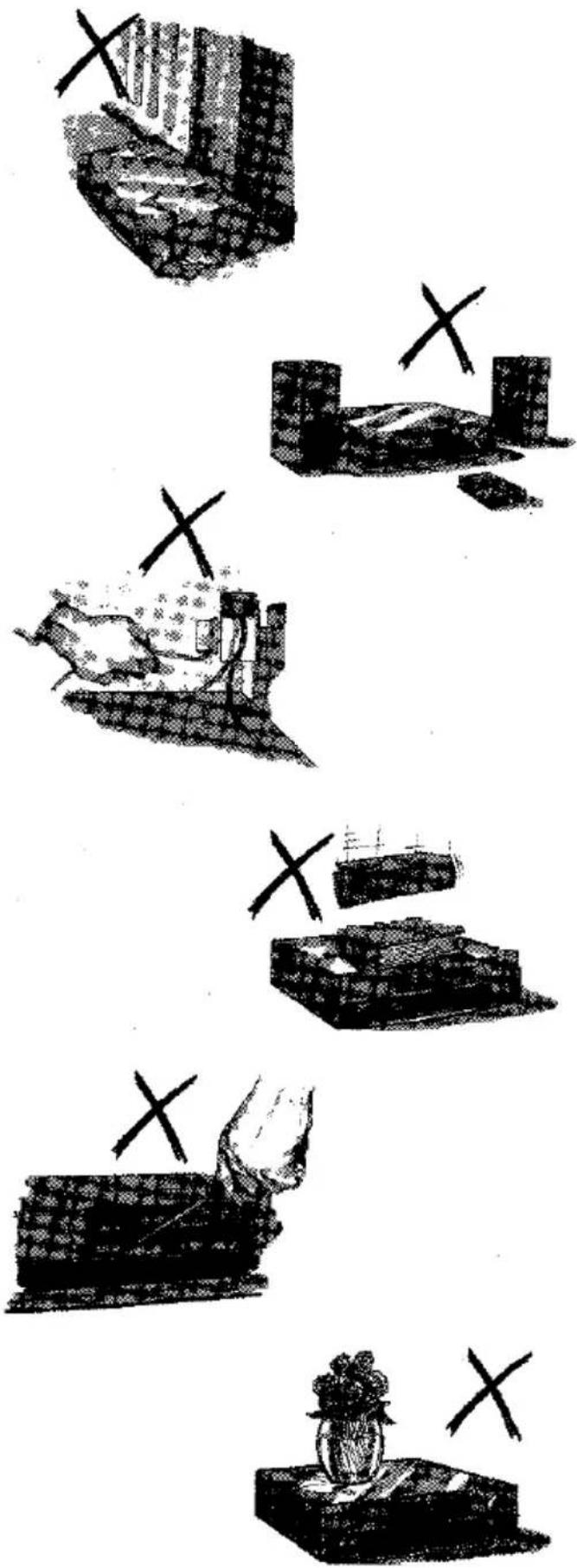
- Stellen Sie den Videorecorder auf eine ebene Fläche, entfernt von Heizkörpern oder anderen Wärmequellen und nicht in direktem Sonnenlicht.
- Lassen Sie ausreichend Belüftung um den Videorecorder und halten Sie ihn von Vorhängen, Teppichen oder anderen Materialien fern.
- Blockieren Sie nicht die Lüftungsöffnungen.
- Halten Sie Videorecorder und Videokassetten von Magnetquellen wie Lautsprechern oder Mikrowellenherden fern.
- Platzieren Sie den Videorecorder mindestens 20 cm vom Fernseher entfernt.
- Überlasten Sie keine Steckdosen, da dies einen Brand oder einen elektrischen Schlag verursachen kann.
● Ziehen Sie niemals am Netzkabel, um den Stecker aus der Steckdose zu ziehen.
● Um Überhitzung oder sogar Brand zu vermeiden, stecken Sie den Stecker richtig in die Steckdose und binden Sie die Netzkabel nicht zusammen.
- Vermeiden Sie es, den Videorecorder übermäßigem Staub, mechanischen Vibrationen oder Stößen auszusetzen.
- Legen Sie keine schweren Gegenstände auf den Videorecorder.
- Stecken Sie nichts in das Kassettenfach oder durch die Lüftungsschlitze, da dies zu ernsthaften Schäden, Brand oder sogar einem elektrischen Schlag führen kann.
- Legen Sie keine schweren Gegenstände oder Flüssigkeiten auf den Videorecorder. Wenn Flüssigkeit in den Videorecorder gelangt, ziehen Sie sofort den Netzstecker und wenden Sie sich an Ihren SHARP-Händler. Verwenden Sie den Videorecorder nicht weiter.
ANSCHLUSS DES VIDEORECORDERS AN FERNSEHER UND ANTENNE
1
Schließen Sie Ihr vorhandenes Antennenkabel über die Buchse ANTENNA IN an den Videorecorder an.
RÜCKSEITE DES FERNSEHERS
2
Verbinden Sie den Videorecorder mit dem mitgelieferten Koaxialkabel über die Buchsen RF OUT (VCR) und AERIAL IN (TV) mit dem Fernseher.

Optionale SCART-Verbindung (nicht im Lieferumfang enthalten, siehe Seite 35). Verbinden Sie den Videorecorder für eine verbesserte Bildqualität mit einem SCART-Kabel mit dem Fernseher.
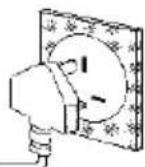
Schließen Sie den VCR-Stecker an die Netzsteckdose an. Der VCR befindet sich nun im STANDBY-Modus.

√ Der VCR ist nun korrekt angeschlossen.
Zum Austauschen von Netzstecker und Sicherung siehe ANSCHLUSS AN DAS STROMNETZ, Seite 33.
WICHTIGER HINWEIS ZUR AUSSTRAHLUNG VON CH5
In einigen Gebieten wurde Channel 5 Broadcasting Limited erlaubt, auf einem Kanal zu senden, der nahe an dem Kanal liegt, der normalerweise von Videorekordern verwendet wird. In diesen Gebieten können sich das VCR-Signal und das Channel-5-Signal gegenseitig stören. Dies äußert sich wie folgt:
- Störungen im Wiedergabebild des Videorekorders, die verschwinden, wenn die Antenne vom Videorekorder getrennt wird. ● Störungen im Bild von Channel 5, die verschwinden, wenn der Videorekorder ausgeschaltet wird.
Um dieses Problem zu beheben, empfehlen wir, den Videorekorder über ein SCART-Kabel an LINE 1/OUT des Videorekorders mit dem Fernseher zu verbinden, wie auf Seite 6 gezeigt. Dies hat den zusätzlichen Vorteil, dass das Wiedergabebild verbessert wird. Geeignete Kabel erhalten Sie bei Ihrem Händler oder beim Sharp-Ersatzteilvertrieb (siehe Seite 35).
Wenn Ihr Fernseher keinen geeigneten Anschluss hat, kann es möglich sein, eine zufriedenstellende Leistung zu erzielen, indem Sie den HF-Modulator einstellen (siehe nächste Seite, Punkt 4) und Ihren Fernseher neu abstimmen. Wenn die Störungen weiterhin bestehen, muss der Vorgang so oft wie nötig wiederholt werden, um zufriedenstellende Ergebnisse zu erzielen. In seltenen Fällen ist es jedoch nicht möglich, eine störungsfreie Leistung zu erreichen.
ABSTIMMUNG DES FERNSEHERS AUF DEN HF-VIDEOKANAL
Das folgende Verfahren beschreibt, wie Sie den HF-Kanal des Videorekorders abstimmen. Es ist nicht erforderlich, den HF-Kanal abzustimmen, wenn ein SCART-Kabel wie auf Seite 6 gezeigt angeschlossen ist; wählen Sie einfach 'AV' an Ihrem Fernseher.
- Drücken Sie STOP auf der Fernbedienung, um den Videorekorder einzuschalten. Ihr SHARP-Videorekorder ist werkseitig auf Kanal 36 eingestellt.
- Schalten Sie den Fernseher ein. Wählen Sie einen unbenutzten Kanal für Ihren Videorekorder (es gibt möglicherweise einen dedizierten Videokanal - lesen Sie in der Bedienungsanleitung Ihres Fernsehers nach).
- Stellen Sie den ausgewählten Kanal an Ihrem Fernseher ein (siehe Bedienungsanleitung Ihres Fernsehers), bis das Menü für die automatische Installation auf dem Bildschirm erscheint. Wenn keine Störungen auf dem Bildschirm zu sehen sind, beginnen Sie mit der automatischen Installation (nächste Seite).
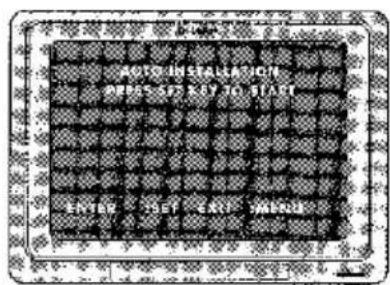
Nur Modell VC-M27HM
- Wenn Störungen im VCR-Signal auftreten, drücken Sie die Taste STANDBY auf der Fernbedienung. Dadurch wird der Videorekorder in den Bereitschaftsmodus versetzt.
- Halten Sie die Taste MENU etwa 2 Sekunden lang gedrückt, bis die Anzeige CH36 zeigt. Drücken Sie dann einmal [▲]. Die Anzeige zeigt CH37. Bestätigen Sie mit SET. Drücken Sie STOP auf der Fernbedienung, um den Videorekorder einzuschalten. Sie müssen nun den Videorekorderkanal am Fernseher neu einstellen. Wenn die Störungen weiterhin bestehen, kehren Sie zu Schritt 4 zurück.
Beachten Sie, dass die Kanalnummer bei jedem Durchführen dieses Vorgangs erhöht wird.
Nur Modell VC-M27LM
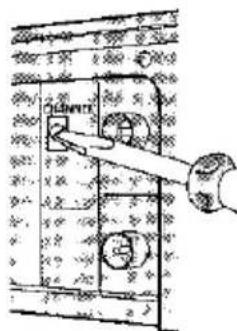
- Wenn Störungen im VCR-Signal auftreten, drehen Sie vorsichtig mit einem Schraubendreher die KANALEINSTELLUNG (auf der Rückseite des Videorekorders) um bis zu eine halbe Umdrehung in beide Richtungen. Sie müssen nun den Videorekorderkanal am Fernseher neu einstellen.
- Wiederholen Sie ab Schritt 4, bis ein störungsfreies Bild für die automatische Installation angezeigt wird.
Wenn Sie Ihr Fernsehgerät wechseln oder den RF-Videokanal des Videorekorders aus irgendeinem Grund neu einstellen müssen, lesen Sie den Abschnitt NEUABSTIMMUNG IHRES FERNSEHERS AUF DEN RF-VIDEOKANAL auf Seite 3.1.
Wenn Probleme weiterhin bestehen, wenden Sie sich an das SHARP-Verbraucherinformationszentrum, LoCall 0345 125387
Der Fernseher ist auf den Videorecorder abgestimmt.
AUTOMATISCHE INSTALLATION
Dieses Modell stimmt die Fernsehkanäle automatisch auf Ihre Region ab, sortiert sie dann mithilfe von Videotextinformationen in eine Standardreihenfolge und stellt die Uhr ein.
- Schalten Sie Fernseher und Videorecorder ein und wählen Sie den Videokanal am Fernseher.
- Stellen Sie sicher, dass der Videorecorder wie auf Seite 6 gezeigt angeschlossen ist und die Anweisungen auf Seite 8 ausgeführt wurden (wenn kein SCART-Kabel verwendet wird).
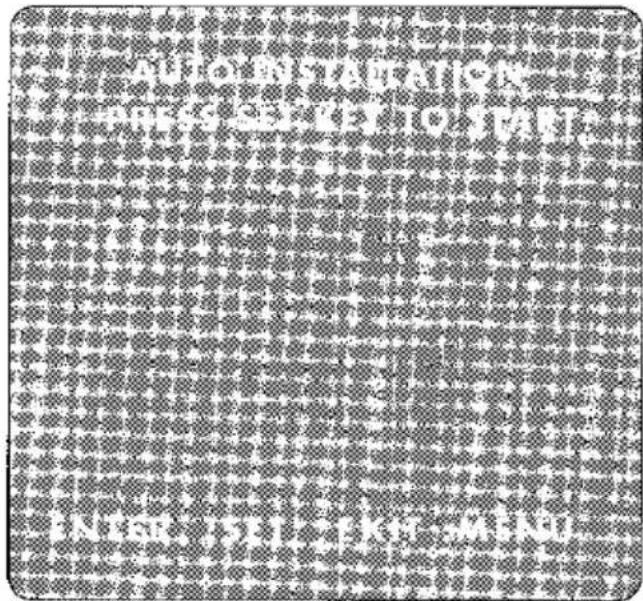
Wenn der Videorecorder noch nicht abgestimmt wurde, werden Anweisungen auf dem Bildschirm angezeigt, die Sie durch diesen Vorgang führen.
Wenn der gegenüberliegende Bildschirm beim ersten Einschalten des Videorecorders nicht erscheint, befolgen Sie das folgende Verfahren.
- Drücken Sie MENÜ.
- Drücken Sie [▲/▼], um VCR RESET auszuwählen, und drücken Sie zur Bestätigung zweimal SET.
- Befolgen Sie die Bildschirmanzeige.
- Drücken Sie jederzeit MENÜ, um die Menüfunktion zu verlassen.
2.
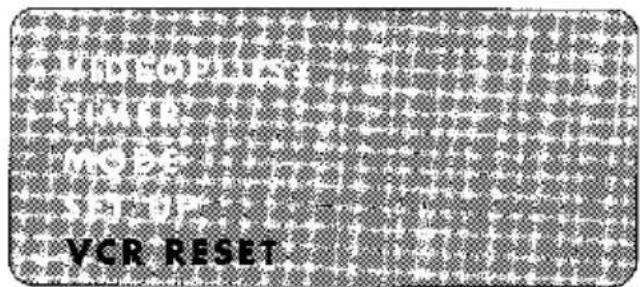
Wenn Sie mehr als 2 Minuten warten, ohne eine Taste zu drücken, verlässt der Videorecorder die MENÜ-Funktion.
Wenn der Videorecorder nicht
- Sortieren Sie die Kanäle in Ihrer bevorzugten Reihenfolge, siehe MANUELLE SORTIERUNG (einschließlich VERSCHIEBEN, ABBRECHEN und NAME), Seiten 27 bis 29. ● Automatischer Sendersuchlauf (aufgrund schlechten Empfangs), siehe MANUELLE ABSTIMMUNG (einschließlich ÜBERSPRINGEN), Seite 30.
- Stellen Sie die Uhr ein, siehe HANDBUCH UHREINSTELLUNG Seite 31

Alle Programme sollten nun korrekt eingestellt und die Uhr gestellt sein.
POSTLEITZAHL-SICHERHEIT
Dies ist eine neue Funktion, die es der Polizei ermöglicht, Sie als Besitzer des Videorecorders zu identifizieren, falls dieser gestohlen wird. Jedes Mal, wenn der Videorecorder eingeschaltet wird, wird Ihre Postleitzahl 5 Sekunden lang angezeigt. Ihre Postleitzahl kann nicht geändert oder entfernt werden, ohne zuerst die korrekte PIN-Nummer einzugeben. Wenn Sie diese Funktion nutzen möchten, befolgen Sie das folgende Verfahren.
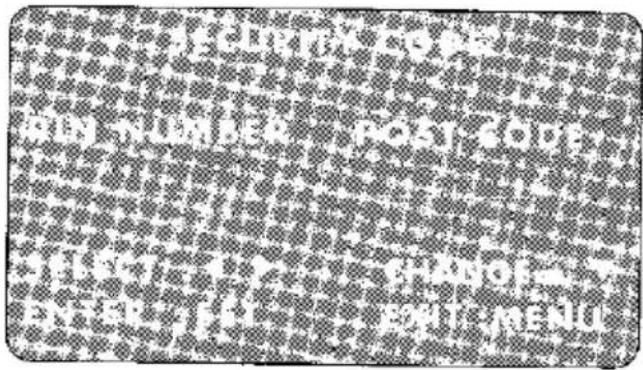
- Drücken Sie MENÜ
- Drücken Sie [▲/▼], um EINRICHTEN auszuwählen. Drücken Sie SET zur Bestätigung.
- Drücken Sie [▲/▼], um SICHERHEITSCODE auszuwählen. Drücken Sie SET zur Bestätigung.
- Geben Sie Ihre gewünschte PIN-Nummer mit den ZAHLENTASTEN oder der [▲/▼]-Taste ein. Dies muss eine 4-stellige Zahl im Bereich 0000 - 9999 sein. Drücken Sie SET zur Bestätigung.
- Geben Sie mit den ZAHLENTASTEN oder der [▲/▼ / ◀/▶]-Taste Ihre Postleitzahl ein. Drücken Sie SET zur Bestätigung.
- Notieren Sie Ihre PIN-Nummer im dafür vorgesehenen Feld für spätere Referenz.
HINWEIS: Ihre Postleitzahl kann jederzeit geändert werden, aber Sie müssen zuerst Ihre korrekte PIN-Nummer eingeben. Wenn die falsche PIN-Nummer eingegeben wird, erscheint eine Fehlermeldung. Geben Sie die korrekten Zahlen erneut ein. Wenn Sie Ihre PIN-Nummer jederzeit ändern möchten, befolgen Sie das folgende Verfahren:
- Geben Sie Ihre korrekte PIN-Nummer ein. Drücken Sie SET zur Bestätigung.
- Drücken Sie [◀], um Ihre PIN-Nummer erneut auszuwählen.
- Geben Sie Ihre PIN-Nummer ein. Drücken Sie SET zur Bestätigung.
WICHTIG:- Bewahren Sie Ihre Bedienungsanleitung getrennt von Ihrem Videorekorder auf.
EINFÜHRUNG

VORSICHT! VOR DEM EINLEGEN EINES VIDEOBANDES IN DEN VIDEOREKORDER
Im Videorekorder bildet sich Kondenswasser, wenn er aus einem warmen Raum in einen kalten oder umgekehrt gebracht wird. Wenn Sie zu diesem Zeitpunkt versuchen, wiederzugeben oder aufzunehmen, können das Videoband und der Videorekorder beschädigt werden. Schalten Sie den Videorekorder ein und warten Sie einige Stunden, bis er Raumtemperatur erreicht hat, bevor Sie ihn bedienen.
VIDEOBÄNDER
- Verwenden Sie nur Videobänder, die das VHS-PAL-Zeichen tragen.
FERNBEDIENUNG UND VIDEOREKORDER
- Der Videorekorder teilt einige Funktionstasten mit der Fernbedienung. Sie können beide verwenden, um den Videorekorder zu bedienen. (siehe Seite ii)
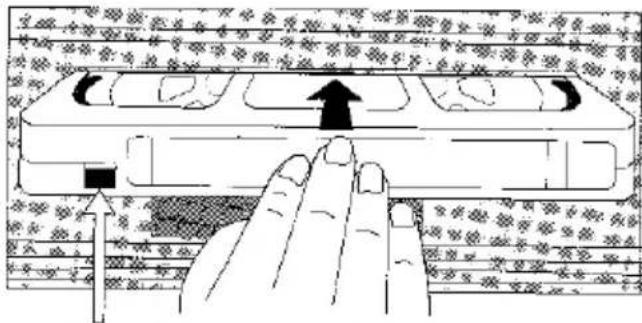
Aufnahmeschutzlasche
WIEDERGABE
- Schalten Sie Ihren Fernseher ein und wählen Sie den Videokanal.
- Legen Sie eine bespielte Videokassette vorsichtig in das Kassettenfach ein, wie in der Abbildung gezeigt. ☐ erscheint im Display. Dadurch wird der Videorecorder eingeschaltet.
- Drücken Sie einmal PLAY/X2, um die Wiedergabe zu starten.
Wenn die Aufnahmeschutzlasche entfernt wurde, startet der Videoplayer die Wiedergabe automatisch, sobald die Kassette eingelegt wurde.
- Für Wiedergabe mit doppelter Geschwindigkeit (ohne Ton) drücken Sie erneut PLAY/X2.
● Um zur normalen Wiedergabe zurückzukehren, drücken Sie erneut PLAY/X2.
- Drücken Sie einmal STOP, um die Wiedergabe zu stoppen. Zum Auswerfen der Kassette drücken Sie EJECT am Videorecorder.
SHARP SUPER PICTURE
In vielen Fällen verbessert SHARP SUPER PICTURE die Bildqualität bei der Wiedergabe von Bändern mit starken Störungen und erleichtert so das Betrachten. Es ist werkseitig auf EIN eingestellt, und das Bildschirmmenü (OSD) zeigt an, dass SHARP SUPER PICTURE aktiv ist. Zum Ein- oder Ausschalten drücken Sie SUPER P. an der Vorderseite des Videorecorders.
EINFÜHRUNG Fortsetzung
BILDSTÖRUNGEN WÄHREND DER WIEDERGABE
- Das automatische Spurführungssystem reduziert Bildstörungen und wird zu Beginn der Wiedergabe automatisch eingestellt. Ein Blinken im OSD zeigt die automatische Spurführung an.
- Um die automatische Spurführung manuell zu bedienen, halten Sie die Tasten CHANNEL ⊖ und ⭕ gleichzeitig gedrückt, bis das OSD blinkt.
- Um Störlinien zu korrigieren, drücken Sie während der Wiedergabe CHANNEL ⊖/⊕, um die Bildstörung vom Bildschirm zu schieben.
KOPFREINIGUNG
- Wenn Sie nur gute Qualitätsvideobänder verwenden, ist es im Allgemeinen nicht notwendig, die Videoköpfe zu reinigen. Tatsächlich verursacht die häufige Verwendung einiger Reinigerarten einen vorzeitigen Ausfall der Videoköpfe. Falls es notwendig wird, die Videoköpfe zu reinigen, wenden Sie sich bitte an Ihren Händler oder eine SHARP-Serviceeinrichtung.
- Wenn minderwertige Bänder verwendet werden oder wenn ein Band nach einem Standortwechsel des Videorecorders eingelegt wird, können Oxidpartikel vom Band die Videoköpfe "verstopfen". Dies führt dazu, dass das Wiedergabebild "schneit" oder sogar verschwindet.
- Spielen Sie ein Videoband im Sichtsuchlauf ab (siehe Seite 13), um leichte Verschmutzungen zu entfernen. Wenn dies fehlschlägt, müssen Sie die Köpfe von einer SHARP-Serviceeinrichtung reinigen lassen. Bitte beachten Sie: Wenn eine Reinigung erforderlich ist, ist diese nicht durch die Garantie abgedeckt.
AUSWAHL DER PROGRAMMNUMMER
Wählen Sie die Programmnummer mit den Zifferntasten auf der Fernbedienung. Zum Beispiel für Programm 2 drücken Sie 2.
ODER
Wählen Sie die vorherige/nächste Programmnummer durch Drücken von CHANNEL ⊖/⊕.
Um zwischen einstelligen und zweistelligen Programmnummern zu wechseln, drücken Sie (K).
Zum Beispiel für Programm 24 drücken Sie und dann 24.
SUCHEN AUF DEM BAND
Sie können zurückspulen oder vorspulen, um schnell eine Stelle auf dem Band zu finden. Sie können auch mit mehr Kontrolle mithilfe des Sichtsuchlaufs suchen. Beide Funktionen können mit REW und FF auf der Fernbedienung oder am Videorecorder bedient werden.
RÜCKSPULEN
Im Stoppmodus drücken Sie REW auf der Fernbedienung oder am Videorecorder. Zum Stoppen des Rücklaufs drücken Sie einmal STOP.
RÜCKWÄRTS-SICHTSUCHE
● Während der Wiedergabe drücken Sie REW auf der Fernbedienung. ● Um die Geschwindigkeit zu erhöhen, drücken Sie erneut REW. - Drücken Sie PLAY/X2, um die Wiedergabe fortzusetzen.
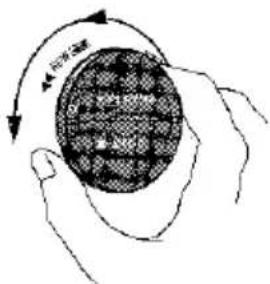
SCHNELLVORLAUF
Im Stopp-Modus drücken Sie FF auf der Fernbedienung oder am Videorecorder. Um den Schnellvorlauf zu stoppen, drücken Sie einmal STOP.
VORWÄRTS-BILDSUCHE
● Während der Wiedergabe drücken Sie FF auf der Fernbedienung. ● Um die Geschwindigkeit zu erhöhen, drücken Sie erneut FF. - Drücken Sie PLAY/X2, um die Wiedergabe fortzusetzen.
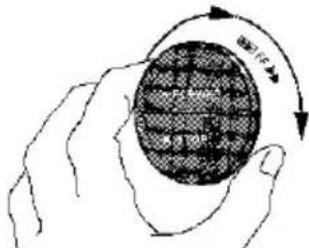
● Während der Suche erscheinen Rauschbalken und ein Schwarz-Weiß-Bild auf dem Fernseher. ● Der obere Teil des Bildes kann bei LongPlay-Bändern (LP) zur Seite geneigt sein. Siehe auch SKIP SEARCH; Seite 25
STANDBILD UND ZEITLUPENWIEDERGABE
- Für ein Standbild während der Wiedergabe drücken Sie PAUSE/STILL.
- Für Zeitlupenwiedergabe (ohne Ton) drücken Sie SLOW auf der Fernbedienung.
- Um Bildzittern zu minimieren, drücken Sie CHANNEL ⊖/⊕ im Pause-Modus.
Bei Verwendung dieser Funktionen kann es zu Bildstörungen und möglicherweise zu einem Schwarz-Weiß-Bild kommen - Der Pause-Modus wird nach etwa 5 Minuten automatisch beendet.
BILDSCHIRMANZEIGE
Wenn Sie aufnehmen, ein Band abspielen oder eine Sendung auf dem Videokanal ansehen, können Sie drei Bildschirmanzeigen aufrufen.
Die Anzeigen können in der folgenden Reihenfolge ausgewählt werden, indem Sie die Taste MODE OSD 1, 2, 3 oder 4 Mal drücken.
1.
- AUTO: Der aktuelle Modus und die Kanalnummer werden 3 Sekunden lang angezeigt, wenn eine Bedien- oder Zifferntaste gedrückt wird.
- FULL: Die erste Vollbildanzeige bleibt auf dem Bildschirm.
2.
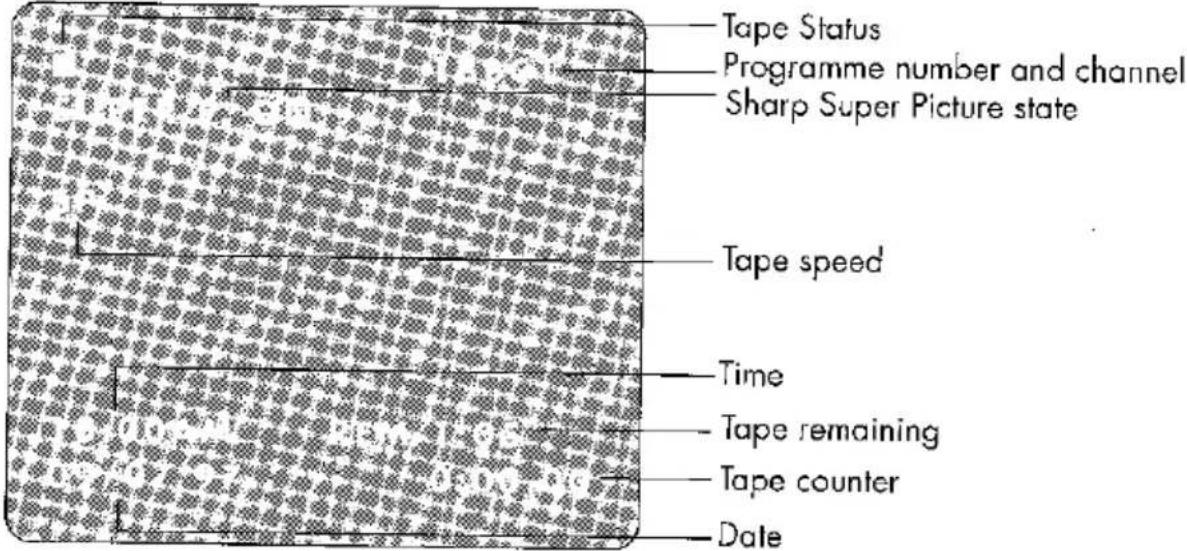
3.
3. COUNTER: Zeigt Bandzähler und Restband an.
- DISPLAY OFF: Entfernt die Anzeige vom Bildschirm.
● Zeit und Datum werden nicht angezeigt, wenn die Uhr nicht eingestellt wurde. ● Der Videorecorder kehrt bei jedem Einschalten zur AUTO-Anzeige zurück. - Wenn Sie von diesem Videorecorder auf einen anderen aufnehmen, verwenden Sie DISPLAY OFF, um zu verhindern, dass die Anzeige auf dem anderen Videorecorder aufgezeichnet wird.
MODUSWAHL
Drücken Sie MENU, um das Hauptmenü auf dem Bildschirm anzuzeigen. Das Hauptmenü hat fünf Optionen, einschließlich MODUS. Eine kurze Beschreibung finden Sie auf Seite 2.
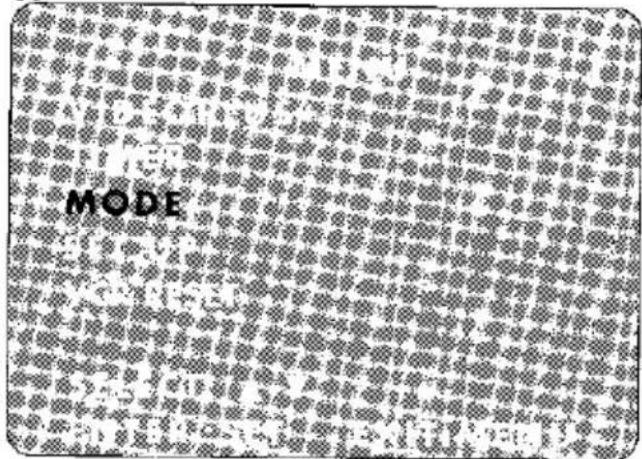
- Um das Modusmenü aufzurufen, markieren Sie MODUS mit den Tasten [▲/▼] und drücken Sie dann SET.
- Markieren Sie die zu ändernde Option mit den Tasten [▲/▼]. Drücken Sie [◀/▶], um AUTO, ON oder OFF entsprechend auszuwählen, und drücken Sie dann SET, um zum normalen Bildschirm zurückzukehren.
-
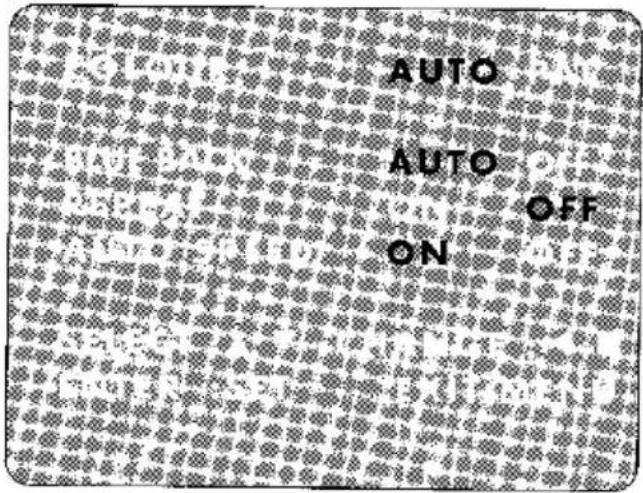
FARBE. Wenn der Videorecorder eine Aufnahme schlechter Qualität abspielt, kann das Bild schwarz-weiß werden. Die Auswahl von PAL kann dies (je nach Aufnahme) reduzieren, obwohl auf Schwarz-Weiß-Aufnahmen farbige Flecken erscheinen.
BLAUER HINTERGRUND. Dies ändert die Hintergrundfarbe der Bildschirmanzeige. Der Fernsehbildschirm wird blau, wenn ein Fernsehkanal ohne Signal ausgewählt ist, ein unbespielter Teil des Bandes abgespielt wird oder die Qualität der Aufnahme auf dem Band schlecht ist. Wählen Sie AUS, um diese Funktion zu deaktivieren.
WIEDERHOLUNG. Wenn Sie ein ganzes Videoband wiederholt abspielen möchten, spult diese Funktion am Ende des Bandes automatisch zurück und spielt erneut. Diese Funktion aktiviert oder deaktiviert diese Funktion.
AUTOMATISCHE GESCHWINDIGKEIT. Nach der Einstellung einer zeitgesteuerten Aufnahme prüft diese Funktion, wenn sie aktiviert ist, die verbleibende Menge an unbenutztem Videoband. Wenn diese nicht ausreicht, um die Aufnahme in Standardgeschwindigkeit (SP) abzuschließen, wird automatisch Langspielmodus (LP) gewählt, auch wenn im TIMER-Menü SP ausgewählt wurde. Dadurch kann so viel wie möglich von der Aufnahme gemacht werden.
Standardwiedergabe (SP) bietet die beste Bildqualität; Langspielmodus (LP) bietet die längste Aufnahmezeit.
SOFORTAUFNAHME
Sie können das Programm aufnehmen, das Sie gerade ansehen, oder eines auf einem anderen Kanal. Die Aufnahme wird fortgesetzt, bis Sie STOP drücken. Wenn das Ende des Bandes erreicht ist, stoppt der Videorecorder die Aufnahme und spult zurück. Stellen Sie sicher, dass das eingelegte Videoband eine Aufnahmeschutzlasche hat (siehe Seite 11).
- Wählen Sie das Programm aus, das Sie aufnehmen möchten.
- Um zwischen Standardwiedergabe (SP) und Langspielmodus (LP) zu wechseln, drücken Sie BANDGESCHWINDIGKEIT.
- Um von einer externen Quelle wie einem Camcorder aufzunehmen, wählen Sie AV. Siehe AUFNAHME VON EINER EXTERNEN QUELLE, Seite 23 - Schalten Sie beim Überspielen von einem Videorecorder auf einen anderen SHARP SUPER PICTURE aus.
- Um die Aufnahme zu starten, drücken Sie REC. Die Anzeige des Videorecorders zeigt etwa 3 Sekunden lang REC an.
- Um während der Aufnahme zu pausieren, drücken Sie PAUSE. Die Anzeige des Videorecorders zeigt etwa 3 Sekunden lang PAUSE an.
- Um die Aufnahme fortzusetzen, drücken Sie REC. Um die Aufnahme zu stoppen, drücken Sie einmal STOP.
Die Uhr muss nicht eingestellt sein, bevor Sie eine Sofortaufnahme machen.
EINFACHE ZEITGESTEUERTE AUFNAHME
ZEITGESTEUERTE ABSCHALTUNG
Sie können sofort mit der Aufnahme beginnen und eine Stoppzeit für Aufnahmen festlegen – nützlich zum Beispiel bei unerwartetem Besuch oder einem Telefonanruf.
● Für die zeitgesteuerte Abschaltung muss die Uhr eingestellt sein. – Wenn ☐ auf dem VCR-Display erscheint, drücken Sie vor dem Start TIMER ON/OFF.
- Wählen Sie das Programm, das Sie aufnehmen möchten.
- Um zwischen Standardaufnahme (SP) und Langzeitaufnahme (LP) zu wechseln, drücken Sie TAPE SPEED.
- Drücken Sie einmal REC, um die Aufnahme zu starten.
- Um die Stoppzeit festzulegen, drücken Sie erneut REC. Jedes weitere Drücken von REC verzögert die Stoppzeit um 10 Minuten. Passen Sie die Minutenanzahl durch Drücken von CHANNEL ⊖/⊕ an. Die Stoppzeit wird auf dem VCR und im Bildschirmdisplay angezeigt.
Zum Abbrechen der Aufnahme und der zeitgesteuerten Abschaltung drücken Sie einmal STOP.
PDC (PROGRAMMÜBERTRAGUNGSKONTROLLE)
Wenn Sie den Timer manuell oder mit VIDEOPLUS+ einstellen, stellt PDC sicher, dass der VCR das gesamte Programm aufnimmt, auch wenn sich die tatsächliche Sendezeit ändert. Das vom Fernsehsender ausgestrahlte PDC-Signal steuert die Timeraufnahme.
Es ist wichtig, dass die GENAU Startzeit des aufzunehmenden Fernsehprogramms eingestellt ist, damit diese Funktion funktioniert, da der VCR diese Informationen zur Identifizierung des Programms verwendet.
VERZÖGERTE AUFNAHMEN MIT VIDEOPLUS+
Mit dieser Funktion können Sie den VCR mit den in TV-Programmzeitschriften veröffentlichten Pluscode-Nummern programmieren. Der VCR kann insgesamt bis zu 8 verzögerte Aufnahmen durchführen.
- Wenn ☐ auf dem VCR-Display erscheint, drücken Sie vor dem Start TIMER ON/OFF.
- Überprüfen Sie, ob die Uhr die richtige Zeit anzeigt.
2.
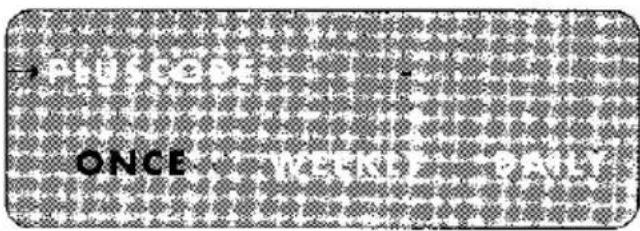
- Drücken Sie [SV/V+/TIMER].
- Geben Sie den PLUSCODE über die Zifferntasten ein. Wenn Sie eine falsche Zahl eingeben, erscheint eine Fehlermeldung. Drücken Sie in diesem Fall CLEAR, um die Zahlen wie erforderlich zu löschen.
- Wenn Sie zusätzliche Aufnahmen zur gleichen Zeit täglich oder wöchentlich machen möchten, verwenden Sie [▲/▼], um die Option EINMAL, WÖCHENTLICH oder TÄGLICH auszuwählen, und verwenden Sie dann [◀/▶], um entsprechend auszuwählen. Drücken Sie SET zur Bestätigung.
Das Menü zeigt die Timer-Einstellung entsprechend dem eingegebenen PLUSCODE an. Überprüfen Sie, ob diese mit den Zeiten in der TV-Programmzeitschrift übereinstimmt. Wenn dies falsch ist, drücken Sie CLEAR, um zum PLUSCODE-Menü zurückzukehren.
Sie können das VIDEOPLUS+-Menü auch über das folgende Verfahren aufrufen:
i. Drücken Sie MENU
ii. Die Option VIDEOPLUS+ wird hervorgehoben. Drücken Sie SET zur Bestätigung
Fahren Sie mit Schritt 2 oben fort.
VERZÖGERTE AUFNAHMEN MIT VIDEO PLUS+ (Fortsetzung)
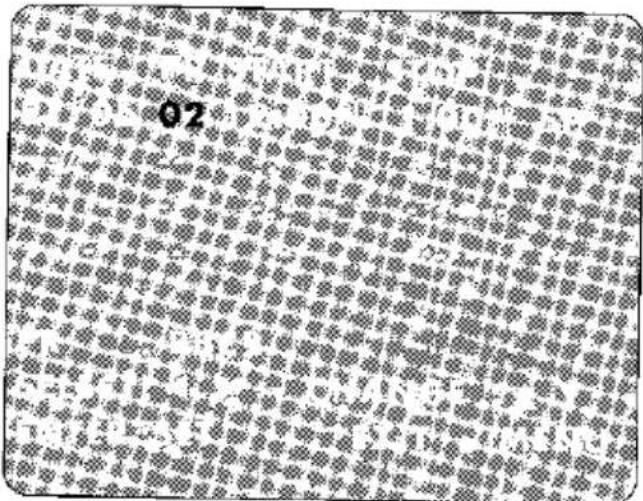
Beim ersten Mal, wenn Sie Video Plus+ für eine Aufnahme verwenden, wird im Menü PR hervorgehoben. Geben Sie die Programmnummer über die Zifferntasten ein, z. B. wenn BBC2 auf Programm 2 eingestellt ist, drücken Sie 0 2. Für Satellitenempfänger, die mit einem SCART-Kabel verbunden sind, drücken Sie [▲/▼], bis die Anzeige z. B. AV anstelle von KANALNUMMER zeigt. Dies ist eine Position vor 01. Der Videorecorder merkt sich dies für die Zukunft.
4.
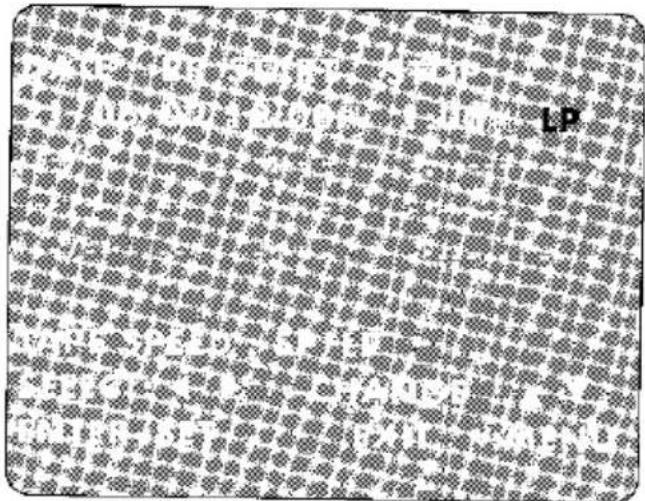
- Um die Aufnahmegeschwindigkeit zu ändern, verwenden Sie [◀/▶], um SP zu markieren. Drücken Sie [▲/▼], um je nach Bedarf SP oder LP auszuwählen.
Wenn Auto Speed eingeschaltet ist, wird LP automatisch ausgewählt, wenn nicht genügend Band für die SP-Aufnahme vorhanden ist.
- Um PDC auszuschalten, verwenden Sie [◀/▶], um das *-Symbol zu markieren. Drücken Sie [▲/▼], um PDC je nach Bedarf ein- oder auszuschalten. Wenn PDC ausgeschaltet ist, wird das *-Symbol durch - ersetzt.
5.
- Drücken Sie SET, um das Programm zu bestätigen. Das Pluscode-Menü erscheint erneut.
- Wenn Sie weitere VideoPlus+-Einstellungen vornehmen möchten, wiederholen Sie diesen Vorgang.
- Wenn Sie die Eingabe der Timer-Einstellungen abgeschlossen haben, drücken Sie MENU, um das Menü vom TV-Bildschirm zu entfernen.
ZEITGESTEUERTE AUFNAHMEN MIT VIDEOPlus+ Forts.
- Drücken Sie TIMER ON/OFF einmal, um den Videorecorder in den TIMER-BEREITSCHAFTSMODUS zu versetzen. ☐ erscheint auf dem Display des Videorecorders.
Wenn 📁 auf dem Display erscheint, müssen Sie TIMER ON/OFF drücken, um den Videorecorder zu verwenden, aber denken Sie daran, es erneut zu drücken, da sonst Ihre Aufnahmen nicht gemacht werden. Wenn keine Videokassette eingelegt ist, blinkt 📁. Wenn die Aufnahmeschutzlasche fehlt, siehe Seite 1. Die Kassette wird ausgeworfen.
- Während der Aufnahme drücken Sie STOP, um die Aufnahme abzubrechen. Wenn weitere Aufnahmen zu machen sind, kehrt der Videorecorder in den TIMER-BEREITSCHAFTSMODUS zurück.
ZEITGESTEUERTE TIMER-AUFNAHMEN
Mit dieser Funktion können Sie bis zu 8 zeitversetzte Aufnahmen bis zu einem Jahr im Voraus programmieren.
- Wenn ☐ auf dem VCR-Display erscheint, drücken Sie TIMER ON/OFF, bevor Sie beginnen.
- Überprüfen Sie, ob die Uhr die richtige Zeit anzeigt.
Beispiel: Aufnahme von Programm 3 von 21:05 bis 22:30 Uhr am 9. Juli.
1.
- Drücken Sie MENÜ und dann [▲/▼], um den TIMER-Modus auszuwählen. Drücken Sie SET zur Bestätigung.
Zuvor ausgewählte Timer-Aufnahmen werden aufgelistet.
Die Position, die anfänglich hervorgehoben ist, ist die nächste verfügbare. Drücken Sie SET zur Bestätigung.
ZEITVERSETZTE TIMER-AUFNAHMEN (Fortsetzung)
2.
3.
- Das Display zeigt automatisch das heutige Datum an. Wenn Sie an diesem Datum aufnehmen möchten, drücken Sie SET zur Bestätigung. Andernfalls geben Sie das Aufnahmedatum über die ZIFFERNTASTEN ein. Geben Sie 2 Ziffern für den Tag und dann 2 für den Monat ein. Zum Beispiel für den 9. Juli drücken Sie 0 9 (9.) und dann 0 7 (Juli). Drücken Sie dann SET zur Bestätigung.
- Wenn Sie zusätzliche Aufnahmen zur gleichen Zeit jeden Tag oder jede Woche machen möchten, verwenden Sie [▲/▼], um D oder W auszuwählen. Drücken Sie dann SET zur Bestätigung.
- Geben Sie die Programmmummer über die Zifferntasten ein. Um beispielsweise Programm 3 aufzunehmen, drücken Sie 0 3. Bestätigen Sie dann mit SET.
Um Programme von Satellitenreceivern aufzunehmen, die über ein SCART-Kabel angeschlossen sind, drücken Sie [▲/▼], bis im Display beispielsweise AV anstelle der Kanalnummer erscheint. Dies ist eine Position vor Kanal 01.
5.
6.
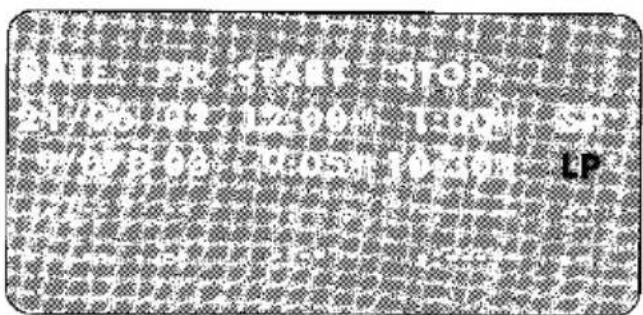
- Geben Sie die Startzeit über die Zifferntasten ein – zuerst Stunden, dann Minuten (bei weniger als 10 Minuten fügen Sie eine '0' vor der Zahl ein), z. B. für 21:05 Uhr drücken Sie 905, dann [AM/PM], bis PM erscheint. Bestätigen Sie dann mit SET.
- Geben Sie die Stoppzeit ein, z. B. für 22:30 Uhr drücken Sie 1030 und dann AM/PM.
Um die Aufnahmegeschwindigkeit zu ändern, verwenden Sie [◀/▶], um SP auszuwählen. Drücken Sie [▲/▼], um LP auszuwählen. Wenn Sie [▲/▼] erneut drücken, wechseln Sie zurück zu SP.
ZEITGESTEUERTE AUFNAHMEN (Fortsetzung)
8.
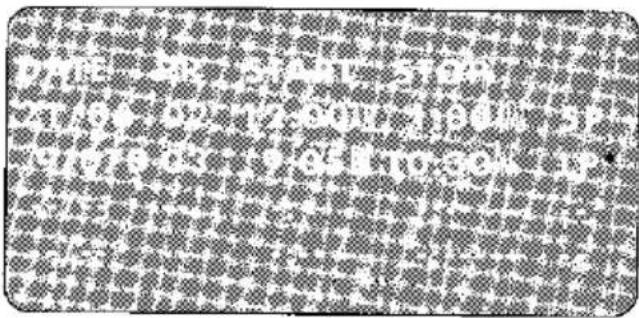
- Um PDC auszuschalten, verwenden Sie [◀/▶], um das *-Symbol hervorzuheben, und drücken Sie dann [▲/▼]. Wenn PDC ausgeschaltet ist, wird das *-Symbol durch - ersetzt. Wenn Sie [▲/▼] erneut drücken, wechseln Sie zurück zu PDC ein.
- Drücken Sie SET, um das Programm zu bestätigen.
Das MENÜ zeigt nun alle von Ihnen eingegebenen Timer-Einstellungen. Wenn Sie weitere Timer-Aufnahmen machen möchten, wiederholen Sie diesen Vorgang.
- Wenn Sie die Eingabe der Timer-Einstellungen abgeschlossen haben, drücken Sie MENÜ, um das Menü vom TV-Bildschirm zu entfernen. Drücken Sie einmal TIMER ON/OFF, um den Videorecorder in den TIMER-BEREITSCHAFTS-Modus zu versetzen. □ erscheint im Display des Videorecorders.
Wenn keine Videokassette im Videorecorder ist, blinkt ☐. Wenn die Aufnahmeschutzlasche fehlt (siehe Seite 11), wird die Videokassette ausgeworfen. Wenn ☐ im Display erscheint, müssen Sie TIMER ON/OFF drücken, um den Videorecorder zu benutzen, aber denken Sie daran, es erneut zu drücken, sonst werden Ihre Aufnahmen nicht gemacht. Während der Aufnahme drücken Sie STOP, um die Aufnahme abzubrechen. Wenn noch weitere Aufnahmen zu machen sind, kehrt der Videorecorder in den TIMER-BEREITSCHAFTS-Modus zurück.
BESTÄTIGEN/ABBRECHEN VON ZEITGESTEUERTEN AUFNAHMEN
Mit dieser Funktion können Sie überprüfen, welche Programme im Timer-Speicher eingegeben wurden.
2.
3.

4.
- Drücken Sie MENÜ.
- Drücken Sie [▲/▼], um TIMER auszuwählen. Drücken Sie SET, um zu bestätigen.
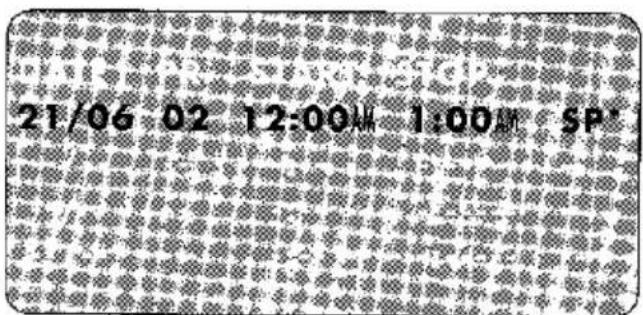
- Überprüfen Sie die auf dem Bildschirm angezeigten Timer-Einstellungen.
- Wenn Sie eine Timeraufnahme ändern möchten, drücken Sie [▲/▼], um die Einstellung hervorzuheben, und drücken Sie dann SET. Drücken Sie [◀/▶], um das zu ändernde Element hervorzuheben, und korrigieren Sie das Element. Wenn alle Korrekturen abgeschlossen sind, drücken Sie SET und dann MENU.
- Wenn Sie eine Timeraufnahme abbrechen möchten, drücken Sie [▲/▼], um die aufzuhebende Aufnahme hervorzuheben, und drücken Sie dann CLEAR.
- Drücken Sie MENU.
Wenn einige Programme aufgenommen werden sollen, vergessen Sie nicht, TIMER ON/OFF zu drücken, um den Videorecorder in den Timer-Bereitschaftsmodus zurückzusetzen.
AUFNAHME VON EINER EXTERNEN QUELLE
Es ist möglich, Video- und Audiosignale von verschiedenen externen Quellen aufzunehmen. Um von einer externen Quelle aufzunehmen, drücken Sie VCR INPUT SELECT auf der Fernbedienung, bis AV auf dem Display des Videorecorders erscheint.
Wählen Sie AV, wenn Sie von einer Quelle aufnehmen möchten, die über ein SCART-Kabel an LINE 1 IN/OUT auf der Rückseite des Videorecorders angeschlossen ist. (Siehe Seite 6).
FERNBEDIENUNG FÜR DEN TV-BETRIEB
Zusätzlich zur Bedienung des Videorecorders kann die Fernbedienung auch Grundfunktionen ausführen, wenn Sie ein SHARP-Fernsehgerät besitzen.
• TV OPERATE Schaltet den Fernseher in den Bereitschaftsmodus und zurück. - TV INPUT SELECT Bestimmt, welcher Eingang des Fernsehers auf dem Bildschirm angezeigt wird. • TV CH ⊖/⊕ Ändert die Fernsehkanäle. • TV VOL ∧/∨ Erhöht oder verringert die Lautstärke.
DIGITALE ANZEIGE
Wenn Sie DISPLAY drücken, ändert sich die Anzeige auf dem Videorecorder.
BAND RESTLICH
Wenn eine Videokassette in den Videorecorder eingelegt wird, wird die verbleibende Bandmenge ungefähr in Stunden und Minuten berechnet – dies kann nützlich sein, um festzustellen, ob genügend Band für eine Aufnahme vorhanden ist. Während eine Videokassette abgespielt wird, wird die verbleibende Bandmenge automatisch für Sie berechnet.
Um die verbleibende Bandmenge nach dem Einlegen der Kassette anzuzeigen, drücken Sie DISPLAY. Wenn die Kassette gerade eingelegt wurde, spult das Band vor und kehrt dann in seine ursprüngliche Position zurück. Die verbleibende Bandmenge wird in Stunden und Minuten angezeigt.
Zum Beispiel: 1 Stunde 23 Minuten:


BANDZÄHLER UND NULLRÜCKSTELLUNG
Der Bandzähler misst die aktuelle Position der Videokassette in Echtzeit. Mit der NULLRÜCKSTELLUNG können Sie mithilfe des Bandzählers einen bestimmten Punkt auf dem Band bestimmen, zu dem Sie zurückkehren möchten.
- Drücken Sie DISPLAY, bis der Bandzähler erscheint, zum Beispiel:
- Um die aktuelle Position auf einer Videokassette zu ermitteln, drücken Sie CLEAR, und der Bandzähler erscheint:

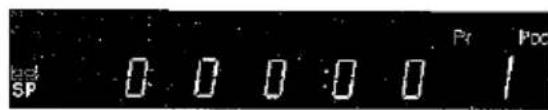
Wenn Sie zu dieser Position auf der Videokassette zurückkehren möchten, drücken Sie ZERO BACK. Das Band spult zu diesem Punkt zurück/vor.
Der Bandzähler funktioniert nur bei bespielten Bandabschnitten.
UHRZEIT
Zeigt die aktuelle Uhrzeit an, wenn die Uhr eingestellt ist. Drücken Sie DISPLAY, bis die Uhrzeit erscheint. Zum Beispiel erscheint 13:20 Uhr:
BETRIEBSART
Zeigt den Status des Bandes an. Drücken Sie DISPLAY, bis die Anzeige erscheint, zum Beispiel:


DIGITALES PROGRAMM-SUCHSYSTEM (DPSS)
Dieser Videorecorder zeichnet am Anfang jeder Aufnahme ein Markierungssignal auf dem Band auf. Diese Signale können später verwendet werden, um den Anfangspunkt einer Aufnahme zu finden.
Drücken Sie DPSS-/+ , um das vorherige/nächste Programm zu finden.
Die DPSS-Nummer auf dem Display bezieht sich auf die aktuelle Bandposition. Wenn Sie zum Beispiel dreimal DPSS+ drücken, erscheint +3 auf dem Bildschirm, und der Videorecorder sucht die dritte Aufnahme nach der aktuellen. Wenn Sie einmal DPSS- drücken, erscheint -1 auf dem Bildschirm, und der Videorecorder sucht den Anfang der aktuellen Aufnahme.
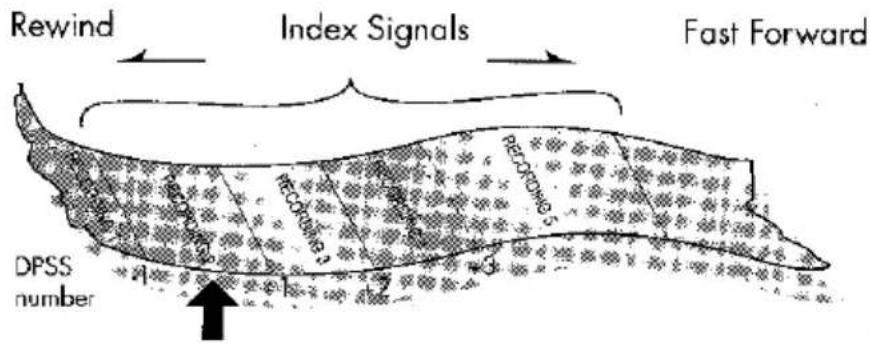
Aktuelle Bandposition
● Zum Abbrechen von DPSS drücken Sie STOP oder PLAY/X2. - DPSS funktioniert im normalen Wiedergabe- oder Stoppmodus, sofern die Aufnahmen länger als 3 Minuten sind. ● Der Startpunkt der Wiedergabe kann variieren. - DPSS ist für Videobänder gedacht, die mit einem Videorecorder mit DPSS-Funktion aufgenommen wurden.
SKIP-SUCHE
Während der Wiedergabe können Sie mit dieser Taste einen Bandabschnitt überspringen.
Drücken Sie SKIP SEARCH für die Vorwärts-Videosuche. Die Anzahl der Tastendrücke bestimmt die Vorwärts-Suchzeit.
1 Druck = 30 Sekunden:
2 Drücke = 1 Minute:
Nach der Suche wird die normale Wiedergabe automatisch fortgesetzt.
3 Drücke = 1 Minute 30 Sekunden.
4 Drücke = 2 Minuten.
WIEDERHOLUNG
Diese Funktion spielt das gesamte Videoband wiederholt ab.
Wählen Sie WIEDERHOLUNG im MODE-Menü. (siehe Seite 15). WIEDERHOLUNG erscheint im OSD des Videorecorders, wenn es ausgewählt wird.
KINDERSICHERUNG UND ERWEITERTE KINDERSICHERUNG
Mit diesen Funktionen können Sie alle Videorecorder-Modi sperren, um versehentliche Änderungen zu verhindern. Die Funktionen funktionieren auch, wenn der Videorecorder im Standby-Modus ist, und verhindern so, dass Kinder den Videorecorder bedienen oder bestimmte Programme ansehen.
KINDERSICHERUNG
- Drücken Sie Ⓞ auf der Fernbedienung und halten Sie es etwa 2 Sekunden lang gedrückt. Ⓞ blinkt und „----“ leuchtet auf der Anzeige des Videorecorders auf.
- Drücken Sie @ erneut. © bleibt auf der Anzeige des Videorecorders leuchten und bestätigt, dass die KINDERSICHERUNG aktiviert wurde.
Unabhängig davon, welche anderen Bedientasten berührt werden, arbeitet der Videorecorder nun in seinem aktuellen Modus weiter. Wenn die KINDERSICHERUNG während der Wiedergabe aktiviert wird, spult der Videorecorder das Band automatisch zurück, wirft es aus und schaltet sich aus, sobald das Bandende erreicht ist.
DEAKTIVIERUNG DER KINDERSICHERUNG
Drücken Sie Ⓞ und halten Sie es etwa 2 Sekunden lang gedrückt. Ⓞ beginnt zu blinken und verschwindet dann. Die KINDERSICHERUNG ist deaktiviert.
- Wenn die Stromversorgung länger als 60 Sekunden unterbrochen wird (z. B. bei einem Stromausfall), kann die KINDERSICHERUNG deaktiviert werden.
ERWEITERTE KINDERSICHERUNG
Diese Funktion funktioniert auf die gleiche Weise wie die KINDERSICHERUNG, mit dem einzigen Unterschied, dass eine persönliche Geheimzahl verwendet wird, um alle Videorecorder-Modi zu sperren.
- Drücken Sie Ⓞ und halten Sie es auf der Fernbedienung etwa 2 Sekunden lang gedrückt. Ⓞ blinkt und „...“ leuchtet auf der Anzeige des Videorecorders auf.
- Geben Sie eine persönliche Geheimzahl (eine beliebige 4-stellige Zahl) über die nummerierten Tasten ein. Die eingegebene persönliche Geheimzahl wird auf dem VCR-Display angezeigt.
- Drücken Sie ☐ erneut. ☐ bleibt auf dem VCR-Display beleuchtet und bestätigt, dass die ERWEITERTE KINDERSICHERUNG aktiviert wurde.
DEAKTIVIERUNG DER ERWEITERTEN KINDERSICHERUNG
- Drücken und halten Sie Ⓞ etwa 2 Sekunden lang. Ⓞ blinkt und „----“ leuchtet auf dem VCR-Display auf.
- Geben Sie die persönliche Geheimzahl ein, die Sie zur Aktivierung der ERWEITERTEN KINDERSICHERUNG verwendet haben, über die nummerierten Tasten ein. Die Zahl wird auf dem VCR-Display angezeigt. Wenn die Geheimzahl falsch ist, wird „----“ auf dem VCR-Display angezeigt. Geben Sie die richtige Geheimzahl erneut ein, und drücken Sie erneut, bis die Anzeige verschwindet. Jetzt ist die ERWEITERTE KINDERSICHERUNG deaktiviert.
- Wenn Sie versuchen, den Modus zu ändern, indem Sie eine andere Taste drücken, während die KINDERSICHERUNG/ERWEITERTE KINDERSICHERUNG aktiviert ist, blinkt die Ⓞ-Anzeige auf dem VCR-Display.
- Wenn Sie die ERWEITERTE KINDERSICHERUNG deaktivieren, wird die persönliche Geheimzahl gelöscht, sodass bei jeder Aktivierung der ERWEITERTEN KINDERSICHERUNG eine andere Zahl verwendet werden kann.
MANUELLE SORTIERUNG
KANALSORTIERUNG
Normalerweise sortiert der VCR die TV-Programme mithilfe von Videotext-Informationen. Mit dieser Funktion können Sie die Reihenfolge ändern.
2.
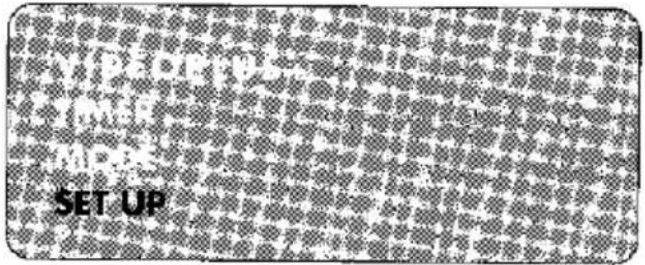
- Drücken Sie MENÜ.
- Drücken Sie [▲/▼], um SET UP auszuwählen. Drücken Sie SET zur Bestätigung.
- Drücken Sie [▲/▼], um den Modus CHANNEL SORT auszuwählen. Drücken Sie SET zur Bestätigung.
- Die Position MOVE wird hervorgehoben. Drücken Sie SET zur Bestätigung.
- Drücken Sie [▲/▼], um den zu verschiebenden Kanal hervorzuheben. Drücken Sie SET zur Bestätigung.
3.
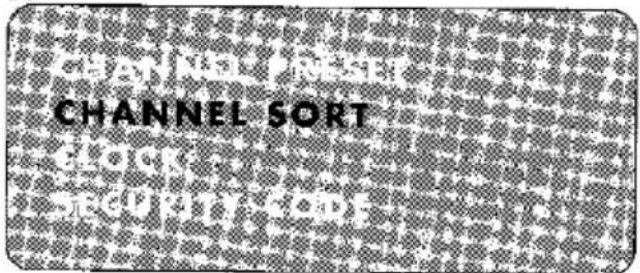
- Drücken Sie [▲/▼], um die neue Position für den Kanal hervorzuheben. Drücken Sie SET zur Bestätigung.
4.
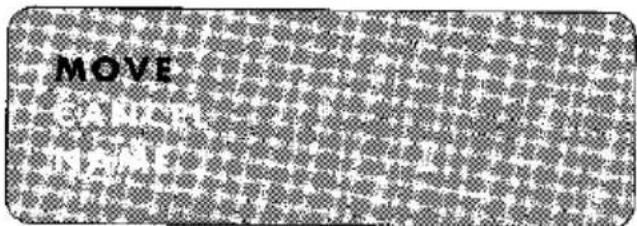
5. Beispiel:

- Wenn weitere Kanäle verschoben werden sollen, wiederholen Sie das obige Verfahren.
- Wenn alle Kanäle in der gewünschten Reihenfolge sind, drücken Sie MENU, um die MENU-Funktion zu verlassen.
MANUELLE SORTIERUNG Fortsetzung
KANAL LÖSCHEN
Die Löschfunktion wird verwendet, um unerwünschte Kanäle zu entfernen.
2.
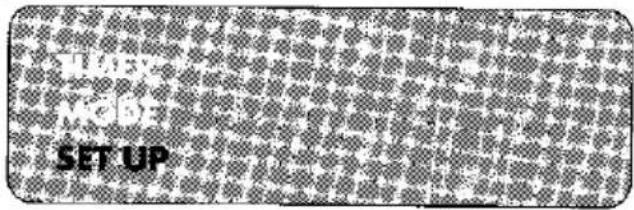
5. Beispiel:
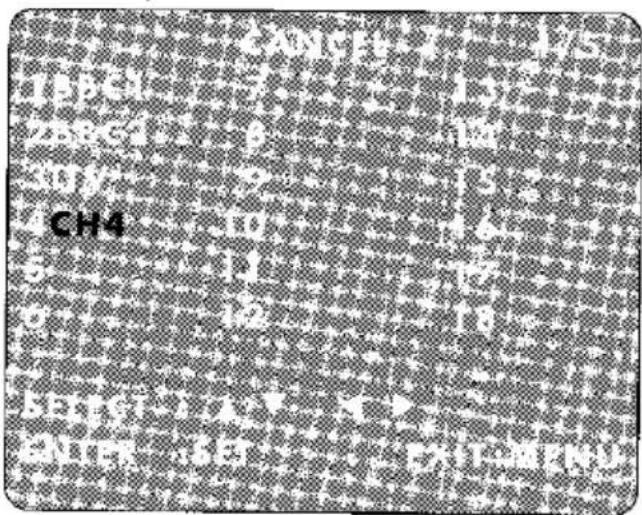
6. Beispiel:
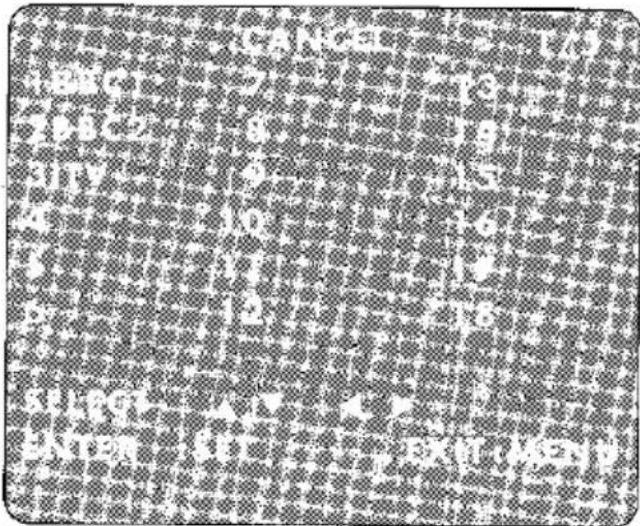
- Drücken Sie MENU.
- Drücken Sie [▲/▼], um SET UP auszuwählen. Drücken Sie SET zur Bestätigung.
- Drücken Sie [▲/▼], um den Modus CHANNEL SORT auszuwählen. Drücken Sie SET zur Bestätigung.
- Drücken Sie [▲/▼], um CANCEL auszuwählen. Drücken Sie SET zur Bestätigung.
- Drücken Sie [▲/▼], um den zu löschenden Kanal hervorzuheben.
- Drücken Sie zweimal SET, um den Kanal zu löschen.
- Wenn Sie alle gewünschten Kanäle gelöscht haben, drücken Sie MENU.
MANUELLE SORTIERUNG Fortsetzung
KANALNAME
Normalerweise benennt der Videorecorder die Fernsehprogramme anhand von Videotext-Informationen. Mit dieser Funktion können Sie den Namen des Kanals ändern.
2.
- Drücken Sie MENU.
- Drücken Sie [▲/▼], um SET UP auszuwählen. Drücken Sie SET zur Bestätigung.
- Drücken Sie [▲/▼], um den Modus KANALSORTIERUNG auszuwählen. Drücken Sie SET zur Bestätigung.
3.
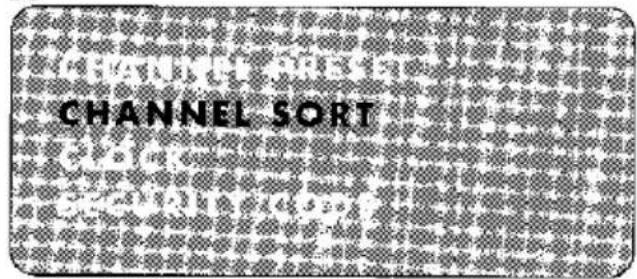
- Drücken Sie [▲/▼], um NAME hervorzuheben. Drücken Sie SET, um zu bestätigen.
- Drücken Sie [▲/▼], um den Kanal hervorzuheben, der benannt werden soll. Drücken Sie SET, um zu bestätigen.
4.
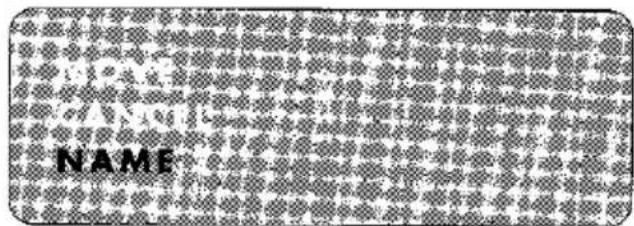
- Drücken Sie [▲/▼ / ◀/▶], um den Kanal umzubenennen. Drücken Sie SET, um zu bestätigen.
Beispiel:

- Wenn weitere Kanäle umbenannt werden sollen, wiederholen Sie das obige Verfahren.
- Wenn alle Kanäle korrekt benannt sind, drücken Sie MENU, um die MENU-Funktion zu verlassen.
MANUELLER SENDERSUCHE
Normalerweise ist es nicht notwendig, Rundfunkprogramme manuell abzustimmen, außer in ungewöhnlichen Umständen wie schlechtem Signal.
Stellen Sie sicher, dass am Fernseher der Videokanal ausgewählt ist.
- Drücken Sie MENU. Drücken Sie dann [▲/▼], um SET UP auszuwählen. Drücken Sie SET.
- Drücken Sie dann [▲/▼], um den Modus CHANNEL PRESET auszuwählen. Drücken Sie SET zur Bestätigung.
1.
CHANNEL PRESET
KABELEMPFANG NUR FÜR VC-M27LM
| StationSignals VHF | Real ChannelNumbers |
| A | 01 |
| B | 02 |
| C | 03 |
| D | 04 |
| E | 05 |
| F | 06 |
| G | 07 |
| H | 08 |
| J | 09 |
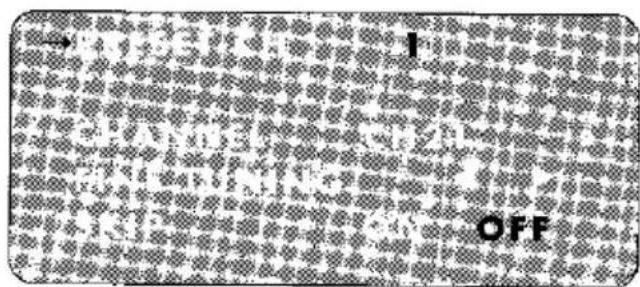
- Drücken Sie [▲/▼], um CHANNEL auszuwählen, und drücken Sie dann [◀/▶], um den Sendersuchlauf in eine Richtung zu starten. Der Suchlauf stoppt, wenn ein Programm empfangen wird. Wenn es nicht das gewünschte Programm ist, drücken Sie [◀/▶], um den Suchlauf fortzusetzen.
- Drücken Sie [▲/▼], um FINE TUNING auszuwählen. Halten Sie [◀/▶] gedrückt, bis das schärfste Farbbild erhalten wird.
- Drücken Sie [▲/▼], um SKIP auszuwählen. Die SKIP-Funktion bestimmt, ob der Kanal bei Verwendung von CHANNEL⊖/⊕ anstelle der ZAHLENTASTEN ausgewählt werden kann.
- Drücken Sie [◀/▶], um für diese Option ON oder OFF auszuwählen.
- Drücken Sie SET, um zu bestätigen.
- Drücken Sie MENU, um diese Funktion zu verlassen.
MANUELLE UHRZEITEINSTELLUNG
Die Uhr wird normalerweise automatisch über den Videotext eingestellt, der in Fernsehsignalen enthalten ist. Falls aus irgendeinem Grund keine Videotextsignale vorhanden sind, können Sie die Uhr mit diesem Verfahren manuell einstellen.

- Drücken Sie MENU. Drücken Sie [▲/▼], um SETUP auszuwählen.
- Drücken Sie [▲/▼], um CLOCK auszuwählen. Drücken Sie SET, um zu bestätigen.
- Drücken Sie [▲/▼], um MANUAL auszuwählen. Drücken Sie SET, um zu bestätigen.
- Drücken Sie [▲/▼], um entweder die 12- oder 24-Stunden-Anzeige auszuwählen.
- Drücken Sie [◀/▶], um TIME auszuwählen. Geben Sie die Zeit mit den ZIFFERNTASTEN oder [▲/▼] ein. Wenn die Minuten kleiner als 10 sind, geben Sie die führende Null ein. Wenn Sie die 12-Stunden-Anzeige verwenden, geben Sie AM oder PM ein, indem Sie [AM/PM] auf der Fernbedienung drücken.
- Drücken Sie [◀/▶], um DATE auszuwählen. Geben Sie das Datum mit den ZIFFERNTASTEN ein. Zum Beispiel für den 1. April geben Sie 1 04 ein.
- Drücken Sie [◀/▶], um JAHR auszuwählen. Geben Sie die letzten beiden Ziffern des Jahres über die ZAHLENTASTEN ein. Zum Beispiel für 1997 geben Sie 9 7 ein. Bestätigen Sie dann mit SET.
Wenn Sie die Uhr manuell einstellen, müssen Sie die Uhr für die Mitteleuropäische Zeit oder die Mitteleuropäische Sommerzeit aktualisieren.
NEUABSTIMMUNG IHRES FERNSEHERS AUF DEN RF-VIDEOKANAL
- Schalten Sie den Fernseher ein. Wählen Sie einen unbenutzten Kanal für Ihren Videorecorder (möglicherweise gibt es einen eigenen Videokanal, siehe Bedienungsanleitung Ihres Fernsehers).
- Drücken Sie STANDBY, der Videorecorder wechselt in den Bereitschaftsmodus.
- Drücken Sie MENÜ etwa 2 Sekunden lang. Die Kanalnummer blinkt auf der Digitalanzeige (beim VC-M27LM blinkt VCR auf der Digitalanzeige).
- Stimmen Sie den ausgewählten Kanal auf Ihrem Fernseher ab, bis das Hauptmenü auf dem Bildschirm erscheint.
- Drücken Sie MENÜ, um die Bildschirmanzeige zu entfernen.
ANSCHLUSS EINER CAMCORDER
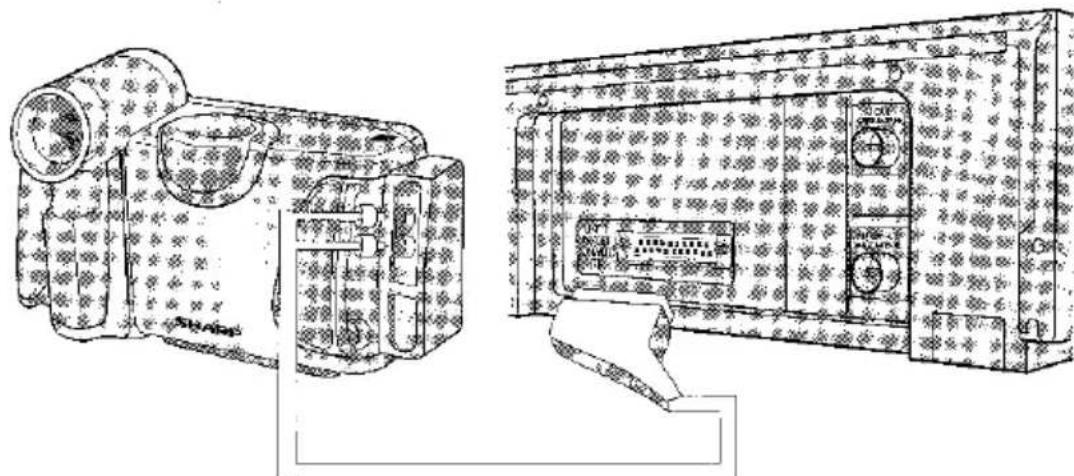
Optionale SCART-Verbindung (nicht im Lieferumfang enthalten).
Drücken Sie VCR INPUT SELECT, um den Kanal AV am Videorecorder auszuwählen. Die Anzeige zeigt AV.
Es gibt zahlreiche verschiedene Methoden, externe Geräte an den Videorecorder anzuschließen. Weitere Informationen finden Sie in der jeweiligen Bedienungsanleitung des Geräts.
ANSCHLUSS AN DAS STROMNETZ

Dieser Videorecorder ist nur für den Anschluss an das britische Stromnetz geeignet. Das Gerät ist mit einem formgepressten 3-poligen Netzstecker mit einer 3-Ampere-Sicherung ausgestattet. Der Videorecorder hat keinen Netzschalter. Wenn er an das Stromnetz angeschlossen ist, zieht das Gerät ständig Strom, um die Uhr zu betreiben. Ziehen Sie den Netzstecker, wenn der Videorecorder mehrere Monate lang nicht verwendet wird.
ZUM AUSTAUSCH DER SICHERUNG:
Sie müssen eine 3-Ampere-Sicherung verwenden, die mit {ASTA} oder {BSI} nach BS-1362 gekennzeichnet ist. Entfernen Sie die Sicherungsabdeckung wie gezeigt. Ersetzen Sie die Sicherung und setzen Sie die Sicherungsabdeckung wieder fest in den Stecker ein.
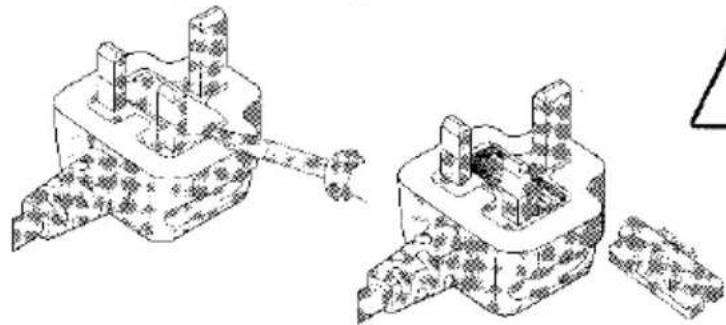

Schließen Sie den Stecker niemals ohne die Sicherungsabdeckung an das Stromnetz an.
ZUM AUSTAUSCH DES NETZSTECKERS:
Wenn der mitgelieferte Stecker nicht für die Steckdose in Ihrem Haus geeignet ist, schneiden Sie den Stecker ab, entfernen Sie die Sicherung und entsorgen Sie den abgeschnittenen Stecker sicher.

Es kann zu einem schweren Stromschlag kommen, wenn Sie den abgeschnittenen Stecker an eine Steckdose anschließen. Wenn ein neuer Stecker angebracht wird, beachten Sie den vom Steckerhersteller mitgelieferten Verdrahtungscode (und unten angegeben). Wenn Sie Zweifel haben, wenden Sie sich an einen qualifizierten Elektriker.
Die Adern im Netzkabel sind wie folgt farbcodiert: blau = Nullleiter, braun = Außenleiter.
Da die Farben der Adern möglicherweise nicht mit den Klemmen in Ihrem Stecker übereinstimmen, verbinden Sie die Adern gemäß der Anleitung des Steckerherstellers:
- blaues Kabel mit der Klemme, die mit N gekennzeichnet oder schwarz oder blau gefärbt ist.
- braunes Kabel mit der Klemme, die mit L gekennzeichnet oder rot oder braun gefärbt ist.

Stellen Sie sicher, dass weder das braune noch das blaue Kabel mit der Erdungsklemme in Ihrem Stecker verbunden ist.
Lassen Sie kein Wasser mit dem Netzkabel oder Stecker in Kontakt kommen.
Ein beschädigtes Netzkabel oder ein lockerer Stecker kann einen Stromschlag verursachen. Wenden Sie sich an Ihren SHARP-Händler oder einen qualifizierten Elektriker. Verwenden Sie den Videorecorder nicht.
| PROBLEM | ANSWER | PAGE |
| Display is not working. | Make sure the power cord is plugged in.Check the fuse in the plug.Make sure the wall socket has power [plug another appliance in]. | 33 |
| VCR will not operate - appears in display. | Press the TIMER ON/OFF button to disengage timer. | 16 |
| VCR will not respond to any commands. | Check CHILD LOCK is not engaged.Safety device operating: unplug VCR for 10 minutes. | 26 |
| Cassette cannot be loaded. | Make sure there is no other cassette in the VCR.Make sure you are loading the cassette correctly. | 11 |
| VCR cannot be operated by remote control. | Remote control is too far away from the main unit.Point the remote control at the VCR.Batteries are flat - replace both.Batteries have not been inserted correctly.VCR is positioned in strong light. | 45 |
| No picture appears. | Make sure TV is set to the video channel.Check all connecting cables. | 86 |
| Rewind is not possible. | Make sure tape is not at the start. | 13 |
| Picture does not change even though CHANNEL -/+ buttons are pressed. | Make sure VCR is not in timer or menu mode. | 16 |
| Desired programme position cannot be selected. | The programme position has been set to be skipped.Cancel the skip mode for that channel. | 30 |
| No colour or poor TV picture on normal viewing. | Make sure all the cables are connected properly.Make sure VCR power cord is properly plugged in. | 633 |
| Playback picture is snowy. | Adjust the tracking using CHANNEL -/+ buttons.Try another tape.The video heads may have been contaminated - refer to a SHARP Service Facility. | 1235 |
| Cassette is automatically ejected when pressing REC or TIMER ON/OFF buttons. | The record-protection tab has been removed. | 11 |
| VideoPlus+ does not record desired programme. | Broadcast does not carry PDC signal which alters recording time.Check PDC mode is switched to ON. | 18 |

HILFREICHE HINWEISE
ANFORDERUNG VON KUNDENDIENST
- Wenn Sie ein Problem mit den obigen Überprüfungen nicht lösen können, entfernen Sie nicht das Gehäuse und versuchen Sie nicht, den Videorecorder selbst zu reparieren.
- Für den Service wenden Sie sich bitte an Ihren Händler. Falls dies nicht möglich ist, rufen Sie bitte unser Kundeninformationszentrum an, um die Adresse der nächstgelegenen Sharp-Service-Niederlassung zu erfahren.
SHARP Kundeninformationszentrum: Tel. Lo-Call 0345 125387
- Bitte beachten Sie, dass Sie für Reparaturen während der Garantiezeit einen Kaufbeleg vorlegen müssen.
- SCART-Kabel erhalten Sie beim SHARP-Ersatzteilzentrum: Tel. 0161 205 7531. Die meisten Kredit-/Debitkarten werden akzeptiert.
GARANTIE
SHARP Electronics (UK) Ltd (im Folgenden Sharp genannt) garantiert, für die Reparatur oder nach eigener Wahl den Ersatz dieses Produkts zu sorgen, vorbehaltlich der unten aufgeführten Bedingungen:
- Diese Garantie gilt nur für Fehler, die auf mangelhafte Verarbeitung oder Materialfehler zurückzuführen sind. Sie deckt keine Fehler oder Schäden ab, die durch Unfall, unsachgemäßen Gebrauch, normale Abnutzung, Vernachlässigung, Manipulation am Produkt oder Reparaturen durch andere als von SHARP beauftragte Serviceeinrichtungen verursacht wurden.
- Da dieses Produkt nur für den privaten Hausgebrauch bestimmt ist, gilt die Garantie nicht, wenn das Produkt im Rahmen einer geschäftlichen, gewerblichen oder beruflichen Tätigkeit verwendet wird.
- Um diese Garantie in Anspruch nehmen zu können, muss jeder auftretende Fehler innerhalb eines Jahres ab Kaufdatum des Produkts SHARP oder der beauftragten Serviceeinrichtung gemeldet werden. Ein Kaufbeleg ist vorzulegen.
- Die Garantie deckt keine Transportkosten, Batterien oder Videokassetten ab.
- Falls dieses Produkt wider Erwarten repariert werden muss, wenden Sie sich bitte an den Händler, bei dem Sie es gekauft haben. Falls dies nicht möglich ist, kontaktieren Sie bitte das SHARP-Kundeninformationszentrum unter der unten angegebenen Telefonnummer.
- Diese Garantie wird als zusätzlicher Vorteil zu Ihren gesetzlichen Rechten angeboten und beeinträchtigt diese Rechte in keiner Weise.
- Niemand ist befugt, die Bedingungen dieser Garantie zu ändern.
Wenn Sie Schwierigkeiten bei der Bedienung dieses Produkts haben oder Informationen über andere SHARP-Produkte wünschen, rufen Sie bitte das SHARP-Kundenzentrum unter der unten angegebenen Nummer an.
SHARP Kundeninformationszentrum: Tel. Lo-Call 0345 125387
Bitte beachten Sie, dass alle Anrufe zum Ortstarif abgerechnet werden.
TECHNISCHE DATEN
Format: VHS PAL-Standard
Anzahl der Köpfe: Zwei Köpfe
Videosignalsystem: PAL-Farbe oder Monochromsignale: 625 Zeilen
Maximale Spielzeit: 480 Min. mit VHS-Kassette E-240 im Long-Play-Modus (LP)
Bandbreite: 12,7 mm
Bandgeschwindigkeit: 23,39 mm/s Standard Play (SP): 11,70 mm/s Long Play (LP)
Antenne: 75 Ω unsymmetrisch
Empfangskanäle: UHF-Kanal 21-69 (VHF-Kanäle A-J, nur Modelle VC-MH27LM)
HF-Ausgangssignal: UHF-Kanal 21-69 (VC-27HM): UHF-Kanal 30-39 (VC-MH27LM)
Voreingestellt auf 36: 591,25 MHz
Stromversorgung: AC 230-240 V, 50 Hz
Leistungsaufnahme: 17 W (ca.)
Betriebstemperatur: 5°C bis 40°C
Lagertemperatur: -20°C bis 55°C
Videoeingang: 1,0 Vp-p, 75 Ω
Videoausgang: 1,0 Vp-p, 75 Ω
Audioeingang: Line: -3,8 dB, 10 kΩ
Audioausgang: Line: -3,8 dB, 1 kΩ
Abmessungen: 360,0 (B) × 286,0 (T) × 94,0 (H) mm
Gewicht: ca. 3,5 kg
Mitgeliefertes Zubehör: 75-Ω-Koaxialkabel, Bedienungsanleitung, Fernbedienung, AA-Batterie (x2)
Dieses Gerät erfüllt die Anforderungen der Richtlinien 89/336/EWG und 73/23/EWG in der Fassung von 93/68/EWG.
CE
- Änderungen der technischen Daten im Rahmen unserer Politik der kontinuierlichen Verbesserung vorbehalten.
- Für etwaige Ungenauigkeiten oder Auslassungen in dieser Veröffentlichung wird keine Haftung übernommen, obwohl alle mögliche Sorgfalt darauf verwendet wurde, sie vollständig und so genau wie möglich zu machen.
SHARP ELECTRONICS (U.K.) Ltd.
Kundeninformationszentrum..... LoCall 0345 125387
Ersatzteilzentrum 0161 205 7531

- SHARP
- BEDIENUNGSANLEITUNG FÜR DEN VIDEOREKORDER
- VORDERSEITE DES VIDEOREKORDERS / ENTSPRECHENDE FUNKTIONEN DER FERNBEDIENUNG
- SEHR GEEHRTER SHARP-KUNDE
- URHEBERRECHT
- SICHERHEITSWARNHINWEISE
- INHALT
- GRUNDINSTALLATION
- SCHNELLSTART
- AUFNAHME
- ERWEITERTE BEDIENUNG
- KUNDENSPEZIFISCHE INSTALLATION
- OPTIONALE ANSCHLÜSSE
- HILFREICHE HINWEISE
- HAUPTMENÜ BILDSCHIRMANZEIGE
- VIDEORECORDER-ANZEIGE
- AUSPACKEN DES ZUBEHÖRS
- PRÜFEN SIE, OB ALLE DIESE ZUBEHÖRTEILE MIT IHREM VIDEORECORDER GELIEFERT WURDEN. WENDEN SIE SICH AN IHREN HÄNDLER, WENN EINES FEHLT
- (TYP AA)
- BATTERIEN (X2)
- KOAXIALKABEL
- SO LEGEN SIE DIE BATTERIEN IN DIE FERNBEDIENUNG EIN
- FERNBEDIENUNG
- IDEALER AUFSTELLUNGSORT FÜR DEN VIDEORECORDER
- ANSCHLUSS DES VIDEORECORDERS AN FERNSEHER UND ANTENNE
- WICHTIGER HINWEIS ZUR AUSSTRAHLUNG VON CH
- ABSTIMMUNG DES FERNSEHERS AUF DEN HF-VIDEOKANAL
- NUR MODELL VC-M27HM
- NUR MODELL VC-M27LM
- AUTOMATISCHE INSTALLATION
- POSTLEITZAHL-SICHERHEIT
- EINFÜHRUNG
- VORSICHT! VOR DEM EINLEGEN EINES VIDEOBANDES IN DEN VIDEOREKORDER
- VIDEOBÄNDER
- FERNBEDIENUNG UND VIDEOREKORDER
- WIEDERGABE
- SHARP SUPER PICTURE
- EINFÜHRUNG FORTSETZUNG
- BILDSTÖRUNGEN WÄHREND DER WIEDERGABE
- KOPFREINIGUNG
- AUSWAHL DER PROGRAMMNUMMER
- SUCHEN AUF DEM BAND
- RÜCKSPULEN
- RÜCKWÄRTS-SICHTSUCHE
- SCHNELLVORLAUF
- VORWÄRTS-BILDSUCHE
- STANDBILD UND ZEITLUPENWIEDERGABE
- BILDSCHIRMANZEIGE
- MODUSWAHL
- SOFORTAUFNAHME
- EINFACHE ZEITGESTEUERTE AUFNAHME
- ZEITGESTEUERTE ABSCHALTUNG
- PDC (PROGRAMMÜBERTRAGUNGSKONTROLLE)
- VERZÖGERTE AUFNAHMEN MIT VIDEOPLUS
- VERZÖGERTE AUFNAHMEN MIT VIDEO PLUS+ (FORTSETZUNG)
- ZEITGESTEUERTE AUFNAHMEN MIT VIDEOPLUS+ FORTS
- ZEITGESTEUERTE TIMER-AUFNAHMEN
- ZEITVERSETZTE TIMER-AUFNAHMEN (FORTSETZUNG)
- ZEITGESTEUERTE AUFNAHMEN (FORTSETZUNG)
- BESTÄTIGEN/ABBRECHEN VON ZEITGESTEUERTEN AUFNAHMEN
- AUFNAHME VON EINER EXTERNEN QUELLE
- FERNBEDIENUNG FÜR DEN TV-BETRIEB
- DIGITALE ANZEIGE
- BAND RESTLICH
- BANDZÄHLER UND NULLRÜCKSTELLUNG
- UHRZEIT
- BETRIEBSART
- DIGITALES PROGRAMM-SUCHSYSTEM (DPSS)
- SKIP-SUCHE
- WIEDERHOLUNG
- KINDERSICHERUNG UND ERWEITERTE KINDERSICHERUNG
- KINDERSICHERUNG
- DEAKTIVIERUNG DER KINDERSICHERUNG
- ERWEITERTE KINDERSICHERUNG
- DEAKTIVIERUNG DER ERWEITERTEN KINDERSICHERUNG
- MANUELLE SORTIERUNG
- KANALSORTIERUNG
- BEISPIEL
- MANUELLE SORTIERUNG FORTSETZUNG
- KANAL LÖSCHEN
- KANALNAME
- MANUELLER SENDERSUCHE
- CHANNEL PRESET
- MANUELLE UHRZEITEINSTELLUNG
- NEUABSTIMMUNG IHRES FERNSEHERS AUF DEN RF-VIDEOKANAL
- ANSCHLUSS EINER CAMCORDER
- ANSCHLUSS AN DAS STROMNETZ
- ZUM AUSTAUSCH DER SICHERUNG
- ZUM AUSTAUSCH DES NETZSTECKERS
- ANFORDERUNG VON KUNDENDIENST
- SHARP KUNDENINFORMATIONSZENTRUM: TEL. LO-CALL
- GARANTIE
- TECHNISCHE DATEN
- CE
- SHARP ELECTRONICS (U.K.) LTD
Marke : SHARP
Modell : VC-M27
Kategorie : Videorekorder