
AF 51082MS - Digitaler Fotorahmen AGFAPHOTO - Kostenlose Bedienungsanleitung
Finden Sie kostenlos die Bedienungsanleitung des Geräts AF 51082MS AGFAPHOTO als PDF.


| Produkttyp | Digitaler Bilderrahmen |
| Marke | AgfaPhoto |
| Modell | AF 51082MS |
| Bildschirmdiagonale | 10,1 Zoll |
| Auflösung | 1024 x 600 Pixel |
| Speicherkartenunterstützung | SD, SDHC, MMC |
| Stromversorgung | 5V DC, 1A (über Netzteil) |
| Abmessungen (ca.) | 260 x 170 x 20 mm |
| Gewicht (ca.) | 500 g |
| Funktionen | Diashow, Kalender, Uhr, Wecker |
| Unterstützte Bildformate | JPEG, BMP, GIF, PNG |
| Anschlüsse | USB, SD-Kartenslot |
| Reinigung | Mit weichem, trockenem Tuch reinigen. Keine aggressiven Reinigungsmittel verwenden. |
| Sicherheit | Nicht in Wasser tauchen. Nur für Innenräume geeignet. |
| Reparatur / Wartung | Keine vom Benutzer zu wartenden Teile. Bei Störungen Fachmann kontaktieren. |
| Lieferumfang | Bilderrahmen, Netzteil, Bedienungsanleitung |
| Garantie | 2 Jahre |
Häufig gestellte Fragen - AF 51082MS AGFAPHOTO
Benutzerfragen zu AF 51082MS AGFAPHOTO
0 Frage zu diesem Gerät. Beantworten Sie die, die Sie kennen, oder stellen Sie Ihre eigene.
Eine neue Frage zu diesem Gerät stellen
Laden Sie die Anleitung für Ihr Digitaler Fotorahmen kostenlos im PDF-Format! Finden Sie Ihr Handbuch AF 51082MS - AGFAPHOTO und nehmen Sie Ihr elektronisches Gerät wieder in die Hand. Auf dieser Seite sind alle Dokumente veröffentlicht, die für die Verwendung Ihres Geräts notwendig sind. AF 51082MS von der Marke AGFAPHOTO.
BEDIENUNGSANLEITUNG AF 51082MS AGFAPHOTO

AGFAPHOTO
AF 5088/5108MS
Quick Start Guide
1

1.1
1.2

1.3
2
3



3.1
A
V
<
3.2

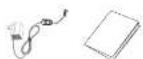
1 Packing Contents
1.1 Digital Photo Frame
12 Power Supply
1.3 Quick Guide
2 Getting Started
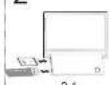
2.1 Insert a memory card (SD, MMC or MS) into the card slot
Insert the OSB device into the OSB port
The card will only fit in one direction; do not
Figure 1. The card should be simply after properly inserted.
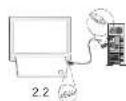
2.2 Connecting to a PC
Using the USB cable(not included), you can connect your
frame to a computer to transfer files between the internal
military and computer.
(2) If you can exchange the risks to a complaint, then inserted memory card can not be recognized.
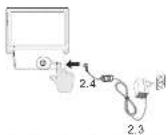
2.3 Plug AC adaptor into the Digital Photo Frame, and plug
into a wall outlet.
2.4 Press the POWER button on the rear of the device to
power on.
3 Basic Operations
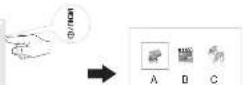
3.1 Press the MENU/€button to enter the main menu.
A: Photo Playback
B: Video Playback
G: Music Playback
Press the F button to enter the setting menu.
A: Preview Mode
B. Copy Menu
C: Delete Menu
13. S###
3.2 Use the direction key to select different item.
© 1. Direction Key
2. Sides to previous or next image/video/music file
Enable music playre meau during slide show
- 1. The following
1. Direction Key
2. Adjust the value of the capital, equity and
OK StartPause the playback
Press the Button during photo playback:
Photo Preview Mode( 16 thumbnails per page)
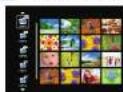
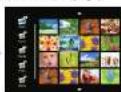
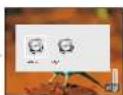
- Use Ⓧ or Ⓧ button to select a folder/album on the left, then touch Ⓧ button
- Use Ⓞ Ⓥ ⓔ button to select an image and touch OK to start the slideshow
- Skips to the previous or next image, use the 📊or button. To pause or start the slide show, touch OK.
- Touch the 🔒 button to enter the background music setting menu. Use 📊or button to adjust the volume.
Photo Copy Menu
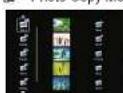
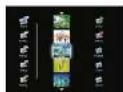
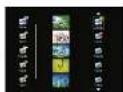
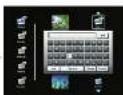
- Use 📞or button to select a source;
- Select an image and touch OK
- Use ▲or▼button to select a folder/album and touch OK to start copying.
- If select and touch OK, you can rename the album. Use button to select a letter/digit and touch OK. After input all the letters/digits, select the Enter and touch OK to confirm.
Photo Delete Menu
- Use ☑ or Ⓐ button to select a source and;
- Select an image and touch OK Touch OK again to cancel the selections
- Touch button and then touch OK button.
- Use Car Button to select √ to delete, select ☒ to cancel
The same steps for music/video copy/delete.

Setting Mode
loons in the setting mode:
| To set specific fun frame | |
| To choose the specific power start mode | |
| Power Start Up Mode-orderly 1 | |
| Power Start Up Mode-orderly 2 | |
| Power Start Up Mode-orderly 3 | |
| Power Start Up Mode-orderly 4 | |
| Power Start Up Mode-random 1 | |
| Power Start Up Mode-random 2 | |
| Power Start Up Mode-random 3 | |
| Power Start Up Mode-random 4 | |
| Eco Setting(Set the automatically power on/off time). | |
| Photo Setting(from the left to the right) | |
| 1. Rotation. | |
| 2.To change the interval time for side show. | |
| 3.To choose different transition effect for slice show. | |
| 4.To set different LCD screen display ratio. | |
| Adjustment of Brightness,Contrast,Color saturation,LCD backlight of the LCD screen. | |
| Brightness | |
| Contrast | |
| Color Saturation | |
| LCD Backlight | |
| Data Setting | |
| Time Setting | |
| Alarm Clock Setting | |
| Reset! |

Technical Data
| Dimensions | 203x182.5x86 1mm(AF5088MG) |
| 255x202x88 3mm(AF5108MS) | |
| Score on size | 8"x(AF5088MS) |
| 10.4"x(AF5108MS) | |
| Aspect ratio | ±3 |
| Resolution | 800 x 800 pixels |
| File at real memory | 2GB |
| USB port | USB Port, USB Device |
| Compatible memory card | SD/MMC/WS/XD |
| Photo format | JPEG |
| Music format | VIP3 |
| Video format | MPEG, Xid, MPEG4-visual |
| File format | *.evl, *. mag, *. mp3, *.jpg |
| Max. video resolution | 720x76Pixel |
| at 30 pictures/sec (/ps) |
Safety instructions and recommendations
- Keep the screen clean (please use a dry soft cloth for cleaning). Make sure the power is off before cleaning the unit. Then
- In order to prevent damage to the card or the unit, please turn off the power before removing or inserting the card.
- Use enclosed DC 5V/2A power adapter, the unit is for indoor use only
- Always handle the unit with care. Avoid to using the LCD screen
gently wipe with a dry soft cloth.
- Do not place the unit near any other heat sources.
- Do not splash or a film with liquids.
- Do not place the unit to rain, water, moisture or high humidity.
- Tempers wire are fully:
Opened long tempera wire : CC-++50, Humidity : 205-e 6%
- This equipment complies with the voltage type specified on the unit.
The CE marking certifies that the product meets the main requirements of the European Parliament and Council

regarding electromagnetic interference.
The declaration of compliance can be consulted on the site www.agfapholo.com
Preservation of the environment as part of a sustainable development logic is an essential concern of AgfaPhoto.
The desire of Agri-Photo is to operate systems observing the environment and consequently it has decided to operate environmental performances.
Integrate environmental performance
In the life cycle of this products from manufacturing to commissioning use and elimination.

Packaging:
The presence of the logo;green dot) means that a contribution is paid to an approved national organisation to
improve package recovery and recycling infrastructures to facilitate please respect the sorting rules set up locally
for this kind of waste.

Product:
The crossed-out waste bin stuck on the product means that the product belongs to the family of electrical and electronic
equipment. In its respect, the European regulations ask you to dispose all selectively
At sales points in the event of to a purchase of similar equipment.
At the collect on points made available to you local-field p-off centre, selective collection, etc.
In this way you can participate in the re-use and upgrading of Electrical and Electronic Equipment Waste, which can have an
effect on the environment and human health.
AgfaPhoto Holding GmbH AGFAPHOTO is used under license of Agfa-Gevaert NV & Co KG Agfa-Gevaert NV & Co KG does not
manufacture these products or provide any product warranty or support. Contact www.agfaphoto.com
or service support and warranty information, contact the distributor or manufacturer.


Marke : AGFAPHOTO
Modell : AF 51082MS
Kategorie : Digitaler Fotorahmen