
MTIDM045721 - Overvågningskamera MOTOROLA - Gratis brugsanvisning og manual
Find enhedens vejledning gratis MTIDM045721 MOTOROLA i PDF-format.


Brugerspørgsmål om MTIDM045721 MOTOROLA
0 spørgsmål om dette apparat. Besvar dem du kender, eller stil dit eget.
Stil et nyt spørgsmål om dette apparat
Download vejledningen til din Overvågningskamera i PDF-format gratis! Find din vejledning MTIDM045721 - MOTOROLA og tag din elektroniske enhed tilbage i hånden. På denne side er alle dokumenter nødvendige for brugen af din enhed offentliggjort. MTIDM045721 af mærket MOTOROLA.
BRUGSANVISNING MTIDM045721 MOTOROLA

motorola

IP dome camera
Quick Guide

IP dome varifocal camera
Quick Guide
- Please, read carefully these instructions before operating your camera and save this as reference.
- All examples and images used in this guide are only for reference.
- The content of this guide is subject to changes without previous notice.
1. Precautions
- If the product does not work properly, please contact your dealer or the nearest service center. Never attempt to disassemble the camera yourself. Your warranty will be voided if any problems are caused by unauthorized repair or maintenance.
- Handle with care and prevent dropping the camera.
- When the product is mounted on a wall or ceiling, ensure that the device is properly firmly fixed.
- Prevent touching the lens of the camera.
- If cleaning is necessary, please use a clean cloth to wipe it gently. If the device will not be used for a long time, please cover the lens cap to protect the device from dust.
- Prevent aiming the camera directly to the sun or to very bright environments.
- Do not place the camera in extremely hot or cold environments (operating temperature is -20^ - 50^ ), dusty or damp locations.
- Para evitar exceso de calentamiento To avoid increase in heat of product, good ventilation is required.
2. Contents
IP DOME CAMERA

Camera

Quick guide
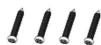
4 Tapping screws
PA 4X25

CD

Drill template
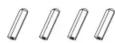
4 Screw plastic plugs
IP DOME VARIFOCAL CAMERA

Camera

Quick guide
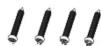
4 Tapping screws
PA 4X25

CD

Wrench
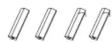
4 Screw plastic plugs

Drill template
- Product overview
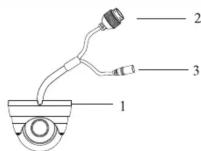
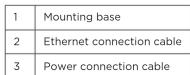
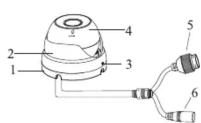
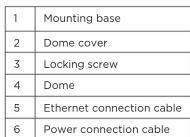
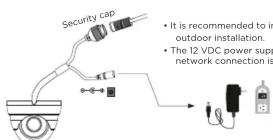
▶ Connecting the ethernet network cable
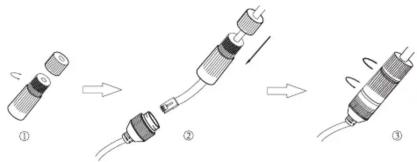
- Loosen the cap nut from the main part.
- Run the network cable (without RJ45 connector) through the both parts. Then crimp the cable with RJ45 connector.
- Screw back and tighten cap to create a hermetic seal.
4. Installation
Please make sure that the wall or ceiling is strong enough to withstand 3 times the weight of the camera. Please install and use the camera in the dry environment.
- Loosen the lock screw to disassemble the camera from the mounting base.
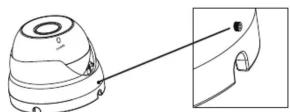
- Drill the screw holes and the cable hole on the mounting surface using the available drill template.
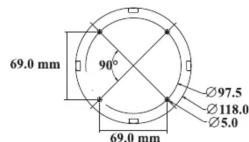
- Fix the mounting base to the mounting surface.
- Route the cables through the cable hole and finally connect the cables as needed.
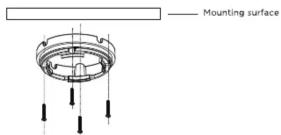
.5. Adjust the camera to obtain an optimum angle. Then secure the camera to the mounting base by tightening the lock screw.
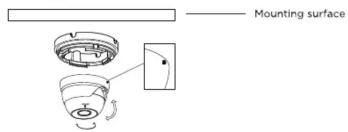
- foAdjust the Zoom screw and the cus screw with a screwdriver until you get the optimum image.
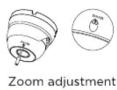
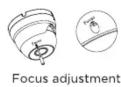
Note: Step 6 only applies to varifocal dome cameras.
5. Network connection
There are two ways to access camera through LAN:
- Access using IPTools App.
- Access through browser, IE. (Explorer)
• IP Tools
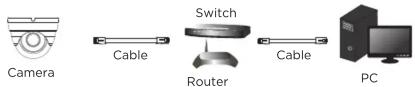
- Make sure that the camera and the PC are well connected via LAN and in the same network.
- Find the IP-Tool from the CD and then install it in the computer. After that, run the IP-Tool as shown in this section.
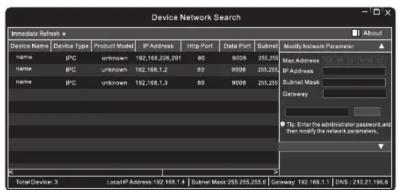
- Modify the IP address. The default IP address of this camera is 192.168.226.201. Click the information of the camera listed in the above table to show the network information on the right hand. Modify the IP address and gateway of the camera and make sure its network address is in the same local network segment as that of the computer. Please modify the IP address of your device according to the practical situation.
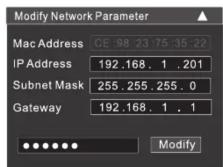
For example, the IP address of your computer is 192.168.1.4. So the IP address of the camera shall be changed to 192.168.1.X. After modification, please input the password of the administrator and click "Modify" button to modify the setting.
The default password of the administrator is "123456".
-
Double-click the IP address and then the system will pop up the IE browser to connect IP-CAM. After downloading and running the Active X control, input the user name and password in the window to access.
-
Direct access through PC
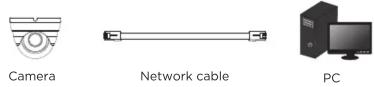
The default network settings are as shown below: IP address: 192.168.226.201 HTTP:80 Subnet Mask: 255.255.255.0 Data Port: 9008 Gateway: 192.168.226.1
You may use the above default settings when you log in the camera for the first time.
- Set the IP address of the PC and make sure the network segment should be as the same as the default settings of IP-CAM. Open the network and share center. Click "Local Area Connection" to pop up the following window. Select "Properties" and then select Internet protocol according to the actual situation (for example: IPv4). Next, click "Properties" button to set the network of the PC. Open the IE browser and input the default address of IP camera and confirm.
Motorola Limited Warranty
This Motorola brand Product is produced under license by MDX ELECTRONICS, LLC. Subject to the exclusions below, MDX ELECTRONICS warrants that this Motorola brand product ("Product") will remain free from defects in materials and workmanship under normal consumer usage for 2 years. This Warranty is your exclusive warranty. This Warranty extends only to the first consumer purchaser and is not transferable. MDX ELECTRONICS will at no charge repair or replace any Product that qualifies under this Warranty. We may use functionally equivalent reconditioned, refurbished, or new Products. MOTOROLA and MDX ELECTRONICS are not responsible for defects or damage that result from: (a) improper operation, storage, misuse, abuse, maintenance, alteration, accident or neglect, such as physical damage (cracks, scratches, etc.) to the surface of the product or lens resulting from misuse; (b) subjecting the Product or Accessory to abnormal usage or conditions; (c) service provider alteration of the Product including alteration of the Product's firmware; or (d) other acts which are not the fault of MOTOROLA or MDX ELECTRONICS, are excluded from coverage.
Any implied warranties, including without limitation the implied warranties of merchantability and fitness for a particular purpose, shall be limited to the duration of this limited warranty. This warranty is provided in lieu of all other warranties, express or implied. In no event shall MOTOROLA or MDX ELECTRONICS be liable, whether in contract or tort (including negligence) for damages in excess of the purchase price of the product, or for any indirect, incidental, special or consequential damages of any kind, or loss of revenue or profits, loss of business, loss of information or other financial loss arising out of or in connection with the ability or inability to use the product, to the full extent these damages may be disclaimed by law.
Some jurisdictions do not allow the limitation or exclusion of incidental or consequential damages, or limitation on the length of an implied warranty, so the above limitations or exclusions may not apply to you. This Warranty gives you specific legal rights, and you may also have other rights that vary from one jurisdiction to another.
To obtain support or need of information, doubts or questions, please contact us at:
Tel: 01 800 801 6398 (México)
Tel: +011 52 55 9688-8814 (México, Latin America and Caribe)
WhatsApp: +52 155 7657 5586 (México, Latin America, Caribe)
Skype: soporte.motorolasecurity
Email: soporte@mdx-motorolasecurity.com
9:00AM - 5:00PM CST (Mon-Fri)
Manufactured, distributed or sold by MDX ELECTRONICS, LLC, official licensee for this product. MOTOROLA and the Stylized M Logo are trademarks or registered trademarks of Motorola Trademark Holdings, LLC. and are used under license. All other trademarks are the property of their respective owners. ©2020 Motorola Mobility LLC. All rights reserved.
Mærke : MOTOROLA
Model : MTIDM045721
Kategori : Overvågningskamera