KF-21FC70RX - Aircondition LG - Gratis brugsanvisning og manual
Find enhedens vejledning gratis KF-21FC70RX LG i PDF-format.


Brugerspørgsmål om KF-21FC70RX LG
0 spørgsmål om dette apparat. Besvar dem du kender, eller stil dit eget.
Stil et nyt spørgsmål om dette apparat
Download vejledningen til din Aircondition i PDF-format gratis! Find din vejledning KF-21FC70RX - LG og tag din elektroniske enhed tilbage i hånden. På denne side er alle dokumenter nødvendige for brugen af din enhed offentliggjort. KF-21FC70RX af mærket LG.
BRUGSANVISNING KF-21FC70RX LG
OPERATING MANUAL
natural_image
Three grayscale images of desktop computers: a speaker, a front-mounted tower, and a flat-screen TV (no text or symbols visible)
text_image
Multiplex Multiplex 72 / 55 LGContents
Installation 3
Location and function of controls 4
Communicator / Internal generator charge Battery installation / Front panel / Side panel
Basic operation 7
On and off / Programme selection Volume adjustment / Quick view / Mute function On screen language selection (option)
On screen menus 8
Menu selection
Setting up TV stations 9
Auto programme tuning Manual programme tuning / Fine Tuning Programme edit / Favorite programme Calling the programme table
Picture adjustment 14
PSM (Picture Status Memory) Picture adjustment / Picture format
Sound adjustment 15
SSM (Sound Status Memory) / Sound adjustment Stereo / Dual reception (option) NICAM reception (option) / Sound output selection
Other functions 17
TV, AV and DVD modes / Child lock Auto sleep / LED DISPLAY adjustment Tilt (option) / Degaussing (option) / Sleep timer
Time setting 19
Clock / On/Off Time
Teletext (option) 20
Switch on/off / SIMPLE text / TOP text (option) FASTEXT / Special teletext functions
VCR operation 23
Playing tapes / Tape tracking control / Pause/still picture
Fast forward, cue, rewind and review
Clock/Count selection / Memory stop
VCR colour system setting
Recording 25
Manual recording / Instant timer recording (ITR) Timer programme setting
DVD operation 27
Notes on discs / Playing a disc / Playing MP3 discs Selecting disc menu / Selecting title menu Repeat playback / A-B repeat playback Programme playback / Selecting the camera angle 3D sound / Picture size zoom / Selecting a audio language Selecting a subtitle language / Disc menu language selection Parental control setting / To change the password TV Screen / Disc OSD language selection (option) Selecting digital audio output DRC (Dynamic Range Compression)
Connection of external equipment 36
Connecting antenna / Watching cable TV Watching external AV source / Digital audio output setup Headphone socket
Troubleshooting check list 39
After reading this manual, keep it in the place where the user can always contact easily.
Installation
Power
This set operates on an AC mains supply, the voltage is as indicated on the label on the back cover. Never apply DC power to the set. In the event of thunderstorms or powercuts, please pull out the aerial and mains plugs.
Warning
To prevent fire or shock hazard, do not expose the set to rain or moisture.
Do not make the product stand by yourself. Get some help from others. It may cause injuries.
Service
Never remove the back cover of the set as this can expose you to very high voltage and other hazards. If the set does not operate properly, unplug it and call your dealer.
Aerial
Connect the aerial cable to the socket marked 175 Ω on the back cover. For the best reception an outdoor aerial should be used.
Location
Position your set so that no bright light or sunlight falls directly onto the screen. Care should be taken not to expose the set to any unnecessary vibration, moisture, dust or heat. Also ensure that the set is placed in a position to allow a free flow of air. Do not cover the ventilation openings on the back cover.





Manufactured under license from Dolby Laboratories. "Dolby" and the double-D symbol are trademarks of Dolby Laboratories. (Multiplex 72 only)
Location and function of controls
text_image
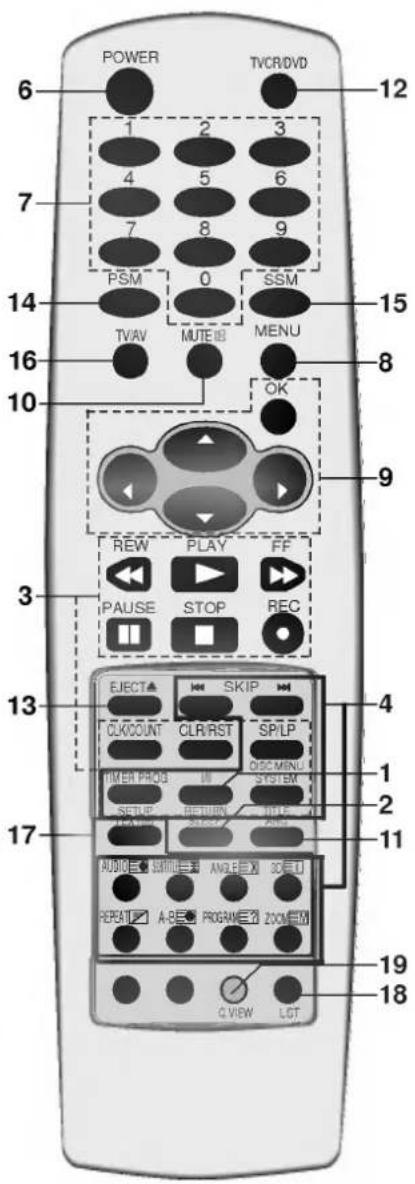
1 2 3 4 5 6 7 8 9 10 11 12 13 14 15 16 17 18 19 IIB Sleep ARC SYSTEM SEEPING SCREEN CUSTIN SLVD NEW FLY HW USE MINT STOP RED SETUP BROWN TITLE RED ADD SUBTITLE ANGLE SD RESET TVCA ENST POWER PAM 1 2 3 SSM 4 5 6 7 8 9 0 MENU TVAV TITLE TITLE RESET ABD PROGRAM ZOOM ON/OFFAll the functions can be controlled with the Communicator.
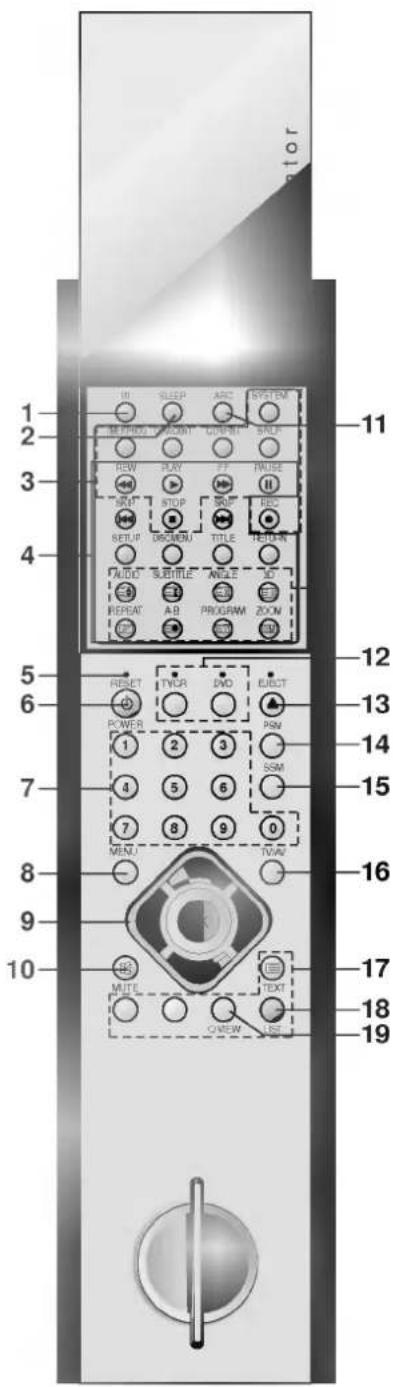
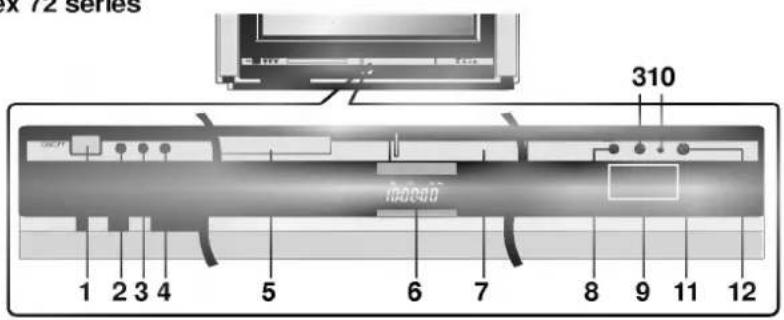
Some functions can also be adjusted with the buttons on the front panel of the set.
Communicator
Before you use it, please select TV, VCR or DVD function by pressing the TVCR or DVD buttons.
-
I/II selects the language during dual language broadcast. selects the sound output (option).
-
SLEEP sets the sleep timer.
-
VCR BUTTONS controls a LG video cassette recorder. For further details, see the 'VCR Operation' section.
-
DVD BUTTONS controls a LG DVD player. For further details, see the 'DVD Operation' section.
-
RESET When Communicator does not work, reset the Communicator by pressing the reset point with sharp one.
-
POWER switches the set on from standby or off to standby.
-
NUMBER BUTTONS switches the set on from standby or directly select a number.
-
MENU selects a menu.
-
▲ / ▼ (Programme Up/Down) selects a programme or a menu item. switches the set on from standby.
◀ / ▶ (Volume Down/Up) adjusts the volume. adjusts menu settings. OK accepts your selection or displays the current mode.
-
MUTE switches the sound on or off.
-
ARC (Aspect Ratio Control) changes the picture format.
-
TVCR / DVD selects to control a LG video cassette recorder or DVD player.
-
EJECT Open or close the disc tray. ejects the tape.
-
PSM (Picture Status Memory) recalls your preferred picture setting.
-
SSM (Sound Status Memory) recalls your preferred sound setting.
Location and function of controls
16. TV/AV
selects the remote operating mode. clears the menu from the screen. switches the set on from standby.
17. TELETEXT BUTTONS (option)
These buttons are used for teletext. For further details, see the 'Teletext' section.
18. LIST
displays the programme table.
19. Q.VIEW
returns to the previously viewed programme. selects a favourite programme.
COLOURED BUTTONS : These buttons are used for teletext (only TELETEXT models) or programme edit.
Internal generator charge
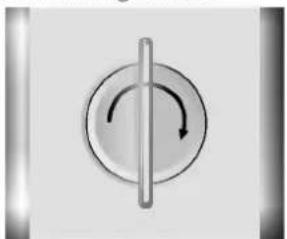
The communicator can be charged with the internal electric generator. To charge the communicator do the followings;
-
In first use, 20 rotation of the handle in the arrow direction as picture below -> waiting for one minute -> 20 rotation again -> waiting for one minute again -> 20 rotation again -> beginning to use
-
In usual use 20 or 25 rotation -> resuming to use
natural_image
Circular mechanical knob with a central shaft and curved arrow indicating rotation (no text or symbols)Note : Do not rotate the handle too rapidly for the protection of the communicator.
Battery installation
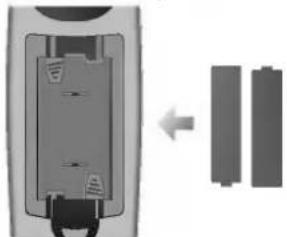
The communicator is powered by two AA type batteries. To load the batteries, turn the communicator over and open the battery compartment. Install two batteries as indicated by the polarity symbols (⊕ and ⊖) marked inside the compartment.
natural_image
Diagram showing a device with internal components and two separate battery cells (no text or symbols)Note : To avoid damage from possible battery leakage, remove the batteries if you do not plan to use the rcommunicator for an extended period of time.
text_image
POWER TVCR/DVD 12 1 2 3 4 5 6 7 8 9 PSM 0 SSM 14 TVAV MUTE 10 MENU 15 8 10 OK 9 REW PLAY FF 3 PAUSE STOP REC 13 EJECT▲ SKIP CLKCOUNT CLR/RST SP/LP HIMERT PROOD ON DISC MENU SYSTEM SETUP: RETURN ON/OCC 17 AUDIO □ □ □ □ □ □ □ □ □ □ □ □ □ □ □ □ □ □ □ □ □ □ □ □ □ □ □ □ □ □ □ □ □ □ □ □ □ □ □ □ □ □ □ □ □ □ □ □ □ □ ▢ 19 18 REPEAT □ A-B□ □ PROGRAM □ ZOOM/EM C VIEW LCTLocation and function of controls
Front panel
Multiplex 72 series
text_image
310 Inboxo 1 2 3 4 5 6 7 8 9 11 12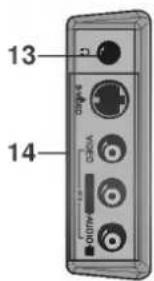
text_image
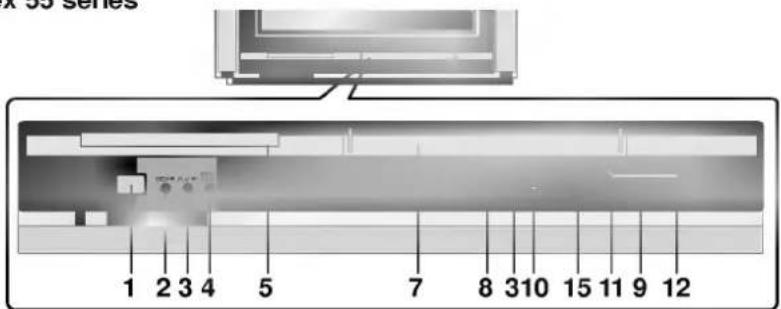
13 14Multiplex 55 series
text_image
X 35 series 1 2 3 4 5 7 8 310 15 11 9 12Side panel
- MAIN POWER (ON/OFF)
switches the set on or off.
Note : Power line lives even when the power is off.
- STOP
Stops playback for DVD player.
- PLAY
Starts playback for DVD player.
- OPEN/CLOSE
Opens or closes the disc tray.
- DISC TRAY
Places a disc on the disc tray.
-
LED (Light Emitting Diode) DISPLAY
-
CASSETTE COMPARTMENT
Inserts a video cassette tape here.
- STOP/EJECT
stops the tape during playback or recording or ejects the tape.
- ▲ / ▼ (Programme Up/Down)
selects a programme or a menu item. switches the set on from standby.
◀ / ▶ (Volume Down/Up)
adjusts the volume. adjusts menu settings.
- REC/ITR
starts a manual recording or instant timer recording.
- POWER (∅ / I)
switches the set on from standby or off to standby.
- COMMUNICATOR SENSOR
Note : Only use the supplied Communicator. (When you use others, they'll be not able to function.)
- HEADPHONE SOCKET (option)
Connect the headphone plug to this socket.
- AUDIO/VIDEO IN SOCKETS (AV2)
Connect the audio/video out sockets of external equipment to these sockets.
S-VIDEO/AUDIO IN SOCKETS (S-Video) (option)
Connect the video out socket of an VCR to the S-VIDEO socket.
Connect the audio out sockets of the VCR to the audio sockets as in AV2.
- STANDBY INDICATOR
illuminates red brightly when the set is in standby mode.
dims red when the set is switched on.
REC/ITR INDICATOR
illuminates red during recording.
TIMER REC INDICATOR
illuminates red when the timer programme is set for recording.
Basic operation
On and off
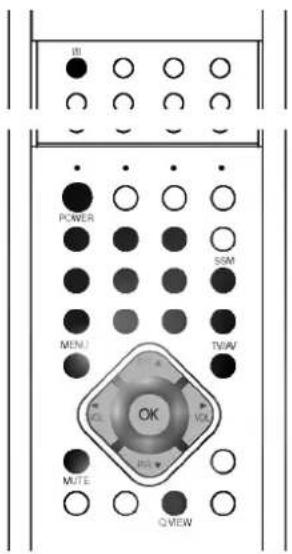
- Press the main power button on the front of the set to switch the set on.
- If the set is in standby mode, press the ⏻ / I (POWER), ▲ / ▼, TV/AV or NUMBER buttons to switch it on fully.
- Press the ⭕ / I (POWER) button. The set reverts to standby mode.
- Press the main power button again to switch the set off.
Note : If, while the set is switched on, the mains plug is disconnected the set will switch to standby when the mains plug is replaced in the mains power socket.
Programme selection
You can select a programme number with the ▲ / ▼ or NUMBER buttons.
Volume adjustment
Press the ◀ / ▶ button to adjust the volume.
Quick view
Press the Q.VIEW button to view the last programme you were watching.
Note : This function works only when Favourite programme is set to Off. Otherwise each press of this button will select a stored favorite programme.
Mute function
Press the MUTE button. The sound is switched off and the display appears.
You can cancel it by pressing the MUTE, ◀ / ▶, SSM, I/II button.
On screen language selection (option)
This is an optional function. In the models which have on screen language function, the menu can be displayed on the screen in the desired language. First select your language.
- Repeatedly press the MENU button to select the Station menu.
- Press the ▲ / ▼ button to select Language.
- Press the ▶ button and then use the ▲ / ▼ button to select your desired language.
- Press the OK button.
All the on screen displays will appear in the selected language. - Press the TV/AV button to return to normal TV viewing.
text_image
III POWER SSM MENI TVNAV OK MUTE Q VIEW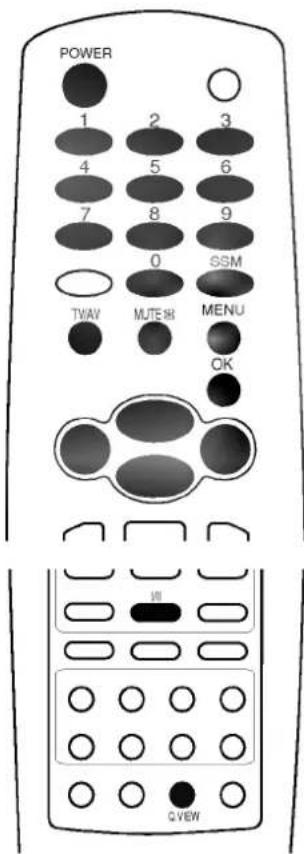
text_image
POWER 1 2 3 4 5 6 7 8 9 0 SSM TWAV MUTE 8 MENU OK VIII QYEWOn screen menus
The dialogue between you and your set takes place on screen with an operator menu. The buttons required for the operating steps are also displayed.
Menu selection
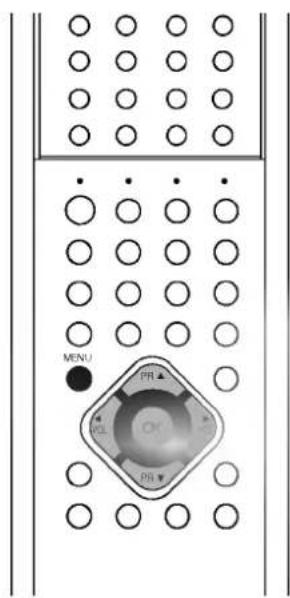
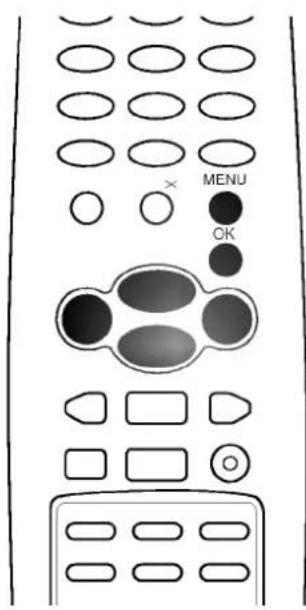
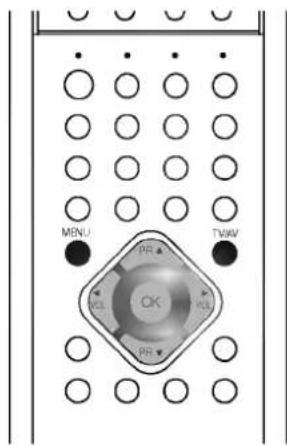
- Repeatedly press the MENU button to display each menu.
- Press the ▲ / ▼ button to select a menu item.
The selected menu item changes from white to purple. - Press the ▶ button to change the setting of a menu item or OK button to display the sub menu.
Note :
a. In the teletext mode, menus are not displayed.
b. In some models, the Index, Tilt or Language will not display.
text_image
MENU PR▲ PR▼
flowchart
graph TD
    A["Station menu"] --> B["Picture menu"]
    B --> C["Sound menu"]
    C --> D["Special menu"]
    D --> E["Time menu"]
    E --> A
text_image
MENU OKSetting up TV stations
Up to 100 TV stations can be stored in this set by programme numbers (0 to 99). Once you have preset the stations, you will be able to use the ▲ / ▼ or NUMBER buttons to scan the stations you programmed. Stations can be tuned using automatic or manual modes.
Auto programme tuning
All stations that can be received are stored by this method. It is recommended that you use auto programme during installation of this set.
- Repeatedly press the MENU button to select the Station menu.
- Press the ▲ / ▼ button to select Auto programme.
- Press the ▶ button to display the Auto programme menu.

natural_image
Gradient grayscale image with no visible text, symbols, or identifiable objects-
Press the ◀ / ▶ button to select the beginning system;
BG : (Asia/New Zealand/M.East/Africa/Australia)
I : (Hong Kong/South Africa)
DK : (East Europe/China/Africa/CIS)
M : (USA/Korea/Philippines) (option) -
Press the ▲ / ▼ button to select Storage from.
-
Select the beginning programme number with the ◀ / ▶ button or NUMBER buttons. Any number under 10 is entered with a numeric '0' in front of it, i.e. '05' for 5.
-
Press the ▲ / ▼ button to select Start.
-
Press the OK button to begin auto programming.

natural_image
Uniform gray gradient background with no visible text, symbols, or objectsAll receivable stations are stored.
To stop auto programming, press the MENU button. When auto programming is completed, the Programme edit menu appears on the screen. See the 'Programme edit' section to edit the stored programme.
- Press the TV/AV button to return to normal TV viewing.
text_image
Maioue programme Programme edit l'avourite programme Language
text_image
MENU TWAV OK PR IOL IOL PR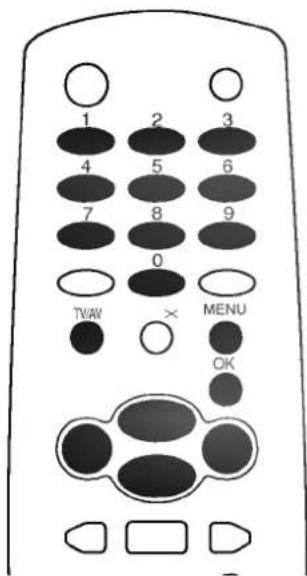
text_image
1 2 3 4 5 6 7 8 9 0 TVW × MENU OKSetting up TV stations

natural_image
Plain gray gradient background with no text, symbols, or discernible objects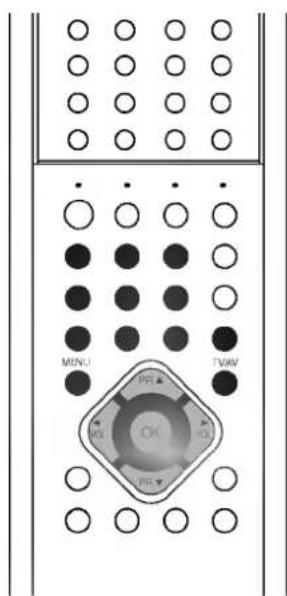
text_image
MENU OE IIE TV OK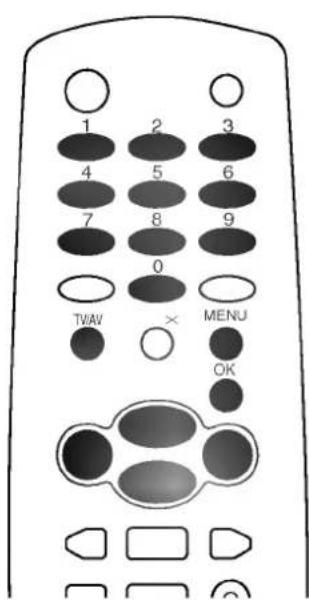
text_image
1 2 3 4 5 6 7 8 9 0 TVAV × MENU OKManual programme tuning
Manual programme lets you manually tune and arrange the stations in whatever order you desire. Also you can assign a station name with five characters to each programme number.
- Repeatedly press the MENU button to select the Station menu.
- Press the ▲ / ▼ button to select Manual programme.
- Press the ▶ button to display the Manual programme menu.

natural_image
Gradient grayscale image with no visible text, symbols, or identifiable objects- Press the ▲ / ▼ button to select System. Press the ◀ / ▶ button to select the beginning system;
BG : (Asia/New Zealand/M.East/Africa/Australia)
I : (Hong Kong/South Africa)
DK : (East Europe/China/Africa/CIS)
M : (USA/Korea/Philippines) (option)
-
Press the ▲ / ▼ button to select Channel. Press the ◀ / ▶ button to select V/UHF or Cable as required. If possible, select the channel number directly with the number buttons. Any number under 10 is entered with a numeric '0' in front of it, i.e. '05' for 5.
-
Press the ▲ / ▼ button to select Search. Press the ◀ / ▶ button to commence searching. If a station is found the search will stop.
-
If this station is the one required, press the ▲ / ▼ button to select Storage. Select the desired programme number (0 to 99) with the ◀ / ▶ button or NUMBER buttons. Any number under 10 is entered with a numeric '0' in front of it, i.e. '05' for 5.
-
Press the OK button to store it. The display Stored will appear.

natural_image
Gradient grayscale image with no text, symbols, or identifiable objects-
To store another station, repeat steps 4 to 8.
-
Press the TV/AV button to return to normal TV viewing.
Setting up TV stations
Assigning a station name
- Repeat the 'Manual programme tuning' steps 1 to 3.
- Press the ▲ / ▼ button to select Name.
- Press the ▶ and then use the ▲ / ▼ button. You can use a blank, +, -, *, the numeric 0 to 9 and the alphabet A to Z.
- Select the next position by pressing the OK button and then take your choice of the second character, and so on.
- Press the OK button.
- Press the TV/AV button to return to normal TV viewing.
Fine tuning
Normally fine tuning is only necessary if reception is poor.
- Repeat the 'Manual programme tuning' steps 1 to 3.
- Press the ▲ / ▼ button to select Fine.
- Press the ◀ / ▶ button to fine tune for the best picture and sound.
- Press the OK button.
natural_image
Gray gradient background with a small white triangular symbol in the top-right corner (no text or symbols)- Press the TV/AV button to return to normal TV viewing. The finely tuned programme will be indicated by yellow number during programme selection.

natural_image
Blank grayscale image with no visible text, symbols, or discernible features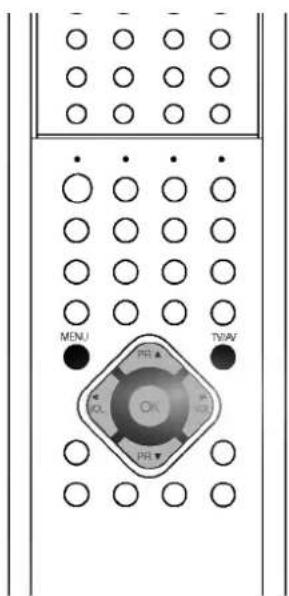
text_image
MENU TWAV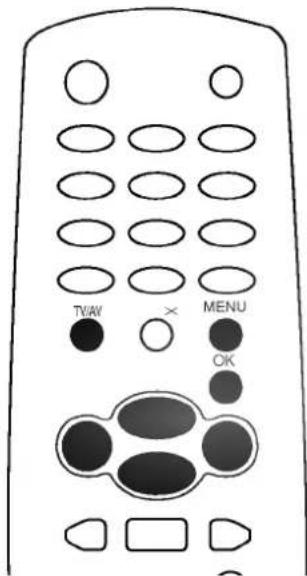
text_image
TV/AV × MENU OKSetting up TV stations

natural_image
Blank gray image with no visible content, text, or symbols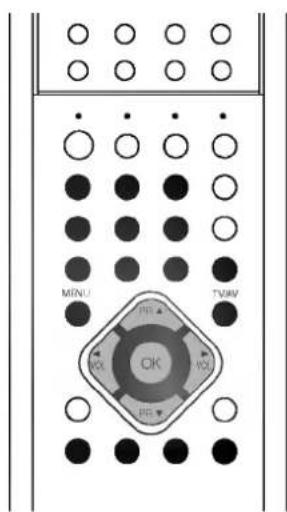
text_image
MINU OK TVAV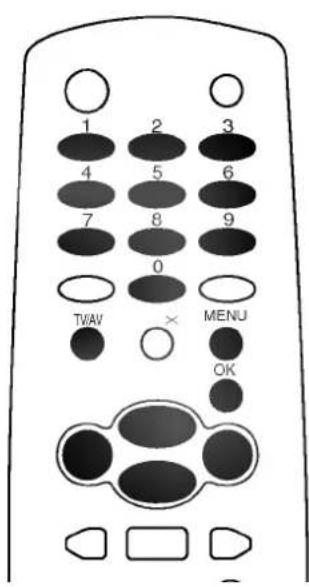
text_image
1 2 3 4 5 6 7 8 9 0 TWAV × MENU OK
Programme edit
This function enables you to delete or skip the stored programmes. Also you can move some stations to other programme numbers or insert a blank station data into the selected programme number.
- Repeatedly press the MENU button to select the Station menu.
- Press the ▲ / ▼ button to select Programme edit.
- Press the ▶ button to display the Programme edit menu.

natural_image
Gradient grayscale image with no visible text, symbols, or identifiable objectsDeleting a programme
- Select a programme to be deleted with the ▲ / ▼ or ◀ / ▶ button.
- Press the RED button twice.
The selected programme is deleted, all the following programmes are shifted up one position.
Copying a programme
- Select a programme to be copied with the ▲ / ▼ or ◀ / ▶ button.
- Press the GREEN button.
All the following programmes are shifted down one position.
Moving a programme
- Select a programme to be moved with the ▲ / ▼ or ◀ / ▶ button.
- Press the YELLOW button.
- Move the programme to the desired programme number with the ▲ / ▼ or ◀ / ▶ button.
- Press the YELLOW button again to release this function.

natural_image
Grayscale gradient image with no visible text, symbols, or identifiable objectsSkipping a programme number
- Select a programme number to be skipped with the ▲ / ▼ or ◀ / ▶ button.
- Press the BLUE button. The skipped programme turns to blue.
- Press the BLUE button again to release the skipped programme.
When a programme number is skipped it means that you will be unable to select it using the ▲ / ▼ button during normal TV viewing. If you want to select the skipped programme, directly enter the programme number with the NUMBER buttons or select it in the programme edit or table menu.
Press the TV/AV button to return to normal TV viewing.
Setting up TV stations
Favourite programme
This function lets you select your favourite programmes directly.
- Repeatedly press the MENU button to select the Station menu.
- Press the ▲ / ▼ button to select Favourite programme.
- Press the OK button to display the Favourite programme menu.

natural_image
Gradient grayscale image with no discernible objects or text- Press the ◀ / ▶ button to select On.
- Press the ▲ / ▼ button to select -- ----.
- Select a desired programme with the ◀ / ▶ button or NUMBER buttons. Any number under 10 is entered with a numeric '0' in front of it, i.e. '05' for 5.
- To store another programme, repeat steps 5 to 6. You can store up to 10 programmes.
- Press the TV/AV button to return to normal TV viewing.
Repeatedly press the Q.VIEW button to select stored favourite programmes.
Calling the programme table
You can check the programmes stored in the memory by displaying the programme table.
Displaying programme table
Press the LIST button to display the Programme table menu. The programme table appears on the screen. One programme table contains ten programmes as below.

natural_image
Gradient grayscale image with no text, symbols, or identifiable objectsNote :
a. You may find some blue programmes. They have been set up to be skipped by auto programming or in the programme edit mode.
b. Some programmes with the channel number shown in the programme table indicate there is no station name assigned.
Selecting a programme in the programme table
Select a programme with the ▲ / ▼ or ◀ / ▶ button.
Then press the OK button.
The set switches to the chosen programme number.
Paging through a programme table
There are 10 programme table pages in which contain 100 programmes.
Pressing the ▲ / ▼ or ◀ / ▶ button repeatedly turns the pages.
Press the LIST button to return to normal TV viewing.

natural_image
Gradient gray background with no text, symbols, or identifiable objects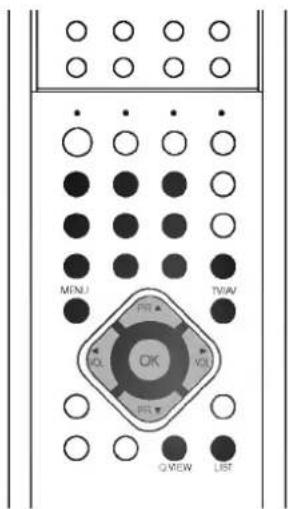
text_image
MINJ TV/UV OK VOUT GVIEW LIST
text_image
1 2 3 4 5 6 7 8 9 0 TV/W × MENU OK
Picture adjustment

natural_image
Solid gray image with no visible content, text, or symbols.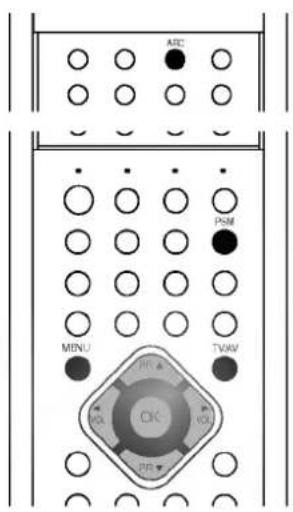
text_image
AISC PSM MINU TVAM OK OK PR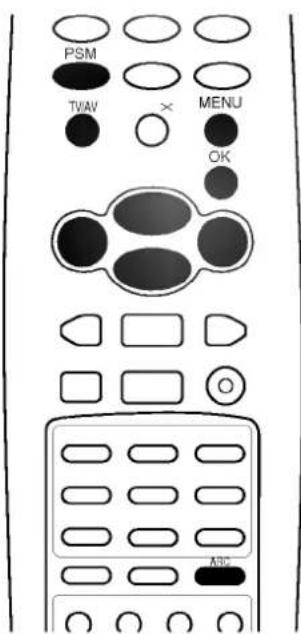
text_image
PSM TV/AV × MENU OK ABCPSM (Picture Status Memory)
- Repeatedly press the MENU button to select the Picture menu.
- Press the ▲ / ▼ button to select PSM.
- Press the ◀ / ▶ button to select a picture setting on the PSM menu.

natural_image
Gradient grayscale image with no text, symbols, or identifiable objects- Press the TV/AV button to return to normal TV viewing.
You can also recall a desired picture (Dynamic, Standard, Mild, Game or User) with PSM button on the Communicator. The picture Dynamic, Standard, Mild and Game are programmed for optimum picture reproduction at the factory and cannot be changed.
Picture adjustment
You can adjust picture contrast, brightness, colour intensity, sharpness and tint (NTSC input only) to the levels you prefer.
- Repeatedly press the MENU button to select the Picture menu.
- Press the ▲ / ▼ button to select the desired picture item.
- Press the ◀ / ▶ button to make appropriate adjustments, then it will be stored for the picture User.

natural_image
Gradient grayscale image with no visible text, symbols, or identifiable objects- Press the TV/AV button to return to normal TV viewing.
Picture format
You can watch TV in various picture formats; 4:3, 16:9 (Wide), Zoom. Repeatedly press the ARC button to select your desired picture format.
4:3
This picture format is 4 to 3 of general TV.
16:9
You can enjoy the cinema (the picture format of 16:9) or general TV programme through the 16:9 mode.
Zoom
You can enjoy the cinema in a vast screen through the Zoom mode. The screen 4:3 is magnified to the upper/lower. The bottom and top of the picture may be lost.
Note : When you switch the set to standby or off, the 16:9 or Zoom picture format is reset to the Standard (4:3).
Sound adjustment
SSM (Sound Status Memory)
You can select your preferred sound setting; Virtual (option), Flat, Music, Movie or Speech and you can also adjust the sound frequency of the equalizer.
- Repeatedly press the MENU button to select the Sound menu.
- Press the ▲ / ▼ button to select SSM.
- Press the ◀ / ▶ button to select a sound setting on the SSM menu.

natural_image
Gradient grayscale image with no visible text, symbols, or identifiable objectsSound Frequency Adjustment
a. Press the OK button in User.

natural_image
Gradient grayscale image with no visible text, symbols, or identifiable objectsb. Select a sound band by pressing the ◀ / ▶ button.
c. Make appropriate sound level with the ▲ / ▼ button.
d. Press the OK button to store it for the sound User.
The display Stored will appear.
Press the TV/AV button to return to normal TV viewing.
You can also recall a desired sound setting (☐☐Virtual (option), Flat, Music, Movie, Speech or User) with SSM button on the Communicator. The sound settings ☐☐Virtual (option), Flat, Music, Movie and Speech are programmed for optimum sound reproduction at the factory and cannot be changed.
Note : If you press the SSM button after making appropriate adjustment on the User sub menu, the display User automatically appears even though you have already set a factory preset setting; 📄 Virtual (option), Flat, Music, Movie or Speech.
Sound adjustment
You can adjust balance, AVL (Auto Volume Leveler). AVL automatically keeps on an equal volume level even if you change programmes.
- Repeatedly press the MENU button to select the Sound menu.
- Press the ▲ / ▼ button to select the desired sound item; Balance, AVL or 🔒 Volume.

natural_image
Completely dark image with no visible content or text.- Make desired adjustment with the ◀ / ▶ and then press the OK button.
- Press the TV/AV button to return to normal TV viewing.
Note : In ☐☐ Virtual mode, AVL is not available.

natural_image
Gradient grayscale image with no visible text, symbols, or identifiable objects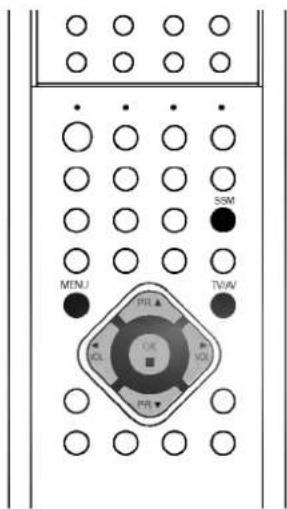
text_image
MINJ PHL OK OS PH SSM TVW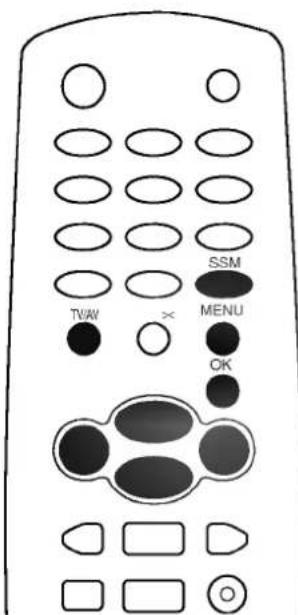
text_image
TVW × SSM MENU OKSound adjustment
Stereo/Dual reception (option)
Stereo/dual is an optional function.
When a programme is selected, the sound information for the station appears after the programme number and station name disappear.
Broadcast
On Screen Display
Mono
MONO
Stereo
STEREO
Dual
DUAL I
Mono sound selection
In stereo reception if the stereo signal is weak, you can switch to mono by pressing the I/II button twice. In mono reception the depth of sound is improved. To switch back to stereo, press the I/II button twice again.
Language selection for dual language broadcast
If a programme received in two languages (dual language), you can switch to DUAL I, DUAL II or DUAL I+II by pressing the I/II button repeatedly.
DUAL I sends the primary broadcast language to the loudspeakers. DUAL II sends the secondary broadcast language to the loudspeakers.
DUAL I+II sends a separate language to each loudspeaker.
NICAM reception (option)
If your set is equipped with the receiver for NICAM reception, the high quality NICAM (Near Instantaneous Companding Audio Multiplex) digital sound can be received.
Sound output can be selected according to the type of received broadcast as follows by pressing the I/II button repeatedly.
natural_image
Pure electrical circuit lines without any symbols
natural_image
Line drawing of a remote control with buttons and a central button (no text or symbols)- When NICAM mono is received, you can select NICAM MONO or FM MONO.
- When NICAM stereo is received, you can select NICAM STEREO or FM MONO. If the stereo signal is weak, switch to FM mono.
- When NICAM dual is received, you can select NICAM DUAL I, NICAM DUAL II or NICAM DUAL I+II or MONO. When FM mono is selected the display MONO appears on the screen.
Sound output selection
In AV mode, you can select output sound for the left and right loud-speakers.
Repeatedly press the I/II button to select the sound output.
L+R : Audio signal from audio L input is sent to left loud-speaker and audio signal from audio R input is sent to right loud-speaker.
L+L : Audio signal from audio L input is sent to left and right loud-speakers.
R+R : Audio signal from audio R input is sent to left and right loud-speakers.
Other functions
TV, AV and DVD modes
Inputs can be set for TV, AV or DVD modes. AV mode is used when a video cassette recorder (VCR), or other equipment is connected to the set.
Note : When a VCR is connected via the aerial socket the set is used in TV mode. See the 'Connection of external equipment' section.
- Repeatedly press the MENU button to select the Special menu.
- Press the ▲ / ▼ button to select Input.

natural_image
Grayscale gradient image with no visible text, symbols, or identifiable objects- Press the ◀ / ▶ button to select TV, AV 1, AV 2 (or S-Video) or DVD.
To return to TV mode, press the ▲ / ▼ or NUMBER buttons.
Alternatively you can select the TV, AV or DVD modes by pressing the TV/AV button.
Child lock
The TV can be set so that the Communicator is needed to control it. This feature can be used to prevent unauthorized viewing.
- Repeatedly press the MENU button to select the Special menu.
- Press the ▲ / ▼ button to select Child lock.
- Press the ◀ / ▶ button on the Communicator to select On.
- Press the TV/AV button to return to normal TV viewing.
With the lock on, the display Child lock on appears on the screen if any button on the front panel is pressed while viewing the TV.
Note : The display Child lock on will not appear on the screen if any button on the front panel is pressed while displaying the menus.
Auto sleep
If you select On on the Auto sleep menu, the set will automatically switch itself to standby mode approximately ten minutes after a TV station stops broadcasting.
- Repeatedly press the MENU button to select the Special menu.
- Press the ▲ / ▼ button to select Auto sleep.
- Press the ◀ / ▶ button to select On.
- Press the TV/AV button to return to normal TV viewing.

natural_image
Gradient grayscale image with no visible text, symbols, or identifiable objects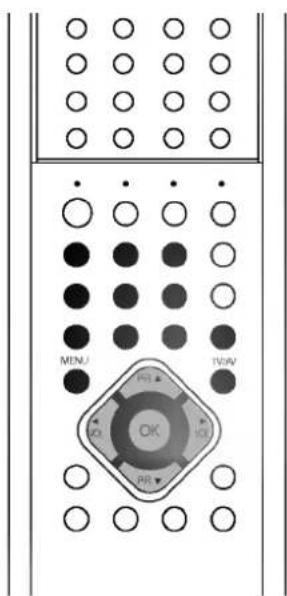
text_image
MENJ PR TV/AV OIC PR
text_image
1 2 3 4 5 6 7 8 9 0 TVW × MENU OKOther functions

natural_image
Gradient grayscale image with no text, symbols, or identifiable objects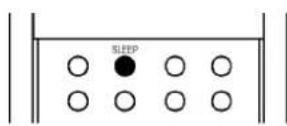
text_image
MENU OK TVWV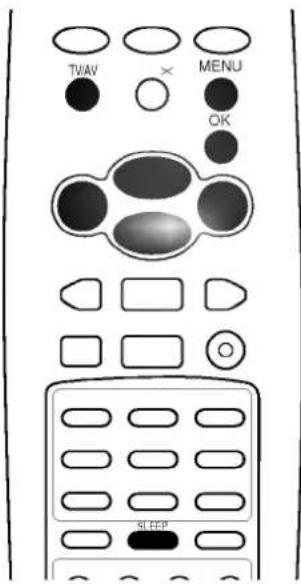
text_image
TVAV MENU OK SLEEPLED DISPLAY adjustment (option)
You can switch LED DISPLAY on or off.
- Repeatedly press the MENU button to select the Special menu.
- Press the ▲ / ▼ button to select Index.
- Press the ◀ / ▶ button to select On or Off.

natural_image
Completely dark image with no visible content or text.When you select On mode, The LED DISPLAY illuminates brightly.
- Press the TV/AV button to return to normal TV viewing.
Tilt (option)
The TV picture may tilt to the left or right if the TV set moves to another position. This function can be used to compensate the tilt.
- Repeatedly press the MENU button to select the Special menu.
- Press the ▲ / ▼ button to select Tilt.
- Press the ◀ / ▶ button to adjust the tilt.
- Press the TV/AV button to return to normal TV viewing.
Degaussing (option)
Owing to the super large Braun Tube in the set the magnetic field of the earth may influence on the colour purity of picture by neighbour magnetic substance or installation direction of the set. The stripes may appear on the screen or the colour may not be equal in the corner. You can enjoy the programme in high colour quality by operating the Degaussing.
- Repeatedly press the MENU button to select the Special menu.
- Press the ▲ / ▼ button to select Degauss.
- Press the ◀ / ▶ button to select On. After the degauss function works, On mode switches to Off mode.
- Press the TV/AV button to return to normal TV viewing.
Note : If you cannot adjust the screen condition by degaussing, try it again after about 4 minutes.
Sleep timer
You don't have to remember to switch the set off before you go to sleep. The sleep timer automatically switches the set to standby after the preset time elapses.
Press the SLEEP button to select the number of minutes. The display ⏻ --- will appear on the screen, followed by 10, 20, 30, 60, 90, 120, 180 and 240. The timer begins to count down from the number of minutes selected.
Note :
a. To view the remaining sleep time, press the SLEEP button once.
b. To cancel the sleep time, repeatedly press the SLEEP button until the display ⏻ · · · appears.
c. When you switch the set off, the set releases the preset sleep time.
Time setting
Clock
The time uses the 24 hour system and must be set to the correct time before operating the set.
- Repeatedly press the MENU button to select the Time menu.
- Press the ▲ / ▼ button to select Clock.
- Select and adjust hour and minute by pressing the ◀ / ▶ and ▲ / ▼ button.
- Select and adjust the day, the month and the year by pressing the ◀ / ▶ and ▲ / ▼ button. The day of the week is automatically displayed.
- Press the OK button to start.
- Press the TV/AV button to return to normal TV viewing.
Note :
a. The clock operates for at least 10 minutes, if the power is switched off or there is a power interruption (disconnection or power failure).
b. If you have already set the timer programme, you cannot reset the clock. To reset the clock, first cancel timer programme settings.
On/Off Time
By using this function, the set automatically switches on or off at a preset time. You must set the time correctly before using on/off time function.
- Repeatedly press the MENU button to select the Time menu.
- Press the ▲ / ▼ button to select On Time or Off Time.
- Select and adjust hour and minute by pressing the ◀ / ▶ and ▲ / ▼ button.
- Select and adjust Run or Hold by pressing the ◀ / ▶ and ▲ / ▼ button.
- Only On Time function; Select and adjust programme number and volume level by pressing the ◀ / ▶ and ▲ / ▼ button.
- Press the OK button to start.
- Press the TV/AV button to return to normal TV viewing.
Note :
a. In the event of power interruption (disconnection or power failure), the clock must be reset.
b. If the same time is set for the on time and the off time, only the off time operates.
c. This set must be put into standby mode with the / I (POWER) button to operate the on time function.
d. Two hours after the set is switched on by the on time function it will automatically switch back to standby mode unless a button has been pressed.
e. Once the on or off time is set, these functions operate daily at the preset time.

natural_image
Gradient grayscale image with no visible text, symbols, or identifiable objects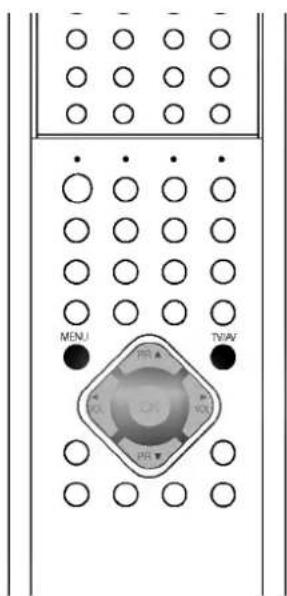
text_image
MENU TNAV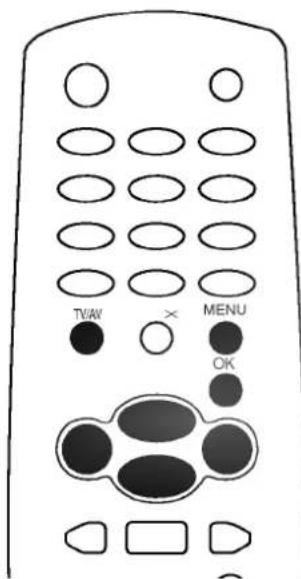
text_image
TV/W × MENU OKTeletext (option)
text_image
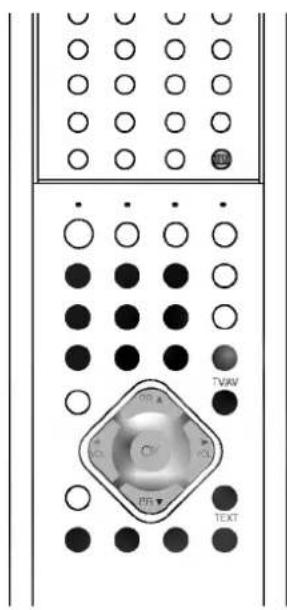
TVW DR A C FR TEXTTeletext (or TOP text) is an optional function, therefore only a set with the teletext system can receive the teletext broadcast.
Teletext is a free service broadcast by most TV stations which gives up-to-the-minute information on news, weather, television programmes, share prices and many other topics.
The teletext decoder of this TV can support the SIMPLE, TOP and FASTEXT systems. SIMPLE (standard teletext) consists of a number of pages which are selected by directly entering the corresponding page number. TOP and FASTEXT are more modern methods allowing quick and easy selection of teletext information.
Switch on/off
Press the TEXT button to switch to teletext.
The initial page or last page appears on the screen.
Two page numbers, TV station name, date and time are displayed on the screen headline. The first page number indicates your selection, while the second shows the current page displayed.
Press the TEXT button to switch off teletext. The previous mode reappears.
SIMPLE text
Page selection
-
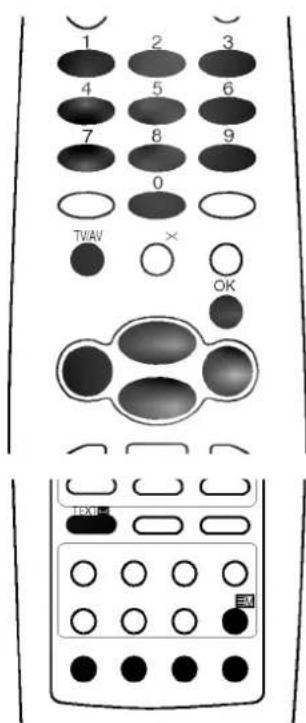
Enter the desired page number as a three digit number with the NUMBER buttons. If during selection you press a wrong number, you must complete the three digit number and then re-enter the correct page number.
-
The ▲ / ▼ button can be used to select the preceding or following page.
Programming a colour button in LIST mode
If the TV is in SIMPLE text, TOP text or FASTEXT mode, press the ☐ button to switch to LIST mode.
Four teletext page numbers of your choice can be colour coded and easily selected by pressing the corresponding coloured button on the Communicator.
-
Using the NUMBER buttons, select the page you wish to programme.
-
Wait until the page is displayed on the screen and press the OK button. The page numbers in the colour boxes along the bottom of the screen change to "000?".
-
Press a colour button to store the page number. From now on, you can select this page with the same coloured button.
-
The three other coloured buttons are programmed in the way.
text_image
1 2 3 4 5 6 7 8 9 0 TVAV × OK TEXB-4Teletext (option)
TOP text (option)
The user guide displays four fields-red, green, yellow and blue at the bottom of the screen. The yellow field denotes the next group and the blue field indicates the next block.
Block / group / page selection
- With the blue button you can progress from block to block.
- Use the yellow button to proceed to the next group with automatic overflow to the next block.
- With the green button you can proceed to the next existing page with automatic overflow to the next group.
Alternatively the ▲ button can be used. - The red button permits to return to previous selection. Alternatively the ▼ button can be used.
Direct page selection
Corresponding to the SIMPLE teletext mode, you can select a page by entering it as a three digit number using the NUMBER buttons in TOP mode.
FASTEXT
The teletext pages are colour coded along the bottom of the screen and are selected by pressing the corresponding coloured button.
Page selection
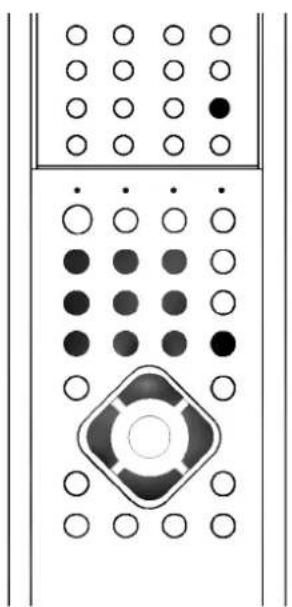
- Press the ☐ button to select the index page.
- You can select the pages which are colour coded along the bottom line with the same coloured buttons.
- Corresponding to the SIMPLE teletext mode, you can select a page by entering its three digit page number with the NUMBER buttons in FASTEXT mode.
- The ▲ / ▼ button can be used to select the preceding or following page.
natural_image
Pure electrical circuit lines without any symbols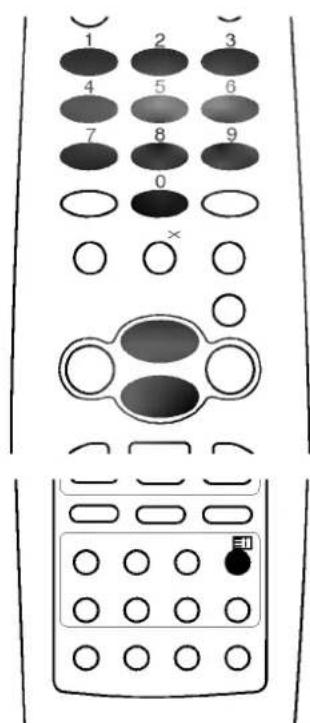
text_image
1 2 3 4 5 6 7 8 9 0 × ○ ○ ○ ○ ○ ○ ○ ○ ○Teletext (option)
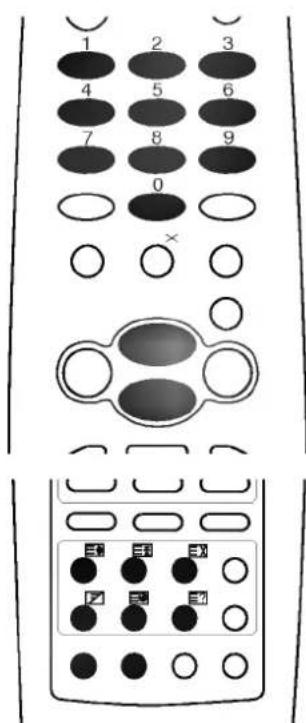
Special teletext functions
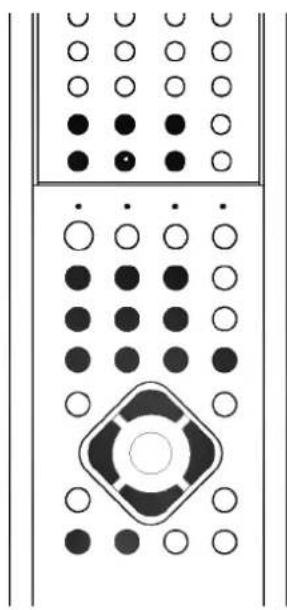
natural_image
Pure electrical circuit lines without any symbolsREVEAL
Press this button to display concealed information, such as solutions of riddles or puzzles.
Press this button again to remove the information from the display.
SIZE
SIZE
Selects double height text.
Press this button to enlarge the top half of the page.
Press this button again to enlarge the bottom half of the page.
Press this button again to return to the normal display.
EX UPDATE
Displays the TV picture on the screen while waiting for the new teletext page. The display TEXT will appear at the top left hand corner of the screen. When the updated page is available then display TEXT will change to the page number.
Press this button to view the updated teletext page.
HOLD Stons
Stops the automatic page change which will occur if a tele-text page consists of 2 or more sub pages. The number of sub pages and the sub page displayed is, usually, shown on the screen below the time. When this button is pressed the stop symbol is displayed at the top left-hand corner of the screen and the automatic page change is inhibited.
To continue press this button again.
MIX Diar
Displays the teletext pages superimposed on the TV picture.
To switch the TV picture off press this button again.
TIME
When viewing a TV programme, press this button to display the time at the top right hand corner of the screen. Press this button again to remove the display. In the teletext mode, press this button to select a sub page number. The sub page number is displayed at the bottom of the screen. To hold or change the sub page, press the RED/GREEN, ▲ / ▼ or NUMBER buttons.
Press again to exit this function.
text_image
1 2 3 4 5 6 7 8 9 0 × ○ ○ ○ ○ ○ ○ ○ ○ ○ ○ ○ ○ ○ ○ ○ ○ ○ ○ ○ ○ ○ ○ ○ ○ ○ ○VCR operation
Playing tapes
To play back a VHS video cassette tape which has no safety tab in position (this means you cannot record on to it), insert it into the set in the standby mode.
The set will at once switch itself on and perform the following sequence by itself:
PLAY -> STOP -> REWIND -> EJECT
To play back a VHS video cassette tape which has its safety tab in position (this means that you have recorded on it and left the tab untouched), insert it into the set in the standby mode.
Now you must press the PLAY button.
To stop playback, press the STOP button.
To take out the tape, press the EJECT button.
Note :
a. During Timer programme set, if you try to insert a video cassette tape without a safety tab in standby mode, the tape will automatically be ejected.
b. In some models, only SP (Standard Play) speed is available.
Tape tracking control
Tracking ensures that the tape is correctly aligned with the playback head. It works only during playback and its principal purpose is to minimize picture shake and noise (fuzzy lines across the picture). It is adjusted automatically or manually.
Auto tracking
Whenever playback starts, auto tracking automatically adjusts the picture. The display A.TRK will appear while the best picture is selected.
Manual tracking
You can manually adjust the picture by pressing the ▲ / ▼ button.
Vertical lock
You can manually adjust the picture by pressing the ▲ / ▼ button in still mode.
Pause/still picture
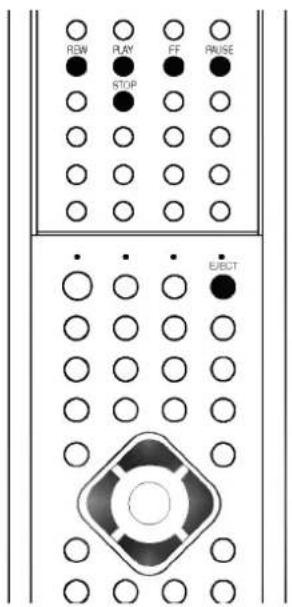
To temporarily pause playback, press the PAUSE button. A still picture and the display II will appear on the screen. If a still picture lasts for more than five minutes, the set will switch to the play back mode to protect the tape and the video heads. To restart play back, press the PLAY button.
To temporarily stop recording, press the PAUSE button. The display will appear. Press this button again to continue recording.
Fast forward, cue, rewind and review
Forward search
Press the FF ▶▶ button during playback.
The display ▶▶ will appear and the tape plays faster than normal speed. Press the PLAY button to return to normal speed.
text_image
RW PLAY FF RAUSE STOP ELECT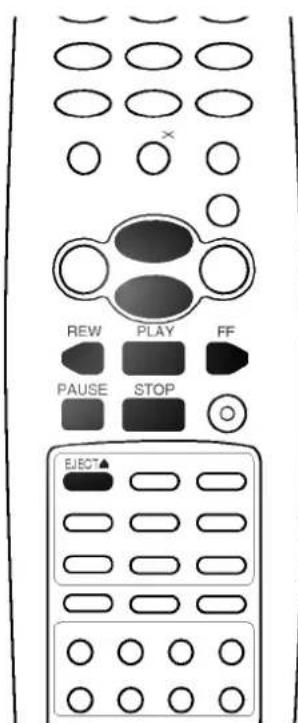
text_image
REW PLAY FF PAUSE STOP ELECT▲VCR operation
text_image
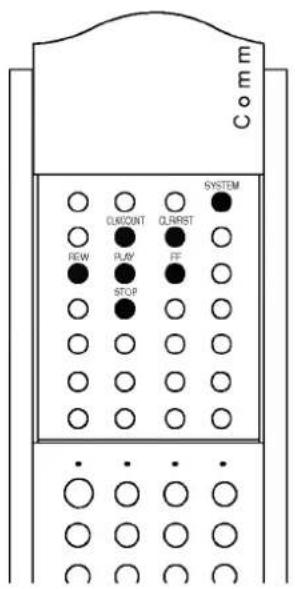
Comm CLKOUNT QLRRST NEW PLAY FF STOPPressing the FF ▶ button in the stop mode winds the tape forward at high speed. Then the display ▶ will appear on the screen. If you press and hold the FF ▶ button in this mode, the searching picture will appear. This enables you to see what is on the tape. To return to the FF mode, release the FF ▶ button.
If the tape winds forward to the end, it will automatically stop, rewind to the beginning and then eject the tape.
Reverse search
Press the ◀◀ REW button during playback.
The display ◀◀ will appear and the tape will play in reverse faster than normal speed. Press the PLAY button to return to normal play-back.
Pressing the ◀◀ REW button in the stop mode rewinds the tape backward at high speed. Then the display ◀◀ will appear on the screen.
If you press and hold the ◀◀ REW button in this mode, the searching picture will appear. This enables you to see what is on the tape. To return to the REW mode, release the ◀◀ REW button.
Note : Sound is automatically muted during these operations.
Clock/Count selection
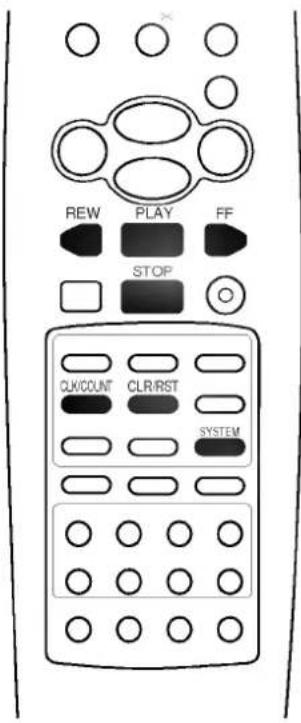
Each time the CLK/COUNT button is pressed, the current time and the tape counter appears alternately.
The tape counter displays the tape travel time in hours, minutes and seconds during recording and playback.
Note : To reset the counter to 0:00:00, press the CLR/ RST button when displaying the counter.
text_image
REW PLAY FF STOP CUX/COUNT CLR/IRST SYSTEMMemory stop
The memory stop makes it easy to return to a particular spot on the tape after recording or playback. The tape automatically stops when the counter reaches M 0:00:00.
- Start recording or playback.
- Press the CLK/COUNT button 3 times to display tape counter.
- Press the CLR/RST button at the point you want to review. The counter displays M 0:00:00.
- Press the STOP button when you finish recording or playing the tape.
- Press the ◀◀ REW button to rewind the tape. The tape stops at the point M 0:00:00.
- Press the PLAY button to play back the tape.
VCR colour system setting
You can adjust the VCR colour system. Under normal circumstances, select AUTO. If necessary (if input signal is weak), change the colour system by using the instructions below.
- Press the SYSTEM button. The VCR System mode will appear.
- Repeatedly press the SYSTEM button to select the correct system.
Note :
a. NTSC PB is for playback only. You cannot record NTSC signals.
b. If the picture is no colour during playing back a MESECAM video cassette tape in AUTO, select MESECAM instead of AUTO.
Recording
Manual recording
This is the function used to record a TV programme or signal from external equipment onto a video cassette tape. The set cannot record any programme in the NTSC system as the NTSC system is only for playback.
- Insert a tape with the safety tab into the cassette compartment. Note: Select the recording tape speed SP or LP with the SP/LP button after inserting a tape with the safety tab. You'd better select the tape speed SP.
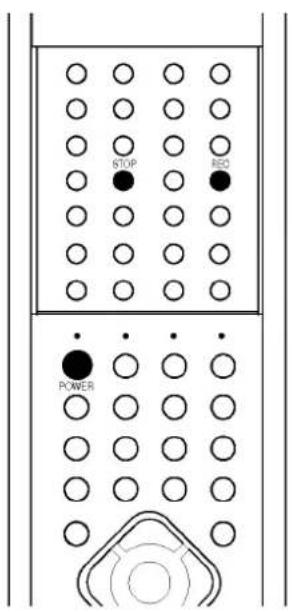
- Press the REC button once. The display appears on the screen. The REC indicator will illuminate.
- When the desired recording is completed, press the STOP button. If the tape reaches the end before you press the STOP button, the set automatically stops, rewinds to the beginning and ejects the tape.
Note :
a. If you try to record a tape without a safety tab, it will be automatically ejected to prevent accidental erasure. If you want to use the tape without the safety tab, stick a small piece of tape over the safety tab hole.
b. If you don't wish to monitor while recording, press the / I button on the set or POWER button on the Communicator to reverts to standby mode.
WARNING
Unauthorized recording of copyrighted programmes, films, video tape and other materials may infringe upon the right of copyright owners and be contrary to copyright laws.
Instant timer recording (ITR)
This function is convenient when you want to start recording immediately without going through the entire timer setting procedure. You don't have to set the time to use this function.
- Insert a tape with a safety tab.
- Press the REC button twice.
The display ITR .... will appear with the recording programme number. - Repeatedly press the REC button to set the recording length, which appears on the screen. You can select up to 9 hours at 30-minute intervals.
To cancel the ITR function, press the REC button until the display ITR ---- appears.
text_image
STOP RED POWER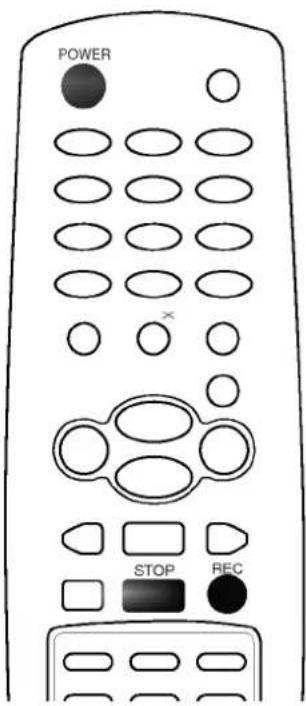
text_image
POWER STOP RECRecording
Timer programme setting
You can programme the set to start and end recording while you are away. Up to 5 recordings within one month can be programmed at the same time.
text_image
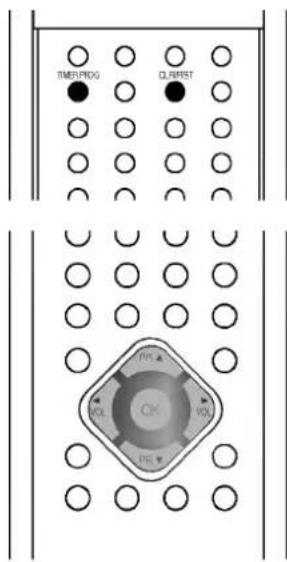
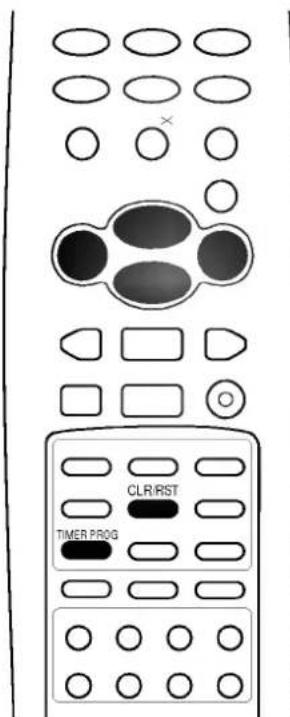
TIME/POG QUNIST OFF OK LFL- Press the TIMER PROG button on the Communicator to display the Timer programme menu. The current time and the day of the week automatically appears under the display Timer programme.
- Press the ▲ / ▼ button to select a recording item.
- Select PR with the ▶ button and set the programme number with the ▲ / ▼ button.
- Select Date with the ▶ button and set a Day/Month with the ▲ / ▼ button. If the date is January 23, the Timer programme mode appears as shown below.

natural_image
Blank grayscale image with no visible text, symbols, or discernible featuresEach time you press the ▲ button, the date changes as shown below.
24/01 -> 25/01 ... 31/01 -> 01/02 -> 02/02 ... 23/02
Each time you press the ▼ button, the date changes as shown below.
Every Day -> SUN -> MON ... SAT -> MON-SAT
-> MON-FRI -> SAT-SUN
text_image
CLRIRST TIMER PROG- Select Start with the ▶ button.
And set the start Hour : Minute with the ▲ / ▼ or ◀ / ▶ button. - Select Stop with the ▶ button and set stop Hour : Minute with the ▲ / ▼ or ◀ / ▶ button.
- Select the tape speed position with the ▶ button and select the recording tape speed SP or LP with the ▲ / ▼ button.
- Press the OK button.
- Press the TIMER PROG button to return to normal TV viewing.
After you finish programming, insert a tape with a safety tab. The TIMER REC indicator will illuminate.
Note :
a. If you want to cancel a timer programme, select the recording item with the ▲ / ▼ button, press the CLR/RST button.
b. If you press the OK button after pressing an incorrect digit accidentally or setting the start and stop time that have already past, the recording will automatically be erased.
c. If the clock has not yet been set, when you try to set timer programme the Time menu will appear. Set the time and date before proceeding.
d. When the set is in standby mode after setting a timer programme, the TIMER REC indicator will blink.
e. This set must be put into standby mode with / I (POWER) button to operate the timer programme function.
DVD operation
Notes on discs
On handling discs
- Do not touch the playback side of the disc.
- Do not attach paper or tape to discs.
On storing discs
- Do not store discs in a place subject to direct sunlight or near heat sources.
- Do not store discs in place subject to moisture and dust such as a bathroom or near a humidifier.
- Store discs vertically in a case. Stacking or placing object on discs outside of their case may cause warping.
On cleaning discs
- Fingerprints and dust on the disc cause picture and sound deterioration. Wipe the disc from the center outward with a soft cloth. Always keep the disc clean.
- Do not use any type of solvent such as thinner, benzine, commercially available cleaners or antistatic spray for vinyl LPs. It may damage the disc.
Note: “∅” may appear on the TV screen during operation. A “∅” means that the operation is not permitted by the unit or the disc.
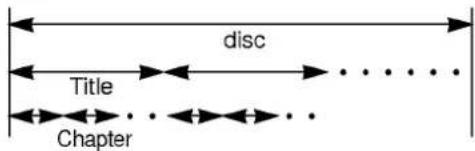
Structure of disc contents
DVD video disc
text_image
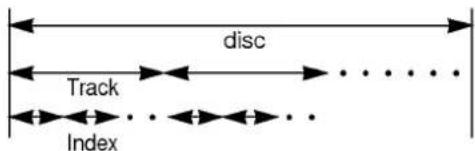
disc Title ChapterVideo CD/Audio CD
text_image
disc Track Index- Title :When two or more movies are recorded on a disc, the disc is divided into two or more sections. Each section is called a "TITLE".
- Chapter : The titles can be subdivided into many sections. Each section is called a "CHAPTER".
- Track : An audio CD can contain several items. These are assigned to the tracks.
Note :
a. If a MP3 file CD is burned by wrong method, this set may not recognize about it. At this time, burn a CD after readjusting a disc writing area in your PC.
b. This set can't play JPEG file.

text_image
Illustration showing various types of medical or safety symbols including a disc, crossed-out circle, sun, smoke, and others with corresponding icons.CAUTION:
This Digital Video Disc Player employs a Laser System.
To ensure proper
use of this product, please read this owner's manual carefully and retain for future reference should the unit require maintenance, contact an authorized service location (see service procedure). Use of controls, adjustments, or the performance of procedures other than those specified herein may result in hazardous radiation exposure.
To prevent direct exposure to laser beam, do not try to open the enclosure. Visible laser radiation when open. DO NOT STARE INTO BEAM.
CAUTION: The apparatus should not be exposed to water (dripping or splashing) and no objects filled with liquids, such as vases, should be placed on the apparatus.
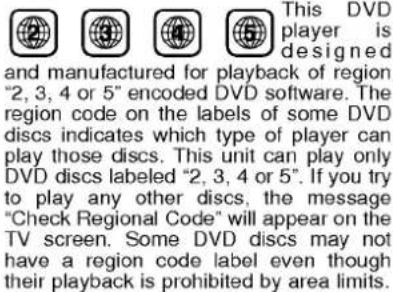
Regional code of the DVD player and DVDs
text_image
This DVD player is designed and manufactured for playback of region "2, 3, 4 or 5" encoded DVD software. The region code on the labels of some DVD discs indicates which type of player can play those discs. This unit can play only DVD discs labeled "2, 3, 4 or 5". If you try to play any other discs, the message "Check Regional Code" will appear on the TV screen. Some DVD discs may not have a region code label even though their playback is prohibited by area limits."DTS" and "DTS Digital Surround" are trademarks of Digital Theater System, Inc.
APPARATUS CLAIMS OF U.S. PATENT NOS. 4,631,603,4,577,216,4,819,098, AND 4,907,093 LICENSED FOR LIMITED VIEWING USER ONLY.
DVD operation
Playing a disc
Basic playback
- Press the POWER button to switch the set on.
- Press the OPEN/CLOSE button to open the disc tray.
- Place the disc with the playback side down on the disc tray.
- Press the OPEN/CLOSE button to close the disc tray.
- Playback starts.
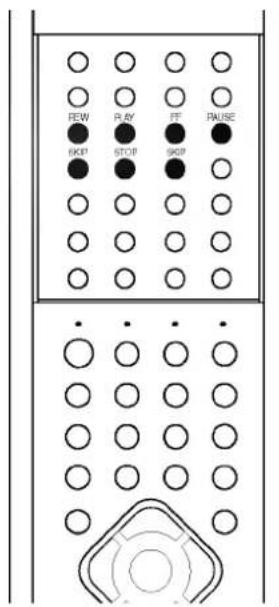
To pause playback (still mode)
- Press the PAUSE button during playback.
- Press the PLAY button again to return to normal playback.
To stop playback
Press the STOP button to stop playback.
Note :
a. To stop playback fully, press the STOP button in twice.
b. The picture can not go back to DVD mode again but to RF mode, if you pushed and lost hold of the FF ▶ or ◀ REW button of VCR during playing DVD. (Because VCR mode is prior to DVD mode, display mode is changed to RF mode after stopping VCR playback.)
c. When you change chapter in DVD scene menu, sometimes you can see the volume OSD, because of disc reading time.
d. If you pushed / I (POWER) button during playing DVD, disk tray can be opened by disc condition.
To remove the disc
Press the OPEN/CLOSE button and remove the disc after the disc completely ejected.
Playing in fast reverse or fast forward directions (for DVD, Video CD and Audio CD)
- Press the FF ▶▶ or ◀◀ REW button during playback.
- Each time you press FF ▶▶ or ◀◀ REW button, the playback speed changes.
- Press the PLAY button to resume normal playback.
Playing in slow reverse or slow forward directions (for DVD and Video CD)
- Press the PAUSE button and then press FF ▶▶ or ◀◀ REW button.
- Each time you press FF ▶▶ or ◀◀ REW button, the playback speed changes.
Note : There is no sound when viewing FAST or SLOW playback in DVD and Video CD.
Locating a chapter or track
Press the SKIP ▶▶I button Forward or I◀◀ SKIP button Reverse during playback to locate a chapter that you want to watch. Each time you press the button, a chapter or track is skipped.
Note :
a. If you press the SKIP ▶▶I button Forward or I◀◀ SKIP button Reverse in the still mode, one frame is displayed at a time.
b. Depending on the disc, this function maybe operate differently.
text_image
REW PLAY FF PAUSE OK STOP OKP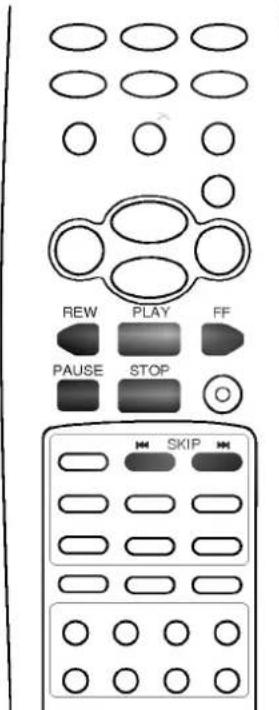
text_image
REW PLAY FF PAUSE STOP SKIPDVD operation
OSD (On-screen Display)
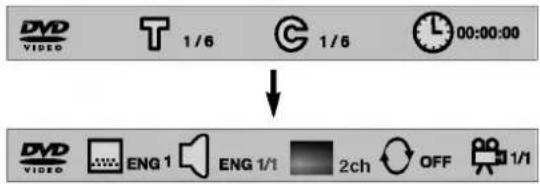
You can display the playback status on TV screen as following; Title, Chapter number, Playing time. Press the OK button during playback. Title, Chapter information appears on screen.
Each time you press the OK button, the OSD changes as follows.
flowchart
graph TD
    A["1/6"] --> B["1/6"]
    B --> C["00:00:00"]
    D["ENG 1"] --> E["ENG 1/1"]
    E --> F["2ch"]
    F --> G["OFF"]
    G --> H["1/1"]
Playing MP3 discs
Load a MP3 disc
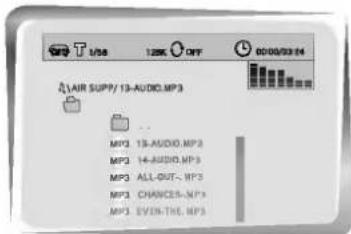
- MP3 menu screen is displayed automatically depending on MP3 disc's folder (directory) structure as shown below.
text_image
AIR SUPP/13-AUDIO.MPS MP3 13-AUDIO.MPS MP3 14-AUDIO.MPS MP3 ALL-OUT-.MP3 MP3 CHANGES-MPS MP3 EVEN-THE.MPS- Using the ▲ / ▼ button to find the desired folder.
- Press the OK button to select.
- Using the ▲ / ▼ button to find the desired MP3 title. Press the PLAY button to start playback.
Selecting disc menu
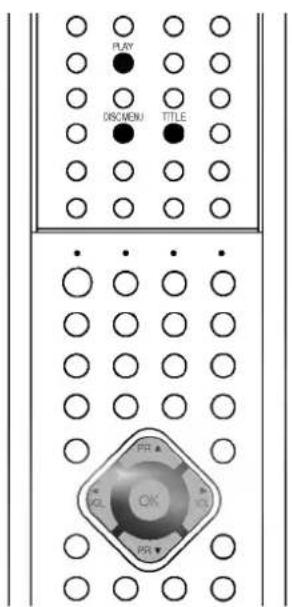
- Press the DISC MENU button during playback.
- Press the ▲ / ▼, ◀ / ▶, OK or NUMBER buttons to select the desired item.
Selecting title menu
- Press the TITLE button during playback.
- Press the ▲ / ▼, ◀ / ▶, OK or NUMBER buttons to select the desired item.
Note : In some disks, you can't select the disc or title menu.
text_image
PUN OK/MONJ TITLE . . . . . . . . . . . . . . . . . . . . . . . . . . . . . . . . . . . . . . . . . . . . . . . . . . . . . . . . . . . . . . . . . . . . . . . . . . . . . . . . . . . . . . . . . . . . . . . . . . . . .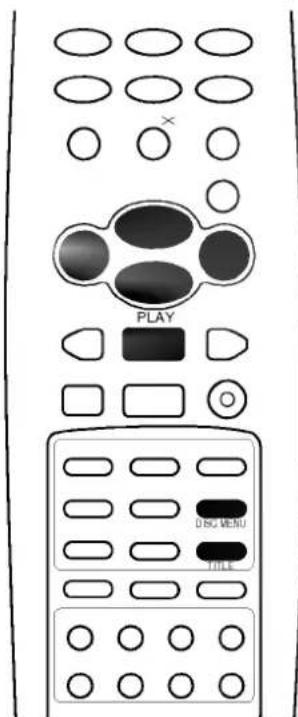
text_image
PLAY DRU MENU TITLEDVD operation
Repeat playback
You can play a specific title, chapter, track or segment repeatedly.
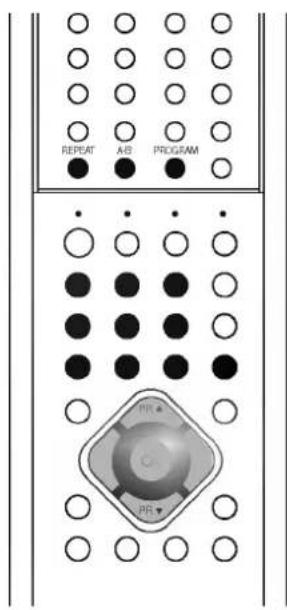
Press the REPEAT button during playback.
Each time you press the REPEAT button, the repeat mode changes as follows.
text_image
REPEAT AB PROGRAM PR PR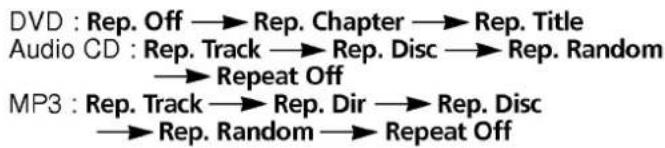
text_image
DVD : Rep. Off → Rep. Chapter → Rep. Title Audio CD : Rep. Track → Rep. Disc → Rep. Random → Repeat Off MP3 : Rep. Track → Rep. Dir → Rep. Disc → Rep. Random → Repeat OffNote : Depending on the disc, repeat playback may not be possible.
A-B repeat playback
A-B repeat playback allows you to repeat material between two selected points.
- Press the A-B button to select the start point during playback.
- Press the A-B button again to select the end point. Playback starts at the point that you selected. Playback stops at the end point, returns to Point A automatically, then starts again.
- Repeatedly press the A-B button again to resume normal play-back.
"Rep. Off" appears on the screen.
Note : It's not available to use this function on MP3 file.
Programme playback
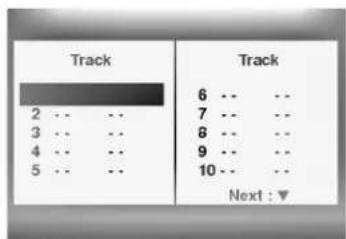
You can arrange the order of tracks on the disc.
- Press the PROGRAM button in the stop mode or during play-back.
- Press the OK button and then use the ▲ / ▼ or NUMBER buttons to input the desired Title numbers.

text_image
1 2 3 4 5 6 7 8 9 0 × OK REPEAT A-B PROGRAM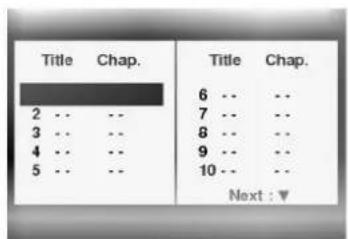
text_image
Title Chap. 6 -- 7 -- 8 -- 9 -- 10 -- Next :▼DVD
text_image
Track 2 ... ... 3 ... ... 4 ... ... 5 ... ... Track 6 ... ... 7 ... ... 8 ... ... 9 ... ... 10 ... ... Next : ▼Video Disc / Audio CD
- Press the OK button and then use the ▲ / ▼ or NUMBER buttons to input the desired Chapter numbers.
To programme others, repeat Step 2 to 3. - Press the PROGRAM button to resume normal playback.
Note :
a. Depending on the disc, programme playback may not be possible.
b. It's not available to use this function on MP3 file.
DVD operation
Selecting the camera angle
If your scene was recorded from multiple angles, you can easily change the camera angle of the scene you are watching.
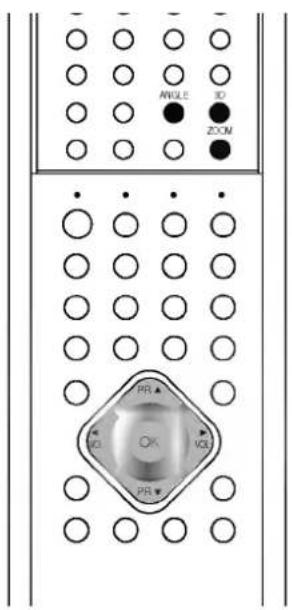
- Press the ANGLE button during playback.
- Repeatedly press the ANGLE button to select the desired angle.
- Press the PLAY button to return to normal TV viewing.
Note :
a. You can only change the angle for DVDs that provide multiple angles of scenes.
b. The angle function will not work on DVD video discs that do not contains recorded multiple angles.
c. The number of angles varies from disc to disc.
3D sound
To enjoy various surround sounds, when you can select any desired sound effect by pressing the 3D SOUND button.
- Press the 3D SOUND button during playback.
- Each press of the 3D SOUND button changes the sound display as shown below.
Sound fields

flowchart
graph LR
    A["Standard"] --> B["Theater"]
    B --> C["Amphitheater"]
    C --> D["Live"]
    D --> E["Concert"]
    E --> F["church"]
    F --> G["Wide"]
    G --> H["Hall"]
    H --> I["Stadium"]
Picture size zoom (for DVD and Video CD)
When enlarging or reducing the picture, the screen may be display unnatural picture.
- Press the ZOOM button during playback.
- Each press of the ZOOM button changes the screen display.
DVD : 2x → 4x → Off
Video CD : 2x → Off - Adjust the main picture position with the ▲ / ▼ / ◀ / ▶ buttons in enlarged picture mode.
- Repeatedly press the ZOOM button to return to normal TV viewing.
text_image
AWLE 3D ZOOM PR OK OK PR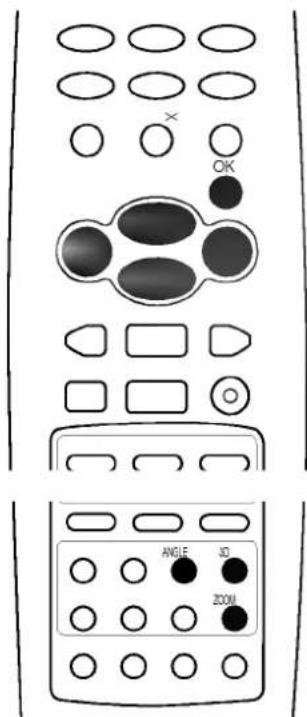
text_image
× OK ANGLE JO ZOOMDVD operation
Selecting a audio language (STOP mode only)
text_image
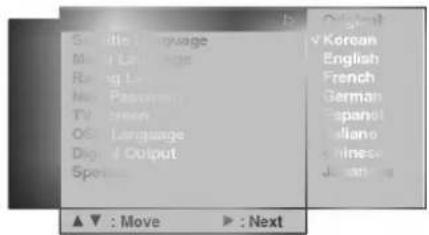
SETUP ALDO SUTTER OE OE OE OE OE OE OE OE OE OE OE OE OE OE OE OE OE OE OE OE OE OE OE OE OE OE OE OE OE OE OE OE OE OE OE OE OE OE OE OE OE OE OE OE OE OE OE OE OE OE OKESet this value to the preferred audio language. If an audio language is selected, whenever you start playing a new disc, the selected audio language is played. (If the selected language is contained in the disc.)
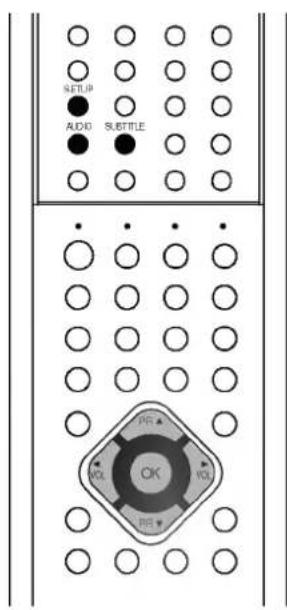
- Press the SETUP button and then use the ▲ / ▼ button to select Audio Language.
- Press the ▶ button and then ▲ / ▼ button to select your desired language.
text_image
Go Idle Language Language Language Language Language Language Language Language Language Language Output Spots... ▲ ▼ : Move ▶ : Next Original ✓ Korean English French German Spanish Italiano Chinese English- Press the OK button.
- Press the SETUP button to resume normal playback.
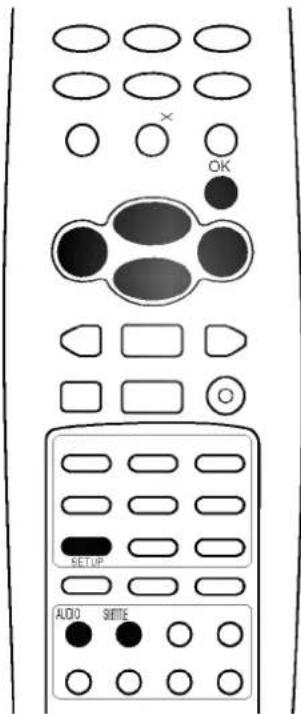
You can also select a desired audio language with AUDIO button on the Communicator.
text_image
OK SETUP ALDO SWITCHSelecting a subtitle language (STOP mode only)
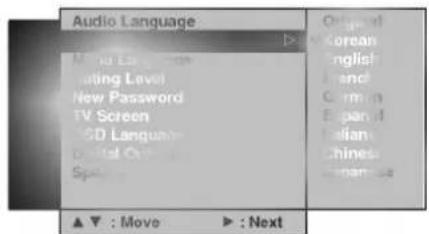
Set this value to the preferred subtitle language. If a subtitle language is selected, whenever you start playing a new disc, the selected subtitle language is played. (If the selected language is contained in the disc.)
- Press the SETUP button and then use the ▲ / ▼ button to select Subtitle Language.
- Press the ▶ button and then ▲ / ▼ button to select your desired language.
text_image
Audio Language Mood Language Rating Level New Password TV Screen SD Language Digital Object Spot Image ▲ ▼ : Move ▶ : Next Original Korean English French German Spanish Italian Chinese Japanese- Press the OK button.
- Press the SETUP button to resume normal playback.
You can also select a desired subtitle language with SUBTITLE button on the Communicator.
DVD operation
Disc menu language selection
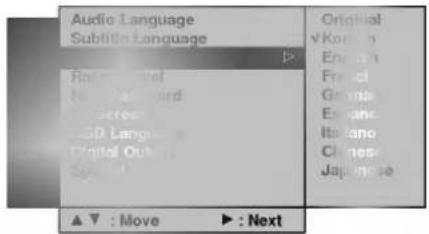
You can select the language of the disc menu messages of DVDs. (If the selected language is contained in the disc.)
- Press the SETUP button and then use the ▲ / ▼ button to select Menu Language.
- Press the ▶ button and then ▲ / ▼ button to select your desired language.
text_image
Audio Language Subtitle Language Original v Klon English French German English Italiano Chinese Japanese ▲ ▼ : Move ▶ : Next- Press the OK button.
The menu on screen displays will appear in the selected language.
- Press the SETUP button to resume normal playback.
Parental control setting
Some discs are specified not suitable for children. Such discs can be prevented from play back with the set.
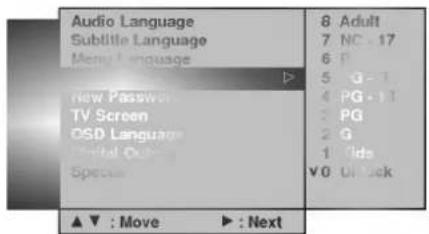
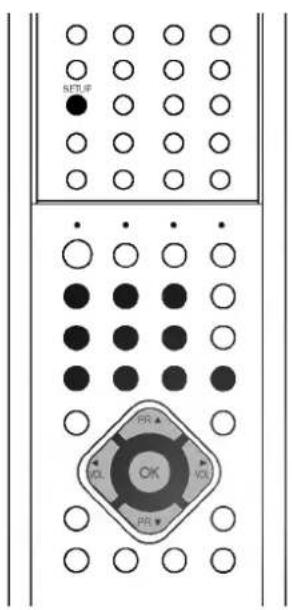
- Press the SETUP button and then use the ▲ / ▼ button to select Rating Level.
- Press the ▶ button and then use NUMBER buttons to input a 4-digit password.
Be sure to remember this number!
text_image
Audio Language Subtitle Language Menu Language New Password TV Screen OSD Language Digital Audio Specu ▲ ▼ : Move ▶ : Next 8 Adult 7 NC - 17 6 P 5 G - 1 4 PG - 11 3 PG 2 G 1 V0 Uf kck- Press the ▲ / ▼ button to select from the level 0 to level 8. The limitation will be more severe as the level number is upper.
0: Unlock
1: Kids
2: G (General audience)
3: PG (Parental guidance suggested)
4: PG-13 (13 years and older)
5: PG-r
6: R (Restricted)
7: NC-17 (18 years and older)
8: Adult (Adults only)
- Press the SETUP button to resume normal playback.
Note : If you forgot your password, press '7', '7', '7', '7' on the Communicator.
text_image
SET # PR ▲ OK PR ▼ VOL VOL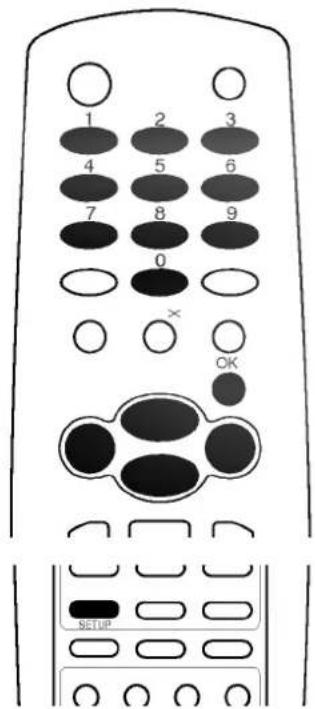
text_image
1 2 3 4 5 6 7 8 9 0 × OK SETUPDVD operation
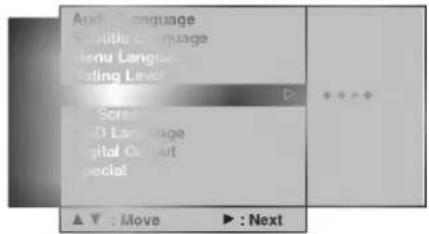
To change the password
text_image
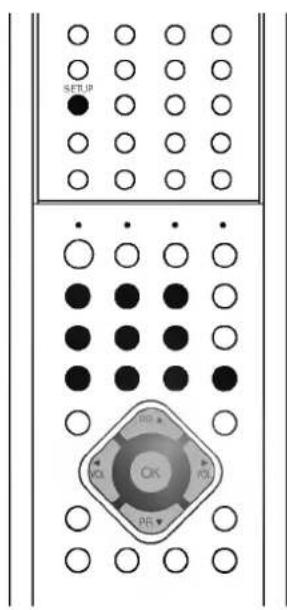
SETUP OK PR- Press the SETUP button and then use the ▲ / ▼ button to select Rating Level.
- Press the ▶ button and then use NUMBER buttons to input a 4-digit password.
- Press the ◀ button and then use the ▲ / ▼ button to select New Password.
text_image
Add Language Sensible Language menu Language Rating Level Scrab SOD Language digital Output social ▲▼ : Move ▶ : Next-
Press the ▶ button and then enter your new password in 4 digits.
-
Re-enter new password for confirm. Password change is finished.
-
Press the SETUP button to resume normal playback.
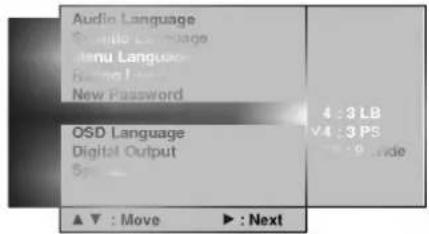
TV Screen
You can watch TV in various picture formats.
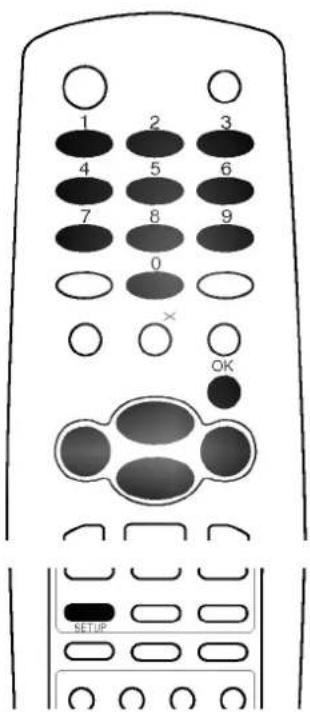
- Press the SETUP button in twice and then use the ▲ / ▼ button to select TV Screen.
text_image
Audio Language Ctrlio Language Menu Language Browse Language New Password QSD Language Digital Output 5p ▲ ▼ : Move ▶ : Next- Press the ▶ button and then ▲ / ▼ button to select 4 : 3 LB, 4 : 3 PS, or 16 : 9 Wide.
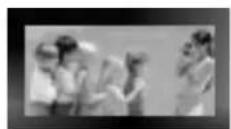
Letter Box (4:3 LB)
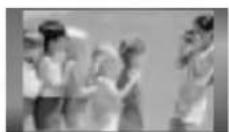
Pan & Scan (4:3 PS)
16:9 Wide
- Press the OK button.
- Press the SETUP button to resume normal playback.
Note : Depending on the disc, TV screen function may not be possible.
text_image
1 2 3 4 5 6 7 8 9 0 × OK SETUPDVD operation
Disc OSD language selection (option)
The menu can be displayed on the screen in your desired language. First select your language. (If the selected language is contained in the disc.)
- Press the SETUP button and then use the ▲ / ▼ button to select OSD Language.
- Press the ▶ button and then ▲ / ▼ button to select your desired language. All the on screen displays will appear in the selected language.
- Press the SETUP button to resume normal playback.
Note : On some models, the OSD Language will not be displayed.
Selecting digital audio output
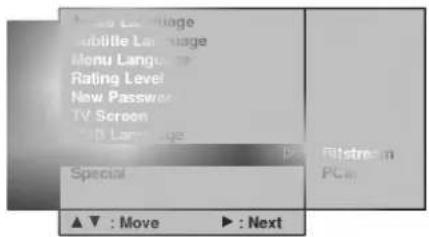
- Press the SETUP button and then use the ▲ / ▼ button to select Digital Output.
- Press the ▶ button and then ▲ / ▼ button to select Bitstream or PCM.
text_image
Menu Language Subtile Language Menu Language Rating Level New Password TV Screen Special ▲ ▼ : Move ▶ : Next Fittstream PC- Press the OK button.
- Press the SETUP button to resume normal playback.
DRC (Dynamic Range Compression)
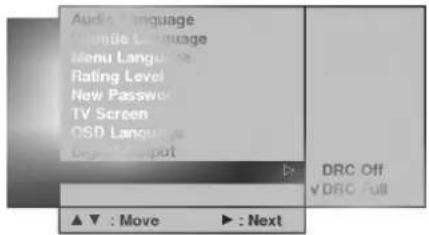
DRC (Dynamic Range compression) enables you to control the dynamic range so as to achieve a suitable sound for your equipment.
- Press the SETUP button in twice and then use the ▲ / ▼ button to select Special.
- Press the ▶ button and then ▲ / ▼ button to select DRC Off or DRC Full.
text_image
Audio Language Single Language Menu Language Rating Level New Password TV Screen OSD Language Begin Input DRC Off v DRC Full ▲ ▼ : Move ▶ : Next- Press the OK button.
- Press the SETUP button to resume normal playback.
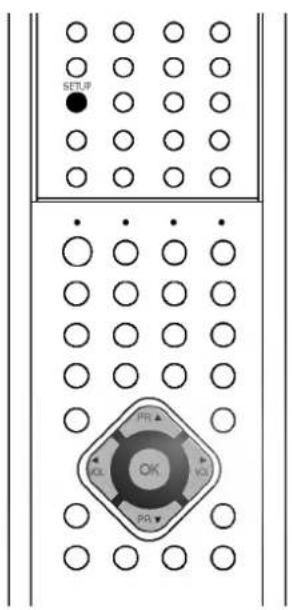
text_image
SET,IP OK PR OK PR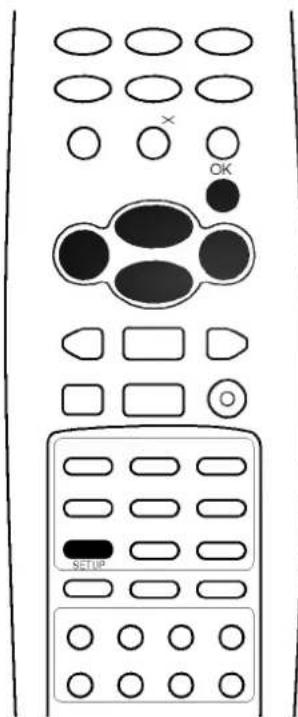
text_image
OK SETUPConnection of external equipment
You can connect additional equipment, such as camcorders, video game set etc. to your set. Here shown may be somewhat different from your set.
Connecting antenna
Be careful for the bronze wire not to be bended in connecting to antenna input port.
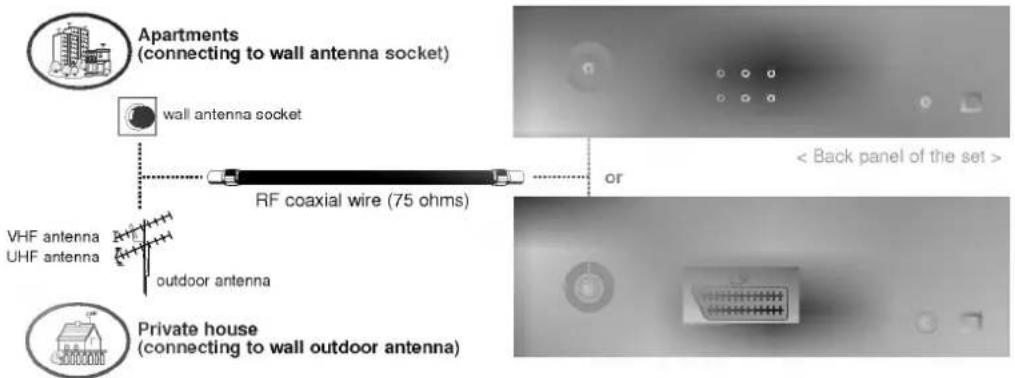
text_image
Apartments (connecting to wall antenna socket) wall antenna socket VHF antenna UHF antenna RF coaxial wire (75 ohms) outdoor antenna Private house (connecting to wall outdoor antenna) < Back panel of the set >Watching cable TV
After subscribing to a cable TV service from a local provider and installing a converter, you can watch cable TV programming.
- Press TV/AV button on the Communicator and select AV1 or AV2.
- Tune to cable service provided channels using the cable box.
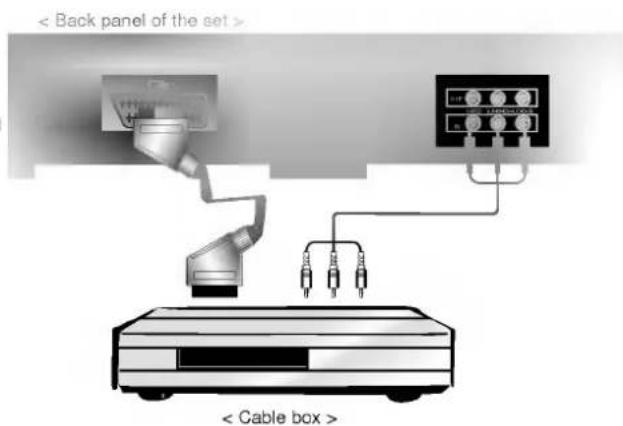
text_image
< Back panel of the set > Cable box >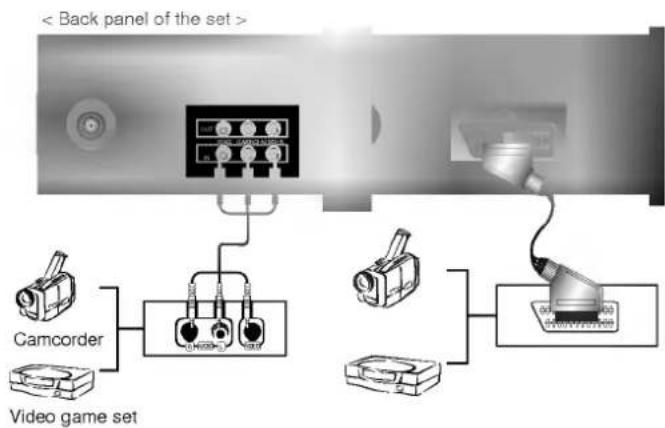
text_image
< Back panel of the set > Camcorder Video game setWatching external AV source
When connecting the set with external equipments, match the colours of connecting ports : Video = yellow, Audio (Left) = white, Audio (Right) = red.
- Press TV/AV button on the Communicator to select AV1 or AV2.
(When connecting with S-Video, select the S-Video.) - Operate the corresponding external equipment.
(See external equipment operating guide.)
Connection of external equipment
Digital audio output setup
flowchart
graph TD
    A["Input Sensor"] --> B["Device 1"]
    B --> C["Sensor 1"]
    B --> D["Sensor 2"]
    B --> E["Sensor 3"]
    B --> F["Sensor 4"]
    B --> G["Sensor 5"]
    C --> H["Output Sensors"]
    D --> I["Output Sensors"]
    E --> J["Output Sensors"]
    F --> K["Output Sensors"]
    G --> L["Output Sensors"]
    style A fill:#f9f,stroke:#333
    style B fill:#ccf,stroke:#333
    style C fill:#cfc,stroke:#333
    style D fill:#fcc,stroke:#333
    style E fill:#cff,stroke:#333
    style F fill:#ffc,stroke:#333
    style G fill:#cfc,stroke:#333
    style H fill:#fcc,stroke:#333
    style I fill:#cff,stroke:#333
    style J fill:#fcc,stroke:#333
    style K fill:#ffc,stroke:#333
    style L fill:#fcc,stroke:#333
    style_M["Back Panel of the Set >"]
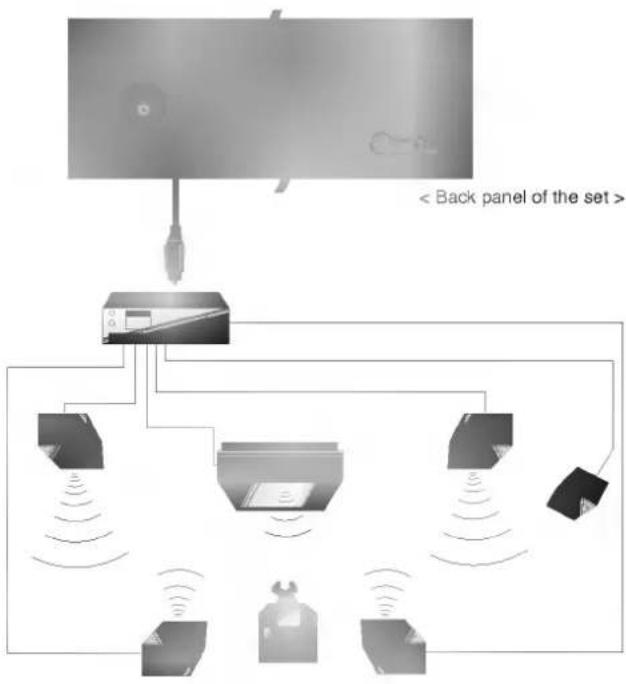
Send the set's audio to external audio equipment (stereo system) via the Digital Audio Optical Output port.
How to connect
- Connect one end of an optical cable to the set Digital Audio Optical Output port.
- Connect the other end of the optical cable to the digital audio optical input on the audio equipment.
See the external audio equipment instruction manual for operation.
Note: Do not look into the optical output port. Looking at the laser beam may damage your vision.
Headphone socket
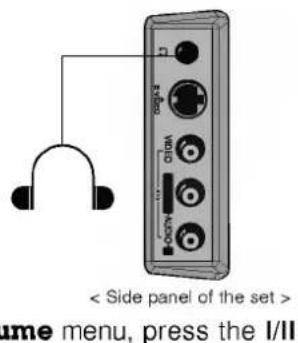
Insert the headphone plug to the headphone socket of the set. You can listen to the sound through the headphone and the TV's speakers. To adjust the headphone volume, press the ◀ / ▶ button on the Volume menu. See the 'Sound adjustment' section.

natural_image
Completely grayscale image with no visible content, text, or symbols.If you press the MUTE button, only the sound from the TV's speakers are switched off. When a programme is received in dual language, you can select a language (DUAL I, DUAL II or DUAL I+II) for the sound from the headphone regardless of that from the TV's speakers. On the 📊 Vo
text_image
< Side panel of the set > time menu, press the I/IIbutton to select the desired language; I, II or I+II. At this time if the set is in AV mode, the I/II button selects output sound; L+R, L+L or R+R, in turn.
Memo
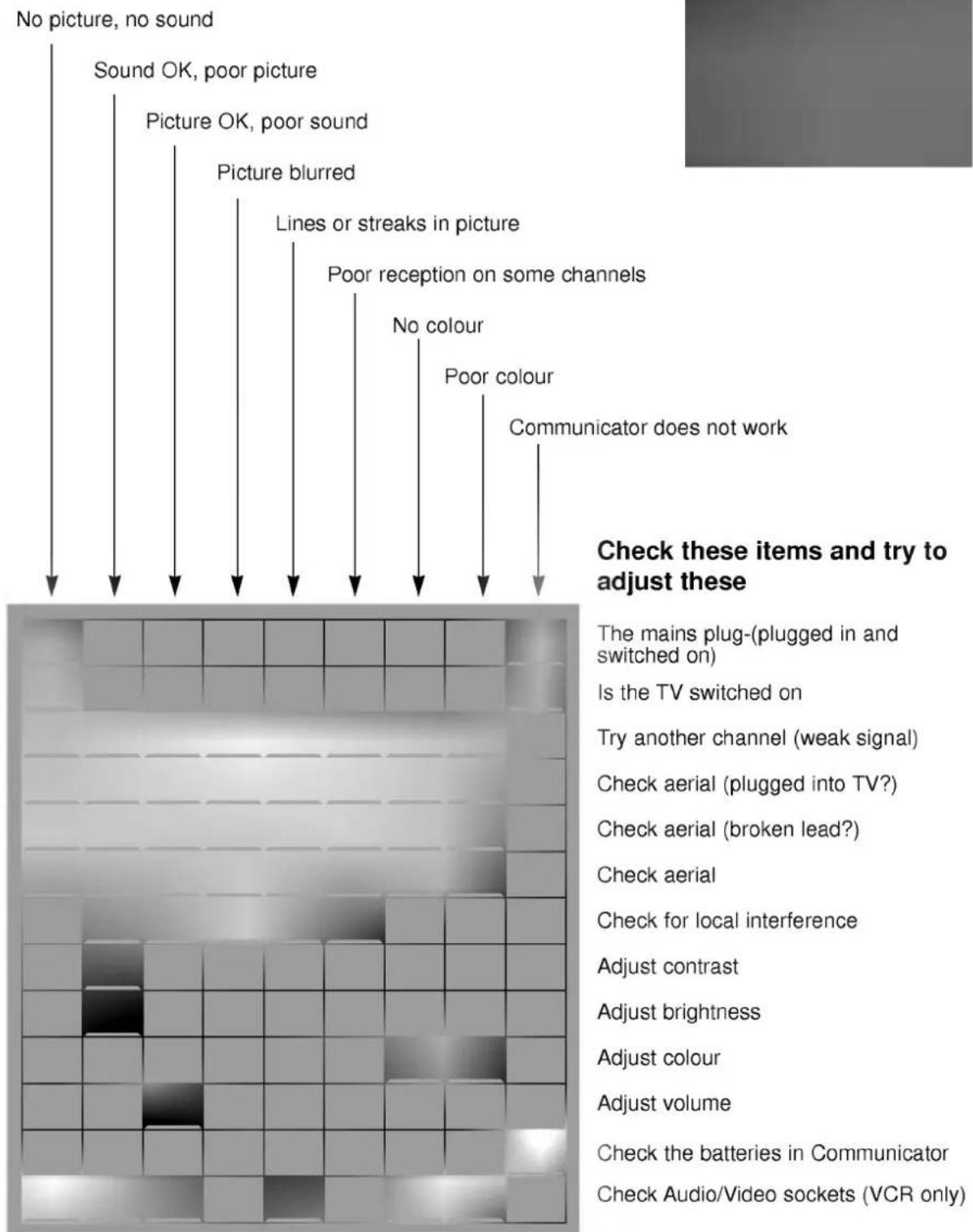
Troubleshooting check list
Symptoms
text_image
No picture, no sound Sound OK, poor picture Picture OK, poor sound Picture blurred Lines or streaks in picture Poor reception on some channels No colour Poor colour Communicator does not work Check these items and try to adjust these The mains plug-(plugged in and switched on) Is the TV switched on Try another channel (weak signal) Check aerial (plugged into TV?) Check aerial (broken lead?) Check aerial Check for local interference Adjust contrast Adjust brightness Adjust colour Adjust volume Check the batteries in Communicator Check Audio/Video sockets (VCR only)