
OfficeM - Telefon ASCOM - Gratis brugsanvisning og manual
Find enhedens vejledning gratis OfficeM ASCOM i PDF-format.


Brugerspørgsmål om OfficeM ASCOM
0 spørgsmål om dette apparat. Besvar dem du kender, eller stil dit eget.
Stil et nyt spørgsmål om dette apparat
Download vejledningen til din Telefon i PDF-format gratis! Find din vejledning OfficeM - ASCOM og tag din elektroniske enhed tilbage i hånden. På denne side er alle dokumenter nødvendige for brugen af din enhed offentliggjort. OfficeM af mærket ASCOM.
BRUGSANVISNING OfficeM ASCOM
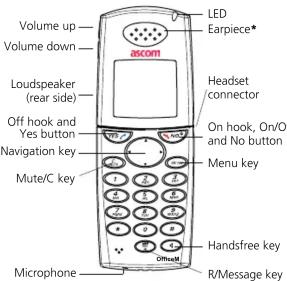
Icons and text in the display
Signal strength indicator
Battery icon (fully charged)
Battery icon (empty battery)
Ring signal muted
Loudspeaker on
New message
New message Confirm message
Confirm message
Read message
Voice mail
Locked keypad
Headset connected
Microphone muted
Missed call
Answered call
Outgoing call
* Warning: Handset may retain small magnetic objects around the mouthcap or earcap region.
Product presentation
The OfficeM cordless telephone is designed to be used in an indoor environment such as offices and not too heavy industrial environment. The telephone is suitable for users dependent on being reachable and/or having a need for mobile messaging functions.
Functions
Personal phonebook (100 entries)
Company phonebook (1000 entries)
Central phonebook (possibility to access one)
Central phonebook (possibility to access one) Changeable display contrast
changeable display contrast Vibrates
Vibrator
Headset connector
Loudspeaking
Calculator
Alarm clock
SMS
Voicemail access
Conference call
Note: Your unit may have more functions than described
here; see User Manual, OfficeM Cordless Telephone
Basic functions
Switch the phone on/off
Press and hold the No button until the display lights up/turns
blank
Dial a number
Dial the number and press the Yes button.
Call a number from the call list
Open the Call list by pressing the Yes button. Step with (▼) and select one of the twenty last received, dialled, or missed calls. Press the Yes button to dial.
Quick call by a name in the phonebook
Press and hold the key that holds the first character in the name. Use short presses on the same key to step between the characters, and use (▼to select the desired name. Press the Yes button. Example: if the name Eva is wanted, press key 3
(DEF); the name list that appears starts with D. Press the same key twice; the first name that starts with "E" is displayed. Scroll with (▼) to find the name. Press the Yes button to dial.
Call by a name in the phonebook
Enter Phonebook in the menu, select "Call"; "Name" appears. Enter the first character(s) or the whole name (or scroll with (▼ to find the name). Press the Yes button to dial.
Receive/End a call
When the signal sounds; press the Yes button to answer the call, or press the Handsfree key to answer in loudspeaking mode. Press the No button to end the call. The duration of the call is shown in the display.
Transfer a call (System dependent)
During a call, press the R key to put the call on hold. Dial the number you want to transfer the call to. If the number is available press the No button to transfer the call, or press the R key to return to the call.
Charge the battery
Place the telephone in the desktop charger. A filled "Battery icon" indicates a fully charged battery. While in a desktop charger the telephone is fully operational.
Lock the keypad
Enter "Toolbox" in the menu, select "Locks" and then "Key Lock". Set to "Automatic" to enable the keypad lock. The "Locked keypad" icon indicates a locked keypad.
Unlock the keypad manually
Press the *key and then the Yes button.
Volume/Mute control
Adjust the earpiece volume during a call
Press the upper Volume button to increase the volume, and the lower Volume button to decrease the volume.
Change the ringer volume
Enter "Toolbox" in the menu, select "Sound & Alerts" and then "Ringer Volume". Choose if you want to change the volume for "Voice", "Mail", or "Alarm clock". Select volume by using (◄)Press the Yes button.
Turn the vibrator on/off
Enter "Toolbox" in the menu, select "Sound & Alerts" and then "Vibrator alert". Select "On", "On when silent" or "Off". Press the Yes button.
Turn the loudspeaking function on/off
Press the Handsfree key to turn on/off the loudspeaker, either before dialling a number or during a call.
Turn the ring signal on/off in stand-by mode
Press the Mute button and then the Yes button to change between ring signal on/off. The "Ring signal muted" icon indicates a silenced telephone.
Turn the mute mode on/off during a call
During the call, press the Mute button to turn on/off the mute mode function.
Messaging functions
Receive a text message
When a new message is received you are notified by a flashing LED, a message tone, and the "New message" icon shown in the display. An urgent message is displayed directly. If the message is received during a call, you are notified by a beep. Messages are stored in the "Inbox" in the "Message" menu.
Read a text message
Enter "Message" in the menu and select "Inbox". Scroll with (▼) and select the message you want. Press the Yes button to open and read the message. Now the message can be removed, replied, confirmed (if required), or forwarded. The sender or a number in the text can also be called.
Write and send a text message
Enter "Message" in the menu, select "Send" and then "New". Write the message, see under heading Write text and numbers, press the Yes button. Enter the number and press the Yes button to send.
Menu
For a description of all functions; see the User Manual, OfficeM Cordless Telephone.
On hook/standby menu
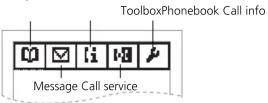
Off hook menu
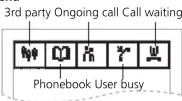
Navigate the menu
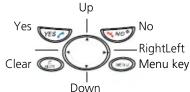
Enter the menu mode by pressing the Menu key, or navigation key left or right (◆Use() to choose tab and press the Yes button to open it; a heading is shown and the first alternative is marked. Use navigation key up/down (◆to step in the alternatives and press the Yes button to select your alternative. A press on the No button takes you back one step. Always confirm your alternatives/settings with a press on the Yes button. Return to standby mode by pressing the Menu key or by a long press on the No button.
Write text and numbers
Useful when writing a message, or adding, searching or editing a name in the Phonebook.
Press a key repeatedly. (Example: to get the character E, press key 3 twice). Key 0 and 1 contain special characters. Press the Yes button, enter the number and press the Yes button to save the entry, or to send the message.
Lower/upper case: short press on the *key.
Add space in text: short press on key 1
Delete a character: short press on the C-key.
Delete all characters: long press on the C-key. Enter "+" in number mode: long press on key 0
Enter a pause in number mode: long press on the *key.
Menu structure
| On hook/Standby menu | Off hook menu | ||
| Phonebook > | CallAdd contactEdit contactDelete contactOpen central | 3rd Party > | Call 3rd partySwitch callTransferAdd to conf.End new call |
| Message > | VoiceInboxSend | ||
| Call info > | Missed callsCall listCall time | ||
| Call service > | AbsenceDivert | ||
| Toolbox > | Alarm clockCalculatorSound & AlertsDisplayNetworkTime & DateLocksAnswering modeLanguagein charger modeMaster reset | ||
| Ongoing call> | MessageCall listLong DTMFShort DTMFSend pause | ||
| User busy > | Call waitingCall back | ||
| Call waiting > | InfoSwitch | ||
Accessories
The following accessories are available for the OfficeM:



Swivel clip
Leather case Desktop charger


Headset with microphone on boom
Headset with microphone on cable
Also available:
- Headset with hearing protection - Charging rack
Distributed by:
Manufactured by: Ascom Tateco AB, Sweden
Quick Reference Guide, GB
Ascom OfficeM
Cordless telephone
M0269601 Ver. A September 2004 Ascom Tateco AB


- Icons and text in the display
- Product presentation
- Functions
- Basic functions
- Switch the phone on/off
- Dial a number
- Quick call by a name in the phonebook
- Call by a name in the phonebook
- Receive/End a call
- Charge the battery
- Lock the keypad
- Volume/Mute control
- Adjust the earpiece volume during a call
- Change the ringer volume
- Turn the vibrator on/off
- Turn the loudspeaking function on/off
- Turn the ring signal on/off in stand-by mode
- Turn the mute mode on/off during a call
- Messaging functions
- Receive a text message
- Read a text message
- Write and send a text message
- Menu
- Write text and numbers
- Accessories
- Also available:
Mærke : ASCOM
Model : OfficeM
Kategori : Telefon