8-Bay RAID-Station - Diskarray Sharkoon - Gratis brugsanvisning og manual
Find enhedens vejledning gratis 8-Bay RAID-Station Sharkoon i PDF-format.


Brugerspørgsmål om 8-Bay RAID-Station Sharkoon
0 spørgsmål om dette apparat. Besvar dem du kender, eller stil dit eget.
Stil et nyt spørgsmål om dette apparat
Download vejledningen til din Diskarray i PDF-format gratis! Find din vejledning 8-Bay RAID-Station - Sharkoon og tag din elektroniske enhed tilbage i hånden. På denne side er alle dokumenter nødvendige for brugen af din enhed offentliggjort. 8-Bay RAID-Station af mærket Sharkoon.
BRUGSANVISNING 8-Bay RAID-Station Sharkoon
8-BAY RAID STATION
Manual
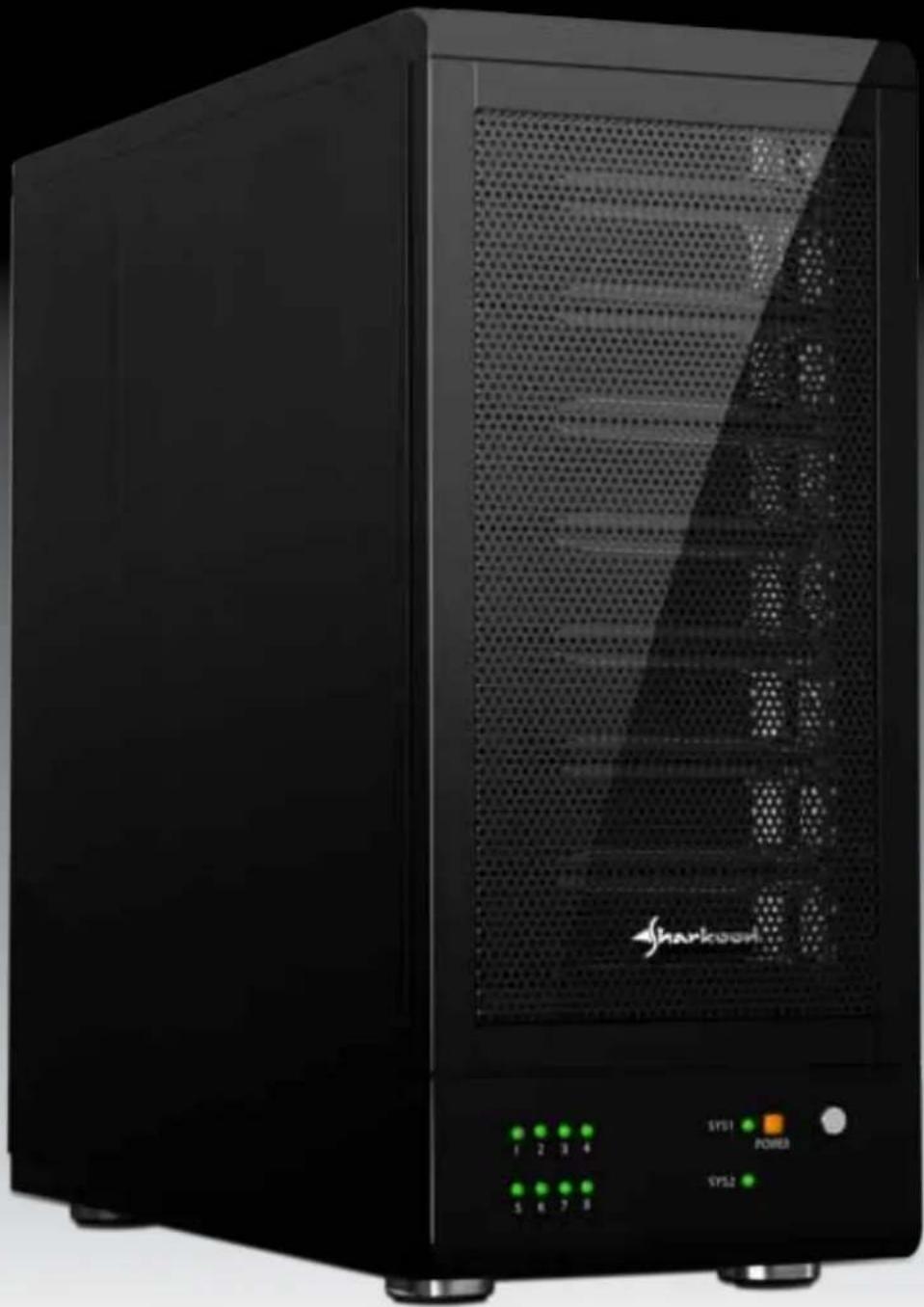
natural_image
Black server tower with perforated mesh grille and power indicator (no readable text or symbols)Content
- Features 3
1.1 Overview 3
1.2 SATA features 3
1.3 USB features 3
-
Specifications 4
-
System requirements 4
-
The device at a glance 4
4.1 Overview 4
4.2 The LED indications 5
-
Package contents 6
-
Getting started 6
6.1 HDD installation 6
6.2 Power on/off 8
6.3 eSATA slot bracket installation 8
- Configuration 9
7.1 Preparation 9
7.2 Changing the host connection 9
7.3 Disconnecting an USB device 10
7.4 HDD HotPlug 10
- Setting the RAID mode 10
8.1 CLEAN mode 11
8.2 Other RAID modes 13
-
Rebuilding a redundant drive 15
-
Troubleshooting 17
-
Appendix 18
11.1. CLEAN mode 18
11.2 LARGE mode 19
11.3 R00 mode 20
11.4 R30 mode 22
11.5 R50 mode 24
Dear customer!
Congratulations for purchasing one premium quality SHARKOON product.
For a long life time and to take full advantage of this product we recommend that you read this manual completely.
Have a good time with our product!
SHARKOON Technologies
↑
1. Features
1.1 Overview
• External RAID case with eight mounting bays for 2.5" and 3.5" SATA HDDs
• Supported modes: Clean/Single, Large and RAID 00/30/50
• Easy RAID mode configuration
• Automatic rebuild function in RAID 30/50 modes
• Internal interfaces: SATA I and II (compatible with SATA III)
• External interfaces: eSATA and USB3.0
• Fast Swap mechanism for easy HDD handling
• Premium quality craftsmanship
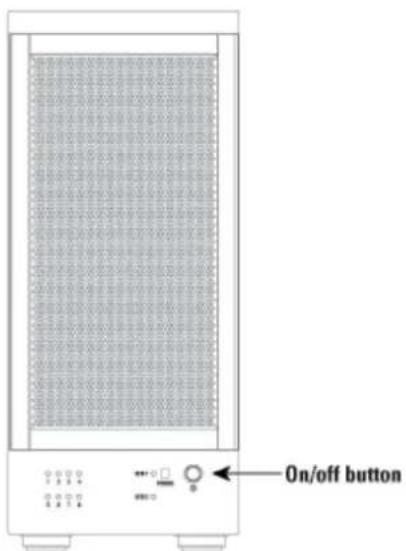
- On/off button
• LED indications for power, HDD activity and rebuild mode
• Pre-installed fan
1.2 SATA features
• Port Multiplier Functionality
• Auto-negotiation between SATA I (1.5 Gbps) and SATA II (3 Gbps)
• HotPlug support in CLEAN mode
• Supports Native Command Queue (NCQ)
• Supports Port Multiplier Aware and non-Port Multiplier Aware Host in RAID mode
• Supports Asynchronous Signal Recovery
• Supports Spread Spectrum Clocking
• Supports BIST and Loopback Mode
• Supports 48-bit LBA addressing
• Supports Asynchronous Notification
1.3 USB features
• Compatible with USB Super Speed, High Speed and Full Speed
• Compatible with OHCI/UHCI/EHCI hosts
• Supports Mass Storage Class
↑
2. Specifications
• Eight mounting bays for 2.5" and 3.5" SATA HDDs
• Metal chassis (SECC) and plastic front panel (ABS)
• Dimensions: 340 x 150 x 340 mm (L x W x H)
• Weight: 6.5 kg
• 300 W full range power supply
3. System requirements
• Intel Pentium-III 500 MHz equivalent or faster
• Windows XP, Windows Vista, Windows 7 with the latest Service Packs
• 64 MB of RAM (minimum)
• Super VGA (800 x 600) or higher resolution display with at least 256 colors
• Mouse or compatible pointing device
- SATA connection: Intel ICH or optional Host Bus Adapter card and associated software drivers with Port Multiplier support
• USB connection: USB 2.0 or 3.0 direct host connection
4. The device at a glance
4.1 Overview
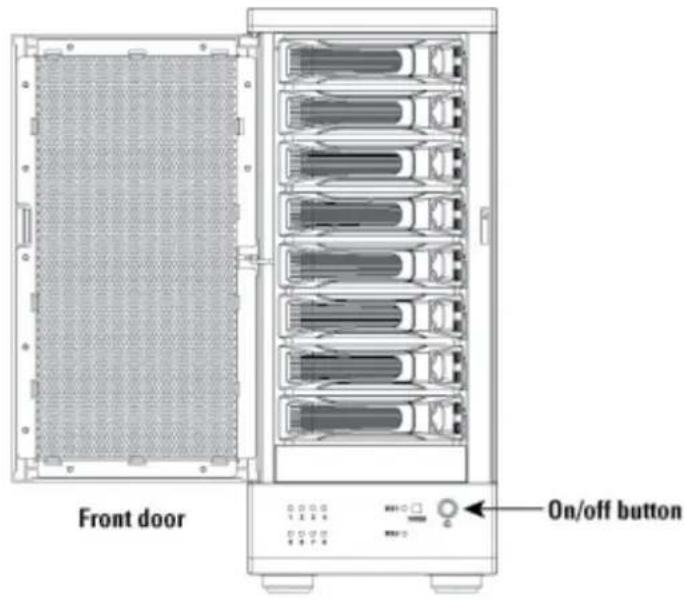
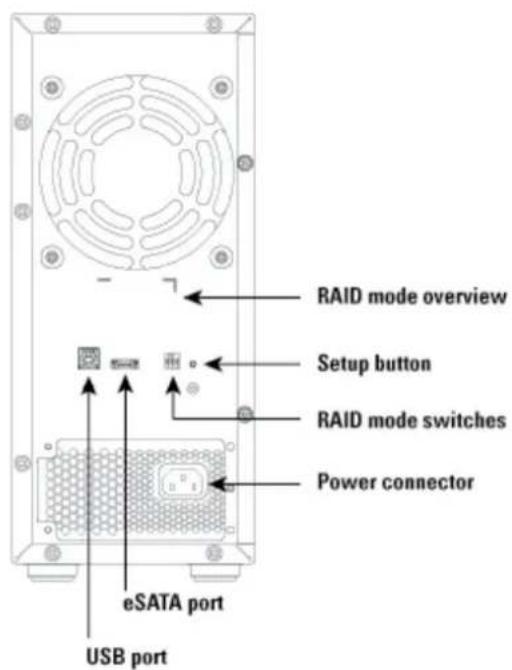
↑
4.2 The LED indications
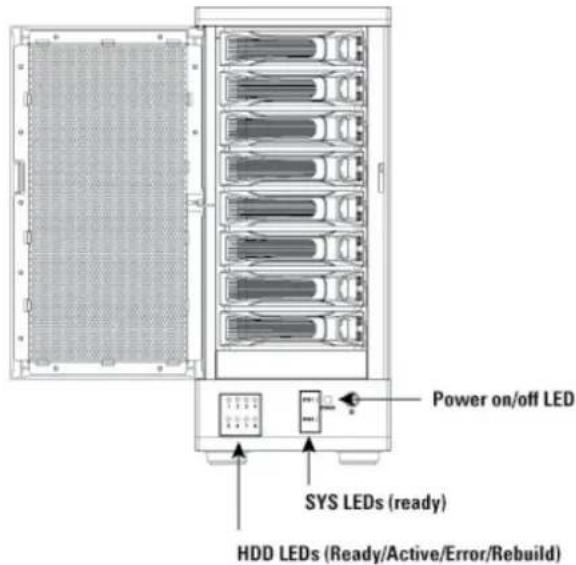
1. POWER LED
| DESCRIPTION ORANGE LED | |
| Power On On | |
| Power Off Off | |
2. SYS LEDs
| DESCRIPTION GREEN LED | |
| SYS1 or SYS2 not ready / No Power Off | |
| SYS1 or SYS2 ready (Idle) On | |
| SYS1 or SYS2 ready (Active) On | |
3. HDD LEDs
| DESCRIPTION GREEN LED RED LED | ||
| HDD Unplugged / No Power Off Off | ||
| HDD plugged (Idle) On Off | ||
| HDD plugged (Active) | Blink (On) | Off |
| Error State (One or More Bad Partial Volumes) | Off On | |
| HDD Rebuild (A Physical Partition is being Rebuild; i.e. Mirroring Mode) | Off Blink (On) |
↑
5. Package contents
• 8-BAY RAID STATION
• 8x HDD mounting bays
• 1x USB3.0 cable
- 1x eSATA cable
- 1x power cord
• 32x mounting screws for 2.5" HDDs/SSDs
• 32x mounting screws for 3.5" HDDs
• 1x SATA to eSATA cable with bracket
6. Getting started
6.1 HDD installation
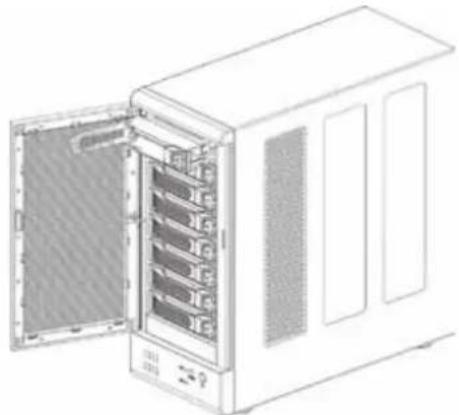
- Open the front door, then unlock the HDD mounting frame lock and remove the HDD mounting frame from the 8-BAY RAID STATION (fig. 1).
natural_image
Diagram of a server rack cabinet with multiple internal compartments and ventilation grilles (no text or labels visible)Fig. 1
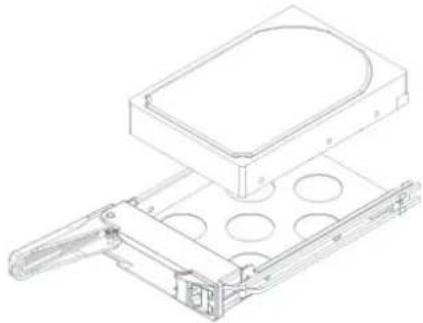
- Place the HDD into the HDD mounting frame (fig. 2).
natural_image
Technical line drawing of a mechanical device with mounting holes and a rectangular housing (no text or symbols)Fig. 2
↑
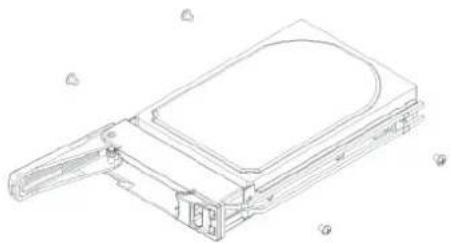
- Use the mounting screws to securely attach the HDD to the mounting frame (fig. 3).
natural_image
Technical line drawing of a mechanical device with a curved top component and handle (no text or symbols)Fig. 3
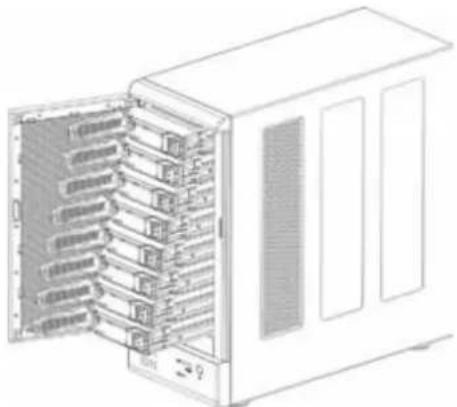
- Slide the HDD mounting frame back into the 8-BAY RAID STATION (fig. 4).
natural_image
Diagram of a server rack cabinet with multiple internal compartments (no text or labels visible)Fig. 4
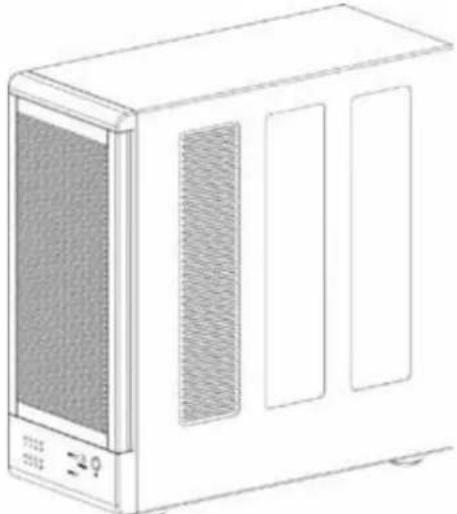
- Close the front door to complete the HDD installation (fig. 5).
natural_image
Line drawing of a white microwave oven with ventilation grilles and control panel (no text or symbols)Fig. 5
↑
6.2 Power on/off
Press the power button to switch on the device. Press again to power it off.
6.3 eSATA slot bracket installation
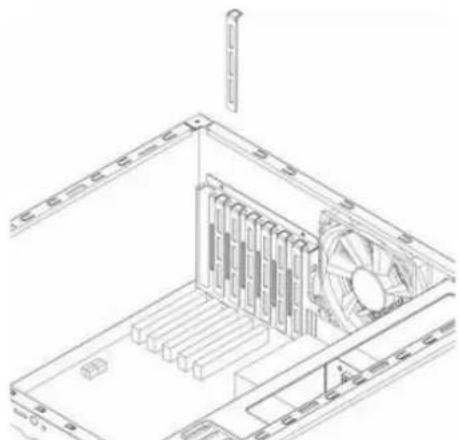
- Remove the anchor screw of the slot bezel and take it from the rear side of your PC case (fig. 6).
natural_image
Technical line drawing of a mechanical or electronic device interior with no visible text or symbolsFig. 6
↑
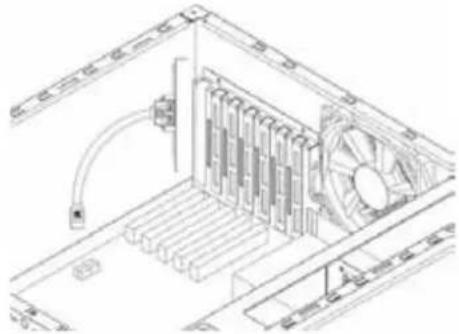
- Insert the included eSATA bracket into the slot bracket and attach it to the case using the anchor screw (fig. 7).
natural_image
Technical line drawing of an electronic device interior with cooling fans and ventilation duct (no text or symbols)Fig. 7
- Connect the SATA cable of the eSATA bracket to a free SATA port of your PC mainboard.
7. Configuration
7.1 Preparation
- SATA host connection
This installation guide assumes that you have already connected the 8-BAY RAID STATION to a SATA or eSATA host controller with Port Multiplier (PM) support.
Note:
If you use a host controller that does not provide Port Multiplier support (Such as Intel ICH), the CLEAN mode is not available when configuring the 8-BAY RAID STATION. Only one disk is available on the host computer.
- USB host connection
If you are connecting your 8-BAY RAID STATION using an USB connection to your host, the USB port should be compliant with USB2.0 or 3.0.
7.2 Changing the host connection
The 8-BAY RAID STATION supports both USB and eSATA host connections, although only one connection can be attached at the same time.
If it becomes necessary to switch the host connection between eSATA and USB, the host computer system and the 8-BAY RAID STATION should both be powered down prior to changing the host connection, in order to avoid data loss. After changing the host connection, both devices can be powered-on again to continue operation with the new host connection.
↑
7.3 Disconnecting an USB device
USB3.0 external devices provide support for Plug&Play connection, so that your USB storage device can be connected and disconnected while the computer is running.
To prevent data loss or other failures, we recommend the following procedure when disconnecting your USB3.0 storage device from your host computer system:
Before you shut down your PC remove the 8-BAY RAID STATION from your system's hardware configuration by double-clicking the symbol in the task bar. A menu will open up. Select the 8-BAY RAID STATION to securely remove it. Switch off the device and shut down your PC.
7.4 HDD HotPlug
The hard disk drives should not be hot-plugged, but can be unplugged while the system is running. However, to avoid data corruption or loss, make sure that the host system is not currently using any drive that is about to be unplugged.
8. Setting the RAID mode
To define a storage mode for the first time, make sure that the hard disk drives are mounted, then turn off the power before setting the RAID mode switches on the rear side of the 8-BAY RAID STATION to the desired mode.
To change the storage mode afterwards, set the RAID mode switches to the desired position. Press and hold the setup button, then switch on the device to create the new virtual volume(s).
Notes:
Creating new virtual volumes will destroy any existing data saved on the volumes!
Back up your data before reconfiguring the storage mode!
8.1 CLEAN mode
- Switch off the device (fig. 8).
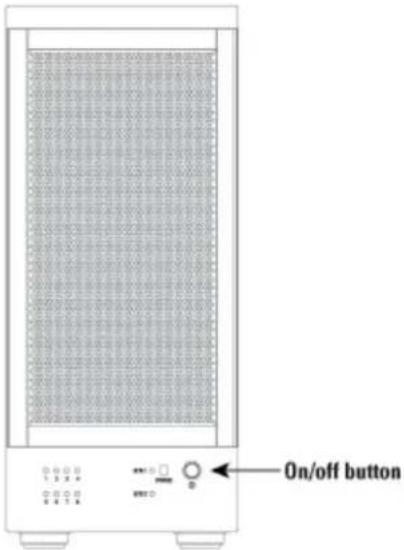
Fig. 8
- Toggle the RAID mode switch to the Clean mode according to the following chart (fig. 9):
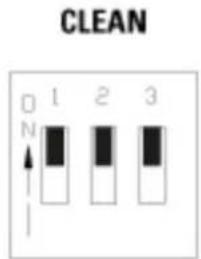
Fig. 9
↑
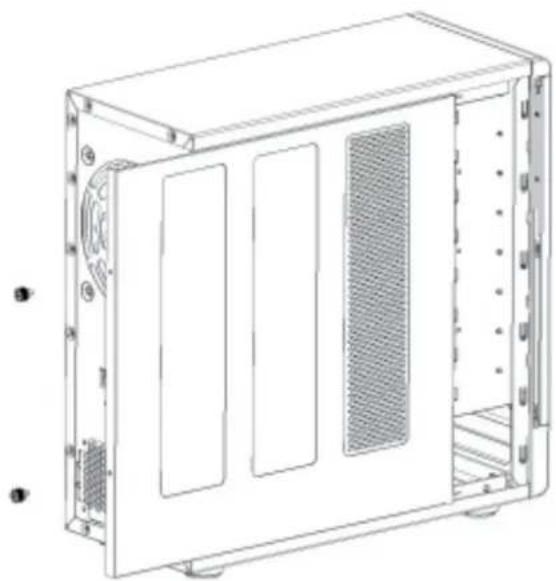
- Remove the left side panel from the case by loosening the thumb screws on the rear side (fig. 10a and b).
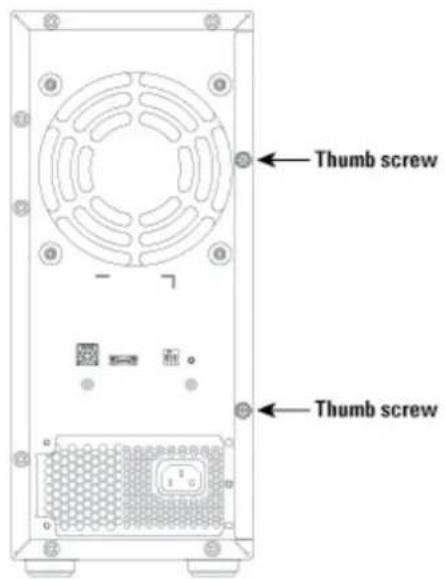
Fig. 10a
natural_image
Technical line drawing of a rectangular electronic device with internal compartments and mounting feet (no text or symbols)Fig. 10b
- Toggle the Clean mode jumper inside the device to the "On" position (fig. 11).
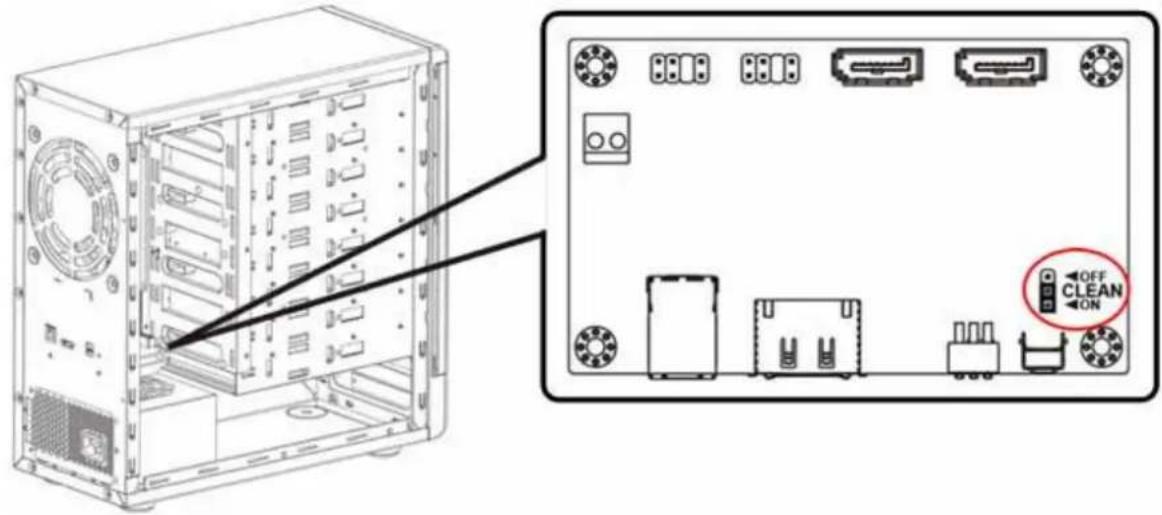
Fig. 11
Warning:
Except for the Clean mode the Clean mode jumper must be toggled to the "Off" position!
↑
- Switch on the device to complete the RAID mode setting (fig. 12).
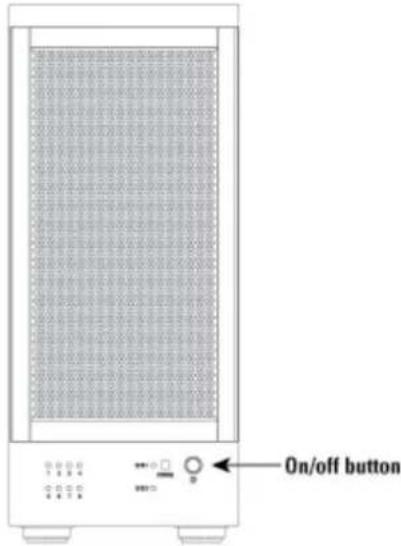
Fig. 12
8.2 Other RAID modes
- Switch off the device (fig. 13).
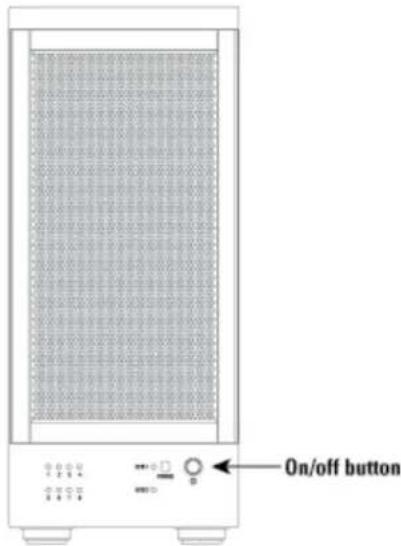
Fig. 13
↑
- Toggle the RAID mode switches to the desired RAID mode according to the following chart (fig. 14):
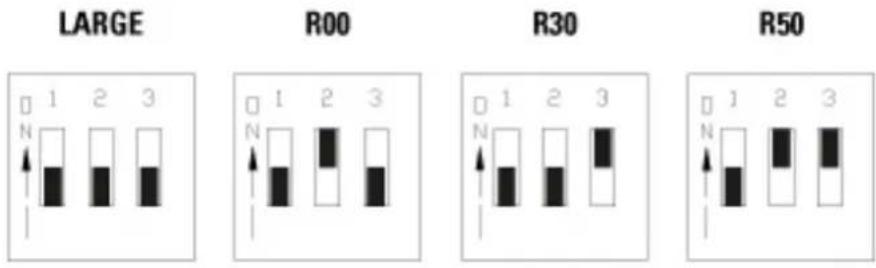
Fig. 14
- Press and hold the setup button (fig. 15).
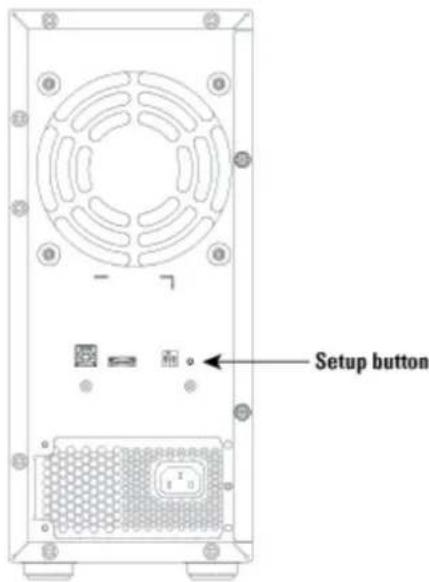
Fig. 15
↑
- Switch on the device and then release the setup button to complete the RAID mode configuration (fig. 16).
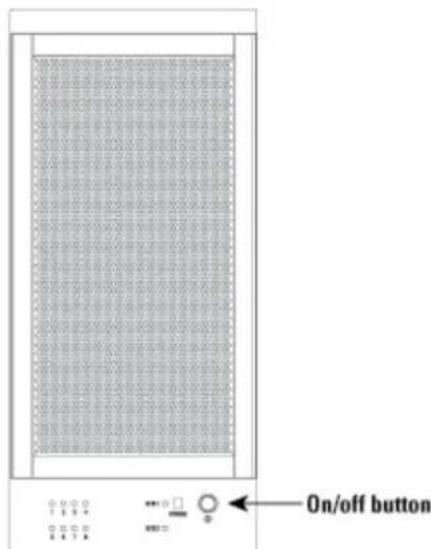
Fig. 16
9. Rebuilding a redundant drive
The 8-BAY RAID STATION duplicates all data to separate drives in order to protect against data loss due to drive failure in R30 and R50 mode. The following example illustrates the procedure of rebuilding a redundant drive.
- If drive 2 fails, please remove it from the device (fig. 17).
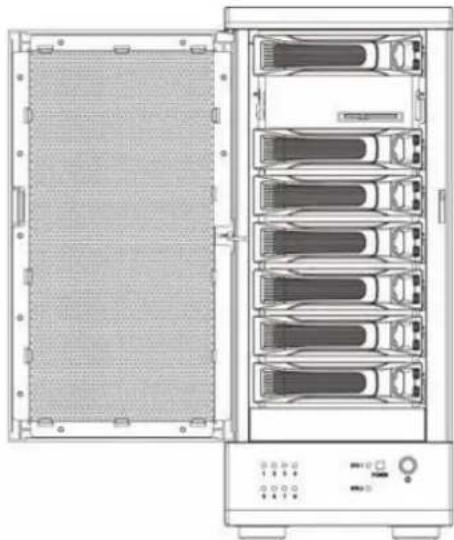
natural_image
Front view of a server rack unit with multiple drive bays and a mesh panel (no visible text or labels)Fig. 17
↑
- Switch off the device (fig. 18).
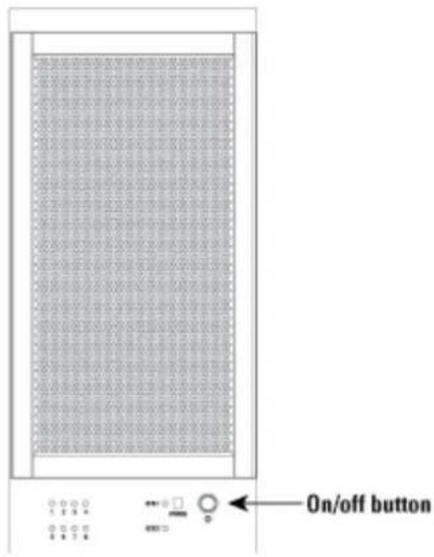
Fig. 18
- Replace the defective HDD with a hard disk drive of the same capacity or bigger (fig. 19).
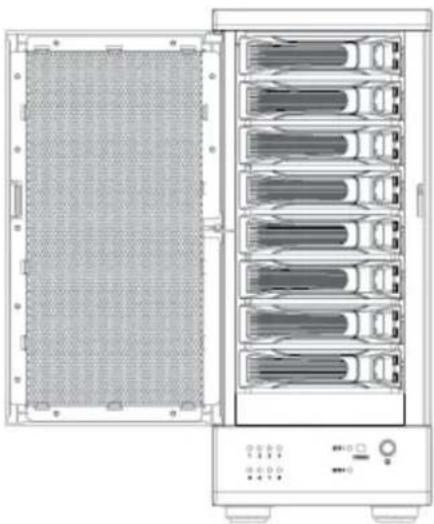
natural_image
Front view of a server rack unit with multiple drive bays and a mesh panel (no visible text or labels)Fig. 19
↑
- Switch on the device (fig. 20).
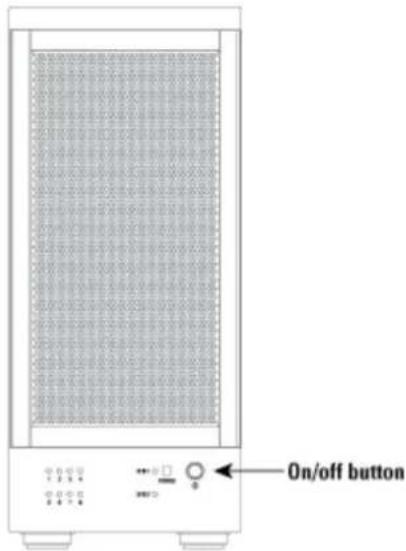
Fig. 20
- The 8-BAY RAID STATION will start rebuilding the virtual volume automatically (rebuild speed: approximately 200 GB/hour).
10. Troubleshooting
1. Device is not recognized
Make sure all cables have been properly connected.
For the USB3.0 controller the latest drivers and the newest firmware must be installed.
2. Cannot operate in O/S
Make sure the device is supported by your operating system.
3. Transfer speed is slow
If the device is connected via the USB2.0 interface, the speed will be around 30 MB/sec only.
4. When formatting under Windows XP/ Vista/ 7, the dialog box "Unfinished formatting" is displayed
Windows XP/ Vista/ 7 cannot format HDDs with capacities above 32 GB into FAT32, please choose NTFS as data format.
↑
- When the system is damaged in LARGE mode, is it still possible to read the data?
No. The system is different from a RAID; the entire disk cannot be read.
11. Appendix
11.1. CLEAN mode
Function: In CLEAN mode each hard drive is displayed separately as one drive.
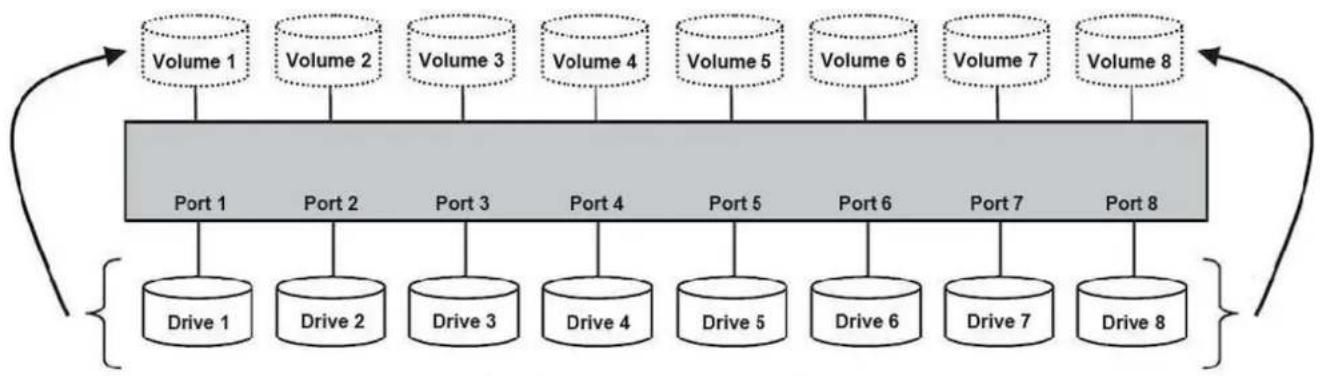
flowchart
graph TD
    A["Volume 1"] --> B["Port 1"]
    C["Volume 2"] --> B
    D["Volume 3"] --> B
    E["Volume 4"] --> B
    F["Volume 5"] --> B
    G["Volume 6"] --> B
    H["Volume 7"] --> B
    I["Volume 8"] --> B
    B --> J["Drive 1"]
    B --> K["Drive 2"]
    B --> L["Drive 3"]
    B --> M["Drive 4"]
    B --> N["Drive 5"]
    B --> O["Drive 6"]
    B --> P["Drive 7"]
    B --> Q["Drive 8"]
Notes:
When using a SATA host controller, CLEAN mode should only be used if the SATA host controller provides Port Multiplier (PM) support. If a host is not PM-aware, only a single drive is displayed (drive 1).
The CLEAN mode will not delete the drives partition if the drives were used as single drive before.
↑
11.2 LARGE mode
Function:
The LARGE mode concatenates a series of physical hard drives into a single large volume, creating a seamless expansion of virtual volumes beyond the physical limitations of singularly connected hard drives.
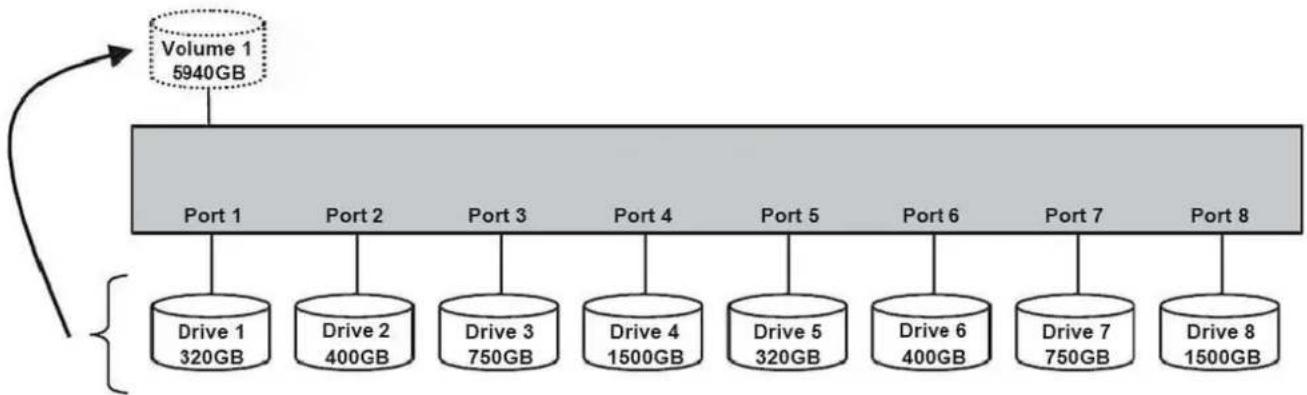
flowchart
graph TD
    A["Volume 1\n5940GB"] --> B["Port 1"]
    B --> C["Drive 1\n320GB"]
    B --> D["Drive 2\n400GB"]
    B --> E["Drive 3\n750GB"]
    B --> F["Drive 4\n1500GB"]
    B --> G["Drive 5\n320GB"]
    B --> H["Drive 6\n400GB"]
    B --> I["Drive 7\n750GB"]
    B --> J["Drive 8\n1500GB"]
Notes:
The hard drives 1 to 8 are concatenated into a single virtual volume in the Figure above with a storage capacity that is equal to the sum of each of the physical hard drives 1 to 8. It is also possible to create a LARGE volume using only a single hard disk drive connected to Port 1. However, it is not possible to expand an existing LARGE volume by adding another hard disk drive and still preserve any existing data on that volume.
↑
11.3 R00 mode
Function:
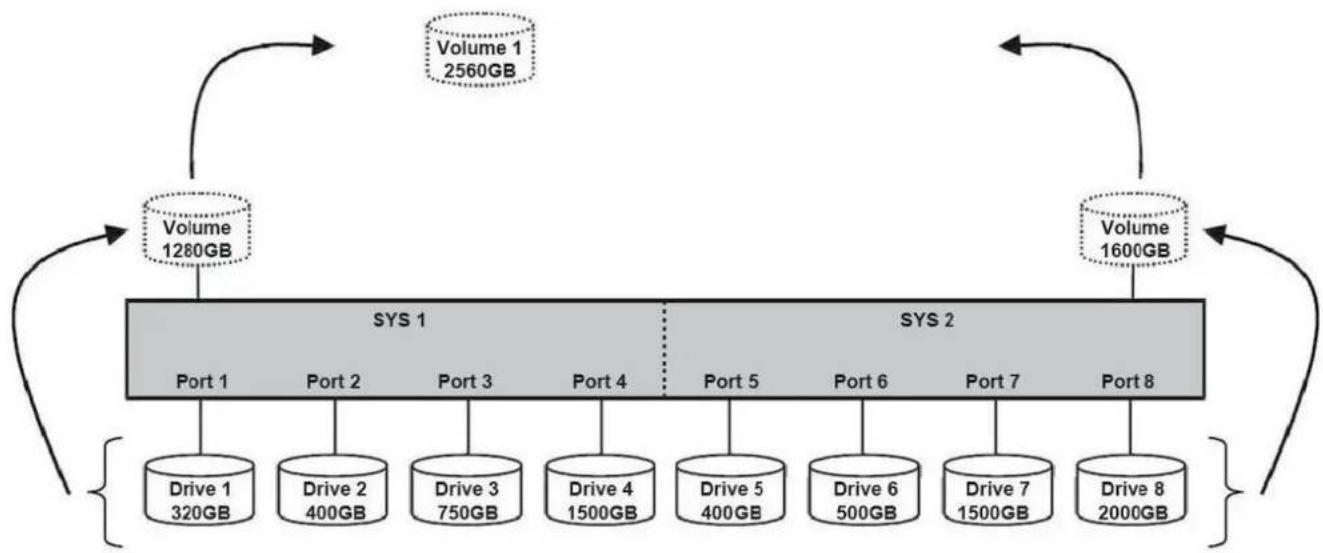
In R00 mode the data is spread across all hard disks.
Example 1
flowchart
graph TD
    A["Volume 1280GB"] --> B["Port 1"]
    C["Volume 1600GB"] --> D["Port 8"]
    B --> E["Drive 1 320GB"]
    B --> F["Drive 2 400GB"]
    B --> G["Drive 3 750GB"]
    B --> H["Drive 4 1500GB"]
    D --> I["Drive 5 400GB"]
    D --> J["Drive 6 500GB"]
    D --> K["Drive 7 1500GB"]
    D --> L["Drive 8 2000GB"]
    M["Volume 1280GB"] --> B
    N["Volume 1600GB"] --> D
Advantage/disadvantage:
R00 mode represents the best data speed but no data redundancy. R00 mode accelerates hard disk drive operating speed by using many disks simultaneously.
To implement the R00 mode, the 8-BAY RAID STATION Storage creates two single virtual volumes (SYS1 and SYS2) that are striped across all hard drives of SYS1 and SYS2, with a storage capacity that is four times of the smallest drive. SYS1 and SYS2 are then striped again across both virtual volumes. The storage capacity is twice the capacity of the smallest virtual volume.
↑
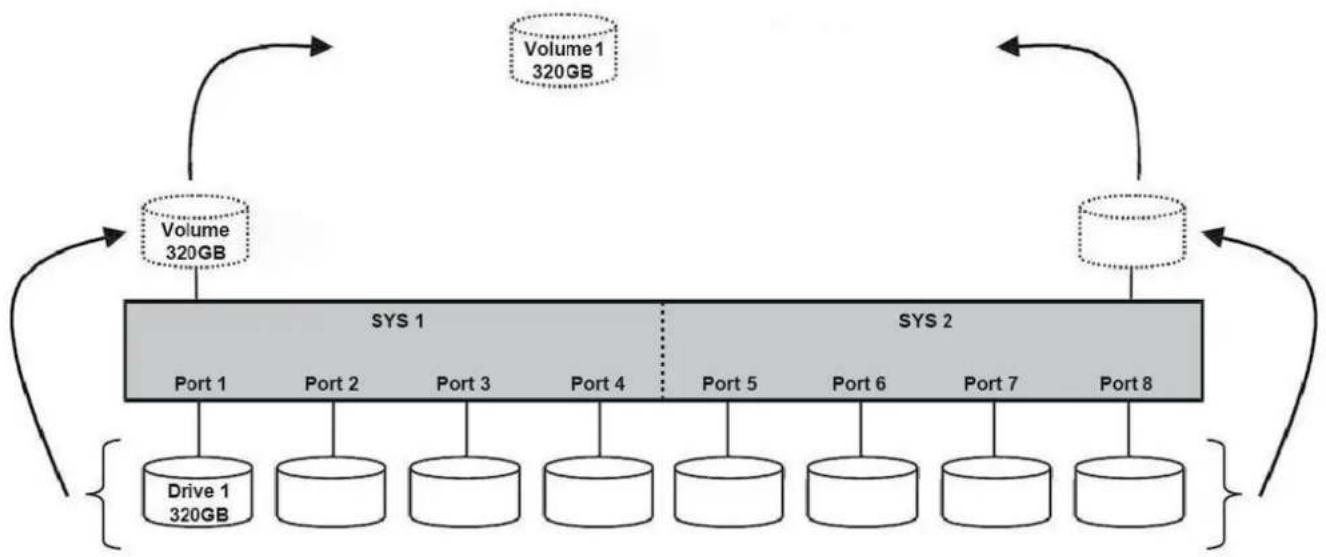
The R00 mode can also be implemented using a single disk:
Example 2
flowchart
graph TD
    A["Volume 320GB"] --> B["Volume 320GB"]
    B --> C["Port 1 SYS 1"]
    B --> D["Port 2 SYS 1"]
    B --> E["Port 3 SYS 1"]
    B --> F["Port 4 SYS 1"]
    B --> G["Port 5 SYS 1"]
    B --> H["Port 6 SYS 1"]
    B --> I["Port 7 SYS 1"]
    B --> J["Port 8 SYS 1"]
    C --> K["Drive 1 320GB"]
    D --> L["Drive 2"]
    E --> M["Drive 3"]
    F --> N["Drive 4"]
    G --> O["Drive 5"]
    H --> P["Drive 6"]
    I --> Q["Drive 7"]
    J --> R["Drive 8"]
    style A fill:#f9f,stroke:#333
    style B fill:#f9f,stroke:#333
    style C fill:#ccc,stroke:#333
    style D fill:#ccc,stroke:#333
    style E fill:#ccc,stroke:#333
    style F fill:#ccc,stroke:#333
    style G fill:#ccc,stroke:#333
    style H fill:#ccc,stroke:#333
    style I fill:#ccc,stroke:#333
    style J fill:#ccc,stroke:#333
    style K fill:#fff,stroke:#333
    style L fill:#fff,stroke:#333
    style M fill:#fff,stroke:#333
    style N fill:#fff,stroke:#333
    style O fill:#fff,stroke:#333
    style P fill:#fff,stroke:#333
    style Q fill:#fff,stroke:#333
    style R fill:#fff,stroke:#333
↑
11.4 R30 mode
Function:
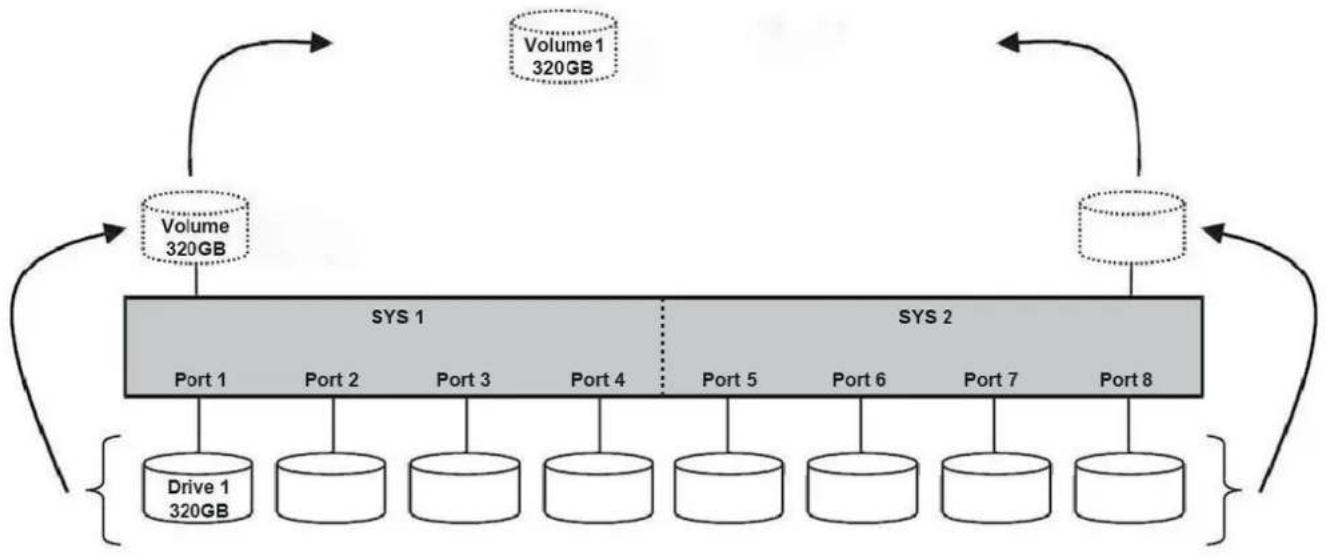
The R30 mode adds fault tolerance to drive striping by adding parity information to the data. R30 mode dedicates the equivalent of two drives (SYS1 and SYS2) for storing parity information and to stripe these again. The data and parity information is arranged on the drive array so that parity is written to two drives. The following example illustrates how the parity is rotated from drive to drive.
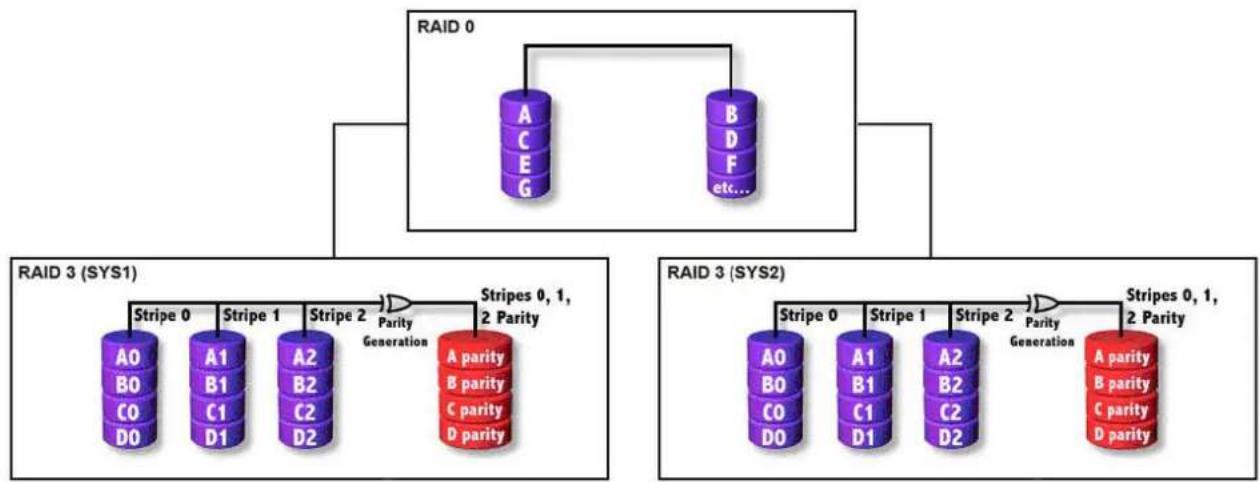
flowchart
graph TD
    RAID0["RAID 0"] --> A["A"]
    RAID0 --> B["B"]
    RAID0 --> F["etc..."]
    RAID3["RAID 3 (SYS1)"] --> Stripe0["Stripe 0"]
    RAID3 --> Stripe1["Stripe 1"]
    RAID3 --> Stripe2["Stripe 2"]
    RAID3 --> Parity1["Parity Generation"]
    RAID3 --> Parity2["Parity Generation"]
    RAID3 --> Parity3["Parity Generation"]
    RAID3 --> Parity4["Parity Generation"]
    RAID3 --> Parity5["Parity Generation"]
    RAID3 --> Parity6["Parity Generation"]
    RAID3 --> Parity7["Parity Generation"]
    RAID3 --> Parity8["Parity Generation"]
    RAID3 --> Parity9["Parity Generation"]
    RAID3 --> Parity10["Parity Generation"]
    RAID3 --> Parity11["Parity Generation"]
    RAID3 --> Parity12["Parity Generation"]
↑
Advantage/disadvantage:
The R30 mode uses less capacity for protection and is the preferred method to reduce the cost per megabyte for larger installations.
In exchange for low overhead necessary to implement protection, the R30 mode degrades performance for all write operations. The parity calculations for R30 mode may result in write performance that is somewhat slower than the write performance to a single drive.
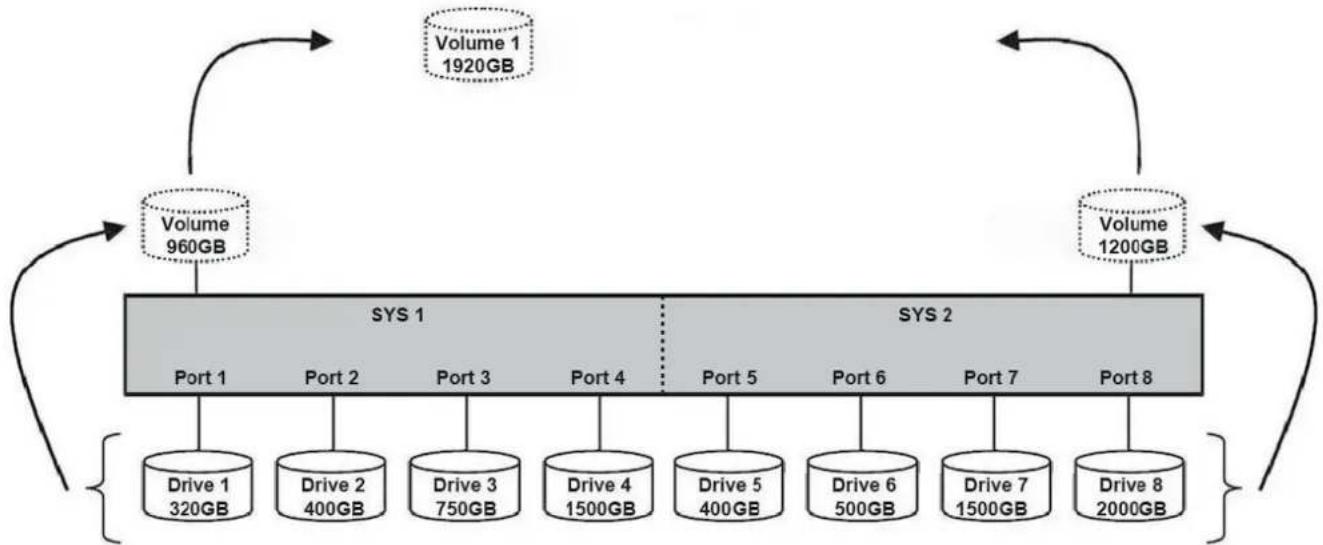
The resulting storage capacity of the virtual R30 volume will be "n minus 2"-times (n=number of disks) of the smallest drive.
flowchart
graph TD
    A["Volume 1 1920GB"] --> B["Volume 960GB"]
    B --> C["Port 1 SYS 1"]
    B --> D["Port 2 SYS 1"]
    B --> E["Port 3 SYS 1"]
    B --> F["Port 4 SYS 1"]
    B --> G["Port 5 SYS 1"]
    B --> H["Port 6 SYS 1"]
    B --> I["Port 7 SYS 1"]
    B --> J["Port 8 SYS 1"]
    C --> K["Drive 1 320GB"]
    C --> L["Drive 2 400GB"]
    C --> M["Drive 3 750GB"]
    C --> N["Drive 4 1500GB"]
    D --> O["Drive 5 400GB"]
    D --> P["Drive 6 500GB"]
    D --> Q["Drive 7 1500GB"]
    D --> R["Drive 8 2000GB"]
    E --> S["Volume 1200GB"]
    F --> T["Volume 1200GB"]
    G --> U["Volume 1200GB"]
    H --> V["Volume 1200GB"]
    I --> W["Volume 1200GB"]
    J --> X["Volume 1200GB"]
If one drive fails, the virtual R30 volume is still usable. When the offline drive comes back online, the appliance begins a rebuild process immediately to restore data redundancy. During this procedure the LED indications will notify you that a rebuild is in progress.
Notes:
Although the volume remains available during the rebuild process, the volume is susceptible to data loss through damage to the remaining drive until redundancy is restored at the end of the rebuild and verification process. Host access takes precedence over the rebuild process. If you continue to use the virtual R3 volume during the rebuild, the rebuild process will take a longer time to complete, and the host data transfer performance will also be affected.
↑
The R30 mode can also be implemented using a single disk:
flowchart
graph TD
    A["Volume 320GB"] --> B["Volume 320GB"]
    B --> C["Port 1"]
    B --> D["Port 2"]
    B --> E["Port 3"]
    B --> F["Port 4"]
    B --> G["Port 5"]
    B --> H["Port 6"]
    B --> I["Port 7"]
    B --> J["Port 8"]
    C --> K["Drive 1\n320GB"]
    D --> L["Device 1"]
    E --> M["Device 2"]
    F --> N["Device 3"]
    G --> O["Device 4"]
    H --> P["Device 5"]
    I --> Q["Device 6"]
    J --> R["Device 7"]
    K --> S["Device 8"]
    L --> T["Device 9"]
    M --> U["Device 10"]
    N --> V["Device 11"]
    O --> W["Device 12"]
    P --> X["Device 13"]
    Q --> Y["Device 14"]
    R --> Z["Device 15"]
    S --> AA["Device 16"]
    T --> AB["Device 17"]
    U --> AC["Device 18"]
    V --> AD["Device 19"]
    W --> AE["Device 20"]
    X --> AF["Device 21"]
    Y --> AG["Device 22"]
    Z --> AH["Device 23"]
11.5 R50 mode
Function:
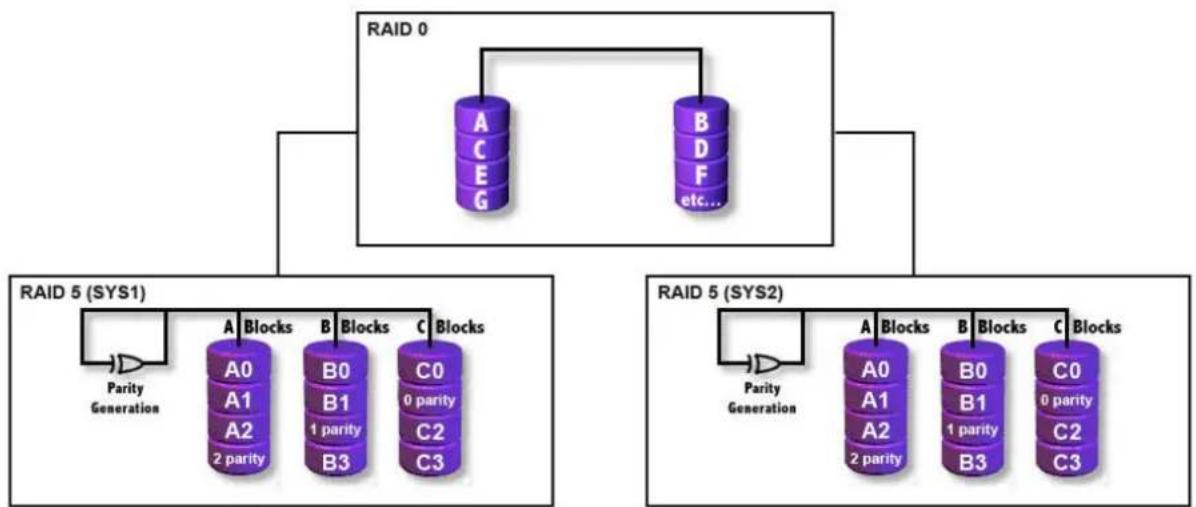
The R50 mode adds fault tolerance to drive striping by including parity information with the data. R50 mode dedicates the equivalent of one drive for storing parity stripes. The data and parity information is arranged on the drive array so that parity is written to all drives (SYS1 and 2). The following example illustrates how the parity is rotated from drive to drive.
flowchart
graph TD
    RAID0["RAID 0"] --> A0["A0"]
    RAID0 --> B0["B0"]
    RAID0 --> C0["C0"]
    RAID0 --> D0["D0"]
    RAID0 --> E0["E0"]
    RAID0 --> F0["F0"]
    RAID0 --> G0["G0"]
    RAID5["RAID 5 (SYS1)"] --> A0a["A0"]
    RAID5 --> A1a["A1"]
    RAID5 --> A2a["A2"]
    RAID5 --> B1b["B1"]
    RAID5 --> B3c["B3"]
    RAID5 --> C2d["C2"]
    RAID5 --> C3e["C3"]
    RAID5 --> D3f["C3"]
    RAID5 --> E4g["C4"]
    RAID5 --> F4h["C4"]
    RAID5 --> G5i["C5"]
    RAID5 --> H5j["C6"]
    RAID5 --> I5k["C7"]
    RAID5 --> J5l["C8"]
    RAID5 --> K5m["C9"]
    RAID5 --> L5n["C10"]
    RAID5 --> M5o["C11"]
    RAID5 --> N5p["C12"]
    RAID5 --> O5q["C13"]
    RAID5 --> P5r["C14"]
    RAID5 --> Q5s["C15"]
    RAID5 --> R5t["C16"]
    RAID5 --> S5v["C17"]
    RAID5 --> T5w["C18"]
    RAID5 --> U5x["C19"]
    RAID5 --> V5y["C20"]
    RAID5 --> W5z["C21"]
    RAID5 --> X5x["C22"]
    RAID5 --> Y5y["C23"]
    RAID5 --> Z5z["C24"]
    RAID5 --> AA5x["C25"]
↑
Advantage/disadvantage:
The R50 mode uses less capacity for protection and is the preferred method to reduce the cost per megabyte for larger installations.
In exchange for low overhead necessary to implement protection, the R50 mode degrades performance for all write operations. The parity calculations for R50 mode may result in write performance that is somewhat slower.
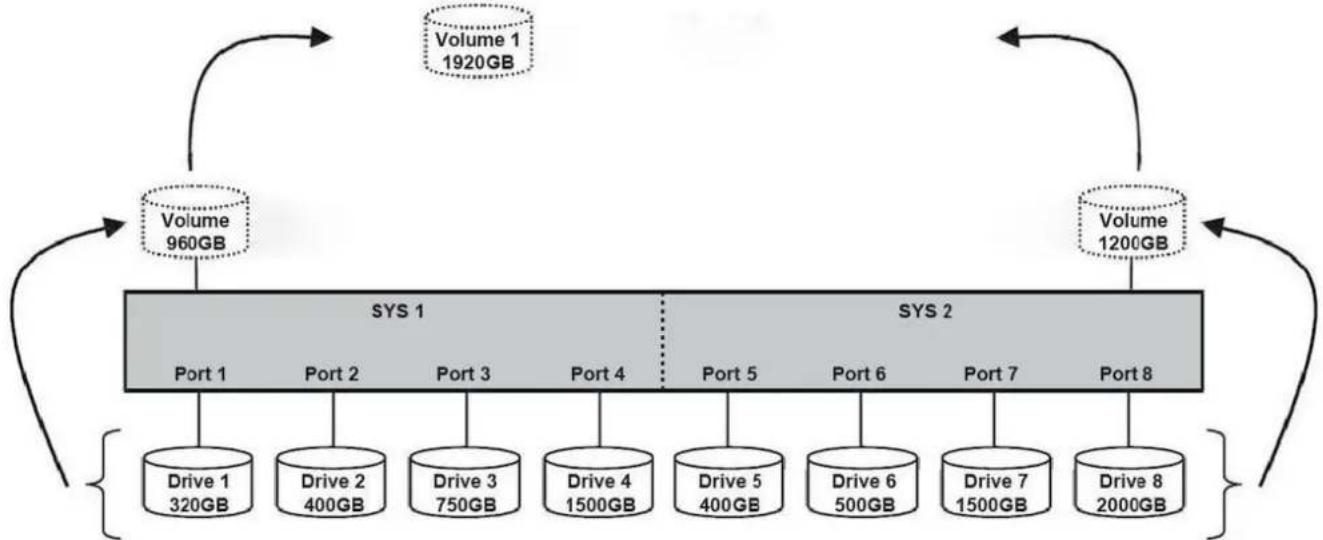
The resulting storage capacity of the virtual R50 volume will be "n minus 2"-times (n=number of disks) of the smallest drive capacity.
flowchart
graph TD
    A["Volume 1\n1920GB"] --> B["Volume 960GB"]
    B --> C["Port 1"]
    B --> D["Port 2"]
    B --> E["Port 3"]
    B --> F["Port 4"]
    B --> G["Port 5"]
    B --> H["Port 6"]
    B --> I["Port 7"]
    B --> J["Port 8"]
    C --> K["Drive 1\n320GB"]
    C --> L["Drive 2\n400GB"]
    C --> M["Drive 3\n750GB"]
    C --> N["Drive 4\n1500GB"]
    D --> O["Drive 5\n400GB"]
    D --> P["Drive 6\n500GB"]
    E --> Q["Drive 7\n1500GB"]
    F --> R["Drive 8\n2000GB"]
    G --> S["Volume 1200GB"]
    H --> S
    I --> S
    J --> S
If one drive fails, the virtual R50 volume is still usable, but it is in a vulnerable state because its mirrored hard drive is inaccessible. When the offline drive comes back online, the appliance begins a rebuild process immediately to restore data redundancy. During this procedure the LED indications will notify you that a rebuild is in progress.
Notes:
Although the volume remains available during the rebuild process, the volume is susceptible to data loss through damage to the remaining drive until redundancy is restored at the end of the rebuild and verification process. Host access takes precedence over the rebuild process. If you continue to use the virtual R5 volume during the rebuild, the rebuild process will take a longer time to complete, and the host data transfer performance will also be affected.
↑
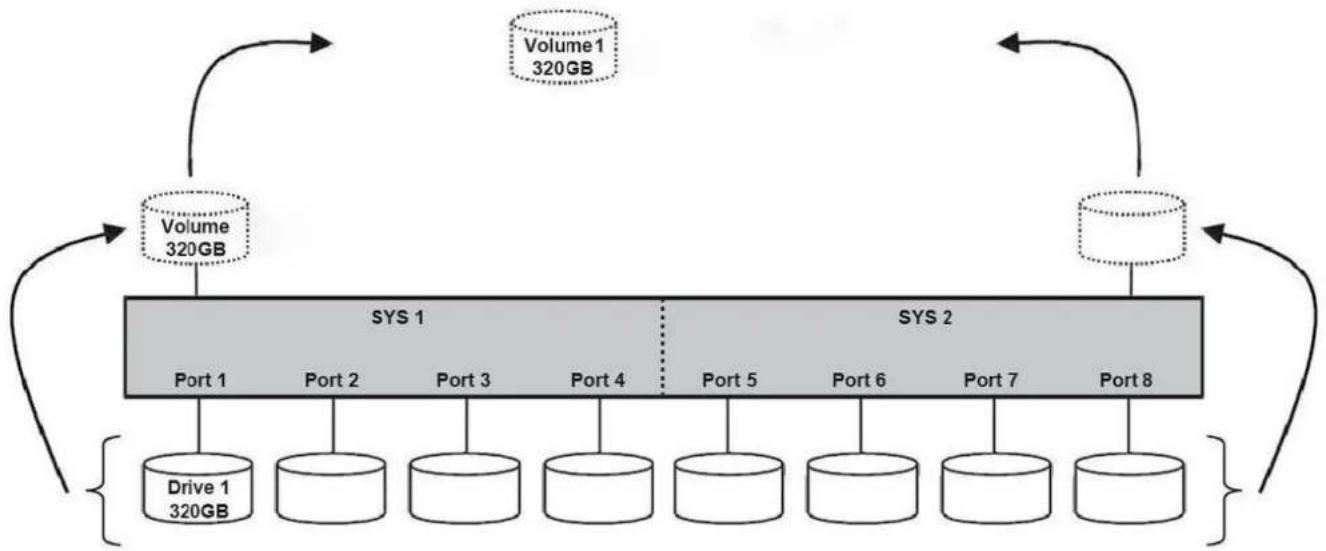
The R50 mode can also be implemented using a single disk:
flowchart
graph TD
    A["Volume 320GB"] --> B["Volume 320GB"]
    B --> C["Port 1 SYS 1"]
    B --> D["Port 2 SYS 1"]
    B --> E["Port 3 SYS 1"]
    B --> F["Port 4 SYS 1"]
    B --> G["Port 5 SYS 1"]
    B --> H["Port 6 SYS 1"]
    B --> I["Port 7 SYS 1"]
    B --> J["Port 8 SYS 1"]
    C --> K["Drive 1 320GB"]
    D --> L["Drive 2"]
    E --> M["Drive 3"]
    F --> N["Drive 4"]
    G --> O["Drive 5"]
    H --> P["Drive 6"]
    I --> Q["Drive 7"]
    J --> R["Drive 8"]
↑
Legal disclaimer:
For potential loss of data, especially due to inappropriate handling, SHARKOON assumes no liability.
All named products and descriptions are trademarks and/or registered trademarks of the respective manufacturers and are accepted as protected.
As a continuing policy of product improvement at SHARKOON, the design and specifications are subject to change without prior notice. National product specifications may vary.
All rights reserved especially (also in extracts) for translation, reprinting, reproduction by copying or other technical means. Infringements will lead to compensation.
All rights reserved especially in case of assignation of patent or utility patent. Means of delivery and technical modifications reserved.
Disposal of your old product
Your product is designed and manufactured with high quality materials and components, which can be recycled and reused.
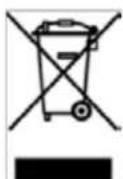
When this crossed-out wheeled bin symbol is attached to a product, it means the product is covered by the European Directive 2002/96/EC.
Please be informed about the local separate collection system for electrical and electronic products.
Please act according to your local rules and do not dispose of your old products with your normal household waste. The correct disposal of your old product will help prevent potential negative consequences to the environment and human health.
© SHARKOON Technologies 2012
www.sharkoon.com
↑