
Unico LTE - Smartphone ZTE - Gratis brugsanvisning og manual
Find enhedens vejledning gratis Unico LTE ZTE i PDF-format.


Brugerspørgsmål om Unico LTE ZTE
0 spørgsmål om dette apparat. Besvar dem du kender, eller stil dit eget.
Stil et nyt spørgsmål om dette apparat
Download vejledningen til din Smartphone i PDF-format gratis! Find din vejledning Unico LTE - ZTE og tag din elektroniske enhed tilbage i hånden. På denne side er alle dokumenter nødvendige for brugen af din enhed offentliggjort. Unico LTE af mærket ZTE.
BRUGSANVISNING Unico LTE ZTE
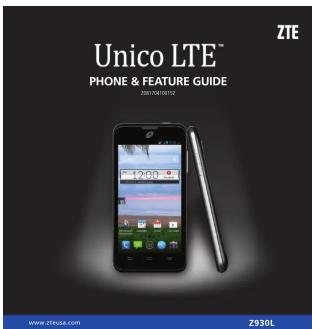
Bringing you Closer
Setting Up Your Phone
Installing the Battery
Switch off your phone before installing or replacing
the battery. The microSDHC™ card is optional and can be installed and removed while the phone is
can be installed and removed while the phone is turned on. Unmount the microSDHC card before
removing it.
-
Place your finger in the slot at the bottom of the body, saves to lift and remove the eyes.
-
Insert the battery by aligning the conta
-
Insert the battery by aligning the contacts on the battery with the gold contacts in the battery
compartment
- Gently push down on the battery until it clicks into glass
WARNING! Do not handle a damaged or leaking Li-Ion
battery as you can be burned.
Installing the microSDHC Card
You have the option to install a microSDHC card of
up to \$2GB to expand your phone's storage capacity. 1. Hold your microSDHC card with the metal
- Hold your microSTRIC card with the meta contacts facing down and slide it into the
microSDHC card slot until you hear a click.
- Press the cover gently back into place until you bear a click.
Theorem 4.10.
NOTE: Your phone may come with a pre-installed microSDHC
card. Some applications may not function no remove the card, pre-installed or otherwise.


Getting to Know Your Phone
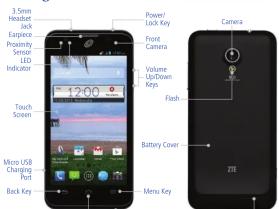
Home Key Microphone
Speaker
For Your Safety
Radio Frequency (RF) Energy
This model phone meets the government's requirements for exposure to radio waves. This phone is designed and manufactured not to exceed the emission limits for export
Set by the Federal Communications Commission of the United States, Industry Canada of Canada. During SAR testing, this device is set to transmit at its highest certified power level in all tested frequency bands, and
Using S4M using this device is set to durant or its highest certified power banks from tests frequently behind, but placed in positions that simulate RF exposure in usage against the head with no separation, and near the body with the separation of 0.4 inches (10 mm). Although the TAP is determined at the highest certified frame level, the actual
the sepsisdom of 0.4 mICHs (10/mm). Although the SAR is determined at the highest obtained power level, the actual SAR level of the device while operating can be well below the maximum value. This is because the phone is designed to
opside at multiple power levels so as to use only the power required to reach the network. In general, the closer you are to a wireless base station antenna, the lower the power output.
The exposure standard for wireless devices employs a unit of measurement known as the Specific Absorption Rate, or SAR. The SAR limit set by the FCC is 1.6W/kg, and 1.8W/kg by Industry Canada.
This device is compliance with SAR for general population uncontrolled exposure limits in ANSAEEE C95.1-1992 and Canada RSS, 10.2, and had been tested in accordance with the record request method, and procedure specified in
OET Bulletin 6.5 Supplement C, and Canada RSS 102. This device has been tested, and meets the FCC, IC RF exposure guidelines when tested with the device directly protected to the body.
guidelines when tested with the device directly conducted to the door. The FCC has granted an Equipment Authorization for this model phone with all reported SAR levels evaluated as in
compliance with the FCC RF exposure guidelines. SET information on this indoor phone is on file with the FCC and can be found under the Display Grant section of www.fcc.gov/ort/via/fccd after searching on FCC ID: SRQ-Z930L.
For this device, the highest reported SAR value for usage against the head is 0.78 W/kg, for usage near the body is 1.17 W/kg.
While there may be differences between the SAR levels of various phones and at various positions, they all meet the government requirement.
SAR compliance for body-worn operation is based on a separation distance of 0.4 inches (10 mm) between the unit and the line to body. Copy this device at least 0.4 inches (10 mm) via way from user body to move 95 expensive level
and the human body. Many this device at least 0.4 inches (10 mm) away from your body to ensure no exposure level compliant or lower to the reported level. To support body-worn operation, choose the belt clips or hoisters, which do not
contain metallic components, to maintain a separation of 0.4 inches (10 mm) between this device and the your body. RF exposure compliance with any body-worn accessory, which contains metal, was not tested and certified, and use
such body-worn accessory s ECC Compliance
This device complies with part 15 of the FCC Rules. Operation is subject to the following two conditions: (1) This
device may not cause harmful interference, and (2) this device must accept any interference received, including interference that may cause undesired operation.
This mobile phone has been tested and found to comply with the limits for a Class B digital device, pursuant to part 15 of the FCC Rules. These limits are designed to provide reasonable protection against harmful interference in a
residential installation. This equipment generates, uses and can radiate radio frequency energy and, if not installed and used in accordance with the instructions, may serve harmful interference to radio communications. Features
there is no guarantee that interference will not occur in a particular installation. If this equipment does cause
harmonic interference to radio or microwave reception, which can be disseminated by turning the equipment on and on; the user is encouraged to try to correct the interference by one or more of the following measures:
- Rorient or relocate the receiving antenna. - Increase the separation between the equipment and receiver.
- Connect the equipment into an outlet on a circuit different from that to which the receiver is connected. - Consult the dealer or an experienced radio/TV technician for help.
CAUTION: Changes or modifications not expressly approved by the manufacturer could void the user's authority to approve the equipment.
to operate
People with hearing aids or other cochlear implants may experience interfering noises when using wireless devices or when one is nearby. The level of interference will depend on the type of hearing device and the distance from the interference source. Increasing the separation between them may reduce the interference. You may also consult your hearing aid manufacturer to discuss alternatives.
Medical Devices Please consult your doctor and the device manufacturer to determine if operation of your phone may interfere with
the operation of your medical device.
Turn off your wireless device when requested to do so in hospitals, clinics or health care facilities. These requests are
designed to prevent possible interference with sensitive medical equipment. Aircraft
Turn off your wireless device whenever you are instructed to do so by airport or airline staff. Consult the airline staff
about the use of wireless to prior to boarding an aircraft
Inference in Cars Please note that because of possible interference with electronic equipment, some vehicle manufacturers inhibit
The use of mobile phones in their vehicles unless a hands-free kit with an external antenna is included in the installation.
Evolutive En
Explosive Environments Gas Stations and Explosive
In locations with potentially explosive atmospheres, obey all posted signs to turn off wireless devices such as your phone as other radio environment. Focus with potentially explosive atmospheres include holding signals, believe dash
provide or other radio equipment. Areas with publicly explosive hospitals include falling areas, below ducks on boats, fuel or chemical transfer or storage facilities, areas where the air contains chemicals or particles, such as
grain, dust, or metal powders.
Power off your mobile phone or wireless device when in a blasting area or in areas posted power off "two-way
radios" or "electronic devices" to avoid interfering with blasting operations.
Vehicles Equipped with an Airbag An airbag inflates with great force. Do not place
in the area over the airbag or in the airbag deployment area. If in-vehicle wireless equipment is improperly installed and the airbag inflator, serious injury could result
Third Party Equipment
The use of third party equipment, cables or accessories, not made or authorized by ZTE, may invalidate the warranty
of the mobile phone and also adversely affect the mobile phone's operation. For example, use only the ZTE charger supplied with the mobile phone.
Efficient Use
For optimum performance with minimum power consumption, do not cover the mobile phone with anything. Covering the mobile phone may save the mobile phone to operate at higher speeds levels than needed, and may shorter
ing the motor phone may cause the motor phone to operate at higher power levels than needed, and may bring the using time of the battery.
Touch Screen and Navigation Keys
• Power/Lock Key: Press and hold to power on,
restart the phone, turn on/off airplane mode, or
power off. Press to turn on/off the screen display
• Home Key: Press to return to the home screen from any application or screen. Press and hold to see
from any application of sc
recently used applications.
- Menu Key
- Back Key Days to go to the previous season
- Back Key. Press to go to the previous screen. - Volume Key: Dress to turn the volume up as drawn
• Volume Keys. Press to turn the volume up of down
Opening Applications
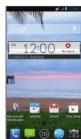
- Press it is current screen is not the
home scre
-
Tap
-
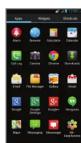
Slide left or right on the screen and tap an app
to open it.
Notifications
The status bar at the top of the screen displays phone and service status with
various icons on the right side. Below are some of the icons and their meanings
Checking Phone Status Managing Notifications
| G | GPS connected | □ No signal | New micro-SIM card installed | □ Updates available op- position installed | |
| E | EDGE connected | □ Signal strength | New SVS | □ Inscribed card un- ported, micro-SIM card un- ported | |
| AC | AG connected | □ Mobile data in use | New MVLS | □ Upcoming event | |
| AG | AG connected | □ Upgrade off | New mail | □ Call on hold | |
| F | Flight mode | □ Vibrate mode | New Gmail message | □ New WiFi network detected | |
| B | Battery empty | □ Bluetooth on | New GoogleTM 100% Wi-Fi product message | □ Downloading data | |
| B | Battery low | □ Connected to a network | New Wi-Fi with SMS/ MVLS delivers | □ Sending data | |
| B | Battery partially drained | □ Wi-Fi in use | Mixed call | □ Update | |
| B | Battery full | □ Wired headout connected | Call in progress | □ USB connected | |
| B | Battery changing | □ Alarm set | Stop in playing | □ GPS on |
Copyright © 2013 ZTF CORPORATION. All rights reserved.
No part of this publication may be quoted, reproduced, tsumulated or used in any form or by any means, electronic or mechanical, including obsolescence and microfilm without the risks written permission of XXX Corporation. XXX Corporation uses as the right to
moduring productogaging and microfinance, without the prior written permission in ZTE Corporation. ZTE Corporation reserves the right to make modifications on print errors or update specifications without prior notice. We offer self-service for our smart terminal devices
User. Please visit the ZTE official website (ir http://www.zebevice.com) for more information on self-service and supported product models. Information on the website takes precedence: ZTE Corporation expressly disclaims any liability for faults and damages caused by
unanticipated beneficiaries of the software images and screenovers used in this guide may differ guide may differ from the actual product or software. This guide is published by JTE Corporation.
ZTE and the ZTE logos are trademarks of ZTE Corporation. Google and Android are trademarks of Google, Inc.
THE Biotensch - Trademark and logos are owned by the bluecolor SRQ, Inc. and any use of such trademarks by ZTE Corporation is under license. microSDHC logo is a trademark of SD-3C, LLC. Other trademarks and trade
Names are the proper of their respective owners. SRS Media large is a notebook in SRS Labs, Inc. SRS Travelis technology is incorporated under license from SRS Labs, Inc. SRS TraMedia™, a feature-rich audio solution tuned
Internet
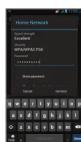
Connecting via Wi-Fi®
- From the home screen, press system
settings > Wi-Fi.
2.SlidetheON/OFF switch if Wi-Fi is off. Your
phone automatically searches for Wi-Fi networks
in range and displays their names and security
settings. Your phone also connects to previously linked networks when they are in range.
-
Top a network name to connect to it
-
If the network is secured, enter a password
-
If the network is secured, enter a password or other credentials. (Ask your network
-
Other Administrator (or administrator for details.)
-
本报告期公司实现的净利润为1,074,853.96元。
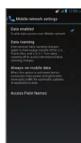
Connecting via Mobile Network
- From the home screen, press system
settings > Mobile networks
- Check Data enabled.
Using Your Phone With a Hearing Aid Device
Your 2930L is compliant with the FCC Hearing Aid Compatibility (HAC) requirements. For additional HAC information, including the HAC rating of this product, please refer to www.ztreuse-support.com.
When some wireless phones are used near some hearing devices (hearing aids and cochlear implants), users may detect a burning, humming, or whiping noise. Some hearing devices are more impure than others to this
They docted, a buzzing, thinning, or thinning nose. Some thinning devices are nose, infinite than oolys to find interference noise, and phones also vary in the amount of interference they generate. The wireless telephone industry has developed options for some of their mobility shown to assist having low-veu is finding phone that
Industry has developed ratings for some of their mobile phones to assist hearing device users in listing phones that may be compatible with their hearing devices. Not all phones have been rated. Phones that have been rated have
a label on the box. Your Z930L has been tested for hearing aid device compatibility and has an M3/T4 rating.
These ratings are not guaranteed. Results will vary, depending on the level of immunity of your hearing device and the degree of your hearing loss. If your hearing device happens to be vulnerable to interference, you may not be
able to use a rated phone successfully. Trying out the phone with your hearing device is the best way to evaluate it for your personal needs.
M-Ratings: Phones rated M3 or M4 meet FCC requirements and are likely to generate less having devices than glivers that are not limited. I'll be the better/birth of the two refins
T-Ratings: Phones rated T3 or T4 meet FCC requirements and are likely to be more usable with a hearing device's
telecoil; "I Switch" of "Telephone Switch") than unrated phones. 14 is the better/megler of the two lungs. (Note that not all hearing devices contain telecoils.) The more immune your hearing aid device is, the less likely you are to
experience interference noise from your wireless phone. Hearing devices may also be measured for immunity to this type of interference. Your hearing device manufacturer
or hearing health professional may help you find results for your hearing device. For additional information about the ECS's actions with regard to hearing aid compatible wireless devices and other
As a measure of the case that the FCC is available with figures to having any language-based service and steps the FCC has taken to ensure that individuals with disabilities have access to telecommunications services, please go to www.fcc.gov/ijsh@ho.
please go to www.kz.gorjaguru.
Distraction Driving
Full attention must be given to driving at all times in order to reduce the risk of an accident. Using a phone while this run uses with a brief free 100 car series distraction and lead to an accident. You must comply with local law
driving (even limit a hands free k/o can cause distraction and lead to an accident. Too most comply with local laws and regulations restricting the use of wireless devices while driving.
Operating Machinery
Full attention must be given to operating machinery in order to reduce the risk of an accident. Product Handling
General Statement on H
You alone are responsible for how you use your phone and any consequences of its use.
You must always turn off your phone wherever the use of a phone is prohibited. Use of your phone is subject to safety measures designed to protect users and their environment.
- Always treat your phone and its accessories with care and keep it in a clean and dust-free place. - Keep the camera and camera lens clean. Unlike camera or camera lens over slow down the phone
- Keep the screen and call-to-text clearly. Disclean screen or camera will help how down the phone's mode to your operations or lower image quality. - Clean for display and its appearance with a soft material such as cleaning dark for cleaner shades. Do not use
- Clean the device and its accessories with a soft maximal such as cleaning cloud for eyeglass masks. Do not use alcohol or other corrosive substances for cleaning or allow them to get inside.
- Do not expose your phone or its accessories to open flames or lit tobacco products. - Do not expose your phone or its accessories to liquid, moisture or high humidity.
- Do not close your phone or his phone/comm to app, broadcast or high traffic.
Calling and Voicemail
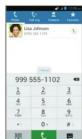
Making a Call
-
From the home screen, tap
-
In the dialer, enter the phone number with
the on-screen keypad. Tap delete
incorrect digits.
- Tap to place the call
NOTE: To call a contact press
Contacts and tap
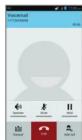
Checking Voicemail
-
From the home screen, tan
-
In the dialer, tan and hold the 1 Key. If
-
In the reader, tap and hold the key. If prompted, enter your voicemail password
-
Follow the voice prompts to listen to and
-
Follow the voice prompts to liste manage your voicemail messages
(1) 2017年1月1日,公司召开2018年第一次临时股东大会,并通知全体董事。
Customizing Home Screens
You can customize your home screen by adding
application shortcuts, folders, widgets, and more
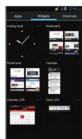
Adding Shortcuts or Widgets
-
From the home screen, tan 📂
-
If you want to add a widget, tap Widgets. If you
-
If you want to add a widget, tap Widgets. If you want to add a shortcut, tap Shortcuts.
-
Tap and hold a widget, shortcut, or app icon and
drag it to the home screen.
Removing Shortcuts or Widgets
- Tap and hold a widget or shortcut on the home
screen.
- Drag it to ✗ remove it.
Organizing Shortcuts With Folders
-
Tap and hold a shortcut on the home screen.
-
Drag it to be the top of the screen. A new folde
is created.
- If needed, drag more shortcuts and drop them into
the folder.
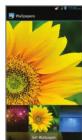
Applying New Wallpapers
-
From the home screen, press 📄 Wallpaper
-
Tap Home or Lock screen.
-
Select a wallpaper source from Gallery, Live
Wallpapers, or Wallpapers and choose an image.
- TapDone at the top of the screen (for Gallery
images) or Set Wallpaper.
NOTE: Swipe left/right to see additional home screens.
Setting Up Gmail™
- From the home screen, tap 📄
NOTE: If another Gmail account is already set up, press
System settings > Add account >
google.
- Tap Existing to sign in to your existing Google
account. If you have no Google accounts, tap
New to create one.
- Follow the the account
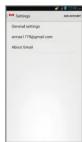
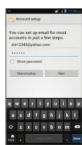
Setting Up Email
- From the home screen, tap ➕ .
NOTE: If another email account is already set up, press
Settings > Add Account
-
Enter the email address and password
-
Tap Next and follow the on-screen instructions
[Non-Text]
[Non-Text]
NOTE: Contact your IT administrator to help set up your corporate Microsoft® Exchange account.
[Non-Text]
NOTE: Contact your IT administrator to help set up your corporate Microsoft® Exchange account.
- Do not drop, throw or try to bend your phone or its accessories. - Do not print your phone or its accessories.
- Do not claim your phone or its accessories. - Do not attempt to disassemble your phone.
- Do not expose or use your phone or its accessories in an environment with or that can reach extreme temperatures, minimum + [5] and maximum + [50] degrees Celsius.
Do not place your phone inside or near heating equipment or high-pressure containers, such as water heaters
- microwave ovens, or not cooking utensils. Otherwise, your phone - Please check local regulations for disposal of electronic products
• Do not carry your Small Children
Do not leave your phone and its accessories within the reach of small children or allow them to play with it. They
could hurt themselves or others, or could accidentally damage the profile. Your profile contains small parts with sharp edges that may cause an injury or may become detached and create a choking hazard.
Demagnetization To avoid the risk of
for a long time.
Electrostatic Discharge (ESD) Do not touch the SIM/SD code out
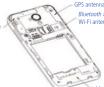
Do not pla
bag deployment area as an airbag inflates with great force and serious injury could result. Store the phone safely before driving
Seizures/Blackouts
The phone can produce a bright or flashing light. A small percentage of people may be susceptible to blackouts or seizures (even if they have never had one before) when exposed to flashing lights or light patterns such as when
playing games or watching video. If you have experienced seizures or blackouts or have a family history of such occurrences, please consult a physician.
Reactivity
To minimize the risk of Repetitise Strain Injury (RSI) when testing or playing games with your phone:
- Do not grip the phone too to - Press the buttons lightly.
- Use the special features that are designed to minimize the times of pressing buttons, such as Message Templates and Predictive Text
• Take many breaks to stretch and relax.
[Non-Text]
Emergency Calls
This phone, like any wireless phone, operates using radio signals, which cannot guarantee connection in all conditions. Therefore, you must never rely solely on any wireless phone for emergency communications.
Loud Noise
This phone is capable of producing loud noises, which may damage your hearing. Turn down the volume before using headlines off a soft stone headlute or other audio drive.
Using headphones Phany Heating
Your phone may become warm during charging and during normal use.
Electrical Safety
Accessories
Use only approved accessories. Do not connect with incompatible products or accessories. Take care not to touch or allow metal objects, such as coins or key rinses, to contact or short-circuit in the battery terminals. Never puncture
the surface of the battery with sharp objects.
Connection to a Car Seek professional advice
Faulty and Damaged Products
Do not attempt to disassemble the pi
phone or its accessories. If your phone (or its accessories) has been submerged in water, sanctioned, or subjected to a severe fall, do not use it until you have taken it to be checked at an authorized service center.
Battery Handling & Safety
- Do not disassemble or crush, bend or deform, puncture, or shred. - Do not modify or remanufacture attempt to insert foreign objects into the battery, immense or expose to war
or other liquids, expose to fire, explosion or other hazard.
- Only use the battery for the system for which it is specified. - Only use the battery with a charging system that has been qualified by ZTE. Use of an unqualified battery or
charger may present a risk of fire, explosion, leakage, or other hazard.
- Before short-circuit battery or allow firearm, conductive bodies to conduct battery terminals. - Replace the battery only with another battery that has been qualified with the system per this standard, IEEE
Sub-1725. Use of an unqualified battery may present a risk of life, e.g. Promptly dispose of used batteries in accordance with local regulations
- Battery usage by children should be supervised.
- Avoid dropping the phone or battery. - Imporant battery use may result in a fine, explosion, or other hazard.
- The phone shall only be connected to products that bear the USB-IF logo or have completed the USB-IF
compliance program.
Radio Frequency Interference
General Statement on Interference Care must be taken when using the phone in close proximity to personal medical devices, such as pacemakers and
hearing aids.
Pacemakers
Pacemaker Manufacturers recommend that a minimum separation of 15 cft be maintained between a mobile phone and a pacemaker to avoid potential interference with the pacemaker. To achieve this, use the phone on the
opposite ear to your pacemaker and do not carry it in a breast pocket.
Playing Music
-
From the home screen, tap 📋.
-
Tap > My Library > Songs.
-
Tap a song to play it.
-
When the song is playing, tap the bar at the bottom of the screen to display
more options.
- View song queue
access additional
- Access additional options
sponsor
[Non-Text]
[Non-Text]
[Non-Text]
[Non-Text]
[Non-Text]
- Rate the song
Playback control:
Skip songs, pause and resume, shuffle or
resume, shame, or repeat. Drag slider to
any part of the song.
Camera and Video
Taking a Photo
- Setting Up Your Phone
- Installing the Battery
- Installing the microSDHC Card
- Getting to Know Your Phone
- For Your Safety
- Radio Frequency (RF) Energy
- Explosive Environments Gas Stations and Explosive
- Touch Screen and Navigation Keys
- Notifications
- Internet
- Connecting via Wi-Fi®
- Calling and Voicemail
- Making a Call
- Checking Voicemail
- Customizing Home Screens
- Setting Up Gmail™
- Playing Music
- access additional
- Camera and Video
- Taking a Photo
Mærke : ZTE
Model : Unico LTE
Kategori : Smartphone