253219 projection screen 253219 - Projektorskærm Draper - Gratis brugsanvisning og manual
Find enhedens vejledning gratis 253219 projection screen 253219 Draper i PDF-format.


Brugerspørgsmål om 253219 projection screen 253219 Draper
0 spørgsmål om dette apparat. Besvar dem du kender, eller stil dit eget.
Stil et nyt spørgsmål om dette apparat
Download vejledningen til din Projektorskærm i PDF-format gratis! Find din vejledning 253219 projection screen 253219 - Draper og tag din elektroniske enhed tilbage i hånden. På denne side er alle dokumenter nødvendige for brugen af din enhed offentliggjort. 253219 projection screen 253219 af mærket Draper.
BRUGSANVISNING 253219 projection screen 253219 Draper
Assembly/Mounting Instructions
Onyx Permanently Tensioned Projection Screen by Draper
Caution
① Read instructions through completely before proceeding.
② Follow instructions carefully. Installation con trary to instructions invalidates warranty.
③ Screen should be accessible for complete removal should fabric become damaged or should other ser vice be required.
④ Screen should be installed level (using a carpenter's level).
⑤ Nothing should be fastened to screen frame or viewing surface.
⑥ Make sure you have received all parts (see parts list below and exploded diagram on page 2).
⑦ Tools Required: Medium (#2) Phillips screwdriver (6" or greater shaft length suggested). Optional tools: Flat blade screwdriver or small putty knife.
⑧ Installer is responsible for providing appropriate hardware for mounting.
⑨ When lifting assembled screen, do not lift at only one corner; lift at both corners. Lifting by one corner could result in damage to the screen frame, especially on large screens.
^10 The ideal temperature range for assembling folding screens to prevent damaging the surface is 68^-78^ F ( 20^-26^ C). Assembling below recommended temperatures may damage surface and void warranty.
NOTE: Screen has been thoroughly inspected and tested at factory and found to be operating properly prior to shipment.
Onyx—Hardware and Parts List
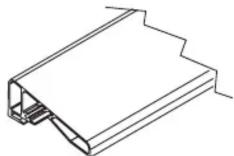
Frame Extrusions - 4
natural_image
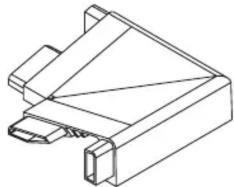
Technical line drawing of a mechanical component with no visible text or symbolsFrame Corners - 4
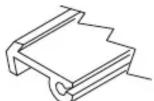
Surface Retention
Extrusions- 4

Z-Brackets - 2
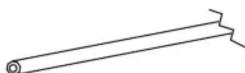
Plastic Tubing - 4

10-24 fasteners - 8
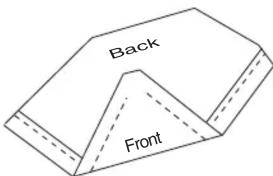
Viewing Surface - 1
Frame Preparation
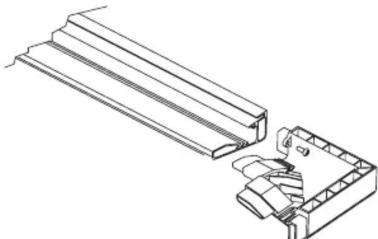
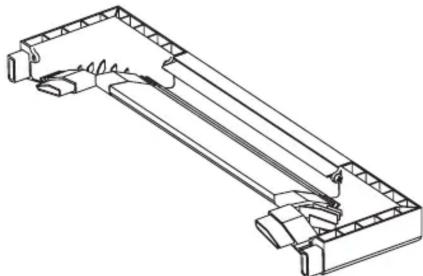
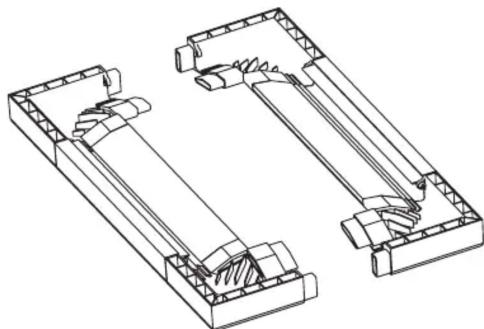
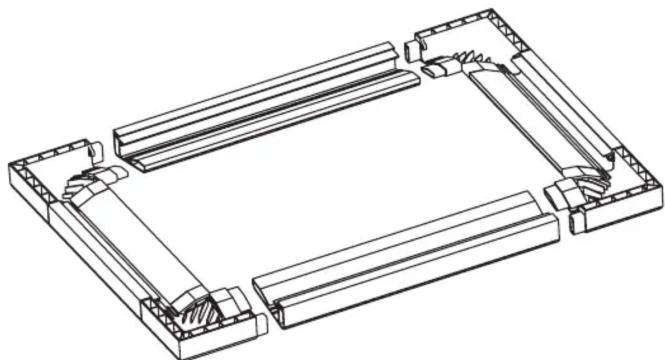
① Clean area and place frame assembly pieces face down. Insert plastic corner pieces into ends of aluminum frame extrusions as indicated in Figures 1 through 4. Secure each corner to each frame extrusion by threading one #10-24 fastener through hole in plastic corner and into rounded slot in aluminum frame extrusion.
Caution: Do not over-tighten fasteners—over-tightening could cause damage to the frame corners.
natural_image
Technical line drawing of a mechanical assembly with layered components and a cutaway view (no text or symbols)Figure 1
Patented by Draper, Inc., U.S. Patent Nos. 6,785,047; 7,113,332; and 7,369,310.

411 S. Pearl St., Spiceland, IN 47385 USA ■ 765-987-7999
www.draperinc.com ■ fax 765-987-7142
Copyright © 2010 Draper Inc. Form Onyx_Inst10 Printed in U.S.A.
natural_image
Technical line drawing of a mechanical assembly with no visible text or symbolsFigure 2
natural_image
Technical line drawing of two mechanical assembly components (no text or symbols)Figure 3
natural_image
Isometric line drawing of a mechanical assembly with no text or symbolsFigure 4
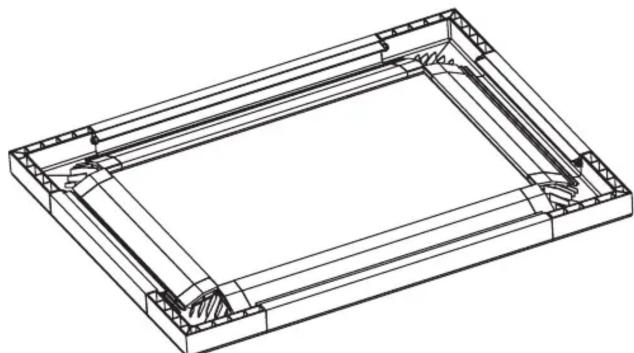
② Secure corner pieces to aluminum frame extrusions with four (4) remaining fasteners. Check to verify that all four (4) plastic corners are secure to aluminum frame extrusion lengths and all eight (8) fasteners are tight (see Fig. 5).
Caution: Do not over-tighten fasteners—over-tightening could cause damage to the frame corners.
natural_image
Technical line drawing of a rectangular frame with internal structural ribs and mounting holes (no text or symbols)Figure 5
Caution: When lifting assembled screen, do not lift at only one corner; lift at both corners. Lifting by one corner could result in damage to the screen frame, especially on large screens.
(Continued on Page 2)
If you encounter any difficulties installing or ser vic ing your Onyx screen, call your dealer or Draper, Inc., Spiceland, Indiana, (765) 987-7999 or fax (765) 987-7142.
Onyx by Draper
Surface Preparation
① Move frame assembly out of the way, unroll viewing surface and place on smooth/clean surface. (Orient viewing surface so that folded side of hem is visible.)
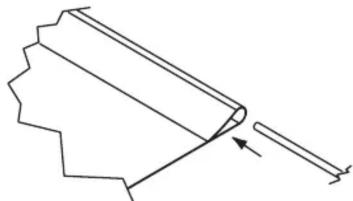
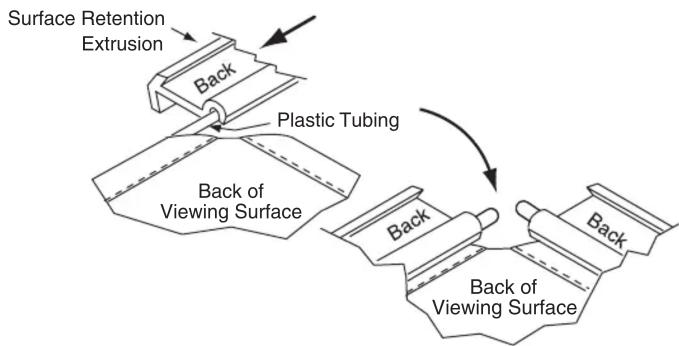
② Insert plastic tubing inside pocket formed by hem on all 4 edges of viewing surface (see Fig. 6).
natural_image
Pure technical line drawing of a mechanical component or tool without any text, numbers, or symbolsFigure 6
③ Carefully slide surface retention extrusion (rounded edge visible) along hem and onto surface on all 4 edges of fabric (see Fig. 7). Caution: Do not allow fabric to snag on end of extrusion. If the screen fabric is not parallel with the surface retention extrusion, then it may slit and tear during installation.
Please Note: To make this step easier, pinch the end of the pocket closed before sliding it into the surface retention extrusion.
flowchart
graph TD
    A["Surface Retention Extrusion"] --> B["Back"]
    B --> C["Plastic Tubing"]
    C --> D["Back of Viewing Surface"]
    D --> E["Back of Viewing Surface"]
    E --> F["Back"]
Figure 7
④ Surface retention extrusion should extend beyond edge of viewing surface equally at both ends.
⑤ Verify that all surface retention extrusions are installed with rounded edge visible and are centered on surface material.
Surface to Frame Assembly
① Return frame onto clean surface, face down, and drape completed surface assembly over completed frame profile with rounded edge of surface retention extrusion visible.
② Insert any side of surface to notch #1 on corresponding side of frame extrusion (see Fig. 8).
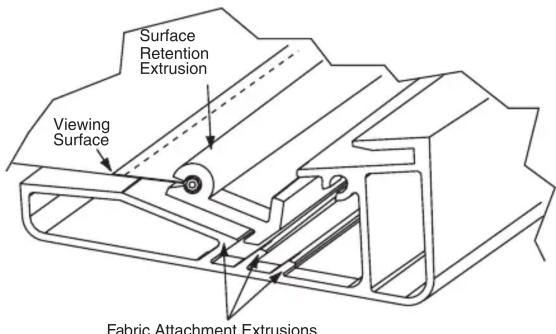
Figure 8
③ Insert opposite side of surface to notch #1 of frame extrusion.
④ Repeat steps 2-3 with remaining edges of surface.
⑤ Ensure surface retention extrusions are centered lengthwise in tension slots on all 4 edges of surface.
⑥ If additional tension is desired or required over time, adjust surface one edge at a time to tension notch #2.
Please Note: It is not necessary to adjust more than one edge at a time to increase surface tension.
Corner Reinforcement
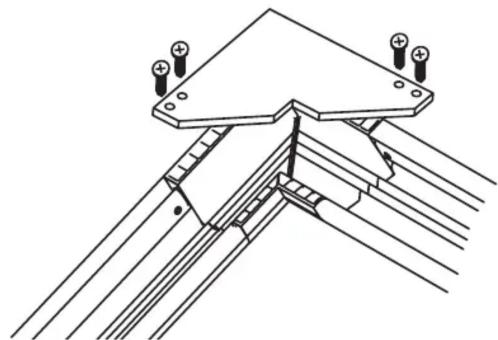
① If screen is being fl own (suspended), raised and lowered by a TorkStar, or if screen is 12' (viewing area) or larger in overall height or width, install Corner reinforcement Gussets to all four corners (see Fig. 9)
natural_image
Technical line drawing of a structural joint or bracket assembly (no text or symbols)Figure 9
Mounting Screen to Wall
① Determine height at which screen is to be mounted.
Please Note: Top edge of screen frame will be located 1.5" above mounting bracket hole centerline when mounted to wall.
② Mark hole centerline so that both Z-brackets can be mounted parallel and at equal height.
③ Install Z-brackets so that the outermost edges are safely within the overall length of the aluminum frame extrusion to allow for minor horizontal screen adjustments. Installer is responsible for providing attachment hardware.
④ Position screen slightly above Z-brackets on wall (see Fig. 10).
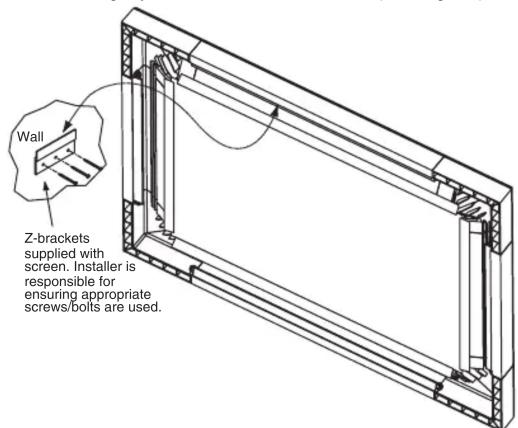
Figure 10
⑤ Lower screen until it engages over Z-brackets. Center screen horizontally on brackets as necessary.
Please Note: Make sure screen is installed level.
*Viewing surface is approximately 14 " from wall.
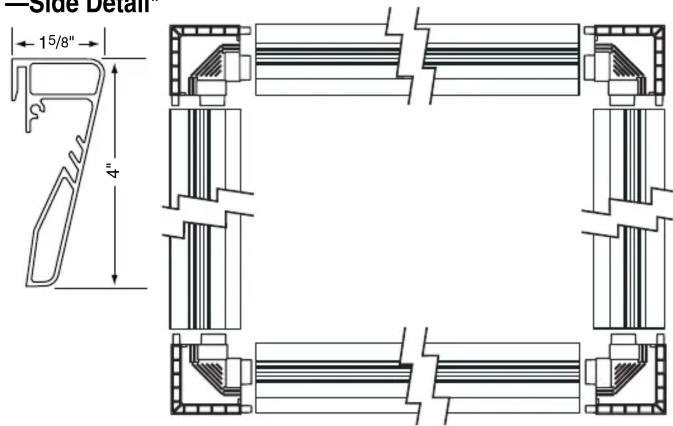
Onyx Frame
Onyx (Exploded Rear View)
—Side Detail*