
StorCenter px12-350r - Server IOMEGA - Gratis brugsanvisning og manual
Find enhedens vejledning gratis StorCenter px12-350r IOMEGA i PDF-format.


Brugerspørgsmål om StorCenter px12-350r IOMEGA
0 spørgsmål om dette apparat. Besvar dem du kender, eller stil dit eget.
Stil et nyt spørgsmål om dette apparat
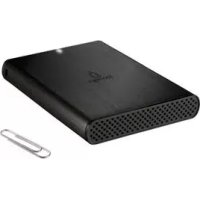
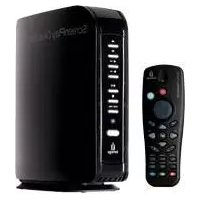
Download vejledningen til din Server i PDF-format gratis! Find din vejledning StorCenter px12-350r - IOMEGA og tag din elektroniske enhed tilbage i hånden. På denne side er alle dokumenter nødvendige for brugen af din enhed offentliggjort. StorCenter px12-350r af mærket IOMEGA.
BRUGSANVISNING StorCenter px12-350r IOMEGA
kobo™
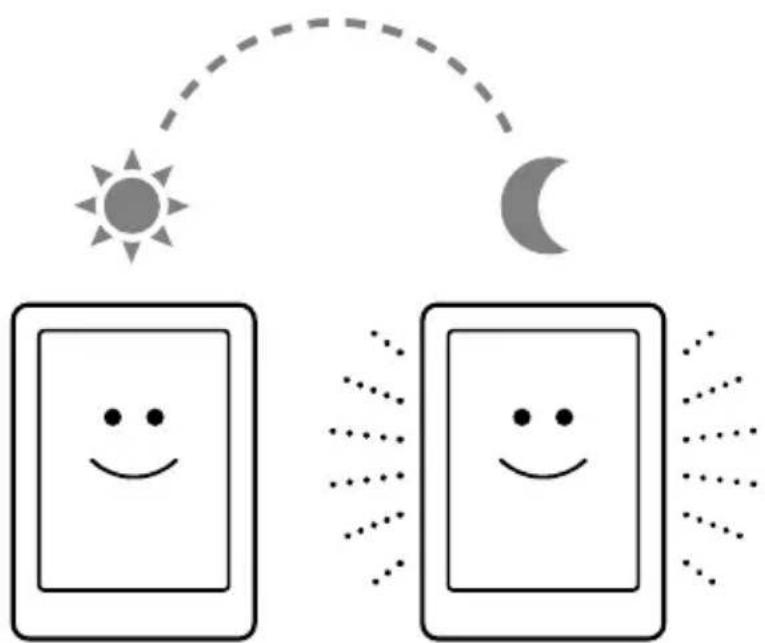
Kobo Glo
User Guide
Kobo Glo User Guide
Table of Contents
About your eReader.... 5
Anatomy of your eReader....6
Charging your eReader....7
Using the touch screen....8
Putting your eReader to sleep and waking it up....10
Using the light....11
Connecting to your computer....12
Using Your Library....13
Navigating your Home Page and Library....13
Navigating Your Library....15
Searching for books 15
Using the Kobo Cloud....16
Downloading books from the Kobo Cloud to your eReader......17
Archiving Books to the Kobo Cloud ....19
Reading on your eReader....21
Reading a book....21
Navigating a book....21
Changing the way text looks ....22
Closing books and bookmarking your page 24
Adding notes and looking up or translating words.....26
Using notes 28
Bookmarking pages 29
Using the dictionary....30
Translating a word....30
Getting a Book....32
Shopping for a new book....32
Understanding EPUB, PDF, and DRM......37
Using Wi Fi....39
About Wi Fi....39
Turning Wi Fi on/off....40
Connecting your eReader to a wireless (Wi Fi) network......40
Getting Help....42
Safety, Regulatory and Warranty Information....42
About your eReader
What's in this section
• Anatomy of your eReader
- Charging your eReader
• Using the touch screen
• Going to sleep and waking up
• Using the light
- Connecting to your computer
![graph TD A["Smartphone Icon"] --> B["Power Button"] A --> C["Sunlight Icon"] A --> D["File Icon"] A --> E["Capacitor Icon"] A --> F["Switch Button"]](/content/2026/05/858488/images/ad69f647ce0fc315c2abc880874051d0a6433651ef4d5d35ffeb968b6f414ff6.jpg)
Power slider
Turn your eReader on or off, or put it to sleep.
Light button
Turn on the screen light to read in the dark.
Micro SD slot
Increase the number of books your eReader can hold by inserting a Micro SD card.
USB port
Connect your eReader to your computer using the supplied USB cable to charge your eReader or add books.
Reset hole
Insert a paper clip and press gently to reset your eReader.
Charging your eReader
To charge your eReader, connect it to your computer using the USB cable provided in your box.
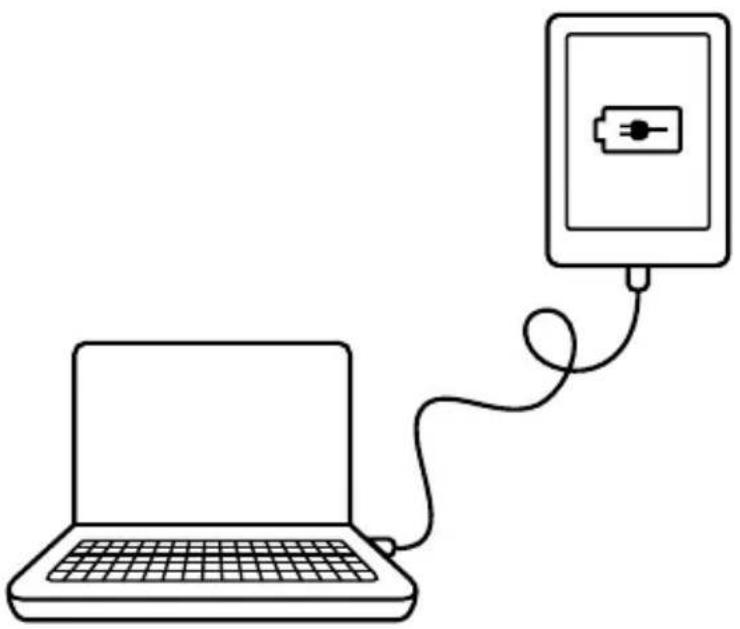
As it charges, your eReader will display the battery's charge at the top right-hand corner of the screen.
| Battery icon... | Meaning... |
 | Your eReader is out of power. |
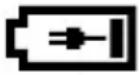 | Your eReader is charging. |
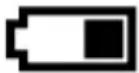 | Your eReader has a partial charge. |
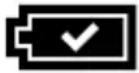 | Your eReader is fully charged. |
To find out how much power your eReader has left, tap the Home icon at the top of the screen to go to the Home page.

You'll find the battery icon at the top right-hand corner of the screen with the battery's current capacity.
Using the touch screen
When your eReader is on, you can touch the screen to open books, turn pages, select items, and more. In many cases you can just touch the screen lightly with a fingertip to interact with it.
There are a few other gestures that you may find useful.
Tapping
This is the gesture you'll use the most. Just tap the screen lightly to open a book, turn a page, select a menu, and more.
Double-tapping
To double-tap, you tap the same spot on the screen twice quickly.
If you're reading a PDF, you can double-tap to zoom in to a page and make it bigger. If you're already zoomed in, double-tapping the page will zoom out.
Swipe
You can use this gesture to page through books you are reading. To page forward, place your finger on the right edge of screen and quickly drag it horizontally to the left. The page will turn just like a real book. You can swipe from the left edge of the screen to page backwards.
Press and hold
This gesture is also called long press. To use this gesture, touch the screen and hold your finger in place. This allows you to select text while reading. Just press and hold on a word, and when you let go, your eReader will underline your selection and show two circles — one at each end of the word. You can then use the drag gesture on the circles to select more text.
Note: Not all books allow for text selection; for example, you cannot select text in PDFs or comic books.
Dragging
If you’re reading a PDF and zoom in to see a bigger version of your page, you can drag the page to see different parts of it. To do this, touch anywhere on the screen and lightly move your finger around. The page will move in the direction of your finger.
Putting your eReader to sleep and waking it up
You can turn your eReader off or put it to sleep when you're not reading. Both help your battery last longer. The main difference is that when you put your eReader to sleep and then wake it up, you go back to the last screen you saw. This could be a page in a book, the Kobo Store, or an area in your library. If you turn your eReader off, you'll go back to your Home page when you turn it on again.
Another significant difference between putting your eReader to sleep and turning it off is the length of time it takes to come back on again. When you wake your eReader up after putting it to sleep, it's ready to use in one or two seconds; when you turn it off, it can take up to 25 seconds before it's ready to use.
Note that putting your eReader to sleep can interrupt things such as library syncing and wireless (Wi Fi) connections.
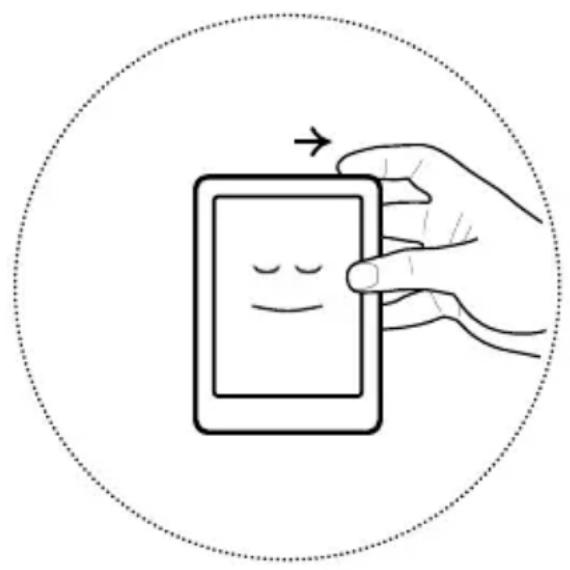
To turn on your eReader:
- Slide the power button and hold until your eReader turns on.
To turn off your eReader:
- Slide the power button and hold until the Off screen appears.
To put your eReader to sleep:
• Quickly slide the power button and release.
To wake your eReader from sleep:
• Quickly slide the power button and release.
Using the light
Your eReader has a built-in light that lets you read in the dark and in areas with low light. You can adjust the screen's brightness to your liking.
To turn the light on or off:
- Press the light button beside the power button.
To adjust the brightness of the light:
-
Tap the Menu icon at the top of the screen. The Quick Settings panel will appear.
-
Tap Brightness.
-
Drag the brightness slider to adjust the screen's brightness.
-
Tap ✗ when you're done.
Connecting to your computer
You can connect your eReader to your computer using the USB cable. You can then download and install Kobo Desktop software, which lets you buy and rate books, organize your eReader library, and more.
Here are a few things you can do with Kobo Desktop:
• Read your books on your computer
• Manage your collection of books
• Browse the Kobo Store, read previews and buy books
You can also do all of these actions on your eReader directly; for more information, see Getting a Book.
For more details on Kobo Desktop, you can download the Kobo Desktop guide from www.kobo.com/userguides. You can also search our online help portal at www.kobo.com/help to ask questions about Kobo Desktop or your eReader.
Using Your Library
What's in this section
• Navigating your Home Page
• Navigating your Library
- Searching for books
• Using the Kobo Cloud
- Downloading books from the Kobo Cloud to your eReader
• Archiving Books to the Kobo Cloud
- Deleting books
Navigating your Home Page
Your Home page is the first thing you see when you turn on your eReader after setup. From your Home page, you can see your recently opened books, access the Kobo Bookstore, and more.
If you're reading or browsing on your Kobo Glo, you can always get to your Home page by tapping the home icon at the top of the screen.
Your Home Page shows your most recently opened book in the first column.
To make finding things easier on your Home page, your recent activities are organized with Tiles.
Some of your Home page Tiles include:
Books you've recently opened or purchased.
- Recommendations for books we think you’ll enjoy (based on what you’ve read).
- Reading Life awards.
• The Sync option to refresh your Library.
Tiles come in different shades so that you can easily find what you need:
- Grey Tiles: Content related to your Library like your current read, awards, shelves, and Reading Life.
- Black Tiles: Content that’s related to the Kobo Bookstore like Related Reads and Recommended books.
You can tap a Tile to interact with it. Above the Tiles, you'll see the Search bar. You can use the Search bar to find books in your Library, or to find a specific book in the Kobo Bookstore.
Your Library shows you books, magazines and newspapers you've purchased, previews you've downloaded, or shelves you've created. Your Library lets you read and manage books on your eReader.
To open your Library:
- Go to your Home page.
- Tap Library.
- Select one of your Library areas:
Books — see all the books and documents in your Library.
News & Magazines — see any newspapers and magazines you have subscribed to.
• Previews — see excerpts of new and exciting books.
- Shelves — see, add, and edit bookshelves to organize your Library.
Searching for books
If you know exactly what you want to read, you can search to find a book already in your library, or a new book in the Kobo Store.
You can search using the book title, author name, or a keyword.
To find a book, on your Home page:
- Tap the search bar at the top of the screen.
-
Choose where you'd like to search:
-
Tap Bookstore to search the Kobo Bookstore (you must be connected to the Internet).
Tap Library to search your eReader's library. -
Using the keyboard, type a book title, author name, or keyword. Your search results will appear as you type. Tap a suggestion to go to that result.
Using the Kobo Cloud
Your entire Kobo Library is automatically stored in the Kobo Cloud. With the Kobo Cloud, you can store unlimited content, so your Library can never grow too large. And the best part is, you'll have access to your favourite books all the time.
When you're ready to read, simply go to your Library on your eReader, and download what you want.
And when you need space for something new on your eReader, you can archive items you’ve downloaded. After they’re archived, they’re available in the Kobo Cloud for when you want to read them again.
Note: You can't use the Kobo Cloud to manage side-loaded documents.
Downloading books from the Kobo Cloud to your eReader
When you’re ready to download items in your Library, simply connect to a wireless network or to your computer using Kobo Desktop, and select the items you want. Each book, magazine or manga you select is added to a download queue, and downloaded in the order you’ve selected it.
If you change your mind about an item before it's downloaded you can remove it from the download queue.
It's easy to identify items you've downloaded and those that are still in the Kobo Cloud—you'll see the covers of any books,
magazines or manga you’ve downloaded, while items that are only in the Kobo Cloud appear with a Download icon.
Note: You can select as many books as you'd like to download in a queue.
To download books on your eReader using a Wi Fi connection, from your Home screen:
- Tap Library.
- Tap Books.
- Tap the book covers with a Download icon.
- If required, connect to a Wi Fi network. The book you've selected will download.
Note: If your Wi Fi connection is interrupted, tap the Sync icon on the Home screen to resume the book downloads in the queue.
To remove a book from the download queue:
- Tap the book with the ⏻ Download icon that you want to remove from the download queue.
A prompt will ask you to confirm if you'd like to remove the item from the download queue.
- Tap Continue.
To free up space on your eReader, you can archive books, magazines or manga you've downloaded.
When you archive a book, you'll still be able to see it on your eReader, but you'll need to download it again from the Kobo Cloud before you can read it.
To archive your books, from the Home screen:
- Tap Library.
- Tap Books.
- Tap the ⏱ Tools icon near the bottom of the screen.
- Tap the List view icon.
- Tap the ≡ Menu icon beside the book you'd like to archive.
- Tap Archive.
- Tap Yes. The archived book will be removed from your eReader.
Deleting books
If you're done with a book, you can delete it from your eReader. This means that if you use any of Kobo's other reading apps you will no longer have access to the book.
Don't worry, though. If you ever want to retrieve your book, sign in to kobo.com and visit the My Account page. You can add books from your purchase history back to your library.
To delete a book:
-
Tap the Home icon at the top of the screen.
-
Tap Library.
-
Tap Books.
-
Find the book you want to delete and tap the ≡ Menu icon next to it.
You should see a list of books; if you see only covers, tap the 🔒 Tools icon at the bottom of the screen and select to see your books in list view.
-
Tap Delete.
-
When prompted to confirm your deletion, choose "continue."
Reading on your eReader
What's in this section
- Reading a book
- Navigating a book
• Changing the way text looks
• Closing a book and bookmarking your page
Reading a book
To open a book from the home screen or library, just tap the title or cover.
Navigating a book
To turn pages in a book, just tap or swipe the sides of the page.
If you want to jump forward by more than a page or two, you can:
• Use the navigation bar to change pages or chapters.
- Use the Table of Contents to browse a list of chapters and change chapters.
To jump around in a book using the navigation bar:
-
Tap the center of the page to bring up the Reading Menu.
-
Tap the ↔ Navigation icon.
- To scroll through the book's pages, touch the circle in the navigation bar and slide it to the right to move forward and to the left to go back.
• To move to the next page, tap the → Forward icon.
• To move to the previous page, tap the ←° Back icon.
• To jump to the next chapter, tap the >> Jump forward icon.
• To jump to the previous chapter, tap the << Jump back icon.
- To close the navigation bar, tap anywhere on the page; or tap the ✗ icon on the navigation bar.
Note: When using the navigation bar, you can quickly return to your original position in the book by tapping the ↩ Snap Back icon.
Changing the way text looks
When you are reading a book, you can adjust the size or alignment of the text or adjust the line spacing to make reading easier on your eyes. Your eReader offers several different sizes of text for most books.
Note: Line spacing, margin spacing, and text justification aren't available in Japanese books.
To change the way text looks:
- While reading, tap the center of the page to bring up the Reading Menu.
- Tap the AA Text icon.
- To change the style of the text, select a font from the Font Face list.
- To make text bigger or smaller, tap the + or - signs beside Font Size.
- To add more space between lines of text, tap the + or - signs beside Line Spacing.
-
To add more space around the edges of your screen, tap the + or - signs beside Margins.
-
To change how text lines up at the edges, select one of the Justification options:
-
OFF Uses the default publisher's settings for your book.
• Forces text to line up on both the left and right sides.
• Forces text to line up with the left side of the screen. -
When you're done customizing your book, tap anywhere on the screen to go back to reading.
Notes:
- When you change the way text looks, your eReader remembers your preferred text size and style, and applies it to other books you read.
- If you are reading a PDF you can’t change the size or style of the text, but you can zoom in to make the entire page bigger and easier to read.
Closing books and bookmarking your page
When you're done reading, you can stop reading by:
• Turning your eReader off or putting it to sleep
- Going to your Home page or one of your Library pages
Your eReader automatically closes your book and remembers the page you were on. The next time you open the book, it will remember where you stopped reading and open your book to that page.
Books that you're still reading are shown on your Home page. If you're finished with a book and don't want it on your Home page, here's how you can close it:
-
In the Books area of your library, find the book you would like to close.
-
Tap the ≡ Menu icon next to your book to see the options menu, or press and hold the book's cover until you see the menu.
- Select Mark as Finished.
Adding notes and looking up or translating words
What's in this section
- Highlighting text
• Using notes - Bookmarking pages
• Using the dictionary - Translating a word
Highlighting text
Some eBooks allow for highlighting text in a way that is similar to using a highlighter in a printed book.
To highlight text:
- In your book, press and hold a word on the page.
- Release your finger from the page.
You'll see a highlight underlining the word and two circles — one at each end of the word. -
Drag the first circle to the start of the text you want to highlight, and the second circle to the end of the text.
-
Tap the Highlight icon.
5. Tap Highlight.
To see all the text you've highlighted in a book:
- Tap the center of the page to bring up the Reading Menu.
- Tap the Book icon.
- Tap Annotations.
Your eReader will show a list of all the highlights you've made in your book. - Tap a highlight to open the page where you created your highlight.
To delete a highlight:
- Tap the center of the page to bring up the Reading Menu.
- Tap the Book icon.
- Tap Annotations.
Your eReader will show a list of all the highlights and notes you've made in your book. - Tap the ≡ Menu icon next to the highlight.
- Tap Remove Highlight.
You can add notes to your books. This can be useful when you study a passage, or want to add comments about what you're reading.
To add a note:
- In your book, press and hold on a word that appears in the section you'd like to comment on.
-
Release your finger from the page.
You'll see a highlight underlining the word and two circles — one at each end of the word.
Note: You can select more text to highlight for the note by moving the circles at either end of the word. -
Tap the Highlight icon.
-
Tap Add Note.
-
Use the keyboard to enter your note.
-
Tap Save.
To read your note:
- Press and hold the text you highlighted for the note.
Or
-
While reading, tap the center of the page to bring up the Reading Menu.
-
Tap the Book icon.
-
Tap Annotations.
Your eReader will show a list of all of your notes and highlights.
- Tap the text next to the ☐ Note icon.
Bookmarking pages
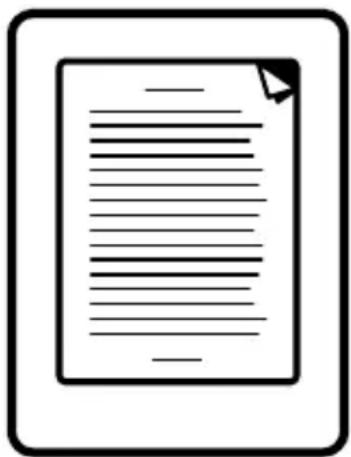
Like a dog-ear in a paper book, you can mark interesting passages or pages that you want to return to using dog-ears.
To bookmark a page:
- While reading, tap the top right-hand corner of the page. A bookmark or dog-ear will appear in that corner of the page.
To find a dog-ear:
-
While reading, tap the center of the page to bring up the Reading Menu.
-
Tap the Book icon.
-
Tap Annotations.
-
Tap the ≡ Menu icon beside the dog-ear you want to see.
-
Tap Show on Page.
Using the dictionary
Your Kobo eReader has a built-in dictionary that you can use while reading Kobo eBooks. The dictionary may not work if you're reading books from other sources, such as books you get from a public library, free eBooks you've found on the Internet; the dictionary also does not work with PDFs.
To find a definition:
- In your book, press and hold the word you'd like to look up.
An underline will appear on the word.
- Release your finger from the page.
Translating a word
Your Kobo eReader has built-in translation that you can use while reading Kobo eBooks. Translation may not work if you're reading books from other sources, and does not work when reading PDFs.
To translate a word into different languages:
-
In your book, press and hold the word you'd like to translate.
-
Release your finger from the page.
-
Tap the A Z Dictionary icon.
-
Tap Translation Dictionary.
-
Tap the drop-down menu under Translate Word.
-
Select the language that you'd like the translation for.
Getting a Book
What's in this section
• Shopping for a new book
- Buying a book
• Using your Wishlist
• Adding library books and books from other bookstores
Shopping for a new book
You can find and purchase books in several ways on your eReader.
Using the Kobo Bookstore
You can browse the Kobo Bookstore in different ways:
- Storefront — See the latest book releases from Kobo, books on your wishlist, and more.
- Related Reading — find books that are similar to the ones in your library.
- Recommended for you — find books recommended based on your reading preferences.
• Categories — see a list of book categories. - Reading Lists — see a list of popular book selections.
- Wishlist — see a list of books you’ve added to your Wishlist.
To access the Bookstore, from your Home page:
- Tap Bookstore.
- Tap any of the listed options.
Getting Recommendations
You can see book recommendations based on books you own and books you've rated. If you've set up your eReader for the first time, you'll need to add some books before you see recommendations.
To see book recommendations, from your Home page:
- Tap Bookstore.
- Tap Recommended for you.
- Tap the arrow icons beside a book cover to see more books.
Note: Tap a book cover to see a synopsis.
When you've found a book you want to purchase, simply tap Buy Now to check out. You can use credit cards, store credit, or gift cards from select partners to pay for your book. If you have a promo code (which is a sort of coupon) you can enter this during checkout to get a discount on your book.
To buy a book:
- Tap the Buy Now button.
If you have shopped with Kobo before and saved your billing information, you'll go directly to the confirmation screen. Skip to step 5. - Use the keyboard to enter your billing address and credit card information.
Note: This is the address associated with your credit card. You need to provide this even if you use store credit or a gift card to pay for your order — this address is used to ensure the correct tax is calculated for your purchases. - Tap Done to continue.
- Review your order.
- If you want to use a gift card to pay, tap Add Gift Card. If you want to use a promo code, tap Add Promo Code.
- Tap Buy Now.
- Tap Keep Shopping to buy more books.
Using your Wishlist
Your Wishlist is where you save books you are interested in but not yet ready to buy. You can add books to your Wishlist while browsing and easily find them later. For example, if you see three books you like in the Kobo Bookstore, you can add them to your Wishlist and buy them later.
To add a book to your Wishlist:
• While shopping in the Bookstore, tap the 🔔 Pin icon.
To see the books in your Wishlist, from your Home page:
-
Tap Bookstore.
-
Tap Wishlist.
Tap a book to read the synopsis or buy it.
Adding library books and books from other bookstores
Want to borrow eBooks from a public library and read them on your eReader? Or maybe you have eBooks from other sources that you'd like to add?
Most eBooks that you borrow and buy are protected using Digital Rights Management, or DRM. They're protected so that only you can read them (and in the case of library books, only for a specific period of time). Your eReader can display books protected using Adobe DRM, which is a form of DRM used by most libraries and booksellers.
You'll know when you've bought or borrowed a book using this type of protection if the library or bookseller gives you a file with an .acsm extension (rather than an .epub or .pdf extension). The .acsm file contains licensing information for unlocking your book.
To read one of these books on your Kobo eReader, you need to use an application called Adobe Digital Editions. This application can open your .acsm file, read the licensing information, download your book, and copy the book to your eReader.
Understanding EPUB, PDF, and DRM
eBooks come in a range of formats. When you look for books to read on your Kobo eReader, look for books in EPUB or PDF formats.
There are different types of EPUBs, as well: Kobo EPUBs, which come from the Kobo store, and other EPUBs, which come from other sources. There are some features in Kobo EPUBs that you may not find in other EPUBs.
Sometimes books are protected using Digital Rights Management (DRM). DRM prevents unauthorized copying of books, and is often used to protect the books you get from libraries and booksellers. There are several types of DRM. Your eReader can display books that are protected using Adobe DRM.
Once you've found books that you want to read, you can choose from several ways to add them to your eReader. You can transfer books using:
• A wireless connection on your eReader
• The free Kobo Desktop software on your computer
• Adobe Digital Editions
A Micro SD card
- Drag and drop
Which method works best depends on whether your books are protected by DRM, and where they came from.
If you purchase books from Kobo, you can add them to your eReader using a wireless connection or using the free Kobo Desktop software for your computer. See Syncing your Library.
If your books are protected by DRM, you can add them to your eReader using Adobe Digital Editions.
If your books are not protected by DRM, you can add them to your eReader using:
- a Micro SD card
- drag and drop
• Adobe Digital Editions
For details on adding books to your eReader, please visit our help page at www.kobo.com.
Using Wi Fi
What's in this section
- About Wi Fi
• Turning off Wi Fi (Airplane mode)
• Connecting your eReader to a wireless network
• Syncing your library over Wi Fi
About Wi Fi
You can use your eReader to connect to Kobo over a wireless Internet connection (Wi Fi). When you're connected to Kobo you can update your library and shop for new books.
To see when you're connected, look for the Wi Fi status icon at the top right corner of your eReader's screen:
• you are not connected
Wi Fi is on, but your eReader can't find a network
• WiFi you have a fairly good connection
• you have an excellent connection
If you want to extend the battery life of your eReader or you want to use your eReader on a plane or in a hospital, you can turn Wi Fi off.
To turn off Wi Fi, from your Home page:
- Tap the Menu icon at the top of the screen. The Quick Settings panel will appear.
- Tap Wi Fi. When the Wi Fi menu says Disabled, Wi Fi is turned off.
Connecting your eReader to a wireless (Wi Fi) network
Before you can add Kobo books to your eReader, you need to connect to Kobo online. Your eReader lets you use Wi Fi (wireless Internet) to connect. All you need is access to a wireless network in your area.
To connect to a wireless network, from the Home page:
- Tap the Sync Tile.
Your eReader will try to connect to Wi Fi. This may take a moment.
- You will be prompted to choose a wireless network. Tap the name of the network you want to use.
If there is a lock icon next to a network, you need a password to use that network.
- If you're prompted for a network password, use the keyboard to type in the password and then tap Join. You can tap Show Password to see what you're typing.
Getting Help
Got questions or need help?
Online:
www.kobo.com/help
Find answers to your questions using our help page. Simply type a question in the field to get your answer.
Safety, Regulatory and Warranty Information
Important safety, regulatory and warranty details about your Kobo Glo can be found on the Kobo website at www.kobo.com/userguides.
Note: The Declaration of Conformity may vary for different models of the Kobo Glo eReader. The web site includes details of how to find your Kobo Glo model number.
- KOBO™
- USER GUIDE
- KOBO GLO USER GUIDE
- TABLE OF CONTENTS
- ABOUT YOUR EREADER
- WHAT'S IN THIS SECTION
- CHARGING YOUR EREADER
- USING THE TOUCH SCREEN
- TAPPING
- DOUBLE-TAPPING
- SWIPE
- PRESS AND HOLD
- DRAGGING
- PUTTING YOUR EREADER TO SLEEP AND WAKING IT UP
- USING THE LIGHT
- CONNECTING TO YOUR COMPUTER
- USING YOUR LIBRARY
- NAVIGATING YOUR HOME PAGE
- SEARCHING FOR BOOKS
- USING THE KOBO CLOUD
- DOWNLOADING BOOKS FROM THE KOBO CLOUD TO YOUR EREADER
- DELETING BOOKS
- READING ON YOUR EREADER
- READING A BOOK
- NAVIGATING A BOOK
- CHANGING THE WAY TEXT LOOKS
- NOTES
- CLOSING BOOKS AND BOOKMARKING YOUR PAGE
- ADDING NOTES AND LOOKING UP OR TRANSLATING WORDS
- HIGHLIGHTING TEXT
- TAP HIGHLIGHT
- BOOKMARKING PAGES
- USING THE DICTIONARY
- TRANSLATING A WORD
- GETTING A BOOK
- SHOPPING FOR A NEW BOOK
- USING THE KOBO BOOKSTORE
- GETTING RECOMMENDATIONS
- USING YOUR WISHLIST
- ADDING LIBRARY BOOKS AND BOOKS FROM OTHER BOOKSTORES
- UNDERSTANDING EPUB, PDF, AND DRM
- USING WI FI
- ABOUT WI FI
- GETTING HELP
- ONLINE
- SAFETY, REGULATORY AND WARRANTY INFORMATION
Mærke : IOMEGA
Model : StorCenter px12-350r
Kategori : Server