
WDC200 - Projektor OPTOMA - Bezplatný návod k obsluze
Najděte návod k zařízení zdarma WDC200 OPTOMA ve formátu PDF.


| Typ produktu | DLP projektor |
| Značka | OPTOMA |
| Model | WDC200 |
| Nativní rozlišení | 1920 x 1080 pixelů (Full HD) |
| Jas | 3000 ANSI lumenů |
| Kontrast | 20 000:1 |
| Světelný zdroj | LED |
| Životnost světelného zdroje | 30 000 hodin |
| Rozměry (D x H x V) | 30 x 22 x 10 cm |
| Hmotnost | 2,5 kg |
| Napájení | AC 100-240 V, 50/60 Hz |
| Spotřeba energie | 200 W (úsporný režim: 150 W) |
| Konektivita | HDMI (x2), VGA, USB-A, 3,5mm audio jack |
| Lichoběžníková korekce | Vertikální a horizontální ±30° |
| Hlavní funkce | Bezdrátová projekce, vestavěný reproduktor, úsporný režim |
| Údržba a čištění | Čistěte vzduchový filtr každých 500 hodin vysavačem |
| Bezpečnost | Nedívejte se přímo do objektivu, před čištěním vypněte, používejte na stabilním povrchu |
| Náhradní díly a opravitelnost | Objektiv, ventilátor, základní deska jsou k dispozici u autorizovaných prodejců |
| Obecné informace | Záruka 2 roky, technická podpora OPTOMA |
Často kladené otázky - WDC200 OPTOMA
Dotazy uživatelů ohledně WDC200 OPTOMA
0 otázka o tomto zařízení. Odpovězte na ty, které znáte, nebo položte vlastní.
Položte novou otázku o tomto zařízení
Stáhněte si návod pro váš Projektor ve formátu PDF zdarma! Najděte svůj návod WDC200 - OPTOMA a vezměte svůj elektronický přístroj zpět do rukou. Na této stránce jsou zveřejněny všechny dokumenty potřebné k používání vašeho zařízení. WDC200 značky OPTOMA.
NÁVOD K OBSLUZE WDC200 OPTOMA
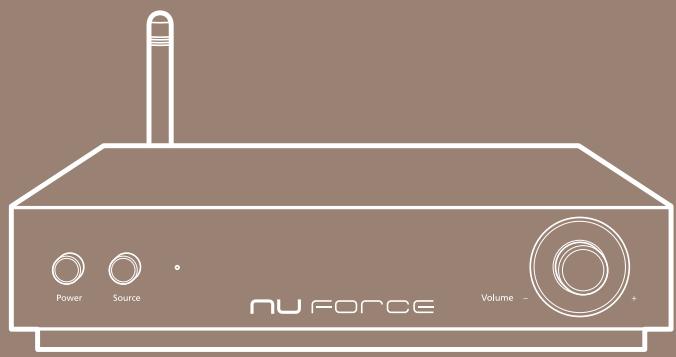
NU FORCE
WDC200
High resolution wireless DAC
FCC STATEMENTS
This device has been tested and found to comply with the limits for a Class B digital device, pursuant to Part 15 of the FCC Rules. These limits are designed to provide reasonable protection against harmful interference in a residential installation.
This equipment generates, uses and can radiate radio frequency energy and, if not installed and used in accordance with the instructions, may cause harmful interference to radio communications. However, there is no guarantee that interference will not occur in a particular installation. If this equipment does cause harmful interference to radio or television reception, which can be determined by turning the equipment off and on, the user is encouraged to try to correct the interference by one of the following measures:
• Reorient or relocate the receiving antenna.
- Increase the separation between the equipment and receiver.
- Connect the equipment into an outlet on a circuit different from that to which the receiver is connected.
- Consult the dealer or an experienced radio/TV technician for help.
SAFETY PRECAUTIONS
Observe the following Safety Precautions when operating the device.
- Only use the accessories that are included in the package.
- Do not expose the device to direct sunlight.
- Do not place the device in a damp condition or high humidity.
- Do not cover or block any ventilation openings of the device.
- Do not drop the device or subject it to severe impact.
- Do not operate the device during thunderstorms.
• Make sure all cables are properly connected before turning the device on. - Protect all cables and power adapter from being walked on or pinched.
- Keep the device away from water.
- Unplug the power adapter before cleaning. Wipe the device with a clean, dry cloth.
- Do not attempt to repair this device yourself.
TABLE OF CONTENTS
INTRODUCTION 3
Package Contents....3
Product Overview....3
Front View....3
Rear View....3
SETTING UP YOUR WIRELESS DAC ....4
Installing the Antenna ....4
Connecting the Power Adapter ....4
Power on Your Wireless DAC....5
CONFIGURING WIRELESS CONNECTION....6
Direct Connection (AP mode)....6
Client Mode (STA)....9
Wi-Fi Protected Setup (WPS)....10
Configuring Other Advanced Settings....10
CONFIGURING WIRED CONNECTION ....11
Connecting to Optical Input Source....11
APPENDIX 13
Troubleshooting 13
Specifications 13
INTRODUCTION
Congratulations on your purchase of the Optoma NuForce WDC200 Wireless DAC. The WDC200 Wireless DAC is a high quality WiFi digital-to-analog converter that enables you to enjoy high quality music playback from your mobile devices. It also has a Toslink input that can accept optical digital output from your other digital source devices such as gaming consoles and CD players.
Package Contents
Carefully unpack your package and make sure you have the following items.
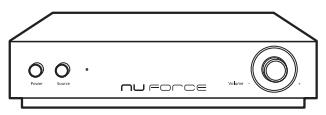
Wireless DAC
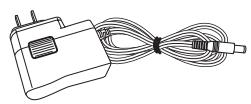
Power Adapter
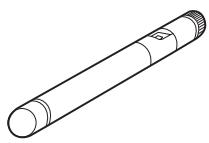
Antenna
Product Overview
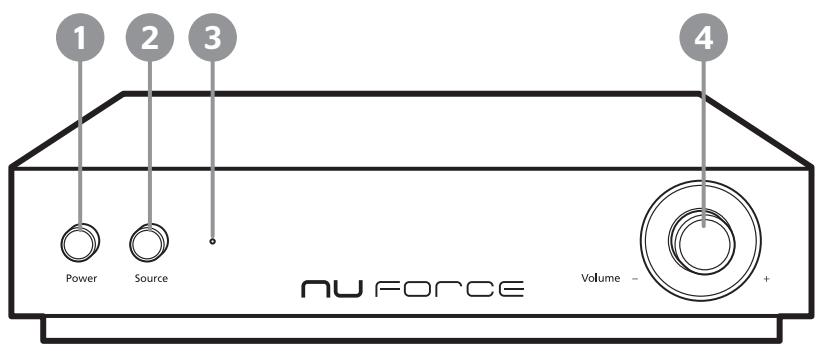
Front View
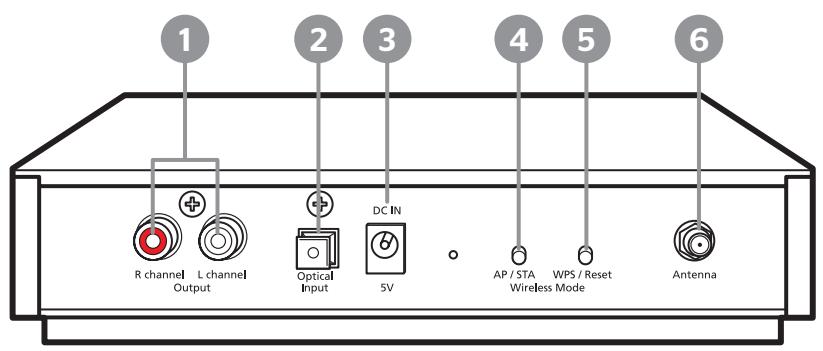
Rear View
- Power button
- Source button
- Power indicator
-
Volume knob (for Optical IN source ONLY)
-
Audio Output connector
- Optical Input connector
- DC IN jack
- AP/STA mode button
- WPS/Reset buton
- Antenna connector
SETTING UP YOUR WIRELESS DAC
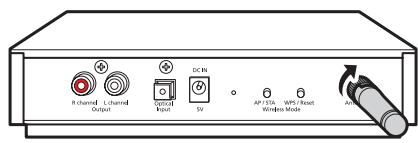
Installing the Antenna
- Fasten the antenna on the back of the device as shown in the illustration below.
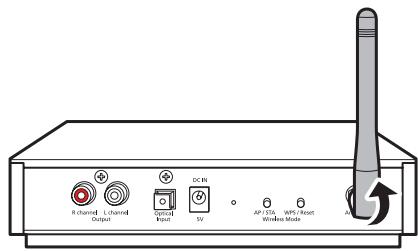
- Adjust the antenna to an upright position.
Connecting the Power Adapter
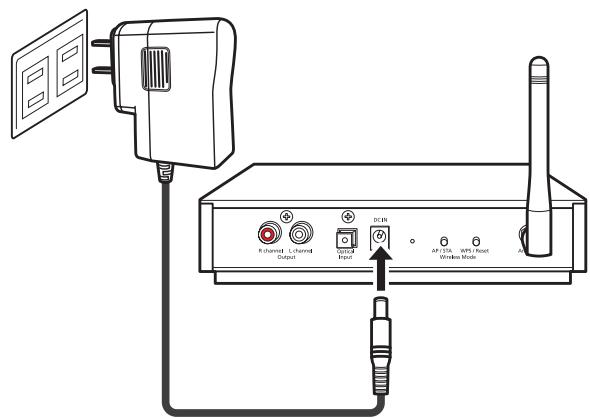
Connect the power adapter to your device, and plug it into an electrical outlet.
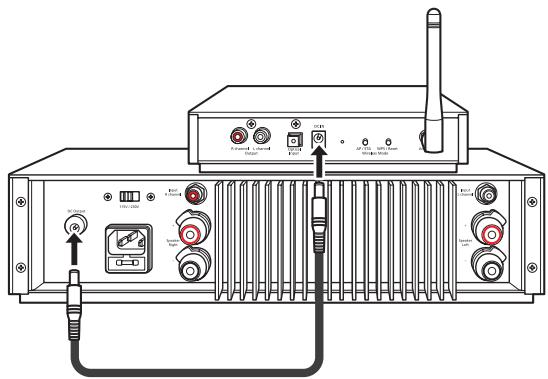
Note: When used with the Optoma NuForce STA200 amplifier, the WDC200 can be powered from the STA200's DC output via the umbilical cord (supplied with the STA200) and thus benefits from the latter's high quality linear power supply design.
Power on Your Wireless DAC
IMPORTANT!
Make sure all cables are properly connected before turning the device on.
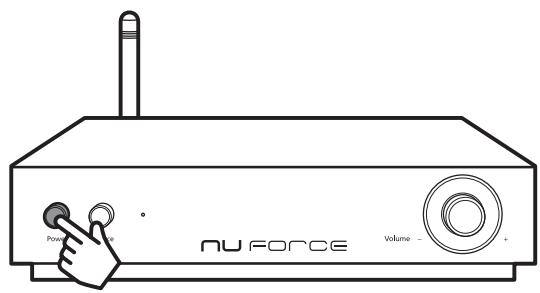
Press the Power button to turn on your DAC.
The Power LED lights up and the system starts warming up for 30 seconds. When you hear a voice announcement “Direct Connection Mode”, this indicates the device is ready to use.
CONFIGURING WIRELESS CONNECTION
The WDC200 Wireless DAC supports three options for wireless connection mode: Direct Connection, Client Mode and WPS to allow you enjoy music simply by connecting wirelessly with your smartphone, tablet, PC, etc.
Moreover, WDC200 is not only works with android and iOS very easily without downloading any APPs but also having convenient function to quick switch Direct connection and Client mode.
Direct Connection (AP mode)
By default, your wireless DAC is set to AP (Access Point) mode. In this mode, you can play your audio/media file wirelessly from your smartphone, tablet, computer or notebook.
IMPORTANT!
Exposure to extremely high sound levels may cause a permanent hearing loss.
Before playing back the media files using your portable device, always set the volume of your portable device to the minimum level (5 or lower).
Note: Use your portable device to adjust the volume when streaming media files wirelessly. The volume knob of the device is only functioning in Optical (SPDIF IN) input source.
- Please download and install an appropriate player into your android device.
- Enable Wi-Fi function on your portable device.
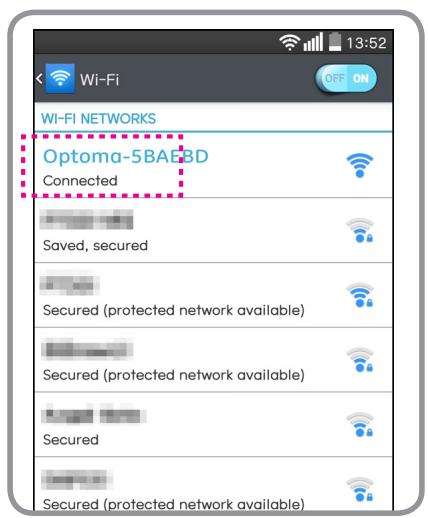
- Tap Optoma-XXXXXX from the list of available networks to connect to the WDC200.
- Open BubbleUPnP application and set the RENDERER setting to Optoma-XXXXXX.
- Select the audio/media file to play.
iOS/MAC
- On your iPhone/iPad, enable the Wi-Fi function.
- Tap Optoma-XXXXX from the list of available networks to connect to the WDC200.
- Swipe up from the bottom of the screen to open Control Center.
- Select Optoma-XXXXX.
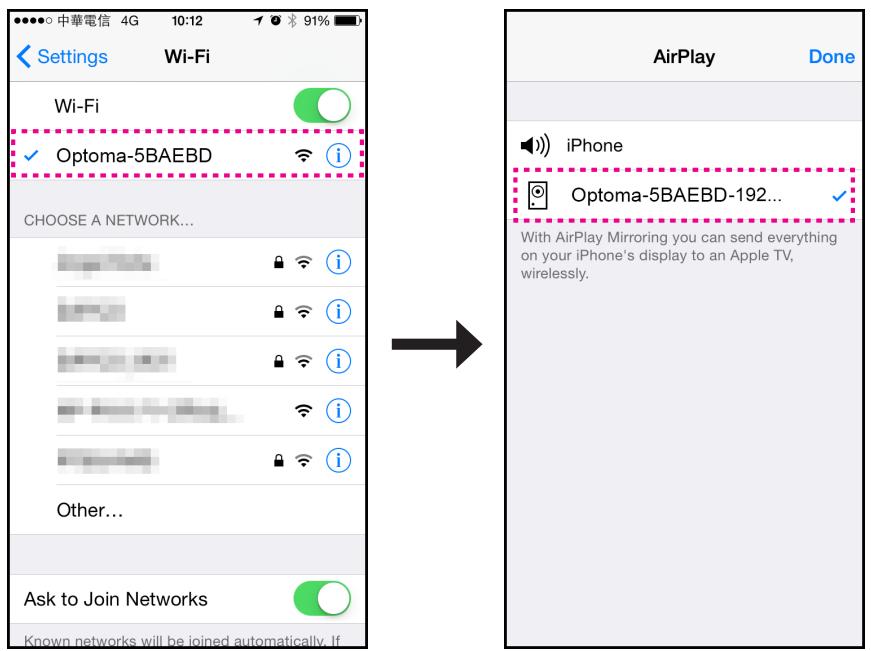
- Select the audio/media file to play.
Windows 7
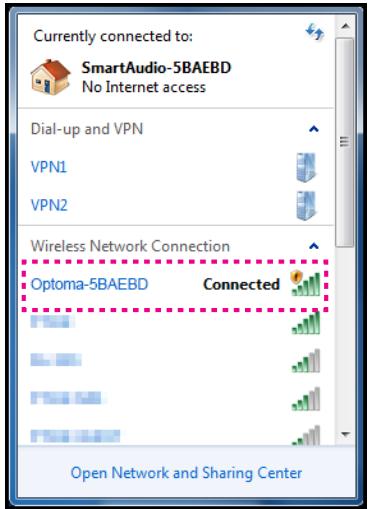
- Click the wireless network icon ( ) on the system tray.
- Click Optoma-XXXXXX from the list of available wireless networks connections. Then click Connect.
Client Mode (STA)
IMPORTANT!
Make sure your portable device and WDC200 are connected via Direct Connection Mode before starting to set up Client Mode (STA) at the first time. Refer to the steps of setting up Direct Connection mode in previous page.
To switch to Client mode, perform the following:
- Open Browser on your portable device.
- On the URL address box, enter the IP address (i.e. 192.168.10.1).

- The Console page appears and tap WIFI setting tab to enter WIFI setting page. Then select the desired network to connect to and tap "+".
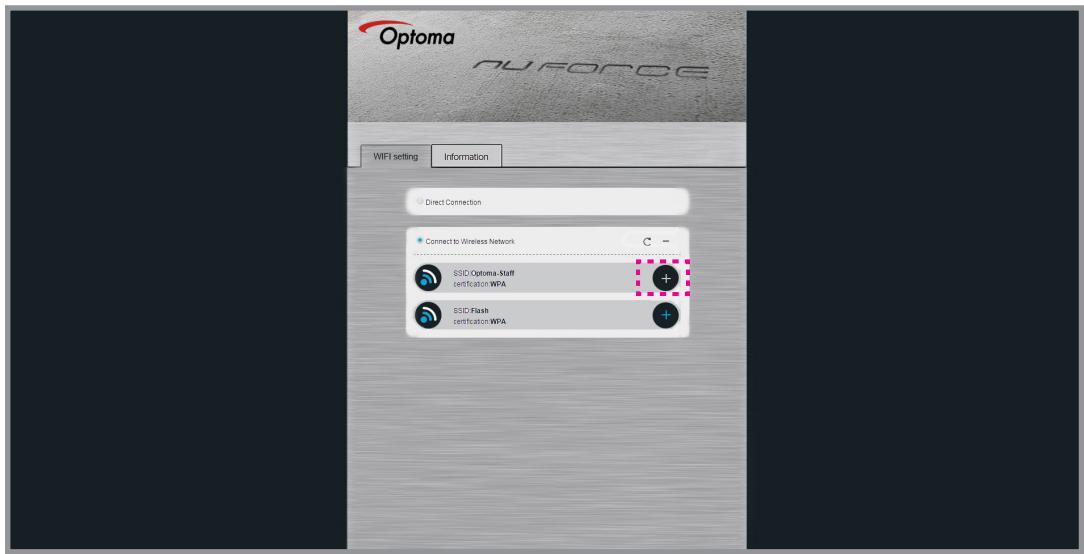
- Enter the password of the network you have selected if necessary.
- Afterward you will hear the voice announcement “Joining Network”. If it successes, the following voice announcement will be heard “Network Connected”.
- Connect to your Home's Wi-Fi network on your portable device.
- The Client Mode configuration is completed.
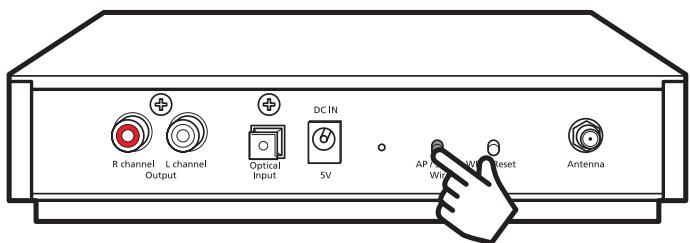
Note: Once completing to set up Client Mode, you would press the AP/STA mode button on the back of the device to switch to Direct Connection mode.
Wi-Fi Protected Setup (WPS)
Connecting via WPS
To connect your DAC with your home's AP (access point) using the WPS function, perform the following:
- Make sure your home's AP (access point) support WPS function. If have, press the WPS button on your home's AP to execute WPS function.
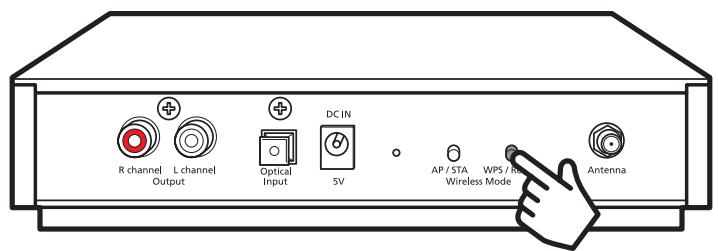
- Press the WPS/Reset button on the back of your WDC200.
IMPORTANT!
For the WPS pairing process, you must activate the WPS function of the WDC200 within 30 seconds after pressing the WPS button in Step 1.
Configuring Other Advanced Settings
To change the on-screen display language or configure other advanced settings, perform the following:
- Enable Wi-Fi function on your portable device.
- Tap Optoma-XXXXXX from the list of available networks to connect to the WDC200.
- Open Browser on your portable device.
-
On the URL address box, enter the IP address (i.e. 192.168.10.1).
-
Tap Information tab.
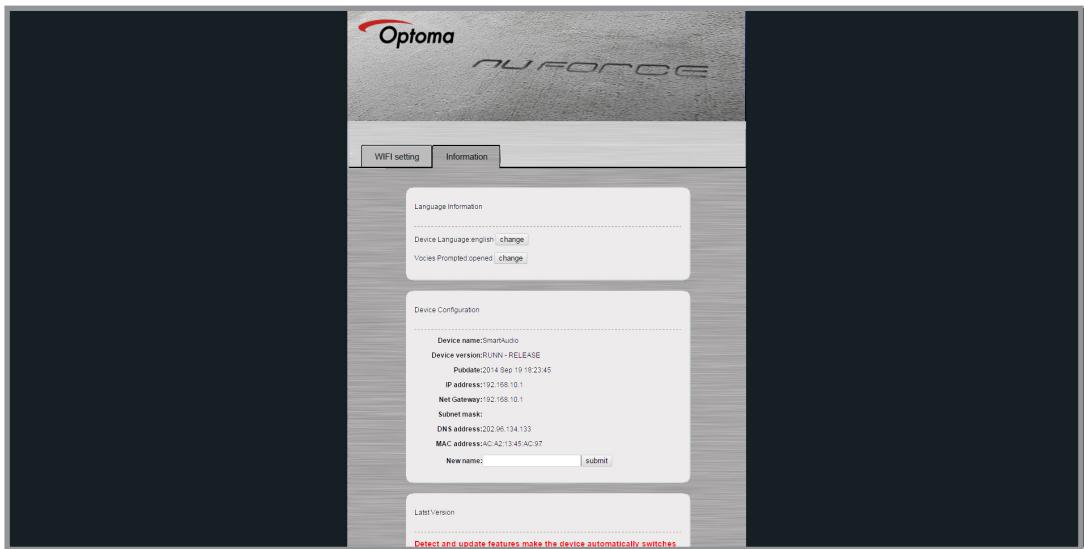
- Select the desired function and change the necessary settings.
CONFIGURING WIRED CONNECTION
Connecting to Optical Input Source
To connect to Optical input source, perform the following:
- Connect the digital source to the optical input connector of the device by using a S/PDIF cable as shown in the illustration.
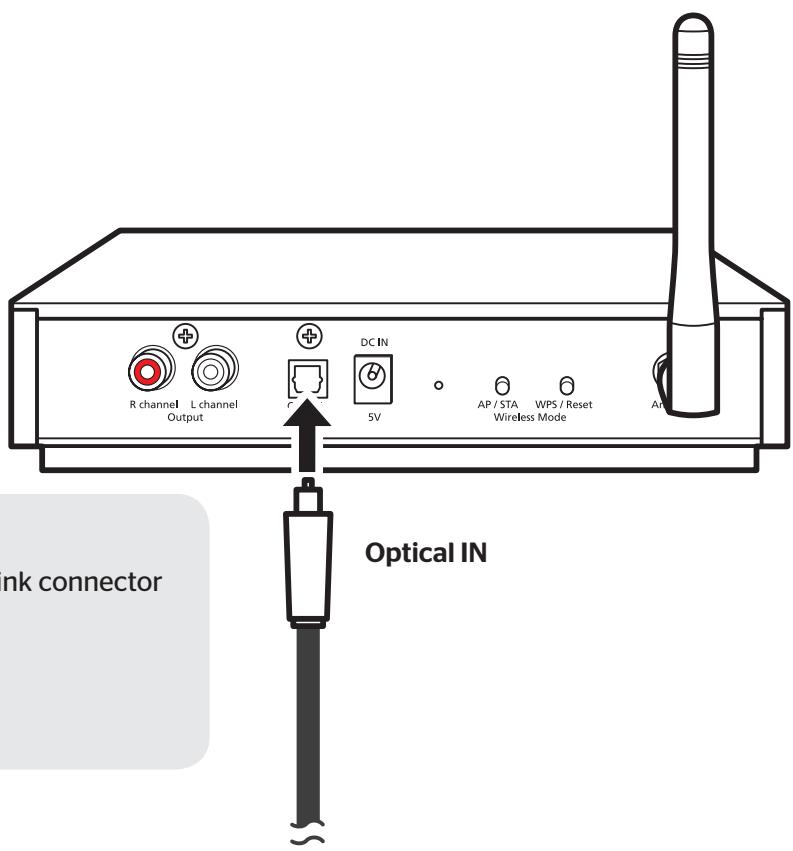
S/PDIF cable type:
• Fiber optical cable with Toslink connector
- Toslink digital cable
• Optical Toslink cable
• Digital optical cable
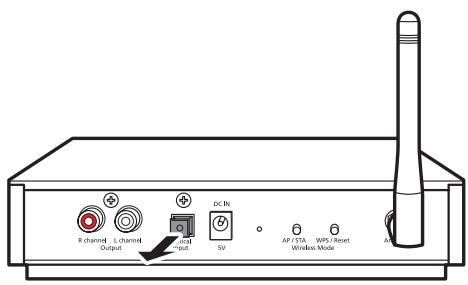
Note: Remove the connector cover of the back of WDC200 before plugging the S/PDIF cable into its connector.
- Press the Source button.
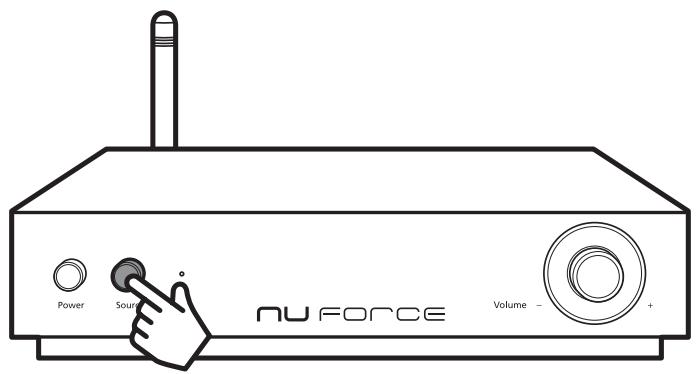
In this mode, you can use the Volume knob to adjust the volume level. By default, the volume level is set to 30% of maximum output.
APPENDIX
Troubleshooting
| Common issues | Possible Solution |
| No audio signal output | Check if the audio cable is properly connected.Check if the wireless connection is available.Unplug the power cable and reconnect it again. Then turn the device on. If the problem persists, contact your dealer or service. |
| Weak wireless signal (shorter receiving distance) | Reduce possible interferences by placing your device away from appliances that generate radio frequency (RF) noise, such as microwave ovens and cordless phones.Make sure the antenna orientation is always at vertical position.Obstructions such as walls and cabinets can affect your wireless connection. Place the device in an open space, away from the interfering objects. |
| No response or cannot find WDC200 by entering “192.168.10.1” | To check the device’s IP address, go to Control Panel > Network and Sharing Center > click the Wireless Network Connection > Details > view IPv4 Default Gateway. |
| The device’s SSID will be invisible in the network list | In Client Mode, the device’s SSID will be invisible in the network list. To switch back to AP mode, select Direct Connection or press the Reset button to reset the device. |
Note: If you have further questions about WDC200 and NuForce products, please visit nuforce.optoma.com or call our local authorized disturbers for technical support.
Specifications
| Dimensions (W x H x D) | 180 x 42 x 215 mm |
| Weight | 1.5 kg |
| DC Power | 5V (450mA) |
| Optical Input | 32-192kHz 24bits |
| Wireless Standards | 802.11 b/g/n |
| Connection Mode | AP/ STA |
| WPS | Supported |
| Analog Output | RCA |
| Output Impedence | 470 ohm |
| Digital Volume control | Rotory |
| S/N | 100dB |
| THD+N | 0.005% |
Optoma
- WDC200
- FCC STATEMENTS
- SAFETY PRECAUTIONS
- TABLE OF CONTENTS
- INTRODUCTION 3
- SETTING UP YOUR WIRELESS DAC ....4
- CONFIGURING WIRELESS CONNECTION....6
- CONFIGURING WIRED CONNECTION ....11
- APPENDIX 13
- INTRODUCTION
- Package Contents
- Product Overview
- SETTING UP YOUR WIRELESS DAC
- Installing the Antenna
- Connecting the Power Adapter
- Power on Your Wireless DAC
- IMPORTANT!
- CONFIGURING WIRELESS CONNECTION
- Direct Connection (AP mode)
- iOS/MAC
- Windows 7
- Client Mode (STA)
- Wi-Fi Protected Setup (WPS)
- Connecting via WPS
- Configuring Other Advanced Settings
- CONFIGURING WIRED CONNECTION
- Connecting to Optical Input Source
- APPENDIX
- Optoma
Značka : OPTOMA
Model : WDC200
Kategorie : Projektor