Star-Light Plus DWC-B6563WTIR - Övervakningskamera Digital Watchdog - Gratis bruksanvisning och manual
Hitta enhetens manual gratis Star-Light Plus DWC-B6563WTIR Digital Watchdog i PDF-format.


Användarfrågor om Star-Light Plus DWC-B6563WTIR Digital Watchdog
0 fråga om denna apparat. Svara på dem du kan eller ställ din egen.
Ställ en ny fråga om denna apparat
Ladda ner instruktionerna för din Övervakningskamera i PDF-format gratis! Hitta din manual Star-Light Plus DWC-B6563WTIR - Digital Watchdog och ta tillbaka ditt elektroniska enhet i hand. På denna sida publiceras alla dokument som behövs för att använda din enhet. Star-Light Plus DWC-B6563WTIR av märket Digital Watchdog.
BRUKSANVISNING Star-Light Plus DWC-B6563WTIR Digital Watchdog
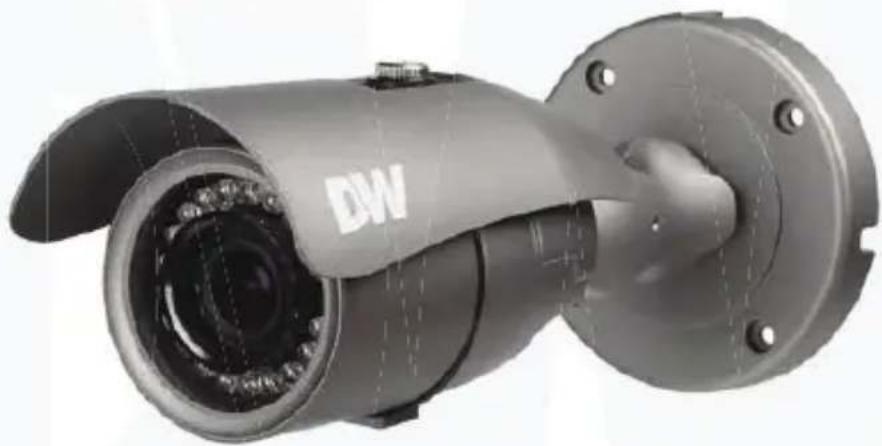
Star-Light Plus™ 5MP Universal HD over Coax® bullet camera
DWC-B6563WT1R
natural_image
Exterior view of a security camera with visible lens and port (no text or symbols)User Manual
Before installing and using the camera, please read this manual carefully. Be sure to keep it handy for future reference.
STAR-LIGHTPLUS™
Color in Darkness Universal HD over Coax® cameras
Contents
INTRODUCTION
03 Safety information
08 Features
09 Product and accessories
10 Parts names
11 Dimensions
INSTALLATION
12 Installation
14 Connecting the camera to monitors
14 Control board
16 Adjusting the camera's angle
OSD MENU
17 Menu tree
19 OSD menu - Exposure
22 OSD menu - Color
23 OSD menu - Day and night
24 OSD menu - Function
25 OSD menu - Motion
27 OSD menu - Privacy
29 OSD menu - Setup
31 OSD menu - Exit
APPENDIX
32 Troubleshooting
33 Product Specifications
35 Limits and exclusions
36 Warranty
Safety Information
CAUTION
RISK OF ELECTRIC SHOCK. DO NOT OPEN
CAUTION:
TO REDUCE THE RISK OF ELECTRIC SHOCK, DO NOT REMOVE COVER (OR BACK) NO USER SERVICEABLE PARTS INSIDE. REFER SERVICING TO QUALIFIED SERVICE PERSONNEL.

This symbol indicates that dangerous voltage consisting a risk of electric shock is present within this unit.

This exclamation point symbol is intended to alert the user to the presence of important operating and maintenance (servicing) instructions in the literature accompanying the appliance
WARNING
To prevent damage which may result in fire or electric shock hazard, do not expose this appliance to rain or moisture.
WARNING
- Be sure to use only the standard adapter that is specified in the specification sheet. Using any other adapter could cause fire, electrical shock, or damage to the product.
- Incorrectly connecting the power supply or replacing battery may cause explosion, fire, electric shock, or damage to the product.
- Do not connect multiple cameras to a single adapter. Exceeding the capacity may cause abnormal heat generation or fire.
- Securely plug the power cord into the power receptacle. Insecure connection may cause fire.
- When installing the camera, fasten it securely and firmly. A falling camera may cause personal injury.
- Do not place conductive objects (e.g. screw drivers, coins, metal things, etc.) or containers filled with water on top of the camera. Doing so may cause personal injury due to fire, electric shock, or falling objects.
Safety Information
-
Do not install the unit in humid, dusty, or sooty locations. Doing so may cause fire or electric shock.
-
If any unusual smells or smoke come from the unit, stop using the product. In such case, immediately disconnect the power source and contact the service center. Continued use in such a condition may cause fire or electric shock.
-
If this product fails to operate normally, contact the nearest service center. Never disassemble or modify this product in any way.
-
When cleaning, do not spray water directly onto parts of the product. Doing so may cause fire or electric shock.
PRECAUTION
Operating
- Before using, make sure power supply and all other parts are properly connected. - While operating, if any abnormal condition or malfunction is observed, stop using the camera immediately and contact your dealer.
Handling
- Do not disassemble or tamper with parts inside the camera. - Do not drop the camera or subject it to shock or vibration as this can damage the camera. - Clean the clear Lens cover with extra care. Scratches and dust can ruin the quality of the camera image.
Installation and Storage
- Do not install the camera in areas of extreme temperature, exceeding the allowed range.
- Avoid installing in humid or dusty environments.
- Avoid installing in places where radiation is present.
- Avoid installing in places where there are strong magnetic fields and electric signals.
- Avoid installing in places where the camera would be subject to strong vibrations.
- Never expose the camera to rain or water.
Important Safety Instructions
- Read these instructions.
- All these safety and operating instructions should be read before the product is installed or operated.
- Keep these instructions.
- The safety, operating and use instructions should be retained for future reference.
- Heed all warnings.
- All warnings on the product and in the operating instructions should be adhered to.
- Follow all instructions.
- All operating and use instructions should be followed.
- Do not use this device near water.
- For example: near a bath tub, wash bowl, kitchen sink, laundry tub, in a wet basement, near a swimming pool, etc.
- Clean only with dry cloth.
- Unplug this product from the wall outlet before cleaning. Do not use liquid cleaners.
- Do not block any ventilation openings. Install in accordance with the manufacturer's instructions.
- Slots and openings in the cabinet are provided for ventilation, to ensure reliable operation of the product, and to protect it from over-heating. The openings should never be blocked by placing the product on bed, sofa, rug or other similar surface. This product should not be placed in a built-in installation such as a bookcase or rack unless proper ventilation is provided and the manufacturer's instructions have been adhere to.
-
Do not install near any heat sources such as radiators, heat registers, or other apparatus (including amplifiers) that produce heat.
-
Do not defeat the safety purpose of the polarized or grounding-type plug. A polarized plug has two blades with one wider than the other. A grounding type plug has two blades and a third grounding prong. The wide blade or the third prong are provided for your safety. If the provided plug does not fit into your outlet, consult an electrician for replacement of the obsolete outlet.
-
Protect the power cord from being walked on or pinched particularly at plugs, convenience receptacles, and the point where they exit from the apparatus.
Important Safety Instructions
- Only use attachments/accessories specified by the manufacturer.
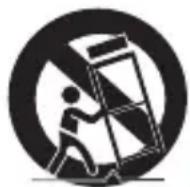
- Use only with cart, stand, tripod, bracket, or table specified by the manufacturer, or sold with the apparatus.
When a cart is used, use caution when moving the cart / apparatus combination to avoid injury from tip-over.
- Unplug this apparatus during lightning storms or when unused for long periods of time.
- Refer all servicing to qualified service personnel. Servicing is required when the apparatus has been damaged in any way, such as power supply cord or plug is damaged, liquid has been spilled or objects have fallen into the apparatus, the apparatus has been exposed to rain or moisture, does not operate normally, or has been dropped.
Disposal of Old Appliances
natural_image
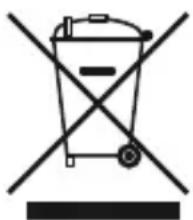
Symbol of a trash bin crossed with diagonal lines, no text or numbers present- When this crossed-out wheel bin symbol is attached to a product it means the product is covered by the European Directive 2002/96/EC.
- All electrical and electronic products should be disposed of separately form the municipal waste stream in accordance to laws designated by the government or the local authorities.
- The correct disposal of your old appliance will help prevent potential negative consequences for the environment and human health.
- For more detailed information about disposal of your old appliance, please contact your city office, waste disposal service or the shop where you purchased the product.
FCC
This equipment has been tested and found to comply with the limits for a Class A digital device, pursuant to part 15 of the FCC Rules.
These limits are designed to provide reasonable protection against harmful interference when the equipment is operated in a commercial environment.
This equipment generates, uses, and can radiate radio frequency energy and, if not installed and used in accordance with the instruction manual, may cause harmful interference to radio communications.
Operation of this equipment in a residential area is likely to cause harmful interference in which case the user will be required to correct the interference at his own expense.
Features
■ Universal HD over Coax® technology with HD-Analog, HD-TVI, HD-CVI and all analog to 960H signal support
■ Star-Light Plus™ color in darkness technology
■ 1/2.8" image sensor
■ 5MP at 20fps, 4MP at real-time 30fps
■ 2.7\~13.5mm vari-focal p-iris lens
■ True wide dynamic range (WDR)
■ OSD control via coaxial (UTC)
■ 100' Smart IR™ with intelligent camera sync
■ Smart DNR™ 3D digital noise reduction
■ True day/night mechanical IR cut filter
■ De-Fog™ extreme weather image compensation Auto
■ sensing 24VAC/12VDC with line lock
■ Easy icon driven OSD menu with built-in joystick
■ Programmable privacy zones
■ Auto gain control (AGC)
■ Backlight compensation (BLC)
■ Auto white balance (AWB)
■ 1 alarm output
■ IP66 environmental-rated dust-tight and water-resistant
■ 5 year warranty
Product and Accessories
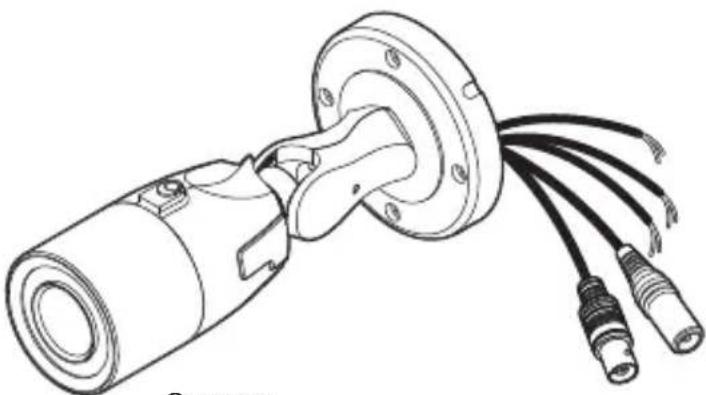
Please check if all the camera and accessories are included in the package.
natural_image
Technical line drawing of a mechanical component with multiple wires attached (no text or symbols)Camera
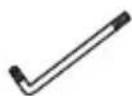
Torque wrench
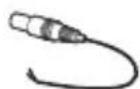
DC plug cable
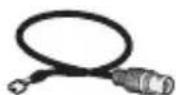
Test video cable
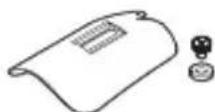
Sunshield cover and
adjusting screw
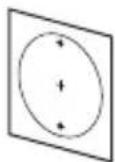
Mounting template
Quick Setup
Guide
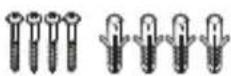
Screw and plastic anchors -4pcs
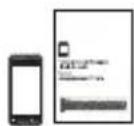
Moisture absorber and
absorber guide
NOTE : The test video cable should be used to test the camera by connecting to a portable display.
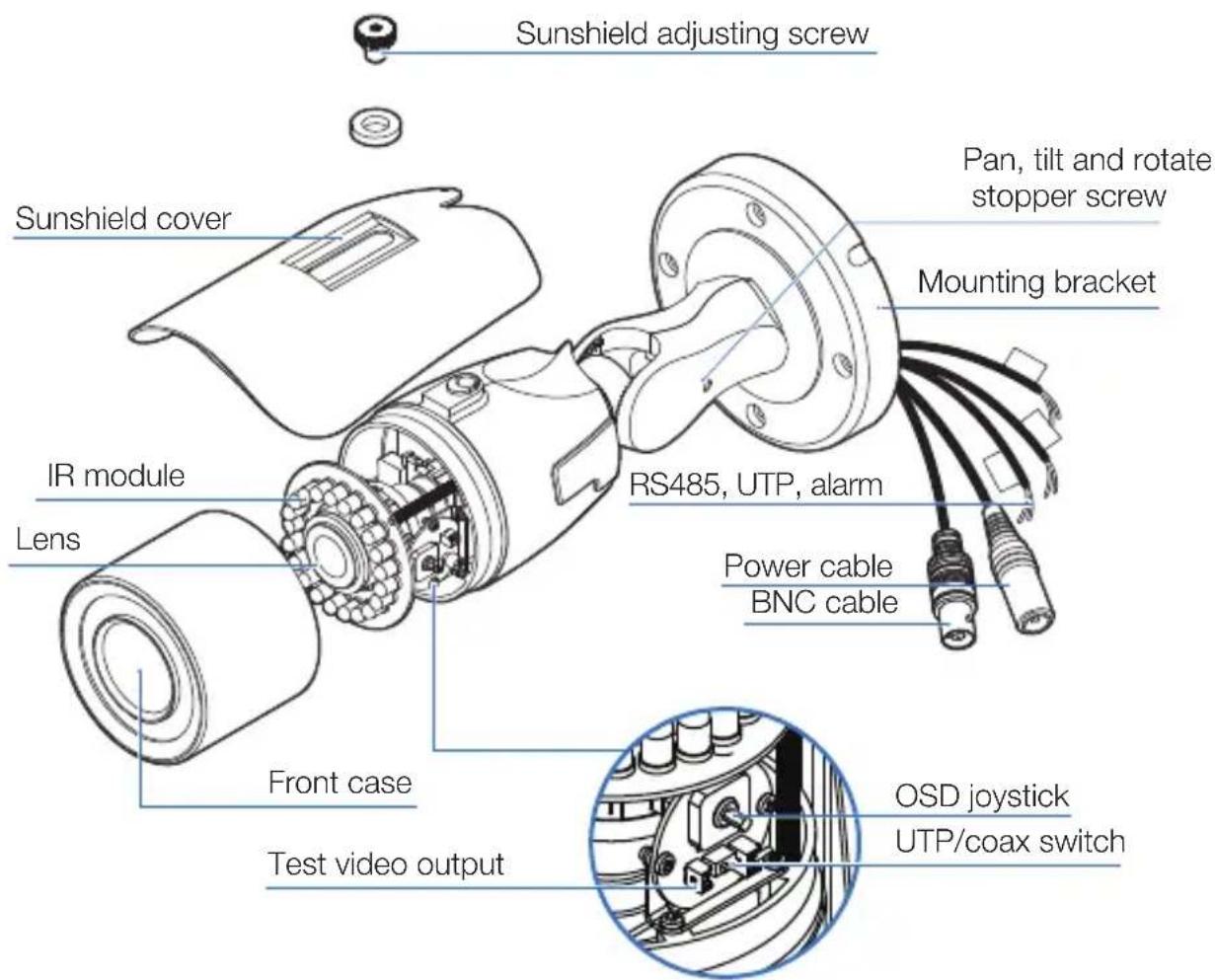
Parts Names
RS 485 BK D+ WH D-
UTP BLUE + WHITE -
ALARM
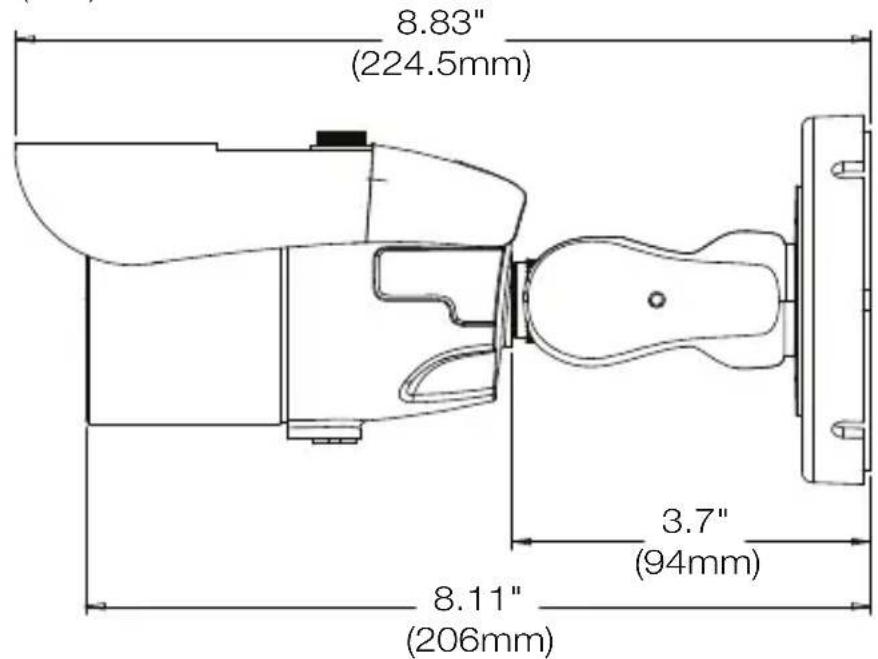
Dimension
Unit: inches (mm)
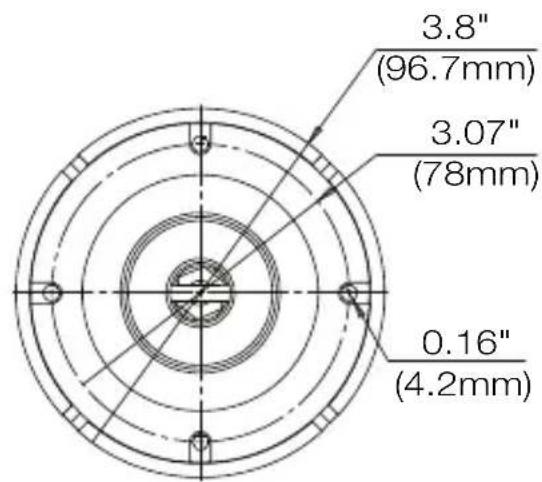
Installation - Disassemble the camera
Before installing your camera, read the following cautions.
- The mounting surface must withstand five times the camera weight.
- Do not let the cables get caught in improper places or the electric line cover can be damaged. This may cause a short or fire.
- When installing your camera, do not allow any person to approach the installation site. If you have any valuable things under the place, move them away.
Adjusting the camera's zoom and focus
- Remove the front cover by turning it counter-clockwise.
- Unlock the zoom and focus levers by rotating them counter-clockwise.
- Adjust the zoom and focus by moving the lever. Please refer to the diagram below.
- After adjustment, tighten the zoom or focus levers back into lock position.
- Close and tighten the front cover.
- If needed, readjust the camera's sunshield.
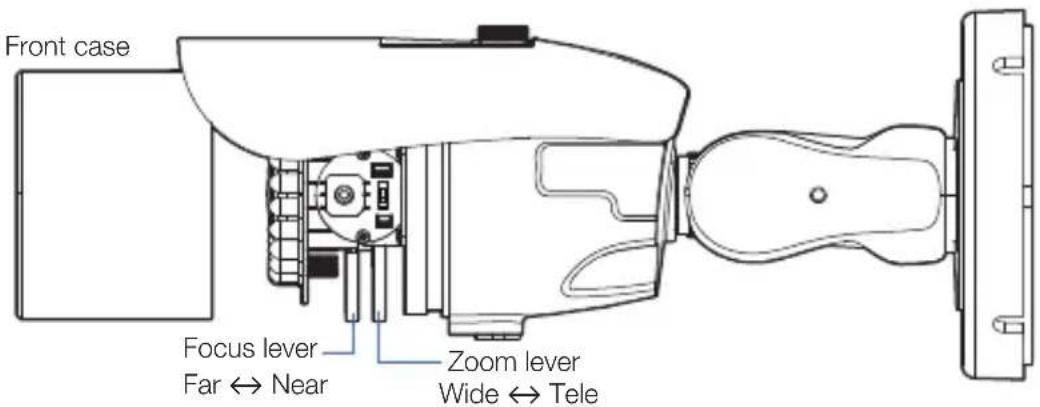
NOTE : If the front cover is cross threaded or not correctly tightened, the camera housing will not be weatherproof.
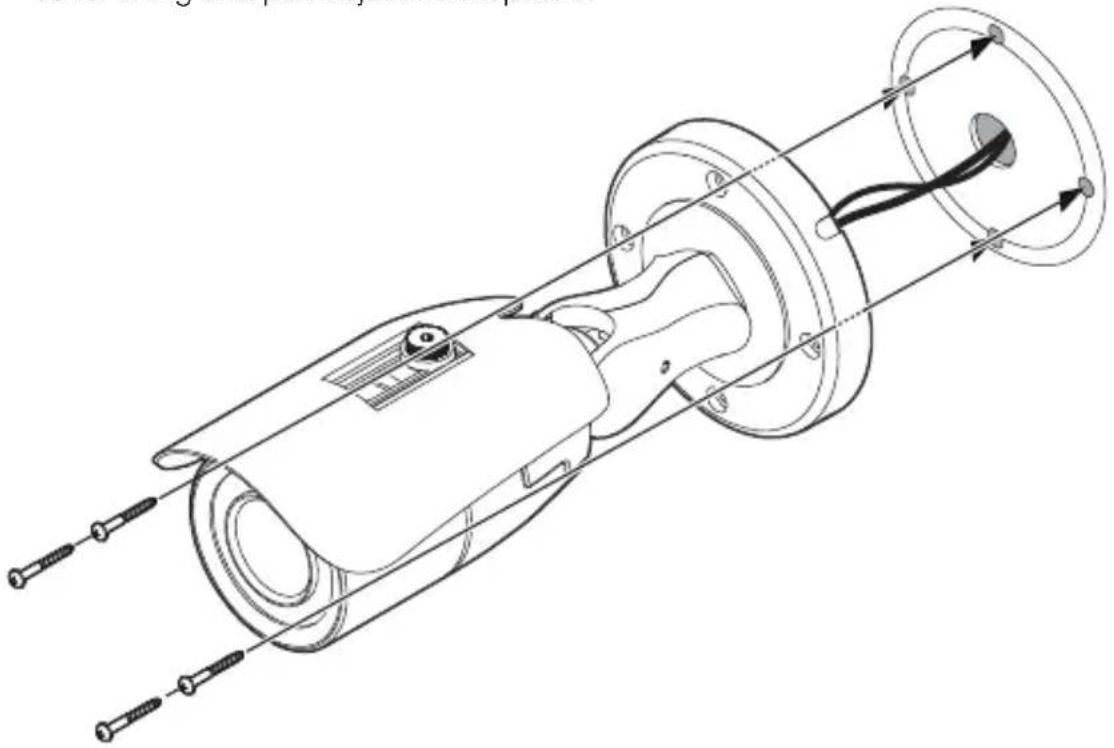
Installation - Instructions
Using the mounting template or your camera, mark and drill the necessary holes to mount the bracket to a wall or ceiling.
2 Pull a necessary wires through and make the proper connections. See pages 14-15.
3 Use the four mounting screws to install the camera on the wall or ceiling. See page 16 for tilting and pan adjustment options.
natural_image
Technical line drawing of a mechanical assembly with no visible text or symbolsNOTE: Electrical junction box and required screws sold separately.
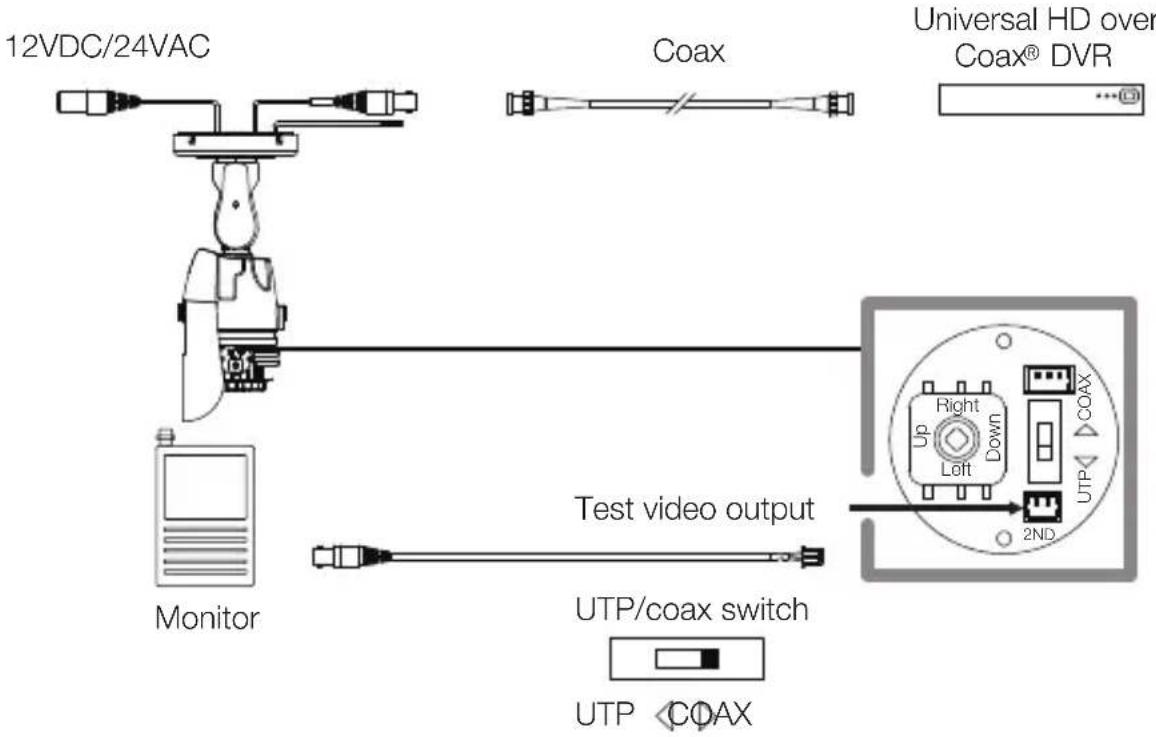
Connecting to Monitors (Coax)
Use the diagram below to connect the camera to a Universal HD over Coax® DVR or CRT monitor when the camera is in Coax video output mode (default mode).
flowchart
graph TD
    A["12VDC/24VAC"] --> B["Monitor"]
    C["Coax"] --> D["Universal HD over Coax® DVR"]
    B --> E["Test video output"]
    E --> F["UTP/coax switch"]
    F --> G["UTP < COAX"]
- Power connection - 12VDC/24VAC dual voltage (auto polarity detection and protection)
- All cameras are equipped with a test video output for on-site configuration.
NOTE: When switching the UTP/Coax switch to Coax, no image output will be available when using UTP.
Connecting to Monitors (UTP)
Use the diagram below to connect the camera to a Universal HD over Coax® DVR or CRT monitor when the camera is in UTP video output mode
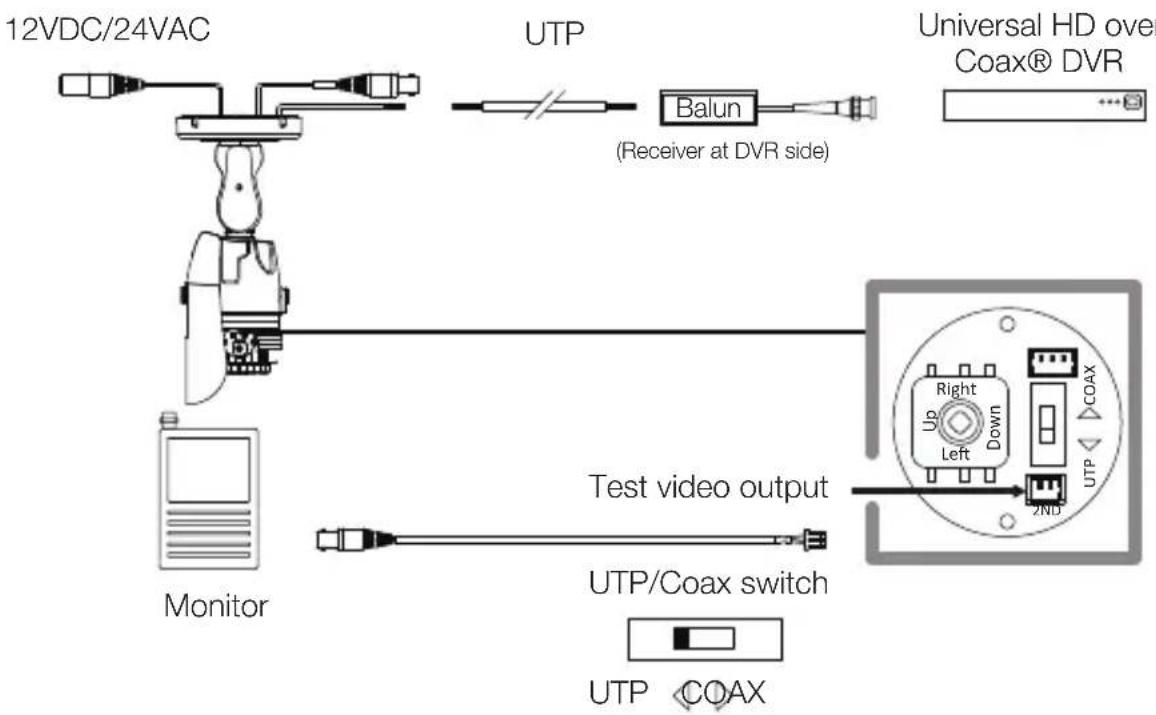
flowchart
graph TD
    A["12VDC/24VAC"] --> B["Monitor"]
    B --> C["UTP"]
    C --> D["Balun (Receiver at DVR side)"]
    D --> E["Universal HD over Coax® DVR"]
    B --> F["Test video output"]
    F --> G["UTP/Coax switch"]
    G --> H["UTP COAX"]
- Power connection - 12VDC/24VAC dual voltage
(Auto polarity detection and protection)
- All cameras are equipped with a test video output for on-site configuration.
NOTE: When switching the UTP/Coax switch to UTP, no image output will be available when using Coax.
Adjusting the Camera angle
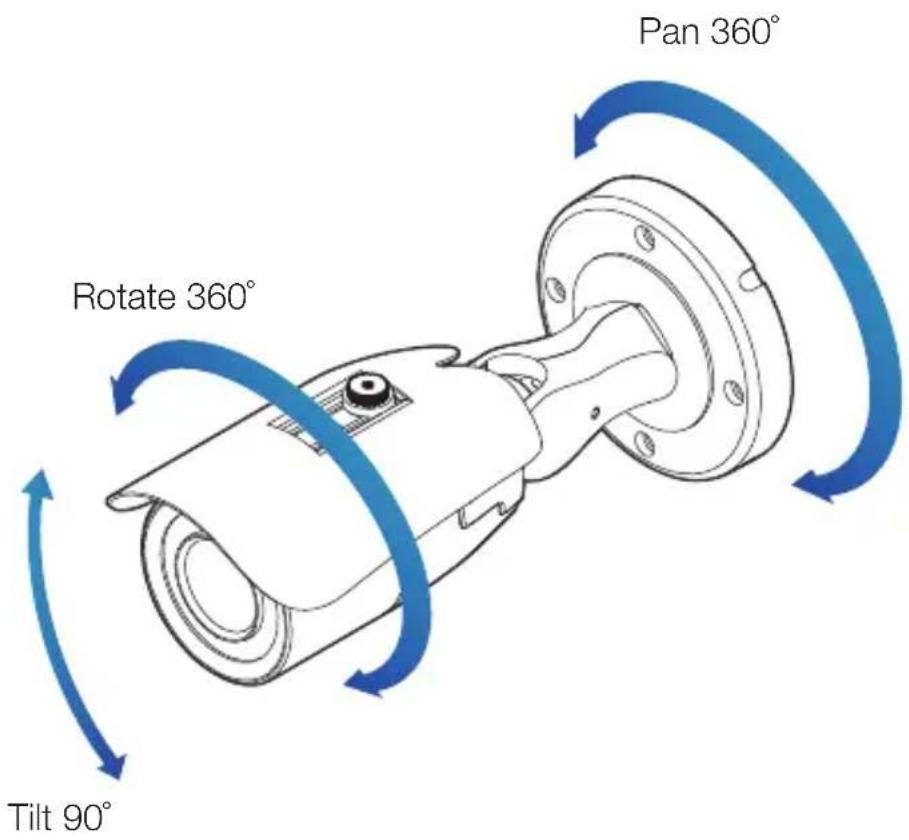
Warning:
- Do not rotate more than 360°
- Do not twist the camera's bracket too many times.
OSD Menu Tree

EXPOSURE
| LENS | MANUAL / AUTO |
| EDGE DET | OFF / ON |
| BRIGHTNESS | 0 ~ 20 |
| SHUTTER | AUTO / MANUAL / FLICKER |
| BACK-LIGHT | OFF / HME / BLC / WDR |
| STAR-LIGHT | OFF / x2 ~ x32 |
| AGC | 0 ~ 10 |
| 3D DNR | OFF / LOW / MIDDLE / HIGH |
| RETURN |

COLOR
| WHITE BAL. | AUTO / AUTOext / PRESET / MANUAL |
| COLOR GAIN 0 ~ 20 |
| RETURN |

DAY & NIGHT (IR OPTION)
| MODE | AUTO / COLOR / B&W |
| IR LED | ON / OFF |
| SMART IR | 0 ~20 |
| D>N THRES | 0~ 20 |
| N>D THRES | 0 ~ 20 |
| DELAY | LOW / MIDDLE / HIGH |
| RETURN |

FUNCTION
| SHARPNESS 0 ~ 10 | |
| GAMMA | 0.45 ~ 0.75 |
| MIRROR | OFF / ON |
| FLIP | OFF / ON |
| D-ZOOM | X1.0 ~ X16.0 |
| DRC | OFF / ON |
| DEFOG | OFF / ON |
| RETURN | |
OSD Menu Tree

MOTION
| DET WINDOWS | |
| SENSITIVITY | 0 ~ 10 |
| MOTION OSD | OFF / ON |
| TEXT ALARM | OFF / ON |
| SIGNAL OUT | OFF / ON |
| RETURN | |

PRIVACY
| BOX | OFF / ON |
| POLYGON | OFF / ON |
| RETURN |

SETUP
| COMM. | CAM ID / BAUDRATE / CONFIRM |
| OUTPUT | FRAME RATE / FREQ /ANALOG MODE / CONFIRM |
| LANGUAGE | ENG / CHN / CHN(S) / JPN / KOR |
| CAM TITLE | RIGHT UP / LEFT DOWN |
| RESET | OFF / ON |
| RETURN |

EXIT
| SAVE & EXIT |
| EXIT |
| RETURN |
OSD Menu\_Exposure
1 Lens
Manual: Manual mode supports the fixed board lens or the manual iris lens.
Auto: AUTO mode sets the camera's iris automatically.
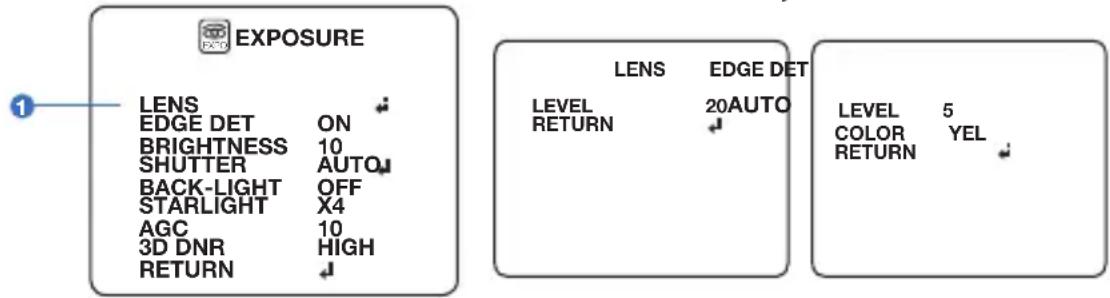
Under the lens sub-menu, you can adjust the following settings:
Level
Change the camera's iris value manually. If auto is selected, this option is disabled.
Edge DET
Adjust the camera's focus according to the camera's view.
- Level: Set the focus range.
- Color: Set the color to be displayed in the focus range from: yellow, cyan, green, magenta, red, blue, black or white.
Brightness
0 \~ 20: The higher the number, the brighter the image will appear.
Shutter
Set the shutter speed to auto, manual or flicker mode.
- Auto: If selected, adjust the following options :
- Normal: Set when the camera is installed in an indoor environment.
- De-blur: Set when the camera is installed in an outdoor environment.
- Flicker: Select when the camera is experiencing flickering in the image. The shutter speed will be set automatically to 1/100.
- Manual: If selected, set the shutter speed from the options: 1/30 \~ 1/30000.
OSD Menu\_Exposure (cont.)
3 Back-light
Off
HME (highlight masking exposure)
HME allows objects to appear clearly on the screen by masking extremely bright areas.
To setup HME, set the level and color of the HME mask. The lower the number, the darker the areas have to be in order to be masked. Select from: 0 \~ 20.
Color: Set the color of the HME masks. Select from: black, white, yellow, cyan, green, magenta, red and blue.
BLC (back-light compensation)
If BLC is selected, adjust the size and position of the BLC mask:
- H-POS: Move the mask's position left or right. The higher the number, the mask will move to the right.
- V-POS: Move the mask's position up or down. The higher the number, the mask will move down.
- H-Size: Adjust the mask's width. The higher the number, the right side panel of the mask will move further to the right.
- V-Size: Adjust the mask's height. The higher the number, the bottom side panel of the mask will move further down.
WDR (Wide Dynamic Range)
If WDR is selected, adjust the WDR level (weight) in the sub-menu. Select from low, middle, or high (default).
- WDR mode: Line (sensor WDR), frame (double scan WDR)
- ROI mode: Enable WDR only in a set interest area.
- Weight: Available only in when normal mode is selected.
ROI (region of interest)
For a more efficient WDR distribution across the scene, you can setup up to 4 WDR regions.


EXPOSURE
| LENS | AUTO |
| 2-MOTOR | |
| BRIGHTNESS | 10 |
| SHUTTER | AUTO: |
| BACK-LIGHT | OFF |
| STARLIGHT | X4 |
| AGC | 10 |
| 3D DNR | HIGH |
| RETURN |
BACK-LIGHT
| LEVEL | 10 |
| COLOR | BLK |
| RETURN |
BACK-LIGHT
| H-POS | 11 |
| V-POS | 10 |
| H-SIZE | 3 |
| V-SIZE | 3 |
| RETURN |
BACK-LIGHT
| WDR MODE | FRAME |
| ROI MODE | OFF |
| WEIGHT | HIGH |
| RETURN |
OSD Menu\_Exposure (cont.)
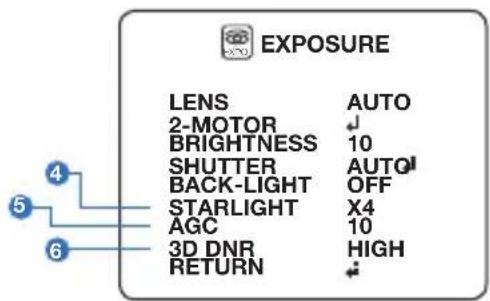
4 Star-Light™
Off / x2 \~ x32 (default : x4) - Automatically activate the camera's slow shutter when the image is too dark. High values are not recommended as they may causes the image to lag and increase digital noise. The Star-Light™ menu cannot be controlled if the shutter settings are above 1/30.
⑤ AGC (auto gain control)
0\~10 - AGC enhances the picture brightness in low light conditions. A higher level AGC will make the image brighter. This could also increase the amount of digital noise in the image.
6 3D DNR (3D digital noise reduction)
Off, low, middle, high - 3D-DNR reduces digital noise on the camera's view in low light conditions and allows for clearer images, even at night.
OSD Menu\_Color
WB mode

COLOR
WHITE BAL. AUTO COLOR GAIN 10 RETURN
WHITE BAL.
C-TEMP 5000K R-GAIN 10 B-GAIN 10 RETURN
Auto Compensates for color temperature changes between 2400K° and 12000K°.
AUTOext Compensates for color temperature changes under 2400K° and over 12000K°.
Preset Automatically set the white balance based on the current lighting conditions.
Manual Manually set the white balance by changing red gain and blue gain.
C-Temp: Select the color temperature for the white balance setup. If enabled, the red and blue gain settings will be set automatically according to the C-TEMP selected.
Red gain: 0 \~ 20. Adjusts the amount of red in the image.
Blue gain: 0 \~ 20. Adjust the amount of blue in the image.
Color gain Set the color gain from 0\~20.
OSD Menu\_Day & Night
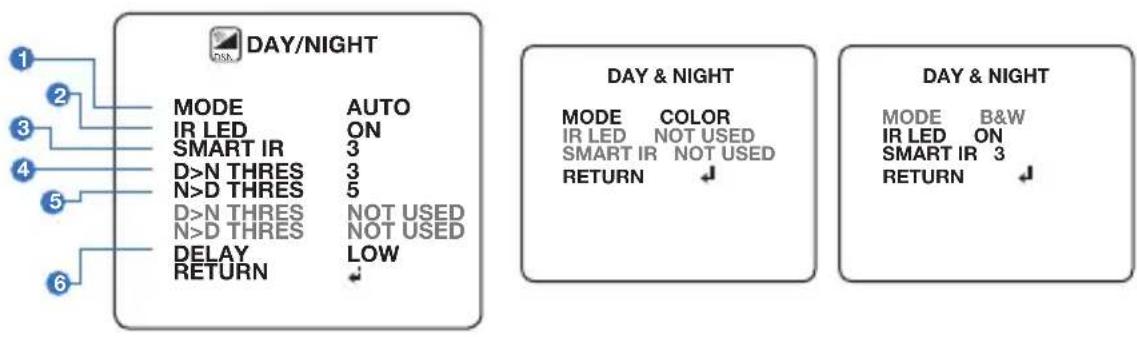
flowchart
graph TD
    A["DAY/NIGHT"] --> B["MODE"]
    A --> C["IR LED"]
    A --> D["SMART IR"]
    A --> E["D>N THRES"]
    A --> F["N>D THRES"]
    A --> G["D>N THRES NOT USED"]
    A --> H["N>D THRES NOT USED"]
    A --> I["DELAY"]
    A --> J["RETURN LOW"]

    K["DAY & NIGHT"] --> L["MODE"]
    K --> M["IR LED"]
    K --> N["SMART IR"]
    K --> O["NOT USED"]
    K --> P["RETURN ↓"]

    Q["DAY & NIGHT"] --> R["MODE"]
    Q --> S["IR LED"]
    Q --> T["SMART IR"]
    Q --> U["NOT USED"]
    Q --> V["RETURN ↓"]
1 Mode
Auto: The camera will switch between day and night modes according to the CDS levels.
Color: The camera will remain in color/day mode.
B&W: The camera will remain in B/W/night mode.
2 IR LED
On, off: Enable or disable the IR LEDs in the camera.
3 Smart IR™
Setting the level for the Smart IR ^TM function.
4 D>N THRES
Adjust the time settings when the camera will switch from color to BW mode.
5 N>D THRES
Adjust the time settings when the camera will switch from BW to color mode.
6 Delay
Set a delay for when the camera switches between day and night modes.
OSD Menu\_Function
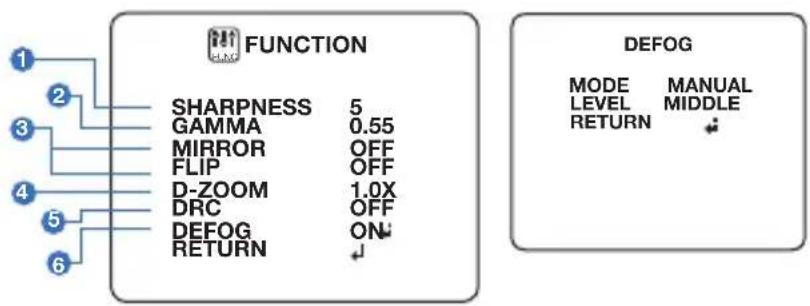
flowchart
graph TD
    A["1"] --> B["2"]
    C["3"] --> D["4"]
    E["5"] --> F["6"]
    B --> G["FUNCTION"]
    D --> G
    G --> H["SHARPNESS 5"]
    G --> I["GAMMA 0.55"]
    G --> J["MIRROR OFF"]
    G --> K["FLIP OFF"]
    G --> L["D-ZOOM 1.0X"]
    G --> M["DRC OFF"]
    G --> N["DEFOG ON↓"]
    G --> O["RETURN ↓"]
    P["DEFOG"] --> Q["MODE MANUAL LEVEL MIDDLE RETURN"]
1 Sharpness
0 \~ 10: Set the image's sharpness. The higher the number, the sharper the image.
2 Gamma
0.45 \~ 0.75: Select the desired gamma level. 0.55 is the default setting.
3 Mirror, flip
Off
Mirror: Reflects the camera horizontally.
Flip: Reflects the camera vertically.
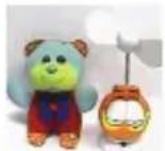
Mirror and flip
Off
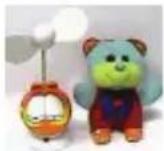
Mirror On
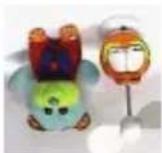
Flip On
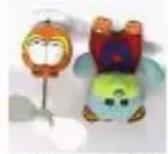
Mirror and flip
On
4 D-Zoom
1.0x \~ 16.0x: Sets the digital zoom.
⑤ DRC (digital image stabilizer)
Low, middle, high: Set the DRC levels.
6 DEFOG
Off, on: Set the De-fog levels.
OSD Menu\_Motion
The camera can detect movement and display an alarm on the screen when movement is detected.
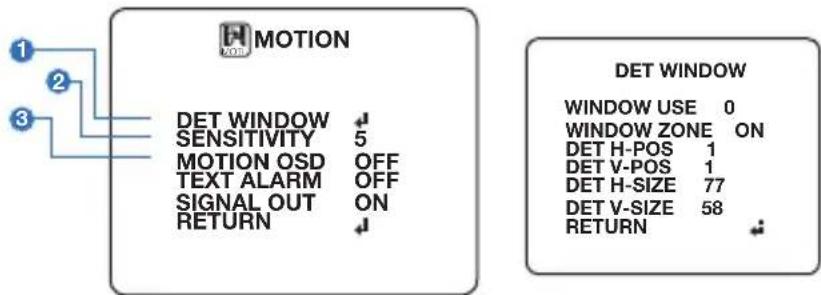
1 DET window
- Window use: Select which one of the motion areas to enable.
-
Window zone: The camera supports up to 4 different masks. Select which ones to display.
-
DET H-POS: Move the zone's position left or right. The higher the number, the zone will move to the right.
- DET V-POS: Move the zone's position up or down. The higher the number, the zone will move down.
- DET H-Size: Adjust the zone's width. The higher the number, the right side panel of the zone will move further to the right.
- DET V-Size: Adjust the zone's height. The higher the number, the bottom side panel of the zone will move further down.
2 Sensitivity
The smaller the movement you want to detect, the higher the sensitivity value must be.
3 Motion OSD
Enable or disable showing the motion detection on the camera's OSD.
OSD Menu\_Motion (cont.)
The camera can detect movement and display an alarm on the screen when movement is detected.
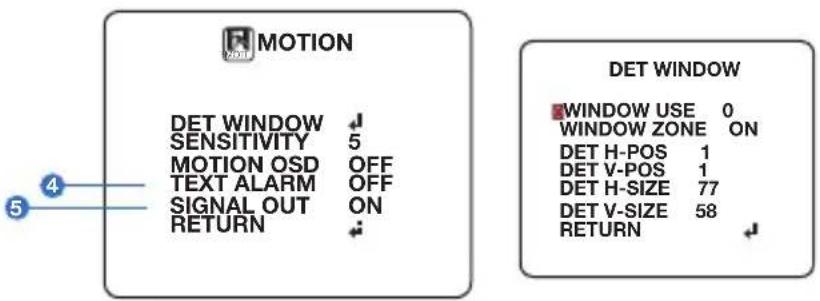
4 Text alarm
Setup a text to appear on the screen when motion is detected.
- Window motion: Will appear when a motion alarm is detected in the set motion window.
- Camera moving: Will appear if the camera is shaken abruptly.
- Bright change: Will appear if the camera detects sudden changes in brightness.
5 Signal out (off, on)
- Off: Signal output is disable regardless of motion detection.
- On: Signal output will be activated when motion is detection in the motion window.
OSD Menu\_Privacy
You can hide some parts of the camera's view to protect privacy and sensitive data. A total of 24 privacy masking zones are available, including 16 square zones and 8 polygon shaped zones.
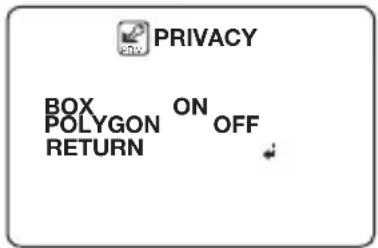
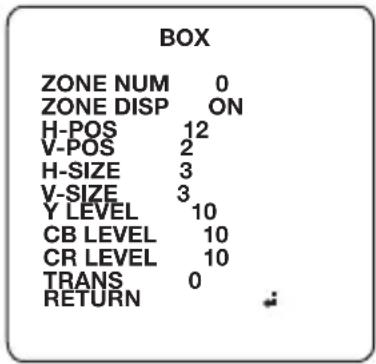
1 Box
- Zone num: Select the zone number between 0\~15.
- Zone disp: Select to show or hide the selected zone.
- H-POS: Move the zone's position left or right. The higher the number, the zone will move to the right.
- V-POS: Move the zone's position up or down. The higher the number, the zone will move down.
- H-Size: Adjust the zone's width. The higher the number, the right side panel of the zone will move further to the right.
- V-Size: Adjust the zone's height. The higher the number, the bottom side panel of the zone will move further down.
- Y level: The higher the number, the brighter the color of the zone will appear.
- CR level: The higher the number, the more red tone will be added to the zone's color. The lower the number, the more green will be added to the zone's color.
- CB level: The higher the number, the more red tone will be added to the zone's color. The lower the number, the more red will be added to the zone's color.
- Trans: Set the mask's transparency level from 0\~3. The default value is 0.
OSD Menu\_Privacy (cont.)
You can hide some parts of the camera's view to protect privacy and sensitive data. A total of 24 privacy masking zones are available, including 16 square zones and 8 polygon shaped zones.
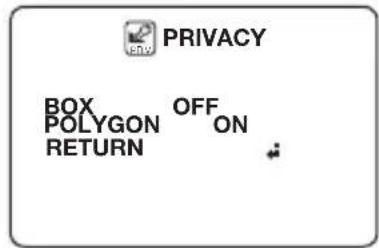
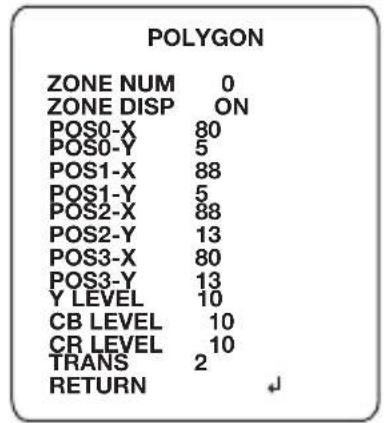
1 Polygon
- Zone num: Select the zone number between 0\~7.
- Zone disp: Select to show or hide the selected zone.
- POS0-X: Move the zone's upper left angle left and right.
- POS0-Y: Move the zone's upper left angle up and down.
- POS1-X: Move the zone's upper right angle left and right.
- POS1-Y: Move the zone's upper right angle up and down.
- POS2-X: Move the zone's lower right angle left and right.
- POS2-Y: Move the zone's lower right angle up and down.
- POS3-X: Move the zone's lower left angle left and right.
- POS3-Y: Move the zone's lower left angle up and down.
- Y level: The higher the number, the brighter the color of the zone will appear.
- CR level: The higher the number, the more red tone will be added to the zone's color. The lower the number, the more green will be added to the zone's color.
- CB level: The higher the number, the more red tone will be added to the zone's color. The lower the number, the more red will be added to the zone's color.
- Trans: Set the mask's transparency level from 0\~3. The default value is 2.
OSD Menu\_Setup
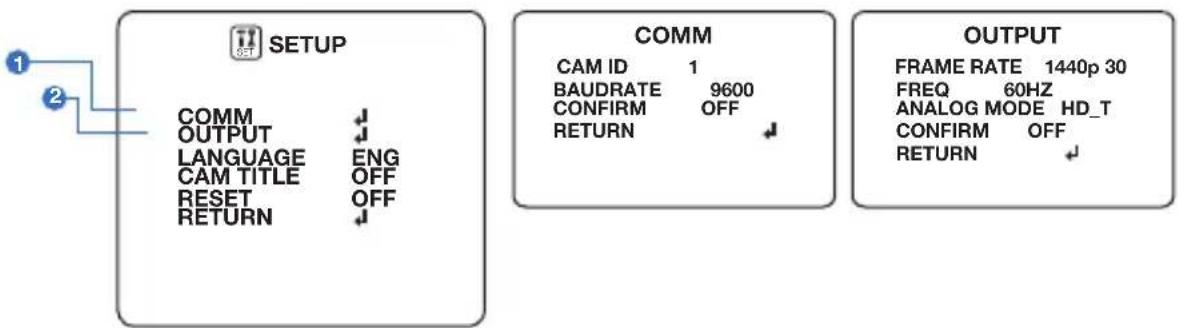
flowchart
graph LR
    A["SET"] --> B["1"]
    A --> C["2"]
    B --> D["COMM"]
    B --> E["OUTPUT"]
    D --> F["LANGUAGE ENG"]
    D --> G["CAM TITLE OFF"]
    D --> H["RESET OFF"]
    D --> I["RETURN ↓"]
    E --> J["COMM"]
    J --> K["CAM ID 1"]
    J --> L["BAUDRATE 9600"]
    J --> M["CONFIRM OFF"]
    J --> N["RETURN ↓"]
    O["OUTPUT"] --> P["FRAME RATE 1440p 30"]
    O --> Q["FREQ 60HZ"]
    O --> R["ANALOG MODE HD_T"]
    O --> S["CONFIRM OFF"]
    O --> T["RETURN ↓"]
1 COMM
Adjust the camera's ID and baudrate. The camera's default protocol is Pelco-D.
- Cam ID: Provide an ID number for the camera (0 \~ 255).
- Baudrate: Select the baudrate from the following options: 2400, 4800, 9600 (default), 57600 and 115200 bps.
- Confirm: Off, on
NOTE: Set confirm to "on" after setting the camera's ID and baudrate. Be sure to press "Save&Exit" button on the EXIT Menu.
2 Output
- Framerate: Set the camera's display frame rate and resolution. Select from: 5MP/1944p_20 (HD-A/HD-T only), 4MP/1440_30P, 2.1MP/1080p_30, 720p_30.
- FREQ: When the camera's image appears flickering, you can change its frequency to adjust the image. Select from 60HZ and 50HZ.
- Analog mode: Set the camera's video signal output: HD-A: HD-Analog (supports up to 5MP @ 20fps) HD-T: HD-TVI (supports up to 5MP @ 20fps) HD-C: HD-CVI (supports up to 4MP @ 30fps) CVBS (supports up to 960H @ 30fps)
- Confirm: Off, on
NOTE : Set confirm to "on" after setting the camera's output values. Be sure to press "Save&Exit" button on the EXIT Menu.
OSD Menu\_Setup (cont.)
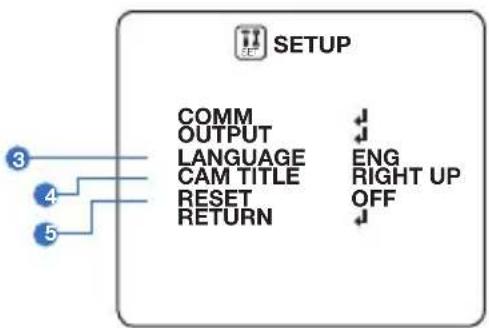
flowchart
graph TD
    A["SETUP"] --> B["COMM"]
    A --> C["OUTPUT"]
    A --> D["LANGUAGE"]
    A --> E["CAM TITLE"]
    A --> F["RESET"]
    A --> G["RETURN"]
    A --> H["ENG"]
    A --> I["RIGHT UP"]
    A --> J["OFF"]
③ Language
Select from the following: English (default), Chinese, Chinese (S), Japanese and Korean.
4 CAM title
Add a name to the camera. Set the title by using the joystick right up / left down.
5 Reset
Reset the camera to its default settings. Change to on, then press and hold the selection button on the camera's joystick for five (5) seconds.
OSD Menu\_Exit
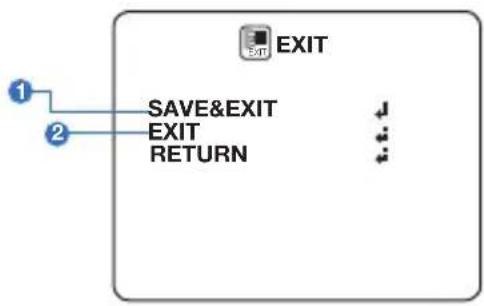
flowchart
graph TD
    A["EXIT"] --> B["SAVE&EXIT"]
    A --> C["EXIT"]
    A --> D["RETURN"]
    B --> E["Terminal"]
    C --> E
    D --> E
1 Save and exit
Exit the OSD menu after saving the recent changes.
② Exit
Exit the OSD menu without saving any changes.
Troubleshooting
Before sending your camera for repair, check the following or contact our technical specialist.
FOR NO VIDEO
Check the coaxial cable and make sure it is connected securely.
Check the power supply and make sure the camera has the proper voltage and current. Check UTP/COAX switch inside the camera's housing and confirm the switch's position matches the signal connection type.
FOR OUT-OF-FOCUS VIDEO
Check the Front case cover and the lens for dirt or fingerprints.
Use a soft cloth and gently clean.
The use of a field test monitor is recommended.
Specifications
| VIDEO | |
| Image sensor | 1/2.8" CMOS sensor |
| Active pixels | 2608(H) x 1960(V) |
| Scanning system | Progressive scan |
| Frequency | 60Hz / 50Hz |
| Signal technology | Max 5MP Universal |
| Synchronization | Internal |
| Resolution | 2592x1944 (1944p(12.5/20fps)(CVI Max 1440p)/1440p30(25)fps/1080p30(25)fps/720p30(25)fps) |
| Minimum scene illumination | F1.4 (30IRE): 0.08 lux (color) |
| F1.4 (30IRE): 0 lux (B&W) | |
| Video output | BNC/UTP(Universal: HD-A/HD-TVI/HD-CVI/CVBS) |
| LENS | |
| Focal length and lens type | 2.7~13.5mm, p-iris vari-focal |
| IR distance | 100ft |
| OPERATIONAL | |
| Alarm output | 1 alarm output |
| Shutter speed | 1/30(25) - 1/30,000 |
| Backlight | OFF/HME/BLC/WDR |
| Star-LightTM | OFF, x2 - x32 |
| Wide Dynamic Range(WDR) | LOW/MIDDLE/HIGH |
Specifications
| OPERATIONAL (CONT.) | ||
| Digital Noise Reduction | OFF / LOW / MIDDLE / HIGH | |
| White balance | AUTO / AUTOext / PRESET / MANUAL | |
| Day and night | AUTO / COLOR / BW | |
| Auto gain control | 0 ~ 10 | |
| Motion detection | ON/OFF (4 zones) | |
| Privacy zones | ON/OFF (box 16 zones / polygon 8 zones) | |
| Sharpness | 0 ~ 10 | |
| Gamma | 0.45 ~ 0.75 | |
| Remote control | RS485 / Coaxial (UTC) | |
| ENVIRONMENTAL | ||
| Operating Temperature Operating Humidity | -4°F ~ 122°F (-20°C ~ 50°C) no more than 90% (non-condensing) | |
| IP rating | IP66 | |
| Other Certifications | FCC, CE, ROHS | |
| ELECTRICAL | ||
| Power requirements | DC12V / AC24V dual voltage | |
| Power consumption | DC12V | 3.3W, 275mA, LED on: 5W, 420mA |
| AC24V | 2.86W, 220mA, LED on: 4.4W, 310mA | |
| MECHANICAL | ||
| Housing material and dimensions | Aluminum, 8.84 x 3.81 in (224.5 x 96.7mm) | |
| Weight | 1.43 lbs | |
Limits and Exclusions
There are no express warranties except as listed. The warranter will not be liable for incidental or consequential damages (including damage to recording media without limitation) resulting from the use of these products or arising out of any breach of the warranty. All express and implied warranties, including the warranties of merchantability and fitness for particular purpose, are limited to the applicable warranty period set forth above.
Some states do not allow the exclusion or limitation of incidental or consequential damages, or limitations on how long an implied warranty lasts, so the exclusions or limitations listed above may not apply to you. This warranty gives you specific legal rights, and you may also have other rights that vary from state-to-state.
If the problem is not handled to your satisfaction, then write to the following address:
Digital Watchdog, Inc. ATTN: RMA Department 5436 W. Crenshaw Street Tampa, FL 33634
Service calls which do not involve defective materials or workmanship as determined by the Warranter, in its sole discretion, are not covered. Costs of such service calls are the responsibility of the purchaser.
Warranty Information
Digital Watchdog (referred to as “the Warranter”) warrants the Digital Watchdog Camera against defects in materials or workmanship as follows:
LABOR: For the initial five (5) years and one (1) year on IR LED from the original purchase date, if the camera is determined to be defective, the Warranter will repair or replace the unit with a new or refurbished product at its option at no charge.
PARTS: In addition, the Warranter will supply replacement parts for the initial five (5) years and one (1) year on IR LED.
To obtain warranty or out of warranty service, please contact a Technical Support Representative at 1+ (866)446-3595 Monday through Friday from 9:00AM to 8:00PM Eastern Standard Time.
A purchase receipt or other proof of the original purchase date is required before warranty service is rendered. This warranty only covers failures due to defects in materials and workmanship which arise during normal use. This warranty does not cover damage which occurs in shipment or failures which are caused by products not supplied by the Warranter or failures which result from accident, misuse, abuse, neglect, mishandling, misapplication, alteration, modification, faulty installation, set-up adjustments, improper antenna, inadequate signal pickup, maladjustment of consumer controls, improper operation, power line surge, improper voltage supply, lightning damage, rental use of the product or service by anyone other than an authorized repair facility or damage that is attributable to acts of God.
DW
DIGITAL
WATCHDOG™
Complete Surveillance Solutions
East Coast Headquarters Office: 5436 W Crenshaw St, Tampa, FL 33634 West Coast Headquarters Office: 16220 Bloomfield Ave., Cerritos, CA 90703
PH: 866-446-35951 FAX: 813-888-9262
www.Digital-Watchdog.com Technical Support:
USA & Canada 1+ (866) 446-3595
International 1+ (813) 888-9555
French Canadian 1+ (514) 360-1309
Support Hours: Monday-Friday 9:00am to 8:00pm EST