U32 Shadow Dura - Extern hårddisk Oyen Digital - Gratis bruksanvisning och manual
Hitta enhetens manual gratis U32 Shadow Dura Oyen Digital i PDF-format.


Användarfrågor om U32 Shadow Dura Oyen Digital
0 fråga om denna apparat. Svara på dem du kan eller ställ din egen.
Ställ en ny fråga om denna apparat
Ladda ner instruktionerna för din Extern hårddisk i PDF-format gratis! Hitta din manual U32 Shadow Dura - Oyen Digital och ta tillbaka ditt elektroniska enhet i hand. På denna sida publiceras alla dokument som behövs för att använda din enhet. U32 Shadow Dura av märket Oyen Digital.
BRUKSANVISNING U32 Shadow Dura Oyen Digital
natural_image
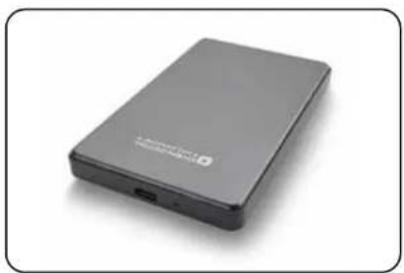
Exterior view of a gray rectangular electronic device with a USB port and logo (no visible text or symbols on body)U32 Shadow™ Portable Drive User Guide
For more information, visit our website at www.oyendigital.com
(5) Using the Drive
The U32 Shadow does not include pre-installed software. For file backup, we recommend the apps within Windows and Mac.
Using the U32 Shadow with Windows Backup
Windows 10:
Enter "Settings" in the search bar and open the app.
Click 'Update & security' and select 'Backup > Add a drive.'
Select the MiniPro to start the backup.
Additional resources:
https://support.microsoft.com/en-us/help/17143/windows-10-back-up-your-files
Using the U32 Shadow with Apple Time Machine
1) Format the drive as Mac OS Extended (Journaled) as described in the "Formatting the Drive" section.
2) Go to the Apple Menu > System Preferences and click on the Time Machine icon to launch the app.
3) Click 'On' to enable Time Machine.
4) Select the U32 Shadow drive and choose "Use for Backup."
5) Time Machine is now backing up your Mac automatically to the U32 Shadow.
(1) Specifications
| Interface/Ports | •USB-C |
| Data Transfer * | •USB 3.2 up to 10Gbps |
| System Requirements | •Windows , Mac, Linux |
| Operating Environment | •Temperature: 5°C – 50°C• Humidity: 10%RH ~ 80%RH |
| Power | Input: Bus power |
- Data transfer speeds depend on the host computer port.
(2) Detailed View
LED indicator
OFF = Power OFF
Solid = Power ON, status ready
Flashing = Power ON, read/write access
(6) Disconnecting the Drive
Windows: Close all windows and applications that are accessing the drive. Click the green "Eject Hardware" (Safely Remove Hardware) icon in the system tray and highlight the external drive. Wait for a few seconds until the system prompts "You may safely remove this device."
MAC: Close all windows and applications that are accessing the drive. Drag the external drive to the Trash/Eject icon to dismount it. After the disk icon has disappeared from the desktop, you may safely disconnect the external drive.
(7) Warranty Information
This product includes a three (3) year repair/replacement warranty provided by Oyen Digital. This warranty is non-transferable and is limited to the original purchaser. Warranty service may be requested by completing the form at the following link: www.oyendigital.com/rma-request-form.html
For our complete warranty policy, visit: www.oyendigital.com/warranty.html
(3) Connecting the Drive
Connecting the drive:
1) Connect the drive to a computer using the included USB cable.
2) Wait 5-20 seconds for the computer to recognize the drive.
3) The drive is now ready for use.
Notes:
- Front USB ports of a desktop computer may not be able to provide adequate power. We recommend connecting to rear ports.
- A USB port on an ExpressCard may not be able to provide adequate power.
- If connecting to a USB Hub, make sure it is a powered Hub (one that uses an AC adapter).
(4) Formatting the Drive
The drive is pre-formatted as exFAT, which is compatible with Windows and Mac OS. For users who wish to reformat the drive, please visit the links for instructions.
To reformat using Windows:
http://oyendigital.com/windows-reformat
To reformat using MAC OS:
http://oyendigital.com/mac-reformat
(8) Safety Information
- The disk drive is a delicate electronic device and is susceptible to damage due to excessive physical shock. Please handle the unit with care.
(9) FAQs
Q: Can I use my drive with bus power only?
A: Yes, in the majority of cases bus power is adequate. However, USB 2.0 ports may not have enough power for a higher-capacity version (2TB or more).
Q: Is the U32 Shadow compatible with TRIM in a Windows environment?
A: To use the TRIM (Optimize) function in Windows, the drive must be reformatted as NTFS. For details, visit:
http://oyendigital.com/windows-reformat.html
Q: Is the U32 Shadow compatible with Linux?
A: The U32 Shadow is formatted as exFAT, which is a cross-compatible file system developed by Microsoft. To use exFAT on Ubuntu 13.10, install the exfat-utils package: \$ sudo apt-get update && sudo apt-get install exfat-utils
For earlier Ubuntu or Linux Mint, you must enable FUSE in the Linux kernel. To enable FUSE on Ubuntu, go to Filesystems > FUSE.
For other questions please contact tech support or visit the FAQ section of our Web site (www.oyendigital.com/support.html).
Technical Support: tech@oyendigital.com