Coach Plus II - Smartphone Plum - Manual falas për përdoruesin
Gjeni manualet e pajisjes falas Coach Plus II Plum në format PDF.


Pyetjet e përdoruesve rreth Coach Plus II Plum
0 pyetje rreth kësaj pajisjeje. Përgjigjuni atyre që njihni ose bëni tuajin.
Bëni një pyetje të re rreth kësaj pajisjeje
Shkarko udhëzimet për tuajin Smartphone në format PDF falas! Gjeni manualin tuaj Coach Plus II - Plum dhe merrni pajisjen tuaj elektronike sërish në duar. Në këtë faqe janë publikuar të gjitha dokumentet e nevojshme për përdorimin e pajisjes suaj. Coach Plus II e markës Plum.
MANUAL I PËRDORUESIT Coach Plus II Plum
plum ^TM

natural_image
Close-up of colorful pencils arranged in a circular pattern on a smartphone screen (no text or symbols visible)User Manual
www.plum-mobile.com
Content
Content....1
1 Introduction....2
1.1 Notifications....2
1.3 Safety Instruction....2
2 COACH PLUS Introduction 2
2.1 COACH PLUS Operation and Preparation 3
2.2 COACH PLUS Status and Reminder 3
3 Quick Start Guide 4
3.1 Keys Function 4
3.2 Startup and Shutdown 4
3.3 Open and Close of the Screen 4
3.4 Home Page 5
3.5 Visit Application Procedures....8
3.6 USB Connection 8
3.7 Typing words....9
3.9 Operation Technique....10
4 Basic Setting....11
4.1 SIM Management....11
4.2 Wireless and Internet....13
4.3 Bluetooth....15
4.4 Data Usage....17
4.5 More....18
4.14 Language and Input Method....35
4.16 Date and Time....37
5 Multi-Media 40
5.1 Music....40
5.2 Video 41
5.3 Photo Gallery 42
5.4 Camera 43
5.5 FM Radio 44
6 Communication Function....45
6.1 Phone....45
6.2 Text Message....47
6.3 Contact List....47
7 Internet....48
7.1 Browser....48
7.2 Email....50
9 Other Application Procedures 52
9.1 Clock....52
9.2 Calculator....52
9.3 File Manager....53
9.4 Recorder....55
10 Installation of Procedures....57
10.1 Installation....57
10.2 Uninstall....57
11 Troubles Shooting 58
1 Introduction
1.1 Notifications
Preventive maintenance
- Please always keep the COACH PLUS dry. To avoid the device short trouble, corrosion fault and electric short, please prevent the device, battery and charger from water and moisture, and don't operate the device or charger by wet hand.
●To avoid failure of device, battery and charger, please prevent the device, battery, charger from violent shock or shake.
● To avoid failure of device, battery and charger, please prevent the device, battery, charger of all over heating or too cold circumstance
●Never shock, throw, or bend the COACH PLUS. - Never disassemble the device and accessories arbitrarily, otherwise the device and accessories are not in our company warranty scope.
1.3 Safety Instruction
● Never use the COACH PLUS when driving car, in order to ensure safe driving.
- In the medical area, please abide by related rules and regulations. Please shut down the COACH PLUS when it is near to the medical area.
- To avoid the wireless signal to interrupt the plane-controlled signal, please shut down the COACH PLUS or using airplane mode when you are boarding a flight,
- To avoid electronic equipment failure, please shut down the COACH PLUS in the vicinity of high-accuracy electronic equipment.
- Please don't disassemble the COACH PLUS and accessories.
- Please keep the COACH PLUS far away from magnetic equipment, the radiation of COACH PLUS may erase the data stored in the magnetic equipment.
- Never use the COACH PLUS in the vicinity of high temperature, inflammable gas (gas station).
- Protect the COACH PLUS and accessories from kids reach scope, and avoid the kids to use the COACH PLUS without parents' supervision.
- Please comply with related rules and regulations, and respect others' privacy and legal rights while using the COACH PLUS.
- Please strictly adhere to related instructions in the manual when using USB cable to ensure the safety of the COACH PLUS or PC.
2 COACH PLUS Introduction
2.1 COACH PLUS Operation and Preparation
Battery Charging
If this navigator is first used, please use AV adaptor to fully charge it.
- Apply the power adaptor to charge for COACH PLUS.
2.2COACH PLUS Status and Reminder
Reminder icons
When some remind message appears in your reminder window, please click column and slip the screen to open the reminder list. Choose the menu you need, and confirm the information. Then you can close the reminder window through clicking the column to slide up. Please refer to below status icons:
 | New email |  | Airplane Mode on |
 | USB connected | [WABY] | USB debugging connected |
 | Return button |  | Downloading |
 | Current electric volume. |  | Home button |
 | WIFI connected, internet is available |
Reminder board
Reminder icons will work while receiving emails, WIFI is open, you can open the reminder board to view the detailed information.
Open the reminder board
When the reminder column shows new reminder icon, please hold the column and slide down your finger, then the reminder board is opened.
3 Quick Start Guide
3.1 Keys Function
KeyFunction Description:
| Power button | Short press to sleep/wake up, long press to sta shutdown. |
| Volume + (up) | increase the volume |
| Volume - (down) | decrease the volume |
HOME button (home) ^ | Click it in any interface will return to main interface. |
| Back button (back) | click it in any interface will return to previous menu |
| Menu button | This button will display in menu interface. |
| Setting button | display recently browsed history |
3.2 Startup and Shutdown
Startup
Long press POWER key for three seconds, you can enter into startup picture. The system enters into screen lock status, please unlock it.
Shutdown
- Long press POWER, it will popup shutdown window.
- Shutdown window contains mute mode, airplane mode, reboot mode and shutdown four options.
- Click Shutdown is the last step.
3.3 Open and Close of the Screen
Screen will be closed on its own when no operation happens.
-
Screen will be closed on its own if no operation happens for some time to save battery power
-
When screen is open, press POWER key, the screen will be closed immediately.
Open the screen when it is closed.
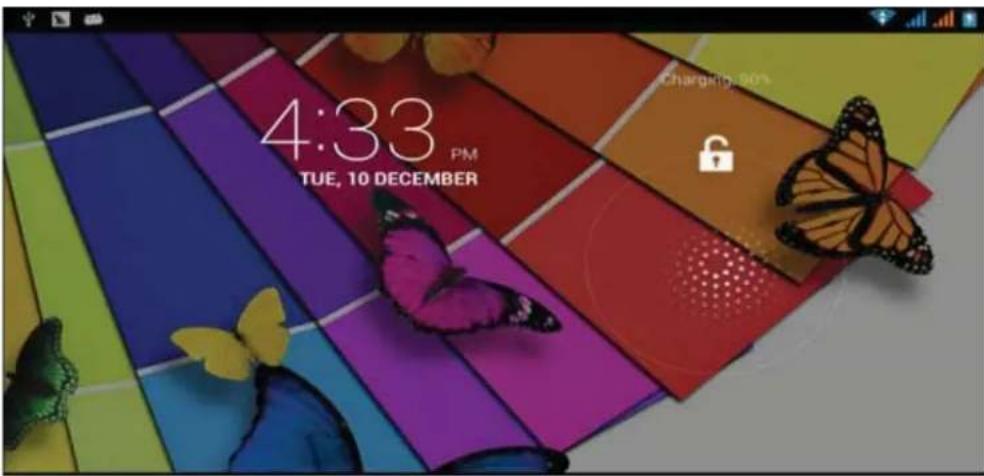
If the screen is closed, short press POWER to open the screen. The screen will be locked open it, it will show the picture as below picture, left slide to unlock and enter into camera, right slide the unlock icon to unlock the screen.
Picture 3.1
3.4 Home Page
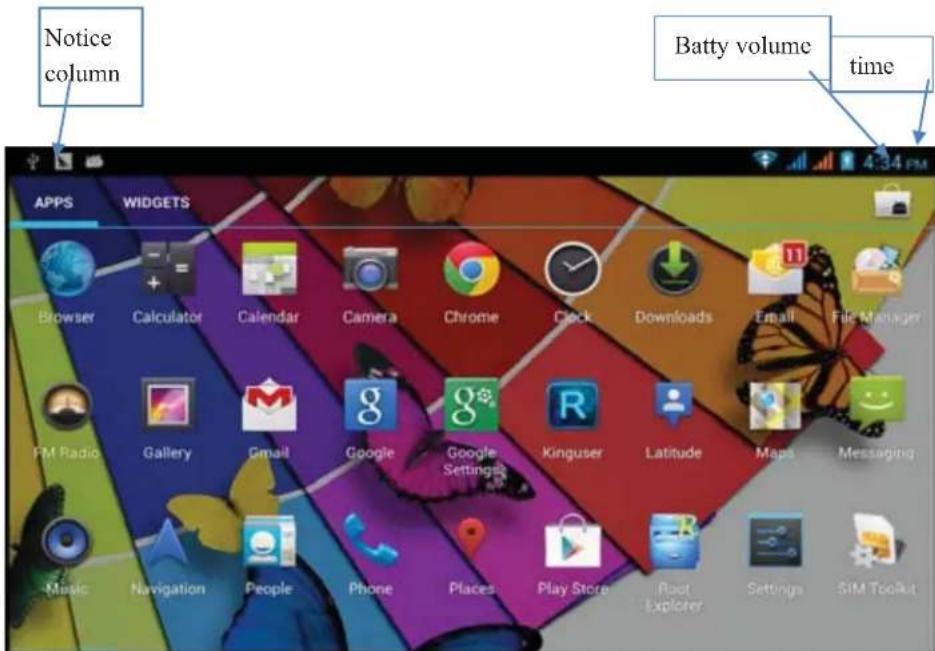
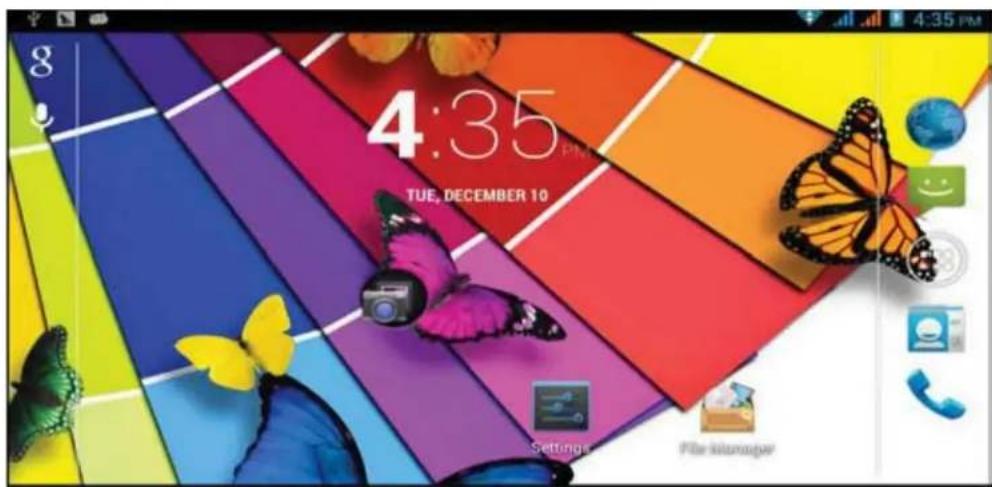
Main interface as below picture 3.2, long press the blank and it will popup windows to set wallpaper, folder, widgets, and shortcut.
Picture3.2
The extended home page
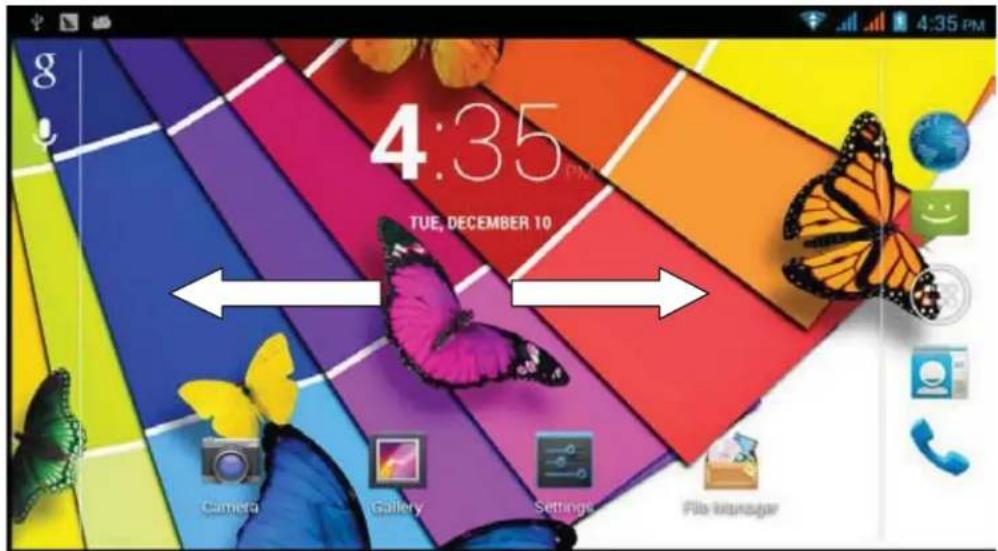
The home page can be extended beyond the wideness of screen to provide more space, which you can put new-added shortcuts and widgets. Click the blank space in home page then slide right or left to extend to the right or left of the screen. In the home page, there are two extended pictures, as Picture 3.3.
Picture 3.3
The shortcut icons management in desktop application.
Create folder icon in desktop
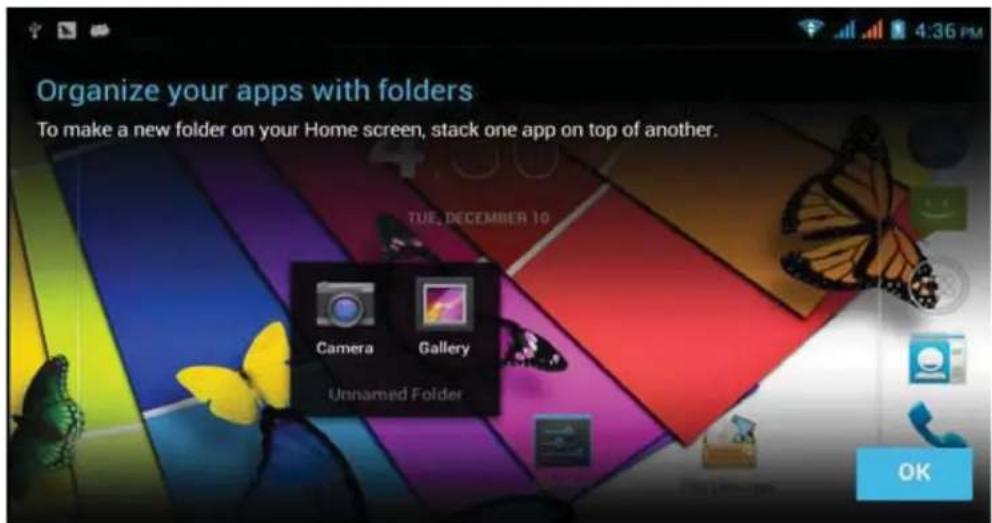
- Drag the icons need to be put together on one icon(can also overlay several icons)as Picture 3.4.
- Then click the overlayed icons, the applications can be folded, as Picture 3.5.
Click the unnamed folder in the black box, it will popup the hidden keyboard, the folder name can be renamed (this is similar with Apple IOS system), the icons position can be changed through long press.
Picture 3.4
Picture 3.5
Remove the icons in desktop
- Long press the icons need to be remove, then on the right above of the screen, it
will appear

icons.
- Drag the icon to the above of the remove icon, till the icon become red, then move your finger to delete the icon.
Change the wallpaper of desktop
-
In home page, long press any blank space in main screen, it will popup a window to change the wallpaper.
-
Click the gallery or wallpaper gallery to select the wallpaper.
3.5 Visit Application Procedures

Click in right top of Picture 3.2, enter into main interface as Picture 3.6, choose the application procedure you want to visit.
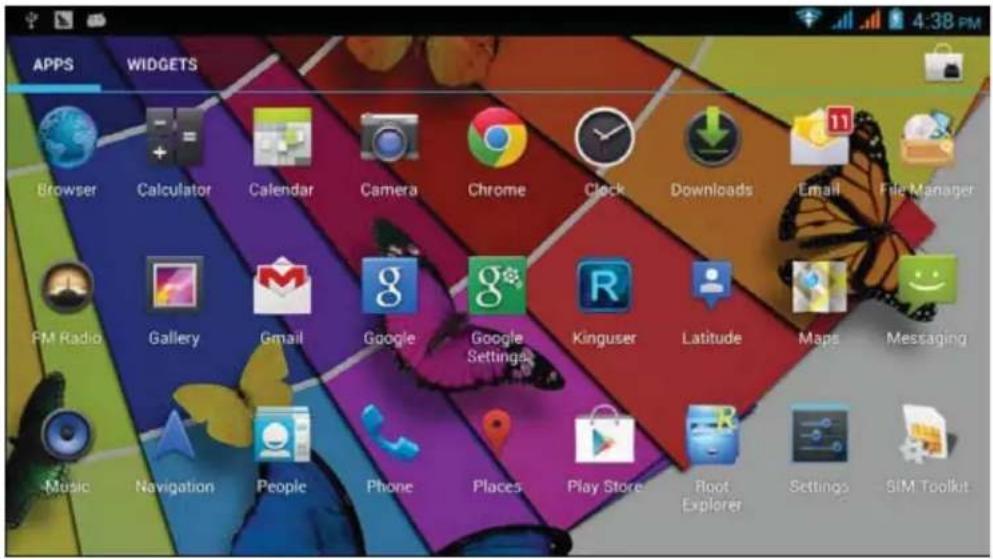
Picture 3.6
3.6 USB Connection
COACH PLUS storage configuration
Before transmitting documents, you have to conduct storage configuration for your COACH PLUS:
- Connect the COACH PLUS and computer by USB cable, the reminder column will show the remind information.
- Open the reminder board; please view the COACH PLUS status and reminder to learn how to open the board.
- In the reminder board, click the "USB Connected", it will as below Picture 3.4, then click "open USB storage configuration".
- Now the USB is connected successfully.
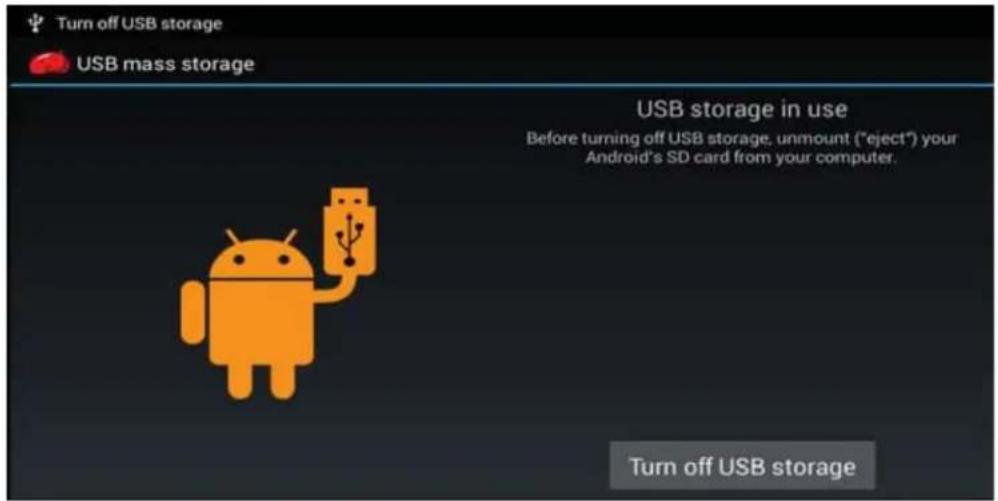
Picture 3.7
Copy the document into memory card
- Connect the COACH PLUS to computer with USB cable.
- As COACH PLUS storage configuration, it is connected with computer successfully.
- Open the "My computer" in your computer, check the items in "removable disc".
- Copy the documents you need into "removable disc".
- After copying finishes, click "shutdown the USB storage configuration" touninstall.
Notice: When theCOACH PLUS is connected with USB cable, and you open the USB storage configuration, you can't view the memory card through the COACH PLUS. Only after you detach the USB cable, you can view the memory card in the COACH PLUS.
3.7 Typing words
Use the screen keyboard
When you start the procedure or choose the words or numbers edition, it will show the screen keyboard. The keyboard contains below typing options:
- Android keyboard
- Google Pinyin
Choose the typing method you want
- Click Settingprocedure application.
- Click Language and Keyboard.
- In the text setting area will reveal all the installed words-typing methods in your COACH PLUS.
- Tick the typing method you want.
Use and switch of input method
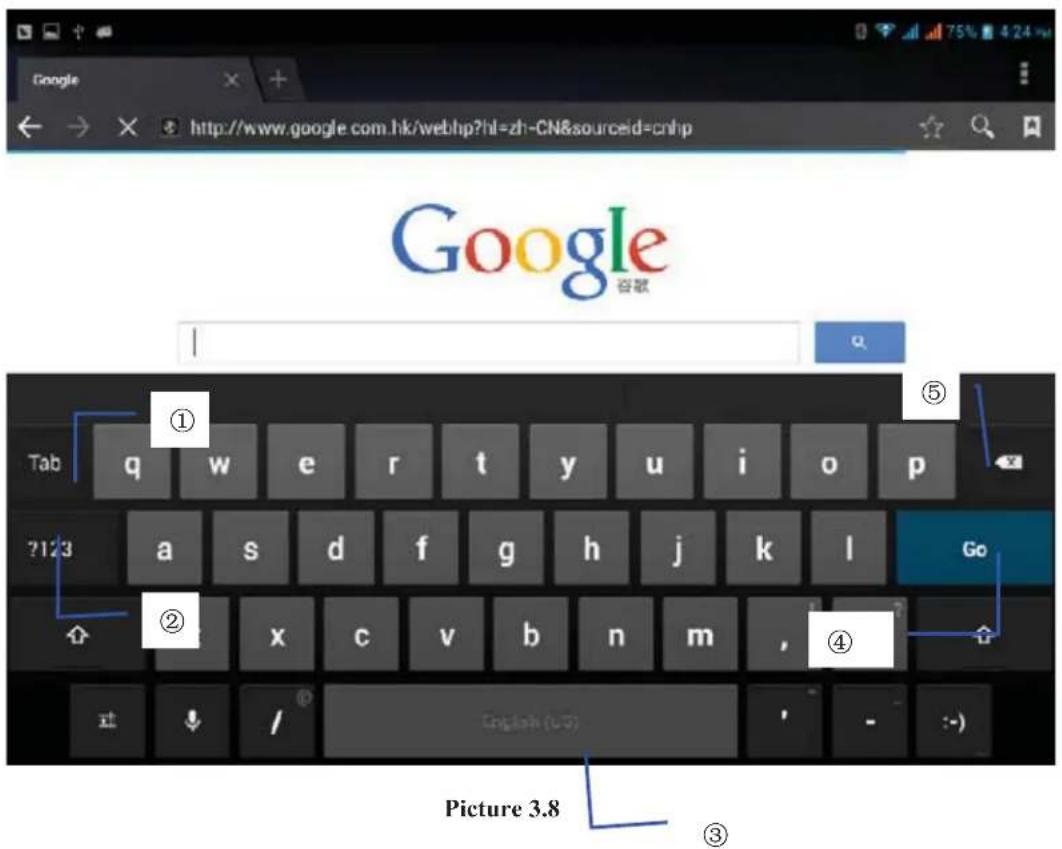
| 1 | switch the capital and small letter |
| 2 | switch the mode of number input |
| 3 | click to insert the space |
| 4 | click input to execute |
| 5 | delete the character in the left of cursor, click and hold to delete all the characters in the left of the cursor. |
3.9 Operation Technique
Enter widgets interface
In the application interface, click widgets on the above of screen, or slide the screen, it will switch into widgets interface. Long press any widget to create its shortcut, then you can enter into the application through the shortcut icon.
Create application shortcut icons in the desktop
In the application interface or widgets interface, long press any icon to switch into desktop automatically, drag and hold the icon, you can move to any position in the desktop.
Remind: If the target position has no space, the widget won't be add in the main screen.
4 Basic Setting
4.1 SIM Management
4.1-1 Voice call
Click settings in main menu, choose SIM Management, as Picture 4.1
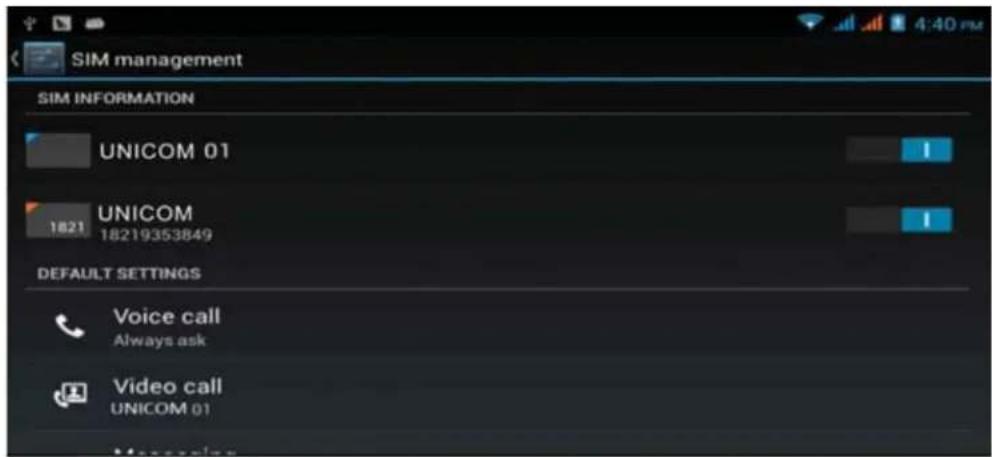
Picture 4.1
Click voice call, choose defaulted SIM card, as Picture 4.2
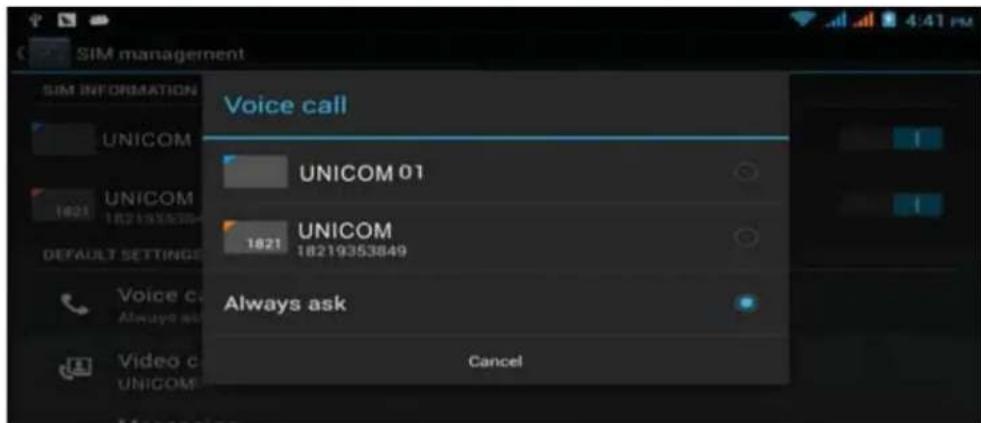
Picture 4.2
4.1-2 Video Call
Click settings in main menu, choose SIM Management, and click video call, choose defaulted SIM card when makes video call, as Picture 4.3
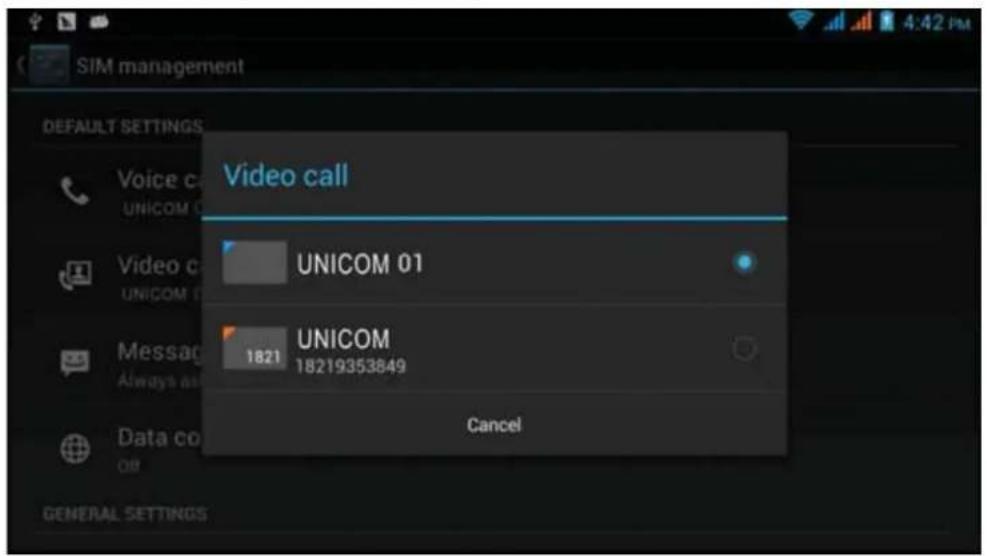
Picture 4.3
4.1-3 Message
Click settings in main menu, choose SIM Management, click message, choose the defaulted SIM card when sends message, as Picture 4.4
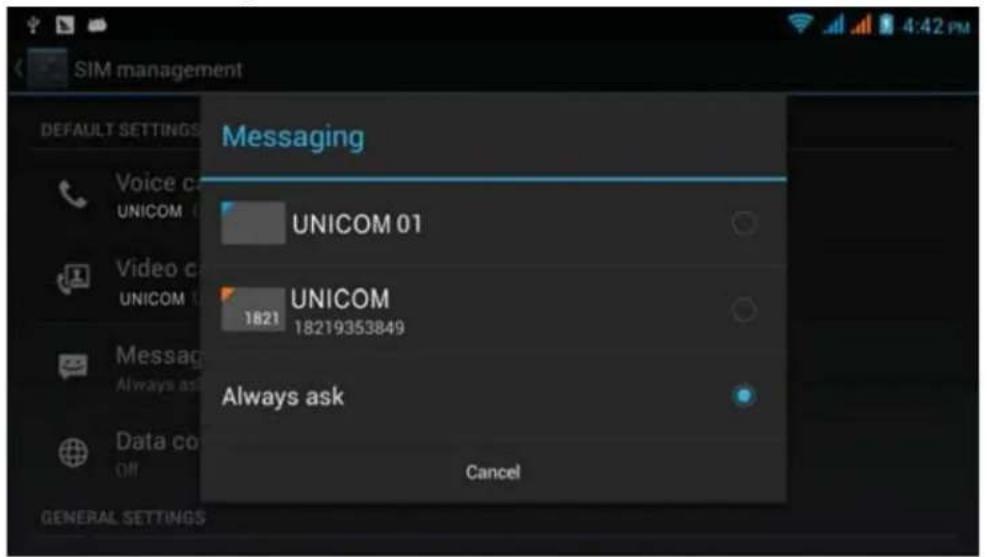
Picture 4.4
4.1-4 Data Connection
Click setting application in main menu, choose SIM management, click data connection, choose the defaulted SIM card, as Picture 4.5
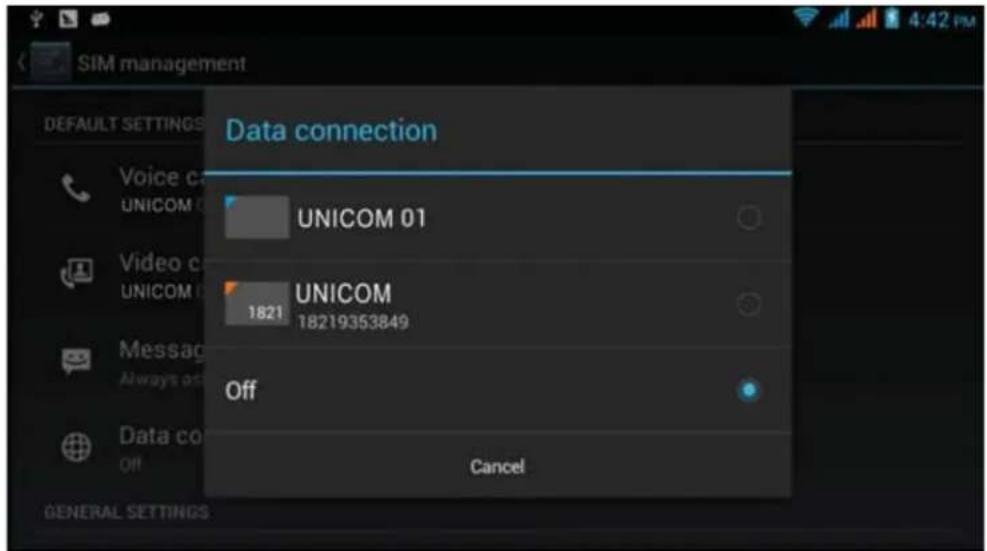
Picture 4.5
4.2 Wireless and Internet
1. Connect Wi-Fi
1) In the main menu or interface, choose setting application procedure.
2) Click WLAN, open wifi, COACH PLUS will automatically search the available Wifi wireless internet. As Picture 4.6
3) Choose the Wi-Fi internet you want to connect, if it has password, it will popup the password window, enter password, click connect.
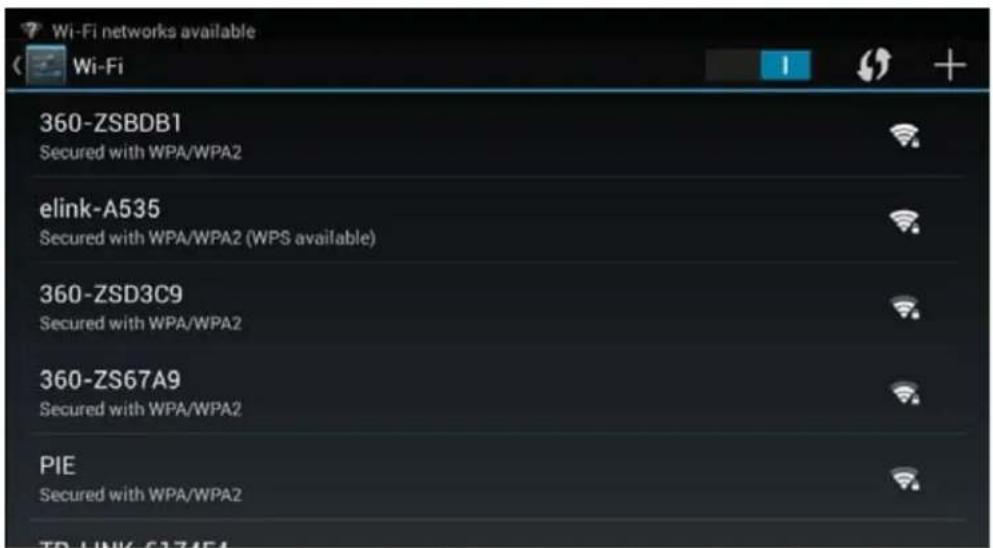
Picture 4.6
2. Add Network
1) Click

right top, as Picture 4.7
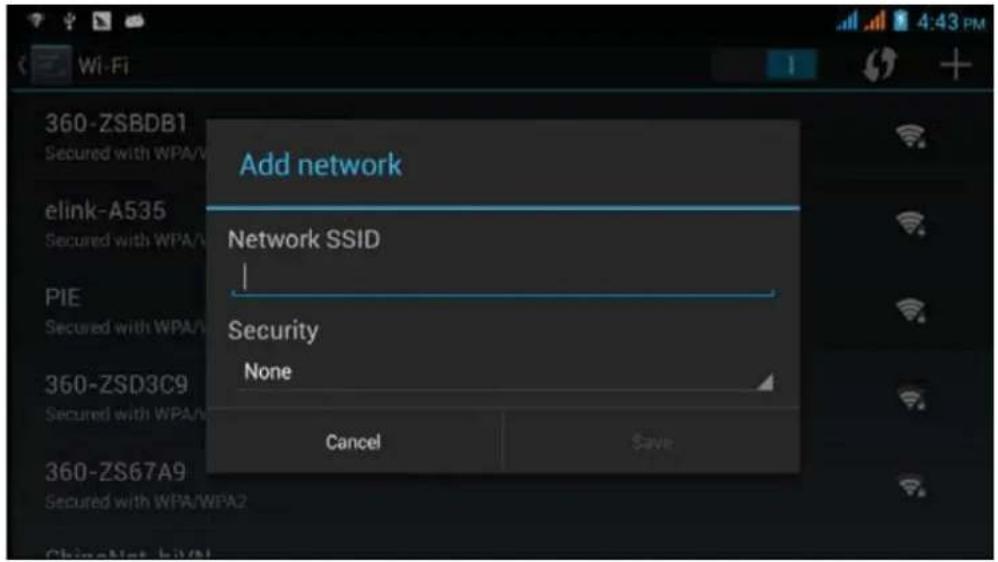
Picture 4.7
2) Input network SSID, the wireless network name, click save.
3) Click user name already saved, click connect to use network, as Picture 4.8
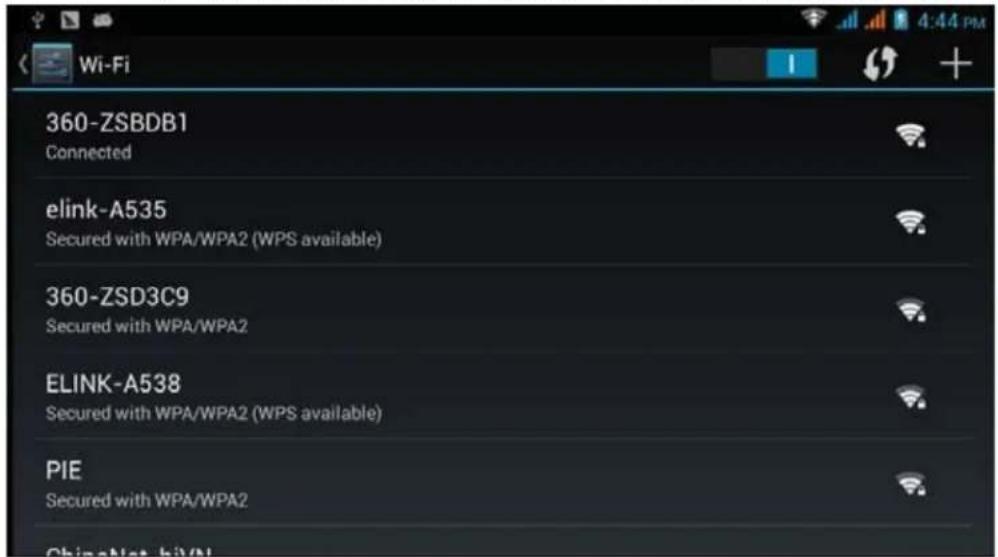
Picture 4.8
3. Network Notice
If you open Network Notice, when WIFI signal appears, the right bottom will remind you available WLAN network, as Picture 4.6
4. Keep WI-FI on during sleep..
- Click icon in right top of Picture 4.8, select advanced.
- Click Keep WI-FI on during sleep, as Picture 4.9
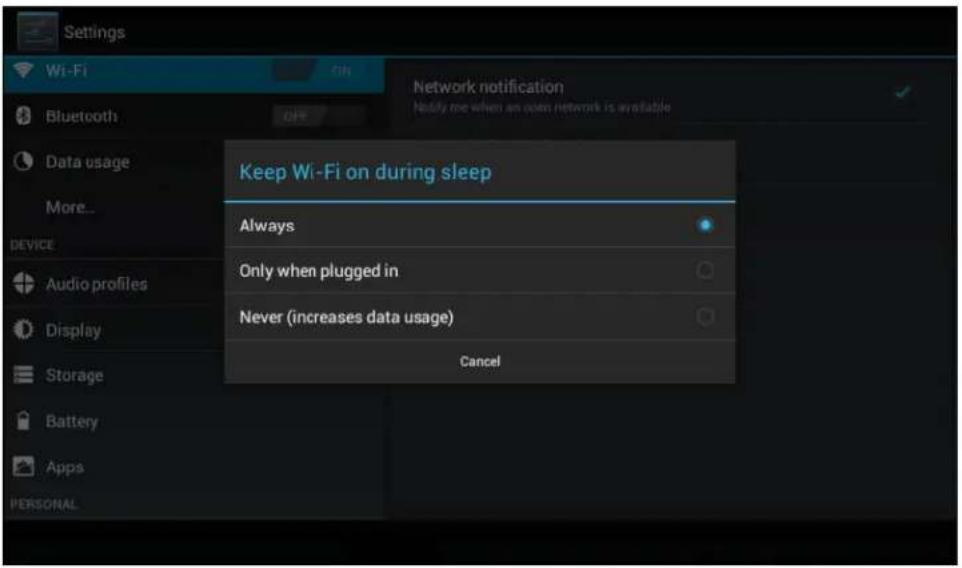
Picture 4.9
4.3 Bluetooth
Bluetooth function operation
- Click setting application in main menu interface
- Click bluetooth and open it.
- If somebody open bluetooth in your surroundings, click search device in right above, then COACH PLUS will automatically search the bluetooth device nearby. As picture 4.10
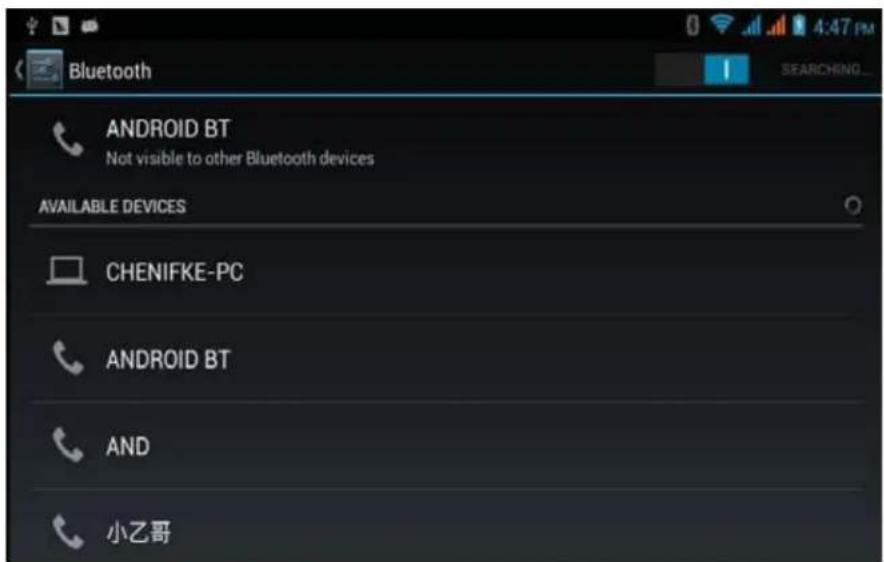
-
Click the availableBluetooth device, it will popup request window, enter into related password, and match the device to connect.
-
After match successfully, choose the operation you want to, click 📄 to enter into Picture 4.11.
Picture 4.11
Bluetooth setting
1. Rename tablet
Click icon in right top of Picture 4.10, as Picture 4.12, select rename tablet, you can rename it as you want
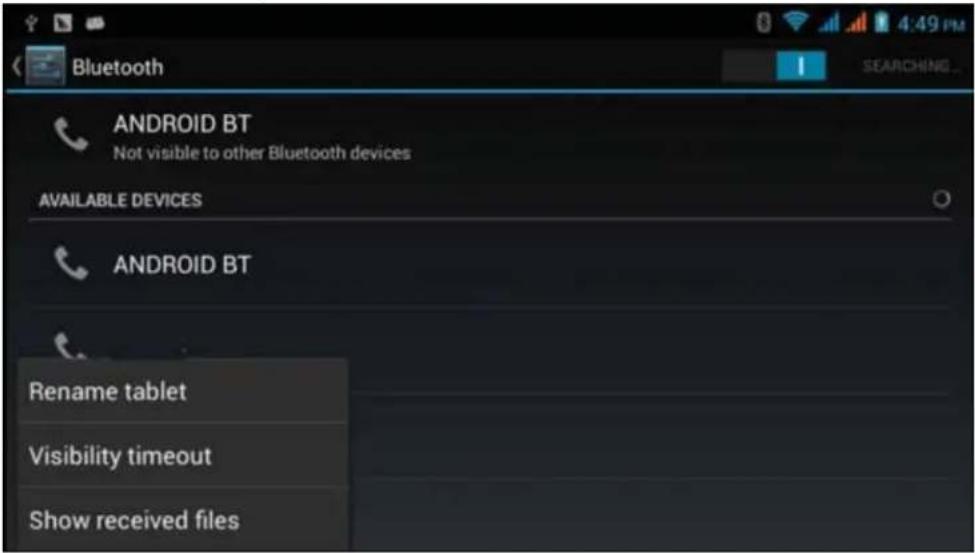
Picture 4.12
2. Check visibility timeout
Selectvisibility timeout setting in Picture 4.12, choose the time you want toset, as Picture 4.13(Note: check overtime setting is the time setting when Bluetooth is checked)
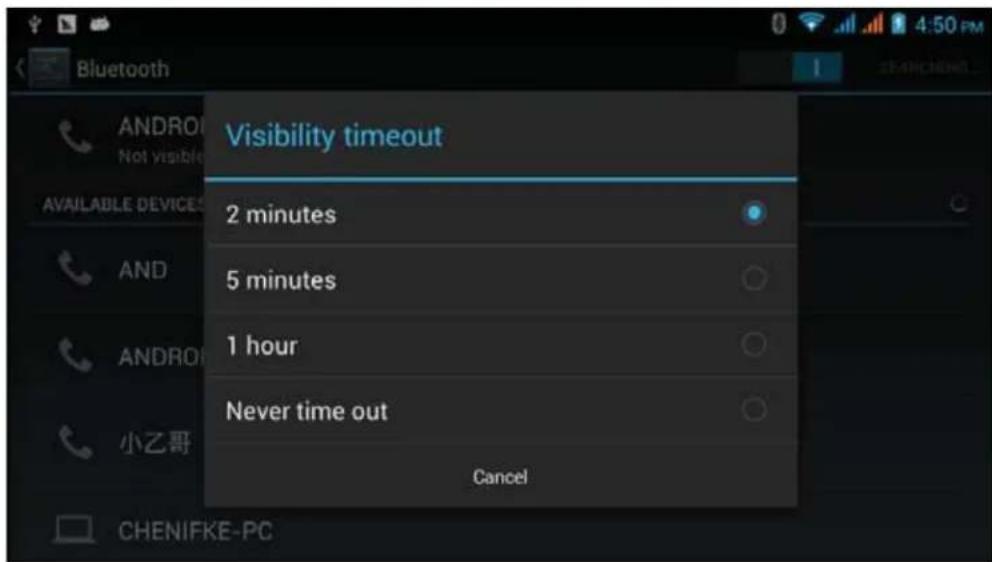
Picture 4.13
3 Display the file you received
Choose display the file you received in Picture 4.12, you can view download and upload files.
4.4 Data Usage
Check SIM card data usage, as Picture 4.15
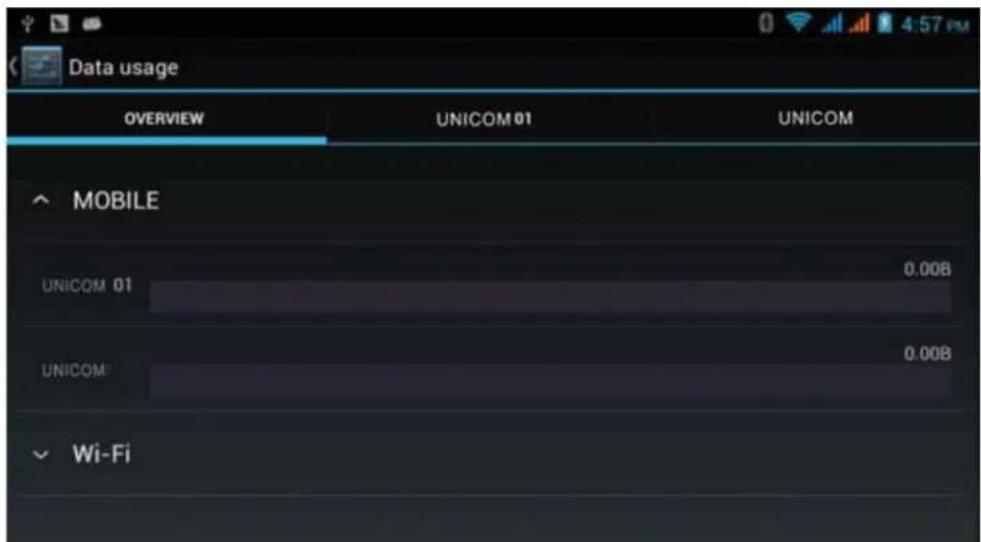
Picture 4.15
Check WIFI data usage
Click icon in right top of Picture 4.15, click Data Usage, as Picture 4.16
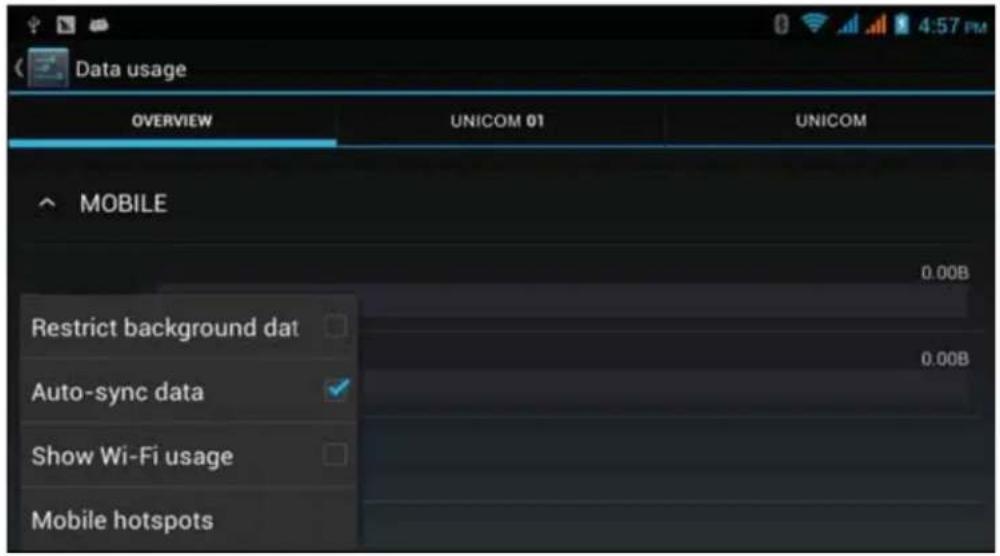
Picture 4.16
4.5 More
4.5-1 Airplane Mode
Airplane Mode can turn off WIFI and GSM card function quickly, when airplane mode is turned on, WIFI and GSM can't get any signal, then airplane mode is turned off, WIFI and GSM module will recover to previous state.
4.5-2 VPN
Open VPN, click add VPN network, as Picture 4.17. Input name and server address, then save.
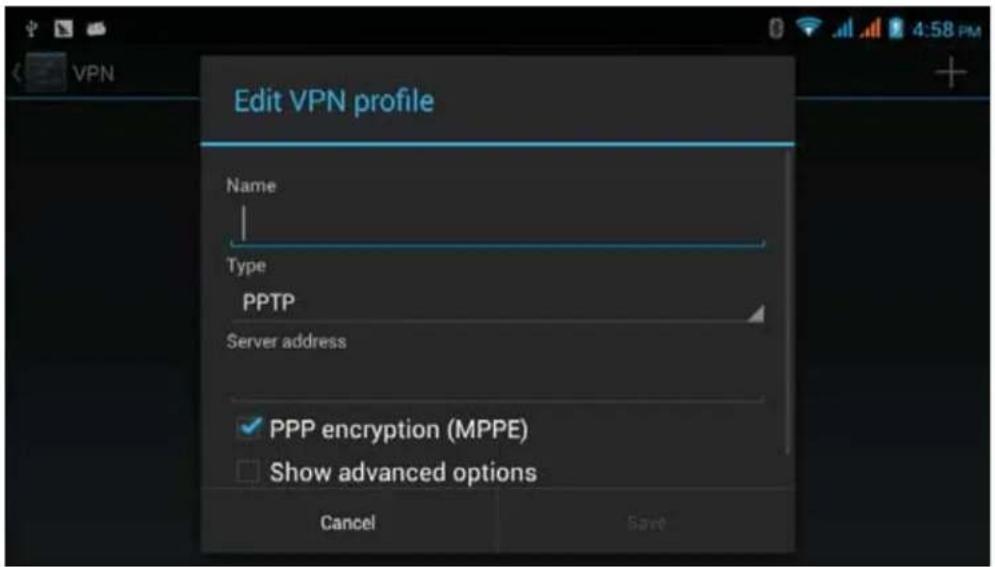
Picture 4.17
Click VPN, as Picture 4.18, input VPN user name and password, click connect.
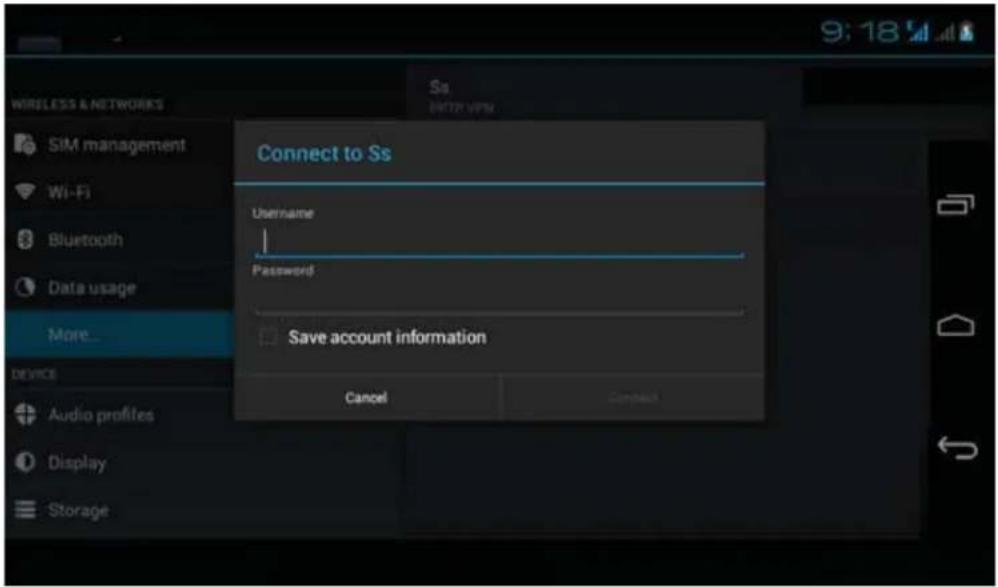
Picture 4.18
4.5-3 Network sharing and portable hotspots
Portable WI-FI hotspots
- Click setting application in main menu.
- Click more when wifi is well connected, open network share and portable hotspot
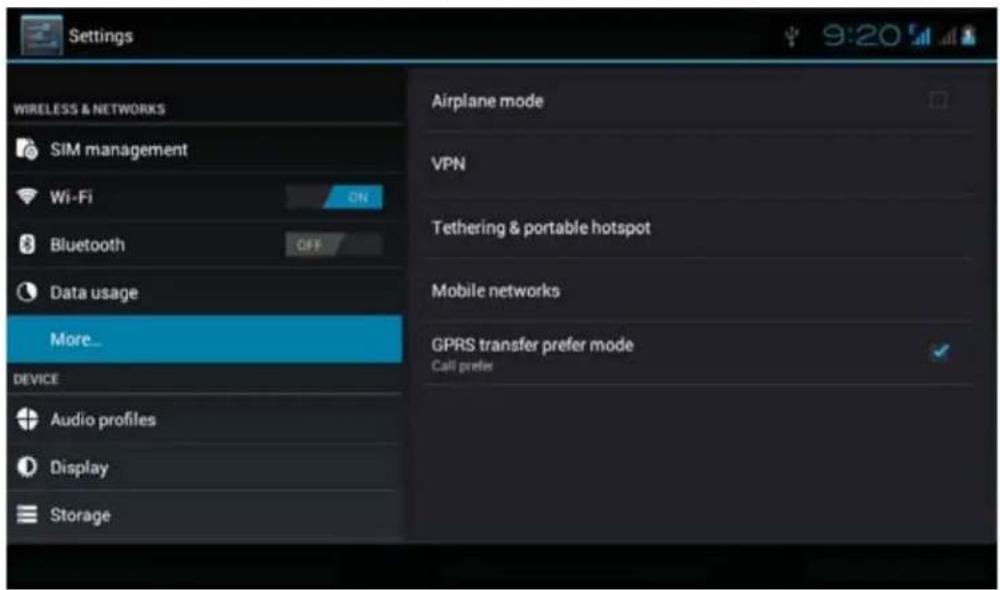
Picture 4.19
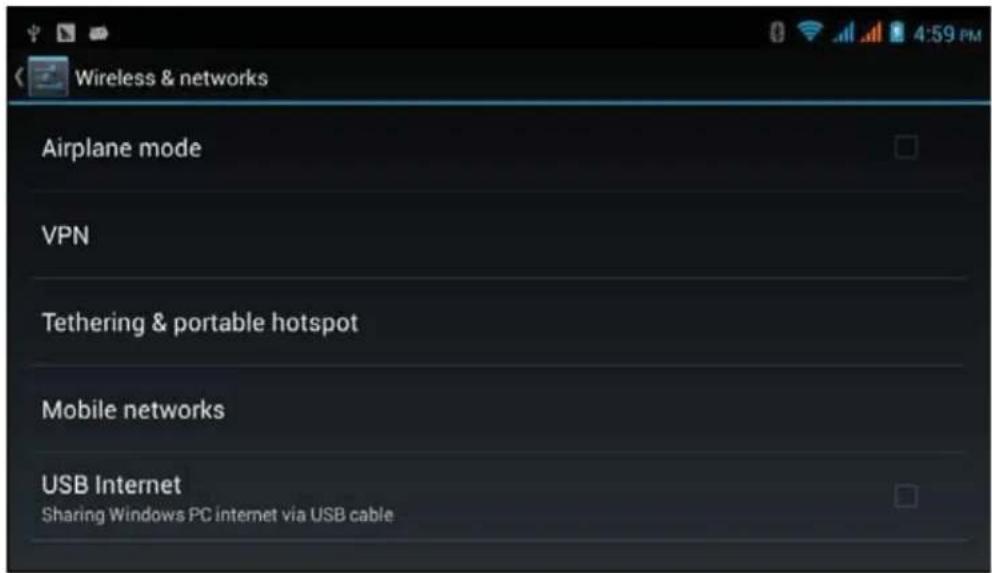
Picture 4.20
- Click keep WI-FI hotspots on, choose open time.
- Return to previous menu, open portable WLAN hotspots, click configure WI-FI hotspots.
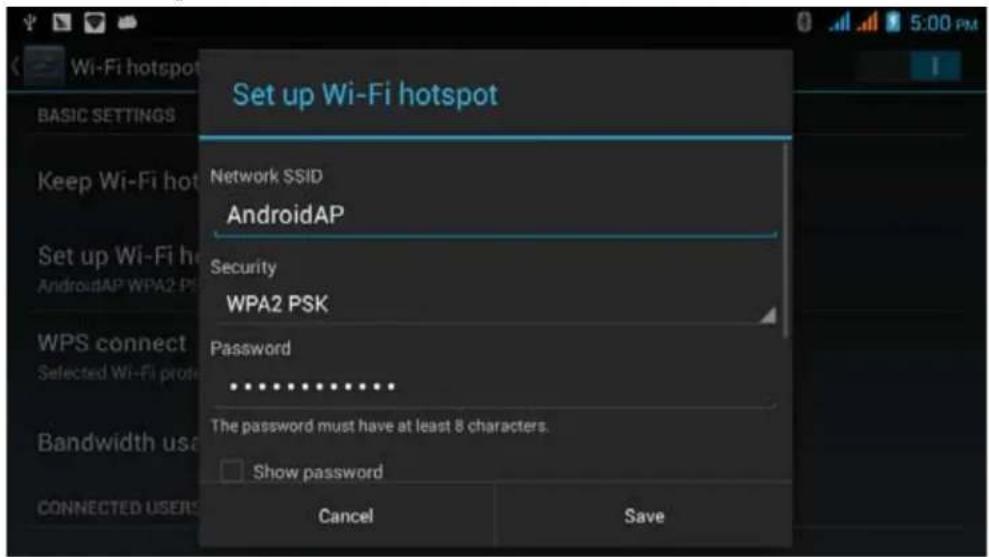
Picture 4.21
- Set passwords you want to, password should be more than 8 numbers.
4.5-4 Mobile Networks
- 3G service
Click 3G service, as Picture 4.22, choose available defaulted SIM card, GSM is 2G network, WCDMA is 3G network.
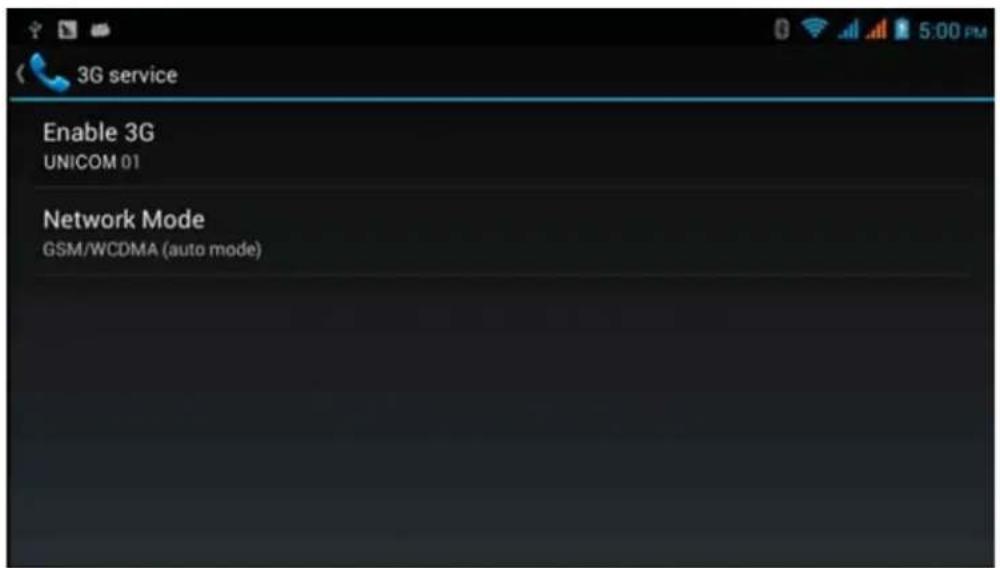
Picture 4.22
2. Access Point Name(APN)
Click mobile network, as Picture 4.23
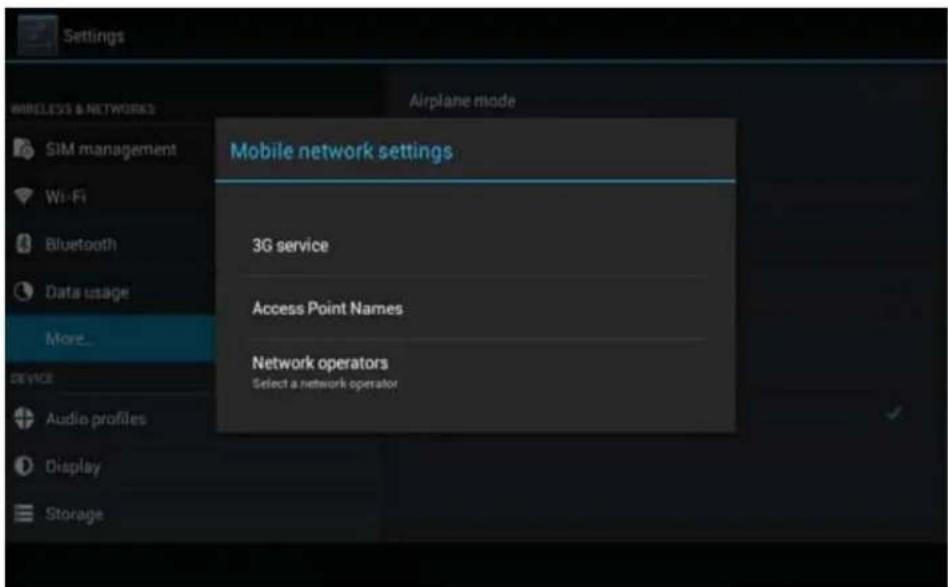
Picture 4.23
Choose access points name (APN), choose SIM card you need to connect, Choose connect type, as Picture 4.24
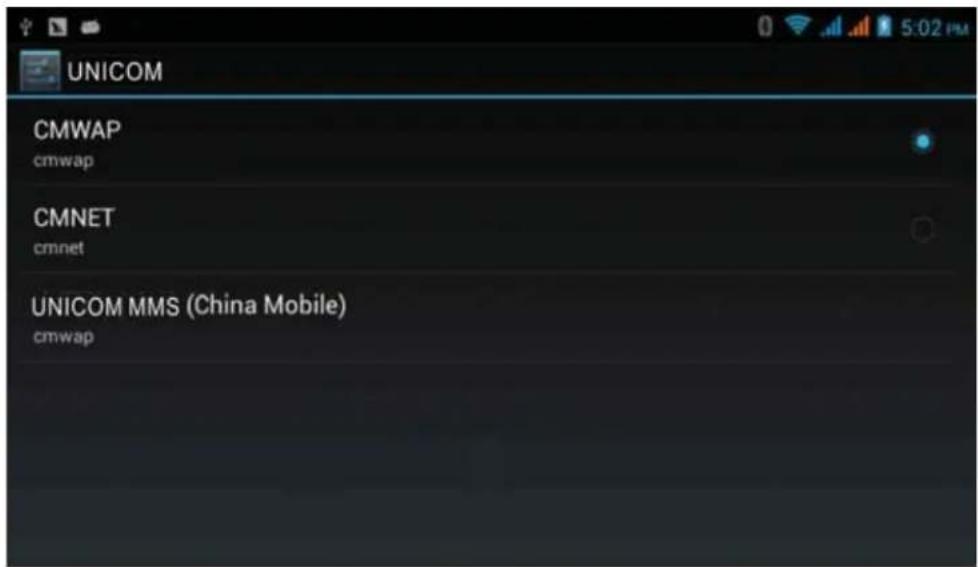
Picture 4.24
Remark: (CMWAP transmitters data through GPRS, the webpage it visit belongs to wap webpage, and CMNET support www browse mobile phone network, it can also log in webpage in computer. And the charges are also different.)
3. Network Operator
Click network operator, choose SIM card you need to connect, system will search available GSM and WCDMA network, as Picture 4.25
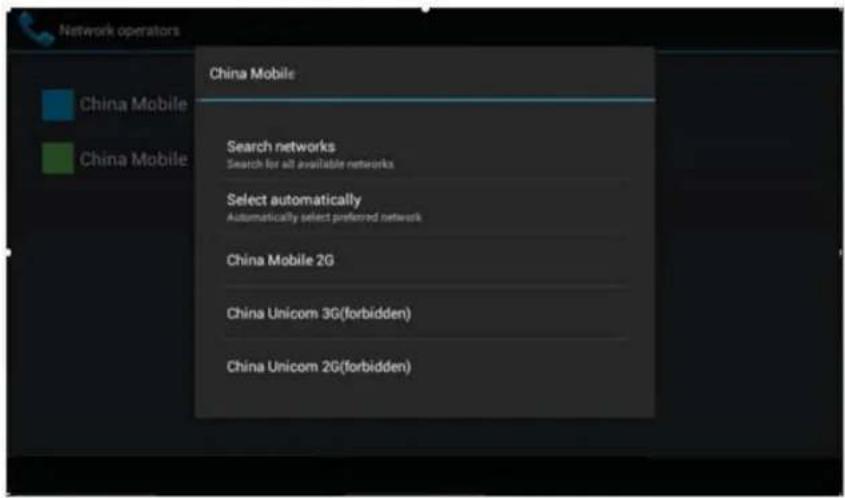
Picture 4.25
4.5-5 GPRS data prior mode
After Open GPRS data prior mode, systems will priority choose your network.
4.6 Contextual Model
- Open settings, click contextual model, as Picture 4.26,
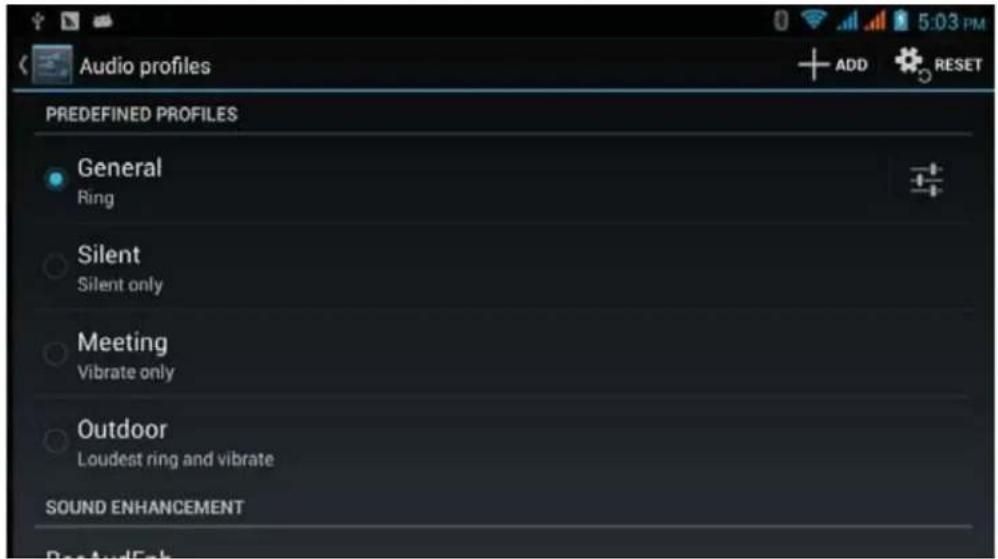
Picture 4.26
- Click standard to enter into Picture 4.27
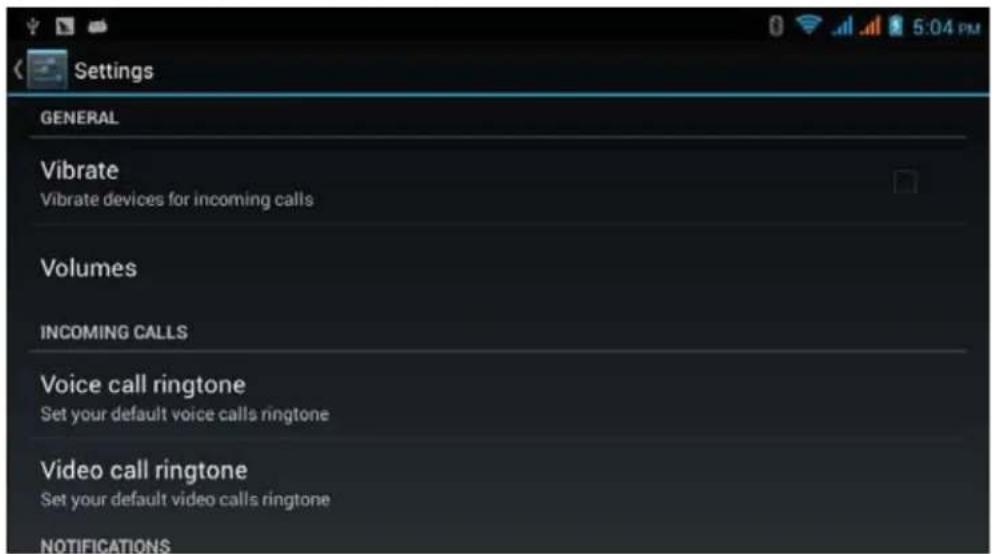
Picture 4.27
- Vibrate
In picture 4.27, click vibrate, COACH PLUS will vibrate when someone calls you.
- Volume
In picture 4.27, click volume, you can set ringtone, notice, and alarm volume, as Picture 4.28
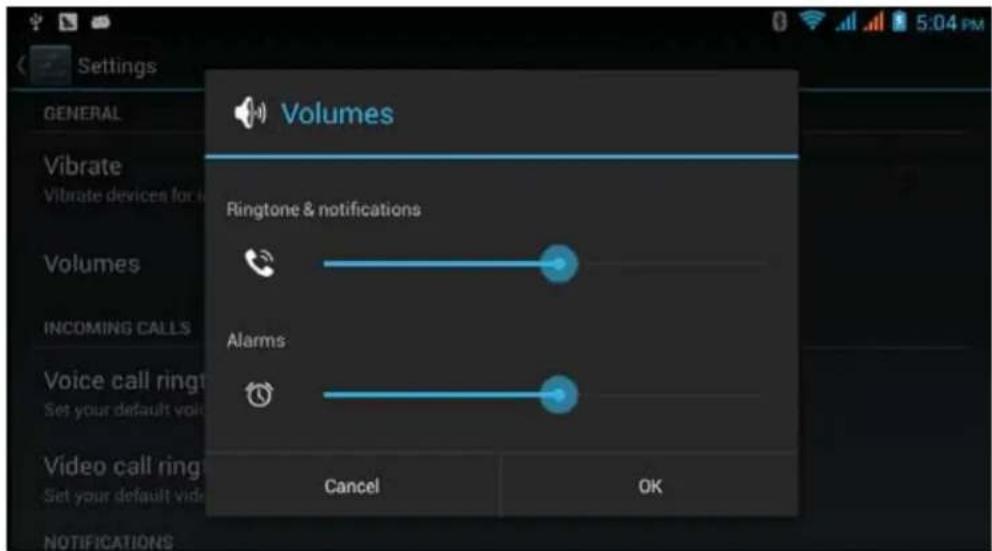
Picture 4.28
3. Voice call Ringtone
In picture 4.27, click voice call ringtone to choose voice call ringtone, as Picture 4.29
Picture 4.29
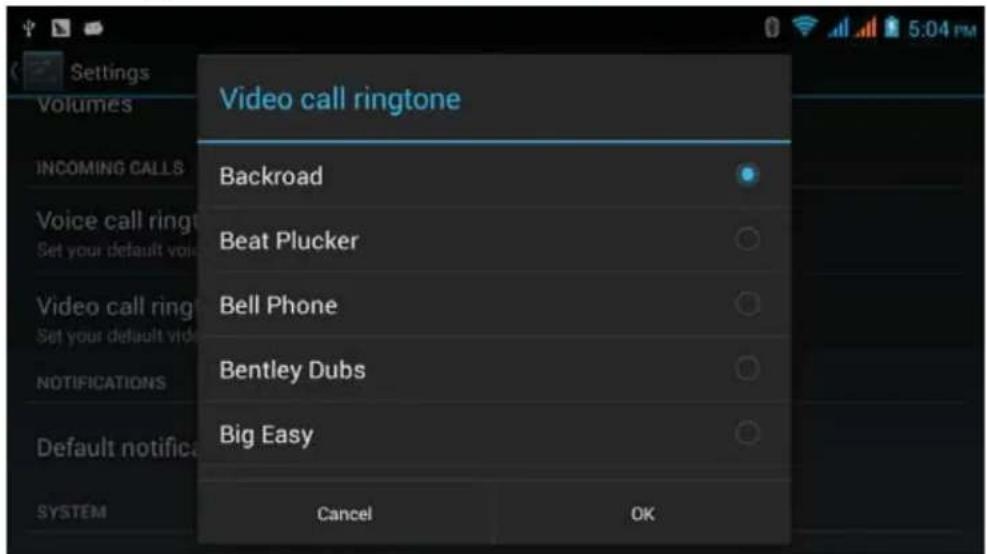
4. Video call ringtone
In Picture 4.27, click video call ringtone to choose video call ringtone, as Picture 4.30
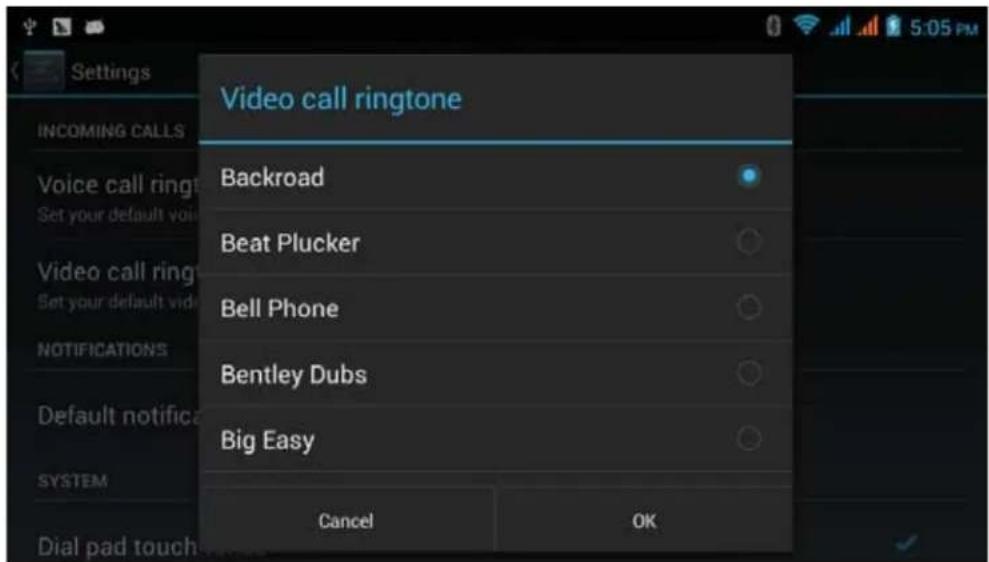
Picture 4.30
(Note: Except standard, silent, meet, outdoor are only for selection, they can't be set.)
4.7 Display
4.7-1 Adjust the screen brightness
- Click Setting application procedure.
- Click display, choose brightness,
- Drag the slider to adjust the brightness volume. As Picture 4.31
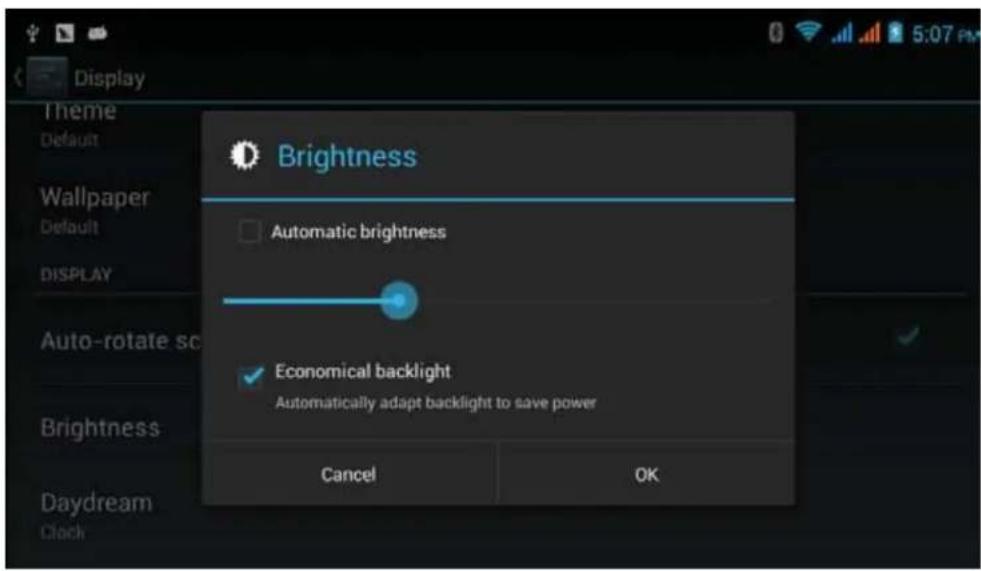
Picture 4.31
- Click OK after brightness is adjusted.
4.7-2 Wallpapers
- Click setting application.
- Click display, click wallpaper.
- You can choose different wallpapers as you like—live wallpapers---gallery(user defined)--wallpapers (system defect)---video wallpaper, as Picture 4.32
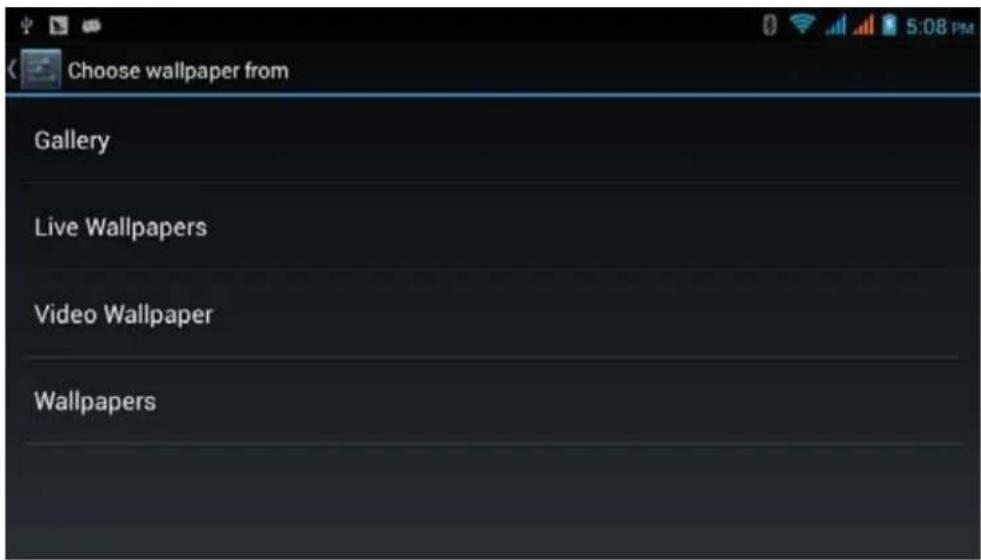
Picture 4.32
4.7-3 Auto rotation
System is defaulted as open auto rotation, when it is turned off, system won't rotate COACH PLUS screen by G-sensor.
4.7-4 Sleep
- Click setting application.
- Click display.
- Click sleep.
- Set the sleep time as you want, as Picture 4.33
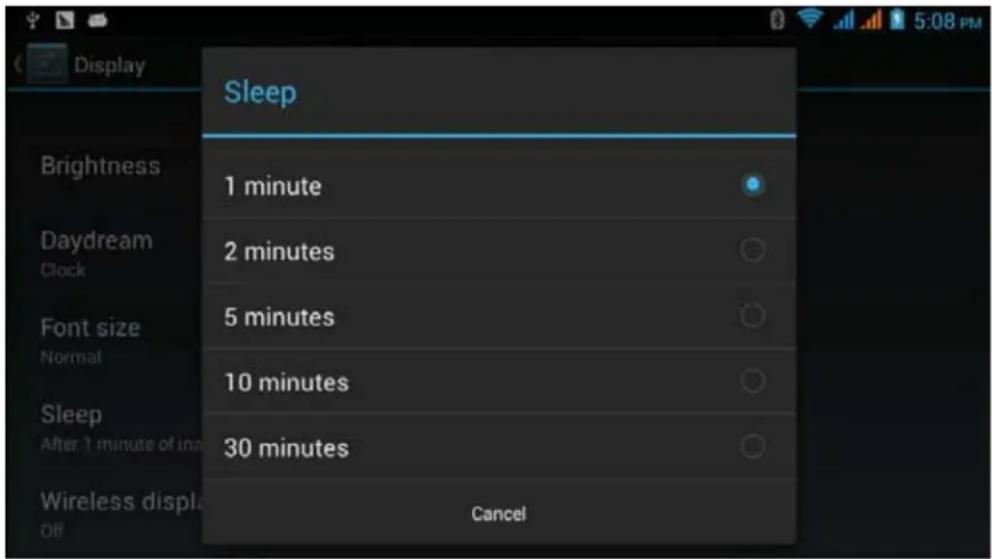
Picture 4.33
4.7-5 Font size
Click font size to adjust the font size, as Picture 4.34
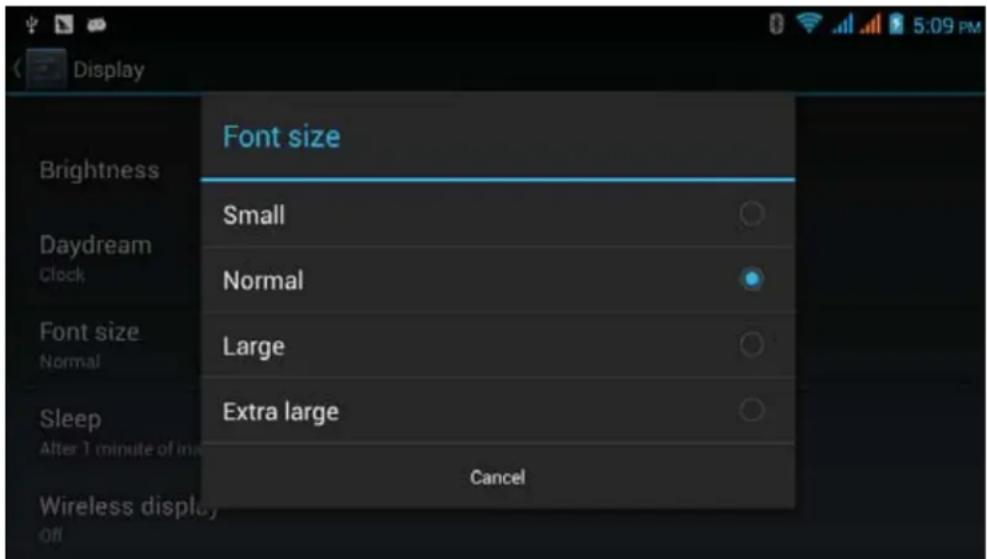
Picture 4.34
4.8 Storage
Open setting function, click memory, click preferred install location, you can choose install new application to choose preferred install location.
Check SD card and COACH PLUS storage space.
- Enter into setting application.
- Click storage, check storage space.
1. Internal storage
(1) System storage
System storage is the spaceCOACH PLUS leave for system file, as Picture 4.38. it can't be viewed.
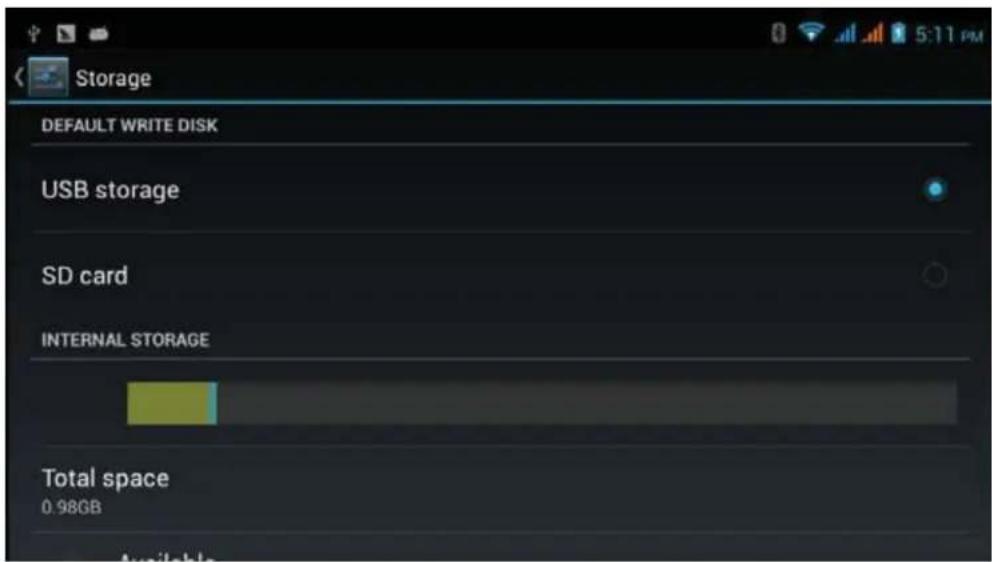
Picture 4.38
(2)Internal storage
Internal storage is COACH PLUS local NAND storage, as Picture 4.39, if you need to check the storage content, you can check it in main menu.
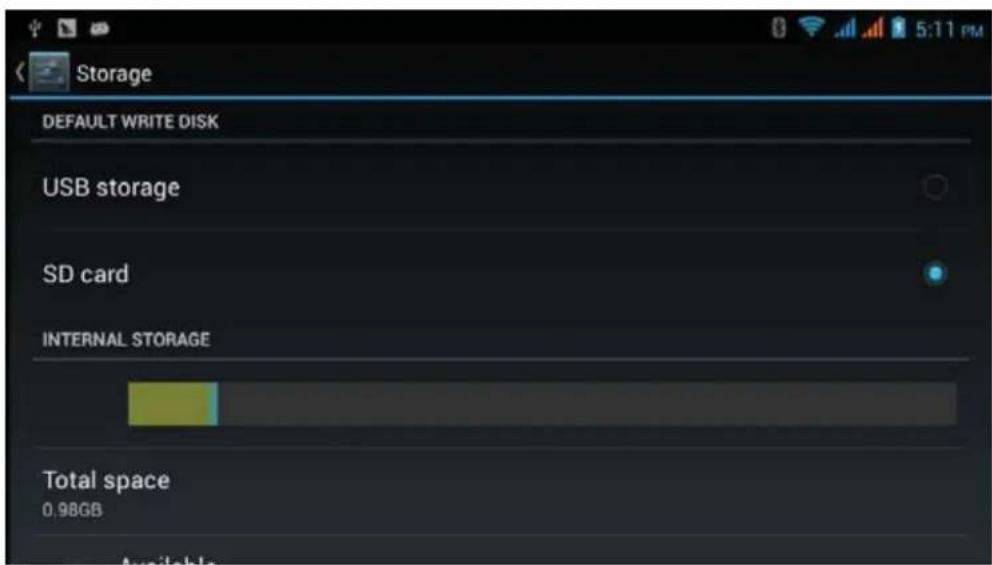
Picture 4.39
2. SD card
You can check storage space, SD card available space, unmount SD card and erase
SD card, as Picture 4.40
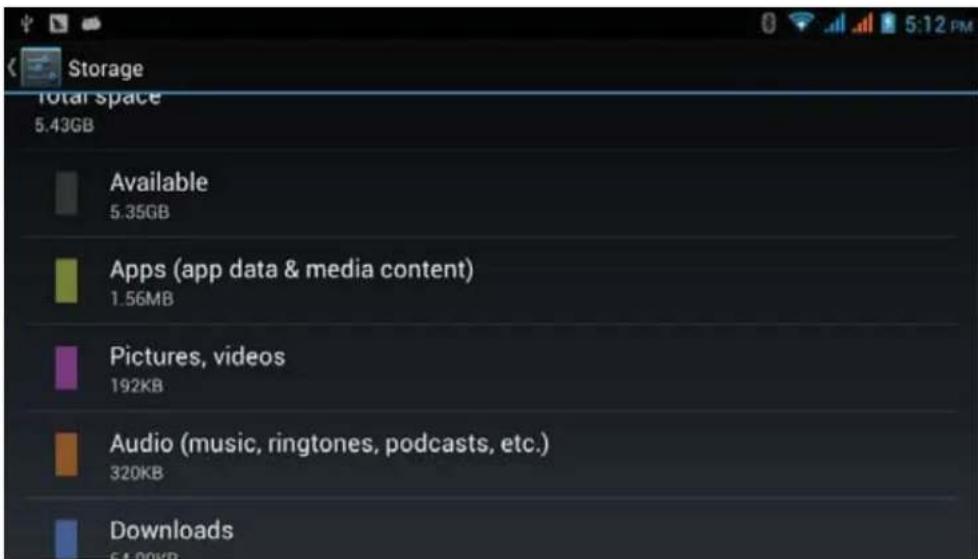
Picture 4.40
Safely remove SD card
- Click setting application.
- Click memory.
- Click uninstall SD card.
- Now you can remove SD card safely.
Note: Removing SD card safely can protect SD card and increase its lifetime.
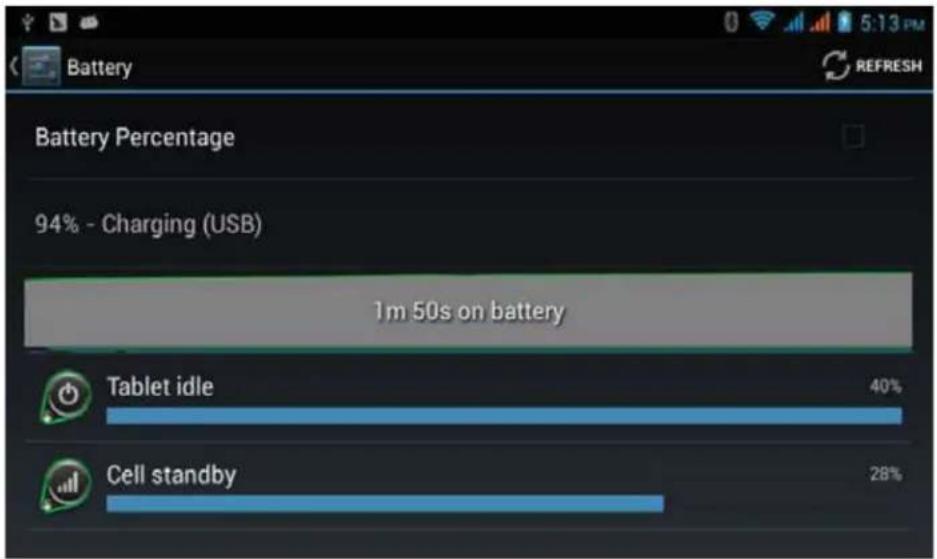
4.9 Battery
Click setting function, select battery, you can view the battery situation, as Picture 4.41
bar
| Category | Percentage (%) | | :--- | :--- | | Tablet idle | 40 | | Cell standby | 28 |Picture 4.41
4.10 Application program
- Click setting application in Apps.
- Select application, after enter, you can manage and delete installed application and check system used storage space and left space. (As Picture 4.42)
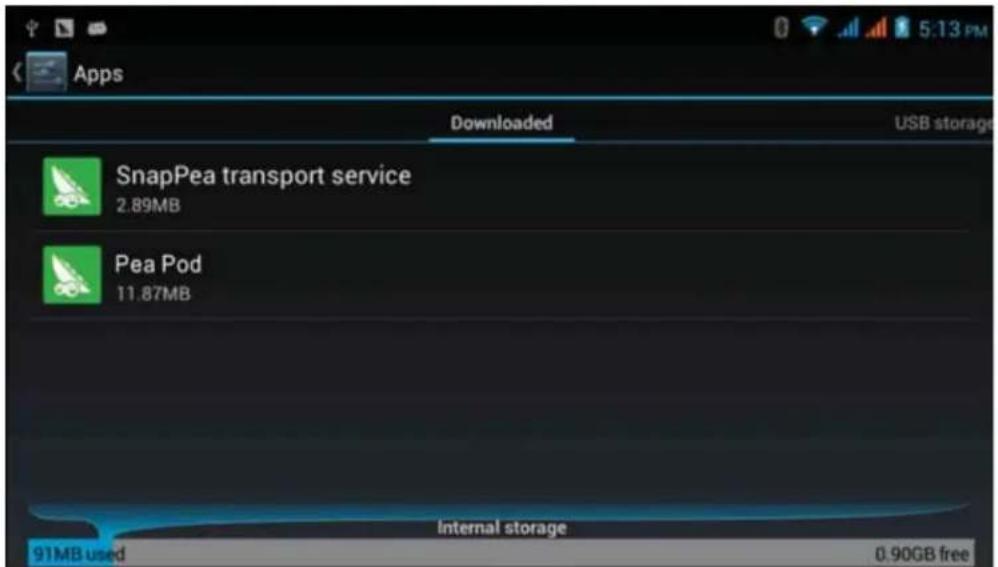
Picture 4.42
- View internal storage used space and left space, as Picture 4.43
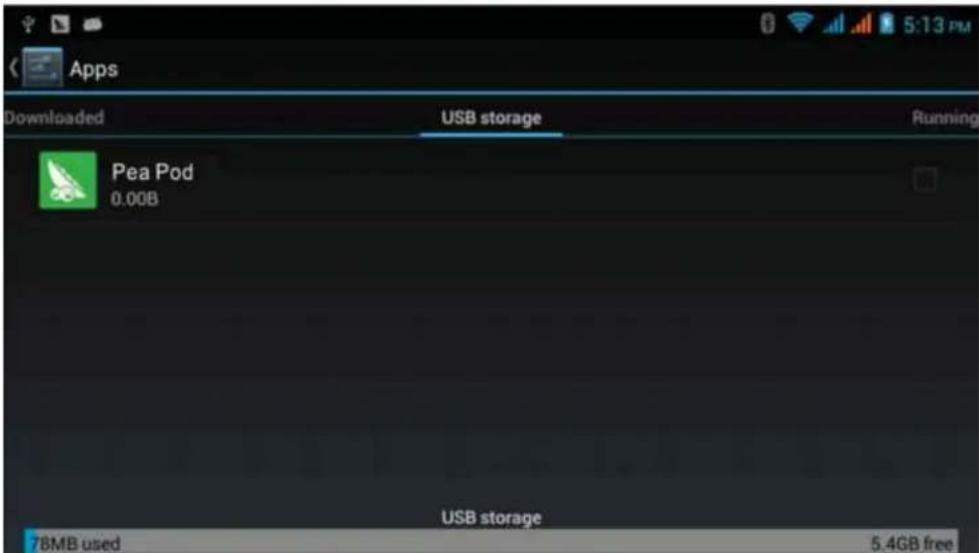
Picture 4.43
- View the working device, used space and available space, as Picture 4.44
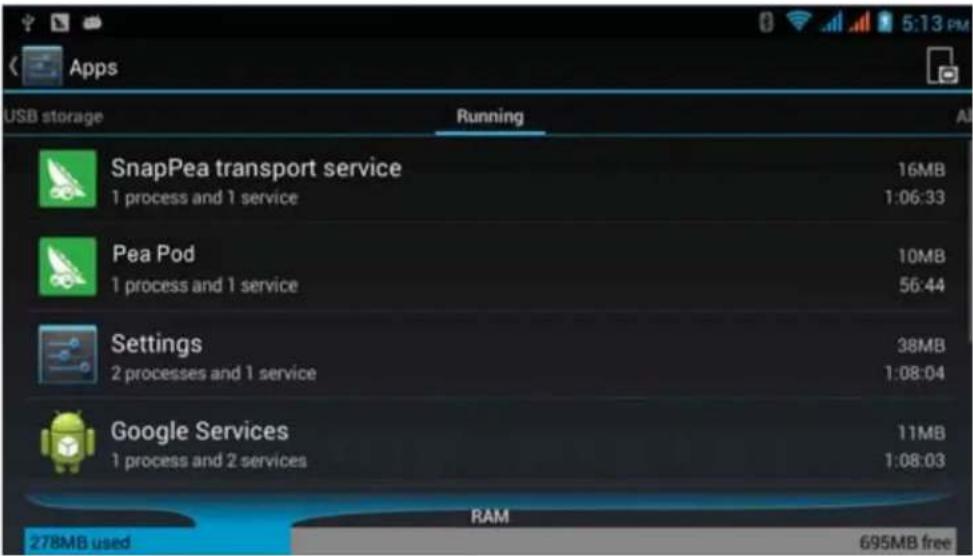
Picture 4.44
4.11 Account and Sync
-
Select setting application
-
Click add an account, as Picture 4.46

Picture 4.46
- After successfully load, it will open the sync function, as Picture 4.47
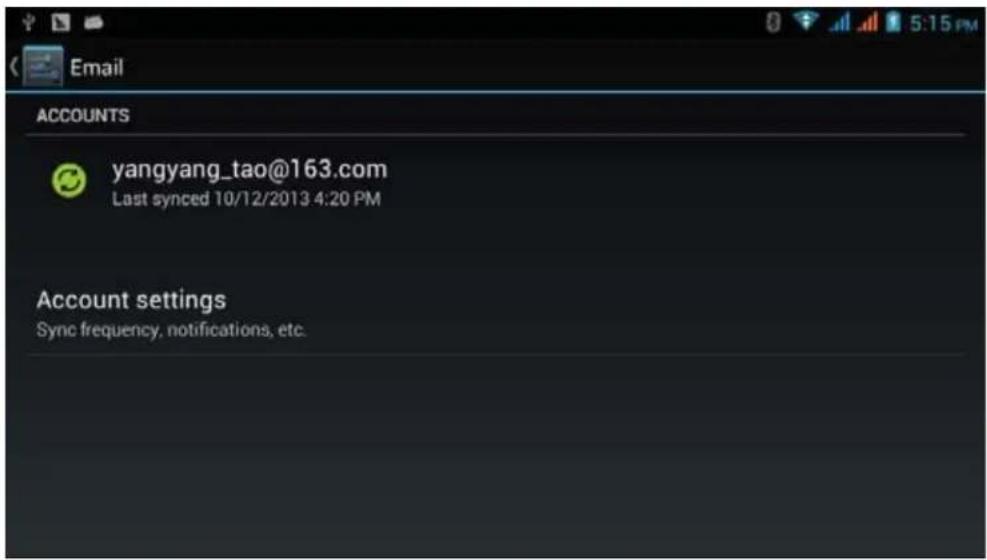
Picture 4.47
4.12 Location service
Click setting, select location service, as Picture 4.48
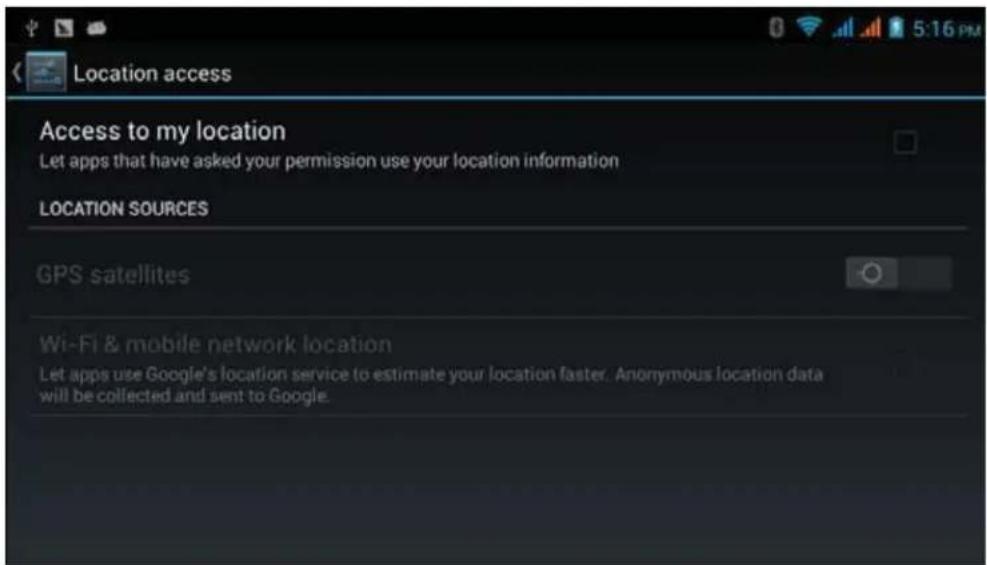
Picture 4.48
1. Google's location service
Open Google location service, you can use WIFI to positioning COACH PLUS.
2. GPS satellites
Open GPS satellite, you can use GPS to positioning COACH PLUS.
3. GPS Assistance
Open GPS Assistance, it can increase the speed of GPS positioning, but you need to insert SIM card and use data transmission.
4. EPO setting
Click EPO setting, enter into Picture 4.46, then check if EPO positioning information and EPO has turned on auto download.
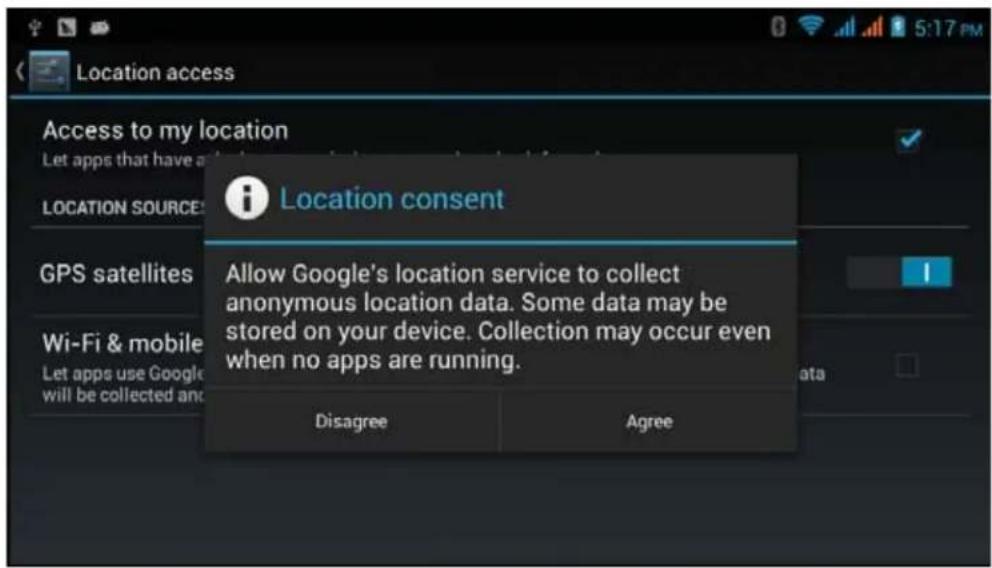
Picture 4.49
5. Location and Google search
Open location and allow google search, you can use your location information to improve search result and other services.
4.13 Safety setting
Set locked screen
Lock the touch screen by unlock icon or password to protect your COACH PLUS.
Note: After setting screen locked, you should enter the passcode each time when you startup or screen is locked
Set unlocked picture
-
Click setting application in main interface.
-
Click safe.
-
Click locked the screen.
-
Choose picture in text setting area.
-
Click next following the remind message.
-
The unlocked pattern board pop up, there are nine touch spots, connect 4 points from vertical, horizontal or diagonal direction. As Picture 4.10, move your finger from the screen when finish. The system will record you new unlock pattern.
-
Click continue.
-
When you see the reminder, enter the unlock pattern, then click confirm.
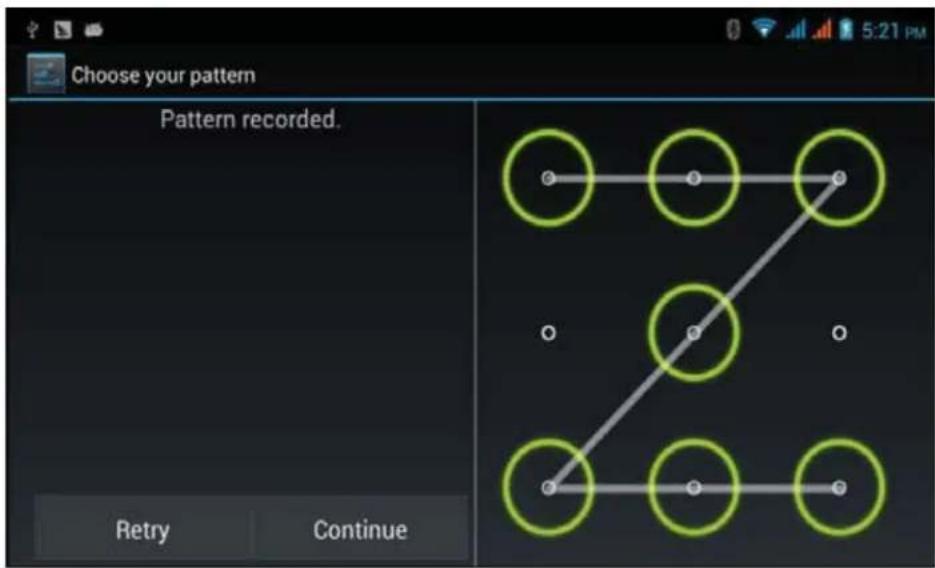
Picture 4.53
Set unlock PIN code
-
Click setting application in main interface.
-
Click safe.
-
Click screen locked.
-
Choose PIN in text setting area.
-
Enter new PIN code(numbers) and click continue.
-
Enter new PIN code again and click confirm.
Set unlock password
- Click setting application in main interface.
- Click safe.
-
Click screen locked.
-
Set password in text setting area.
- Set new password(letters and numbers) and then click continue.
- Enter the password again and the click confirm.
Unknown source
- In main interface, click setting.
- Click safety.
- Click unknown source, as Picture 4.54
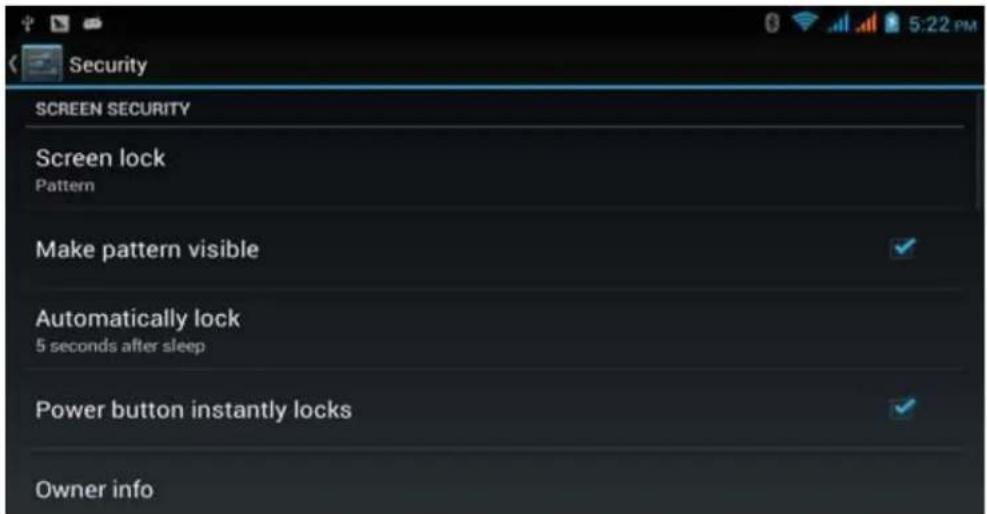
Picture 4.54
Note: Manual installing APK files needs to turn on unknown source.
4.14 Language and Input Method
Click setting, select language and input method, choose language to switch language, as
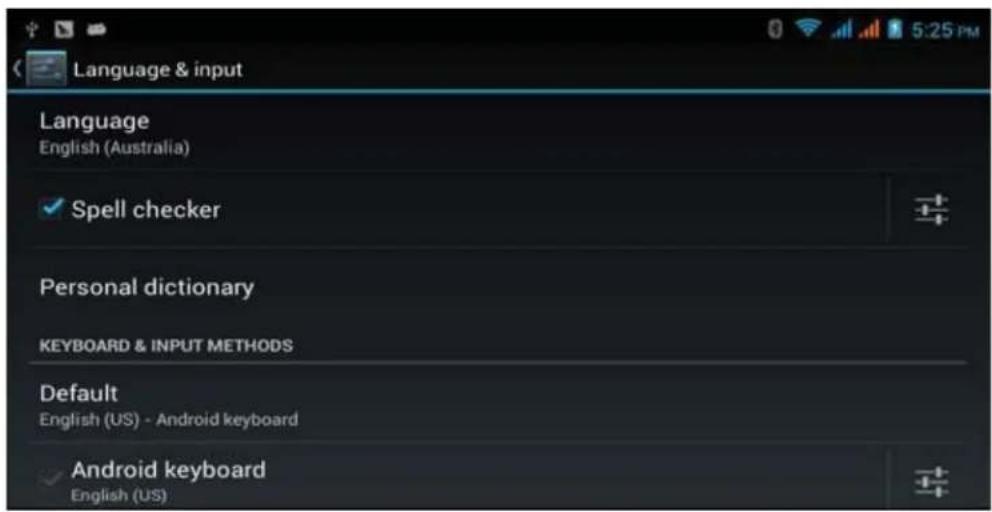
Picture 4.55
Click setting, choose language and input, choose Android keyboard setting, click input language, as Picture 4.56
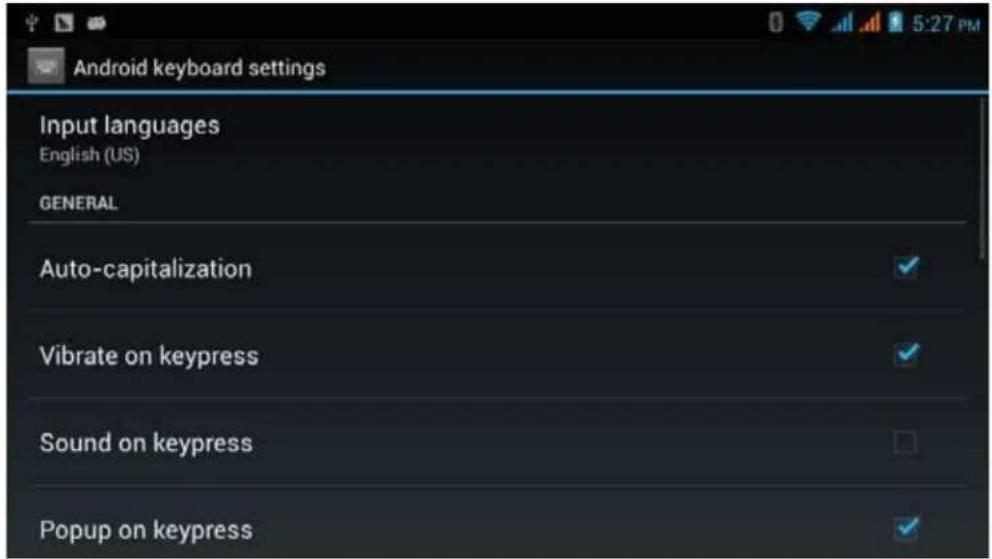
Picture 4.56
Choose the language you want to change in the language list, as Picture 4.57
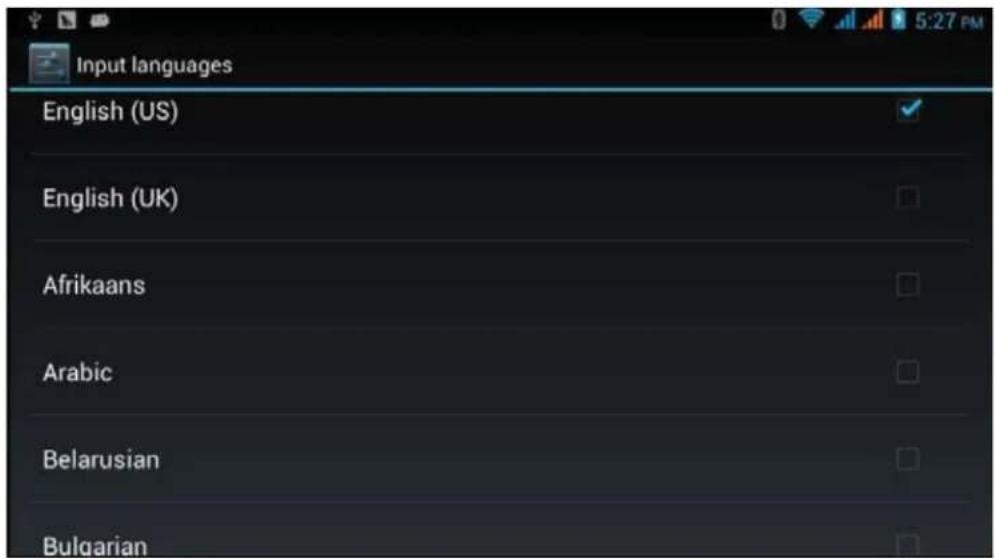
Picture 4.57
4.15 Backup and Reset
Connect WIFI and login your google account, choose backup my data, system will backup your data into google server.
If you need to recovery factory reset, please click reset, as Picture 4.59, if you need to formulate NAND, please click reset tablet.
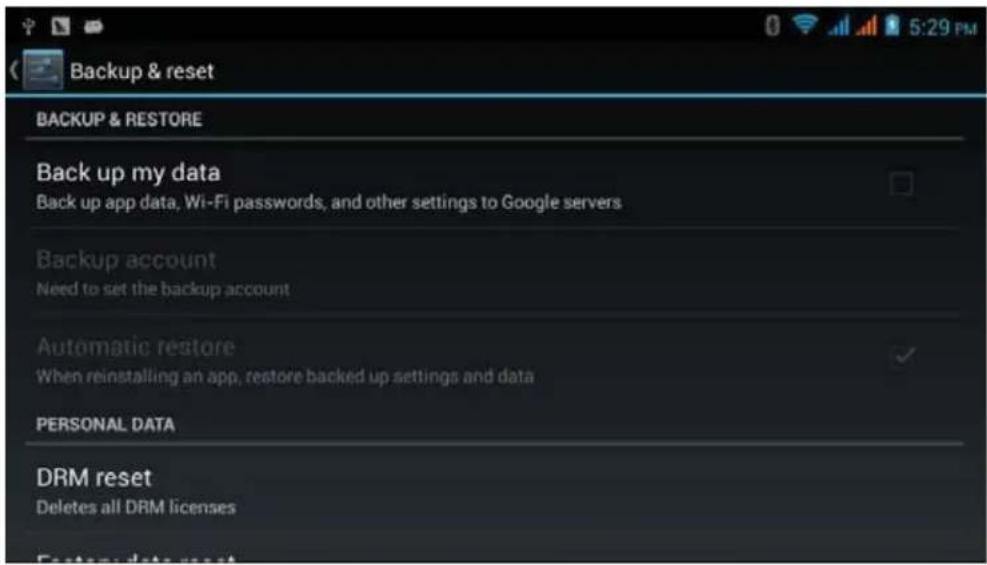
Picture 4.59
4.16 Date and Time
According to the preset, system will voluntarily apply the date, zone, and time provided by internet.
Manual set date, time and zone
- Click Setting application procedure.
- Slide down the screen, then click date and time.
- Turn off "auto setting of date and time".
- Turn off "auto setting zone".
- Click Zone Selecting, then choose the zone lists. Slide down the list to view more zones.
- Click Date setting, then click upper or down buton to adjust date, month, and year, click setting when you finish selection.
- Click Time setting, then click upper or down button to adjust hour and minute, click AM or PM to change morning or afternoon (there is no such selection when you see 24-hour format). Click Settingto finish.
- Click 24-hour format, switch between 12-hour or 24-hour format, the time format you choose will be used on the alarm clock.
- Click date format setting, then choose the time format you want to show on COACH PLUS.
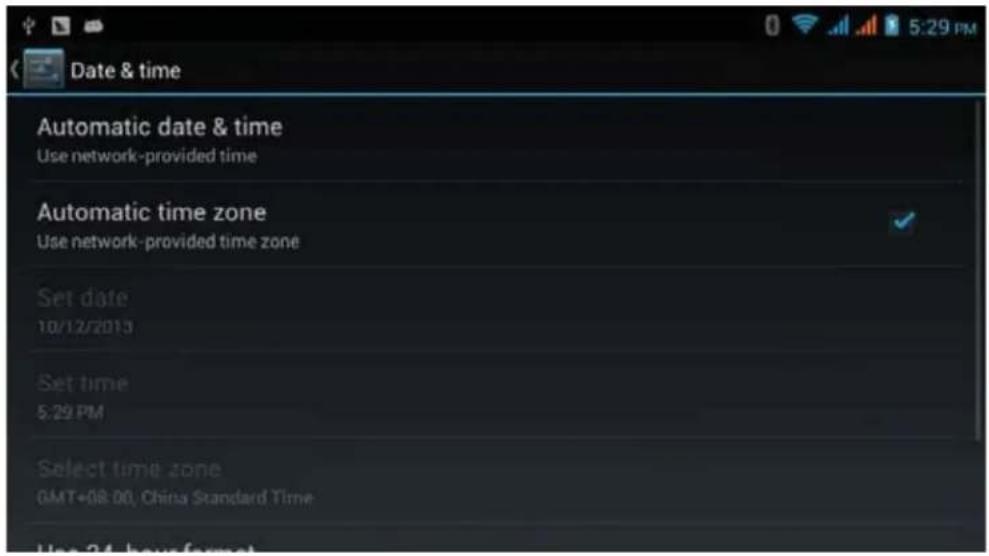
Picture 4.60
Note: If you use the time internet provided, you will not able to set the date, time and time zone.
4.17 Fixed-time Startup and Shutdown
- Click Setting application procedure
- Click fixed-time startup and shutdown.
- Operate as below Picture 4.61
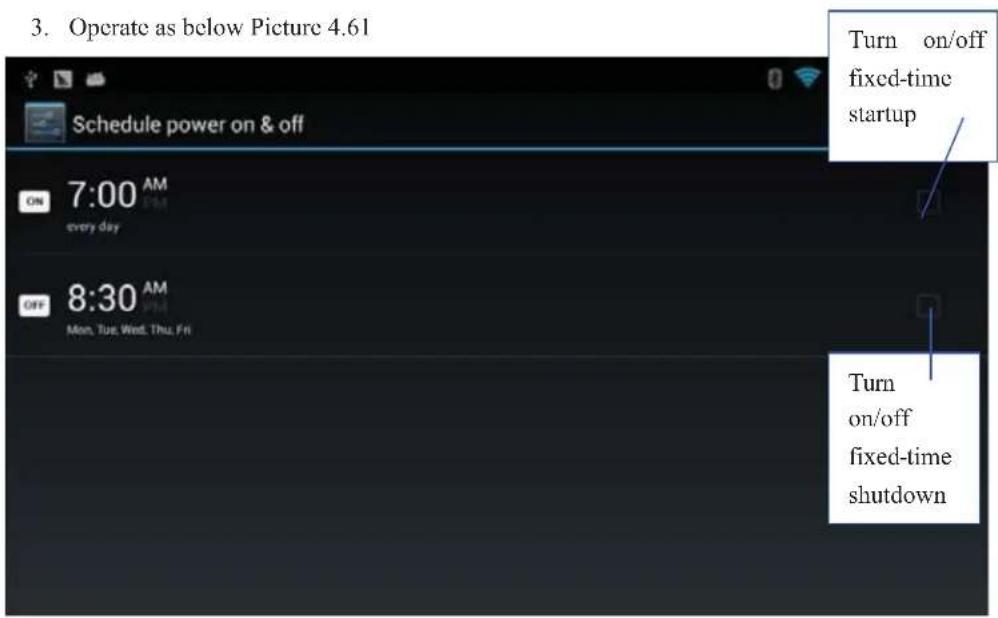
Picture 4.61
4.18 Assistance Function
4.18-1. Large size
Click it to make system font large size
4.18-2. Click power button to end calls
When Click call, press "power" button, call will end but not hold.
4.18-3. Touch and hold delay
Click touch and hold delay to increase time, as Picture 4.62
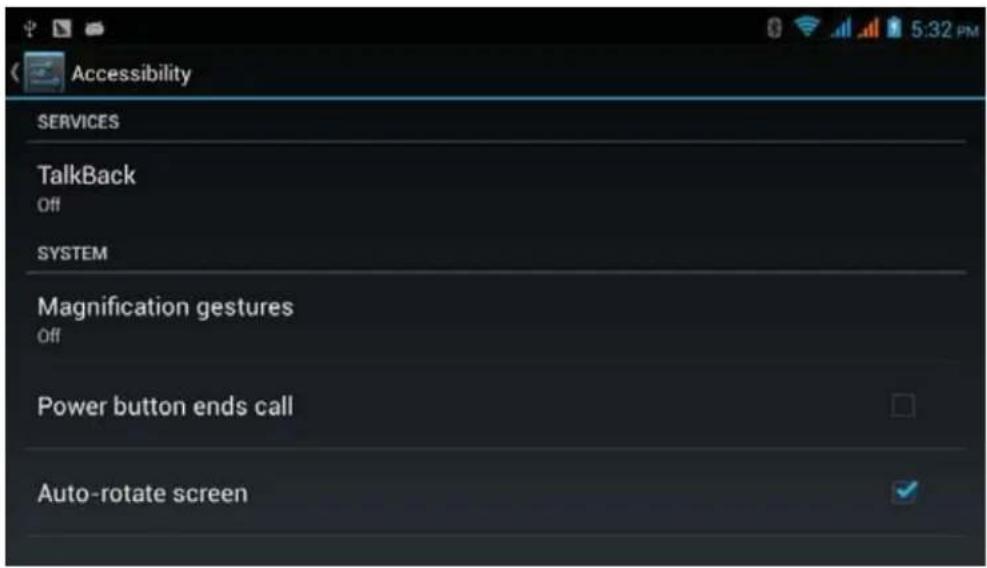
Picture 4.62
4.18-4 Install webpage script
It will allow you install webpage scrip when you open system,, but it will increase the risk when you are browsing webpage.
4.19 Engineer Selection
4.19-1 USB adjustment
After opening USB adjustment, you can use some software to read COACH PLUS software, but when USB adjustment is turned on, USB storage needs to manual adjust.
4.19-2 Keep awaken state
If you open keep awaken state, it will never auto sleep when your COACH PLUS is charging.
4.19-3 Pointer Location
If you open pointer location, it will display touch vertical and horizontal direction.
4.19-4 Show touches
If you open display touch screen operation, it will display touch operation on the screen. It is suggested to use with same direction as pointer location.
4.19-5 Show screen update
If you open screen refresh, it will display related area when the area is refreshing.
4.19-6 Show CPU usage
After open CPU usage, in the right top of COACH PLUS will show CPU usage situation.as Picture 4.63
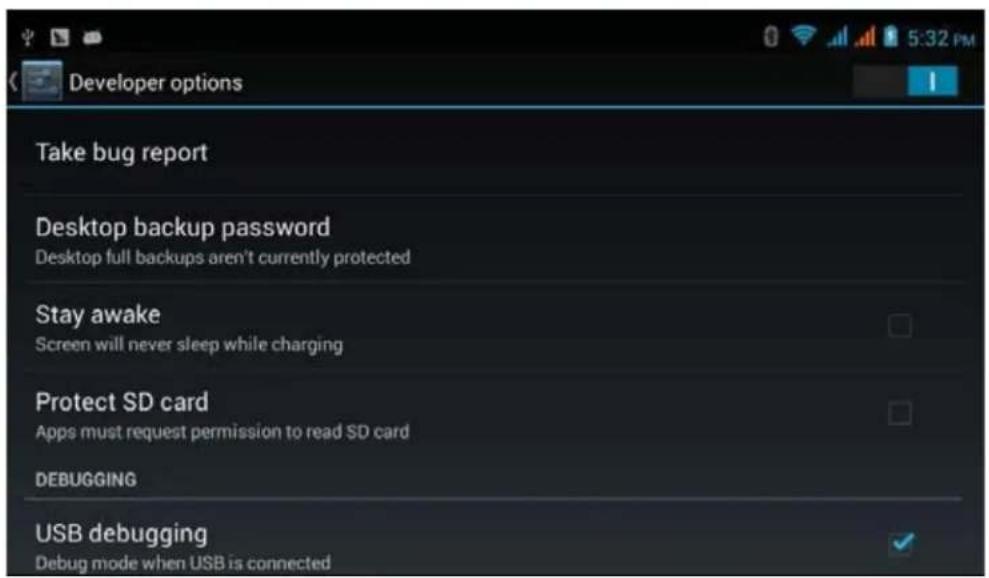
Picture 4.63
4.20 About Tablet
Check COACH PLUS state
- Check Setting application.
- Click about tablet, check state message, model, Android version, version No and so on.
- Click state message, check battery state, battery volume, SIM state, IMEI number, IP address.
5 Multi-Media
5.1 Music
Enter into music player: in menu or desktop click music click the music you want to play, as Picture 5.1:

icon to enter into music player,
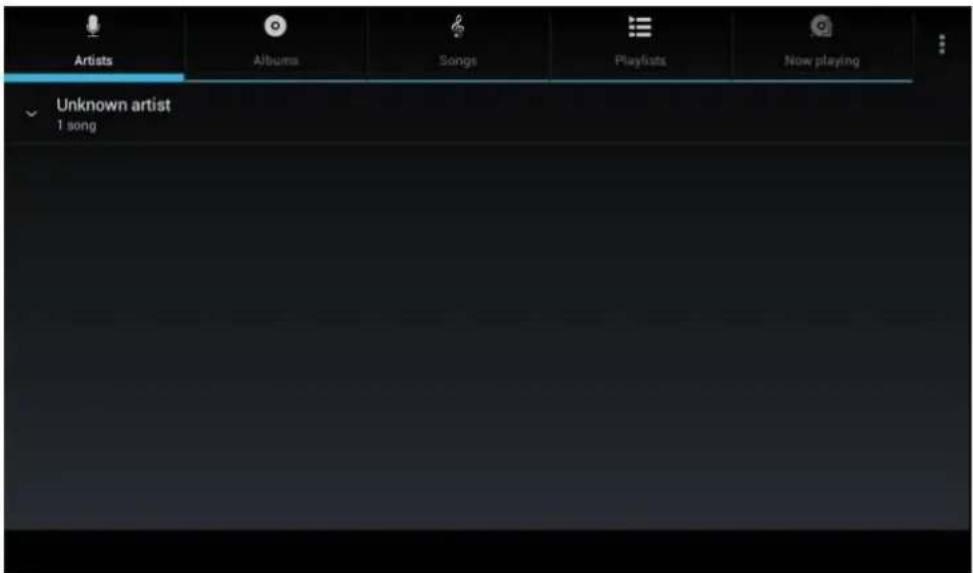
Picture 5.1
Random play
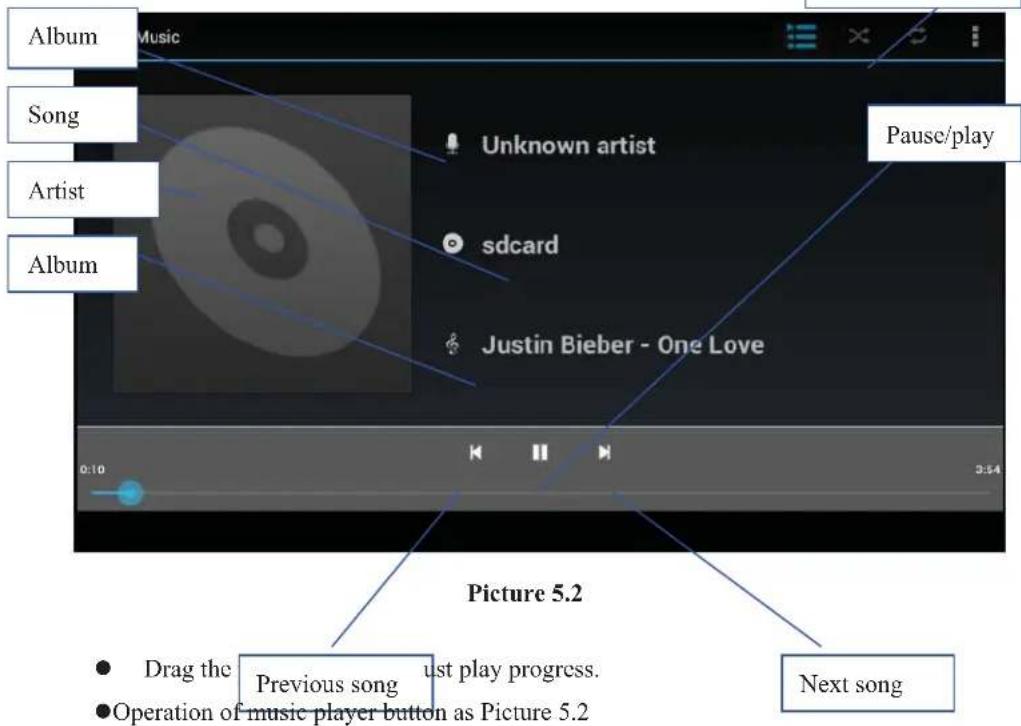
5.2 Video
- Enter video player: choose [icon] application in main menu, choose the video you want
to play.
●Operation of video player button as Picture 5.3
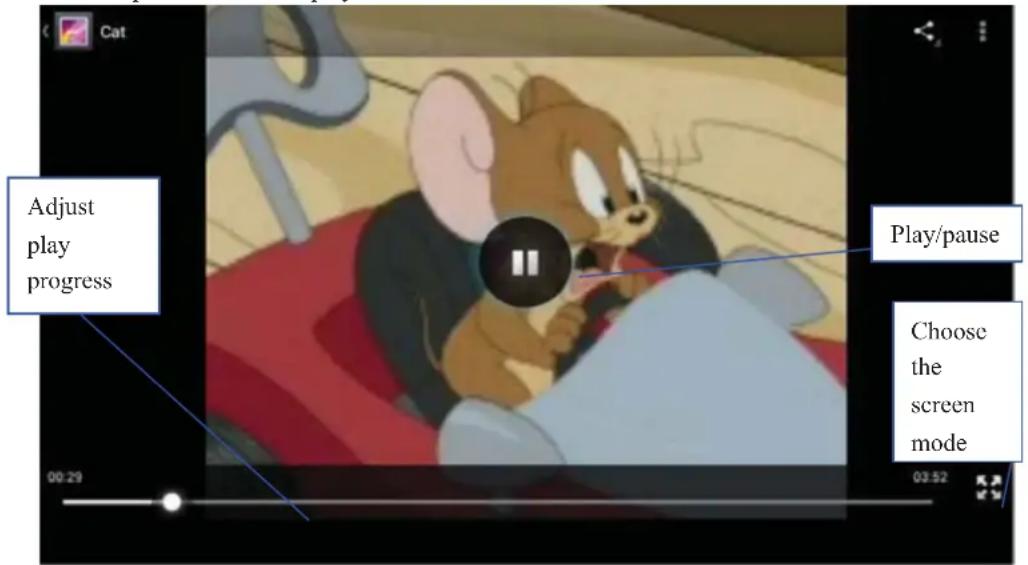
Picture 5.3
5.3 Photo Gallery
Photo gallery application can auto search photos and video files in SD card, and photo gallery will classify these photos and videos in folder. You can apply photo gallery to view and edit photos, set the photos as wallpaper and watch the video.
View pictures
- Click gallery application in main interface.
- Enter into gallery, click the folder you want to view.
- Click the picture you want to view, the system will play it in full screen mode automatically.
- The pictures can be zoom in and zoom out, put two fingers on the screen, the separate the fingers(gather up the fingers, the picture will be zoom in) or double click the screen.
Note: when you browse the pictures, slide left or right to view more pictures.
Edit and set pictures
When check the pictures in full screen mode, click menu key to display menu selection, you can choose the selection you need to edit and setting pictures.
- Slide Show
-
Open a picture, use virtual key to click menu key, display menu selection.
-
Click slide show, it will auto loop play(or choose button in picture folder)
●Crop
- Click menu key to display menu selection.
- Then click crop, click and drag related area to adjust the cropper.
- Click cropper and drag it inside and outside to adjust the image.
- After adjust the size you want, click crop.
- If you wish to give up to crop, click cancel to return to picture browse.
Edit
- Click menu key, display the menu selection.
- Click edit.
- Adjust the brightness, style, color, antialiasing setting in selection.
- Click save.
- If you want to give up edit, click return key, click not to return to picture browse.
5.4 Camera
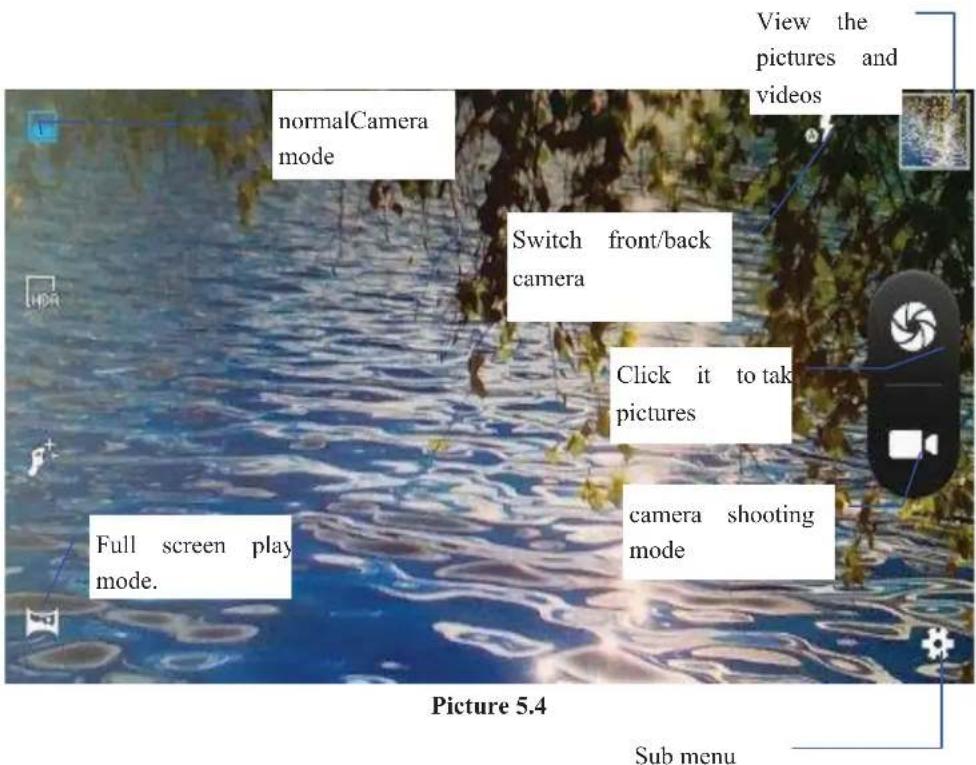
In the main interface or desktop, click camera application procedure , enter into camera
- Operation of camera, Switch camera: choose Menu key, click switch front/back camera, as Picture 5.4
5.5 FM Radio

Click FM Radio in the main interface or desktop to enter into FM radio interface:
●Radio button operation instruction as Picture 5.5:
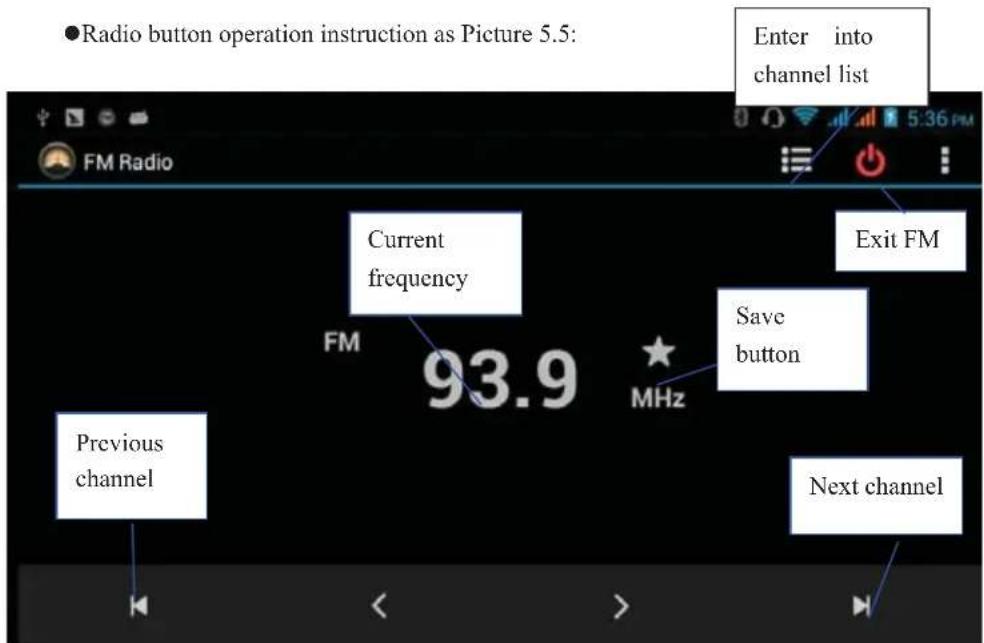
Picture 5.5
Click search to search FM band, as Picture 5.6
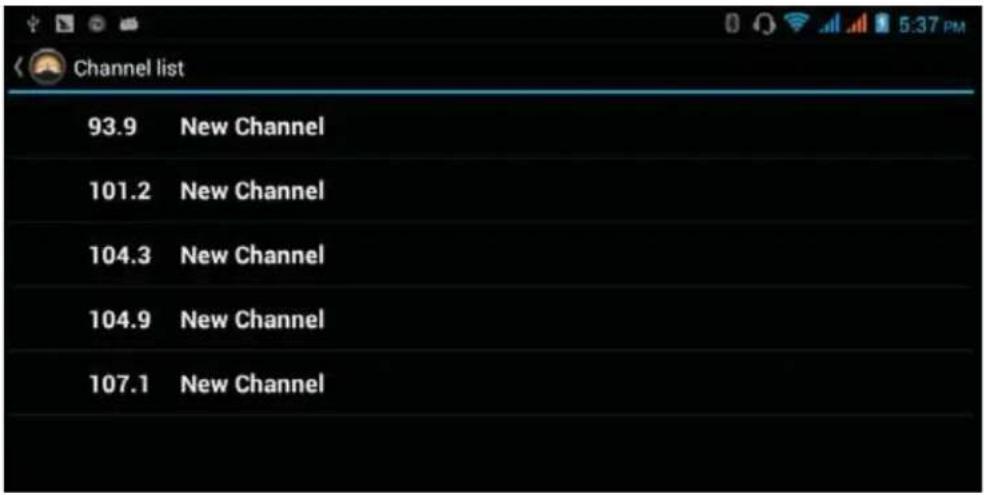
Picture 5.6
- Save channels: Click button in the main interface to save the channel, and the channel will be saved in channels list. Note: You need to insert earphone as antenna when using FM radio, If no antenna, yourCOACH PLUS can't search any frequency band.
6 Communication Function
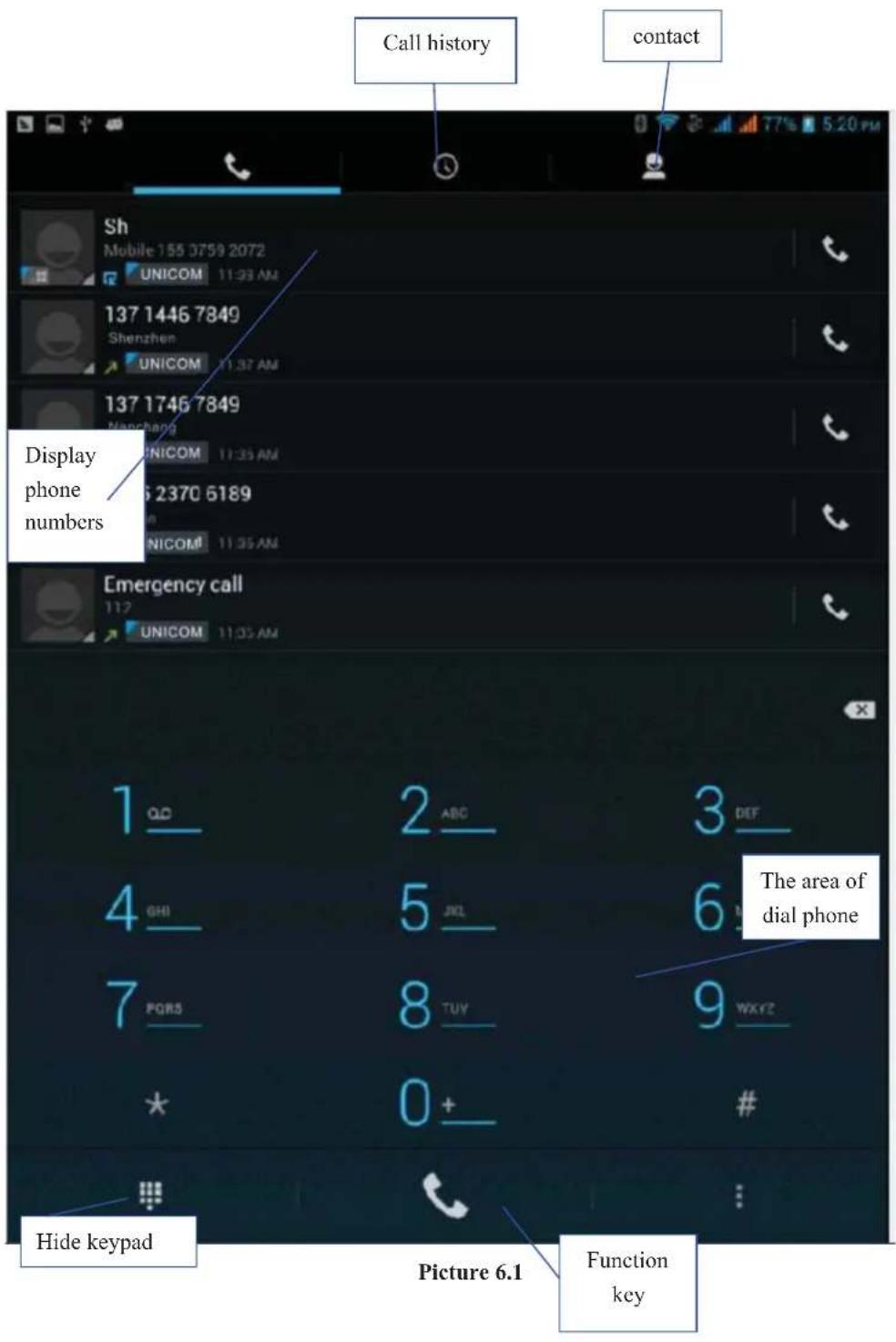
6.1 Phone
1 Click Phone application procedure
2 Operate as Picture 6.1
6.2 Text Message
1 Enter into main menu, choose

application procedure.
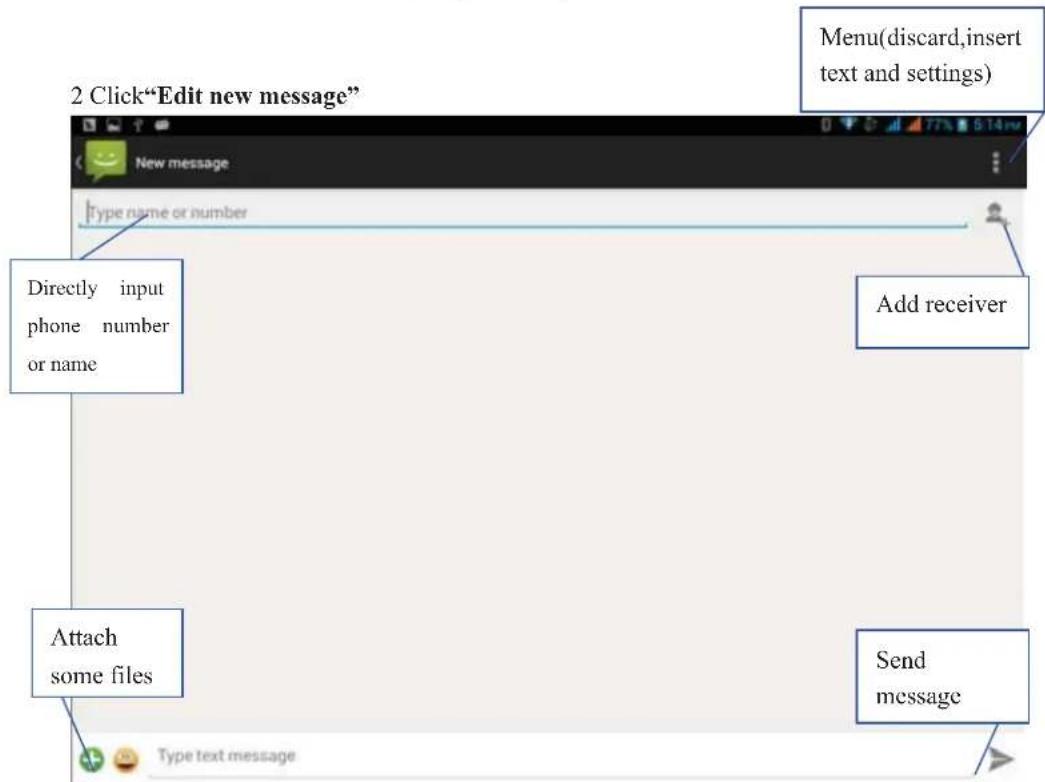
flowchart
graph TD
    A["2 Click 'Edit new message'"] --> B["Directly input phone number or name"]
    B --> C["Attach some files"]
    C --> D["Type text message"]
    D --> E["Send message"]
    E --> F["Add receiver"]
    F --> G["Menu (discard, insert text and settings)"]
Picture 6.2
6.3 Contact List
Click Contact list

in the main interface, enter into the contact list as Picture 6.3
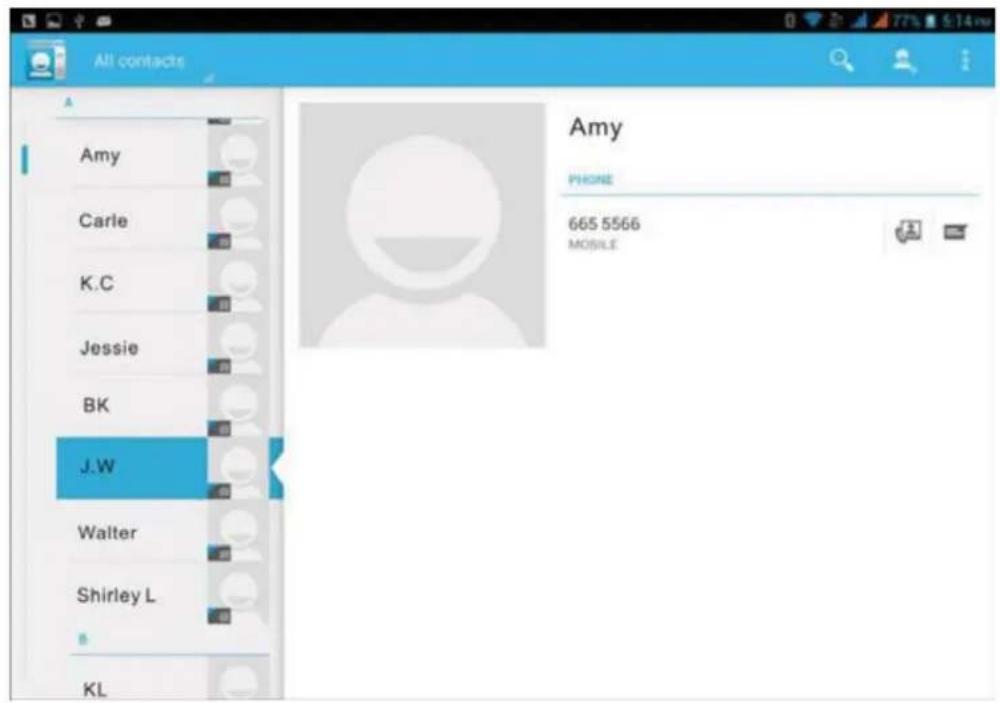
Picture 6.3
- Search contact: click
button, enter into search function - Add contact: click
button, enter into add contact interface.


7 Internet
7.1 Browser
In case of Wi-Fi or mobile internet is connected well (Please refer to Chapter 4.1 for wireless and
internet setting), click IE browser in the main menu or desktop to enter the IE interface, asPicture 7.1
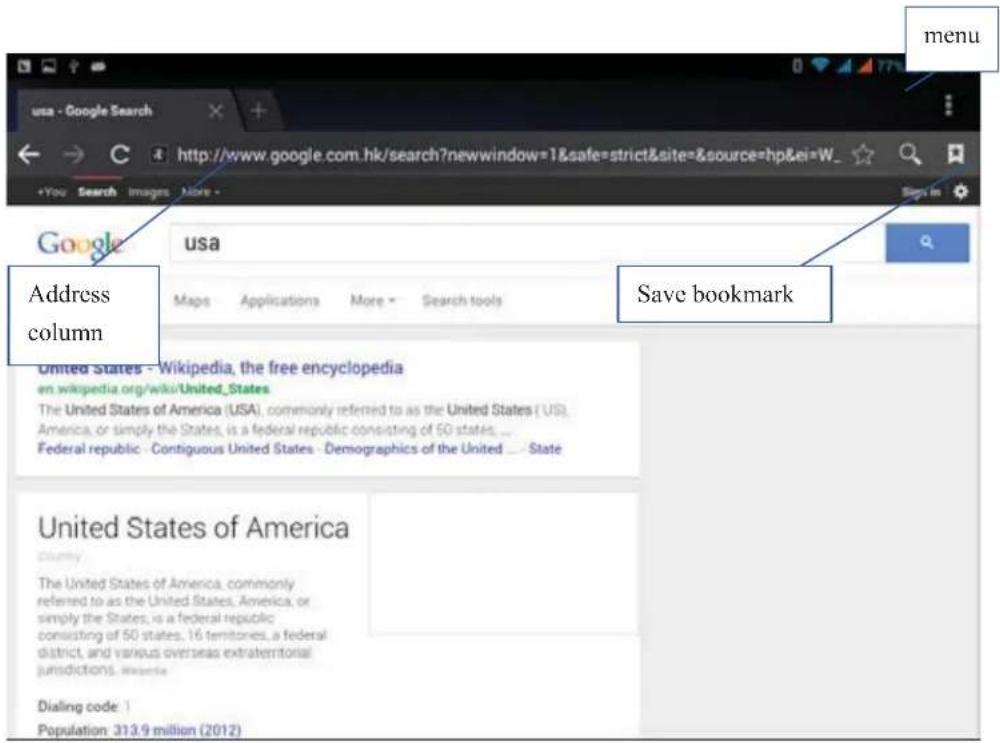
Picture 7.1
Click address bar to input the website, click start, enter into related webpage, then you can browse the website information, as Picture 7.1.2 and you can click the menu you can refresh ,save to bookmarks, share page,bookmarks,history and setting the webpage.
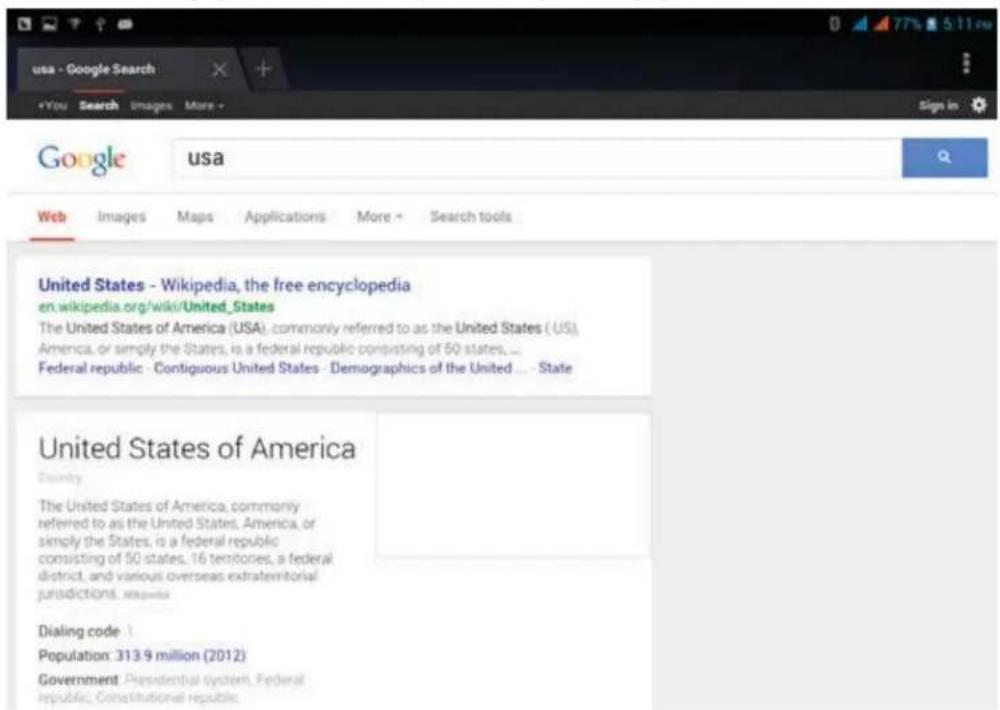
Picture7.1.2
7.2 Email
Email application procedure contains email setting guide, you can add the external POP3 OR IMAP email account of normal web email service provider (For instance, Yahoo, Gmail, Hotmail and 163), as Picture 7.2
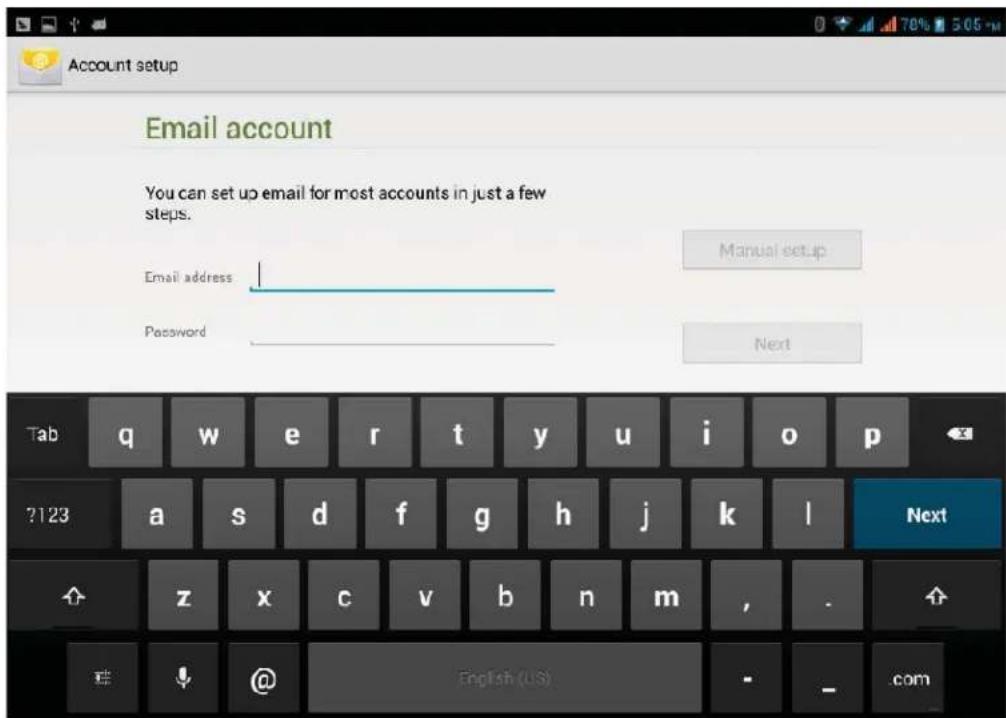
Picture 7.2
a. Email Setting
- After you click the sending email icon, you can see the email setting guide, which can help you to set.
- Input your email address and password.
- Click "Next step" button, choose your email type is POP3 or IMAP.
- Click "Next Step" button to check whether the email box servicer can receive or send emails
- Input the email account and display the email subject, and click finish.
- If the email box is available, you will enter into your mail box automatically.
b. Delete the email account
You can delete setted POP3 or IMAP email account from your COACH PLUS.
Click

- Enter into your mail box.
- Press Menu key.
- Click Account
- Press the account you want to delete.
- Click confirm to remove.
c. Send E-mail
- Click to display your mail box.
- Click the inbox, it will refresh the new emails automatically; click it to read new email.
- Press Menu key. Menus will popup.
- Click Edit to enter into new email editing interface.
- Input the receiver's email address.
- Input the subject and email content.
- If you want to add attachment, click menu key, the menu popup.
- Click "Attach file" (photo,music, video,contacts).
- Click "send" to send the email out.
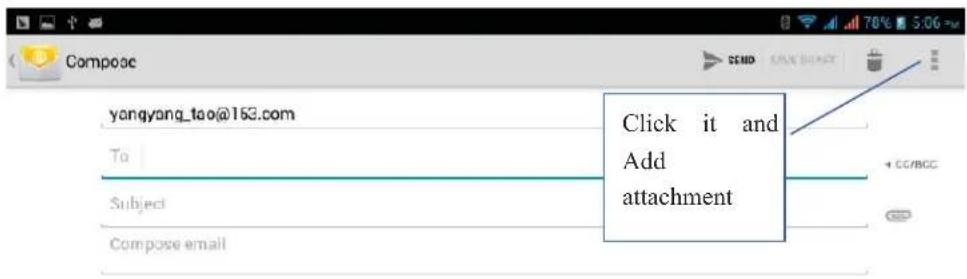
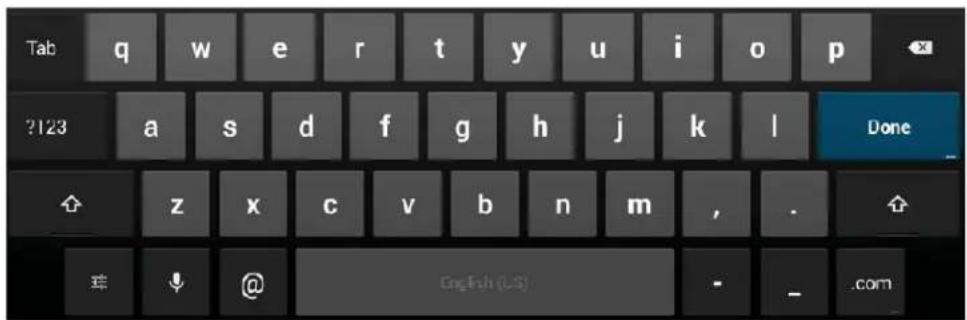
Picture 7.3
9 Other Application Procedures
9.1 Clock
Click Clock procedure, enter into below interface as Picture 9.1.
There are clock, picture, music and homepage buttons.
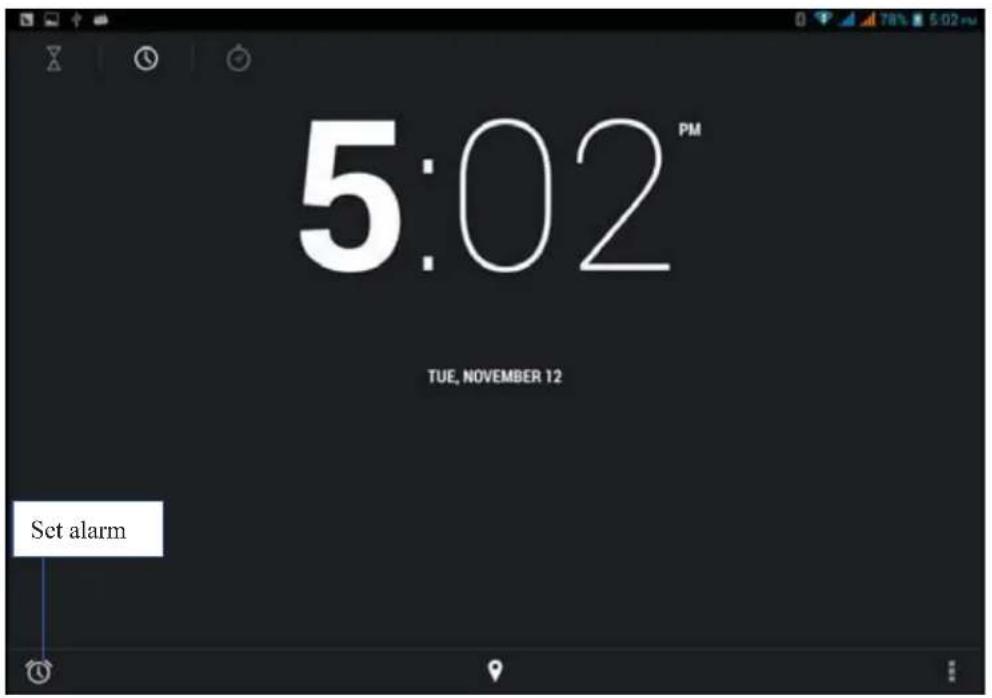
Picture 9.1
9.2 Calculator

- Click
- Enter into the basic board of calculator.
- Soft touch the numbers or operator in calculator to calculate.
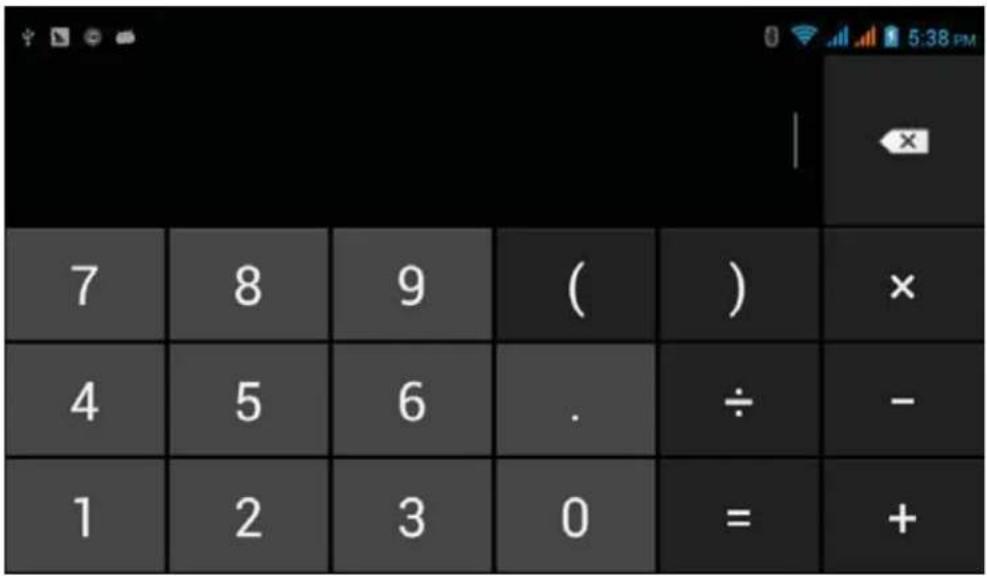
Picture 9.2
9.3 File Manager
File manager will copy, cut, delete, rename the documents or the folder in the TF card, it also will share the files, install apk etc.
In the main menu or desktop, click the document manager icon to enter into documents manager.
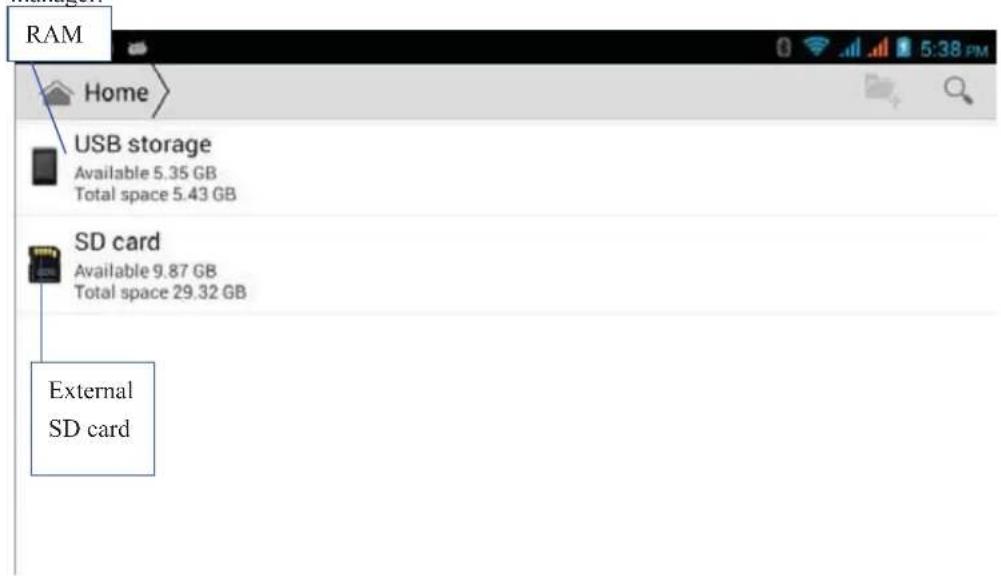
Picture 9.3
a、Paste the copy or cut file: choose the file you want to paste, Picture 9.5, choose right top

icon to enter into Picture 9.6
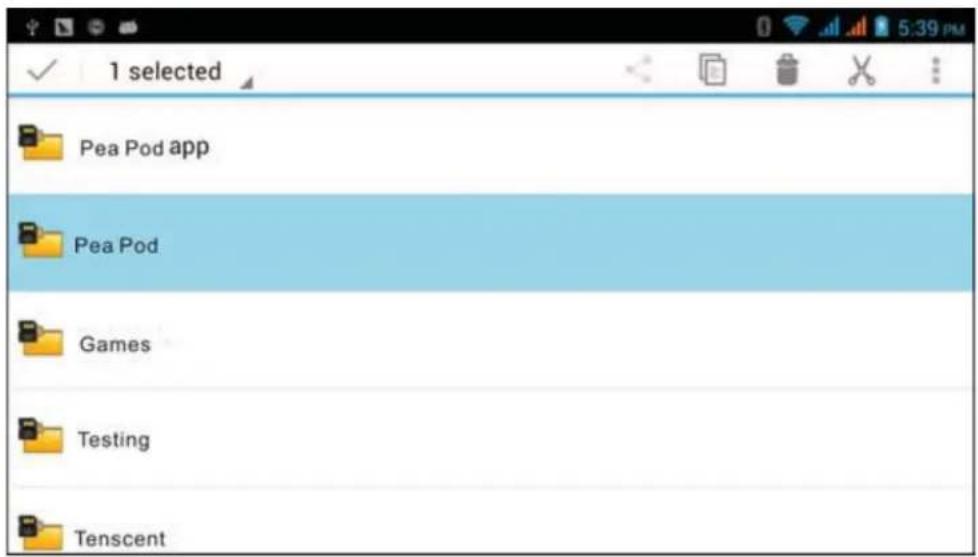
Picture 9.4
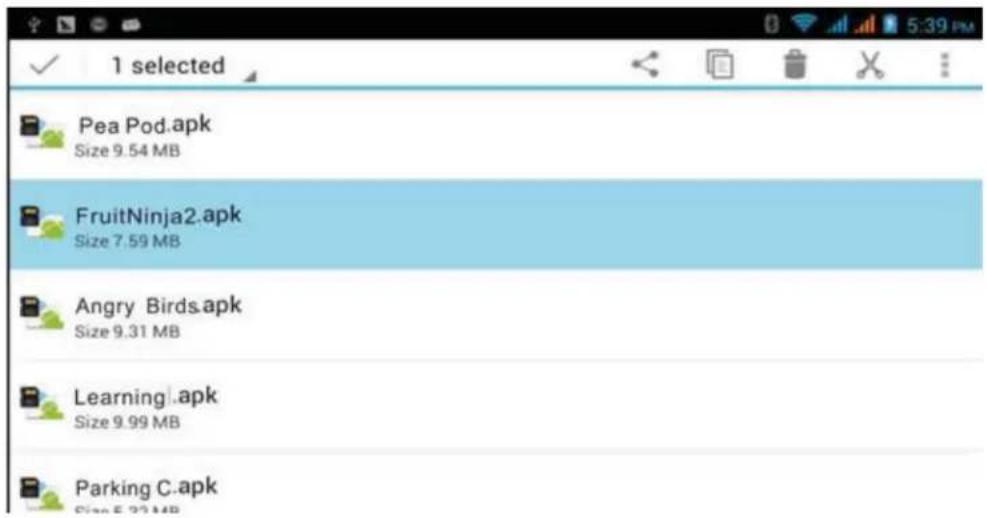
Picture 9.5
C. Share file: choose any file, long press it, it will popup "share", choose the share way you want in the list
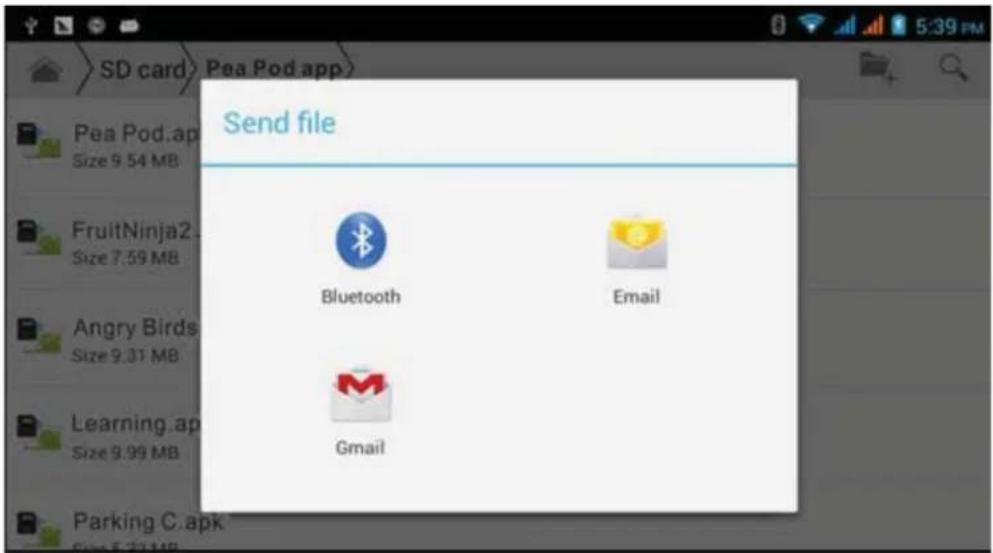
Picture 9.6
d、Install apk file: Choose the file suffixed .apk in the file manager, you can install the third part software as reminder.
e、Build new folder: Choose the menu you want to build the file, click icon in right top, choose new folder, you can build new folder as reminder.
9.4 Recorder
In the main interface or desktop, click recorder icon to enter into record interface, click
record key 🧑 to start record., Click Play key ➕ to play the recorded sound. The system will auto remind you to use or abandon this record, please choose it manually.
Play the record: choose the video player to play the recorded sound, choose the recorded sound in the source manager, and click it to play.
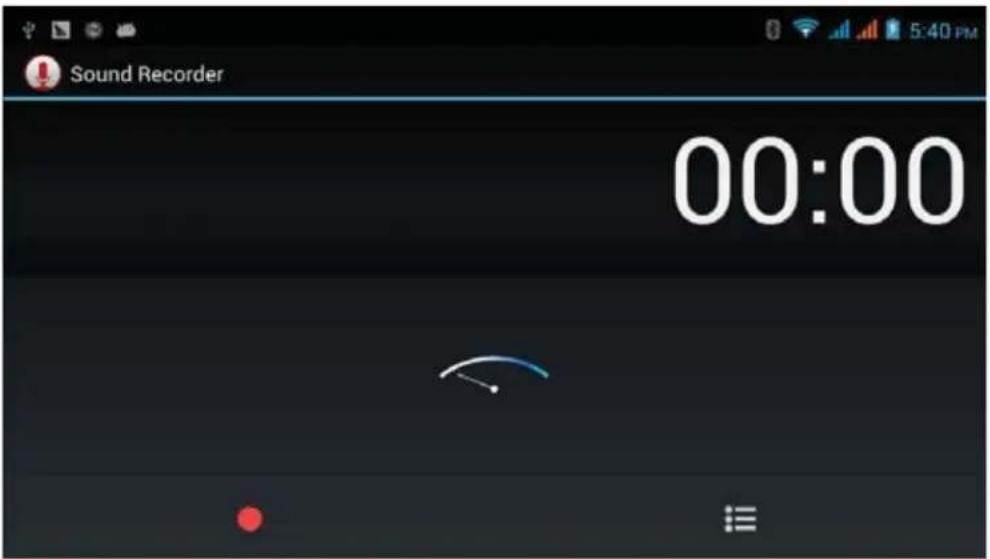
Picture 9.7
10 Installation of Procedures
10.1 Installation
Install the third party application procedure
- Click "file manager" application procedure; choose the application procedure you need to install.
- Hold the application procedure you need to install.
- It popup install, click install apk.
- Finish the installation as guide, it will operate.
Note: The third party procedure searched from internet to use on the system are all suffixed with .apk.
10.2 Uninstall
Uninstall application procedure
- Click setting icon in main interface.
- Click manage application procedure, list all the application procedures installed in the system.
- Click the APK you want to uninstall, click uninstall.
- Click confirm to finish uninstallation.
Skill: The procedure manager installed by system has many convenient methods to uninstall after opening procedure manager, click uninstall, it will list all the application procedures installed by system.
11 Troubles Shooting
1. The first startup of COACH PLUS is slow
After the COACH PLUS system upgraded, the first startup need to install the pre-installed application software, the lead time is around 2-3 minutes, the startup afterwards will be much quicker.
2. COACH PLUS can't connect Wi-Fi
● Make sure the wireless router of internet service can work in normal.
- Ensure the COACH PLUS and wireless router in certain distance, and no wall or other barrier between them.
● Ensure the user name and password both correct.
3. COACH PLUS feels hot
When many application procedures are used in meanwhile, or the brightness of screen open to the lightest or under charging, COACH PLUS may feel fever. It is normal.
4. Email can't be set or Registration of application procedure.
●Ensure your internet is well connected.
●Make sure your email setting way is correct.
- Keep your system time and local time consistent.
5. The system is abnormal and can't work.
When you install some third party application procedure, it may cause abnormal work, you can press Reset key(next to power port) to reset the system.
6. The webpage can't be opened
- Please keep the distance between from route to COACH PLUS in effective range.
- Please restart WIFI and try again.
7. COACH PLUS works terribly slow sometimes
It is normal phenomenon. Please turn off some application you don't need in advanced task management, or uninstall some third party application to release more system resources.