Atom Raid - Zunanji trdi disk Glyph - Brezplačna navodila za uporabo
Brezplačno poiščite navodila za napravo Atom Raid Glyph v formatu PDF.


Vprašanja uporabnikov o Atom Raid Glyph
0 vprašanje o tej napravi. Odgovorite na tiste, ki jih poznate, ali zastavite svoje.
Zastavite novo vprašanje o tej napravi
Prenesite navodila za vaš Zunanji trdi disk v formatu PDF brezplačno! Poiščite svoja navodila Atom Raid - Glyph in vzemite svojo elektronsko napravo nazaj v roke. Na tej strani so objavljeni vsi dokumenti, potrebni za uporabo vaše naprave. Atom Raid znamke Glyph.
NAVODILA ZA UPORABO Atom Raid Glyph
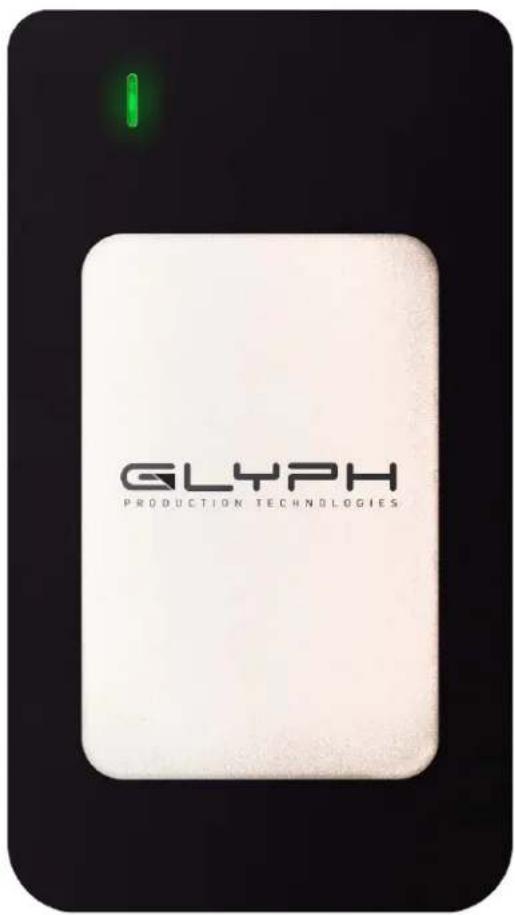
AtomRAID SSD™ User Guide
Rugged Portable Solid State USB C
(3.1 Gen2) RAID Drive in RAID 0
Unpacking Your AtomRAID SSD
Your Glyph AtomRAID SSD and accessories are packaged in a sturdy shipping container. Please inspect the container for evidence of shipping damage and mishandling. If the container is damaged, file a report with the carrier or dealer immediately. Do not attempt to unpack and operate your AtomRAID SSD until the carrier or dealer confirms the damage. If the container is in good condition, proceed with unpacking your AtomRAID SSD. Verify that all the items described in the next section are present and in good condition. If any of the items you expect to find in your container is missing or damaged, contact the dealer before proceeding any further. In any case, do keep the shipping container and all packing materials in a safe place.
AtomRAID SSD package includes:
AtomRAID SSD Enclosure with Silicone Protective cover Glyph USB-C (3.1 Gen2) to USB-C (3.1 Gen2) cable Glyph USB-C (3.1 Gen2) to USB-3.0 cable (not compatible with USB 2.0)
Note: No external power adapter is required to operate AtomRAID SSD
Use the included USB cable to connect AtomRAID SSD to your computer. AtomRAID SSD comes preformatted for Mac and is ready for use out of the box. If you plan to use AtomRAID SSD with Microsoft Windows, please follow the instructions below for formatting with Windows computers. To use AtomRAID SSD with your computer, you need:
- A Mac or PC with a USB C or USB 3.0 port, and one of the following operating systems:
• Mac OS X version 10.9 or later - Windows 7 or later
About AtomRAID SSD and RAID Modes
AtomRAID SSD enclosure contains two M2 Solid State drives in RAID 0, which function as one single volume. AtomRAID SSD cannot be RAIDed to other modes.
Getting Started
Connect AtomRAID SSD to your computer WARNING:
Always be sure to properly eject the drive from your desktop before physically unplugging AtomRAID SSD from your computer. You can accomplish this by dragging AtomRAID SSD icon to the trash in the dock, by selecting AtomRAID SSD icon and pressing the "command" and "E" keys simultaneously, or by using Disk Utility application.
Windows Formatting Instructions (7 and above) once AtomRAID SSD is connected
- Right-click My Computer and click Manage.
- In the Computer Management window, under Storage, click Disk Management.
-
In Disk Management, right click the Unallocated partition near the bottom of the window that corresponds to the capacity of AtomRAID SSD (often Disk 1). Click "New Simple Volume" and the Write Signature Wizard pops up.
-
Use the wizard to write a signature to the new drive. If you want only one partition we suggest using a primary partition and selecting the maximum size. In most cases you'll want to use NTFS volumes, this is the default for Windows 7. Ensure "Perform a Quick Format" is checked. Choose exFAT if you want to use the drives with older versions of Windows or if you want to use the drive with Windows and Mac OS.
-
Formatting will take a few minutes after which your drive will be ready to use.
- Note - Formatting for Windows 8 and above is the same once you are in Disk Management.
Mac OS X 10.11 Formatting Instructions once AtomRAID SSD is connected
(for older version levels, contact us or contact Apple)
Since your AtomRAID SSD comes pre-formatted for Mac you don't need to format it on installation. If you decide to reformat or partition your drive at a later date, use Disk Utility (supplied with the Mac OS X operating system).
Caution: This procedure will destroy any data currently on the drive. Before formatting a drive, save any important data it contains.
-
Open Disk Utility:
-
Double click on your internal hard drive mounted on the desktop.
-
Open Applications Folder > Utilities Folder > double click on Disk Utility.
-
Select your AtomRAID SSD drive from the list on the left. The top entry represents the device and the entry underneath it represents the volume associated with that device. Click on the Volume level.
- Click on the Erase Tab.
- Give the drive a name that will represent the volume.
5.?Ensure that the format is "Mac OS Extended (Journaled)" from the drop down list.
6.?Click the Erase button.
7.?Affirm that you wish to erase this volume and reformat with the settings applied.
8.?Formatting will take a few moments after which your drive is ready to use.
Warranty Information
3 Year Hardware Warranty
Your purchase of AtomRAID SSD from an authorized Glyph reseller includes a three-year warranty. Glyph warrants that your AtomRAID SSD is free from material and mechanical defects. Proof of purchase may be required to receive warranty service.
What is not covered?
AtomRAID SSD warranty does not cover damage or accidental damage caused by misuse, modification, alteration, tampering, an unsuitable operating environment, improper care, or failure caused by another product for which Glyph is not responsible.
AtomRAID SSD warranty does not include recovery of your data and is not eligible for Advance Replacement.
What is the warranty procedure?
1.?Contact Glyph Technical Service (see below) and obtain an RMA (Return Merchandise Authorization) number.
2.?Carefully pack and ship your AtomRAID SSD to the address provided by the Glyph service representative. There is no need to include cables of any kind, just AtomRAID SSD unit. Be sure the box is clearly labeled in several places with your RMA number.
Warranty & Technical Support
If at any time you have questions regarding AtomRAID SSD, please contact us using one of these methods:
Phone support:
800.335.0345 (toll-free U.S. only)
607.275.0345 (international or local)
Email:
tech@glyphtech.com
Web:
www.glyphtech.com/support
Contact Us
NOTE: Before contacting Glyph support, we recommend you gather the following information about your configuration:
- AtomRAID SSD serial number (located on the bottom of your AtomRAID SSD)
- Operating System (Windows 7 and above, Mac OS X 10.4 and above) Version Level
AtomRAID SSD Specifications
Part Number ARxxxSLV, ARxxxGLD, ARxxxBLK, or ARxxxGRY (xxx is equal to total capacity)
Interfaces (1) USB C (3.1 Gen2) Super-Speed port
Maximum Transfer Rate USB C (3.1 Gen2): 800 MB/sec
Dimensions 0.6" x 2.7" x 4.8"
OS Compatibility Mac OS 10.9 and above
Microsoft Windows 7 and above
Modern Unix based, Linux, or BSD
Warranty 3 Year Hardware Warranty
Proprietary Notice and Disclaimer
Unless noted otherwise, this document and the information herein disclosed are proprietary to Glyph Production Technologies, 3736 Kellogg Rd., Cortland, NY 13045 ("GLYPH"). Any person or entity to whom this document is furnished or having possession thereof, by acceptance, assumes custody thereof and agrees that the document is given in confidence and will not be copied or reproduced in whole or in part, nor used or revealed to any person in any manner except to meet the purposes for which it was delivered. Additional rights and obligations regarding this document and its contents may be defined by a separate written agreement with GLYPH, and if so, such separate written agreement shall be controlling.
The information in this document is subject to change without notice, and should not be construed as a commitment by GLYPH. Although GLYPH will make every effort to inform users of substantive errors, GLYPH disclaims all liability for any loss or damage resulting from the use of this manual or any software described herein, including without limitation contingent, special, or incidental liability.
© 2016 Glyph Production Technologies. All rights reserved. Specifications are subject to change without notice. Glyph and the Glyph logo are registered trademarks of Glyph Production Technologies. All other brands and product names mentioned are trademarks of their respective holders.
Visit our website at www.glyphtech.com for more information.