TAD-10083 - Tablica DENVER - Brezplačna navodila za uporabo
Brezplačno poiščite navodila za napravo TAD-10083 DENVER v formatu PDF.


Vprašanja uporabnikov o TAD-10083 DENVER
0 vprašanje o tej napravi. Odgovorite na tiste, ki jih poznate, ali zastavite svoje.
Zastavite novo vprašanje o tej napravi
Prenesite navodila za vaš Tablica v formatu PDF brezplačno! Poiščite svoja navodila TAD-10083 - DENVER in vzemite svojo elektronsko napravo nazaj v roke. Na tej strani so objavljeni vsi dokumenti, potrebni za uporabo vaše naprave. TAD-10083 znamke DENVER.
NAVODILA ZA UPORABO TAD-10083 DENVER
DENVER®
natural_image
Front view of a blank tablet device with rounded corners and a small circular mark at the top (no text or symbols)USER'S MANUAL
TAD -10083
www.facebook.com/denverelectronics
Before connecting, operating or adjusting this product, please read this user's manual carefully and completely.
Important safety of food preparation
WARNING: Read all the safety information below before using this tablet PC.
- For the electrostatic discharge (ESD) test of EN55020, it was found that ma operation (by
switching power ON/OFF switch) is needed to resume normal operation as inte the test.
- As this tablet PC is with lithium battery inside, so pls follow below:

Do not try to open the tablet!
Do not expose to heat, water, moisture, direct sunlight!
- Only charge with the original adapter supplied with this product!
- Do not attempt to replace the tablet PC battery yourself- you may do battery, which could cause overheating and injury. The lithium-ion battery in tablet PC should be replaced only by skilled engineer, and must be disposed of separately from household waste. Do not incinerate the b
Table of Contents
Table of Contents 3
Unit at a Glance 4
Getting Started 5
About Applications 7
Preinstalled Applications 7
Connecting to the Internet 8
Email 10
Transferring Files 11
Troubleshooting 12
Specifications 13
Unit at a Glance
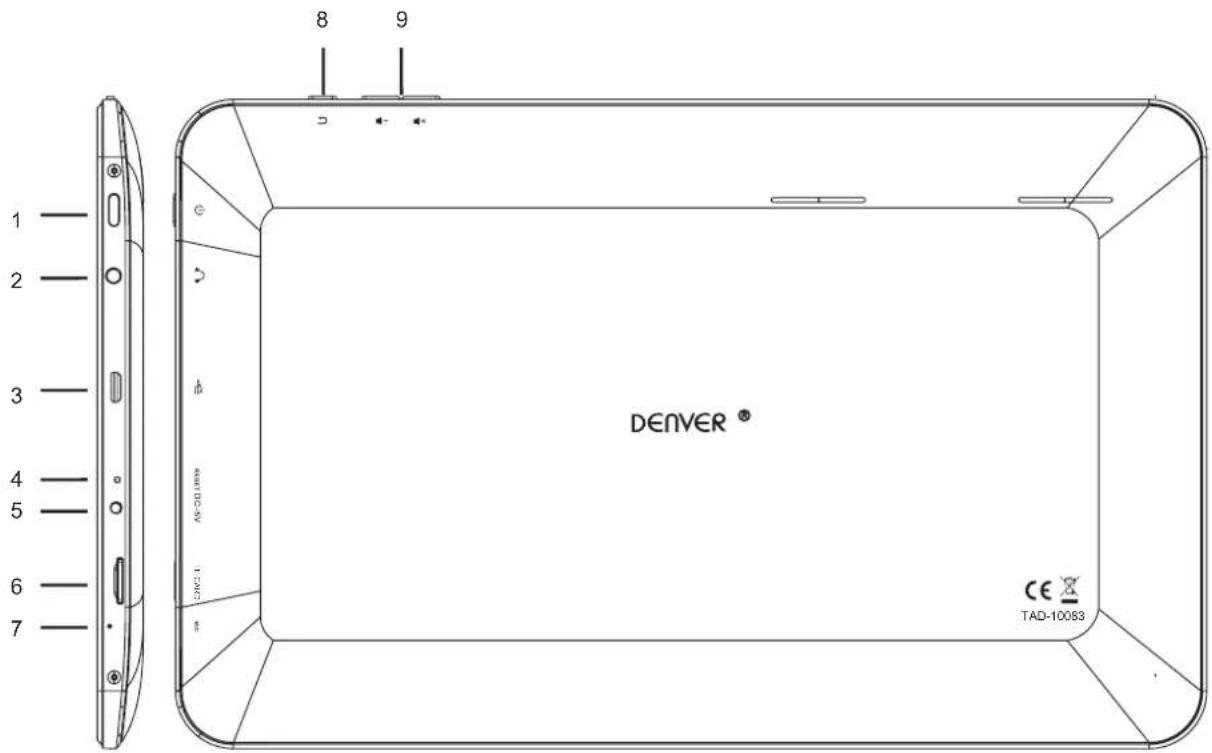
1. POWER
Press to turn the unit on, or to turn the screen on or off. Press and hold to access the Power Off menu.
2. Headphone
Audio output connection for headphones.
3. USB
Connect to USB device or a computer to transfer data (e.g. Music, videos, photos, files)
4. RESET
Use a needle or paper clip to reset unit
5.DC IN 5V
Change and power the tablet with the included power adapter.
6.TF CARD
Load external TF CARD memory cards here.
7.MIC
8.RETURN
9.V+/V-
Press this button to adjust the volume.
Getting Started
Turning the Tablet on or off
To turn the tablet on:
Press and hold the Power key until the LCD screen turns on. Wait until the Home screen appears; the tablet is now ready for use.
To turn the tablet off:
- Press and hold the Power key until the power off menu appears.
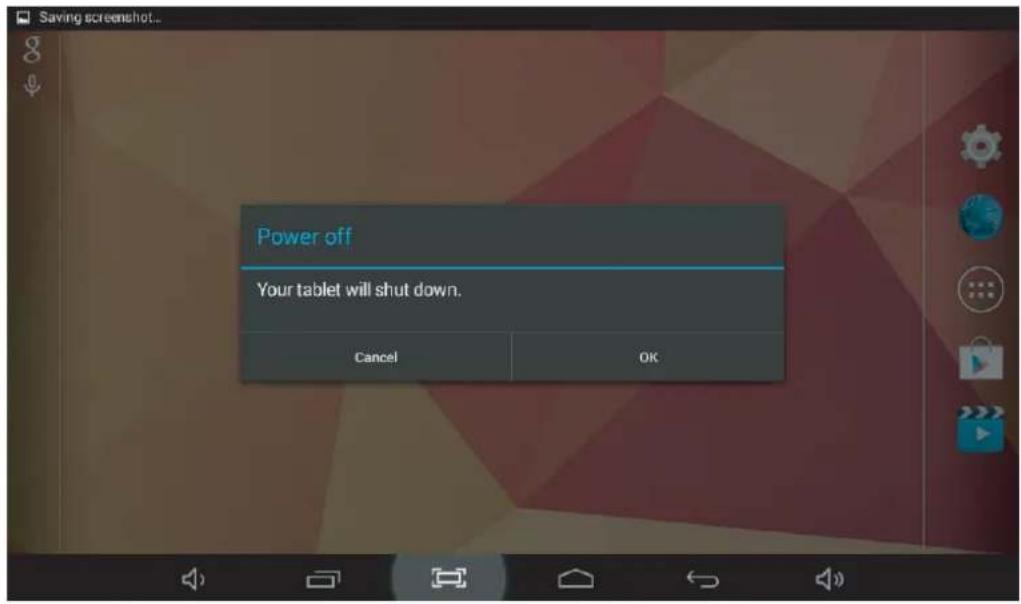
- Touch ok the screen to turn off the tablet.
Turning the Screen On or off (Standby)
When the tablet is on, you can turn off the screen to conserve battery power. Simply press the Power key once to turn the screen off. Press the Power key again to turn the screen back on.

To conserve battery power, the screen can be set to turn off automatically when the tablet is not in use (between 15 seconds and 30 minutes). This Screen timeout option can be found in the Display menu.
Getting Started
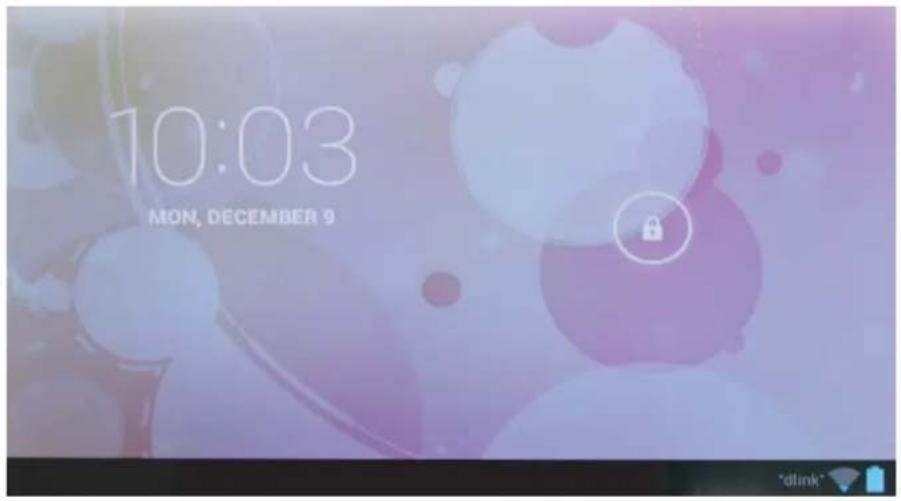
Unlocking the Screen
When the screen turns off, you will have to unlock the screen when you turn it back on. To unlock the screen, drag the lock icon across the screen towards the slide lock icon towards right side of the screen where there is an unlock icon shown. This will unlock tablet.
About Applications
To open an application, touch the application icon on the home screen or in the Launcher where you can tap the icon 📄 on the home screen to get in..
Launcher screen:
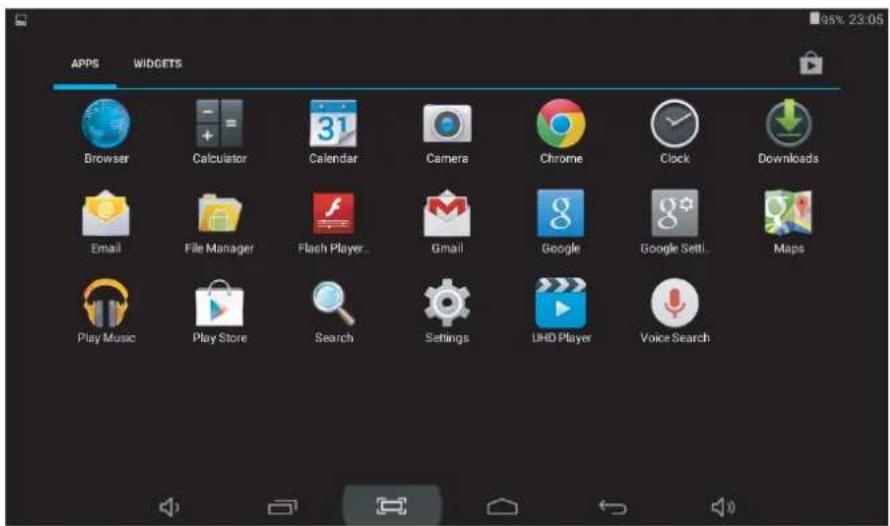

The screen shown above is for illustrative purposes only. Reserves the right to modify and ve the final list of applications available on the tablet.
About Applications
Preinstalled Applications
Some applications have been installed on your tablet for your convenience.
These applications include:
Browse the web.
Perform simple mathematical operations.
Take pictures or videos with the frontfacing camera.
Check your e-mail.

Play music.
Access the Settings menu to adjust the tablet's options.
Preinstalled Applications
Installing Applications
You can also download an install additional applications from the device's applications marketplace, he web browser, or other sources.
The tablet must be set to allow installation of applications from non-Market sources. The Unknown sources option can be set in the Application settings menu.
Connecting to the Internet
Connecting to Wireless Internet
-
Press the Settings Icon.
-
Locate the Wi-Fi setting and slide it to the On position.
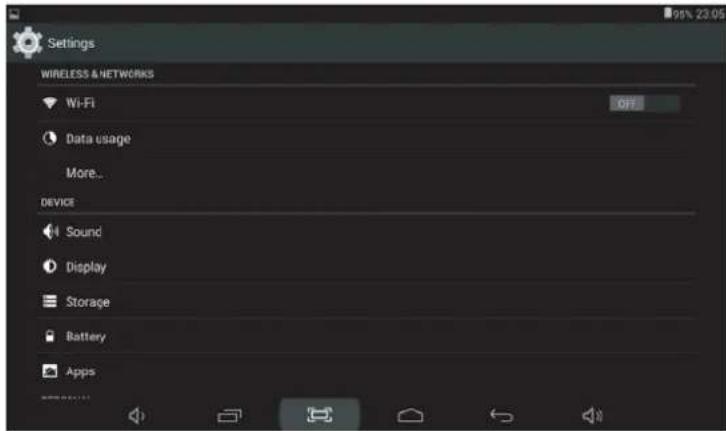
- Select a network from the list of available networks. To refresh the list of available networks, press the Scan button.
To manually add a network, select the Add Network + button.
- Select Connect from the pop up menu.
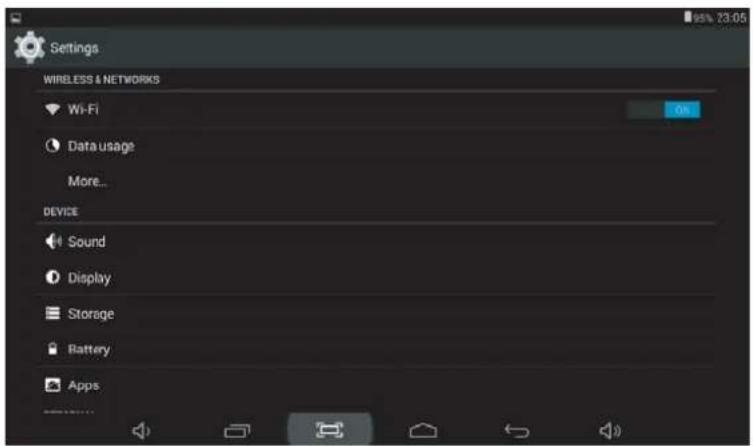
- If the network is secured with a password, enter the password to continue.
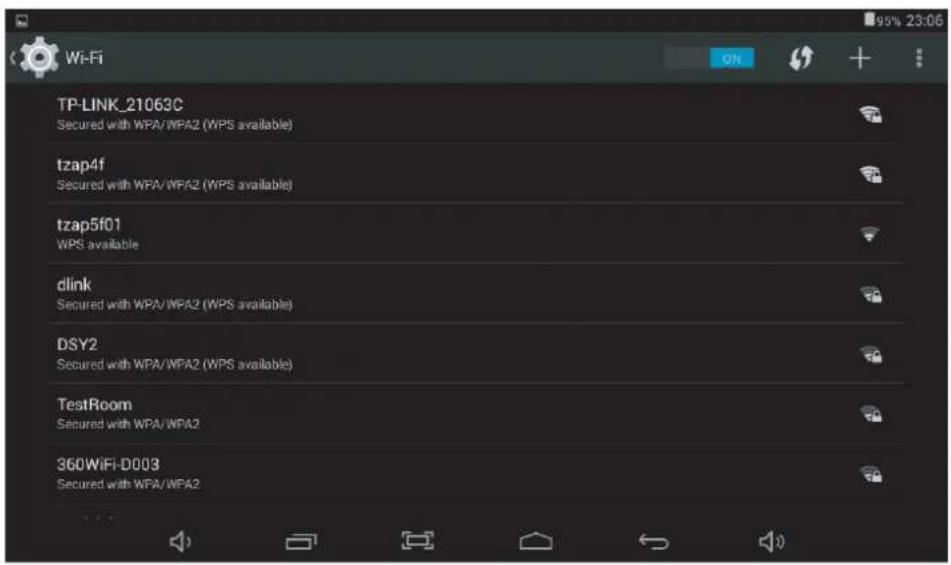
6.Once finished connecting, the display will showConnected under the name of the network.
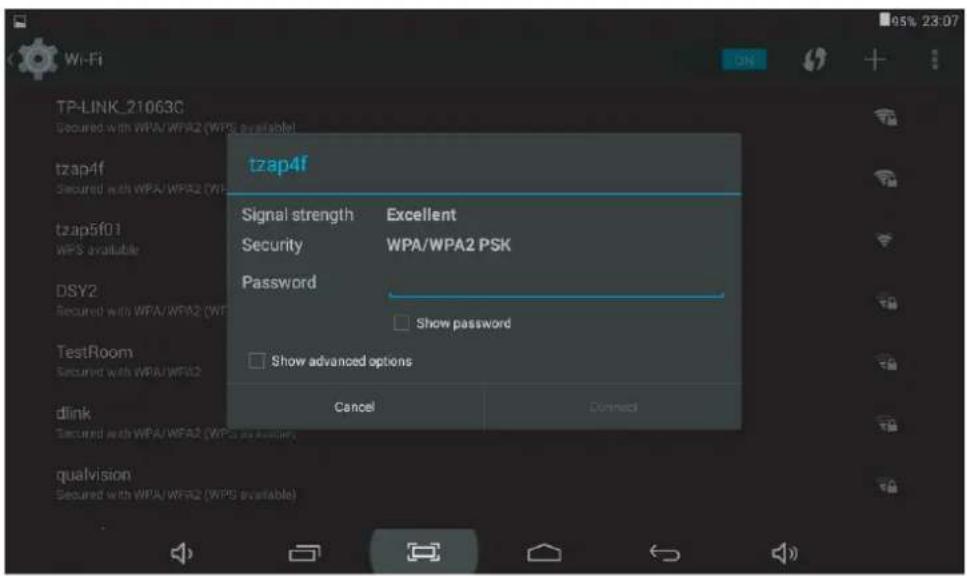
To conserve battery life, turn off Wi-Fi when not in use.
Setting Up an Email account
- Press Email icon under App menu.
- Enter your email address and password, then press Next.
If this does not work, you will need to manually configure your account. Before attempting to configure manually,re-enter you email and password to make sure they are correct.
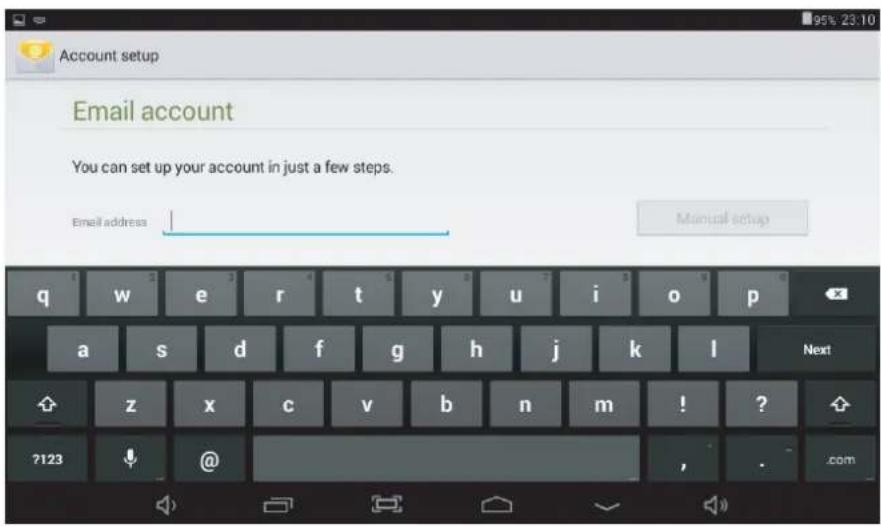
Manually Configuring an Email account
It is recommended to consult an IT professional before attempting to manually configure your email address.
- To set up your email manually, detailed information is required. Check your provider's website or phone support for individual provider information.
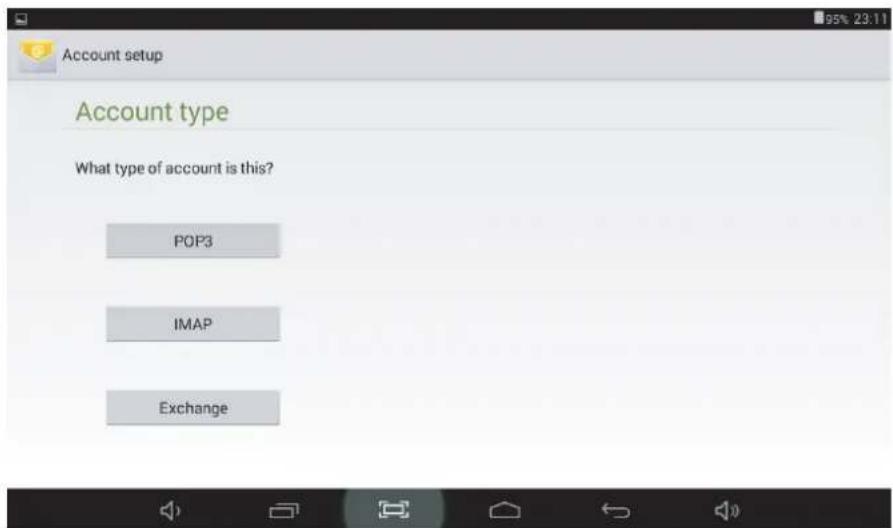
- The first thing you will need to determine is the server type. While most servers are POP3, IMAP and Exchange are also supported services.
- Enter your email address and password then press Next.
- Fill in all information for the Incoming server portion of the manual setup.
- Press Next and the app will test your settings. Wi-Fi is required to be active for this step.
- Fill in all information for the Outgoing server settings.
- Press Next and the app will test your settings. Wi-Fi is required to be active for this step.
ENGLISH / ENGLISH
Transferring Files
Transferring Files with a Computer
- To begin transferring files to your computer, plug one end of the included Mini-USB to USB cord into the unit, and the other into the USB port on a computer.
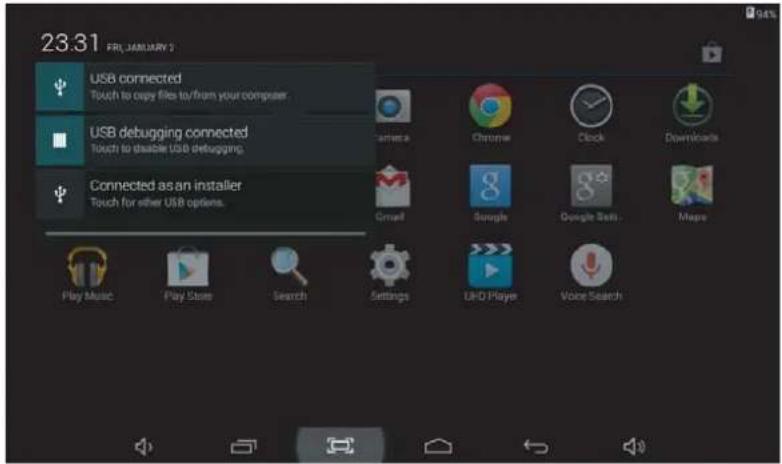
- Press the USB icon in the lower right hand corner.
- Select USB Connected.
- Press the Turn On USB Storage button.
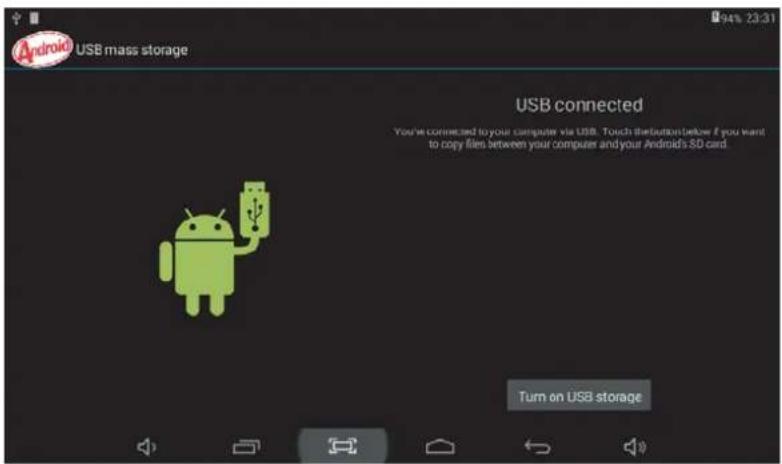
Using the native controls, accept any prompts on the connected computer.
- You will now be able to transfer files to and from your computer.
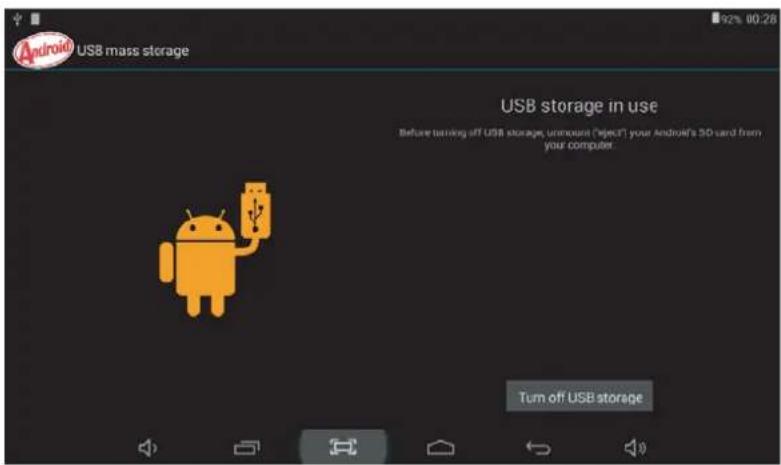
6.To end the sessions, press the Turn Off USB Storage button.
Troubleshooting
1.1 Device can not connect to Wi-Fi
- Ensure the wireless network is working by testing it using another wireless device.
- Ensure the device and the wireless router is within the range of the wireless network to be connected too. Walls or other obstructions will reduce the possible distances between wireless devices.
- Ensure the security password being used is correct.
1.2 Device doesn't turn on
- You can not turn on the device when the battery charge is below the critical level, please charge the battery.
- Use a needle or paper clip to reset unit on the back of the device and check if it is restarting is normally or not.
- Check if the charger is connected correctly.
1.3 Heat Issues
- When running multiple applications, using the screen on its brightest setting, or when being charged, this device can get quite hot. This is normal and should not cause any inconvenience when in use.
1.4 System has anomalies and doesn't work correctly
- Installing some third-party applications may cause the system not to operate correctly. Press the RESET button and perform a system reset to resolve this issue.
1.5 Cannot set E-mail Account or registration application
- Ensure that the MID is connected to a Wi-Fi network and can connect to the Internet.
- Ensure you E-mail settings have been entered correctly for the account being accessed.
- Make sure your system time and local time are correct.
1.6 Can not record
- Use a needle or paper clip to reset unit on the back of the device, then check if the record function works correctly.
1.7 The stand-by time of the device is too short
- The duration of the lithium battery varies with environmental temperature changes and the service conditions. If the environment temperature is too low or too high, the duration of the battery will be affected. It is recommended to use this device at normal temperature.
- Battery life is dependent on usage. High volume, WIFI, and the frequent use may cause the battery to be drained at a higher rate.
1.8 No sound via earphone
- Please check if the volume setting is 0.
- Please check if audio file is broken, and try to playanother audio file to confirm. If the audio file is broken, it may cause severe noise or static.
1.9 The color distortion of video or picture display
- Use a needle or paper clip to reset unit on the back of the device to solve this issue.
1.10 Can not copy files
- Please check if the device is connected to the computer correctly.
- Please check if the memory space is full.
- Please check if the USB cable is broken.
1.11 Other troubles Please follow up the steps as below to fix the other troubles before you return the MID/Tablet PC to us:
- Step 1: Use a needle or paper clip to reset unit on the back of the device, then check if the function works correctly
- Step 2: Upgrade the firmware from the PC and restart the device and then check if the function works correctly.
Specifications
Please visit www.denver-electronics.com. for the latest product information. Design, specifications, and manual are subject to change without notice.
| CPU | 1.5GHz DUAL CORECPU 1.5GHz DUAL CORE |
| RAM | 512MB DDR3 |
| Storage | 16 GB flash built-in; micro SD card slotStorage (max.32GB supported) |
| Display | 10.1" TFT LCD(1024 x600), Capcitive touchscreen |
| Wi-Fi Networking IE | IEEE 802.11 b/g/n |
| Audio Output | 3.5mm headphone |
| PC Interface | USB 2.0 high speed |
| Additional Features | Built-in microphoneCamera(0.3MP)1 W speaker |
| Operating System | Android^TM 4.4 |
| Power | Rechargeable Li-poly battery powerPower Adapter(DC 5V, 2A ) |
Electric and electronic equipment and included batteries contains materials, components and substances that can be hazardous to your health and the environment, if the waste material (discarded electric and electronic equipment and batteries) is not handled correctly.
Electric and electronic equipment and batteries is marked with the crossed out trash can symbol, seen below. This symbol signifies that electric and electronic equipment and batteries should not be disposed of with other household waste, but should be disposed of separately.
As the end user it is important that you submit your used batteries to the appropriate and designated facility. In this manner you make sure that the batteries are recycled in accordance with legislature and will not harm the environment.
All cities have established collection points, where electric and electronic equipment and batteries can either be submitted free of charge at recycling stations and other collection sites, or be collected from the households. Additional information is available at the technical department of your city.
Importer:
DENVER ELECTRONICS A/S
Stavneagervej 22
DK-8250 EGAA
DENMARK
ALL RIGHTS RESERVED, COPYRIGHT DENVER ELECTRONICS A/S
DENVER®
www.denver-electronics.com

Hereby, Inter Sales A/S, declares that this tablet DENVER TAD-10083 is in compliance with the essential requirements and other relevant provisions of Directive 1999/5/EC.
A copy of the Declaration of Conformity may be obtained at
Inter Sales A/S
Stavneagervej 22
DK-8250 Egaa
Denmark