9150 - Telefón Telstra - Bezplatný návod na obsluhu
Nájdite návod k zariadeniu zdarma 9150 Telstra vo formáte PDF.


Otázky používateľov k 9150 Telstra
0 otázka o tomto zariadení. Odpovedzte na tie, ktoré poznáte, alebo položte vlastnú.
Položte novú otázku o tomto zariadení
Stiahnite si návod pre váš Telefón vo formáte PDF zadarmo! Nájdite svoj návod 9150 - Telstra a vezmite svoje elektronické zariadenie späť do rúk. Na tejto stránke sú zverejnené všetky dokumenty potrebné na používanie vášho zariadenia. 9150 značky Telstra.
NÁVOD NA OBSLUHU 9150 Telstra

Telstra 9150
DECT cordless phone with integrated answering machine
User Guide
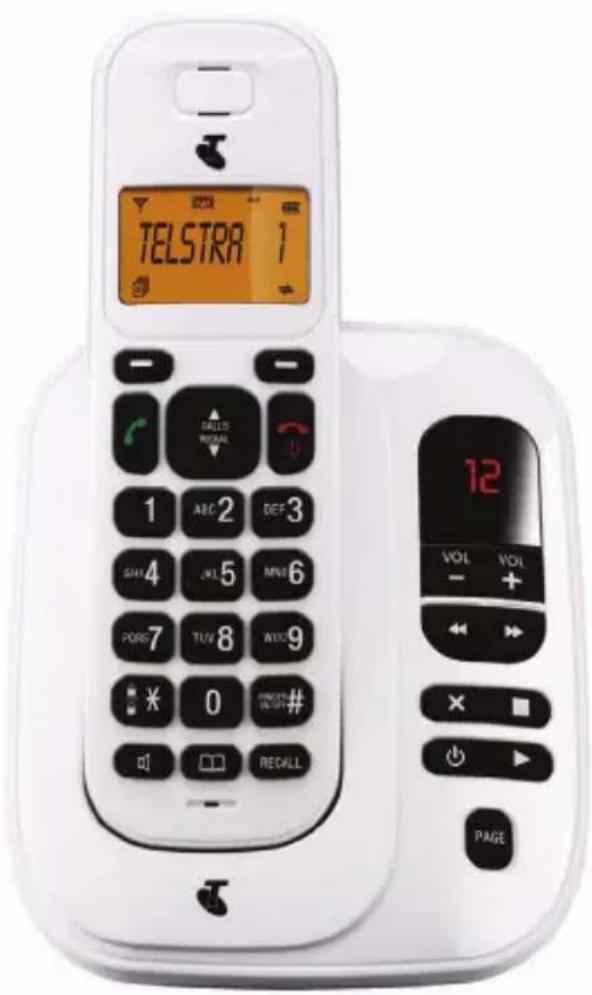
This telephone has been designed for ease of use. Please read the instructions and keep it handy for future reference. If you have any problems with your phone, refer to the Help section of this User Guide.
This User Guide covers the models:
Telstra 9150
Telstra 9150 TWIN
Telstra 9150 TRIPLE
Telstra 9150 QUAD

Introduction
To your Telstra 9150 Digital Cordless Telephone with Answering Machine
- EPhonebook - lets you store up to 50 names and numbers for easy dialling.
- ETelstra's Calling Number Display* - lets you see who's calling. Your phone stores details of the last 10 callers in the Calls list.
- EQuick access to a range of Telstra Network Services including Call Waiting and Call Forward Immediate.
- EAnswering machine, with up to 15 minutes digital recording time and helpful voice prompts.
* IMPORTANT You need to subscribe to Telstra's Calling Number Display service to be able to see the caller's number or name when called, or in the call list. See page 29 for more details.
IMPORTANT
This equipment requires electricity to work. You will not be able to make any telephone calls when the power fails. Alternative arrangements should be made to access emergency services in times of power failure.
As a Digitally Enhanced Cordless Telecommunications (DECT) product, your Telstra 9150 provides:
- Digital clarity
- Digital range
- Digital security
This product has been designed and tested for Australian conditions for use with Telstra's network.
This User Guide provides you with all the information you need to get the most from your phone. Before you make your first call, you will need to set up your phone. Follow the simple instructions on the next few pages.
Need help?
PLEASE LOOK IN THE HELP SECTION AT THE END OF THE USER GUIDE IF YOU EXPERIENCE ANY OPERATIONAL DIFFICULTIES WITH YOUR TELSTRA PRODUCT, OR PLEASE CONTACT THE TECHELP INFORMATION LINE 1300 369 193 OR CONTACT US BY EMAIL AT: tcpsupport_au@vtech.com
Hearing Aid?
Please note that the Telstra 9150 works by sending radio signals between the base and handset. These signals may interfere with some hearing aids, causing a humming noise.
Got everything?
The package contains the following items:
• ETelstra 9150 handset
• ETelstra 9150 answering machine base unit
• EAC power adaptor
• ETelephone line cord
• ETelephone adaptor plug
• E2 rechargeable batteries
• E1 User manual
If you have purchased a Telstra 9150 multi handset pack you will also have the following for each additional handset:
• ETelstra 9150 handset
• ETelstra 9150 charger unit
• E2 x NiMH rechargeable batteries
• EAC power adaptor (for the charger)
In this guide
Important Safety Instructions 7
Getting Started 9
LocationE9
Setting upE9
Battery performanceE10
Setting up for multiple packsE11
Date and timeE12
Set date and time manuallyE12
Getting to know your phone 13
Handset buttonsE13
Base overviewE16
Display icons and symbolsE18
Menu structureE20
Text and digit entry tableE20
Character setE21
Using your phone 22
Make a callE22
Preparatory dialling 22
Direct dialling 22
Call from the phonebook 22
Call from the call list 22
Call from the redial list 22
Call timer 22
Answer a call 22
End a call 23
Adjust earpiece and
handsfree volume 23
Mute a call 23
To turn the ringer off 23
Turn on the keypad lock 23
Redial the last number 23
Redial a number from the redial listE23
Store a redial number into the phonebook 24
Delete a redial number 24
Delete the entire redial list 24
Find the handset 24
Using multiple handsets 25
Intercom with another handset 25
Call all handsets 25
Transfer an external call to another handset 25
Make a 3-way conference call 26
In this guide
| Phonebook | 27 |
| Add a new phonebook entry | 27 |
| Search a phonebook entry | 27 |
| View a phonebook entry | 27 |
| Edit a phonebook entry | 28 |
| Delete a phonebook entry | 28 |
| Delete the entire phonebook | 28 |
| Check the phonebook usage | 28 |
Telstra Network Services 29
Calling Number Display 29
View the call list 29
Store a call list number into
the phonebook 29
Delete an entry in the call list 30
Delete the entire call list 30
View the details of the call list entry 30
Flashing Message Indicator 30
Telstra Home Messages 101 ^® or MessageBank ^® 31
To call Telstra Home
Messages 101 ^® or MessageBank ^® 31
Call Waiting 31
3-Way Chat 31
| Phone settings | 32 |
| Date and time settings | 32 |
| Change the date format | 32 |
| Change the time format | 32 |
| Set the timeE32 | |
| Set the dateE33 | |
| Alarm settings | 33 |
| Turn the alarm on / off | 33 |
| Set the alarm time (if the alarm is set to be on) | 34 |
| Handset settings | 34 |
| Set the ringer melody for internal calls | 34 |
| Set the ringer melody for external calls | 34 |
| Set the ringer volume | 35 |
| Set alert tones | 35 |
| Rename the handset | 35 |
| Choose the information to be displayed in idle | 36 |
| Set the auto answer | 36 |
| Base settings | 36 |
| Set the base ringer melody | 36 |
| Set the ringer volume | 36 |
| De-register a handset | 37 |
In this guide
| Change the Recall (Flash) timeE37 | Help | 49 |
| Change the system pin codeE37 | ||
| RegistrationE38 | General Information | 52 |
| Reset your phoneE38 | Replacing the handset batteries | 52 |
| Safety | 52 | |
| Answer Machine 39 | Cleaning | 53 |
| Turn on / off the answering machineE39 | Environmental | 53 |
| Listen to the messages in the answering machineE40 | Telstra accessories and replacement items | 54 |
| Delete all messages in the answering machineE42 | How many telephones can you have? | 54 |
| Record memoE42 | Customer Service & Product Warranty | 55 |
| Answering machine settingsE43 | ||
| Set the answer modeE43 | ||
| Record your own outgoing message (OGM)E43 | ||
| Playback and delete the outgoing message (OGM)E44 | ||
| Set the answer delayE45 | ||
| Set the recording time of incoming messageE45 | ||
| Turn on or off the base screeningE45 | ||
| Change the compression rateE46 | ||
| Activate remote accessE46 | ||
| Call screening | 47 |
Important Safety Instructions
When using your telephone equipment, basic safety precautions should always be followed to reduce the risk of fire, electric shock and injury, including the following:
- Read and understand all the instructions.
- Follow all warnings and instructions marked on the product.
- Unplug this product from the wall outlet before cleaning. Do not use liquid cleaners or aerosol cleaners. Use a damp cloth for cleaning.
- Do not use this product near water (for example, near a bath tub, kitchen sink, swimming pool) or in humid areas.
-
Do not overload wall outlets and extension cords as this can result in the risk of fire or electric shock.
-
Unplug this product from the wall outlet and contact TechHelp on 1300 369 193 under the following conditions:
-
When the power supply cord or plug is damaged or frayed.
- If the product does not operate normally by following the operating instructions.
- If the product has been dropped and the outer casing has been damaged.
-
If the product exhibits a distinct change in performance.
-
Avoid using a telephone during an electrical storm. There may be a remote risk of electric shock from lightning.
- Do not use the telephone to report a gas leak in the vicinity of the leak.
Important Safety Instructions
- Use only the supplied NiMH (Nickel Metal Hydride) batteries. The operation periods for the handsets are only applicable with the default battery capacities.
- The use of other battery types or non-rechargeable batteries / primary cells can be dangerous. These may cause interference and / or unit damage. The manufacturer will not be held liable for damage arising from such non-compliance.
- Use only the AC power adaptors supplied with this product. Please contact TecHelp on 1300 369 193 for replacement adaptors.
- Please ensure the batteries are inserted according to the correct polarity.
-
Do not immerse the batteries in water, and do not place them in a fire.
-
Telephone receivers produce magnetic fields that can attract small metallic objects such as pins or staples. To avoid injury, do not place the handset where such objects can be picked up.
Getting Started
Location
Place your Telstra 9150 within 2 metres of the mains power socket and telephone socket so that the cables will reach.
Make sure it is at least 1 metre away from other electrical appliances to avoid interference. Your Telstra 9150 works by sending radio signals between the handset and base. The strength of the signal depends on where you locate the base. Putting it as high as possible ensures the best signal. The maximum range between the base station and the handset is approximately 300 metres.
Setting up
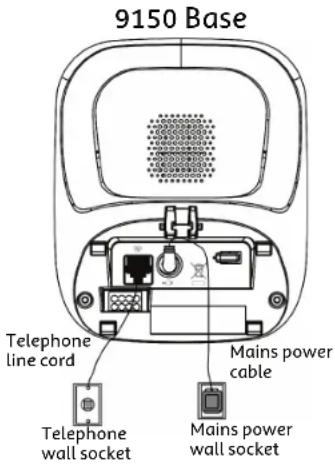
- Plug the mains power cable into the base station, plug the other end into the mains power wall socket and switch the power on.
Getting Started
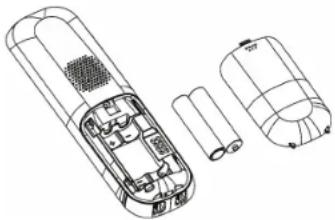
- ETo fit the NiMH rechargeable batteries into the handset, remove the battery compartment cover by sliding it out. Place the batteries as indicated, following the polarity. Slide the battery compartment cover back on until it clicks into place.
natural_image
Technical line drawing of a device interior showing internal components and external casing (no text or symbols)- EPlace the handset on the base to charge for at least 14 hours. When the handset is fully charged the will be displayed. A beep indicates that the handset is properly placed on the base or charger.
- EWhen the batteries are fully charged, plug one end of the telephone line cord into the base station and the other end into the telephone wall socket.
WARNING
Do not place your Telstra 9150 in the bathroom or other humid areas.
IMPORTANT
The base station must be plugged into the mains power socket at all times. Do not connect the telephone line until the handset is fully charged. Only use the power supply, telephone cables and NiMH rechargeable batteries supplied with the product.
Battery performance
In ideal conditions, the fully charged batteries should give up to 12 hours talk time, or 160 hours standby time, on a single charge. Note that new batteries will not reach full capacity until they have been in normal use for several days.
To keep the batteries in the best condition, leave the handset off the base for a few hours at a time. Running the batteries right down at least once a week will help them last as long as possible. The charge capacity of the rechargeable batteries will reduce with time as they wear out, giving the handset less talk /
Getting Started
standby time. Eventually they will need to be replaced. Replacement batteries can be obtained by contacting TecHelp on 1300 369 193 or from your local electrical retailer.
After charging your handset for the first time, subsequent charging time is about 6-8 hours a day. The batteries and handset may become warm during charging, however, this is normal.
Setting up for multiple packs
If you have purchased a Telstra 9150 multiple pack, you will need to prepare additional handsets and chargers for use.
For each additional handset and charger
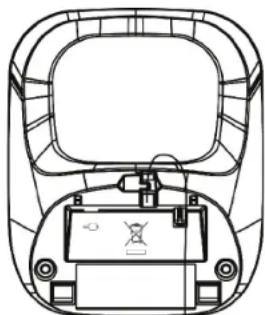
- EPlug the power adaptor into the mains power wall socket and switch the power on.
Note: The other end of the power adaptor is firmly connected with the charge base.
9150 Extension Charger
natural_image
Top-down line drawing of a vehicle's rear view showing dashboard, steering wheel, and battery (no text or symbols)Mains power cable

Getting Started
Date and time
If you have subscribed to Telstra's Calling Number Display service, the date and time is set automatically for all handsets when you receive your first call. The date and time is recorded with each answering machine message you receive. If you have not subscribed to Telstra's Calling Number Display, you can set the date and time manually.
Set date and time manually
- Press 📋 then ▲ or ▼ to select HS SETTINGS.
- Press or then ▲ or ▼ to select DATE & TIME.
- Press then ▲ or ▼ to select SET TIME or SET DATE.
-
Press OK Then use the keypad to enter the time from time format 12HR/24 HR (To change time format, see page 32), or to enter the date from date format DD-MM-YY/MM-DD-YY (To change date format, see page 32).
-
Press to save the settings.
Note: When 12 HR mode is the selected format, the time will display in 12 HR format but must be entered as 24 HR time when programming, e.g. for 01:25 PM enter 13:25.
Getting to know your phone
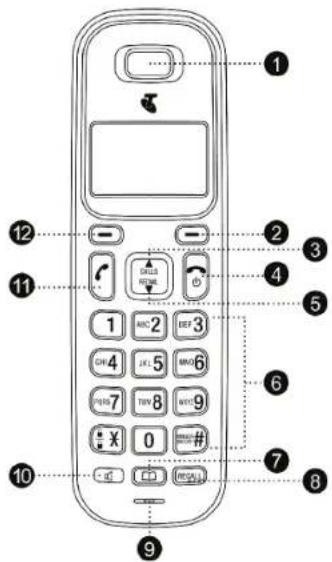
Handset buttons
1. EARPIECE
2. RIGHT SOFT KEY (CLEAR / BACK / MUTE / INTERCOM
In main menu mode: Press to return to idle screen
In sub-menu mode: Press to return to previous level
In sub-menu mode: Press and hold to return to idle screen
In editing / predialling mode: Press to clear a character / digit
In editing / predialling mode: Press and hold to delete all the characters / digits
During a call: Press to mute / unmute the microphone
In idle mode: Press to use the intercom to contact another handset
Getting to know your phone
3. CALL LIST / UP
In idle mode: Press to access the call list
In menu mode: Press to scroll up the menu items
In Phonebook list / Redial list / Call List: Press to scroll up the list During a call: Press to increase the volume
When ringing: Press to increase the ringer volume
4. TALK OFF
During a call: Press to end a call and return to idle screen
In menu / editing mode: Press to return to previous menu
In menu / editing mode: Press and hold to return to idle screen
In idle mode: Press and hold to power off the handset
In idle mode (when the handset is powered off): Press and hold to power on the handset
5. REDIAL LIST / DOWN
In idle mode: Press to access the redial list
In menu mode: Press to scroll down the menu items
In Phonebook list / Redial list / Call List: Press to scroll down the list During a call: Press to decrease the volume
When ringing: Press to decrease the ringer volume
6. ALPHANUMERIC KEYPAD, (STAR), (HASH)
Press to insert a digit / character / * / #
① key in idle mode: Press and hold to access the Telstra Home Messages 101 ^® or MessageBank ^®
2 Press and hold key during a conversation to answer Call-Waiting.
*3 Press and hold key to use the Telstra 3-Way-Chat feature.
key in idle mode: Press and hold to enable or disable the keypad lock
key in idle mode: Press and hold to turn on / off the ringer
Getting to know your phone
☐ key in predialling / number editing mode: Press and hold to insert a pause (P)
key in Call List mode: Press to review caller's number if applicable
7. PHONEBOOK
In idle mode: Press to access the phonebook list
8. RECALL
To activate Recall for use with Telstra Network services such as Call Waiting.
9. MICROPHONE
10. SPEAKERPHONE
During a call: Press to turn on/off the speakerphone
In Idle mode / predialling mode / Redial list / Call List / Phonebook entry: Press to make a call with speakerphone
During ringing: Press to answer a call with speakerphone
11. TALK ON
In idle / predialling mode: Press to make a call
In Redial list / Call List / Phonebook entry: Press to make a call to the selected entry in the list
During ringing: Press to answer a call
12. LEFT SOFT KEY (MENU / OK)
In idle mode: Press to access the main menu
In sub-menu mode: Press to confirm selection shown on-screen
During a call: Press to access Intercom / Phonebook / Redial List / Call List
Getting to know your phone
Base overview
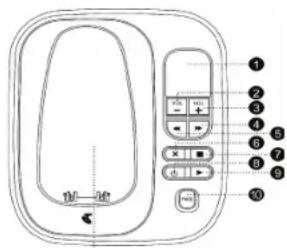
11
- 7-Segment LED DISPLAY
| -- | When answering machine is OFF |
| 00 | Steady: No voice messages in TAM |
| XX | Flashing: There are XX new voice messages received where XX is from 01 to 59Steady: Playing the current XX incoming message |
| XX/FF | Flashing XX alternatively with FF: There are XX new voice messages received where XX is from 01 to 59 and the TAM memory is fullFlashing FF only: TAM is full and only old voice messages are being stored in the TAM memory |
| --/XX | Flashing XX alternatively with --: Time is not set and there are XX new voice messages received where XX is from 01 to 59Flashing - only: Time is not set and there are only old voice messages in the TAM memory |
| YY | Steady: There are YY old voice messages (no new voice messages |
| A1/A2 | Flashing: Playing the current outgoing message (OGM where A1, A2 are the OGM of Answer & Record and Answer Only mode respectively |
Getting to know your phone
| XX/AN | Flashing XX alternatively with An: XX incoming message is now recording |
| LA | Flashing: Remote access is in progress |
| LX | Steady: Indicates the current volume level where X is from 1 to 8 |
2. VOLUME DOWN (-)
Decrease speaker volume during message playback
3. VOLUME UP (+)
Increase speaker volume during message playback
4. SKIP FORWARD
Press to skip the current message and play the next message
5. SKIP BACKWARD
Press to repeat playing the current message from the beginning. Press twice to skip backward to the previous message
6. DELETE
Press once to delete the message during playback. Press and hold to delete all the messages
Note: New voice messages will not be deleted.
7. STOP
Press to stop the message playback
8. TAM ON/OFF
Press to turn on the answering machine. Press again to turn off the answering machine
9. PLAY
Press to play the message
10. PAGE
Press Page on the base to page your handset. The handset will ring for approximately 60 seconds.
11. CHARGING CRADLE
Getting to know your phone
Display icons and symbols
The LCD display gives you information on the current status of the telephone.
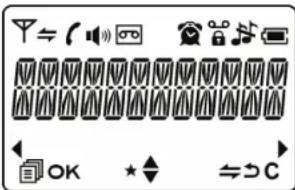

Scroll up / down the menu items / Phonebook list / Redial list / Call List.

Steady when the handset is in range of the base. Flashes when out of range of the base or not registered to the base.

Steady when an intercom is in progress.
Flashes when there is an incoming internal call.

Indicates a call is in progress.

Indicates that handsfree is being used.

Indicates that the ringer is switched off.

Steady when an alarm is set. Flashes when the alarm sounds.

Indicates that the keypad is locked.

Indicates when the batteries are fully charged.
Flashes when the unit is charging.

Indicates when the batteries need charging.
Flashes when low battery power level is detected.

Indicates when there are more characters before the text currently displayed.

Indicates when there are more characters after the text currently displayed.

Press the ☐ / LEFT SOFT KEY beneath this symbol to select more menu options if applicable.

Press the ☐ / LEFT SOFT KEY beneath this symbol to confirm the current selection if applicable.
Getting to know your phone

Press the ☐ /RIGHT SOFT KEY beneath this symbol to conduct Intercom call when idle.

Press the ☐ / RIGHT SOFT KEY beneath this symbol to return to previous menu level or cancel the current action if applicable.

Press the ⏻ / RIGHT SOFT KEY beneath this symbol to clear a character or stop the alarm if applicable, press to mute / unmute during a call.

Indicates when you have new messages on your Telstra Home Messages 101 ^® or MessageBank ^® services.

Indicates an unanswered call within the Call List.

Indicates when the telephone answering machine is turned on. Flashes when new messages are received.
Getting to know your phone
Menu structure
In idle mode, press 📄 to access the main menu. Use ▲ or ▼ to scroll through the menu. Refer to the following for the menu structure.
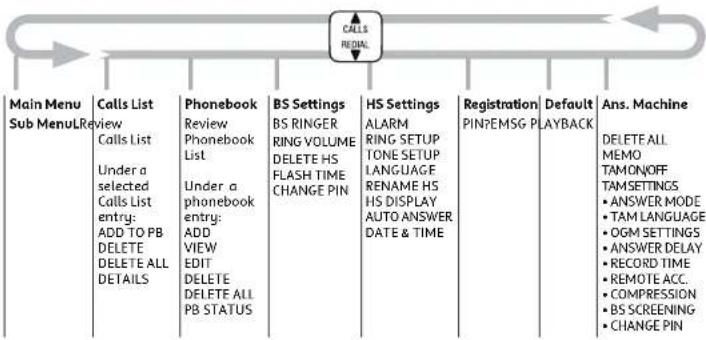
flowchart
graph TD
    A["Main Menu"] --> B["Sub Menu"]
    B --> C["Calls List"]
    C --> D["Phonebook"]
    D --> E["BS Settings"]
    E --> F["HS Settings"]
    F --> G["Registration"]
    G --> H["Default"]
    H --> I["Answer Machine"]

    subgraph Inputs
        J["Main Menu"] --> K["Sub Menu"]
        K --> L["Calls List"]
        L --> M["Phonebook"]
        M --> N["HS Settings"]
        N --> O["Registration"]
        O --> P["Default"]
        P --> Q["Answer Machine"]

    end

    style A fill:#f9f,stroke:#333
    style B fill:#f9f,stroke:#333
    style C fill:#f9f,stroke:#333
    style D fill:#f9f,stroke:#333
    style E fill:#f9f,stroke:#333
    style F fill:#f9f,stroke:#333
    style G fill:#f9f,stroke:#333
    style H fill:#f9f,stroke:#333
    style I fill:#f9f,stroke:#333
Text and digit entry table
The following table shows you where each letter and punctuation character can be found. A character table will be used when the corresponding menu language is selected. This will be helpful when storing a name in the phonebook and renaming your handset.
In editing mode, a cursor is displayed to indicate the current text entry position. It is positioned at the right of the last character entered.
Writing tips
- EOnce a character is selected, the cursor will move to the next position after a short pause.
- EYou can move the cursor within the text by ▲ or ▼ to amend the text entry.
3.EPress ☐ to delete the last character. 4.EPress and hold ☐ to delete the entire text string.
Getting to know your phone
Character set
| Alphanumeric editing(For phonebook name editing and renaming handset) | Number editing(For phone number editing, date / time editing) | ||||||
| Number of pressesKeyL1stL2ndL3rdL4thL5thL6thL7thL8thL9thL10th | |||||||
| 1 | spaceE- | 1 | 1 | ||||
| 2 | A | B | C | 2 | 2 | ||
| 3 | D | E | F | 3 | 3 | ||
| 4 | G | H | I | 4 | 4 | ||
| 5 | J | K | L | 5 | 5 | ||
| 6 | M | N | O | 6 | 6 | ||
| 7 | P | Q | R | S | 7 | 7 | |
| 8 | T | U | V | 8 | 8 | ||
| 0 | W | X | Y | Z | 9 | 9 | |
| 0 | 0 | 0, P (Pause) | |||||
| ^ | * | ? | / | \ | ( | * | |
| # | # | ‘ | , | - | . | & | # |
Using your phone
Make a call
Preparatory dialling
Enter the phone number then press 📁 or 🔒 to dial the number. Press 🔒 to clear the entry.
Direct dialling
Press 📋 or 🏠 to access dial tone then enter the phone number.
Call from the phonebook
Press 📄 to access the phonebook then press ▲ or ▼ to select the desired phonebook entry. Press 🔑 or 🔩 to dial out to the selected phonebook entry. Alternatively, press 🔺 then ▲ or ▼ to access the phonebook to get the desired phonebook entry.
Call from the call list
Press ▲ to access the Call List then press ▲ or ▼ to select the desired Call List entry. Press □ or ▶ to dial out to the selected Call List entry. Alternatively,

or to access in the main menu.
Call from the redial list
Press ▼ to access the redial list then press ▲ or ▼ to select the desired redial number. Press □ or ▽ to dial out to the selected redial number.
Call timer
Your handset automatically times the duration of every call. The call timer will display for a few seconds after the call has ended. It is shown in hours, minutes and seconds format (HH:MM:SS).
Answer a call
If the handset is not on the charging cradle:
When the phone rings, press 📋 or to answer a call.
If the handset is on the charging cradle or the base and if AUTO
ANSWER is set to ON:
When the phone rings, pick up the handset to answer a call.
Using your phone
End a call
During a call connection, press Ⓞ to end the call.
OR
Put the handset on the base to end the call.
Adjust earpiece and handsfree volume
There are 5 volume levels (VOLUME 1 to VOLUME 5) to choose from for the earpiece and handsfree volume. During a call:
Press ▲ or ▼ to select volume 1-5. The current setting is shown on-screen. When you end the call, the setting will remain at the last selected level.
Mute a call
You can talk to someone nearby without letting the caller hear you. During a call:
Press E to mute the microphone and MUTED will display on the screen. Your caller cannot hear you. Press C again to unmute the microphone.
To turn the ringer off
In idle, press and hold ☐ to turn off the handset ringer. The Eton is displayed on the screen.
Turn on the keypad lock
In idle, press and hold 📄 to turn on the keypad lock. The 🔒con is displayed on the screen.
Redial the last number
You can redial up to 5 of the last numbers called. If you have stored a name in the phonebook to go with the number, the name will be displayed instead. The most recent number dialled will display at the top of the redial list.
Redial a number from the redial list
-
EIn idle mode, press ▼ to access the redial list. If redial entry is shown with a name, press ≈ to view the number.
-
EPress ▲ or ▼ to browse the redial list.
Using your phone
- Press ☐ or 📞 to dial to the selected redial number.
Note: If there are no numbers in the redial list, the display shows EMPTY.
Store a redial number into the phonebook
- EIn idle mode, press ▼ to access the redial list.
If redial entry is shown with a name, press ≈ to view the number.
2.EPress ▲ or ▼ to browse the redial list.
3.EPress then ▲ or ▼ to select ADD TO PB
4.EPress to enter the name.
5.EPress to store the redial number into the phonebook.
6.EPress E to select phonebook melody.
7.EPress ▲ or ▼ to browse the melody list. The chosen melody will be played when browsing the melody list.
8.EPress to confirm.
Delete a redial number
- EIn idle mode, press ▼ to access the redial list.
If redial entry is shown with a name, press 📄 to view the number.
2.EPress ▲ or ▼ to browse the redial list.
3.EPress then ▲ or ▼ to select DELETE.
4.EPress E to confirm.
Delete the entire redial list
- EIn idle mode, press ▼ to access the redial list.
2.EPress then ▲ or ▼ to select DELETE ALL.
3.EPress to confirm.
4.EPress to confirm again.
Find the handset
You can locate the handset by pressing 📋 on the base. All the handsets registered to the base will produce the paging tone and PAGING is displayed on the screen. You can stop the paging
Using your phone
by pressing 📄/ 📋/ C on any handset or 📞 on the base again.
Note: If there is an incoming call during paging, paging will cease and the phone will ring with the incoming call instead.
Using multiple handsets
This feature is only applicable when you have purchased a multi handset pack. It allows you to make internal calls, transfer external calls from one handset to another handset and make conference calls. If the called handset is not answered within 60 seconds, the called handset will stop ringing and the calling handset will return to standby mode.
Note: If only one handset is registered to the base, pressing E will display NOT POSSIBLE.
Intercom with another handset
- EIn idle mode, press and the available handsets will display except the calling handset.
-
EEnter the desired handset number with which to connect via intercom.
-
EWhen the called handset rings, press 📄 on the called handset to establish the internal call.
Note: If only two handsets are registered to the base, pressing one handset will connect to the other handset immediately.
Call all handsets
- EIn idle mode, press and all registered handsets will display.
2.EPress ^® to ring to all registered handsets. - EThe first handset to answer will intercom with the calling handset
Transfer an external call to another handset
During an external call:
1.EPress then ▲ or ▼ to select INTERCOM.
2.EPress to select the second handset with which to connect via intercom. If you have more than 2 handsets, the available handset numbers will be displayed on the screen. To intercom a specific handset, press the handset number on the keypad. If you press 9 on the keypad all handsets will ring.
Using your phone
- EThe external call is put on hold automatically and the called handset rings.
4.EPress on the called handset to establish an internal call.
5.EPress on the calling handset or put the calling handset on the charging cradle to end the current call with the external party on that handset. - EThe external call is transferred to the called handset.
Make a 3-way conference call
The conference call feature allows one external call to be shared over two handsets using intercom mode. The three parties can share the conversation and no network subscription is required.
During an external call:
1.EPress then ▲ or ▼ to select INTERCOM.
2.EPress to select the second handset with which to connect via intercom. If you have more than 2 handsets, the available handset numbers will be displayed on the screen. To intercom a specific
handset, press the handset number on the keypad. If you press 9 on the keypad all handsets will ring.
- EThe external call is put on hold automatically and the called handset rings.
4.EPress on the called handset to establish an internal call.
5.EPress and hold on the calling handset to establish the conference call.
Any handset that hangs up during a conference call will leave the other handset still connected to the external call.
Phonebook
Your phone can store up to 50 phonebook entries with names and numbers. Each phonebook entry can have a maximum of 20 digits for the phone number and 12 characters for the name.
Add a new phonebook entry In idle:
1.EPress to access the phonebook. OR
Press 📂 then ▲ or ▼ to select PHONEBOOK. Then press 📄 access the phonebook.
2.EPress to select ADD.
3.EPress to enter the name.
4.EPress to enter the number.
5.EPress then ▲ or ▼ to select the desired ringtone for your phonebook entry.
6.EPress to store the phonebook entry.
Search a phonebook entry In idle:
1.EPress 📄 to access the phonebook.
2. EPress the relevant keypad button, e.g. for the entries beginning with T press □ once then press ▲ or ▼ to scroll through the entries.
View a phonebook entry In idle:
1.EPress ☐ to access the phonebook.
2.EPress ▲ or ▼ to select the desired phonebook entry.
3.EPress then ▲ or ▼ to select VIEW
4.EPress then ▲ or ▼ to review the name, number and melody of the selected phonebook entry.
Note: If number is more than 12 digits, press ⏻ / LEFT SOFT KEY or ⏻ / RIGHT SOFT KEY to view the remaining digits.
Phonebook
Edit a phonebook entry
In idle:
1.EPress to access the phonebook.
2.EPress ▲ or ▼ to select the desired phonebook entry.
3.EPress then ▲ or ▼ to select EDIT.
4. EPress 5 then the current contents of the selected phonebook entry will display.
5.EEdit the name (if applicable) then press Bk
6.EEdit the number (if applicable) then press OK
7.EPress ▲ or ▼ to select the ringtone (if applicable) then press OK to confirm.
Delete a phonebook entry
In idle:
1.EPress 📄 to access the phonebook.
2.EPress ▲ or ▼ to select the desired phonebook entry.
3.EPress then ▲ or ▼ to select DELETE.
4.EPress E to confirm.
Delete the entire phonebook
1.EPress 📄 to access the phonebook.
2. EPress then ▲ or ▼ to select DELETE ALL.
3.EPress to confirm.
4.EPress to re-confirm.
Check the phonebook usage
You can check how many phonebook entries have been stored in your phone and how many more phonebook entries can be stored.
1.EPress 📄 to access the phonebook.
2. EPress then ▲ or ▼ to select PB STATUS.
3.EPress to confirm.
Telstra Network Services\*
*Subscription and / or usage changes may apply to use these services. Call 13 22 00 or visit telstra.com/homephone for more information.
Calling Number Display
If you have subscribed to Telstra's Calling Number Display, and provided the caller's number is not blocked, the number (or name if stored in the phonebook) will be displayed when the phone is ringing. With some incoming calls, if the telephone number is not available, the handset may display one of the following explanations:
UNAVAILABLE The number is not available.
PRIVATE The caller has withheld their number.
PAYPHONE The caller is ringing from a payphone.
MOBILE EThe incoming call is from a mobile telephone within Australia.
View the call list
All received calls are saved in the Call List with the latest call placed at the top of the list.
When the call list is full, the oldest call will be replaced by a new call. An unanswered call which has not been read is marked with a E at the centre of the bottom line of the display.
1.EPress ▲ to access the call list. OR
Press 📂 then ▲ or ▼ to select CALL LIST.
2.EPress ▲ or ▼ to select the desired entry.
3.EPress to view the caller's number if applicable.
Store a call list number into the phonebook
1.EPress ▲ to access the call list. OR
Press when ▲ or ▼ to select CALL LIST.
2.EPress ▲ or ▼ to select the desired entry.
Telstra Network Services\*
- Press OK then ▲ or ▼ to select ADD TO PB.
4.EPress to enter the name.
5.EPress and the selected call list number is displayed.
6.EEdit the number if necessary.
7.EPress when ▲ or ▼ to select the melody.
8.EPress to confirm.
Delete an entry in the call list
- EPress ▲ to access the call list.
2.EPress ▲ or ▼ to select the desired entry.
3.EPress then ▲ or ▼ to select DELETE.
4.EPress E to confirm.
Delete the entire call list
1.EPress ▲ to access the call list.



3.EPress to confirm.
4.EPress to re-confirm.
View the details of the call list entry
- EPress ▲ to access the call list.
OR


2.EPress ▲ or ▼ to select the desired entry.
3.EPress then ▲ or ▼ to select DETAILS.
4.EPress to display the date and time of the selected call list entry.
5. EPress E to return to previous screen.
Flashing Message Indicator
The Telstra 9150 is designed to provide visual indication when a new message is left in your Telstra Home Messages 101 ^® or MessageBank ^® service. To arrange connection of the Flashing Message Indicator service, simply call Telstra on 13 2200.
When a new message is left, an icon will be displayed on the handset.
Telstra Network Services\*
After you have listened to your message(s), the icon will disappear.
Telstra Home Messages 101 ^® or MessageBank ^®
You can get voice messages from your Telstra fixed home phone when you are away from the phone, busy on another call or using the Internet.
To call Telstra Home Messages 101 ^® or MessageBank ^®
Dial 101.
OR
While the handset is in standby press and hold the ① key. The handset will dial 125101.
OR
Press ☐ and then press and hold the ① key. The handset will dial 125101.
Call Waiting
Call Waiting tells you if a new caller is trying to contact you when you are already on the phone. A network tone alerts you to the new caller, so you can answer your second incoming call by putting the first caller on hold.
1.EPress and hold the ^2 button. Your first caller is put on hold and you can talk to your second caller.
2. ETo revert back to the original caller, press and hold the ☐:2 button again.
Note: Alternatively after answering a call wait you can set up a 3-way chat by pressing and holding 📄3.
3-Way Chat
This service is available on most lines ready for you to use! If you are on a call, you can add another person and then have a 3-Way Chat.
To put existing call on hold and make a new call then to 3-Way Chat
1.EPress RECALL while in the first call.
2. EDial the second phone number.
3.EPress and hold ^3) to connect the 3-way chat after the second call is answered.
To split a 3-Way Chat or switch between callers
- Press and hold 2 while in the call.
Phone settings
Your Telstra 9150 comes with a choice of settings that you can personalise.
Date and time settings
You will need to set the correct time and date so that you know when Answering Machine messages were received. If you have Telstra's Calling Number Display, the date / time will be set automatically after an incoming call.
Change the date format
- Press 📄 then ▲ or ▼ to select HS SETTINGS.
2.EPress5 when ▲ or ▼ to select DATE & TIME.
3.EPress then ▲ or ▼ to select DATE FORMAT Press OK - Press ▲ or ▼ to select your desired date format (DD-MM-YY or MM-DD-YY).
5.EPress to confirm.
Change the time format
- Press 📋 then ▲ or ▼ to select HS SETTINGS
2.EPress when ▲ or ▼ to select NOTE & TIME
3.EPress when ▲ or ▼ to select TIME FORMAT. Press OK - EPress ▲ or ▼ to select your desired time format (12 HR or 24 HR).
5.EPress Eto confirm.
Set the time
- Press 📄 then ▲ or ▼ to select HS SETTINGS.
2.EPress when ▲ or ▼ to select DATE & TIME.
3.EPress when ▲ or ▼ to select SET TIME. - EPress 5 to enter the time information.
5.EPress to confirm.
Note: If time has been set before, the current time will display, otherwise, HH:MM will display. When 12 HR mode is the selected format, the time will display in 12 HR format but must be entered as 24 HR time when programming, e.g. for 01:25 PM enter 13:25.
Phone settings
Set the date
- Press 📄 then ▲ or ▼ to select HS SETTINGS.
2.EPress when ▲ or ▼ to select DATE & TIME.
3.EPress when ▲ or ▼ to select SET DATE.
4.EPress5 to enter the date information.
5.EPress to confirm.
Note: If date has been set before, the current date will display, otherwise, DD-MM-VY will display.
Alarm settings
When an alarm is set, the B° displays on the screen. When the alarm time is reached, the B° and ALARM ON will flash on the screen and the alarm melody will ring for 45 seconds. You can press any key to disable the alarm. If snooze function is activated, the alarm will sound again at the end of the snooze period of seven minutes. You can also press and hold ☑ to terminate the snooze function.
a.EThe alarm will turn off when the alarm time is reached or by pressing any key while the alarm is sounding (even if the handset keypad is locked.)
b. EThe alarm volume level is the same as the settings of the handset ringer volume. If the handset ringer is set to VOLUME OFF, the alarm will sound at VOLUME 1 level.
c.EDuring an external call or internal call, if an alarm is set and when the alarm time is reached, the EAND ALARM ON will flash on screen. An alarm tone will be emitted from the earpiece to notify user the alarm time is reached. Once user presses any key or presses and holds 🤗 to disable the alarm, it will revert to the call duration screen.
d.EDuring paging or ringing, the alarm will not sound when the alarm time is reached. However, if snooze function is enabled, the alarm will sound again at the end of the snooze period provided that it is not ringing or in paging mode at the end of the snooze period.
Turn the alarm on / off
- Press then ▲ or ▼ to select HS SETTINGS.
2.EPress then ▲ or ▼ to select ALARM.
3.EPress6 then ▲ or ▼ to select ON/OFF.
Phone settings
4.EPress6to confirm.
Note: If ON is selected, you will be asked to set the alarm time in accordance with the section below.
Set the alarm time (if the alarm is set to be on)
- Press 📄 then ▲ or ▼ to select HS SETTINGS.
2.EPress then ▲ or ▼ to select ALARM.
3.EPress then ▲ or ▼ to select ON/OFF.
4.EPress6to confirm.
5.EEnter the alarm time.
6.EPress to set the snooze function.
7.EPress E then ▲ or ▼ to select ON/OFF.
8.EPress5 to confirm.
Handset settings
Set the ringer melody for internal calls
- Press 📋 then ▲ or ▼ to select HS SETTINGS.
2.EPress then ▲ or ▼ to select RING SETUP.
3.EPress when ▲ or ▼ to select INT RING. - EPress then ▲ or ▼ to select the desired ringer melody (10 melodies are available for internal calls).
5.EPress to confirm.
Note: Ringer melodies will be played when the melody is highlighted while browsing the melody list.
Set the ringer melody for external calls
- Press 📄 then ▲ or ▼ to select HS SETTINGS.
2.EPress then ▲ or ▼ to select RING SETUP.
3.EPress then ▲ or ▼ to select EXT RING.
Phone settings
- Press OK then ▲ or ▼ to select the desired ringer melody (10 melodies are available for external calls).
5.EPress to confirm.
Note: Ringer melodies will be played when the melody is highlighted while browsing the melody list.
Set the ringer volume
- Press 📄 then ▲ or ▼ to select HS SETTINGS.
2.EPress then ▲ or ▼ to select RING SETUP.
3.EPress when ▲ or ▼ to select RING VOLUME.
4.EPress then ▲ or ▼ to select the desired ringer volume (6 ringer volume levels including VOLUME OFF are available).
If VOLUME OFF is selected, E-mail display.
5.EPress to confirm.
Note: Ringtone will be played at the highlighted ringer volume while browsing the volume list.
Set alert tones
A single beep is emitted when you press a key. You can turn on or off the key tone. You can also turn on the alert tones when low battery and out of range are detected. Low battery tone will also be emitted while you are talking with the phone to alert you that you need to charge up your batteries.
1.EPress then ▲ or ▼ to select HS SETTINGS.
2.EPress when ▲ or ▼ to select TONE SETUP.
3.EPress then ▲ or ▼ to select
KEY TONE / BATTERY TONE /
OUT OF RANGE.
4.EPress when ▲ or ▼ to turn on or off these tones.
5.EPress Eto confirm.
Rename the handset
- Press then ▲ or ▼ to select HS SETTINGS.
2.EPress then ▲ or ▼ to select RENAME HS.
3.EPress then enter the name of your handset.
4.EPress6to confirm.
Phone settings
Choose the information to be displayed in idle
You can choose to display time or handset name in your idle screen.
1.EPress then ▲ or ▼ to select HS SETTINGS.
2.EPress then ▲ or ▼ to select HS DISPLAY.
3.EPress when ▲ or ▼ to select HANDSET NAME or TIME.
4.EPress Eto confirm.
Set the auto answer
If you turn on the Auto Answer, you can pick up the call from the cradle without pressing any key.
1.EPress then ▲ or ▼ to select HS SETTINGS.
2.EPress when ▲ or ▼ to select AUTO ANSWER.
3.EPress then ▲ or ▼ to turn on or off the auto answer feature.
4.EPress E to confirm.
Base settings
The current settings are marked with an asterisk in the relevant menu, which is displayed at the right-hand side of the menu item.
Set the base ringer melody
- Press 📋 then ▲ or ▼ to select BS SETTINGS.
2.EPress when ▲ or ▼ to select BS RINGER. - EPress then ▲ or ▼ to select the desired ringer melody (5 ringer melodies are available for the base ringer).
4.EPress to confirm.
Note: Ringer melodies will be played when the melody is highlighted while browsing the melody list.
Set the ringer volume
- Press 📄 then ▲ or ▼ to select BS SETTINGS.
2.EPress then ▲ or ▼ to select RING VOLUME.
3.EPress then ▲ or ▼ to select the desired ringer volume (6 ringer volume levels including VOLUME OFF are available).
Phone settings
4.EPress to confirm.
Note: Ringtones will be played at the highlighted ringer volume while browsing the volume list.
De-register a handset
You are requested to enter the 4-digit PIN in order to de-register a handset from the base. The EYcon on the de-registered handset will blink.
Note: You cannot de-register the handset that you are currently using.
1.EPress then ▲ or ▼ to select BS SETTINGS.
2.EPress then ▲ or ▼ to select DELETE HS.
3.EPress when ▲ or ▼. And you are requested to enter the 4-digit system PIN.
4.EEnter the 4-digit system PIN.
5.EPress then a list of registered handsets is displayed.
6.EPress ▲ or ▼ to select one of the handsets that you want to de-register.
7.EPress E to confirm.
Change the Recall (Flash) time
The default setting of Recall Time is 100ms( Short). It is unlikely that you should need to change this setting unless advised to do so.
- EIn standby mode, press then ▲ or ▼ to select BASE SETTINGS.
2.EPress when ▲ or ▼ to select FLASH TIME.
3.EPress then ▲ or ▼ to select flash time from SHORT, MEDIUM and LONG.
4.EPress E to confirm.
Note: Medium Recall Time = 270ms Long Recall Time = 600ms
Change the system pin code
A 4-digit system PIN code is used for changing the system settings of the base. It is used to protect your phone against unauthorised use.
The default system PIN code is 0000.
1.EPress then ▲ or ▼ to select BS SETTINGS.
2.EPress5 then ▲ or ▼ to select CHANGE PIN.
Phone settings
3.EPress5 then enter the old system PIN.
4.EPress then enter the new system PIN.
5.EPress when enter the new system PIN again.
6.EPress to confirm.
Note: If the new PIN entered in Step 5 is not matched with the new system PIN entered in Step 4, user will be prompted to enter the valid system PIN again in Step 4.
Registration
Your handset and base are pre-registered. If for some reason, the handset is not registered to the base (Eashes even when the handset is near the base), register your handset according to the following procedure.
- EPress and hold on the base for about five seconds. The base will be entered into registration mode.
2.EPress then ▲ or ▼ to select REGISTRATION. - EPress then enter the 4-digit system PIN.
4.EPress to confirm.
If the handset registration is successful, you will hear a confirmation tone and the E will stop flashing. The handset will automatically be allocated the next available handset number. This handset number is shown in the handset display in standby mode. If the handset registration is unsuccessful, the E will still flash.
Reset your phone
You can reset your phone to the default settings. After reset, all your personal settings and call list entries will be deleted, but your phonebook remains unchanged.
1.EPress then ▲ or ▼ to select DEFAULT.
2. EPress E then enter the 4-digit system PIN.
3.EPress to confirm.
4.EPress to re-confirm.
Answer Machine
Your Telstra 9150 includes a telephone answering machine that records unanswered calls when it is switched on. The LED message counter (two digits) seven segment display on the base will show the number of the messages when the answering machine is on. The answering machine can store up to 59 messages within the maximum recording time of approximately 15 minutes. As well as recording incoming messages, you can record memos for other users of your phone.
If the answering machine memory is full, the handset will display TAM FULL and the handset name alternatively in standby, or display TAM FULL and the date/time information in standby which depends on which option has been selected in the handset setup.
Note: Your answering machine is designed to answer calls after 14 rings when it is switched off. This is to enable you to operate the remote access functions of your answering machine in the event your answering machine is switched off.
Turn on / off the answering machine
You can turn the answering machine on or off through the base or handset. When the answering machine is set to ON, calls will be answered after the set answer delay and the caller can then leave you a message. When the answering machine is set to OFF, calls will be answered after 14 rings and the answer only message will be played to your callers. They will not be able to leave you a message.
Through the base:
1.EPress ☐ on the base.
- Elf answering machine is set to ON, [icon] displays on the handset LCD and the 7-segment LED on the base will display the number of incoming messages.
- Elf answering machine is set to OFF, will disappear from the handset screen and the 7-segment LED on the base will display --.
Answer Machine
Through the handset:
1.EPress then ▲ or ▼ to select
ANS. MACHINE.
2.EPress then ▲ or ▼ to select TAM ON/OFF.
3.EPress when ▲ or ▼ to select ON OR OFF.
4.EPress to confirm.
- Elf answering machine is set to ON, displays on the handset screen and the 7-segment LED on the base will display the number of incoming messages.
- Elf answering machine is set to OFF, will disappear from the handset screen and the 7-segment LED on the base will display --.
Listen to the messages in the answering machine
When new messages are recorded on the answering machine, it washes on the handset display and the message counter on the base flashes with the number of new messages in the answering machine until all the new messages are played. Old messages will be played after all new messages are played completely. The message counter LED stays steady to indicate the number of old messages stored in the answering machine.
Listen to new messages through the base:
1.EPress▶ on the base.
2. EThe new messages are played from the loudspeaker on the base in the sequence they are recorded.
3.EPress + or - to increase or decrease the volume during message playback respectively.
Answer Machine
Listen to new messages through the handset:
1.EPress then ▲ or ▼ to select
ANS. MACHINE.
2.EPressWhen ▲ or ▼ to select MSG PLAYBACK.
3.EPress to start message playback and the screen displays the date and time information of the message received.
Note: E placed at the centre of the bottom of the LCD to indicate that it is a new message. If this message has been read or listened, the E will disappear and will be reflected next time when you listen to this message again.
Note: If there are no new messages, 00--00 00--00 is displayed briefly and you will be automatically returned to the ANS. MACHINE menu.
4.EDuring message playback, press ▲ or ▼ to increase or decrease the message playback volume respectively.
Note: After new message is played, the new message will be saved as an old message automatically unless it is deleted.
- Press ☐ to select STOP, FORWARD, PREVIOUS, DELETE to perform these functions during message playback.
STOP: Stop the current message playback and return to the ANS. MACHINE menu.
FORWARD: Skip to play the next message. The date and time information of the next message will display if there is a next message.
PREVIÕUS: Skip to repeat playing the current message from the beginning. The date and time information of the current message will display.
DELETE: Delete the current message and the next message will be played.
Alternatively, you can use the following shortcut keys to control different operation during message playback.
Press ☐5 to stop message playback. Press ☐4 to skip to repeat playing the current message from the beginning.
Answer Machine
Press ☐4 twice to skip backward to the previous message.
Press 6 to skip to play the next message.
Press “2” to delete the current message playback.
6.EPress to confirm.
Delete all messages in the answering machine
Delete all messages through the base:
In idle:
1.EPress and hold ✗ on the base.
2.EAll the old messages will be deleted.
Note: New messages will not be deleted. If there are no more messages in the answering machine, 0 will display on the base.
Delete all messages through the handset:
1.EPress then ▲ or ▼ to select
ANS. MACHINE.
2.EPress then ▲ or ▼ to select DELETE ALL.
3.EPress6to confirm.
4.EPress to delete all old messages.
Note: If there are no more messages in the answering machine, EMPTY will display and return to ANS. MACHINE menu.
Record memo
You can record your memo message for another user. When you record a memo, the message counter will increase by one and the message can be played back in the same way as answering machine messages. Memo recording can still function even when the answering machine is turned off.
- EPress then ▲ or ▼ to select
ANS. MACHINE.
2.EPress then ▲ or ▼ to select MEMO.
3.EPress to start memo recording and RECORDING is displayed. - EPress to stop memo recording and save the memo. The memo is played back.
OR - EPress E to stop memo recording without saving and return to ANS. MACHINE menu.
Answer Machine
Answering machine settings
You can use the TAM SETTINGS menu through the handset to change the settings of your answering machine.
Set the answer mode
By default, the answer machine is set in ANS & REC mode which allows callers to leave a message. This mode can be changed to ANSWER ONLY which does not allow callers to leave a message. In that case, your callers will be prompted to call back later.
1.EPress then ▲ or ▼ to select ANS. MACHINE.
2.EPress when ▲ or ▼ to select TAM SETTINGS.
3.EPress then ▲ or ▼ to select ANSWER MODE.
4.EPress then ▲ or ▼ to select
ANS & REC OR ANSWER ONLY.
5.EPress to confirm.
Record your own outgoing message (OGM)
You can record your own OGM for ANS
& REC mode or ANSWER ONLY mode. When you record your own OGM, it will be used when the answering machine answers the call. If your personalised OGM is deleted, the pre-set OGM will be restored automatically.
1.EPress then ▲ or ▼ to select
ANS. MACHINE.
2.EPress when ▲ or ▼ to select TAM SETTINGS.
3.EPress then ▲ or ▼ to select OGM SETTINGS.
4.EPress then ▲ or ▼ to select
ANS & REC OR ANSWER ONLY.
5.EPress when ▲ or ▼ to select RECORD MESS.
6.EPress E to start recording your personalised OGM and RECORDING is displayed on the screen.
7.EPress to stop and save your personalised OGM. Your newly saved OGM will playback automatically. Alternatively, press to return to previous screen without saving the personalised OGM.
Answer Machine
Playback and delete the outgoing message (OGM)
You can playback your own personalised OGM or the pre-set OGM for ANS & REC mode or ANSWER ONLY mode and choose to delete your personalised OGM during playback and record a new one whenever you want. Please note the pre-set OGM cannot be deleted.
Playback the OGM
1.EPress then ▲ or ▼ to select
ANS. MACHINE.
2.EPress5 then ▲ or ▼ to select TAM SETTINGS
3.EPress then ▲ or ▼ to select OGM SETTINGS
4.EPress then ▲ or ▼ to select
ANS & REC OR ANSWER ONLY.
5.EPress Ethen ▲ or ▼ to select PLAYBACK.
6.EPress to playback your personalised OGM (if you have recorded a personalised OGM before) and PLAYING OGM will be displayed on the screen.
7.EPress5 to stop the OGM playback and return to the previous menu.
Note: If a personalised OGM is not recorded, the preset OGM will be played.
Delete the personalised OGM
1.EPress then ▲ or ▼ to select ANS. MACHINE.
2.EPress then ▲ or ▼ to select TAM SETTINGS.
3.EPress when ▲ or ▼ to select OGM SETTINGS.
4.EPress then ▲ or ▼ to select
ANS & REC OR ANSWER ONLY.
5.EPress then ▲ or ▼ to select PLAYBACK.
6.EPress to playback your personalised OGM (if you have recorded a personalised OGM before) and PLAYING OGM will be displayed on the screen.
7.EPressC to delete your personalised OGM and return to previous menu and the pre-set OGM will be restored automatically.
Note: If pre-set OGM is playing, you are not able to delete the pre-set OGM and thus C will not display. Only Dill display.
Answer Machine
Set the answer delay
You can set the number of rings before the answering machine answers and starts playing your OGM. You can set the answering machine to answer after two to eight rings or TIME SAVER.
1.EPress then ▲ or ▼ to select
ANS. MACHINE.
2.EPress when ▲ or ▼ to select TAM SETTINGS.
3.EPress then ▲ or ▼ to select ANSWER DELAY (Available options: 2 RINGS, 4 RINGS, 6 RINGS, 8 RINGS or TIME SAVER).
4.EPress then ▲ or ▼ to select your desired answer delay.
5.EPress E to confirm.
Set the recording time of incoming message
You can set the maximum length of the recording time of the incoming messages.
1.EPress then ▲ or ▼ to select ANS. MACHINE.
2.EPress when ▲ or ▼ to select TAM SETTINGS.
3.EPress then ▲ or ▼ to select RECORD TIME (Available options: 60, 120, 180 seconds or UNLIMITED).
4.EPress⑤When ▲ or ▼ to select your desired recording time.
5.EPress to confirm.
Turn on or off the base screening You can turn the call screening on or off on the base, using the TAM SETTINGS menu on your handset.
1.EPress then ▲ or ▼ to select ANS. MACHINE.
2.EPress then ▲ or ▼ to select TAM SETTINGS.
3.EPress then ▲ or ▼ to select BS SCREENING.
4.EPress when ▲ or ▼ to select ON OR OFF.
5.EPress E to confirm.
Answer Machine
Change the compression rate
Three different compression rates. HIGH, MID and LOW are provided for you to select different quality levels of recording incoming message. The lower the compression rate, the higher the recording quality level attained.
- EPress then ▲ or ▼ to select
ANS. MACHINE.
2.EPress then ▲ or ▼ to select TAM SETTINGS
3.EPress then ▲ or ▼ to select COMPRESSION
4.EPress then ▲ or ▼ to select your desired compression rate.
5.EPress to confirm.
Activate remote access
Your phone lets you check your messages, or otherwise operate your answering machine, remotely. You can do this by calling the answering machine when you are away from home and entering a 4-digit remote access PIN on a tone-dialling phone. Use the 4-digit remote access PIN code to prevent unauthorised access to your answering machine.
Change the 4-digit remote access pin
1.EPress then ▲ or ▼ to select
ANS. MACHINE.
2.EPress then ▲ or ▼ to select TAM SETTINGS.
3.EPress when ▲ or ▼ to select CHANGE PIN.
4.EPress E to enter the old PIN.
(Default Remote Access PIN is 0000).
5.EPress E to enter the New PIN.
6.EPress to enter the New PIN again.
7.EPresso reconfirm.
Note: If the new PIN entered in Step 6 is not matched with the new system PIN entered in Step 5, user is requested to enter the valid system PIN again in Step 5.
Activate or deactivate the remote access
- EPress then ▲ or ▼ to select
ANS. MACHINE.
2.EPress then ▲ or ▼ to select TAM SETTINGS.
3.EPress when ▲ or ▼ to select REMOTE ACCESS.
Answer Machine
- Press OK then ▲ or ▼ to select ON or OFF to turn the remote access on or off respectively.
5.EPress©ko confirm.
Access your answering machine remotely
You can ring your Telstra 9150 from another tone-dialling phone to switch the answering machine on or off then listen to your messages remotely.
- EPlace a call from a tone-dialling phone to your Telstra 9150.
- EWhen the answering machine answers the calls and starts playing the OGM, press ⏻*.
Note: You must enter ☐ while the OGM is still playing, in order to access the answering machine remotely.
3.EEnter the 4-digit Remote Access PIN.
Note: If the 4-digit Remote Access PIN is entered incorrectly three times consecutively, the call will be terminated automatically.
- EPress the appropriate keys from the table on the next page to carry out your desired function.
Note: If your Answering Machine is switched off, it will answer after 14 rings and play the ANSWER ONLY OGM. Press ^LX , then enter the 4-digit remote access PIN (Default Remote Access PIN is 0000 to activate the remote access feature.)
When your answering machine memory is full and the answer mode is in ANS & RECORD, the answer mode will change to ANSWER ONLY automatically. It will change to ANS & RECORD mode automatically after some messages have been deleted.
Call screening
When the answering machine is set to ON and when there is an incoming message, the base will start call screening automatically after the preset numbers of rings of answer delay.
Answer Machine
| Keys | Functions | |
| While message is NOT playing | While message is playing | |
| 2E-EDelete the current message | playback | |
| 4E-ESkip to repeat playing the current | message from the beginning. Press twice to skip backward to the previous message. | |
| 5EPlay the messageEStop the current message | playback | |
| 6E-ESkip to play the next message | ||
| 7ETurn on the answering machineE- | ||
| 8E-ESTop the current message playback | ||
| 9ETurn off the answering machineE- | ||
| *EEnter the 4-digit remote access PINE- | ||
At any time if you want to pick up the call, you can press 📋 on the handset and the message recording will be stopped automatically. If the answering machine is in the process of recording, the message already stored will be saved.
Help
Phone does not work
- EHave you installed the batteries correctly? See page 10.
- ECheck that the mains power is correctly connected.
- Els the handset switched off? To switch the handset on, see page 14.
No display
- EThe batteries may be dead. Recharge or replace the batteries - see 'Setting up', page 10.
- Els the handset switched off? To switch the handset on, see page 14.
No dial tone
- ECheck that the telephone line cord is plugged into the phone socket.
- ECheck that the base is connected to the mains power and switched on.
Handset always shows
SEARCHING...
- ECheck that the base is connected to the mains power and switched on.
- EAre you are out of range? Move the handset closer to the base.
- EAre the batteries low or flat? If so, charge the batteries or replace them if necessary.
Handset does not ring
- ECheck that the ringer volume is switched on, see page 35.
- ECheck that the base is plugged into the phone socket and that it is also connected to the mains power and switched on.
You have a dial tone, but the phone will not dial out
- If you are connected to a PABX, check whether you need to dial an access code.
Buzzing noise on my radio, TV, computer or hearing aid
- ESometimes, your Telstra 9150 and other cordless telephones can interfere with other electrical equipment if placed too close. Try moving it at least one metre away from such appliances.
Help
☐ does not appear to be filling
• Try cleaning the charging contacts.
- Check that the mains power is correctly connected.
The phone does not appear to be working
- Check that the base is plugged into the mains socket and switched on.
- Check that you are using the correct mains power adaptor.
- Check that the handset has slotted correctly into the base.
- Check that the handset batteries have been correctly fitted.
Cannot dial out or receive calls
- Check that the mains power is correctly connected.
• The batteries may need recharging. - Has there been a power cut? If so, place the handset back on the base for 10 seconds and try again. If it still does not work disconnect the batteries and mains power for 10 minutes, then reconnect and try again.
Interference on my cordless handset
- Move the base unit at least 1 metre away from other electrical appliances.
- If you have an ADSL internet service ensure correct filters are installed to prevent interference.
You hear the busy tone when you press 📞
- Make sure the handset is in range of the base.
- Another handset registered to your Telstra 9150 may be on the line.
Answering machine does not record any messages
- The memory may be full. Play and delete old messages. See page 42.
- Answering machine messages have the wrong date and time
- Have you manually set the date and time? See page 12.
Help
Cannot access your messages from another phone
- Have you changed the remote access security PIN code? See page 46.
• Always keep a note of the new PIN code in a safe place. - Has remote access been disabled? To enable remote access, page 46.
No Calling Number Display number / name displayed
- Have you subscribed to Telstra's Calling Number Display? See page 29.
- The caller may have blocked their number.
- An exact name / number match was not found in your phonebook. Check that you have stored the complete number including area code.
TecHelp line 1300 369 193
Call the Helpline:
• if you are having difficulties using your Telstra 9150.
- if you need replacement batteries or mains power lead.
General Information
Replacing the handset batteries
After a time, you may find that the handset batteries are running out of charge more quickly.
This is a standard sign of wear and the batteries will need replacing. Rechargeable Nickel Metal Hydride (NiMH) batteries can be purchased from TecHelp line on 1300 369 193 or your local electrical retailer. Slide off the battery compartment cover and remove existing batteries. Insert new batteries and replace the compartment cover.
IMPORTANT
This equipment requires electricity to work. You will not be able to make any telephone calls when the power fails.
Alternative arrangements should be made for access to emergency services in times of power failure.
Safety
- Only use the power supply included with the product. Using an unauthorised power supply will invalidate your warranty and may damage the telephone.
- Use only the approved rechargeable batteries supplied. Spare rechargeable batteries can be purchased from TecHelp line on 1300 369 193 or your local electrical retailer.
- Do not open the handset (except to replace the handset batteries or the base). This could expose you to high voltages or other risks. Contact TecHelp for all repairs.
- Radio signal transmitted between the handset and base may cause interference to hearing aids.
- It is recommended that advice from a qualified expert be sought before using this product in the vicinity of emergency / intensive care medical equipment.
General Information
- Your product may interfere with other electrical equipment, e.g. TV and radio sets, clock / alarms and computers if placed too close. It is recommended that you place your product at least one metre away from such appliances to minimise any risk of interference.
Please note Telstra accepts no responsibility for damage caused to your Telstra 9150 handset by using any other type of batteries
- Never dispose of batteries in a fire. There is a serious risk of explosion and/or the release of highly toxic chemicals.
- Dispose of batteries as per local / state requirements.
Cleaning
Simply clean the handset and base with a damp (not wet) cloth, or an anti-static wipe. Never use household polish as this will damage the product. Never use a dry cloth as this may cause a static shock.
Environmental
- Do not expose to direct sunlight.
- The product may heat up when the batteries are being recharged or during prolonged periods of use. This is normal. However, we recommend that to avoid damage you do not place the product on antique/veneered wood.
- Do not stand your product on carpets or other surfaces, which generate fibres, or place it in locations preventing the free flow of air over its surface.
- Do not submerge any part of your product in water and do not use it in damp or humid conditions, such as bathrooms.
- Do not expose your product to fire, explosive or other hazardous conditions.
- There is a slight chance that your phone could be damaged by an electrical storm. We recommend that you unplug the power and telephone line cord from the base for the duration of the storm.
General Information
Telstra accessories and replacement items
For a full range of accessories and replacement items for Telstra products, please call 1300 369 193.
How many telephones can you have?
All items of telephone equipment have a Ringer Equivalence Number (REN), which is used to calculate the number of items which may be connected to any other telephone line. Your Telstra 9150 has a REN of 0.1. A total REN of 3 is allowed, if the total REN of 3 is exceeded, the telephone may not ring. With different telephone types there is not guarantee of ringing, even when the REN is less than 3.
Customer Service & Product Warranty
IMPORTANT
Please retain this booklet with your sales receipt as proof of the date of purchase
Customer Service
If you require assistance in operating this product please call the TechHelp Information Line on 1300 369 193 or contact us by e-mail at: tcpsupport_au@vtech.com. If you are trying to access a Telstra Network Service and require assistance specifically related to the network service or would like to subscribe to the service, contact Telstra on 132200 for residential or 132000 for business.
Voluntary Product Warranty
Subject to the conditions below, Telstra guarantees this product against any defect in materials or workmanship under conditions of normal use for a period of 12 months from date of purchase. The benefits conferred by this voluntary warranty are in addition to other warranties and remedies that are implied under the Trade Practices Act and similar
State and Territory laws (Statutory Rights). Subject to your Statutory Rights, the goods will not be eligible for service under this voluntary warranty if:
a. Proof of purchase cannot be provided;
b. The defect was caused by an accident, misuse, abuse, improper installation or operation, vermin infestation, lack of reasonable care, unauthorised modification, loss of parts, tampering or attempted repair by a person not authorised by Telstra;
or
c. The product has been damaged by lightning or a mains power surge.
To obtain service during the term of this voluntary warranty call the TecHelp Information Line on 1300 369 193 or contact us by e-mail at: tcpsupport_au@vtech.com
If the product is to be serviced under this voluntary warranty and not pursuant to your Statutory Rights, the Customer Service Representative will
Customer Service & Product Warranty
| inform you of the product return process and you will need to ensure that:a. You provide proof of purchase;b. Your product is suitably packaged; andc. You have included all components from the original purchase. | For your recordsDate of purchase:____Place of purchase:____ |
| Subject to your Statutory Rights:a. Any claim under this voluntary warranty is limited to the cost of repair or replacement of the product; andb. If the goods are found to be in sound working order by the authorised service centre, you may be charged a fee for service and for any other direct costs associated with having the product delivered for service. | Serial number:____For warranty purposes proof of purchase is required so please keep your receipt. |

www.telstra.com
© COPYRIGHT 2010 Telstra Corporation Limited This work is copyright. All rights reserved. Other than for purposes and subject to conditions prescribed under the Copyright Act, no part of it may in any form or by any means (electronic, mechanical, photo copying, microcopying, scanning, recording or otherwise) be reproduced, stored in a retrieval system or transmitted without prior permission from Telstra Corporation Limited ABN 33 051 775 556.
® Registered Trade Mark of Telstra Corporation Limited