DS-2CE56C5T-IT3(16MM) - Cameră de supraveghere Hikvision - Manual de utilizare gratuit
Găsiți gratuit manualul dispozitivului DS-2CE56C5T-IT3(16MM) Hikvision în format PDF.


Întrebările utilizatorilor despre DS-2CE56C5T-IT3(16MM) Hikvision
0 întrebare despre acest aparat. Răspundeți la cele pe care le cunoașteți sau puneți-vă propria.
Pune o întrebare nouă despre acest aparat
Descărcați instrucțiunile pentru Cameră de supraveghere în format PDF gratuit! Găsiți manualul dvs. DS-2CE56C5T-IT3(16MM) - Hikvision și luați din nou în mână dispozitivul dvs. electronic. Pe această pagină sunt publicate toate documentele necesare pentru utilizarea dispozitivului dvs. DS-2CE56C5T-IT3(16MM) mărcii Hikvision.
MANUAL DE UTILIZARE DS-2CE56C5T-IT3(16MM) Hikvision

natural_image
Abstract grayscale circular graphic with concentric rings and a central dark spot (no text or symbols)HIKVISION
TURBO HD
Turret & Bullet Camera
User Manual
UD.6L0201D1396A01
www.hikvision.com
Thank you for purchasing our product. If there are any questions, or requests, please do not hesitate to contact the dealer.
This manual applies to
| Type | Model |
| I | DS-2CE56C5T-IT1 |
| DS-2CE56C5T-IT3 | |
| II | DS-2CE16C5T-IT1 |
| DS-2CE16C5T-IT3 | |
| DS-2CE16C5T-IT5 |
This manual may contain several technical incorrect places or printing errors, and the content is subject to change without notice. The updates will be added to the new version of this manual. We will readily improve or update the products or procedures described in the manual.
Please refer to the product specification for camera parameters and functions.
0100001040420
Regulatory Information
FCC Information
FCC compliance: This equipment has been tested and found to comply with the limits for a digital device, pursuant to part 15 of the FCC Rules. These limits are designed to provide reasonable protection against harmful interference when the equipment is operated in a commercial environment. This equipment generates, uses, and can radiate radio frequency energy and, if not installed and used in accordance with the instruction manual, may cause harmful interference to radio communications. Operation of this equipment in a residential area is likely to cause harmful interference in which case the user will be required to correct the interference at his own expense.
FCC Conditions
This device complies with part 15 of the FCC Rules. Operation is subject to the following two conditions:
- This device may not cause harmful
interference. - This device must accept any interference received, including interference that may cause undesired operation.
EU Conformity Statement
CE
This product and - if applicable - the supplied accessories too are marked with "CE" and comply
therefore with the applicable harmonized European standards listed under the Low Voltage Directive 2006/95/EC, the EMC Directive 2004/108/EC, the RoHS Directive 2011/65/EU.

2012/19/EC (WEEE directive): Products marked with this symbol cannot be disposed of as unsorted municipal waste in the European Union. For proper recycling, return this product to your local supplier
upon the purchase of equivalent new equipment, or dispose of it at designated collection points. For more information see:www.recyclethis.info.

2006/66/EC (battery directive): This product contains a battery that cannot be disposed of as unsorted municipal waste in the European Union.
See the product documentation for specific battery information. The battery is marked with this symbol, which may include lettering to indicate cadmium (Cd), lead (Pb), or mercury (Hg). For proper recycling, return the battery to your supplier or to a designated collection point. For more information see:www.recyclethis.info.
1 Introduction
1.1 Product Features
This camera adopts new generation sensor with high sensitivity and advanced circuit board design technology. It possesses the features of high resolution, low distortion, and low noise, etc. It is extremely suitable for supervisory system and image processing system.
The main features are as follows:
●High performance CMOS sensor and high resolution bring high-quality image;
●Low illumination, 0.01 Lux @ (F1.2, AGCON), 0 Lux with IR;
●Support IR cut filter with auto switch;
- OSD menu, parameters are configurable;
●Support auto white balance, auto gain control, electronic shutter control and internal synchronization;
●Advanced Engineering Design and patent universal adjustable structure provides convenient adjustment and high reliability
●SMART IR mode;
●Unit transmission control;
●Advanced 3-axis design meets different installation requirements;
●Ingress protection: IP66.
1.2 Overview
1.2.1 Overview of Type I Camera
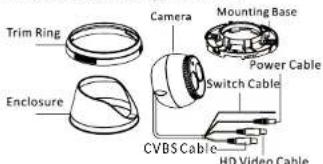
text_image
Trim Ring Enclosure Camera Mounting Base Power Cable Switch Cable CVBS Cable HD Video CableFigure 1-1 Overview of Type I Camera
1.2.2 Overview of Type Camera
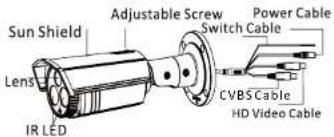
text_image
Sun Shield Lens IR LED Adjustable Screw Switch Cable Power Cable CVBS Cable HD Video CableFigure 1-2 Overview of Type II Camera

The HD video output mode is set as the default. You can short the white and black line-end of the switch cable to switch the mode as CVBS output.
2 Installation
Before you start
- Please make sure that the device in the package is in good condition and all the assembly parts are included.
● Make sure that all the related equipment is power-off during the installation. - Check the specification of the products for the installation environment.
- Check whether the power supply is matched with your power output to avoid damage.
- Please make sure the wall is strong enough to withstand three times the weight of the camera and the mounting.
- If the wall is the cement wall, you need to insert expansion screws before you install the camera. If the wall is the wooden wall, you can use self-tapping screw to secure the camera.
- If the product does not function properly, please contact your dealer or the nearest service center. Do not disassemble the camera for repair or maintenance by yourself.
2.1 Installation of Type I Camera
Steps:
- Drill the screw holes and the cable hole on the ceiling according to the supplied drill template.
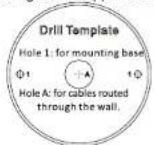
Figure 2-1 The Drill Template
- Fix the mounting base to the ceiling with the supplied screws.
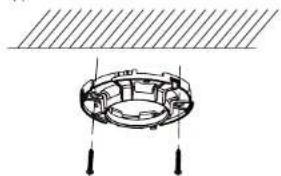
natural_image
Technical diagram of a mechanical component with mounting holes and internal structure (no text or symbols)Figure 2-2 Fix the Mounting Base
- Route the cables to the cable hole and connect corresponding power cable and video cable.
- Secure the camera to the mounting base.
5.Fix the enclosure to camera. - Attach the trim ring to the camera and rotate it clockwise to secure the camera loosely.
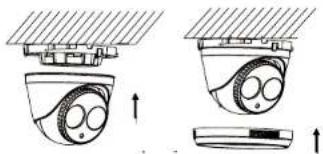
natural_image
Diagram showing two views of a surveillance camera with three lenses and an attached sensor (no text or symbols)Figure 2-3 Attach the Camera and Trim Ring
-
Adjust the surveillance angle according to the figure below.
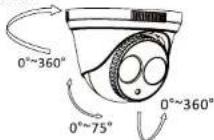
Figure 2-4 3-axis Adjustment -
Rotate the trim ring to get it fixed with the camera to complete the installation.
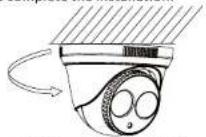
Figure 2-5 Complete the Installation
2.2 Installation of Type II Camera
Steps:
- Drill the screw holes and the cable hole in the ceiling according to the supplied drill template.
- Hammer the supplied plastic expansion bolt into the screw holes.
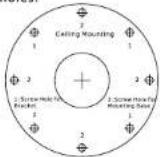
Figure 2-6 Drill Template
- Route the cables to the cable hole and connect the corresponding cables.
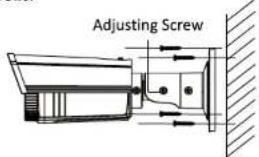
- Fix the camera to the ceiling with the supplied screws.
text_image
Adjusting ScrewFigure 2-7 Fix the Camera to the Wall
- Adjust the surveillance angle.
1). Loosen No.3 adjusting screw to adjust the pan position ( 0^ 360^ ).
2). Tighten No.3 adjusting screw.
3). Loosen No.2 adjusting screw to adjust the tilting position(0° \~ 90°).
4). Tighten No.2 adjusting screw.
5). Loosen No.1 adjusting screw to adjust the rotation position(0° \~ 360°).
6). Tighten No.1 adjusting screw.
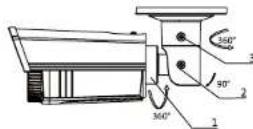
Figure 2-8 3-axis Adjustment
3 Menu Operation
MENU
flowchart
graph TD
    A["AE"] --> B["BRIGHTNESS"]
    C["WB"] --> D["AUTO"]
    D --> E["MANUAL"]
    E --> F["AGC"]
    F --> G["SENSE UP"]
    H["DAY & NIGHT"] --> I["COLOR"]
    I --> J["R/W"]
    J --> K["SMART"]
    L["VIDEO SETTING"] --> M["CONTRAST"]
    N["FUNCTION"] --> O["DETECTION"]
    P["RESET"] --> Q["SAVE NEXT"]
    R["MASKING"] --> S["ZOOM IN"]
    T["Mirror"] --> U["3D NR"]
    V["VIDEO STANDARD"] --> W["MAIN MENU"]
    X["LANGUAGE"] --> Y["LANGUAGE"]
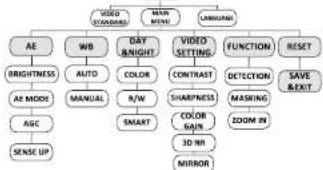
Figure 3-1 Main Menu

A coaxial camera controller (purchase separately) is required to select the menu and adjust the camera parameters.
3.1 VIDEO.OUT
PAL or NTSC is selectable.
3.2 LANGUAGE
English and Chinese are selectable.
3.3SETUP
3.3.1 AE
Move the cursor to AE, and you can adjust the image brightness by the BRIGHTNESS, AE MODE, AGC, and SENS-UP in this menu.
As shown in Figure 3-2.
BRIGHTNESS : Set the brightness value from 1 to 10 to darken or brighten the image.
AE MODE: Set AE mode as GLOBLE AE, and D-WDR.
AGC: HIGH, MIDDLE, and LOW can be set for the AGC level. Select OFF to disable the AGC.
SENSE UP: Set the SENSE UP value as 0, 2, 4, 8, 10, 12, 14 and 16.
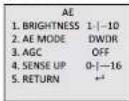
Figure 3-2 AE
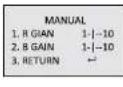
Figure 3-3 Manual of WB
3.3.2 WB
Move the cursor to WB, and you can set White Balance mode as AUTO and MANUAL in this menu.
AUTO: white balance is being adjusted automatically.
MANUAL: Set the R GAIN/B GAIN value from 1 to 10. As shown in Figure 3-3.
3.3.3 DAY & NIGHT
Move the cursor to DAY & NIGHT, and select COLOR, B/W, or SMART as the DAY & NIGHT mode.
COLOR: The image is colored in day mode all the time.
B/W: The image is black & white all the time, and the IR LED turns on in the low-light conditions.
SMART: Select to turn on/off the INFRARED_LAMP and to set the Smart IR level from 0 to 5.
As shown in Figure 3-4.
3.3.4 Video Setting
Move the cursor to the VIDEO SETTING, and press the menu button to enter the video configuration interface. As shown in Figure 3-5.
CONTRAST: Set the CONTRAST value from 1 to 10. SHARPNESS: Set the edge and detail sharpness value from 1 to 10.
COLOR GAIN: Set the color gain from 1 to 10.
3D NR: Set the 3D NR level as High, Middle
and Low. Select OFF to disable the 3D NR. MIRROR: Set the mirror mode as OFF, H, V, or HV.
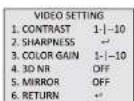
Figure 3-4 Video Settings
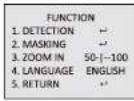
Figure 3-5 Function
3.3.5 FUNCTION
You can set DETECTION, MASKING, ZOOM IN and LANGUAGE of the camera in this menu. As shown in Figure 3-6.
DETECTION: Set the motion sensitivity as WEAK, LOW, MIDDLE or HIGH. Select an AREA to enter the motion detection AREA menu. As shown in Figure 3-7.
AREA: Set the status as OFF/ON. Select a color for area border. Move the joystick up/down and right /left to set the horizon/vertical size and position. As shown in Figure 3-8.
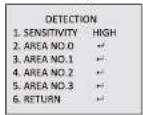
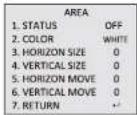
Figure 3-6 Detection
Figure 3-7 Detection Area
MASKING: Select a masking back ground color. Select an AREA to enter the masking AREA menu. As shown in figure 3-9.
AREA: Set the status as OFF/ON. Move the joystick up/down and right/left to set the horizon/vertical size and position.
As shown in Figure 3-10.
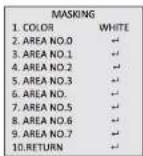
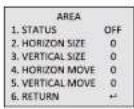
Figure 3-8 Marsking Area
Figure 3-9 Masking
ZOOM IN: The ZOOM IN value can be adjusted from
50 to 100.
3.3.6 Reset
Reset all the settings to the default.
3.3.7 Save & Exit
Move the cursor to SAVE & RESET, and press OK to save the settings and exit the menu.