FlexScan S2001WH - Telewizor EIZO - Bezpłatna instrukcja obsługi
Znajdź bezpłatnie instrukcję urządzenia FlexScan S2001WH EIZO w formacie PDF.


Pytania użytkowników dotyczące FlexScan S2001WH EIZO
0 pytanie dotyczące tego urządzenia. Odpowiedz na te, które znasz, lub zadaj własne.
Zadaj nowe pytanie dotyczące tego urządzenia
Pobierz instrukcję dla swojego Telewizor w formacie PDF za darmo! Znajdź swoją instrukcję FlexScan S2001WH - EIZO i weź swoje urządzenie elektroniczne z powrotem w ręce. Na tej stronie opublikowane są wszystkie dokumenty niezbędne do korzystania z urządzenia. FlexScan S2001WH marki EIZO.
INSTRUKCJA OBSŁUGI FlexScan S2001WH EIZO
User's Manual
FlexScan® S2001W S2201W
Color LCD Monitor
Important
Please read this User's Manual and Setup Manual (separate volume) carefully to familiarize yourself with safe and effective usage.
PRECAUTIONS
CONTENTS
Chapter 1 Features and Overview
1-1 Features
1-2 Buttons and Indicators
1-3 Functions and Basic Operation
Chapter 2 Settings and Adjustments
2-1 Utility Disk
2-2 Screen Adjustment
2-3 Color Adjustment
2-4 Off Timer/Power Saving Settings
2-5 Screen Size Selection
2-6 Power Indicator/EIZO Logo Display Setting
2-7 Locking Buttons
2-8 Disabling DDC/CI Communication
2-9 Setting Adjustment Menu Display
2-10 Setting Orientation
2-11 Viewing Information/Setting Language
2-12 Setting BrightRegulator
2-13 Resumption of Default Setting
Chapter 3 Connecting Cables
3-1 Connecting Two PCs to the Monitor
3-2 Connecting Peripheral USB Devices
Chapter 4 Troubleshooting
Chapter 5 Reference
5-1 Attaching an Arm
5-2 Cleaning
5-3 Specifications
5-4 Glossary
5-5 Preset Timing
How to Setup
Please read the Setup Manual (separate volume)
SAFETY SYMBOLS
This manual uses the safety symbols below. They denote critical information. Please read them carefully.
| WARNINGFailure to abide by the information in a WARNING may result in serious injury and can be life threatening. | CAUTIONFailure to abide by the information in a CAUTION may result in moderate injury and/or property or product damage. | |
 | Indicates a prohibited action. | |
 | Indicates a mandatory action that must be followed. | |
Copyright© 2007 EIZO NANAO CORPORATION All rights reserved.
No part of this manual may be reproduced, stored in a retrieval system, or transmitted, in any form or by any means, electronic, mechanical, or otherwise, without the prior written permission of EIZO NANAO CORPORATION. EIZO NANAO CORPORATION is under no obligation to hold any submitted material or information confidential unless prior arrangements are made pursuant to EIZO NANAO CORPORATION's receipt of said information. Although every effort has been made to ensure that this manual provides up-to-date information, please note that EIZO monitor specifications are subject to change without notice.
ENERGY STAR is a U.S. registered mark.
Apple and Macintosh are registered trademarks of Apple Inc.
VGA is a registered trademark of International Business Machines Corporation.
DPMS and DDC/CI are trademarks and VESA is a registered trademark of Video Electronics Standards Association.
Windows is a registered trademark of Microsoft Corporation.
PowerManager is a trademark of EIZO NANAO CORPORATION.
FlexScan, ScreenManager, i-Sound and EIZO are registered trademarks of EIZO NANAO CORPORATION in Japan and other countries.
As an ENERGY STAR® Partner, EIZO NANAO CORPORATION has determined that this product meets the ENERGY STAR guidelines for energy efficiency.

Product specification may vary with sales areas.
Confirm the specification in the manual written in language of the region of purchase.

PRECAUTIONS
IMPORTANT
- This product has been adjusted specifically for use in the region to which it was originally shipped. If the product is used outside the region, it may not operate as specified in the specifications.
- To ensure personal safety and proper maintenance, please read carefully this section and the caution statements on the monitor.
[Location of Caution Statement]
Ex. S2201W
Example of height adjustable stand
![EIZO FlexScan S2001WH - [Location of Caution Statement] - 1](/content/2026/06/1174053/images/ec225d13a7e305aa56278c79425e261b0ac2f941cdaacf35db8ef6b328d5b9f6.jpg)
text_image
CAUTION Risk of electric shock, Do not open. ATTENTION Risque de rnoé électrique, Ne pas ouvr. ACHTUNG Gefahr des elektrichens schlagers.Rückwand nicht entferen. 小心 有触电的风砲,请勿打开。 警告:高压注意 サービスマン以外の方は負担たをあけないでください。内部には高電圧部分が数多くあり、万一さわると無限です。The equipment must be connected to a grounded main outlet. Jordet stikkontakt skal benyttes när apparatet tilkobles datanett. Apparaten skall anslutas till jordat nätuttag. 電源コードのアースは必ず接地してください。 这设备必须连接至接地主插座。
![EIZO FlexScan S2001WH - [Location of Caution Statement] - 2](/content/2026/06/1174053/images/7fa1937469cff908dfc67d8f81e5605a1efddbc28e1ca0971b646829f47a3226.jpg)
WARNING
If the unit begins to emit smoke, smells like something is burning, or makes strange noises, disconnect all power connections immediately and contact your dealer for advice.
Attempting to use a malfunctioning unit may result in fire, electric shock, or equipment damage.
Do not open the cabinet or modify the unit.
Opening the cabinet or modifying the unit may result in fire, electric shock, or burn.

Refer all servicing to qualified service personnel.
Do not attempt to service this product yourself as opening or removing covers may result in fire, electric shock, or equipment damage.
Keep small objects or liquids away from the unit.
Small objects accidentally falling through the ventilation slots into the cabinet or spillage into the cabinet may result in fire, electric shock, or equipment damage.
If an object or liquid falls/spills into the cabinet, unplug the unit immediately. Have the unit checked by a qualified service engineer before using it again.


Place the unit at the strong and stable place.
A unit placed on an inadequate surface may fall and result in injury or equipment damage. If the unit falls, disconnect the power immediately and ask your dealer for advice. Do not continue using a damaged unit. Using a damaged unit may result in fire or electric shock.

Set the unit in an appropriate location.
Not doing so may result in fire, electric shock, or equipment damage.
- Do not place outdoors.
- Do not place in the transportation system (ship, aircraft, trains, automobiles, etc.)
- Do not place in a dusty or humid environment.
- Do not place in a location where the steam comes directly on the screen.
- Do not place near heat generating devices or a humidifier.

To avoid danger of suffocation, keep the plastic packing bags away from babies and children.
Use the enclosed power cord and connect to the standard power outlet of your country.
Be sure to remain within the rated voltage of the power cord. Not doing so may result in fire or electric shock.
To disconnect the power cord, grasp the plug firmly and pull.
Tugging on the cord may damage and result in fire or electric shock.

The equipment must be connected to a grounded main outlet.
Failure to do so may result in fire or electric shock.

Use the correct voltage.
- The unit is designed for use with a specific voltage only. Connection to another voltage than specified in this User's Manual may cause fire, electric shock, or equipment damage.
- Do not overload your power circuit, as this may result in fire or electric shock.
Handle the power cord with care.
- Do not place the cord underneath the unit or other heavy objects.
- Do not pull on or tie the cord.
If the power cord becomes damaged, stop using it. Use of a damaged cord may result in fire or electric shock.

Never touch the plug and power cord if it begins to thunder.
Touching them may result in electric shock.

When attaching an arm stand, please refer to the user's manual of the arm stand and install the unit securely.
Not doing so may cause the unit to become unattached, which may result in injury or equipment damage. When the unit is dropped, please ask your dealer for advice. Do not continue using a damaged unit. Using a damaged unit may result in fire or electric shock.
When reattaching the tilt stand, please use the same screws and tighten them securely.
Do not touch a damaged LCD panel directly with bare hands.
The liquid crystal that may leak from the panel is poisonous if it enters the eyes or mouth. If any part of the skin or body comes in direct contact with the panel, please wash thoroughly. If some physical symptoms result, please consult your doctor.

Lamps contain mercury, dispose according to local, state or federal laws.
Handle with care when carrying the unit.
Disconnect the power cord and cables when moving the unit. Moving the unit with the cord attached is dangerous. It may result in injury.
When handling the unit, grip the bottom of the unit firmly with both hands ensuring the panel faces outward before lifting.
Dropping the unit may result in injury or equipment damage.


Do not block the ventilation slots on the cabinet.
- Do not place any objects on the ventilation slots.
- Do not install the unit in a closed space.
- Do not use the unit laid down or upside down.
Blocking the ventilation slots prevents proper airflow and may result in fire, electric shock, or equipment damage.
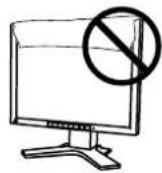
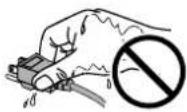
Do not touch the plug with wet hands.
Doing so may result in electrical shock.
Use an easily accessible power outlet.
This will ensure that you can disconnect the power quickly in case of a problem.
Periodically clean the area around the plug.
Dust, water, or oil on the plug may result in fire.
Unplug the unit before cleaning it.
Cleaning the unit while it is plugged into a power outlet may result in electric shock.
If you plan to leave the unit unused for an extended period, disconnect the power cord from the wall socket after turning off the power button for the safety and the power conservation.
LCD Panel
In order to suppress the luminosity change by long-term use and to maintain the stable luminosity, use of a monitor in lower brightness is recommended.
The LCD panel is manufactured using high-precision technology. However, note that the appearance of any missing pixels or lit pixels does not indicate damage to the LCD monitor. Percentage of effective pixels: 99.9994% or higher.
The backlight of the LCD panel has a fixed life span. When the screen becomes dark or begins to flicker, please contact your dealer.
Do not press on the panel or edge of the frame strongly, as this may result in the display malfunction, such as the interference patterns, etc. If pressure is continually applied to the LCD panel, it may deteriorate or damage your LCD panel. (If the pressure marks remain on the LCD panel, leave the monitor with a white or black screen. The symptom may disappear.)
Do not scratch or press on the panel with any sharp objects, such as a pencil or pen as this may result in damage to the panel. Do not attempt to brush with tissues as this may scratch the LCD panel.
When the monitor is cold and brought into a room or the room temperature goes up quickly, dew condensation may occur inside and outside the monitor. In that case, do not turn the monitor on and wait until dew condensation disappears, otherwise it may cause damage to the monitor.
When the screen image is changed after displaying the same image for extended periods of time, an afterimage may appear. Use the screen saver or timer to avoid displaying the same image for extended periods of time.
To use the monitor comfortably
An excessively dark or bright screen may affect your eyes. Adjust the brightness of the monitor according to the environmental conditions.
Staring at the monitor for a long time tires your eyes. Take a 10-minute rest every hour.
CONTENTS
PRECAUTIONS 1
LCD Panel 5
To use the monitor comfortably.... 5
Chapter 1 Features and Overview ...... 7
1-1 Features....7
1-2 Buttons and Indicators....7
1-3 Functions and Basic Operation.... 8
Chapter 2 Settings and Adjustments .... 11
2-1 Utility Disk....11
- Disk contents and software overview....11
• To use ScreenManager Pro for LCD ....11
2-2 Screen Adjustment 12
Digital Input.... 12
Analog Input 12
2-3 Color Adjustment.... 15
Simple adjustment [FineContrast mode] ..... 15
- FineContrast Mode.... 15
• To select FineContrast mode.... 15
Advanced Adjustments [Adjustment menu]..... 16
• To select an appropriate mode for images ..... 16
• To set/adjust color 17
2-4 Off Timer/Power Saving Settings.... 18
• To set monitor power-off time [Off Timer]...... 18
• To set monitor power-saving [VESA DPMS/DVI DMPM].... 19
2-5 Screen Size Selection.... 20
• To change screen size [Screen Size].... 20
- To adjust brightness of non-display area [Border Intensity]....20
2-6 Power Indicator/EIZO Logo Display Setting 21
- To turn off the Power indicator while a screen is displayed [Power Indicator].... 21
- To display EIZO logo [EIZO Logo Appearing Function]....21
2-7 Locking Buttons 21
• To lock operation [Adjustment Lock]...... 21
2-8 Disabling DDC/CI Communication 22
• To disable DDC/CI communication.... 22
2-9 Setting Adjustment Menu Display.... 22
- To update menu settings [Menu Size/Menu Position/Menu Off Timer/Translucent].... 22
2-10 Setting Orientation 23
• To set the orientation of the Adjustment menu [Orientation]....23
2-11 Viewing Information/Setting Language ..... 23
- To check settings, usage time, etc. [Information] 23
- To set a language to be displayed [Language] 23
2-12 Setting BrightRegulator 24
- To set automatic brightness adjustment [BrightRegulator] 24
2-13 Resumption of Default Setting 24
• To reset color adjustment [Reset]...... 24
• To reset all settings [Reset] 24
Chapter 3 Connecting Cables 25
3-1 Connecting Two PCs to the Monitor 25
• To set input signal selection [Input Signal] ..... 26
3-2 Connecting Peripheral USB Devices ..... 26
Chapter 4 Troubleshooting....27
Chapter 5 Reference 30
5-1 Attaching an Arm....30
5-2 Cleaning....31
5-3 Specifications 32
5-4 Glossary 38
5-5 Preset Timing 40
Chapter 1 Features and Overview
Thank you very much for choosing an EIZO color LCD monitor.
1-1 Features
• 20.1 (S2001W) / 22.0 (S2201W) inch class wide screen format LCD
• Applicable to HDCP
- Stereo speakers
- Dual-input compliant (DVI-I and D-Sub mini 15-pin connectors)
• DVI digital input (TMDS) compliant
• Horizontal scan frequency, Vertical scan frequency and Resolution are as follows;
| Horizontal scan frequency | Analog | 24 - 82 kHz |
| Digital | 31 - 65 kHz | |
| Vertical scan frequency | Analog | 49 - 86 Hz |
| 49 - 76 Hz (1280 × 1024) | ||
| 49 - 61 Hz (1680 × 1050) | ||
| Digital | 59 - 61 Hz (VGA TEXT 69 - 71 Hz) | |
| Resolution | 1680 dots × 1050 lines | |
- Compatible with frame synchronization mode 59 - 61 Hz
* Only if the [Full Screen] is selected from the. - Smoothing (soft - sharp) function for adjustment of enlarged images
- FineContrast mode to allow the best mode for screen display
- The utility software “ScreenManager Pro for LCD” (for Windows) to control the monitor from a PC with mouse/keyboard is included (refer to the EIZO LCD Utility Disk).
• BrightRegulator function incorporate
• Self AutoAdjust function incorporate
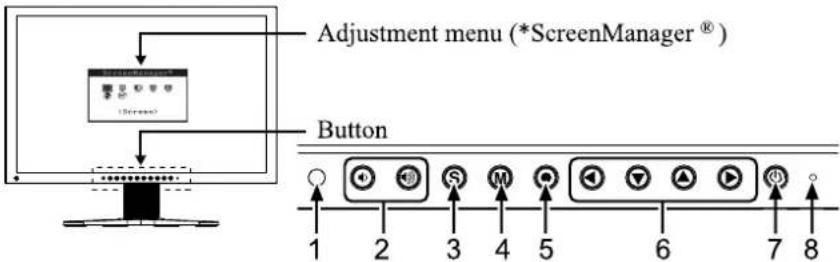
1-2 Buttons and Indicators
text_image
Adjustment menu (*ScreenManager®) Button 1 2 3 4 5 6 7 8- Sensor (BrightRegulator)
- Volume control buttons (Up, Down)
- Input signal selection button
- Mode button
- Enter button
- Control buttons (Left, Down, Up, Right)
- Power button
- Power indicator
| Indicator status | Operation status |
| Blue | The screen is displayed |
| Orange | Power saving |
| Off | Power off |
* ScreenManager ^® is an EIZO's nickname of the Adjustment menu.
NOTE
- The stand of the unit can be replaced with an arm or another stand. (Refer to "5-1 Attaching an Arm" on page 30.)
NOTE
- While the screen is displayed, the power indicator that is lighting blue can be turned off (see “To turn off the Power indicator while a screen is displayed [Power Indicator]” on page 21).
- For the power indicator status with "Off Timer" set, refer to "To set monitor power-off time [Off Timer]" on page 18.
1-3 Functions and Basic Operation
To adjust the screen and color

flowchart
graph TD
    A["Main menu (Refer to page 10 for operation)"] --> B["ScreenManager®"]
    B --> C["<Auto Adjustment"]
    C --> D["Custom"]
    D --> E["..."]
    F["Analog input only"] --> G["Screen Adjustment (Automatic Adjustment)"]
    G --> H["Auto Adjustment"]
    H --> I["<Screen>"]
    I --> J["To adjust flickering and position [Screen"]...... see page 12]
    I --> K["To adjust color gradation automatically [Range"]...... see page 14]
    J --> L["• The Adjustment menu and the FineContrast mode name cannot be displayed at the same time."]
    K --> M["• The Adjustment menu and the FineContrast mode name cannot be displayed at the same time."]
    N["Color Adjustment"] --> O["Simple Adjustment [FineContrast mode"]]
    O --> P["This function allows easy selection of a desired mode from five modes according to monitor application."]
    P --> Q["Custom"]
    Q --> R["M"]
    R --> S["eRGB"]
    S --> T["M"]
    T --> U["Text"]
    U --> V["M"]
    V --> W["Movie"]
    W --> X["Picture"]
    X --> Y["M"]
    Y --> Z["Brightness Adjustment"]
    Z --> AA["Press ▶ or ▶ to adjust brightness."]
    AB["Volume Adjustment"] --> AC["Press ▶ or ▶ to adjust volume."]
    AD["Resuming the default settings"] --> AE["To reset color adjustment [Reset"] ... see page 24]
To make useful settings/adjustments
- Adjustment menu (Refer to page 10 for operation)
[At analog signal input]
flowchart
graph TD
    A["ScreenManager®"] --> B["User"]
    A --> C["Process Step"]
    A --> D["User Interface"]
    A --> E["User Server"]
    B --> F["User Interface"]
    C --> G["User Interface"]
    D --> H["User Interface"]
    E --> I["User Interface"]
    style A fill:#f9f,stroke:#333
    style B fill:#ccf,stroke:#333
    style C fill:#cfc,stroke:#333
    style D fill:#fcc,stroke:#333
    style E fill:#cff,stroke:#333
[At digital signal input]

flowchart
graph TD
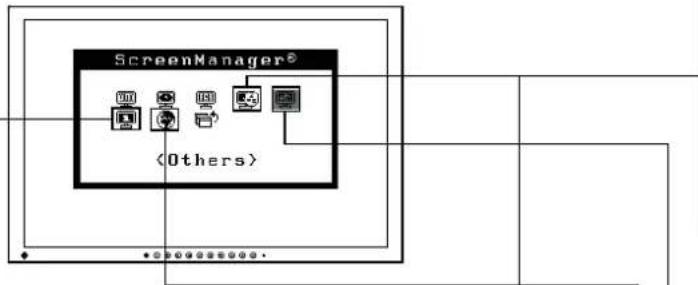
    A["ScreenManager®"] --> B["(Others)"]
    B --> C["Function Icon"]
    B --> D["Process Icon"]
    B --> E["Computer Icon"]
Page 23
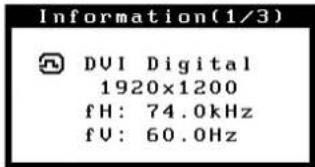
Information
text_image
Information(1/3) DVI Digital 1920x1200 fH: 74.0kHz fV: 60.0Hz• To check settings, usage time, etc. [Information]
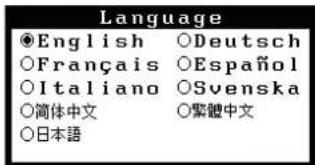
Language
Page 23
text_image
Language ●English ○Deutsch ○Français ○Español ○Italiano ○Svenska ○简体中文 ○繁體中文 ○日本語• To set a language to be displayed [Language]
EIZO Logo Display Setting
- To display EIZO logo [EIZO Logo Appearing Function] ...... see page 21
Locking Adjustment
• To lock operation [Adjustment Lock]... see page 21
Disabling DDC/CI Communication
• To disable DDC/CI communication ... see page 22
Connecting Signal Cables
- Connecting Two PCs to the Monitor ... see page 25
- Connecting Peripheral USB Devices ... see page 26
Power-save Settings
Page 19

text_image
PowerManager™ Set ●DVI DMPM ○Off• To set monitor power-saving [VESA DPMS/DVI DMPM]

text_image
OthersSet the off timer
- To set monitor power-off time [Off Timer] ...... see page 18
Change the screen size
- To change screen size [Screen Size] ....see page 20 - To adjust brightness of non-display area [Border Intensity] ....see page 20
BrightRegulator Setting
- To set automatic brightness adjustment [BrightRegulator] ...... see page 24
Orientation Setting
- To set the orientation of the Adjustment menu [Orientation] ...... see page 23
Power Indicator Setting
- To turn off the Power indicator while a screen is displayed [Power Indicator] ...... see page 21
Adjustment menu settings
- To update menu settings [Menu Size/Menu Position/Menu Off Timer/Translucent] ...... see page 22
Resume the factory default settings
• To reset all settings [Reset] ...... see page 24
Setting Input Signal Selection
- To set input signal selection [Input Signal]...... see page 26
Basic operation of Adjustment menu
[Displaying Adjustment menu and selecting function]
(1) Press ●. The Main menu appears.
(2) Select a function with ▲ / ▼ / ◀ / ▶, and press ●. The Sub menu appears.
(3) Select a function with ▲ / ▼ / ◀ / ▶, and press ●. The adjustment/setting menu appears.
(4) Adjust the selected item with ▲ / ▼ / ◀ / ▶, and press ●. The setting is saved.
[Exiting Adjustment menu]
(1) Choose
(2) Choose
NOTE
• The Adjustment menu can also be exited by pressing Ⓞ twice quickly.
Chapter 2 Settings and Adjustments
2-1 Utility Disk
An “EIZO LCD Utility Disk” (CD-ROM) is supplied with the monitor. The following table shows the disk contents and the overview of the application software programs.
• Disk contents and software overview
The disk includes color profiles, application software programs for adjustment, and User's Manual. Refer to "Readme.txt" or the "Readme" file on the disk for software startup procedures or file access procedures.
| Item | Overview | For Windows | For Macintosh |
| A “Readme.txt” or “Readme” file | √ | √ | |
| Color Profiles (ICC Profiles) | A specific file including the color characteristic information for the monitor. | √ | √ |
| Screen Adjustment Program | Available for easy adjustments of the monitor screen following adjustment patterns and procedures on the screen. | √ | √ |
| ScreenManager Pro for LCD (for Windows) | A utility software program to control monitor adjustments from a PC using its mouse and keyboard.(A PC must be connected to the monitor with the supplied USB cable.) Refer to the description later. | √ | - |
| WindowMovie Checker Software | WindowMovie is a function of ScreenManager Pro for LCD.For more information, refer to the User’s Manual of ScreenManager Pro for LCD on the disk. | ||
| User's Manual of this monitor (PDF file) | |||
• To use ScreenManager Pro for LCD
For the installation and use of ScreenManager Pro for LCD, refer to its User's Manual on the disk.
To adjust the monitor using ScreenManager Pro for LCD, connect a PC to the monitor with the supplied USB cable.
For more information, refer to the "Chapter 3 3-2 Connecting Peripheral USB Devices".
2-2 Screen Adjustment
Digital Input
When digital signals are input, images are displayed correctly based on the preset data of the monitor. No screen Adjustment is required.
Analog Input
The monitor screen adjustment is used to suppress flickering of the screen or adjust screen position and screen size correctly according to the PC to be used. To use the monitor comfortably, adjust the screen when the monitor is set up for the first time or when the settings of the PC in use are updated.
The auto-adjustment function works in the following cases:
- When a signal is input into the monitor for the first time
- When a signal is input into the monitor for the first time after the resolution or refresh rate of input signals is changed
[Adjustment Procedure]
Automatic Adjustment
1 To adjust screen automatically [Screen]
(1) Choose
(2) Choose
Flickering, screen position, and screen size are corrected by the auto-adjustment function.
If satisfactory adjustment cannot be obtained with the auto-adjustment function, perform the adjustment following the procedure below. When the screen is displayed correctly, go to step 4 "Range Adjustment".
Advanced Adjustment
2 Run the Screen Adjustment Program.
Load the EIZO LCD Utility Disk on the PC, and start the Screen
Adjustment Program compatible with the PC in use.
After the program starts up, perform the adjustment in step 3 following the instructions of the program.
Attention
- Wait 30 minutes or more from monitor power on before starting adjustments.
NOTE
- Use "Screen Adjustment Program" on the supplied EIZO LCD Utility Disk.
Attention
- Auto-adjustment function does not work for the images under the resolution of 800 × 600 (SVGA).
Attention
- This function works correctly when an image is fully displayed over the Windows or Macintosh display area. It does not work properly when an image is displayed only on a part of the screen (DOS prompt window, for example) or when a black background (wallpaper, etc.) is in use.
• This function does not work correctly with some graphics boards. - "Auto in Progress" appears on the screen during auto adjustment.
NOTE
- For how to start the Screen Adjustment Program, refer to "Readme.txt" or the "Readme" file. When you are using a Windows PC, you can run the program directly from the start menu of the disk.
- If no adjustment program is available for your PC, display a checkerboard pattern on the screen (see below) and go to the following steps.

3 Perform advanced adjustments for the following using the menu of the Adjustment menu.
• To eliminate vertical bars [Clock]
(1) Choose
(2) Adjust the clock with ◀ or ▶, and press ●. The adjustment is completed.
![EIZO FlexScan S2001WH - • To eliminate vertical bars [Clock] - 1](/content/2026/06/1174053/images/5091cf2595ed688ae29c704f61134df0be7af6fc17ab1b16a1ba29f0fc57632b.jpg)
flowchart
graph LR
    A["Input Image"] --> B["Transformation"]
    B --> C["Output Waveform"]
    C --> D["Final Output"]
• To remove flickering or blurring [Phase]
(1) Choose
(2) Adjust the phase with ◀ or ▶, and press ●. The adjustment is completed.
![EIZO FlexScan S2001WH - • To remove flickering or blurring [Phase] - 1](/content/2026/06/1174053/images/25c805b66c8861ec5e93ba2cb69c20cbcc921c0bded19c2b8ce03f9e6af7296c.jpg)
flowchart
graph LR
    A["Document with horizontal lines"] --> B["Output"]
• To correct screen position [Position]
Since the number of pixels and the pixel positions are fixed on the LCD monitor, only one position is provided to display images correctly. The position adjustment is made to shift an image to the correct position.
(1) Choose
(2) Adjust the position with ▲ / ▼ / ◀ / ▶ to display the image properly in the display area of the monitor.
![EIZO FlexScan S2001WH - • To correct screen position [Position] - 1](/content/2026/06/1174053/images/4a2518823255446d27c7c9f367b6d0982f390f5f84fe590bfa382175835f84a6.jpg)
natural_image
Two square frames with arrows indicating transformation (no text or symbols)NOTE
- Press the control button slowly so as not to miss the adjustment point.
- When blurring, flickering or bars appear on the screen after adjustment, proceed to [Phase] to remove flickering or blurring.
Attention
- Flickering or blurring may not be eliminated depending on your PC or graphics board.
NOTE
- When vertical bars appear on the screen after adjustment, go back to "To eliminate vertical bars [Clock]." (Clock → Phase → Position)
4 Adjust the signal output range.
• To adjust color gradation automatically [Range]
Every color gradation (0 to 255) can be displayed by adjusting the signal output level.
(1) Choose
(2) Choose "Execute" with ▲ or ▼, and press ●.
The output range is adjusted automatically.
When using the "Screen Adjustment Program", quit the program.
5 Change the smoothing setting.
• To modify blurred characters/lines [Smoothing]
When a low-resolution image is displayed in the "Full" or "Enlarged" mode, the characters or lines of the displayed image may be blurred.
(1) Choose
(2) Choose
(3) Adjust the characters/lines with ◀ or ▶, and press ●. The smoothing adjustment is completed.
Attention
- Smoothing setting may not be required depending on the display resolution. (You cannot choose the smoothing icon.)
2-3 Color Adjustment
Simple adjustment [FineContrast mode]
This function allows you to select the best display mode for monitor brightness, etc.
- FineContrast Mode
An appropriate display mode is selectable out of five modes.
| Mode | Purpose |
| Custom | Available for making desired setting. |
| sRGB | Suitable for color matching with sRGB compatible peripherals. |
| Text | Suitable for displaying texts for word processing or spreadsheets. |
| Picture | Suitable for displaying images such as photos or picture images. |
| Movie | Suitable for playing back animated images. |
FineContrast mode name
Example) Custom

Displays current mode.
• To select FineContrast mode
(1) Press Ⓜ.
The FineContrast mode name appears at the lower left of the screen.
(2) One of five modes is displayed in turn each time Ⓜ is pressed.

(3) Choose desired mode and press ●.
The setting completes.
NOTE
- The Adjustment menu and the FineContrast mode name cannot be displayed at the same time.
Advanced Adjustments [Adjustment menu]
Independent setting and saving of color adjustment are available for each FineContrast mode.
• To select an appropriate mode for images
√: Adjustment available -: Invalid for adjustment
| Icon | Function | FineContrast mode | ||||
| Custom | sRGB | Text | Picture | Movie | ||
 | Brightness | √ | √ | √ | √ | √ |
 | Contrast | √ | - | √ | √ | √ |
 | Temperature | √ | - | √ | √ | √ |
 | Gamma | √ | - | √ | - | - |
 | Saturation | √ | - | √ | √ | √ |
 | Hue | √ | - | √ | √ | √ |
 | Gain | √ | - | - | - | - |
 | Reset | √ | √ | √ | √ | √ |
| Menu | Description | Adjustment range |
| Brightness[IMAGE] | To adjust the full screen brightness as desired | 0 to 100% |
| NOTEYou can also adjust the brightness by pressing ◀ or ▶ button while the adjustment menu is not displayed.Press ⬤ after adjustment.The values shown in the “%” are available only as reference. | ||
| Compact[IMAGE] | To adjust the contrast of the image | 0 to 100%In the contrast of 50%, all color gradation is displayed. |
| NOTEThe values shown in the “%” are available only as reference. | ||
| Temperature[IMAGE] | To select a color temperature | 4000K to 10000K in units of 500K (including 9300K). |
| NOTESetting the value to “Off” presents the natural color temperature of the panel.The values shown in the Kelvin (K) are available only as reference. | ||
| Gamma[IMAGE] | To set a gamma value | 1.8, 2.0, 2.2 |
| Saturation[IMAGE] | To adjust color saturation | -128 to 127Setting the minimum (-128) turns the image to a monochrome screen. |
| AttentionThis function does not enable to display every color gradation. | ||
| To produce a desired skin color, etc. | -32 to 32 | |
| AttentionThis function does not enable to display every color gradation. | ||
Attention
- Perform [Range Adjustment] before starting color adjustment for analog input signals. Refer to “To adjust color gradation automatically” on page 14.
- Wait 30 minutes or more from monitor power on before starting the color adjustment.
- Choose "Reset" in the
menu to revert to the default settings (factory settings) of hue of the color mode selected. - The same image may be seen in different colors on multiple monitors due to their monitor-specific characteristics. Make fine color adjustment visually when matching colors on multiple monitors.
NOTE
- The Adjustment menu and the FineContrast mode name cannot be displayed at the same time.
- Adjustable functions vary depending on the type of FineContrast mode.
| Menu | Description | Adjustment range |
Gain | To adjust red, green, and blue to a desired color tone respectively | 0 to 100%Adjust the respective brightness of red/green/blue to make a desired color tone. Display an image with white or gray background for adjustment. |
| NOTEThe values shown in the “%” are available only as reference.When using thesetting, thesetting is set to “Off.” | ||
| Reset[BYKC] | To reset the color settings of the selected FineContrast mode to the default settings | |
- To set/adjust color
(1) Choose
(2) Select a desired function with ▲ / ▼ / ◀ / ▶ from the
The selected function menu appears.
(3) Adjust the selected item with ▲ / ▼ / ◀ / ▶, and press ●.
The adjustment is completed.
2-4 Off Timer/Power Saving Settings
• To set monitor power-off time [Off Timer]
This function allows the monitor to automatically turn off after a specified time has passed. This function serves to reduce afterimages caused when the monitor screen is left on for a long time period without use. Use this function when an image is displayed throughout the day.
[Off Timer System]
| Timer | Monitor | Power Indicator |
| ON time (1H - 23H) | Operating | Blue |
| Last 15 min. in “ON time” | Advance Notice* | Flashing blue |
| “ON time” expired | Power Off | Off |
* When ⏻ is pressed during the advance notice period, the monitor continues to operate for additional 90 minutes. Extension of operation time can be set without limitation.
[Procedure]
(1) Choose
(2) Choose
The
(3) Select "Enable" with ▲ or ▼.
(4) Set a monitor ON time (1 to 23 hours) with ◀ or ▶, and press ●.
The Off Timer setting is completed.
[Resumption Procedure]
- Press ⏻.
Attention
- The Off Timer functions even in the power saving mode, but the advance notice is disabled. The monitor power is turned off without advance notice.
• To set monitor power-saving [VESA DPMS/DVI DMPM]
■ Analog input
This monitor complies with the VESA DPMS standard.
[Power Saving System]
| PC | Monitor | Power Indicator | |
| Operating | Operating | Blue | |
| Power saving | STAND-BY SUSPENDED OFF | Power saving | Orange |
[Procedure]
(1) Choose
(2) Select "VESA DPMS" with ▲ or ▼, and press ●. The power saving setting is completed.
[Resumption Procedure]
- Operate the mouse or keyboard to resume the normal screen.
■ Digital input
This monitor complies with the DVI DMPM standard.
[Power Saving System]
The monitor enters the power saving mode in five seconds in connection with the PC setting.
| PC | Monitor | Power Indicator |
| Operating | Operating | Blue |
| Power saving | Power saving | Orange |
[Procedure]
(1) Choose
(2) Select "DVI DMPM" with ▲ or ▼, and press ●. The power saving setting is completed.
[Resumption Procedure]
- Operate the mouse or keyboard to resume the normal screen.
Attention
- Unplugging the power cord completely shuts off power supply to the monitor.
- USB compliant devices connected to the monitor work even if the monitor is in the power saving mode. Therefore, power consumption of the monitor varies with connected devices even in the power saving mode.
• Power consumption changes even when a sound input signal is detected.
2-5 Screen Size Selection
• To change screen size [Screen Size]
The image with the resolution other than the recommended resolution is displayed in full screen automatically. You can change the screen size by using
| Menu | Function |
| Full Screen (default setting) | Displays an image in full screen. Images are distorted in some cases because the vertical rate is not equal to the horizontal rate. |
| Enlarged | Displays an image in full screen. In some cases, a blank horizontal or vertical border appears to equalize the vertical rate and the horizontal rate. |
| Normal | Displays images with the specified resolution. |
Example: Image size 1280 × 1024
![EIZO FlexScan S2001WH - • To change screen size [Screen Size] - 1](/content/2026/06/1174053/images/53f30923d0b971402abfbeb97b7574111f9b71fbdf5515d5a183617d8953533e.jpg)
text_image
Full Screen (Default setting) (1680 × 1050)![EIZO FlexScan S2001WH - • To change screen size [Screen Size] - 2](/content/2026/06/1174053/images/dd84cd9f21e03c621702a16c6fd50bebb4ae9438a9a2733d84054dec3137ccc7.jpg)
text_image
Enlarged (1312 × 1050)![EIZO FlexScan S2001WH - • To change screen size [Screen Size] - 3](/content/2026/06/1174053/images/a69cf87aa6588300edfec54b62f1a26a1db2ce64dd0943f105c3dfb1aaf10ce4.jpg)
text_image
Normal (1280 × 1024)[Procedure]
(1) Choose
(2) Choose
(3) Select “Full Screen,” “Enlarged,” or “Normal” with ▲ or ▼, and press ●.
The screen size setting is completed.
• To adjust brightness of non-display area [Border Intensity]
A border (black area with no image) around the image appears in the "Normal" or "Enlarged" mode.
![EIZO FlexScan S2001WH - • To adjust brightness of non-display area [Border Intensity] - 1](/content/2026/06/1174053/images/cf6fef0c93c7752efc35610aba6c52670d17c50ced311f7fb70846245d1928bb.jpg)
text_image
Border(1) Choose
(2) Choose
(3) Adjust border intensity with ◀ or ▶, and press ●. The border intensity adjustment is completed.
2-6 Power Indicator/EIZO Logo Display Setting
- To turn off the Power indicator while a screen is displayed [Power Indicator]
This function enables to turn off the Power indicator (blue) while a screen is displayed.
(1) Choose
(2) Choose
The
(3) Select "Disable" with ▲ or ▼, and press ●.
The Power Indicator setting is completed.
• To display EIZO logo [EIZO Logo Appearing Function]
When this unit is turned on, the EIZO logo appears at the center of the screen. Selection to display or not to display the logo is available with this function.
[Procedure]
(1) Press ⏻ to turn off the unit.
(2) Press ⏻ again while pressing ♁.
The EIZO logo does not appear on the screen.
[Resetting]
(1) Press ⏻ to turn off the unit.
(2) Press ⏻ again while pressing ♛.
The logo appears again.
2-7 Locking Buttons
• To lock operation [Adjustment Lock]
This function locks the buttons to retain the status adjusted or set once.
| Buttons that can be locked | ● (Enter button) Adjustments/settings using Adjustment menu |
| Buttons that cannot be locked | ○ (Power button)M (Mode button) FineContrast mode name selectionS (Input signal selection)○ (Volume control buttons)○ / ▶ (Control buttons) Brightness adjustment |
(1) Press ⏻ to turn off the unit.
(2) Press ⏻ again while pressing ⓤ.
The screen is displayed with the adjustment lock.
[Unlocking]
(1) Press ⏻ to turn off the unit.
(2) Press ⏻ again while pressing ⓤ.
The screen is displayed with the adjustment lock released.
NOTE
- The Power indicator lights up at power on with the default setting.
NOTE
- The logo appears with the default setting.
2-8 Disabling DDC/CI Communication
• To disable DDC/CI communication
[Procedure]
(1) Press ⏻ to turn off the unit.
(2) Press ⏻ again while pressing Ⓜ.
DDC/CI communication setting is disabled.
[Resetting]
(1) Press ⏻ to turn off the unit.
(2) Press ⏻ again while pressing Ⓜ.
DDC/CI communication setting is enabled.
[Checking the setting status]
(1) Select
(2) Pressing continuously, the DDC/CI communication setting status is shown on the 2nd page of the information page.
2-9 Setting Adjustment Menu Display
- To update menu settings [Menu Size/Menu Position/Menu Off Timer/Translucent]
Menu Size
Change the Adjustment menu size using the following procedure.
(1) Choose
(2) Choose
Menu Position
Adjust the menu position using the following procedure.
(1) Choose
(2) Choose
Menu Off Timer
Set the menu display time using the following procedure.
(1) Choose
(2) Choose
NOTE
- The display time of the FineContrast mode remains unchanged.
Translucent
Set the transparency for menu display using the following procedure.
(1) Choose
(2) Choose
2-10 Setting Orientation
• To set the orientation of the Adjustment menu [Orientation]
The orientation of the Adjustment menu can be turned 90 degrees.
(1) Choose
(2) Choose
(3) Select “Landscape” or “Portrait” with ⬆ or ⬇, and press ⭕. The orientation setting is completed.
2-11 Viewing Information/Setting Language
• To check settings, usage time, etc. [Information]
This function allows you to check settings, model name, serial number, and usage time of the monitor.
(1) Choose
(2) Then, press Ⓞ to check settings, etc.
• To set a language to be displayed [Language]
This function allows to select the Adjustment menu language.
Selectable languages
English/German/French/Spanish/Italian/Swedish/Simplified Chinese/Traditional Chinese/Japanese
(1) Choose
(2) Choose a language with ▲ / ▼ / ◀ / ▶, and press ●.
The language setting is completed.
NOTE
- The usage time is not always "0" when you purchase the monitor due to factory inspection.
2-12 Setting BrightRegulator
• To set automatic brightness adjustment [BrightRegulator]
The sensor on the front side of the monitor detects the environmental brightness to adjust the screen brightness automatically and comfortably.
(1) Choose
(2) Choose
(3) Select "Enable" or "Disable" with ▲ or ▼, and press ●. The BrightRegulator setting is completed.
2-13 Resumption of Default Setting
• To reset color adjustment [Reset]
The hue in the color mode currently set will revert to the default settings (factory settings).
(1) Choose
(2) Choose
(3) Select
• To reset all settings [Reset]
Reset all adjustments/settings to the factory default settings.
(1) Choose
(2) Choose
(3) Select
NOTE
- Be careful not to block the sensor on the lower side of the monitor when using the BrightRegulator function.
NOTE
- For main default settings, refer to "Main default settings (factory settings)" on page 34.
Chapter 3 Connecting Cables
3-1 Connecting Two PCs to the Monitor
Two PCs can be connected to the monitor through the DVI-I and the D-Sub mini 15 pin connector on the back of the monitor.
Connection examples

text_image
DVI-I connector D-Sub mini 15-pin connector| PC 1 | PC 2 | |||||
| Example 1 | Digital | DVI | Signal cable (supplied with FD-C39) | Signal cable (supplied MD-C87) | D-sub mini 15-pin | Analog |
| Example 2 | Analog | D-sub mini 15-pin | Signal cable (FD-C16 option) | Signal cable (supplied MD-C87) | D-sub mini 15-pin | Analog |
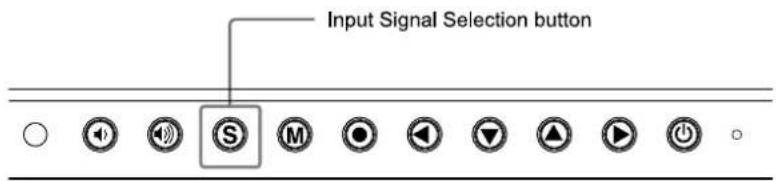
Selecting input signal
text_image
Input Signal Selection button S M ● ▼ ▲ ▲ ○Switch the input signal with Ⓡ. Input signal switches each time Ⓡ is pressed. When the signal is switched, the active signal type (Analog or Digital) appears at the top right corner of the screen.
Attention
- When using an optional signal cable (FD-C16), be sure to connect the D-sub mini 15-pin connector to the PC, and the DVI-I connector to the monitor. Wrong connection may result in no picture display.
• To set input signal selection [Input Signal]
The monitor recognizes the connector through which PC signals are input. When either PC is turned off or enters the power-saving mode, the monitor automatically displays signals of another PC.
| Priority setting | Function |
| Auto | When either PC is turned off or enters the power-saving mode, the monitor automatically displays signals of another PC. |
| Manual | The monitor does not detect the PC's signals automatically. Select an active input signal with S. |
[Input signal setting]
(1) Choose
(2) Choose from the
(3) Select "Auto" or "Manual" with ▲ or ▼, and press ●. The Input Priority setting is completed.
3-2 Connecting Peripheral USB Devices
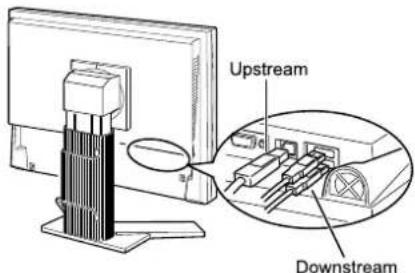
This monitor has a hub compatible with USB. Connected to a PC compatible with USB or another USB hub, this monitor functions as a USB hub allowing connection to peripheral USB devices.
• Required System Environment
(1) A PC equipped with a USB port or another USB hub connected to a USB compatible PC
(2) Windows 2000/XP/Vista or Mac OS 9.2.2 and Mac OS X 10.2 or later
(3) EIZO USB cable (MD-C93)
• Connection Procedure (Setup of USB Function)
(1) Connect the monitor first to a PC using the signal cable, and run the PC.
(2) Connect the supplied USB cable between the downstream USB port of a USB compatible PC (or another USB hub) and the monitor's upstream USB port.
(3) When the USB function setup is completed, the monitor functions as a USB hub allowing connection to various peripheral USB devices through its downstream USB ports.
text_image
Upstream DownstreamThe USB function is set up automatically upon connection of the USB cable.
NOTE
- When "Auto" is selected for , the monitor's power-saving function works only when the two PCs are in the power-saving mode.
Attention
- This monitor may not work depending on PC, OS or peripheral devices to be used.
For USB compatibility of peripheral devices, contact their manufactures. - If the monitor is in the power saving mode, or if the monitor is connected to the power outlet with the monitor turned off, all the devices connected to the USB ports (upstream and downstream) work. Therefore, power consumption of the monitor varies with connected devices even in the power saving mode.
Chapter 4 Troubleshooting
If a problem still remains after applying the suggested remedies, contact your local dealer.
- No-picture problems See No.1 - No.2.
- Imaging problems (digital input) See No.3 - No.8.
- Imaging problems (analog input) See No.3 - No.12.
- Other problems See No.13 - No.17.
• USB problems → See No.18.
| Problems | Possible cause and remedy | |
| 1. No picturePower indicator does not light. | Check whether the power cord is connected correctly. If the problem persists, turn off the monitor, and then turn it on again a few minutes later.Press ⏻. | |
| Power indicator is lighting blue. | Checksetting. (see page 17) | |
| Power indicator is lighting orange. | Switch the input signal with Ⓗ.Operate the mouse or keyboard.Check whether the PC is turned on. | |
| 2. The message below appears. | This message appears when the signal is not input correctly even when the monitor functions properly. | |
| This message appears when no signal is input. | The message shown left may appear, because some PCs do not output the signal soon after power-on.Check whether the PC is turned on.Check whether the signal cable is connected properly.Switch the input signal with Ⓗ. | |
| The message below shows that the input signal is out of the specified frequency range. (Such signal frequency is displayed in red.)Example: | Reboot the PC.Select an appropriate display mode using the graphics board's utility. Refer to the manual of the graphics board for details. | |
| 3. The screen is too bright or too dark. | Adjust.(The LCD monitor backlight has a fixed life span. When the screen becomes dark or begins to flicker, contact your local dealer.) | |
| 4. Characters are blurred. | Adjust using(see page 14) | |
| Afterimages appear. | Use a screen saver or off timer function for a long-time image display.Afterimages are particular to LCD monitors. Avoid displaying the same image for a long time. | |
| Green/red/blue/white dots or defective dots remain on the screen. | This is due to LCD panel characteristics and is not a failure. | |
| Interference patterns or pressure marks remain on the screen. | Leave the monitor with a white or black screen. The symptom may disappear. | |
| Noise appears on the screen. | When entering the signals of analog input, select 1 to 4 infrom themenu to change the mode.When entering the signals of HDCP system, the normal images may not be displayed immediately. | |
| 9. Display position is incorrect. | Adjust image position so that it is displayed properly within the display area using the “Hor.Position” and “Ver. Position” adjustment.If the problem persists, use the graphics board’s utility if available to change the display position. | |
10. Vertical bars appear on the screen or a part of the image is flickering. | Adjust using.(see page 13) | |
11. Whole screen is flickering or blurring. | Adjust using.(see page 13) | |
12. Upper part of the screen is distorted as shown below.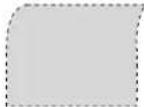 | This is caused when both composite sync (X-OR) signal and separate vertical sync signal are input simultaneously. Select either composite signal or separate signal. | |
| 13. Theicon on the Adjustment menucannot be selected. | Smoothing setting may not be required depending on the display resolution. (You cannot choose the smoothing icon.)is disabled when the screen is displayed in the following resolutions.1680 × 1050Select [Normal] during. | |
| 14. The Main menu of Adjustment menu does not start. | Check for Adjustment Lock function. (see page 21) | |
| 15. The FineContrast mode is not displayed. | Check whether the Main menu of Adjustment menu is displayed. (Refer to “Advanced Adjustments [Adjustment menu]” on page 16.) | |
| 16. The auto-adjustment function does not work correctly. | This function does not work when digital signal is input.This function does not work correctly with some graphics boards. | |
| 17. No audio output. | Check whether the mini jack cable is correctly connected.Check whether volume is set to 0.Check the setting of the PC and the audio playback software. | |
| 18. The monitor connected with the USB cable is detected. / USB devices connected to the monitor does not work. | Check whether the USB cable is connected correctly.Change the USB port to another one. If the PC or peripheral devices works correctly by changing the USB port, contact your local dealer. (Refer to the manual of the PC for details.)Please perform the followings to check the status.Reboot the PC.Connect the PC and peripheral devices directly.If the PC or peripheral devices works correctly without connecting each other via the monitor (working as a USB hub), please contact your local dealer.Check whether the PC and OS are USB compliant. (For USB compliance of the respective devices, consult their manufacturers.)Check the PC's BIOS setting for USB when using Windows. (Refer to the manual of the PC for details.) | |
Chapter 5 Reference
5-1 Attaching an Arm
The stand can be removed and replaced with an arm (or another stand) to be attached to the monitor. Use an arm or stand of EIZO option.
[Attaching]
1 Lay the LCD monitor on a soft cloth spread over on a stable surface with the panel surface facing down.
2 Remove the stand. (Prepare a screwdriver.)
Unscrew the four screws securing the unit and the stand with the screwdriver.
3 Attach the monitor to the arm or stand.
Secure the monitor to the arm or stand using the screws specified in the user's manual of the arm or stand.
![EIZO FlexScan S2001WH - [Attaching] - 1](/content/2026/06/1174053/images/3563583e028681314363b57cde8a52ef5309af48f9f319110969fb974fee15f1.jpg)
natural_image
Technical line drawing of a mechanical assembly with arrows indicating direction (no text or symbols)Attention
- When attaching an arm or stand, follow the instructions of their user's manual.
-
When using another manufacturer's arm or stand, confirm the following in advance and select one conforming to the VESA standard. Use the M4 × 12 mm screws supplied with this monitor.
-
Clearance between the screw holes: 100mm× 100mm
– Thickness of plate: 2.6 mm
– Strong enough to support weight of the monitor unit (except the stand) and attachments such as cables.
- When using an arm or stand, attach it to meet the following tilt angles of the monitor.
- Height adjustable stand:
Up 40 degrees, down 0 degrees (vertical display, 90 degrees clockwise)
- EZ-UP stand:
Up 25 degrees, down 0 degrees (vertical display, 90 degrees clockwise)
- Connect the cables after attaching an arm.
- If you need to remove the EZ-UP stand, turn the panel on the monitor to the left and right a little to appear the four screws positioned under the stand. Then unscrew the four screws.
5-2 Cleaning
Clean the monitor periodically to keep the monitor clean and extend its life.
Cabinet
Clean the cabinet with a soft cloth dampened with little mild detergent.
LCD Panel
- Clean the LCD panel with a soft cloth such as cotton cloth or lens cleaning paper.
- Remove persistent stains gently with a cloth dampened with little water, and then clean the LCD panel again with a dry cloth for better finishing.
Attention
- Never use any solvents or chemicals, such as thinner, benzene, wax, alcohol, and abrasive cleaner, which may damage the cabinet or LCD panel.
NOTE
- Optional ScreenCleaner is recommended for cleaning the LCD panel surface.
5-3 Specifications
S2001W
| LCD Panel | 20.1-inch (510 mm) TFT color LCD with anti-glare hard coatingViewing angle*: Horizontal 170°, Vertical 170° (CR:10 or more) | |
| Dot Pitch | 0.258mm | |
| Horizontal Scan Frequency | Analog: 24-82kHzDigital: 31-65kHz | |
| Vertical Scan Frequency | Analog: 49-86Hz (Non-interlace)(1280 × 1024: 49-76Hz)(1680 × 1050: 49-61Hz)Digital: 59-61Hz (Non-interlace)(VGA TEXT: 69-71Hz) | |
| Resolution | 1680 dots × 1050 lines | |
| Max. Dot Clock | Analog: 150MHzDigital: 120MHz | |
| Max. Display Color | Approx. 16.77 million colors: Applicable to 8 bit (1048.77 million colors) | |
| Display Area (H × V) | 433.4mm × 270.9mm | |
| Power Supply | 100-120 VAC ±10%, 50/60Hz 1.0A200-240 VAC ±10%, 50/60Hz 0.6A | |
| Power Consumption | Screen Display On | 60W or less (with USB load, when stereo mini jack is connected)50W or less (without USB load, when stereo mini jack is not connected) |
| Power saving mode | 1W or less (for single signal input, without USB load, when stereo mini jack is not connected) | |
| Power button Off | 0.7W or less (without USB load, when stereo mini jack is not connected) | |
| Input Signal Connector | DVI-I connector (Applicable to HDCP), D-Sub mini 15-pin | |
| Analog Input Signal (Sync) | Separate, TTL, positive/ negative | |
| Composite, TTL, positive/ negative | ||
| Analog Input Signal (Video) | Analog, Positive (0.7Vp-p/75Ω) | |
| Digital Signal Transmission System | TMDS (Single Link) | |
| Video Signal Memory | Analog signal: 45 (preset: 24) | |
| Digital signal: 10 (preset: 0) | ||
| Audio Output | Speaker output: 0.5W + 0.5W (8Ω, THD: 10% or less)Headphone output: 2mW + 2mW | |
| Line input | Input impedance : 47 kΩ (typ.)Input level :1.0 Vrms (Max.) | |
| Plug & Play | VESA DDC 2B / EDID structure 1.3 | |
| Dimensions (Width) × (Height) × (Depth) mm (inch) | Main unit (including Height adjustable stand) | 469mm(18.5) × 427 - 509mm(16.8 - 20.0) × 208.5mm(8.2) |
| Main unit (including EZ-UP stand) | 469mm(18.5) × 339.5 - 504.5mm(13.4 - 19.9) × 279.9 - 291.9mm(11.0 - 11.5) | |
| Main unit (without stand) | 469mm(18.5) × 309mm(12.2) × 69.5mm(2.7) | |
| Mass | Main unit (including Height adjustable stand) | 8.7 kg (19.2 lbs.) |
| Main unit (including EZ-UP stand) | 10.5 kg (23.1 lbs.) | |
| Main unit (without stand) | 5.7 kg (12.6 lbs.) | |
* LCD Module characteristics only
| Movable range | Tilt | Height adjustable stand : 40° Up, 0° DownEZ-UP stand : 25° Up, 0° Down |
| Swivel | Height adjustable stand : 35° Right, 35° LeftEZ-UP stand : 172° Right, 172° Left | |
| Adjustable height | Height adjustable stand : 82 mmEZ-UP stand : 165 mm | |
| Rotation | Height adjustable stand : 90°EZ-UP stand : 90° | |
| Environmental Conditions | Temperature | Operating temperature: 0 °C - 35 °CStorage temperature: -20 °C - 60 °C |
| Humidity | Relative humidity: 30% - 80% (no condensation) | |
| USB | Standard | USB Specification Revision 2.0 |
| Port | Upstream port × 1, Downstream port × 2 | |
| Supply current | Downstream: Max. 500mA/1 port |
S2201W
| LCD Panel | 22.0-inch (560 mm) TFT color LCD with anti-glare hard coatingViewing angle*: Horizontal 170°, Vertical 160° (CR:10 or more) | |
| Dot Pitch | 0.282mm | |
| Horizontal Scan Frequency | Analog: 24-82kHzDigital: 31-65kHz | |
| Vertical Scan Frequency | Analog: 49-86Hz (Non-interlace)(1280 × 1024: 49-76Hz)(1680 × 1050: 49-61Hz)Digital: 59-61Hz (Non-interlace)(VGA TEXT: 69-71Hz) | |
| Resolution | 1680 dots × 1050 lines | |
| Max. Dot Clock | Analog: 150MHzDigital: 120MHz | |
| Max. Display Color | Approx. 16.77 million colors: Applicable to 8 bit (1048.77 million colors) | |
| Display Area (H × V) | 473.8mm × 296.1mm | |
| Power Supply | 100-120 VAC ±10%, 50/60Hz 1.0A200-240 VAC ±10%, 50/60Hz 0.6A | |
| Power Consumption | Screen Display On | 60W or less (with USB load, when stereo mini jack is connected)50W or less (without USB load, when stereo mini jack is not connected) |
| Power saving mode | 1W or less (for single signal input, without USB load, when stereo mini jack is not connected) | |
| Power button Off | 0.7W or less (without USB load, when stereo mini jack is not connected) | |
| Input Signal Connector | DVI-I connector (Applicable to HDCP), D-Sub mini 15-pin | |
| Analog Input Signal (Sync) | Separate, TTL, positive/ negative | |
| Composite, TTL, positive/ negative | ||
| Analog Input Signal (Video) | Analog, Positive (0.7Vp-p/75Ω) | |
| Digital Signal Transmission System | TMDS (Single Link) | |
| Video Signal Memory | Analog signal: 45 (preset: 24) | |
| Digital signal: 10 (preset: 0) | ||
| Audio Output | Speaker output: 0.5W + 0.5W (8Ω, THD: 10% or less)Headphone output: 2mW + 2mW | |
| Line input | Input impedance : 47 kΩ (typ.)Input level :1.0 Vrms (Max.) | |
* LCD Module characteristics only
| Plug & Play | VESA DDC 2B / EDID structure 1.3 | |
| Dimensions (Width) × (Height) × (Depth) mm (inch) | Main unit (including Height adjustable stand) | 507mm(20.0) × 439 - 521mm(17.3 - 20.5) × 230mm(9.1) |
| Main unit (including EZ-UP stand) | 507mm(20.0) × 351.5 - 516.5mm(13.8 - 20.3) × 279.9 - 296.4mm(11.0 - 11.7) | |
| Main unit (without stand) | 507mm(20.0) × 333mm(13.1) × 74mm(2.9) | |
| Mass | Main unit (including Height adjustable stand) | 10.2 kg (22.5 lbs.) |
| Main unit (including EZ-UP stand) | 11.5 kg (25.4 lbs.) | |
| Main unit (without stand) | 6.7 kg (14.8 lbs.) | |
| Movable range | Tilt | Height adjustable stand : 40° Up, 0° DownEZ-UP stand : 25° Up, 0° Down |
| Swivel | Height adjustable stand : 35° Right, 35° LeftEZ-UP stand : 172° Right, 172° Left | |
| Adjustable height | Height adjustable stand : 82 mmEZ-UP stand : 165 mm | |
| Rotation | Height adjustable stand : 90°EZ-UP stand : 90° | |
| Environmental Conditions | Temperature | Operating temperature: 0 °C - 35 °CStorage temperature: -20 °C - 60 °C |
| Humidity | Relative humidity: 30% - 80% (no condensation) | |
| USB | Standard | USB Specification Revision 2.0 |
| Port | Upstream port × 1, Downstream port × 2 | |
| Supply current | Downstream: Max. 500mA/1 port | |
Main default settings (factory settings)
| BrightRegulator | Disable | |
| Smoothing | 3 | |
| FineContrast Mode | Custom | |
| PowerManager | VESA DPMS (Analog Input) | |
| DVI DMPM (Digital Input) | ||
| Screen Size | Full Screen | |
| Off Timer | Disable | |
| Menu Settings | Menu Size | Normal |
| Menu Off Timer | 45 sec | |
| Language | English | |
Outside Dimensions
S2001W (Height adjustable stand)

unit : mm (inch)
S2001W (EZ-UP stand)
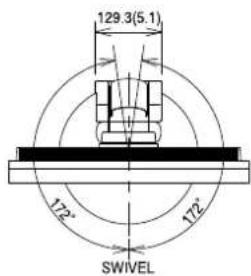
text_image
129.3(5.1) 172° 172° SWIVELunit : mm (inch)

text_image
469(18.5) 435.4(17.1) PIVOT φ272(10.7) 272.9(10.7) 308(12.2) 13.4(0.53) 115.5 (4.5)
text_image
TILT 25° 69.5(2.74) 43.8(1.72) 518.9(20.4) 504.5(19.9) 350(13.8) 195.5(7.7) 79.8 (3.14) 279.9(11.0) 165(6.5) 339.5(13.4) Adjustable height 185(7.3) 12(0.47) 291.9(11.5) 100 (2.6)
text_image
100 (3.9) 100 (3.9)S2201W (Height adjustable stand)

unit : mm (inch)
S2201W (EZ-UP stand)

unit : mm (inch)
Connector Pin Assignment
• DVI-I connector
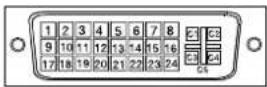
| Pin No. | Signal | Pin No. | Signal | Pin No. | Signal |
| 1 | T.M.D.S. Data 2- | 11 | T.M.D.S. Data1/3 Shield | 21 | NC* |
| 2 | T.M.D.S. Data 2+ | 12 | NC* | 22 | T.M.D.S. Clock shield |
| 3 | T.M.D.S. Data2/4 Shield | 13 | NC* | 23 | T.M.D.S. Clock+ |
| 4 | NC* | 14 | +5V Power | 24 | T.M.D.S. Clock- |
| 5 | NC* | 15 | Ground (return for +5V, Hsync and Vsync) | C1 | Analog Red |
| 6 | DDC Clock (SCL) | 16 | Hot Plug Detect | C2 | Analog Green |
| 7 | DDC Data (SDA) | 17 | T.M.D.S. Data0- | C3 | Analog Blue |
| 8 | Analog Vertical Sync | 18 | T.M.D.S. Data0+ | C4 | Analog Horizontal Sync |
| 9 | T.M.D.S. Data1- | 19 | T.M.D.S. Data0/5 Shield | C5 | Analog Ground (analog R,G,&B return) |
| 10 | T.M.D.S. Data1+ | 20 | NC* |
(NC*: No Connection)
• D-sub mini 15-pin connector
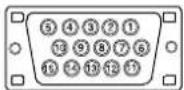
| Pin No. | Signal | Pin No. | Signal | Pin No. | Signal |
| 1 | Red video | 6 | Red video ground | 11 | NC* |
| 2 | Green video or Green video + Composite Sync | 7 | Green video ground | 12 | Data (SDA) |
| 3 | Blue video | 8 | Blue video ground | 13 | H. Sync |
| 4 | NC* | 9 | NC* | 14 | V. Sync |
| 5 | Ground | 10 | Ground | 15 | Clock (SCL) |
(NC*: No Connection)
- USB port

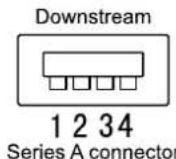
| Contact No. | Signal | Remarks |
| 1 | VCC | Cable power |
| 2 | - Data | Serial data |
| 3 | + Data | Serial data |
| 4 | Ground | Cable ground |
Option List
| Cleaning Kit | EIZO ScreenCleaner |
| Signal Cable | FD-C16FD-C39 |
| Speaker Unit | i•Sound L3 |
5-4 Glossary
Clock
The analog input monitor needs to reproduce a clock of the same frequency as the dot clock of the graphics system in use, when the analog input signal is converted to a digital signal for image display.
This is called clock adjustment. If the clock pulse is not set correctly, some vertical bars appear on the screen.
DDC/CI (Display Data Channel/Command Interface)
VESA provides the standardization for the interactive communication of the setting information, etc. between a PC and the monitor.
DVI (Digital Visual Interface)
DVI is a digital interface standard. DVI allows direct transmission of the PC's digital data without loss.
This adopts the TMDS transmission system and DVI connectors. There are two types of DVI connectors. One is a DVI-D connector for digital signal input only. The other is a DVI-I connector for both digital and analog signal inputs.
DVI DMPM (DVI Digital Monitor Power Management)
DVI DMPM is a digital interface power-saving function. The “Monitor ON (operating mode)” and “Active Off (power-saving mode)” are indispensable for DVI DMPM as the monitor’s power mode.
Gain
This is used to adjust each color parameter for red, green and blue. An LCD monitor displays the color by the light passing through the panel color filter. Red, green and blue are the three primary colors. All the colors on the screen are displayed by combining these three colors. The color tone can be changed by adjusting the light intensity (volume) passing through each color's filter.
Gamma
Generally, the monitor brightness varies nonlinearly with the input signal level, which is called "Gamma
Characteristic". A small gamma value produces a low-contrast image, while a large gamma value produces a high-contrast image.
HDCP (High-bandwidth Digital Contents Protection)
Digital signal coding system developed to copy-protect the digital contents, such as video, music, etc. This helps to transmit the digital contents safely by coding the digital contents sent via DVI terminal on the output side and decoding them on the input side.
Any digital contents cannot be reproduced if both of the equipments on the output and input sides are not applicable to HDCP system.
Phase
Phase means the sampling timing to convert the analog input signal to a digital signal. Phase adjustment is made to adjust the timing. It is recommended that phase adjustment be made after the clock is adjusted correctly.
Range Adjustment
Range adjustment controls the signal output levels to display every color gradation. It is recommended that range adjustment be made before color adjustment.
Resolution
The LCD panel consists of numerous pixels of specified size, which are illuminated to form images. This monitor consists of 1680 horizontal pixels and 1050 vertical pixels. At a resolution of 1680 × 1050 , all pixels are illuminated as a full screen (1:1).
sRGB (Standard RGB)
International standard for “color reproduction and color space” among peripheral devices (such as monitors, printers, digital cameras, scanners). sRGB allows Internet users to closely match colors as a simple color matching means for the Internet use.
Temperature
Color temperature is a method to measure the white color tone, generally indicated in degrees Kelvin. The screen becomes reddish at a low temperature, and bluish at a high temperature, like the flame temperature.
5000K: Slightly reddish white
6500K: Warm white like paper white
9300K: Slightly bluish white
TMDS (Transition Minimized Differential Signaling)
A signal transmission system for digital interface.
VESA DPMS (Video Electronics Standards Association - Display Power Management Signaling)
VESA provides the standardization of signals from PC (graphics board) for power saving of PC monitors. DPMS defines the signal status between PC and monitor.
5-5 Preset Timing
The following table shows factory preset video timing (for analog signal only).
| Mode | Dot clock | Frequency | Polarity | |
| Horizontal: kHzVertical: Hz | ||||
| VGA 640×480@60Hz | 25.2 MHz | Horizontal | 31.47 | Negative |
| Vertical | 59.94 | Negative | ||
| VGA 720×400@70Hz | 28.3 MHz | Horizontal | 31.47 | Negative |
| Vertical | 70.09 | Positive | ||
| Macintosh640×480@67Hz | 30.2 MHz | Horizontal | 35.00 | Negative |
| Vertical | 66.67 | Negative | ||
| Macintosh832×624@75Hz | 57.3 MHz | Horizontal | 49.72 | Negative |
| Vertical | 74.55 | Negative | ||
| Macintosh1152×870@75Hz | 100.0 MHz | Horizontal | 68.68 | Negative |
| Vertical | 75.06 | Negative | ||
| Macintosh1280×960@75Hz | 126.2 MHz | Horizontal | 74.76 | Positive |
| Vertical | 74.76 | Positive | ||
| VESA 640×480@72Hz | 31.5 MHz | Horizontal | 37.86 | Negative |
| Vertical | 72.81 | Negative | ||
| VESA 640×480@75Hz | 31.5 MHz | Horizontal | 37.50 | Negative |
| Vertical | 75.00 | Negative | ||
| VESA 640×480@85Hz | 36.0 MHz | Horizontal | 43.27 | Negative |
| Vertical | 85.01 | Negative | ||
| VESA 800×600@56Hz | 36.0 MHz | Horizontal | 35.16 | Positive |
| Vertical | 56.25 | Positive | ||
| VESA 800×600@60Hz | 40.0 MHz | Horizontal | 37.88 | Positive |
| Vertical | 60.32 | Positive | ||
| VESA 800×600@72Hz | 50.0 MHz | Horizontal | 48.08 | Positive |
| Vertical | 72.19 | Positive | ||
| VESA 800×600@75Hz | 49.5 MHz | Horizontal | 46.88 | Positive |
| Vertical | 75.00 | Positive | ||
| VESA 800×600@85Hz | 56.3 MHz | Horizontal | 53.67 | Positive |
| Vertical | 85.06 | Positive | ||
| VESA 1024×768@60Hz | 65.0 MHz | Horizontal | 48.36 | Negative |
| Vertical | 60.00 | Negative | ||
| VESA 1024×768@70Hz | 75.0 MHz | Horizontal | 56.48 | Negative |
| Vertical | 70.07 | Negative | ||
| VESA 1024×768@75Hz | 78.8 MHz | Horizontal | 60.02 | Positive |
| Vertical | 75.03 | Positive | ||
| VESA 1024×768@85Hz | 94.5 MHz | Horizontal | 68.68 | Positive |
| Vertical | 85.00 | Positive | ||
| VESA 1152×864@75Hz | 108.0 MHz | Horizontal | 67.50 | Positive |
| Vertical | 75.00 | Positive | ||
| VESA 1280×960@60Hz | 108.0 MHz | Horizontal | 60.00 | Positive |
| Vertical | 60.00 | Positive | ||
| VESA 1280×1024@60Hz | 108.0 MHz | Horizontal | 63.98 | Positive |
| Vertical | 60.02 | Positive | ||
| VESA 1280×1024@75Hz | 135.0 MHz | Horizontal | 79.98 | Positive |
| Vertical | 75.03 | Positive | ||
| VESA CVT1680×1050@60Hz | 146.3 MHz | Horizontal | 65.29 | Negative |
| Vertical | 59.95 | Positive | ||
| VESA CVT RB1680×1050@60Hz | 119.0 MHz | Horizontal | 64.67 | Positive |
| Vertical | 59.88 | Negative |
Attention
- Display position may be deviated depending on the PC connected, which may require screen adjustment using Adjustment menu.
- If a signal other than those listed in the table is input, adjust the screen using the Adjustment menu. However, screen display may still be incorrect even after the adjustment.
- When interlace signals are used, the screen cannot be displayed correctly even after screen adjustment using the Adjustment menu.

text_image
Tc0Development Tc0'03 DISPLAYS www.tcodevelopment.comCongratulations!
The display you have just purchased carries the TCO'03 Displays label. This means that your display is designed, manufactured and tested according to some of the strictest quality and environmental requirements in the world. This makes for a high performance product, designed with the user in focus that also minimizes the Impact on our natural environment.
Some of the features of the TCO'03 Display requirements:
Ergonomics
- Good visual ergonomics and image quality in order to improve the working environment for the user and to reduce sight and strain problems. Important parameters are luminance, contrast, resolution, reflectance, colour rendition and image stability.
Energy
- Energy-saving mode after a certain time - beneficial both for the user and environment
- Electrical safety
Emissions
• Electromagnetic fields
- Noise emissions
Ecology
- The products must be prepared for recycling and the manufacturer must have a certified environmental management system such as EMAS or ISO 14000
- Restrictions on
• chlorinated and brominated flame retardants and polymers
• heavy metals such as cadmium, mercury and lead.
The requirements includes in this label have been developed by TCO Development in co-operation with scientists, experts, users as well as manufacturers all over the world. Since the end of the 1980s TCO has been involved in influencing the development of IT equipment in a more user-friendly direction. Our labeling system with displays in 1992 and is now requested by users and IT-manufacturers all over the world.
For more information, please visit www.tcodevelopment.com
| For U.S.A., Canada, etc. (rated 100-120 Vac) Only | |
| FCC Declaration of Conformity | |
| We, the Responsible Party | EIZO NANAO TECHNOLOGIES INC. |
| 5710 Warland Drive, Cypress, CA 90630 | |
| Phone: (562) 431-5011 | |
| declare that the product | Trade name: EIZO |
| Model: FlexScan S2001W/S2201W | |
| is in conformity with Part 15 of the FCC Rules. Operation of this product is subject to the following two conditions: (1) this device may not cause harmful interference, and (2) this device must accept any interference received, including interference that may cause undesired operation. | |
| This equipment has been tested and found to comply with the limits for a Class B digital device, pursuant to Part 15 of the FCC Rules. These limits are designed to provide reasonable protection against harmful interference in a residential installation. This equipment generates, uses, and can radiate radio frequency energy and, if not installed and used in accordance with the instructions, may cause harmful interference to radio communications. However, there is no guarantee that interference will not occur in a particular installation. If this equipment does cause harmful interference to radio or television reception, which can be determined by turning the equipment off and on, the user is encouraged to try to correct the interference by one or more of the following measures.* Reorient or relocate the receiving antenna.* Increase the separation between the equipment and receiver.* Connect the equipment into an outlet on a circuit different from that to which the receiver is connected.* Consult the dealer or an experienced radio/TV technician for help.Changes or modifications not expressly approved by the party responsible for compliance could void the user's authority to operate the equipment. | |
| NoteUse the attached specified cable below or EIZO signal cable with this monitor so as to keep interference within the limits of a Class B digital device.- AC Cord- Shielded Signal Cable (enclosed) | |
| Canadian NoticeThis Class B digital apparatus complies with Canadian ICES-003.Cet appareil numérique de le classe B est conforme à la norme NMB-003 du Canada. | |
Hinweise zur Auswahl des richtigen Schwenkarms für Ihren Monitor
Dieser Monitor ist für Bildschirmarbeitsplätze vorgesehen. Wenn nicht der zum Standardzubehör gehörige Schwenkarm verwendet wird, muss statt dessen ein geeigneter anderer Schwenkarm installiert werden. Bei der Auswahl des Schwenkarms sind die nachstehenden Hinweise zu berücksichtigen:
Der Standfuß muß den nachfolgenden Anforderungen entsprechen:
a) Der Standfuß muß eine ausreichende mechanische Stabilität zur Aufnahme des Gewichtes vom Bildschirmgerät und des spezifizierten Zubehörs besitzen. Das Gewicht des Bildschirmgerätes und des Zubehörs sind in der zugehörenden Bedienungsanleitung angegeben.
b) Die Befestigung des Standfusses muß derart erfolgen, daß die oberste Zeile der Bildschirmanzeige nicht höher als die Augenhöhe eines Benutzers in sitzender Position ist.
c) Im Fall eines stehenden Benutzers muß die Befestigung des Bildschirmgerätes derart erfolgen, daß die Höhe der Bildschirmmitte über dem Boden zwischen 135 – 150 cm beträgt.
d) Der Standfuß muß die Möglichkeit zur Neigung des Bildschirmgerätes besitzen (max. vorwärts: 5°, min. nach hinten ≥ 5°).
e) Der Standfuß muß die Möglichkeit zur Drehung des Bildschirmgerätes besitzen (max. ±180°). Der maximale Kraftaufwand dafür muß weniger als 100 N betragen.
f) Der Standfuß muß in der Stellung verharren, in die er manuell bewegt wurde.
g)Der Glanzgrad des Standfusses muß weniger als 20 Glanzeinheiten betragen (seidenmatt).
h) Der Standfuß mit Bildschirmgerät muß bei einer Neigung von bis zu 10° aus der normalen aufrechten Position kippsicher sein.
Hinweis zur Ergonomie :
Dieser Monitor erfüllt die Anforderungen an die Ergonomie nach EK1-ITB2000 mit dem Videosignal, 1920 × 1200, RGB analog, 0,7 Vp-p und mindestens 60,0 Hz Bildwiederholfrequenz, non interlaced. Weiterhin wird aus ergonomischen Gründen empfohlen, die Grundfarbe Blau nicht auf dunklem Untergrund zu verwenden (schlechte Erkennbarkeit, Augenbelastung bei zu geringem Zeichenkontrast.)
Übermäßiger Schalldruck von Ohrhörern bzw. Kopfhörern kann einen Hörverlust bewirken.
Eine Einstellung des Equalizers auf Maximalwerte erhöht die Ausgangsspannung am Ohrhörer- bzw. Kopfhörerausgang und damit auch den Schalldruckpegel.
„Maschinenlärminformations-Verordnung 3. GPSGV:
Der höchste Schalldruckpegel beträgt 70 dB(A) oder weniger gemäss EN ISO 7779“
[Begrenzung des maximalen Schalldruckpegels am Ohr]
Bildschirmgeräten: Größte Ausgangsspannung 150 mV

EIZO®
EIZO NANAO CORPORATION
153 Shimokashiwano, Hakusan, Ishikawa 924-8566 Japan
Phone: +81 76 277 6792 Fax: +81 76 277 6793
EIZO NANAO TECHNOLOGIES INC.
5710 Warland Drive, Cypress, CA 90630, U.S.A.
Phone: +1 562 431 5011 Fax: +1 562 431 4811
EIZO EUROPE AB
Lovangsvagen 14 194 61, Upplands Väsby, Sweden
Phone: +46 8 590 80 000 Fax: +46 8 590 91 575
EIZO NANAO AG
Moosacherstrasse 6, Au CH - 8820 Wadenswil, Switzerland
Phone: +41-0-44 782 24 40 Fax: +41-0-44 782 24 50
Avnet Technology Solutions GmbH
Lötscher Weg 66, D-41334 Nettetal, Germany
Phone: +49 2153 733-400 Fax: +49 2153 733-483