
TF-TV2003 - Telewizor COBY - Bezpłatna instrukcja obsługi
Znajdź bezpłatnie instrukcję urządzenia TF-TV2003 COBY w formacie PDF.


| Produkt | Telewizor LCD |
| Marka | COBY |
| Model | TF-TV2003 |
| Przekątna ekranu | 20 cali (51 cm) |
| Rozdzielczość | 800 x 600 pikseli |
| Jasność typowa | 500 cd/m² |
| Kontrast | 500:1 |
| Kąt widzenia (H/V) | 160° / 160° |
| Podświetlenie | 6 x CCFL |
| System TV | NTSC 3.58/4.43 (video in) |
| Liczba zaprogramowanych kanałów | 200 |
| Pobór mocy (praca) | 48 W |
| Pobór mocy (czuwanie) | ≤2 W |
| Zasilanie | 100-240V AC, 50/60 Hz; adapter DC 12V 4A |
| Głośniki | 2 x 2W, 4Ω |
| Wymiary (szer. x wys. x gł.) | 611 x 472 x 155 mm |
| Waga | 10 kg |
| Temperatura pracy | 10°C – 40°C |
| Wilgotność pracy | 40% – 80% |
| Złącza | Antena RF, wejścia AV (RCA), S-Video, YCrCb, audio L/R, wyjście słuchawkowe, wyjście audio L/R |
| Funkcje specjalne | Pilot zdalnego sterowania, timer wyłączania (do 120 min), napisy kodowane (CC), blokada rodzicielska V-Chip, tryby obrazu i dźwięku |
| Czyszczenie | Przed czyszczeniem odłącz od zasilania, używaj suchej ściereczki |
| Bezpieczeństwo | Nie wystawiać na deszcz ani wilgoć; nie otwierać obudowy – ryzyko porażenia prądem |
| Akcesoria w zestawie | Pilot, instrukcja obsługi, adapter DC, kabel zasilający, kabel RCA |
Często zadawane pytania - TF-TV2003 COBY
Pytania użytkowników dotyczące TF-TV2003 COBY
0 pytanie dotyczące tego urządzenia. Odpowiedz na te, które znasz, lub zadaj własne.
Zadaj nowe pytanie dotyczące tego urządzenia
Pobierz instrukcję dla swojego Telewizor w formacie PDF za darmo! Znajdź swoją instrukcję TF-TV2003 - COBY i weź swoje urządzenie elektroniczne z powrotem w ręce. Na tej stronie opublikowane są wszystkie dokumenty niezbędne do korzystania z urządzenia. TF-TV2003 marki COBY.
INSTRUKCJA OBSŁUGI TF-TV2003 COBY
[]
WARNING: DO NOT EXPOSE THIS APPLIANCE TO RAIN OR MOISTURE, DUE TO THE HIGH RISK OF FIRE OR yELECTRIC ySHOCK y, yDO yNOT yOPEN yTHE yCABINET yDANGEROUS yHIGH yVOLTAGES yARE yPRESENT INSIDE THE ENCLOSURE ONLY QUALIFIED SERVICE PERSONNEL SHOULD ATTEMPT THIS.
CAUTION: yTO yPREVENT yELECTRIC ySHOCK, yMATCH yWIDE yBLADE yOF yPLUG yTO yWIDE ySLOT, yAND yful INSERT.
ATTENTION: yPOUR yEVITER yLES yCHOCS yELECTRIQUE y, yINTRODUIRE yLA yLAME yLA yPLUSLARGE yDE yL FICHE DANS LA BORNE CORRESPONDANTE DE LA PRISE ET POUSSER JUSQU AU FOUD.
CAUTION: yTO yENSURE yPROPER yUSE yOF yTHIS yPRODUCT y, yPLEASE yREAD yTHIS yOWNER'S yMANUAL CAREFULLY AND RETAIN FOR FUTURE REFERENCE. SHOULD THE UNIT REQUIRE MAINTENANCE, CONTACT AN AUTHORIZED SERVICE LOCATION, ONLY QUALIFIED SERVICE PERSONNEL SHOULD REMOVE THIS COVER.
FCC NOTICE: yTHIS EQUIPMENT HAS BEEN TESTED yAND yFOUND TO yCOMPLY yWITH THE LIMITS FOR yA CLASS B DIGITAL DEVICE. PURSUANT WITH THE FCC RULES, PART 15. THESE LIMIT ARE yDESIGNED yTO yPROVIDE yREASONABLE yPROTECTION yAGAINST yHARMFUL INTERFERENCE IN A RESIDENTIAL INSTALLATION.
WARNING: CHANGES OR MODIFICATIONS MADE TO THIS EQUIPMENT, NOT EXPRESSLY APPROVED BY PARTIES AUTHOTIZED BY WILL VOID ALL THE MANUFACTURE WARRANTIES.
Please carefully study this manual and always keep it available. There are however, some installation and g operation precaution which you should be aware of.
- gRead Instructions – All the safety and operating instructions should be read before the product is operated.
- g gRetain Instructions – The safety and operating instructions should be retained for future reference
- g gHeed warnings – All warnings on the product and in the operating instructions should be adhered to
-
g gFollow Instructions – All operating and use instructions should be followed.
-
. Cleaning – Unplug this from the wall outlet before cleaning. Do not use liquid cleaners or aerosol cleaners. Use a dryer cloth for cleaning.
-
g gAttachments – Do not use attachments not recommended by the product manufacturer as they cause hazards.
-
g gWater and moisture – Do not use this product near water – for example, near a bath tub, wash bowl, kitchen sink, or laundry tub; in a wet basement; or near a swimming pool; and the like.
-
Accessories – Do not place this product on an unstable cart, stand, tripod, bracket, or table. The product may fall. Causing series injury to a child or adult, and serious damage to the product. Use only with a cart, stand, tripod, bracket, or table commended by the manufacturer, or sold with the product. Any mounting of the product should follow the manufacturer's instructions, and should use a mounting accessory recommended by the manufacturer.
- g gA product and cart combination should be moved with care. Quick stops, excessive force, and uneven surface may cause the product and cart combination to overturn. g
- gPower Sources – This product should be operated only from the type of power source indicated on the marking label. If you are not sure of the type of power supply to your home, consult your product dealer or local power company. For products intended to operate from battery power, or other sources, refer to the operating instructions.
- Grounding or Polarization – Do not defeat the safety purpose of the polarized or grounding-type plug. This product may be equipped with a polarized alternation – current line plug (a plug having one blade – wider than the other). A grounding type plug has two blades and a third grounding prong. The wide blade or the third prong are provided for your safety. This plug will fit into the power outlet only one way. If you are not unable to insert the plug fully into the outlet, try reversing the plug. If the plug should still fail to fit, contact your electrician to replace your obsolete outlet. g
- gPower - cord Protection – Power-supply cords should be routed so that they are not likely to be walked on or pinched by items placed upon or against them, paying particular attention to cords at plugs, convenience receptacles, and the point where they exit from the product.
- Protective Attachment Plug – The product is equipped with an attachment plug having overload protection. This is a safety feature. See instruction manual for replacement or resetting of protective device. If replacement of the plug is required, be sure the service technician has used a replacement plug specified by the manufacture that has the same overload protection as the original plug.
- gPower line – An outside antenna system should not be located in the vicinity of overload power lines or g gother electric light or power circuits, or where it can fall into such power lines or circuits. When installing an outside antenna system, extreme care should be taken to keep from touching such power lines or circuits as contact with them might be fatal.
- Overloading – Do not overload wall outlets, extension cords, or integral convenience receptacles as this can result in a risk of fire or electric shock.
-
gServicing – Do not attempt to service this product yourself as opening or removing covers may expose you to dangerous voltage or other hazards. Refer all servicing to qualified service personnel.
-
Damage Requiring Service – Unplug this product from the wall outlet and refer servicing to qualified service personnel under the following conditions:
a. gWhen the power-supply cord or plug is damaged.
b. glf liquid has been spilled, or objects have fallen into the product.
c. glf the product has been exposed to rain or water.
d. gIf the product does not operate normally by following the operating instructions. Adjust only those controls that are covered gby the operating ginstructions as an improper adjustment of other controls may result gin damage and will often require extensive work by a qualified technician to restore the product to its normal operation.
e. glf the product has been dropped or damaged in any way, and g
f. gWhen the product exhibits a distinct change in performance – this indicates a need for service.
-
gReplacement gParts g– gWhen greplacement gparts gare grequired g, gbe gsure gthe gservice gtechnician ghas gused replacement gparts gspecified gby gthe gmanufacture gor ghave gthe gsame gcharacteristics gas gthe goriginal gpart g. Unauthorized substitutions may result in fire, electric shock, or hazards.
-
Safety Check – Upon completion of any service or repairs to this product, ask the service technician to perform safety checks to determine that the product is in proper operating condition.
-
gHeat – The products should be situated away from heat sources such as radiators, heat registers, stoves or other products (including amplifiers) that produce heat.
-
gDo not expose this apparatus to rain or moisture.
-
gUnplug this apparatus during lighting storms or when unused for long period of time.
-
gDo not block any ventilation openings. Install in accordance with the manufacturer's instructions.
UNPACKING
Please make sure the following items are included with your LCD TV/monitor. If any items are missing, contact your dealer.
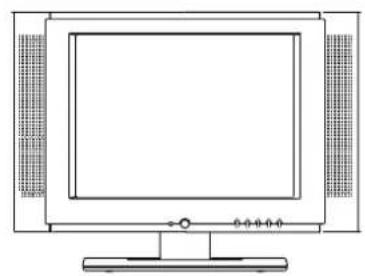
natural_image
Line drawing of a flat-screen CRT television with side panels and a stand (no text or symbols)TFT-LCD monitor
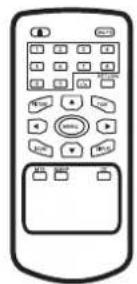
natural_image
Line drawing of a remote control with keypad and function buttons (no text or symbols)Remote Control
Operational Manual
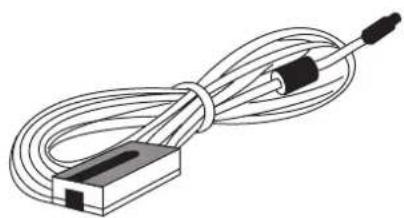
natural_image
Illustration of a coiled cable or wire with a rectangular base and black connector (no text or symbols)DC Adapter
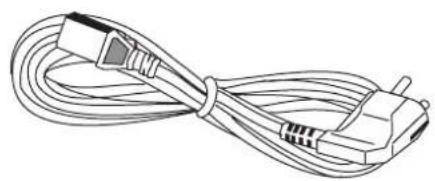
natural_image
Line drawing of a USB cable with multiple connectors (no text or symbols)Power Cord
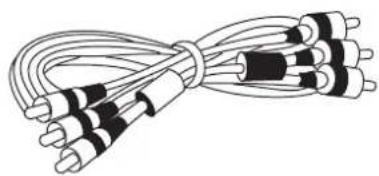
natural_image
Illustration of bundled cables with black and white bands (no text or symbols)RCA Cable
Table of contents
□
I. BViews of the monitor
II. BRemote control unit reference guide
(1) BRemote control unit function
(2) BRemote control battery installation and cautions
III. BInstallation and connecting
IV. BTV/display screen operation
(1) BBasic operation
(2) BViewing the TV Functions
(3) BViewing the AV signal sources such as DVD\VCR\CAMCORDER
(4) BViewing a program
V. BMenu setting and adjustments
(1) BBasic setting
- BImage setting
- BSound setting
- BConfiguration setting
(2) BTV channel setting
Channel Setting
V-Chip Settings
VI. BInspection and troubleshooting
VII. Specifications
I. Views of the monitor
Front View
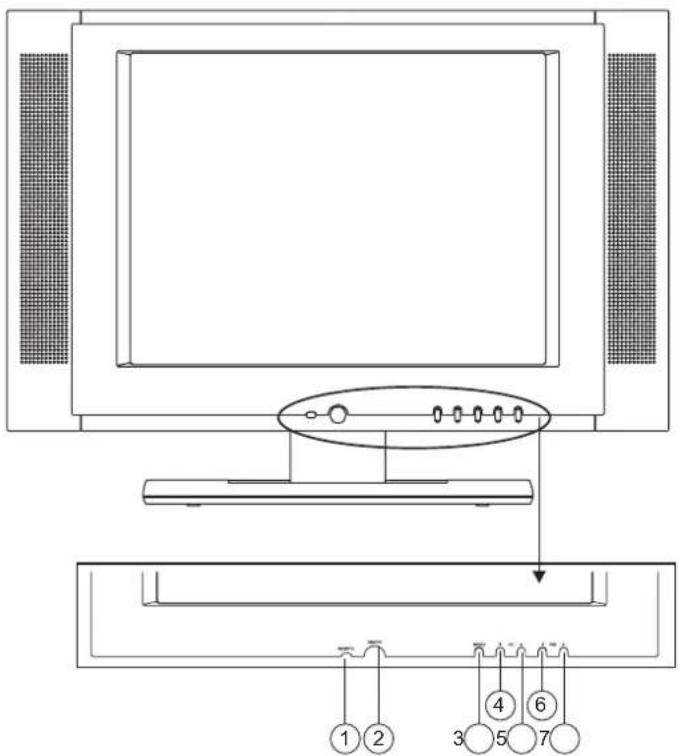
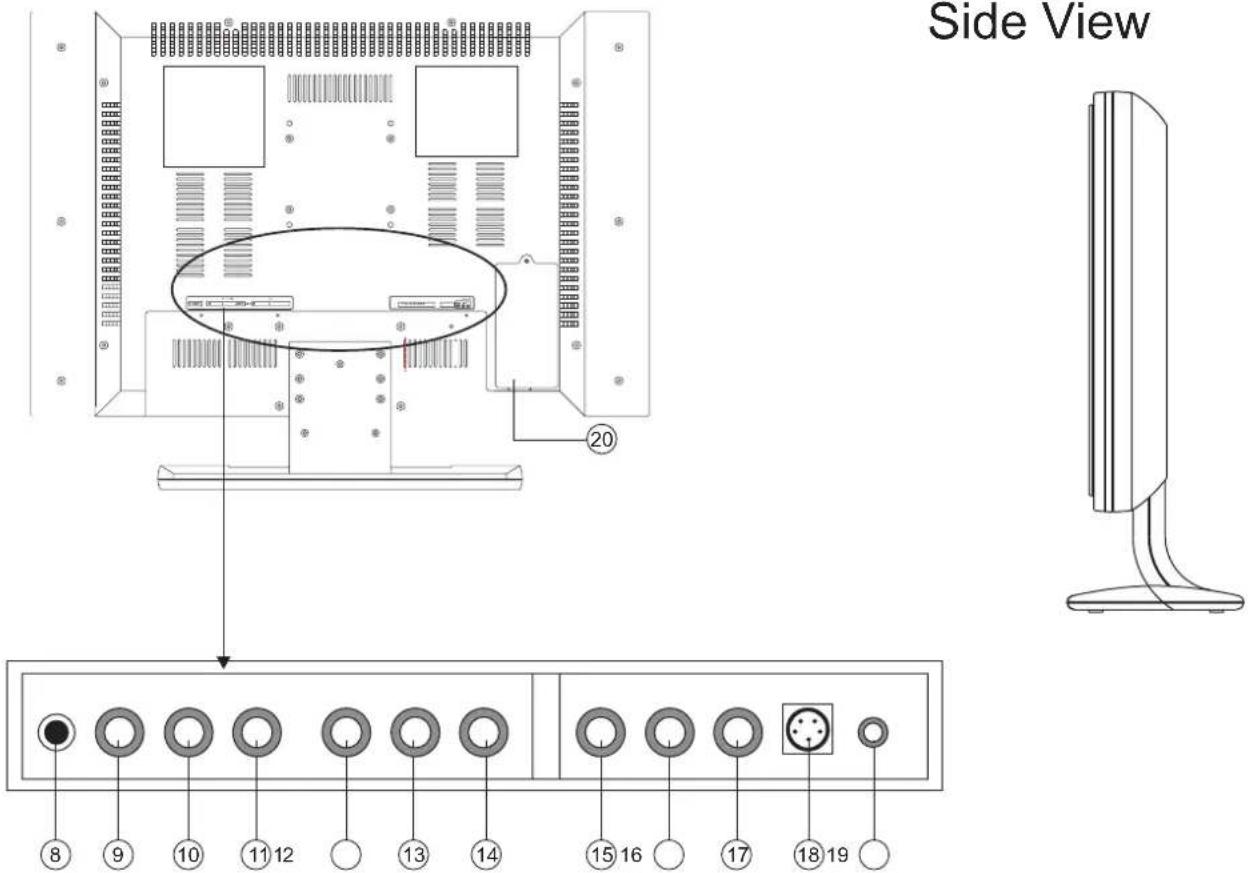
Back View
- REMOTE CONTROL SIGNAL SENSOR
- POWER SWITCH and INDICATOR
- MENU button
- DOWN button
- UP button
- VOLUME (-) and LEFT button
- VOLUME (+), ENTER and RIGHT button
- Headphone output jack
- Audio Line-out "R"
- Audio Line-out "L"
- RCA video Line-out
- Audio input "R"
- Audio input "L"
- RCA video input
- Y video input
- Cb video input
- Cr video input
- S-video input
- AC power input (+12V,4A)
- TV signal input
II. REMOTE CONTROL UNIT REFERENCE GUIDE
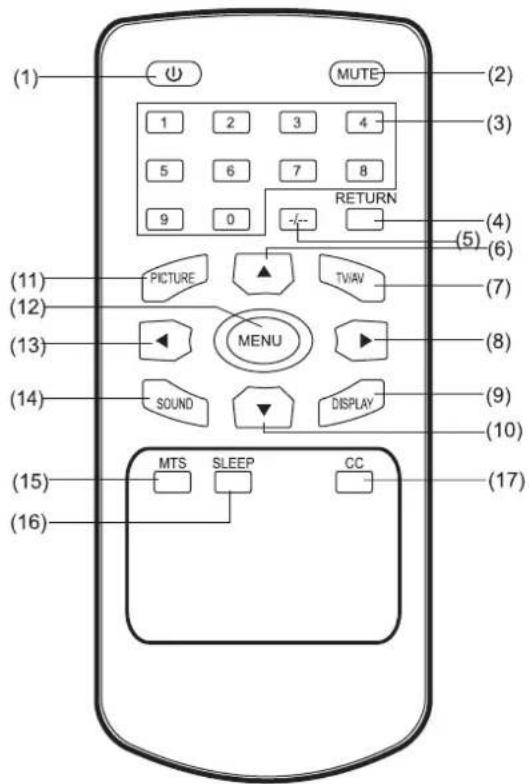
(1) Remote control unit function
- POWER button
- MUTE button
- “0 - 9” numeric buttons
- RETURN button
- DIGITS button
- UP button
- TV/AV button
- VOLUME (+), ENTER and RIGHT button
- DISPLAY button
- DOWN button
- PICTURE button
- MENU button
- VOLUME (-) and LEFT button
- SOUND MODE button
- MTS button
- SLEEP button
- CC button
(2) Remote control battery installation and cautions
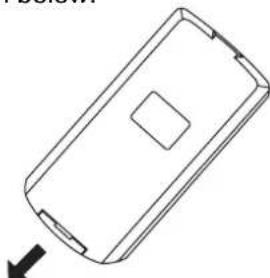
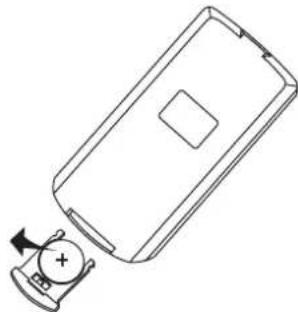
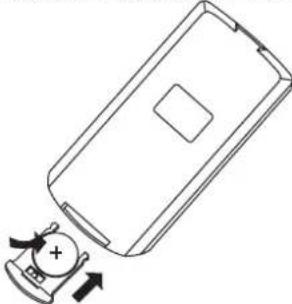
Replace battery by following the steps below:
Requires a CR2025 battery
- Pull in the direction as shown below.
natural_image
Line drawing of a rectangular electronic device with a square cutout and an arrow pointing to it (no text or symbols)- Install the battery in the battery tray. ( confirm that the positive pole marked “ +” is facing up )
natural_image
Line drawing of a mobile phone casing with a battery and indicator lights (no text or symbols)- Replace the tray and slide back the latch until it snaps in place.
natural_image
Line drawing of a mobile phone casing with a plus button and directional arrows indicating action (no text or symbols)CAUTION:
Keep batteries out of children's reach. If batteries are swallowed, contact a physician immediately.
NOTES:
-
Do not drop, apply shock or step on the remote control.
-
Do not spill water on the remote control.
-
Do not use remote controls for other equipments at the same time.
-
If the TV does not operate even when operating the remote control from a close range, replace the battery (product number: CR2025).
Refer to the label on back of the remote control for directions on replacing battery.
III. Installation and Connections
Connecting your LCD TV / monitor
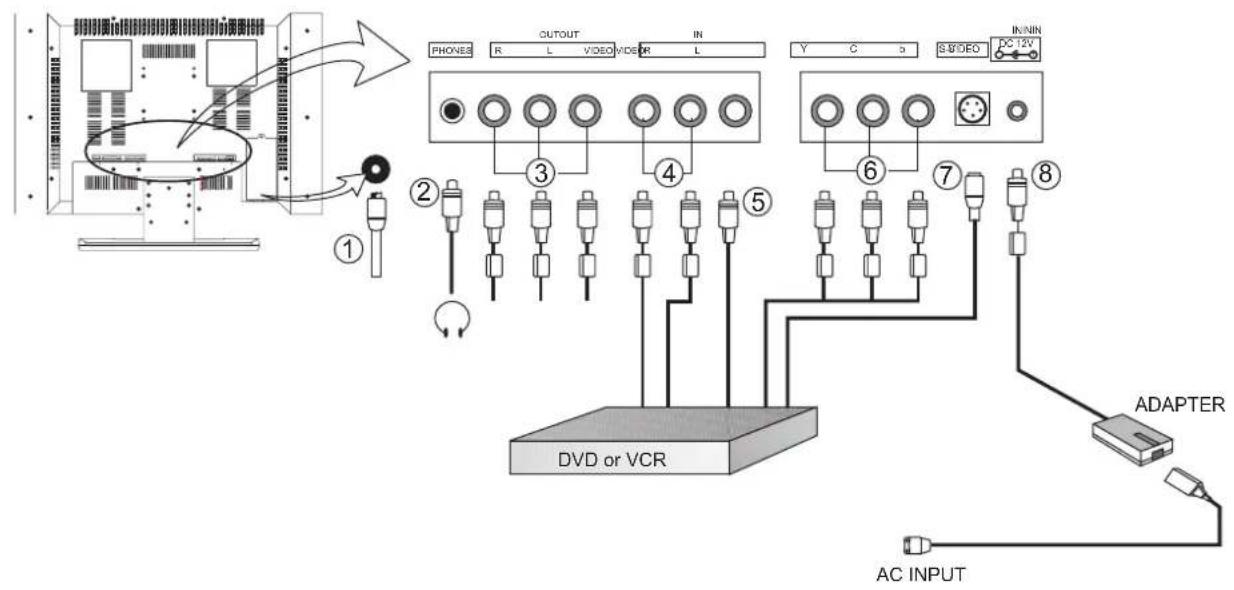
Figure Cable connections
- Connect TVRF sources to antenna port. TVRF signals include: receiving antenna /CATV net. You can use 75Ω coaxial cable to connect outdoor antenna.
- Connect the ear piece to the "phone" port.
- Connect the audio or video's circuit output with your VCR\TV's relevant circuit input by RCA cable. It can record your audio or video signal.
- Connect audio sources (including DVD\VCR\CAMCORDER) to the proper audio input ports "L" and "R" by RCA cable.
- Connect video sources (DVD\VCR\CAMCORDER) to the "VIDEO" port by RCA cable.
- If your DVD, VCR or CAMCORDER has YCrCb output jack, you can connect it to the "YCrCb" port by RCA cable.
- Connect video sources (DVD\VCR\CAMCORDER) to the "S-VIDEO" port by S-VIDEO cable.
- Inset the AC power to the DC adapter, then connect 12v input port of the Display to its DC output port.
NOTE: Please be advised you can only hook up one video connection at a time.
IV. TV/Display Screen Operations
Remote control
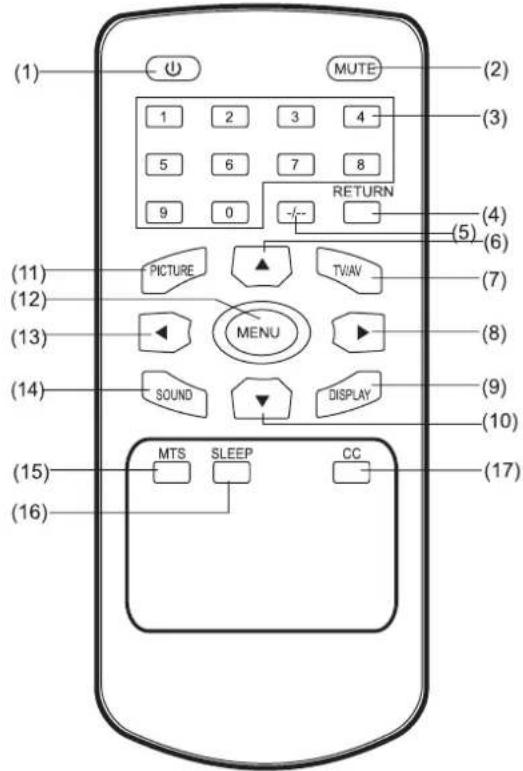
NOTE: Unless otherwise noted, the same Bkeys Bon Bboth Bmain Bunit Band B remote Bcontrol Bunit Bindicate Bthe Bsame function.
Main unit
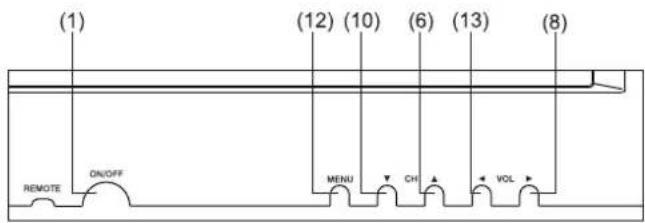
(1) BBasic operation
- BPress (1) by the main unit to switch the power ON. The indicator will display yellow when there is a signal. If there is Bno signal Bthe indicator will Bbe Bred. Press B(1) Bagain Bto switch OFF the power.
- BUnder Bthe Bmodes Bof B"AV" Band B"TV", Bthe Bpower Bwill B switched Boff Bautomatically Bwhen Bthe Bscreen Bshows Bno signal for half an hour. Press (1) to switch on the power.
- BImage Bsetup B\ Bsound Bsetup B\ Bprevious Bchannel Bcan Bbe memorized before you switch off the TV. The movie will re-start under the previous state when you switch on the TV again.
- BDiscnecting the power cable will Bcut the Bpower Bsupply completely and all previous settings will be lost.
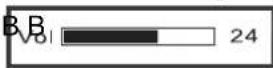
- BPress B(8) Bor B(13) Bto Bchange Bthe Bvolume. BPress B(8) continuously to increase volume. Press (13) continuously to decrease volume. The volume can be changed from 0 to 60. The screen indicates: B R
(2) BViewing the TV Functions
- BPress (7) to select from one of the 8 types of signal input modes. In the initial state, "1" will appear in the top right corner of the TV screen.
- BPress (6) up or (10) down to change channels or press (3) the numeric buttons to enter Ba channel directly. To select channels from 10 to 199 press the (5) button until “- -”or “- - -” appears, then press the numeric buttons to select the channel.
- BPress (4) button to select the previous channel.
- BPress (11) button to select from 4 types of image modes:

flowchart
graph LR
    A["Soft"] --> B["Vivid"]
    B --> C["Normal"]
    C --> D["User Define"]
    D --> A
- Press the (14) button to select from 4 types of sound modes:

flowchart
graph LR
    A["Music"] --> B["Speech"]
    B --> C["Normal"]
    C --> D["User Define"]
    D --> E["End"]
    E --> A
- Press (2) button to mute the sound, press again to turn off activate sound.
- Press (9) button to display the present channel information.
- Press (15) button to select the different kinds of sound.

flowchart
graph TD
    A["MONO"] --> B["Stereo"]
    B --> C["SAT"]
    C --> D["End"]
    D --> A
- Press (16) button to set up the sleep time to shut down your monitor.
You can select 0 minute, 15 minutes, 30 minutes, 60 minutes, 90 minutes and 120 minutes circulative by press the SLEEP button continuous.
- Insure your TV signal has Close Caption information, adjust the TV to this channel, press (17) button

flowchart
graph TD
    A["CC1"] --> B["CC2"]
    B --> C["CC3"]
    C --> D["CC4"]
    D --> E["T1"]
    F["OFF"] <-- T3 <-- T4 <-- T2 <-- T1
There are different information channel, when you select one the matched information will be displayed on the screen. You can select OFF to close it.
(3) Viewing the AV signal sources such as DVD\VCR\CAMCORDER
Press the (7) button continuously to view the 4 types of Input modes:

flowchart
graph LR
    TV["TV"] --> VIDEO["VIDEO"]
    VIDEO --> S-VIDEO["S-VIDEO"]
    S-VIDEO --> YCrCb["YCrCb"]
    YCrCb -->|Feedback| TV
Select the suitable input to pickup the AV signal.
(4) Viewing a program
Press (7) button to select the TV input, then press (6) or (10) button to select a channel.(NOTE: Please read Chapter 5 Section 2 for further information on how complete channel scanning)
V. Menu setting and adjustments
(1) BBasic setting B
1. BImage setting
a. BPress the MENU button on the remote to enter into the Set Up Menu.
b. BPress the (8) or (13) button to select the TV image menu.
c. Press (6) or (10) button to enter the sub-menu.
d. BPress the (13) or (8) button to change the Options shown in Table1. B
| Image | |
| Bright | 30 |
| Contrast | 30 |
| Color | 30 |
| Sharpness | 30 |
| HUE | 0 |
e. BPress "c" and "d" step continuously to change the options for optimum viewing.
f. BPress BMENU Bbutton Bagain Bto Bexit. BThe Bmenu Bwill Bdisappear Bautomatically B20 Bseconds Ba stopping operation.
| Program BAdjust range BInstruction | ||
| Bright B0~60 | BAdjust the bright to your satisfaction | |
| Contrast B0~60 | BAdjust the contrast to your satisfaction | |
| Color B0~60 | BAdjust the color to your satisfaction | |
| *Sharpness B0~60 | BAdjust the Sharpness to your satisfaction | |
| HUE B0~60 | BAdjust the HUE to your satisfaction | |
Table 1
NOTE: The "Sharpness" item can only be displayed in the TV mode.
2. BSound Setting
a. BPress the MENU button to enter the Set Up Menu.
b. BPress the (8) or (13) button to select the Sound Menu.
c. Press the (6) (10) (8) or (13) buttons to select and change the Options as show in Table 2.
| Sound | |
| Bass | 30 |
| Treble | 30 |
| Balance | 0 |
d. BPress BMENU Bbutton Bagain Bto Bexit. BThe Bmenu Bwill Bdisappear Bautomatically B20 Bseconds Ba stopping operation.
| Program | Adjust range B | Instruction |
| Bass | 0~60 | B Bto your satisfaction |
| Treble | 0~60 | to your satisfaction |
| Balance | -30~0~+30 | Indicates if the L/R Audio output is balanced. The middle amount is zero. |
Table 2
3. BConfig Setting B
a. BPress the MENU button to enter the Set Up Menu
b. BPress the (8) or (13) button to select the Config. Menu
c. Press (6) (10) (8) or B(13) buttons to select and change the Options as show in Table 3
d. BPress BMENU Bbutton Bagain Bto Bexit. BThe Bmenu Bwill disappear automatically 20 seconds after stopping operation.
| Config | ||
| Input | Video | |
| Language | English | |
| Lock | ||
| Reset | ||
| Color Temp | 9300 | |
| PROGRAM B$ELECT OR IDENTIFY BINSTRUCTION | ||
| INPUT | TV→VIDEO→S-VIDEO→ YCrCb→ TV | Before Binput Breference Bsetting, Byou Bmust select the appropriate input mode. (you must select the TV mode first before searching the channel) |
| LANGUAGE | 1→2→3→4→5→6→7→8→······→1 | Menu language setup |
| LOCK | Press (8) button to enter into lock mode | LOCK BButtons Bon Bthe Main BUnit Bwill Bnot Function when LOCK appears on screen. Press any button on the remote to cancel this function. |
| RESET | Press (8) button on the remote to return Bto Bthe Binitial Bsetting Bby Bthe factory. (press (8) on the main unit will not function) | If you select the RESET, each function setting returns to the initial status setting by the factory. |
| Color Temp | Press (8) or (13) button to select the Color Temp 8500 or 9300 | Select different Color Temp depending on your favor. |
Table 3
(2) TV Channel Setting and Sorting
1. BChannel setting
a. BEnter into menu, select TV mode
| PROGRAM | SELECT OR IDENTIFY | INSTRUCTION |
| CHANGE CODE | Select four digits as your code | The code is used to unlock the ratings Bmenu. (The Bdefault password of the Bsystem Bis 1111) |
| CCO/TEXT | Select CC1~CC4 T1~T4 OFF | You can select eight channels or turn it off. |
| BLUE BACK | Press (8) button to select on or off | When there is no signal, close or open the blue back. |
| Config | ||
| Input | Video | |
| Language | English | |
| Lock | ||
| Reset | ||
| Color Temp | 9300 | |
| Config | |
| Input | TV |
| Language | English |
| Lock | |
| Reset | |
| Change Code | ---- |
| CCO/Text | T1 |
| Blue Back | ON |
| Color Temp | 9300 |
| Channel | ||
| Auto Search | ||
| Fine Tune | ||
| Skip | OFF | |
| Antenna | CATV | |
Table 4
V-Chip Settings
Some TV programs and movies include signals that classify the contents of the program. B BThe V-CHIP control feature in the TV detects the signals and blocks the programs according to your selections. B B. B BThe password to enter the system is 1111. If changed, please keep a copy of it in a safe place. If the password is lost, the defaults setting will not revert to the original password. To use this feature, perform the following set up
Press MENU
Scroll right to Config. Set Up B
Scroll down to Change password
Enter the password to access the V-CHIP menu
(If you are using the unit for the first time the password is 1111)
Scroll right to select the rating system of TVPG or MPAA
Use the CH+/CH- to select the rating level
Use the VOL+/VOL- to select U(Unblocked) or B(Blocked)
There are two Rating systems MPAA for movies and TVPG for broadcasters.
MPAA
| G- General audience B | Y | - | A | I | I | c | h | i | l | d | r | e | n | ||
| PG- Parental guidance suggested B | Y | 7 | - | F | o | r | c | h | i | l | d | r | e |
PG13- Not intended for ages under 13 B B BPG- Parental guidance suggested
NC17- Not intended for ages under 17 B B B14-Not intended for ages under 14
R - R e s t r i c t e d M A -
X- For adults only
There are sub-categories within these ratings. As the rating increases so does the intensity of the sub-category.
(ie.) Under PG, V would be moderate violence. Under MA, V would be graphic violence
D-Suggestive dialogue
L-Indecent language
S-Sexual situations
V-Violence
b. Select the channel mark B
c. Use (6) (10) (8) (13) cursor buttons to select the options of channel, then identify the options.(Table 5)
d. Press MENU button again to exit. The menu will disappear automatically 20 seconds after stopping operation.
| PROGRAM | SELECT OR IDENTIFY | INSTRUCTION |
| Auto search | Press (8) button to enter into search mode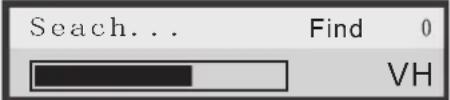 | Search the channels from low to high and reserve the channels automatically. Press the MENU button on the remote control to stop searching. |
| Fine tune BPress | (8) button to increase fine tunePress B(13) Bbutton Bto Bdecrease Bfine tune | In order to improve the picture and sound, youcan Buse Bthe Bfunction Bto Badjust Bthe Breceived program, Bthen Bpress BSAVE Bbutton Bto Preservethe program. |
| Skip BPress B(8) | Bor B(13) Bbuttons, Bthe Bscreenappears :ON←>OFF | When receiving the present program channel,setting B“ Bon” Bto Bskip Bthe Bprogram. BThen Bthe program Bwill Bdisappear Bwhen Byou Bselect programs Bby B(6) Band B(10) Bbuttons Bnext Setting OFF can restore the program. B |
| Antenna BPress | B(8) Bor B(13) Bbuttons Bto BselectCATV←>AIR | You can select an outer antenna or the cable TV. |
NOTE: The image and sound setting under TV mode is the same as the instructions of "BASIC SETTING".
Table 5
VI. Inspection and troubleshooting
| Symptom | Remedy |
| No power ● Inspect whether power plug is connected properly● Pull the plug, wait 60 seconds, reinsert plug and turn unit ON | |
| No picture ● Inspect whether antenna is connected properly● Try another channel● Change length and contrast setting● Ensure that the AV picture input cable is connected properly | |
| No sound | ● Increase the volume, and press the MUTE button on the remote● Inspect the sound system setting● Ensure that the AV audio signal input cable is connected properly |
| Color is distorted | ● Ensure that the equipment is connected properly● Ensure that the AV video signal input cable is connected properly |
| Picture and sound distortion | ● Inspect that the equipment is connected properly● If using antenna, adjust the antenna |
| No operations can be performed with the remote- | ● Turn the TV on manually● Check the batteries are installed with the correct polarities● Clean the remote sensor● Ensure that there is no foreign object between remote control and sensor● Operate the remote control at a distance of not more than 6 meters from the remote sensor |
remote
VII. SSpecifications
| TFT Panel characteristic | Size B20" | ||
| Resolution B800X600 | |||
| Pixel pitch B0.51mm | |||
| Typical Bwhite Luminance | 500 B B B[cd/m2] | ||
| Contrast ratio B500 : 1 | |||
| Viewing angle B160°/160° B B(H/V) | |||
| Backlight B6xCCFLs | |||
| TV characteristic | TV system BNTSC 3.58/4.43 (video in) | ||
| Channel received | VHF-L B48.25~160.00MHz | ||
| VFH-H B160.00~442.00MHz | |||
| UHF B442.00~863.25MHz | |||
| Intermediate frequencies | Picture IF B38.9MHz | ||
| Color B34.47MHz | |||
| Sound B32.4MHz,32.9MHz | |||
| Scanning | Horizontal | 15625Hz | |
| Vertical | 50Hz | ||
| Antenna impedance | 75 ohm unbalance | ||
| Tuning system BFS with PLL | |||
| Pre-set channel | 200 | ||
| Standard | AC/DC Adapt | AC input | 100~240V 50/60Hz |
| DC output | +12V 4A | ||
| Power consumption | On working | 48W B | |
| Standing | ≤2W | ||
| Speaker | 2 X (4Ω, 2W) | ||
| Operating temperature range | 10°C~40°C | ||
| Operating humidity Range | 40%~80% | ||
| Dimension B611(W)×472(H)×155(D) | |||
| weight | 10kg (set) | ||
Note : design and specifications are subject to change without notice.
Weight and Dimensions shown are approximate.
□
- UNPACKING
- Table of contents
- Views of the monitor
- REMOTE CONTROL UNIT REFERENCE GUIDE
- Remote control unit function
- CAUTION:
- NOTES:
- Installation and Connections
- TV/Display Screen Operations
- BBasic operation
- Menu setting and adjustments
- BBasic setting B
- BImage setting
- BSound Setting
- BConfig Setting B
- TV Channel Setting and Sorting
- BChannel setting
- V-Chip Settings
- Inspection and troubleshooting
- SSpecifications
Marka : COBY
Model : TF-TV2003
Kategoria : Telewizor