
Libretto PER3362B - Czytnik e-booków PRESTIGIO - Bezpłatna instrukcja obsługi
Znajdź bezpłatnie instrukcję urządzenia Libretto PER3362B PRESTIGIO w formacie PDF.


| Typ produktu | Czytnik e-booków |
| Model | Libretto PER3362B |
| Marka | Prestigio |
| Wymiary (przybliżone) | 160 x 120 x 10 mm |
| Waga (przybliżona) | 200 g |
| Ekran | 6-calowy, monochromatyczny E-Ink |
| Pojemność pamięci | Wbudowana pamięć 4 GB (w zależności od wersji) |
| Obsługa kart pamięci | Tak, microSD (zalecana karta SD) |
| Zasilanie | Akumulator litowo-polimerowy, 1500 mAh |
| Czas ładowania | Ok. 8 godzin (zalecane 12 h przy pierwszym użyciu) |
| Złącza | mini USB, gniazdo słuchawkowe 3,5 mm |
| Funkcje czytania | Przewracanie stron, powiększanie, zakładki, słownik |
| Obsługiwane formaty | PDF, EPUB, TXT, HTML, MOBI (z Adobe Digital Editions) |
| Klawisze sterujące | Przyciski przewracania stron, przycisk zasilania, przycisk funkcyjny |
| Resetowanie | Przycisk Reset (resetuje urządzenie) |
| Oprogramowanie | Wymaga Adobe Digital Editions do zarządzania prawami autorskimi |
| Akcesoria w zestawie | Kabel USB, etui, słuchawki, skrócona instrukcja obsługi |
| Czyszczenie | Przecierać miękką, suchą szmatką. Nie używać środków chemicznych. |
| Bezpieczeństwo | Nie narażać na wilgoć, wysoką temperaturę, upadki. Chronić przed wodą. |
| Informacje ogólne | Produkt przeznaczony do czytania e-booków. Możliwość rozszerzenia pamięci kartą SD. |
Często zadawane pytania - Libretto PER3362B PRESTIGIO
Pytania użytkowników dotyczące Libretto PER3362B PRESTIGIO
0 pytanie dotyczące tego urządzenia. Odpowiedz na te, które znasz, lub zadaj własne.
Zadaj nowe pytanie dotyczące tego urządzenia
Pobierz instrukcję dla swojego Czytnik e-booków w formacie PDF za darmo! Znajdź swoją instrukcję Libretto PER3362B - PRESTIGIO i weź swoje urządzenie elektroniczne z powrotem w ręce. Na tej stronie opublikowane są wszystkie dokumenty niezbędne do korzystania z urządzenia. Libretto PER3362B marki PRESTIGIO.
INSTRUKCJA OBSŁUGI Libretto PER3362B PRESTIGIO
Getting Started
1 Packing List
- E-Book Reader - Carry Case
- USB Cable - Earphone
- Quick Start Guide - Warranty Card
2 Unit View Description
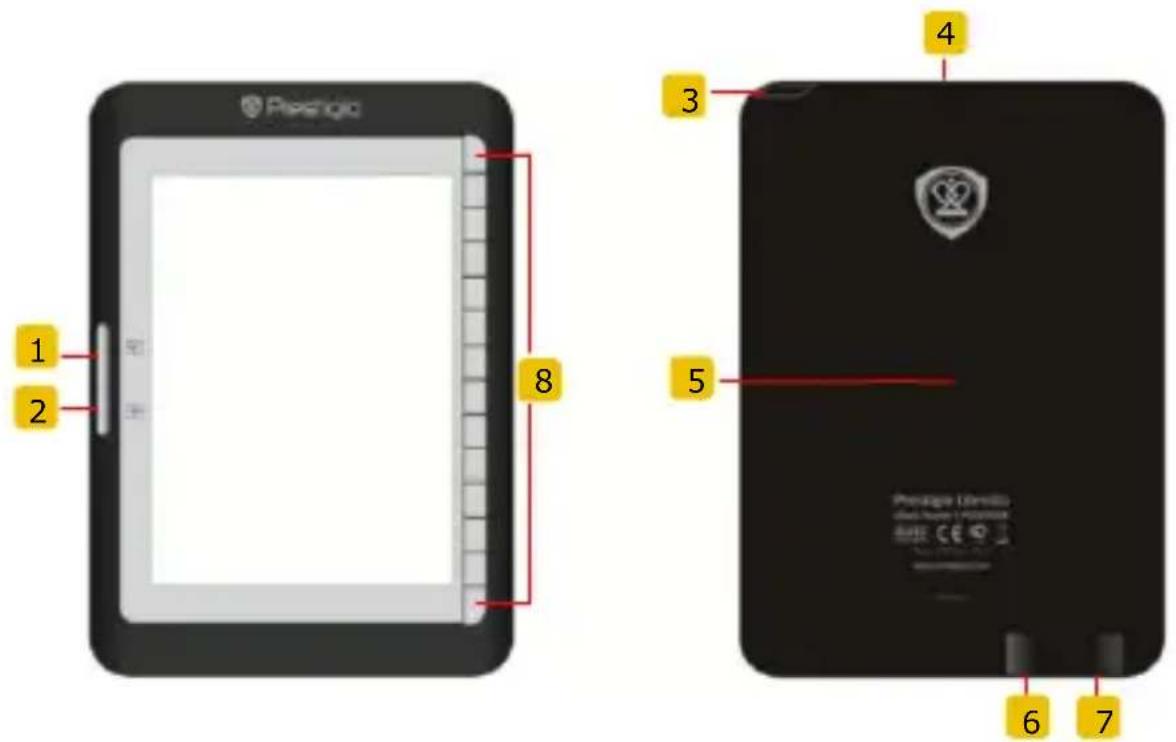
1 Page Jump Button Skip to previous page
2 Page Jump Button Skip to next page
3 Power Button Turn on/off the device
4 SD Card Slot Insert a SD card
5 Reset Button Reset the device
6 mini USB Jack Inserting mini USB connector
7 Headphone Jack Connect the earphones
8 Function Button Select/confirm the option
3 Charging
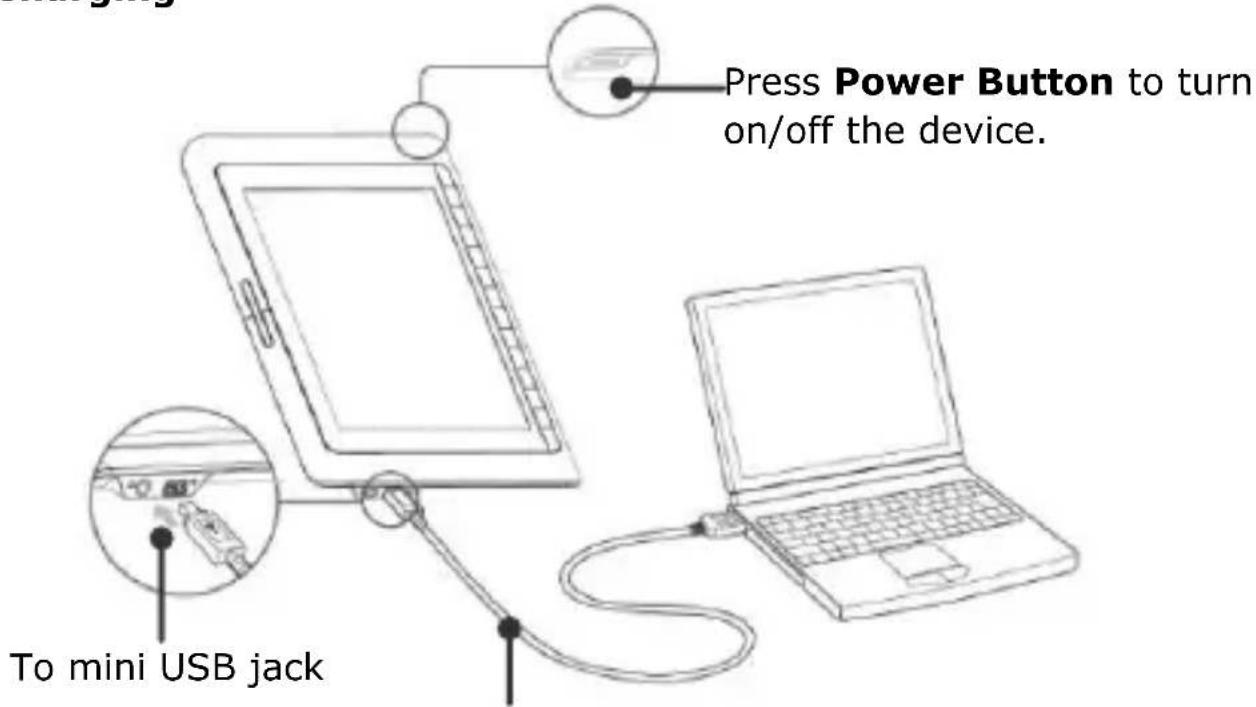
USB cable
- Connect the PC/Notebook USB port and the device with the USB cable included to start charging.
- It is recommended to charge the device battery for 12 hours before the first time use. Normally, it takes approximately 8 hours to fully charge the device.
How to Get eBOOKs
1 Inserting a Memory Card
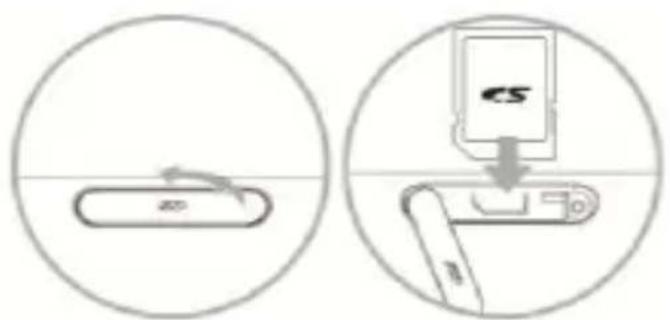
- Open the SD card slot cover and insert a SD card if available. Close the slot cover.
● The device supports SD card only. Be sure to insert the memory card correctly.
2 Installing Adobe Digital Edition (ADE)
- Please download Adobe Digital Edition (ADE) online at the website: http://www.adobe.com/products/digitaleditions.
- Install Adobe Digital Edition (ADE) on you PC/Notebook.
- If you do not have an Adobe ID, create it by following the on-screen instructions.
3 Download eBooks from an online E-Book store to your
PC/Notebook.
- Authorize your PC/Notebook to download eBooks from an e-Book store.
- Authorize the device to transfer and read downloaded eBooks on the device.
- Download eBooks in Adobe PDF or EPUB formats to your PC/Notebook and transfer them to the device.
4 Transfer Content to the device connected with your
PC/Notebook.
- Connect the device to your PC/Notebook using the USB cable.
- Select the content you want to transfer from your PC/Notebook.
- Drag the content from the PC/Notebook to the device.
- Please do not disconnect the USB cable during loading. It may cause malfunction of the device and files.
- Left click on 📋 to disconnect the device and PC/Notebook safely.
NOTE:
Content can also be transferred to a micro SD card on the device.
Reading BOOKs
From the Main Menu, press the function button to select Books mode.
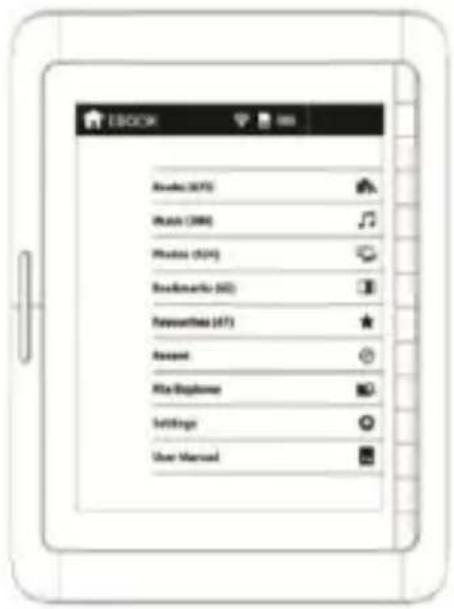
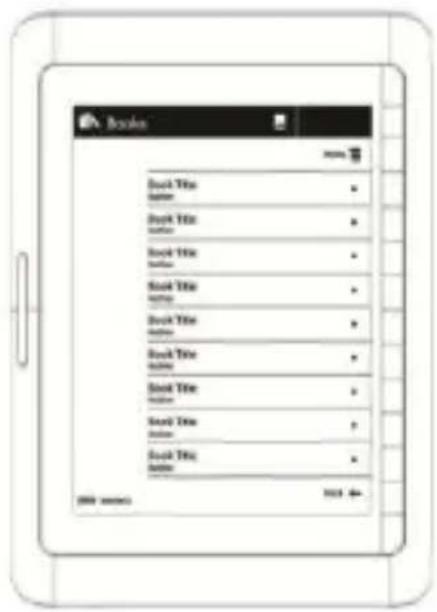
- Press the function button to select the desired book in the Books list.
- To turn pages, press Page Button.
- Press ← to return to previous option.
Marka : PRESTIGIO
Model : Libretto PER3362B
Kategoria : Czytnik e-booków