
4075B003AA - Oprogramowanie CANON - Bezpłatna instrukcja obsługi
Znajdź bezpłatnie instrukcję urządzenia 4075B003AA CANON w formacie PDF.


| Nazwa produktu | Canon 4075B003AA |
| Typ produktu | Oprogramowanie |
| Kompatybilność | Urządzenia Canon (drukarki, skanery, aparaty) |
| Wymagania systemowe | Windows 10/11, macOS 11/12/13; 4 GB RAM, 500 MB wolnego miejsca |
| Funkcje główne | Sterowanie urządzeniem, skanowanie, drukowanie, konserwacja |
| Język interfejsu | Polski, angielski, niemiecki, francuski, włoski, hiszpański |
| Instalacja | Pobranie pliku lub instalacja z dołączonej płyty CD |
| Aktualizacje | Automatyczne sprawdzanie aktualizacji przez internet |
| Wsparcie techniczne | Online, e-mail, infolinia Canon |
| Licencja | Dożywotnia dla jednego urządzenia |
| Zdjęcia i obrazy | Przeglądanie, edycja podstawowa, drukowanie zdjęć |
| Zarządzanie drukarką | Stan atramentu, czyszczenie głowic, poziom tuszu |
| Skanowanie | Do PDF, JPEG, TIFF; rozdzielczość do 1200 dpi |
| Zgodność z chmurą | Druk i skan do Google Drive, Dropbox |
| Bezpieczeństwo | Ochrona hasłem, szyfrowanie danych |
| Rozmiar pliku | Około 150 MB |
| Wersja | Najnowsza dostępna na stronie Canon |
| Gwarancja | Zgodna z polityką Canon |
| Kod EAN | 013803354731 |
Często zadawane pytania - 4075B003AA CANON
Pytania użytkowników dotyczące 4075B003AA CANON
0 pytanie dotyczące tego urządzenia. Odpowiedz na te, które znasz, lub zadaj własne.
Zadaj nowe pytanie dotyczące tego urządzenia
Pobierz instrukcję dla swojego Oprogramowanie w formacie PDF za darmo! Znajdź swoją instrukcję 4075B003AA - CANON i weź swoje urządzenie elektroniczne z powrotem w ręce. Na tej stronie opublikowane są wszystkie dokumenty niezbędne do korzystania z urządzenia. 4075B003AA marki CANON.
INSTRUKCJA OBSŁUGI 4075B003AA CANON
Canon
Network Video Recorder VK-64/VK-16 v2.2
Viewer Operation Guide
This guide explains a basic operation of VK Viewer. For more detailed explanations, refer to the Administrator's Manual and Setup Guide.
* This guide also applies to VK-Lite Viewer (simplified version of VK Viewer).
■Launching VK Viewer


Double-click the [VK Viewer v2.2] desktop icon.
The connect option menu (Startup Screen) for the Storage Server is displayed.
* Different icon is displayed for VK-Lite.
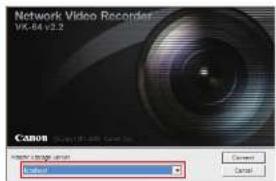

Select [Master Storage Server] and click [Connect].
If you select [localhost] or [Use IP address], the [Login] dialog box appears.
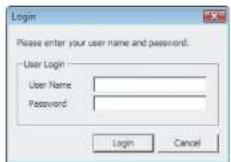

Enter your [User Name] and [Password] and click [Login].
VK Viewer starts up. Make a note of your user name and password here
| User Name | |
| Password |

- Note that the login information is case-sensitive.
- Check with the system administrator for your user name and password.
- If you note down your user name and password in this guide, take particular care to ensure that this does not lead to unwanted disclosure of your login details.
■Exiting VK Viewer
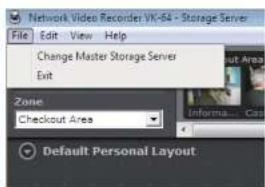

Select [File] → [Exit] in the menu bar.
VK Viewer shuts down.

- If you are using a screensaver on your PC, the screen saver may start up after VK Viewer shuts down. To restore the viewing window, simply move the mouse.
■VK Viewing Screen
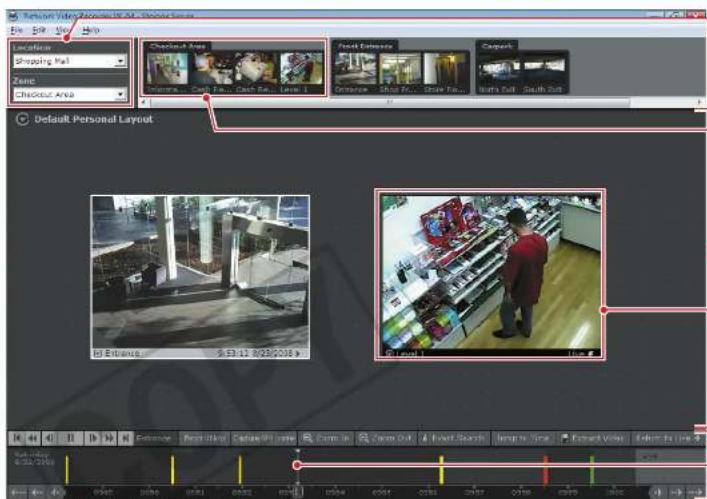
Location/Zone
| [Location] | Groups of zones. |
| [Zone] | Areas in which cameras are located. |
Total frames: 30.0 CPU: 5% Video window: 2 Display event: 2
Video Window
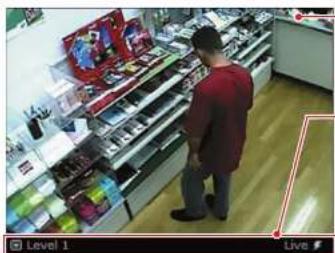
natural_image
Interior view of a retail store with shelves stocked with products and a customer browsing (no visible text or signage)Video display
Live or recorded video is displayed.
Live video The video currently being shot.
Recorded video Video recorded on the storage server.
Title bar
The camera name and the video status are displayed.
The title bar color changes according to the displayed video content, as shown below.
| Title bar color Video status | ||
| During live video display Black Live | ||
| During recorded video display | Black Recording time | |

- For Information on operations such as changing the video window display position, size or layout, see "Chapter 5 Viewer Reference" in the Administrator's Manual.
- The camera selection area, timeline and video window title bars can all be hidden using options in the [View] menu in the menu bar.
■Controlling A Camera

Click a video window for the camera you want to control.
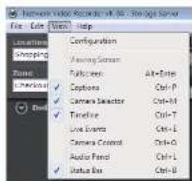

Select [View] → [Camera Control] in the menu bar.
The [Camera Control] panel appears.
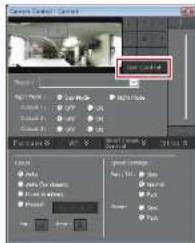

Click [Get Control] in the [Camera Control] panel.
Once you have the camera control, all the buttons in the [Camera Control] panel become active.

- If a message appears saying "Can't get camera control", system administration privileges of other Viewers of tools may be controlling the camera. Contact the administrator.
- Depending on your camera, some functions may be unavailable. For more details, see Administrator's Manual.
Pan/Tilt/Zoom Control
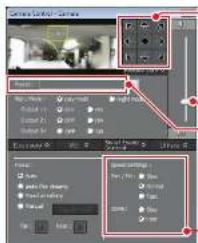
Pan (left/right) and Tilt (up/down)
These controls move the PT camera in the direction of the arrows.
Pan and tilt either by briefly clicking an arrow, or by clicking and holding the arrow.
Zoom
Click and drag the zoom slider to zoom in or out.
[Preset]
Choose one of preset positions from a list.
Pan/Tilt/Zoom speed
Set the camera pan/tilt, and zoom speed.

- For details, see *Chapter 5 Viewer Reference* In the Administrator's Manual.
- If you have the camera control and do not make any changes for 30 seconds, a message appears saying "Control will be lost in 10 seconds". You will then lose the control if it is left for another 10 seconds.
- To control a camera while it is recording, check with the administrator and review the procedure beforehand.
■Playing Recorded Video
Using the timeline to play video

Click a video window of the camera you want to play.

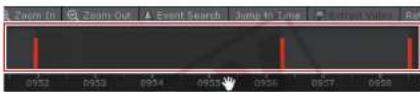
Click and drag the time bar to the left or right to change the playback time.
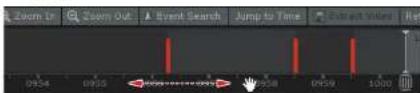

Click the time you want to play. The recorded video appears in the selected video window.
Playing video of a specified time

Click a video window of the camera you want to play.

Click [Jump to Time]. The [Jump To Time] dialog box appears.
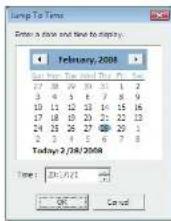

Select a date and time and click [OK]. The recorded video appears in the selected video window.
Adjusting/Saving Played Video
Controlling playback
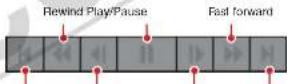
Jump to previous event Nudigefbeakd
Jump to next event
You can use these controls to play, pause, rewind, fast forward, nudge forward or back and jump to the previous or next event. You can also change the rewind and fast forward speeds sequentially from 1x → 2x → 5x → 10x.
Zooming in and out on the timeline

Zoom In

Zoom Out
These controls change the level of detail shown in the timeline.
[Zoom In] To view the timeline in more detail.
[Zoom Out] To view the entire timeline at once.
Returning to Live Video
Return to Live →
This button switches the video display from recorded video back to live video.
Saving a specified video
Extract Video
You can save recorded videos to any location in .mov format. The saved videos can then be viewed in QuickTime Player or any other player that supports the .mov format.
File-Saving format QuickTime (file extension: mov)
Recording duration Max. 1 hour

- Rewind and nudge back cannot be used when viewing recorded MPEG-4 video. *MPEG-4 video cannot be recorded with VK-Lite.
- QuickTime version 6.5.1 or later is recommended.
- On Windows Vista, videos cannot be saved into the Program Files folder or Windows folder on the system drive.
- Canon
- Network Video Recorder VK-64/VK-16 v2.2
- Viewer Operation Guide
- ■Launching VK Viewer
- ■Exiting VK Viewer
- ■VK Viewing Screen
- Video Window
- Video display
- Title bar
- ■Controlling A Camera
- Pan/Tilt/Zoom Control
- Pan (left/right) and Tilt (up/down)
- Zoom
- [Preset]
- Pan/Tilt/Zoom speed
- ■Playing Recorded Video
- Adjusting/Saving Played Video
- Controlling playback
- Returning to Live Video
- Return to Live →
- Saving a specified video
- Extract Video
Marka : CANON
Model : 4075B003AA
Kategoria : Oprogramowanie