
GDS-DOCKL-V2-AP7U - Stacja dokująca RAM Mount - Bezpłatna instrukcja obsługi
Znajdź bezpłatnie instrukcję urządzenia GDS-DOCKL-V2-AP7U RAM Mount w formacie PDF.


| Marka | RAM Mount |
| Model | GDS-DOCKL-V2-AP7U |
| Typ produktu | Stacja dokująca do tabletu |
| Materiał | Tworzywo sztuczne, metal |
| Kolor | Czarny |
| Wymiary (orientacyjne) | Ok. 20 x 15 x 5 cm |
| Waga (orientacyjna) | Ok. 0,5 kg |
| Zasilanie | Przez USB (Micro USB 2.0), wymagana ładowarka ścienna lub samochodowa |
| Złącza | Micro USB 2.0 (żeńskie) |
| Kompatybilność | Tablety z etui IntelliSkin firmy RAM Mount |
| Montaż | Za pomocą uchwytu kulowego, śrub i nakrętek (w zestawie) |
| Funkcje | Blokada kluczykiem, regulacja wysokości (suwak), zarządzanie kablami, otwory wentylacyjne |
| Akcesoria w zestawie | Podkładki piankowe, śruby (różne rozmiary), nakrętki, klucz, osłona przednia, uchwyt kulowy |
| Instrukcja obsługi | Dostępna w formacie PDF (2 strony) |
| Gwarancja | Standardowa gwarancja producenta |
| Kraj pochodzenia | Chiny |
| Kod EAN | Nie dotyczy |
| Informacje dodatkowe | Zalecane stosowanie taśmy elektrycznej na złączu USB w otwartym kokpicie |
Często zadawane pytania - GDS-DOCKL-V2-AP7U RAM Mount
Pytania użytkowników dotyczące GDS-DOCKL-V2-AP7U RAM Mount
0 pytanie dotyczące tego urządzenia. Odpowiedz na te, które znasz, lub zadaj własne.
Zadaj nowe pytanie dotyczące tego urządzenia
Pobierz instrukcję dla swojego Stacja dokująca w formacie PDF za darmo! Znajdź swoją instrukcję GDS-DOCKL-V2-AP7U - RAM Mount i weź swoje urządzenie elektroniczne z powrotem w ręce. Na tej stronie opublikowane są wszystkie dokumenty niezbędne do korzystania z urządzenia. GDS-DOCKL-V2-AP7U marki RAM Mount.
INSTRUKCJA OBSŁUGI GDS-DOCKL-V2-AP7U RAM Mount
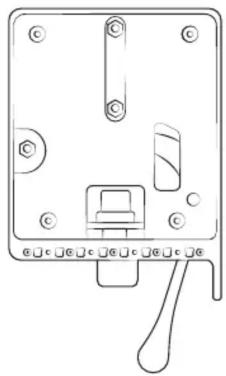
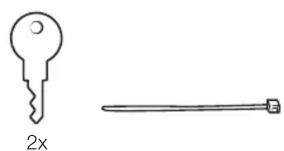
Parts index

natural_image
Line drawing of a device rear panel with buttons and a handle (no text or symbols)

natural_image
Simple line drawings of a key and a tool (no text or symbols)


1
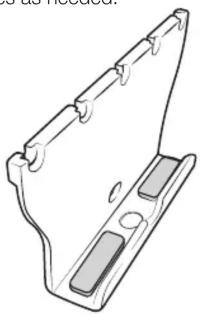
Adhere foam pads to the inside of top cup. Position evenly on top cup, and cutting around any open holes as needed.
natural_image
Technical line drawing of a mechanical bracket component (no text or symbols)2
Position (H) nuts in nut pockets, guiding them in place with a pen.

3
While holding (H) nuts in place, attach ball adapter to back of holder using (G) screws. RAM ^® logo must be facing in the shown direction. Attach additional (L) screws.

4
Using (K) screws, attach bottom docking cup to vehicle dock assembly.


natural_image
Diagram of screw fasteners in a mechanical assembly with no visible text or symbols5
Using (K) screws, attach top docking cup to top slide with numbers facing down.

natural_image
Technical line drawing of a mechanical bracket with screw holes and a side panel (no text or symbols)6
Twist key lock to release internal slide.

natural_image
Mechanical component diagram showing a lever and pin assembly (no text or symbols)7
Insert top slide over internal vehicle dock.
Place (N) nuts into top slide,
aligning with holes in internal slide.
8
⑨
Attach (M) screws from behind the internal slide. Do not fully tighten (slides must remain loose).

natural_image
Diagram of a mechanical component being inserted into a housing, showing internal structure and mounting detail (no text or symbols)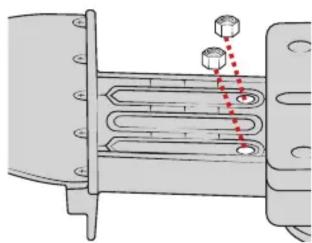
natural_image
Diagram of a heat exchanger or cooling unit with cooling fins and cooling ends, showing internal components and red dashed lines indicating flow direction (no text or labels)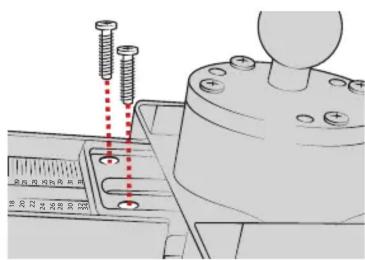
For questions regarding the assembly of this holder, contact us at:
Phone: 1-800-497-7479 Email: support@rammount.com
RPR-INS-GDS-DOCKL-V2
10 Wedge top slide cover into top slide. Using pressure, snap into place.

natural_image
Mechanical assembly diagram showing a bracket with a red arrow indicating force or direction (no text or symbols present)11 Pull lever to engage lock.
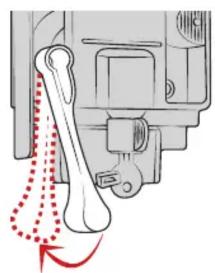
natural_image
Mechanical diagram showing a bone joint with red dotted arrows indicating motion or force (no text or symbols)12 Place tablet with intelliSkin™ on bottom docking cup.

natural_image
Mechanical component diagram showing a lever mechanism with a red arrow indicating force or movement (no text or symbols present)13 Press down on top cup to secure over tablet.

natural_image
Diagram of a mechanical component with two downward arrows indicating force or movement (no text or symbols present)On the back of the top slide, review the numbers shown in the middle. Take note of the lowest number that is fully visible. This reference will help you in the next step. In this example, the lowest visible number is 8.

For recommended settings on your specific tablet, visit www.rammount.com/install
☐ to the appropriate setting using the reference number from step 14. When in place, fully tighten the (M) screws.

16 Position front cover over vehicle dock assembly.
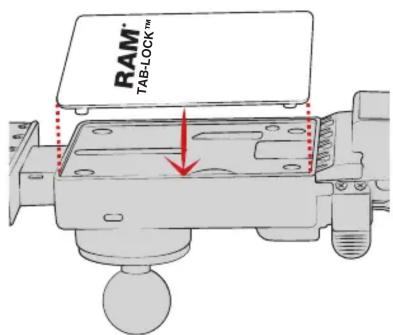
Secure using (J) screws on back of slide assembly. Lock must be engaged to access all four holes as shown.
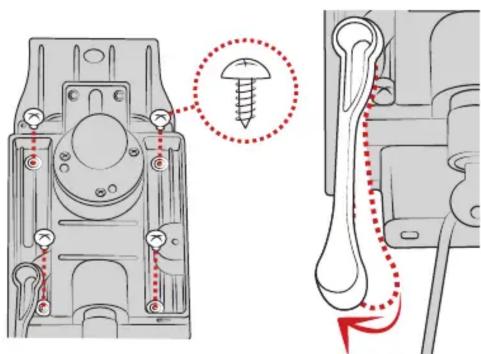
Cable Management
Insert Micro USB 2.0 cable into the GDS Dock's Micro USB 2.0 receiver.
When plugged in, the tablet will detect the power source within two seconds. User must supply a USB wall charger or cirgarette adapter with appropriate charging specifications for the mounted device.
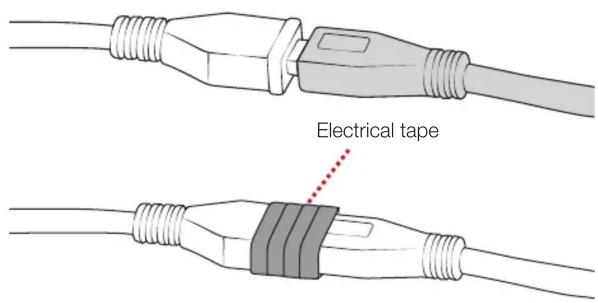
For open cockpit or outdoor use, it is recommended to apply electrical tape to your USB connection.
Use cable tie to secure your USB cable to the slot behind vehicle dock as shown.
Lack of, or improper use of wire retention/cable management, may void warranty.


Marka : RAM Mount
Model : GDS-DOCKL-V2-AP7U
Kategoria : Stacja dokująca