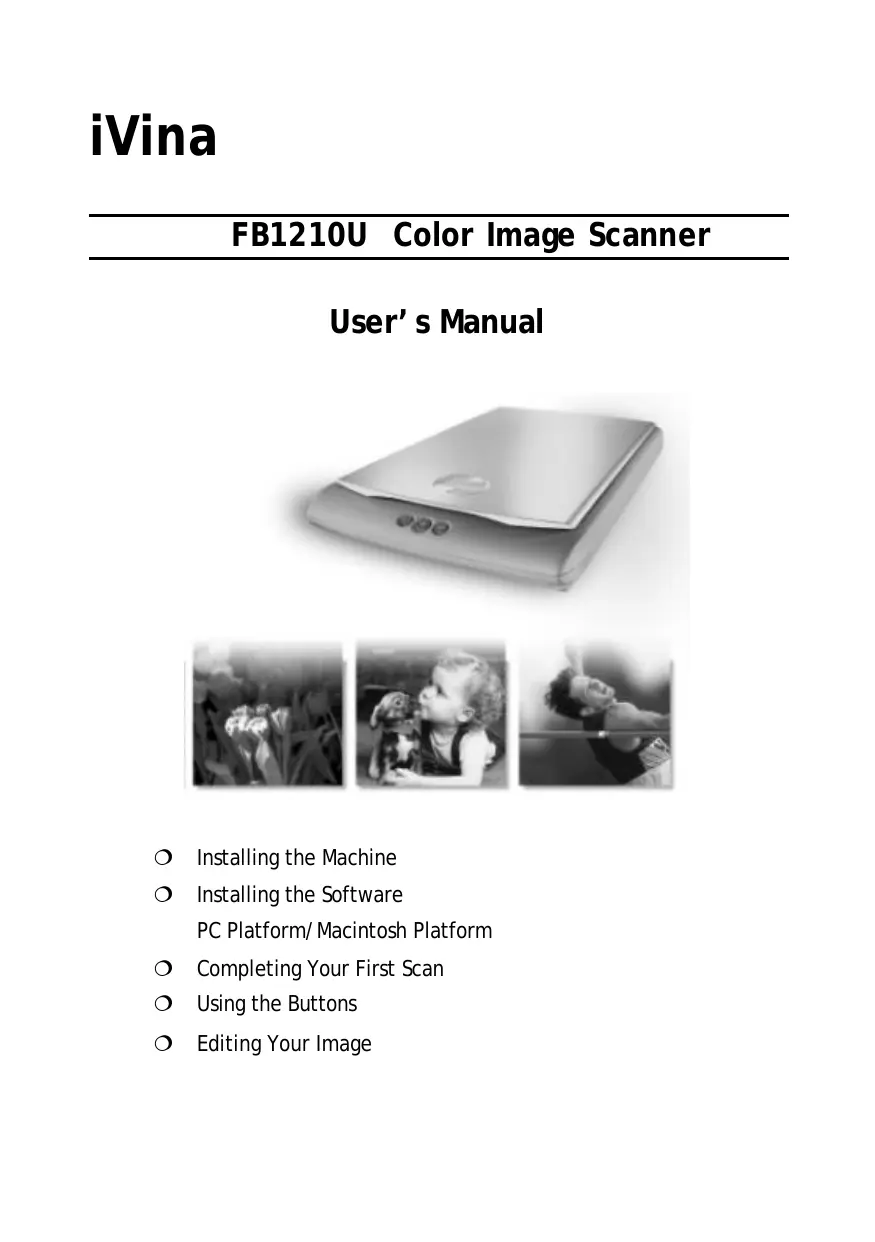
FB1210U - Scanner AVISION - Notice d'utilisation et mode d'emploi gratuit
Retrouvez gratuitement la notice de l'appareil FB1210U AVISION au format PDF.


| Intitulé | Description |
|---|---|
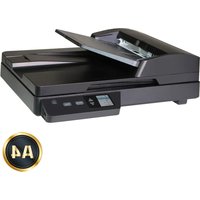
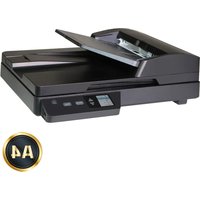
| Type de produit | Scanner à plat A4 |
| Résolution maximale | 600 x 600 dpi |
| Vitesse de numérisation | Jusqu'à 10 pages par minute (ppm) en noir et blanc |
| Connectivité | USB 2.0 |
| Dimensions approximatives | 300 x 450 x 100 mm |
| Poids | 2,5 kg |
| Compatibilités | Windows, macOS |
| Alimentation électrique | Alimentation par USB |
| Fonctions principales | Numérisation couleur, numérisation recto verso |
| Entretien et nettoyage | Nettoyer la vitre du scanner avec un chiffon doux et sec |
| Pièces détachées et réparabilité | Disponibilité de pièces de rechange limitée |
| Sécurité | Conforme aux normes de sécurité électrique |
| Informations générales | Scanner compact idéal pour un usage domestique ou de bureau |
FOIRE AUX QUESTIONS - FB1210U AVISION
Questions des utilisateurs sur FB1210U AVISION
0 question sur cet appareil. Repondez a celles que vous connaissez ou posez la votre.
Poser une nouvelle question sur cet appareil
Téléchargez la notice de votre Scanner au format PDF gratuitement ! Retrouvez votre notice FB1210U - AVISION et reprennez votre appareil électronique en main. Sur cette page sont publiés tous les documents nécessaires à l'utilisation de votre appareil FB1210U de la marque AVISION.
MODE D'EMPLOI FB1210U AVISION
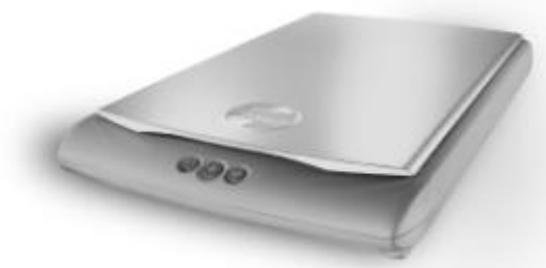
FB1210U Color Image Scanner
User's Manual


Installing the Machine
Installing the Software PC Platform/Macintosh Platform
Completing Your First Scan
Using the Buttons
Editing Your Image
Copyright 2001 iVina
All rights reserved. No part of this document may be reproduced in any forms or by any means without prior written permission of iVina Inc.
Trademark
All brands and product names mentioned in this document are trademarks of their respective holders.
Warranty
The information contained in this document is subject to change without notice.
ivina makes no warranty of any kind with regard to this material, including, but not limited to, the implied warranties of fitness for a particular purpose.
System Requirements
Windows
IBM compatible PC 586, Pentium or later
Microsoft Windows 98, Windows Me, or Windows 2000
A USB (universal serial bus) port
- At least 100M bytes of free hard disk space
- At least 32M bytes of system memory (Recommend 64 MB)
- A CD-ROM drive
- Modem and internet connection required for E-Mail functionality
Macintosh
- Power Macintosh series, PowerBook series, iMac, iBook or later with built-in USB port
- System 8.6 or later
- At least 32M bytes of system memory (Recommend 64 MB)
Mac compatible display card and monitor with at least 256 colors; thousands colors or million colors display card recommended - A CD-ROM drive
Table of Contents
CHAPTER 1 INSTALLING THE SCANNER 6
1.1 PREINSTALLATION INFORMATION 6
1.2 CHECKING THE PACKAGE CONTENTS 7
1.3 UNLOCKING THE SCANNING UNIT 8
1.4 CONNECTTING TO THE COMPUTER 9
1.5 STORING THE SCANNER 10
1.5.1 TURNING THE SCANNER TO THE STORING POSITION 10
1.5.2 RETURNING THE SCANNER TO NORMAL POSITION. 10
CHAPTER 2 INSTALLING THE SOFTWARE 11
2.1 WINDOWS PLATFORM 11
2.1.1 LIST OF SOFTWARE TO BE INSTALLED 11
2.1.2 INSTALLING THE SOFTWARE 12
2.2 MACINTOSH PLATFORM. 14
2.2.1 INSTALLING THE SOFTWARE 14
CHAPTER 3 COMPLETING YOUR FIRST SCAN 15
3.1 PLACING YOUR ORIGINAL 15
3.2 SCANNING WITH IMAGE EDITING SOFTWARE 16
3.2.1 PC PLATFORM 16
3.2.2 MACINTOSH PLATFORM. 18
3.2.3 A GLANCE OF THE USER INTERFACE 19
CHAPTER 4 EDITING YOUR IMAGE 20
4.1 USING THE BASIC FEATURES 20
4.1.1 CHOOSING YOUR SCANNING SOURCE 20
4.1.2 SELECTING A PROPER IMAGE TYPE 21
4.1.3 DETERMINING A PROPER RESOLUTION 23
4.1.4 ADJUSTING THE BRIGHTNESS AND CONTRAST 24
4.1.5 ENLARGING PREVIEWED IMAGE 25
4.1.6 INVERTING AND SELECTING YOUR IMAGE 26
4.1.7 ENHANCING YOUR IMAGE 27
4.2 USING THE ADVANCED FEATURES 29
4.2.1 SWITCH BUTTON. 29
4.2.2 ADJUSTING HIGHLIGHT/SHADOW LEVELS 29
4.2.3 ADJUSTING THE BRIGHTNESS CURVE 31
4.2.4 CHANGING COLOR HUE/SATURATION/LIGHTNESS. 32
4.2.5 USING COLOR BALANCE 33
4.3 USINGOTHERTOOLS 35
CHAPTER 5 USING THE BUTTONS 36
5.1 CUSTOMIZING YOUR BUTTON SETTINGS 36
5.2 USING THE BUTTONS 38
CHAPTER 6 MAINTAINING YOUR SCANNER 39
6.1 CLEANING THE GLASS 39
6.2 TECHNICAL SUPPORT. 40
APPENDIX 41
QUICK TIPS. 41
SPECIFICATION 42
INDEX 43
Chapter 1 Installing the Scanner
1.1 PREINSTALLATION INFORMATION
- Keep the scanner out of direct sunlight. Direct exposure to the sun or excessive heat may cause damage to the unit.
- Do not install the scanner in a humid or dusty place.
- Be sure to use the proper AC power source.
- Only use the AC adapter (ADP-20LB Rev. B made by Delta Electronics, Inc.) included in the machine. Using other AC adapters may damage the machine and void the warranty.
- Place the scanner securely on an even, flat surface. Tilted or uneven surfaces may cause mechanical problems.
1.2 CHECKING THE PACKAGE CONTENTS
Gently open your box and check the package contents. If there is anything missing or damaged, please call your dealer.
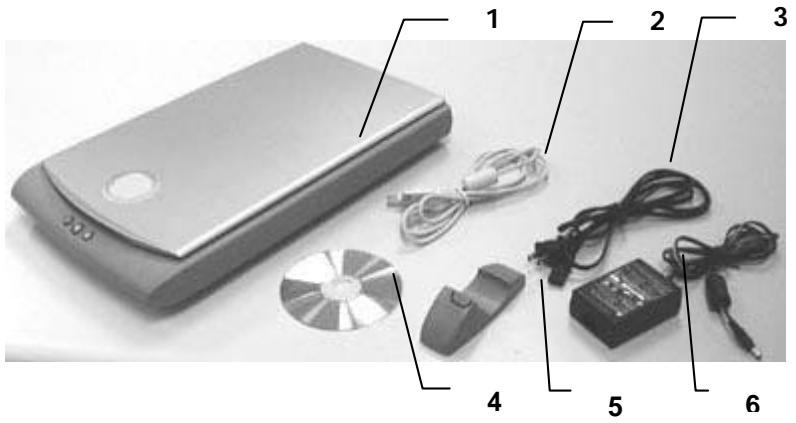
- Scanner main unit
- USB cable
- Power Cord
- Power Adapter
- Scanner Stand
- Software CD
Accessories:
Quick Guide.
Note
Please keep all the packing material in case you may have to return the scanner for repair.
1.3 UNLOCKING THE SCANNING UNIT
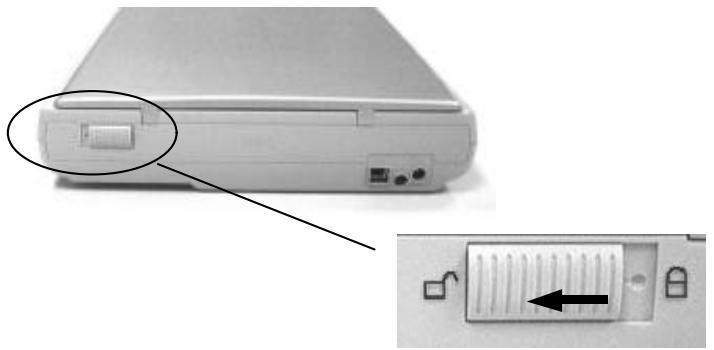
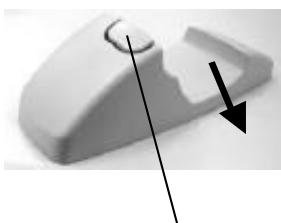
The scanner is designed with a lock switch to protect the scanning unit from damage during shipment. Before using the scanner, you must unlock the scanning unit. To unlock the scanning unit, locate the lock switch at the rear of the scanner. Move the lock switch to the "unlocked position" as shown below.
Warning:
- Using the scanner without unlocking the scanning unit will cause damage to the machine and void the warranty.
- To transport the machine, you must lock the scanning unit before transporting to other locations.
1.4 CONNECTTING TO THE COMPUTER
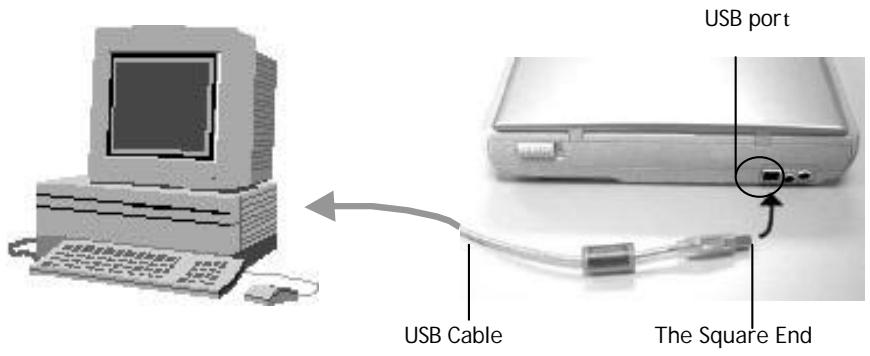
- Connect the square end of the USB cable to the USB port of your scanner. Connect the rectangle end to the USB port of your computer.
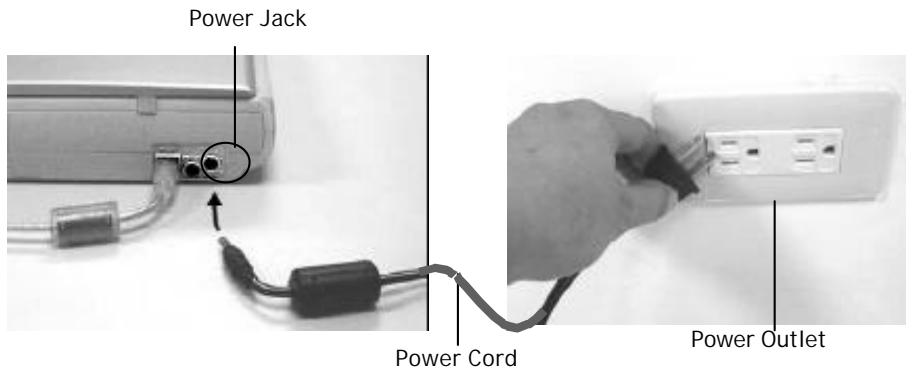
- Plug the small end of the power adaptor into the power jack of your scanner. Insert the other end to an appropriate power outlet.
Note:
The scanner is designed with power saving mode. After stop using the scanner for 15 minutes, the scanner automatically turns off the scanning lamp.
1.5 STORING THE SCANNER
When you do not need to use the scanner for a while, you can lock the scanning unit and then turn the scanner upright with the scanner stand to save your space.
1.5.1 TURNING THE SCANNER TO THE STORING POSITION
- Turn the lock switch to the "lock" position.
- Disconnect the USB cable and power cable.
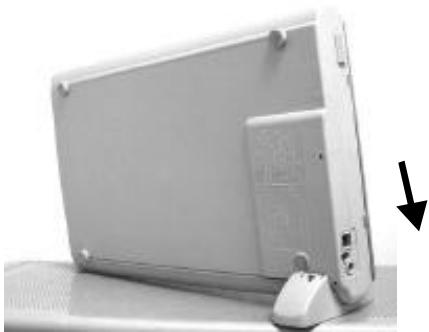
- Turn the scanner upright with the rear side close to you. (See below). Hold the scanner with your left hand.
- Push the center of the scanner stand down. Allow the hinges on the on the scanner attach to the stand.
Push the center part down.
1.5.2 RETURNING THE SCANNER TO NORMAL POSITION
- Push the center part of the stand to release the hinges.
- Place the scanner on the even surface.
- Turn the lock swith to the lock position.
- Connect the USB cable and the power cable.
- The scanner is now ready to use.
Chapter 2 Installing the Software
2.1 WINDOWS PLATFORM
2.1.1 LIST OF SOFTWARE TO BE INSTALLED
- Scanner Driver /approx. 4 MB
The software (TWAIN Driver) required to load images into your computer and the program to control the buttons on the front of the scanner.
- MGI Photo Suite SE /approx. 31.8 MB
The image editing and retouching program.
TextBridge Classic 2.0 /approx. 16.4 MB
An optical character recognition (OCR) program that converts scanned documents into editable text with a word processor.
- PaperCom Document Manager /approx. 16.6 MB
File overview on the desktop, the picture can be sent to the OCR software, to fax, to E-Mail, to the printer or internet.
2.1.2 INSTALLING THE SOFTWARE
- After connecting the cables successfully, turn on your computer.
- The computer should detect a new USB device and prompt a "New Hardware Found" message.
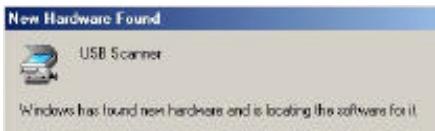
- Place the supplied CD-ROM onto your CD-ROM drive.
- Confirm that the "Search for a better driver." is selected and click the "Next" button.
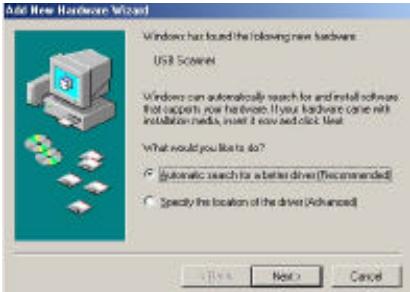
- When the "Finish" dialog is prompted, click the "Finish" button.
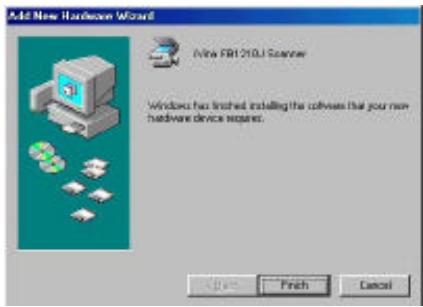
- Reject the CD-ROM from your CD-ROM drive and reinsert the CD-ROM on your CD-ROM drive.
- The software installation graphic appears. If not, run "cdsetup.exe".
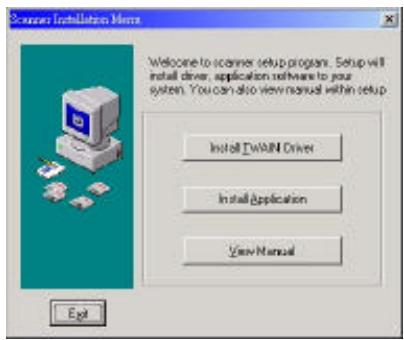
- Click "Install TWAIN Driver" to install the scanner driver and follow the instructions on the screen to complete the installation.
- Click "Install Application" to install the applications including Button Manager (the scanner button controller), MGI PhotoSuite SE (the image editing and retouching application), TextBridge Classic 2.0 (The OCR software application), and PaperCom Document manager (The document management tool).
- Click "View Manual" to view or print the detailed user manual for the scanner and bundled applications respectively.
2.2 MACINTOSH PLATFORM
2.2.1 INSTALLING THE SOFTWARE
- Close all the applications including the anti-virus program.
- Install the image-editing application such as OmniPage, or PhotoShop on your computer.
- Place the supplied CD-ROM on your CD-ROM drive. The iVina FB1210U screen appears.
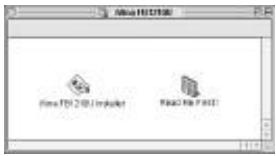
- Double click the FB1210U Installer icon to prompt the installation screen. Follow the on-screen instruction to select the plug-in folder of your image-editing software application (for example, the Import/Export folder in the Plug-in folder in Adobe PhotoShop). Refer to the manual of your image-editing software application for correct folder name and location.
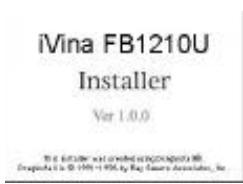
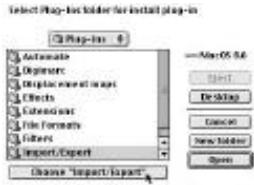
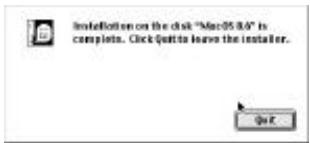
- Click the "Quit" button when the Finish message appears.
Note
If you fail to select the correct plug-in folder in step 4, your image-editing software application may not use the FB1210U plug-in. In this case, please copy the FB1210U plug-in in the FB1210U folder on your desktop to the correct plug-in folder of your image-editing software application.
Chapter 3 COMPLETING YOUR FIRST SCAN
3.1 PLACING YOUR ORIGINAL
- Open document cover.
- Place your document with your text FACE DOWN on the glass.
- Make sure the upper left corner of your original near the home position as marked in the scanner.
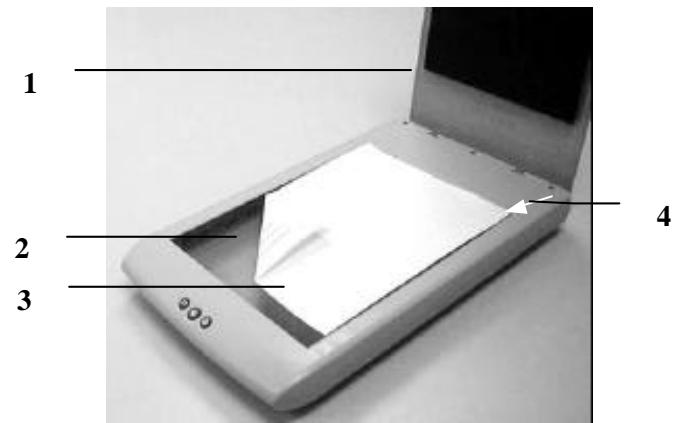
- Document Cover
- Glass
- Document
- Home Position
3.2 SCANNING WITH IMAGE EDITING SOFTWARE
The scanner driver is not a stand-alone software, it has to be started from within a TWAIN-compliant or plug-in software application and then the scanner driver is able to scan and load the image to your computer. The command to start the scanner driver may vary due to different software applications.
3.2.1 PC PLATFORM
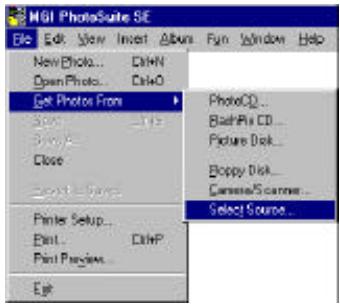
- Start a TWAIN compliant software application such as MGI PhotoSuite SE which is bundled in the CD.
- Click Work on your own>File>Get Photos From>Select Source.
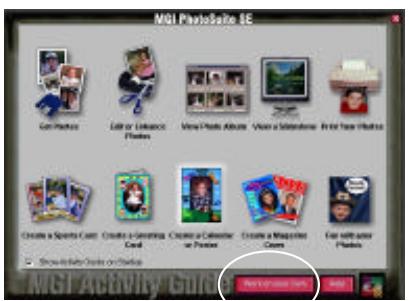
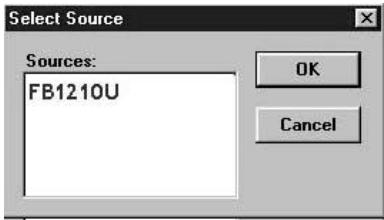
- Choose FB1210U as your scanning source. (You only need to do this once.)
- Place the document FACE DOWN on the document glass.
-
From the File menu, choose Get Photos From> Camera/ Scanner. TWAIN user interface will pop up on the screen.
-
Click Preview to get an initial scan of your document. Allocate your scanned area and choose Scan button to scan the document.
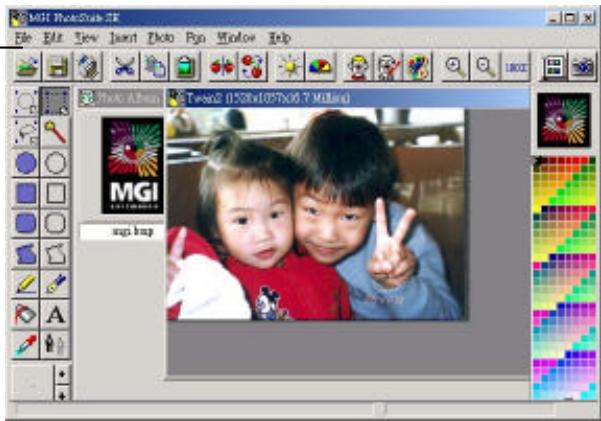
- Click Exit to return to the main screen and Choose File>Save As to save your newly scanned image.
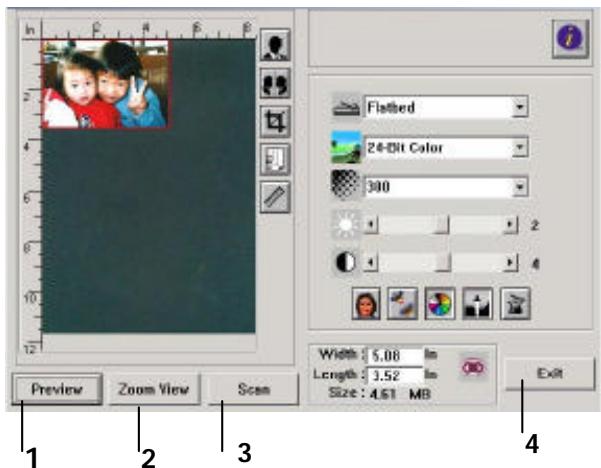
- Preview
- Zoom View
- Scan
- Exit
- File
5
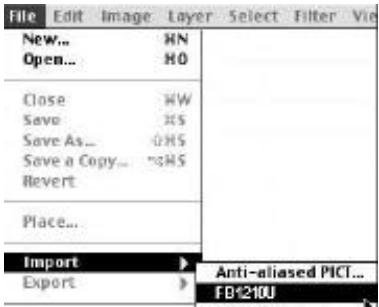
- Start your image-editing application, for example, PhotoShop.
- From the "File" menu, choose "Import" then "FB1210U". The plug-in user interface appears.
- Place your document FACE DOWN on the document glass.
- Click Preview to get an initial scan of your document. Allocate your scanned area and choose Scan button to scan the document.
- Click Exit to return to the main screen and choose File>Save As to save your newly scanned image.
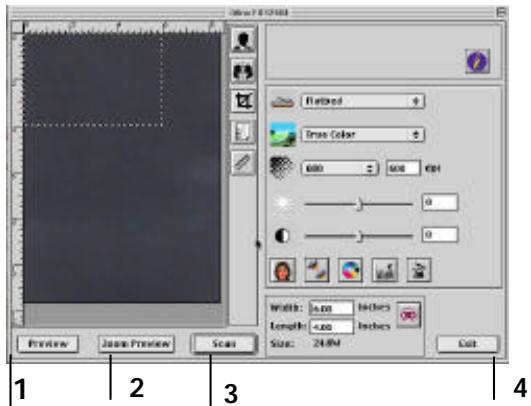
-
Preview
-
Scan
-
Zoom Preview
-
Exit
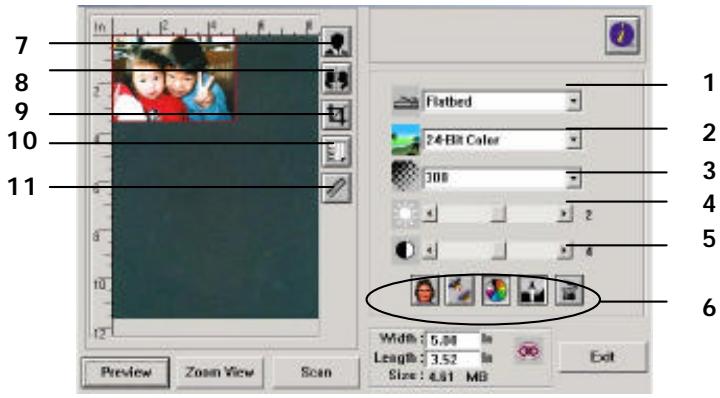
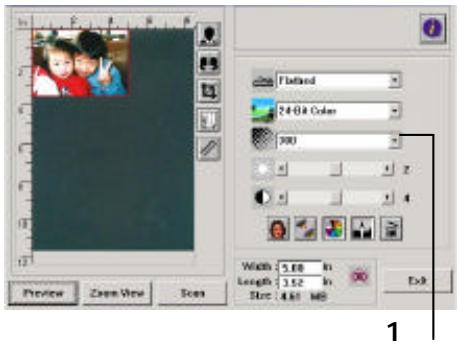
| 1. Original Source | Choice: Flatbed, Transparency, Negative Film. |
| 2. Image Type | Choice: Black & White, Halftone, 8-bit Gray, *16-bit Gray, 8-bit Color, 24-bit Color, *48-bit Color. |
| 3. Resolution | Choice: 50, 72, 100, 144, 150, 200, 300, 600, 1200, 2400, 4800, 9600, 19200 (dpi). |
| 4. Brightness: | Adjust the brightness level from -100 to +100. |
| 5. Contrast | Adjust the contrast level from -100 to +100. |
| 6. Further Tools | Descreen, Sharpen, Color Adjustment, Auto Level, Advanced Settings (From left to right). |
| 7. Invert | Reverse the color of your scanned image. |
| 8. Mirror Function | Flap your image. |
| 9. Crop | Resize your scanned area. |
| 10. Paper Size | Select your paper size from Card 4"x2.5", Photo 5"x3", Photo 6"x4", A5, B5, A4, Letter, Legal, or scanner maximum. |
| 11. Measuring Unit | Choice: cm, Inch, and Pixel. |
Note:
- To get correct output of 16-bit Gray and 48-bit Color, your image editing application needs to support both these image types.
- Please see Chapter 4 for further details on using this user interface.
Chapter 4 Editing Your Image
TWAIN (plug-in) driver provides many useful features to improve your image quality.
4.1 USING THE BASIC FEATURES
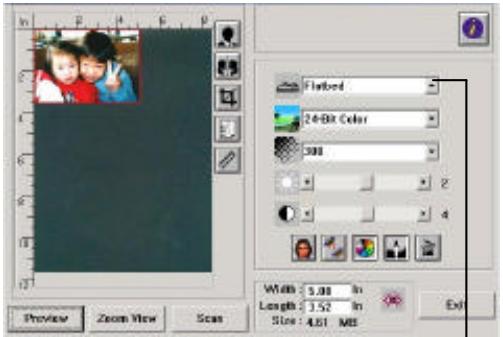
4.1.1 CHOOSING YOUR SCANNING SOURCE
Beside family photo or regular document, the scanner allows you to scan transparency or negative film. To scan transparency or negative film, you have to install the transparency kit (optional) first. For regular purpose to scan photo or document, please leave the scanning source to flatbed option.
1. Scanning Source
Choice:
Flatbed: For family photo, newspaper clippings, or any document.
Transparency: For slides.
Negative Film: For your negative film.
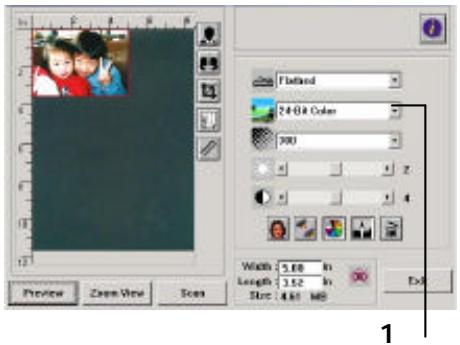
4.1.2 SELECTING A PROPER IMAGE TYPE
1. Image Type
Please see following table for a choice of an ideal image type.
| Black & White | Choose B&W if your original contains only B&W text, pencil or ink sketch. |
| Halftone | Halftones are reproduction of image that gives the illusion gray. An example of halftone imaged would be the pictures you see in newspapers. |
| 8-bit Gray | 8-bit Gray images contain actual shades of gray. |
| 16-bit Grayscale | Choose 16-bit Grayscale if you need to scan a B&W photo. |
| 8-bit Color | 8-bit Color image provides 256 levels of color hues. |
| 24-bit Color | Choose 24-bit Color if you wish to scan a color image. |
| 48-bit Color | 48-bit Color reproduces your photo with more subtle gradations of color yet it requires twice the disk space of that of 24-bit Color. |
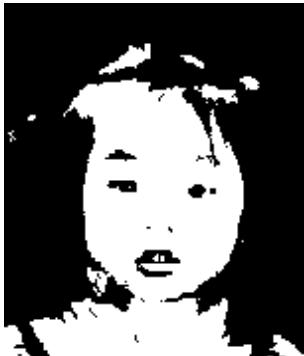
Black & White
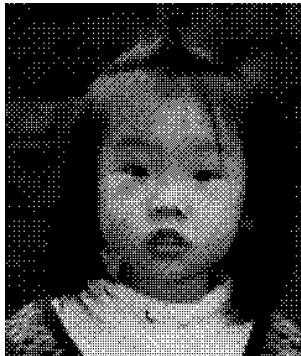
Halftone

Gray
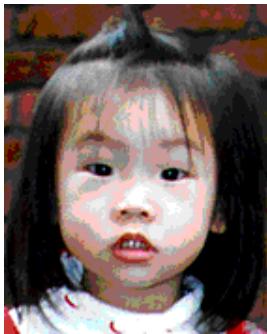
8-bit Color

24-bit Color

48-bit Color
4.1.3 DETERMINING A PROPER RESOLUTION
1. Resolution
A proper resolution reproduces a clear image with good details. The resolution is measured by dots per inch (dpi).

Resolution: 50 dpi
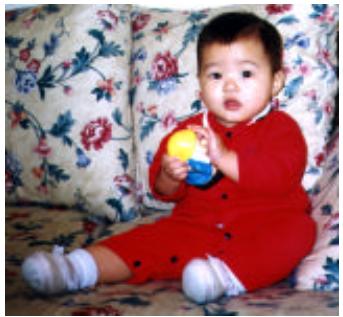
Resolution: 100 dpi
Note
For your information, an A4 size color image scanned at 300 dpi at True Color mode consumes approximately 25 MB of disk space. A higher resolution (usually means over 600 dpi) is only recommended when you need to scan a small area at True Color mode.
4.1.4 ADJUSTING THE BRIGHTNESS AND CONTRAST
1. Brightness
Adjusts the lightness or darkness of an image. The higher the value, the brighter the image.
2. Contrast
Adjusts the range between the darkest and the lightest shades in the image. The higher the contrast, the bigger the different grayscale.
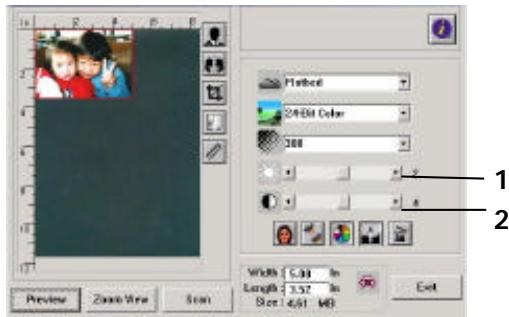

Decrease Brightness

Normal

Increase Brightness

Decrease Contrast

Normal

Increase Contrast
4.1.5 ENLARGING PREVIEWED IMAGE
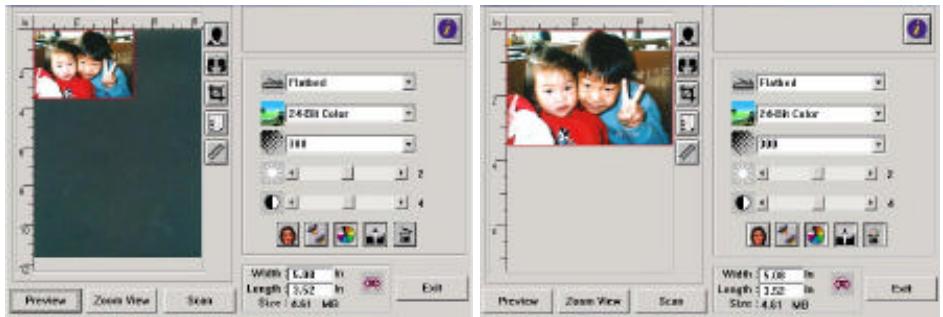
1. Zoom View
Enlarge your previewed image to the max. of the preview window.
Note this function only enlarging your preview image. This does not enlarge your real image.
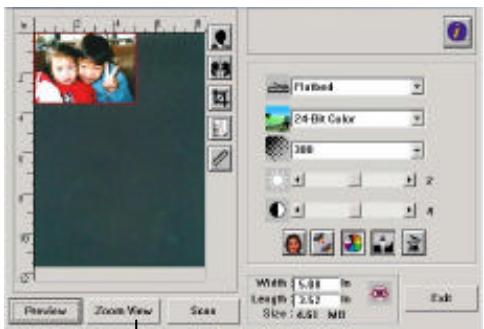
1
Before Zoom
After Zoom
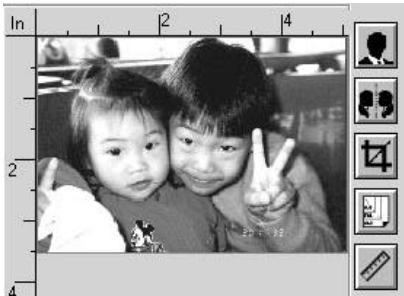
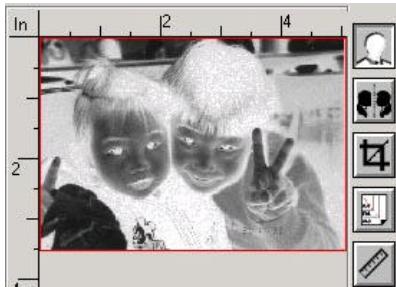
1. Invert
The invert command reverses the brightness and the color in the image. For color images, each pixel will be changed into its complementary color at the command of Invert.
Before Invert
After Invert
2. Mirror Function
Reverse the right and left side of your image.
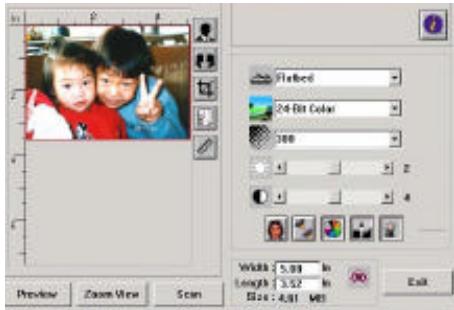
Before Mirror
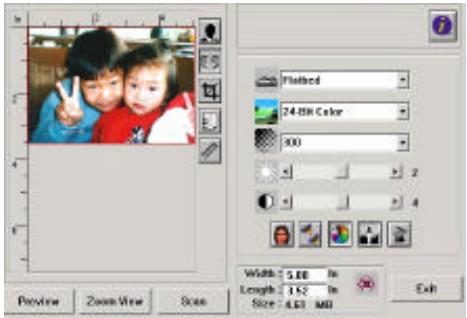
After Mirror
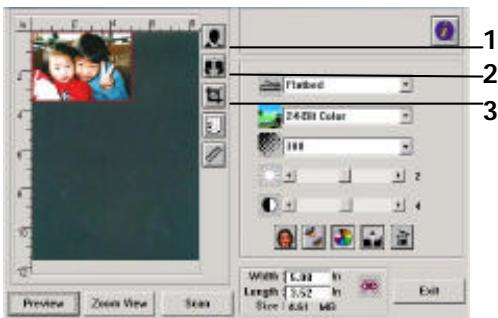
3. Auto Select Image
Automatically set the whole image as your scan area. (Or you may resize the area by "drag and drop" diagonally.)
4.1.7 ENHANCING YOUR IMAGE
1. Desscreen
Eliminates the moire patterns* commonly found in printed matter.
2. Sharpen
Sharpen the scanned image.
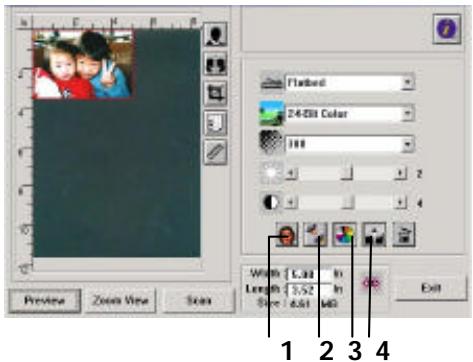

Before Descreen

After Descreen

Before Sharpen

After Sharpen
*Moire pattern: An undesirable pattern in a color printing resulting from incorrect screen angle of overprinting halftone.
3. Color Adjustment
Adjusts the color quality of the image so that it comes close to that of the original. This function uses default parameters to adjust the image.

Normal

After Color Matching
4. Auto Level
Automatically adjusts the highlight and shadow areas of the scanned image to optimize your image.

Normal

After Auto Level
4.2 USING THE ADVANCED FEATURES
4.2.1 SWITCH BUTTON
- Click the button to pop up the advanced settings bar at the right side. The advanced settings include Highlight/Shadow, Hue/Saturation/Lightness, Curve, Color Balance, Color Drop-out.
- The Advanced Settings bar
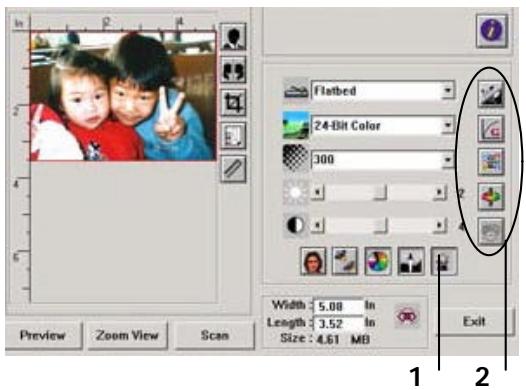
4.2.2 ADJUSTING HIGHLIGHT/SHADOW LEVELS

Highlight refers the lightest point in a scanned image while shadow refers the darkest point. Using Highlight and Shadow tool together allows you to extend the range of color and reveal more details in a gray or color image.
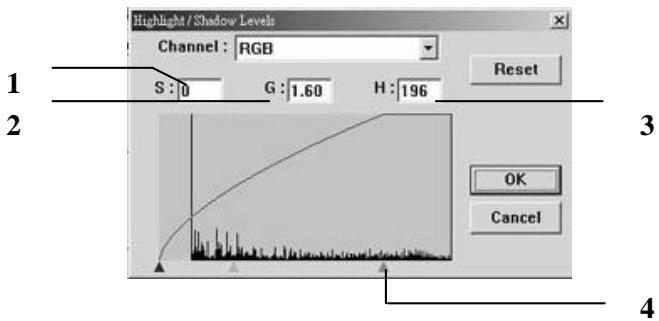
- Shadow: The darkest point of an image.
- Gamma: The midtones of the image.
- Highlight: The lightest point of an image.
- Pointer: Move the pointer to change the value.
When the value of gamma changes, the image changes accordingly.
Gamma Value: 1.0

Gamma Value: 1.4

Gamma Value: 2.0

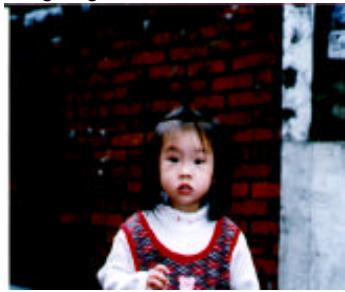
When the value of highlight and shadow change, the image changes accordingly.
Highlight: 255/Shadow: 0(Normal)

Highlight: 210/Shadow: 10

Highlight: 200/Shadow:0
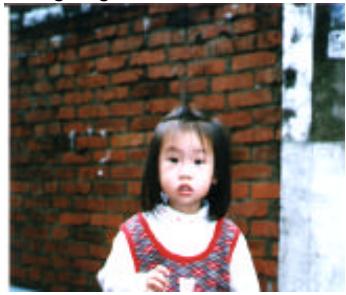
Highlight: 255/Shadow: 50

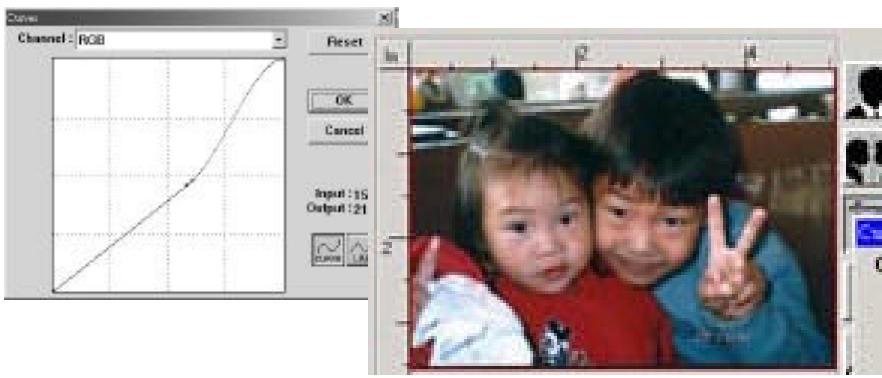
Adjusts the midtones of the image without dramatically altering then lightest and the darkest areas.
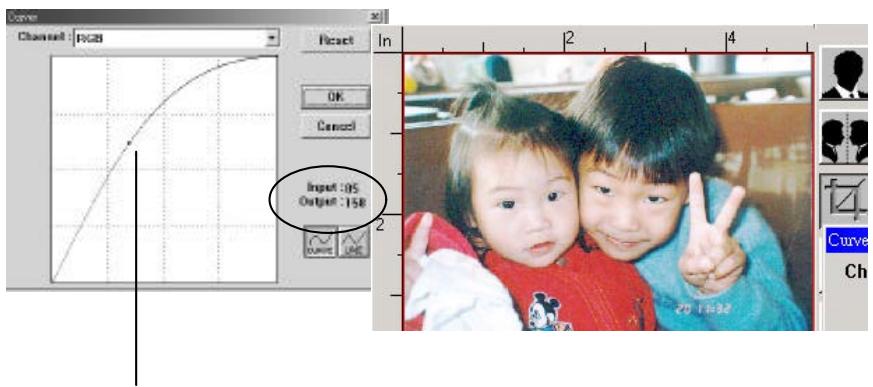
When the curve is moved up or down, the image turn brighter or darker.
4.2.4
CHANGING COLOR HUE/SATURATION/LIGHTNESS

Improve your image by changing the level of hue/saturation/lightness.
(1)
(2)
(3)
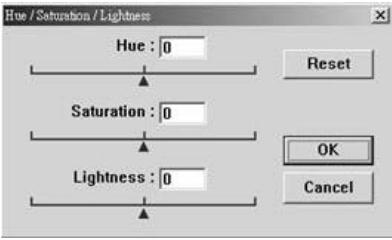
| (1). Hue | Adjust the hue by moving the triangle to the right or left. (Note the level of intensity for the color will be changed simultaneously when the hue adjustment is made). |
| (2). Saturation | Move the triangle to the right to increase the saturation level or to the left to decrease the level. The level of saturation decides if the color is pale or rich. |
| (3). Lightness | Increase the lightness by moving the triangle to the right or to the left to decrease the lightness. |
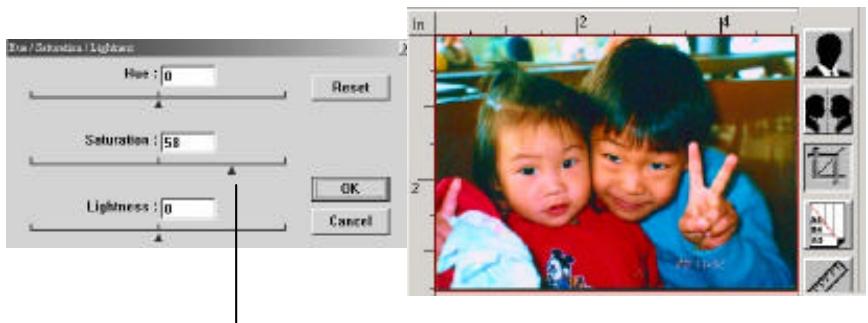
Move the Saturation pointer to the right, the color turns rich.
4.2.5
USING COLOR BALANCE

The Color Balance allows you to obtain an optimal image quality.
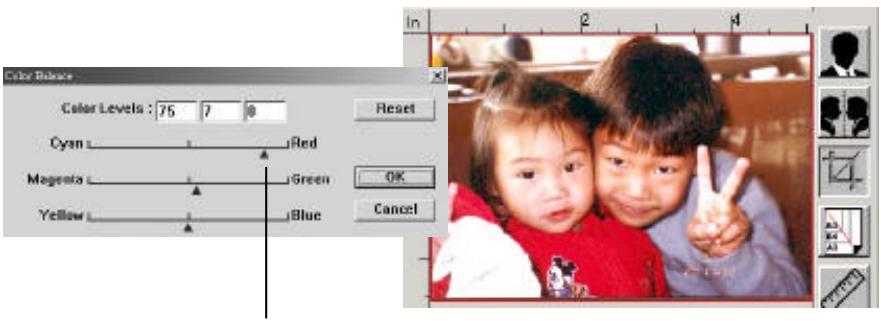
Move the pointer toward Red, the image turns into a reddish hue.
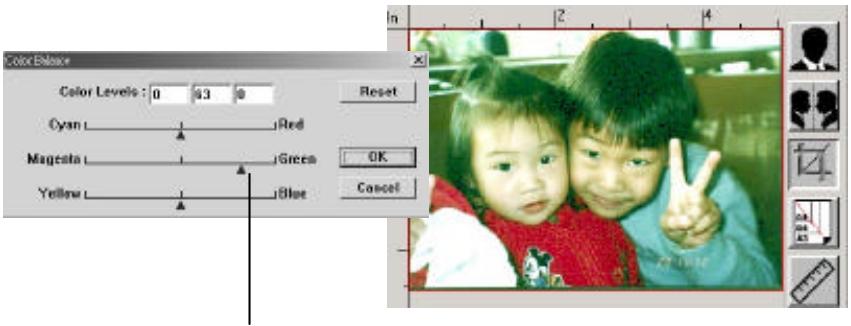
Move the pointer toward Green, the image turns into a greenish hue.
19. Color Drop-out

Click the button and a dialog box in below will be displayed. This dialog allows you to remove one of the R(Red), G(Green), or B(Blue) color channel. This function is particularly useful when you need to convert text using OCR software.
Note that this function supports only black & white and gray image. Therefore, be sure to choose any black & white or gray image type while applying this function.
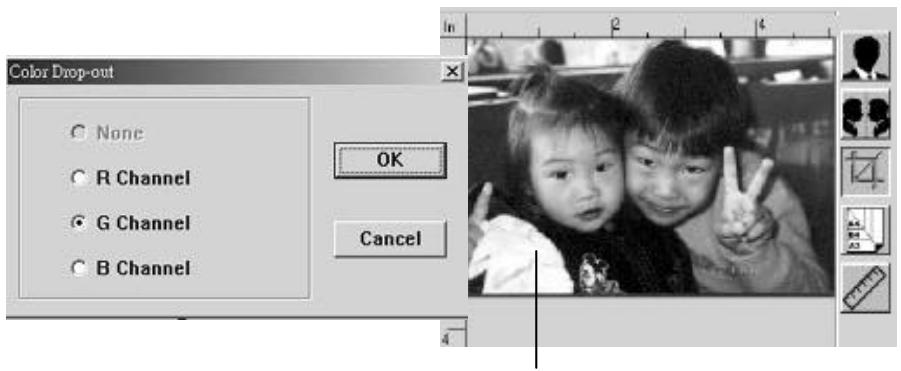
The effect on image after removing the G channel.
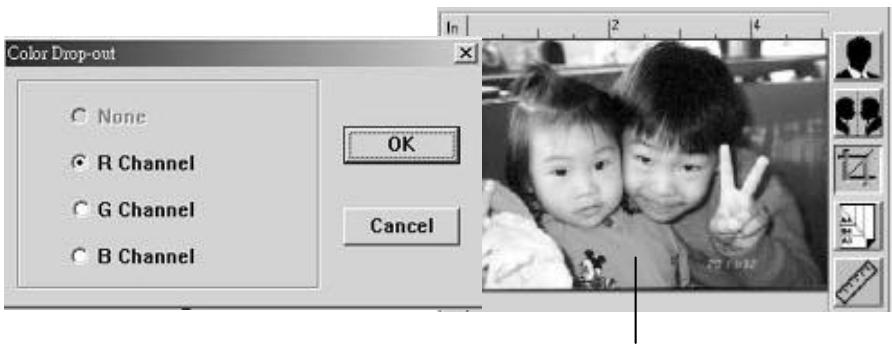
The effect on image after removing the R channel.
4.3 USING OTHER TOOLS
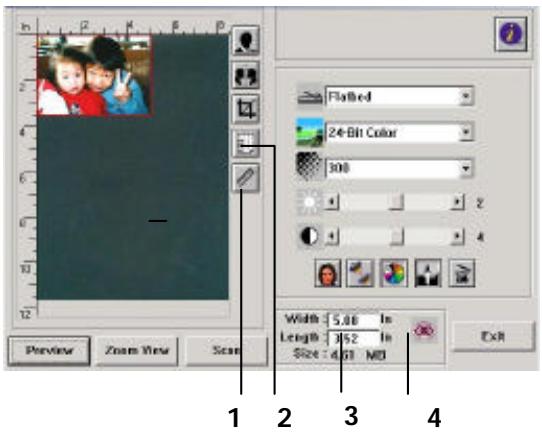
| 1. Measuring Unit | A reminder of the measuring system in use. By clicking the button, you can change the measuring unit. Choice: Inch, cm, Pixel. |
| 2. Paper Size | Provide frequently scan sizes. Choice: Card 4"x2.5", Photo 5"x3", Photo 6"x4", B5, A5, A4, Letter, and Scanner Maximum. |
| 3. Image Size | Display image size for the scanned area. |
| 4. Lock Image | Fix your output width and height. |
Chapter 5 Using the Buttons
The following chapter applies only to PC users.
5.1 CUSTOMIZING YOUR BUTTON SETTINGS
After you have successfully installed the scanner driver on your computer, please first customize your button settings to use the buttons properly.
To Customize your Button Preferences,
- Start your Button program by clicking Start>Programs>Scanner Software>Button Manager. The Button Manager icon appears at the lower-right corner.
Button Manager icon
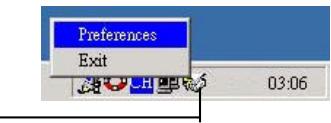
- Click "Preferences" to prompt the Preferences dialog.
OR
- Press either one of the three buttons on the front of the scanner to prompt the Preference dialog.
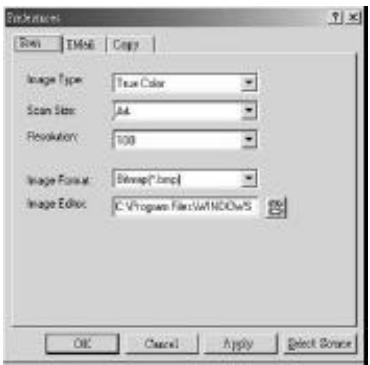
- Please see next page on how to customize your preferences.
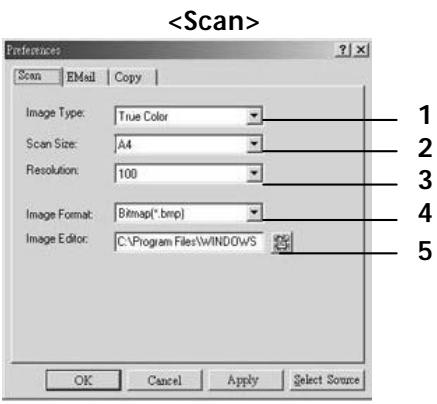
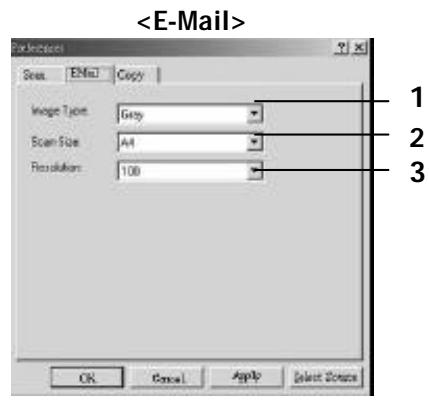
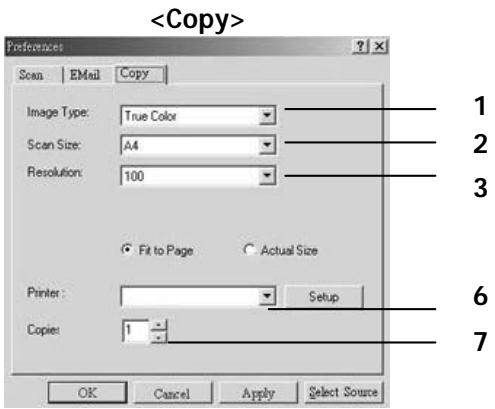
- Image Type: Choose a proper image type. (Default: Scan(True Color, E-Mail(Gray), Copy(True Color))
- Scan Size: Choose your scan size from Letter, A4, or Business Card.
- Resolution: Choose a proper resolution from 100 dpi to 1200 dpi.
- Image Format: Choose from BMP, PCX, TIFF, or JPEG.
- Image Editor: Choose your favorite image editing application.
- Printer: Choose your favorite printer.
- Copies: Choose your copy count.
5.2 USING THE BUTTONS
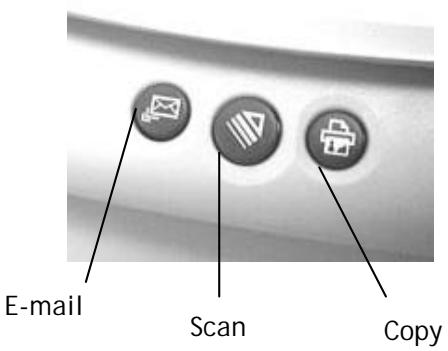
- Press the button you desire.
E-mail:
Scan and load your scanned image to Microsoft Outlook Express to send the image as e-mail attachment.
Scan:
Scan and load your scanned image to your image editing software application.
Copy:
Scan and print your scanned image from your printer.
- The status bar will display to indicate the progress of your task.
Chapter 6 Maintaining Your Scanner
6.1 CLEANING THE GLASS
The Cleaning Procedures
- Moisture a piece of soft cloth with some isopropyl alcohol. (95%)
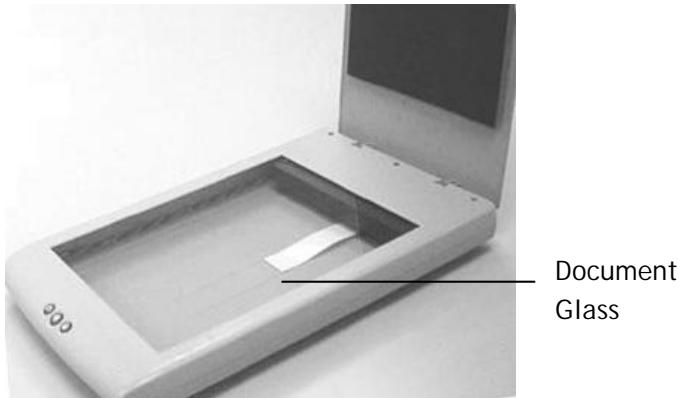
- Open the document cover as shown below.
- Gently wipe the document glass.
- Close the document cover. Your scanner is now ready for use.
6.2 TECHNICAL SUPPORT
www.iVina.com
Appendix
QUICK TIPS
1. Troubleshooting
| Error Code/Status | Solution |
| Error code 177 Scan transparency or negative film without installing the transparency kit. | Install the Transparency Kit (optional) before scanning a transparency or negative film. |
| Scanner continues to generate noise | Unlock your scanner by moving the lock switch at the rear of the scanner to the “Unlock” position. (See page 8) |
| No response after pressing the front buttons | 1. Check if the power cable is connected. 2. Check if the USB cable is connected. 3. Check if the software is installed. (See page 9 and page 11) |
2. The Image Type for TextBridge
When you scan plain text with TextBridge, be sure to choose Line Art as your image type. Any other image type as Gray, Halftone, 256 Color, or True Color you choose will bring up an error message.
3. Reference Tip for Scanner Settings
| Settings Application | Scanner | Image Type | Resolution (dpi) |
| File, Fax, E-mail Your Document | Line Art | 200 | |
| Copy, Edit Your Color Picture | True Color | 100 | |
| OCR Your Document | Line Art | 300 |
Scanner Type
Flatbed
Scanning Source
Cold Fluorescent Lamp
Optical Resolution
1200 dpi * 2400 dpi (H*V)
Max. Resolution
19200 dpi
Scanning Mode
Black & White
Halftone (64-step)
Error Diffusion
8-bit Gray
16-bit Gray
24-bit Color
48-bit Color
Interface
USB
Voltage
24Vdc, 0.84A
Power Consumption
16.5 W
Humidity
20~80% RH
Operating Temperature
10 - 35 degree C
Storing Temperature
-15 ~ 45 degree C
Dimension
274(W) x 447(D) x 61(H) mm
Weight
2.3 Kg
Specifications are subject to change without notice.
INDEX
| Invert · 24 | |
| Auto Level · 26 | Lightness · 30lock switchlock position, unlockposition · 8 |
| Brightness Curve · 29 | |
| Color Adjustment · 26Color Balance · 31Color Drop-out · 32Copy · 36 | Moire pattern · 25 |
| Resolution · 21 | |
| Descreen · 25 | Saturation · 30Scan · 36scanning sourceflatbed, transparency, negative film · 18Sharpen · 25 |
| E-mail · 36 | |
| Hue · 30 | |
| USB cable · 9 | |
| Image TypeBlack & White,Halftone, 8-bit Gray,16-bit Gray, 8-bitColor, 24-bit Color,48-bit Color · 19 | Zoom View · 23 |