GM-M7800S - Souris GIGABYTE - Notice d'utilisation et mode d'emploi gratuit
Retrouvez gratuitement la notice de l'appareil GM-M7800S GIGABYTE au format PDF.


Questions des utilisateurs sur GM-M7800S GIGABYTE
0 question sur cet appareil. Repondez a celles que vous connaissez ou posez la votre.
Poser une nouvelle question sur cet appareil
Téléchargez la notice de votre Souris au format PDF gratuitement ! Retrouvez votre notice GM-M7800S - GIGABYTE et reprennez votre appareil électronique en main. Sur cette page sont publiés tous les documents nécessaires à l'utilisation de votre appareil GM-M7800S de la marque GIGABYTE.
MODE D'EMPLOI GM-M7800S GIGABYTE
GIGABYTE™
ADDICT TO LUXURY
GM-M7800
ELEGANT VOGUE WIRELESS MOUSE
User's Manual
www.gigabyte.com.tw
All intellectual property rights, including without limitation to copyright and trademark of this work and its derivative works are the property of, or are licensed to, GIGA-BYTE TECHNOLOGY CO., LTD. Any unauthorized use is strictly prohibited.
Introduction
Congratulations on your purchase of the most innovative mini wireless mouse. With an incredible sensitivity to surface details and high tracking speed than other mice, the mouse can track reliably even on tricky polished or wood-grain surfaces. It offers even more advance that will make you more productive and more comfortable.
Safety Notice
This product complies with IEC 60025-1. Class I laser product.
The product complies with FCC and CE rules.
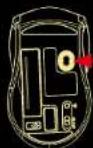


Please DO NOT direct the
laser beam at anyone's eyes.
Features
2.4GHz Wireless laser mouse
• Using state-of-art technology. High tracking speed and sensitivity.
• Up to 10m effective working distance
USB Nano transceiver
- Longer battery life
4 Directional Scrolling
• Auto-Link, Plug and Play! No need to set the channel ID.
800/1600 DPI adjustable button
Battery indicator
Power on/off switch
- Back & Forward buttons
• Stylish and modern shape with comfort grip
Mouse

Wheel button
Dpi button
Low power indicator
Battery cover
Receiver release button
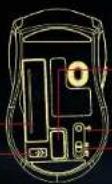
Internet Forward & Backward button

Receiver

A. Hardware Installation
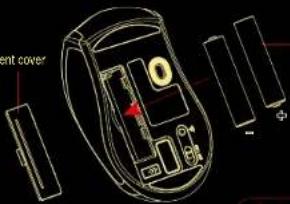
1. Insert the batteries
a. Remove the battery compartment cover on the bottom case of the mouse.
b. Fit in the batteries accordingly to the diagram indicated in the battery cabinet.
c. Close the battery compartment cover properly.
d. Make sure the Power on-off switch on the bottom of the mouse is ON.
e. The Low Power LED on the wheel bar will blink 3 seconds if the mouse power is on.
Battery compartment cover
text_image
ent cover 1 $2' AAA batteries

A wrong battery placement may cause batteries overheal.
① Note
The unit offers a strong power saving management. Once the mouse accesses the sleeping mode, * to click any button of the mouse* is compulsory to wake it up.
Power on/off:
There is a Power on/off switch designed to save the batteries power while non-usage of a longer period.
User can push DPI button to change the resolution. The LED on wheel bar will be flashed when dpi has been successfully swithood.
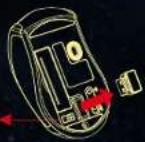
2. Connect the receiver
a. Turn on your PC.
b. Connect the receivere to USB port on PC
Press the receiver release button

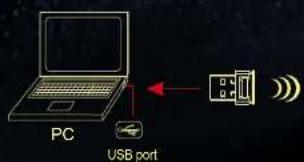
text_image
PC USB port

3. Communication : The mouse & the receiver
The 2.4Ghz RF mouse features a dual-way transmission technology which enables the mouse and the receiver auto-communication.
A. Auto-link mode
- Make sure the Power On-Off Switch on the bottom of the mouse is ON.
- Operate the mouse, and cursor's movement is mapping mouse movement. Now the mouse and the receiver is auto-linked successfully.
B. Manual mode
If you find the communication channel does not connect well, you can use the software connection tool to re-connect the mouse & receiver to reset a new channel ID. You are able to get the software from the included diskette of the package or download from GIGABYTE website.
①
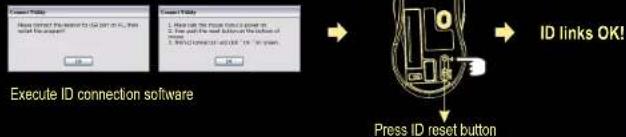
flowchart
graph TD
    A["Execute ID connection software"] --> B["Press ID reset button"]
    B --> C["ID links OK!"]
Note
While the mouse is working, if encountering any interference, the mouse and the receiver will automatically source out and transfer to another free channel. During the transferring, the cursor movement may have a second delay.
4. Replace the new batteries
Please replace a pair of new batteries and follow the previous instructions. (2, 3)
Note
The red LED on the scroll wheel is the low batteries power indicator. It indicates that batteries inside the mouse are needed to be replaced.
5. Operation
4-Way Scrolling:
a. Vertical Scrolling
Roll wheel up to scroll up; roll wheel down to scroll down.
b. Horizontal Scrolling
Hold the wheel to left to scroll left; hold the wheel to right to scroll right. Release wheel to stop scrolling function.

① Note
The 4-Way scrolling function is only effective under successful installation of the original mouse driver. The driver is an optional item included in the package or it can be downloaded from the website of your local brand vendor.
To function the 4-way scrolling in some applications in Window VISTA such as Word, Excel, PowerPoint and etc., the driver should be installed.
B. Driver Installation
The mouse features plug & play. It is not necessary to install the driver to operate the mouse. The driver is an optional item included. However, In order to make the 4-way scrolling function effective, you required to install the software driver.
- Un-install or removing the current mouse driver
Before installing the driver of the mouse, we suggest that you check if any other mouse driver installed in your system. If yes, in order not to make conflict, please un-install or remove that driver before installing the mouse.
- Install the mouse 4-Way Scrolling driver
a.Select setup.exe to install the driver from the CD.
b. or you can download the 4-Way Scrolling driver from vendor's website.
Trouble Shooting
a. Make sure you have connected the receiver correctly to the computer's USB port.
b. For the best performance, we suggest you to locate the receiver with a distance from other electrical devices, such as the computer, the computer monitor or external storage drives.
c. Make sure you have set the communication between the receiver and the mouse. Refer to the Communication: The mouse and the receiver
d. If you find the communication channel does not connect well. You can use the software connection tool to re-connect the mouse & receiver to reset a new channel ID. You are able to get the software from the included diskete of the package or download from your local brand vendor's website.
e. Some system devices might conflict with the mouse. Confirm the IRQ/address settings of these devices for conflicts, and change the settings as required.
1. Make sure that you are not working the mouse on glossy or reflective surfaces.
Battery use reminders
- Remove worn-out batteries from equipment immediately and dispose of promptly.
- Keep all batteries (used or new) out of the reach of children.
- To have the batteries with a regular check and replace new batteries if not used for a long time.
- Never disperse of batteries in fire, as they could explode
- Never dispose of batteries in fire, as they could explode.
- Always replace all the batteries at the same time. Mixing old and new batteries or mining types (such as alkaline with zinc carbon) will reduce overall performance and could cause leakage or rupture.
- Do not mix different types of batteries (e.g. NI MH, NICd, alkaline, and etc) in the mouse.
- Remove batteries from the electrical device if the device is not going to be used for a long time.
- If the performance of the batteries decreases substantially, it is time to replace the batteries.

