MP1211-LTSC - Calculatrice CANON - Notice d'utilisation et mode d'emploi gratuit
Retrouvez gratuitement la notice de l'appareil MP1211-LTSC CANON au format PDF.


Questions des utilisateurs sur MP1211-LTSC CANON
0 question sur cet appareil. Repondez a celles que vous connaissez ou posez la votre.
Poser une nouvelle question sur cet appareil
Téléchargez la notice de votre Calculatrice au format PDF gratuitement ! Retrouvez votre notice MP1211-LTSC - CANON et reprennez votre appareil électronique en main. Sur cette page sont publiés tous les documents nécessaires à l'utilisation de votre appareil MP1211-LTSC de la marque CANON.
MODE D'EMPLOI MP1211-LTSC CANON
Contents
Before Starting P.1
General Maintenance P.1
Decimal Point Selector Switch P.2
Rounding Switch P.2
Item Count Switch P.2
Grand Total / Tax Rate Set Switch.... P.3
Print Switch P.3
Important Functions to Remember P.3
Business Sales Calculation Function P.4
Currency Conversion Function P.4
Tax Calculation Function P.5
Cash Change Function....P.5
Overflow P.5
Specifications P.5
Replacing the Ink Ribbon P.6
Inserting Printing Paper P.6
Backup Battery P.7
Calculation Example P.40-46
Before Starting
1) Remove the insulation tape at the back of calculator and press [RESET] key before use. (Figure a)
2) Turns power on. (Figure b)

natural_image
Simple line drawing of a device with a label 'a' and directional arrows, no readable text or symbols present.
text_image
ON bGeneral Maintenance
■ Do not use or leave the calculator under direct sunlight. Areas subject to rapid temperature changes, high humidity, dust and dirt should also be avoided.
■ Use a dry cloth to clean the casing of the unit. Do not use water or detergents.
■ Activate the printer only when the paper roll is loaded.
- Avoid using the calculator in places where there are iron filings, as this may affect the electrical circuits of the calculator.
■ Do not place anything on top of the machine, particularly on top of the printer mechanism.
■ Turn the calculator off before removing the plug from the electrical outlet.
Pull the main plug to the wall socket if you want to switch off the main power or in case of electrical fault (i.e. smoke), disconnect the plug from the electrical socket-outlet immediately.
■ The AC outlet must be located near the equipment and easily accessible.
■ Under the environment with electrostatic discharge, the sample may malfunction and require user to reset the sample.
Decimal Point Selector Switch

text_image
DECIMAL + 0 2 3 4 6 F DECIMAL + 0 2 3 4 6 F DECIMAL + 0 2 3 4 6 F: Used for designating the decimal point position (0 2 3 4 6) for calculated results.
+ (Add-Mode) : Addition and subtraction functions are performed with an automatic 2-digit decimal. It is convenient for currency calculations.
F (Floating Decimal Point) : All effective numbers up to 12 digits (MP1211-LTSC) or 14 digits (MP1411-LTSC) are printed or displayed.
Rounding Switch
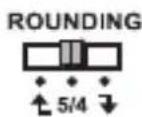
: Used for round-up [↑], round-off [5/4], or round-down [↓] to the pre-selected decimal digits in the result.
Item Count Switch
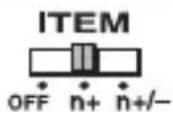
: At "n+" or "n+/-" position, the calculator count and print the number of calculation items up to 999.
When the "ITEM" switch is set at "n+", the calculator counts the number of times the + and - keys are pressed.
When the switch is set at "n+/-, the calculator counts the number of times the + key is pressed and subtracts from the total numbers of times the - key is pressed.
< MEMORY ITEM COUNT >
When the "ITEM" switch is set at "n+", the calculator counts number of times M± and M≡ keys are pressed.
When the switch is set at "n+/-, the calculator counts the number of times the M± key is pressed and subtracts from the total number of times the M= key is pressed.
< PRINTOUT OF ITEM COUNT >
When the PRINT switch is turned "ON", and the "ITEM" switch is at the "n+" or "n+/−" position, the number of items recorded by the counter can print up to three digits on the left-hand side of the paper by pressing either the 🔊 key or the ✗ key for item count and M* key or M○ key for memory item count.
Grand Total / Tax Rate Set Switch
GRAND TOTAL
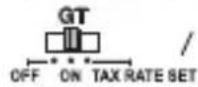

When the calculations are performed with the GT switch set to "ON", the totals are accumulated in the grand total memory. Each time × is pressed, the subtotal number is printed with the symbols GT/ T. When is pressed, the intermediate grand total is printed with the symbols G / . Press successively to get the grand total followed by the symbols G / .
TAX RATE SET

: Set switch to "TAX RATE SET" for setting or recalling the TAX rate.
Print Switch
PRINT OFF

: Entries and results will appear on the display, but will not be printed out.
PRINT ON

: Entries and results will appear on the display and will be printed out.
Important Functions to Remember

Memory Plus Equal Key: Used for obtaining a calculation result and adding the result automatically to the memory. This key is also used for adding number to the memory.

Memory Minus Equal Key: Used for obtaining a calculation result and subtracting the result automatically from the memory. This key is also used for subtracting a number from the memory.

Memory Subtotal Key: Used for obtaining intermediate result of the memory calculation. This key will not clear memory contents.

Memory Total and Memory Clear Key: Used for obtaining total of memory contents. This key will clear memory contents at the same time.

Clear Entry and Clear Key: Press once to clear last entered value. Press again to clear all entered values except memory. This key is also used for clearing the overflow error.

Equal Key: Used for obtaining multiplication and division results.

Non-Add / Subtotal Key: Used for printing out information which does not affect the calculation such as dates and serial numbers. Figure are printed on the left-hand side of the paper. It is also used for obtaining intermediate results.

Total Key: Used for obtaining addition and subtraction results.
Business Sales Calculation Function
COST SELL MARGIN
Used for calculating the cost, selling price and profit margin amount. Enter the value of any 2 items to obtain the balance value item. (e.g. enter the value of the cost and the selling price to obtain the profit margin %.)
Currency Conversion Function


: Press


:Press


:Press



to the


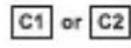
: Press


*1 Specifying the Number of Decimal Places for Intermediate Local Currency Amounts. When you convert from one national currency to another, the calculator internally converts the original currency to Local Currency. This conversion result is the "intermediate Local Currency amount". Next, the intermediate Local Currency amount is converted to the target currency. The flow of the steps of the conversions will be shown on the printout. For such a calculation, you should use the following procedure to specify the number of decimal places for the intermediate Local Currency amount. You can specify from 0 (*2) to 9 decimal places, for a floating decimal point (F). The intermediate Local Currency amount is rounded off to the number of decimal places you specify.
*2 0 is displayed when F (floating point) is set for the number of decimal places. F is the initial default setting.
- For rates of 1 or greater, you can input up to six digits. For rates less than 1 you can input up to 8 digits, including 0 for the integer digit and leading zeros (though only six significant digits, counted from the left and starting with the first non-zero digit, can be specified).
Tax Calculation Function

Add Tax Key : Used for adding the tax amount to the displayed figure.

Deduct Tax Key : Used for deducting the tax amount from the displayed figure.
Cash Change Function

: Used for calculating the change amount, it perform accurate and fast change calculation.
Overflow
In the following cases, "E" is displayed, • ERR • is printed, the keyboard is electronically locked, and further operation is impossible. Press to clear the overflow. The overflow function occurs when:
- The result or the memory content exceeds 12 digits (MP1211-LTSC) or 14 digits (MP1411-LTSC) to the left of the decimal point.
- Dividing by "0".
- The sequential operation speed is faster than the calculation processing speed. (Buffer Register Overflow)
■ Electromagnetic interference or electrostatic discharge may cause the display to malfunction or the memory currency rate and tax rate to be lost or altered.
Should this occur, use the tip of a ballpoint pen (or similar sharp object) to press the [RESET] button on the back of the calculator. After resetting be sure to set the currency rate and tax rate again.

text_image
Hand-drawn sketch of a hand holding a pen, with a small circular mark labeled '###' at the bottom right.Specifications
Power source: AC220V - 240V 50/60Hz
Operation Temperature: 0°C to 40°C (32°F to 104°F)
Calculating Capacity: 12 digits maximum (MP1211-LTSC) /
14 digits maximum (MP1411-LTSC)
Dimension: 334mm (W) x 219mm (L) x 74.5mm (H) /
13-5/32" (W) × 8-5/8" (L) × 2-15/16" (H)
Weight: 1.6 kg (3.53 lb)
(Subject to change without notice)
Replacing The Ink Ribbon
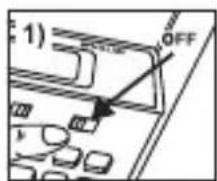
Note: Turn the power switch off. (Figure 1)
1) Lift up the tab on the back-side of the printer cover, and then remove the cover. (Figure 2)
2) While pinching together the ribbon lock (A) in the direction of arrow, lift ribbon spools off the shafts. Discard the old ribbon and spools. (Figure 3)
3) Separate the spools of new ribbon between the tape and printer head. Guide it around the four positions of the ribbon guide (B) and place the spools on the shafts. (Figure 4)
4) When the ribbon spools have settled, release the ribbon locks. If necessary, rotate the spools until the pegs on the bottom of the spool seat themselves in the holes of the spool holder. (Figure 5)
5) Rotate either spool to take up any ribbon slack, making sure that the ribbon is positioned around the four ribbon guides. Replace the printer cover. (Figure 6)
IMPORTANT: Use only the same type of ribbon spools.
text_image
1) OFF
natural_image
Illustration of a person climbing a ladder with an arrow indicating motion (no text or symbols)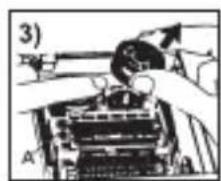
natural_image
Illustration of a hand operating a mechanical device with a tool, no visible text or symbols
natural_image
Close-up of hands operating a mechanical device with a circular component and a tool (no visible text or symbols)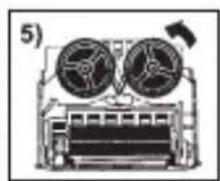
natural_image
Technical line drawing of a mechanical device with two circular components and a central base (no text or symbols)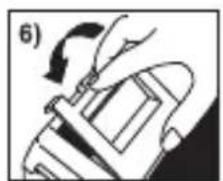
natural_image
Diagram of a mechanical device with a hand operating a lever, showing motion direction (no text or symbols)Inserting Printing Paper
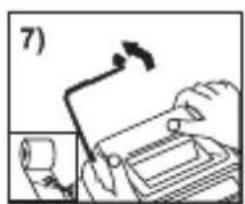
1) Lift up the paper arm (Figure 7).
- When inserting the paper, cut the edge of the paper as shown.
2) Place the new paper roll on the arm. The edge of the paper should be positioned as shown (Figure 8).
3) Insert the paper into the slit located at the top of the machine as indicated (Figure 9).
4) Turn the power switch on. Press the paper feed key to advance the paper (Figure 10).
- Suitable paper roll – Width: 57mm (2-1/4") /
Diameter: max. 86mm (3-3/8")
- Paper: standard paper 45kg / 1000 sheets / 788 x 1091mm / (99.2lb / 1000 sheets / 31" x 43")
natural_image
Illustration of a hand operating a device with a scroll wheel (no text or symbols visible)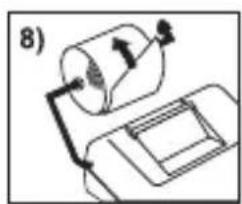
natural_image
Simple line drawing of a cylindrical object with an attached rod and a rectangular base, no text or symbols present.
natural_image
Mechanical assembly diagram showing a rotating component with a curved arrow indicating motion (no text or symbols)
text_image
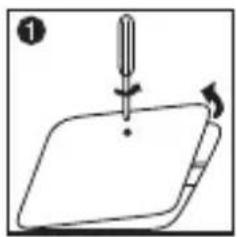
10)Backup Battery
Memory backup battery retains the currency rate and tax rate, even if the power is off or the AC cord is disconnected.
Battery : 1 Lithium battery (Type : CR2032)
Battery life : Backup time 2000 hours
CAUTION: Risk of explosion if battery is replaced by an incorrect type dispose of used batteries according to the instruction.
Dispose of batteries according to local regulations. Do not dispose as household waste.
natural_image
Simple line drawing of a hand holding a pen or stylus above a flat surface, with no text or symbols present.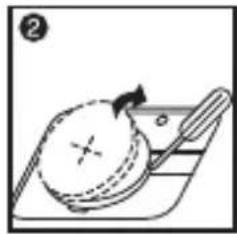
natural_image
Simple line drawing of a banana being cut with a knife (no text or symbols)
natural_image
Simple line drawing of a mechanical component with a circular cross and base, no text or symbols present.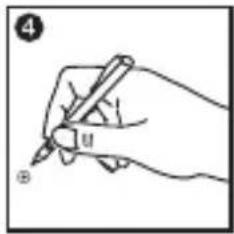
text_image
④ UAfter replace the back-up battery, press the [RESET] button, after resetting be sure to set the currency rate and tax rate again.
European Union (and EEA) only.
These symbols indicate that this product is not to be disposed of with your household waste, according to the WEEE Directive (2002/96/EC), the Battery Directive (2006/66/EC) and/or your national laws implementing those Directives.
This product should be handed over to a designated collection point, e.g., on an authorized one-for-one basis when you buy a new similar product or to an authorized collection site for recycling waste electrical and electronic equipment (EEE) and batteries and accumulators. Improper handling of this type of waste could have a possible impact on the environment and human health due to potentially hazardous substances that are generally associated with EEE.
Your cooperation in the correct disposal of this product will contribute to the effective usage of natural resources.
For more information about the recycling of this product, please contact your local city
office, waste authority, approved scheme or your household
waste disposal service or visit
www.canon-europe.com/environment.
(EEA: Norway, Iceland and Liechtenstein)

EUROPE ONLY