
SATELLITE 1900 - Ordinateur portable TOSHIBA - Notice d'utilisation et mode d'emploi gratuit
Retrouvez gratuitement la notice de l'appareil SATELLITE 1900 TOSHIBA au format PDF.


| Intitulé | Description |
|---|---|
| Type de produit | Ordinateur portable |
| Processeur | Intel Pentium 4 |
| RAM | 512 Mo (extensible) |
| Disque dur | 30 Go |
| Écran | 15 pouces, résolution 1024 x 768 |
| Carte graphique | ATI Mobility Radeon 7500 |
| Système d'exploitation | Windows XP |
| Alimentation électrique | Adaptateur secteur 15V |
| Dimensions approximatives | 32.5 x 27 x 3.5 cm |
| Poids | 2.9 kg |
| Connectivité | USB 2.0, Ethernet, Modem, VGA |
| Type de batterie | Batterie lithium-ion |
| Autonomie de la batterie | Environ 2 heures |
| Fonctions principales | Navigation Internet, bureautique, multimédia |
| Entretien et nettoyage | Utiliser un chiffon doux, éviter les produits chimiques agressifs |
| Pièces détachées et réparabilité | Réparabilité moyenne, pièces disponibles sur le marché |
| Sécurité | Antivirus recommandé, mise à jour régulière du système |
| Informations générales | Produit obsolète, vérifier la compatibilité avec les logiciels modernes |
FOIRE AUX QUESTIONS - SATELLITE 1900 TOSHIBA
Questions des utilisateurs sur SATELLITE 1900 TOSHIBA
0 question sur cet appareil. Repondez a celles que vous connaissez ou posez la votre.
Poser une nouvelle question sur cet appareil
Téléchargez la notice de votre Ordinateur portable au format PDF gratuitement ! Retrouvez votre notice SATELLITE 1900 - TOSHIBA et reprennez votre appareil électronique en main. Sur cette page sont publiés tous les documents nécessaires à l'utilisation de votre appareil SATELLITE 1900 de la marque TOSHIBA.
MODE D'EMPLOI SATELLITE 1900 TOSHIBA
User's Manual
1900
ATELLITE1900 SATELLITE1900 SATELLITE1900
Choose freedom.
TOSHIBA
Copyright
© 2002 by TOSHIBA Corporation. All rights reserved. Under the copyright laws, this manual cannot be reproduced in any form without the prior written permission of TOSHIBA. No patent liability is assumed, with respect to the use of the information contained herein.
Satellite 1900 Portable Personal Computer User's Manual
First edition January 2002
Disclaimer
This manual has been validated and reviewed for accuracy. The instructions and descriptions it contains are accurate for the Satellite 1900 Portable Personal Computer at the time of this manual's production. However, succeeding computers and manuals are subject to change without notice. TOSHIBA assumes no liability for damages incurred directly or indirectly from errors, omissions or discrepancies between the computer and the manual.
Trademarks
Intel and Pentium are registered trademarks and SpeedStep is a trademark of Intel Corporation.
Windows and Microsoft are registered trademarks of Microsoft Corporation.
Photo CD is a trademark of Eastman Kodak.
Centronics is a registered trademark of Centronics Data Computer Corporation.
Bluetooth is a trademark owned by its proprietor and used by TOSHIBA under licence.
i.LINK is a trademark of Sony Corporation.
Other trademarks and registered trademarks not listed above may be used in this manual.
EU Declaration of Conformity

This product is carrying the CE-Mark in accordance with the related European Directives. Responsible for CE-Marking is TOSHIBA Europe GmbH, Hammfelddamm 8, 41460 Neuss, Germany.
General Precautions
Toshiba computers are designed to optimise safety, minimize strain and withstand the rigors of portability. However, certain precautions should be observed to further reduce the risk of personal injury or damage to the computer. Be certain to read the general precautions below and to note the cautions included in the text of the manual. Please also refer to the Safety Instruction Manual.
Stress injury
Carefully read the Safety Instruction Manual. It contains information on prevention of stress injuries to your hands and wrists that can be caused by extensive keyboard use. The User's Manual includes information on workspace design, posture and lighting that can help reduce physical stress.
Heat warning
The base of the computer can become very warm; while the temperature will not be too hot to the touch, prolonged physical contact may result in a temporary heat imprint on the skin. It is recommended that prolonged physical contact be avoided. Also, if the computer has been used for a long time, avoid direct contact with the metal plate supporting the I/O ports. It can become hot.
Mobile phones
Use of mobile phones can interfere with the audio system. Computer operation is not impaired but it is recommended that a distance of 30cm be maintained between the computer and a mobile phone in use.
Pressure or impact damage
Do not apply heavy pressure to the computer or subject it to strong impact. Excessive pressure or impact can cause damage to computer components or otherwise cause malfunctions.
PC Card overheating
Some PC Cards can become hot with prolonged use. If two cards are installed, both can become hot even if only one is used extensively. Overheating of a PC card can result in errors or instability in PC Card operation. Also, be careful when you remove a PC card that has been used for a long time.
Working environment
This product was designed to fulfil the EMC (electromagnetic compatibility) requirement to be observed for so-called “Residential, commercial and light industry environments”.
Toshiba do not approve the use of this product in working environments other than the above-mentioned “Residential, commercial and light industry environments”.
For example, the following environments are not approved:
Industrial Environments (environments with a mains voltage >230V\~)
■ Medical Environments
■ Automotive Environments
Aircraft Environments

If this product is supplied with a network port, please refer to the paragraph «Network connection».
Any consequences resulting from the use of this product in working environments that are not approved are not the responsibility of Toshiba Europe GmbH.
The consequences of the use of this product in non-approved working environments may be:
- Interference with other devices or machines in the nearby surrounding area
Malfunction of, or data loss from, this product caused by disturbances generated by other devices or machines in the nearby surrounding area
Therefore Toshiba strongly recommend that the electromagnetic compatibility of this product be suitably tested in all non-approved working environments before use. In the case of automobiles or aircraft, the manufacturer or airline respectively should be asked for permission before use of this product.
Furthermore, for general safety reasons, the use of this product in environments with explosive atmospheres is not permitted.
Network connection (class A warning)
If this product has networking capabilities and will be connected to a network, Class A radiation limits will be observed (in accordance with technical conventions). This means that if the product will be used in a domestic environment, other devices in the near surrounding may suffer interference. Consequently, please do not use this product in such environments (for example a living room), otherwise you could be held responsible for any ensuing interference.
CE compliance
This product and the original options are designed to observe the related EMC (Electromagnetic compatibility) and safety standards. However, Toshiba cannot guarantee that this product still observes these EMC standards if options or cables not produced by Toshiba are connected or implemented. In this case the persons who have connected / implemented those options / cables have to make sure that the system (PC plus options / cables) still fulfils the required standards. To avoid in general EMC problems, the following advice should be observed:
■ Only CE marked options should be connected / implemented
- Only best shielded cables should be connected
Conformity Statement
The equipment has been approved to [Commission Decision CTR21] for pan-European single terminal connection to the Public Switched Telephone Network (PSTN).
However, due to differences between the individual PSTNs provided in different countries, the approval does not of itself give an unconditional assurance of successful operation on every PSTN network termination point.
In the event of problems, you should contact your equipment supplier.
CD-RW/DVD-ROM Drive Safety Instruction
The CD-RW/DVD-ROM drive employs a laser system. To ensure proper use of this product, please read this instruction manual carefully and retain for future reference. Should the unit ever require maintenance, contact an authorized service location.
Use of controls, adjustments or the performance of procedures other than those specified may result in hazardous radiation exposure.
To prevent direct exposure to the laser beam, do not try to open the enclosure.
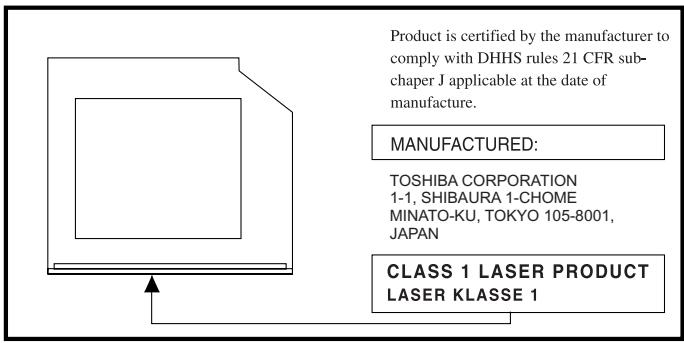
Location of the required label
(Sample shown below. Location of the label on the drive and manufacturing information may vary.)
text_image
Product is certified by the manufacturer to comply with DHHS rules 21 CFR sub-chaper J applicable at the date of manufacture. MANUFACTURED: TOSHIBA CORPORATION 1-1, SHIBAURA 1-CHOME MINATO-KU, TOKYO 105-8001, JAPAN CLASS 1 LASER PRODUCT LASER KLASSE 1
This appliance contains a laser system and is classified as a “CLASS 1 LASER PRODUCT”. To use this model properly, read the instruction manual carefully and keep it for your future reference. In case of any trouble with this model, please contact your nearest “AUTHORIZED service station”. To prevent direct exposure to the laser beam, do not try to open the enclosure. Use of controls or adjustments or performance of procedures other than those specified in the owner’s manual may result in hazardous radiation exposure.
Copyright
This manual is copyrighted by Toshiba Corporation with all rights reserved. Under the copyright laws, this manual cannot be reproduced in any form without the prior written permission of Toshiba. No patent liability is assumed, however, with respect to the use of the information contained herein.
© 2002 by Toshiba Corporation. All rights reserved.
Notice
The information contained in this manual, including but not limited to any product specifications, is subject to change without notice.
TOSHIBA CORPORATION (TOSHIBA) PROVIDES NO WARRANTY WITH REGARD TO THIS MANUAL OR ANY INFORMATION CONTAINED HEREIN AND HEREBY EXPRESSLY DISCLAIMS ANY IMPLIED WARRANTIES OR MERCHANTABILITY OR FITNESS FOR ANY PARTICULAR PURPOSE. WITH REGARD TO ANY OF THE FOREGOING TOSHIBA ASSUMES NO LIABILITY FOR ANY DAMAGES INCURRED DIRECTLY OR INDIRECTLY FROM ANY TECHNICAL OR TYPOGRAPHICAL ERRORS OR OMISSIONS CONTAINED HEREIN OR FOR DISCREPANCIES BETWEEN THE PRODUCT AND THE MANUAL. IN NO EVENT SHALL TOSHIBA BE LIABLE FOR ANY INCIDENTAL, CONSEQUENTIAL SPECIAL, OR EXEMPLARY DAMAGES, WHETHER BASED ON TORT, CONTRACT OR OTHERWISE, ARISING OUT OF OR IN CONNECTION WITH THIS MANUAL OR ANY OTHER INFORMATION CONTAINED HEREIN OR THE USE THEREOF.
Trademarks
Intel and Pentium 4 are registered trademarks of Intel Corporation.
Microsoft Windows, NetMeeting, Outlook and Media Player are registered trademarks of Microsoft corporation.
All other brand and product names are trademarks or registered trademarks of their respective companies.
Table of Contents
Introduction
This manual....xii
Safety icons ...... xiii
Chapter 1: Finding Your Way Around
Making Sure You Have Everything....1-1
Front With The Display Closed....1-1
CD/Digital control buttons 1-2
System status indicators 1-3
Left Side 1-4
Right Side....1-5
Rear Side....1-5
Under Side 1-7
Front With The Display Open....1-8
Chapter 2: Getting Started
Selecting A Place To Work....2-1
Creating a computer-friendly environment 2-1
Keeping yourself comfortable....2-2
Computer placement....2-2
Seating and posture 2-2
Lighting....2-3
Arms and wrists....2-3
Work habits....2-3
Other precautions....2-4
Setting Up Your Computer....2-4
Connecting the AC adapter....2-5
Charging the battery 2-6
Connecting A Printer....2-7
Connecting A Mouse....2-8
Using a USB pointing device....2-8
Using The Computer For The First Time....2-9
Turning on the computer 2-9
Using the Touch pad....2-10
Adjusting brightness....2-11
Hot keys 2-11
Sticky Keys....2-12
Chapter 3: Learning The Basics
Precautions....3-1
Computing Tips 3-2
Using The Keyboard....3-2
Character keys....3-2
Ctrl, Fn, and Alt keys 3-3
Function keys ....3-3
Windows special keys 3-3
Overlay keys....3-4
Using the overlay to type numeric data....3-4
Using the cursor control overlay....3-4
Backing Up Your Files....3-5
Using Compact Discs and DVDs....3-6
Opening the disc tray with the computer off ....3-7
Caring for compact discs and DVDs 3-7
Using PC Cards 3-8
Inserting PC Cards 3-8
Removing PC Cards 3-9
Hot swapping 3-10
Hot swapping precautions....3-10
Using Your Computer As A Desktop Computer....3-10
Using a computer lock....3-10
Setting Up Communications ....3-11
Connecting the modem to a telephone line....3-11
Connecting your computer to a network....3-12
Turning Off The Computer 3-13
Caring For Your Computer ....3-13
Cleaning the computer 3-13
Moving the computer ....3-14
Restoring the preinstalled software ....3-14
Restoring the complete system....3-14
Restoring TOSHIBA utilities and drivers....3-14
Chapter 4: Mobile Computing
Toshiba's Energy-Saving Design....4-1
Managing Power Usage....4-1
Running the computer on battery power....4-2
Using additional battery packs....4-2
Maximizing battery life....4-2
Charging Batteries 4-3
Charging the battery 4-3
Charging the RTC battery....4-3
Monitoring Battery Power 4-4
Determining remaining battery power....4-4
Conserving Battery Power 4-5
What to do when the battery runs low....4-5
Battery Alarms 4-6
Changing The Battery 4-7
Removing the battery 4-7
Inserting a battery....4-8
Traveling Tips....4-8
Chapter 5: Using Advanced Features
Playing DVDs 5-1
Using a CD-RW Drive 5-1
Playing CDs, DVDs And MP3s With The Computer On Or Off......5-2
CD Mode 5-2
Digital Mode 5-2
Using The TOSHIBA Power Management Utility 5-3
Chapter 6: Expanding & Upgrading
Using External Peripherals....6-1
Connecting a USB Keyboard....6-1
Connecting an External USB Pointing Device 6-2
Connecting a television 6-2
Connecting a television and monitor at the same time 6-2
Upgrading System Memory......6-3
Installing a memory upgrade....6-3
Chapter 7: If Something Goes Wrong
Problems That Are Easy To Fix....7-1
Problems When You Turn On The Computer 7-2
Fixing Device-Related Problems....7-3
Power Problems 7-3
Keyboard Problems....7-5
Display Problems....7-6
Disk Drive Problems....7-7
CD-RW/DVD-ROM Drive Problems....7-9
Sound System Problems 7-9
PC Card Problems....7-10
Resolving PC Card Problems 7-10
Printer Problems....7-12
Modem Problems 7-13
Develop Good Computing Habits 7-14
If You Need Further Assistance....7-15
Before you call....7-15
Contacting Toshiba....7-15
Appendix A: Hot Keys
Appendix B: Features And Specifications
Appendix C: AC Power Cord and Connectors
Appendix D: Display modes
Appendix E: The Toshiba International Warranty
Appendix F: If your computer is stolen
Appendix G: Keyboard Layouts
Index
Introduction
Welcome to the world of portable computing. With your new Toshiba Satellite computer, your work can accompany you wherever you go.
Your Satellite1900 computer provides fast and easy Internet access. Microsoft® Windows® XP Home Edition is already installed on your computer. It offers exciting new features and easy Internet access.
This manual
This manual introduces the computer's features. You can:
- Read the entire manual from beginning to end.
■ Skim through and stop when a topic interests you.
■ Use the table of contents to find specific information.
If you are new to computers, or have not used a notebook computer before, read through the first couple of chapters to familiarize yourself with the parts of the computer and how to turn it on. After that, seek out whatever interests you most.
Your computer comes with the following documentation:
This User's manual with information on how the computer works
Satellite 1900 QuickStart
■ Safety Instruction manual
Windows® XP manual
Warranty information
Safety icons
This manual contains safety instructions that must be observed in order to avoid potential hazards that could result in personal injuries, damage to your equipment, or loss of data. The safety cautions have been classified according to the seriousness of the risk and the following icons highlight these instructions as follows:

DANGER: This icon indicates the existence of a hazard that could result in death or serious bodily injury if the safety instruction is not observed.

WARNING: This icon indicates the existence of a hazard that could result in bodily injury if the safety instruction is not observed.

CAUTION: This icon indicates the existence of a hazard that could result in damage to equipment or property if the safety instruction is not observed.

NOTE: This icon indicates information that relates to the safe operation of the equipment or related items.
Your will also come across the following two icons as you use this manual:

HINT: This icon signals a tip on using your computer.

TECHNICAL NOTE: This icon signals useful information about how your computer works and tips on, for instance, installing software and devices.

DEFINITION: This icon indicates the definition of a term used in the text.
Finding Your Way Around
This chapter presents a grand tour of your Satellite computer which serves as a reference when you need to locate specific parts of the computer. You will find more detailed information on using these parts in later chapters.
Making Sure You Have Everything
Before doing anything else make sure you received everything. If any items are missing or damaged, notify your dealer immediately.
Front With The Display Closed
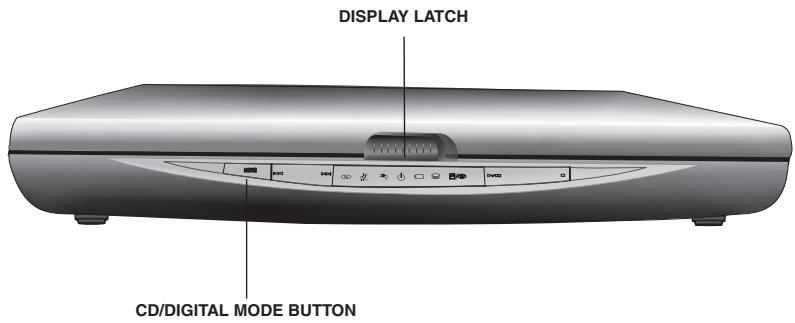
The Display Latch keeps the display panel closed and locked. To open the computer, slide the display latch to the right and then lift the display panel.
text_image
DISPLAY LATCH CD/DIGITAL MODE BUTTONThe CD/Digital Mode button allows you to select and play music from audio CDs or digital files using the CD/Digital control buttons even when the computer is turned off.
CD/Digital control buttons
text_image
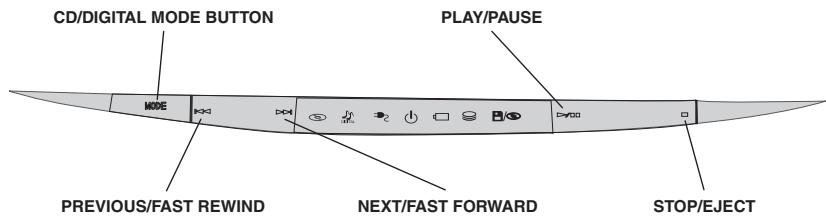
CD/DIGITAL MODE BUTTON PLAY/PAUSE MODE PREVIOUS/FAST REWIND NEXT/FAST FORWARD STOP/EJECT
The CD/Digital Mode button sets which audio playback mode to use, either audio CD or MP3.

Whether your computer is turned on or off, the CD/Digital control buttons are locked by default. To unlock them, press the CD/Digital mode button for more than 3 seconds. Press the CD/Digital mode button again for over 3 seconds to lock them again. When the CD/Digital mode is unlocked, press the CD/Digital Mode briefly to switch between CD and Digital mode. The system status indicator LEDs will tell you which mode you are in.
The other CD/Digital Control buttons function like an audio CD player's controls and have the following functions:
▶▶▶ Next/Fast Forward Skips to the following track on the disc. If a track is playing, it “fast forwards” through the track while the button is pressed.
Previous/Fast Rewind Returns to the preceding track. If a track is playing, it “fast rewinds” through the track while the button is pressed.
■ Stop/Eject Stops a track that is currently playing and ejects a stopped disc.
▶/■ Play/Pause Starts playing the disc or the selected digital track, or pauses the track that is currently playing.

Full instructions on playing CDs, DVDs and digital music files with your computer on or off are given in chapter 5.
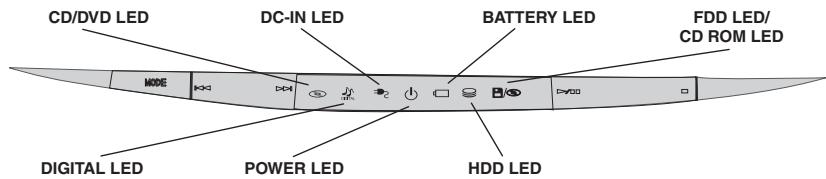
System status indicators
text_image
CD/DVD LED DC-IN LED BATTERY LED FDD LED/ CD ROM LED MODE DIGITAL LED POWER LED HDD LED
The CD/DVD LED lights when the computer is in CD Mode.

The Digital LED lights when the computer is in Digital Mode.

The DC-IN LED lights when the computer is connected to the AC adapter and it is plugged into an AC power source.

The Power LED lights green when the computer is on or while playing audio CD tracks with the system turned off. It flashes amber while the system is in Standby or Suspend mode. The LED turns off when the computer is turned off or in hibernation mode.

The Battery LED indicates the battery's current charge status. It lights green when the battery is fully charged. It lights amber while the battery is being charged from the AC adapter. It flashes amber when the battery capacity is below 10 percent. It flashes amber faster when the battery capacity reaches 5 percent.

The HDD LED flashes green when the system is accessing the hard disk drive.

Never turn off the computer while any of the drives are in use. It may cause data loss and possibly damage the drive.
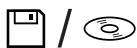
The FDD/CD ROM LED flashes green when the system is accessing the floppy disk drive or CD disc drive.
Left Side
text_image
MICROPHONE JACK HEADPHONE JACK PC CARD SLOTS VOLUME CONTROL
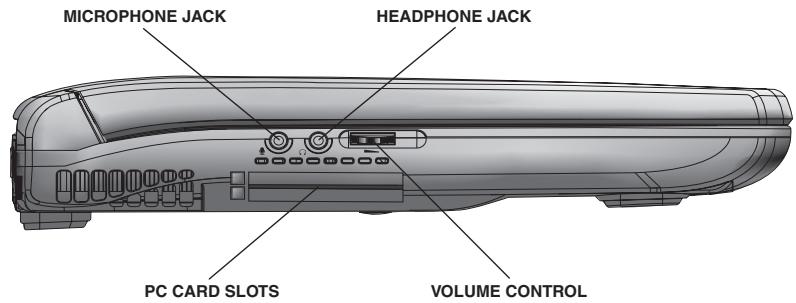
The Volume Control adjusts the audio volume level.

The Microphone Jack let you connect external microphone or other audio input device.

The Headphone Jack lets you connect stereo headphones or other audio-output devices such as external speakers. Connecting headphones or other devices to this jack automatically disables the internal speakers.

The two-stacked CardBus-ready PCMCIA-compatible PC Card slots allow you to install additional devices. Each slot can accommodate one Type II PC Card. Both slots are able to install one Type III PC Card.

Keep foreign objects out of the PC Card slots. A staple or similar object that accidentally gets into a slot can damage the computer's circuitry.
Right Side
text_image
USB PORT FLOPPY DISK DRIVE CD-RW/DVD-ROM DRIVE
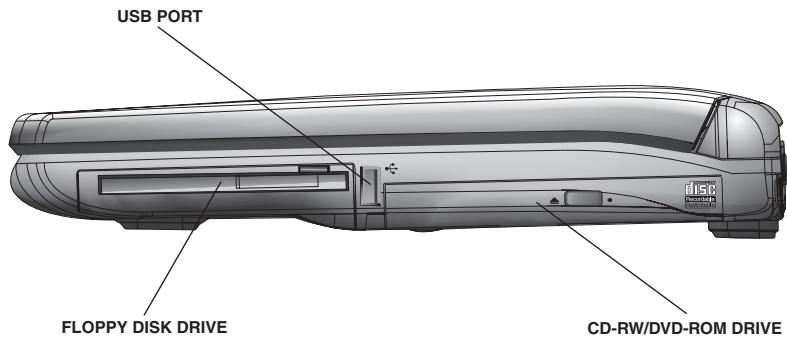
The CD-RW/DVD-ROM Drive allows you to play CDs and DVDs and write CD-Rs and CD-RWs.

The Floppy Disk Drive lets you store and read data on diskettes.

The USB (Universal Serial Bus) Port allows you to connect USB peripherals to the computer, such as a full-size USB keyboard or a USB pointing device. There are two more USB ports on the rear of your computer.
Rear Side
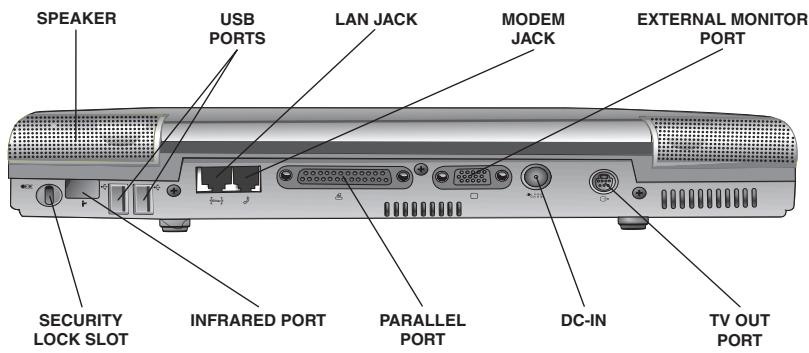
text_image
SPEAKER USB PORTS LAN JACK MODEM JACK EXTERNAL MONITOR PORT SECURITY LOCK SLOT INFRARED PORT PARALLEL PORT DC-IN TV OUT PORT
E3E
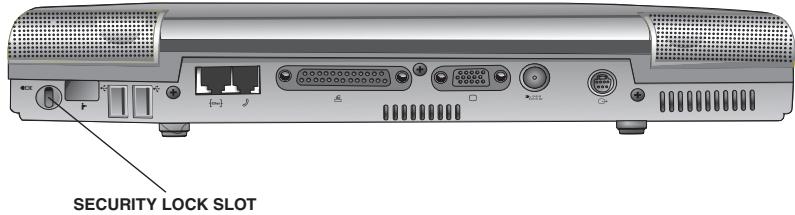
The Security Lock Slot allows you to secure your computer with a cable lock to a desk or some other object to prevent theft.

The IR Port is a fast infrared communication port that allows the computer system to communicate with other IR-equipped devices. This feature is not available on all models.

The two USB (Universal Serial Bus) Ports allow you to connect USB peripherals to your computer, such as a printer, keyboard or pointing device. You will find another USB port on the right side of your computer.

USB is a peripheral expansion standard that supports a data- transfer rate of up to 12 Mbps. USB peripherals have a single standard for cables and connectors. The USB standard allows you to install and remove USB devices while the computer is on. Switching devices without turning off the computer is called “Hot swapping.”

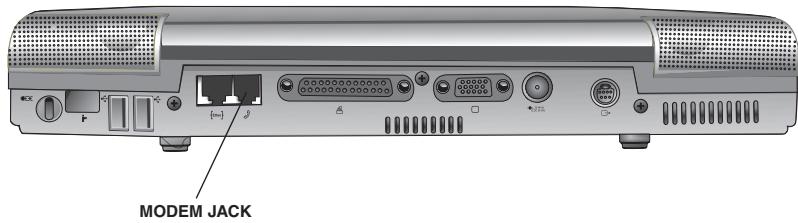
The Modem Jack lets you connect to a standard telephone line through a Modem cable.

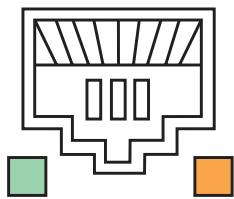
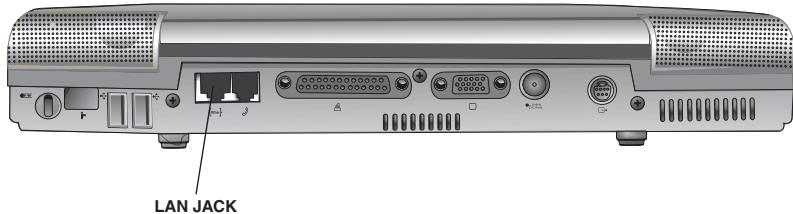
The LAN Jack is an RJ-45 jack for using a standard LAN cable to connect to a Local Area Network.
natural_image
Pure electrical circuit lines without any symbols
There are two status indicators on the LAN Jack.. The left indicator turns green when the LAN Jack is linked properly with the cable, and the right one flashes amber when the LAN is active.

The Parallel Port lets you connect a parallel printer, or other devices including ECP-compatible devices.

ECP (Extended Capabilities Port) is a parallel port standard for PCs that supports bi-directional communication between the PC and attached devices (such as a printer).

The External Monitor Port is a standard 15-pin VGA port for connecting an analog display such as a desktop computer monitor.
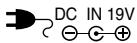
The DC-IN is where you plug in the AC adapter.

The TV Out Port allows you to connect to a television or TV monitor with an S-video cable.

To prevent possible overheating of the CPU, never block the fan vents.
Under Side

text_image
MEMORY MODULE COVER FAN BATTERY RELEASE LATCHThe Memory Module Cover protects the system memory modules.
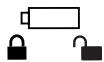
The Battery Release Latch locks the battery in the battery bay and prevents it from falling out. To release the battery, first place the closed computer upside down with its front pointing toward you. Press down on the latch button and slide the latch to the left. The battery will pop up allowing you to remove it.
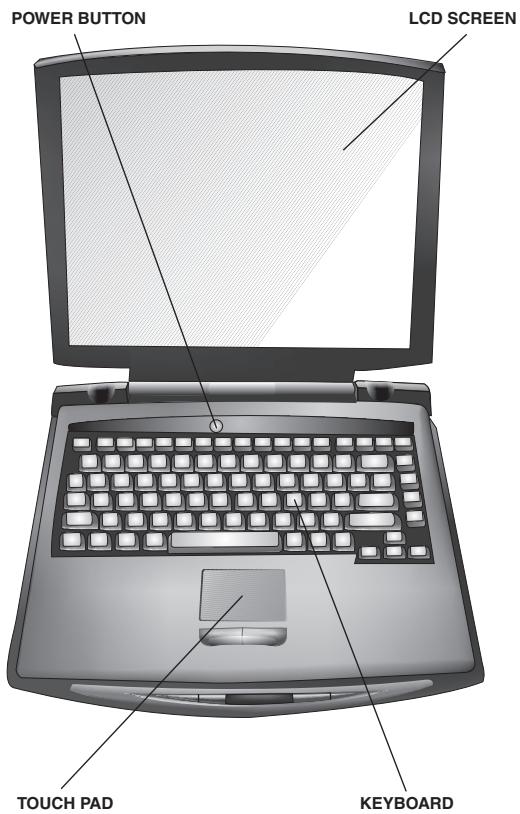
Front With The Display Open
text_image
POWER BUTTON LCD SCREEN TOUCH PAD KEYBOARDThe LCD Screen is the computer's primary display. Your computer is equipped with a 14.1" or 15.0" TFT screen with XGA (1024 x 768), SXGA+ (1400 x 1050) or UXGA (1600 x 1200) resolution.

TFT (Thin Film Transistor) is a type of LCD flat panel display screen in which each pixel is controlled by from one to four transistors. Screens with TFT technology (sometimes called active-matrix LCDs) provide better resolution than other types of flat-panel LCD displays.

The Power Button turns the computer on and off, or let the system enter lower power mode (Standby, Hibernation) depending on power management setting.
The Keyboard provides all the functionality of a full-size keyboard.
The front panel provides a palm rest to assist you in maintaining proper posture while using the computer.
The keyboard function keys, when used with the Fn key, activate various system functions, such as the LCD brightness control.
See chapter 3 for more information.

The Caps Lock LED lights when you press the Caps Lock key. When this light is on, pressing a letter key on the keyboard produces an uppercase (capital) letter.

The Cursor Lock LED lights when the arrow control overlay is turned on by pressing the Fn and F10 keys simultaneously. When this light is on, pressing an overlay key moves the cursor in the direction of the reddish white arrow printed on the left front of the key instead of the letter printed on the key.

The Num Lock LED lights when the numeric keypad overlay is turned on by pressing the Fn and F11 keys simultaneously. When this light is on, pressing an overlay key displays the number printed on the right front of the key instead of the letter printed on top of the key.
The Cursor Lock and Num Lock cannot be used at the same time.
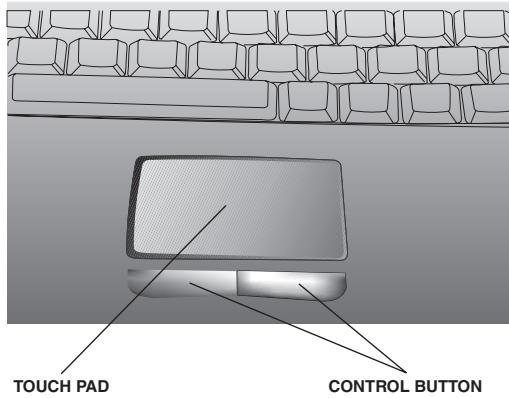
The Touch pad is a pressure sensitive pointing device which works like a mouse to position the cursor on the screen.
The two Touch pad Control Buttons have essentially the same functions as mouse buttons. See chapter 2 for more.
text_image
TOUCH PAD CONTROL BUTTONGetting Started
This chapter provides tips for working comfortably, describes how to connect components, and explains what to do the first time you use your notebook computer.
Selecting A Place To Work
Your computer is portable and designed to be used in a variety of circumstances and locations.
Creating a computer-friendly environment
Place the computer on a flat surface, which is large enough for the computer and any other items you need to use, such as a printer. Leave enough space around the computer and other equipment to provide adequate ventilation and prevent overheating.
To keep your computer in prime operating condition, protect your work area from:
■ Dust, moisture, and direct sunlight.
■ Liquids and corrosive chemicals.

If you spill liquid into the computer, turn it off, unplug it from the AC power source, and let it dry out completely before turning it on again. If the computer does not operate correctly after you turn it back on, contact a Toshiba authorized service provider.
■ Equipment that generates a strong electromagnetic field, such as stereo speakers (other than speakers that are connected to the computer) or speakerphones.
- Rapid changes in temperature or humidity and sources of temperature change such as air conditioner vents or heaters.
Extreme heat, cold, or humidity. Use the computer within a temperature range of 5^ to 35^ C ( 40^ to 95^ Fahrenheit) and 20% to 80% non-condensing humidity.
Keeping yourself comfortable
Strain and stress injuries are becoming more common as people spend more time using their computers. However, with a little care and proper use of the equipment, you can work comfortably throughout the day.
This section provides hints on avoiding strain and stress injuries. For more information, consult books on ergonomics, repetitive-strain injury, and repetitive-stress syndrome.
Computer placement
Proper placement of the computer and external devices is important to avoid stress-related injuries.
Place the computer on a flat surface at a comfortable height and distance. You should be able to type without twisting your torso or neck, and look at the screen without slouching.
If you are using an external monitor, the top of the display should be no higher than eye level.
If you use a paper holder, set it at about the same height and distance as the screen.
Seating and posture
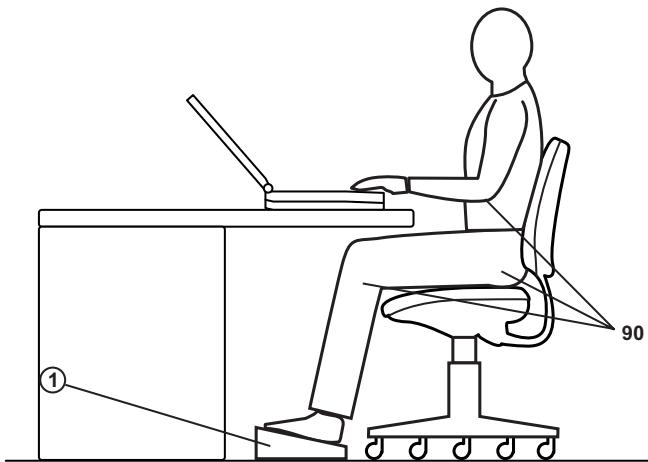
When using your computer, maintain good posture with your body relaxed and your weight distributed evenly. Proper seating is a primary factor in reducing work strain. Some people find a backless chair more comfortable than a conventional chair.
text_image
① 90Correct posture and positioning of the computer
Whichever type you choose, use the following guidelines to adjust your chair for maximum computing comfort.
Position your chair so that the keyboard is at or slightly below the level of your elbow. You should be able to type comfortably with your shoulders relaxed and your forearms parallel to the floor.
If you are using a conventional chair:
- Your knees should be slightly higher than your hips. If necessary, use a footrest ^(1) to raise the level of your knees and ease the pressure on the back of your thighs.
Adjust the back of your chair so that it supports the lower curve of your spine. If necessary, use a cushion to provide extra back support. Lower-back-support cushions are available at many office supply stores.
Sit with your back straight so that your knees, hips, and elbows form approximately 90-degree angles when you work. Do not slump forward or lean back too far.
Lighting
Proper lighting can improve the visibility of the display and reduce eyestrain.
■ Position the display panel or external monitor so that sunlight or bright indoor lighting does not reflect off the screen. Use tinted windows or shades to reduce glare.
- Avoid placing your computer in front of a bright light that could shine directly in your eyes.
If possible, use soft, indirect lighting in your computer work area.
Arms and wrists
- Avoid bending, arching, or twisting your wrists. Keep them in a relaxed, neutral position while typing.
Exercise your hands, wrists, and arms to improve circulation.

Using the computer keyboard incorrectly may result in discomfort and possible injury. If your hands, wrists, and/or arms bother you while typing, stop using the computer and rest. If the discomfort persists, consult a physician.
Work habits
The key to avoiding discomfort or injury from strain is to vary your activities. If possible, schedule a variety of tasks into your working day. Finding ways to break up the routine can reduce stress and improve your efficiency.
Take frequent breaks to change position, stretch your muscles, and relieve your eyes. A break of two or three minutes every half hour is more effective than a long break after several hours.
- Avoid performing repetitive activities for long periods. Intersperse such activities with other tasks.
- Focusing your eyes on your computer screen for long periods can cause eyestrain. Look away from the computer frequently and focus your eyes on a distant object for at least 30 seconds.
Other precautions
Your Satellite computer is designed to optimise safety, minimize strain, and withstand the rigors of portability. However, you should observe certain precautions to further reduce the risk of personal injury or damage to the computer.

Avoid prolonged physical contact with the underside of the computer. If the computer is used for long periods, its case can become very warm. While the temperature may not feel too hot to the touch, if you maintain physical contact with the computer for a long time (if you rest the computer on your lap, for example), your skin might suffer low-heat injury.

Never apply heavy pressure to the computer or subject it to sharp shocks. Excessive pressure or shock can damage computer components or otherwise cause your computer to malfunction. Some PC Cards can become hot with prolonged use. If two cards are installed, both can become hot even if only one is being used. Overheating of a PC Card can result in errors or instability in its operation. Be careful when you remove a PC Card that has been used for a long period.
Setting Up Your Computer
Setting up your computer may include:
■ Connecting the AC adapter
- Charging the battery
■ Connecting a printer
■ Connecting an alternate pointing device
Connecting the AC adapter
Your computer contains a rechargeable battery pack, which needs to be charged before you can use it the first time.
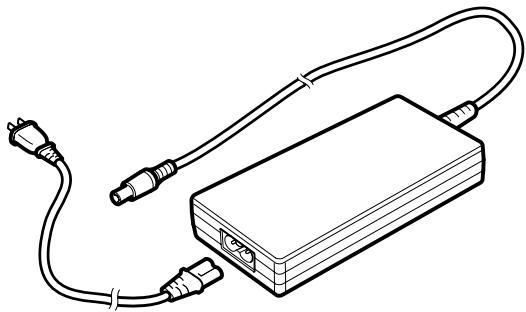
The AC adapter enables you to power the computer from an AC outlet and to charge the computer's batteries. The AC adaptor can be connected to any power source supplying from 100 to 240 volts and 50 or 60 hertz.
natural_image
Line drawing of a rectangular electronic device with two cables and connectors (no text or symbols)To connect AC power to the computer:
- Connect the power cable to the AC adapter.
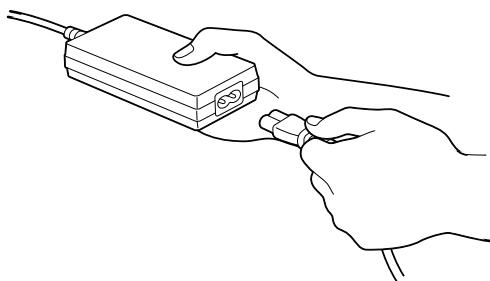
natural_image
Line drawing of a hand holding an electronic device with cable (no text or symbols)- Plug the AC adapter into the computer's DC-IN jack.
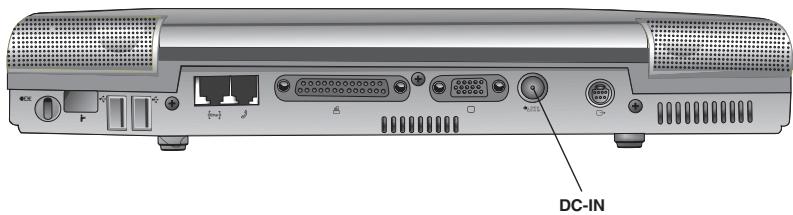
text_image
DC-IN3. Connect the power cable to an AC power outlet.
If the battery is being charged, the Battery LED on the system indicator panel on the front of your computer will light amber. Once the battery is fully charged the battery light turns green.

The surface of the adapter's plastic housing may get hot as it is operating. Do not touch the plastic surface when the adapter is operating to prevent possible hazard.

To avoid electric shock, do not modify, forcibly bend, damage, place heavy objects on top of, or apply any chemical treatments to the power cable. If the power cable becomes damaged or the plug overheats, discontinue use. Never remove the power plug from the outlet with wet hands.

Using the wrong AC adapter could damage your computer. Toshiba assumes no liability for any damage in such cases. Never pull directly on the power cable to unplug it. Hold the power plug when removing the cable from the outlet.
Charging the battery
Before you can use the battery to power the computer, you must charge it. Connect the computer to an AC power outlet using the AC adapter and power cable. The DC-IN LED on the system indicator panel on the front of the computer will light and the Battery LED will light amber. Once the battery is fully charged the Battery LED turns green.
Once the computer is connected to a power outlet, you can charge the battery with the computer turned off or on. When the computer is turned off, the battery charges in about 4 hours.
The battery will take considerably longer to charge (up to 9 hours) if the computer is turned on and consuming a lot of power (e.g. playing a DVD).

Once the battery is charged for the first time, avoid leaving the computer plugged in and turned off for more than a few hours at a time. Continuing to charge a fully charged battery may impact the battery.
For more information on running your computer using the battery and on maximizing the life of your battery, turn to chapter 4.
Connecting A Printer
Before connecting a printer, you need to know whether it requires a USB or a parallel interface. Check the printer's documentation. If the printer can be switched between USB and parallel mode, choose parallel if you want to leave your USB ports free for other use.
You also need a suitable printer cable which may come with your printer. If not, you can purchase one from a computer or electronics store.

Connecting the printer cable while the computer is on may damage the printer, the computer, or both.

If your printer is ECP- or IEEE- compliant, make sure your printer cable is an IKE 1284 cable.
The following instructions assume you have a printer that uses a parallel port connection, which is the most common type of printer interface.
- Turn off the computer.
- Connect the printer cable to the printer and to the computer's parallel port.
- Plug the printer's power cable into an AC outlet.
- Refer to your printer documentation for additional configuration steps.
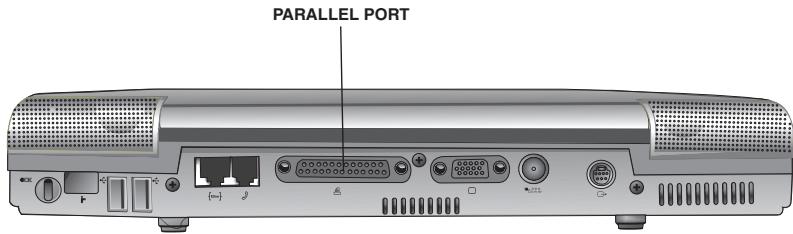
text_image
PARALLEL PORTConnecting A Mouse
You may want to use a external mouse or trackball instead of the computer's built-in Touch pad pointing device. Your Satellite computer supports USB-compatible pointing devices.
The Touch pad remains operable, even if you connect an external pointing device to the computer.
Using a USB pointing device
- Plug the device into one of the USB ports on the computer. We recommend right-handed users attach the device to the USB port on the right-hand side of the computer; left-handed users may find it more convenient to use one of the USB ports on the rear.
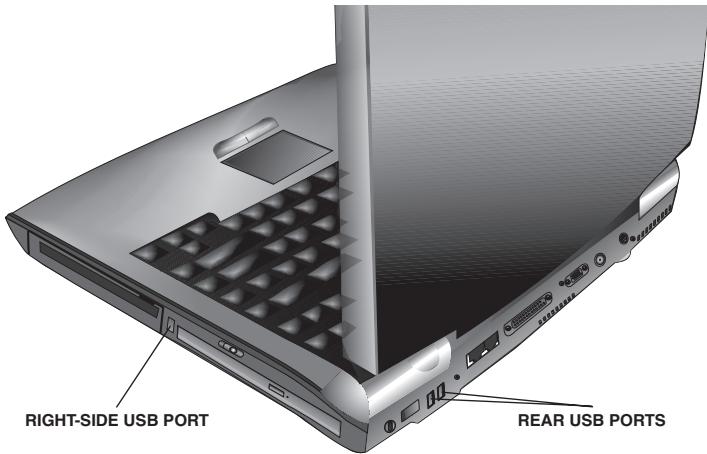
text_image
RIGHT-SIDE USB PORT REAR USB PORTS- The device will probably require a driver and possibly other software; install it according to the instructions that come with it.
- Position the device where you want to use it.

You don't have to turn off the computer to connect or disconnect USB devices.
Using The Computer For The First Time
Slide the display panel latch to the right to release it and then lift the display panel to open the computer.
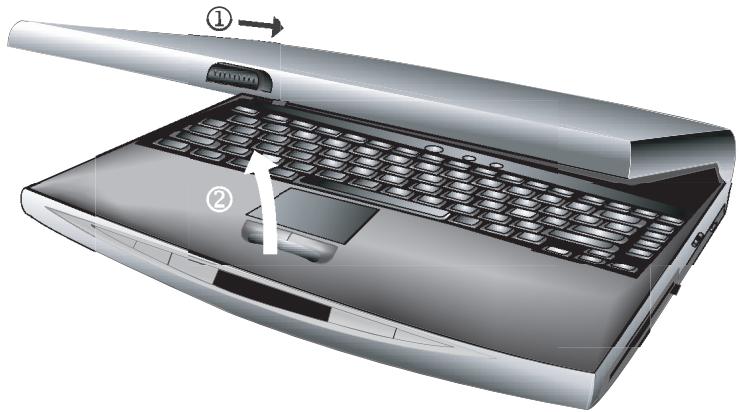
natural_image
Laptop keyboard diagram showing the open top and side view with a numbered arrow indicating the left side (no text or symbols on the main body)
Don't force the display panel open beyond the point where it moves easily. Never lift or move the computer by grasping the display panel
Turning on the computer
- Make sure that the diskette drive is empty.
- Open the display panel.
- If you have a printer connected to your computer, turn the printer on and wait until it indicates it is ready.
- Turn on the computer by momentarily pressing then releasing the power button.
When you release the power button, the Power LED on the system indicator panel comes on.

When turning on the computer for the first time, don't turn it off until the operating system has loaded completely. Turning off the computer during its initial startup will cause an error the next time you start the computer. For more on turning off your computer safely, turn to chapter 3.
When the computer is connected to an external power source, the DC-IN LED lights. If the battery is being charged, the Battery LED lights amber. The HDD LED flashes when the hard disk drive is accessed.

To avoid data loss, never turn off the computer while a drive is in use.
Using the Touch pad
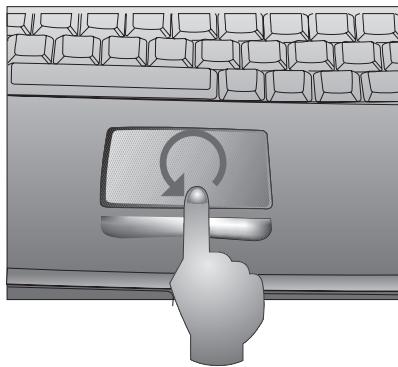
The Touch pad is a touch-sensitive pointing device that provides all the features of a mouse. Please refer to the following instructions on how to operate the Touch pad.
The Touch pad is easily accessible by moving any of your fingers off the space bar and onto the Touch pad.
Gently move your finger across the Touch pad in the direction you want the cursor to move. The pad detects the change in pressure and moves the cursor in the corresponding direction.
With a conventional mouse, selections are usually made by double clicking the mouse's left button. The Touch pad also supports this feature. It is described in detail below. If you are familiar with the operations of a mouse you may only need to skim the information below.
natural_image
Illustration of a hand pressing a button with a circular arrow icon, against a brick wall background (no text or symbols)The Touch pad control buttons have essentially the same function as mouse buttons. Clicking these buttons makes selections, drags objects, or performs a variety of other functions depending on the software. To select an object, first move the pointer to the object you want to select, and then press the left button one time and release it. The functionality of these buttons depends on your software. Refer to your software user's manuals for specific information on the Touch pad (mouse) functions.
Double clicking is a common technique for selecting objects or launching programs from icons. Move the pointer over the object you wish to select, then rapidly press the left button two times. This action is commonly referred to as “double clicking on an object.”
Double tapping is another technique for selecting objects or executing applications from icons. For the most part double tapping is very similar to the double clicking technique of a mouse. The difference is that instead of double clicking on a mouse button, you double tap on the pressure sensitive touch pad to make the selection. Once the cursor has been moved over the object you want select, lightly double tap the Touch pad itself. The double tapping will select the desired item and prompt the software to perform the related operation.
Many of the functions within within your operating system can also be launched by using single tap on the Touch pad. This single tapping will select the desired item and prompt the software to perform the related operation.
When working with programs that employ a graphical user interface (GUI), dragging objects from one point on the screen to another is a technique you will have to master. To drag an object, first move the pointer over the object, then press and hold down the left button. Now without releasing the button, move the object to a new location on the screen by moving your finger across the Touch pad. Once the object is in the desired position, release the button to drop the object in place.

You can change settings for the Touch pad - such as how quickly you need to click twice for the computer to recognize a 'double-click'. Go to Start, Control Panel, then (in traditional view) Mouse.
Adjusting brightness
Use the following hot key combinations to adjust the screen brightness and perform other basic functions:
Hot keys

For a full list of hot keys turn to Appendix A.
| Fn + ESC | Sound Mute Turns sounds on and off. | |
| Fn + F1 | Instant password security When this hot key is pressed, the screen will be blanked until the user enters the login password and presses any key. If no password is registered, pressing any key returns control of the system. | |
| Fn + F2 | Power Mode This hot key displays the power mode pop-up window and cycles through the battery modes. The power modes under battery power are: Long Life, Normal and High Power. The power mode under AC power is Full Power only. | |
| ▼ | Fn + F6 | Decrease brightness |
| ▲ | Fn + F7 | Increase brightness |
| Fn + F10 | Cursor keypad on/off This hot key enables/disables the embedded cursor keypad. Numeric lock state is logically disabled. See chapter 3 for more information. |

Fn + F11
Numeric keypad on/off This hot key enables/disables the embedded numeric keypad. Cursor lock state is logically disabled. See chapter 3 for more information.

Fn + F12
Scroll Lock on/off

Brightness control with Fn+F6 or Fn+F7 is temporary. After the computer restarts, the brightness setting in the TOSHIBA Power Management Utility overrides it.
After the computer is restarted, the cursor keypad and numeric keypad are both turned off on the notebook keyboard.
Sticky Keys
StickyKeys is the primary keyboard accessibility option. It allows the user to access Shift, Ctrl and Alt key combinations by pressing keys one after the other rather than simultaneously. For instance the Ctrl-A combination can be accessed by pressing the Ctrl key followed by the A key. You can adjust the settings for StickyKeys by clicking on Start, then Control Panel, then Accessibility. Select the Keyboard tab.
Hot keys (Fn + F1 etc.) also support the StickyKeys function if the Easy Button driver has been installed (if the driver has been installed, an icon will be seen on the task bar).
Learning The Basics
This chapter covers precautions and computing tips that you should follow when using your Satellite series computer. It also provides important information about the basic features of your system.
Precautions
- Don’t spill liquids onto the computer’s keyboard.
If you do spill a liquid that gets into the keyboard, turn off the computer immediately. Leave the computer turned off overnight to let it dry out before you use it again. - Don't turn off the computer if a drive light indicates a drive is active. Turning off the computer while it is reading from or writing to a disc may damage the disk, the drive, or both.
- Keep the computer and disks away from objects that generate strong magnetic fields, such as large stereo speakers.
Information on disks is stored magnetically. Placing a magnet too close to a disk can erase important files.

Always use the Standby or Hibernation mode to power down your computer. Important files may be damaged if the computer is turned off without using the Turn Off Computer command.

Before using the Standby or Hibernation mode to power down your computer, save your files and mark sure the disk activity lights are off
- Scan all new files for viruses.
This precaution is especially important for files you receive via diskette, email, or download from the Internet. Occasionally, even new programs you buy from a supplier may contain a computer virus.
You'll need a special program to check for viruses. Ask your dealer to help you.
Computing Tips
■ Save your work frequently.
Your work stays in the computer's temporary memory until you save it to the disk. You will lose all the work done since you last saved, if, for example, a system error occurs and you must restart your computer, or your battery runs out of charge while you are working.

Some programs have an automatic save feature which you can turn on. This feature saves your file to the hard disk at preset intervals. See your software documentation for details.
■ Back up your files to floppy disks (or other removable media) on a regular basis. Label the backup copies clearly and store them in a safe place.
It is easy to put off backing up because it takes time. However, if your hard disk suddenly fails, you may lose all the data on it unless you have a separate backup copy.
Use Error-checking and the Disk Defragmenter regularly to conserve disk space and help your computer perform at its optimal level.
Take frequent breaks to avoid repetitive-motion injuries and eye strain.
Before turning off the computer, always use the Turn Off Computer command.
Using The Keyboard
Character keys
Typing with the character keys is very much like typing on a typewriter, except that:
The spacebar creates a space character instead of just passing over an area of the page.
The lowercase letter 1 and the number 1 are not interchange able.
The uppercase letter O and the number 0 are not interchange able.
The Caps Lock key shifts the letter keys to upper case – the number and symbol keys are not affected. The Caps Lock LED on the keyboard indicator panel illuminates when you press the Caps Lock key.
Ctrl, Fn, and Alt keys
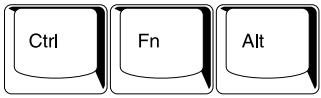
text_image
Ctrl Fn AltThe Ctrl, Fn, and Alt keys do different things depending on the program you are using. For more information, see your program documentation.
Function keys
The function keys (not to be confused with the Fn key) are the 12 keys at the top of the keyboard.

text_image
F1 F2 F3 F4 F5 F6 F7 F8 F9 F10 F11 F12F1 through F12 are called function keys because they perform programmed functions when pressed. Used in combination with the Fn key, function keys marked with icons execute specific functions, such as dimming the computer display and enabling the numeric keypad. See appendix A for more details of these 'hot key' functions.
Windows special keys
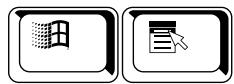
The keyboard provides two keys that have special functions in Windows. The Windows key activates the Start menu. The Application key has the same function as the secondary (normally right-side) mouse (or Touch pad) button.
Overlay keys
text_image
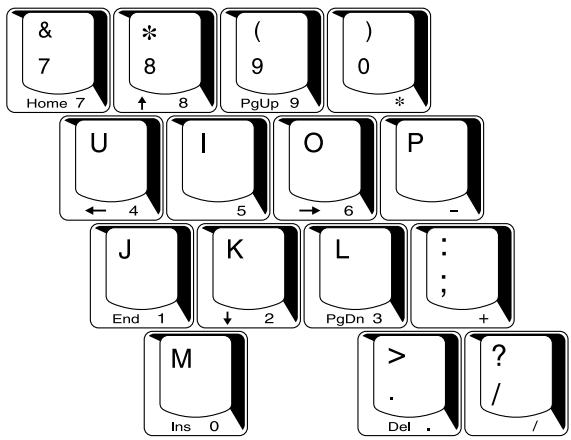
& 7 Home 7 * 8 ↑ 8 (9 PgUp 9) ( ) 0 * U ← 4 I 5 O → 6 P - J End 1 K ↓ 2 L PgDn 3 : ; + M Ins 0 > Del ? / /The keys with numbers and symbols on the front of them form the numeric and cursor overlay. This overlay lets you enter numeric data or control the cursor as you would use the ten-key keypad on a desktop computer's keyboard.
Using the overlay to type numeric data
To turn the numeric overlay on and off, press Fn and F11 simultaneously. The numeric mode light immediately below the F11 key glows when the numeric overlay is on.
You can still use the overlay keys to type alphabetic characters while the numeric overlay is on.
For lowercase letters, hold down Fn while you type the letters.
For uppercase letters, hold down both Fn and Shift while you type the letters.
To use the cursor control keys (allowing you to move the cursor up, down, left and right using the keyboard) when the numeric overlay is on, press and hold down Shift while you use the cursor control keys To return to the numeric overlay, release Shift.
Using the cursor control overlay
To turn the cursor control overlay on and off, press Fn and F10 simultaneously. The cursor control light immediately below the F10 key glows when the cursor control overlay is on.
To type alphabetic characters while the overlay is on:
For lowercase letters, hold down Fn while you type the letters.
For uppercase letters, hold down both Fn and Shift while you type the letters.
To highlight text with the cursor control overlay on, hold down Shift while you use the cursor control keys.
Backing Up Your Files
Backing up your files simply means copying individual files to a floppy disk or copying entire sections of your hard disk to another media, such as a CD-R or CD-RW discs.
Copying to a diskette
- Insert a formatted floppy disk into the floppy disk drive.
- Double-click the My Computer icon on the Windows desktop.
- Double-click the drive that contains the file you want to copy.
- Double-click the folder containing the file, then click the file you want to copy.

Use the Ctrl or Shift keys to select more than one file.
- Click File, then click Send To.
- Click the icon for the diskette drive.

You can also back up a file to a diskette by clicking the file (or files) you went to backup with the secondary button, then pointing to Send To and clicking 3 ½ Floppy (A:).
Using Compact Discs and DVDs
The CD-RW/DVD-ROM drive lets you play DVDs as well as CDs. The procedures for using DVDs are the same as those described for CDs below.
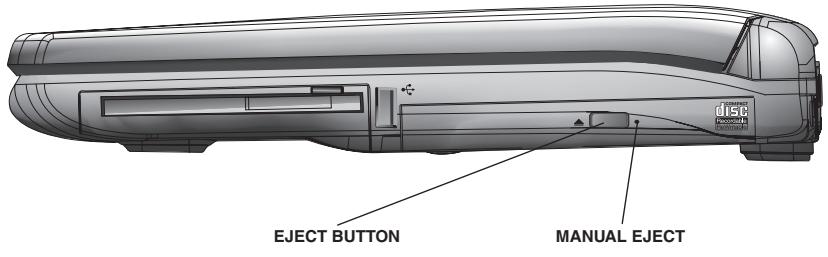
text_image
EJECT BUTTON MANUAL EJECT
When inserting and removing CD-ROM and DVD-ROM discs, be careful not to touch the lens on the disc tray or the area around it, as this may cause the drive to malfunction or permanently damage its components.
Press the eject button to open the disc tray. The eject button will open the disc tray even when the computer is off if the battery has power and the computer is in CD mode.
If the computer is turned off and there is no power, use the manual eject button.
Inserting discs into the drive
- Press the eject button to open the disc tray.
- Pull the disc tray until it is fully open.
- Hold the disc by its edges, ensure it is dust-free, and place it carefully in the disc tray, with the label side up.
- Press down on the disc until it locks on the spindle.
- Close the disc tray.

If the disc is not seated properly when you close the disc tray, the disc might be damaged and the tray may not open fully when you press the eject button.
Removing discs from the drive
- Press the eject button.

Do not press the eject button while the computer is accessing the CD-ROM/DVD-ROM drive (the FDD/CD ROM LED on the computer's front panel flashes green when the system is accessing the disc drive). If the disc is still spinning when you open the disc tray, wait for it to stop before you remove it.
- Pull the disc tray until it is fully open, remove the disc, and place it in its protective cover.
- Close the disc tray.
Opening the disc tray with the computer off
When your computer is turned off, you can remove and insert CDs in two ways. You can turn your computer to CD mode by pressing the CD/Digital Mode button for more than 3 seconds and then use the eject button as normal. Alternatively, use the manual eject button:
- Insert a slender object, such as a straightened paper clip, into the manual eject hole.

Never use a pencil to press the manual eject button. Pencil lead can break off inside the computer end and damage the devices.
- Pull the disc tray until it is fully open, insert a CD, or remove it and place it in its protective cover.
- Close the disc tray.
Caring for compact discs and DVDs
- Store your CDs and DVDs in their original containers to protect them from scratches and keep them clean.
- Don’t bend a disc or place heavy objects on top of it.
- Don’t apply a label to, or otherwise mar, the surface of a CD or DVD.
- Hold a disc by its outside edge. Fingerprints on the surface of a disc can prevent the drive from reading the data properly.
- Don’t expose CDs or DVDs to direct sunlight or extreme heat or cold.
To clean a disc, wipe it with a clean, dry cloth—starting from the centre of the disc and wiping toward the outward edge. Do not wipe using a circular motion. If necessary, moisten the cloth with water or a neutral cleaner (not benzene or rubbing alcohol). Let the CD dry completely before inserting it in the drive.
Using PC Cards
PC Cards expand your computer's capabilities and usefulness. You can purchase additional PC Cards from your dealer. Most PC Cards conform to the PCMCIA (Personal Computer Memory Card International Association) standard.
Your Satellite computer comes with two stacked PC Card slots and supports two types of PC Card:
Type II cards are typically used for fax/modems, memory storage, network cards, etc. You can install up to two of these cards, one in each slot.
■ Type III cards are used for removable hard disks and other functions that require a larger card. You can install just one of these cards.
Check the documentation that came with the PC Card to see if it conforms to the PCMCIA 2.1 standard, or later. Other cards may work with your computer, but are likely to be much more difficult to set up and use.
Inserting PC Cards
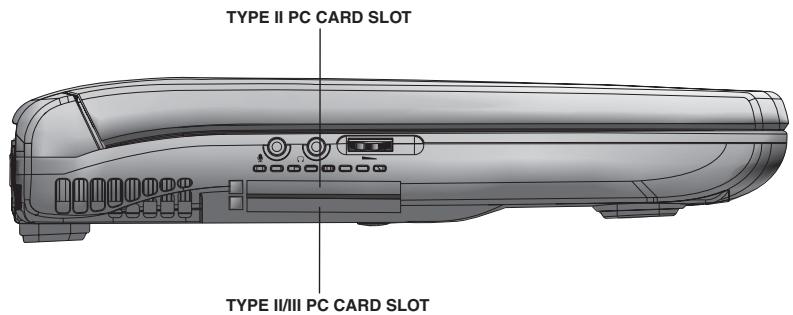
text_image
TYPE II PC CARD SLOT TYPE II/III PC CARD SLOTPC Card Slots

An HDD or CD-ROM connected to a 16-bit PC card, might affect the performance of the computer's sound system and data transmission, including slower transmission speeds and dialling errors.
- If your PC Card does not support hot swapping, save your data and turn off the computer before inserting the PC Card. For more information, see "Hot swapping" later in this chapter.
- Hold the PC Card with the arrow side up and the connector side toward the slot.
-
Align the card connectors with an available PC Card slot and carefully slide the card into the slot until it locks into place.
There are two eject buttons, one per slot. When the PC card is seated, the eject button for that slot pops out. -
Press the eject button to put it in its retracted position.

If you have a Type III card, insert the connector into the lower slot. If you have a Type II card, insert it into either the upper or the lower slot.

To avoid damaging the computer or the PC Card, don't force the card into the slot.
Removing PC Cards
-
Click the PC Card button on the taskbar.
-
Click Safely remove xxxx where xxxx is the name of the PC Card you want to stop.
A message will appear indicating that you may safely remove the card.
- To remove the PC Card, press the respective eject button once. The eject button pops out.

If your PC Card supports hot swapping, you can remove it at any time. However, to avoid date loss, never remove a card while it is in use. For more information, see “Hot swapping”.
- Press the eject button again to eject the PC Card.
The upper eject button will eject Type II PC Card from the upper slot. The lower button will eject a Type II, or Type III card from the lower slot.
- Remove the PC Card and store it properly.
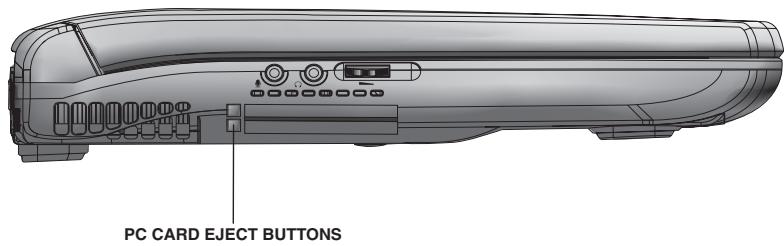
text_image
PC CARD EJECT BUTTONSHot swapping
You can replace one PC Card with another while the computer is on. This is called “hot swapping.”
Hot swapping precautions
Although you can insert a PC Card at any time, to avoid data loss do not remove a card while it is in use. Before removing a PC Card, stop it by clicking the PC Card (PCMCIA) icon on the taskbar. After the PC Card is stopped, it is safe to remove it.
- Don’t remove a hard disk card while the system is accessing it.
- Don’t remove a network card while you are connected to a network.
- Don't remove a SCSI card while any of the SCSI devices connected to it is operating.

SCSI is an acronym for Small Computer Systems Interface. A single SCSI PC Card enables you to connect several SCSI devices, such as a scanner or digital camera to your computer.
Using Your Computer As A Desktop Computer
By connecting an external monitor, external full-size keyboard, and a mouse, you can work with your notebook as if it were a standard desktop computer.
An external monitor connects to the external monitor port.
Any USB devices including an external keyboard and pointing device connect to any of the three USB ports.
Using a computer lock
You may want to secure your computer to a heavy object such as your desk. The easiest way to do this is to purchase a computer cable lock (pictured below).

natural_image
Coiled black cable with two connectors and a small square connector at the end (no text or symbols)- Feed the cable through or around some part of a heavy object.
Make sure there is no way for a potential thief to slip the cable off the object. -
Pass the locking end through the loop.
-
Insert the cable's locking end into the security lock slot, then rotate the key a quarter turn and remove it; The computer is now securely locked.
text_image
SECURITY LOCK SLOTSetting Up Communications
To connect to the Internet, use an online service, or communicate across the telephone lines with another computer, you need:
A modem (supplied with your Satellite notebook computer)
A telephone line
A browser (supplied with your computer) or communications program
An Internet Service Provider (ISP) or online service if you plan to use the Internet

Never connect the modem jack to a digital line. The high current of digital lines can damage the modem.
Connecting the modem to a telephone line
Before you can use the modem, you must connect it to a standard voice-grade telephone line.

Disable Call Waiting before you connect through the modem. Call Waiting interrupts data transmission.

If you use a storage device such as a CD-ROM drive or HDD connected to a 16-bit PC card, modem speed might be slow or communication might be interrupted.
- Plug one end of a standard RJ-11 telephone cable into the modem jack.
text_image
MODEM JACK- Plug the other end of the RJ-11 telephone cable into the modular jack of a standard voice-grade telephone line.
Connecting your computer to a network
To access a network:
At the office, you need to connect a network cable with an RJ-45 connector to the LAN Jack. For specific information about connecting a LAN or WAN, consult your network administrator.
text_image
LAN JACK
The computer must be configured properly before connecting to a LAN. Logging onto a LAN using the computer's default settings could cause a malfunction in LAN operation. Check with your LAN administrator regarding set-up procedures.
When the system is in the power saving mode (Hibernation), Network devices such as the modem and LAN will not function and will not maintain network connection.
When you are at home or travelling, you need a dial-up connection. Ask your network administrator for the telephone number of the network.
To set up the connection, use the New Connection Wizard:
- Click Start and point to All Programs.
2. Point to Accessories, then to Communications, and click. New Connection Wizard.

When you are connected to a network, disable your Microsoft® Windows® operating system Standby command. The Standby command can disrupt your network connection. You can disable the Standby command in Power Options (in Control Panel) or the TOSHIBA Power Management Utility.
Turning Off The Computer
It is a good idea to turn off your computer when you are not using it for a while. Click on Start, then click Turn Off Computer. You will be given the options to Standby, Turn Off or Restart.
If you have work in progress and expect to resume shortly, use your Microsoft® Windows® operating system Standby command to save your system settings so that, when you turn on the computer again, you automatically return to where you left off.
To leave the computer turned off for a longer period, use your Microsoft ^® Windows ^® operating system Turn Off command instead.
- Never turn off the power if the hard disk drive light is on. It may damage your hard disk drive.
Closing the lid of your computer can be set to put your computer into Standby. Click on Start, Control Panel, then Power Options and select Advanced to choose your preferred setting.
Caring For Your Computer
This section gives tips on cleaning and moving your computer. For information about taking care of your computer's battery, see “Running the computer on battery power” in chapter 4.
Cleaning the computer
To keep your computer clean, gently wipe the display panel and exterior case with a lightly dampened cloth. Ask your Toshiba dealer for suggestions for appropriate cleaning products.

Keep liquid, including cleaning fluid, out of the computer's keyboard, speaker grille, and other openings. Never spray cleaner directly onto the computer. Never use harsh or caustic chemical products to clean the computer.
Moving the computer
Before moving your computer, even across the room, make sure that all disk activity has ended (check the system status indicator lights on the front of your computer) and that all external peripheral cables are disconnected.

Don't pick up the computer by its display/panel or by the back (where the ports are located).
Restoring the preinstalled software
If preinstalled files are damaged, use the Product Recovery CD-ROM or the Toshiba Tools & Utilities CD-ROM to restore them.
Restoring the complete system
To restore the operating system and all preinstalled software, follow the steps below.

When you reinstall the Windows operating system, the hard disk will be reformatted and all data will be lost. Make sure you have a backup copy of your data, before you perform a complete system recovery.
- Load the Product Recovery CD-ROM in the drive and turn off the computer's power.
- Hold down the C key and turn on the power. When the TOSHIBA logo appears, release the C key.
- Follow the on-screen instructions.
- After recovery is complete, remove the Product Recovery CD.
- Press Ctrl + Alt + Del to restart the system. Refer to your Microsoft user's manual for Windows' setup instructions.
Restoring TOSHIBA utilities and drivers
If Windows is working properly, individual drivers or applications can be separately restored. Use the Tools & Utilities CD-ROM according to instructions in the booklet contained in the CD box to reinstall TOSHIBA utilities and drivers.
Mobile Computing
This chapter covers all aspects of using your computer while travelling.
Toshiba's Energy-Saving Design
Toshiba is a partner in the Energy Star Program and has designed this product to meet the Energy Star guidelines for energy efficiency.
Your computer enters a low-power state when it is not being used, thereby conserving energy and saving money in the process. It has a number of other features that enhance its energy efficiency.
Many of these energy-saving features have been set by Toshiba. We recommend you leave these features active, allowing your computer to operate at its maximum energy efficiency, so that you can use it for longer periods while travelling.
Managing Power Usage
Your computer's power-saving options greatly increase the length of time you can use the computer before you need to recharge the battery.
To change the power usage mode, click Start, then click Control Panel. In Control Panel, double-click the Power Option icon (if in Category View, then first click Performance and Maintenance to make the Power Option icon appear) to display the Power Option Properties window.
Select the power scheme with the most appropriate settings for your computer. Keep in mind that changing any settings on the Power Option Properties window will modify the currently selected scheme.
Consult your Microsoft ^® Windows ^® operating system documentation for more information on the Power Option utility.

If TOSHIBA Power Management Utility is installed in your computer, please run TOSHIBA Power Management Utility by double-clicking the TOSHIBA Power Management Utility icon on the taskbar instead of the Power Option icon. You can see more information in chapter 5.
Running the computer on battery power
The computer uses a removable Lithium Ion (Li-ION) battery pack that provides power when you are away from an AC power source. You can recharge it many times.
In addition to the removable battery, the computer has an internal real-time clock (RTC) Lithium rechargeable battery. The RTC battery powers the RTC memory, which stores your system configuration settings and the current time and date for up to a month while the computer is turned off.
Using additional battery packs
If you spend a lot of time travelling and need to work for many hours without an AC power source, you may want to carry additional charged battery packs with you. You can then replace a discharged battery and continue working.

A new battery pack should be fully discharged, by running the computer solely on battery power, and recharged three times when first used.
Maximizing battery life
A battery can be recharged many times. Gradually over time it will lose its ability to hold a charge. To maximize the life of your battery:
- Don’t leave the computer plugged in and unused for more than a few hours. Overcharging the battery may shorten its life.
If you are not going to use the computer for a long period of time, remove the battery.
Alternate between battery packs if you have a spare.
■ Make sure the computer is off when you are replacing the battery. - Store spare battery packs in a cool dry place out of direct sunlight.
Charging Batteries
The battery needs to be charged before you can use it to power the computer. You can charge the battery using your computer.
Charging the battery
To charge the battery while it is in your computer, plug the computer into a live AC outlet. It takes approximately 4 hours to charge the battery to full while the computer is off. It takes up to 9 hours to charge the battery to full while the computer is on -how long depends on what other operations the computer is performing.

The battery only can charge a small current while the computer is consuming full power.
The battery may not start charging immediately if:
■ The battery is extremely hot or cold.
To ensure that the battery charges to its full capacity, wait until it reaches room temperature: 5^ C to 35^ C. ( 41^ F to 95^ F).
The battery is almost completely discharged.
Leave the power connected, and the battery should begin charging after a few minutes.

Once a battery pack is fully charged, we recommend that you operate your computer on battery power until the battery pack discharges completely. Doing this extends battery life and helps ensure accurate monitoring of battery capacity.
Charging the RTC battery
In addition to the main battery, the computer contains an internal battery for the real-time clock (RTC). The RTC battery provides power for the internal real-time clock and calendar.
During normal use, the main battery keeps the RTC battery adequately charged. Occasionally, the RTC battery may lose its charge completely, especially if you have had the computer turned off and without main battery pack inserted for a long time.
It is seldom necessary to charge the RTC battery because it charges while the computer is on. However, if the RTC battery is low, the real-time clock and calendar may display the incorrect time and date or stop working.
To recharge the RTC battery, plug the AC adapter into the computer for at least 24 hours.
The computer can be used while the RTC battery is being charged. Although the charging status of the RTC battery cannot be monitored, if the power is on, it takes approximately 24 hours to fully charge the RTC battery.
Monitoring Battery Power
The Battery LED indicates the battery's current charge status. It lights green when the battery is fully charged. It lights amber while the battery is being charged from the AC adapter. It flashes amber when the battery capacity is below 10 percent. It flashes amber faster when the battery capacity reaches 5 percent.
Determining remaining battery power

Wait at least 20 seconds after turning on the computer before checking the remaining battery power. The computer needs this time to check the battery's remaining capacity and perform calculations.
To check the battery level, you can look at the Microsoft® Windows® operating system Power Meter control panel. To access the panel:
- Click on the Start button, then click the Control Panel.
- Double-click the Power Options icon (if in Windows XP Category View, then first click Performance and Maintenance to make the Power Option icon appear) to display the Power Option Properties window..
- Choose the Power Meter tab to show the current battery status. The meter displays a percentage of a full battery charge remains.

The computer drains the battery faster at low temperatures. Check your remaining charge frequently if you are working in temperatures below 10 degrees Celsius (50 degrees Fahrenheit). The computer calculates the remaining battery charge based on your current rate of power use and other factors such as the age of the battery.

Before removing or after inserting the battery pack, click on the Power Meter tab to show the latest battery status. Always ensure the computer is turned off before removing the battery pack.