dimmerBox - Hjemmeautomatisering Blebox - Gratis bruksanvisning og manual
Finn enhetens veiledning gratis dimmerBox Blebox i PDF-format.


Brukerspørsmål om dimmerBox Blebox
0 spørsmål om dette apparatet. Svar på dem du kjenner, eller still ditt eget.
Still et nytt spørsmål om dette apparatet
Last ned instruksjonene for din Hjemmeautomatisering i PDF-format gratis! Finn veiledningen din dimmerBox - Blebox og ta den elektroniske enheten tilbake i hendene. På denne siden er alle dokumenter som er nødvendige for bruken av enheten din publisert. dimmerBox av merket Blebox.
BRUKSANVISNING dimmerBox Blebox
SAFETY RULES

Using dimmerBox with magnetic low-voltage (MLV) transformers is strictly forbidden and can cause a device damage and risk of fire.

Do not connect the device to loads exceeding the permitted values.

Connect only in accordance with the diagram presented in the manual. Improper connections may be dangerous, it can damage the controller, and loss of the warranty.

DANGER!: Risk of electric shock! Even with the device turned off, the outputs may be live. All assembly work should be ALWAYS performed with the disconnected power circuit.

The installation of the device to a power mains that does not meet the quality requirements defined by PN-EN 50160, will result in the loss of the warranty.

The device requires pre-configuration! After the first start, select the type of light source controlled. The incorrect selection can cause irreparable damage to the controller and to light source.

It is forbidden to connect different types of light sources to the controlled circuit as well as to change the load type with the connected controller.
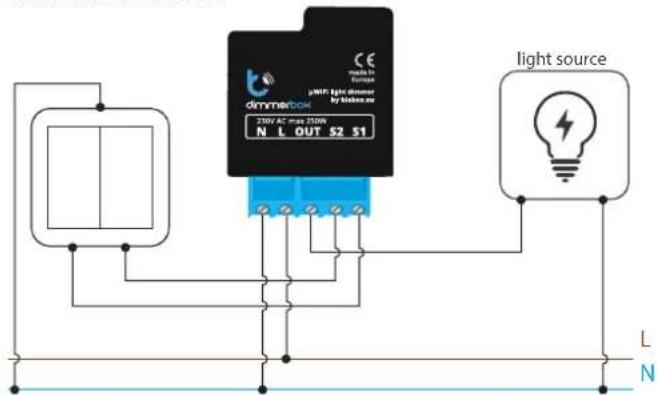
CONNECTION DIAGRAM
1
INSTALLATION - BASICS
- Disconnect the installation supply voltage before installing the controller. Remember that any mounting works should be carried out when the mains voltage is disconnected (switch off the mains fuse or disconnect the power cord from the mains socket).
-
The controller should be installed in a place protected against adverse environmental conditions, protected from third party access - in the flush box or inside the enclosure of the controlled device. Remember that metallic elements (wires, housing parts) have a negative influence on the range of the device, and consequently the comfort of use. It is recommended that the device be mounted in a stable and fixed position. Due to the operating voltage of the device it is necessary that the connectors of the controller be protected against accidental contacts or short circuits, which could cause electric shock or damage to the device.
-
Read the diagram and then proceed to install the controller. Pay particular attention to the designation of the controller connectors. Start with power wires - phase L (usually brown) and neutral N (blue). Then, connect the load. If you only want a local control with a wall switch, connect the wall push-button according to the diagram. To control using only your phone or Tablet, it is not necessary to install the wall push-button.
- The controller supports all types of double monostable push-button. The order of connection of the S1 / S2 input, to the right / left push-button does not matter at the installation stage - it can be set at a later stage of the controller configuration.
● After making sure that the device is connected in accordance with the diagram and that there are no metal components near the controller which may accidentally cause short-circuit, start the device by turning on the power (turning on the mains fuse or connecting the power cord to the power outlet).
2F
ST START
- Download the free wBox application. If you have an Android mobile device, you will find the application in the Play Store. For iOS devices the application is in the App Store.
- By using your mobile phone or tablet, connect it to the device wireless network. To do this, enter to your smartphone or tablet settings, then go to setting of the WiFi network and find the network name „dimmerBox-xxxxxxxxx” where xxxxxxxxxxxx is the serial number of the device. Connect to this network.
- Turn on the wBox application. A device will appear at the top of the screen. To add it to the application, click on "plus" on the right side of the name. To pre-configure the controller, click on the default device name.

You can also set the configuration using the web browser of your phone / tablet. After connecting to the wireless network of the controller, turn on the browser and go website www.blebox.eu
- After clicking on the device name, a window will appear informing you that you need to select the type of load (the type of lighting that the dimmerBox will control). Go to "Settings" (icon at the top-right corner of the screen) and select the appropriate option in the "Load Type" box.
Remember that choosing the wrong option it can cause permanently damage to the controller and to the light source!
If you change the load type in the future, e.g. by replacing the traditional bulbs with LEDs, first select the load type for "None", remove old bulbs, add new ones and in the next step change the load type to "LED bulb". Never add to controlled circuit, different types of load, e.g. a traditional bulb and a LED bulbs, or selecting the wrong load type.
- After saving the settings, go to the main panel by clicking the arrow top-left corner of the screen. Test the controller by moving the scrollbar several times in extreme and intermediate positions - the light source should change its brightness.
- If you have connected a wall push-button, go to the settings and then in the "Buttons" option select the type of mounted push-button - with a single button or two buttons. Then check its work. For a single-button, a single click will cause that the light will switch on and switch off accordingly. Holding the push-button generates an increase in the brightness of the light source or its attenuation. For a button with two buttons, one of the buttons is forswitch off (single click) or dimming (hold down) while the other is for turn on increase the intensity of the light source.
3
ACCESS POINT AND WIFI NETWORK SETTINGS
- Once you turn on the controller for the first time, you can proceed to its further configuration. Being connected to the WiFi network emitted by the device, in the control panel of the wBox application select the device, then go to "Settings" (icon at the top-right corner of the screen).
- You can change the name of the device that is displayed in the wBox application. In addition, you can change the name and password of its generated WiFi network. Remember that changing the network name or password will disconnect the device immediately after you click the "Save" button, so re-connect to the device using the newly assigned network name and password.
- You can add the controller to your home WiFi network to control it through this home network or from anywhere in the World. To do this, in the "Connect" settings section, select a network name from the list and press "Connect". If is required, enter the WiFi network password. During the connection of the controller to your home network, the phone / tablet may disconnected from the network. In this case, you will need to reconnect your phone / tablet to the controller network.
Please remember that in order to control the device outside the local WiFi network, from anyplace in the World by using the wBox application, the option "Remote access enabled" in the controller settings must be set to "Yes".
Once you've finished configuring the WiFi network, you can disconnect your phone/tablet from the controller network and connect your mobile device directly to your home WiFi network. The control from the wBox application will work the same way as when the phone / tablet is connected to the controller network. If the user leaves the local network, for example, leaving home or using the mobile data, the wBox application will signal this state as "Remote mode". In this case, the devices can be controlled, but for security reasons settings are not available.
TECHNICAL SPECIFICATIONS
| supply voltage | 230 V AC |
| energy consumption | <1W |
| type of control outputs | output phase |
| lights types | 230V AC Dimmable LED, Incandescent/Halogen, Electronic Low-voltage (ELV) |
| control modes | leading edge, trailing edge |
| maximum load | 250 W |
| number of inputs | 2 |
| type of inputs | logical, active when connected to N, configurable |
| maximum voltage | 230 V AC |
| housing | made of polyurethane composition not containing halogens, self-extinguishing for thermal class B (130 °C) |
| protection level | IP20 |
| dimensions | 48 x 38 x 23 mm |
| mounting method | in the flush-mounted box, inside the wall, inside the housing of the dimming device |
| transmission type | bi-directional, encrypted |
| radio frequency | 2.4 GHz |
| communication standard | μWiFi, compatible with WiFi, 802.11g |
| mode | direct connection (as Access Point), Wi-Fi connection via a stan- dard router, connection with access from any location in the world (requires only access to the Internet) |
| compatible devices | Apple iPhone, Apple iPad, iPad Mini, Android, computers and mobile devices supporting HTML5 |
ADDITIONAL INFORMATION
LOCATION AND TIME OF THE DEVICE, SCHEDULE
The controller has the ability to work according to a given schedule. To make this possible, set the device's time. Go to settings in the "Device time" section, click "Change timezone". Then select your region and location from the list, confirm your selection clicking the "Save" button. The device will synchronize its time with the server time (if the controller is in a WiFi network with access to Internet) or it will download time from the phone / tablet. It is recommended that the controller is always connected to a WiFi network with Internet access so that it can automatically synchronize its clock.
To be able to control devices using the local sunrise and sunset, you must also select the location of the controller. You can specify the location of the device using a smartphone or tablet. In the section "Device location", click "Set locations". Browser will ask whether to share locations - allow. In the "Coordinates" field, should appear the approximate coordinates of your location. If the "Set locations" button blinks red with the word "Error", or the "Coordinates" field did not change the value from "Not set" to numeric data, a failurehas occurred during the location download. You should make sure that the phone / tablet has a GPS module and that the sharinglocation service is enabled on the phone.
Adding schedule entries can be performed by clicking the "Add item" button in the "Schedule" section of settings. You can select the days in which the task will be performed, the type of entry (at a specific time, or relative to sunrise / sunset - only having a correctly set location) and set the parameters of the task. The set tasks will be visible as a list, individual entries can be edited or deleted.
SOFTWARE UPDATE
To update the software in the controller, connect it to your home WiFi network (see "Access Point and WiFi settings" section) which is connected to the Internet. Go to "Settings" (icon at the top-right corner of the screen) and click the "Get new firmware" button in the final section on settings. Wait about 1 minute, do not close the interface and don't perform other actions. The device will download the latest software. The software version number, hardware version and device identifier can be read at the bottom of the settings screen.
for more information visit our website
www.blebox.eu
or send us an email to: info@blebox.eu
support is available at support@blebox.eu
made in europe