DT180P - Server DT Research - Gratis bruksanvisning og manual
Finn enhetens veiledning gratis DT180P DT Research i PDF-format.


Brukerspørsmål om DT180P DT Research
0 spørsmål om dette apparatet. Svar på dem du kjenner, eller still ditt eget.
Still et nytt spørsmål om dette apparatet
Last ned instruksjonene for din Server i PDF-format gratis! Finn veiledningen din DT180P - DT Research og ta den elektroniske enheten tilbake i hendene. På denne siden er alle dokumenter som er nødvendige for bruken av enheten din publisert. DT180P av merket DT Research.
BRUKSANVISNING DT180P DT Research
DT180P/ DT180T
Options
The DT180P/ DT180T is designed to work with a range of custom and off-the-shelf options to enhance its applicability for various deployments.
• Built-in wireless LAN, with external antenna
SPECIFICATIONS
| System | |
| Processor | DT180P: Intel® CoreTM 2 Duo, 2.26GHzDT180T: Intel® Celeron® T3100, 1.9GHz |
| GPU | Intel® GM45 |
| Memory (RAM) | 2GB |
| Storage | 8GB, 32GB or 64GB Flash |
| Operating Systems | Microsoft® Windows® XP Embedded, Windows® Embedded Standard 7, Windows® 7 Pro or Windows® XP Pro for Embedded Systems |
| Display Resolution | Up to 1920 x 1080 |
| Network Interface | 10/ 100/ 1000Mb BaseT LAN;Wi-Fi 802.11a/b/g or Wi-Fi 802.11a/b/g/n (optional) |
| Expansion | PCI Express; USB |
| Input/Output Ports | 1 VGA port; 1 HDMI port; 1 COM port; 18.5V DC-in jack;2 Audio jacks (Microphone-in, Line-in, Headphone-Out jacks);2 USB 2.0 ports; RU45 connector for Ethernet;Wi-Fi dipole antenna (optional) |
| Power | |
| AC/DC Adapter | Input: 100 - 240V AC; Output: 18.5V DC |
| Mechanical | |
| Enclosure | Aluminum + steel |
| Dimensions (H x W x D) | 2.16 x 5.82 x 6.5 in/ 55 x 148 x 165.1 mm |
| Weight | 2.9 lbs/ 1316 g |
| Environmental | |
| Regulatory | FCC Class B, CE, C-Tick, UL, RoHS compliant |
| Temperature | Operation: 0°C - 40°C; Storage: -20°C - 60°C |
| Humidity | 0% - 90% non-condensing |
* Specifications subject to change without notice

DT Research, Inc.
2000 Concourse Drive, San Jose, CA 95131 http://www.diresearch.com
Copyright © 2012. III Research, Inc. All Rights Reserved. Of Research is a registered trademark of IT Research, Inc.
00641 12/1831765
ENGLISH
DT Research
Embedded Controller/System
DT180P/ DT180T
BASIC OPERATION GUDE
ENGLISH
INTRODUCTION
Thank you for acquiring the lat-
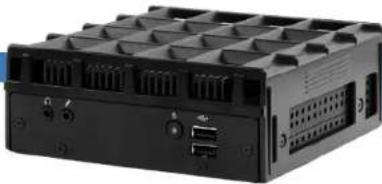
est addition to DT Research's line of Embedded Controller/ System devices - the DT180P/ DT180T, featuring compact, robust construction powered by the high-performance and energy efficient Intel® Core™2 Duo processor. The DT180P/ DT180T supports major embedded operating systems as well as Microsoft® Windows® XP Embedded, Windows® Embedded Standard 7, Windows® 7 Pro or Windows® XP Pro and provides complete solutions for a variety of computing needs. The user is offered a choice of software solutions on a platform characterized by the following:
• High-integration and energy-efficient processor technology
- Expanded graphics capabilities for multimedia applications
- Robust construction for reliable operation
- Cost-effective computing in compact and versatile packaging
natural_image
Black electronic device rear panel with ports and connectors (no visible text or symbols)
natural_image
Exterior view of a black industrial electronic device with ventilation grilles and ports, mounted on a transparent base (no text or symbols visible)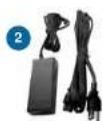

Package Contents
1 DT180P/ DT180T
2 AC/DC Power Adapter
3 VESA Bracket
4 Basic Operation Guide
Note: The actual package contents may vary depending on the configuration acquired.
DT180P/ DT180T
Precautions
• Always exercise care when operating and handling the DT180P/ DT180T.
- Never disassemble any portion of the enclosure. It will void any product warranty on the DT180P/DT180T.
- Do not use any AC/DC adapter other than the one provided with the device or acquired from the manufacturer or its partners.
- In the unlikely event that smoke, abnormal noise, or strange odor is present, immediately power down the DT180P/DT180T and disconnect all power sources.
Please report the problem to your device provider immediately.
THE DT180P/ DT180T
Powering ON and OFF
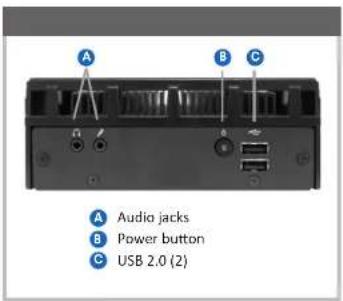
The Power Button is located in the front of the DT180P/DT180T. The Power Button may be configured to function differently depending on the power options of the operating system. In general, to turn the DT180P/DT180T on, push and release the Power Button on the front bezel. The adjacent power LED will be lit (blue) and the corresponding interface will be displayed on the display monitor.
To turn off the device, again depending on software operating system, push and release the Power Button or use a software shutdown interface. In the event of system lockup, the Power Button may be used to perform a reset on the device. To do that, push and hold the Power Button for at least 4 seconds. The system will shut down and all unsaved work may be lost. Pushing on the Power Button again will restart the device.
Device Ports
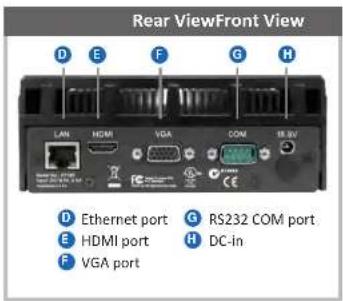
The DT180P/ DT180T features an optimal set of I/O ports while preserving the compact size of the system. The HDMI connector, Network (10/100/1000 BaseT Ethernet), and Power ports are supplemented by a set of two USB 2.0 and two Audio ports. Through its USB ports, the DT180P/ DT180T supports a wide range of USB-based peripherals. These peripherals are applicable in providing the means for software installation, application storage, data storage, and system software recovery and updates.
Memory and Storage
The DT180P/ DT180T may be available in storage configurations ranging 8GB of flash memory or 32GB to 64GB SSD. Depending on base software configuration, the user may use the internal memory of the DT180P/ DT180T for user's installed software and storage. The user may also supplement storage space with USB-based peripherals such as flash disks, disk drives, etc. RAM capacity is up to 2GB.
VESA Mounting Bracket Installation Guide for DT180P/ DT180T
The DT180P/ DT180T package includes a VESA-compliant mounting bracket (1) which mounts the DT180P/ DT180T (2) onto a VESA-compatible monitor or display.
NOTE: The VESA Mounting Bracket is compatible with most displays and monitors that support the VESA standard.
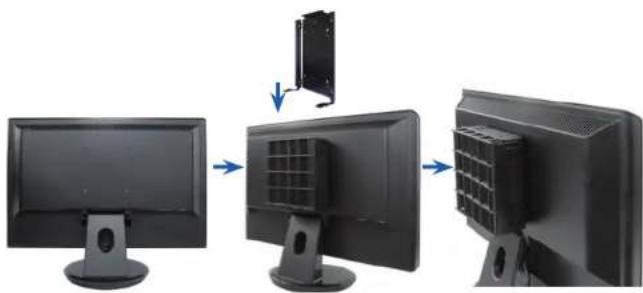
natural_image
Three-panel image showing a computer monitor with a separate panel being inserted, no text or symbols present.Step1:
- Locate the existing mounting holes on the monitor.
Line the bracket holes up with the holes on the back of the monitor, as shown to the right. - Place the screws to hold the mounting bracket in place and tighten the screws (do not over tighten).
Step2:
Remove the two M3 screws (3) originally on the DT180P/DT180T signage appliance.
Place the DT180P/ DT1801 (2) on the • bracket rail with the interface ports side facing downwards so that the two mounting holes on the appliance are aligned with the existing holes on the rail (see picture).
Step3:
Apply and tighten the screws into their original locations and make sure that the bracket and the DT180P/ DT180T are properly secured.