
D1710 - Skjerm V7 - Gratis bruksanvisning og manual
Finn enhetens veiledning gratis D1710 V7 i PDF-format.


Brukerspørsmål om D1710 V7
0 spørsmål om dette apparatet. Svar på dem du kjenner, eller still ditt eget.
Still et nytt spørsmål om dette apparatet
Last ned instruksjonene for din Skjerm i PDF-format gratis! Finn veiledningen din D1710 - V7 og ta den elektroniske enheten tilbake i hendene. På denne siden er alle dokumenter som er nødvendige for bruken av enheten din publisert. D1710 av merket V7.
BRUKSANVISNING D1710 V7
TcDevelopment

Congratulations!
ThedisplayyouhavejustpurchasedcarriestheTCO'03 Displayslabel.Thismeansthatyourdisplayisdesigned, manufacturedandtestedaccordingtosomeofthestrictest qualityandenvironmentalrequirementsintheworld.This makesforahighperformanceproduct,designedwiththe userinfocusthatalsominimizestheimpactonournatural environment.
SomeofthefeaturesoftheTCO'03Displayrequirements:
Ergonomics
Goodvisualergonomicsandimagequalityinordertoimprovetheworkingenvironment fortheuserandtoreducesightandstrainproblems.Importantparametersareluminance, contrast,resolution,reflectance,colourrenditionandimagestability.
Energy
Energy-savingmodeafteracertainty-beneficialbothfortheuserandthe environment Electricalsafety
Emissions
Electromagneticfields Noiseemissions
Ecology
The product must be prepared for recycling and the manufacturer must have certified environmental management systems such as EMAS or ISO 14001
Restrictionson
ochlorinatedandbrominatedflameretardantsandpolymers oheavymetalssuchascadmium,mercuryandlead.
TherequirementsincludedinthislabelhavebeendevelopedbyTCODevelopmentinco-operationwithscientists,experts,usersaswellasmanufacturersalloovertheworld.Sincethe endofthe1980sTCOhasbeeninvolvedininfluencingthedevelopmentofITequipmentina moreuser-friendlydirection.Ourlabellingsystemstartedwithdisplaysin1992andisnow requestedbyusersandIT-manufacturersalloovertheworld.
Formoreinformation,pleasevisit
www.tcodevelopment.com

natural_image
Simple grayscale illustration of a computer monitor with a curved stand (no text or symbols)
natural_image
Abstract logo design with black and red stylized letters forming a V-like shape (no text or symbols)LCD Monitor
USER MANUAL
Benutzerhandbuch
Manuel Utilisateur
Manual de usuario
Manuale utente
Gebruiksaanwijzing
Használati utasítás
Podręcznik użytkownika
Användarhandbok
Brugervejledning
Brukerveiledning
Kayttöopas
Manual do utilizador
用手册
TABLE OF CONTENTS
PRECAUTIONS 2
INFORMATION FOR USERS APPLICABLE IN EUROPEAN UNION COUNTRIES.... 2
INFORMATION FOR USERS APPLICABLE IN UNITED STATES OF AMERICA.... 2
INSTALLATION.... 2
POWER CONNECTION.... 2
MAINTENANCE.... 2
TRANSPORTING THE MONITOR.... 2
GETTING STARTED 3
PACKAGE CONTENTS.... 3
INSTALLATION OF FIRST USE 4
IDENTIFYING PARTS AND CONTROLS.... 4
FUNCTIONS OF THE BUTTONS AND INDICATOR: 4
SETUP....5
CUSTOMIZING YOUR MONITOR....6
Working with OSD Group....6
Hotkey and the Characteristic Functions Introduction....6
OSD Icon List 7
TROUBLESHOOTING 9
TECHNICAL FEATURES AND SPECIFICATIONS 10
INTERFACE FREQUENCY.... 10
ADDENDUM 11
REGULATIONS 13
FCC COMPLIANCE.... 13
Precautions
"The display unit is an electric device which may contain hazardous materials / components and that it needs to be taken care of at end of life according to a procedure."
Forddetailedrecyclingprocedure,pleasevisit www.vidcoseven.com/website/displays/en/support/garantic/index.php
Information for users applicable in European Union countries


The symbol on the product or its packaging signifies that this product has to be disposed separately from ordinary household wastes at its end of life. Please kindly be aware that this is your responsibility to dispose electronic equipment at recycling centers so as to help conserve natural resources. Each country in the European Union should have its collection centers for electrical and electronic equipment recycling. For information about your recycling drop off area, please contact your local related electrical and electronic equipment waste management authority or the retailer where you bought the product.
Information for users applicable in United States of America

LAMP(S) INSIDE THIS PRODUCT CONTAIN MERCURY AND MUST BE RECYCLED OR DISPOSED OF ACCORDING TO LOCAL, STATE OR FEDERAL LAWS. FOR MORE INFORMATION, CONTACT THE ELECTRONIC INDUSTRIES ALLIANCE AT WWW.EIAE.ORG. FOR LAMP SPECIFIC DISPOSAL INFORMATION CHECK WWW.LAMPRECYCLE.ORG.
Installation
- Do not cover or block the ventilation ports on the rear of the monitor.
- Do not install the monitor close to heat sources such as radiators or air ducts, or in a location exposed to direct sunlight, excessive dust, mechanical vibration, or shock.
- The apparatus shall only be used between 3^ tilted forward and 17^ tilted backward as normal operation position. If the tilt angle exceeds 17^ , it shall be used for wall mounting or packaging only.
Power connection
- Use the correct power cord for your local voltage.
- Use an accessible outlet close to the monitor.
3.Do not allow anything to rest on the power cable. - Only use the power adapter attached to the monitor.
5.Disconnect the power cable from the power supply if:
5.1 You will not use the monitor for an extended period.
5.2 The cable is damaged or frayed.
5.3 The monitor has been dropped or the cabinet damaged.
5.4 A distinct change in performance indicates a need for servicing.
Maintenance
- Clean the cabinet and controls with a soft cloth lightly moistened with a mild detergent solution. Do not use any abrasive materials or solvents such as alcohol or benzene.
- Do not rub, touch, or tap the surface of the screen with sharp or abrasive items such as pens or screwdrivers, as the screen may scratch.
3.Do not insert objects or spill liquids into the ventilation ports on the monitor's rear, as fire, electric shock, and / or unit failure may result.
Transporting the monitor
- When transporting the monitor for repair or shipment, fold the base of the monitor back until it becomes straight. Then wrap the monitor and its attachments with the original carton and packing materials.
Package contents
Before beginning, ensure that the carton contains the following items:
1.LCD Monitor

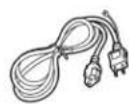
- Power cord (The plug may vary according to the electrical standard for your area)
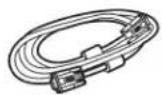
- Video Signal Cable (Analog, D-SUB Cable)
- Audio cable (optional)

5.CD-ROM
- Quick Installation Guide
Installation of First Use
- The installation of the monitor is very simple. What you need to do is to take the monitor from the packing box and remove all the packing materials. And then put the monitor on the desk carefully; fold the monitor base, so that the monitor can stand on the desk properly. Next, adjust the monitor to a desired position according to the seat and other factors.
Identifying parts and controls
- The LED indicator and control buttons as following
- The connection ports as following:
Functions of the buttons and indicator:
| Button | Functions |
| MENU 1 | 1.Turn on the monitor2.Activate the OSD control menu3.Select the specific function4.Turn off the monitor by pressing the button for 3 seconds |
| + | 1.Activate the Volume control menu, and increase the value (optional)2.View the next function in the main OSD menu clockwise3.Increase the value of specific function which has been selected |
| - | 1.Activate the Volume control menu, and decrease the value (optional)2.View the next function in the main OSD menu counter-clockwisely3.Decrease the value of specific function which has been selected |
| + & - | 1.Optimize the picture performance automatically |
| Indicador LED ● | 1.Green color indicates that the monitor is in “active” mode (normal operation).2.Amber color indicates that the monitor is in “sleeping” mode (power saving mode or no signal input).3.Not lit indicates that the monitor is in “off” mode (monitor power off). |
Setup
1. Connecting video
(Note: Before connecting computer, ensure the resolution and refresh rate of the computer do not exceed the following settings - resolution: 1280*1024, refresh rate: 75Hz.)
1.1 Turn off your computer
1.2 Connect the video signal cable to the VGA port of your PC, tighten the screws on the connector onto the computer
1.3 Connect the other end of video signal cable to the VGA-IN port at the back of the monitor, tighten the screws on the connector onto the monitor
2. Connecting power
2.1 Plug the female end of the power cord in to the AC-IN port at the back of the monitor
2.2 Plug the male end of the power cord into a power outlet
3.3 Connecting audio (optional)
3.1 Plug the audio cable into the AUDIO port at the back of the monitor
3.2 Plug the other end of the audio cable into your computer or other audio source
4. Turning on the computer
- Pressing the ① button at the back of the monitor to turn on the monitor
You should be able to see the picture now. If not, refer to "Troubleshooting" section.
Customizing your Monitor
The On Screen Display (OSD) system provides a full range of customizable tools to optimize your display.
| Important: | While full customization is available, we strongly recommend using the Auto Adjustment function, which are preset to fully optimize your monitor's performance. Simply presses the + & - buttons simultaneously to engage the Auto Adjustment. It is also recommended that you execute the function following any change made to your display from your computer. |
Working with OSD Group
- Press Menu Ⓐ button to activate the OSD menu.
- Select the icon from the OSD menu with the + & - button.
- Press Menu ① button to confirm the selection of specific function
- Press + or - to adjust the setting values.
-
Press Menu ① button to exit from the sub-menu.
-
Press + or - to select the Exit icon Exit, and then press the Menu ① button to exit from the OSD menu.
Introduction to Hotkeys
1. Auto Adjustment
While the OSD menu is not shown, press + & - buttons simultaneously to optimize the picture performance automatically (You may also use the OSD control to activate the Auto Adjustment function. See OSD Menu and Icon List section)
2. Volume Control (optional)
While the OSD menu is not shown, press + or - button to increase or decrease the audio volume level.
OSD Icon List
| Icon | Functions | Detail |
 | Auto Adjustment | Optimize the picture performance automatically (you may also press and buttons simultaneously, while the OSD menu is not shown, to activate the function) |
 | Brightness | Adjust the luminance level of the screen |
 | Contrast | Adjust the contrast level (black to white ratio) of the screen |
 | Sharpness | Adjust the sharpness of the screen |
 | Clock | Adjust the monitor internal sampling clock rate |
 | Phase | Adjust the monitor internal signal phase |
 | Horizontal Position | Shift the position of the screen left or right |
 | Vertical Position | Shift the position of the screen up or down |
 | Color Temperature | Select the setting of screen color - Cool, Warm or User |
| Cool | Select the setting of screen color to be bluish white. | |
| Warm | Select the setting of screen color to be reddish white | |
| User | Adjust the setting of screen color per user's preference | |
| R | Adjust the percentage of red color. | |
| G | Adjust the percentage of green color. | |
| B | Adjust the percentage of blue color | |
 | OSD Menu Language | Select your own preference of language of OSD menu. |
 | OSD Menu Position | Adjust the position of OSD menu on the screen. |
 | Power Saving Mode | Select between Standard and Advanced power saving modes.See addendum for details. |
| Standard | Fulfill EPA Energy Star power management requirement | |
| Advanced | Activate monitor Life-Extension function | |
 | Recall Factory Preset | Reset monitor parameters back to factory preset values. |
 | Exit | Disable the OSD menu |
Troubleshooting
| Symptom | Check Items |
| 1.No picture2.LED indicator (at the right side of the monitor) is not lit | 1. Check if the monitor is turned on (press the button ➊ again).2. Check if the power cord is properly connected to the monitor and power outlet.3. Check if there is electricity coming from the power outlet (use another device to check for power). |
| 1.No picture2.LED indicator (at the right side of the monitor) is orange | 1 Check if your computer is turned on.2 Ensure the computer is not in power saving mode (move the mouse or press a key on the keyboard to wake up the computer).3 Check if the video signal cable is properly connected to the monitor and computer. |
| 1.Picture shows "No Signal Input" | 1 Check if your computer is turned on.2 Check if the video signal cable is properly connected to the monitor and computer. |
| 1.Picture shows "Input Signal Out of Range" | 1. Ensure that the resolution and/or refresh rate is set correctly.(See item 2.1 of Monitor Installation section) |
| 1.Picture not clear | 1. Press the + & - buttons simultaneously to activate the Auto Adjustment function2. Check if the video signal cable is properly connected to the monitor and computer.3. Adjust the screen resolution and refresh rate of your computer to SXGA(resolution: 1280*1024, refresh rate: 60Hz) for the best performance |
Technical Features and Specifications
| Item (V7-17) | Description | |
| Panel | Screen Size | 337.92(H) x 270.336(V) mm |
| Pixel Format | 0.264(H) x 0.264(V) mm | |
| Monitor | Display Colors | 16.2M colors |
| Input Signal | Frequency | Horizontal: 31.5KHz to 80KHzVertical: 56Hz to 75Hz |
| Compatibility | PC | SXGA 1280 X 1024 @75H zSXGA 1280 X 1024 @60Hz |
| Connector | Analog | D-sub 15 pin |
| Tilt | Tilt Angle | -5° -20° |
| Dimensions(W x H x D) | Net | 379 (W) x 386(H) x196(D) mm |
| Weight | Net | 3.6kg |
| Regulations | Safety | CE, TUV/GS, Energy Star, TCO'03,Nemko,Semko,Demko,Fimko |
| EMI | CE | |
| VESA | DDC2B,DPMS | |
| Power | ACConsumption | AC 100~240V , 47Hz~63HzActive: < 35W / Standby: < 1W |
| Item (V7-19) | Description | |
| Panel | Display Size | 376.3 (H) x 301.1(V) mm |
| Pixel Pitch | 0.294(H) x 0.294(V) mm | |
| Monitor | Display Colors | 16.2M colors |
| Input Signal | Frequency | Horizontal: 31.5KHz to 80KHzVertical: 56Hz to 75Hz |
| Compatibility | PC | SXGA 1280 X 1024 @75HzSXGA 1280 X 1024 @60Hz |
| Connector | Analog | D-sub 15 pin |
| Tilt | Tilt Angle | -3° -17° |
| Dimensions(W x H x D) | Net | 420 (W) x 433(H) x211(D) mm |
| Weight | Net | 4.66kg |
| Regulations | Safety | CE, TUV/GS, Energy Star, GOST,TCO'03,Nemko,Semko,Demko,Fimko |
| EMI | CE | |
| VESA | DDC2B,DPMS | |
| Power | AC | AC 100~240V , 47Hz~63Hz |
| Consumption | Active: < 40W / Standby: < 1W | |
Interface Frequency
- The following frequency range is the working period. If the entered mode between below period but not match the frequency of supported timing, display optimization would not be assured. If the entered mode is out of the working period, the display will be blanking (just show "Input Signal Out Of Range") then go to power saving.
- Basically, mode judgment is regardless the sync polarity except both or more modes that are all belong to the supported timing list and could be judged by sync polarity only.
- At the meantime, real entered frequency of the supported timing is not requested exactly.
- Normalization of VGA card's deviation will be acceptable.
- Horizontal Frequency 30 KHz---80 KHz
6.Vertical Frequency 50 Hz---75 Hz
Advanced Power Saving Mode
1. Background
The traditional monitors have the function of electricity-saving dormancy. But the interval of dormancy is difficult to decide. If the interval is long, the purpose of saving electricity can not be achieved. While the interval is short, your computer and LCD monitor would be dormant often. When the LCD monitor becomes dormant, the back lights will be turned off immediately. The frequent turn-on and turn-off of lights will result in the lightness uneven and even shortening the life of the lights.
2. Our solution to the dilemma - Monitor Life-Extension function
In view of that, we have designed the function of Monitor Life-Extension. Once you select the option of "Advanced Power Saving Mode" in the OSD menu, and then you can not only save electricity, but extend the life of the lights.
3. Working principle of the Monitor Life-Extension function
To minimize the impact of frequent turn-on and turn-off of LCD monitor, the Life-Extension function decreases the electricity supplied to the back-light of LCD monitor gradually, instead of cut it off right away when PC enters sleeping or off mode. Please see following comparison graphics for details.
* Standard Power Saving Mode (without Monitor Life-Extension function)
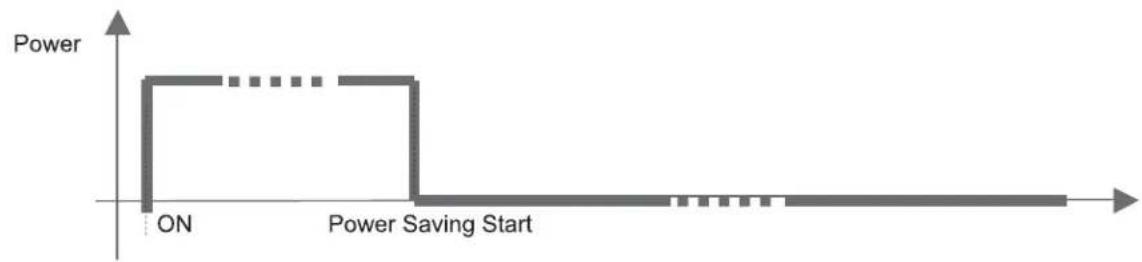
line
| Time Point | Power | | ---------------- | ----- | | ON | ON | | Power Saving Start | 0 |* Advanced Power Saving Mode (with Monitor Life-Extension function)
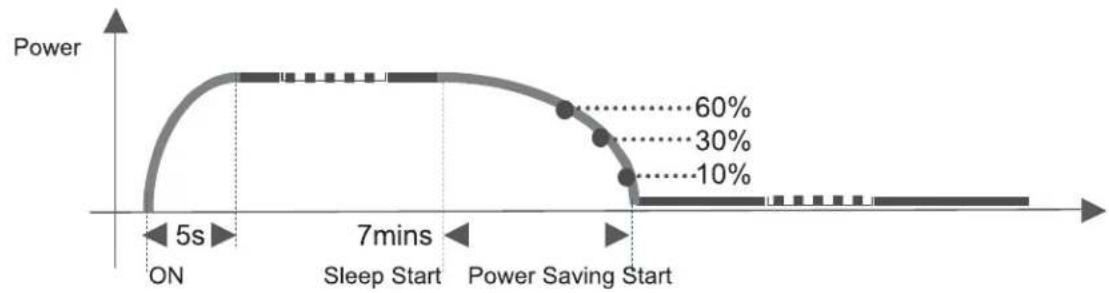
line
| Time Segment | Power Level | | ------------------ | ----------- | | ON | 0% | | 5 mins Sleep Start | 60% | | 7 mins Power Saving Start | 30% | | Power Saving Start | 10% |This "Slow-Start-n-Delay-Off" approach minimizes the transit of electricity and temperature caused by the turn-on and turn-off of LCD monitor. Therefore, the decay of backlights of TFT-LCD can be controlled in the certain level which is much less than it was.
4. The side effect of the Monitor Life-Extension function (why not preset Advanced Power Saving Mode as default?)
According to the request of EPA (US Environmental Protection Agency) to power management of monitors, the power consumption of the monitor must go down to below 3 watts within 3 seconds after the monitor steps in power saving mode. But the Life-Extension function decreases the electricity supplied to the backlights of LCD monitor gradually. Therefore, the Monitor Life-Extension function has conflict with the requirement of EPA in the first 7 minutes after entering sleeping mode. Even though, comparing the advantages of both conditions, we still recommend you strongly to set your monitor in Advanced Power Saving mode.
5.I How to engage the Monitor Life-Extension function?
You may simply use the OSD control to activate the Monitor Life-Extension function.
- Press the Menu ① button to activate the OSD menu
- Press + or - button to select the Power Saving Mode icon
- Press the Menu Ⓙ button to confirm the selection
- Press + or - button to select the "Advanced" option in the Power Saving Mode function.
- Press the Menu Ⓐ button to confirm the selection
- Press + or - button to select the Exit icon.
- Press the Menu Ⓐ button to exit the OSD menu
Regulations
FCC compliance
- This device complies with Part 15 of the FCC Rules. Operation is subject to the following two conditions (1) this device may not cause harmful interference, and (2) this device must accept any interference received, including interference that may cause undesired operation.
- NOTE: This equipment has been tested and found to comply with the limits for a Class B digital device, pursuant to part 15 of the FCC Rules. These limits are designed to provide reasonable protection against harmful interference in a residential installation. This equipment generates, uses and can radiate radio frequency energy and, if not installed and used in accordance with the instructions, may cause harmful interference to radio communications. However, there is no guarantee that interference will not occur in a particular installation, If this equipment does cause harmful interference to radio or television reception, which can be determined by turning the equipment off and on, the user is encouraged to try to correct the interference by one or more of the following measures:
- Reorient or relocate the receiving antenna.
- Increase the separation between the equipment and receiver.
- Connect the equipment to an outlet on a circuit different from that to which the receiver is connected.
- Consult the dealer or an experienced radio/TV technician for help.
| WARNING: | Any unauthorized modification to this equipment could result in the revocation of the authorization to operate the equipment and void the product warranty. |
- TcDevelopment
- Congratulations!
- Ergonomics
- Energy
- Emissions
- Ecology
- LCD Monitor
- USER MANUAL
- Benutzerhandbuch
- Manuel Utilisateur
- Manual de usuario
- Manuale utente
- Gebruiksaanwijzing
- Használati utasítás
- Podręcznik użytkownika
- Användarhandbok
- Brugervejledning
- Brukerveiledning
- Kayttöopas
- Manual do utilizador
- TABLE OF CONTENTS
- PRECAUTIONS 2
- GETTING STARTED 3
- TROUBLESHOOTING 9
- TECHNICAL FEATURES AND SPECIFICATIONS 10
- ADDENDUM 11
- REGULATIONS 13
- Precautions
- Information for users applicable in European Union countries
- Information for users applicable in United States of America
- Installation
- Power connection
- Maintenance
- Transporting the monitor
- Package contents
- Installation of First Use
- Identifying parts and controls
- Setup
- Connecting video
- Connecting power
- Connecting audio (optional)
- Turning on the computer
- Customizing your Monitor
- Working with OSD Group
- Introduction to Hotkeys
- Auto Adjustment
- Volume Control (optional)
- Troubleshooting
- Technical Features and Specifications
- Interface Frequency
- Advanced Power Saving Mode
- Background
- Our solution to the dilemma - Monitor Life-Extension function
- Working principle of the Monitor Life-Extension function
- The side effect of the Monitor Life-Extension function (why not preset Advanced Power Saving Mode as default?)
- 5.I How to engage the Monitor Life-Extension function?
- Regulations
- FCC compliance
Merke : V7
Modell : D1710
Kategori : Skjerm