DSK8GB-TORV2 - USB-minne Centon - Gratis bruksanvisning og manual
Finn enhetens veiledning gratis DSK8GB-TORV2 Centon i PDF-format.


Brukerspørsmål om DSK8GB-TORV2 Centon
0 spørsmål om dette apparatet. Svar på dem du kjenner, eller still ditt eget.
Still et nytt spørsmål om dette apparatet
Last ned instruksjonene for din USB-minne i PDF-format gratis! Finn veiledningen din DSK8GB-TORV2 - Centon og ta den elektroniske enheten tilbake i hendene. På denne siden er alle dokumenter som er nødvendige for bruken av enheten din publisert. DSK8GB-TORV2 av merket Centon.
BRUKSANVISNING DSK8GB-TORV2 Centon
USB DataStick Memory
natural_image
Close-up of a car's front panel showing two metallic buttons and a button (no text or symbols visible)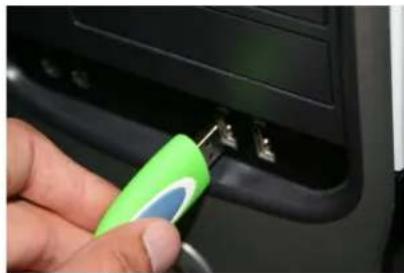
natural_image
Close-up of a hand inserting a green key into a black electronic device (no visible text or symbols)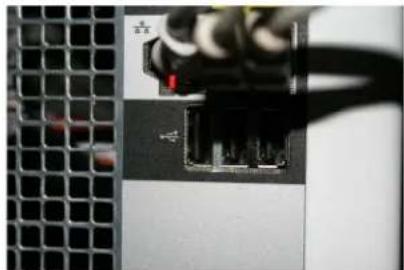
natural_image
Close-up of a server rack with an attached port and cable, no visible text or symbols1. LOCATING YOUR USB SLOT(S)
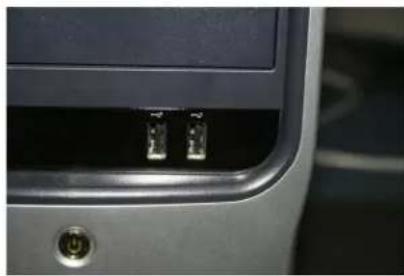
Most computers have USB slots on the front panel, while others may be located in the back of the machine. Occasionally, the front/external USB ports on some new computers are un-powered. If so, connecting instead to the ports on the back of the computer will usually solve the issue.
2. INSERT THE DRIVE INTO THE USB SLOT
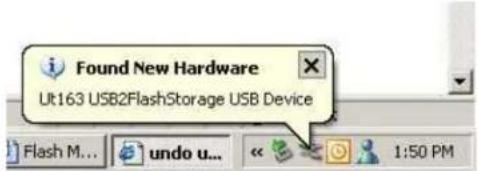
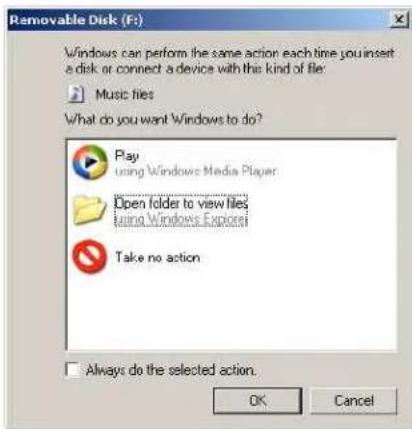
Most USB DataSticks have a removable cap which will reveal the USB drive, while others have a notch you must push up to expose the USB drive. Then simply plug your DataStick into the USB slot and your computer will recognize a device has been inserted. If your USB drive comes with drives, be sure to run the install disc to install the drives. Otherwise Windows will automatically recognize the device and you will be prompted to choose an action to take with the drive.
3. COPY FILES TO/FROM YOUR USB DATASTICK
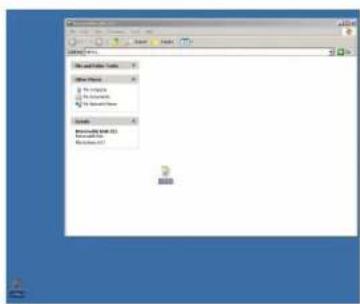
You can simply click on a file on your computer/desktop and drag it into the window of your DataStick. Just click on the file and hold down the left mouse button and drag it into the DataStick window (typically labeled "Removable Disk") using your mouse and let go of the left mouse button. The same can also be done with dragging files from your DataStick window to your computer/desktop.
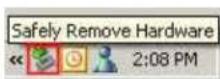
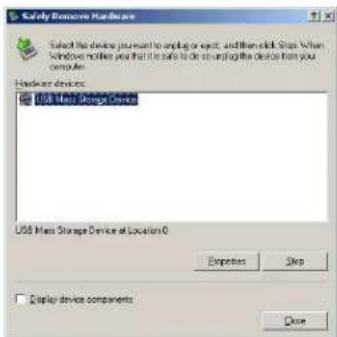
4. REMOVING YOUR USB DATASTICK
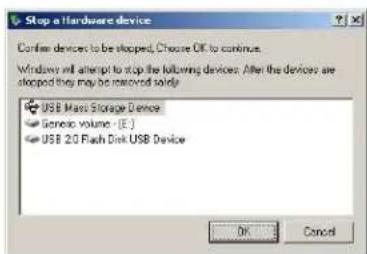
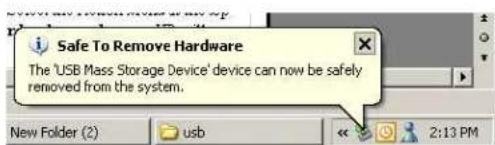
Simply click on the "Safely Remove Hardware" icon in the lower right corner of your Start Menu. A window will open up asking you which device you want to unplug. Click on "USB Mass Storage Device" and click on STOP. Then when prompted at the next window, click on "USB Mass Storage Device" and the click OK. In the lower right corner of your screen you will see a message confirming your USB DataStick is safe to remove.