Magnifique - Kamera EASYPIX - Gratis bruksanvisning og manual
Finn enhetens veiledning gratis Magnifique EASYPIX i PDF-format.


Brukerspørsmål om Magnifique EASYPIX
0 spørsmål om dette apparatet. Svar på dem du kjenner, eller still ditt eget.
Still et nytt spørsmål om dette apparatet
Last ned instruksjonene for din Kamera i PDF-format gratis! Finn veiledningen din Magnifique - EASYPIX og ta den elektroniske enheten tilbake i hendene. På denne siden er alle dokumenter som er nødvendige for bruken av enheten din publisert. Magnifique av merket EASYPIX.
BRUKSANVISNING Magnifique EASYPIX
Magnifique Manual
1. PACKING CONTENT
1) MAGNIFIQUE Unit
2) Installation CD Disk
3) AAA Battery
4) User Manual
5) Mini-USB Cable
6) Pouch
2. CONTROLS

| 1 | POWER Power on/off | the unit by hold down POWER button for 2 seconds |
| 2 | LENS It helps to locate | len over the observed object. |
| 3 | DISTANCE DIAL | Adjust this dial to focus and get a clear image with your observed object. |
| 4 | ZOOM WHEEL(Left 0r Right key selection)/CAPTURE(OK) | A 3 way button performs Zoom in and out by turning ZOOM WHEEL left (zoom out -) or right (zoom in+), Press down the ZOOM WHEEL onwards to- capture a image in photo mode, or- start recording in video mode. Press once again to stop video recording in video mode.You may use ZOOM WHEEL to select options (Left or right) and CAPUTRE(OK) to confirm, if any menu/sub-menu is available. |
| 5 | MODE(Up) | Press MODE button to Switch photo/video mode.In Menu Mode: Up selection Key. |
| 6 | LIGHT(Down) | Press this button to switch Light modes .(Low->Middle->High->Off).In Menu Mode: Down selection key. |
| 7 | MENU/ DELETE | Press MENU/DELETE button for advanced settings. Press again to exit MENU mode.Press this button to delete media file in PLAYBACK mode |
| 8 | PLAYBACK | Press PLAYBACK button to play your saved photo/video files.Single->Thumbnail (3x3 pix) ->Exit playback mode |
| 9 | SD CARD SLOT | Insert a SD Card (support SD/HCSD card, up to 16G) to save your photo/video files. |
| 10 | MINI USB SOCKET | Transfer your photo/video files to computer by using USB cable connection. |
3. EXPLANATION OF THE STATUS ICONS

| Item | Function Description | |
| 1 | Photo/Video counter | Photo mode: No. of pictures had been taken.Video mode: Recording time in second.Playback mode: No. of pictures or video file. |
| 2 | Selected resolution | 5M = 2560x1920; 3M = 2048x1536;1.3M = 1280x960; VGA = 640x480 |
| 3 | Picture quality | Super fine.Fine.Normal. |
| 4 | Battery indicator | The batteries are full.The batteries are empty. |
| 5 | LED Status indicator | LowMiddleHighPhotographs mode.Videos capture mode. |
| 6 | Mode selected | |
| 7 | SD Card Status indicator | SD card inserted |
| 8 | Effect Status indicator | Show effect status: Moving insect/ Sepia/ B&W/Negative/ Text |
| 9 | Ruler Ruler status indicator | |
| 10 | Magnification indicator | Show magnification status |
4. BASIC OPERATION
• Install 4 pieces of AAA batteries in MAGNIFIQUE
• Power on your MAGNIFIQUE by pressing and holding the POWER button for 2 seconds.
- Place your observed object below Digital Magnifier's Lens.
- The object will be displayed on the screen. Adjust the DISTANCE DIAL button to get the host image of the object
- Turn the DISTANCE DIAL, you will find two clear dots, which are in accordance with best image of the object.
the smaller zoom ratio(10X optical magnification) and the larger zoom ratio(17X optical
magnification). Turn the DISTANCE DIAL up/down until the rule is displayed, and then adjust it properly to get the clear image.
• This camera provides the Off / Low brightness/Middle brightness/High brightness modes.
You can choose the proper LED brightness when you observe the close-up object. You can use the provided rule to measure the observed object. The length represents
- You can use the provided rule to measure the observed object. The length represented by every bar is displayed on the right of the rule. Take the diagram below as an example
every bar is displayed on the right of the rule. Take the diagram below as an example, every bar represents 0.1mm, you can calculate the length of the object according to the bars it takes up.

Note :
-
Make sure the camera lies flatly on the observed object.
-
The value measured by the rule may have some deviations because of the difference in focusing
deviations because of the difference in focusing positions
The value is just for reference.
- The current zoom ratio will appear on the lower left of the rule. Zoom your view by turning ZOOM WHEEL
left (zoom out) or right (zoom in). When the optical zoom ratio is 10.x, the maximum digital zoom ratio is up to 320.x; when the optical zoom ratio is 17.x, the maximum digital zoom ratio is up to 500.x.
Note:
The bigger the digital zoom ratio, the large the variation the ruller and the real zoom ratio,
and at the same time the worse the image quality. So please select the appropriate digital zoom ratio according to your need.
- Switch between photo/video mode by pressing MODE button. Press CAPTURE button (Zoom wheel) onwards to take a photo/video, it will be saved into SD memory card
(Zoom wheel) onwards to take a photo/video, it will be saved into SD memory card which installed in the unit.
• View your saved photo/video file in PLAYBACK mode.
MAGNIFIQUE will save your captured image as JEPG format (picture), and AVI In video mode, which can be played with your computer.
5. PLAYBACK
Play your saved photo/video files with MAGNIFIQUE in PLAYBACK mode.
• MAGNIFIQUE provides 2 optionS: a) Single b) Thumbnail
- Press PLAYBACK button to enter single PLAYBACK mode
• In single PLAYBACK mode, press up/down key to previous or next media,
press Menu key into delete/ slide show selection menu.
- When slide show playing, you can stop by press OK Key
- In single photo PLAYBACK mode, turn ZOOM WHEEL to Zoom in or Zoom out
In zoom in mode, press the Ok button to enter Playback Photo mode
Press the ZOOM WHEEL button to move left/ right and the MODE and LIGHT
buttons to move up/ down to view the photos In thumbnail mode. Turn ZOOMWHEEL Left/
- In thumbnail mode, Turn ZOOM WHEEL left/right and press up/down key to select media press CAPTURE/OK to view.
select media, press CAPTURE/OK to view
- You may delete a single photo/video file or all files from your SD card by pressing MENU/DELETE button in single PLAYBACK mode.
• Press PLAYBACK button until PLAYBACK mode ex
• In single PLAYBACK mode press OK Key exit PLAYBACK Mode
6. ADVANCED SETTING
It provides various options to customize your →AGNIFIQUE. Press →ENU button for advanced setting. To make selection, turn ZOO→WHEEL left/right and press up/down key to highlight your selection, press CAPTURE/OK to confirm.
| Item | Function Description | |
| 1 | PHOTO QUALITY | Super Fine/Fine/Normal |
| 2 | PHOTO RESOLUTION | a)5→:5→EGA PIXELS (2560 x 1920)b)3→:3→EGA PIXELS (2048 x 1536)c)1.3→:1.3→EGA PIXELS (1280 x 960)d)VGA 640*480 (640 x 480) |
| 3 | AUTO POWER OFF Automatically power off the unit after it goes idle for a desirable period. | Off / 1→inute / 3 →inutes / 5 →inutes |
| 4 | Date/Time SETUP Adjust your current date and time with your following format | YY/→→/DD, Date or time setting |
| 5 | QUICK REVIEW (set the review time after capture photo) | Off / 0.5 Seconds / 1 Seconds / 3 Seconds |
| 6 | DEFAULT Setting Use DEFAULT to load default factory setting.Do it will delete all user Settings) | a)NOb)YESPress →ENU button to Exit.→AGNIFIQUE will reboot and reset to factory setting after choosing this option. |
| 7 | FOR→AT Format the memory card which installed in this unit | a)NOb)YESPress →ENU button to Exit.→AGNIFIQUE will reboot after pressCAPTURE/OK button(Note: ALL data in SD card will be deleted!) |
| 8 | EFFECTS Apply special effect in observation or photo/video capture. Various special effort are provided | a)→OVING INSECTb)SEPIAc)B&Wd)NEGATIVEe)TEXTf)EXIT |
| 9 | LANGUAGE | LANGUAGE feature allows you to display the menus and screen messages in different languages.→AGNIFIQU provides 9 languages. Highlight your preference language CAPTURE/OK to confirm. languages include:English/French/German/Italian/Portuguese/Spanish/S-Chin T-Chinese/ Japanese |
| 10 | S.I→AGE Welcome Screen image | a)ONb)OFF |
| 11 | FREQUENCY | a) 50Hzb) 60 Hz |
| 12 | FW VER Show FW version | |
7. POWER SUPPLY
• →AGNIFIQUE can run from batteries (4XAAA).
- For lengthy storage periods, Please remove batteries to prevent damage due to battery
leakage/ discharge
- AGNIFIQUE use alkaline batteries. Do not mix battery types in use and do not
recharge alkaline batteries
8. SPECIFICATION PRODUCT INFORMATION
| 1 | →AGNIFIQUE Digital →obile →agnifier/ →icroscope | |
| 2 | SIZE 115L × 68W × 24.6H mm | |
| 3 | SENSOR 5.0 →ega pixels C →OS | |
| 4 | STILL →AGE RESOLUTION | 5.0 →ega Pixel (2560 × 1920) |
| 3.0 →ega Pixel (2048 X 1536) | ||
| 1.3 →ega Pixels (1280 X 960) | ||
| VGA (640 X 480) | ||
| 5 I →AGE FOR→AT JEPG | ||
| 6 VIDEO RESOLUTION | VGA (640 X 480) | |
| QVGA (320 X 240) | ||
| 7 | VIDEO FOR→AT | AVI |
| 8 →AGNIFYING RATE 10X-500X | ||
| 9 FOCAL RANGE →annual Focusing: 0.5C→5C→ | ||
| 10 | PLAYBACK ZOO→ | 4X |
| 11 | →EASURE FUNCTION | Rule for measuring length reference |
| 12 | LENS | High sensitivity lens |
| 13 | SHUTTER SPEED | 1/2 to 1/2000 seconds |
| 14 | AUXILLARY LIGHT | White LED × 4 with super high brightness |
| 15 | LCD SCREEN | 2.7" TFT color LCD screen |
| 16 | →E→ORY | No built in memory ,need insert SD card for store file. |
| 17 | USB Port | USB 2.0 High Speed |
| 18 | POWER | 4 x AAA, 1.5V alkaline batteries |
| 19 | WEIGHT | Approximately 87 grams (not including batteries) |
| 20 | OPERATION TE→PATURE | 0°C ~ 45°C |
| 21 | ENVIRON→ENT HU→IDITY | Below 85% (no dew) recommended |
| 22 | BATTERY LIFE | Stand by: 90→inutes (LED high Light →ode ) |
| 23 | LANGUAGE | English/French/German/Italian/Portuguese /Spanish/S-Chinese/T-Chinese/ Japanese |
9.SYSTEM REQUIREMENT
| 1 | OPERATION SYSTE→ | Window XP SP3/ Vista/ Windows 7 →ac 10.4 or above |
| 2 | CPU | Pentium 4, 3.0G or faster recommended |
| 3 | RA→ | 1GB →B RA→ (Vista: 2GB) |
| 4 | INTERFACE | USB port |
| 5 | CD Rom | CD Rom Driver |

Keep it real.

For EU only
A→→5A4-GB-CLV-1
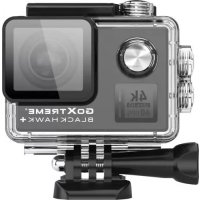
Merke : EASYPIX
Modell : Magnifique
Kategori : Kamera