WNDR37AV - Maršrutizatorius NETGEAR - Nemokama naudojimo instrukcija
Raskite įrenginio instrukciją nemokamai WNDR37AV NETGEAR PDF formatu.


Naudotojų klausimai apie WNDR37AV NETGEAR
0 klausimas apie šį prietaisą. Atsakykite į tas, kurias žinote, arba užduokite savo.
Užduokite naują klausimą apie šį prietaisą
Atsisiųskite instrukciją savo Maršrutizatorius PDF formatu nemokamai! Raskite savo instrukciją WNDR37AV - NETGEAR ir vėl perimkite savo elektroninį įrenginį. Šiame puslapyje skelbiami visi dokumentai, reikalingi jūsų įrenginio naudojimui. WNDR37AV prekės ženklo NETGEAR.
NAUDOJIMO INSTRUKCIJA WNDR37AV NETGEAR
Basic Wireless Router WNR612
Package Contents:
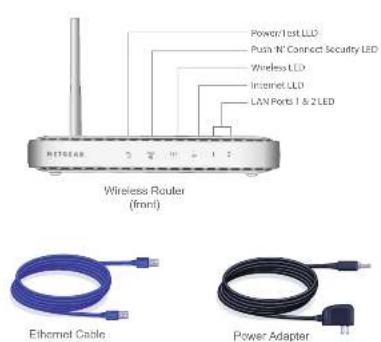
Step 1: Connect your modem.
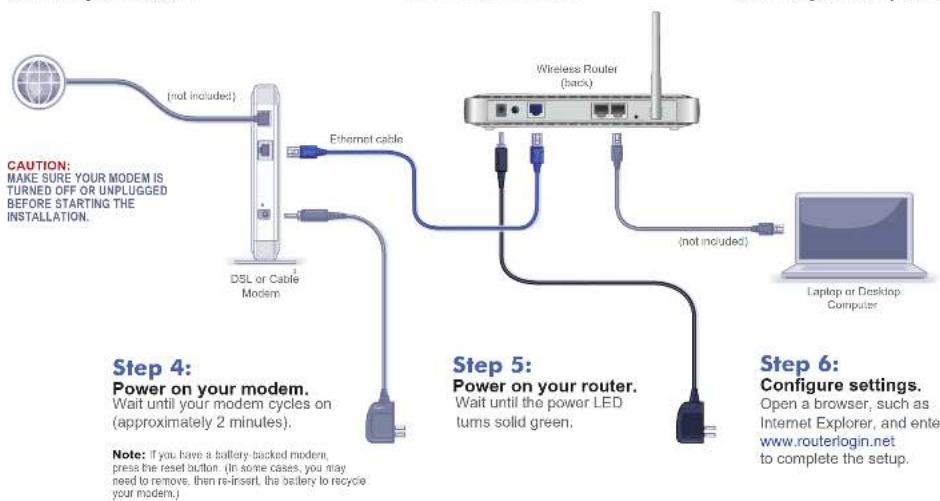
flowchart
graph TD
    A["Global"] -->|not included| B["DSL or Cable Modem"]
    B --> C["Ethernet cable"]
    C --> D["Wireless Router (back)"]
    D --> E["Laptop or Desktop Computer"]
    E --> F["Step 6: Configure settings. Open a browser, such as Internet Explorer, and enter www.routerlogin.net to complete the setup."]
    B --> G["Step 5: Power on your router. Wait until the power LED turns solid green."]
    style A fill:#f9f,stroke:#333
    style B fill:#ccf,stroke:#333
    style D fill:#cfc,stroke:#333
    style E fill:#fcc,stroke:#333
    style F fill:#cff,stroke:#333
Step 2: Connect your router.
Step 3: Connect your computer.
Router Configuration
Set up internet connection
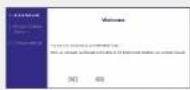
- In your browser address field type http://www.routerlogin.net and click Enter.
- When the Wokome screen opens, click Next. It will detect your type of internet connection. Follow the prompts to complete your router Internet connection.
Set up wireless security
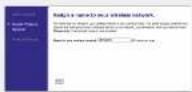
- First, assign a name to your wireless network. Choose a name (SSID) that is easy to remember. You might want to write it down in the area provided on the middle panel. (Default is NETGEAR). Click Next
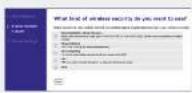
- Select the Yes option to add security then select your security method. NETGEAR recommends WPA-PSK [TKIP] + WPA2-PSK [AES].
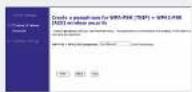
- Choose a Passphrase. You might want to write it down in the area provided on the middle panel. (Example: HomeNetwork). Click Next.
Note: Both your network name (SSID) and passphrase are case sensitive.
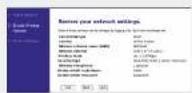
- Review your network settings on the summary page. You may want to print this for your records. Click Next to apply all settings and continue to follow instructions in the next section.
Connect Wireless Devices to Your Router
- Open the software that manages your wireless connections on the wireless device that you want to connect to your router. (For example, on Windows XP, go to Control Panel ->Network Connections, right click the wireless device and select View Available Wireless Networks).
- The wireless software will scan for all wireless networks in your area. Look for and select the network name that you chose when you set up your router.
- If your network is secured, you will be prompted for a Passphrase or network key. Enter the Passphrase you selected and click Connect. You are now finished with the installation.
Note: If your wireless device supports WPS [WiFi Protected Setup]—NETGEAR calls this method Push 'N' Connect—you might be prompted to press a WPS button on the router instead of entering a Passphrase. If so, go to Step 4.
- Press the WPS button on the router. It will look similar to or .
- Within 2 minutes, follow the wireless software instructions on the wireless device to complete the WPS process. The device will then be connected to your router. Repeat this process to add other wireless devices.
Note: Your network name, security method and passphrase must be the same on all wireless devices connected to your router.
Enter your wireless information here:
Wireless Network Name (SSID)
Wireless Security Passphrase
If you forget your Passphrase, connect a computer to the router using an Ethernet cable and log in to http://www.routerlogin.net and enter the default User Name (admin) and Password (password).
Restore Factory Default: For some routers, you may need to reset the device to its factory default first, then reconfigure your Passphrase. To restore factory defaults, use a paper clip to press the recessed reset button on the back until the Power/Test light blinks. This takes about 10 seconds. Release the button and wait for the router to reboot. Log in with the default username is (admin) and password (password). Note: Restoring factory defaults will erase any customizations and you will lose any configurations saved to the device!
LED Activity
| ItemDescription | |
| Power /Test • Solid amber: Router is performing the power on, self diagnostic test. • Solid green: The router is ready. | |
| Push "N" Connect Security | • Solid green: Wireless security is enabled. • Blinking Green: WPS capable security services can be associated with the router within 2 minutes. • Off: There is no WPS connection. |
| Wireless • Solid blue | • Wireless connection is established. • Off: The wireless interface is turned off. |
| Internet • Solid green | • Wireless router has acquired an Internet IP address. • Blinking green: Data is being communicated. • Solid amber: No Internet IP address has been acquired. • Off: There is no Ethernet cable connected to the modem. |
| LAN Ports If a LAN light is off, be sure the Ethernet cable is securely attached at both ends, and that the computer is turned on. • Solid green: Local port is connected to a 100 Mbps device. • Blinking green: Data is being transmitted at 100 Mbps. • Solid amber: Local port is connected to a 10 Mbps device. • Blinking amber: Data is being transmitted at 10 Mbps. | |
Technical Support
Thank you for selecting NETGEAR products
After completing the setup and configuration, register your product at http://www.NETGEAR.com/register. Registration is required before you can use our telephone support service.
Warning: Do not install this device on top of any other electrical equipment or install any other equipment on top of this device. Keep this device away from any heat sources such as direct sunlight, heaters, radiators, or other A/V receivers or devices that emit heat.
© 2009 by NETGEAR, Inc. All rights reserved. NETGEAR and the NETGEAR logo are registered trademarks of NETGEAR, Inc. in the United States and/or other countries. Other brand and product names are trademarks or registered trademarks of their respective holders. Information is subject to change without notice.

CE①
January 2010