Find 5 Mini - 260 OPPO - Panduan pengguna gratis
Temukan panduan perangkat secara gratis Find 5 Mini OPPO dalam format PDF.


Pertanyaan pengguna tentang Find 5 Mini OPPO
0 pertanyaan tentang perangkat ini. Jawab yang Anda tahu atau ajukan milik Anda sendiri.
Ajukan pertanyaan baru tentang perangkat ini
Unduh instruksi untuk 260 dalam format PDF gratis! Temukan panduan Anda Find 5 Mini - OPPO dan ambil kembali perangkat elektronik Anda. Di halaman ini diterbitkan semua dokumen yang diperlukan untuk penggunaan perangkat Anda. Find 5 Mini merek OPPO.
PANDUAN PENGGUNA Find 5 Mini OPPO
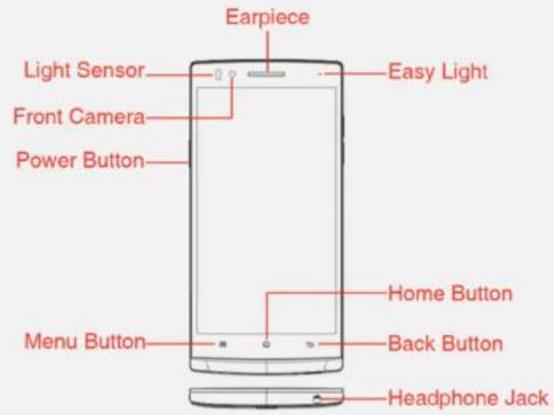
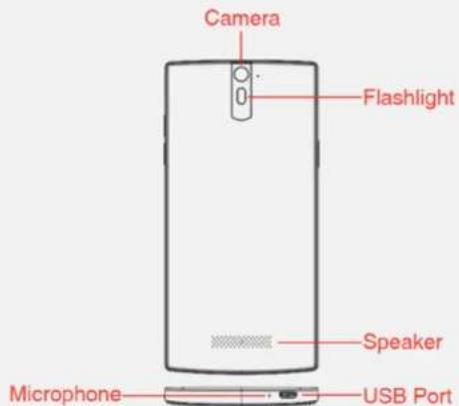
Device Overview
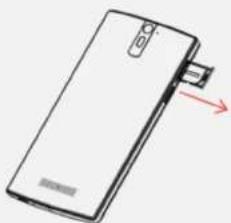
Install SIM Card
natural_image
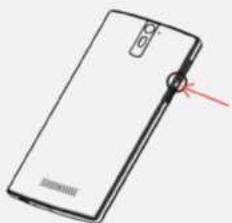
Illustration of a smartphone with a red arrow pointing to the side panel (no text or symbols)Step 1: Use the special pin and insert it into the hole next to the SIM tray to push it out
natural_image
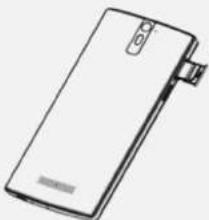
Illustration of a white rectangular device with a red arrow pointing to its side (no text or symbols)Step 2: Take out the SIM tray
natural_image
Simple line drawing of a rectangular electronic device with a handle and label (no text or symbols)Step 3: Place your SIM card into the tray with the metal surface facing up
natural_image
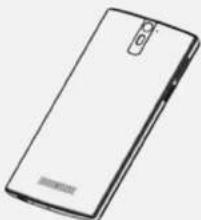
Line drawing of a smartphone with rounded edges and a black handle (no text or symbols)Step 4: Insert the tray back into the phone with the metal surface is facing the back side of the phone.
Change Wallpapers
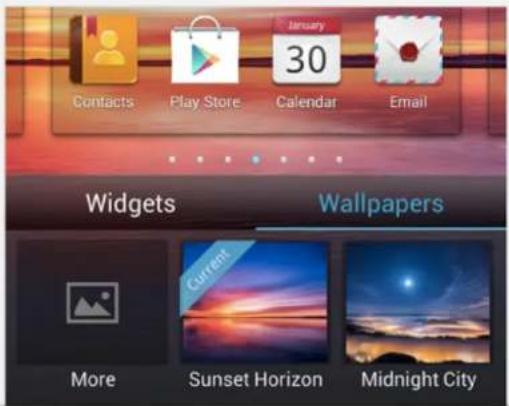
We've specially designed a collection of high definition wallpapers for you. To change the current wallpaper, press and hold an empty area of the screen and select 'Wallpapers', then tap a thumbnail to preview and set as wallpaper simultaneously. To use other pictures you can tap the [More] button and select one from the list.
Widgets
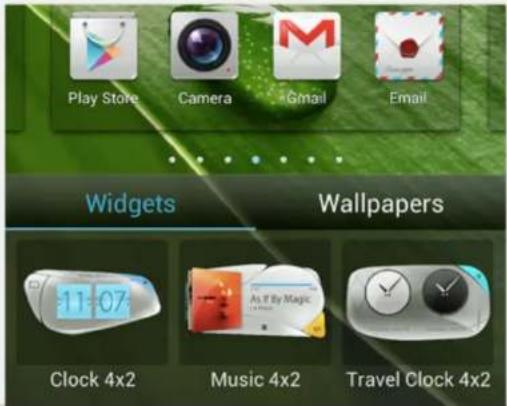
All of our widgets, including clock, music, calendar and power control were inspired by concept cars and modern architecture. To add a widget to the current screen press and hold an empty area of the screen, and then tap the thumbnail of a widget or drag them to the desired area.
Shortcuts
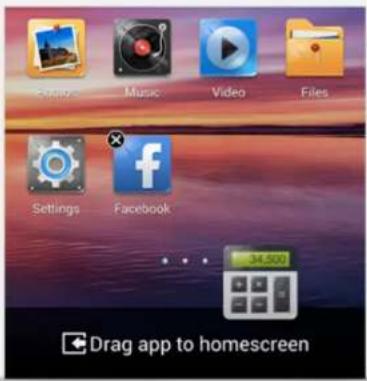
For your frequently used apps you can add a desktop icon to launch them even quicker. To add an icon, open the app drawer, press and hold the icon of the desired app, then drag it to the bottom of the screen and then to your selected homescreen. To delete an icon, press and hold and then drag it to the top of the screen.
Manage Apps
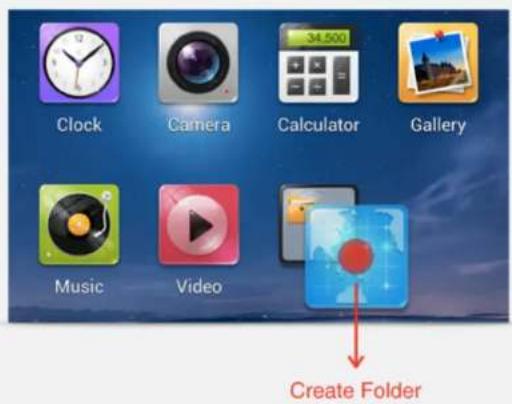
To better organize your apps you can create folders. Press and hold an app icon and drag it on top of another icon to automatically create a folder. Tap the folder to open it, tap the folder name to rename it.
Make Calls
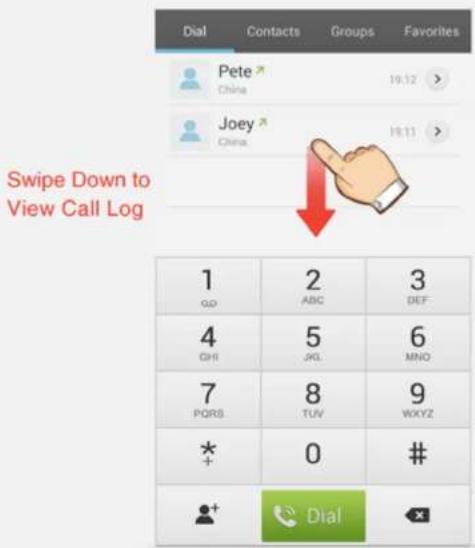
Tap the call log above the keypad to get in touch with your recently contacted friends. You can search for contacts quickly by using OPPO's specially designed Easy Dial feature.
Messages
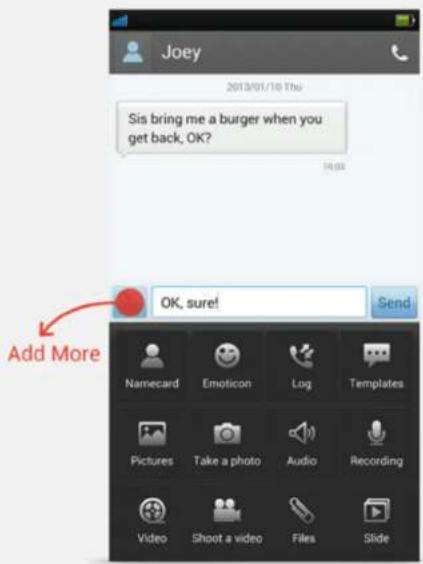
OPPO provides a dialogue-like messaging experience. To add emoticons, contact info, your location or other media, tap the attachment button next to the input field.
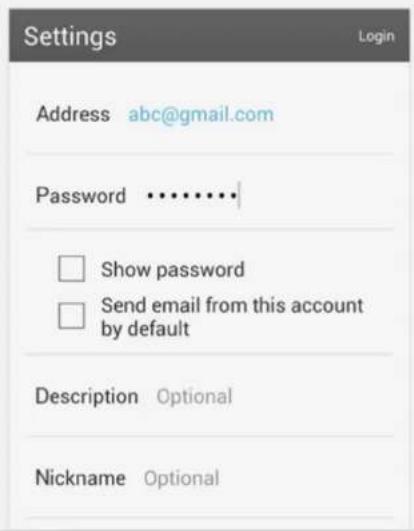
We've made it possible for you to login to most of the email accounts just by entering your address and password, however if you do encounter issues during login, you can set up the servers manually by pressing the menu button.
Music
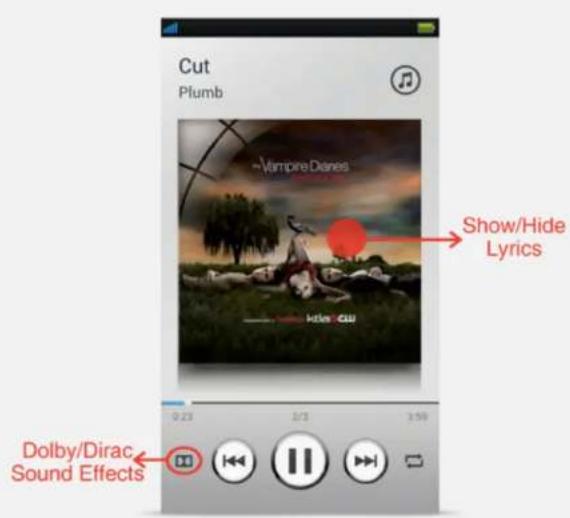
To enjoy better sound effects, you can tap the [Dolby] icon to turn on Dolby surround sound, when you are using headphones you can turn on Dirac sound by tapping the icon again. To set the current song as ringtone tap the 'Menu' button and choose 'Set as ringtone'.
Video
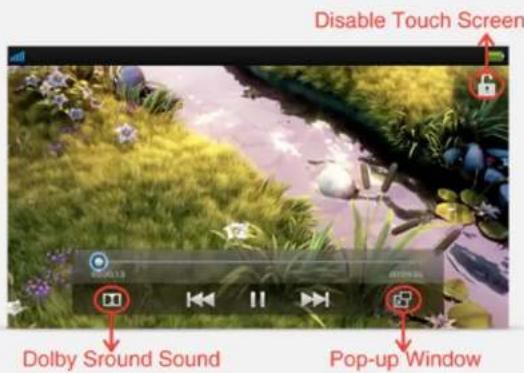
When playing video you can tap the screen to show or hide the control buttons. To avoid mistakenly pressing any of the buttons, you can tap the lock icon on the top right corner of the screen. Tap the [Pop-up Window] button on the bottom right corner of the screen to activate pop-up window so you can do other things at the same time. Double tap the video to stop playback or tap once to go fullscreen.
Camera
Looking at the viewfinder, tap a specific point to auto-focus and auto adjust EV. Swipe the screen to the left to view your previously taken photos. Tap the [Shutter] button or press one of the volume keys to take a picture.
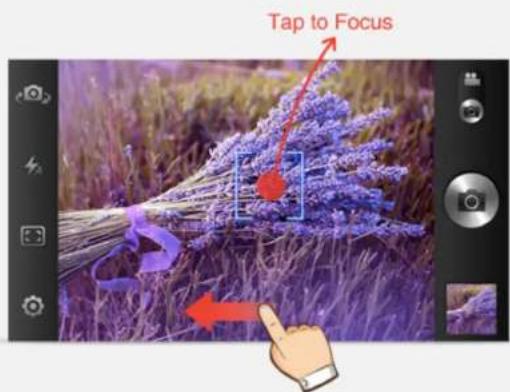
Swipe Left to View Photos
Photos
The Photos application will display pictures from 'My photos' and 'Screenshots' by default. To display pictures from other folders tap the 'Menu' key on your device and select [Visible folders]. When you are viewing pictures, double tap to zoom in, and tap anywhere on the screen to show/hide function buttons.
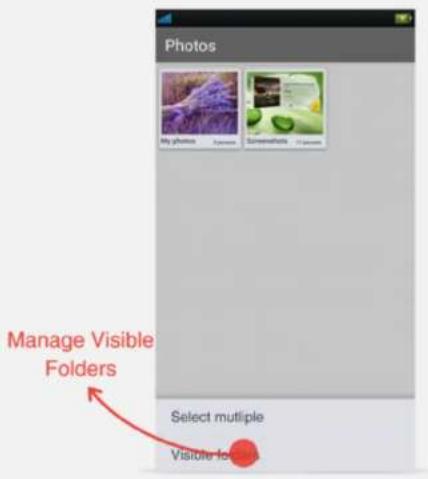
Files
The Files application enables you to view all your files by file type. You can also manage your files on your computer without the USB cable by using FTP, or you can share your media files with other devices using DLNA.
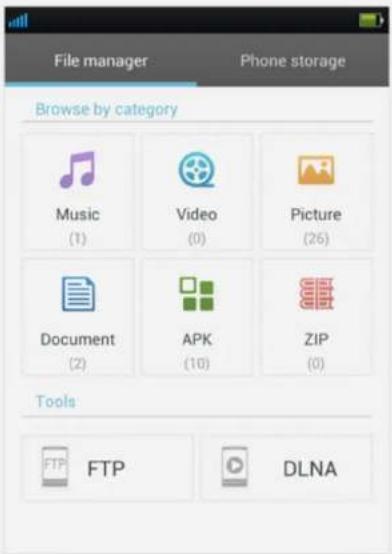
Settings
We've optimized the system settings according to feedback from our customers. However you can customize it even more to better suite your needs. For example you can enable NFC and turn on Wi-Fi Display or even change the lock-screen style.
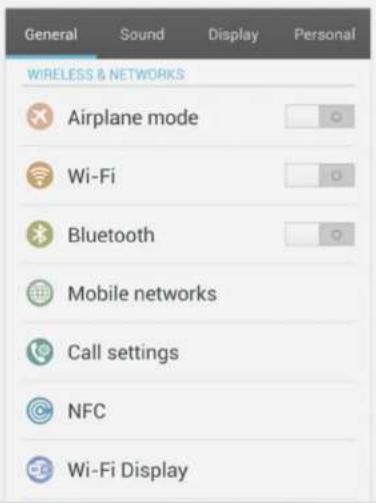
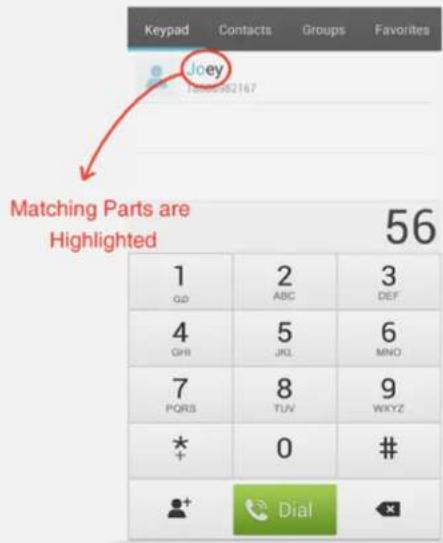
Easy Dial
To quickly look up a contact in your phonebook you only need to press the corresponding letters on the dialpad and matching contacts will be highlighted above.
Reply a call with SMS
If you are busy and cannot answer a call immediately you can hang up and reply with SMS with a single gesture.
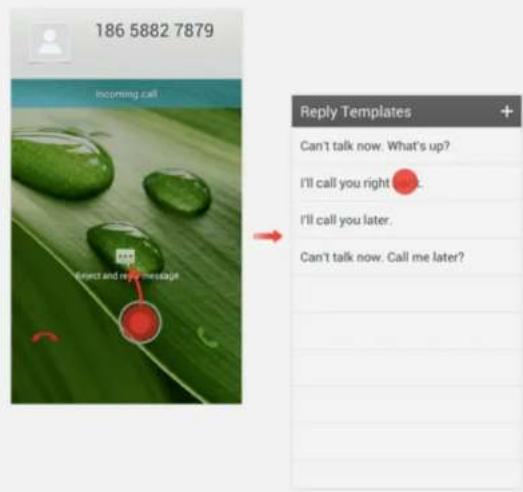
Step 1: Drag the phone to the message icon;
Step 2: Tap on a message to send.
Quickly Mute a Call
To mute an incoming call you can simply press the power button, or if you prefer you can also do this by flipping the device over, when the feature is activated.
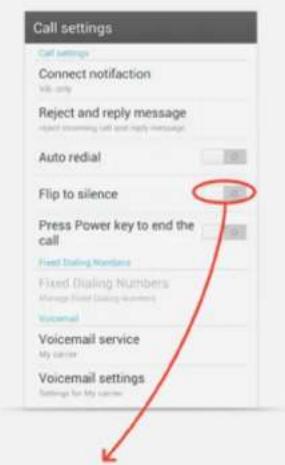
When this is turned on flip the phone over will mute the incoming call.
View Statistics
Call and SMS statistics can be viewed by going into call settings and selecting "Statistics".
Statistics
| Call Timer | |
| Last call | 00:01:04 |
| Outgoing calls | 00:15:58 |
| Incoming calls | 00:05:04 |
| Total call time | 00:21:02 |
| Last reset | |
| Reset | |
| Text messages | |
| Received | 8 |
| Sent | 1 |
| Total | 9 |
Hide Message Preview
If you're concerned about privacy and don't want to see previews of incoming messages in the status bar, you can disable it by going into settings.
Path: Messages->Menu->Settings
NOTIFICATION SETTINGS
Notifications
Display message notifications in status bar
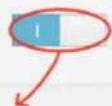
Turn this switch off
Quick Switches
You will find some control buttons at the top of the notification center after you open it.
Tap Edit to add or reorder switches
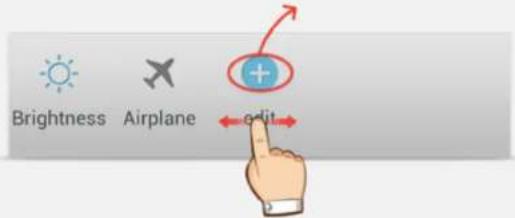
Swipe left /right to view more
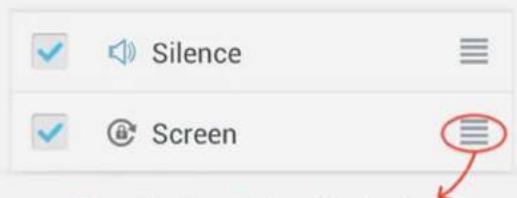
Drag the handle to adjust order
Manage Homescreens
You can pinch close on homescreen to see the preview of all screens, tap on a thumbnail to jump to that screen, or drag it to change its position.
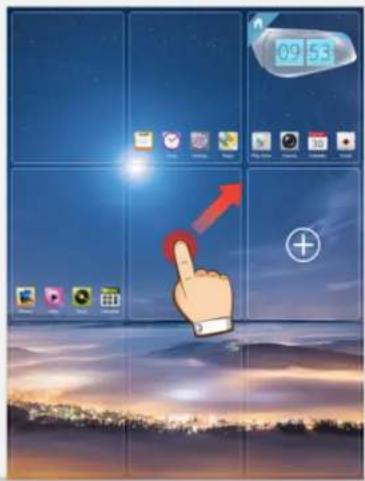
Tap and hold a screen for a few seconds and then drag to change its position.
Tips for Camera
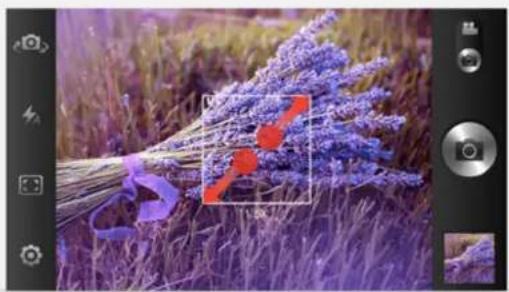
Instead of tapping the on-screen shutter button you can press the volume key to take a picture. To zoom in and out just pinch open/close the screen. To focus on a specific spot just tap it.
natural_image
Close-up of purple lavender stalks in a field, with a magnified inset highlighting the red arrow and blue ribbon (no text or symbols)Pinch open to zoom in Pinch close to zoom out
Tips for Lockscreen
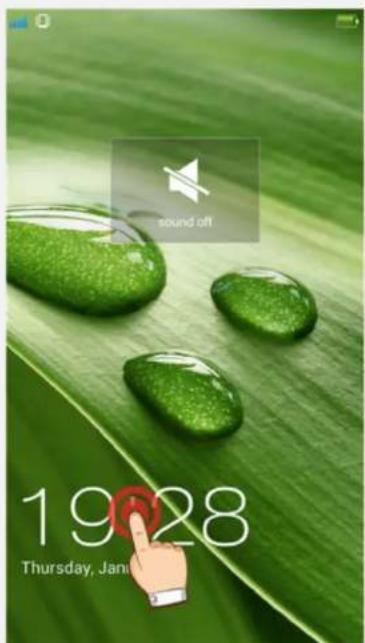
Double tapping on the time on lockscreen will activate silent mode.
Tips for Widgets
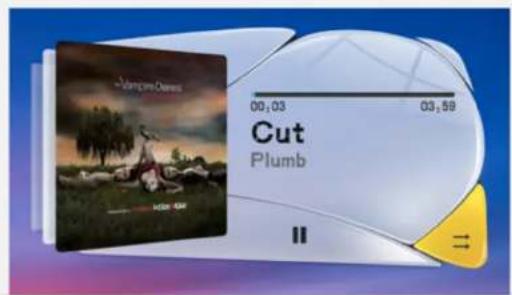
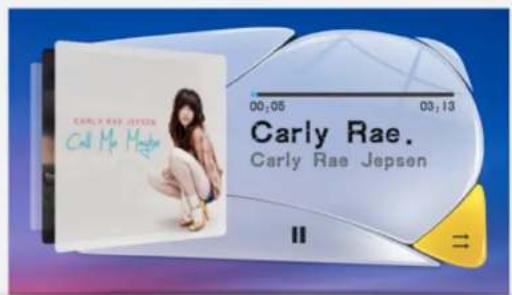
Swiping the music widget up and down can switch between songs.

Using Wi-Fi Hotspot
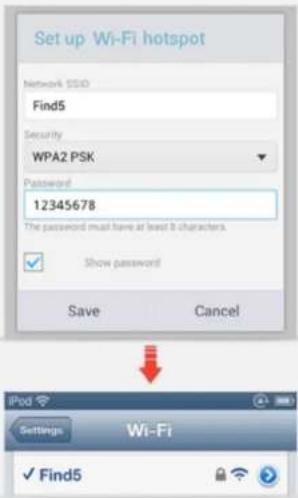
By using Wi-Fi hotspot you can share your mobile phone network with your Wi-Fi enabled devices.
Steps:
- Make sure your cellular data is enabled.
2.Open Wi-Fi hotspot and set up your SSID and password. - Connect other devices to the SSID you've set.
Setting Wi-Fi Proxy
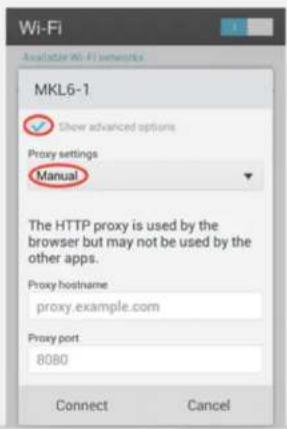
If you are using a Wi-Fi network with proxy you may want to set the proxy manually.
Steps
- Check the 'Show advanced options' option.
- Set the proxy settings to Manual
- Enter the proxy address and port to connect to
Use Advanced Calculator
When using the calculator you can swipe left and right to switch between basic calculator and advanced calculator. If the screen rotation is active you can rotate the phone to switch to the advanced calculator.
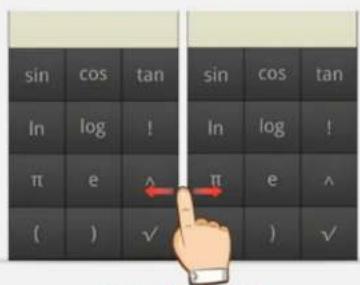
Swipe Left/Right
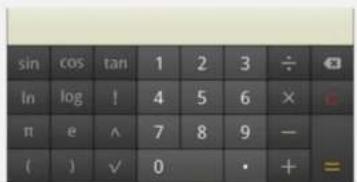
Rotate 90°
Do I need to charge for 12 hours before using the phone for the first time?
No it's not necessary. The Li-ion batteries have been fully activated before leaving the factory. You can simply use your phone normally.

Charge whenever you need it. Do not always wait until the battery is empty.
Why does the phone run slower after being used for a while?
Android is designed to allow applications to run in the background. If you often quit an app by pressing the Home button the app is not actually shut down, and it will keep running in the background. The more apps running in the background the more memory will be used. If there's not much memory left you may find the system is slow to respond.
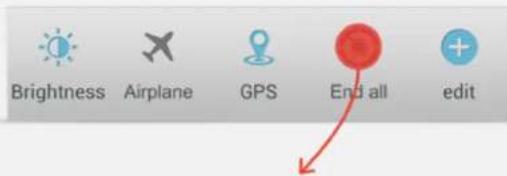
Tap here to quit all apps that are currently running in the background
What can I do when the phone crashes and can't be shut down?
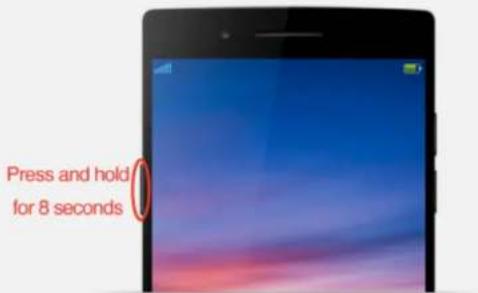
If the battery of your phone is removable, please remove it and then install again. If the battery of your phone is not removable press and hold the power button for 8 seconds and the phone will shut down.
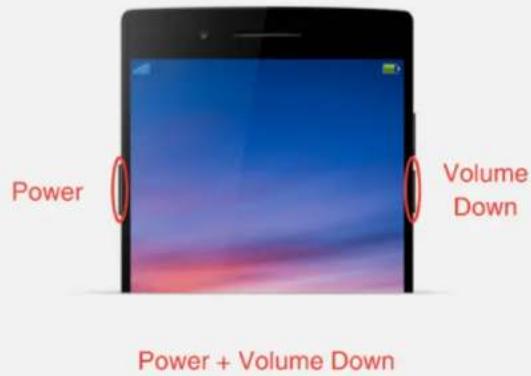
How to capture a screenshot?
Simply hold down the power button and the volume down button at the same time for a few seconds.
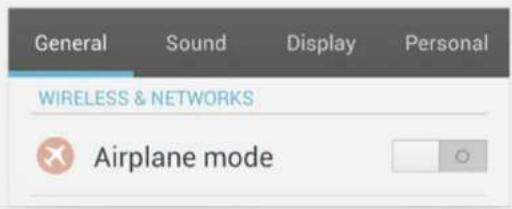
What is flight mode?
Flight mode allows you to use basic features of the device while the transmitting function is switched off. This enables passengers on airplanes to use the device in-flight, provided the device was switched to flight mode before take-off.
Flight mode is also called airplane mode, offline mode. To reduce radiation and power consumption you can switch to flight mode at night.
How to reduce mobile phone radiation?
Here are some suggestions:
- Use a wired headset. A headset can significantly decrease radiation exposure to your brain. Wireless headsets produce their own radiation, so avoid those and stick with their wired counterparts.
- Turn on flight mode at night.
- Switch the device off at night. Don't worry about your alarms, they will still work even if the phone is turned off.
Note: The radiation level of OPPO mobile phone is surely within the international safety range, but for those who need to make long time phone calls it's still recommend to refer to the suggestions above.
Why does my 16 GB phone appears to have only 11 GB available?
To be simple the ROM manufactures take a hex of 1000, however in the system the hex is 1024, therefore
For the manufacturer
16 GB=16×1000×1000×1000Byte
For the system
16 GB=16×1024×1024×1024Byte
Thus the actual size of 16 GB ROM is only about 15 GB.
This 15 GB storage is divided into three parts: 2 GB for system, 2 GB for applications and 11 GB internal storage that can be used as USB storage.
Taking care of the touch screen
Although the touch screen is already stable nowadays, it's still the most delicate part of the phone. To better maintain the screen you should:
- Keep the voltage stable.
- Keep it away from magnetic fields.
- Keep it away from high temperatures.
-
Keep it away from static electricity.
-
Keep it away from water, oil and other liquids.
natural_image
Illustration of a smartphone with a hand pointing at its screen (no text or symbols visible)Battery Maintenance
There are some facts you need to know about Li-ion battery:
- Li-ion batteries are limited by a finite number of charging cycles.
- Constantly recharging a Li-ion battery does not shorten the battery life more than normal usage would. This is because Li-ion battery does not have memory effect.
- High temperature will accelerate the aging of the batteries, so please keep it cool and try not using it when charging.

Battery Saving
The battery capacity is fixed, yet with some little help you may enjoy a longer battery life.
- 3G networks consume more energy than 2G, so turn it off when you don't need it.
- In weak signal areas the phone will consume more energy. This is due to its constantly searching for network signal.
- Apps running in the background will consume more energy, so remember to close background apps when they are not needed.
- Turn on flight mode at night especially when you are in weak signal areas