
ZhaoYang K4350 - 160 LENOVO - Panduan pengguna gratis
Temukan panduan perangkat secara gratis ZhaoYang K4350 LENOVO dalam format PDF.


Pertanyaan pengguna tentang ZhaoYang K4350 LENOVO
0 pertanyaan tentang perangkat ini. Jawab yang Anda tahu atau ajukan milik Anda sendiri.
Ajukan pertanyaan baru tentang perangkat ini
Unduh instruksi untuk 160 dalam format PDF gratis! Temukan panduan Anda ZhaoYang K4350 - LENOVO dan ambil kembali perangkat elektronik Anda. Di halaman ini diterbitkan semua dokumen yang diperlukan untuk penggunaan perangkat Anda. ZhaoYang K4350 merek LENOVO.
PANDUAN PENGGUNA ZhaoYang K4350 LENOVO
lenovo
UserGuide
LenovoZhaoYangK4350andK4350A
Before using this information and the product its supports, besuretoread and understand the following:
•Safety, Warranty, and Setup Guide
- "Importantsafetyinformation" onpageiv
- AppendixD"Notices"onpage43
The Safety Warranty and Setup Guided has been uploaded the Website. Refetotgdo http://www.lenovo.com/UserManuals.
FirstEdition(April2013)
©CopyrightLenovo2013.
LIMITEDANDRESTRICTEDRIGHTSNOTICE: If dataorsoftware is delivered pursuant to General Services Administration "GSA" contract, use, reproduction, or disclosure is subject to restrictions set forth in Contract No. GS-35F-05925.
Contents
Readthisfirst......iii
Importantsafetyinformation......iv
Conditionsthatrequireimmediateaction...iv
Safetyguidelines......v
Chapter1.Productoverview.....1
Frontview......1
Left-sideview......3
Right-sideview......4
Bottomview......5
Statusindicators......6
Features......7
Specifications......8
Chapter2.Usingyourcomputer....9
Frequentlyaskedquestions......9
Configuringtheoperatingsystem......9
Registeringyourcomputer......10
Specialkeysandbuttons......10
Functionkeycombinations.....10
Numerickeypad......12
Usingthetouchpad......12
Powermanagement......13
Checkingthebatterystatus.....13
Usingtheacpoweradapter......14
Chargingthebattery......14
Maximizingthebatterylife..1.4..
Power-savingmodes.1.4..
Handlingthebattery......16
Connectingtothenetwork......17
Ethernetconnection.....17...
Wirelessconnection......17
UsingtheNVIDIAOptimusGraphicsfeature.
Usingaflashmediacard.....18..
Chapter3.Youandyourcompute19
Accessibilityandcomfort......19
Ergonomicinformation....19..
Chapter4.Security....21
Attachingamechanicallock.....21
Using passwords......21
Usingafingerprintreader....2.1...
UsingtheActiveProtectionSystemprogram...21
Chapter5.Recoveryoverview23
Recoverysolutions on the Windows operating system....23..
Recoverysolutions on the Windows Operating system....24..
Chapter6.Preventingproblems27
Generaltipsforpreventingproblems.....27
Taking care you computer
Chapter7.Troubleshootingcomputer problems......31
Troubleshooting.....31...
Batteryandpowerproblems.31...
Computerscreenproblems......32
Problemswithdrivesandotherstorage
devices......33
OneKeyRecoveryProprogramproblems
Apasswordproblem....34..
Otherproblems..34..
AppendixA.Regulatory information....37
Wirelessrelatedinformation37...
AppendixB.WEEEandrecycling statements....39
ChinaWEEEstatement......39
AppendixC.RestrictionofHazardous SubstancesDirective(RoHS).4.1
ChinaRoHS.....41...
AppendixD.Notices.....43
Trademarks.....44...
Index......45
Readthisfirst
Besuretofollowtheimportanttipsgivenheretocontinuetogetthemostuseandenjoymentoutofyour computer.Failuretodosomightleadtodiscomfortinjury,orcauseyourcomputertofail.
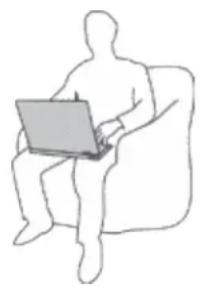
Protectyourselffromtheheatthatyourcomputergenerates.
natural_image
Silhouette of a person sitting on a sofa using a laptop (no text or symbols)When your computer is turned on the battery is charging, the base, the palm rest, and some other parts may become hot. The temperature they reach depends on the amount of system activity and the level of charge in the battery.
Extendedcontactwithyourbody,eventhroughclothing,couldcause discomfortorevenaskinburn.
- Avoidkeepingyourhands,yourlap,oranyotherpartofyourbodyin contactwithahotsectionofthecomputerforanyextendedtime.
- Periodicallytakehandsfromusingthekeyboardbyliftingyourhandsfrom thepalmrest.
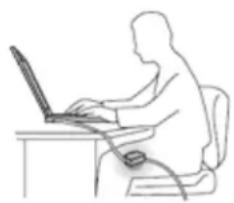
Protectyourselffromtheheatgeneratedbytheacpoweradapter.
natural_image
Line drawing of a person using a laptop at a desk (no text or symbols)Whentheacpoweradapterisconnectedtoanelectricaloutletandyour computer, itgeneratesheat.
Extendedcontactwithyourbody,eventhroughclothing,maycauseaskin burn.
- Donotplacetheacpoweradapterincontactwithanypartofyourbody whileitisinuse.
- Neveruseittowarmyourbody.
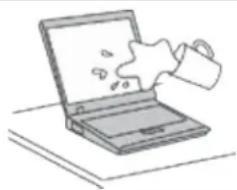
Preventyourcomputerfromgettingwet.
natural_image
Illustration of a hand placing a piece of paper into a laptop (no text or symbols)To avoid spills and the danger of electrical shock, keep liquids away from your computer.
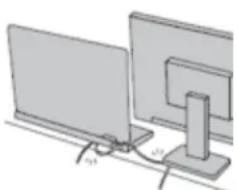
Protectthecablesfrombeingdamaged.
natural_image
Illustration of two computer monitors connected by a cable, showing front and side views (no text or symbols)Applyingstrongforcetocablesmaydamageorbreakthem.
Routecommunicationlines,orthecablesofanacpoweradapter,amouse,a keyboard,aprinter,oranyotherelectronicdevice,sothattheycannotbewalked on,trippedover,pinchedbyyourcomputerorotherobjects,orinanyway subjectedtotreatmentthatcouldinterferewiththeoperationofyourcomputer.
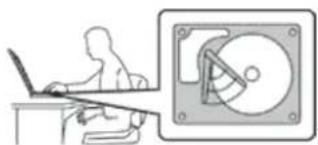
Protectyourcomputeranddatawhenmovingit.
natural_image
Illustration of a person using a laptop next to a CD drive (no text or symbols visible)Beforemovingacomputerequippedwithaharddiskdrive,dooneofthe following,andmakesurethatthepowerswitchisofforisblinking:
•Turnitoff.
- Putitinsleepmode.
- Putitinhibernationmode.
Thiswillhelptopreventdamagetothecomputer,andpossiblelossofdata.
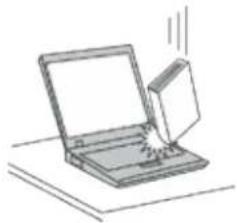
Handleyourcomputergently.
natural_image
Simple line drawing of a laptop with a screen and a paper, no text or symbols presentDonotdrop,bump,scratch,twist,hit,vibrate,push,orplaceheavyobjectson yourcomputer,display,orexternaldevices.
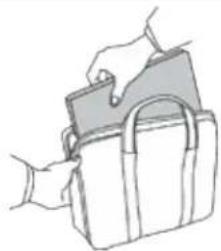
Carryyourcomputercarefully.
natural_image
Line drawing of a hand holding a folder and a bag (no text or symbols)- Useaqualitycarryingcasethatprovidesadequatecushioningandprotection.
- Donotpackyourcomputerinatightlypacked suitcaseorbag.
- Beforeputtingyourcomputerinacarryingcase,makesurethatitisoff,insleep mode,orinhibernationmode.Donotputacomputerinacarryingcasewhileit isturnedon.
Important safety information
Thisinformationcanhelpyousafelyuseyournotebookpersonalcomputer.Followandretainallinformation includedwithyourcomputer.Theinformationinthisdocumentdoesnotalterthetermsofyourpurchase agreementortheLenovo®LimitedWarranty.
Customersafetyisimportant.Ourproductsaredevelopedtobesafeandeffective.However,personal computersareelectronicdevices.Powercords,poweradapters,andotherfeaturescancreatepotential safetyrisksthatcanresultinphysicalinjuryorpropertydamage,especiallyifmisused.Toreducethese risks,followtheinstructionsinthisdocumentcarefully.Bycarefullyfollowingtheinformationcontainedin thisdocumentandprovidedwithyourproduct,youcanhelpprotectyourselffromhazardsandcreatea safercomputerworkenvironment.
Conditionsthatrequireimmediateaction
Productscanbecomedamagedduetomisuseorneglect. Someproductdamageisseriousenough that the product should not be used again until it has been inspected and, if necessary, repaired by an authorized servicer.
Aswithanyelectronicdevice,paycloseattentiontotheproductwhenitisturnedon.Onveryrare occasions,youmightnoticeanodororseeapuffofsmokeorsparksventfromyourproduct.Oryou mighthearsoundslikepopping,crackingorhissing.Theseconditionsmightmerelymeanthatan internalelectroniccomponenthasfailedinasafeandcontrolledmanner.Or,theymightindicate
apotentialsafetyissue.However,donottakerisksorattempttodiagnosethesituationyourself. ContacttheCustomerSupportCenterforfurtherguidance.ForalistofServiceandSupportphone numbers,gotothefollowingWebsite: http://www.lenovo.com/support/phone
Frequentlyinspectyourcomputeranditscomponentsfordamageorwearorsignsofdanger.Ifyou haveanyquestionabouttheconditionofaccomponent,donotusetheproduct.ContacttheCustomerSupportCenterortheproductmanufacturerforinstructionsonhowtoinspecttheproductandhaveitrepaired,ifnecessary.
Intheunlikelyeventthatyounoticeanyofthefollowingconditions,orifyouhaveanysafetyconcerns withyourproduct,stopusingtheproductandunplugitfromthepowersourceandtelecommunication linesuntilyoucanspeaktotheCustomerSupportCenterforfurtherguidance.
- Powercords, plugs, poweradapters, extensioncords, surgeprotectors, or powersuppliesthatare cracked, broken, ordamaged.
•Signsofoverheating,smoke,sparks,orfire. - Damagetoabattery(suchascracks,dents,orcreases),dischargefromabattery,orabuildupofforeign substancesonthebattery.
- Acracking,hissingorpoppingsound,orstrongodorthatcomesfromtheproduct.
- Signsthatliquidhasbeenspilledoranobjecthasfallenontothecomputerproduct,thepowercordor poweradapter.
- Thecomputerproduct,powercord,orpoweradapterhasbeenexposedtowater.
•Theproducthasbeendroppedordamagedinanyway. - Theproductdoesnotoperatenormallywhenyoufollowtheoperatinginstructions.
Note: If you notice these conditions with a product (such as an extension cord) that is not manufactured for or by Lenovo, stop using that product until you can contact the product manufacturer for further instructions, or until you get as suitable replacement.
Safetyguidelines
Alwaysobservethefollowingprecautionstoreducetheriskofinjuryandpropertydamage.
Serviceandupgrades
DonotattempttoserviceaproductyourselfunlessinstructedtodosobytheCustomerSupportCenteror yourdocumentation.OnlyuseaServiceProviderwhoisapprovedtorepairyourparticularproduct.
Note: Some computer part can be upgraded or replaced by the customer. Upgradestypically are referred to as options. Replacement parts approved for customer installation or referred to as Customer Replaceable Units, or CRUs. Lenovo provides documentation within instructions when it is appropriate for customer to install options or replace CRUs. You must closely follow all instructions when installing or replacing parts. The Offstate of a power indicator does not necessarily mean that voltage levels inside a product are zero. Before you remove the covers from a product equipped with a power cord, always make sure that the power is turned off and that the product is unplugged from any powers source. If you have any questions or concerns, contact the Customer Support Center.
CAUTION:

BeforereplacinganyCRUs,turnoffthecomputerandwaithreetofiveminutestoletthecomputercoolbeforeopeningthecover.
Powercordsandpoweradapters

DANGER
Useonlythepowercordsandpoweradapterssuppliedbytheproductmanufacturer.
The powercordsshallbesafetyapproved. For Germany, it shall be H05VV-F, 3G, 0.75mm better. For other countries, the suitable typesshall be used accordingly.
2 or
Neverwrapapowercordaroundapoweradapterorotherobject.Doingsocanstressthecordin waysthatcancausethecordtofray,crack,orcrimp.Thiscanpresentasafetyhazard.
Alwaysroutepowercordssothattheywillnotbewalkedon, trippedover, orpinchedbyobjects.
Protectpowercordsandpoweradaptersfromliquids.Forinstance,donotleaveyourpowercord orpoweradapternearsinks,tubs,toilets,oronfloorsthatarecleanedwithliquidcleansers. Liquidscancauseashortcircuit,particularlyifthepowercordorpoweradapterhasbeenstressed bymisuse.Liquidsalsocancausegradualcorrosionofpowercordterminalsand/ortheconnector terminalsonapoweradapter,whichcaneventuallyresultinoverheating.
Ensure that all power cord connectors are securely and completely plugged into receptacles.
Donotuseanypoweradapterthatshowscorrosionattheacinputpinsorshowssignsof overheating(suchasdeformedplastic)attheacinputpinsoranywhereonthepoweradapter.
Donotuseanypowercordswheretheelectricalcontactsoneitherendshowsignsofcorrosionor overheatingorwherethepowercordappearstohavebeendamagedinanyway.
Topreventpossibleoverheating, donotcoverthepoweradapterwithclothingorotherobjects whenthepoweradapterispluggedintoanelectricaloutlet.
Extensioncordsandrelateddevices
Ensure that extension cords, surge protectors, uninterruptible powers supplies, and power strip that you use arerated to handle the electrical requirement of the product. Never overload these devices. If power strips are used, the load should not exceed the power strip input rating. Consult an electrician form more information if you have questions about power loads, power requirements, and input ratings.
Plugsandoutlets

DANGER
Ifareceptacle(poweroutlet)thatyouintendtousewithyourcomputerequipmentappearstobe damagedorcorroded,donotusetheoutletuntilitisreplacedbyaqualifiedelectrician.
Donotbendormodifytheplug.Iftheplugisdamaged,contactthemanufacturertoobtain areplacement.
Donotshareanelectricaloutletwithotherhomeorcommercialappliancesthatdrawlargeamounts ofelectricity;otherwise,unstablevoltagemightdamageyourcomputer,data,orattacheddevices.
Someproductsareequippedwithathree-prongedplug.Thisplugfitsonlyintoagrounded electricaloutlet.Thisisasafetyfeature.Donotdefeatthissafetyfeaturebytryingtoinsertitinto anon-groundedoutlet.Ifyoucannotinserttheplugintotheoutlet,contactanelectricianforan approvedoutletadapterortoreplacetheoutletwithonethatenablesthissafetyfeature.Never
overloadanelectricaloutlet. The overall system load should not exceed 80 percent of the branch circuit rating. Consult an electrician form more information if you have questions about power loads and branch circuit ratings.
Besurethatthepoweroutletyouareusingisproperlywired,easilyaccessible,andlocatedclose totheequipment.Donotfullyextendpowercordsinawaythatwillstressthecords.
Besurethatthepoweroutletprovidesthecorrectvoltageandcurrentfortheproductyouare installing.
Carefullyconnectanddisconnecttheequipmentfromtheelectricaloutlet.
Powersupplystatement

DANGER
Neverremovethecoveronapowersupplyoranypartthathasthefollowinglabelattached.
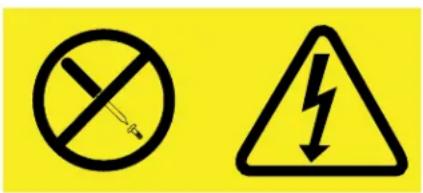
Hazardous voltage, current, and energy levels are present inside an component that has this label attached. There are no serviceable parts inside these components. If you suspect a problem with one of these parts, contact a servicete technician.
Externaldevices
CAUTION:
DonotconnectordisconnectanyexternaldevicecablesotherthanUniversalSerialBus(USB) cablewhilethecomputerpowerison;otherwise,youmightdamageyourcomputer.Toavoid possibledamagetoattacheddevices,waitatleastfivesecondsafterthecomputerisshutdownto disconnectexternaldevices.
Generalbatterynotice

DANGER
PersonalcomputersmanufacturedbyLenovocontainacoincellbatterytoprovidepowerto thesystemclock.Inaddition,manymobileproducts,suchasnotebookcomputers,utilizea rechargeablebatterypacktoprovidesystempowerwheninportablemode.Batteriessuppliedby Lenovoforusewithyourproducthavebeentestedforcompatibilityandshouldonlybereplaced withapprovedparts.
Neverattempttoopenorserviceanybattery.Donotcrush,puncture,orincineratebatteriesor shortcircuitthemetalcontacts.Donotexposethebatterytowaterorotherliquids.Onlyrecharge thebatterypackstrictlyaccordingtoinstructionsincludedintheproductdocumentation.
Batteryabuseormishandlingcancausethebatterytooverheat,whichcancausegassesorflame to"vent"fromthebatterypackorcoincell.Ifyourbatteryisdamaged,orifyounoticeany
dischargefromyourbatteryorthebuildupofforeignmaterialsonthebatteryleads,stopusingthe batteryandobtainareplacementfromthebatterymanufacturer.
Batteriescandegradewhentheyareleftunusedforlongperiodsoftime.Forsomerechargeable batteries(particularlyLithiumlonbatteries),leavingabatteryunusedinadischargedstatecould increasetheriskofabatteryshortcircuit,whichcouldshortenthelifeofthebatteryandalsocan poseasafetyhazard.DonotletrechargeableLithium-Ionbatteriescompletelydischargeorstore thesebatteriesinadischargedstate.
Rechargeablebatterynotice

DANGER
Donotattempttodisassembleormodifythebatterypack.Attemptingtodosocancausean explosion,orliquidleakagefromthebatterypack.Abatterypackotherthantheonespecifiedby Lenovo,oradisassembledormodifiedbatterypackisnotcoveredbythewarranty.
If there chargeable battery pack is incorrectly replaced, there is danger of an explosion. The battery pack contains a small amount of harmful substances. To avoid possible injury:
- ReplaceonlywithabatteryofthetyperecommendedbyLenovo.
- Keepthebatterypackawayfromfire.
- Donotexposeittowaterorrain.
- Donotattempttodisassembleit.
- Donotshort-circuitit.
- Keepitawayfromchildren.
- Donotdropthebatterypack.
Donotputthebatterypackintrashthatisdisposedofinlandfills. Whendisposingofthebattery, complywithlocalordinancesorregulations.
The batterypackshouldbestoredatroomtemperature, charged to approximately 30 to 50% of capacity. Were recommend that batterypackbecharged about once per year to prevent overdischarge.
Lithiumcoincellbatterynotice

DANGER
Dangerofexplosionifbatteryisincorrectlyreplaced.
When replacing the lithium coincell battery, use only the same or equivalent type that is recommended by the manufacturer. The battery contains lithium and can explode if not properly used, handled, or disposed of.
Donot:
- Throworimmerseintowater
•Heattomorethan100°C(212°F)
•Repairordisassemble
Disposeofthebatteryasrequiredbylocalordinancesorregulations.
The following statement appliestousersinthestate of California, U.S.A.
CaliforniaPerchlorateInformation:
Productscontainingmanganesedioxidelithiumcoincellbatteriesmaycontainperchlorate.
PerchlorateMaterial-specialhandlingmayapply, See
www.dtsc.ca.gov/hazardouswaste/perchlorate
Heatandproductventilation

DANGER
Computers, acpoweradapters, and many accessories cangenerate heat when turned on and when batteries are recharging. Notebook computers cangenerate as significant amount of heat due to their compact size. Always follow these basic precautions:
- When your computer is turned on the battery is charging, the base, the palm rest, and some other parts may become hot. Avoid keeping your hands, your lap, or any other part of your body in contact with a hot section of the computer for any extended length of time. When you use the keyboard, avoid keeping your palm on the palm rest for a prolonged period of time. Your computer generates some heat during normal operation. The amount of heat depends on the amount of system activity and the battery charge level. Extended contact with your body, event through clothing, could cause discomfort over an skin burn. Periodically take breaks from using the keyboard by lifting your hands from the palm rest; and be careful not to use the keyboard for any extended length of time.
- Donotoperateyourcomputerorchargethebatterynearflammablematerialsorinexplosive environments.
- Ventilationslots,fansand/orheatsinksareprovidedwiththeproductforsafety,comfort,and reliableoperation.Thesefeaturesmightinadvertentlybecomeblockedbyplacingtheproduction abed,sofa,carpet,orotherflexiblesurface.Neverblock,cover,ordisablethesefeatures.
- When the acpower adapter is connected to an electrical outlet and your computer, it generates heat. Donot placethe adapter in contact with any part of your body while using it. Never us the ac power adapter to war my our body. Extended contact with your body, event through clothing, may cause a skin burn.
Foryoursafety, always follow these basic precautions with your computer:
- Keepthecoverclosedwheneverthecomputerispluggedin.
- Regularlyinspecttheoutsideofthecomputerfordustaccumulation.
- Removedustfromventsandanyperforationsinthebezel.Morefrequentcleaningsmightbe requiredforcomputersindustyorhigh-trafficareas.
- Donotrestrictorblockanyventilationopenings.
- Donotoperateyourcomputerinsidefurniture,asthismightincreasetheriskofoverheating.
- Airflowtemperaturesintothecomputershouldnotexceed35°C(95°F).
Electricalcurrentsafetyinformation

DANGER
Electriccurrentfrompower,telephone,andcommunicationcablesishazardous.
Toavoidashockhazard:
- Donotuseyourcomputerduringalightningstorm.
- Donotconnectordisconnectanycablesorperforminstallation,maintenance,orreconfiguration ofthisproductduringanelectricalstorm.
- Connectallpowercordstoaproperlywiredandgroundedelectricaloutlet.
- Connecttoproperlywiredoutletsanyequipmentthatwillbeattachedtothisproduct.
- Wheneverpossible,useonehandomlytoconnectordisconnectsignalcables.
- Neverturnonanyequipmentwhenthereisevidenceoffire,water,orstructuraldamage.
- Disconnecttheattachedpowercords,batterypack,andallthecablesbeforeyouopenthe devicecovers,unlessinstructedotherwiseintheinstallationandconfigurationprocedures.
- Donotuseyourcomputeruntilallinternalpartsenclosuresarefastenedintoplace.Neveruse thecomputerwheninternalpartsandcircuitsareexposed.

DANGER
Connectanddisconnectcablesasdescribedinthefollowingprocedureswheninstalling,moving, oropeningcoversonthisproductorattacheddevices.
Toconnect:
1.TurneverythingOFF.
-
First, attachallcablestodevices.
-
Attachsignalcablestoconnectors.
-
Attachpowercordstooutlets.
5.TurndevicesON.
Todisconnect:
-
TurneverythingOFF.
-
First, remove powerercords from outlets.
-
Removesignalcablesfromconnectors.
-
Remove all cables from devices.
The powercord must be disconnected from the wall outlet or receptacle before installing all other electrical cables connected to the computer.
The powercord may be connected to the wall outlet or receptacle only after all other electrical cables have been connected to the computer.
Liquidcrystaldisplay(LCD)notice
CAUTION:
Forproductswithmercury-containingfluorescentlamps(forexample,non-LED)
- The fluorescent lamp in the liquid crystal display contains mercury; dispose of according to local, state, or federal laws.
•TheLCDdismadeofglass,androughhandlingordroppingthecomputercancausetheLCDto break.IftheLCDbreaksandtheinternalfluidgetsintoyoureyesoronyourhands,immediately washtheaffectedareaswithwaterforatleast15minutes;ifanysymptomsarepresentafter washing,getmedicalcare.
Usingheadphonesorearphones
CAUTION:
Excessivesoundpressurefromearphonesandheadphonescancausehearingloss.Adjustmentof theequalizertomaximumincreasestheearphoneandheadphoneoutputvoltageandthesound pressurelevel.Therefore,topprotectyourhearing,adjusttheequalizertoanappropriatelevel.
Excessiveuseofheadphonesorearphonesforalongperiodoftimeathighvolumecanbedangerousifthe outputoftheheadphoneorearphoneconnectorsdonotcomplywithspecificationsofEN50332-2.The headphoneoutputconnectorofyourcomputercomplieswithEN50332-2Subclause7.Thisspecification limitsthecomputer'smaximumwidebandtrueRMSoutputvoltageto150mV.Tohelpprotectagainst hearingloss,ensurethattheheadphonesorearphonesyouusealsocomplywithEN50332-2(Clause7 limits)forawidebandcharacteristicvoltageof75mV.UsingheadphonesthatdonotcomplywithEN 50332-2canbedangerousduetoexcessivesoundpressurelevels.
If your Lenovocomputercamewith headphonesorearphonesinthepackage, asaset, the combination of the headphonesorearphonesandthecomputeralreadycomplieswiththespecificationsofEN50332-1. If differentheadphonesorearphonesareused, ensure that they comply with EN50332-1 (Clause6.5 LimitationValues). Using headphonesthatdonotcomply with EN50332-1 can be dangerous due to excessivesoundpressure levels.
Additionalsafetyinformation

DANGER
Plasticbagscanbedangerous.Keepplasticbagsawayfrombabiesandchildrentoavoiddanger ofsuffocation.
Savetheseinstructions.
Chapter1.Productoverview
Thischapterintroducesthecomputerhardwarefeatures.
- "Frontview"onpage1
- "Left-sideview"onpage3
• "Right-sideview" on page 4 - "Bottomview"onpage5
- "Statusindicators" on page 6
- "Features"onpage7
- "Specifications" on page 8
Frontview
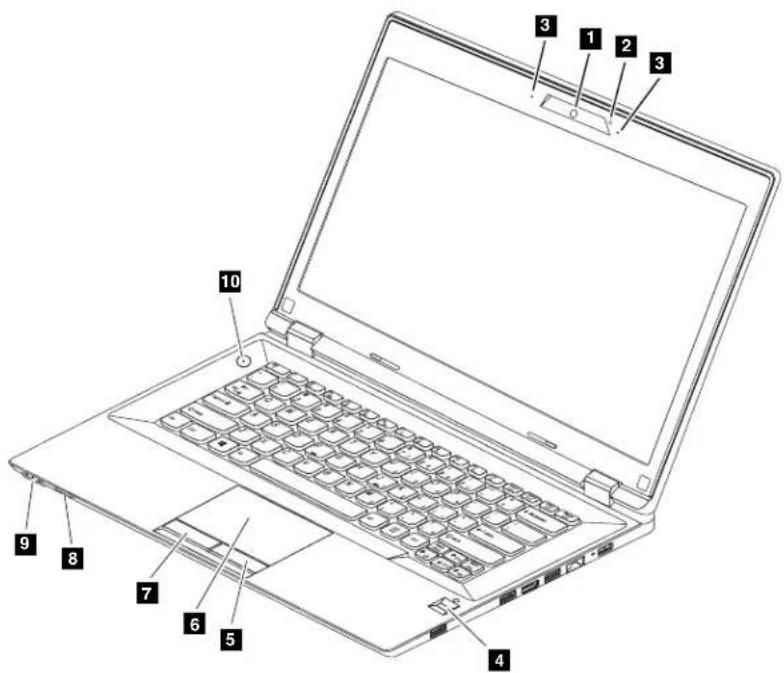
Figure1.Frontview
| 1 Camera | 6 Touchpad |
| 2 Keyboardlight | 7 Left-clickbutton |
| 3icrophones | |
| 4 Fingerprintreader | 9 Statusindicators |
| 5ght-clickbutton |
deslot
webutton
1 Camera
Usethecameratotakepicturesorholdavideoconference.
2 Keyboardlight
Thekeyboardlightenablesyoutouseyourcomputerwhenthelightingconditionisnotideal.Toturnonthe keyboardlight,pressFn+Esc.Toturnitoff,pressthecombinationagain.
Note: Avoid using your computer in dark conditions for prolonged periods. It is bad for you, yes.
3 Microphones
The built-in microphone capture sound and voice when it is used with a program capable of handling audio.
4 Fingerprintreader
Thefingerprintauthenticationtechnologyenablesyoutouseyourfingerprinttoentertheoperatingsystem.
5 Right-clickbutton
6 Touchpad
7 Left-clickbutton
Moveyourfingertipacrossthetouchpadtomovethepointer. Theright-clickbuttonandleft-clickbutton providefunctionssimilartotherightbuttonandleftbuttononamouse.
8 Mediacardreaderslot
Formoreinformation, refer to "Usingaflashmediacard" on page 18.
9 Statusindicators
Formoreinformation, refer to "Statusindicators" on page 6.
10 Powerbutton
Pressthisbuttontoturnonthecomputer.Toturnoffthecomputer,referto"Power-savingmodes"on page14.
Left-sideview
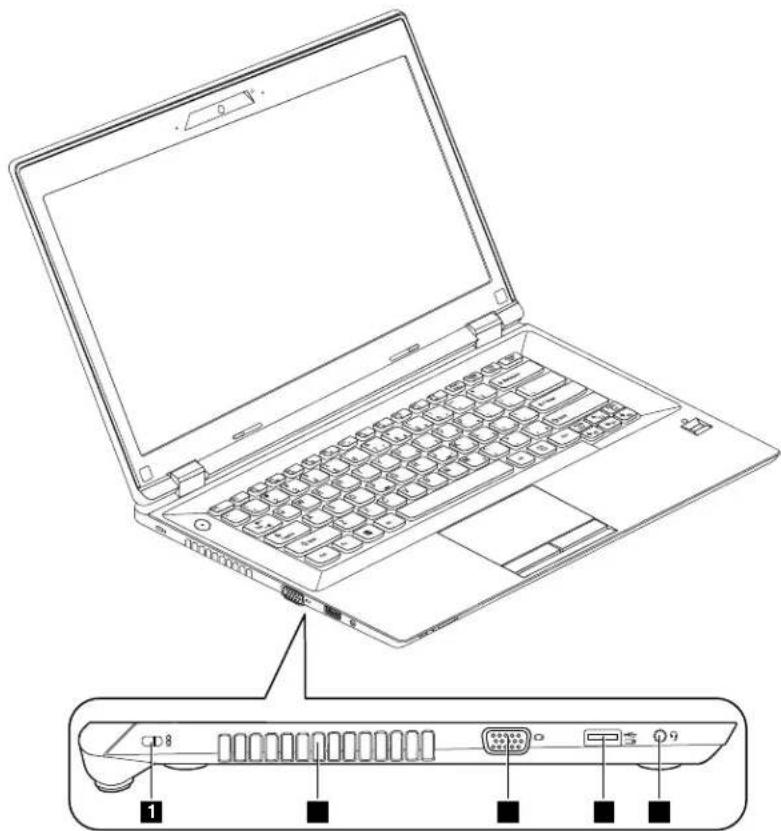
Figure2.Left-sideview
DrUSBconnector
| 1 securitykeyhole | |
| 2 Fanlouvers | 5 Comboaudiojack |
| 3 Monitorconnector |
1 Securitykeyhole
Toprotectyourcomputerfromtheft,youcanpurchaseasecuritycablelockthatfitsthiskeyholetolockyourcomputetostationaryobjectFomoreinformationreferd'Attachingmechanicalock'brpage21
2 Fanlouvers
The failures and internaforenable to circulate ensure propecoolings especially the cooling of themicroprocessor.
Note T ensure prope airflow don oplace any obstacles in front of the fouvers.
3 Monitorconnector
Use the monitor connector to connect external monitor project to you computer.
4 AlwaysOnUSBconnector
Bydefault,theAlwaysOnUSBconnectorenablesyoutochargesomedevices,suchasiPod othersmartphoneswhenyourcomputerisinsleeporhibernationmode.
®, iPhone ® and
If you want to charge these devices when your computer is turned off, you need to connect the computer to ac powers supply and change the Always On USB settings in the Power Manager program.
5Comboaudiojack
Tolistentothesoundfromyourcomputer,connectaheadphoneoraheadsetthathasa3.5-mm(0.14-inch), 4-poleplugtothecomboaudiojack.
Right-sideview
natural_image
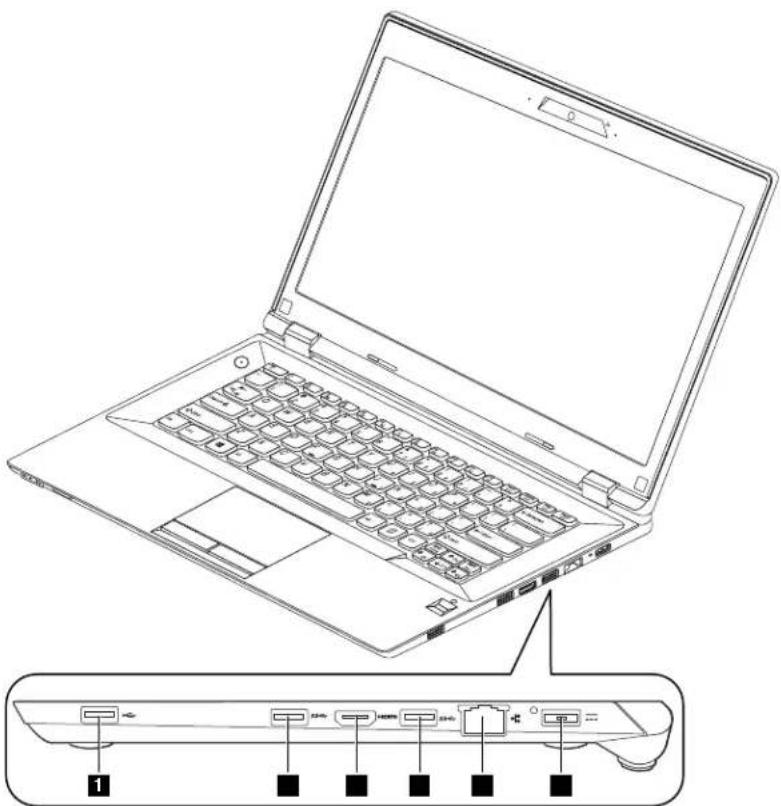
Line drawing of a laptop computer with labeled ports and an external connector (no text or symbols present)Figure3.Right-sideview
| 1USB2.0connector | 4ethernetconnector |
| 2USB3.0connectors | 5icpowerconnector |
| 3HDMIconnector |
USB2.0connector
Use the USB2.0 connector to connect devices compatible with a USB interface, such as a USB printer or adigital camera.
Attention: When you attach a USB cable to the connector, makes sure that the USB mark is facing upward. Other-wise the connectorm might be damaged.
2USB3.0connectors
Use the USB3.0 connector to connect a USB1.1, 2.0, or 3.0 device, such as a USB printer or a digital camera.
Attention: When you attach a USB cable to the connector, makes sure that the USB mark is facing upward. Other-wise the connectorm might be damaged.
3HDMI
Usethehigh-definitionmultimediainterface(HDMI)connectortoconnectacompatibledigitalaudiodevice orvideomonitor,suchasahigh-definitiontelevision(HDTV).
4 Ethernetconnector
AttachanEthernetcabletothisconnectortoconnectyourcomputertoalocalareanetwork(LAN).

DANGER
Toavoidtheriskofelectricalshock,donotconnectthetelephonecabletotheEthernetconnector. YoucanonlyconnectanEthernetcabletothiscomputer.
5acpowerconnector
Attachanacpoweradaptercabletothisconnectortoprovidepowertothecomputerandchargethebattery.
Bottomview
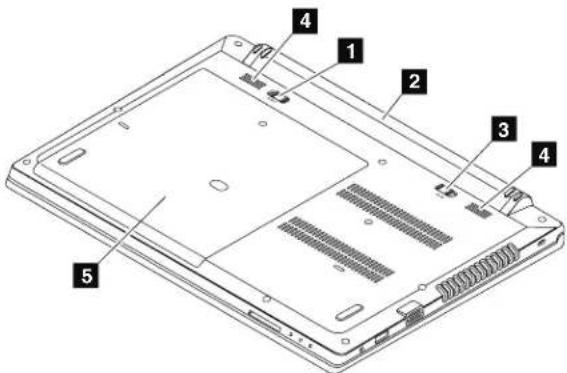
Figure4.Bottomview
| 1 Batterylock | 4 Speakers |
| 7 battery | ■ |
| 3 Batterylatch |
1Batterylock
Keepsthebatterysecuredinplace.
2 Battery
Use your computer with battery power whenever ac power is unavailable.
3 Batterylatch
Keepsthebatterysecuredinplace.
4 Speakers
Toadjustthesoundlevelofthebuilt-inspeakers,see"Functionkeycombinations"onpage10.
5 Bottomslotcover
Theharddiskdrive, memorymodules, and mini-PCIExpressCardareplaced underneath.
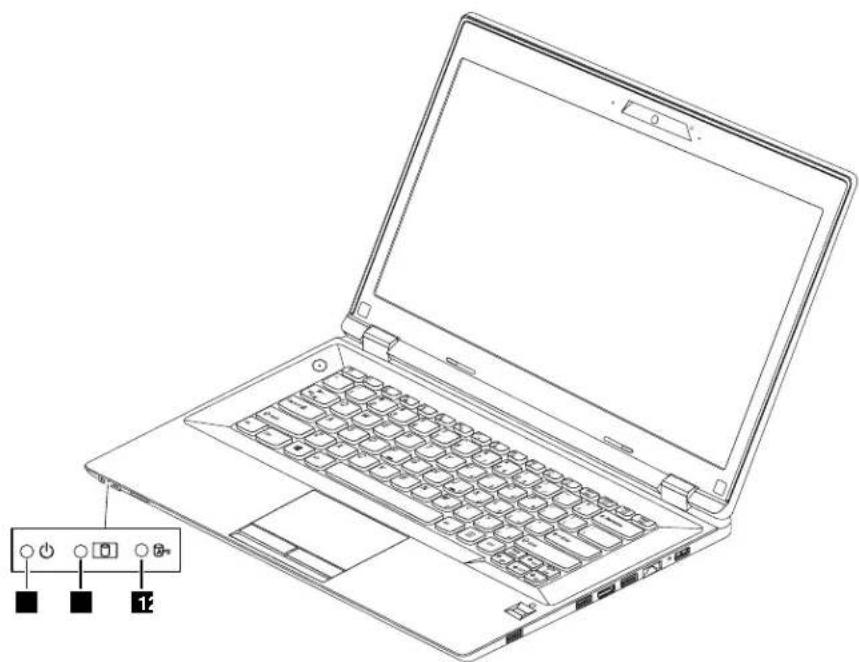
Statusindicators
Thistopicdescribesthestatusindicators.
Note: Your computermightlookdifferentfromthefollowingillustration.
natural_image
Line drawing of a laptop with keyboard and control buttons, shown in isometric view (no text or symbols on the device itself)Figure5. Statusindicators
ActiveProtectionSystem™(APS)statusindicator
- White: The Active Protection System program is enabled.
- Off: The Active Protection System program is disabled.
2 Deviceaccessstatusindicator
Whenthisindicatorison, theharddiskdriveisreadingorwritingdata.
Attention:
6UserGuide
- Whentheindicatorison, donotputthecomputerintosleepmodeorturnoffthecomputer.
- Whentheindicatorison, donotmovethecomputer. Suddenphysicalshockmightcausedriveerrors.
3 Batterystatusindicator
GreenThebatterychargelevels between 80% and 100% the batterydischarge levels between 20% and 100%.
Slow-blinkinggreenThebatterycharge levels between 20% and 80% and charging continuing. Whenthebatterycharge level reaches 80%, the battery status indicator stops blinking, but the charging might continue until the battery is 100% charged.
Slow-blinkingamber The battery charge levels between 5% and 20% and the chargings continuing. Whenthe battery charge level reaches 20%, the blinking color changestogreen.
- Amber: The battery discharge level is between 5% and 20%.
- Fast-blinkingamber: The battery charge or discharge level is 5% or less.
- Off: The battery is detached or the computer is powered off.
Features
Thistopicliststhephysicalfeaturesofyourcomputer.
Processor
- Toviewtheprocessorinformationofyourcomputer,doeitherofthefollowing:
-Windows ® 7ClickStartight-clickComputerTherclickProperties.
-Windows8:Fromthedesktop,movethecursortothetop-rightorbottom-rightcornerofthescreento
displaytheharmsThercliclSettings-PInfo.
Memory
- Doubledatarate3low-voltage(DDR3L)synchronousdynamicrandomaccessmemory(SDRAM)
Storagedevice
- 2.5-inch SATAharddiskdrivewithaheightof7mm(0.28inch)or9.5mm(0.37inch)
•mSATAsolid-statedrive(onsomemodels)
Display
•Size:356mm(14.0inches)
- Resolution:
-LCD:1366-by-768
-Externalmonitor:Maximum2048-by-1536
- Camera
•Built-inmicrophones
Keyboard
- 6-rowLenovokeyboard
Interface
•AlwaysOnUSBconnector
- Comboaudiojack
•Externalmonitorconnector
•HDMIconnector
•RJ45Ethernetconnector
- USB2.0connector
- USB3.0connector
•4-in-1digitalmediacardreaderslot
Wirelessfeatures
• IntegratedwirelessLAN
•100/1000MbpsEthernetcommunication
Specifications
Thistopicliststhephysicalspecificationsforyourcomputer.
Heatoutput
- 65W(222Btu/hr)
Powersource(acpoweradapter)
•Sine-waveinputat50to60Hz
- Inputratingofacpoweradapter:100to240Vac,50to60Hz
Batterypack
• Lithium-ion(Li-ion)batterypack
Chapter2. Using your computer
Thischapterprovidesinformationonusingsomeofthecomputercomponents.
- "Frequentlyaskedquestions" on page 9
- "Configuringtheoperatingsystem" on page 9
- "Registeringyourcomputer" on page 10
- "Specialkeysandbuttons" on page 10
- "Usingthetouchpad" on page 12
• "Powermanagement" on page 13 - "Connectingtothenetwork" on page 17
- "UsingtheNVIDIAOptimusGraphicsfeature" on page 18
• "Usingaflashmediacard" on page 18
Frequentlyaskedquestions
The following area few tip that will help you optimize the use of your computer.
Canlgetmyuserguideinanotherlanguage?
Todownloadtheuserguideinanotherlanguage, gotohttp://www.lenovo.com/UserManuals.Thenfollow theinstructionsonthescreen.
Howtousethebatterypowermoreeffectively?
- Forinstructionsonhowtoinstallorreplaceacomputerdevice,see"Power-savingmodes"onpage14.
- If you are going to turn off the computer for an extended period, you can prevent battery power from draining by removing the battery. Form more information, see "Power management" on page 13.
Where are there recovery discs?
Yourcomputermightnotcomewitharecoverydisc.Instead,somealternativerecoverysolutionsare availableonyourcomputer.Formoreinformation,seeChapter5"Recoveryoverview"onpage23
Wherecanlgetthelatestdrivers?
Todownloadthelatestdriversforyourcomputer, gotohttp://www.lenovo.com/drivers.Thenfollowtheinstructionsonthescreen.
WhatcanIdoifthebackupprocessfails?
If the backup process fails, do the following:
- Closeotherapplications, then restart the backup process.
- Checkifthedestinationmediumisdamaged.Selectanotherfilepathandtryagain.
Configuringtheoperatingsystem
Yourcomputercomeswithapreinstalledoperatingsystem.Whenyouusethecomputerforthefirsttime,youmightbepromptedtotakethefollowingstepstocompletetheconfigurationprocess:
- Accepting the end user license agreement
-
ConfiguringtheInternetconnection
-
Registeringtheoperatingsystem
- Creatingauseraccount
Registeringyourcomputer
Whenyouregisteryourcomputer,informationisenteredintoadatabase,whichenablesLenovotocontact youincaseofarecallorothersevereproblem.AfteryouregisteryourcomputerwithLenovo,youwillreceive quickerserviceswhenyoucallLenovoforhelp.Inaddition,somelocationsofferextendedprivilegesand servicestoregisteredusers.
ToregistryourcomputerwithLenovo,dooneofthefollowing:
•Gotohttp://www.lenovo.com/registerandfollowtheinstructionsonthescreentoregistryourcomputer.
- ConnectyourcomputertotheInternetandregistryyourcomputerthroughapreinstalledregistration program:
-Windows7:ThepreinstalledLenovoProductRegistrationprogramlaunchesautomaticallyafteryou haveusedyourcomputerforatime.Followtheon-screeninstructionstoregistryourcomputer.
Windows 8 Launch the Lenovo Supportprogram Then click Registration and follow the instructions on the screentoregistry your computer.
Specialkeysandbuttons
Yourcomputerhasseveralspecialkeysandbuttonstohelpyouworkmoreeasilyandeffectively.
Functionkeycombinations
The following illustrations show the location of the special key, on your computer. Tousethefunctionkey combinations press the key, then press one of the function keys:
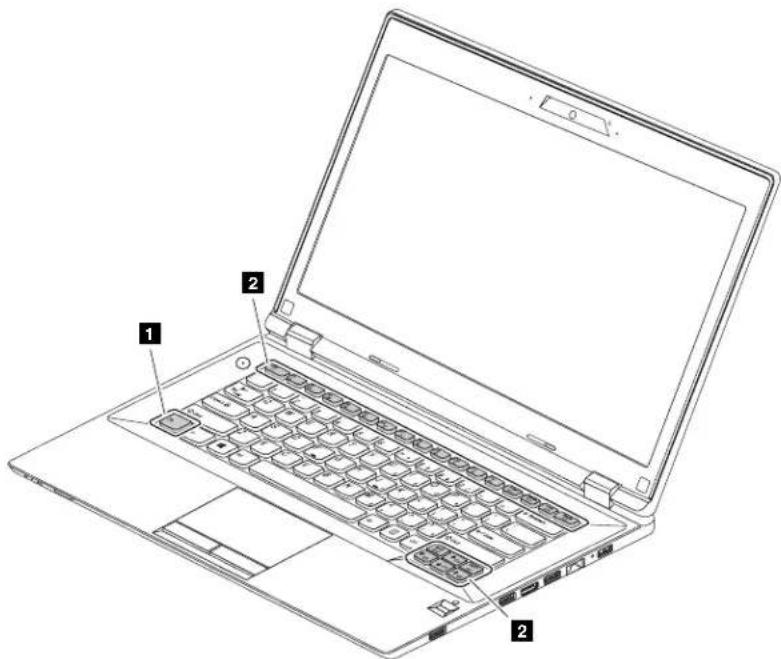
The following is abrief introduction to the function key combinations.
Configuringkeyboardlight(Fn+Esc)
Enablesordisablesthekeyboardlight.
Powerconservation(Fn+F1)
Putsyourcomputerintosleepmode.Toreturntonormaloperation,presstheFnkeyonly.
Displaybacklightfeature(Fn+F2)
Enablesordisablesthedisplaybacklightfeature.
Switchingthedislayoutlocation(Fn+F3)
Switchesbetween the computer display and an external monitor. The following options will be displayed:
•PCscreenonly
•Duplicate
- Extend
- Secondscreenonly
Note: You also can use the Windows + P combination to switch between the computer display and external monitor.
Configuringcamerasettings(Fn+F4)
- Windows7:PressFn+F4toopenthecameraandaudiosettingswindow.Thecamerapreviewisturned on.Changethecameraandaudiosettingsasdesired.
- Windows8:PressFn+F4toenableordisablethecamera.
Wirelessradiocontrol(Fn+F5)
Enablesordisablesthebuilt-inwirelessnetworkingfeatures.
Speakermutecontrol(Fn+F6)
Mutesorunmutesthespeakers. If you mutethesound and turn off your computer, the sound will remain muted when you turn on your computer again. Toturn on the sound, press Fn + left arrow or Fn + right arrow.
Microphonemutecontrol(Fn+F7)
Mutesorunmutesthemicrophones.
Touchpadcontrol(Fn+F8)
Enablesordisablesthetouchpadfunction.
Multimediacontrols
- Fn+F9:PlayerPause
- Fn+F10:Stop
•Fn+F11:Previousstrackorscene
•Fn+F12:Nexttrackorscene
Volumecontrols(Fn+leftorrightarrow)
Toadjustthesoundvolumefromyourcomputer,dothefollowing:
- Fn+leftarrow:Decreasesthesoundvolume.
- Fn+rightarrow:Increaseesthesoundvolume.
Adjustingdisplaybrightness(Fn+upordownarrow)
Toadjustthedisplaybrightness,dothefollowing:
- Fn+uparrow:Increasesthedisplaybrightness.
- Fn+downarrow:Decreasesthedisplaybrightness.
Otherfunctions
Fn+Insert:HashesamfunctionastheNumeridLockkeyo:conventionakeyboard.
- Fn+PrtSc: HasthesamefunctionastheSysRqkeyonaconventionalkeyboard.
- Fn+PgUp: HasthesamefunctionastheHomekeyonaconventionalkeyboard.
- Fn+PgDn: HasthesamefunctionastheEndkeyonaconventionalkeyboard.
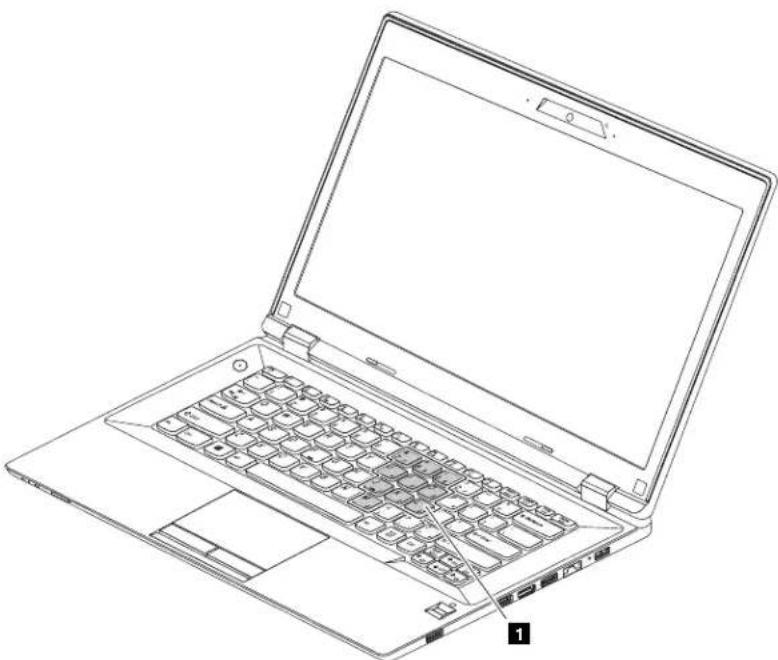
Numerickeypad
Thekeyboard has key that can work at 0-key numeric keypad when enable a disable the keypad, press Fn+Insert.
natural_image
Line drawing of a laptop with visible keyboard and front panel (no text or symbols)Figure6.Numerickeypad
Usingthetouchpad
The following illustrations show the control on the touchpad. To enable or disable the touchpad, press Fn+F8.
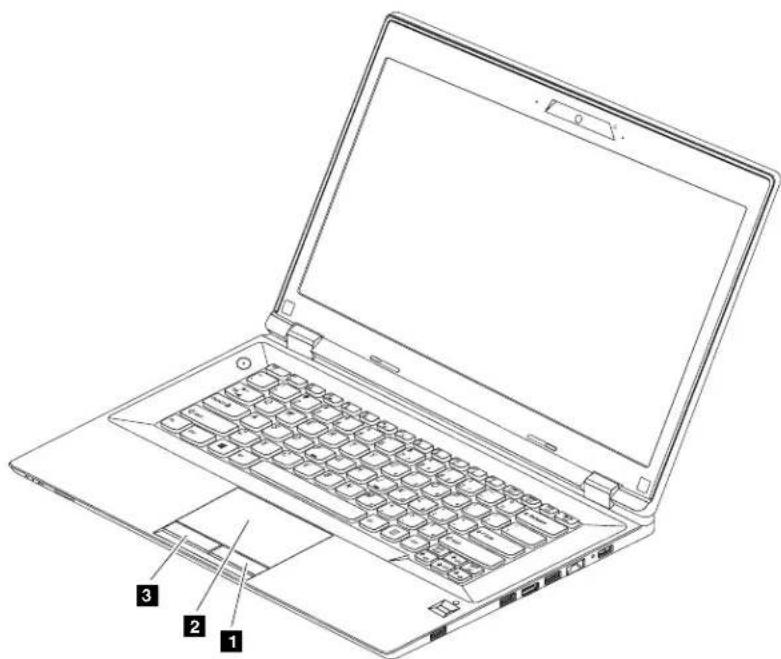
Figure7.Touchpad
ouchpad Tomove the cursor the screenslide you fingertipovethouchpad the direction in which you want the cursor to move.
2eft-clickbuttonFunctionsthe same shouldbuttononconventionalmouse.
Sight-clickbuttonFunctionsthe same a sheighbutton on conventional mouse.
Usingthemulti-touchouchpad
Onsomemodels, the touch pads supports multi-touch with which you can zoom in, zoom out, or scroll on the screen while browsing the Internet or reading or editing adocument.
Powermanagement
Useyourcomputerwithacpowerwheneveracpowerisavailable.Useyourcomputerwithbatterypower whenacpowerisnotavailable.
Checkingthebatterystatus
ThebatteryiconintheWindowsnotificationareadisplaysthepercentageofbatterypowerremaining. Differentcomputercomponentsconsumepoweratdifferentrates. Themoreyouusethepower-intensive components,thefasteryouconsumebatterypower.Becauseeachcomputeruserhasdifferenthabitsand needs,itisdifficulttopredicthowlongabatterychargewilllast.Therearetwomainfactors:
- Howmuchenergyisstoredinthebatterywhenyoubegintowork.
•Thewayyouuseyourcomputer:
-Howoftenyouaccesstheharddiskdrive?
-Howbrightyoumakethecomputerdisplay?
Using the acpower adapter
When you use ac power, the battery charges automatically.
Theacpoweradapterthatcomeswithyourcomputerhastwobasiccomponents:
- Thetransformerpackthatconvertsacpowerforusewiththecomputer.
- Thepowercordthatplugsintotheacoutletandintothetransformerpack.
Attention: Using an improper power cord could cause severe damage to the computer.
Connectingtheacpoweradapter
Toconnecttheacpoweradapter,dothefollowing:
- Plugthepowercordintoanelectricaloutlet.
- Connect the power cord to the transformer pack.
- Connect the ac power adapter to the ac power connector of the computer.
Tipsonusingtheacpoweradapter
Observethefollowingguidelineswhenusingtheacpoweradapter:
- When the acpower adapter is not in use, disconnect from the electrical outlet.
- Donotbindthepowercordtightlyaroundtheacpoweradaptertransformerpackwhenitisconnectedto thetransformer.
- Beforeyouchargethebattery, makesurethatitstemperatureisatleast 10ircC(50ircF) .
- You can charge the battery when the ac power adapter is connected to the computer and the battery is installed. Charge it in any of the following conditions:
-Whenyoupurchaseanewbattery
-Ifthebatterymeteratthebottomofyourdisplayindicatesalowbatterchargelevel
-Ifthebatteryhasnotbeenusedforalongtime
Chargingthebattery
It is recommended that you charge the battery or replace it with a charged battery on any of the following conditions:
•Thepercentageofbatterypowerremainingislow.
- Thepoweralarmalertsyouthattheremainingpowerislow.
Maximizingthebatterylife
Tomaximizethebatterylife,dothefollowing:
- Usethebatteryuntilthechargeisdepleted; thatis, usethebatteryuntilthebatterystatusindicator startsblinkingorange.
- Fullyrechargethebatterybeforeusingit. The batteryisfullychargedifthebatteryindicatorshowssolid greenwhentheacpoweradapterispluggedin.
- Alwaysusepowermanagementfeaturessuchaspowermodes,sleep,andhibernation.
Power-savingmodes
Thereareseveralmodesthatyoucanuseatanytimetoconservepower. Thisopicintroduceseachmode andgivestipsontheeffectiveuseofthebatterypower.
Sleepmode
If you are not going to set the computer for a short time, put the computer into a sleep mode. When the computer is in sleep mode, you can wake up to resume and bypass the startup process.
Toputthecomputerintosleepmode,dothefollowing:
- Windows7:
1.ClickStart.
2ClicktherianglemarknexttheShutdowniconandherselectSleep.
Windows8:
- Movethecursortothetop-rightorbottom-rightcornerofthescreentodisplaythecharms.
2.ClickSettings.
3SelecSleepfromthePowerenoptions.
- PressFn+F1.
Attention: Wait until the power indicator starts blinking (indicating that the computer is asleep state) before you move the computer. Moving the computer while the hard disk drive is spinning and damage the hard disk drive, causing loss of data.
Towakeupthecomputer,dooneofthefollowing:
- Pressthepowerbutton.
•PresstheFnkeyonthekeyboard.
Hibernationmode
By using this mode, you can turn off the computer completely without saving files or exiting from any program that is running. When the computer enters hibernation mode, all open programs, folders, and files are saved to the hard disk drive, and then the computer turns off.
Toputthecomputerintohibernationmode,dothefollowing:
- Windows7:
1.ClickStart.
2ClicktherianglemarknexttheShutdownriconandherselecHibernation.
Windows8:
- Movethecursortothetop-rightorbottom-rightcornerofthescreentodisplaythecharms.
2.ClickSettings.
3SelectHibernationfromthePowemenoptions.
Shuttingdownthecomputer
If you are not going to set the computer for a day to two, shut it down.
Toshutdownthecomputer,dothefollowing:
- Windows7:
ClickStart→Shutdown.
- Windows8:
- Movethecursortothetop-rightorbottom-rightcornerofthescreentodisplaythecharms.
2.ClickSettings.
3SelectShutdownfromthePowerenoptions.
Handlingthebattery
This system does not support batteriesthatarenotgenuine Lenovo-made unauthorized. The system will continuetoboot, but might not charge unauthorized batteries.
Attention: Lenovohasnoresponsibilityfortheperformanceorsafetyofunauthorizedbatteries, and providesnowarrantiesforfailuresordamagearisingoutoftheiruse.

DANGER
Donotattempttodisassembleormodifythebatterypack.
Attemptingtodosocancauseanexplosion,orliquidleakagefromthebatterypack.
AbatterypackotherthantheonespecifiedbyLenovo,oradisassembledormodifiedbattery packisnotcoveredbythewarranty.

DANGER
If there chargeable battery pack is incorrectly replaced, there is danger of an explosion. The battery pack contains a small amount of harmful substances. To avoid possible injury:
- ReplaceonlywithabatteryofthetyperecommendedbyLenovo.
- Keepthebatterypackawayfromfire.
- Donotexposeittoexcessiveheat.
- Donotexposeittowaterorrain.
- Donotshort-circuitit.
- Storeitinacooldryplace.
- Keepitawayfromchildren.
The batterypackisaconsumablesupply.Ifyourbatterybeginstodischargetooquickly,replacethebattery packwithanewoneofthetyperecommendedbyLenovo.Formoreinformationaboutreplacingthe batterypack,contactyourCustomerSupportCenter.

DANGER
Donotdrop, crush, puncture, or subject to strong forces. Battery abuse or mishandling can cause the battery too overheat, which can cause gasses or flameto "vent" from the battery pack or coin cell. If your battery is damaged, or if you notice any discharge from your battery or the buildup of foreign materials on the battery leads, stop using the battery and obtain are replacement from the battery manufacturer.

DANGER
Onlyrechargethebatterypackstrictlyaccordingtoinstructionsincludedintheproduct documentation.

DANGER
Donotputthebatterypackintrashthatisdisposedofinlandfills. Whendisposingofthebattery, complywithlocalordinancesorregulationsandyourcompany'ssafetystandards.

DANGER
Thereisadangerofanexplosionifthebackupbatteryisincorrectlyplaced. Thelithiumbattery contains lithium and can explode if it is not properly handled, or disposed of. Replace only with a battery of the sametype. To avoid possible injury or death, donot: (1) throw or immerseintowater, (2) allow it to eat more than 100ircC(212ircF) , or (3) attempt to repair disassembleit. Dispose of its required by local ordinances or regulations and your company's safety standards.
Connectingtothenetwork
YourcomputerhasoneormorenetworkcardsforconnectingtotheInternet.
TheAccessConnectionsprogramortheLenovoSettingsprogrampreinstalledonyourcomputerisa connectivityassistantprogramforcreatingandmanaginglocationprofiles.Eachlocationprofilestoresall thenetworkandInternetconfigurationsettingsneededforconnectingtoanetworkinfrastructurefrom aspecificlocationsuchasahomeoranoffice.
Formoreinformation, refertothehelpinformationsystemoftheprogram.
Ethernetconnection
YourcomputerhasoneEthernetconnector.Usingtheconnectorandawiredcable,youcanconnecttoyournetworkorabroadbandconnection,suchasdigitalsubscriberline(DSL)orcabletelevision(CATV).This connectionenablesyoutodo1Gbpshalf-duplexorfull-duplexdatatransmission.
Wirelessconnection
Wirelesscommunicationisthetransferofdatawithouttheuseofcablesbutbymeansofradiowavesonly.
WirelessLAN
AwirelessLANcoversarelativelysmallgeographicarea,suchasanofficebuildingorahouse.Devices basedonthe802.11standardscanconnecttothisnetwork.
Yourcomputercomeswithabuild-inwirelessnetworkcardandaconfigurationutilitytohelpyoumake wirelessconnectionsandmonitorthestatusofyourconnection,sothatyoucanstayconnectedtoyour networkwhileyouareintheoffice,inameetingroom,orathome,withnoneedforawiredconnection.
Establishingawirelessconnection
Toestablishawirelessconnection, dothefollowing:
-
PressFn+F5toturnonthewirelessfeature.
-
ClickthewirelessnetworkconnectionstatusiconintheWindowsnotificationarea.Alistofavailable wirelessnetworksisdisplayed.
- Double-clickanetworktoconnecttoit.Providerequiredinformationifneeded.
Toconnecttodifferentwirelessnetworksindifferentlocations,usetheAccessConnectionsprogramorthe LenovoSettingsprogramtomanagemultiplenetworkprofilessothatthecomputerconnectstoanavailable networkautomaticallywhenthelocationchanges.
UsingtheNVIDIAOptimusGraphicsfeature
Dependingonthemodel,yourcomputermightsupporttheNVIDIAOptimusGraphicsfeature.
Toachievethebestbalancebetweencomputerperformanceandbatterylife,dependingonthegraphics qualitydemandoftherunningapplicationandthesettingsofthepowerplanyouuse,theNVIDIAOptimus GraphicsfeatureautomaticallyswitchesbetweenHighPerformanceGraphicsandEnergySavingGraphics withnoneedtorestartyourcomputer,closeapplications,orintervenemanually.
Note: The NVIDIA Optimus Graphics feature is supported on the Windows 7 operating system only.
Usingaflashmediacard
Yourcomputerhasonemediacardreaderslot.Themediacardreaderslotsupportsthefollowingtypesof cards:
- SecureDigital(SD)card
- SecureDigitalHighCapacity(SDHC)card
• SDeXtendedCapacity(SDXC)card
•MultiMediaCard(MMC)
Attention: While transferring datatoor from a flashmediacard, such as an SD card, donot put your computer into sleep or hibernation mode before the datat transfer is complete; otherwise, your data could be comedamaged.
Insertingaflashmediacard
Attention: Before you start installing any of the following cards, touch a metal table or around metal object. This action reduces anystatic electricity from your body. The static electricity could damage the card.
Toinsertaflashmediacard, dothefollowing:
- Ensure that the cardiac disc correctly oriented.
- Insertthecardfirmlyintothe4-in-1mediacardreaderslot. Thecardmightstopbeforeitiscompletely installedintotheslot.
Removingaflashmediacard
Toremoveaflashmediacard, dothefollowing:
- Pushtheflashmediacarduntilyouhearaclick.
- Gentlypulltheflashmediacardoutofthememorycardslot.
Note: If you donotremovethecard from your computer after you eject the card from the Windows operating system, the card can longer be accessed. To access the card, you must remove it once, then insert it again.
Chapter3.Youandyourcomputer
Thischapterprovidesinformationaboutaccessibilityandcomfort.
Accessibilityandcomfort
Goodergonomicpracticeisimportanttogetthemostfromyourpersonalcomputerandtoavoiddiscomfort. Arrangeyourworkplaceandtheequipmentyouusetosuityourindividualneedsandthekindofwork thatyouperform.Inaddition,usehealthyworkhabiststomaximizeyourperformanceandcomfortwhile usingyourcomputer.
The following topics provide information about arranging your work area, setting up your computer equipment, and establishing healthy work habits.
Lenovoiscommittedtoprovidingthelatestinformationandtechnologytoourcustomerswithdisabilities. Refertoouraccessibilityinformationwhichoutlinesoureffortsinthisarea.
Ergonomicinformation
Workinginthevirtualofficemightmeanadaptingtofrequentchangesinyourenvironment.Followingsome simpleruleswillmakethingseasierandbringyouthemaximumbenefitsofyourcomputer.Keepinginmind suchbasicsasgoodlightingandproperseating,forexample,canhelpyouimproveyourperformance andachievegreatercomfort.
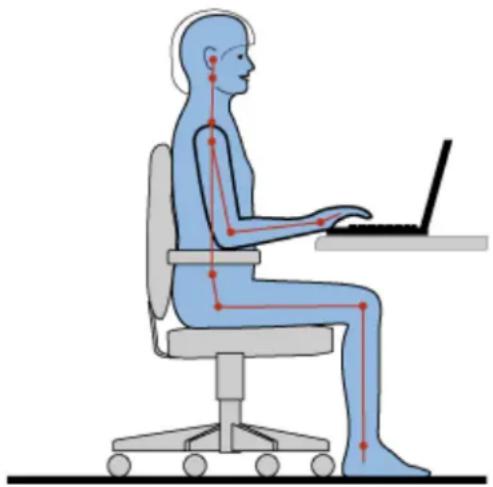
This examples show someone in a conventional setting. Even when not in such as setting, you can follow many of these tips. Develop good habits, and they will serve you well.
natural_image
Human body silhouette diagram showing seated posture with red line annotations indicating movement paths (no text or symbols)Generalposture: Makeminormodificationsinyourworkingposturetodetertheonsetofdiscomfortcaused bylongperiodsofworkinginthesameposition.Frequent,shortbreaksfromyourworkalsohelptoprevent minordiscomfortassociatedwithyourworkingposture.
Display: Positionthedisplaytomaintainacomfortableviewingdistanceof510-760mm(20-30inch).Avoid glareorreflectionsonthedisplayfromoverheadlightingoroutsidesourcesoflight.Keepthedisplayscreen
cleanandsetthebrightnesstolevelsthatenableyoutoseethescreenclearly.PressFn+up/downarrow toadjustdisplaybrightness.
Headposition: Keep your head and neck in a comfortable and neutral (vertical, or upright) position.
Chair: Useachairthatgivesyougoodbacksupportandseatheightadjustment. Usechairadjustments to bestsuityourdesiredposture.
Armandhandposition: If available, use chairarmrestsoranarea on your workings surfacetoprovide weightsupport for your arms. Keep your forearms, wrists, and hands in are relaxed and neutral (horizontal) position. Typewith asoft touch without pounding the keys.
Legposition: Keepyourthighsparalleltothefloorandyourfeetflatonthefloororonafootrest.
Whatifyouaretraveling?
Itmight not be possible to observ the best ergonomic practices when you are using your computer while on them move or in a casual setting. Regardless of these setting, try to observe as many of the tips as possible. Sitting properly and using adequate lighting, for example, will help you maintain desirable levels of comfort and performance.
Questionsaboutvision?
ThevisualdisplayscreensofLenovonotebookcomputersaredesignedtomeetthehigheststandardsand toprovideyouwithclear,crispimagesandlarge,brightdisplaysthatareeasytosee,yeteasyontheeyes. Ofcourse,anyconcentratedandsustainedvisualactivitycanbetiring.Ifyouhavequestionsoneyefatigue orvisualdiscomfort,consultavisioncarespecialistforadvice.
Chapter4.Security
Thischapterprovidesinformationaboutprotectingyourcomputerfromtheftandunauthorizeduse.
Attachingamechanicallock
Youcanattachamechanicallocktoyourcomputertopreventitfrombeingremovedwithoutyourpermission.
Attachamechanicallocktothekeyholeofthecomputer;thensecurethechainonthelocktoastationary object. Refertotheinstructionsshippedwiththemechanicallock.
Note: Youareresponsibleforevaluating,selecting,andimplementingthelockingdevicesandsecurity features. Lenovomakesnocomments,judgments,orwarrantiesaboutthefunction,quality,orperformance oflockingdevicesandsecurityfeatures.
Usingpasswords
Usingpasswordshelpspreventyourcomputerfrombeingusedbyothers.Onceyousetapasswordand enableit,apromptappearsonthescreeneachtimeyoupoweronthecomputer.Enteryourpasswordatthe prompt.Thecomputercannotbeusedunlessyouenterthecorrectpassword.
Note: This password can be acombination of font to seven alphanumeric characters.
Formoreinformationabouthowtosetthepassword,refertotheonlinehelpinformationsystemontheright screenoftheBIOSprogram.
Note: To enter the BIOS program, press F1 when the Lenovologo is displayed on the screen while the computer is starting up.
Usingafingerprintreader
Withthefingerprintreader, inadditiontoregisteringfingerprintinformation and using itasapassword for WindowsoperatingsystemorWebsitelogon, youalsocanlaunchapplicationsquicklyandencryptprivate datawithyourfingerprinttosecureyourcomputer. Formoreinformation, refertotheonlinehelpinformation systemofthefingerprintsoftware.
UsingtheActiveProtectionSystemprogram
SomeLenovomodelshavetheActiveProtectionSystemprogrampreinstalled.
Asareliablesafeguard, theActiveProtectionSystemprogramreducesthepossibilityofshockdamage totheharddiskdrivethatmayresultindataloss.Whenyourcomputerissubjecttoshockorexcessive vibration, theshocksensorinthecomputerdetectstheconditionandstopstheharddiskdriveuntilthe environmentisstableagain.
Chapter5.Recoveryoverview
Thischapterprovidesinformationabouttherecoverysolutionsforyourcomputer.
- "RecoverysolutionsontheWindows7operatingsystem" on page 23
- "RecoverysolutionsontheWindows8operatingsystem" on page 24
RecoverysolutionsontheWindows7operatingsystem
It is important to create a rescued medium and set of recovery media as early as possible and store them in as safe place for future use.
RecoveryprogramsinstalledontheWindows7operatingsystem
YourcomputercomeswiththefollowingrecoveryprogramsinstalledontheWindows7operatingsystem:
- ProductRecovery
Tolaunchtheprogram, dothefollowing:
Startthecomputer.WhentheLenovologoisdisplayed,pressF11andthenfollowtheon-screen instructions.
•OneKey ® RecoveryPro
Tolaunchtheprogram, dothefollowing:
ClickStart=LenovoSolutionCenterThenfollowthen-screeninstructions.
Therecoveryprogramsenableyoutodothefollowing:
- Creatingandusingrecoverymedia
Youcanuserecoverymediatorestoretheharddiskdrivetothefactorydefaultsettings.Recoverymedia areusefulifyoutransferthecomputertoanotherarea,sellthecomputer,recyclethecomputer,orput thecomputerinanoperationalstateafterallothermethodsofrecoveryhavefailed.Asaprecautionary measure,itisimportanttocreaterecoverymediaasearlyaspossible.
- Performingbackupandrecoveryoperations
TheOneKeyRecoveryProprogramenablesyoutobackupallyourharddiskdrivecontentsincludingtheoperatingsystem, datafiles, softwareprograms, and personalsettings. YoucandesignatewheretheOneKeyRecoveryProprogramstoresthebackup.
•UsingtheOneKeyRecoveryProworkspace
TheOneKeyRecoveryProworkspaceresidesinaprotected,hiddenareaofyourharddiskdrivethat operatesindependentlyfromtheWindowsoperatingsystem.Thisenablesyoutoperformrecovery operationsevenifyoucannotstarttheWindowsoperatingsystem.Y oucanperformthefollowing recoveryoperationsfromtheOneKeyRecoveryProworkspace.
- Creatingandusingarescuemedium
Witharescuemedium,suchasadiscoraUSBharddiskdrive,youcanrecoverthecomputerfromfailures thatpreventyoufromgainingaccesstotheOneKeyRecoveryProworkspaceonyourharddiskdrive.
Attention: Therecoveryprocessisirreversible.Ensurethatyouhavebackedupyourcriticaldatabase usingtherecoveryfeature.
Formoreinformation, refertothehelpinformationsystemoftheprograms.
ReinstallingtheWindows7operatingsystem
Attention: Therecoveryprocessisirreversible.Ensurethatyouhavebackedupyourcriticaldatabase usingtherecoveryfeature.
ToreinstalltheWindows7operatingsystem,dothefollowing:
- Turnoff the computer.
- Start the computer. When the Lenovoologo is displayed, press F11 and then follow the on-screen instruction to open the Product Recovery program.
- Followtheon-screen instruction store install the operating system.
Note: You can choose to restore your system partition into the original factory state or to a previously generated backup.
Solvingrecoveryproblems
If you are unable to access the One Key Recovery Proworkspace or the Windows environment, do either of the following:
- UsearescuemediumtostarttheOneKeyRecoveryProworkspace.
- Userecoverymediaifallothermethodsofrecoveryhavefailedandyouneedtorestoretheharddisk drivetothefactorydefaultsettings.
Note: If you are unable to access the One Key Recovery Proworkspace or the Windows environment from a rescue or recovery medium, you might not have a rescue device (an internal hard disk drive, adisc, a USB hard disk drive, or other external devices) set as the first boot device in the startup device sequence. You must first make sure that your rescue device is set as the first boot device in the startup device sequence in the BIOS program God the Startup Bootmen temporarily permanently chan get the startup devices sequence.
RecoverysolutionsontheWindows8operatingsystem
RecoveryprogramsinstalledontheWindows8operatingsystem
YourcomputercomeswiththeWindowsrecoveryprograminstalledontheWindows8operatingsystem.
Tolaunchtheprogram, dothefollowing:
- Turnoff the computer.
- Start the computer. When the Lenovoologo is displayed, press F11 and then follow the on-screen instruction to open the Product Recovery program.
- Followtheon-screen instruction store install the operating system.
Attention: Therecoveryprocessisirreversible.Ensurethatyouhavebackedupyourcriticaldatabase usingtherecoveryfeature.
Formoreinformation, refertothehelpinformationsystemoftheprograms.
Therecoveryprogramenablesyoutodothefollowing:
- Refreshingyourcomputer
Thisprogramenablesyoutorestoreyourcomputertothefactorydefaultsettingswhilepreservingthe dataontheharddiskdrive.
Torefreshyourcomputer,dothefollowing:
- Movethecursortothetop-rightorbottom-rightcornerofthescreentodisplaythecharms. Then click Settings-ChangePCsettings-General.
2rtheRefreshyouPOwithoutaffectingyoufilessectionclickGetstartedThenfollowthe on-screeninstructionstorefreshyourcomputer.
- Resettingyourcomputer
When you us there recovery program to reset your computer, all the data stored on the hard disk drivewill bedeleted and the computer will be restored to the factory default settings.
Attention: To avoid dataloss, backup your data in advance.
Toresetyourcomputer,dothefollowing:
- Movethecursortothetop-rightorbottom-rightcornerofthescreentodisplaythecharms. Then click Settings-ChangePSettings-General.
2theRemoveeverythingandeinstalWindowssectionclickGetstartedThenfollowthe on-screeninstructionstorefreshyourcomputer.
Note: Afterrestoring your computer to the factory default settings, you might need to install the drivers for some devices.
- Advancedstartupoptions
Advancedstartupoptionsenableyoutostartupfromanexternaldriveordisc,changeyourcomputer settings,changethestartupsettingsoftheWindowsoperatingsystem,orrestoretheWindowsoperating systemfromasystemimage.
Tousetheadadvancedstartupoption,dothefollowing:
- Movethecursortothetop-rightorbottom-rightcornerofthescreentodisplaythecharms. Then click Settings→ChangePSettings→General.
2rtheAdvancedstartupsectionclickRestarhow-Troubleshoot-AdvancedoptionsThen followtheon-screeninstructionstochangethesettingsasdesired.
Formoreinformationabouttherecoverysolutionsprovidedonyourcomputer,refertotheonlinehelpinformationsystemoftheWindows8operatingsystem.
Chapter6.Preventingproblems
AnimportantpartofowningaLenovonotebookcomputerismaintenance.Withpropercare,youcan avoidcommonproblems.Thechapterprovidesinformationthatcanhelpyoukeepyourcomputerrunning smoothly.
- "Generaltipsforpreventingproblems" on page27
• "Takingcareofyourcomputer" on page 27
Generaltipsforpreventingproblems
Thistopicprovidesgeneraltipsforyoutopreventproblemswhenusingyourcomputer.
- Check the capacity of your hard disk drive from timetotime. If the hard disk drive gets full, the operating system will slow down and might produce errors.
- Empty your recycle bin on a regular basis.
- Tofreeupdiskspace, uninstallunusedprograms.
- Cleanout your Inbox, Sent, and Trash folders from you are-mail client program.
- Backup your data at least once a week. If critical data is present, it is recommended that you perform a daily backup operation. Lenov has many backup options available for your computer. CD-RW drives and CD-RW/DVD drives are available for most computers and can be installed easily.
- Schedulesystemrestoreoperationstotakeasystemsnapshotperiodically.
Note: Alwaystakeasystemsnapshotbeforeinstallingnewdrivers, updatingsoftware, orinstalling newsoftware.
-
Updated device drivers and the BIOS when needed.
-
Profile your machine at http://www.lenovo.com/support to keep up to date with current drivers and revisions.
9.Keepuptodatefordevicedriversonothernon-Lenovohardware.Y ountightwanttoreadthedevice driverinformationreleasenotesbeforeupdatingforcompatibilityorknownissues.
-
Keepalogbook.Entriesmightincludemajorhardwareorsoftwarechanges,driverupdates,minorissuesyouhaveexperienced,andhowyouresolvedtheminorissues.
-
If required, you can find your country's Customer Support Center at http://www.lenovo.com/support.
Note: WhencallingtheCustomerSupportCenter, ensure that you have your machine model type, serial number, and the computer in front of you. Also, if the computer is producing error codes, it is helpful to have the errors screen on other messages as written down.
- If you want to get the latest software for Microsoft Windows product updates, goto http://www.microsoft.com. Lenovoprovidestechanicalassistance within installation of, or questions related to, Service Packs for your Lenovo-preinstalled Windows products.
Takingcareofyourcomputer
Although your computer is designed to function reliably in normal work environments, you need to use commonsense in handling it. By following these important tips, you will get them most use and enjoyment out of your computer.
Becarefulaboutwhereandhowyouwork
- Donoteatorsmokeoveryourkeyboard.Particlesthatfallintoyourkeyboardcancausedamage.
- Storepackingmaterialssafelyoutofthereachofchildrentopreventtheriskofsuffocationfromplastic bags.
- Donoteatorsmokeoveryourkeyboard.Particlesthatfallintoyourkeyboardcancausedamage. - Storepackingmaterialssafelyoutofthereachofchildrentopreventtheriskofsuffocationfromplastic bags.
- Keep the computer more than 13cm (5 inches) away from magnets, activated cellular phones, electrical appliances, or speakers.
- Avoidsubjectingyourcomputertoextremetemperatures(below5°C/41°Forabove35°C/95°F).
- Someappliances,suchascertainportabledesktopfansorairpurifiers,producenegativeions.lfa computerisclosetosuchanappliance,andisexposedforanextendedtimetoaircontainingnegative ions,itmightbecomeelectrostaticallycharged.Suchachargemightbedischargedthroughyourhands whenyoutouchthekeyboardorotherpartsofthecomputer,orthroughconnectorsonl/Odevices connectedtoit.Eventhoughthiskindofelectrostaticdischarge(ESD)istheoppositeofadischargefrom yourbodyorclothingtothecomputer,itposesthesameriskofacomputermalfunction.
Yourcomputerisdesignedandmanufacturedtominimizeanyeffectsofelectrostaticcharge.Anelectrostatic chargeaboveacertainlimit,however,increasetheriskofESD.Therefore,whenusingthecomputerclose toanappliancethatproducesnegativeions,givespecialattentiontothefollowing:
- Avoiddirectlyexposingyourcomputertotheairfromanappliancethatproducesnegativeions.
- Keep your computer and peripherals as far as possible from such an appliance.
- Whereverpossible,groundyourcomputertofacilitatesafeelectrostaticdischarge.
Note: Notallsuchappliancescauseasignificantelectrostaticcharge.
Begentlewithyourcomputer
- Avoidplacinganyobjects(includingpaper)betweenhedisplayandthekeyboardorthepalmrest.
- Donotopenthedisplaybeyond130degrees,asthismightdamagethecomputerhinge.
- Donotturnyourcomputeroverwhiletheacpoweradapterispluggedin.Thiscouldbreaktheadapter plug.
Carryyourcomputerproperly
- Beforemovingyourcomputer,besuretoremoveanymedia,turnoffattacheddevices,anddisconnect cordsandcables.
- Beforemovingyourcomputer,ensurethatitisinsleeporhibernationmode,orturnedoff.Thisprevents damagetotheharddiskdriveandavoidsdataloss.
- Whenpickingupyouropencomputer, holditbythebottom. Donotpickuporholdyourcomputerby thedisplay.
- Useaqualitycarryingcasethatprovidesadequatecushionandprotection.Donotpackyourcomputerin atightlypackedsuitcaseorbag.
Foroutdooruse
- Backupyourcriticaldatabaseyoutakeyourcomputeroutdoors.
- Ensure that the battery is fully charged.
- BesuretoturnoffthepowerandclosetheLCDwhennotinuse.
- Whenyouleavethecomputerinyourcar,placeitonthebackseattoavoidbeinginsolated.
- Carrytheacpoweradapterandpowercordwiththecomputer.
Handlestoragemediaanddrivesproperly
- If your computer comes with an optical drive, don't touch the surface of a discorthelenson the tray.
- WaituntilyouheartheCDorDVDclickintothecenterpivotofthedrivebeforeclosingthetray.
- Wheninstallingtheharddiskdrivesoropticaldrives,followtheinstructionsshippedwithyourhardware, andapplypressureonlywhereneededonthedevice.
- Turnoffyourcomputerifyouarereplacingtheharddiskdrive.
- Storeyourexternalandremovableharddiskdrivesoropticaldrivesintheappropriatecontainersor packagingwhennotinuse.
- Before you install any of the following devices, touch a metal table or a grounded metal object. This action reduces an astatic electricity from your body. The static electricity could damage the device.
-Memorycards, such as SDcards, MemoryStickcards, MultiMediaCards, and MemoryStickProcards -Memorymodules
Note: Notalldeviceslistedareincludedinyourcomputer.
- Whentransferringdatatoorfromaflashmediacard,suchasanSDcard,donotputyourcomputerin sleeporhibernationmodebeforethedatatransferiscomplete. Otherwise,datamightbedamaged.
Cleanthecomputercover
Occasionallycleanyourcomputercoverbydoingthefollowing:
- Prepareamixtureofagentlekitchen-usedetergent(onethatdoesnotcontainabrasivepowderor strongchemicalssuchasacidoralkaline).Use5partswaterto1partdetergent.
- Absorbthediluteddetergentintoasponge.
- Squeeze excess liquid from the sponge.
- Wipethecoverwiththesponge, usingacircularmotion and takingcarenottoletanyexcessliquiddrip.
- Wipethecovertoremovethedetergent.
- Rinsethespongewith clean running water.
- Wipethecoverwiththecleansponge.
- Wipethecoveragainwithadry,soft,lint-freecloth.
- Waitforthecovertodrycompletelyandremoveanyfibersfromthecloth.
Note: Before cleaning the computer cover, ensure that you have turned off the computer and disconnected the power cord.
Cleanthecomputerkeyboard
Tocleanthecomputerkeyboard,dothefollowing:
- Apply some isopropyl rubbing alcohol to asoft, dust-free cloth.
- Wipeeachkeytopsurfacewiththecloth.Wipethekeysonebyone;ifyouwipeseveralkeysatatime, theclothmighthookontoanadjacentkeyandpossiblydamageit.Ensurethatnoliquiddripsonto orbetweenthekeys.
- Allow the keyboard today.
- Toremoveanycrumbsanddustfrombeneaththekeys, useacamerablowerwithabrushorcoolair fromahairdrier.
Note: Avoidsprayingcleanerdirectlyontothedisplayorthekeyboard.
Cleanthecomputerdisplay
Tocleanthecomputerdisplay,dothefollowing:
- Gentlywipethedisplaywithadry,soft,lint-freecloth.Ifyouseeascratchlikemarkonthedisplay,it mightbeastaintransferredfromthekeyboardwhenthecoverwaspressedfromtheoutside.
- Wipeordustthestaingentlywithasoft,drycloth.
- If the stain remains, moistens as soft, lint-free cloth with water or a 50-50 mixture of isopropyl alcohol and water that does not contain impurities.
-
Wringoutasmuchoftheliquidasyoucan.
-
Wipethedisplayagain; donotletanyliquiddripintothecomputer.
- Besuretodrythedisplaybeforeclosingit.
Keepthefollowinginmind:
- Onlyanauthorized Lenovorepairtechnicians should disassemble and repair your computer.
- Donotmodifyortapethelatchestokeepthedisplayopenorclosed.
Chapter7.Troubleshootingcomputerproblems
Thischapterprovidesinformationonwhattodoifyouexperienceaproblemwithyourcomputer.
Troubleshooting
Thistopiccategorizescommoncomputerproblemsandprovidestroubleshootinghintsandtips.
Batteryandpowerproblems
Thistopicprovidesinstructionsontroubleshootingbatteryandpowerproblems.
Printtheseinstructionsfirst.
The batterypack cannot be fully charged in the standard charge time when the computer is turned off.
The batterypackmightbeover-discharged.Dothefollowing:
- Ensure that the computer is turned off.
- Ensure that the over-discharged battery pack is in the computer.
- Connect the ac power adapter to the computer and let it charge.
Note: If a quick charger is available, use it to charge the over-discharged battery pack. If the battery pack still cannot be fully charged in 24 hours, use anew battery pack.
Thecomputerturnsoffbeforethebatterystatusindicatorshowempty,orthecomputeroperates afterthebatterystatusindicatorshowempty.
Dischargeandrechargethebatterypack.
Theoperatingtimeofafullychargedbatterypackisshort.
Dischargeandrechargethebatterypack.Iftheproblempersists,useanewbatterypack.
Thecomputerdoesnotoperatewithafullychargedbatterypack.
Thesurgeprotectorinthebatterypackmightbeactive. Turnoff the computer for oneminutetodisable the surgeprotector; thenturnon the computer again.
Thebatterypackcannotbecharged.
You cannot charge the battery when it is too hot. If the battery is hot, remove it from the computer and let it cool to room temperature. After it cools, reinstall and recharge the battery. If the problem persists, contact your local Service Provider.
Theacpoweradapterisconnectedtoboththecomputerandtheworkingelectricaloutlet,buttheac poweradaptericonisnotdisplayedintheWindowsnotificationarea,andtheacpowerindicator doesnotlightup.
Dothefollowing:
- Turnoff the computer, and then disconnect the ac power adapter and removethemain battery.
- Reinstall the battery and reconnect the ac power adapter, then turn on the computer. Ensure that the ac power adapter is correctly and securely connected.
- Turnonthecomputer.
If the problempersists, contact your local Service Provider.
Astartupproblem
Printtheseinstructionsfirst.
TheWindowsoperatingsystemdoesnotstart.
Usetherecoveryprogramprovidedonyourcomputertoidentifyandtroubleshoottheproblem.Fordetails, refer toChapter5"Recoveryoverview"onpage23.
Sleepandhibernationproblems
Printtheseinstructionsfirst.
Acriticallow-batteryerroroccurs, and the computer immediately turnsoff.
This indicates that the battery power is getting too low. Connect the ac power adapter to your computer and plug the other end of the ac power adapter into an electrical outlet. You also can solve the problem by replacing the battery with a charged one.
Thecomputerenterssleepmodeimmediatelyafterthepower-onself-test.
Ensurethat:
•Thebatteryischarged.
- Theoperatingtemperatureiswithintheacceptablerange.RefertoChapter6"Preventingproblems" onpage27.
Computerscreenproblems
Printtheseinstructionsfirst.
Thescreenisblank.
This indicates that the battery power is getting too low. Connect the ac power adapter to your computer and plug the other end of the ac power adapter into an electrical outlet. You also can solve the problem by replacing the battery with a charged one.
If the problem persists, do the following:
- If you are using the acpower adapter or using the battery, and the battery status indicator is on, press Fn+uparrow to increase the screen brightness.
- If the power indicator is blinking, press the power button to resum the computer fromsleep mode.
- CheckiftheLCDbacklightfeatureisenabled.
- Checkifthedisplaydevicedriverisinstalledcorrectly.
- Checkifthescreenresolutionandcolorqualityarecorrectlyset.
- Checkifthemonitortypeiscorrect.
Thescreenisunreadableordistorted.
Ensurethat:
- Thedisplaydevicedriverisinstalledcorrectly.
- Thescreenresolutionandcolorqualityarecorrectlyset.
•Themonitortypeiscorrect.
Incorrectcharactersaredisplayedonthescreen.
Ensure that the operating system and programs are correctly installed on your computer. If the problem persists, contact your local Service Provider.
Whenlturnonthecomputer,nothingisdisplayedonthescreenandthecomputerdoesnotbeep whilestartingup.
Ensurethat:
•Thebatteryisinstalledcorrectly.
- Theacpoweradapterisconnectedtothecomputerandthepowercordispluggedintoaworking electricaloutlet.
- Pressthepowerbuttonagaintoensurethatthecomputeristurnedon.
If the problempersists, contact your local Service Provider.
Whenlturnonthecomputer,onlyawhitecursorisdisplayedonablankscreen.
Restoreback-upfiles, or restore the entire content so your hard disk driveto the original factory contents using there recovery programs provided on your computer.
If the problempersists, contact your local Service Provider.
Myscreengoesblankwhilethecomputerison.
Yourscreensaverorpowermanagementmightbeenabled.Dooneofthefollowingtoexitfromthescreen saverortoresumefromsleeporhibernationmode:
- Touchthetouchpad.
•PresstheFnkeyonthekeyboard. - Pressthepowerbutton.
- PressFn+F2tocheckwhethertheLCDscreenhasbeenturnedoff.
Problemswithdrivesandotherstoragedevices
Thistopicprovidesinstructionsontroubleshootingproblemswithdrivesandotherstoragedevices.
Harddiskdriveproblems
Printtheseinstructionsfirst.
Theharddiskdrivemakesarattlingnoiseintermittently.
Therattlingnoisemightbeheardwhen:
- Theharddiskdrivebeginsorfinishesgettingaccesstodata.
- Youcarrytheharddiskdrive.
- You carry your computer.
Thisisanormalcharacteristicofaharddiskdriveandcanbeignored.
Theharddiskdrivedoesnotwork.
EntetheBIOProgramSelectStartup-BootEnsurehathardiskdrivestheBoopriorityorderlistfortheExcludedronboobrdefistthisindicateshathabeendisabledSelectentryfothardiskdrivestheExcludedronboobrdefistanpressShift+tomoveto theBootpriorityorderlist.
Opticaldriveproblems
Printtheseinstructionsfirst.
YouhearanoisefromthedrivewhentheCD,DVD,orCD-RWdiscisspinning.
Ifthediscisnotcorrectlyloadedonthecenterpivotofthedrive,itmightrubagainstthedrivecoverand makeanoise.Ensurethatthediscisloadedcorrectlyinthedrive.
Thedrivetraydoesnotopenevenifyoupresstheejectbutton.
When your computer is not turned on, pressing the eject button does not cause the drivetray to open. Ensure that the computer is turned on and that the drive connector is firmly connected to the computer.
If the problem persists, you can manually open the drivetrain by inserting the end of a straightened paper clip into the emergency eject hole when the computer is running.
OneKeyRecoveryProprogramproblems
Printtheseinstructionsfirst.
Backupcannotbemade.
Ensurethat:
- YouareusingaWindowsoperatingsystem.
- Thereisenoughspaceonyourharddiskdrivetostorethebackupdata.
Failtorestorethesystempartitiontothefactorydefaultstate.
The cause might be that the partition property such as the size or the capacity of your system has been modified.
Apasswordproblem
Printtheseinstructionsfirst.
lforgotmypassword.
Doanyofthefollowing:
- If you forget your user password, take your computer to a Lenovo authorized servicetechnician or marketing representativetohavethe password changed.
- If you forget your hard disk drive password, you have to replace the hard disk drive by contacting a Lenovo authorized servicete technician or a marketing representative. Proof of purchase is required, and a fee will be charged for the parts and service.
- If you forget your supervisor password, a Lenovo authorized servicetechnician cannot reset your password. You have to replace the system board by contacting a Lenovo authorized servicetechnician or a marketing representative. Proof of purchase is required, and a few will be charged for the parts and service.
Otherproblems
Printtheseinstructionsfirst.
Yourcomputerdoesnotrespond.
Doeitherofthefollowing:
- Turnoff your computer bypassing and holding the power button for four seconds more. If the computer still does not respond, remove the acpower adapter and the battery.
- Yourcomputermightlockwhenitenterssleepmodeduringacommunicationoperation.Disablethe sleeptimerwhenyouareworkingonthenetwork.
Thecomputerdoesnotstartfromadeviceyouwant.
Dothefollowing:
- EntertheBIOSprogram.
2SelectStartup-BootEnsure that devices included the BooPriorityOrderlist. - PressF12.
- When the Lenovologo is displayed on the screen, select the device that you want the computer to start from.
The connected external device does not work.
Ensurethat:
- The external device is connected by USB cables while the computer is turned on; otherwise, your computermight bedamaged.
- When you are using a high-power-consumption external devices such as an external USB optical drive, ensure that you use the powerercable that comes with the external device. Otherwise, the device might not be recognized, the computer might be turned off.
Formoretechnicalsupportinformation, goto:
http://www.lenovo.com/support
AppendixA.Regulatoryinformation
Wirelessrelatedinformation
Wirelessinteroperability
The Wireless LANPCI Express Mini Card is designed to be interoperable with any wireless LAN product that is based on DSSS, CCK, and/or OFDM radiotechnology, and discompliant to:
•The802.11b/gStandard,802.11a/b/gor802.11ndraft2.0onWirelessLANs,asdefinedandapprovedby theInstituteofElectricalandElectronicsEngineers.
•TheWiFicertificationasdefinedbytheWi-FiAlliance.
YourBluetoothcardiscomplianttoBluetoothSpecification4.0asdefinedbytheBluetoothSpecialInterest GroupSIG,itsupportsthefollowingprofiles:
- AdvancedAudioDistributionProfile(A2DP)
•Audio/VideoControlTransportProtocol(AVCTP)
•Audio/VideoDistributionTransportProtocol(AVDTP)
•A/VRemoteControlProfile(AVRCP)
•BasicImagingProfile(BIP)
•BasicPrintingProfile(BPP)
•Dial-UpNetworkingProfile(DUN) - FileTransferProfile(FTP)
- GenericAccessProfile(GAP)
- GenericA/VDistributionProfile(GAVDP)
•HardcopyCableReplacementProfile(HCRP) - HeadsetProfile(HSP)
- Hands-FreeProfile(HFP)
•HumanInterfaceDeviceProfile(HID) - MessageAccessProfile(MAP)
- ObjectExchangeProtocol(OBEX)
- ObjectPushProfile(OPP)
•PersonalAreaNetworkingProfile(PAN)
•PhoneBookAccessProfile(PBAP)
•ServiceDiscoveryProtocol(SDP)
•SynchronizationProfile(SYNC)
•VideoDistributionProfile(VDP) - GenericAttributeProfile(GATT)
- ProximityProfile
•FindMeProfile - ImmediateAlertProfile
- BatteryStatusProfile
Usageenvironmentandyourhealth
Integratedwirelesscardsemitradiofrequencyelectromagneticenergylikeotherradiodevices. However, the levelofenergyemittedisfarmuchlessthantheelectromagneticenergyemittedbywirelessdeviceslikeforexamplemobilephones.
Duetothefactthatintegratedwirelesscardsoperatewithintheguidelinesfoundinradiofrequencysafety standardsandrecommendations,Lenovobelievestheyaresafeforusebyconsumers.Thesestandardsand recommendationsreflecttheconsensusofthescientificcommunityandresultfromdeliberationsofpanels andcommitteesofscientistswhocontinuallyreviewandinterprettheextensiveresearchliterature.
Insomesituationorenvironment, theuseofintegratedwirelesscardsmayberestrictedbytheproprietor ofthebuildingorresponsiblerepresentativesoftheorganization.Thesesituationsandareasmayfor exampleinclude:
- Using the integrated wireless cardson board of airplanes, inhospitals or near petrol stations, blasting areas (with electro-explosive devices), medical implants or body-worne electronic medical devices, such as pacemakers.
- Inanyotherenvironmentwheretheriskofinterferencetootherdevicesorservicesisperceivedor identifiedasharmful.
If you are uncertain of the policy that applies to the use of wireless devices in a specific organization (such as airport or hospital), you are encouraged to ask for authorization to use integrated wireless cards prior to turning on the computer.
AppendixB.WEEEandrecyclingstatements
Lenovoencouragesownersofinformationtechnologyequipmenttoresponsiblyrecycletheirequipment whenitisnolongerneeded.Lenovooffersvarietyofprogramsandservicestoassist equipmentownersin recyclingtheirITproducts.InformationonproductrecyclingofferingscanbefoundonLenovo'sInternet siteathttp://www.lenovo.com/recycling.
ChinaWEEEstatement
《废弃电器电子产品回收处理管理条例》提示性说明
联想鼓励拥有联想品牌产品的用户当不再需要此类产品时,遵守国家废弃电器电子产品回收处理相关法律法规,将其交给当地具有国家认可的回收处理资质的厂商进行回收处理。更多回收服务信息,请点击进入http://support.lenovo.com.cn/activity/551.htm
AppendixC.RestrictionofHazardousSubstancesDirective (RoHS)
ChinaRoHS
产品中有毒有害物质或元素的名称及含量
| 部件名称 | 有毒有害物质或元素 | |||||
| 铅(Pb) | 汞(Hg) | 镉(Cd) | 六价铬(Cr(VI)) | 多溴连苯(PBB) | 多溴二苯醚(PBDE) | |
| 印刷电路板组件* | X | O | O | O | O | O |
| 硬盘 | X | O | O | O | O | O |
| 光驱 | X | O | O | O | O | O |
| 内存 | X | O | O | O | O | O |
| 电脑I/O附件 | X | O | O | O | O | O |
| 电源 | X | O | O | O | O | O |
| 键盘 | X | O | O | O | O | O |
| 鼠标 | X | O | O | O | O | O |
| 机箱/附件 | X | O | O | O | O | O |
○:表示该有毒有害物质在该部件所有均质材料中的含量均在SJ/T11363-2006标准规定的限量要求以下×:表示该有毒有害物质至少在该部件的某一均质材料中的含量超出SJ/T11363-2006标准规定的限量要求表中标有“×”的所有部件都符合欧盟RoHS法规.印刷电路板组件*:包括印刷电路板及其零部件、电容和连接器根据型号的不同,可能不会含有以上的所有部件,请以实际购买机型为准在中华人民共和国境内销售的电子信息产品必须标识此标志,标志内的数字代表在正常使用状态下的产品的环保使用期限 | ||||||
AppendixD.Notices
Lenovomaynotoffertheproducts,services,orfeaturesdiscussedinthisdocumentinallcountries.Consult yourlocalLenovorepresentativeforinformationontheproductsandservicescurrentlyavailableinyour area.AnyreferencetoaLenovoproduct,program,orserviceisnotintendedtostateorimplythatonlythat Lenovoproduct,program,orservicemaybeused.Anyfunctionallyequivalentproduct,program,orservice thatdoesnotinfringeanyLenovointellectualpropertyrightmaybeusedinstead.However,itistheuser's responsibilitytoevaluateandverifytheoperationofanyotherproduct,program,orservice.
Lenovomayhavepatentsorpendingpatentapplicationscoveringsubjectmatterdescribedinthis document. Thefurnishingofthisdocumentdoesnotgiveyouanylicensetothesepatents.Youcansend licenseinquiries,inwriting,to:
Lenovo(UnitedStates), Inc.
1009ThinkPlace-BuildingOne
Morrisville, NC27560
U.S.A.
Attention: LenovoDirectorofLicensing
LENOVOPROVIDESTHISPUBLICATION“ASIS”WITHOUTWARRANTYOFANYKIND,EITHEREXPRESS ORIMPLIED,INCLUDING,BUTNOTLIMITEDTO,THEIMPLIEDWARRANTIESOFNON-INFRINGEMENT, MERCHANTABILITYORFITNESSFORAPARTICULARPURPOSE.Somejurisdictionsdonotallow disclaimerofexpressorimpliedwarrantiesincertaintransactions,therefore,thisstatementmaynotapply toyou.
This information could include technical inaccuracies in typographical errors. Changes are periodically made to the information herein; these changes will be incorporated in new editions of the publication. Lenovomay make improvements and/or changes in the product(s) and/or the program(s) described in this publication at any time without notice.
Theproductsdescribedinthisdocumentarenotintendedforuseinimplantationorotherlifesupport applicationswheremalfunctionmayresultininjuryordeathtopersons.Theinformationcontainedinthis documentdoesnotaffectorchangelenovoproductspecificationsorwarranties.Nothinginthisdocument shalloperateasanexpressorimpliedlicenseorindemnityundertheintellectualpropertyrightsofLenovo orthirdparties.Allinformationcontainedinthisdocumentwasobtainedinspecificenvironmentsandis presentedasanillustration.Theresultobtainedinotheroperatingenvironmentsmayvary.
Lenovomayuseordistributeanyoftheinformationyousupplyinanywayitbelievesappropriatewithoutincurringanyobligationtoyou.
Anyreferencesinthispublicationtonon-LenovoWebsitesareprovidedforconvenienceonlyanddonotin anymannerserveasanendorsementofthoseWebsites. ThematerialsatthoseWebsitesarenotpartof thematerialsforthisLenovoproduct,anduseofthoseWebsitesisatyourownrisk.
Any performed data contained herein was determined in a controlled environment. Therefore, there is obtained in other operating environments may vary significantly. Some measurements may have been made on development-level systems and there is no guarantee that these measurements will be the same on generally available systems. Furthermore, some measurements may have been estimated through extrapolation. Actual results may vary. Users of this document should verify the applicable data for their specific environment.
Trademarks
The following terms are trademark of Lenovo in the United States, other countries, or both:
ActiveProtectionSystem
Lenovo
OneKey
MicrosoftandWindowsaretrademarksoftheMicrosoftgroupofcompanies.
The following items are trademark of Apple Inc., registered in the U.S. and other countries:
iPod
iPhone
Othercompany, products, or servicenames may be trademarks or servicemark so to others.
Index
A
ActiveProtectionSystem21
B
Built-inmicrophone2
C
Camera1,11
Chargingthebattery14
F
fingerprintreader21
Functionkeycombinations10
P
Password21
s
Security21
Specialkeys10
T
Touchpad2
lenovo®


- Contents
- Readthisfirst......iii
- Chapter1.Productoverview.....1
- Chapter2.Usingyourcomputer....9
- Chapter3.Youandyourcompute19
- Chapter4.Security....21
- Chapter5.Recoveryoverview23
- Chapter6.Preventingproblems27
- Chapter7.Troubleshootingcomputer problems......31
- AppendixA.Regulatory information....37
- AppendixB.WEEEandrecycling statements....39
- AppendixC.RestrictionofHazardous SubstancesDirective(RoHS).4.1
- AppendixD.Notices.....43
- Readthisfirst
- Protectyourselffromtheheatthatyourcomputergenerates.
- Protectyourselffromtheheatgeneratedbytheacpoweradapter.
- Preventyourcomputerfromgettingwet.
- Protectthecablesfrombeingdamaged.
- Protectyourcomputeranddatawhenmovingit.
- Handleyourcomputergently.
- Carryyourcomputercarefully.
- Important safety information
- Conditionsthatrequireimmediateaction
- Safetyguidelines
- Serviceandupgrades
- CAUTION:
- Powercordsandpoweradapters
- DANGER
- Extensioncordsandrelateddevices
- Plugsandoutlets
- Powersupplystatement
- Externaldevices
- Generalbatterynotice
- Rechargeablebatterynotice
- Lithiumcoincellbatterynotice
- Donot:
- Heatandproductventilation
- Electricalcurrentsafetyinformation
- Liquidcrystaldisplay(LCD)notice
- Usingheadphonesorearphones
- Additionalsafetyinformation
- Chapter1.Productoverview
- Frontview
- Camera
- Keyboardlight
- Microphones
- Fingerprintreader
- Right-clickbutton
- Touchpad
- Left-clickbutton
- Mediacardreaderslot
- Statusindicators
- Powerbutton
- Left-sideview
- Securitykeyhole
- Fanlouvers
- Monitorconnector
- AlwaysOnUSBconnector
- 5Comboaudiojack
- Right-sideview
- USB2.0connector
- 2USB3.0connectors
- 3HDMI
- Ethernetconnector
- 5acpowerconnector
- Bottomview
- 1Batterylock
- Battery
- Batterylatch
- Speakers
- Bottomslotcover
- Statusindicators
- ActiveProtectionSystem™(APS)statusindicator
- Deviceaccessstatusindicator
- Attention:
- Batterystatusindicator
- Features
- Processor
- Memory
- Storagedevice
- Display
- Keyboard
- Interface
- Specifications
- Chapter2. Using your computer
- Frequentlyaskedquestions
- Canlgetmyuserguideinanotherlanguage?
- Howtousethebatterypowermoreeffectively?
- Where are there recovery discs?
- Wherecanlgetthelatestdrivers?
- WhatcanIdoifthebackupprocessfails?
- Configuringtheoperatingsystem
- Registeringyourcomputer
- Specialkeysandbuttons
- Functionkeycombinations
- Configuringkeyboardlight(Fn+Esc)
- Powerconservation(Fn+F1)
- Displaybacklightfeature(Fn+F2)
- Switchingthedislayoutlocation(Fn+F3)
- Configuringcamerasettings(Fn+F4)
- Wirelessradiocontrol(Fn+F5)
- Speakermutecontrol(Fn+F6)
- Microphonemutecontrol(Fn+F7)
- Touchpadcontrol(Fn+F8)
- Multimediacontrols
- Volumecontrols(Fn+leftorrightarrow)
- Adjustingdisplaybrightness(Fn+upordownarrow)
- Otherfunctions
- Numerickeypad
- Usingthetouchpad
- Usingthemulti-touchouchpad
- Powermanagement
- Checkingthebatterystatus
- Using the acpower adapter
- Connectingtheacpoweradapter
- Tipsonusingtheacpoweradapter
- Chargingthebattery
- Maximizingthebatterylife
- Power-savingmodes
- Sleepmode
- - Windows7:
- Windows8:
- Hibernationmode
- Shuttingdownthecomputer
- - Windows8:
- Handlingthebattery
- Connectingtothenetwork
- Ethernetconnection
- Wirelessconnection
- WirelessLAN
- Establishingawirelessconnection
- UsingtheNVIDIAOptimusGraphicsfeature
- Usingaflashmediacard
- Insertingaflashmediacard
- Removingaflashmediacard
- Chapter3.Youandyourcomputer
- Accessibilityandcomfort
- Ergonomicinformation
- Whatifyouaretraveling?
- Questionsaboutvision?
- Chapter4.Security
- Attachingamechanicallock
- Usingpasswords
- Usingafingerprintreader
- UsingtheActiveProtectionSystemprogram
- Chapter5.Recoveryoverview
- RecoverysolutionsontheWindows7operatingsystem
- RecoveryprogramsinstalledontheWindows7operatingsystem
- ReinstallingtheWindows7operatingsystem
- Solvingrecoveryproblems
- RecoverysolutionsontheWindows8operatingsystem
- RecoveryprogramsinstalledontheWindows8operatingsystem
- Chapter6.Preventingproblems
- Generaltipsforpreventingproblems
- Takingcareofyourcomputer
- Becarefulaboutwhereandhowyouwork
- Begentlewithyourcomputer
- Carryyourcomputerproperly
- Foroutdooruse
- Handlestoragemediaanddrivesproperly
- Cleanthecomputercover
- Cleanthecomputerkeyboard
- Cleanthecomputerdisplay
- Keepthefollowinginmind:
- Chapter7.Troubleshootingcomputerproblems
- Troubleshooting
- Batteryandpowerproblems
- Astartupproblem
- TheWindowsoperatingsystemdoesnotstart.
- Sleepandhibernationproblems
- Acriticallow-batteryerroroccurs, and the computer immediately turnsoff.
- Thecomputerenterssleepmodeimmediatelyafterthepower-onself-test.
- Computerscreenproblems
- Thescreenisblank.
- Thescreenisunreadableordistorted.
- Incorrectcharactersaredisplayedonthescreen.
- Problemswithdrivesandotherstoragedevices
- Harddiskdriveproblems
- Opticaldriveproblems
- OneKeyRecoveryProprogramproblems
- Apasswordproblem
- Otherproblems
- Thecomputerdoesnotstartfromadeviceyouwant.
- The connected external device does not work.
- AppendixA.Regulatoryinformation
- Wirelessrelatedinformation
- Wirelessinteroperability
- Usageenvironmentandyourhealth
- AppendixB.WEEEandrecyclingstatements
- ChinaWEEEstatement
- AppendixC.RestrictionofHazardousSubstancesDirective (RoHS)
- ChinaRoHS
- AppendixD.Notices
- Trademarks
- Index
- A
- B
- C
- F
- P
- s
- T
Merek : LENOVO
Model : ZhaoYang K4350
Kategori : 160