CMD8635 - Okostelefon PANTECH - Ingyenes használati útmutató
Találja meg az eszköz kézikönyvét ingyenesen CMD8635 PANTECH PDF formátumban.


Felhasználói kérdések a következőről CMD8635 PANTECH
0 kérdés erről a készülékről. Válaszolj azokra, amiket ismersz, vagy tedd fel a sajátod.
Tegyél fel egy új kérdést erről a készülékről
Töltse le az útmutatót a következőhöz Okostelefon PDF formátumban ingyenesen! Találja meg kézikönyvét CMD8635 - PANTECH és vegye vissza elektronikus eszközét a kezébe. Ezen az oldalon közzé van téve az eszköze használatához szükséges összes dokumentum. CMD8635 márka PANTECH.
HASZNÁLATI ÚTMUTATÓ CMD8635 PANTECH
PANTECH CDM8635
User Guide
Thank you for choosing the CDM8635, our latest mobile phone. The CDM8635 has many features, such as Clear Hearing, designed to enhance your mobile experience. From its EZ to read menus, to its sleek, stylish design, we know you will enjoy the entire CDM8635 experience.
This User Guide contains important and useful information that will maximize your familiarity with all that the CDM8635 has to offer.
Specifications
Design
Clamshell phone with internal and external displays
Displays
• 260k colors TFT LCD with 2.2" internal display
- 4 gray STN LCD with 1.5" external display
- 5 lines for text in basic mode with 22 point font
- Two soft keys and four-way scroll and selection OK keys
Melodies
MP3, PMD, SP-MIDI
Camera
Integrated SXGA (1.3M) CMOS Camera
• Resolution up to 1280 x 960
- Photo album
Dimensions & Weight
• Weight: 100 g (with standard battery) 3.52 oz
- Dimensions: 98 mm x 50 mm x 20.2 mm
3.85" X 1.96" X 0.79"
Power Management (Performance)
| Battery Type | Capacity Standby Time | Talk Time |
| Standard Lithium-Ion (Li-ion) | 920 mAh 330 hours 250min |
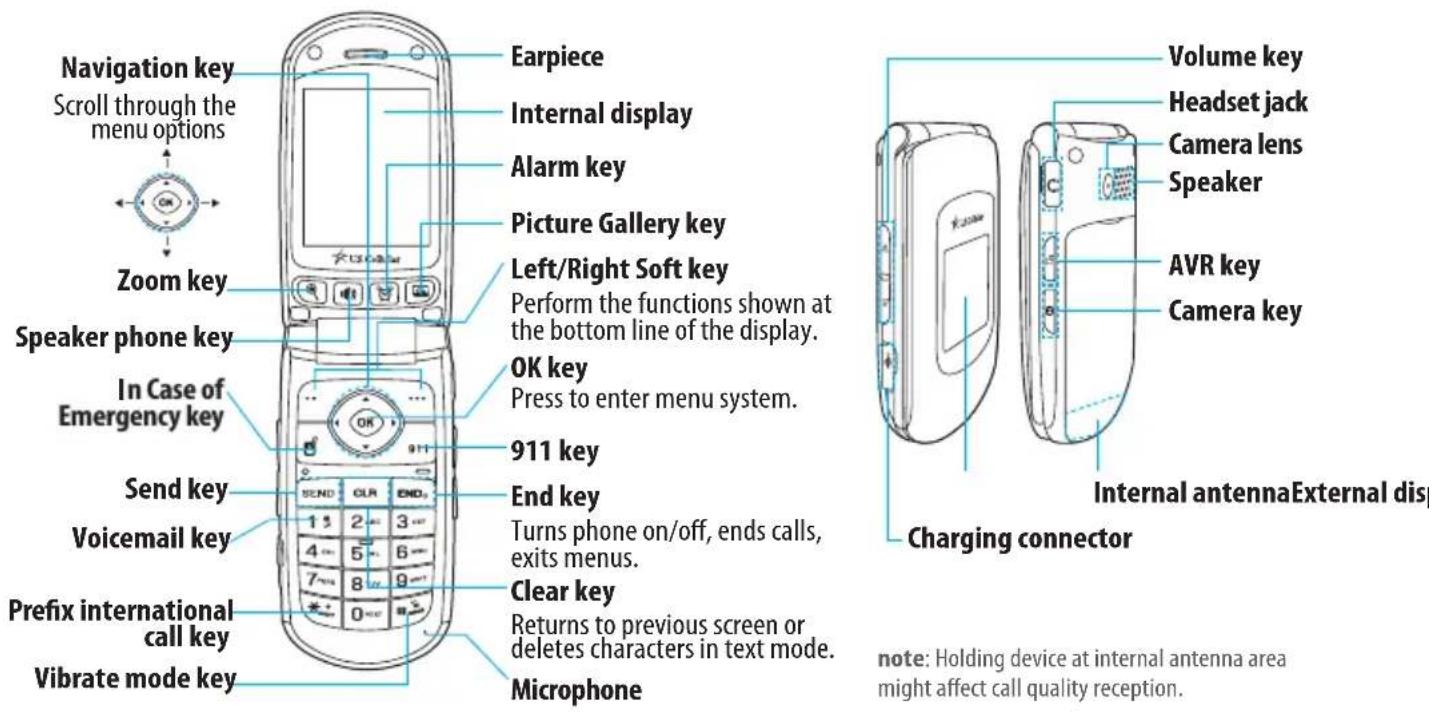
Phone overview
text_image
Navigation key Scroll through the menu options Zoom key Speaker phone key In Case of Emergency key Send key Voicemail key Prefix international call key Vibrate mode key Earpiece Internal display Alarm key Picture Gallery key Left/Right Soft key Perform the functions shown at the bottom line of the display. OK key Press to enter menu system. 911 key End key Turns phone on/off, ends calls, exits menus. Clear key Returns to previous screen or deletes characters in text mode. Microphone Volume key Headset jack Camera lens Speaker AVR key Camera key Internal antennaExternal dis Charging connector note: Holding device at internal antenna area might affect call quality reception.
text_image
Volume key Headset jack Camera lens Speaker AVR key Camera key Internal antennaExternal dis Charging connectornote: Holding device at internal antenna area might affect call quality reception.
Menu overview
Contacts
Emergency Contact
Contact List
Add Contact
Edit Contact
Erase Contact
Groups
Speed Dials
My Name & Number
Recent Calls
All Calls
Missed Calls
Dialed Calls
Received Calls
Blocked Calls
Call Timers

Messaging
Create Message
Inbox
Sent
Drafts
Voicemail
Settings
Media Gallery
Picture Gallery
Camera
Sound Gallery

easyedge ^sm
easyedge ^sm
Tools
Alarm Clock
Calculator
Tip Calculator
Calendar
Voice Memo
Stop Watch
World Clock
Notepad

Tone Room
Launching Tone Room
Wizard
Voice Commands
Help Balloon
Clear Hearing

Settings
Sound Settings
Display Settings
Call Settings
Advanced
Phone Info
Setting dependent
Quick & easy
| Keys Functions | |
| / | Perform the functions shown at the bottom line of the display by using these soft keys. |
 | Scroll through the menu options in Menu mode. In Standby mode,Left Scroll: Access Calendar menuRight Scroll: Access Messaging menuUp Scroll: Access Easyedge ^sm menuDown Scroll: Access Calculator menu |
 | Select a menu function or store user-input information, such as names.Also use this key for confirmation as theOKkey. |
 | Delete characters from the display, or return to previous menu. |
 | Make or receive a call. Show the recent call list in Standby mode. |
 | Complete the current call. Turn phone on/off if pressed and held.Cancel user input and return to standby mode while in Menu mode. |
 | Quickly connect to the voicemail server if pressed and held in Standby mode. |
| [GGSX] ~9 w^x12 | Enters numbers, letters or special characters. Go to the dial screen if pressed in standby mode. |
 | Enter or exit Vibrate mode if pressed and held in Standby mode.Enter a space in text input mode. |
| Work in Word Search mode if pressed in the Predictive Text input mode. | |
| Enter the + sign prefix for international dialing if pressed and held.Change various text input modes if pressed and held at the text-editing screen. | |
| Adjust the earpiece volume while making a call.Control the Ringtone volume, Vibrate mode and Silent mode in standby.Mute the ringtone of an incoming call. | |
| Turn Camera Capture mode on.Work as a camera shutter in Capture mode. | |
| Access to AVR menu | |
| Zoom in/out the font when entering | |
| Turn the Speakerphone mode on/off | |
| Set the alarm | |
| Enter to the photo album | |
| Available to contact most important 3 persons in case of emergency | |
| 911 | Make a emergency call |
Contents
Specifications ......2
Phone overview ....3
Menu overview ......4
Quick & Easy 6
1. Getting Started
Battery 12
Turn phone on/off 13
Language 13
Essential display indicators .....13
In case of emergency key .....14
Entering text ......14
2. Calls & address book
Making, receiving and ending a call 18
Options during a call ......19
Checking all calls 20
Speed dialing 21
Call setting 21
Using address book ......22
Caller identification ......23
Voice Command (VR) ......23
Setting VR settings ......24
Using your headset ......25
3. Messaging
Messaging 28
Receiving messages ......28
Creating and sending text message29
Creating a picture message .....29
Message template ......29
Message settings ....30
4. Multimedia
Camera....34
Photo album 35
Sound album 35
5. Useful Features
Alarm 38
Calculator and tip calculator .....38
Calendar 38
Voice memo and notepad .....39
Stopwatch....40
Help balloon 40
Clear hearing 40
6. Settings
Ringtones and alert ......44
Display 44
Language 44
Locks 44
Information 45
7. Appendix
Safety information for wireless
handheld phones 48
Other safety guidelines ....50
About the battery usage .....51
Safety information for FCC RF
exposure ....51
SAR information ....52
Hearing aid compatibility (HAC)
for Wireless Telecommunications
devices ....53
FDA Consumer update ....54
Avoid potential hearing loss .....59
FCC compliance information .....60
12 Month Limited Warranty ......61

text_image
U.S. CellularCDM8635
1
Getting Started
Battery
Turn phone on/off
Language
Essential display indicators
In case of emergency key
Entering text
Battery
About your battery
Your phone uses a Li-Ion battery. Make sure to use an authorized battery and charger only. For more details, please inquire at your nearest dealer.
note: Your phone is powered by a Lithium Ion (Li-Ion) battery. This means that, unlike other forms of battery technology, you can recharge your battery while some charge remains without reducing your phone's autonomy due to the "battery memory effect" inherent in those technologies.
Installing/removing battery
- Remove the battery cover from the unit. Push down and forward. To replace cover fit on guide rails and push back in place.
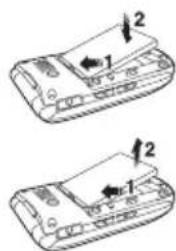
- Put the contacts of the battery into the hole located at the bottom of the unit insert and press the upper side of the battery until you hear the "click". Make gold contacts at the battery end with cold. If the contacts at the battery are not prudamage could occur to the phone and the

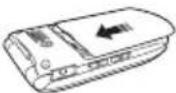
- To remove the battery, push the battery forward and up (2) and remove (2) the battery.
natural_image
Two identical illustrations of a handheld device with labeled parts and directional arrows (no text or symbols)To charge your battery
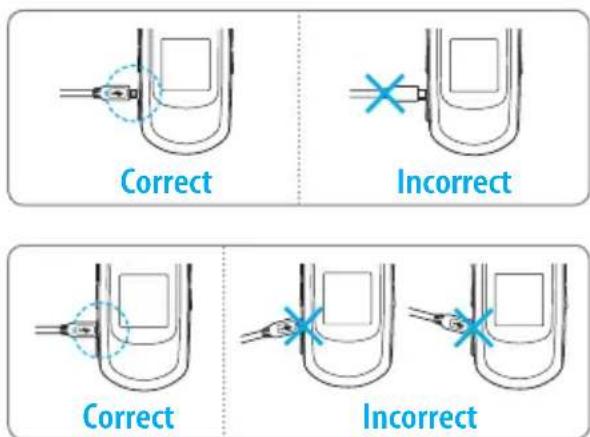
- To charge, open the protective cover on the bottom left side and connect the charger adapter. The arrow on the charger should face the top of the phone.
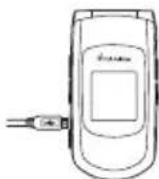
- To remove the adapter connection, pull the adapter away.(1).

Turn phone on/off
To turn on
- Press and hold END.
To turn off
- Press and hold _0 .
getting started
Language
Setting up
- Press Menu > Phone Settings > Advanced > Language.
- Select the language > OK.
Essential display indicators
| Signal strength. The greater the number of bars, the stronger the signal. When network is in searching mode is displayed. | |
| Flight mode is active (Menu > Settings > Advanced > Airplane Mode) | |
| A call is being made | |
| Received text message | |
| Received text message and voice message | |
| Received voice message | |
| An alarm is set | |
| Set the location mode on | |
| Set the TTY mode to TTY Full/TTY + Talk/TTY + Hear | |
| Received missed call | |
| Battery strength. When the battery charge is low, is displayed |
In case of emergency key
Getting in touch with those you call most is now as EZ as 1-2-3. note: The following direction is an example with assigning Contact 1. The usage of Contact 2 and Contact 3 key will be same as the following.
To assign an existing contact
- Press
- Select one of Contact 1, Contact 2 or Contact 3.
- Press ASSIGN > From Contacts.
- Select a contact >0K.
To assign a new contact
- Press ☐.
- Select one of Contact 1, Contact 2 or Contact 3.
- PressASSIGN > Add Contact.
- Enter the information in the fields and press.
To call using one touch key
- Press
- Select the name >View >Call.
To reassign contact
- Press ☐.
- Select the name >ASSIGN.
3. SelectFrom Contacts or Add Contact.
The steps are as same as 'To assign existing contact' or 'To assign a new contact'.
Entering text
You can enter standard, predictive, numeric or symbol text.
Useful keys
| O next | Press to view the next matching word in predictive mode |
| # | Add space |
| Press to change Capital mode.Press to change between abc Abc ABC, and press and hold to change from standard to predictive to numericStandard abc Abc ABC (all small caps / first letter caps / all caps)Predictive word Word (all small caps / first letter caps / all caps)Number 123 |
Key characters by language
Each of the following keys will scroll through these sequential options listed by language.
| key English Spanish | |
| 1?.? ?@? ????!? ?-? ?,? &? ?:? ?' ?/??1 | |
| 2?a?b?c?2?a?á?b?c?2 | |
| 3 d e f 3 d e é f 3 | |
| 4?g?h?i?4?g?h?i?í?4 | |
| 5 j k l 5 | |
| 6 m n o 6 m n ñ o ó 6 | |
| 7?p?q?r?s?7 | |
| 8 t?u?v?8?t?u?ú?v?8 | |
| 9 | w?x?y?z?9 |
| 0 | 0 |
Predictive mode (Word)
The Predictive mode automatically compares your keystrokes with an internal linguistic dictionary to determine the correct word. The most commonly used word will appear first. To use Word mode, presABC > Word.
- Press and hold *+ to change the mode to Word.
- Press 2 to 9 to input text. For example, to enter 'hello' press 4 3 5 6 7.
Alphabet input mode
Press the key labeled with the target letter once for the first letter; press it twice for the second letter, and so on.
- Press and hold * to change the mode to Abc.
- Press 2_ABC to 9_ABC to input text repeatedly. To enter the letter "C", press 2_ABC 3 times. To input number 2 press 2_ABC four times.
Numeric mode
You can input numbers in this mode.
-
Press and hold *+ to change the mode to 123.
-
Press 1 to 9 and 0 to input numbers.
Symbol mode
You can input symbols.
-
PressAbc > Symbols to change the mode to symbols.
-
Select the symbols using ▶/▶/▲/▼.

text_image
U.S. CellularCDM8635
2
Calls & address book
Making, receiving and ending a call
Options during a call
Checking all calls
Speed dialing
Call setting
Using address book
Caller identifi cation
Voice Command (VR)
Setting VR settings
Using your headset
Making, receiving and ending a call
Making a call
- Enter the area code and phone number.
- Press SEND.
Answering a call
- Press SEND.
Ending a call
- Press _0 .
Once the call is completed, a call summary is displayed.
Rejecting a call
- Press END _⊕ or Ignore.
Making a call using call list
Your phone logs up to 90 dialed, received and missed call numbers.
- Press SEND to display the All Calls list.
- Select All Calls, Missed Calls, Received Calls, or Dialed Calls by pressing the ◄/ ▶.
- Select a number.
- Press SEND to dial the selected number.
note: To redial the last number in the Recent Calls list, press SEND.
Making a call during a call
- Enter the phone number.
- Press SEND to dial the second call. The first call is automatically put on hold.
Switching between two calls
- Press SEND.
Making an international call
- Press and hold(*_{i+1}) key for the international prefix until the '+' character appears.
- Type the country code, area code, and phone number.
- Press SEND .
Making a 911 emergency call
- Press 911 key and select Yes.
- Or, press ICE Key and press SEND.
note: To set the location emergency number, press Menu > Settings > Advanced > Location.
Replying to a missed call
- Press View to display the list of missed calls.
- Select a number to call by pressing th◄ /► .
- Press SEND.
calls and address book
Answering a second call
- Press SEND. The first call is automatically put on hold.
- Press _0 to end all calls.
Options during a call
Microphone off and on
Switching your phone's microphone off
- Press Mute.
Switching your phone's microphone back on
- Press Unmute.
Talking on speaker
- Press the to turn on the speaker. To turn off the speaker, press the again.
Putting a call on hold and return
Putting a call on hold
- Press SEND.
Returning to a held call
- Press SEND again.
Adding a pause / wait
Pauses are used for automated systems (i.e., voice mail or calling cards). Insert a pause after a phone number and then enter another group of numbers. The second set of numbers is dialed automatically after the pause. This feature is useful for dialing into systems that require a code.
Adding pause
- Enter the phone number.
- Press Options > Add 2-Sec Pause. The phone waits 2 seconds before sending the next string of digits automatically.
Adding wait
- Enter the phone number.
- Press Options > Add Wait. The phone stops dialing until you press the SEND to advance the next number.
3-way calling
You can talk up to 2 person or conference call.
Making 3-way call
-
Call the first participant.
-
Call the second participant. The first call is automatically put on hold.
- When the second party is connected, press again.
note: If one of the people you called hangs up during your call, you and the remaining caller will disconnected.
Searching a number in address book during a call
- Press Options > Contact List.
Searching for a name or group in address book
Enter the first letters of the name for Name Search. The entries are displayed starting with the first entry matching your input.
Finding a name manually in address book
- Press the ▲/▼ key.
Viewing the details of highlighted entry in address book
- Press VIEW.
For details on address book, see page 22.
Reading a message during a call
- Press Options > Main Menu > Messaging.
- Press Inbox > select a message > VIEW.
Writing a message during a call
- Press Options > New Message.
- Select Text Message or Picture Message.
For details on creating a text message, see page 29.
note: During the call, you can only send text messages. Picture messages cannot be sent.
Checking all calls
You can view information about all Recent Calls. Press to view all Recent Calls.
Viewing all calls
- Press Menu > Recent Calls > All Calls.
Viewing missed calls
- Press Menu > Recent Calls > Missed Calls.
Viewing dialed calls
- Press Menu > Recent Calls > Dialed Calls.
Viewing received calls
- Press Menu > Recent Calls > Received Calls.
Viewing blocked calls
- Press Menu > Recent Calls > Blocked Calls.
calls and address book
Viewing call time
- Press Menu > Recent Calls > Call Timers.
- Press▲/▼ to view Last Call, All Calls, Received Calls, Dialed Calls, Roaming Calls, Last Reset and Lifetime Calls.
Resetting all call times
- Press Menu > Recent Calls > Call Timers.
- PressReset All > Yes.
Speed dialing
You can dial quickly using speed dialing. Up to 98 phone numbers can be programmed using numbers 2 to 99.
1 : Voicemail
Setting speed dial
- Press Menu > Contacts > Speed Dials.
- Select an empty entry and press ASSIGN.
- Select a person and presOK > Yes.
Changing speed dialing person
- Press Menu > Contacts > Speed Dials.
- Select an assigned entry and press ASSIGN > Yes.
- Select a person and presOK.
Removing from speed dial
- Press Menu > Contacts > Speed Dials.
- Select an assigned entry and press Remove > Yes.
Call setting
Setting answering options
- Press Menu > Settings > Call Settings.
- PressAnswer Options.
- SelectFlip Open, Any Key or Auto Answer.
- Press Mark > Done.
note: you can answer with any key except and Ignore.
Setting speed dialing
- Press Menu > Settings > Call Settings.
- PressSpeed Dial Call.
- SelectOn or Off.
- Press OK.
Setting auto redial
- Press Menu > Settings > Call Settings.
- PressAuto Retry.
- Select10 Seconds, 30 Seconds, 60 Seconds or Off.
- Press OK.
Using address book
You can save names, phone numbers, and information on the phone.
Adding a contact
- Press Menu > Contacts > Add Contact.
- Enter the information in the fields.
- Press SAVE.
Viewing contact list
- Press Menu > Contacts > Contact List.
Searching for a phone number
- Press Menu > Contacts > Contact List.
- Input the first letter or two of the person's name and scroll with ▲/▼.
- Press VIEW to view detail information.
- To update information press EDIT.
Calling from contact list
- Press Menu > Contacts > Contact List.
- Select a person to call.
- Press SEND.
Sending message from contact list
- Press Menu > Contacts > Contact List.
- Select a contact >Options >Send Message.
- Select Text Message or Picture Message.
- Enter the message >SEND.
Deleting a contact
- Press Menu > Contacts > Contact List.
- Select a contact >Options > Erase Contact.
Making a groups
- Press Menu > Contacts > Groups.
- There are two default groups: Family, Work.
- To add new group, press New.
- Enter new group name >SAVE.
- To erase a group, press Options > Erase Group.
Adding members to a group
- Press Menu > Contacts > Groups.
- Select a group >Add.
- Select the contact >MARK > Done.
note: To add more contacts after a contact is added to a group, select a group > Options > Add.
calls and address book
Sending a group message
- Press Menu > Contacts > Groups.
- Select a group >Options >Send Message.
- SelectText Message or Picture Message.
- Enter the message >SEND.
Caller identification
Caller identification
Caller ID displays the number of the person calling when your phone rings. If the caller's identity is stored in Contacts, the name appears on the screen. The caller ID is stored in Recent Calls.
Voice Command (VR)
Your phone is equipped with VR (Voice Recognition) feature. This feature allows you to make calls or use the phone's functions by simply using your voice.
All you have to do is talk into the phone, and the phone will recognize your voice and complete tasks by itself.
Using VR (Voice Recognition)
-
Press ☐.
-
The phone displays the Command menu and prompts you to say the name of the command you want to use. To complete your task, simply follow the voice prompts. You can say the name of the command after you hear a beep.
Tutorial
- Press Tutorial. Tutorial will provide you with additional information on using voice recognition.
Call
- Say Call
. Your phone will ask you to confirm the name you said. Say "Yes", if it was repeated correctly. The person's phone number will be dialed. If there is more than one number saved for contact, you will be asked to confirm which number to dial.
Send text
- Say Send Text
.
(Examples: - Send Text Tom Smith)
For details on creating a text message, see page 29.
Send picture
- Say Send Picture
.
(Examples: - Send Picture Tom Smith)
For details on creating a text message, see page 29.
Lookup
- Say Lookup
.
(Examples: - Lookup Tom Jones) - The View Contact page will be displayed for the contact name.
Go to
- Say Go To followed immediately by one of the items: (Add Contact, Alarm Clock, Calculator, Calendar, Call Settings, Contacts, Contacts List, Display Settings, easyedge ^sm , Messaging, Messaging Inbox, Media Gallery, Notepad, Picture Gallery, Phone Settings, Phone Info, Recent Calls, Settings, Stop Watch, Sound Gallery, Sound Settings Tip Calculator, Tone Room, Tools, Voicemail, Voice Memo, Wizard, or World Clock)
Check
- Say Check followed immediately by one of the items: (Status, Voicemail, Messages, Missed Calls, Time, Signal Strength, Network, Battery Level, My Phone Number or Volume)
Setting VR settings
Setting VR confirmation
You can control whether the system asks you to confirm a name or number.
- Press Settings > Confirmation.
- Select Automatic, Always Confirm or Never Confirm > OK.
Setting VR adaptation
-
Press Settings > Adaptation > Adapt Voice.
-
Press OK.
Setting VR modes
Use modes to set the level of audio assistance.
- Press Settings > Audio Modes.
- Select Expert Mode, Prompt Mode or Readout Mode > OK.
Setting VR speakerphone
You can control the speakerphone behavior when voice recognition is started.
- Press Settings > Speakerphone.
- Select Automatic, Always On or Always Off > OK.
calls and address book
Setting VR about
- Press Settings > About.
- The VSuite version appears.
Using your headset
You can send or receive a call using your headset. When you connect your headset to the jack the button on the headset works as follows. note: You need to use the headset designed for this device and it is optional item. Also not every headset has a button.
To dial a call
While the phone is closed
- Press the headset button once to display the last call.
- Press the button twice to redial the last call.
While the phone is opened
- Press the button once to list recent calls.
- Press the button twice to redial the last call.
To receive a call
- Press the button once to receive a call.
- Press the button once to end the call.

text_image
U.S. CellularCDM8635
3
Messaging
Messaging
Receiving messages
Creating and sending text messages
Creating a picture message
Message template
Message settings
Messaging
You can send, receive and save the text message and picture message.
Deleting a message
- Press Menu > Messaging > Inbox.
- Select a message >Options >Erase >Yes.
Replying to a message
- Press Menu > Messaging > Inbox.
- Select a message >VIEW > REPLY.
Receiving messages
Viewing a new message
- Press View Now.
Reading a message from the inbox
- Press Menu > Messaging > Inbox.
- Select a received message >VIEW.
- To reply, press >REPLY.
Saving number or e-mail from received message
- Press Menu > Messaging > Inbox.
- Select a received message >VIEW.
- Using ▲/▼, move the underline cursor to the number or email address that you want to save.
- PressSave.
- Select Add New Contact or select Update Existing.
- Edit contact information >OK.
Saving the object in the received picture message
- Press Menu > Messaging > Inbox.
- Open the picture message.
- Select an object >Options.
- Select Saved Picture, Save Sound, Save As Ringtone, Save As Phraseor Save Name Card.
It will be saved in one of the categories in the Picture Gallery or Sound Gallery folder.
For details on photo album, see page 35.
Listening to voice messages
- Press and hold 1 or press Menu > Messaging > Voicemail It will automatically call the voicemail center.
Creating and sending text messages
Sending new text message
- Press Menu > Messaging > Create Message > Text Message.
- Enter the phone number or pre-Options > Add From Contacts
- Select the contact >MARK > Done.
- Press NEXT to enter the message.
- Enter the message >SEND.
note: All sent messages will save in Sent.
Finding all sent messages
- Press Menu > Messaging > Sent.
Creating a picture message
You can create new picture message. Capacity is 1Mb and will alert you once that is exceeded via error message.
Adding saved picture to the message
- Press Menu > Messaging > Create Message > Picture Message
-
Enter the phone number or orders > Add From Contacts.
-
Select the contact >MARK > Done.
- Press NEXT to enter the message.
- Enter the subject and message.
- Press ▼ to attach Picture, Sound or Name Card.
- Press Add > select the file to attach > SEND or OK.
- To preview the message, press options > Preview.
Message template
When you often use the same phrases, you can save the message under template messages.
Adding the existing template
- Press Menu > Messaging > Create Message > Text Message or Picture Message.
- Press NEXT.
- Press Options > Add Phrase.
- Select the sentence >SELECT.
Adding new template
- Press Menu > Messaging > Settings > Phrase.
- Press Options > Add New.
- Enter the new phrase> SAVE.
Editing the existing template
- Press Menu > Messaging > Settings > Phrase.
- Select the sentence >Edit.
- Edit sentence >SAVE.
Message settings
Setting for default editing mode
- Press Menu > Messaging > Settings > Entry Mode.
- SelectWord, Abc, ABC or 123 > OK.
Setting to save sent message
- Press Menu > Messaging > Settings > Auto Save Sent.
- SelectOn, Off or Prompt > OK.
Setting to automatically erase message
- Press Menu > Messaging > Settings > Auto Erase.
- SelectOn or Off > OK.
Setting for callback number
- Press Menu > Messaging > Settings > Callback #
- SelectOn or Off > OK.
Setting for a signature
- Press Menu > Messaging > Settings > Signature.
- Select On or Off > OK.
- Press Menu > Messaging > Settings > Signature.
- Select On or Off > OK.
messaging

text_image
U.S. Cellular
text_image
CDM863S 4 Multimedia Camera Photo album Sound album4
Multimedia
Camera
Photo album
Sound album
Camera
You can take pictures using the built-in camera. The photo clips can be saved and sent via picture message.

text_image
Capture Mode Zoom Size Options Gallery CaptureSetting camera settings
- Press ☐ in Standby mode or press Menu > Media Gallery > Camera.
- Press Options to change settings prior to taking a picture.
In options menu for camera
| Name Description | |
| Image Size 1280x960( ), 640x480( )320x240( ) | |
| Image Quality Low, Medium, High |
Icons for camera
| Icon Name Description | ||
| Capture Mode | ||
| Zoom | 640x480: x1, x2320x240: x1, x2, x4 | |
note: Zoom tool is disabled when the picture size set for 1280x960.
Zoom in and out
- Press ◀/▶.
Taking a picture
- Press ☐ in Standby mode or press Menu > Media Gallery > Camera.
- Focus on the object >OK.
- To save, pressSAVE.
- To view the taken picture, press Gallery. note: Your photo will be saved automatically to Media Gallery > Picture Gallery.
Viewing the taken picture
- Press Menu > Media Gallery > Picture Gallery.
- Select the picture >VIEW.
After taking pictures
| To Press | |
| Send a picture message | Options > Send as Picture MSG |
| Set as wallpaper | Options > Set As > Wallpaper |
| Set as picture identification | Options > Set As > Picture ID |
| View taken picture | Options > Go to Picture Gallery |
Photo album
You can view, send, save and delete photos. JPEG, GIF, Animated-GIF, BMP, WBMP, BCI, SVG and PNG formats are supported.
Viewing the saved pictures
- Press Menu > Media Gallery > Picture Gallery.
- Select a picture >VIEW.
Setting as wallpaper in the display
- Press Menu > Media Gallery > Picture Gallery.
- Select a picture >Options > Set As > Wallpaper.
Sending pictures using picture message
- Press Menu > Media Gallery > Picture Gallery.
- Select a picture >Send > Picture Message.
For details on creating a picture message, see page 29.
Sound album
You can listen to all received attached sound and music files. MP3, PMD and SP-MIDI formats are supported.
Listening to sound files
- Press Menu > Media Gallery > Sound Gallery.
- Select a sound >PLAY.
- To stop playing, press STOP.
Setting as ringtone
- Press Menu > Media Gallery > Sound Gallery.
- Select a sound >Set As > Ringtone.
Setting as contact's ringtone
- Press Menu > Media Gallery > Sound Gallery.
- Select a sound >Set As >Contact ID.
- Select a contact >OK.
Setting as alert
- Press Menu > Media Gallery > Sound Gallery.
- Select a sound >Set As >Alert Sounds.

text_image
U.S. CellularCDM8635
5
Useful Features
Alarm
Calculator and tip calculator
Calendar
Voice memo and notepad
Stopwatch
Help balloon
Clear hearing
Alarm
Setting an alarm
- Press Menu > Tools > Alarm Clock.
- SelectAlarm1, Alarm2 or Alarm3 > EDIT.
- Select On or Off using ▶/◀.
- Set the time
- SelectOnce, Daily, Mon-Fri or Weekends using ▶ /◀.
- Press Set > select the sound >OK > SAVE.
note: You can only set 3 alarms.
Viewing the saved alarms
- Press Menu > Tools > Alarm Clock.
Editing existing alarms
- Press Menu > Tools > Alarm Clock.
- Select an alarm >EDIT.
- Edit the alarm settings.
- To reset an alarm >Options > Reset.
Calculator and tip calculator
Using the calculator
-
Press▼ in standby mode or press Menu > Tools > Calculator.
-
Enter the numbers and pres▲ (+) /▼(-)/ ◀ (÷)/▶ (×), OK to calculate.
- To clear, presclear.
- Press *_x,w to use the decimal point.
- Press # to use plus or minus.
note: To use open or dose parenthesis, press Operator.
Using tip calculator
- Press Menu > Tools > Tip Calculator.
- Enter values for all variable fields Total Bill(\), Tip(%), Split) and the corresponding calculation fields (Tip(\), Total(\$)) are updated automatically.
- Press Reset to reset.
Calendar
Calendar helps you manage your schedule including your time for calls or special days. You can set a reminder on any given date with this function.
Viewing calendar
- Press ◀ in standby mode or press Menu > Tools > Calendar.
note: Monthly view is displayed as default.
In the monthly view
| To Press | |
| Move to another day | ◀ for Previous▶ for Next |
| Move to another week | ▲ for Previous▼ for Next |
Creating a new event
-
Press ◀ in standby mode or press Menu > Tools > Calendar.
-
Select a day >Add.
-
Enter information at the fields SAVE. note: You can create up to 30 scheduled events.
Editing an event
-
Press ◀ in standby mode or press Menu > Tools > Calendar.
-
Select a day >VIEW >VIEW >EDIT.
-
Enter new information at the fields SAVE.
Erasing an event
-
Press ◀ in standby mode or press Menu > Tools > Calendar.
-
Select a day >VIEW > Erase > Yes.
Voice memo and notepad
Recording voice memo
-
Press Menu > Tools > Voice Memo.
-
Press New Record.
-
Press OK for new recording.
-
Press STOP to stop recording.
Listening the recorded sound
-
Press Menu > Tools > Voice Memo.
-
Select a sound >PLAY.
-
To pause, press PAUSE.
Using notepad
-
Press Menu > Tools > Notepad.
-
Press New.
-
Enter the memo >SAVE.
-
To edit memo press VIEW > EDIT.
-
To save, pressSAVE.
-
To erase, press Options > Erase.
Stopwatch
Using stopwatch
- Press Menu > Tools > Stop Watch.
- Press START to start.
- To stop, press STOP.
- To record lap time, prescont.
- Press Record > Reset to clear.
Help balloon
Using help balloon
- Press Menu > Wizard > Help Balloon.
- Select Always On, OK Key Use or Off.
- Press OK.
Clear hearing
Using slow speech
When activated, the Slow Speech option slows down the speech speed of the person you're speaking with so you listen easier. To activate Slow Speech.
-
Press Menu > Wizard > Clear Hearing.
-
Press Slow Speech.
- Select Always On, AVR Key Use or Off.
- Press OK.
Using noise suppressor
When activated, the Noise Suppressor option greatly reduces background noise and improves call quality in loud situations. To activate Noise Suppressor
- Press Menu > Wizard > Clear Hearing.
- Press Noise Suppressor.
- Select On or Off.
- Press OK.
Using pitch adjustment
Pitch Adjustment allows you to adjust the pitch of the caller's voice so their speech tones sound higher than normal. To access Pitch Adjustment
- Press Menu > Wizard > Clear Hearing.
- Press Pitch Adjustment.
- Select High, Low or Off.
- Press OK.
useful features

text_image
U.S. CellularCDM8635
6
Settings
Ringtones and alert
Display
Language
Locks
Information
Ringtones and alert
Setting ringtones
- Press Menu > Settings > Sound Settings.
- Press Ringtone.
- Select the ringtone >OK.
Downloading ringtones
- Press Menu > Tone Room > Launching Tone Room.
Setting alert for message
- Press Menu > Settings > Sound Settings.
- PressMessage Alert.
- Select the alert >0K.
Setting alert for missed calls
- Press Menu > Settings > Sound Settings.
- Press Missed Call.
- SelectOnce, Every 2 Minutes, Every 15 Minutes or Off > OK.
Display
Setting the wallpaper
-
Press Menu > Settings > Display Settings.
-
Press Wallpaper.
- Select the file >0K.
Setting menu layout
- Press Menu > Settings > Display Settings.
- PressMenu Layout.
- Select List or Grid.
- Press OK.
Setting time for display backlight
- Press Menu > Settings > Display Settings.
- Press Backlight > Display.
- Select the time >0K.
note: Modifying backlight time may affect battery life.
Setting time for keypad backlight
- Press Menu > Settings > Display Settings.
- Press Backlight > Keypad.
- Select the time >0K.
Language
Setting up
-
Press Menu > Settings > Advanced > Language.
-
Select the language > OK.
Locks
Locking the phone
- Press Menu > Settings > Advanced > Security.
- Enter the password.
- Press Lock Phone Now > OK.
note: The default password is the last 4 digits of my number. To change the password press Menu > Settings > Advanced > Security > Edit Codes.
Setting the phone lock
The Personal Identification Number is the security code that protects the phone against unauthorized use.
- Press Menu > Settings > Advanced > Security.
- Enter the password.
- Press Phone Lock Setting.
- Select Unlocked or On Power Up > OK.
Information
Viewing phone information
- Press Menu > Settings > Phone Info.

text_image
U.S. CellularCDM8635
7
Appendix
Safety information for wireless handheld phones
Other safety guidelines
About the battery usage
Safety information for FCC RF exposure
SAR information
Hearing aid compatibility (HAC) for Wireless
Telecommunications devices
FDA Consumer update
Avoid potential hearing loss
FCC compliance information
12 Month Limited Warranty
Safety information for wireless handheld phones
Read this information before using your handheld portable cellular telephone
Exposure to radio frequency signals
Your wireless handheld portable telephone is a low power radio transmitter and receiver. When it is ON, it receives and also sends out radio frequency (RF) signals. In August 1996, the Federal Communications Commissions (FCC) adopted RF exposure guidelines with safety levels for handheld wireless phones. Those guidelines are consistent with the safety standards previously set by both U.S. and international standards bodies:
ANSI C95.1 (1992) *
NCRP Report 86 (1986) *
ICNIRP (1996) *
Those standards were based on comprehensive and periodic evaluations of the relevant scientific literature. For example, over 120 scientists, engineers, and physicians from universities, government health agencies, and industry reviewed the available body of research to develop the ANSI Standard (C951).
The design of your phone complies with the FCC guidelines (and those standards).
1*: American National Standards Institute.
2*: National Council on Radiation protection and measurements.
3*: International Commission on Nonionizing Radiation Protection.
Antenna safety
Use only the supplied or an approved replacement antenna. Unauthorized antennas, modifications, or attachments could impair call quality, damage the phone, or result in violation of FCC regulations. Please contact your local dealer for replacement antenna.
Do not use the phone with a damaged antenna. If a damaged antenna comes into contact with the skin, a minor burn may result. Please contact your local dealer for replacement antenna.
Driving safety
Talking on the phone while driving is extremely dangerous and is illegal in some states. Remember, safety comes first. Check the laws and regulations on the use of phones in the areas where you drive. Always obey them.
Also, if using your phone while driving, please:
- Give full attention to driving. Driving safely is your first responsibility.
- Use hands-free operation, if available.
- Pull off the road and park before making or answering a call, if driving conditions so require.
If you must use the phone while driving, please use one-touch, speed dialing, and auto answer modes.
appendix
An airbag inflates with great force. DO NOT place objects, including both installed or portable wireless equipment, in the area over the airbag or in the air bag deployment area. If in-vehicle wireless equipment is improperly installed and the air bag inflates, serious injury could result.
WARNING: Failure to follow these instructions may lead to serious personal injury and possible property damage.
Electronic devices
Your wireless handheld portable telephone is a low power radio transmitter and receiver. When it is ON, it receives and also sends out radio frequency (RF) signals. Most modern electronic equipment is shielded from RF energy. However, certain electronic equipment may not be shielded against the RF signals from your wireless phone. Therefore, use of your phone must be restricted in certain situations.
Pacemakers
The Health Industry Manufacturers Association recommends that a minimum separation of six (6") inches be maintained between a handheld wireless phone and a pacemaker to avoid potential interference with the pacemaker. These recommendations are consistent with the independent research by and recommendations of Wireless Technology Research. Persons with pacemakers:
- ALWAYS keep the phone more than six inches from your pacemaker when the phone is turned on.
- Do not carry the phone in a breast pocket.
- Use the ear opposite the pacemaker to minimize the potential for interference.
- If you have any reason to suspect that interference is taking place, turn your phone OFF immediately.
Hearing aids
Some digital wireless phones may interfere with some hearing aids. In the event of such interference, you may want to consult your service provider (or call the customer service line to discuss alternatives).
Other medical devices
If you use any other personal medical device, consult the manufacturer of your device to determine if they are adequately shielded from external RF energy.
Your physician may be able to assist you in obtaining this information. Turn your phone OFF in healthcare facilities when any regulations posted in these areas instruct you to do so. Hospitals or healthcare facilities may be using equipment that could be sensitive to external RF energy.
Vehicles
RF signals may affect improperly installed or inadequately shielded electronic systems in motor vehicles. Check with the manufacturer or its representative regarding your vehicle. You should also consult the manufacturer of any equipment that has been added to your vehicle.
Posted facilities
Turn your phone OFF where posted notices so require.
Other safety guidelines
Aircraft
FCC regulations prohibit using your phone while in the air. Turn your phone OFF before boarding an aircraft. Always request and obtain prior consent and approval of an authorized airline representative before using your phone aboard an aircraft.
Always follow the instructions of the airline representative whenever using your phone aboard an aircraft, to prevent any possible interference with airborne electronic equipment.
Blasting areas
To avoid interfering with blasting operations, turn your phone OFF when in a "blasting area" or in areas posted: "Turn off two-way radio." Obey all signs and instructions.
Potentially explosive atmospheres
Turn your phone OFF when in any area with a potentially explosive atmosphere and obey all signs and instructions. Sparks in such areas could cause an explosion or fire resulting in bodily injury or even death.
Areas with a potentially explosive atmosphere are often, but not always, clearly marked. They include fueling areas such as gas stations; below deck on boats; fuel or chemical transfer or storage facilities; vehicles using liquefied petroleum gas (such as propane or butane); areas where the air contains chemicals or particles, such as grain, dust, or metal powders; and any other area where you would normally be advised to turn off your vehicle's engine.
Precautions
Your Handheld Portable Telephone is a high quality piece of equipment. Before operating, read all instructions and cautionary markings on (1) AC/DC Travel Adaptor (2) Battery and (3) Product Using Battery. Failure to follow the directions below could result in serious bodily injury and/or property damage due to battery liquid leakage, fire or rupture.
- DO NOT use this equipment in an extreme environment where high temperature or high humidity exists.
- DO NOT abuse the equipment. Avoid striking, shaking or shocking. When not using, lay down the unit to avoid possible damage due to instability.
- DO NOT expose this equipment to rain or spilled beverages.
- DO NOT use unauthorized accessories.
- DO NOT disassemble the phone or its accessories. If service or repair is required, return unit to an authorized PCD cellular service center. If unit is disassembled, the risk of electric shock or fire may result.
- DO NOT short-circuit the battery terminals with metal items etc.
About the battery usage
Your phone is powered by a Lithium Ion (Li-Ion) battery. This means that, unlike other forms of battery technology, you can recharge your battery while some charge remains without reducing your phone's autonomy due to the "battery memory effect" inherent in those technologies.
- Do not use a damaged battery or charger.
- Do not disassemble or open crush, bend or deform, puncture or shred.
- Do not modify or remanufacture, attempt to insert foreign objects into the battery, immerse or expose to water or other liquids, expose to fire, explosion or other hazard.
- Do not put your battery into contact with conductive objects.
- Dispose of and recycle used batteries in accordance with local regulations. Do not dispose of batteries by burning; they may explode.
- Do not use an unauthorized charger.
- Only use the battery for the device for which it is specified.
- Only use the battery with a charging device that has been qualified with the device per this standard. Use of an unqualified battery or charger may present a risk of fire, explosion, leakage, or other hazard.
- Do not short circuit a battery or allow metallic conductive objects to contact battery terminals.
- Promptly dispose of used batteries in accordance with local regulations
- Battery usage by children should be supervised.
- Avoid dropping the phone or battery. If the phone or battery is dropped, especially on a hard surface, and the user suspects damage, take it to a
service center for inspection.
- Use your battery for the specified purpose only.
- The closer you are to your network's base station, the longer your phone usage time because less battery power is consumed for the connection.
- The battery recharging time varies depending on the remaining battery capacity and the battery and charger type you use.
- Battery life ineviTaply shortens over time.
- Use an authorized battery and charger only.
- Since overcharging may shorten battery life, remove the phone from its charger once it is fully charged. Unplug the charger, once charging is complete. Leaving the battery in hot or cold places, especially inside a car in summer or winter, may reduce the capacity and life of the battery. Always keep the battery within normal temperatures.
- To prevent injury or burns, ensure that no metal objects come into contact with the + and - terminals of the battery.
Safety information for FCC RF exposure
WARNING! READ THIS INFORMATION BEFORE USING
Cautions
In August 1996 the Federal Communications Commission (FCC) of the United States with its action in Report and Order FCC 96-326 adopted an updated safety standard for human exposure to radio frequency electromagnetic energy emitted by FCC regulated transmitters. Those
guidelines are consistent with the safety standard previously set by both U.S. and international standards bodies. The design of this phone complies with the FCC guidelines and these international standards.
Body-worn operation
This device was tested for typical body-worn operations with the back of the phone kept 1.5 cm. from the body. To maintain compliance requirements, use only belt-clips, holsters or similar accessories that maintain a 1.5 cm separation distance between the user's Body and the back of the phone, including the antenna.
The use of belt-clips, holsters and similar accessories should not contain metallic components in its assembly. The use of accessories that do not satisfy these requirements may not comply with FCC RF exposure requirements, and should be avoided.
note: For more information about RF exposure, please visit the FCC website at www.fcc.gov.
SAR information
This model phone meets the government's requirements for exposure to radio waves.
Your wireless phone is a radio transmitter and receiver. It is designed and manufactured not to exceed the emission limits for exposure to radiofrequency (RF) energy set by the Federal Communications Commission of the U.S. Government. These limits are part of comprehensive guidelines and establish permitted levels of RF energy for the general population. The guidelines are based on standards that were developed by independent scientific organizations through periodic and thorough evaluation of scientific studies. The standards include a substantial safety margin designed to assure the safety of all persons, regardless of age and health.
The exposure standard for wireless mobile phones employs a unit of measurement known as the Specific Absorption Rate, or SAR. The SAR limit set by the FCC is 1.6 W/kg. * Tests for SAR are conducted with the phone transmitting at its highest certified power level in all tested frequency bands. Although the SAR is determined at the highest certified power level, the actual SAR level of the phone while operating can be well below the maximum value. This is because the phone is designed to operate at multiple power levels so as to use only the power required to reach the network. In general, the closer you are to a wireless base station antenna, the lower the power output.
Before a phone model is available for sale to the public, it must be tested and certified to the FCC that it does not exceed the limit established by the government adopted requirement for safe exposure. The tests are performed in positions and locations (e.g., at the ear and worn on the body) as required by the FCC for each model. The highest SAR value for this model phone when tested for use at the ear is 1.39 W/Kg and when worn on the body, as described in this user guide, is 0.779 W/Kg. (Body-worn measurements differ among phone models, depending upon available
accessories and FCC requirements). While there may be differences between the SAR levels of various phones and at various positions, they all meet the government requirement for safe exposure.
The SAR testing for Body-worn operation was performed with a belt clip that provided a 22mm separation. The User's Manual indicates that any holsters/clips used with this device should contain no metallic components.
The FCC has granted an Equipment Authorization for this model phone with all reported SAR levels evaluated as in compliance with the FCC RF exposure guidelines.
SAR information on this model phone is on file with the FCC and can be found under the Display Grant section of http://www.fcc.gov/oet/ea after searching on PP4COACH.
Additional information on Specific Absorption Rates (SAR) can be found on the Cellular Telecommunications Industry Association (CTIA) web-site at
http://www.wow-com.com
* In the United States and Canada, the SAR limit for mobile phones used by the public is 1.6 watts/kg (W/kg) averaged over one gram of tissue. The standard incorporates a sub-stantial margin of safety to give additional protection for the public and to account for any variations in measurements.
Hearing aid compatibility (HAC) for Wireless Telecommunications devices
PCD's commitment
PCD believes that all of our customers should be able to enjoy the benefits of digital wireless technologies. We are committed to providing a selection of compatible devices for our customers who wear hearing aids. THIS PHONE HAS A HAC RATING OF M4/T4
What is hearing aid compatibility?
The Federal Communications Commission has implemented rules and a rating system designed to enable people who wear hearing aids to more effectively use these wireless telecommunications devices. The standard for compatibility of digital wireless phones with hearing aids is set forth in American National Standard Institute (ANSI) standard C63.19. There are two sets of ANSI standards with ratings from one to four (four being the best rating): an "M" rating for reduced interference making it easier to hear conversations on the phone when using the hearing aid microphone, and a "T" rating that enables the phone to be used with hearing aids operating in the telecoil mode thus reducing unwanted background noise.
How will I know which wireless phones are hearing aid compatible?
The Hearing Aid Compatibility rating is displayed on the
wireless phone box.
A phone is considered Hearing Aid Compatible for acoustic coupling (microphone mode) if it has an "M3" or "M4" rating. A digital wireless phone is considered Hearing Aid Compatible for inductive coupling (telecoil mode) if it has a "T3" or "T4" rating.

How will I know if my hearing aid will work with a particular digital wireless phone?
You'll want to try a number of wireless phones so that you can decide which works the best with your hearing aids. You may also want to talk with your hearing aid professional about the extent to which your hearing aids are immune to interference, if they have wireless phone shielding, and whether your hearing aid has a HAC rating.
For more information about hearing aids and digital wireless phone
- FCC Hearing Aid Compatibility and Volume Control – http://www.fcc.gov/cgb/dro/hearing.html
- Hearing Loss Association of America – http://www.hearingloss.org/learn/cellphonetech.asp
• CTIA – http://www.accesswireless.org/hearingaid/
• Gallaudet University, RERC – http://tap.gallaudet.edu/voice
FDA Consumer update

U.S. Food and drug administration - center for devices and radiological health consumer update on
wireless phones
1. Do wireless phones pose a health hazard?
The available scientific evidence does not show that any health problems are associated with using wireless phones. There is no proof, however, that wireless phones are absolutely safe. Wireless phones emit low levels of radiofrequency energy (RF) in the microwave range while being used. They also emit very low levels of RF when in the stand-by mode. Whereas high levels of RF can produce health effects (by heating tissue), exposure to low level RF that does not produce heating effects causes no known adverse health effects. Many studies of low level RF exposures have not found any biological effects. Some studies have suggested that some biological effects may occur, but such findings have not been confirmed by additional research. In some cases, other researchers have had difficulty in reproducing those studies, or in determining the reasons for inconsistent results.
2. What is FDA's role concerning the safety of wireless phones?
Under the law, FDA does not review the safety of radiation-emitting consumer products such as wireless phones before they can be sold,
appendix
as it does with new drugs or medical devices. However, the agency has authority to take action if wireless phones are shown to emit radiofrequency energy (RF) at a level that is hazardous to the user. In such a case, FDA could require the manufacturers of wireless phones to notify users of the health hazard and to repair, replace or recall the phones so that the hazard no longer exists. Although the existing scientific data do not justify FDA regulatory actions, FDA has urged the wireless phone industry to take a number of steps, including the following:
- Support needed research into possible biological effects of RF of the type emitted by wireless phones;
- Design wireless phones in a way that minimizes any RF exposure to the user that is not necessary for device function; and
- Cooperate in providing users of wireless phones with the best possible information on possible effects of wireless phone use on human health. FDA belongs to an interagency working group of the federal agencies that have responsibility for different aspects of RF safety to ensure coordinated efforts at the federal level. The following agencies belong to this working group:
• National Institute for Occupational Safety and Health
• Environmental Protection Agency
• Federal Communications Commission
• Occupational Safety and Health Administration
• National Telecommunications and Information Administration
The National Institutes of Health participates in some inter-agency working group activities, as well. FDA shares regulatory responsibilities for wireless phones with the Federal Communications Commission (FCC). All phones that are sold in the United States must comply with FCC safety guidelines that limit RF exposure. FCC relies on FDA and other health agencies for safety questions about wireless phones. FCC also regulates the base stations that the wireless phone networks rely upon. While these base stations operate at higher power than do the wireless phones themselves, the RF exposures that people get from these base stations are typically thousands of times lower than those they can get from wireless phones. Base stations are thus not the subject of the safety questions discussed in this document.
3. What kinds of phones are the subjects of this update?
The term "wireless phone" refers here to hand-held wireless phones with built-in antennas, often called "cell," "mobile," or "PCS" phones. These types of wireless phones can expose the user to measurable radiofrequency energy (RF) because of the short distance between the phone and the user's head. These RF exposures are limited by Federal Communications Commission safety guidelines that were developed with the advice of FDA and other federal health and safety agencies. When the phone is located at greater distances from the user, the exposure to RF is drastically lower because a person's RF exposure decreases rapidly with increasing distance from the source. The so-called "cordless phones," which have a
base unit connected to the telephone wiring in a house, typically operate at far lower power levels, and thus produce RF exposures far below the FCC safety limits.
4. What are the results of the research done already?
The research done thus far has produced conflicting results, and many studies have suffered from flaws in their research methods. Animal experiments investigating the effects of radiofrequency energy (RF) exposures characteristic of wireless phones have yielded conflicting results that often cannot be repeated in other laboratories.
A few animal studies, however, have suggested that low levels of RF could accelerate the development of cancer in laboratory animals.
However, many of the studies that showed increased tumor development used animals that had been genetically engineered or treated with cancer-causing chemicals so as to be predisposed to develop cancer in the absence of RF exposure.
Other studies exposed the animals to RF for up to 22 hours per day. These conditions are not similar to the conditions under which people use wireless phones, so we don't know with certainty what the results of such studies mean for human health.
Three large epidemiology studies have been published since December 2000. Between them, the studies investigated any possible association between the use of wireless phones and primary brain cancer, glioma, meningioma, or acoustic neu-roma, tumors of the brain or salivary gland, leukemia, or other cancers. None of the studies demonstrated the existence of any harmful health effects from wireless phone RF exposures. However, none of the studies can answer questions about long-term exposures, since the average period of phone use in these studies was around three years.
5. What research is needed to decide whether RF exposure from wireless phones poses a health risk?
A combination of laboratory studies and epidemiological studies of people actually using wireless phones would provide some of the data that are needed. Lifetime animal exposure studies could be completed in a few years. However, very large numbers of animals would be needed to provide reliable proof of a cancer promoting effect if one exists. Epidemiological studies can provide data that is directly applicable to human populations, but 10 or more years' follow-up may be needed to provide answers about some health effects, such as cancer. This is because the interval between the time of exposure to a cancer-causing agent and the time tumors develop - if they do -may be many, many years. The interpretation of epidemiological studies is hampered by difficulties in measuring actual RF exposure during day-to-day use of wireless phones. Many factors affect this measurement, such as the angle at which the phone is held, or which model of phone is used.
6. What is FDA doing to find out more about the possible health effects of wireless phone RF?
FDA is working with the U.S. National Toxicology Program and with groups of investigators around the world to ensure that high priority
appendix
animal studies are conducted to address important questions about the effects of exposure to radiofrequency energy (RF). FDA has been a leading participant in the World Health Organization International Electromagnetic Fields (EMF) Project since its inception in 1996. An influential result of this work has been the development of a detailed agenda of research needs that has driven the establishment of new research programs around the world. The Project has also helped develop a series of public information documents on EMF issues. FDA and the Cellular Telecommunications & Internet Association (CTIA) have a formal Cooperative Research and Development Agreement (CRADA) to do research on wireless phone safety. FDA provides the scientific oversight, obtaining input from experts in government, industry, and academic organizations. CTIA-funded research is conducted through contracts to independent investigators. The initial research will include both laboratory studies and studies of wireless phone users. The CRADA will also include a broad assessment of additional research needs in the context of the latest research developments around the world.
7. How can I find out how much radiofrequency energy exposure I can get by using my wireless phone?
All phones sold in the United States must comply with Federal Communications Commission (FCC) guidelines that limit radiofrequency energy (RF) exposures. FCC established these guidelines in consultation with FDA and the other federal health and safety agencies. The FCC limit for RF exposure from wireless telephones is set at a Specific Absorption Rate (SAR) of 1.6 watts per kilogram (1.6 W/kg). The FCC limit is consistent with the safety standards developed by the Institute of Electrical and Electronic Engineering (IEEE) and the National Council on Radiation Protection and Measurement. The exposure limit takes into consideration the body's ability to remove heat from the tissues that absorb energy from the wireless phone and is set well below levels known to have effects. Manufacturers of wireless phones must report the RF exposure level for each model of phone to the FCC. The FCC website (http://www.fcc.gov/oet/rfsafety) gives directions for locating the FCC identification number on your phone so you can find your phone's RF exposure level in the online listing.
8. What has FDA done to measure the radiofrequency energy coming from wireless phones?
The Institute of Electrical and Electronic Engineers (IEEE) is developing a technical standard for measuring the radiofrequency energy (RF) exposure from wireless phones and other wireless handsets with the participation and leadership of FDA scientists and engineers. The standard, "Recommended Practice for Determining the Spatial-Peak Specific Absorption Rate (SAR) in the Human Body Due to Wireless Communications Devices: Experimental Techniques," sets forth the first consistent test methodology for measuring the rate at which RF is deposited in the heads of wireless phone users. The test method uses a tissue-simulating model of the human head. Standardized SAR test methodology is expected to greatly improve the consistency of measurements made at different laboratories on the same phone. SAR is
the measurement of the amount of energy absorbed in tissue, either by the whole body or a small part of the body. It is measured in watts/kg (or milliwatts/g) of matter. This measurement is used to determine whether a wireless phone complies with safety guidelines.
9. What steps can I take to reduce my exposure to radiofrequency energy from my wireless phone?
If there is a risk from these products - and at this point we do not know that there is - it is probably very small. But if you are concerned about avoiding even potential risks, you can take a few simple steps to minimize your exposure to radiofrequency energy (RF). Since time is a key factor in how much exposure a person receives, reducing the amount of time spent using a wireless phone will reduce RF exposure. If you must conduct extended conversations by wireless phone every day, you could place more distance between your body and the source of the RF, since the exposure level drops off dramatically with distance.
For example, you could use a headset and carry the wireless phone away from your body or use a wireless phone connected to a remote antenna. Again, the scientific data do not demonstrate that wireless phones are harmful. But if you are concerned about the RF exposure from these products, you can use measures like those described above to reduce your RF exposure from wireless phone use.
10. What about children using wireless phones?
The scientific evidence does not show a danger to users of wireless phones, including children and teenagers. If you want to take steps to lower exposure to radiofrequency energy (RF), the measures described above would apply to children and teenagers using wireless phones. Reducing the time of wireless phone use and increasing the distance between the user and the RF source will reduce RF exposure.
Some groups sponsored by other national governments have advised that children be discouraged from using wireless phones at all. For example, the government in the United Kingdom distributed leaflets containing such a recommendation in December 2000. They noted that no evidence exists that using a wireless phone causes brain tumors or other ill effects. Their recommendation to limit wireless phone use by children was strictly precautionary; it was not based on scientific evidence that any health hazard exists.
11. What about wireless phone interference with medical equipment?
Radiofrequency energy (RF) from wireless phones can interact with some electronic devices. For this reason, FDA helped develop a detailed test method to measure electromagnetic interference (EMI) of implanted cardiac pacemakers and defibrillators from wireless telephones. This test method is now part of a standard sponsored by the Association for the Advancement of Medical instrumentation (AAMI). The final draft, a joint effort by FDA, medical device manufacturers, and many other groups, was completed in late 2000. This standard will allow manufacturers to ensure that cardiac pacemakers and defibrillators are safe from wireless
phone EMI. FDA has tested hearing aids for interference from handheld wireless phones and helped develop a voluntary standard sponsored by the Institute of Electrical and Electronic Engineers (IEEE). This standard specifies test methods and performance requirements for hearing aids and wireless phones so that that no interference occurs when a person uses a "compatible" phone and a "compatible" hearing aid at the same time. This standard was approved by the IEEE in 2000. FDA continues to monitor the use of wireless phones for possible interactions with other medical devices. Should harmful interference be found to occur, FDA will conduct testing to assess the interference and work to resolve the problem.
12. Where can I find additional information?
For additional information, please refer to the following resources:
- FDA web page on wireless phones (http://www.fda.gov/Radiation-EmittingProducts/RadiationEmittingProductsandProcedures/HomeBusinessandEntertainment/CellPhones/default.htm)
- Federal Communications Commission (FCC) RF Safety Program (http://www.fcc.gov/oet/rfsafety)
• International Commission on Non-Ionizing Radiation Protection (http://www.icnirp.de)
• World Health Organization (WHO) International EMF Project (http://www.who.int/emf)
• Health Protection Agency (UK) ( http://www.hpa.org.uk/radiation/)
Avoid potential hearing loss
Prolonged exposure to loud sounds (including music) is the most common cause of preventable hearing loss. Some scientific research suggests that using portable audio devices, such as portable music players and cellular telephones, at high volume settings for long durations may lead to permanent noise-induced hearing loss. This includes the use of headphones (including headsets, ear-buds and Bluetooth® or other wireless devices). Exposure to very loud sound has also been associated in some studies with tinnitus (a ringing in the ear), hypersensitivity to sound and distorted hearing. Individual susceptibility to noise-induced hearing loss and other potential hearing problems varies.
The amount of sound produced by a portable audio device varies depending on the nature of the sound, the device, the device settings and the headphones. You should follow some commonsense recommendations when using any portable audio device:
- Set the volume in a quiet environment and select the lowest volume at which you can hear adequately.
- When using headphones, turn the volume down if you cannot hear the people speaking near you or if the person sitting next to you can hear what you are listening to.
- Do not turn the volume up to block out noisy surroundings. If you choose to listen to your portable device in a noisy environment, use noise-cancelling headphones to block out background environmental noise.
- Limit the amount of time you listen. As the volume increases, less time is
required before your hearing could be affected.
- Avoid using headphones after exposure to extremely loud noises, such as rock concerts, that might cause temporary hearing loss. Temporary hearing loss might cause unsafe volumes to sound normal.
- Do not listen at any volume that causes you discomfort. If you experience ringing in your ears, hear muffled speech or experience any temporary hearing difficulty after listening to your portable audio device, discontinue use and consult your doctor.
You can obtain additional information on this subject from the following sources:
American Academy of Audiology
11730 Plaza America Drive, Suite 300
Reston, VA 20190
Voice: 800-AAA-2336
Email: infoaud@audiology.org
Internet: www.audiology.org
National Institute on Deafness and Other Communication Disorders
National Institutes of Health
31 Center Drive, MSC 2320
Bethesda, MD USA 20892-2320
Voice: (301) 496-7243
Email: nidcdinfo@nidcd.nih.gov
Internet: http://www.nidcd.nih.gov/health/hearing
National Institute for Occupational Safety and Health
1600 Clifton Rd
Atlanta, GA 30333
Voice: 1-800-CDC-INFO (1-800-232-4636)
Internet: http://www.cdc.gov/niosh/topics/noise/default.html
FCC compliance information
This device complies with Part 15 of FCC Rules.
Operation is subject to the following two conditions:
(1) This device may not cause harmful interference, and
(2) This device must accept any interference received.
Including interference that may cause undesired operation.
Information to the user
This equipment has been tested and found to comply with the limits for a Class B digital device pursuant to Part 15 of the FCC Rules. These limits are designed to provide reasonable protection against harmful interference in a residential installation. This equipment generates, uses, and can radiate radio frequency energy and, if Not installed and used in accordance with the instructions, may cause harmful interference to radio communications. However, there is no guarantee that interference will not occur in a particular Installation. If this equipment does cause harmful interference
appendix
to radio or television reception, which can be determined by turning the equipment off and on, the user is encouraged to try to correct the interference by one or more of the following measures:
• Reorient or relocate the receiving antenna.
Increase the separation between the equipment and receiver.
- Connect the equipment into an outlet of a circuit different from that to which the receiver is connected.
- Consult the dealer or an experienced radio/TV technician for assistance.
CAUTION: Changes or modification not expressly approved by the party responsible for Compliance could void the user's authority to operate the equipment. Connecting of peripherals requires the use of grounded shielded signal cables.
12 Month Limited Warranty
Personal Communications Devices, LLC. (the "Company") warrants to the original retail purchaser of this handheld portable cellular telephone, that should this product or any part thereof during normal consumer usage and conditions, be proven defective in material or workmanship that results in product failure within the first twelve (12) month period from the date of purchase, such defect(s) will be repaired or replaced (with new or rebuilt parts) at the Company's option, without charge for parts or labor directly related to the defect(s).
The antenna, keypad, display, rechargeable battery and battery charger, if included, are similarly warranted for twelve (12) months from date of purchase.
This Warranty extends only to consumers who purchase the product in the United States or Canada and it is not transferable or assignable.
This Warranty does not apply to:
(a) Product subjected to abnormal use or conditions, accident, mishandling, neglect, unauthorized alteration, misuse, improper installation or repair or improper storage;
(b) Product whose mechanical serial number or electronic serial number has been removed, altered or defaced.
(c) Damage from exposure to moisture, humidity, excessive temperatures or extreme environmental conditions;
(d) Damage resulting from connection to, or use of any accessory or other product not approved or authorized by the Company;
(e) Defects in appearance, cosmetic, decorative or structural items such as framing and non-operative parts;
(f) Product damaged from external causes such as fire, flooding, dirt, sand, weather conditions, battery leakage, blown fuse, theft or improper usage of any electrical source.
The Company disclaims liability for removal or reinstallation of the product, for geographic coverage, for inadequate signal reception by the antenna or for communications range or operation of the cellular system as a whole.
When sending your wireless device to Personal Communications Devices for repair or service, please note that any personal data or software stored
on the device may be inadvertently erased or altered. Therefore, we strongly recommend you make a back up copy of all data and software contained on your device before submitting it for repair or service. This includes all contact lists, downloads (i.e. third-party software applications, ringtones, games and graphics) and any other data added to your device. In addition, if your wireless device utilizes a SIM or Multimedia card, please remove the card before submitting the device and store for later use when your device is returned, Personal Communications Devices is not responsible for and does not guarantee restoration of any third-party software, personal information or memory data contained in, stored on, or integrated with any wireless device, whether under warranty or not, returned to Personal Communications Devices for repair or service.
To obtain repairs or replacement within the terms of this Warranty, the product should be delivered with proof of Warranty coverage (e.g. dated bill of sale), the consumer's return address, daytime phone number and/or fax number and complete description of the problem, transportation prepaid, to the Company at the address shown below or to the place of purchase for repair or replacement processing. In addition, for reference to an authorized Warranty station in your area, you may telephone in the United States (800) 229-1235, and in Canada (800) 465-9672 (in Ontario call 416-695-3060).
THE EXTENT OF THE COMPANY'S LIABILITY UNDER THIS WARRANTY IS LIMITED TO THE REPAIR OR REPLACEMENT PROVIDED ABOVE AND, IN NO EVENT, SHALL THE COMPANY'S LIAIBILITY EXCEED THE PURCHASE PRICE
PAID BY PURCHASER FOR THE PRODUCT.
ANY IMPLIED WARRANTIES, INCLUDING ANY IMPLIED WARRANTY OF MERCHANTABILITY OR FITNESS FOR A PARTICULAR PURPOSE, SHALL BE LIMITED TO THE DURATION OF THIS WRITTEN WARRANTY. ANY ACTION FOR BREACH OF ANY WARRANTY MUST BE BROUGHT WITHIN A PERIOD OF 18 MONTHS FROM DATE OF ORIGINAL PURCHASE. IN NO CASE SHALL THE COMPANY BE LIABLE FOR AN SPECIAL CONSEQUENTIAL OR INCIDENTAL DAMAGES FOR BREACH OF THIS OR ANY OTHER WARRANTY, EXPRESS OR IMPLIED, WHATSOEVER. THE COMPANY SHALL NOT BE LIABLE FOR THE DELAY IN RENDERING SERVICE UNDER THIS WARRANTY OR LOSS OF USE DURING THE TIME THE PRODUCT IS BEING REPAIRED OR REPLACED.
No person or representative is authorized to assume for the Company any liability other than expressed herein in connection with the sale of this product.
Some states or provinces do not allow limitations on how long an implied warranty lasts or the exclusion or limitation of incidental or consequential damage so the above limitation or exclusions may not apply to you. This Warranty gives you specific legal rights, and you may also have other rights, which vary from state to state or province to province.
IN USA: Personal Communication Devices, LLC 555 Wireless Blvd.
Hauppauge, New York 11788
(800) 229-1235
appendix
IN CANADA: PCD Communications Canada Ltd.
5535 Eglinton Avenue West, Suite 234
Toronto, Ontario
(800) 465-9672

natural_image
Pure horizontal lines without any text, numbers, or symbols