LD4710 - Televizor HP - Besplatni korisnički priručnik
Pronađite besplatno priručnik za uređaj LD4710 HP u PDF formatu.


Pitanja korisnika o LD4710 HP
0 pitanje o ovom uređaju. Odgovorite na one koje znate ili postavite svoje.
Postavi novo pitanje o ovom uređaju
Preuzmite upute za vaš Televizor u PDF formatu besplatno! Pronađite svoj priručnik LD4710 - HP i uzmite svoju elektroničku napravu natrag u ruke. Na ovoj stranici objavljeni su svi dokumenti potrebni za korištenje vaše naprave. LD4710 marke HP.
KORISNIČKI PRIRUČNIK LD4710 HP

HP LD4201, LD4210 and LD4710
Digital Signage Displays
User Guide
© 2010, 2011 Hewlett-Packard Development Company, L.P. The information contained herein is subject to change without notice.
The only warranties for HP products and services are set forth in the express warranty statements accompanying such products and services. Nothing herein should be construed as constituting an additional warranty. HP shall not be liable for technical or editorial errors or omissions contained herein.
This document contains proprietary information that is protected by copyright. No part of this document may be photocopied, reproduced, or translated to another language without the prior written consent of Hewlett-Packard Company.
Microsoft ^® , Windows ^® , and Windows Vista ^™ are either trademarks or registered trademarks of Microsoft Corporation in the United States and/or other countries.
Second Edition (February 2011)
Document Part Number: 626995-002
About this guide
This guide provides information on setting up the display, installing drivers, using the On-Screen Display menu, troubleshooting, and technical specifications.
⚠ WARNING! Text set off in this manner indicates that failure to follow directions could result in bodily harm or loss of life.
CAUTION: Text set off in this manner indicates that failure to follow directions could result in damage to equipment or loss of information.
NOTE: Text set off in this manner provides important supplemental information.
Table of contents
1 Product features .... 1
HP Digital Signage models .... 1
Accessories 1
Optional accessories 2
2 Safety and maintenance guidelines 3
Important safety information 3
Maintenance guidelines 4
Cleaning the display 5
Shipping the display 5
3 Setting up the display 6
Installing the stand (sold separately) 6
Connecting the speakers (sold separately) 9
Rotating to the portrait position 11
Using the remote control 12
Inserting the batteries 12
Identifying remote control buttons 13
Identifying display components 15
Display components 15
Display control panel 16
Display ports 17
VESA mounting support and security slot 17
Connecting to external devices 19
Connecting RGB 22
Connecting DisplayPort (480p/576p/720p/1080i/1080p) 23
Connecting HDMI (480p/576p/720p/1080i/1080p) 23
Connecting LAN (HP LD4210 and HP LD4710 only) 25
Connecting daisy chain displays 26
4 Operating the display 28
Software and utilities 28
The information file 28
The image color matching file 28
Installing the .INF and .ICM files 29
Installing from the CD 29
Downloading from the Web 29
Using the auto-adjustment function (RGB INPUT source only) 30
Using the On-Screen Display menu 30
Using the remote control to adjust the OSD 31
OSD menu selections 32
Selecting an Aspect Ratio 37
Adjusting the timer function 37
Clock 38
On Time and Off Time 38
Sleep Timer 38
Auto Off 39
Power On Delay 39
Using Key Lock 39
Using ISM Method 40
Using Tile Mode 40
5 Using the HP Media Sign Player 42
Using Photo List 42
Using Music List 43
Using Movie List 44
Appendix A Troubleshooting 46
Solving common problems 46
Using the Web 48
Preparing to call technical support 48
Appendix B Technical specifications 49
HP Digital Signage Display 49
HP LD4201 and HP LD4210 dimensions (with optional stand and speakers) 51
HP LD4710 dimensions (with optional stand and speakers) 53
Recognizing preset display resolutions 54
Preset display modes 54
DTV mode 54
Power indicator 55
Appendix C Command reference 56
Connecting the cable 56
RS-232-C configurations 56
Communication parameter 57
Command reference list 57
Transmission/Receiving Protocol 59
-
Power (Command: a) 59
-
Input Select (Command: b) (Main Picture Input) 61
-
Aspect Ratio (Command: c) (Main picture format) 62
-
Screen Mute (Command: d) 62
-
Volume Mute (Command: e) 63
-
Volume Control (Command: f) 63
-
Contrast (Command: g) 64
-
Brightness (Command: h) 65
-
Color (Command: i) (Video Timing only) 65
-
Tint (Command: j) (Video Timing only) 66
-
Sharpness (Command: k) (Video Timing only) 67
-
OSD Select (Command: I) 68
-
Remote Lock/Key Lock (Command: m) 68
-
Balance (Command: t) 69
-
Color Temperature (Command: u) 70
-
Abnormal state (Command: z) 70
17.ISM Method (Command:ip) 71
-
Auto Configure (Command: j u) 71
-
Key (Command: m c) 72
-
Tile Mode (Command: d d) 72
-
Tile H Position (Command: d e) 72
-
Tile V Position (Command: d f) 73
-
Tile H Size (Command: d g) 73
-
Tile V Size (Command: d h) 74
-
Tile ID Set (Command: d i) 75
-
Natural Mode (In Tile Mode) (Command: d j) 75
-
Picture Mode (Command: d x) 76
-
Sound Mode (Command: d y) 76
-
Fan Fault check (Command: d w) 77
-
Elapsed time return (Command: d l) 77
-
Temperature value (Command: d n) 78
-
Lamp fault Check (Command: d p) 78
-
Auto volume (Command: d u) 79
-
Speaker (Command: d v) 79
-
Time (Command: f a) 80
-
On Timer (On/Off Timer) Time (Command: f d) 80
-
Off Timer (On/Off Timer) Time (Command: f e) 82
-
Scheduling Input select (Command: f u) (Main Picture Input) 83
-
Sleep Time (Command: f f) 84
-
Auto Off (Command: f g) 84
-
Power On Delay (Command: f h) 85
- Language (Command: f i) 85
- DPM Select (Command: f j) 86
- Reset (Command: f k) 86
- Energy saving (Command: f1) 87
- Power Indicator (Command: f o) 87
- Serial no. Check (Command: f y) 88
- S/W Version (Command: f z) 88
- Input Select (Command: x b) 88
IR codes 89
Remote Control IR Code 89
Output waveform 89
Configuration of frame 89
Lead code 90
Repeat code 90
Bit description 90
Frame interval: Tf 90
IR Codes Table 90
Appendix D Agency regulatory notices 93
Federal Communications Commission notice 93
Modifications 93
Cables 93
Declaration of Conformity for products marked with the FCC logo (United States only) 93
Canadian notice 94
Avis Canadien 94
European Union regulatory notice 94
German ergonomics notice 95
Japanese notice 95
Korean notice 95
Power cord set requirements 95
Japanese power cord requirements 96
Product environmental notices 96
Materials disposal 96
Disposal of waste equipment by users in private households in the European Union ..... 96
Chemical substances 96
HP recycling program 96
Restriction of Hazardous Substances (RoHS) 96
Turkey EEE regulation 97
1 Product features
HP Digital Signage models
The HP LCD digital signage displays have a wide-aspect active matrix thin-film transistor (TFT) panel. The displays features include the following:
HP LD4201 model, 106.7 cm (42-inch diagonal) widescreen viewable area display with 1920 x 1080 native resolution
HP LD4210 model, 106.7 cm (42-inch diagonal) widescreen viewable area display with 1920 x 1080 native resolution
HP LD4710 model, 119.28 cm (47-inch diagonal) widescreen viewable area display with 1920 x 1080 native resolution
• Landscape and portrait wall mounting positions
- Video inputs support DisplayPort In/Out, HDMI In, RGB In/Out, and RS-232-C In/Out signal inputs
• Audio input jack and external speaker ports
• LAN port (HP LD4210 and HP LD4710 only) for remote display control and controlling the HP Media Sign Player
HP Media Sign Player—Play image, video, and music files from a USB storage device; define play list, timing options, and scheduling
• USB port for the HP Media Sign Player
- On-Screen Display (OSD) menu in several languages for ease of setup and screen optimization
- Screen adjustment buttons (Power On/Off, AUTO/SET, OSD Controls, MENU, and INPUT) on the back of the display
- User controls to adjust Picture, Tile Mode, Timer, Energy Saving, Aspect Ratio, Audio, and additional setup options
• Plug and play capability if supported by the system
• Security cable provision on rear panel to lock down the display and help prevent theft
- Support VESA compliant mounting interface with 600 x 400 mm (23.62 x 15.75 in) hole pattern for the HP LD4201 and HP LD4210 models and 800 x 400 mm (31.50 x 15.75 in) hole pattern for the HP LD4710 model
Accessories
• Software and documentation CD
- Remote control
Power cord
• DisplayPort cable
HDMI cable
RGB (VGA) cable
Optional accessories
Optional accessories (purchased separately) might vary depending on the model.
Stand kit
Speakers kit
- Wall mount kit
2 Safety and maintenance guidelines
Important safety information
A power cord is included with the display. If another cord is used, use only a power source and connection appropriate for this display. For information on the correct power cord set to use with the display, refer to the Power cord set requirements on page 95.
WARNING! To reduce the risk of electric shock or damage to the equipment:
- Do not disable the power cord grounding feature. The grounding plug is an important safety feature.
- Plug the power cord in a grounded (earthed) outlet that is easily accessible at all times.
- Disconnect power from the product by unplugging the power cord from the electrical outlet.
For your safety, do not place anything on power cords or cables. Arrange them so that no one can accidentally step on or trip over them. Do not pull on a cord or cable. When unplugging from the electrical outlet, grasp the cord by the plug.
To reduce the risk of serious injury, read the Safety and Comfort Guide. It describes proper workstation, setup, posture, and health and work habits for computer users, and provides important electrical and mechanical safety information. This guide is located on the Web at www.hp.com/ergo and/or on the documentation CD, if one is included with the display.
CAUTION: For the protection of the display, as well as the media player/computer, connect all power cords for the media player/computer and its peripheral devices (such as a display, printer, scanner) to some form of surge protection device such as a power strip or Uninterruptible Power Supply (UPS). Not all power strips provide surge protection; the power strips must be specifically labeled as having this ability. Use a power strip whose manufacturer offers a Damage Replacement Policy so you can replace the equipment, if surge protection fails.
Use the appropriate and correctly sized furniture designed to properly support your display.
⚠ WARNING! Displays that are inappropriately situated on dressers, bookcases, shelves, desks, speakers, chests, or carts can fall over and cause personal injury.
Care should be taken to route all cords and cables connected to the display so that they cannot be pulled, grabbed, or tripped over.
CAUTION: Do not place the device in a location where water may drip and/or splash on the device.
Do not place an object that contains water, such as a flower vase, on the device.
Maintenance guidelines
To enhance the performance and extend the life of the display:
- Do not open the display cabinet or attempt to service this product yourself. Adjust only those controls that are covered in the operating instructions. If the display is not operating properly or has been dropped or damaged, contact an authorized HP dealer, reseller, or service provider.
- Use only a power source and connection appropriate for this display, as indicated on the label/back plate of the display.
- Be sure the total ampere rating of the products connected to the outlet does not exceed the current rating of the electrical outlet, and the total ampere rating of the products connected to the cord does not exceed the rating of the cord. Look on the power label to determine the ampere rating (AMPS or A) for each device.
• Install the display near an outlet that you can easily reach. Disconnect the display by grasping the plug firmly and pulling it from the outlet. Never disconnect the display by pulling the cord. - Turn the display off when not in use. You can substantially increase the life expectancy of the display by using a screen saver program and turning off the display when not in use.
CAUTION: Burn-in or image sticking might occur on displays which display the same static image on the screen for prolonged periods of time. To avoid burn-in or image sticking and to prolong the life of the display, you should activate one of the four ISM selections in the OSD, activate a screen-saver application, periodically cycle between static information and moving images, or turn off the display when it is not in use for prolonged periods of time.
- Slots and openings in the cabinet are provided for ventilation. These openings must not be blocked or covered. Never push objects of any kind into cabinet slots or other openings.
• Do not drop the display or place it on an unstable surface. - Do not allow anything to rest on the power cord. Do not walk on the cord.
- Keep the display in a well-ventilated area, away from excessive light, heat or moisture.
- When removing the display base, you must lay the display face down on a soft area to prevent it from getting scratched, defaced, or broken.
Cleaning the display
- Turn off the display and unplug the power cord from the back of the unit.
- Dust the display by wiping the screen and the cabinet with a soft, clean antistatic cloth.
- For more difficult cleaning situations, use a 50/50 mix of water and Isopropyl alcohol.
CAUTION: Spray the cleaner onto a cloth and use the damp cloth to gently wipe the screen surface. Never spray the cleaner directly on the screen surface. It might seep behind the bezel and damage the electronics.
CAUTION: To clean the display screen or cabinet, do not use cleaners that contain any petroleum-based materials such as benzene or thinner or any volatile substance. These chemicals might damage the display.
Shipping the display
Keep the original packing box in a storage area. You might need it later if you move or ship the display.
3 Setting up the display
To set up the display, ensure that the power is turned off to the display, media player/computer system, and other attached devices, and then follow the instructions below.
Installing the stand (sold separately)
- Take the parts for the stand out of the box.
HP LD4201 and LD4210—Four screws M4 x 32 mm (1.26 in) and stand
Figure 3-1 HP LD4201 and LD4210—Stand accessory contents

natural_image
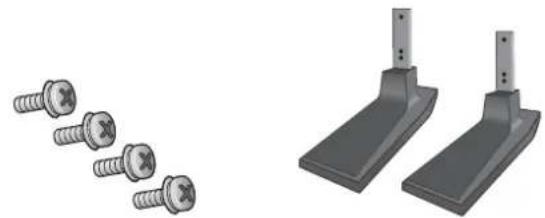
Two types of screw fasteners and two mechanical bracket components (no text or symbols)• HP LD4710—Four screws M4 x 10 mm (0.39 in) and stand
Figure 3-2 HP LD4710—Stand accessory contents
natural_image
Two types of metal hardware components: two screws and one bracket (no text or symbols visible)- Place a soft cloth on the table and place the display with the screen facing downward. Connect the stand as shown in the following figure.
Figure 3-3 HP LD4201 and LD4210—Sliding the stand onto the display

natural_image
Technical illustration of a mechanical assembly with internal components and directional arrows (no text or symbols)Figure 3-4 HP LD4710—Sliding the stand onto the display

natural_image
Diagram of a device with internal components and directional arrows indicating movement or assembly (no text or symbols present)- Use the screws to secure the stand on the rear side of the product as shown in the figure.
Figure 3-5 HP LD4201 and LD4210—Securing the stand to the display

natural_image
3D mechanical assembly diagram showing a base plate with two mounting holes and three downward-pointing arrows indicating force or movement (no text or symbols present)Figure 3-6 HP LD4710—Securing the stand to the display

natural_image
3D diagram of a mechanical assembly with arrows indicating force or movement, no visible text or symbolsConnecting the speakers (sold separately)
- Mount the speakers onto the display.
Figure 3-7 Mounting the speakers

natural_image
Diagram of a rectangular electronic device with two side connectors and cable connections, no text or symbols present.- Use the four Taptite D3 x 12 mm (0.47 in) screws to secure the speakers to the display.
Figure 3-8 Securing the speakers to the display

natural_image
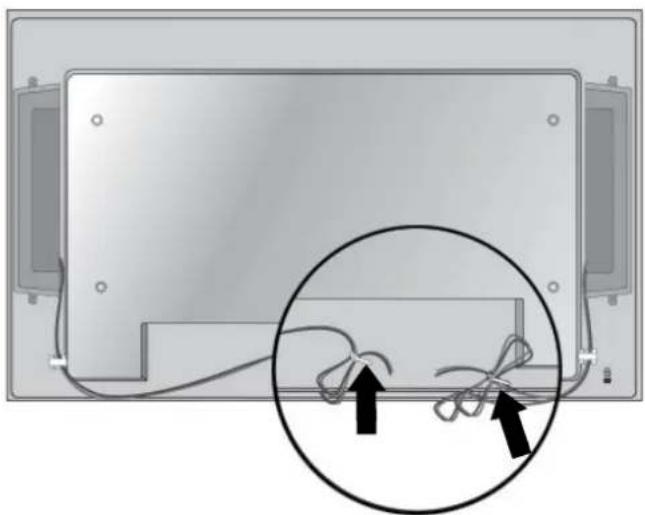
Diagram of a rectangular device with mounting holes and cable connectors, no text or symbols present- After installing the speakers, use the cable holders and cable ties (available on select models) to secure the speaker cables.
Figure 3-9 Using the cable holders (feature available on select models)

natural_image
Diagram of a monitor rear panel with two circular insets showing cable connections (no text or symbols)Figure 3-10 Using the cable ties (feature available on select models)
natural_image
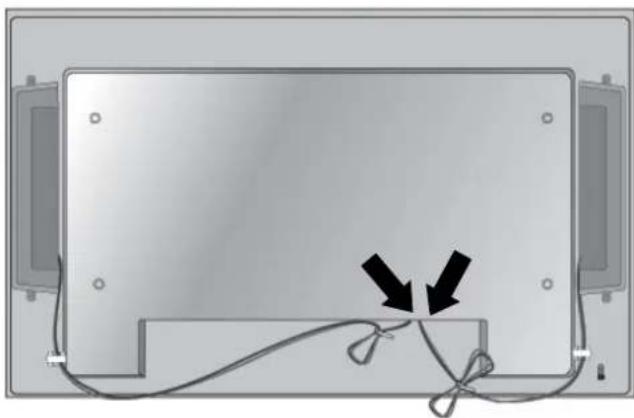
Diagram showing cable termination with scissors and wire, no text or symbols present- After installing the speakers, connect to the SPEAKER input terminal by connecting the proper color match for the left and right speakers.
Figure 3-11 Connecting to the input terminal
natural_image
Diagram of a computer monitor with cable and two arrows pointing to the screen (no text or symbols)Rotating to the portrait position
When installing the display in the portrait position, rotate it clockwise based on its front. The display can be rotated in only one direction.

NOTE: The display cannot be rotated if it is installed on the stand.
Figure 3-12 Installing portrait

flowchart
graph TD
    A["Input Arrow"] --> B["Process Step"]
    B --> C["Output Arrow"]

NOTE: The LED indicator light orientation is on the bottom-right corner in the landscape position and on the bottom-left corner when rotated to the portrait position.
Using the remote control
Inserting the batteries
- Slide off the battery cover.
- Insert the batteries with correct polarity (+/-).
- Close the battery cover.
NOTE: To prevent environmental pollution, dispose of used batteries in accordance with your local recycling guidelines.
Figure 3-13 Inserting batteries

natural_image
Diagram showing a device's internal structure before and after assembly, with no visible text or symbolsIdentifying remote control buttons
Figure 3-14 Remote control buttons

text_image
1 2 3 4 5 6 7 8 9 0 1 2 3 4 5 6 7 8 9 10 11 12 13 14 15 16 17 18 19 20 21 22 SAVING MARK ARC PSM BRIGHTNESS MUTE KEY MENU AUTO USB OK BACK TILE EXIT ON OFF| Component | Function | |
| 1 | Power on/off | Turns the display on from standby or off to standby |
| 2 | MONITOR ON or OFF | Turns the display on and off |
| 3 | Number | Types numbers |
| 4 | Not supported | |
| 5 | Volume up (+) or down (-) | Adjusts the volume |
| 6 | PSM | Selects the Picture Status Mode |
| 7 | MUTE | Turns the sound on or off |
| 8 | MENU | Selects a menu or clears all on-screen displays and returns to display viewing from any menu |
| 9 | Up/down/left/right arrows | Allows navigation of the On-Screen Display menus and adjustment of the system settings |
| 10 | OK | Accepts a selection or displays the current mode |
| 11 | BACK | Navigates one step back in an interactive application |
| 12 | ID ON or OFF | Enables the display lock |
| 13 | USB menu control buttons | Use with the HP Media Sign Player option lists in the USB menu |
| 14 | ENERGY SAVING | Adjusts the Energy Saving mode |
| 15 | INPUT | Opens the Input Source menu options (RGB, HDMI/DVI, and DisplayPort) |
| 16 | Not supported | |
| 17 | ARC | Selects the Aspect Ratio converter mode |
| 18 | BRIGHTNESS | Adjusts the resolution and brightness by pressing the Up and Down buttons on the remote controlIn USB mode, the OSD menu uses the Page function of the BRIGHTNESS button to move to the next file list. |
| 19 | AUTO | Automatically adjusts picture position and minimizes image instability (RGB input only) |
| 20 | USB | Selects USB menu to control HP Media Sign Player |
| 21 | EXIT | Clears all on-screen displays and returns to display viewing from any menu |
| 22 | TILE | Selects the TILE Mode |
Identifying display components
The components of the display and their functions are identified in the following sections.
Display components
Figure 3-15 HP LD4201 and HP LD4210—Display components
text_image
Diagram showing a monitor with a cable and a magnified view highlighting two numbered components labeled 1 and 2.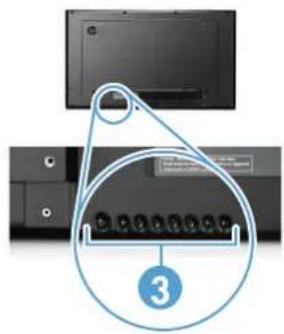
text_image
Diagram showing a device panel with labeled pins and a numbered annotation '3' pointing to a connector.
text_image
Diagram of a network device rear panel with labeled ports and connectors, showing numbered annotations 4, 5, and 6.Figure 3-16 HP LD4710—Display components
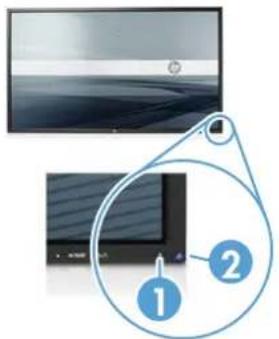
text_image
Diagram showing a monitor with a slide and a magnified view of the screen, labeled with numbered annotations.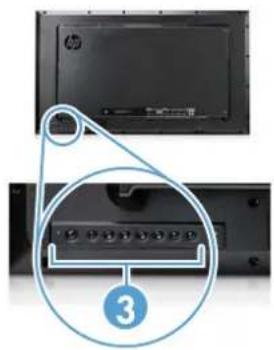
text_image
Diagram showing a device panel with labeled components and a numbered annotation '3' pointing to a button.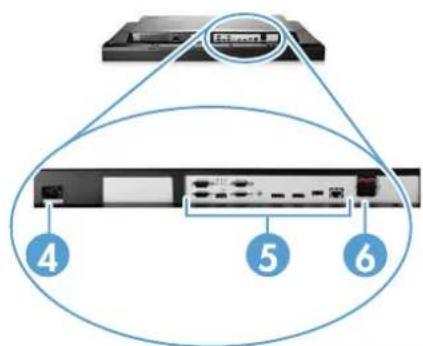
text_image
4 5 6| Component | Function | |
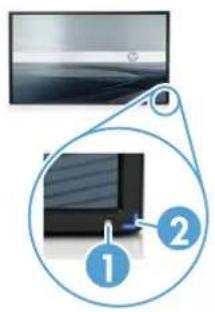
| 1 | IR receiver | Receives signals from the remote control |
| 2 | LED indicator light | Light is blue when display is on, amber when display is in power saving mode |
| 3 | Display control buttons | Power and OSD control buttons |
| 4 | Power cord receptacle | Power cord receptacle to connect the display to an electrical outlet |
| 5 | Display signal ports | RGB IN/OUT, HDMI/DVI, RS-232-C IN/OUT, Audio IN, DisplayPort IN/OUT, USB, LAN (HP LD4210 and HP LD4710 only) |
| 6 | External speaker connections | Connections for external speakers |
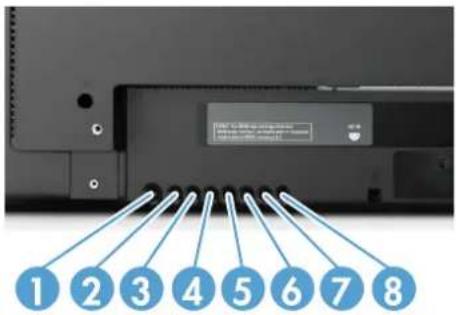
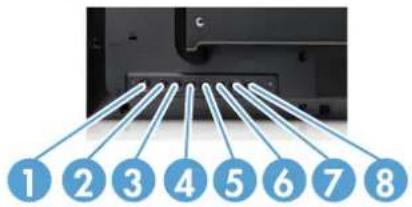
Display control panel
Figure 3-17 HP LD4201 and HP LD4210—Display control panel
text_image
1 2 3 4 5 6 7 8Figure 3-18 HP LD4710—Display control panel
text_image
1 2 3 4 5 6 7 8| Component | Function | |
| 1 | Power ON/OFF | Press to turn the power ON. Press again to turn it OFF. |
| 2 | AUTO/SET | When the OSD window is closed, the auto-adjustment feature to optimize the screen image is activated.When the OSD window is open, press to select a menu item or save changes. |
| 3 | OSD select/adjust button | Selects an OSD menu icon or adjusts the settings in the OSD screen. |
| UP | UP arrow ▲ adjusts up | |
| 4 | OSD select/adjust button | Selects an OSD menu icon or adjusts the settings in the OSD screen. |
| DOWN | DOWN arrow ▼ adjusts down | |
| 5 | OSD select/adjust button | Selects an OSD menu icon or adjusts the settings in the OSD screen. |
| LEFT | LEFT arrow ◀ adjusts left | |
| 6 | OSD select/adjust button | Selects an OSD menu icon or adjusts the settings in the OSD screen. |
| RIGHT | RIGHT arrow ▶ adjusts right | |
| 7 | MENU | Opens or closes the OSD (On-Screen Display) menu screen. |
| 8 | INPUT | Toggles between video inputs:DisplayPort—Digital signalHDMI/DVI—Digital signalRGB—15-pin D-Sub analog signal (VGA) |
Display ports
Figure 3-19 Display ports

text_image
RS-232C (CONTROL) HDMI/DVI RGB IN AUDIO POWER DP IN DP OUT USB LAN SPEAKER (8) 0 + - + - + -| Component | Function | |
| 1 | Power cord receptacle | Power cord receptacle to connect the display to an electrical outlet. |
| 2 | RS-232-C (Control) serial ports | RS-232-C (Control) serial ports connect to RS-232 devices. |
| 3 | HDMI/DVI, RGB IN, and RGB OUT | HDMI supports High Definition (HD) input and HDCP (High-bandwidth Digital Content Protection). Some devices require HDCP in order to display HD signals. DVI input is supported with an HDMI to DVI signal cable (not included). RGB IN supports analog VGA connections from PCs. RGB OUT supports cloning connections with VGA cables from display to display. |
| 4 | AUDIO (RGB/DVI) | AUDIO (RGB/DVI) connects the audio cable to the Line Out on the media player/computer sound card.NOTE: Before connecting to the AUDIO (RGB/DVI) port on the display, verify what type of Audio Out connection is available on the media player/computer sound card. The Line Out on a media player/computer is used to connect to speakers, including a built-in amplifier (AMP). For additional instructions, refer to the sound card manual.If the Audio Out on the media player/computer sound card has only Speaker Out, reduce the media player/computer volume before connecting to the AUDIO (RGB/DVI) port on the display.If the Audio Out on the media player/computer sound card supports both Speaker Out and Line Out, choose Line Out. |
| 5 | DP IN and DP OUT(DisplayPort) | DP IN supports digital input with DisplayPort cables from a media player/computer. DP OUT supports cloning of connections with DisplayPort cables from display to display. |
| 6 | USB | USB connects a USB storage device to the HP Media Sign Player. |
| 7 | LAN(HP LD4210 and HP LD4710 models only) | LAN connects the display directly to a media player/computer or to a network directly or indirectly by a router, hub, or switch using the LAN cable. |
| 8 | SPEAKER | SPEAKER connects the external speakers to the display. |
VESA mounting support and security slot
VESA FDMI (Video Electronics Standards Association Flat Display Mounting Interface) wall mounting—This product supports a VESA FDMI-compliant mounting device. The mounting devices can be purchased separately from HP.
Security cable provision—To help prevent theft, a security cable provision is available on the rear of the display. The cable and lock required to connect to the display are available separately and can be purchased from HP.
Figure 3-20 VESA mounting holes

natural_image
Diagram showing a device with a connected cable and a small meter, no text or symbols present.Connecting to external devices
- Be sure that the display, media player/computer, and all attached devices are turned off.
- Connect the signal input cable.
For additional information, refer to one of the following signal input cable sections:
• Connecting RGB on page 22
• Connecting DisplayPort (480p/576p/720p/1080i/1080p) on page 23
• Connecting HDMI (480p/576p/720p/1080i/1080p) on page 23
• Connecting LAN (HP LD4210 and HP LD4710 only) on page 25
- Connect the audio cable (sold separately) to the Audio (RGB/DVI) (1) connector on the rear of the display and the other end to the Line Out port (2) on the media player/computer if the video signal connection is from either a RGB (VGA) or DVI connector on the media player/computer.
Figure 3-21 Connecting the audio cable

text_image
AUDIO ROBOM 1 2NOTE: The ferrite core can be used to reduce electromagnetic waves when connecting an audio cable. Fit the ferrite core to the audio cable. The ferrite core needs to be separated from the mold by 5 cm (2 in).
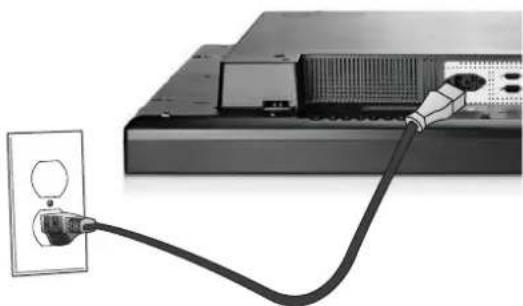
- Connect the AC power cord to the AC-IN connector on the rear of the display and the other end to an electrical outlet. Before connecting the power cord, please read the power-cord safety precautions in the Important safety information on page 3.
Figure 3-22 HP LD4201 and HP LD4210—Connecting the power cord
natural_image
Close-up of a cable being inserted into a server rack, showing the cable being inserted into a socket (no text or symbols visible)Figure 3-23 HP LD4710—Connecting the power cord

natural_image
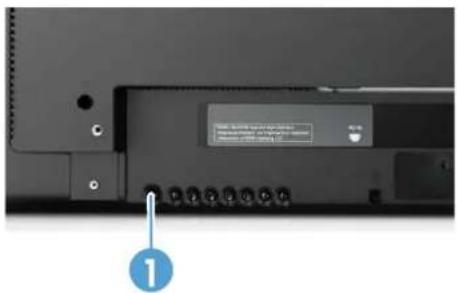
Illustration of a cable being inserted into a device, showing the cable being inserted into a socket (no text or symbols present)- Turn on power to the display by pressing the power button (1).
Figure 3-24 HP LD4201 and HP LD4210—Power button
text_image
Power & Power Control Panel 2013 Power & Power Control Panel 2013 ①Figure 3-25 HP LD4710—Power button
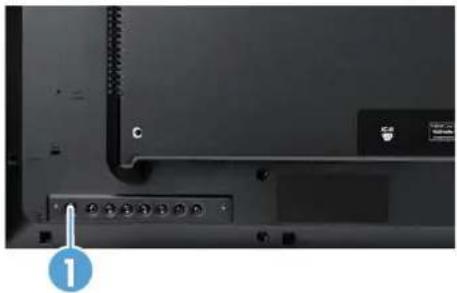
natural_image
Close-up of a computer monitor rear panel showing ports and a labeled connector (no readable text or symbols)- Turn on the media player/computer.
- Select an input signal:
Press the INPUT button on the remote control to open the Input List, select the appropriate input signal, and then press the OK button to save your change.
Or, press the INPUT button on the back of the display, select the appropriate input signal, and then press the AUTO/SET button to save your change.
- When connecting with a D-Sub (VGA) signal input cable, select RGB from the Input List.
- When connecting with an HDMI signal input cable or when connecting a DVI signal input cable with the HDMI to DVI cable, select HDMI/DVI from the Input List.
- When connecting with a DisplayPort signal input cable, select DP from the Input List.

NOTE: If connecting more than one input source, connect the signal cables [HDMI/DVI, RGB (VGA), and DisplayPort] to each media player/computer. Press the INPUT button on the remote control to select the input to view.
Connecting RGB
- For analog operation, connect the D-Sub signal cable to the RGB IN (1) connector on the rear of the display and the other end to the connector (2) on the media player/computer.

NOTE: If connecting to a Mac media player/computer, use the standard Mac adapter (3)-not included.
Figure 3-26 Connecting the D-Sub signal cable
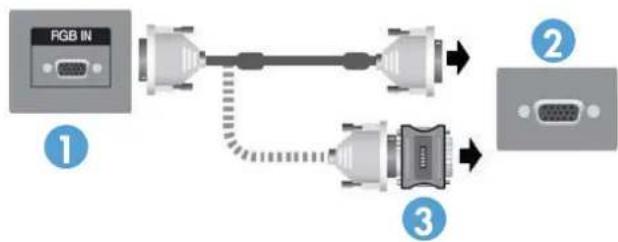
flowchart
graph LR
    A["RGB IN"] --> B["USB Cable"]
    B --> C["Switch"]
    C --> D["Switch"]
    D --> E["Switch"]
    E --> F["Switch"]
    style A fill:#f9f,stroke:#333
    style F fill:#bbf,stroke:#333
- Connect the audio cable (sold separately) to the Audio (RGB/DVI) (1) connector on the rear of the display and the other end to the Line Out port (2) on the media player/computer if the video signal connection is from either a RGB (VGA) or DVI connector on the media player/computer.
Figure 3-27 Connecting the audio cable

text_image
AUDIO /GBM 1 2- Select an input signal:
Press the INPUT button on the remote control, select the RGB input signal, and then press the OK button to save.
Or, press the INPUT button on the back of the display, select the RGB input signal, and then press the AUTO/SET button to save.
Connecting DisplayPort (480p/576p/720p/1080i/1080p)
- Connect the DisplayPort cable to the DP IN port on the display and to the DisplayPort OUT port on the media player/computer, and then connect the display power cord.
Figure 3-28 Connecting DisplayPort input to a media player/computer
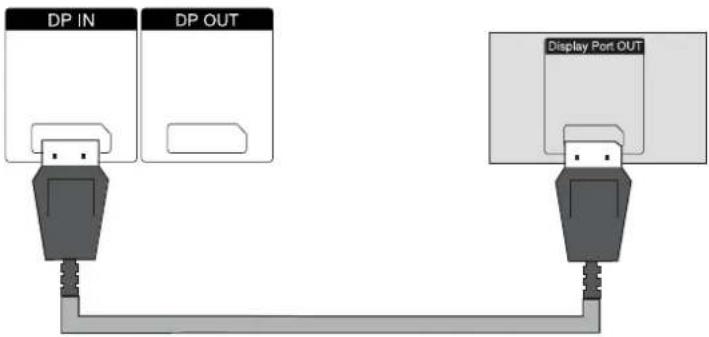
flowchart
graph LR
    A["DP IN"] --> B["USB Device"]
    C["DP OUT"] --> D["USB Device"]
    E["Display Port OUT"] --> F["USB Device"]
- Select an input signal.
Press the INPUT button on the remote control, select the DP input signal, and then press the OK button to save.
Or, press the INPUT button on the back of the display, select the DP input signal from the Input List, and then press the AUTO/SET button to save.
Connecting HDMI (480p/576p/720p/1080i/1080p)
HDMI supports High Definition Input and HDCP. Some devices require HDCP in order to display HD signals.
- Use one of the following examples to connect the HDMI input:
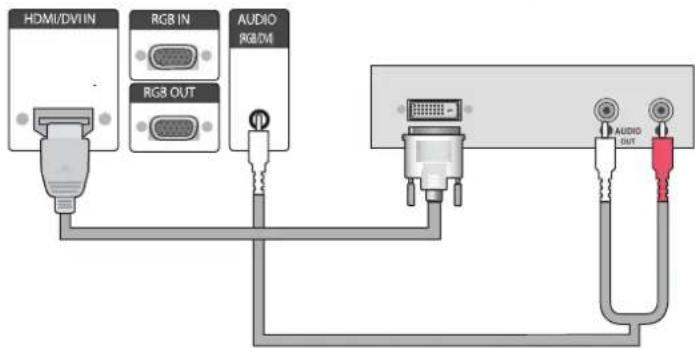
- Connect an HDMI signal cable to the HDMI/DVI port on the display and to the HDMI port on the media player/computer, and then connect the display power cord.
Figure 3-29 Connecting the HDMI to HDMI signal cable
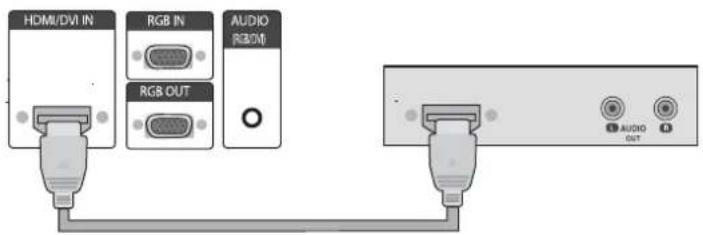
text_image
HDMI/DVI IN RGB IN AUDIO R800M RGB OUT AUDIO OUT- Connect an HDMI to DVI signal cable to the HDMI/DVI port on the display, and then to the DVI port on the media player/computer.
For AUDIO input from the media player/computer (this is only needed with DVI input signal connections), connect the RCA-PC audio cable (cable not included) to the display and to the Audio OUT ports on the media player/computer, then connect the display power cord.

NOTE: Use shielded signal interface cables (D-sub 15 pin cable, DVI cable) with ferrite cores to maintain standard compliance for this product.
Figure 3-30 Connecting the HDMI to DVI signal cable
text_image
HDMI/DVIIN RGB IN AUDIO RGB/MI RGB OUT AUDIO OUT- Select an input signal.
Press the INPUT button on the remote control, select the HDMI/DVI input signal, and then press the OK button to save.
Or, press the INPUT button on the back of the display, select the HDMI/DVI input signal, and then press the AUTO/SET button to save.
Connecting LAN (HP LD4210 and HP LD4710 only)
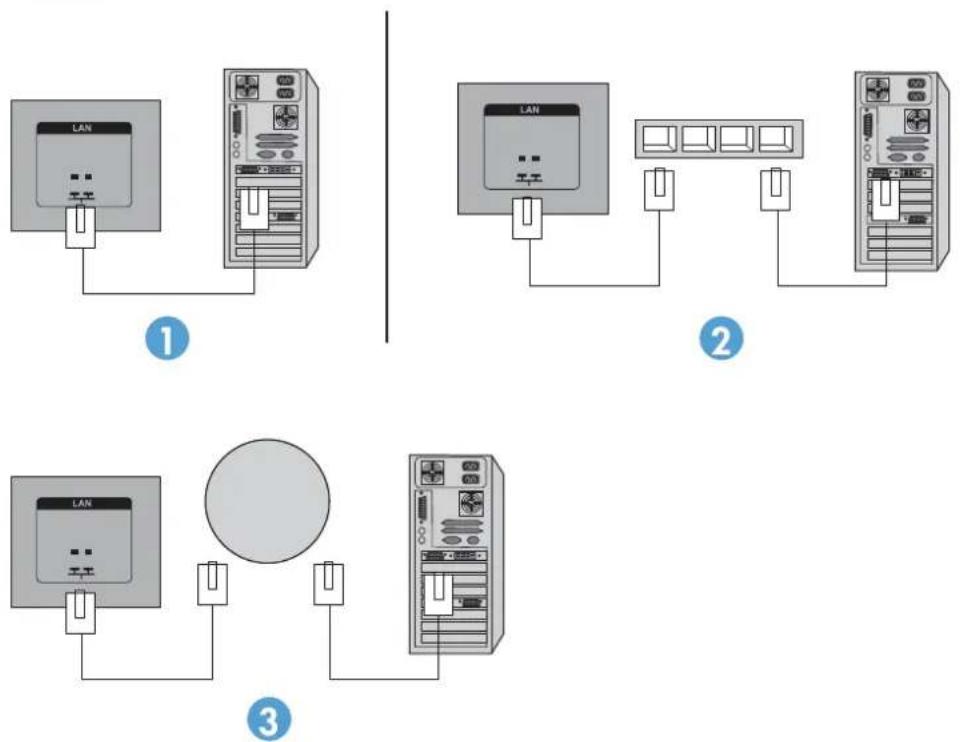
The LAN input on the display can connect to a media player/computer, a router (switch), or an Intranet. A LAN connection with the display establishes communication between your media player/computer and the display. This enables the use of the HP Network Sign Manager program, running on the connected media player/computer, to assign an IP address to the display, to change display settings, and to set up HP Media Sign Player options, play lists, and On/Off schedule times.
-
Connect the LAN cable (not included) using one of the following connections:
-
Computer Direct Connection—Connect the LAN cable to the LAN port on the display and to the LAN port on the media player/computer (1).
- Router—Connect the LAN cable to the LAN port on the display and to a LAN port on the router (2).
- Intranet—Connect the LAN cable to the LAN port on the display and to the Intranet network via an access point (3).
Figure 3-31 Connecting the LAN cable
- Install the HP Network Sign Manager on the media player/computer attached to the Intranet. To download the HP Network Sign Manager, refer to the website www.hp.com. For details on using the HP Network Sign Manager application, refer to the HP Network Sign Manager User Guide (available only in English) included on the CD provided with the display.
Connecting daisy chain displays
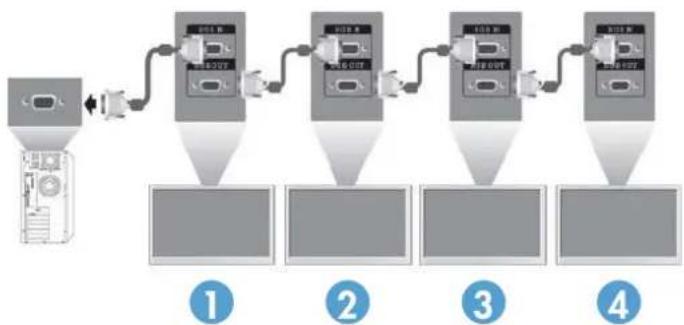
Multiple displays (up to 25) can be connected in a daisy chain (connect several displays together in Tile Mode) to a computer using DisplayPort IN/OUT or with the combination of RGB IN/OUT and RS-232-C IN/OUT ports on the display.
To connect displays in a daisy chain, the displays must all be connected with the same input/output source (DisplayPort IN/OUT, RS-232-C IN/OUT, or RGB IN/OUT) as shown in the figures below.
- To daisy chain displays for video, use DisplayPort IN/OUT connections or RGB IN/OUT connections.
- To daisy chain for both video and display command and control, use DisplayPort IN/OUT plus RS-232-C IN/OUT or RGB IN/OUT plus RS-232-C IN/OUT.

NOTE: The number of displays that can be connected by daisy chain to one media player/computer might vary depending on the signal status and cable loss. If the signal status is good, and there is no cable loss, it is possible to connect up to twenty-five displays in a daisy chain from one media player/computer.
If you are going to play video that is copy protected with High-bandwidth Digital Content Protection (HDCP), a maximum of six displays can be daisy chained.
To connect multiple displays in a daisy chain, connect the input signal cable from the media player/computer to the first display in the daisy chain. Connect the subsequent displays, using the same input signal cables, from the OUT port to the IN port of the next display, as shown in the figures below, until all the displays are connected together.
Figure 3-32 Daisy chain connection—DisplayPort for video input signal

flowchart
graph TD
    A["Server"] --> B["Display Unit"]
    B --> C["Display Out"]
    C --> D["Display Unit"]
    D --> E["Display Out"]
    E --> F["Display Unit"]
    F --> G["Display Out"]
    G --> H["Display Unit"]
    style A fill:#f9f,stroke:#333
    style B fill:#ccf,stroke:#333
    style C fill:#cfc,stroke:#333
    style D fill:#fcc,stroke:#333
    style E fill:#cff,stroke:#333
    style F fill:#ffc,stroke:#333
    style G fill:#cfc,stroke:#333
    style H fill:#fcc,stroke:#333
Figure 3-33 Daisy chain connection—RGB for video input signal
flowchart
graph LR
    A["Input Data"] --> B["Processing Unit 1"]
    B --> C["Processing Unit 2"]
    C --> D["Processing Unit 3"]
    D --> E["Processing Unit 4"]
    style A fill:#f9f,stroke:#333
    style B fill:#ccf,stroke:#333
    style C fill:#cfc,stroke:#333
    style D fill:#fcc,stroke:#333
    style E fill:#cff,stroke:#333
Figure 3-34 Daisy chain connection—RS-232-C

flowchart
graph LR
    A["Server"] --> B["RS-232C (CONTROL)"]
    B --> C["RS-232C (CONTROL)"]
    C --> D["RS-232C (CONTROL)"]
    D --> E["RS-232C (CONTROL)"]
    E --> F["RS-232C (CONTROL)"]
    F --> G["..."]
    subgraph Server 1
        B --> H["IN"]
        C --> I["IN"]
        D --> J["IN"]
    end
    subgraph Server 2
        C --> K["IN"]
        D --> L["IN"]
    end
    subgraph Server 3
        E --> M["IN"]
        F --> N["IN"]
    end
    subgraph Server 4
        E --> O["IN"]
        F --> P["IN"]
    end
4 Operating the display
Software and utilities
HP displays are Plug-and-Play with Windows® XP, Windows Vista™, and Windows 7 operating systems, so you do not need to download the .INF file or the .ICM file for these operating systems. The most current versions of the following software and utilities can be downloaded from the following HP website for use with the displays as needed: www.hp.com.
• Auto-adjustment Pattern Utility—Optimizes the display.
- HP Network Sign Manager (HP LD4210 and HP LD4710 only)—Allows you to select and control the display options remotely from a connected media player/computer and allows you to select the options for the HP Media Sign Player. For more details on the HP Media Sign Player, refer to Using the HP Media Sign Player on page 42. To install and configure the HP Network Sign Manager software, refer to the HP Network Sign Manager User Guide (available only in English) included on the CD provided with the display.

NOTE: If the display does not include a CD, the .INF and .ICM files can be downloaded from the HP displays support website. Refer to Downloading from the Web on page 29.
The information file
The setup information, or .INF file, defines display resources used by Microsoft® Windows operating systems to ensure display compatibility with the media player/computer's graphics adapter.
The image color matching file
The image color matching, or .ICM file, is a color data file that is used in conjunction with graphics applications to provide consistent color matching from display screen to printer, or from scanner to the display screen. The .ICM file is only activated from within the graphics applications that support this feature.
Installing the .INF and .ICM files
You can install the .INF and .ICM files from the CD or download them from the HP displays support website.
Installing from the CD
To install the .INF and .ICM files on the media player/computer from the CD:
-
Insert the CD in the media player/computer CD-ROM drive. The CD menu appears.
-
View the Display Driver Readme file.
-
Select Install display driver software.
-
Follow the on-screen instructions.
-
Ensure that the proper resolution and refresh rates appear in the Windows Display control panel.

NOTE: You might need to install the digitally signed display .INF and .ICM files manually from the CD in the event of an installation error. Refer to the Display Driver Readme file on the CD for instructions (in English only).
Downloading from the Web
To download the latest version of .INF and .ICM files from the HP displays support website:
-
Refer to www.hp.com/support and select the country/region.
-
Follow the links for the display to the support page and download page.
-
Ensure the system meets the requirements.
-
Download the software by following the instructions.
Using the auto-adjustment function (RGB INPUT source only)
You can optimize the screen performance by using the AUTO/SET button on the display (AUTO button on the remote control) and the Auto-adjustment Pattern Utility software on the CD provided.

NOTE: Do not use this procedure if the display is set to use a DisplayPort or HDMI/DVI input source.
If the display is using a PC analog signal input, this procedure can correct the following image quality conditions:
• Fuzzy or unclear focus
• Ghosting, streaking or shadowing effects
- Faint vertical bars
• Thin, horizontal scrolling lines
• An off-center picture
To use the auto-adjustment feature:
- Allow the display to warm up for 20 minutes before adjusting.
- Press the AUTO/SET button.
If the result is not satisfactory, continue with the procedure. - Insert the CD in the disc drive. The CD menu appears.
- Select Open auto-adjustment software. The setup test pattern appears.
- Press the AUTO/SET button to produce a stable, centered image.
- Press the ESC key or any other key on the keyboard to exit the test pattern.
Using the On-Screen Display menu
The display settings can be adjusted from the On-Screen Display (OSD) menu.
| Icon | Main menu | Function description |
| Picture | Set or change Video characteristics such as aspect ratio, brightness, contrast, energy savings, picture mode, and screen options | |
| Audio | Set or change the audio options | |
| Time | Set or change the timer options | |
| Option | Set or change display options such as OSD language, network setup, led lights on/off, control button lock, power management, DDC·CI, and ISM Method | |
 | Tile | Set or change the tile options |
| [ZYCX] | USB | Set or change the USB options |
Using the remote control to adjust the OSD
Use the OSD to adjust the screen image based on your viewing preferences. To access the OSD, do the following:

flowchart
graph LR
    A["MENU"] --> B["OK"]
    B --> C["OK"]
    C --> D["OK"]
    D --> E["OK"]
    E --> F["EXIT"]
- If the display is not already on, press the power button to turn on the display.
- Press the MENU button (1) on the remote control.
- To access a control, use the down arrow ▼ or up arrow ▲ button (2).
- When the icon you want becomes highlighted, press the OK button (3).
- To access a control, use the down arrow ▼ or up arrow ▲ button (4).
- When the list you want becomes highlighted, press the OK button (5).
- Use the down arrow ▼, up arrow ▲, left arrow ◀, or right arrow ▶ button (6) to set or change the selected item to the desired setting.
- Accept the changes by pressing the OK button (7).
- Exit the OSD menu by pressing the EXIT button (8).
OSD menu selections
The following table lists the On-Screen Display (OSD) menu selections and their functional descriptions.
| Icon | Main menu | Submenu | Description |
| PICTURE | Aspect Ratio | Selects from the following screen image sizes:16:9—Widescreen mode.1:1—Picture format is 1:1 aspect ratio.Just Scan—Allows you to enjoy the transmitted data fully without any images cut off. (This menu is activated only in 720P, 1080P, 1080i (HDMI/DVI-DTV, DisplayPort-DTV).)Original—Picture format is automatically set to 16:9 or 4:3 aspect ratio according to input signal.4:3—Picture format is 4:3 aspect ratio.14:9—Programs are viewed normally in 14:9 with black bars added to the top and bottom. The 4:3 programs are magnified on the top/bottom and left/right sides.Zoom—4:3 programs are magnified until they fill the 16:9 screen. The top and bottom will be cut off.Cinema Zoom 1—Picture format is 2.35:1 aspect ratio, extending the picture horizontally with black bars added to the top and bottom. | |
| Energy Saving | Select from the following screen brightness levels:Off—100% lightLevel 1—80% lightLevel 2—60% lightLevel 3—40% light | ||
| Picture Mode | Select from the following screen presets:Vivid—Select to display with brightest image.Standard—The most general and natural screen display status.Cinema—Lowers brightness by one level.Sport—Displays with a soft image.Game—To enjoy dynamic image when playing a game.Expert 1 and Expert 2—Allows user-defined settings:Backlight—Controls the brightness of the screen, adjust the brightness of the LCD panel.Contrast—Adjusts the difference between the light and dark levels.Brightness—Adjusts the brightness of the screen.Sharpness—Adjusts the clearness of the image.Color—Adjusts the color to desired level.Tint—Adjusts the tint to a desired level.NOTE:If thePicture Modesetting is set toVivid, Standard,Cinema,Sport,orGame,the above adjustments will be automatically set to predefined settings. | ||
| Advanced Control | Select from the following screen color adjustment settings:Color Temperature—Select from the following color settings:Cool—Slightly purplish white.Medium—Slightly bluish white.Warm—Slightly reddish white.Dynamic Contrast—Optimizes the contrast automatically according to the brightness of the reflection.Dynamic Color—Adjusts the color of the reflection automatically to reproduce natural colors as close as possible.Noise Reduction—Removes the noise up to the point where it does not damage the original picture.Gamma—Set your own gamma value. On the display, high gamma values display whitish images and low gamma values display high contrast images.Black Level—Adjusts the contrast and the brightness of the screen using the black levelof the screen for HDMI/ DVI and DP input source only.Low—The reflection of the screen gets darker.High—The reflection of the screen gets brighter.Film Mode—Adjusts the display, when watching a movie, to the best picture appearance. | ||
| Expert 1 and Expert 2 Control | Select from the following settings:Dynamic Contrast—Optimizes the contrast automatically according to the brightness of the reflection.Noise Reduction—Removes the noise up to the point where it does not damage the original picture.Gamma—Set your own gamma value. On the display, high gamma values display whitish images and low gamma values display high contrast images.Black Level—Adjusts the contrast and the brightness of the screen using the black level of the screen.Film Mode—Adjusts the display, when watching a movie, to the best picture appearance.Color Standard—Adjusts color.White Balance—Adjusts the overall color of the screen to the feeling you want.Color Management System—Adjusts by using test patterns. This does not affect other colors but can be used to selectively adjust the 6 color areas (Red/ Green/Blue/Cyan/Magenta/Yellow). Color difference might not be distinctive even when you make the adjustments for a general video. | ||
| Picture Reset | Returns the Picture Mode to the default factory settings. | ||
 | AUDIO | Auto Volume | Adjusts uneven sound volumes across all channels or signals automatically to the most appropriate level.To use this feature, select On; to turn off the feature, select Off. |
| Clear Voice II | Differentiates the human sound range from other sounds, which helps to make the human voices easier to hear.To use this feature, select On; to turn off the feature, select Off. | ||
| Balance | Balances sound between the left and right speakers. | ||
| Sound Mode | Automatically selects the best sound tone quality, depending on the video type that you are currently watching, from the following options:Standard—Most commanding and natural audio.Music—Select for original sound when listening to music.Cinema—Select for sublime sound.Sport—Select for sports broadcasting.Game—Select for dynamic sound when playing a game. | ||
| Treble | Adjust treble 0–100. | ||
| Bass | Adjust bass 0–100. | ||
| Reset | Resets the Sound Mode to the factory default settings. | ||
| Speaker | Adjusts internal speaker status (speakers sold separately).To use this feature, select On; to turn off the feature, select Off.To use an external hi-fi stereo system, turn off the internal speakers of the display. | ||
| DisplayPort Audio Out | Select DisplayPort or Analog. | ||
 | TIME | Clock | Resets the Day, Hour, and Minute if the current time is incorrect. |
| On Time | The on time automatically switches the display on at the pre-set time. | ||
| Off Time | The off time automatically switches the display to standby at the pre-set time. | ||
| Sleep Timer | Automatically turns off power when the time set by a user has passed. | ||
| Auto Off | If active and there is no input signal, the display switches to off mode automatically after 10 minutes. | ||
| Power On Delay | When connecting multiple displays and turning the power on, the displays are turned on individually to prevent overload. | ||
 | OPTION | Language | Selects the language in which the OSD menu is displayed. |
| Input Label | Selects a label for each input source. | ||
| Key Lock | Set On to disable the display buttons to prevent tampering with display settings. When set to On, the display options and settings can be set or changed only with the remote control or with HP Network Sign Manager on LD4210/LD4710. | ||
| Set ID | Use to assign a unique Set ID NO (name assignment) to each product when several products are connected for display. | ||
| ISM Method | This option allows setting the display to alter the image to avoid a static image being on the screen for a prolonged period of time. This can avoid burn-in or image sticking and prolong the life of the display. | ||
| DPM Select | Display Power Management Select—Turns the power saving mode On or Off. | ||
| Power Indicator | Sets the power indicator on the front of the display to On or Off. | ||
| DDC-CI | Set this feature On to enable sending display OSD commands via RS-232-C connection from the media player/computer. | ||
| DFC | Digital Fine Contrast-To use this feature, select On; to turn off the feature, select Off. | ||
| Interface Select | Select the connection you are using for remote display management. For more information, refer to the HP Network Sign Manager User Guide (available in English only) included on the CD provided with the display. | ||
| Network Setup | Select the method of assigning an IP address to the display. | ||
| IP Mode options:DHCP—Allows the display IP Address to be assigned automatically when the display is attached to the network through a router.Manual—Allows you to assign the IP Address, Subnet Mask, Gateway, and DNS Server.See your network administrator for the correct manual entries to enter. For more details on setting the display IP Address, refer to the HP Network Sign Manager User Guide (available in English only) included on the CD provided with the display. | |||
| Information | Contains the Serial No., SW Version (MNT), SW Version (LAN), IP Address, and MAC Address information. | ||
| Factory Reset | Resets to the default factory settings. | ||
 | TILE | Tile Mode | Tile Modeis used when multiple displays are configured in a video wall and you want the image to be displayed on the entire video wall, with each display showing its part of the total image on the video wall.To use Tile Mode, the multiple displays must be connected with RGB IN/RGB OUT or DP IN/DP OUT. If you want to issue commands to the displays in the wall with application software or with the HP Network Sign Manager connected through the serial interface, the displays must be connected with RS-232-C IN/OUT.For more information, refer to Using Tile Mode on page 40. |
| Tile ID | Selects the location of the Tile by setting an ID of 1-25. | ||
| Natural Mode | Setting this feature ON will compensate for the mullions (non-viewing area between active viewing areas in the video wall where the display bezels meet) by stretching the image in each display in the video wall so that the image is extended into the non-viewing areas of the mullions. This eliminates image distortion and displays the image in its natural proportions across all displays. | ||
| H Size | Adjusts the horizontal size of the screen taking into account the size of the bezel. | ||
| V Size | Adjusts the vertical size of the screen taking into account the size of the bezel. | ||
| H Position | Moves the screen position horizontally. | ||
| V Position | Moves the screen position vertically. | ||
| Reset | Resets the Tile Mode configuration. | ||
 | USB | Photo List | View photo files on a USB storage device. |
| Music List | Play music files on a USB storage device. | ||
| Movie List | Play movie files on a USB storage device. | ||
| Lock System | Enables the USB security function to prevent the playing of unauthorized files from a USB storage device with the HP Media Sign Player. | ||
| Set Password | Allows you to set a password for the HP Media Sign Player.NOTE:All USB menu options are disabled until a correct password is entered. If you should forget your password, enter 7777 in the password field and that will take you to the Set Password menu to change the password. The default password is 0000. The master password is 7777. |

NOTE: Depending upon the input setting, input video signal, Picture Mode, and option settings, some OSD options might not be available to be set or changed, and these will appear greyed out in the OSD menus.
Selecting an Aspect Ratio
The aspect ratio modes available for your selection depend on the current input source. Use the following table to determine which mode is available for your display.
| Mode ARC | DisplayPort DTV | DisplayPort PC | RGB PC | HDMI/ DVI DTV | HDMI/ DVI PC |
| 16:9 | X | X | X | X | X |
| Just Scan | X | X | |||
| Original | X | X | X | X | X |
| 4:3 | X | X | X | X | X |
| 1:1 | X | X | X | ||
| 14:9 | X | X | |||
| Zoom | X | X | |||
| Cinema Zoom 1 | X | X |
Adjusting the timer function
Use the remote control to set the following timer options.
Clock
The Clock menu allows you to reset the clock manually if the current time is incorrect.
- Press the MENU button, and then use the down arrow ▼ or up arrow ▲ button to select the TIME menu.
- Press the right arrow ▶ button, and then use the down arrow ▼ or up arrow ▲ button to select the Clock menu.
- Press the right arrow ▶ button, and then use the down arrow ▼ or up arrow ▲ button to set the hour (00h–23h).
- Press the right arrow ▶ button, and then use the down arrow ▼ or up arrow ▲ button to set the minutes (00–59 min).
On Time and Off Time
The On Time and Off Time menus let you set the display to automatically switch to standby at a pre-set time.
- Press the MENU button, and then use the down arrow ▼ or up arrow ▲ button to select the TIME menu.
- Press the right arrow ▶ button, and then use the down arrow ▼ or up arrow ▲ button to select On Time or Off Time.
- Press the right arrow ▶ button, and then use the down arrow ▼ or up arrow ▲ button to set the hour (00h–23h).
- Press the right arrow ▶ button, and then use the down arrow ▼ or up arrow ▲ button to set the minutes (00–59 min).
- Press the right arrow ▶ button, and then use the down arrow ▼ or up arrow ▲ button to select On or Off.

NOTE: Once the On Time or Off Time is set, these functions operate daily at the preset time. The Off Time function overrides the On Time function if they are set to the same time. When the On Time is operated, the input screen is turned on just as it was turned off.
Sleep Timer
The Sleep Timer menu lets you set the display power to automatically turn off when the time set by a user has passed.
- Press the MENU button, and then use the down arrow ▼ or up arrow ▲ button to select the TIME menu.
- Press the right arrow ▶ button, and then use the down arrow ▼ or up arrow ▲ button to select the Sleep Timer menu.
- Press the right arrow ▶ button, and then use the down arrow ▼ or up arrow ▲ button to set the hour (00h–23h).
- Press the right arrow ▶ button, and then use the down arrow ▼ or up arrow ▲ button to set the minutes (00–59 min).

NOTE: In the event of a power interruption (disconnection or power failure), the Sleep Timer clock must be reset.
Auto Off
To set the display to switch to the off mode automatically after 15 minutes if Auto Off is active and there is no input signal:
- Press the MENU button, and then use the down arrow ▼ or up arrow ▲ button to select the TIME menu.
- Press the right arrow ▶ button, and then use the down arrow ▼ or up arrow ▲ button to select the Auto Off menu.
- Press the right arrow ▶ button, and then use the down arrow ▼ or up arrow ▲ button to select On or Off.
Power On Delay
When connecting multiple displays and turning the power on, the displays are turned on individually to prevent overload.
Using Key Lock
The display can be set up to disable the display control buttons on the back of the display. When the Key Lock is set ON, display options might only be set or changed with the remote control or using the HP Network Sign Manager with HP LD4210 and HP LD4710.
- Press the MENU button, and then use the down arrow ▼ or up arrow ▲ button to select the OPTION menu.
- Press the right arrow ▶ button, and then use the down arrow ▼ or up arrow ▲ button to select the Key Lock menu.
- To lock the OSD screen adjustment, press the right arrow ▶ button, and then use the down arrow ▼ or up arrow ▲ button to select On.
- To unlock the OSD screen adjustment, press the MENU button on the remote control, and then use the down arrow ▼ or up arrow ▲ button to select Off.
Using ISM Method
Displaying a static image on the screen for a prolonged period of time could result in burn-in or image sticking. To avoid burn-in or image sticking or to fix a ghost or burned-in image, do not display a fixed image for prolonged periods of time. Either turn the display off or change the image. If you display a static image for long periods of time, you can help to avoid ghost images or burn-in by using the ISM option as follows:
- Press the MENU button, and then use the down arrow ▼ or up arrow ▲ button to select the OPTION menu.
- Press the right arrow ▶ button, and then use the down arrow ▼ or up arrow ▲ button to select the ISM Method menu.
-
Select one of the following menu options:
-
Normal—Leave on Normal if you do not want the ISM function to be active. When the display is turned OFF, the ISM setting will be reset to Normal, regardless of which ISM mode was ON when the display was turned off.
- Orbiter—The screen will move two pixels every two minutes, alternately moving left, right, up, and down. Orbiter will remain on until changed in the ISM menu.
- Inversion—This function can be used to fix a ghost or burned-in image. This function will invert the image colors every 30 minutes. If the screen image is inverted and you enter the USB function, images displayed in this function will be inverted. The inversion function will remain on until changed in the ISM menu.
- White wash—This function can also be used to fix a ghost or burned-in image. This function will fill the screen with solid white. This helps to remove permanent images burned into the screen. Pressing any key on the remote control will exit the White Wash function and return the screen to Normal.
Using Tile Mode
Tile Mode is used to extend an image across multiple displays in a video wall. You can define up to a 5 x 5 video wall and the displays can be in either landscape or portrait orientation. Tile Mode allows you to assign each display its relative position (number) in the wall starting at the upper-left corner and down each row from left to right. Each display will automatically show the corresponding part of the full image as shown in the following figure.
Assign the correct position number to each display as follows:
MENU→PICTURE→TILE→Tile Mode→OK→3x3→Close→Tile ID→OK→1 (for display #1, 2 for display #2, etc. ... 9 for display #9)→Close→Natural Mode→OK→ON (compensate for the mullions to display an image without distortion across the video wall)→OK→EXIT

text_image
1 2 3 4 5 6 7 8 9
text_image
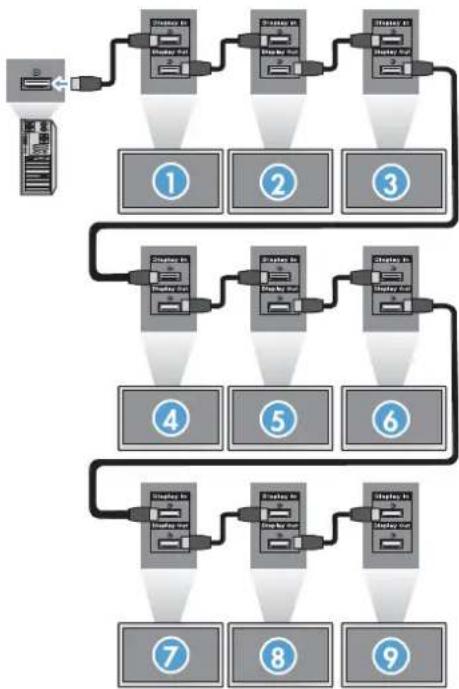
1 2 3 4 5 6Each display must be connected to every other display, using either RGB IN/RGB OUT or DP IN/DP OUT as shown in the following figure. If you want to issue display commands from the media player/computer, you must connect each display with RS-232-C IN/RS-232-C OUT just like the video connections.
Figure 4-1 Tile Mode 3x3 video wall—Connecting displays with DP IN/DP OUT
flowchart
graph TD
    A["Server Rack"] --> B["Display Unit 1"]
    B --> C["Display Unit 2"]
    C --> D["Display Unit 3"]
    D --> E["Display Unit 4"]
    E --> F["Display Unit 5"]
    F --> G["Display Unit 6"]
    G --> H["Display Unit 7"]
    H --> I["Display Unit 8"]
    I --> J["Display Unit 9"]
    style A fill:#f9f,stroke:#333
    style J fill:#f9f,stroke:#333
5 Using the HP Media Sign Player
When you insert a USB storage device into the USB port in the back of the display, the Enter Password dialog box appears if you have the Lock System option turned ON. After entering your password, the HP Media Sign Player options appear with Photo List, Music List, and Movie List.
If the USB storage device is already inserted when you turn the power on to the display, press the USB button on the remote control and if you have the Lock System option ON, the Enter Password dialog box appears along with the USB menu options. After entering your password, you can set or change any of the USB options.

NOTE: The USB menu will not be displayed by pressing the USB button on the remote control while the HP Media Sign Player is playing or while the OSD is active.
Using Photo List
After selecting the Photo List option, select the drive, and then select the folder with the desired .JPG images. A list of the files in the folder appears. If you select a folder which does not have supported files, the message No Photo List in the Folder appears. When you highlight a file, you can mark the file to play by pressing the MARK button on the remote control. If you highlight the file and then press the OK button for any file in the list, the Photo selection and menu options list appears.
Information about using Photo List
• PHOTO (*.JPEG) supporting file
Baseline—15360 x 8640
• Progressive—1024 x 768
• You can view JPEG files only; non-supported files are displayed in the form of a bitmap.
Photo selection and menu options
• View—Starts the HP Media Sign Player. You will see the first image selected in the Photo List and the Option box. This image remains on the display until you select Slideshow in the Option box.
• Mark All—Marks all or selects all files in the selected folder from the Photo List.
- Delete—Deletes all the marked or selected files in the selected folder from the USB storage device. When you choose Delete, a verification dialog box appears to confirm that you want to delete the file.
- Close—Closes the Photo selection and menu options menu.
Options on full-sized photo view
- Slideshow—Starts the HP Media Sign Player. Only the files marked or selected are played unless there are no files marked, and then all files in the selected folder play in the order they appear in the Photo List. Set the time interval for all of the slides in the slide show in the Options dialog box.
- BGM (Background Music)—The HP Media Sign Player plays audio files while showing the selected images from the Photo List. Before selecting this option, you must select the Music Folder for BGM in the Option dialog box. For more details on audio files, refer to Using Music List on page 43.
- Rotate icon 📊 —Use the rotate icon to change the orientation of the slide show 90° with each touch of the rotate icon (90°, 180°, or 270°) clockwise. When the image is rotated using the rotate icon, the image will be scaled to fill the screen, and any image not specifically created for a portrait viewing (90° or 270°) might be distorted or out of proportion in the rotated orientation.
- Delete—Deletes files from the USB storage device. A verification dialog box appears to confirm that you want to delete the file.
- Option—Sets values for the Slide Speed and the Music Folder for BGM. Use the down arrow ▼, up arrow ▲, left arrow ◀, or right arrow ▶ button and the OK button to set values. Press OK to save the settings. You cannot change the Music Folder while BGM is playing.
- Hide—Hides the HP Media Sign Player Option menu. The Option menu hides automatically after about 40 seconds if no options are chosen. To have the Option menu appear again, press the OK button on the remote control.
Using Music List
After selecting the Music List option, select the drive, and then select the folder with the desired audio files. A list of the files in the folder appears. If you select a folder which does not have supported files, the message No Music List in the Folder appears. When you highlight a file, you can mark the file to play by pressing the MARK button on the remote control. If you highlight and press the OK button on any file in the list, the Music selection and menu options appears.
Information about using Music List:
- MUSIC (*.MP3) supporting file—Purchased music files (*.MP3) might contain copyright restrictions; playback of these files might not be supported.
• Bit rate 32 to 320kbps.
Sampling rate MPEG1 layer 3—32 kHz, 44.1 kHz, 48 kHz.
• Damaged or corrupted music does not play but displays 00:00 in playtime.
Music selection and menu options:
The Play ▶, Pause II, Stop ■, Reverse ◀◀, and Forward ▶▶ buttons on the remote control are also available to use when playing music.
- Play—Starts the HP Media Sign Player. After Play is highlighted and OK is pressed, the selected music titles are played in the order that they are listed in the music list. If no music titles are selected, the player will play all the titles in the folder in the order they are listed in the Music List. The list of titles will remain on the screen for about 40 seconds, and then an information box with the name of the title and timer will be displayed and will move around the screen like a screen saver. Press the OK button on the remote control to get the menu with titles to reappear.
- Stop Play (if music is playing)—Stops playing the music titles selected.
- Play with Photo—Allows you to select image files to be played along with the music titles selected. When you highlight Play with Photo and press OK, the first selected music title will begin playing and you will see the Photo List menu. Refer to Using Photo List on page 42 for details on selecting image files to play. After selecting image files, the Photo List option dialog box shows the music player as active and if you select Option, you see the name of the music folder in the BGM window.
• Mark All—Marks all music titles in the folder.
- Delete—Deletes all the marked or selected files in the selected folder from the USB storage device. When you choose Delete, a verification dialog box appears to confirm that you want to delete the file.
- Close—Closes the Music selection and menu pop-up menu.
Using Movie List
After selecting the Movie List option, select the drive, and then select the folder with the desired video files. A list of the files in the folder appears. If you select a folder which does not have supported files, the message No Movie List in the Folder appears. When you highlight a file, you can mark the file to play by pressing the MARK button on the remote control. If you highlight and press the OK button on any file in the list, the Movie selection and menu options list appears.
Information about using Movie List
• MOVIE (*.avi) supporting file
• Video format—MPEG1, MPEG2, MPEG4 (does not support Microsoft MPEG 4-V2, V3)
• Audio format—Mpeg, Mp3, PCM, Dolby Digital
• Sampling frequency—Within 32k to 48 khz
• Bit rate—32k to 320 kbps
- Subtitle format—*.smi/ *.srt/ *.sub (MicroDVD, SubViewer 2.0)/ *.ass/ *.ssa/*.txt (DVD Subtitle System)
- If the video and audio structure of recorded file is not interleaved, either video or audio is outputted.
• Maximum FPS (frame per second) can be reached only at SD level. FPS is 25 FPS (720*576) or 30 FPS (720*480) depending on Resolution.
- Files more than 25 FPS or 30 FPS or higher might not be played properly.
• A video file name and its subtitle file name must be identical for it to be displayed.
- Playing a video via a USB connection that does not support high speed might not work properly.
- USB storage devices below USB 2.0 are supported as well, but they might not work properly in the Movie List.
- Files encoded with GMC (Global Motion Compensation) might not be played.
| FileExtension name | Video decoder | Audio codec | Max. resolution |
| mpg, mpeg, vob, dat | MPEG1, MPEG2 | AC3, MPEG, MP3, PCM | 720 x 576 @ 25p |
| Avi, m4v | MPEG4-SP, MPEG4-ASP, XviD | AC3, MPEG, MP3, PCM | 720 x 480 @ 30p |
Movie selection and menu options
• Play—Plays the selected movie
• Mark All—Marks all movies in the folder
- Delete—Deletes the selected movie item
- Close—Closes the pop-up menu
Table 5-1 Using the remote control for movies
| Reverse ◀◀ and Fast Forward ▶▶ buttons | When the movie is in play mode, press the Reverse ◀◀ button repeatedly to increase the reverse speed ◀◀ (x2) → ◀◀◀ (x4) → ◀◀◀◀ (x8) → ◀◀◀◀◀ (x16) → ◀◀◀◀◀◀ (x32). Press the Fast Forward ▶▶ button repeatedly to increase the forward speed ▶▶(x2) → ▶▶▶ (x4) → ▶▶▶▶ (x8) → ▶▶▶▶▶ (x16) → ▶▶▶▶▶▶ (x32). |
| Pause II button | During playback, press the Pause II button; a still screen appears. Press the Pause II button, and then use the Forward ▶▶ button for slow motion. If no buttons are pressed on the remote control for 10 minutes after pausing, the TV returns to the playback state. |
| Left arrow ◀ and right arrow ▶ buttons | When using the left arrow ◀ or right arrow ▶ buttons during playback, a cursor indicating the position can be viewed on the screen. |
| Play ▶ button | Press the Play ▶ button to return to normal playback. |
| ENERGY SAVING button | Press the ENERGY SAVING button repeatedly to change the brightness of your screen. |
A Troubleshooting
Solving common problems
The following table lists possible problems, the possible cause of each problem, and the recommended solutions.
| Problem | Possible cause | Solution |
| No image is displayed. | Power cord is not connected. | Be sure the power cord is properly connected to the outlet.Verify that the outlet has power to it.Check that the fuse or breaker has not tripped or burned out.See if the power switch is turned on.Might need service. |
| Power is on, power indicator is blue, but the screen appears extremely dark. | Screen needs adjustment. | Adjust brightness and contrast again.Backlight might need repair. |
| Power indicator is amber. | Display is in power saving mode. | Move the mouse or press any key on the keyboard.Turn off equipment and then back on. |
| Out of Range message appears. | Input signal is out of frequency range. | The signal from the media player/computer (video card) is out of the vertical or horizontal frequency range of the display. Adjust the frequency range by referring to the specifications in this manual (maximum resolution: RGB—1920 x 1080 @ 60 Hz; HDMI—1920 x 1080 @ 60 Hz; DisplayPort—1920 x 1080 @ 60 Hz).NOTE: Vertical Frequency-To enable the user to watch the display, the screen image should change multiple times every second like a fluorescent lamp. The vertical frequency or refresh rate is the number of times the image displays per second. The unit is measured in Hz.Horizontal Frequency-The horizontal interval is the time to display one vertical line. When 1 is divided by the horizontal interval, the number of horizontal lines displayed every second can be tabulated as the horizontal frequency. The unit is measured in kHz. |
| Check signal cable message appears. | Signal cable is not connected. | The signal cable between the media player/computer and display is not connected.Make sure that the signal cable is properly connected.Press the INPUT button on the remote control to check the input signal. |
| Unknown Product message appears when the display is connected. | Display driver is not installed. | Install the display driver, which is provided with the display or download from the HP website www.hp.com.See if the Plug and Play function is supported by referring to the video card user manual. |
| Key Lock On message appears when pressing the Menu button. | Key Lock function is turned on. | The control locking function prevents unintentional OSD setting changes. To unlock the controls, simultaneously press the Menu button and right arrow ▶ button for several seconds. (You cannot set this function using the remote control buttons. You can set this function with the display only.) |
| The screen looks abnormal; screen position is wrong. | Screen is out of adjustment. | D-sub analog signal - press the AUTO button on the remote control to automatically select the optimal screen status that fits into the current mode.Check that the video card resolution and frequency are supported by the display. If the frequency is out of range, set to the recommended resolution in the Control Panel → Display → Settings of the operating system. |
| Lines appear on the background screen. | Screen is out of adjustment. | D-sub analog signal - press the AUTO button on the remote control to automatically select the optimal screen status that fits into the current mode. |
| Horizontal noise appears or the characters look blurred. | Screen is out of adjustment. | D-sub analog signal - press the AUTO button on the remote control to automatically select the optimal screen status that fits into the current mode. |
| The screen displays abnormally. | Using an incorrect input signal. | The proper input signal is not connected to the signal port. Connect the signal cable that matches with the source input signal. |
| An after image appears when the display is turned off. | Using a fixed image for too long a period of time. | If you used a fixed image for a long time, the pixels might be damaged. Use a screen-saver function or set the OSD menu to the ISM Method. |
| No sound. | Audio cable not connected. | Check that the audio cable is properly connected.Adjust the volume.Check if the sound is set properly. |
| Sound is too dull. | Equalizer is not balanced. | Select the appropriate sound equalize. |
| Sound is too low. | Sound needs adjusting. | Adjust the volume by pressing the volume buttons on the remote control. |
| Screen has poor color resolution (16 colors). | Color is not set correctly. | Set the number of colors to more than 24 bit (true color). Select Control Panel → Display → Settings → Color quality in the operating system. |
| Screen color is unstable or mono colored. | Signal cable or video card connection is loose. | Check the connection status of the signal cable, or reinsert the media player/computer video card. |
| Black spots appear on the screen. | Black spots are characteristics of the LCD panel. | Several pixels (red, green, white, or black color) might appear on the screen, which can be attributable to the unique characteristics of the LCD panel. It is not a malfunction of the LCD. |
| The power is suddenly turned off. | Sleep timer setting is turned on, or power is interrupted. | Check that the sleep timer is set.Check the power control settings. |
Using the Web
For online access to technical support information, self-solve tools, online assistance, community forums of IT experts, broad multi-vendor knowledge base, monitoring and diagnostic tools, go to www.hp.com/support
Preparing to call technical support
If you cannot solve a problem using the troubleshooting tips in this section, you might need to call technical support. Contact your regional HP authorized service provider. Have the following information available when you call:
• Display model number
- Serial number for the display
• Purchase date on invoice
• Conditions under which the problem occurred
• Error messages received
- Hardware configuration
• Hardware and software you are using
B Technical specifications
NOTE: All performance specifications are provided by the component manufacturers. Performance specifications represent the highest specification of all HP's component manufacturers' typical level specifications for performance; actual performance might vary either higher or lower.
HP Digital Signage Display
Table B-1 Specifications
| HP LD4201 | HP LD4210 | HP LD4710 | ||
| Display | Size | 106.73 cm (42 in) | 106.73 cm (42 in) | 119.28 cm (47 in) |
| Type | TFT LCD panel | TFT LCD panel | TFT LCD panel | |
| Viewable image size | 106.73 cm (42 in) diagonal | 106.73 cm (42 in) diagonal | 119.28 cm (47 in) diagonal | |
| Pixel pitch | 0.4845 x 0.4845 mm(0.0191 x 0.0191 in) X RGB | 0.4845 x 0.4845 mm(0.0191 x 0.0191 in) X RGB | 0.5415 x 0.5415 mm(0.0213 x 0.0213 in) X RGB | |
| Weight-maximum | Without stand and speaker | 18.6 kg (41.01 lbs) | 18.6 kg (41.01 lbs) | 23.5 kg (51.80 lbs) |
| With speaker | 19.3 kg (42.55 lbs) | 19.3 kg (42.55 lbs) | 24.2 kg (53.35 lbs) | |
| With stand | 21.9 kg (48.28 lbs) | 21.9 kg (48.28 lbs) | 26.8 kg (59.08 lbs) | |
| With stand and speaker | 22.6 kg (49.82 lbs) | 22.6 kg (49.82 lbs) | 27.5 kg (56.21 lbs) | |
| Dimensions(W x H x D) | Without stand and speaker | 96.71 x 55.98 x 12.37 cm(38.07 x 22.04 x 4.87 in) | 96.71 x 55.98 x 12.37 cm(38.07 x 22.04 x 4.87 in) | 107.95 x 62.46 x 12.29 cm(42.50 x 24.59 x 4.84 in) |
| With speaker | 96.71 x 55.98 x 12.37 cm(38.07 x 22.04 x 4.87 in) | 96.71 x 55.98 x 12.37 cm(38.07 x 22.04 x 4.87 in) | 107.95 x 62.46x 12.29 cm(42.50 x 24.59 x 4.84 in) | |
| With stand | 96.71 x 63.50 x 25.86 cm(38.07 x 25 x 10.18 in) | 96.71 x 63.50 x 25.86 cm(38.07 x 25 x 10.18 in) | 107.95 x 69.77 x 29.83 cm(42.50 x 27.47 x 11.7 in) | |
| With stand and speaker | 96.71 x 63.50 x 25.86 cm(38.07 x 25 x 10.18 in) | 96.71 x 63.50 x 25.86 cm(38.07 x 25 x 10.18 in) | 107.95 x 69.77 x 29. 83 cm(42.50 x 27.47 x 11.7 in) | |
| Power | Rated voltage | AC 100-240 V~50/60 Hz2.5 AJapan: AC 100 V~50/60 Hz2.5 A | AC 100-240 V~50/60 Hz2.5 AJapan: AC 100 V~50/60 Hz2.5 A | AC 100-240 V~50/60 Hz3.0 AJapan: AC 100 V~50/60 Hz3.0 A |
| Power consumption | On mode | 220 W Typical | 220 W Typical | 270 W Typical |
| Sleep mode | ≤ 1 W (RGB) / 2 W (HDMI/ DVI)≤ 1 W (RGB) / 2 W(DisplayPort) | ≤ 1 W (RGB) / 2 W (HDMI/ DVI)≤ 1 W (RGB) / 2 W(DisplayPort)(if LAN OFF is selected) | ≤ 1 W (RGB) / 2 W (HDMI/ DVI)≤ 1 W (RGB) / 2 W(DisplayPort)(if LAN OFF is selected) | |
| Resolution-maximum | RGB | 1920 x 1080 @ 60 Hz | 1920 x 1080 @ 60 Hz | 1920 x 1080 @ 60 Hz |
| HDMI/DVI | 1920 x 1080 @ 60 Hz(if supported by OS or video card type) | 1920 x 1080 @ 60 Hz(if supported by OS or video card type) | 1920 x 1080 @ 60 Hz(if supported by OS or video card type) | |
| DisplayPort | 1920 x 1080 @ 60 Hz(if supported by OS or video card type) | 1920 x 1080 @ 60 Hz(if supported by OS or video card type) | 1920 x 1080 @ 60 Hz(if supported by OS or video card type) | |
| Resolution-recommended | RGB | 1920 x 1080 @ 60 Hz | 1920 x 1080 @ 60 Hz | 1920 x 1080 @ 60 Hz |
| HDMI/DVI | 1920 x 1080 @ 60 Hz(if supported by OS or video card type) | 1920 x 1080 @ 60 Hz (if supported by OS or video card type) | 1920 x 1080 @ 60 Hz(if supported by OS or video card type) | |
| DisplayPort | 1920 x 1080 @ 60 Hz(if supported by OS or video card type) | 1920 x 1080 @ 60 Hz(if supported by OS or video card type) | 1920 x 108O @ 60 Hz(if supported by OS or video card type) | |
| Horizontal frequency | RGB | 30-83 kHz | 30-83 kHz | 30-83 kHz |
| HDMI/DVI | 30-83 kHz | 30-83 kHz | 30-83 kHz | |
| DisplayPort | 30-83 kHz | 30-83 kHz | 30-83 kHz | |
| Vertical frequency | RGB | 56-75 Hz | 56-75 Hz | 56-75 Hz |
| HDMI/DVI | 56-60 Hz | 56-60 Hz | 56-60 Hz | |
| DisplayPort | 56-60 Hz | 56-60 Hz | 56-60 Hz | |
| Synchronization type | Separate/Digital | Separate/Digital | Separate/Digital | |
| Input connector | 15-pin D-Sub type, HDMI/DVI (digital), RS-232C, DisplayPort, USB | 15-pin D-Sub type, HDMI/DVI (digital), RS-232C, DisplayPort, USB, LAN | 15-pin D-Sub type, HDMI/ DVI (digital), RS-232C, DisplayPort, USB, LAN | |
| Environmental conditions | Operating temperature | 0^ to 40^ C Humidity 10% to 80% | 0^ to 40^ C Humidity 10% to 80% | 0^ to 40^ C Humidity 10% to 80% |
| Storage temperature | - 20^ to 60^ C Humidity 20% to 80% | - 20^ to 60^ C Humidity 20% to 80% | - 20^ to 60^ C Humidity 20% to 80% | |
| Audio (select models) | RMS audio output | 10 W + 10 W (R + L) | 10 W + 10 W (R + L) | 10 W + 10 W (R + L) |
| Input sensitivity | 0.7 Vrms | 0.7 Vrms | 0.7 Vrms | |
| Speaker impedance | 8 Ohms | 8 Ohms | 8 Ohms |
HP LD4201 and HP LD4210 dimensions (with optional stand and speakers)
Figure B-1 HP LD4201 and HP LD4210—Front and side view

text_image
967 mm (38 in) 933.2 mm (36.74 in) 16.9 mm (.66 in) 16.9 mm (.66 in) 526 mm (20.7 in) 559.8 mm (22.03 in) 16.9 mm (.66 in) 75.2 mm (2.96 in) 69.6 mm (2.74in) 620.5 mm (24.43 in) 121 mm (4.76 in) 123.7 mm (4.87 in) 67.4 mm (2.65 in) 64.5 mm (2.54 in) 258.61 mm (2.77 in) 70.41 mm (10.18 in)Figure B-2 HP LD4201 and HP LD4210—Back view
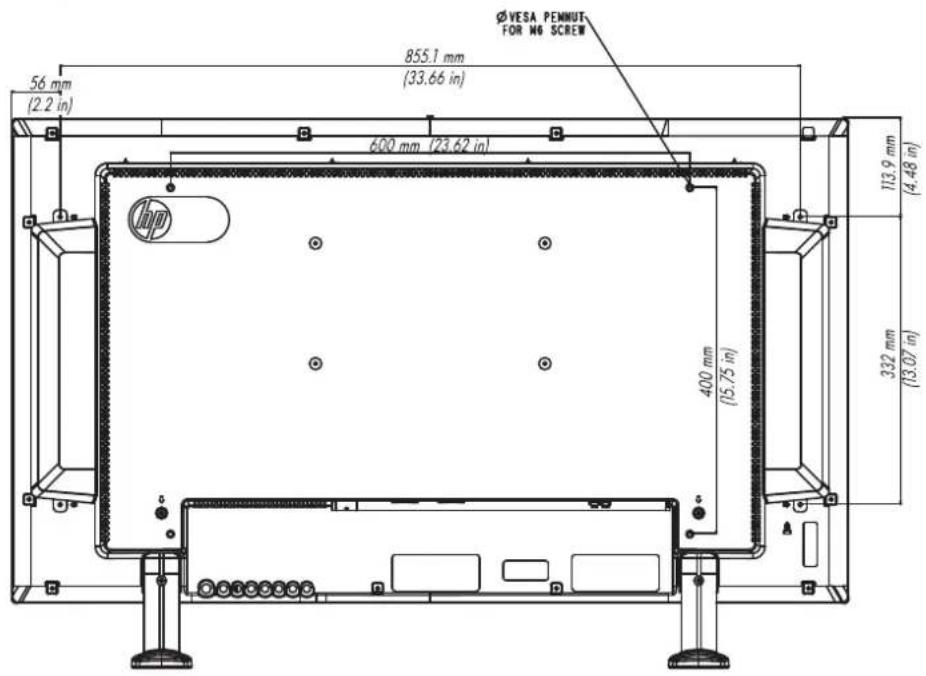
text_image
Ø VESA PENMUT FOR M6 SCREW 855.1 mm (33.66 in) 56 mm (2.2 in) 600 mm (23.62 in) 113.9 mm (4.48 in) 400 mm (15.75 in) 332 mm (13.07 in)HP LD4710 dimensions (with optional stand and speakers)
Figure B-3 HP LD4710—Front and side view

text_image
1079.5 mm (42.5 in) 1043.7 mm (41.09 in) 179 mm (.70 in) 17.9 mm (.70 in) 624.6 mm (24.59 in) 122.9 mm (4.84 in) 72.9 mm (2.87 in) 129.2 mm (5.09 in) 94.3 mm (3.71 in) 179 mm (.70 in) 73.1 mm (2.88 in) 86.9 mm (3.42 in) 588.7 mm (23.18 in) 111 mm (4.37 in) 114.4 mm (4.50 in) 298.3 mm (11.74 in)Figure B-4 HP LD4710—Back view
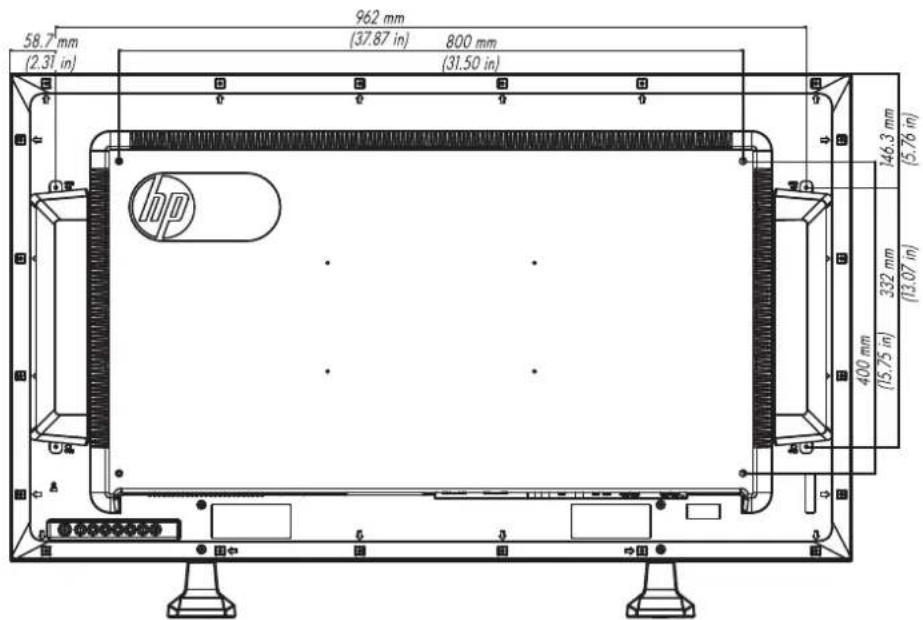
text_image
58.7 mm (2.31 in) 962 mm (37.87 in) 800 mm (31.50 in) 146.3 mm (5.76 in) 332 mm (13.07 in) 400 mm (15.75 in) hp ARecognizing preset display resolutions
The display resolutions listed below are the most commonly used modes and are set as factory defaults. This display automatically recognizes these preset modes and they will appear properly sized and centered on the screen.
Preset display modes
Table B-2 Factory preset display modes
| Preset | Pixel format | Horizontal frequency (kHz) | Vertical Frequency (Hz) |
| 1 | 720 x 400 | 31.468 | 70.1 |
| *2 | 640 x 480 | 31.469 | 59.94 |
| 3 | 640 x 480 | 37.5 | 75 |
| *4 | 800 x 600 | 37.879 | 60.317 |
| 5 | 800 x 600 | 46.875 | 75 |
| 6 | 832 x 624 | 49.725 | 74.55 |
| *7 | 1024 x 768 | 48.363 | 60 |
| 8 | 1024 x 768 | 60.123 | 75.029 |
| *9 | 1280 x 720 | 44.772 | 59.855 |
| *10 | 1280 x 1024 | 63.981 | 60.02 |
| 11 | 1280 x 1024 | 79.98 | 75.02 |
| *12 | 1680 x 1050 | 65.290 | 59.954 |
| *13 | 1920 x 1080 | 67.5 | 60 |
| 1 to 13 RGB mode* HDMI/DisplayPort mode | |||
DTV mode
| HDMI/DVI (DTV) | DisplayPort | |
| 480i | x | x |
| 480p | o | o |
| 576i | x | x |
| 576p | o | o |
| 720p | o | o |
| 1080i | ○ | ○ |
| 1080p | ○ | ○ |

NOTE: DTV/PC selection on HDMI/DVI inputs is available for media player/computer resolutions—640 x 480/60 Hz, 1280 x 720/60 Hz, 1920 x 1080/60 Hz and DTV resolutions—480p, 720p, 1080p.
Power indicator
| Mode | LED indicator light |
| On Mode | Blue |
| Sleep Mode | Amber |
| Off Mode | - |
C Command reference
Use this method to connect several products to a single PC. You can control several products at a time by connecting them to a single PC. If the Set ID menu in Option is set to OFF, the monitor ID value should be set between 1 and 99.
Connecting the cable
Connect the RS-232-C cable as shown in the following illustration. The RS-232-C protocol is used for communication between the media player/computer and the display. You can turn the display on/off, select an input source or adjust the OSD menu from the media player/computer.
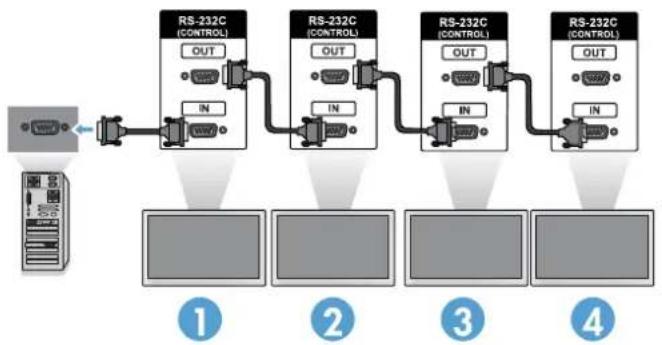
flowchart
graph LR
    A["Server"] --> B["RS-232C (CONTROL)"]
    B --> C["Port 1"]
    B --> D["Port 2"]
    B --> E["Port 3"]
    B --> F["Port 4"]
    B --> G["Port 5"]
    B --> H["Port 6"]
    B --> I["Port 7"]
    B --> J["Port 8"]
    B --> K["Port 9"]
    B --> L["Port 10"]
    B --> M["Port 11"]
    B --> N["Port 12"]
RS-232-C configurations
| 7-Wire configurations(Standard RS-232-C cable) | 3-Wire configurations(Not Standard) | |||||||
| media player/computer | Display | media player/computer | Display | |||||
| RXD | 2 | 3 | TXD | RXD | 2 | 3 | TXD | |
| TXD | 3 | 2 | RXD | TXD | 3 | 2 | RXD | |
| GND | 5 | 5 | GND | GND | 5 | 5 | GND | |
| DTR | 4 | 6 | DSR | DTR | 4 | 6 | DSR | |
| DSR | 6 | 4 | DTR | DSR | 6 | 4 | DTR | |
| RTS | 7 | 8 | CTS | RTS | 7 | 7 | CTS | |
| CTS | 8 | 7 | RTS | CTS | 8 | 8 | RTS | |
| D-Sub 9(Female) | D-Sub 9(Female) | D-Sub 9(Female) | D-Sub 9(Female) | |||||
Communication parameter
• Baud Rate—9600 baud rate (UART)
Data Length—8 bit
- Parity Bit—None
- Stop Bit—1 bit
Flow Control—None
• Communication Code—ASCII code
• Use a crossed (reverse) cable
Command reference list
| COMMAND 1 | COMMAND 2 | DATA1 | DATA2 | DATA3 | |
| 01. Power | k | a | 00H-01H | ||
| 02. Input Select | k | b | 07H-08H | ||
| 03. Aspect Ratio | k | c | 01H-1FH | ||
| 04. Screen Mute | k | d | 00H-01H | ||
| 05. Volume Mute | k | e | 00H-01H | ||
| 06. Volume Control | k | f | 00H-64H | ||
| 07. Contrast | k | g | 00H-64H | ||
| 08. Brightness | k | h | 00H-64H | ||
| 09. Color | k | i | 00H-64H | ||
| 10. Tint | k | j | 00H-64H | ||
| 11. Sharpness | k | k | 00H-64H | ||
| 12. OSD Select | k | l | 00H-01H | ||
| 13. Remote Lock/Key Lock | k | m | 00H-01H | ||
| 14. Balance | k | t | 00H-64H | ||
| 15. Color Temperature | k | u | 00H-02H | ||
| 16. Abnormal State | k | z | FFH | ||
| 17. ISM Method | j | p | 01H-08H | ||
| 18. Auto Configuration | j | u | 01H | ||
| 19. Key | m | c | Key Code | ||
| 20. Tile Mode | d | d | 00H-55H | ||
| 21. Tile H Position | d | e | 00H-14H | ||
| 22. Tile V Position | d | f | 00H-14H | ||
| 23. Tile H Size | d | g | 00H-64H | ||
| 24. Tile V Size | d | h | 00H-64H | ||
| 25. Tile ID Set | d | i | 00H-19H | ||
| 26. Natural Mode (In Tile Mode) | d | j | 00H-01H | ||
| 27. Picture Mode (PSM) | d | x | 00H-06H | ||
| 28. Sound Mode | d | y | 01H-05H | ||
| 29. Fan Fault Check | d | w | FFH | ||
| 30. Elapsed Time Return | d | l | FFH | ||
| 31. Temperature Value | d | n | FFH | ||
| 32. Lamp Fault Check | d | p | FFH | ||
| 33. Auto Volume | d | u | 00H-01H | ||
| 34. Speaker | d | v | 00H-01H | ||
| 35. Time | f | a | 00H-06H | 00H-17H | 00H-3BH |
| 36. On Timer (On/Off Timer) Time | f | d | F1H-F4HE0H-E4H01H-80H | 00H-17H | 00H-3BH |
| 37. Off Timer (On/Off Timer) Time | f | e | F1H-F4HE0H-E4H01H-80H | 00H-17H | 00H-3BH |
| 38. Scheduling Input Select | f | u | F1H-F4H | 07H-0BH | |
| 39. Sleep Time | f | f | 00H-08H | ||
| 40. Auto Off | f | g | 00H-01H | ||
| 41. Power On Delay | f | h | 00H-64H | ||
| 42. Language | f | i | 00H-09H | ||
| 43. DPM Select | f | j | 00H-01H | ||
| 44. Reset | f | k | 00H-02H | ||
| 45. Energy Saving | f | l | 00H-03H | ||
| 46. Power Indicator | f | o | 00H-01H | ||
| 47. Serial No. | f | y | FFH | ||
| 48. S/W Verison | f | z | FFH | ||
| 49. Input Select | x | b | 60H-C0H |
Transmission/Receiving Protocol
Transmission
[Command1][Command2]][Set ID]][Data][Cr]
| *[Command 1] | First command (k, j, m, d, f, x) |
| *[Command 2] | Second command (a to z) |
| *[Set ID] | Set up the Set ID number of product. range: 01H to 63H. by setting '0', server can control all products.When operating with more than 2 sets using set ID as '0' at the same time, do not check the ack message. Because all sets will send the ack message, it is not possible to check all of the ack messages. |
| *[Data] | To transmit command data.Transmit 'FF' data to read status of command. |
| *[Cr] | Carriage ReturnASCII code '0 x 0 D' |
| *[[] | ASCII code Space (0 x 20) |
OK Acknowledgement
[Command2]][Set ID]][OK][Data][x]
*The Product transmits ACK (acknowledgement) based on this format when receiving normal data. At this time, if the data is in data read mode, it indicates present status data. If the data is in data write mode, it returns the data of the media player/computer.
Error Acknowledgement
[Command2]][Set ID]][NG][Data][x]
If there is an error, it returns NG
01. Power (Command: a)
To control Power On/Off of the Set.
Transmission
[k][a][Set ID][Data][Cr]
[Data]
0: Power Off
1: Power On
Acknowledgement
[a]][Set ID]][OK][Data][x]
To show the status of Power On/Off.
Transmission
[k][a]][Set ID]][FF][Cr]
Acknowledgement
[a]][Set ID]][OK][Data][x]
[Data]
0: Power Off
1: Power On
02. Input Select (Command: b) (Main Picture Input)
To select input source for the Set.
You can also select an input source using the INPUT button on the remote control.
Transmission
[k][b][][Set ID]][Data][Cr]
[Data]
7: RGB (PC)
8: HDMI/DVI (HD-DVD)
9: HDMI (PC)
A: DisplayPort (HD·DVD)
B: DisplayPort (PC)
Acknowledgement
[b][ ][Set ID][ ][OK][Data][x]
[Data]
7: RGB (PC)
8: HDMI/DVI (HD-DVD)
9: HDMI (PC)
A: DisplayPort (HD-DVD)
B: DisplayPort (PC)
03. Aspect Ratio (Command: c) (Main picture format)
To adjust the screen format.
You can also adjust the screen format using the ARC (Aspect Ratio Control) button on remote control or in the Screen menu.
Transmission
| [k][c]][Set ID]][Data][Cr] | |
| [Data] | 1: Normal Screen (4:3) |
| 2: Wide Screen (16:9) | |
| 4: Zoom [HDMI (HD-DVD), DisplayPort (HD-DVD)] | |
| 6: Original | |
| 7: 14:9 [HDMI (HD-DVD), DisplayPort (HD-DVD)] | |
| 9: Just Scan [HDMI (HD-DVD), DisplayPort (HD-DVD)] | |
| When the RGB, HDMI/DVI-PC, DisplayPort-PC mode (1:1) | |
| 10 to 1F: Cinema Zoom 1 to 16 [HDMI (HD-DVD), DisplayPort (HD-DVD)] | |
Acknowledgement
[c][ ][Set ID][ ][OK][Data][x]
04. Screen Mute (Command: d)
To select screen mute on/off.
Transmission
| [k][d][Set ID][Data][Cr] | |
| [Data] | 0: Screen mute off (Picture on) |
| 1: Screen mute on (Picture off) | |
Acknowledgement
[d]][Set ID]][OK][Data][x]
05. Volume Mute (Command: e)
To control On/Off of the Volume Mute.
Transmission
[k][e][ ][Set ID][ ][Data][Cr]
[Data]
0: Volume Mute On (Volume Off)
1: Volume Mute Off (Volume On)
Acknowledgement
[e]][Set ID][OK][Data][x]
[Data]
0: Volume Mute On (Volume Off)
1: Volume Mute Off (Volume On)
06. Volume Control (Command: f)
To adjust Volume.
Transmission
[k][f][ ][Set ID][ ][Data][Cr]
[Data]
Min: 00H to Max: 64H
(Hexadecimal code)
Acknowledgement
[f][Set ID][OK][Data][x]
[Data]
Min: 00H to Max: 64H
| Real data mapping | 0: Step 0 |
| : | |
| A: Step 10 | |
| : | |
| F: Step 15 | |
| 10: Step 16 | |
| : | |
| 64: Step 100 |
07. Contrast (Command: g)
To adjust screen contrast. You can also adjust the contrast in the Picture menu.
Transmission
| [k][g][ ][Set ID][ ][Data][Cr] | |
| [Data] | Min: 00H to Max: 64H |
Acknowledgement
| [g]][Set ID]][OK][Data][x] |
| Real data mapping | 0: Step 0 |
| : | |
| A: Step 10 | |
| : | |
| F: Step 15 | |
| 10: Step 16 | |
| : | |
| 64: Step 100 |
08. Brightness (Command: h)
To adjust screen brightness. You can also adjust the brightness in the Picture menu.
Transmission
[k][h][ ][Set ID][ ][Data][Cr]
[Data]
Min: 00H to Max: 64H
Refer to "Real data mapping" as shown below.
Acknowledgement
[h][ ][Set ID][ ][OK][Data][x]
Real data mapping
0: Step 0
:
A: Step 10
:
F: Step 15
10: Step 16
:
64: Step 100
09. Color (Command: i) (Video Timing only)
To adjust the screen color. You can also adjust the color in the Picture menu.
Transmission
[k][i][Set ID][Data][Cr]
[Data]
Min: 00H to Max: 64H
(Hexadecimal code)
| Real data mapping | 0: Step 0 |
| : | |
| A: Step 10 | |
| : | |
| F: Step 15 | |
| 10: Step 16 | |
| : | |
| 64: Step 100 |
Acknowledgement
| [i][Set ID][OK][Data][x] | |
| [Data] | Min: 00H to Max: 64H(Hexadecimal code) |
10. Tint (Command: j) (Video Timing only)
To adjust the screen tint. You can also adjust the tint in the Picture menu.
Transmission
| [k][j]][Set ID]][Data][Cr] |
| [Data] | Red: 00H to Green: 64H(Hexadecimal code) |
| Real data mapping | 0: Step 0 |
| : | |
| A: Step 10 | |
| : | |
| F: Step 15 | |
| 10: Step 16 | |
| : | |
| 64: Step 100 |
Acknowledgement
| [i][Set ID][OK][Data][x] | |
| [Data] | Red: 00H to Green: 64H |
| Tint real data mapping | 0: Step 0 to Red |
| : | |
| 64: Step 100 to Green |
11. Sharpness (Command: k) (Video Timing only)
To adjust the screen Sharpness. You can also adjust the sharpness in the Picture menu.
Transmission
| [k][k][Set ID][Data][Cr] |
| [Data] | Min: 00H to Max: 64H(Hexadecimal code) |