VW223T - Televizor ASUS - Besplatni korisnički priručnik
Pronađite besplatno priručnik za uređaj VW223T ASUS u PDF formatu.


Pitanja korisnika o VW223T ASUS
0 pitanje o ovom uređaju. Odgovorite na one koje znate ili postavite svoje.
Postavi novo pitanje o ovom uređaju
Preuzmite upute za vaš Televizor u PDF formatu besplatno! Pronađite svoj priručnik VW223T - ASUS i uzmite svoju elektroničku napravu natrag u ruke. Na ovoj stranici objavljeni su svi dokumenti potrebni za korištenje vaše naprave. VW223T marke ASUS.
KORISNIČKI PRIRUČNIK VW223T ASUS
VW223 Series LCD Monitor
User Guide

natural_image
Line drawing of a flat-screen computer monitor with a circular base (no text or symbols)E3693
First Edition V1
March 2008
Copyright © 2008 ASUSTeK COMPUTER INC. All Rights Reserved.
No part of this manual, including the products and software described in it, may be reproduced, transmitted, transcribed, stored in a retrieval system, or translated into any language in any form or by any means, except documentation kept by the purchaser for backup purposes, without the express written permission of ASUSTeK COMPUTER INC. ("ASUS").
Product warranty or service will not be extended if: (1) the product is repaired, modified or altered, unless such repair, modification of alteration is authorized in writing by ASUS; or (2) the serial number of the product is defaced or missing.
ASUS PROVIDES THIS MANUAL "AS IS" WITHOUT WARRANTY OF ANY KIND, EITHER EXPRESS OR IMPLIED, INCLUDING BUT NOT LIMITED TO THE IMPLIED WARRANTIES OR CONDITIONS OF MERCHANTABILITY OR FITNESS FOR A PARTICULAR PURPOSE. IN NO EVENT SHALL ASUS, ITS DIRECTORS, OFFICERS, EMPLOYEES OR AGENTS BE LIABLE FOR ANY INDIRECT, SPECIAL, INCIDENTAL, OR CONSEQUENTIAL DAMAGES (INCLUDING DAMAGES FOR LOSS OF PROFITS, LOSS OF BUSINESS, LOSS OF USE OR DATA, INTERRUPTION OF BUSINESS AND THE LIKE), EVEN IF ASUS HAS BEEN ADVISED OF THE POSSIBILITY OF SUCH DAMAGES ARISING FROM ANY DEFECT OR ERROR IN THIS MANUAL OR PRODUCT.
SPECIFICATIONS AND INFORMATION CONTAINED IN THIS MANUAL ARE FURNISHED FOR INFORMATIONAL USE ONLY, AND ARE SUBJECT TO CHANGE AT ANY TIME WITHOUT NOTICE, AND SHOULD NOT BE CONSTRUED AS A COMMITMENT BY ASUS. ASUS ASSUMES NO RESPONSIBILITY OR LIABILITY FOR ANY ERRORS OR INACCURACIES THAT MAY APPEAR IN THIS MANUAL, INCLUDING THE PRODUCTS AND SOFTWARE DESCRIBED IN IT.
Products and corporate names appearing in this manual may or may not be registered trademarks or copyrights of their respective companies, and are used only for identification or explanation and to the owners' benefit, without intent to infringe.
Contents
Contents .... iii
Notices...... iv
Safety information ...... vi
Care & Cleaning ...... vii
Chapter 1: Product introduction
1.1 Welcome! 1-1
1.2 Package contents.... 1-1
1.3 Monitor introduction.... 1-2
1.3.1 Front view 1-2
1.3.2 Back view.... 1-7
Chapter 2: Setup
2.1 Assembling the monitor base.... 2-1
2.2 Adjusting the monitor.... 2-1
2.3 Detaching the arm/base (for VESA wall mount).... 2-2
2.4 Connecting the cables.... 2-3
2.5 Turning on the monitor 2-3
Chapter 3: General instruction
3.1 OSD (On-Screen Display) menu 3-1
3.1.1 How to reconfigure.... 3-1
3.1.2 OSD Function Introduction.... 3-1
3.2 ASUS EzLink Display (VW223B only) 3-4
3.2.1 System requirements 3-4
3.2.2 Installing ASUS EzLink Display: 3-5
3.2.3 Using ASUS EzLink Display: 3-6
3.3 Specifications summary.... 3-7
3.4 Troubleshooting (FAQ) 3-9
3.5 Supported operating modes 3-10
Notices
Federal Communications Commission Statement
This device complies with Part 15 of the FCC Rules. Operation is subject to the following two conditions:
• This device may not cause harmful interference, and
- This device must accept any interference received including interference that may cause undesired operation.
This equipment has been tested and found to comply with the limits for a Class B digital device, pursuant to Part 15 of the FCC Rules. These limits are designed to provide reasonable protection against harmful interference in a residential installation. This equipment generates, uses and can radiate radio frequency energy and, if not installed and used in accordance with manufacturer's instructions, may cause harmful interference to radio communications. However, there is no guarantee that interference will not occur in a particular installation. If this equipment does cause harmful interference to radio or television reception, which can be determined by turning the equipment off and on, the user is encouraged to try to correct the interference by one or more of the following measures:
• Reorient or relocate the receiving antenna.
- Increase the separation between the equipment and receiver.
- Connect the equipment to an outlet on a circuit different from that to which the receiver is connected.
- Consult the dealer or an experienced radio/TV technician for help.

The use of shielded cables for connection of the monitor to the graphics card is required to assure compliance with FCC regulations. Changes or modifications to this unit not expressly approved by the party responsible for compliance could void the user's authority to operate this equipment.
As an Energy Star® Partner, our company has determined that this product meets the Energy Star® guidelines for energy efficiency.
Canadian Department of Communications Statement
This digital apparatus does not exceed the Class B limits for radio noise emissions from digital apparatus set out in the Radio Interference Regulations of the Canadian Department of Communications.
This class B digital apparatus complies with Canadian ICES-003.
TCO Development

text_image
Tc0Development Tc0'03 DISPLAYS www.tcodevelopment.comCongratulations!
The display you have just purchased carries the TCO'03 Displays label. This means that your display is designed, manufactured and tested according to some of the strictest quality and environmental requirements in the world. This makes for a high performance product, designed with the user in focus that also minimizes the impact on our natural environment.
Some of the features of the TCO'03 Display requirements:
Ergonomics
- Good visual ergonomics and image quality in order to improve the working environment for the user and to reduce sight and strain problems. Important parameters are luminance, contrast, resolution, reflectance, colour rendition and image stability.
Energy
- Energy-saving mode after a certain time – beneficial both for the user and the environment
- Electrical safety
Emissions
• Electromagnetic fields
- Noise emissions
Ecology
- The product must be prepared for recycling and the manufacturer must have a certified environmental management system such as EMAS or ISO 14 001
-
Restrictions on
-
chlorinated and brominated flame retardants and polymers
- heavy metals such as cadmium, mercury and lead.
The requirements included in this label have been developed by TCO Development in cooperation with scientists, experts, users as well as manufacturers all over the world. Since the end of the 1980s TCO has been involved in influencing the development of IT equipment in a more user-friendly direction. Our labelling system started with displays in 1992 and is now requested by users and IT-manufacturers all over the world.
For more information, please visit www.tcodevelopment.com
Safety information
- Before setting up the monitor, carefully read all the documentation that came with the package.
• To prevent fire or shock hazard, never expose the monitor to rain or moisture. - Never try to open the monitor cabinet. The dangerous high voltages inside the monitor may result in serious physical injury.
- If the power supply is broken, do not try to fix it by yourself. Contact a qualified service technician or your retailer.
- Before using the product, make sure all cables are correctly connected and the power cables are not damaged. If you detect any damage, contact your dealer immediately.
- Slots and openings on the back or top of the cabinet are provided for ventilation. Do not block these slots. Never place this product near or over a radiator or heat source unless proper ventilation is provided.
- The monitor should be operated only from the type of power source indicated on the label. If you are not sure of the type of power supply to your home, consult your dealer or local power company.
- Use the appropriate power plug which complies with your local power standard.
- Do not overload power strips and extension cords. Overloading can result in fire or electric shock.
- Avoid dust, humidity, and temperature extremes. Do not place the monitor in any area where it may become wet. Place the monitor on a stable surface.
- Unplug the unit during a lightning storm or if it will not be used for a long period of time. This will protect the monitor from damage due to power surges.
- Never push objects or spill liquid of any kind into the slots on the monitor cabinet.
• To ensure satisfactory operation, use the monitor only with UL listed computers which have appropriate configured receptacles marked between 100-240V AC. - If you encounter technical problems with the monitor, contact a qualified service technician or your retailer.

This symbol of the crossed out wheeled bin indicates that the product (electrical and electronic equipment) should not be placed in municipal waste.
Please check local regulations for disposal of electronic products.
Care & Cleaning
- Before you lift or reposition your monitor, it is better to disconnect the cables and power cord. Follow the correct lifting techniques when positioning the monitor. When lifting or carrying the monitor, grasp the edges of the monitor. Do not lift the display by the stand or the cord.
- Cleaning. Turn your monitor off and unplug the power cord. Clean the monitor surface with a lint-free, non-abrasive cloth. Stubborn stains may be removed with a cloth dampened with mild cleaner.
- Avoid using a cleaner containing alcohol or acetone. Use a cleaner intended for use with the LCD. Never spray cleaner directly on the screen, as it may drip inside the monitor and cause an electric shock.
The following symptoms are normal with the monitor:
- The screen may flicker during the initial use due to the nature of the fluorescent light. Turn off the Power Switch and turn it on again to make sure that the flicker disappears.
- You may find slightly uneven brightness on the screen depending on the desktop pattern you use.
- When the same image is displayed for hours, an afterimage of the previous screen may remain after switching the image. The screen will recover slowly or you can turn off the Power Switch for hours.
- When the screen becomes black or flashes, or cannot work anymore, contact your dealer or service center to fix it. Do not repair the screen by yourself!
Conventions used in this guide
To make sure that you perform certain tasks properly, take note of the following symbols used throughout this manual.

DANGER/WARNING: Information to prevent injury to yourself when trying to complete a task.

CAUTION: Information to prevent damage to the components when trying to complete a task.

IMPORTANT: Instructions that you MUST follow to complete a task.

NOTE: Tips and additional information to help you complete a task.
Where to find more information
Refer to the following sources for additional information and for product and software updates.
1. ASUS websites
The ASUS websites worldwide provide updated information on ASUS hardware and software products. Refer to http://www.asus.com
2. Optional documentation
Your product package may include optional documentation that may have been added by your dealer. These documents are not part of the standard package.
1.1 Welcome!
Thank you for purchasing the ASUS® VW223 Series LCD monitor!
The latest widescreen LCD monitor from ASUS provides a crisper, broader, and brighter display, plus a host of features that enhance your viewing experience.
With these features, you can enjoy the convenience and delightful visual experience that the VW223 Series brings you!
1.2 Package contents
Check your VW223 Series LCD monitor package for the following items:
- LCD monitor
- Monitor base
- Quick start guide
- Power cord x1
- VGA cable x1
• Support CD (For VW223B only)
• USB cable x1 (For VW223B only)
• DVI cable x1 (For VW223N / VW223T only)
• Audio cable x1 (For VW223S / VW223T only)

If any of the above items is damaged or missing, contact your retailer immediately.
1.3 Monitor introduction
1.3.1 Front view
VW223B
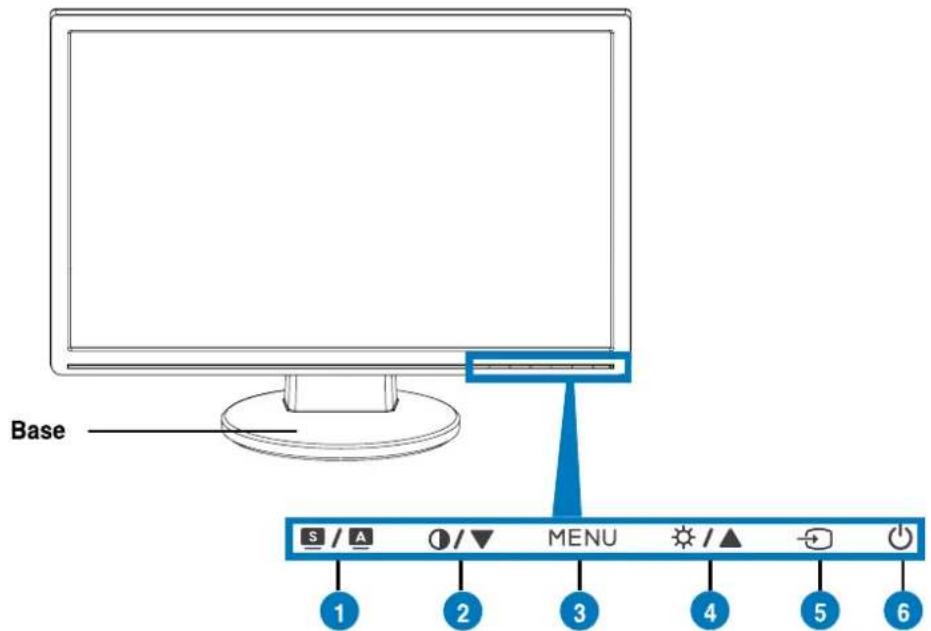
text_image
Base S / A 1 / ▼ MENU 2 3 4 5 61. S / A Button:
• Use this hotkey to switch from five video preset modes (Scenery Mode, Standard Mode, Theater Mode, Game Mode, Night View Mode) with SPLENDID™ Video Enhancement Technology.
- Exit the OSD menu or go back to the previous menu as the OSD menu is active.
• Automatically adjust the image to its optimized position, clock, and phase by pressing this button for 2-4 seconds (for VGA mode only).
2. Ⓞ/▼ Button:
- Press this button to decrease the value of the function selected or move left/down to the previous function.
• This is also a hotkey for Contrast adjustment.
3. MENU Button:
- Press this button to enter/select the icon (function) highlighted while the OSD is activated.
4. ⚙ / ▲ Button:
- Press this button to increase the value of the function selected or move right/up to the previous function.
• This is also a hotkey for Brightness adjustment.
5. Button:
• Use this hotkey to switch between the input sources (VGA and ASUS EzLink Display).
- ⏻ Power Button / Power Indicator:
• Press this button to turn the monitor on/off
• The color definition of the power indicator is as the below table.
| Status | Description |
| Blue | ON |
| Amber | Standby mode |
| OFF | OFF |
VW223S

text_image
S 1 2 MENU 3 4 5 A 6- S Button:
• Use this hotkey to switch from five video preset modes (Scenery Mode, Standard Mode, Theater Mode, Game Mode, Night View Mode) with SPLENDID™ Video Enhancement Technology.
- Exit the OSD menu or go back to the previous menu as the OSD menu is active.
-
🖼️/▼ Button:
-
Press this button to decrease the value of the function selected or move left/down to the next function.
• This is also a hotkey for Volume adjustment. -
MENU Button:
- Press this button to enter/select the icon (function) highlighted while the OSD is activated.
-
⚙ / ▲ Button:
-
Press this button to increase the value of the function selected or move right/up to the previous function.
• This is also a hotkey for Brightness adjustment. -
A Button:
• Automatically adjust the image to its optimized position, clock, and phase by pressing this button for 2-4 seconds.
- ⏻ Power Button / Power Indicator:
• Press this button to turn the monitor on/off
• The color definition of the power indicator is as VW223B.
VW223D

text_image
S 1 /▼ MENU 3 4 5 A 61. S Button:
- Use this hotkey to switch from five video preset modes (Scenery Mode, Standard Mode, Theater Mode, Game Mode, Night View Mode) with SPLENDID™ Video Enhancement Technology.
- Exit the OSD menu or go back to the previous menu as the OSD menu is active.
2. Ⓞ/▼ Button:
- Press this button to decrease the value of the function selected or move left/down to the previous function.
• This is also a hotkey for Contrast adjustment.
3. MENU Button:
- Press this button to enter/select the icon (function) highlighted while the OSD is activated.
4. ⚙ / ▲ Button:
- Press this button to increase the value of the function selected or move right/up to the previous function.
• This is also a hotkey for Brightness adjustment.
5. A Button:
• Automatically adjust the image to its optimized position, clock, and phase by pressing this button for 2-4 seconds.
6. ⏻ Power Button / Power Indicator:
• Press this button to turn the monitor on/off
• The color definition of the power indicator is as VW223B.
VW223N

text_image
S / A 1 / ▼ MENU 3 4 5 61. S / A Button:
- Use this hotkey to switch from five video preset modes (Scenery Mode, Standard Mode, Theater Mode, Game Mode, Night View Mode) with SPLENDID™ Video Enhancement Technology.
- Exit the OSD menu or go back to the previous menu as the OSD menu is active.
• Automatically adjust the image to its optimized position, clock, and phase by pressing this button for 2-4 seconds (for VGA mode only).
2. Ⓞ/▼ Button:
- Press this button to decrease the value of the function selected or move left/down to the previous function.
• This is also a hotkey for Contrast adjustment.
3. MENU Button:
- Press this button to enter/select the icon (function) highlighted while the OSD is activated.
4. ⚙ / ▲ Button:
- Press this button to increase the value of the function selected or move right/up to the previous function.
• This is also a hotkey for Brightness adjustment.
5. Button:
• Use this hotkey to switch between the input sources (VGA and DVI).
6. ⏻ Power Button / Power Indicator:
• Press this button to turn the monitor on/off
• The color definition of the power indicator is as VW223B.
VW223T

text_image
S / A MENU 1 2 3 4 5 61. S / A Button:
- Use this hotkey to switch from five video preset modes (Scenery Mode, Standard Mode, Theater Mode, Game Mode, Night View Mode) with SPLENDID™ Video Enhancement Technology.
- Exit the OSD menu or go back to the previous menu as the OSD menu is active.
• Automatically adjust the image to its optimized position, clock, and phase by pressing this button for 2-4 seconds (for VGA mode only).
2. 📋/▼ Button:
- Press this button to decrease the value of the function selected or move left/down to the next function.
• This is also a hotkey for Volume adjustment.
3. MENU Button:
- Press this button to enter/select the icon (function) highlighted while the OSD is activated.
4. ⚙ / ▲ Button:
- Press this button to increase the value of the function selected or move right/up to the previous function.
• This is also a hotkey for Brightness adjustment.
5. Button:
• Use this hotkey to switch between the input sources (VGA and DVI).
6. ⏻ Power Button / Power Indicator:
• Press this button to turn the monitor on/off
• The color definition of the power indicator is as VW223B.
1.3.2 Back view

text_image
Stereo speaker Screw holes for VESA Wall Mount 1 2 3 4 5 Stereo speaker USB hub Rear connectorsRear connectors
- AC-IN port. This port connects the power connector from the bundled power cord.
- Audio-in port (VW223S, VW223T only). This port connects PC audio source by the bundled audio cable.
- DVI port (VW223N, VW223T onlyl). This 24-pin port is for PC (Personal Computer) DVI-D digital signal connection.
- VGA port. This 15-pin port is for PC VGA connection.
- USB 2.0 port (VW223B only). This port is for the built-in USB hub and ASUS EzLink Display connection.
2.1 Assembling the monitor base
To assemble the monitor base:
- Have the front of the monitor face down on a table.
- Connect the base with the arm according to the below drawing. A click shows that the base has been connected successfully.

We recommend that you cover the table surface with soft cloth to prevent damage to the monitor.

natural_image
Technical line drawing of a device rear panel with internal components and a magnified inset showing a circular component (no text or symbols)2.2 Adjusting the monitor
- For optimal viewing, we recommend that you look at the full face of the monitor, then adjust the monitor to the angle that is most comfortable for you.
- Hold the stand to prevent the monitor from falling when you change its angle.
- You can adjust the monitor's angle from -5^ to 25^ .

text_image
-5°~25°
It is normal that the monitor slightly shakes while you adjust the the viewing angle.
2.3 Detaching the arm/base (for VESA wall mount)
The detachable arm/base of the VW223 Series LCD monitor is specially designed for VESA wall mount.
To detach the arm/base:
- Have the front of the monitor face down on a table.
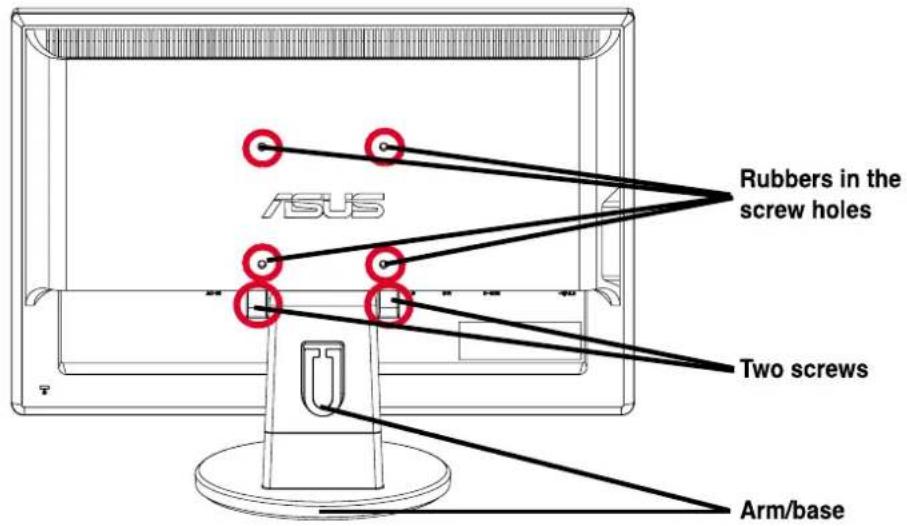
- Remove the rubbers in the four screw holes (Figure 1).
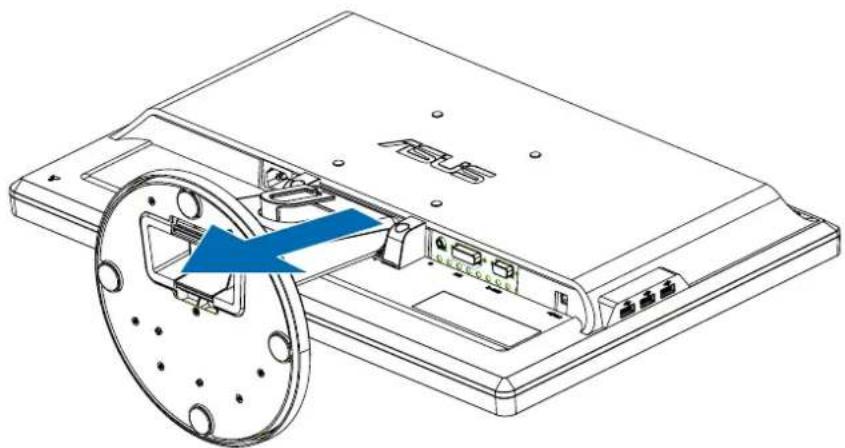
- Use a screwdriver to remove the two screws on the arm (Figure 1), then slide out the arm/base to detach it from the monitor (Figure 2).
text_image
Rubbers in the screw holes Two screws Arm/baseFigure 1
natural_image
Technical line drawing of an electronic device showing internal components and a blue arrow indicating a specific part (no text or symbols present)Figure 2

We recommend that you cover the table surface with soft cloth to prevent damage to the monitor.
2.4 Connecting the cables
- Connect the cables as the following instructions:

text_image
AC-IN AUDIO IN DVI VGA 2.0 (B-Type)- To connect the power cord: connect one end of the power cord securely to the monitor's AC input port, and the other end to a power outlet.
- To connect the USB cable (VW223B only): connect the B-type end of the USB cable to the monitor's USB port, and the A-type end to the computer's USB 2.0 port.
• To connect the VGA cable / DVI cable (VW223N / VW223T only):
a. Plug the VGA / DVI connector to the LCD monitor's VGA / DVI port.
b. Connect the other end of the VGA / DVI cable to your computer's VGA / DVI port.
c. Tighten the two screws to secure the VGA / DVI connector.
- To connect the audio cable (VW223S / VW223T only): connect one end of the audio cable to the monitor's Audio-in port, and the other end to the computer's audio-out port.

When both the VGA and the DVI cables are connected, you can choose either VGA mode or DVI mode from the Input Select item of the OSD functions.
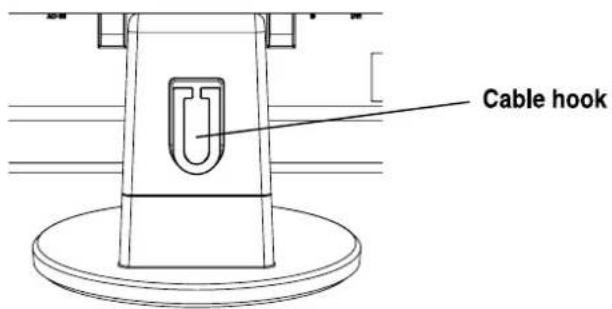
- Gather all the cables with the cable hook.
text_image
Cable hook2.5 Turning on the monitor
Gently press the power button ⏻. See page 1-2 for the location of the power button. The power indicator ⏻ lights up in blue to show that the monitor is ON.
3.1 OSD (On-Screen Display) menu
3.1.1 How to reconfigure
-
Press the MENU button to activate the OSD menu.
-
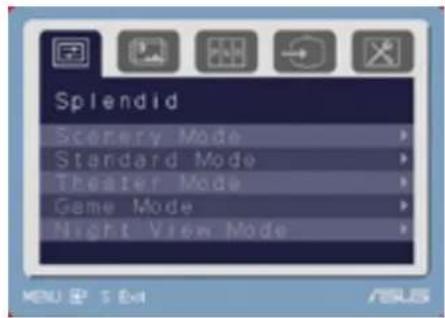
Press ▼ and ▲ to navigate through the functions. Highlight and activate the desired function by pressing the MENU button. If the function selected has a sub-menu, press ▼ and ▲ again to navigate through the sub-menu functions. Highlight and activate the desired sub-menu function by pressing the MENU button.
text_image
Splendid Scenery Mode > Standard Mode > Theater Mode > Game Mode > Night View Mode >-
Press ▼ and ▲ to change the settings of the selected function.
-
To exit the OSD menu, press the S button. Repeat step 2 and step 3 to adjust any other function.
3.1.2 OSD Function Introduction
1. Spendid
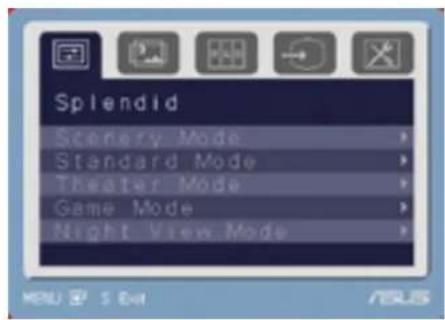
This function contains five sub-functions you can select for your preference. Each mode has the Reset selection, allowing you to maintain your setting or return to the preset mode.
text_image
Splendid Scenery Mode > Standard Mode > Theater Mode > Game Mode > Night View Mode >- Scenery Mode: best choice for scenery photo display with SPLENDID™ Video Enhancement.
- Standard Mode: best choice for document editing with SPLENDID™ Video Enhancement.
• Theater Mode: best choice for movie with SPLENDID™ Video Enhancement.
• Game Mode: best choice for game playing with SPLENDID™ Video Enhancement. - Night View Mode: best choice for dark-scene game or movie with SPLENDID™ Video Enhancement.

- In the Standard Mode, the Satuation and Sharpness functions are not user-configurable.
• In the other modes, the sRGB function is not user-configurable.
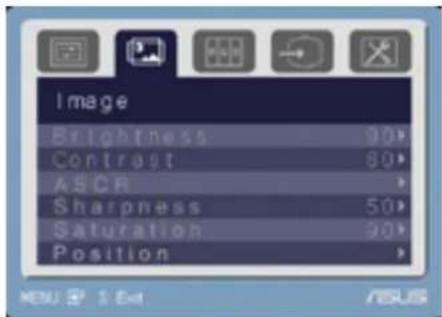
2. Image
You can adjust brightness, contrast, sharpness, saturation, position (VGA only), ASCR, and focus (VGA only) from this main function.
- Brightness: the adjusting range is from 0 to 100. ✅ is a hotkey to activate this function.
- Contrast: the adjusting range is from 0 to 100. Ⓞ is a hotkey to activate this function (for those models without speakers).
• ASCR: turns on/off the ASCR(ASUS Smart Contrast Ratio) function.
• Sharpness: the adjusting range is from 0 to 100.
• Saturation: the adjusting range is from 0 to 100. - Position: adjusts the horizontal position (H-Position) and the vertical position (V-Position) of the image. The adjusting range is from 0 to 100.
- Focus: reduces Horizontal-line noise and Vertical-line noise of the image by adjusting (Phase) and (Clock) separately. The adjusting range is from 0 to 100.

- Phase adjusts the phase of the pixel clock signal. With a wrong phase adjustment, the screen shows horizontal disturbances.
- Clock (pixel frequency) controls the number of pixels scanned by one horizontal sweep. If the frequency is not correct, the screen shows vertical stripes and the image is not proportional.
3. Color
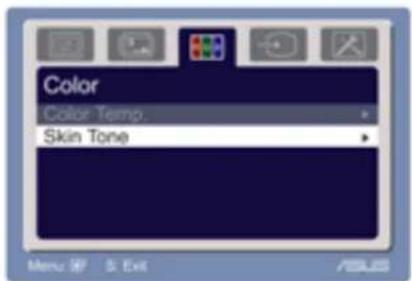
Select the image color you like from this function.
• Color Temp.: contains five color modes including Cool, Normal, Warm, sRGB, and User mode.
• Skin Tone: contains three color modes including Reddish, Natural, and Yellowish.
text_image
Color Color Temp Skin Tone
In the User mode, colors of R (Red), G (Green), and B (Bluee) are user-configurable; the adjusting range is from 0-100.
text_image
Image Brightness 90° Contrast 80° ASCR Sharpness 50° Saturation 90° Position4. Input Select
In this function, you can select from VGA, DVI (Only for some models), or EzLink (VW223B only) input source.

text_image
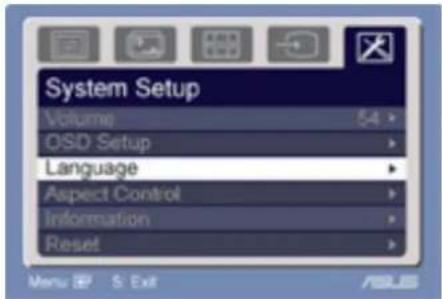
Input Select VGA DVI EzLink5. System Setup
Allow you to adjust the system.
• Volume: the adjusting range is from 0 to 100. 📋/▼ is a hotkey to activate this function (for those models with speakers.).
- OSD Setup:
*Adjusts the horizontal position
(H-Position)/ the vertical position (V-Position) of the OSD from 0 to 100.
*Adjusts the OSD timeout from 10 to 120.
*Enables or disables the DDC/CI function.
• Language: there are ten languages for your selection, including English, German, Italian, French, Dutch, Spanish, Russian, Traditional Chinese, Simplified Chinese, and Japanese.
- Aspect Control: adjusts the aspect ratio to "Full" or "4:3".
• Information: shows the monitor information.
- Reset: "Yes" allows you to restore the default setting.
text_image
System Setup Volume 54 OSD Setup Language Aspect Control Information Reset Menu S Exit3.2 ASUS EzLink Display (VW223B only)
ASUS VW223B provides the easy-to-use EzLink Display that allows you to transfer digital video signal from your PC to your LCD via a standard USB 2.0 cable. Without the necessity of purchasing additional graphics cards, EzLink Display supports up to 6 ASUS LCD monitors connected to a single PC, providing the flexibility for multi-screen applications.

flowchart
graph TD
    A["Computer 3"] --> B["Computer 2"]
    C["Computer 4"] --> D["Computer 1"]
    E["Computer 6"] --> F["Computer 5"]
    B --> G["Laptop"]
    D --> G
    F --> G

- The above illustration of multi-monitor connection is for reference only. Refer to previous chapters for actual connector locations.
• Refer to www.asus.com for EzLink Display-support ASUS LCDs. - ASUS EzLink Display supports 32-bit Windows® OS environment only. No image will be displayed under computer POST, motherboard BIOS, or DOS environment.
3.2.1 System requirements
Before you install the ASUS EzLink Display software, check if your system meets the following requirements:
Hardware:
• PC with 1 GHz or higher
• 256MB of RAM or higher
- USB 2.0 port
• 30MB of available disk space
• Super VGA (800 x 600) video adaptor or higher resolution
• USB cable A-type to B-type
Supporting operating system:
- Windows 2000 SP4
• Windows XP SP2/SP3 - Windows Vista
3.2.2 Installing ASUS EzLink Display:
- Close all other applications.
- Insert the support CD into the optical drive and select the EzLink Driver.
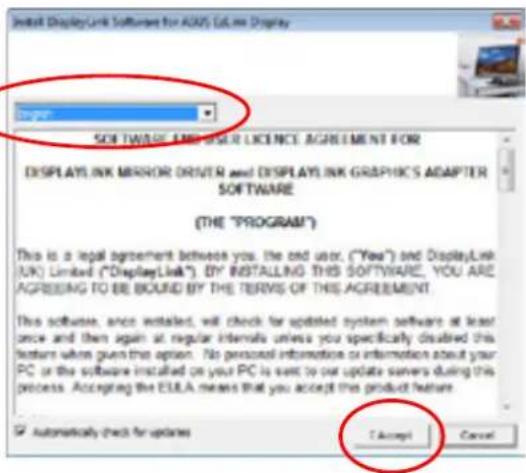
- Select the language of the software end user licence agreement and click I Accept.
- The software installation starts. When finished, click Yes to restart the computer.
text_image
Install DisplayLink Software for iOS's ELLim Display SOTWARE AND YOUR LICENCE AGREEMENT FOR DISPLAYLINK MINOR DRIVER and DISPLAYLINK GRAPHICS ADAPTER SOFTWARE (THE "PROGRAM") This is a legal agreement between you. The end user, ("Yes") and DisplayLink (UK) Limited ("DisplayLink"). BY INSTALLING THIS SOFTWARE, YOU ARE AGREEING TO BE BOUND BY THE TERMS OF THIS AGREEMENT. This software, once installed, will check for updated system software at least once and then again at regular intervals unless you specifically desired this feature when given this option. No personal information or information about your PC or the software installed on your PC is sent to our update servers during this process. Accepting the ESILA means that you accept this product feature. Automatically check for updates [ Accept ] Cancel
text_image
ASUS EzLink Display You must restart your system for the configuration changes made to ASUS EzLink: Display to take effect. Click: Yes to restart now or No if you plan to manually restart later. Yes No3.2.3 Using ASUS EzLink Display:
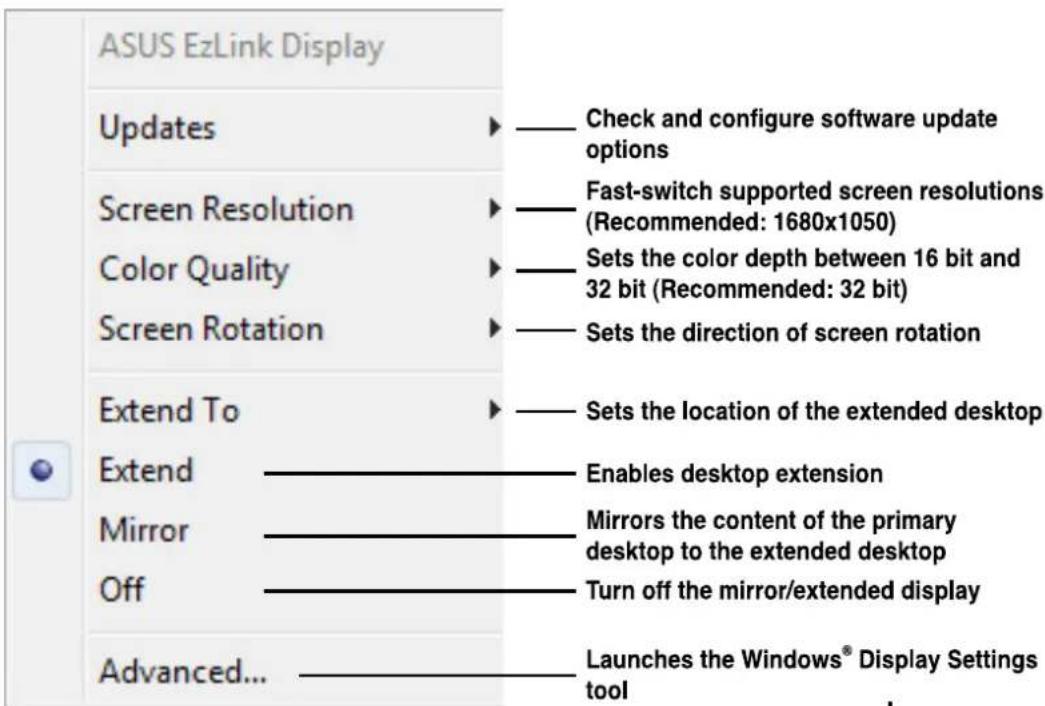
Right-click the EzLink system tray icon to show the EzLink software menu.


3:31 PM
text_image
ASUS EzLink Display Updates Screen Resolution Color Quality Screen Rotation Extend To Extend Mirror Off Advanced... Check and configure software update options Fast-switch supported screen resolutions (Recommended: 1680x1050) Sets the color depth between 16 bit and 32 bit (Recommended: 32 bit) Sets the direction of screen rotation Sets the location of the extended desktop Enables desktop extension Mirrors the content of the primary desktop to the extended desktop Turn off the mirror/extended display Launches the Windows® Display Settings tool
text_image
Display Settings Monitor Drag the icons to match your monitors. Identify Monitors 1 3 2 3. ASUS EzLink Display (USB_XXXX-XXXXXXXXXXXX) This is my main monitor Extend the desktop onto this monitor Resolution: Low High Colors: Highest (32 bit) 1680 by 1050 pixels How do I get the best display? Advanced Settings... OK Cancel Apply3.3 Specifications summary
| Model Name | VW223B | VW223S | VW223D | VW223N | VW223T | |
| Display | Panel Size | 22" Wide Screen | ||||
| Panel Type | TN | |||||
| Physical Resolution | 1680 x 1050 | |||||
| Brightness (Max.) | 300cd/m^2 | |||||
| Intrisinc Contrast Ratio (Max.) | 1000:1 | |||||
| Dynamic Contrast Ratio (Max.) | 3000:1 | |||||
| Viewing Angle (CR=10) | 160°(V) ; 170°(H) | |||||
| Color Saturation (NTSC) | 72% | |||||
| Display Colors | 16.7 M (6-bit + Hi-FRC) | |||||
| Response Time | 5ms (Tr+Tf) | |||||
| Video Features | HDCP support | No | No | No | Yes | Yes |
| SPLENDIDTM Video Intelligence Tech. | Yes | |||||
| DCR Technology | Yes | |||||
| SPLENDIDTM Video Preset Mode | 5 modes (Standard, Scenery, Theater, Game, Night View) | |||||
| Skin-tone Selection | 3 modes (Reddish, Normal, Yellowish) | |||||
| Color Temperature Selection | 5 modes (9300K/ 7500K/ 6500K/ sRGB/ User Mode) | |||||
| sRGB | Yes | |||||
| Audio Features | Satellite Speaker | No | 1W x 2 stereo | No | No | 1W x 2 stereo |
| Convenient Hotkeys | SPLENDIDTM Mode Select. | Yes (5 modes) | ||||
| Auto. Adjustment | Yes (VGA mode) | |||||
| Brightness Adjustment | Yes | |||||
| Contrast Adjustment | Yes | No | Yes | Yes | No | |
| Volume Adjustment | No | Yes | No | No | Yes | |
(continued on the next page)
Specifications summary (continue)
| Model Name | VW223B | VW223S | VW223D | VW223N | VW223T | |
| Input / Output | PC Digital Input | USB 2.0 | No | No | DVI | DVI |
| PC Analogue Input | D-Sub | |||||
| PC Audio Input (to built-in speakers) | No | 3.5mm Mini-jack | No | No | 3.5mm Mini-jack | |
| Microphone Input | No | |||||
| Earphone Output | No | |||||
| Power Consumption | Power ON | 65 W | 55W | 55W | 55W | 55W |
| Power Saving Mode | < 2W | |||||
| Power OFF Mode | < 1W | |||||
| Mechanical Design | Detachable Base | Yes | ||||
| Tilt | +25° to -5° | |||||
| Swivel | No | |||||
| Pivot | No | |||||
| Height Adjustment | No | |||||
| VESA Wall Mounting | Yes (100mm x 100mm) | |||||
| Dimension | Phys. Dimension (WxHxD) | 511.56(W) x 402.95(H) x 210(D) mm | ||||
| Box Dimension (WxHxD) | 570(W) x 460(H) x 152(D) mm | |||||
| Weight | Net Weight (Esti.) | 4924 g | 4850 g | 4850 g | 4850 g | 4850 g |
| Gross Weight (Esti.) | 6220 g | 6072 g | 6052 g | 6258 g | 6290 g | |
| Multi-languages | OSD | 10 Languages (English, German, Italian, French, Dutch, Spanish, Russian, Traditional Chinese, Simplified Chinese, Japanese) | ||||
| User Guide / Quick Start Guide | 28 Languages QSG (English, German, Italian, French, Dutch, Spanish, Russian, Portuguese, Polish, Czech, Swedish, Norwegian, Finnish, Danish, Hungarian, Serbian, Greek, Romanian, Traditional Chinese, Simplified Chinese, Japanese, Turkish, Arabic, Korean, Thai, Indonesian, Bulgarian, Slovak) | |||||
| Accessories | Power cord, VGA cable, USB cable (B only), Audio cable (S, T only), DVI cable (T, N only) Warranty card, QSG, CD | |||||
| Regulation Approvals | Energy Star®, UL/cUL, CB, CE, FCC, CCC, BSMI, Gost-R, C-Tick, VCCI, PSB, J-MOSS, RoHS, WEEE, Windows Vista WHQL | |||||
*Specifications are subject to change without notice.
3.4 Troubleshooting (FAQ)
| Problem | Possible Solution |
| Power LED is not ON | Press the button to check if the monitor is in the ON mode.Check if the power cord is properly connected to the monitor and the power outlet. |
| The power LED lights amber and there is no screen image | Check if the monitor and the computer are in the ON mode.Make sure the signal cable is properly connected the monitor and the computer.Inspect the signal cable and make sure none of the pins are bent.Connect the computer with another available monitor to check if the computer is properly working. |
| Screen image is too light or dark | Adjust the Contrast and Brightness settings via OSD. |
| Screen image is not centered or sized properly | Press the button for two seconds to automatically adjust the image.Adjust the H-Position or V-Position settings via OSD. |
| Screen image bounces or a wave pattern is present in the image | Make sure the signal cable is properly connected to the monitor and the computer.Move electrical devices that may cause electrical interference. |
| Screen image has color defects (white does not look white) | Inspect the signal cable and make sure that none of the pins are bent.Perform Reset via OSD.Adjust the R/G/B color settings or select the Color Temperature via OSD. |
| Screen image is blurry or fuzzy | Press the button for two seconds to automatically adjust the image (for VGA mode only).Adjust the Phase and Clock settings via OSD. |
| No sound or sound is low | Ensure that the audio cable is properly connected to the monitor and the computerAdjust the volume settings of both your monitor and computer.Ensure that the computer sound card driver is properly installed and activated. |
3.5 Supported operating modes
| Resolution | Refresh Rate | Horizontal Frequency | Standard Type |
| 720 x 400 | 70 Hz | 31.5 kHz | DOS |
| 640 x 480 | 60 Hz | 31.5 kHz | Industry Standard |
| 640 x 480 | 67 Hz | 35.0 kHz | MAC |
| 640 x 480 | 72 Hz | 37.9 kHz | VESA Standard |
| 640 x 480 | 75 Hz | 37.5 kHz | VESA Standard |
| 800 x 600 | 60 Hz | 37.9 kHz | VESA Guidelines |
| 800 x 600 | 72 Hz | 48.1 kHz | VESA Standard |
| 800 x 600 | 75 Hz | 46.9 kHz | VESA Standard |
| 832 x 624 | 75 Hz | 49.7 kHz | MAC |
| 1024 x 768 | 60 Hz | 48.4 kHz | VESA Guidelines |
| 1024 x 768 | 70 Hz | 56.5 kHz | VESA Standard |
| 1024 x 768 | 75 Hz | 60.0 kHz | VESA Standard |
| 1152 x 864 | 75 Hz | 67.5 kHz | VESA Standard |
| 1280 x 960 | 60 Hz | 60.0 kHz | VESA Standard |
| 1280 x 1024 | 60 Hz | 64.0 kHz | VESA Standard |
| 1280 x 1024 | 75 Hz | 80.0 kHz | VESA Standard |
| 1440 x 900 | 60 Hz | 59.9 kHz | CVT |
| 1600 x 1200 | 60 Hz | 75.0 kHz | VESA Standard |
| 1680 x 1050 | 60 Hz | 65.3 kHz | CVT |
* Modes not listed in the table may not be supported. For optimal resolution, we recommend that you choose a mode listed in the table above.