X3-MEGA G2 - Akkulaturi SolaX Power - Ilmainen käyttöohje ja opas
Löydä laitteen käyttöohje ilmaiseksi X3-MEGA G2 SolaX Power PDF-muodossa.


Käyttäjien kysymyksiä aiheesta X3-MEGA G2 SolaX Power
0 kysymys tästä laitteesta. Vastaa tuntemiisi tai esitä omasi.
Esitä uusi kysymys tästä laitteesta
Lataa ohjeet laitteellesi Akkulaturi PDF-muodossa ilmaiseksi! Löydä käyttöohjeesi X3-MEGA G2 - SolaX Power ja ota elektroninen laitteesi takaisin hallintaan. Tällä sivulla julkaistaan kaikki laitteidesi käyttöön tarvittavat asiakirjat. X3-MEGA G2 merkiltä SolaX Power.
KÄYTTÖOHJE X3-MEGA G2 SolaX Power

SOLAX POWER
X3-MEGA G2 SERIES USER MANUAL
20kW - 60kW
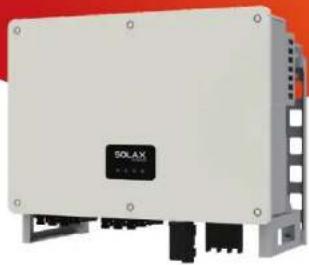
natural_image
Exterior view of a white SOLAX industrial control unit with mounting brackets and cooling fins (no visible text or symbols)
SOLAX POWER
EN
SolaX Power Network Technology (Zhejiang) Co., Ltd.
No.288, Shizhu Road, Tonglu Economic Development Zone, Tonglu City, Zhejiang
Province, 310000 P. R. CHINA
Tel: +86 (0) 571-5626 0011
E-mail: info@solaxpower.com
320101031407
Copyright Declaration
The copyright of this manual belongs to SolaX Power Network Technology (Zhejiang) Co., Ltd. Any corporation or individual should not plagiarize, partially or fully copy (including software, etc.), and no reproduction or distribution of it in any form or by any means. All rights reserved. SolaX Power Network Technology (Zhejiang) Co., Ltd. reserves the right of final interpretation.
www.solaxpower.com
CHANGE HISTORY
Changes between document versions are cumulative. The latest version contains all updates made in previous versions.
Version 07 (Jul. 18, 2023)
Added local MODBUS parallel function description
Modified Troubleshooting
Added OT terminal instructions
Version 06 (Feb. 15, 2023)
Added Change History
Updated 2.3 Explanation of Symbols (Modified the explanations of the
symbols)
Updated diagram of PLC connection
Updated 4 Technical Data (Modified and added new items)
Version 05 (Sep. 12, 2022)
Modified the neutral version
Added a diagram to PLC Box connection
Updated steps of upgrading USB
Version 04 (Apr. 14, 2022)
Modified the vocabulary entry
Version 03 (Mar. 16, 2022)
Added information of the screen version
Version 02 (Mar. 09, 2022)
Modified technical data, electric diagram and instructions
Version 01 (Dec. 01, 2021)
Added low voltage and all related contents
Version 00 (Sep. 24, 2021)
Initial release
CONTENTS
1 NOTE ON THIS MANUAL 03
1.1 SCOPE OF VALIDITY 03
1.2 TARGET GROUP 03
1.3 SYMBOLS USED....03
2 SAFETY 04
2.1 APPROPRIATE USAGE 04
2.2 IMPORTANT SAFETY INSTRUCTIONS....06
2.3 EXPLANATION OF SYMBOLS 08
2.4 EC DIRECTIVES....10
3 INTRODUCTION....11
3.1 PHOTOVOLTAIC GRID CONNECTED SYSTEM....11
3.2 BASIC FEATURES....12
3.3 OVERVIEW OF THE INVERTER 12
3.4 DIMENSION OF THE INVERTER....13
3.5 PRINCIPLE DESCRIPTION....14
4 TECHNICAL DATA 15
4.1 DC INPUT 15
4.2 AC OUTPUT 15
4.3 EFFICIENCY, SAFETY AND PROTECTION....16
4.4 GENERAL DATA 16
5 MECHANICAL INSTALLATION....17
5.1 INSTALLATION PRECAUTION....17
5.2 SELECTION FOR THE INSTALLATION POSITION....17
5.2.1 INSTALLATION ENVIRONMENT REQUIRED.... 18
5.2.2 INSTALLATION CARRIER REQUIRED....18
5.2.3 INSTALLATION ANGLE REQUIRED....19
5.2.4 INSTALLATION SPACE REQUIRED....20
5.3 TOOLS PREPARATION 21
5.4 CHECK FOR TRANSPORT DAMAGE 22
5.5 PACKING LISTS....22
5.6 INSTALLATION STEPS 22
5.6.1 INSTALLATION STEPS (ON THE WALL) 22
5.6.2 INSTALLATION STEPS (ON THE STAND) 24
ELECTRICAL CONNECTION 26
6.1 GROUNDING CONNECTION 26
6.2 PV STRING CONNECTION 27
6.3 GRID CONNECTION....30
6.4 COMMUNICATION CONNECTION 33
6.4.1 COMMUNICATION SIGNAL DEFINITION....33
6.4.2 CONNECTION STEPS OF CABLE 34
6.4.3 RELEASE STEPS OF CABLE 35
6.5 PARALLEL CONNECTION 36
6.5.1 CONNECTION OF SINGLE UNIT 36
6.5.2 CONNECTION OF PARALLEL SYSTEM....36
6.6 MODBUS....38
6.6.1 MASTER MODE....38
6.7 PLC BOX CONNECTION (OPTIONAL) 39
6.8 CONTROL OUTPUT POWER BY CONNECTING A RRCR .....40
6.9 MONITORING CONNECTION....42
START THE INVERTER....45
FIRMWARE UPGRADING....48
SETTING....50
TROUBLESHOOTING 62
10.1 TROUBLESHOOTING 62
10.2 ROUTINE MAINTENANCE 69
DECOMMISSIONING....71
11.1 DISMANTLING THE INVERTER....71
11.2 PACKAGING....71
11.3 STORAGE AND TRANSPOTATION....71
11.4 DISPOSING OF THE INVERTER....71
DISCLAIMER 72
WARRANTY REGISTRATION FORM
Notes on this ManualContents
1 Notes on this Manual
1.1 Scope of Validity
This manual is an integral part of X3-MEGA O2 series, it describes the assembly, installation, commissioning, maintenance and failure of the product. Read it carefully before operating.
| X3-MGA-30K-G2-LVXX3MGA255G2LX3-MGA-20K-G2-LV | ||
| X3-MGA-60K-G2X3-MGA-50K-G2X3-MGA-40K-G2 |
Note: "X3": means three phases, "MGA" means MEGA, "20K" means 20 kW.
Each model is available for LED indicator lights and LCD.
20K/25K/30K/35K inverters work in the 127 V / 220 V low voltage range.
40K/50K/60K inverters work in the 230 V / 400 V voltage range.
Keep this manual at the place where it is accessible all the time.
1.2 Target Group
This manual is for qualified electricians. The tasks described in this manual only can be performed by qualified electricians.
1.3 Symbols Used
The following types of safety instructions and general information appear in this document as described below:

DANGER!
"Danger" indicates a hazardous situation which, if not avoided, will result in death or serious injury.

WARNING!
"Warning" indicates a hazardous situation which, if not avoided, could result in death or serious injury.

CAUTION!
"Caution" indicates a hazardous situation which, if not avoided, could result in minor or moderate injury.

NOTE!
"Note" provides tips that are valuable for the optimal operation of your product.
2 Safety
2.1 Appropriate Usage
The inverters are PV inverters which can convert the DC current of the PV generator into AC current and feed it into the public grid.
Surge protection devices (SPDs) for PV installation

WARNING!
Over-voltage protection with surge arresters should be provided when the PV power system is installed. The grid connected inverter is fitted with SPDs in MAINS side.
Induced surges are the more likely cause of lightning damage in the majority of installations, especially in rural areas where electricity is usually provided by long overhead lines. Surges may be induced on both the PV array conductors or the AC cables leading to the building.
Specialists in lightning protection should be consulted during the end use application. Using appropriate external lightning protection, the effect of a direct lightning strike into a building can be mitigated in a controlled way, and the lightning current can be discharged into the ground.
Installation of SPDs to protect the inverter against mechanical damage and excessive stress include a surge arrester in case of a building with external lightning protection system (LPS) when separation distance is kept.
To protect the DC system, surge suppression device (SPD type2) should be fitted at the inverter end of the DC cabling and at the array located between the inverter and the PV generator, if the voltage protection level (VP) of the surge amasters is greater than 1100 V, an additional SPD type 2 is required for surge protection for electrical devices.
To protect the AC system, surge suppression devices (SPD type2) should be fitted at the main incoming point of AC supply (at the consumer's cutout), located between the inverter and the meter / distribution system; SPD (test impulse D1) for signal line according to EN 61632-1.
All DC cables should be installed to provide as short a run as possible, and positive and negative cables of the string or main DC supply should be bundled together. Avoid creating loops in the system. This requirement for short runs and bundling includes any associated earth bundling conductors.
Safety Safety
Spark gap devices are not suitable to be used in DC circuits once conducting, they won't stop conducting until the voltage passes through their terminals typically less than 30 volts.
- Anti-Islanding Effect
Islanding effect is a special phenomenon that grid-connected PV system still supplies power to the nearby grid when electrical grid power is no longer present. It is dangerous for maintenance personnel and the public. The inverter provides Active Frequency Drift (AFD) to prevent islanding effect.
2.2 Important Safety Instructions

DANGER!
Danger to life due to high voltages in the inverter!
- All work must be carried out by qualified electrician.
• The appliance is not to be used by children or persons with reduced physical sensory or mental capabilities, or lack of experience and knowledge, unless they have been given supervision or instruction.
• Children should be supervised to ensure that they do not play with the appliance.

CAUTION!
- Danger of burn injuries due to hot enclosure parts! - During operation, the upper lid of the enclosure and the enclosure body may become hot. - Only touch the lower enclosure lid during operation.

CAUTION!
- Possible damage to health as a result of the effects of radiation! - Do not stay closer than 20 cm to inverter for any length of time.

NOTE!
- Grounding the PV generator. - Comply with the local requirements for grounding the PV modules and the PV generator. We recommends connecting the generator frame and other electrically conductive surfaces in a manner which ensures continuous conduction and ground these in order to have optimal protection of system and persons.
Safety Safety

WARNING!
- Ensure input DC voltage ≤ Max. DC voltage .Over voltage may cause permanent damage to inverter or other losses, which will not be included in warranty!

WARNING!
- Authorized service personnel must disconnect both AC and DC power from the inverter before attempting any maintenance or cleaning or working on any circuits connected to the inverter.

WARNING!
Do not operate the inverter when the device is running.

WARNING!
Risk of electric shock!
- Prior to the application, please read this section carefully to ensure correct and safe application. Please keep the user manual properly.
- Use only attachments recommended. Otherwise may result in a risk of fire, electric shock, or injury to person.
- Make sure that existing wiring is in good condition and that wire is not undersized.
- Do not disassemble any parts of inverter which are not mentioned in installation guide. It contains no user-serviceable parts. See Warranty for instructions on obtaining service. Attempting to service the inverter yourself may result in a risk of electric shock or fire and will void your warranty.
- Keep away from flammable, explosive materials to avoid fire disaster.
• The installation place should be away from humid or corrosive substance. - Authorized service personnel must use insulated tools when installing or working with this equipment.
- PV modules shall have an IEC 61730 class A rating.
- Never touch either the positive or negative pole of PV connecting device.
- Strictly prohibit touching both of them at the same time.
- The unit contains capacitors that remain charged to a potentially lethal voltage after the MAINS and PV supply has been disconnected.

WARNING!
Hazardous voltage will present for up to 5 minutes after disconnection from power supply.
- CAUTION-RISK of electric shock from energy stored in capacitor. Never operate on the solar inverter couplers, The MAINS cables, PV cables or the PV generator when power is applied. After switching off the PV and Mains, always wait for 5 minutes to let the intermediate circuit capacitors discharge before you unplug DC and MAINS couplers.
- When accessing the internal circuit of solar inverter, it is very important to wait 5 minutes before operating the power circuit or demounting the electrolyte capacitors inside the device. Do not open the device before hand since the capacitors time to sufficiently discharge! require
- Measure the voltage between terminals UDC+ and UDC- with a multi-meter (impedance at least 1Mohm) to ensure that the device is discharged before beginning work (35 VDC) inside the device.
PE Connection and Leakage Current
- The inverter incorporates a certified internal Residual Current Device (RCD) in order to protect against possible electrocution and fire hazard in case of a malfunction in the cables or the inverter. There are two trip thresholds for the RCD as required for certification (IEC 62109-2: 2011).
- The default value for eletrocution protection is 30 mA, and for slow rising current is 300 mA.
- If an external RCD is required by local regulations, check which type of RCD is required for relevant electric code. It recommends using a type-A RCD. The recommended RCD values is 300 mA unless a lower value is required by the specific local electric codes. When required by local regulations, the use of an RCD type B is permitted.
The device is intended to connect to a PV generator with a capacitance limit of approx 700 nf.

WARNING!
• High leakage current!
- Earth connection essential before connecting supply.
- Incorrect grounding can cause physical injury, death or equipment malfunction and increase electromagnetic.
- Make sure that grounding conductor is adequately sized as required by safety regulations.
- Do not connect the ground terminals of the unit in series in case of a multiple installation. This product can cause current with a d.c component,
For United Kingdom
- The installation that connects the equipment to the supply terminals comply with the requirements of 767L.shall BS
- Electrical installation of system shall comply with requirements of PV and 60364-7-712.BS IEC 7671
- No protection settings can be altered.
• Installer shall ensure that equipment is so installed and operated to at all times compliance with the requirements of 22 maintain ESQCR (1) (a).
For Australia and New Zealand
- Electrical installation and maintenance shall be conducted by licensed electrician and shall comply with Australia National Wiring Rules.
2.3 Explanation of Symbols
This section gives an explanation of all the symbols shown on the inverter and on the type label.
- Symbols on the Inverter
| Symbol | Explanation |
| Communication indicator | |
| DC connection indicator | |
| Grid connection indicator | |
| Alarm indicator |
- Symbols on the Type Label
| Symbol | Explanation |
| CE mark:The inverter complies with the requirements of the applicable CE guildlines. | |
| TUV certificated | |
| RCM remark |
| UKCA | The inverter complies with the requirements of the applicable UKCA guidelines. |
| Beware of hot surface.The inverter can become hot during operation. Avoid contact during operation. | |
| Danger of high voltages.Danger to life due to high voltages in the inverter! | |
| Danger.Risk of electric shock! | |
| Observe enclosed documentation. | |
| The inverter can not be disposed together with the household was Disposal information can be found in the enclosed documentation. | |
| Do not operate this inverter until it is isolated from mains and on-site PV generation suppliers. | |
| BIS mark.Compliant with BIS standards. | |
| Danger to life due to high voltage.There is residual voltage in the inverter which needs 5 min to discharge.Wait 5 min before you open the upper lid or the DC lid. |
Safety Introduction
2.4 EC Directives
This section describes the requirements of the European low voltage regulations, including safety instructions and system licensing conditions, the user must comply with these regulations when
installing, operating, and maintaining the inverter, otherwise personal injury or death may occur, and the inverter will be damaged.
Please read the manual carefully when operating the inverter. If you do not understand "Danger", "Warning", "Caution" and the description in the manual, please contact the manufacturer or service agent before installing and operating the inverter.
Make sure that the whole system complies with the requirements of EC(2014/35/EU, 2014/30/EU, etc.) before starting the module (i.e. to start the operation).
Standard of 2014/35/EU (LVD)
EN IEC 62109-1; EN IEC 62109-2
EN 62477-1
Standard of 2014/30/EU (EMC)
EN IEC 61000-6-1; EN IEC 61000-6-2;
EN IEC 61000-6-3: EN IEC 61000-6-4:
EN IEC 61000-3-2; EN 61000-3-3;
EN IEC 61000-3-11; EN 61000-3-12
EN 55011
The assembly shall be installed in accordance with the statutory wiring rules. Install and configure the system in accordance with safety rules, including the use of specified wiring methods. The installation of the system can only be done by professional assemblers who are familiar with safety requirements and EMC. The assembler shall ensure that the system complies with the relevant national laws. The individual subassembly of the system shall be interconnected by means of the wiring methods outlined in national/international such as the national electric code (NFPA) No. 70 or VDE regulation 4105.
3. Introduction
3.1 Photovoltaic Grid Connected System
The inverter is a three-phase transformerless grid connected inverter. It is an important part of photovoltaic power generation system. It converts the direct current generated by the photovoltaic panel into alternating current and also can be used to optimize self-consumption or feed into the public grid.
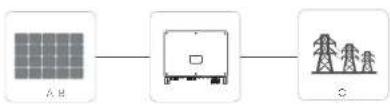
flowchart
graph LR
    A["太阳能板"] --> B["卡车"]
    B --> C["电力塔"]
    style A fill:#f9f,stroke:#333
    style B fill:#ccf,stroke:#333
    style C fill:#cfc,stroke:#333
NO. Definition
| A Photovoltaic string | |
| B | X3-MEGA G2 series inverter |
| C | Public grid |

Warning!
- The inverter shall not be connected to the PV string requiring positive grounding or negative grounding. Do not connect local load between inverter and AC side circuit breaker!
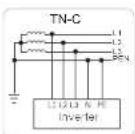
The power grid supported by the inverter are TN-S, TN-C, TN-C-S, TT and IT.
20 kW-35 kW inverters are connected to 220 V / 127 V three-phase four wire power grid and 40 kW-60 kW inverters are connected to 380V / 400V three-phase four wire power grid, which can be connected with N line (or not), as shown in Figure;
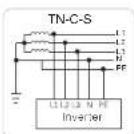
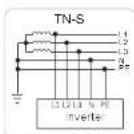
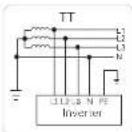
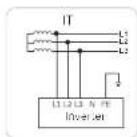
Introduction Introduction
3.2 Basic Features
Thanks for your purchasing of the inverter. Basic features are as follows:
More energy harvest:
• Maximum efficiency 98.4%
• 180\~1000Vdc MPPT voltage range
• Maximum 6 MPPTs, 2 strings per MPP tracker
- 150% PV oversizing input, 110% overloading output
• 32A Maximum MPPT current
Safety & reliability:
• IP66 protection level
• AFCI protection (optional)
- Both AC&DC SPDs (Type 2) inside, Type 1 SPD is optional
Intelligence for easy maintenance and economy:
• SVG functional supported
• Built-in export power control
• 24 hours operation monitoring
• Remote setting and upgrading
• Power line communication (PLC)
• Smart I-V Curve Diagnosis supported
• Aluminium AC cable connection available
- Current measuring for each of 12 input strings
• Smart air cooling technique result in long lifetime of fans
- Advanced heat dissipation reduced more than 10% size and weight
3.3 Overview of the Inverter
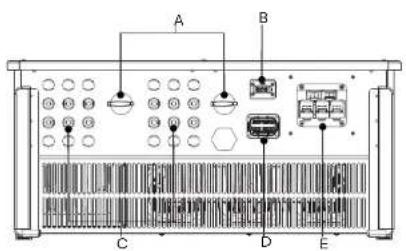
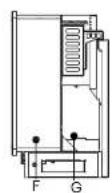
| Item | Description |
| A DC Switch | |
| B | Wi-Fi / LAN / 4G dongie (optional) |
| C | DC Connector |
| D | RS 485 / Motor / DRM (optional) |
| E | AC Connector |
| F | Grounding Connector |
| G | Cooling fan inside |

WARNING!
Only authorized personnel is allowed to set the connection.
3.4 Dimension of the Inverter
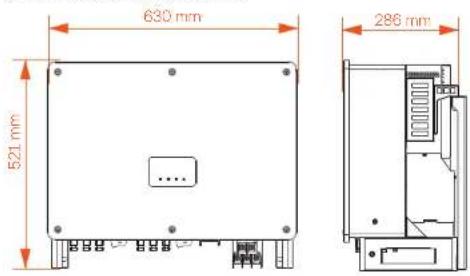

NOTE
The dimension of the inverter with LCD is same as the inverter with
LED.
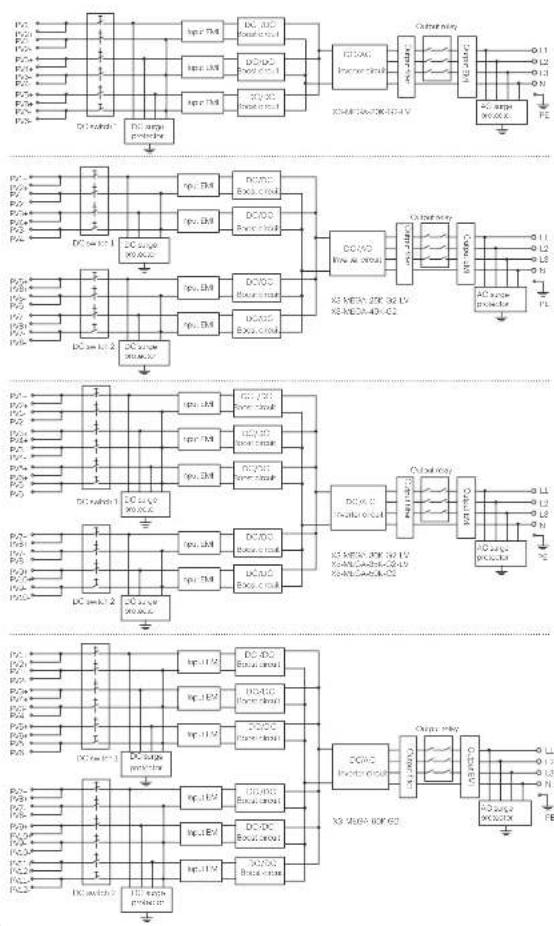
3.5 Principle Description
The inverter is equipped with multi-channel MPPT for DC input to ensure maximum power even under different photovoltaic input conditions. The inverter unit converts DC into AC that meets the requirements of the power grid and feeds it into the power grid. The lightning arrester at AC / DC side can realize the function of surge protection.
The principle design of inverter is shown in the figure below:
Introduction Technical Data
4. Technical Data
4.1 DC Input
| Model | X34/DCS-20VDCS-V | X34/DCS-29VDCS-V | X34/DCS-30VDCS-V | X34/DCS-35VDCS-V | X34/DCS-40VDCS | X34/DCS-50VDCS | X34/DCS-60VDCS |
| Max. PV array input power [kW] | 30 | 37.5 | 45 | 32.5 | 60 | 75 | 90 |
| Max. PV Input voltage [V] | 100 | 120 | |||||
| Nominal npi-voltage [V] | 300 | 600 | |||||
| Status voltage [V] | 200 | 200 | |||||
| MFP blocker voltage [mA] | 185/260 | 180/220 | |||||
| Max. Input current per MPPT [A] | 10~2 | ||||||
| Max. short nominal current per MPPT [A] | 75~9 | ||||||
| No of MFP markers | 5 | 4 | 5 | 4 | 5 | 6 | |
| Average per MPF tracker | 7 | ||||||
| Max. Input ratings | 6 | 8 | 10 | 8 | 12 | 12 | |
4.2 AC Output
| Model | X3-MPGA-20K 02 LV | X3-MPGA-25K 02 LV | X3-MPGA-30K 02 LV | X3-MPGA-25K 02 LV | X3-MPGA-40K 02 | X3-MPGA-50K 02 | X3-MPGA-60K 02 |
| Nominal AC output power [kV] | 75 | 75 | 80 | 85 | 40 | 53 | 60 |
| Nominal AC output current [A] | 12.5 | 15.7 | 16.8 | 18.9 | 80.0/86 | 76.8/72.5 | 100.5/87 |
| Max AC output equivalent power (kVA) | 77 | 77.5 | 83 | 88 | 44 | 56 | 65 |
| Max AC output current [A] | 67.8 | 72.2 | 85.7 | 91.9 | 60.7/63.8 | 63.3/73.7 | 100.0/57 |
| Nominal AC voltage [V] | 127/230 V/PH 3/4E | 220/300 V/PH 3/4E/PH | |||||
| Nominal DC frequency [V] | 50-60 | ||||||
| DC frequency range [A] | 40-60/60-60 | ||||||
| I, DI (ruler: power) [A] | <3 | ||||||
| DC component output current | <0.5% | ||||||
| Power level | >0.5% (rated power) | ||||||
| Dissipation power factor | Dissolong=0.8 bag ng | ||||||
| Maximum output current [A] | 200 | ||||||
| Maximum output voltage protection [A] | 200 | ||||||
Technical Data Mechanical Installation
4.3 Efficiency, Safety and Protection
| Model | X2 MEGA301-924LV | X2 MEGA201-924LV | X2 MEGA301-924LV | X2 MEGA301-924LV | X2 MEGA201-924LV | X2 MEGA301-924LV | X2 MEGA201-924LV |
| Max efficiency (M) 97.5 97.5 97.5 | 97.5 96.4 96.4 | 96.4 | |||||
| PROJECTION | |||||||
| DC voltage | YES | ||||||
| DC power output power protection | YES | ||||||
| Induction monitoring | YES | ||||||
| Current leakage protection | YES | ||||||
| Over-current protection | YES | ||||||
| Over-voltage protection | YES | ||||||
| Anti-derivative protection | YES | ||||||
| DC range protection | Typ1 | ||||||
| AC range protection | Typ1 | ||||||
| Residual current detection and protection | Yes | ||||||
| DC ARC motor direction protection | Offset 1 | ||||||
| Output current output current power protection | Yes | ||||||
4.4 General Data
| Model | X3-ME-DA20K GZ LV | X3-ME-DA25K GZ LV | X3-ME-DA30K GZ LV | X3-ME-DA35K GZ LV | X3-ME-DA40K GZ | X3-ME-DA50K GZ | X3-ME-DA60K GZ |
| Protector level | IF8E | ||||||
| Operating temperature range(°C) | 25~40 | ||||||
| Humidity (%) | 0~100 RH | ||||||
| Cooling contact | Swimming | ||||||
| Max. operation (site) (h) | 7000 | ||||||
| Dimensions (W×H×D) (mm) | 630×52×206 | ||||||
| Weight (ft) 43.5 44.44 44.5 45.5 | 44.5 | ||||||
| Display & Communication | |||||||
| Display | LED indicators=4, LCD (Optional) | ||||||
| Comma motion | R6195/PLC (Optional)/Wi-Fi (Optional)/G+O-pullone)/Lam (Optional) single / USB | ||||||
| Standard | |||||||
| Solve for mode | IIC/HN 67200; IIC/HN 67200; N/A1 XDC04 | ||||||
| AVOC | N/R73200V; IIC/HN 61000 | ||||||
| Certification | AOS/25 4777.2 N/D T 32004 (EC 6727; IC 5218; VCD410; VDE4205; DN50545; NR5097; CD40; RD 600; PP 387200; CH 6071; CH0+ R VWR 2019 | ||||||
5. Mechanical Installation
5.1 Installation Precaution

DANGER!
Before installation, make sure there is no electrical connection. Before drilling holes on the wall, make sure the layout of the water pipes and cables inside the wall is clearly known to avoid any danger.

CAUTION!
Personal injury and machine damage may be caused by improper movement of the inverter.
Please strictly comply with the instructions of this manual when moving and installing the inverter.
5.2 Selection for the Installation Position
The installation location selected for the inverter is quite critical in the aspect of the guarantee of machine safety, service life and performance.
- The inverter has the IP66 ingress protection, which allows it to be installed outside the door.
- The installation position shall be convenient for wiring connection, operation and maintenance.
Mechanical Installation
Mechanical Installation
5.2.1 Installation Environment Required
The installation position shall be well ventilated.
Make sure the installation site meets the following conditions:
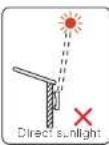
Not be exposed to glare.
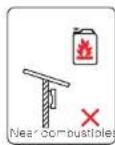
Not in areas where highly flammable materials are stored.
Not in potential explosive areas.
Not in the cool air directly.
Not near the television antenna or antenna cable.
Not higher than altitude of about 4000m above sea level.
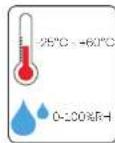
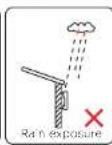
Not in environment of precipitation or humidity (0-100%).
Be sure the ventilation is good enough.
The ambient temperature in the range of -25°C to +60°C.
The slope of the wall should be within ±5°.
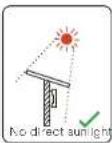
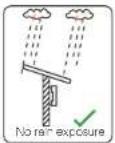
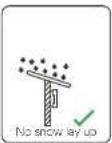
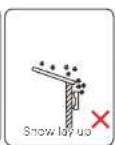
Avoid direct sunlight, rain exposure, snow laying up during instelling and operating.

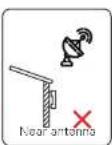
5.2.2 Installation Carrier Required
The wall or stand hanging the inverter should meet conditions below:
1) Solid brick / concrete, or strength equivalent: mounting surface;
2) Inverter must be supported or strengthened if the strength of wall/stand isn't enough. (such as wooden wall, the wall covered by thick layer of decoration)
5.2.3 Installation Angle Required
-The inclination angle of the installation shall not be greater than 5^ and can
not be tilted forward, inverted, excessive back tilted or side tilted.
-The inverter shall be installed more than 500 mm above the ground.
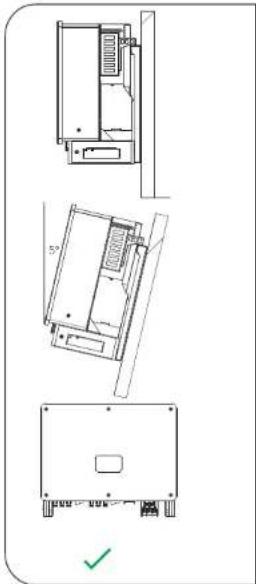
natural_image
Technical line drawing of a mechanical assembly with three views (top, front, side) showing internal components and mounting brackets (no text or symbols)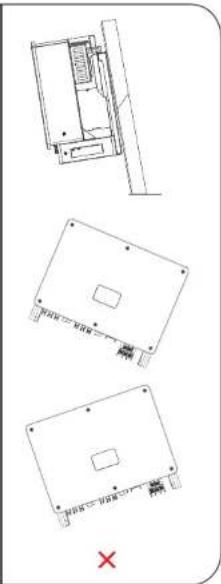
natural_image
Technical line drawing of a mechanical component with three views and a red X mark (no text or symbols)5.2.4 Installation Space Required
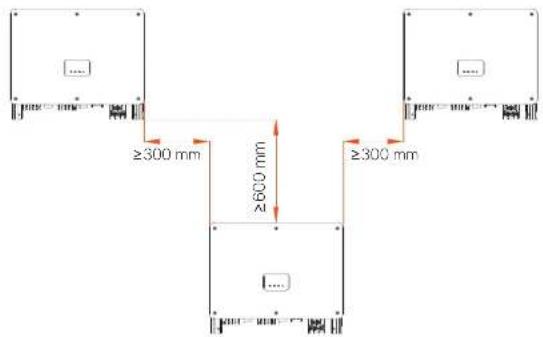
To ensure good heat dissipation and convenient disassembly, the minimum clearance around the inverter shall not be less than the following values, as shown in the following figure.
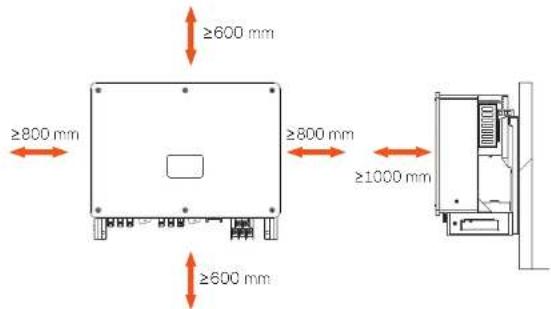
For multi-inverter installation, please reserve the space of 1200 mm at least between each left and right inverter and at least 600 mm between each upper and lower inverter.
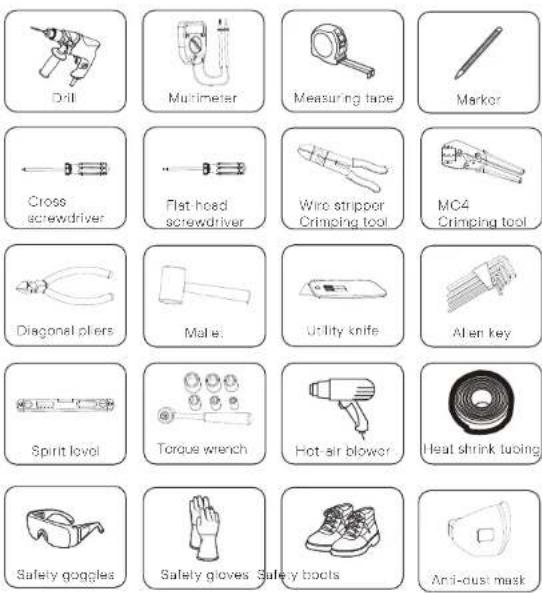
5.3 Tools Preparation
Additionally required wires
| Required Wires Material Cross Section | Wire Length | ||
| PV cable | Dedicated PV wire, copper | 6 mm ^2 | <200 m |
| AC cable (40-125 kW) | Five-core copper wire | 70 mm ^2 -240 mm ^2 | <200 m |
| AC cable (136-150 kW) | Four-core copper wire | 70 mm ^2 -240 mm ^2 | ≤200 m |
| AC cable (40-125 kW) | Five-core aluminium wire | 120 mm ^2 -240 mm ^2 | <200 m |
| AC cable (136-150 kW) | Four-core aluminium wire | 120 mm ^2 -240 mm ^2 | ≤200 m |
| Grounding wire | Conventional yellow and green, copper wire | 35 mm ^2 -70 mm ^2 | <150 m |
| Communication cable | Outdoor-rated shielded twisted pair cooper wire | 0.5 mm ^2 0.75 mm ^2 | ≤200 m |
5.4 Check for Transport Damages
Make sure the inverter is intact during transportation. If there are some visible damages, such as cracks, please contact your dealer immediately.
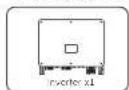
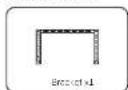
5.5 Packing Lists
Open the package and fetch out the product, check the accessories at first. The packing list shows as below.
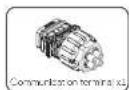
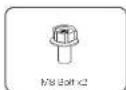
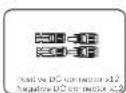
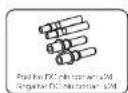
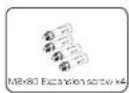
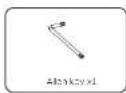
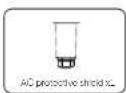
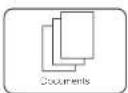
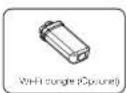
* For the optional accessories, please be subject to the actual delivery.
* Please purchase OT terminals separately.
5.6 Installation Steps
5.6.1 Installation Steps of Mounting the Inverter on the Wall
Step 1: Fix the bracket on the wall
a. Find out the expansion screws, bracket and M8 bolts from the accessory box as below:
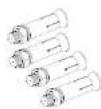
M8x80 Expansion screw x4
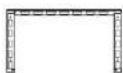
Breckel x1

M8 Bolt x2
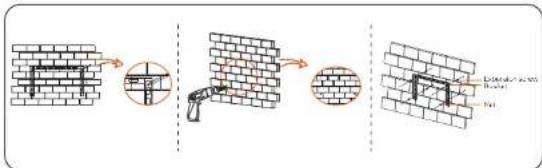
b. Use the bracket as a template for marking the positions of drilling holes on the wall with spirit level and marker.
c. Use Φ12 drill to drill holes in accordance with the mark. The depth of the holes shall be at least 65 mm.
d. Insert the expansion screws into the holes and use hammer to knock it into the wall. Hang the bracket on the screw end secure it with nut.
Step 2: Hang the inverter on the bracket
a. Lift up the inverter. Two methods are available for your choice. Method 1: Two installers directly hold the inverter on the two sides and lift it up. Method 2: Install two lifting rings on the two sides of inverter and lift it up.
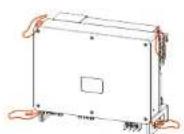
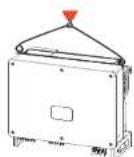
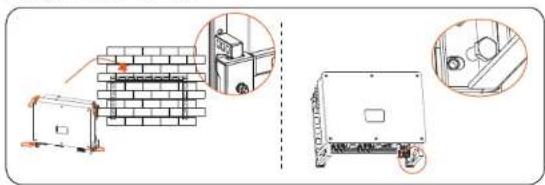
b. Hang the inverter on the bracket and secure it on the bracket with M8 bolts. (Torque: 7.0-8.5 N·m)
natural_image
Technical diagram showing brick wall installation and equipment components (no text or symbols)5.6.2 Installation Steps of Mounting Inverter on the Stand
Step 1: Fix the bracket on the stand
a. Find out the bracket and M8 bolts from the accessory box as below: And prepare four M8X40 screw in advance. Please kindly note that M8X40 screws are not in the accessory box. Please prepare it in advance.
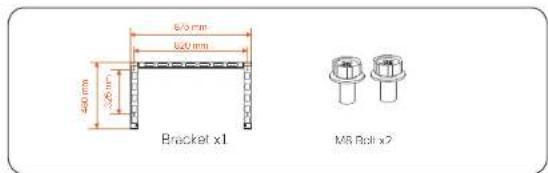
b. Select appropriate stand for the inverter.
c. Use the bracket as a template for marking the position of drilling holes on the wall with a spirit level and marker.
d. Use Φ10 drill to drill holes in accordance with the mark.
e. Pre-install the bracket on the stand and screw in the M8X40 screws to fix it.
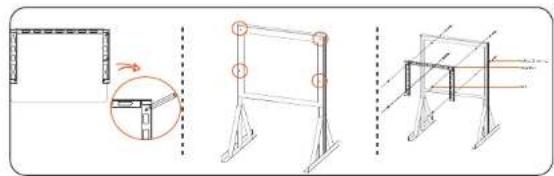
natural_image
Three technical diagrams showing structural frame arrangements with arrows indicating assembly or movement (no text or symbols present)Step 2: Hang the inverter on the bracket
a. Lift up the inverter. Two methods are available for your choice. Method 1: Two installers directly hold the inverter on the two sides and lift it up. Method 2: Install two lifting rings on the two sides of inverter and lift it up.
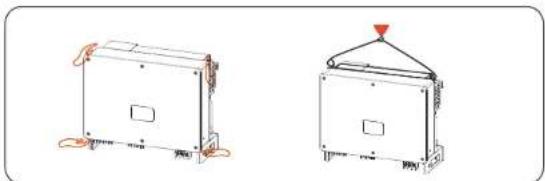
natural_image
Two technical line drawings of rectangular electronic components with mounting brackets and a triangular top (no text or symbols)b. Hang the inverter on the bracket and secure it on the bracket with M8 bolts. (Torque: 7.0-8.5 N·m)
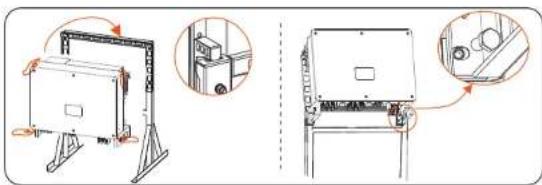
natural_image
Technical line drawing of a mechanical assembly with two views: top shows a frame structure, bottom shows a mounted device with internal components (no text or symbols)6. Electrical Connection
6.1 Grounding Connection
The uncharged metal parts in the photovoltaic power generation system, including the photovoltaic substrate bracket and the metal shell of the inverter, should be reliably grounded. The grounding part of multiple inverters and photovoltaic array shall be connected to the same grounding bus to establish reliable equipotential connection.
Step 1: Make the grounding cable
a. Select OT copper terminal and 35-70 mm² yellow and green conductor with proper length by diagonal pillars. Use wire stripper to strip the insulation layer of the conductor end. The stripped length shall be as shown below. b. Tighten the stripped end and pull the heat-shrink tubing over the grounding cable. The heat-shrink tubing must be at below cable section.
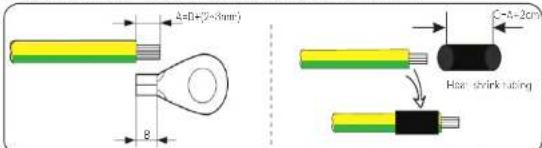
c. Insert the stripped section into the OT copper terminal and crimp with crimping tool.
d. Pull the heat-shrink tubing over the stripped section of OT terminal and use hot-air blower to shrink it so that it can be in firm contact with OT terminal.
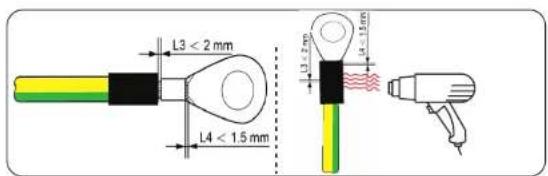
Step 2: Connect the grounding cable to the inverter.
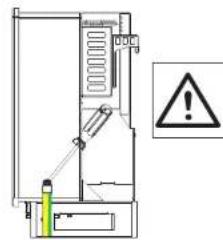
Connect the grounding cable to the inverter and fix it with torque 7.0-8.5 N·m.
natural_image
Technical line drawing of a mechanical device with warning symbol (no text or labels)WARNING! Be sure the ground wire must be connected!
6.2 PV String Connection

WARNING!
Before connecting the inverter, make sure that the open circuit voltage of the photovoltaic string shall not exceed 1100 V under any conditions, otherwise, the inverter will be damaged.

WARNING!
Do not ground the positive or negative pole of the PV string, otherwise it will cause serious damage to the inverter.

WARNING!
Make sure that the positive and negative poles of the PV string are correctly connected with the corresponding identification of the inverter.

CAUTION!
The actual PV connection shall be consistent with the mode ("Multi" mode or "COM" mode) set on the inverter or SolaX Cloud App.
Step 1: Make the PV cable
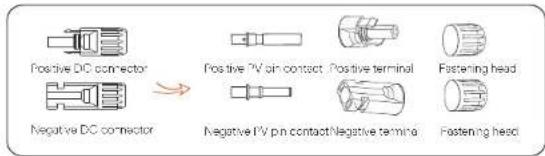
a. Find out the positive x12 DC connector and x12 negative DC connector from accessory box.
b. Disassemble the connector into PV pin contact, terminal and fastening head.
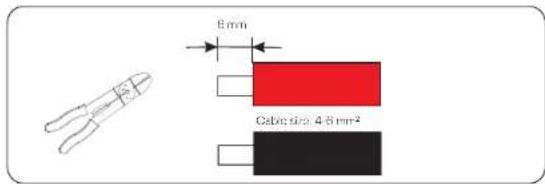
c. Turn off the DC switch and prepare a 4-6 mm² PV cable. Use wire stripper to strip 6 mm insulation layer of the PV cable end.
d. Tighten the stripped section and insert it into the PV pin contact. And use terminals press clamp to clamp it so that the stripped section of PV cable is in firm contact with PV pin contacts.
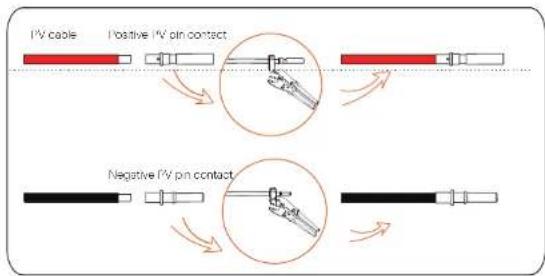
flowchart
graph TD
    A["Positive I/V pin contact"] --> B["Red segment"]
    C["Negative I/V pin contact"] --> D["Black segment"]
    style A fill:#f9f,stroke:#333
    style C fill:#f9f,stroke:#333
    style B fill:#ccf,stroke:#333
    style D fill:#ccf,stroke:#333
e. Insert the PV cable through fastening head and plug (male and female) and force the male or female plug to the cable, You will hear "Click" which indicates the connection is completed. Then tighten the fastening head.
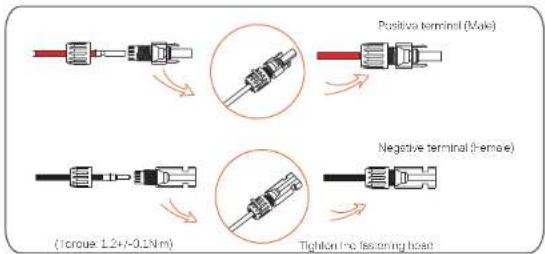
Step 2: Measure the voltage of DC input
Use a multimeter to measure the PV voltage of DC input, verify the polarity of DC input cable, and ensure that the voltage fo each string is within the range of inverter.
Step 3: Connect the PV cable to the inverter
Connect the PV cable to the corresponding PV port on the inverter, shown as below:
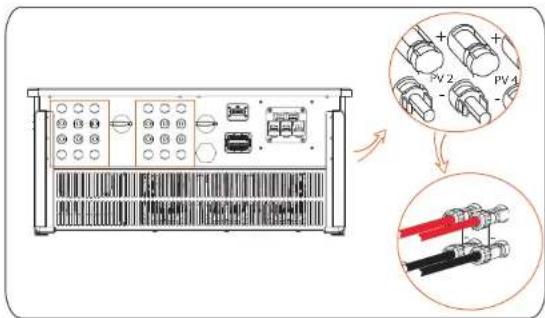

WARNING!
When the DC cable is reversely connected or the inverter fails to work normally, it is forbidden to turn off the DC switch directly, otherwise the inverter may be damaged or even cause fire!
The correct operation is as follows:
-Use clamp current meter to measure DC string current.
-If it is greater than 0.5A, please wait until the current is less than 0.5A.
- Only when the current is less than 0.5A, can the DC power be cut off and the DC string be pulled out.
The inverter damage caused by illegal operation will not be included in the warranty.
Requirements for photovoltaic modules connected to the same circuit:
-All PV modules shall be of the same specification.
-All PV modules have the same tilt angle and orientation.
-The open circuit voltage of the PV string shall not exceed 1100 V at the coldest expected temperature in time

WARNING!
Electric shock!
Do not touch live DC wires. When photovoltaic modules are exposed to light, high voltage will occur, which will lead to the risk of electric shock, resulting in death due to contact with DC conductor.
6.3 Grid Connection

WARNING!
Ensure electrical connection design meets local national and local standards.

WARNING!
The PE wire (ground wire) of the inverter must be reliably grounded.

WARNING!
Disconnect the circuit breaker or fuse of inverter and grid connection access point.
Note:
-It is recommended to add circuit breaker or fuse at AC side, whose specification is more than 1.25 times of rated AC output current.
-35-50 mm copper wire is recommended. If aluminum wire is needed, please consult the inverter manufacturer.
-Use copper terminal for copper wire, use copper aluminum terminal for aluminum wire, not aluminum terminal directly.

Step 1: Make the AC cable
a. Find out the AC protective shield from the accessory box.
b. Disassemble the shield into individual parts as shown below. There are one fastening head, one blue rubber seal ring, one orange rubber seal ring, one red rubber seal ring, one black part, and the body of protective shield. The colored seal ring is used in case the cable size at customer size is smaller. Please keep it in safe place. The black part will be no longer used.
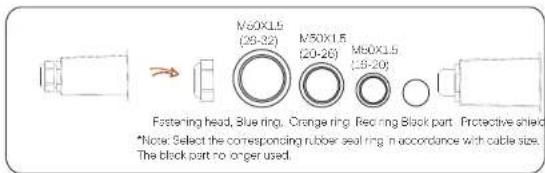
c. Select the appropriate OT terminal and black, red and yellow and green cable with proper length by wire cutter, and use wire stripper to strip 15mm insulation layer of the AC cable end.
d. Insert the AC cable through fastening head and AC protective shield, and pre-tighten the fastening head.
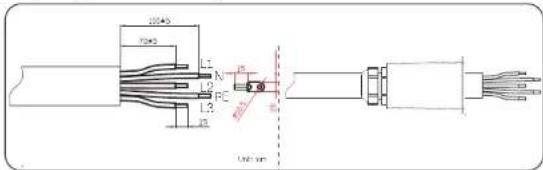

NOTE!
The "Delta Grid" in "Setting" - "Grid Protection" - "Checks" is set as "Enable" in default. In this condition, the Neutral wire is not required to be connected. Please set "Delta Grid" to "Disable" before connecting the Neutral wire for the inverter.
e. Pull the heat-shrink tubing over AC cable.
f. Insert the stripped section into OT terminal and crimp with crimping tool and pull the heat-shrink tubing over the crimped section of OT terminal. Then use hot air blower to shrink it so that they are in firm contact with OT terminal.
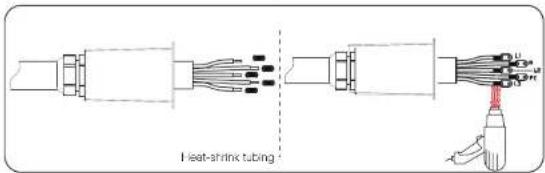
Step 2: Connect the AC cable to the inverter
a. Disassemble the five screws with socket wrench and connect the AC cable to the corresponding AC terminals with cross screwdriver. Then tighten the screw with torque 6 N·m.
b. Loosen the fastening head and clockwise screw in the screws (with the torque of 1 N·m) to fix the AC protective shield with cross screwdriver. Then tighten the fastening head.
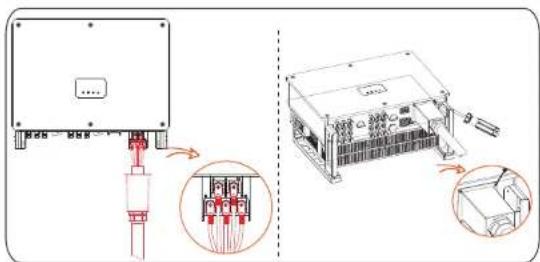
6.4 Communication Connection
6.4.1 Communication Signal Definition
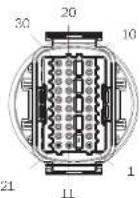
| For Pin | Definition | Remark | |
| RS-485-1 | 1 | RS485A IN+ | Inverter RS485 networking or connect the data collector |
| 2 | RS485B IN- | ||
| 3 | GND | ||
| 4 | RS485A OUT+ | ||
| 5 | RS485B OUT- | ||
| 6 | GND | ||
| RS-485-2 | 7 | RS485A VETER | Connect the RS485 motor or other devices |
| 8 | RS485B VETER | ||
| 9 | +5V | ||
| 10 | GND | ||
| DRM | 11 | DRM1/5 | Reserves for DRM/RRCR |
| 12 | DRM2/6 | ||
| 13 | DRM3/7 | ||
| 14 | DRM4/8 | ||
| 15 | RG/0 | ||
| 16 | CL/0 | ||
| DI | 21 | Digital IN+ | Input digital signal |
| 22 | Digital IN- | ||
| DO | 29 | Digital OUT+ | Output digital signal |
| 30 | Digital OUT- |
6.4.2 Connection Steps of Communication Cable
a. Find out the communication terminal from the accessory box and disassemble it into the following parts.
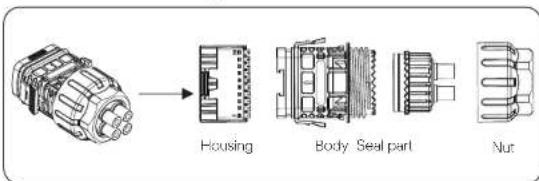
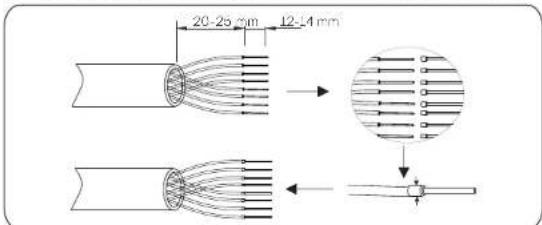
b. Select 0.5-0.75 mm2 conductor and use wire stripper to strip 12-14 mm insulation layer of the cable end and insert the insulated cord end terminal to the cable end. (ENY0512 nylon terminal for 0.5 mm²/22 AWG conductor; ENY7512 nylon terminal for 0.75 mm²/20 AWG conductor) c. Use crimping tool to make the terminal in firm contact with the cable end.
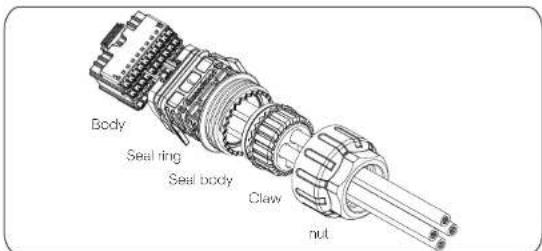
d. Set the nut, crew, seal body, seal ring and body on the communication cable in turn.
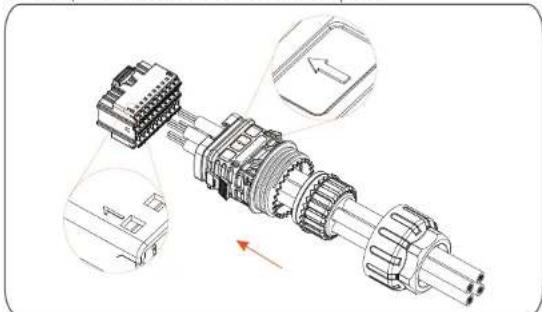
e. Insert the tube type terminal into the housing according to the label on it. Push the terminal-inserted housing into the body. There will be a slight sound of "Click", which indicates the connection is completed.
natural_image
Technical illustration of a mechanical assembly with labeled components and directional arrows (no text or symbols)f. Push the seal body into seal ring, then push the claw. g. Clockwise tighten the nut with torque 8+/-2 N.m. h. Keep the buttons on both sides pressed and connect it to the COM part of the inverter. There will be a slight sound of "Click" if it is correctly connected.
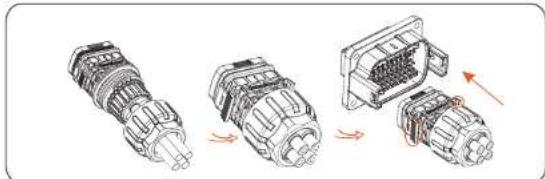
natural_image
Three-step diagram showing a connector assembly with arrows indicating direction (no text or symbols)6.4.3 Release Steps of Communication Cable
For releasing the communication cable, please keep the buttons on the two sides pressed and pull out the cable to make it unlocked.
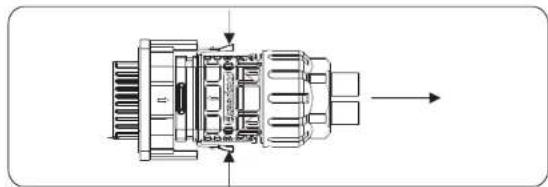
natural_image
Technical line drawing of a mechanical assembly with no visible text or symbols6.5 Parallel Connection
6.5.1 Connection of Single Unit
Single Unit Diagram:
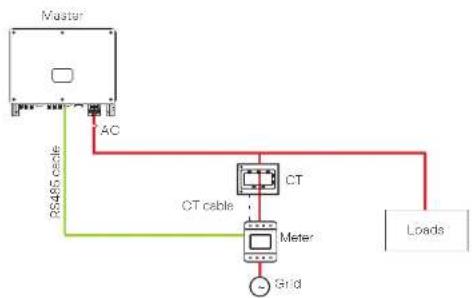
flowchart
graph TD
    A["Master"] -->|RS465 cable| B["AC"]
    B --> C["CT cable"]
    C --> D["MTeter"]
    D --> E["Grid"]
    F["Loads"] --> C
    style A fill:#f9f,stroke:#333
    style B fill:#ccf,stroke:#333
    style C fill:#cfc,stroke:#333
    style D fill:#fcc,stroke:#333
    style E fill:#cff,stroke:#333
6.5.2 Connection of Parallel System
The series inverter provides the parallel connection function when connected with Datahub, which could support at most 60 inverters to parallel in one system and can control zero injection to the grid with a meter installed in the main circuit. In this parallel system, the Datahub will be the master of the system, and all the inverters are the slaves. The Datahub can communicate with all the slave inverters.
Diagram: Parallel system with Datahub
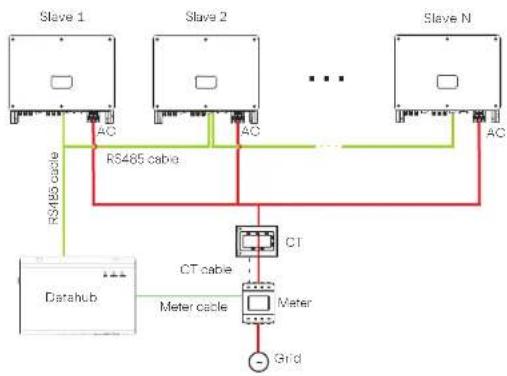
flowchart
graph TD
    subgraph Slave_1
        A["Slave 1"] -->|RS485 cable| B["RS485 cable"]
        C["Slave 2"] -->|RS485 cable| B
        D["Slave N"] -->|RS485 cable| B
        B --> E["Datahub"]
        E --> F["CT cable"]
        F --> G["Meter cable"]
        G --> H["Grid"]
    end
    style Slave_1 fill:#f9f,stroke:#333
    style Slave_2 fill:#f9f,stroke:#333
    style Slave_N fill:#f9f,stroke:#333
    style Datahub fill:#ccf,stroke:#333
    style CT cable fill:#cfc,stroke:#333
    style Meter cable fill:#fcc,stroke:#333
    style Grid fill:#cff,stroke:#333
Note!

Before operation, please make sure that the inverters meet the following conditions:
- All the inverters are recommended to be the same series;
- The firmware version of all inverters shall be the same.
Otherwise, the parallel function cannot be used. - Ensure the RS485 cable length is less than 200 m.

Note!
Before connecting the Datahub to the parallel system, please check that the inverters' settings meet the following conditions: 1. The "Modous Fuction" should be "COM485".
- The addresses of all the inverters in the "RS485 CommAddr" should be different. Otherwise, please reset the RS485 communication addresses.
- Wiring operation
s) Connect one end of an RS485 communication cable with Datahub, and the other end with one of the slave inverters.
b) Connect all the slave inverters with each other with RS485 cables.
c) Connect the meter with the Datshub and the mains.
For the details, please refer to the user manual of Datahub.
6.6 Modbus
The product is equipped with a Modbus interface via RS485 port. The Modbus
interface can be connected via external Modbus control device to SCADA
systems for industrial use and has the following tasks:
- Remote query of measured values
- Remote setting of operating parameters
- Setpoint specifications for system control
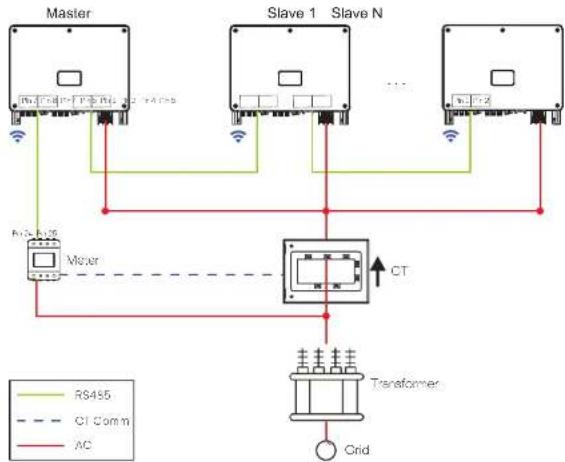
6.6.1 Modbus Parallel Connection
The device offers Datanub parallel connection as well as master-slave parallel
connection for up to 10 machines, with one serving as the master and the others as slaves. A 485 communication wire must be attached directly to the inverter.
The devices are connected in a bus type connection mode. The Master's RS485-2 is connected to the electricity meter, and the Master and slave are connected to
the RS485 1 port.
The bus topology is shown as follows:
flowchart
graph TD
    A["Master"] -->|RS495| B["Slave 1"]
    A -->|RS495| C["Slave N"]
    B --> D["Mixer"]
    C --> D
    D --> E["CT"]
    E --> F["Transformer"]
    F --> G["Grid"]
    style A fill:#f9f,stroke:#333
    style B fill:#f9f,stroke:#333
    style C fill:#f9f,stroke:#333
    style D fill:#ccf,stroke:#333
    style E fill:#cff,stroke:#333
    style F fill:#ffc,stroke:#333
    style G fill:#cfc,stroke:#333
The interconnection between the host and slave is made by Pins 1, 2, 4, 5, and
Pins 7, 8, which are connected to the electricity meter.
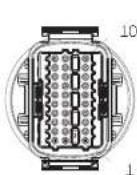
| Port Pin | Definition | |
| RS-485-1 | 1 | RS485A IN+ |
| 2 | RS485B IN- | |
| 4 | RS485A OUT+ | |
| 5 | RS485B OUT- | |
| RS-485-2 | 7 | RS485A METER |
| 8 | RS485B METER |
6.7 PLC Box Connection (Optional)
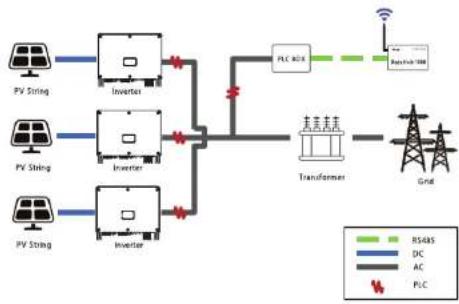
The inverter supports to be connected with PLC Box. With PLC Box, RS485 cable is not required for communication. Purchase the product from supplier if needed. Refer to PLC Box Quick Installation Guide for detailed installation and connection of PLC Box.
For monitoring on SolaX Cloud, Datahub shall be installed to communicate with PLC Box. The communication between PLC Box and inverters is power line, and from PLC Box to Datahub is Re485.
Please note that for this application, all the inverter models must be the PLC integrated models. (PLC function is optional, you will need to purchase the models with PLC integrated)
flowchart
graph LR
    A["PV String"] --> B["Inverter"]
    C["PV String"] --> D["Inverter"]
    E["PV String"] --> F["Inverter"]
    B --> G["Transformer"]
    D --> G
    F --> G
    G --> H["Grid"]
    I["PLC 20K"] --> G
    J["RS485"] --> G
    K["DC"] --> G
    L["AC"] --> G
    M["PLC"] --> G
    N["Wireless"] --> G

NOTE!
PLC connection requires a transformer to step up to the medium voltage utility grid.
6.8 Control the Output Power by Connecting a Radio Ripple Control Receiver (RRCR)
The inverter can be connected to a RRCR (Radio Ripple Control Receiver) in order to dynamically control the output power of all the inverters.
Users can control and limit the active power on the LCD by setting the active power limitation, which is a fixed power limit as a percentage, i.e. 0%, 30%, 60% and 100%.
Connection:
Connect the RRCR directly to the inverter communication board through the DRM. The following table describes the connector pin assignment and functionality:

NOTE!
The DRM and RRCR ports can be shared..
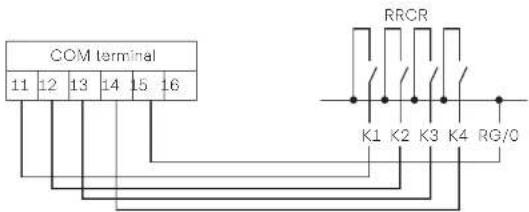
| Port Pin | Definition | Description | Connect to RRCR | |
| DRM/RRCR | 11 | DRM1/5 | Input 1 | K1 - Relay 1 output |
| 12 | DRM2/6 | Input 2 K2 | Relay 2 output | |
| 13 | DRM3/7 | Input 3 K3 | Relay 3 output | |
| 14 | DRM4/8 | Input 4 K4 | Relay 4 output | |
| 15 RG/D | VCC Relays common node | |||
The inverter is preconfigured to the following RRCR power levels:
| COM port Pin 11 | COM port Pin 12 | COM port Pin 13 | COM port Pin 14 | Active power | Cos(Φ) |
| Short circuit with RG/0 | / | / | / | 0% | 1 |
| / | Short circuit with RG/0 | / | / | 30% | 1 |
| / | / | Short circuit with RG/0 | / | 60% | 1 |
| / | / | / | Short circuit with RG/0 | 100% | 1 |
To set the fixed power control:
Enter "Active Power" page, choose "Enable" to activate the function.
| >Active Power | >RRCR>Enable< |
in the "RRCR" page. RRCRL 2.3, 4 can be set for the corresponding values 0%, 30%, 60%, and 100% by default. Users can also configure these values as needed.
The values correspond to varied AC output power. For example, the 30% is in accordance with the rated power output of 30%.
| >RRCR1>0.0%< |
| >RRCR2>30.0%< |
| >RRCR3>60.0%< |
| >RRCR4>100.0%< |
6.9 Monitoring Connection
Monitoring Cloud is an application that can communicate with the inverter via Wi-Fi/LAN/4G. It can realize alarm query, parameter configuration, daily maintenance and other functions. This is a convenient maintenance platform.
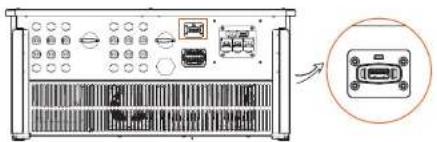
Plug Dongle into "USB" port at the bottom of the inverter. After the DC side or AC side is powered on, the APP and inverter can be connected. Please refer to the corresponding manual for details.
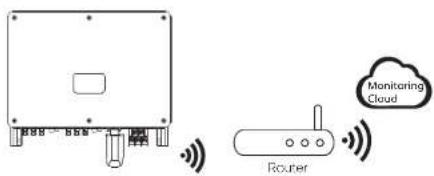
Wi-Fi connection
Wi-Fi dongle connects to a local network within 50 m of the installation to enable access to the Monitoring Cloud platform.
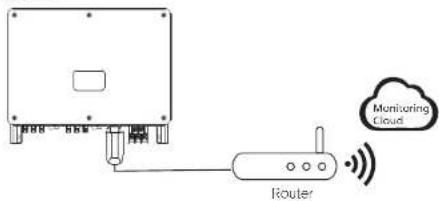
LAN connection
If WiFi isn't suitable, the LAN dongle enables users to connect to the network via an ethernet cable. Ethernet allows for a much more stable connection with less interference.
4G connection
4G dongle allows you to use a 4G connection to monitor your system without the option of connecting to a local network. (This product is not available in the UK)
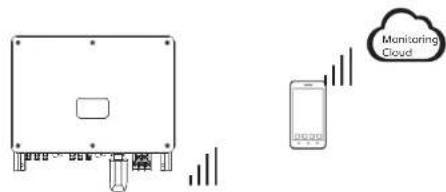
APP Setting
Scan the QR code to download SolaXCloud App. Create a new account and follow the tutorial on the SolaXCloud APP or the App guide at https://www.solaexcloud.com/ to set the WiFi configuration.
Touch the Inverter icon and you can add new inverter in the site page, and check details out in the Inverter section of this guide.
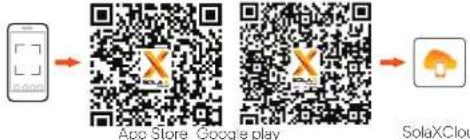
SolaXCloud
The users can also set up the inverter remotely by downloading the SolaXCloud APP. The default site information will be shown after the end user logs in. The power and energy data displayed on this page is a synthesis of all the chosen inverter data contained in this site. Select or create a new site, and then the user can add and set up the inverter at the site.
Or the user can scan the QR code to watch the WiFi configuration video on YouTube, and study how to set the inverter.
7. Start the Inverter
• After the inverter is checked, then conduct the following steps:
a) Check that device is fixed well on the wall or stand.
b) Make sure all the DC breakers and AC breakers are disconnected.
c) AC cable is connected to grid correctly.
d) All PV panels are connected to inverter correctly, DC connectors which are
not used should be sealed by cover.
e) Turn on the DC switch to the "On" position.
- Start the inverter
Turn on the AC switch between the inverter and the power grid,
Turn on the DC switch between the PV string and the inverter if there is any.
Turn on the DC switch at the bottom of the inverter.
Inverter will start automatically when PV panels generate enough energy.
Check the status of LED indicators and LCD screen, the LED indicators should be
blue and the LCD screen should display the main interface.
For the inverter with LED indicators:
If the LED indicator is not on, please check the below:
- All the connections are right.
- All the external circuit breakers are closed.
- The DC switch of the inverter is in the "ON" position.
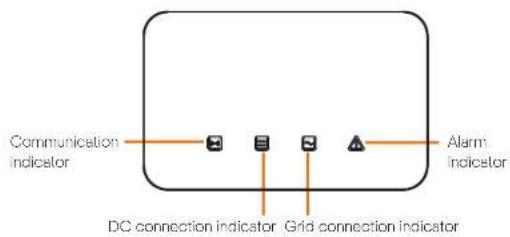
flowchart
graph LR
    A["Communication Indicator"] --> B["Switch"]
    B --> C["Switch"]
    C --> D["Switch"]
    D --> E["Alarm Indicator"]
    F["DC connection indicator"] --> G["Grid connection indicator"]
| LED indicator status indicator status | ||
| Communication signal indicator (score) | Always light on | The input is a current indicator is normal. |
| Flashing | No communication data is received for a long time. | |
| DC connection indicator (score) | Always light on | The input is in a linear active state. |
| Flashing | The input is a high light on, it indicates the current on the DC side of market. If the output signal light is off, indicates the current one channel of MPPI input voltage is higher than 200 V. However, it means that the current is not on or DC side. | |
| Always light off | The input voltage of channels of MPPI is less than 200 V. On DC switch is not normal on. | |
| Data connection Indicator (score) | Always light on | The input is in a grid connected state. |
| Flashing | If the output signal indicator is on, it indicates the current on the AC side of investor. If the output signal indicator is off, AC gate is connected and the investor is not in grid-connected state. | |
| Always light off | The input is not connected to a grid. | |
| Inverter bus indicator (set) | Always light on | The input is faulty. |
| Flashing | The input prompts warning. | |
| Always light off | The input is correctly in a normal state and there are but. | |
Note:
1 When the inverter is in software upgrading state, all the indicators are blinking in turn;
2 When the inverter upgrade fails, other three indicators will be off except the inverter fault indicator (Red);
3 After the inverter upgrade succeeded, all the indicators will be off.
4 When the inverter is in the aging mode, the inverter fault indicator (Red) is flashing and other indicators keep the current state.
For the inverter with LCD screen:
Below is the three different states when operating, which means inverter starting up successfully.
Waiting: Inverter is waiting to checking when DC input voltage from panels is greater than 160 V (lowest start-up voltage) but less than 200 V (lowest operating voltage).
Checking: Inverter will check DC input environment automatically when DC input voltage from the PV panels exceeds 200 V and PV panels have enough energy to start inverter.
Normal: Inverter begins to operate normally with blue light on, meanwhile the inverter feeds back energy to the grid and the LCD displays current output power. Enter the setting interface to follow the instructions when it is first time to start up.
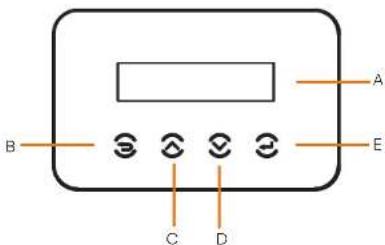
| Object | Name | Description |
| A | LCD Screen | Display the information of the inverter. |
| B | ESC key | Return to the previous interface or cancel the setting |
| C | Up key | Move the cursor up or increase the setting value. |
| D | Down key | Move the cursor down or decrease the setting value. |
| E | Enter key | Enter the selected interface or confirm the setting. |
8. Firmware Upgrading
- Upgrade preparation
1) Prepare a U disk (USB 2.0 / USB 3.0);

CAUTION!
Please make sure that the format is FAT or FAT 32.
2) Contact our service support to get the update files (**,bin" and **.txt" file), and store the two files in the root path of the U disk.
Files:
MEGA_Vxxx.xx.bin
UpdateConfig.txt

CAUTION!
The bin name listed in the "*.txt" file must be same as the "*.bin" name.
- Upgrade steps
USB disk can be plugged when the inverter is in normal status.
1) Plug the U disk into the upgrading port below. If the Wi-Fi dongie is connected to the port, please remove the dongie first.
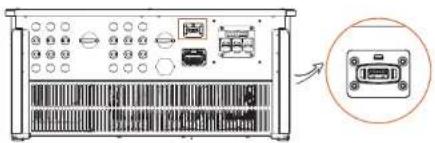

NOTE!
After U disk plug in, the four indicator lights will be blinking in turn. (Communication Indicator: blue; DC connection Indicator: green; Grid connection Indicator: green; Alarm Indicator: Red)
2) Wait approximately 15 seconds. The system will start upgrading when the four indicator lights turn off and the buzzer starts buzzing.
3) When the buzzer stops buzzing and the indicator lights starts blinking again, it means that ARM program is upgraded successfully. And then the system will start other program upgrading.
If upgrading succeeds, the communication indicator (blue) turns off and other indicators are on;
If upgrading fails, only alarm indicator (red) is on. Please contact our service support for solutions.

NOTE!
After upgrading finished, the current state of indicator will be kept for 1 min and the inverter will be switched on automatically.
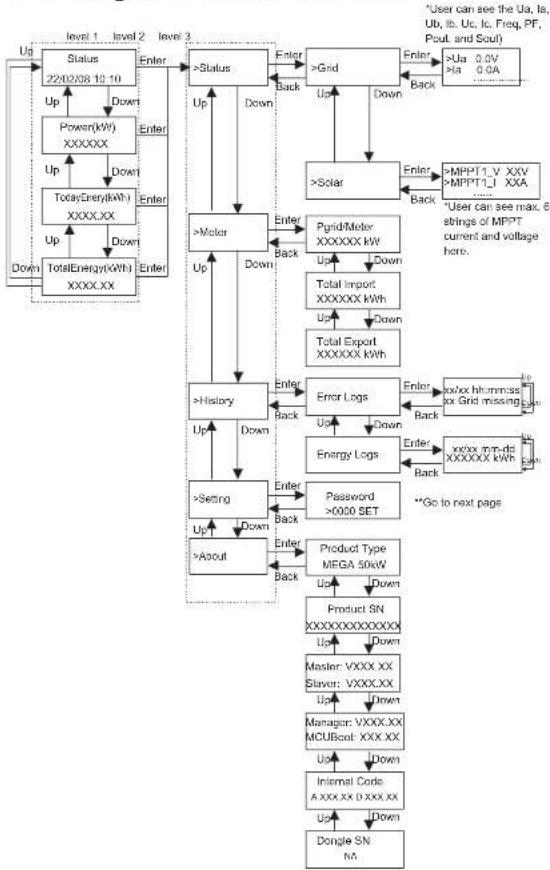
9 Setting for Inverter with LCD
flowchart
graph TD
    A["Level 1: Status 22/02/08 10:10"] -->|Up| B["Power(kW) XXXXXX"]
    A -->|Down| C["TotalEnergy(kW) XXXX.XX"]
    B -->|Up| D["Total Energy(kW) XXXX.XX"]
    C -->|Down| E["Total Energy(kW) XXXX.XX"]
    D -->|Up| F["Total Energy(kW) XXXX.XX"]
    E -->|Down| G["Total Energy(kW) XXXX.XX"]
    F --> H["Status"]
    G --> I["Status"]
    H --> J["Enter"]
    I --> K["Enter"]
    J --> L[">Status"]
    K --> M[">Grid"]
    L --> N[">Solar"]
    M --> O[">Grid Meter XXXXXX KW"]
    N --> P[">Solar"]
    O --> Q[">Grid Meter XXXXXX KW"]
    P --> R[">Grid Meter XXXXXX KW"]
    Q --> S[">Grid Meter XXXXXX KW"]
    R --> T["Total Import XXXXXX KW"]
    S --> U["Total Import XXXXXX KW"]
    T --> V["Total Export XXXXXX KW"]
    U --> W["Total Export XXXXXX KW"]
    V --> X["Error Logs"]
    W --> Y["Error Logs"]
    X --> Z["Error Logs"]
    Y --> AA["Error Logs"]
    Z --> AB["Error Logs"]
    AA --> AC["Error Logs"]
    AB --> AD["Error Logs"]
    AC --> AE["Error Logs"]
    AD --> AF["Error Logs"]
    AE --> AG["Error Logs"]
    AF --> AH["Error Logs"]
    AG --> AI["Product Type MEGA 50kW"]
    AH --> AJ["Product Type MEGA 50kW"]
    AI --> AK["Product SN XXXXXXXXXXXXX"]
    AJ --> AL["Product SN XXXXXXXXXXXXX"]
    AK --> AM["Master: VXXX XX Slave: VXXX XX"]
    AL --> AN["Master: VXXX XX MCUBoot: XXX XX"]
    AM --> AO["Manager: VXXX XX MCUBoot: XXX XX"]
    AN --> AP["Manager: VXXX XX MCUBoot: XXX XX"]
    AO --> AQ["Internal Code A XXX XX 0 XXX XX"]
    AP --> AR["Internal Code A XXX XX 0 XXX XX"]
    AQ --> AS["Dongle SN MA"]
    AR --> AT["Dongle SN MA"]
SettingSetting
flowchart
graph TD
    A["Password >000 SET"] -->|Enter| B["Language"]
    B -->|Up Down| C["Data Time"]
    C -->|Up Down| D["Communication"]
    D -->|Up Down| E["Safety"]
    E -->|Up Down| F["Safety"]
    F -->|Up Down| G["ON/OFF"]
    G -->|Up Down| H["PV Connection"]
    H -->|Up Down| I["Export Control"]
    I -->|Up Down| J["Active Power"]
    J -->|Up Down| K["Reactive Power"]
    K -->|Up Down| L["Grid Protection"]
    L -->|Up Down| M["Checks"]
    M -->|Up Down| N["System Reset"]
    N -->|Up Down| O["Communication"]
    O -->|Up Down| P["New Password >000 SET"]
    P -->|Up Down| Q["General Control"]
    B -->|Enter| R["Language Set >English"]
    R -->|Enter| S["Y2022 M03-D22 H11-M35 SET"]
    S -->|Back| T["RS485 Addr 1"]
    T -->|Up Down| U["R3483 Baud 9600"]
    T -->|Down| V["RS485 Addr 1"]
    V -->|Up Down| W["R3483 Baud 9600"]
    V -->|Down| X["RS485 Addr 1"]
    X -->|Up Down| Y["R3483 Baud 9600"]
    X -->|Down| Z["RS485 Addr 1"]
    Z -->|Up Down| AA["R3483 Baud 9600"]
    Z -->|Down| AB["RS485 Addr 1"]
    AB -->|Up Down| AC["R3483 Baud 9600"]
    AB -->|Down| AD["RS485 Addr 1"]
    AD -->|Up Down| AE["R3483 Baud 9600"]
    AD -->|Down| AF["RS485 Addr 1"]
    AF -->|Up Down| AG["R3483 Baud 9600"]
    AF -->|Down| AH["RS485 Addr 1"]
    AH -->|Up Down| AI["R3483 Baud 9600"]
    AH -->|Down| AJ["RS485 Addr 1"]
    AJ -->|Up Down| AK["R3483 Baud 9600"]
    AJ -->|Down| AL["RS485 Addr 1"]
    AL -->|Up Down| AM["R3483 Baud 9600"]
    AL -->|Down| AN["RS485 Addr 1"]
    AN -->|Up Down| AO["R3483 Baud 9600"]
    AN -->|Down| AP["RS485 Addr 1"]
    AP -->|Up Down| AQ["R3483 Baud 9600"]
    AP -->|Down| AR["RS485 Addr 1"]
    AR -->|Up Down| AS["R3483 Baud 9600"]
    AR -->|Down| AT["RS485 Addr 1"]
    AT -->|Up Down| AU["R3483 Baud 9600"]
    AT -->|Down| AV["RS485 Addr 1"]
    AV -->|Up Down| AW["R3483 Baud 9600"]
    AV -->|Down| AX["RS485 Addr 1"]
    AX -->|Up Down| AY["R3483 Baud 9600"]
    AX -->|Down| AZ["RS485 Addr 1"]
Setting
flowchart
graph TD
    A[">Grid Protection"] --> B[">Voltage"]
    B --> C["Up"]
    B --> D["Down"]
    C --> E[">V/Stage1 350.0V"]
    D --> F[">U/V Stage1 100.0V"]
    E --> G[">U/V Stage2 350.0V"]
    F --> H[">U/V Stage2 150.0V"]
    G --> I[">U/V Stage3 350.0V"]
    H --> J[">U/V Stage3 150.0V"]
    I --> K[">RecoveryVacMax 150.0V"]
    J --> L[">RecoveryVacMin 150.0V"]
    K --> M[">O/V 10Min Sol 120.0V"]
    L --> N[">O/V 10min Sol 639.8"]
    M --> O[">Var-Volt"]
    N --> P[">Var-Volt"]
    Q[">V/Stage1 350.0V"] --> R["Up"]
    S[">U/V Stage1 100.0V"] --> T["Down"]
    U[">U/V Stage2 350.0V"] --> V["Up"]
    W[">U/V Stage2 150.0V"] --> X["Down"]
    Y[">U/V Stage3 350.0V"] --> Z["Up"]
    AA[">U/V Stage3 150.0V"] --> AB["Down"]
    AC[">U/V Stage3 100.0V"] --> AD["Up"]
    AE[">U/V Stage3 10.0S"] --> AF["Down"]
    AG[">U/V Stage3 10.0S"] --> AH["Up"]
    AI[">U/V Stage3 10.0S"] --> AJ["Down"]
    AK[">U/V Stage3 10.0S"] --> AL["Up"]
    AM[">U/V Stage3 10.0S"] --> AN["Down"]
    AO[">U/V Stage3 10.0S"] --> AP["Up"]
    AQ[">U/V Stage3 10.0S"] --> AR["Down"]
    AS[">U/V Stage3 10.0S"] --> AT["Up"]
    AU[">U/V Stage3 10.0S"] --> AV["Down"]
    AW[">U/V Stage3 10.0S"] --> AX["Up"]
    AY[">U/V Stage3 150.0V"] --> AZ["Up"]
    BA[">U/V Stage3 150.0V"] --> BB["Down"]
    BC[">U/V Stage3 150.0V"] --> BD["Up"]
    BE[">U/V Stage3 150.0V"] --> BF["Down"]
    BG[">U/V Stage3 150.0V"] --> BH["Up"]
    BI[">U/V Stage3 150.0V"] --> BJ["Down"]
    BK[">U/V Stage3 150.0V"] --> BL["Up"]
    BM[">U/V Stage3 150.0V"] --> BN["Down"]
    BO[">U/V Stage3 150.0V"] --> BP["Up"]
    BQ[">U/V Stage3 150.0V"] --> BR["Down"]
    BS[">U/V Stage3 150.0V"] --> BT["Up"]
    BU[">U/V Stage3 150.0V"] --> BV["Down"]
    BW[">U/V Stage3 150.0V"] --> BX["Up"]
    BY[">U/V Stage3 150.0V"] --> BZ["Down"]
    CA[">U/V Stage3 150.0V"] --> CB["Up"]
    CC[">U/V Stage3 150.0V"] --> CD["Down"]
    CE[">U/V Stage3 150.0V"] --> CF["Up"]
    DG[">U/V Stage3 150.0V"] --> DH["Down"]
    DI[">U/V Stage3 150.0V"] --> DJ["Up"]
    DK[">U/V Stage3 150.0V"] --> DL["Down"]
    DM[">U/V Stage3 150.0V"] --> DJ
    DN[">U/V Stage3 150.0V"] --> DX["Up"]
    DB[">U/V Stage3 150.0V"] --> DX
    DX --> DV[">U/V Stage3 150.0V"]
    DW[">U/V Stage3 150.0V"] --> DX
    DX --> DX
    DX --> DX
    DX --> DX
    DX --> DX
Setting
flowchart
graph TD
    A[">Al State >Enable"] --> B[">IV Curve Scan >Scartic"]
    B --> C[">Set Test Italy >Enable"]
    C --> D[">Fitf Debate >Enable"]
    D --> E[">MFF1 Scan >Enable"]
    E --> F[">Ant PID >Enable"]
    F --> G[">Local Command >0x1"]
    G --> H[">Factory Reset, Reset Dongge"]
    H --> I[">Reset Forward og Reset EnergyLog"]
    I --> J[">Reset Meter"]
    K[">DVM Function >Enable"] --> L[">ARC Check State >Enable"]
    L --> M[">ARC Reset >Enable"]
    M --> N[">Reconnect Unit >Enable"]
    N --> O[">Ground Check >Enable"]
    O --> P[">Delta Grid >Enable"]
    P --> Q[">Fan Chuck >Enable"]
    Q --> R[">SVC >Enable"]
    R --> S[">System"]
    T["Up"] --> U[">Al State >Enable"]
    U --> V["Backlog"]
    V --> W["Down"]
    W --> X["Down"]
    X --> Y["Down"]
    Y --> Z["Down"]
    Z --> AA["Down"]
    AA --> AB["Down"]
    AB --> AC["Down"]
    AC --> AD["Down"]
    AD --> AE["Down"]
    AE --> AF["Down"]
    AF --> AG["Down"]
    AG --> AH["Down"]
    AH --> AI["Down"]
    AI --> AJ["Down"]
    AJ --> AK["Down"]
    AK --> AL["Down"]
    AL --> AM["Down"]
    AM --> AN["Down"]
    AN --> AO["Down"]
    AO --> AP["Down"]
    AP --> AQ["Down"]
    AQ --> AR["Down"]
    AR --> AS["Down"]
    AS --> AT["Down"]
    AT --> AU["Down"]
    AU --> AV["Down"]
    AV --> AW["Down"]
    AW --> AX["Down"]
    AX --> AY["Down"]
    AY --> AZ["Down"]
    AZ --> BA["Down"]
    BA --> BB["Down"]
    BB --> BC["Down"]
    BC --> BD["Down"]
    BD --> BE["Down"]
    BE --> BF["Down"]
    BF --> BG["Down"]
    BG --> BH["Down"]
    BH --> BI["Down"]
    BI --> BJ["Down"]
    BJ --> BK["Down"]
    BK --> BL["Down"]
    BL --> BM["Down"]
    BM --> BN["Down"]
    BN --> BO["Down"]
    BO --> BP["Down"]
    BP --> BQ["Down"]
    BQ --> BR["Down"]
    BR --> BS["Down"]
    BS --> BT["Down"]
    BT --> BU["Down"]
    BU --> BV["Down"]
    BV --> BW["Down"]
    BW --> BX["Down"]
    BX --> BY["Down"]
    BY --> BZ["Down"]
Setting
Setting
flowchart
graph TD
    A[">Frequency"] --> B["Enter"]
    B --> C[">Q/F Stage1 52.00Hz"]
    C --> D["Up"]
    D --> E[">U/F Stage1 48.00Hz"]
    E --> F["Down"]
    F --> G[">Q/F Stage2 53.00Hz"]
    G --> H["Up"]
    H --> I[">U/F Stage2 47.00Hz"]
    I --> J["Down"]
    J --> K[">Q/F Stage3 54.00Hz"]
    K --> L["Up"]
    L --> M[">U/F Stage3 46.00Hz"]
    M --> N["Down"]
    N --> O[">RecoveryFreqMax 50.00Hz"]
    O --> P["Up"]
    P --> Q[">RecoveryFreqMin 50.00Hz"]
    Q --> R["Down"]
    R --> S[">FreqOFFTime1 10.00S"]
    S --> T["Up"]
    T --> U[">FreqOFFTime1 10.00S"]
    U --> V["Down"]
    V --> W[">FreqOFFTime2 10.00S"]
    W --> X["Up"]
    X --> Y[">FreqOFFTime2 10.00S"]
    Y --> Z["Down"]
    Z --> AA[">FreqOFFTime3 10.00S"]
    AA --> AB["Up"]
    AB --> AC[">FreqOFFTime3 10.00S"]
    AC --> AD["Down"]
    AD --> AE[">FreqReasonTime 150S"]
LCD Digital Display
The main interface (Level 1) is the default interface, the inverter will automatically jump to this interface when the system started up successfully or not operated for a period of time.
"Status" shows the time and the current status "Waiting", "Checking", "Running", "Fault" and "Upgrading"; "Power" means the timely output power;
"TodayEnergy" means the power generated within the day; "TotalEnergy" means the power generated until now. Press "Up" and "Down" to review the information.
Waiting 22/02/08 10:10
Menu interface
The menu interface (Level 2) is a transfer interface for the user to get into other interface to change the setting or obtain the information.
-User can get into this interface by pressing "Enter" key when LCD displays the main interface.
-User can select "Up" and "Down" key, and press "Enter" to confirm the selection.
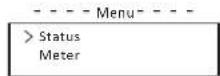
- Status
The status function contains "Grid" and "Solar".
Press "Up" and "Down" to select and press "Enter" to confirm the selection, press "ESC" to return to the menu.
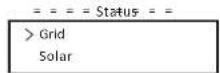
a) Grid
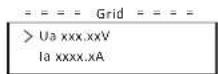
This status shows the current grid condition such as voltage, current, and output power, etc. Pout measures the output of the inverter; Pgrid means active power; Gout means reactive power; Sout means the apparent power. Press "Up" and "Down" button to review the parameter, press "ESC" to return to Status.
Setting
Setting
b) Solar
This interface shows the input current of PV. Totally 6 strings of MPPT current and voltage can be checked for the inverter in maximum.
- - - Solar- - -
MPPT1_V xxxxV MPPT1_I xxxxA
- Meter
The user can check the import and export energy by this function. There are three parameters: "Pgrid Power", "Total Import" and "Total Export". Press "Up" and "Down" to review the values. If no meter is connected, the parameters here will display C.
Meter =
Total Import: 0.0kWh
- History
History contains error logs and energy logs.
The Error log contains error information happened. It can record six items at most. Press "Up" and "Down" button to review parameter, "ESC" to Press return to .the main interface
Error Logs
02/08 10:10:10 Grid Lost
The Energy log contains the energy generated within the day. Press "Up" and "Down" button to select the date to check the log recorded on that day. Press "ESC" to return to the main interface.
= = = = Energy Logs = = = = 02/08 XXXX kWh
- Settings
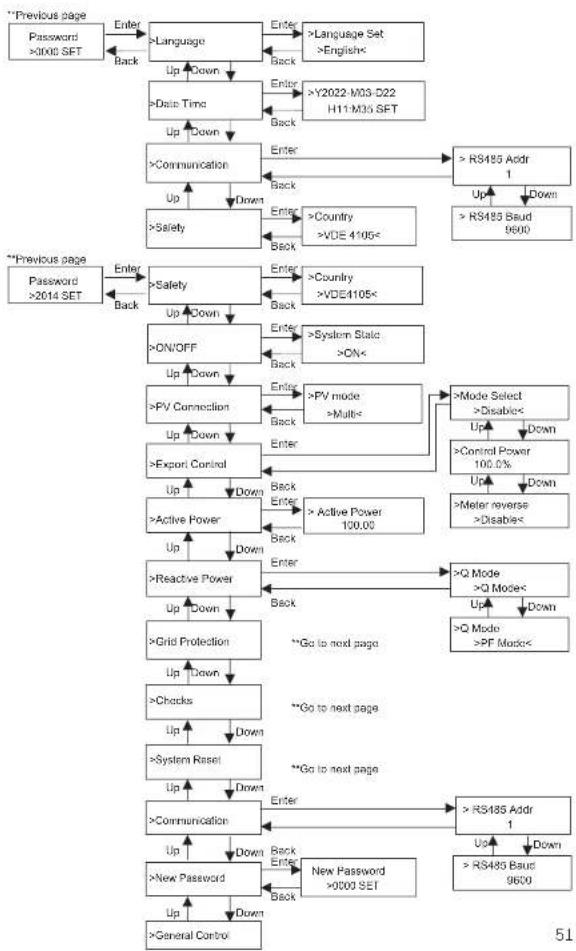
Setting function is used for setting the inverter for safety, system on/off, PV connection mode, etc. To set the parameter, please input the password. For users, the default password is "0000", which allows the user to review and modify "Language", "Date Time", "Communication" and "Safety".
- - - - Setting - - - -
Password
0000 SET
a) Language
Here user can set the language. At present, English is only available for choosing.
- - - - Language -
Language Set English <
b) Date Time
This interface is for the user to set the system data and time. Increase or decrease the word by pressing "Up" or "Down" key. Press "Enter" to confirm and alternate to next word. After all the words are confirmed, select "SET" and press "Enter" to confirm the password.
= = = =Language= = = =
Y2022-M03-D22 H11:M35 SET
c) Communication
RS485 Addr: the modulus address of the external communication protocol. RS485 Baud: The Baud rate of the external communication protocol. At present, 4800, 9600 and 19200 are supported, and the default is 9600.
With this function, the inverter can communicate with the computer, through which the operating status of the inverter can be monitored. When multiple inverters are monitored by one computer, RS485 communication addresses of different inverters need to be set.
= Communication Parameter
RS485 Addr 1
= Communication Parameter =
RS485 Baud 9600
d) Safety
The user can only view the safety standard here.
= = = = Safety = = = =
country VDE4105<
For installers, the default password is "2014", which allows the installer to review and modify necessary settings complying to the local rules and regulations. If further advanced setting is required, please contact us or the distributor for assistance. Press "Enter to enter the password setting interface, press "up" and "Down" when it is flashing, then press "Enter" to confirm the set value. Finally, select "SET" and press "Enter" to confirm the password.
= = = = Setting = = = = Password
2014 SET
Setting
Setting
After inputting the password, the information of the LCD interface is shown as below.
== Settings=
Safety
System ON/OFF
a) Safety
The installer can set the safety standard here according to different countries and grid tied standards. There are several standards for choice.
= = = = Safety = =
country
VDE4105<
b) ON/OFF
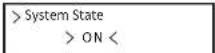
"ON" means the inverter is in working state, and the inverter is in the default
state
"OFF" means that the inverter stops running and only the LCD screen is on,
- - - - ON/OFF - -
c) PV Connection
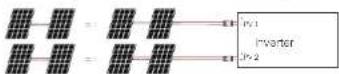
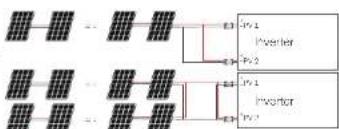
The user can select the PV connection type by this function.
- - PV Connection - -
Mode Select
- 2017年1月1日
- Mutter
Multi <
COM<
flowchart
graph TD
    A["Input"] --> B["Photovoltaic"]
    C["Input"] --> D["Photovoltaic"]
    E["Input"] --> F["Photovoltaic"]
    G["Input"] --> H["Photovoltaic"]
    I["Input"] --> J["Photovoltaic"]
    K["Input"] --> L["Photovoltaic"]
    M["Input"] --> N["Photovoltaic"]
    O["Input"] --> P["Photovoltaic"]
    Q["Input"] --> R["Photovoltaic"]
    S["Input"] --> T["Photovoltaic"]
    U["Input"] --> V["Photovoltaic"]
    W["Input"] --> X["Photovoltaic"]
    Y["Input"] --> Z["Photovoltaic"]
    AA["Input"] --> AB["Photovoltaic"]
    AC["Input"] --> AD["Photovoltaic"]
    AE["Input"] --> AF["Photovoltaic"]
    AG["Input"] --> AH["Photovoltaic"]
    AI["Input"] --> AJ["Photovoltaic"]
    AK["Input"] --> AL["Photovoltaic"]
    AM["Input"] --> AN["Photovoltaic"]
    AO["Input"] --> AP["Photovoltaic"]
    AQ["Input"] --> AR["Photovoltaic"]
    AS["Input"] --> AT["Photovoltaic"]
    AU["Input"] --> AV["Photovoltaic"]
    AW["Input"] --> AX["Photovoltaic"]
    AY["Inverter"] --> AZ["Pv1 4"]
    AY --> BA["Pv2 2"]
    AY --> BB["Pv3 4"]
    AY --> BC["Pv4 4"]
    AY --> BD["Pv5 4"]
    AY --> BE["Pv6 4"]
    AY --> BF["Pv7 4"]
    AG --> BG["Pv1 4"]
    AG --> BH["Pv2 4"]
    AG --> BI["Pv3 4"]
    AG --> BJ["Pv4 4"]
    AG --> BK["Pv5 4"]
    AG --> BL["Pv6 4"]
    AG --> BM["Pv7 4"]
PV
Inverter
d) Export Control
With this power control function, the inverter can control the energy exported to the grid. The "Control Power" can be set by the installer. When you set 100% for control power, it means the energy can be exported to grid with full power. When you set 0%, Exporting to grid is limited. Please set the percentage according to the actual need.
Choose "Disable" means the function will not be activated.
Press "Up" and "Down" button to select and press "Enter" to confirm it.
- - - Export Control
- - - Export Control
Mode Select
Diable <
Control Power
1.0%
If the meter is connected reversely, please the enable "Meter reverse" function.
= = = Export Control
Meter reverse
Enable <
Installer can set "Soft Limit" and "Hard Limit" for export control.
e) Active power
This interface is used to set the reactive power according to the requirement of utility grid. - - - - An Set
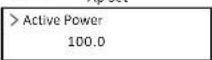
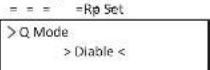
f) Reactive power
This interface is used to set the active power. Please set the value according to the requirement of utility grid.
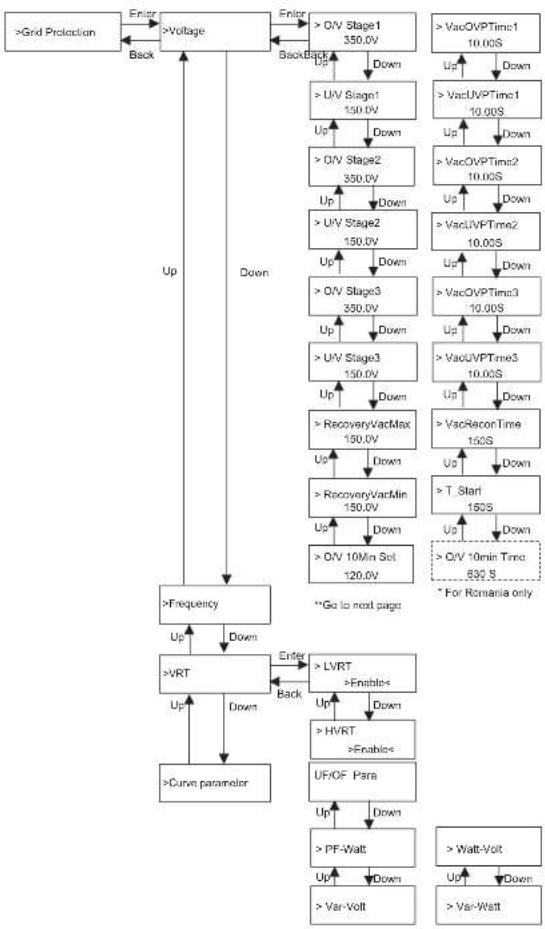
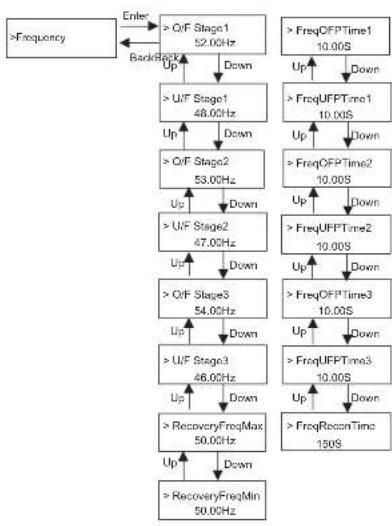
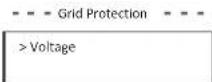
g) Grid Protection
Usually end user do not need to set the grid protection. All default value have been set before leaving factory according to safety rules.
If reset is needed, any changes should be made according to the requirements of local grid.
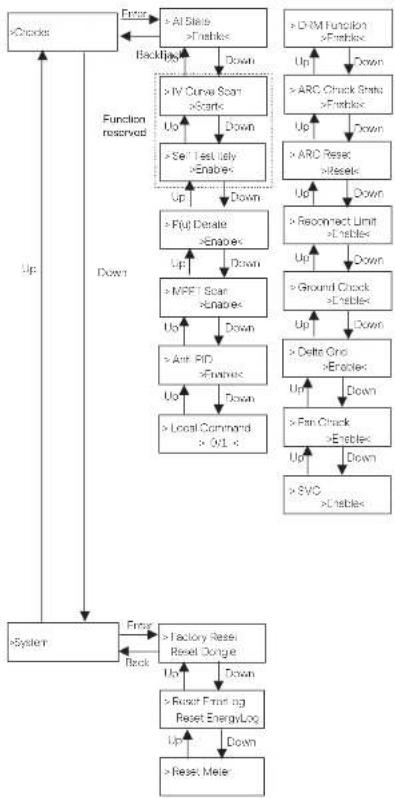
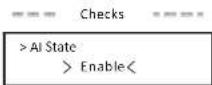
h) Checks
This interface is used to activate the needed functions, including "AI State", "P(u) Derate", "I-V Curve", "MPPT Scan", "ARC checks", "DRM", etc. The users can input the default password to review and modify the functions above.
Setting
Setting
- I-V Curve Scan
Enable to check the current-voltage characteristic curve of the PV module, which in turn gives an indication of any abnormalities, and its degradation and health.
- DRM
DRM(Demand Response Mode) is reserved for AS/NZS 4777.2:2020. Currently only DRMO is available.
Once it's set to Enable, when PIN15(RG/0) and PIN16(CL/0) are short connected via external switch or relay, the inverter will reduce its output power to zero. This remote shutdown function also applies to other safety codes.
RSD
Enable to rapidly shutdown the inverter when a potential hazard exists in the PV system, keeping the inverter and module installation environment within a safe voltage range.
- ARC checks
- Enable ARC check.
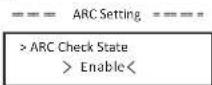
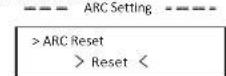
If the ARC reset is enabled after the alarm ARC fault shutdown, the fault will be automatically removed after a short period of time and the machine will resume; if it is not, the fault will always be there and must be fully disconnected from the power source in order to recover.
I) System
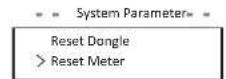
Here you can reset factory, reset errorlogs, reset dongles, reset meter and reset energy.
Take "Reset Meter" as an example:
The user can clear the meter energy by this function. Press "Up" or "Down" button to select and press "Enter" to confirm it. (The user can select "Start" to reset meter if the user purchases our meter)
60 61
j) Communication
Please refer to "Communication" under "Setting" after inputting password "0000".
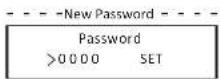
k) New Password
The user can set the new password here. We need to increase or decrease the word by pressing "Jo" or "Down" button. Press "Enter" to confirm and alternate to next word. After word is confirmed, Press "SET" and "Enter" to reset the password.
1) For Australia, there will be an option of "General Control" additionally. Here you can set the "Soft Limit" and "Hard Limit" for general control.
- About
This interface shows information of the inverter, include model, SN, software version of master DSP, slaver and ARM board and internal code.
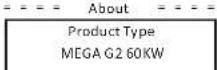
m) Set parallel system with Modbus function
The devices are connected in a bus type connection mode. The Master's RS485-2 is connected to the electricity meter, and the Master and slave are connected to the RS485 1 port.
- Slave setup
- The slave device needs to set its Modbus address and baud rate. Set the Modbus address of the slave device on the power station to 2-11 (up to 10 machines are supported at present) and the baud rate to 9600.

- Meter setup
- Set the Modbus address of the meter to 1 and the baud rate to 9600.
- Master setup
- The equipment connected to the meter is selected as the Master, and the Master mode and anti-reflux function of the Master equipment on the power station are enabled by APP/ web page/screen, among which System Limit are set to 100%.
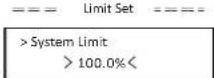
10 Troubleshooting
10.1 Troubleshooting
This section contains information and procedures for solving possible problems with the inverters, and provides you with troubleshooting tips to identify and solve most problems that could occur with the inverter.
This section will help you narrow down the source of any problems you may encounter. Please read the following troubleshooting steps.
Check warnings or fault messages on System Control Panel or Fault codes on the inverter information panel. If a message is displayed, record it before doing anything further.
Attempt the solution indicated in troubleshooting lists.
If your inverter's information panel is not displaying a Fault light, check the following list to make sure that the present state of the installation allows proper operation of the unit.
— Is the inverter located in a clean, dry, adequately ventilated place?
— Have the DC Input breakers been opened?
— Are the cables adequately sized and short enough?
— Are the input and output connections and wiring in good condition?
— Are the configurations settings correct for your particular installation?
— Are the display panel and the communications cable properly connected and undamaged?
Contact our Customer Service for further assistance. Please be prepared to describe details of your system installation and provide model and serial number of the unit.
| Code?DenaripNansand Diagnosis | ||
| IF 00 | ISO_Fall | PV inverter impedente below safety value1. Check the PV string impedance to ground, if there is a short circuit of insufficient insulation或者rectify the short circuit point;2. Check whether the protective earth wire of the inverter is correctly connected;3. If there is no abnormality in the above two points, and the machine fault still exists, contact the installer. |
| IE 01 | Meter_Oppside | Incorrect meter direction1. Confirm whether the current direction of the meter is correct;2. Contact the installer. |
| IL 02 | Remote CIT | The inverter receives the shutdown command and is in the shutdown state1. Send the startup command through apo or web to re-run the inverter;2. Contact the installer. |
| IL 03 | Freq_Cig_E1 | Grid rated frequency selling error1. According to the local safety regulations, through the APP or monitoring website, reset the parameters;2. Contact the installer. |
| IF 04 | Grid_Coun_Tri | Inverter grounding fault1. Check whether the Neutral line of the power grid is correctly connected;2. Check whether the inverter ground wire is correctly connected;3. Try to re-run the Inverter;4. Contact the installer. |
| IE 11 | PV0L_Reverse | Revision PV connection on MPPT1 (PV01: PV12 respectively represent the PV input channel L-12)1. Check whether the positive and negative polarity of the string is reversed, if so, wait until the current of the PV string is reduced to below 0.5A, then put the "DC SWITCH" in the 'OFF' position and adjust the polarity of the string;2. If there is no abnormality in the string check, and the fault still exists, contact the installer. |
| IF 20 | PV_Vol-High | PV input voltage is higher than the allowable value (PV1-FV12 respectively represents -12 PV overvoltage)1. Check the slot configuration, reduce the number of PV modules in series, ensure that the open circuit voltage of the string does not exceed the specification requirements, and after the PV array is configured correctly, the inverter alarm will disappear automatically;2. If the string configuration needs the requirements and the fault still exists, contact the installer. |
| IE 30 | SST_SW_LOCF | MPPT software incurrent1. The inverter detects the external working conditions in real time, the inverter will resume normal work after the fault disappears, no need for manual intervention;2. If the faults occur frequently and affect the normal power generation of the part, please check another the PV input is short accounted, if it can't be solved, contact the installer. |
| IL 40 | SST_HW_OCF | MPPT hardware overcurrent1. The inverter detects the external working conditions in real time, the inverter will resume normal work after the fault disappears, no need for manual intervention;2. If the faults occur frequently and affect the normal power generation of the part, please check whether the PV input is more controlled, if it can't be solved, contact the installer. |
| Code | Descriptions and DiagnosisAlarm Name |
| E 50 | Grid_Loss |
| E 51 | GridVol_OPI |
| F 63 | GridVol_UP1 |
| E 55 | GridVol_OP_1OM |
| E 56 | GridVol_OP_NST |
| E 57 | GridFrac_OPI |
| E 5A | GridFrac_UP1 |
| Code | Descriptions and Diagnosis Alarm Name | |
| IE 6B | GndPhase_Loss | 1. Loss of grid plane voltage;2. Clock the grid voltage;3. Check the power grid abortion command AC switch;4. Try to re-run the inverter; |
| IE 6C | Gnd_Umbalance | Grid voltage imbalance1. Clock whether the grid voltage is within the allowable range;2. Try to re-run the inverter; |
| IE 6D | Gnd_FRT | Grid fault1. Check whether the grid voltage is within the allowable range;2. Try to re-run the inverter; |
| IE 6U | DCBus_HW_DVP | Bus hardware overvoltage1. The inverter monitors the external working conditions in real time, and the inverter will resume normal operation after the fault disappears, without manual intervention;2. If faults occur frequently, please contact the inseller. |
| IE 6L | PSBus_FSW_CVP | Bus software overvoltage1. The inverter monitors the external working conditions in real time, and the inverter will resume normal operation after the fault disappears, without manual intervention;2. If faults occur frequently, please contact the inseller. |
| IF 82 | NBus_FSW_CVP | Bus software overvoltage1. The inverter monitors the external working conditions in real time, and the inverter will resume normal operation after the fault disappears, without manual intervention;2. If faults occur frequently, please contact the inseller. |
| IF 83 | DCBus_SW_CVP | Bus software overvoltage1. The inverter monitors the external working conditions in real time, and the inverter will resume normal operation after the fault disappears, without manual intervention;2. If faults occur frequently, please contact the inseller. |
| IL 84 | DCBus_SW_UVP | Bus software undervoltage1. The inverter monitors the external working conditions in real time, and the inverter will resume normal operation after the fault disappears, without manual intervention;2. If faults occur frequently, please contact the inseller. |
| IL 85 | DCBus_Umbalance | Bus imbalance1. The inverter monitors the external working conditions in real time, and the inverter will resume normal operation after the fault disappears, without manual intervention;2. If faults occur frequently, please contact the inseller. |
| IF 86 | PV_Above_Bus | The PV voltage is higher than the Bus voltage1. The inverter monitors the external working condition in real time, and the inverter will resume normal operation after the fault disappears, without manual intervention;2. If faults occur frequently, please contact the inseller. |
| IL 67 | DCBus_SSELn | Bus soft start failures1. The inverter monitors the external working conditions in real time, and the inverter will resume normal operation after the fault disappears, without manual intervention;2. If faults occur frequently, please contact the inseller. |
| IL 68 | SunPWR Weak | Low PV power1. The inverter monitors the external working conditions in real time, and the inverter will resume normal operation after the fault disappears, without manual intervention;2. If faults occur frequently, please contact the inseller. |
| Code | Descriptions and Diagnosis/Alarm Name | |
| IF 70 | Inv.Relay_Fr | Rotary fault. 1. The inverter monitors the external working conditions in real time, and the inverter will resume normal operation on after the fruit disappears, without manual intervention; 2. Faults occur frequently, please contact the installer. |
| IE 71 | Reay_CnErr | Reay out in fault. 1. The inverter monitors the external working conditions in real time, and the inverter will resume normal operation on after the fruit disappears, without manual intervention; 2. Faults occur frequently, please contact the installer. |
| IE 72 | Inv.SW.OCF | Inverter software over current. 1. The inverter monitors the external working conditions in real time, and the inverter will resume normal operation on after the fruit disappears, without manual intervention; 2. Faults occur frequently, please contact the installer. |
| IF 73 | Inv.FtCur_O | Inverter peak over current, fault. 1. The inverter monitors the external working conditions in real time, and the inverter will resume normal operation on after the fruit disappears, without manual intervention; 2. Faults occur frequently, please contact the installer. |
| IF 74 | Inv.HW.OCF | Inverter hardware concurrent. 1. The inverter monitors the external working conditions in real time, and the inverter will resume normal operation on after the fruit disappears, without manual intervention; 2. Faults occur frequently, please contact the installer. |
| IE 75 | Inv.DCLErr | DCI concludes a low value. 1. This inverter monitors the external working conditions in real time, and the inverter will resume normal operation on after the fruit disappears, without manual intervention; 2. Faults occur frequently, please contact the installer. |
| IE 76 | Inv.SC_Er | Inverter peak over current, fault. 1. The inverter monitors the external working conditions in real time, and the inverter will resume normal operation on after the fruit disappears, without manual intervention; 2. Faults occur frequently, please contact the installer. |
| IF 77 | GFCI.CT_Fr | G-C sensor failure. 1. The inverter monitors the external working conditions in real time, and the inverter will resume normal operation on after the fruit disappears, without manual intervention; 2. Faults occur frequently, please contact the installer. |
| IE 78 | GFCI_Er | G-C failure. 1. The inverter monitors the external working conditions in real time, and the inverter will resume normal operation on after the fruit disappears, without manual intervention; 2. Faults occur frequently, please contact the installer. |
| IE 79 | Inv.HW.OCTA | Inverter hardware concurrent fault. 1. The inverter monitors the external working conditions in real time, and the inverter will resume normal operation on after the fruit disappears, without manual intervention; 2. Faults occur frequently, please contact the installer. |
| IF 80 | Bet IGTNTC OTP | Boost module temperature above allowable value. 1. Check if the inverter installation location is well ventilated and the ambient temperature is not beyond, the maximum permissible ambient temperature range, if the ventilator is not good or the entire temperature is too high, please improve the ventilation and heat dissipation condition; 2. The ventilation is good and the ambient temperature is normal but, the inverter still exceeds, please contact the installer. |
| Code | Descriptions and DiagnosisAlarm Name |
| IF 81 | Inv IGBT NTC OTP |
| IE 82 | AC_TB_NTC_OTP |
| IF 83 | Envr_Tmp_High |
| IF 84 | Envr_Tmp_Low |
| IE 85 | TmpSensor_Loss |
| IF 86 | Comm SPI_Fm |
| IF 87 | Comm CAN_Fm |
| IE 88 | EPRMLRW_Bm |
| IL 84 | FAN_Lnt |
| Code | Descriptions and DiagnosisAlarm Name | |
| IF 05 | FAN2_Frr | Frr 2 full 1. If the abnormality is introduced by an external fault, the inverter automatically resumes normal operation after the fault disappears without manual intervention; 2. The arm occurs frequently, please contact the installer |
| IE 96 | MOV_AC_Err | AC lighting protection module failure 1. If the abnormality is introduced by an external fault, the inverter automatically resumes normal operation after the fault disappears without manual intervention; 2. The arm occurs frequently, please contact the installer |
| IE 97 | MOV_DC_Err | DC lighting protection module failure 1. If the abnormality is introduced by an external fault, the inverter automatically resumes normal operation after the fault disappears without manual intervention; 2. The arm occurs frequently, please contact the installer |
| IF A0 | Type_Mode_Err | Model setting error 1. Contact the installer to reconfigure the machine. |
| IL A1 | SW_VorMinMatic | Software version unoptimized error 1. Contact the installer to reconfigure the machine. |
10.2 Routine Maintenance
Inverters do not need any maintenance or correction in most condition. To ensure that the inverter can operate properly for a long term, you are advised to perform routine maintenance on it. Before cleaning the system, connecting cables, and maintaining the grounding reliability, power off the system.
- Fan Maintenance
The external fan of inverter is in operation for a long time. In order to keep the fan in normal working state, it is necessary to clean the fan regularly (it is recommended to clean it once a year).
If the service life is too long, the fan may fail, and the fan needs to be repaired or replaced. The maintenance or replacement requires professional operation.
Step 1. Before maintenance of fan, the AC connection must be disconnected, then the DC switch must be disconnected and wait 5 minutes.
Step 2. Screw out the fan cover fixing screw to remove the cover.
Step 3. Remove the fan support fixing screw as shown in the figure below.
Step 3. Pull out the fan bracket, stop at the position about 150 mm, then pull off the fan waterproof connector, then pull the fan bracket again to pull out the whole bracket.
Step 4. Clean, repair, or replace the fan if needed
Step 5. Restore the installation of fan bracket and tighten the fixing screws.
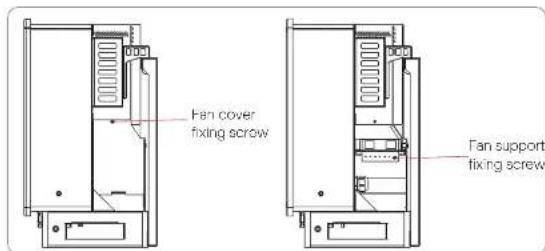
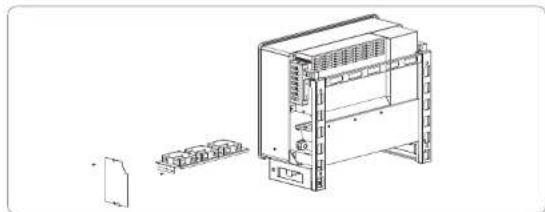
natural_image
Technical line drawing of an industrial control unit with internal components and a separate assembly (no text or labels)• Safety checks
Safety checks should be performed at least every 12 months by manufacturer's qualified person who has adequate training, knowledge, and practical experience to perform these tests. The data should be recorded in an equipment log. If the device is not functioning properly or falls any of test, the device has to be repaired. For safety check details, refer to this manual, section 2 Safety Instruction and EC Directives.
- Maintain periodically
Only qualified person may perform the following works.
During the process of using the inverter, the manage person shall examine and maintain the machine regularly. The concrete operations are follow.
1) Check that if the cooling fins on the rear of house are covered by dirts, and the machine should be cleaned and absorbed dust when necessary. This work shall be check time to time.
2) Check that if the indicators of the inverter are in normal state, check if the keys of the inverter are in normal state, check if the display of the inverter is normal. This check should be performed at least every 6 months.
3) Check that if the input and output wires are damaged or aged. This check should be performed at least every 6 months.
4) Check whether the ground terminal and ground cable are securely connected and all terminals and ports are properly sealed every 12 months.
5) You should get the inverter panels cleaned and their security checked at least every 6 months.
11 Decommissioning
11.1 Dismantling the Inverter
• Disconnect the inverter from DC Input and AC output.
• Wall for 5 minutes for de-energizing.
• Disconnect: communication and optional connection wirings.
- Remove the inverter from the bracket.
- Remove the bracket if necessary.

WARNING!
Before dismantling the inverter, please be sure to disconnect the DC switch, and then unplug the PV and AC cables, otherwise it will load to an electric shock hazard.
11.2 Packaging
If possible, please pack the inverter with the original packaging.
IT is no longer available, you can also use an equivalent carton that meets the following requirements.
• Suitable for loads more than 80 kg
- With handle.
- Can be fully closed.
11.3 Storage and Transportation
Store the inverter in dry place where ambient temperatures are always between -25°C - +60°C. Take care of the inverter during the storage and transportation, keep less than 4 canions in one stack.
When the inverter or other related components need to be disposed. Have it carried out according to local waste handling regulations. Please be sure to deliver wasted inverters and packing materials to certain site, which can assist relevant department to dispose and recycle.
11.4 Disposing of the inverter
If the inverter service life expires, dispose or it according to the local disposal rules for electrical equipment waste.
Disclaimer
12 Disclaimer
The inverters shall be transported, used and operated under restricted conditions. We will not provide any service, technical support or compensation in case of the following circumstances, including but not limited to:
- The inverter is damaged by force majeure (such as earthquake, flooding, thunderstorm, lighting, fire hazard, volcanic eruption, etc.);
• The inverter's warranty is expired, but not extended;
• The inverter's SN, warranty card or invoice cannot be provided;
• The inverter is damaged by man-made cause;
• The inverter is used or operated against any items in local policy;
• The installation, configuration and commissioning of the inverter
doesn't meet the requirements mentioned in this manual:
- The inverter is installed, refitted or operated in improper ways;
- The inverter is installed, operated under improper environment or electrical condition;
- The inverter is changed, updated or disassembled on hardware or software without authority from us;
• The communication protocol from other illegal channels is used; and
• The monitoring or control system is used without authority from us.
SolaX reserves the right for the final explanation.
Warranty Registration Form

For Customer (Compulsory)
Name Country
Phone Number Email
Address
State Zip Code
Product Serial Number
Date of Commissioning
Installation Company Name ____
Installer Name ____ Electrician License No. ____
For Installer
Module (If Any)
Module Brand
Module Size(W)
Number of String Number of Panel Per String
Battery (If Any)
Battery Type ____
Brand
Number of Battery Attached
Date of Delivery Signature
Please visit our warranty website: https://www.solaxcloud.com/#/warranty to complete the online warranty registration or use your mobile phone to scan the QR code to register.
For more detailed warranty terms, please visit SolaX official website: www.solaxpower.com to check it.
614.00002.07
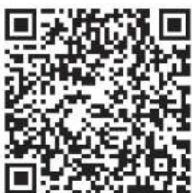
PLEASE REGISTER THE WARRANTY IMMEDIATELY AFTER INSTALLATION! GET YOUR WARRANTY CERTIFICATE FROM SOLAX ! KEEP YOUR INVERTER ONLINE & WIN SOLAX POINTS!
1
Open your camera app and point your device at the QR code
2
Wait for the camera to recognize the QR code
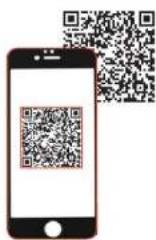
3
Click banner or notification when it appears on the screen
4
Warranty registration page will be loaded automatically